WHMCS Connector
The WHMCS Connector is for hosting companies that use WHMCS today. It connects to your own WHMCS installation through the WHMCS API and brings your clients, products and services, invoices with their payments, and support tickets into NaliSuite, then keeps them in step every hour. Use it to move from WHMCS to NaliSuite without retyping anything, or to run both side by side while you change over, with NaliSuite as your accounting and reporting system. It is under Settings → WHMCS in the left menu, with its connection settings under Settings → Preferences → WHMCS.
The connector only reads from WHMCS. Nothing is ever written back to WHMCS, and no emails are sent to your clients when their records come across.
Switch the WHMCS Connector on
The WHMCS Connector is an add-on sold separately from your plan. It needs the Contacts app, which every workspace has. To bring services across you also need the Subscriptions app, for invoices the Invoicing app, and for tickets the Helpdesk app.
- Open Settings → Marketplace and type WHMCS in the Search add-ons… box (marker 1).
- On the WHMCS Connector card (marker 2), click Start free trial (or Add to subscription) and confirm. WHMCS appears under Settings in the left menu.
- To stop, click End trial or Cancel on the card. Everything already brought across stays; the hourly sync stops.
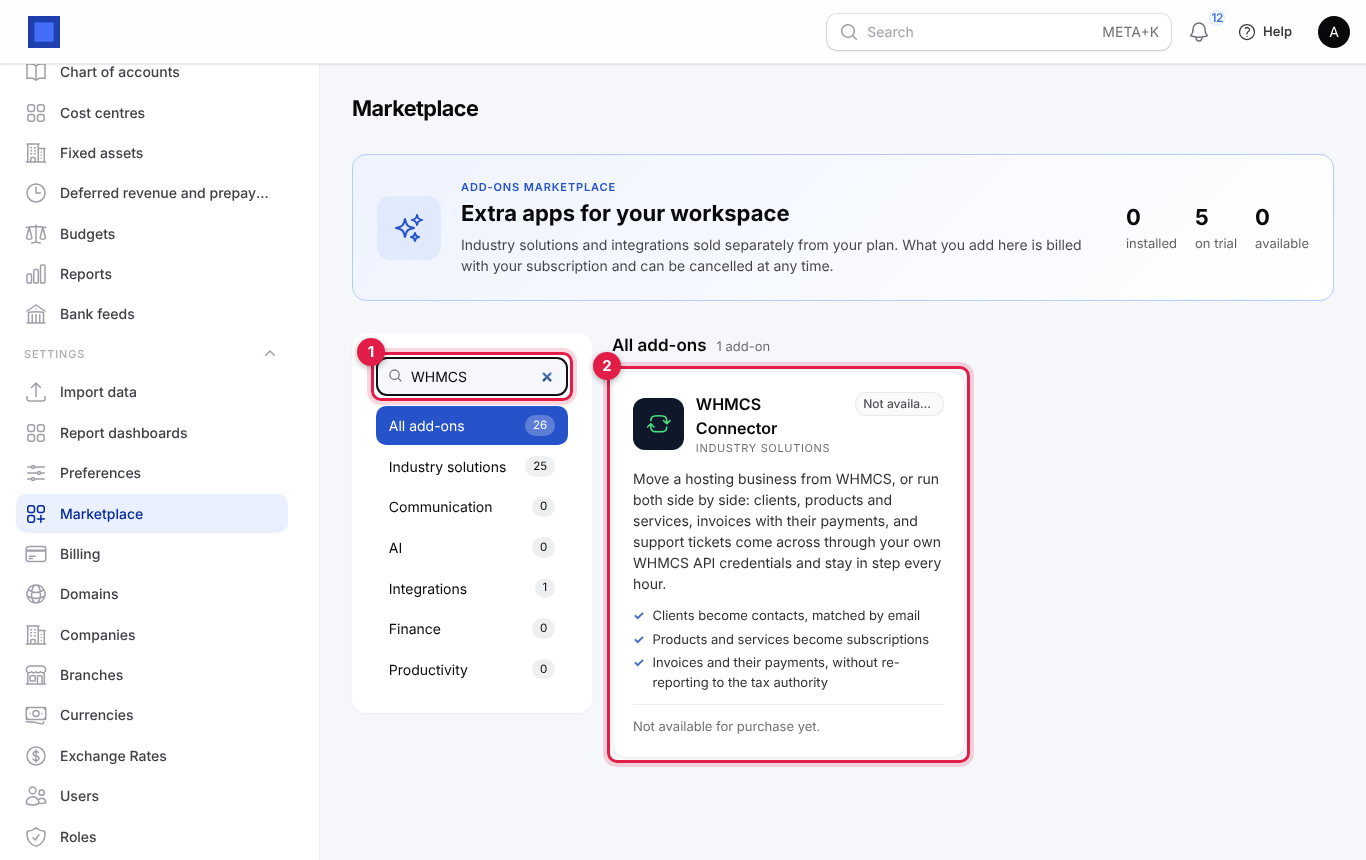
If the card says Not available for purchase yet (as in the screenshot), the add-on has not been priced for your plan: ask NaliSuite support to switch it on. See Billing and marketplace.
Permission: whmcs.manage (under Settings → Roles) lets a user open the WHMCS page, test the connection and run a sync. Owners and admins have it. Changing the connection settings also needs access to Settings → Preferences.
1. Create API credentials in WHMCS
Each workspace uses its own WHMCS and its own credentials. In your WHMCS admin area:
- Create an API role that may read clients, billing, products and support: in WHMCS go to Configuration → System Settings → Manage API Roles (older versions: Setup → Staff Management → Manage API Roles), click Create API Role, and allow at least GetClients, GetClientsDetails, GetClientsProducts, GetInvoices, GetInvoice, GetTickets and GetTicket.
- Go to Configuration → System Settings → API Credentials, click Generate New API Credential, choose an admin user and the role you just made, and click Generate. Copy the Identifier and the Secret at once; WHMCS shows the secret only once.
- WHMCS only answers API calls from allowed IP addresses. Ask NaliSuite support for your workspace's outgoing IP address and add it under Configuration → System Settings → General Settings → Security → API IP Access Restriction. If you cannot list IP addresses, set an API access key in your WHMCS
configuration.php($api_access_key = 'your-key';) and use that instead.
2. Enter the connection settings
- Open Settings → Preferences and click the WHMCS tab (or click Connection settings on the WHMCS page). The tab is near the end of the row of tabs; scroll the row sideways if you cannot see it.
- Fill in the four connection fields:
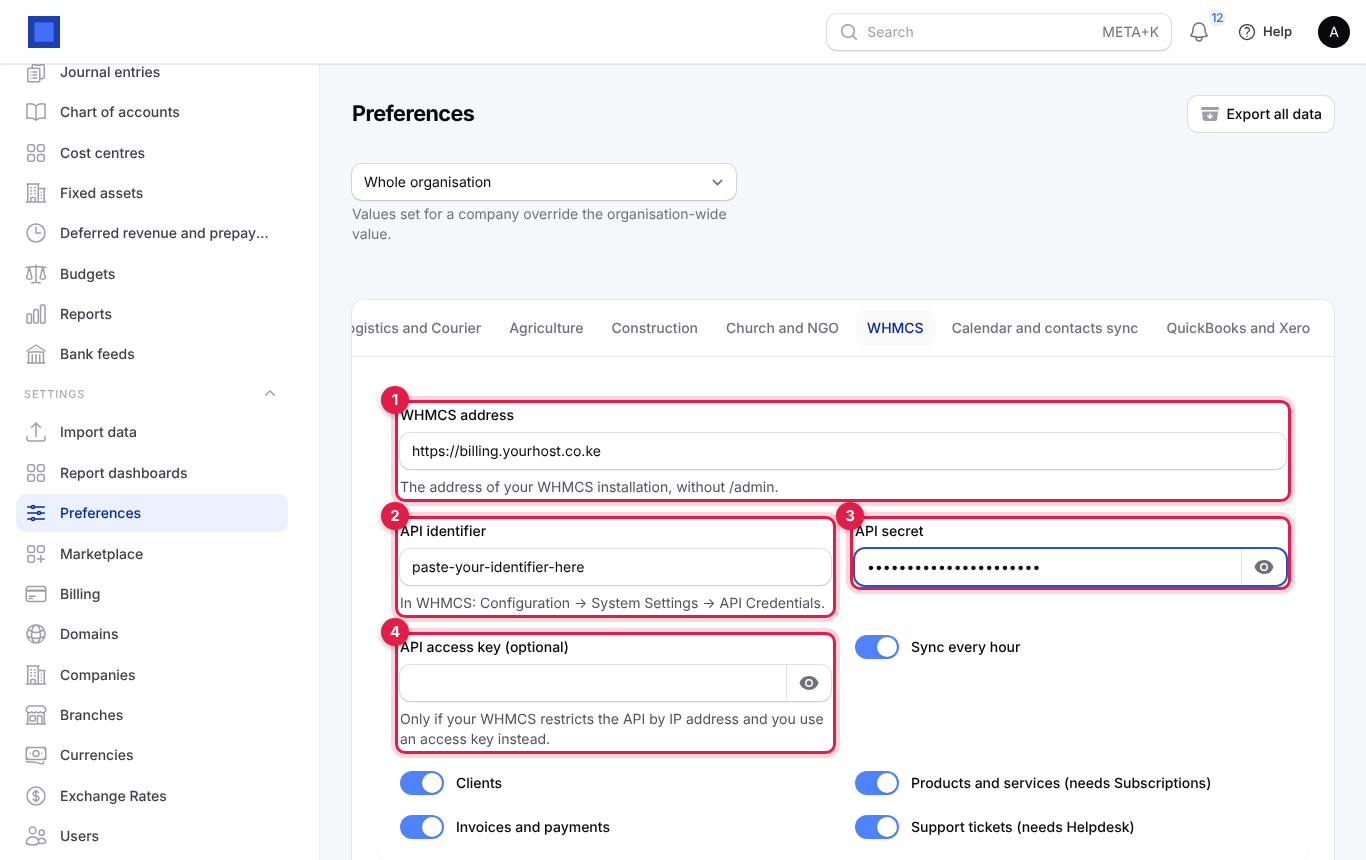
| Setting | What to enter |
|---|---|
| WHMCS address (marker 1) | The address of your WHMCS, without /admin, for example https://billing.yourhost.co.ke. |
| API identifier (marker 2) | The identifier from API Credentials in WHMCS. |
| API secret (marker 3) | The secret from API Credentials. Hidden on screen; click the eye to show it. |
| API access key (optional) (marker 4) | Only if your WHMCS restricts the API by IP address and you use an access key instead. |
- Below them, choose when and what to sync, then click Save preferences (marker 6):
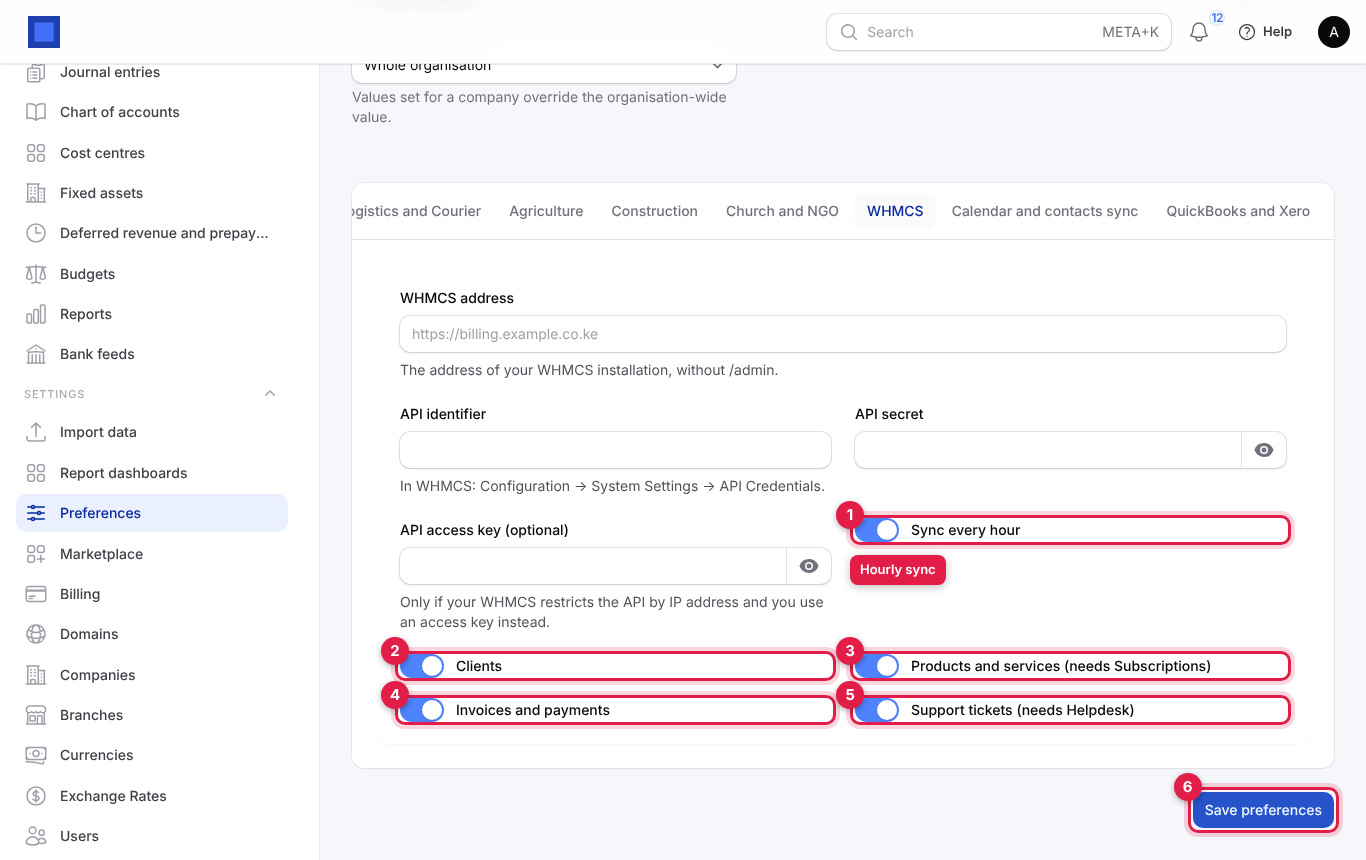
| Setting | What it does |
|---|---|
| Sync every hour (marker 1) | On by default. A sync runs by itself at 25 minutes past every hour. Turn it off once you have finished moving, or to sync only by hand with Sync now. |
| Clients (marker 2) | Bring clients across as contacts. |
| Products and services (needs Subscriptions) (marker 3) | Bring services across as subscriptions. Skipped if the Subscriptions app is off. |
| Invoices and payments (marker 4) | Bring invoices and their payments across. |
| Support tickets (needs Helpdesk) (marker 5) | Bring tickets and their replies across. Skipped if the Helpdesk app is off. |
All five are on when you start. The connector uses the Whole organisation values (the dropdown at the top of Preferences), and everything comes into your default company.
Note: Saving the settings does not contact WHMCS. Nothing comes across until you click Sync now or the next hourly sync runs.
3. Test and run the sync
Open Settings → WHMCS (marker 1; the page is titled WHMCS connector). The three buttons at the top:
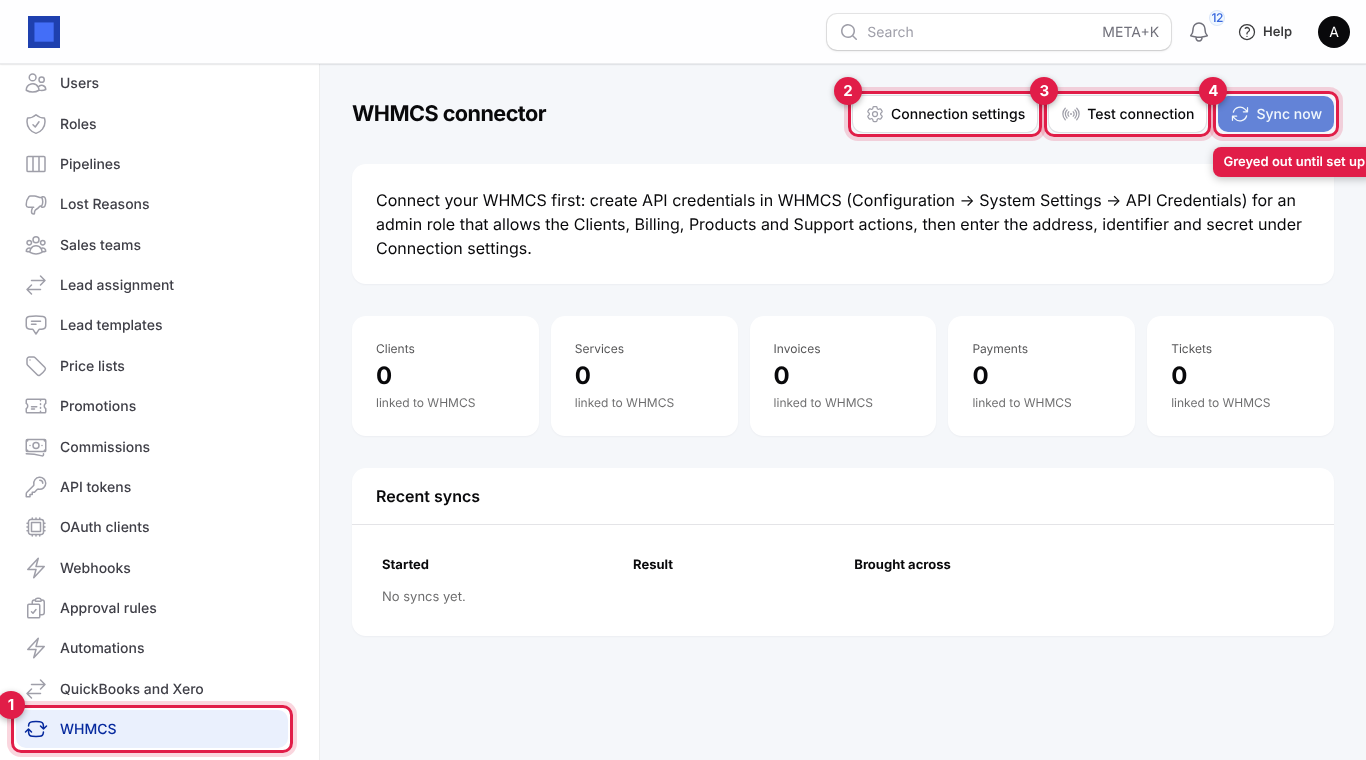
| Button | What it does |
|---|---|
| Connection settings (marker 2) | Opens Settings → Preferences, where the WHMCS tab is. |
| Test connection (marker 3) | Asks WHMCS how many records it can see, without bringing anything across. On success: Connected to WHMCS. with, for example, 412 clients, 530 services, 6,210 invoices and 980 tickets found. On failure the message says why (see below). |
| Sync now (marker 4) | Greyed out until the address, identifier and secret are saved. Asks you to confirm (Brings across everything new or changed since the last sync. The first sync of a large WHMCS can take several minutes.), then runs. Keep the page open until you see Sync finished. or Sync stopped: with the reason. |
Run it in this order:
- Click Test connection and wait for Connected to WHMCS. Check the numbers look like your WHMCS.
- Click Sync now, then Confirm.
- Read the result under Recent syncs, and check a few clients, invoices and tickets in NaliSuite.
The rest of the page shows where you stand:
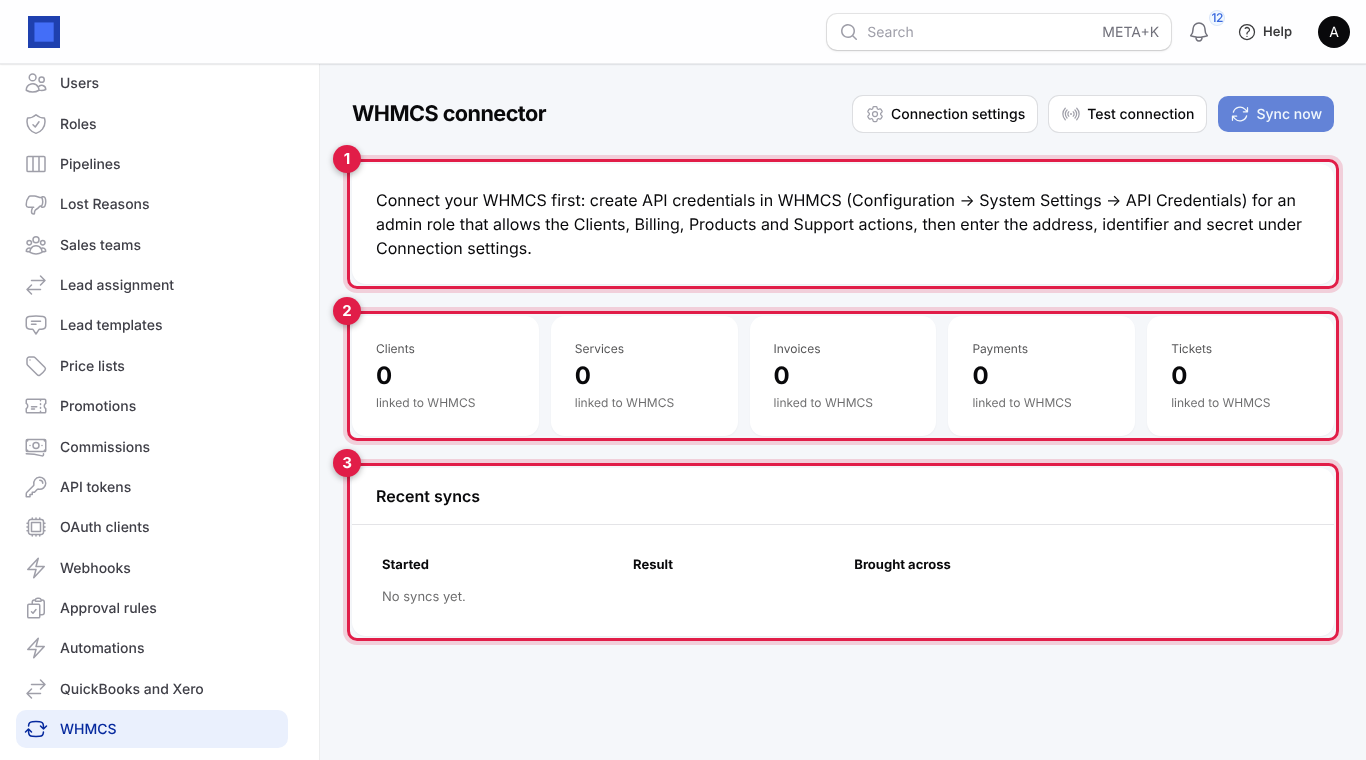
| Part of the page | What it is |
|---|---|
| Set-up message (marker 1) | Shown until the connection is filled in, with the WHMCS menu where the credentials are made. It disappears once the address, identifier and secret are saved. |
| Clients, Services, Invoices, Payments, Tickets (marker 2) | How many WHMCS records of each kind are linked to a NaliSuite record, linked to WHMCS. |
| Recent syncs (marker 3) | The last 15 runs, by hand or hourly: when each Started, the Result (Finished in green, Stopped in red with the reason, or Running in amber) and what was Brought across, for example clients created: 12, invoices updated: 3, tickets created: 40. Parts with nothing new are left out. No syncs yet. until the first run. |
Messages you may see:
| Message | What to do |
|---|---|
| Add your WHMCS address, API identifier and secret first. | Fill in and save the connection settings. |
| Could not reach WHMCS at … | Check the address and that WHMCS is online. |
| WHMCS answered with HTTP 404 and no data. Check the address. | The address is wrong (do not include /admin or /includes/api.php). |
| WHMCS said: Invalid IP … | Add the NaliSuite IP address to WHMCS's API IP access list, or use an access key. |
| WHMCS said: Authentication Failed | The identifier or secret is wrong, or the API role does not allow the action. |
A sync that stops part-way keeps everything it brought across before it stopped. Fix the cause and run Sync now again: it carries on from where it got to, without duplicates.
Tip: Run the first sync by hand with Sync now at a quiet time, check the results, then leave Sync every hour on.
4. What comes across, and how
Every WHMCS record is linked to the NaliSuite record it became, so running the sync again never makes duplicates: each run only brings what is new or has changed.
Clients → contacts
- Each WHMCS client becomes a customer contact: the company name (or first and last name), email, phone and address (street, city, postcode, country), with the note From WHMCS (client 123).
- If a contact with the same email already exists in NaliSuite, it is linked instead of creating a new one.
- On later runs, a client whose name changed in WHMCS has the contact's name updated. Other changes in WHMCS (phone, address) are not copied again; edit them in NaliSuite.
Products and services → subscriptions
Each WHMCS service becomes a subscription, exactly as Import from WHMCS does with a CSV (see Subscriptions):
- the plan is found by product name, or created as a recurring product;
- the billing cycle becomes the subscription's cycle (Monthly, Quarterly, Semi-Annually as every 6 months, Annually, Biennially as every 2 years…);
- the recurring amount, the next due date (the next invoice date) and the registration date come across;
- the WHMCS status maps as Active → Active, Suspended → Paused, Terminated, Cancelled or Fraud → Cancelled, Pending → Draft;
- the domain and username fill the subscription's Hosting account (cPanel), so with WHM connected the account can be suspended and unsuspended from NaliSuite. The cPanel package is not sent by the API; it follows the plan's cPanel package.
Services whose client has no email address are skipped.
Invoices and payments
- Unpaid, paid and other invoices come across (drafts and invoices already cancelled in WHMCS are left out the first time). Each becomes an issued NaliSuite invoice with the WHMCS date and due date, the customer reference WHMCS invoice 2026-0412, one line per WHMCS item, a line Tax charged in WHMCS for any tax, and a line Credit applied in WHMCS for any credit used.
- Each WHMCS payment (transaction) on the invoice is recorded as a payment with its date, amount and transaction ID as the reference. The method is M-Pesa when the gateway name contains "mpesa", bank transfer when it contains "bank", and card otherwise.
- Invoices brought across are not sent to the tax authority (eTIMS) again: they were already reported from WHMCS. No email goes to the client.
- On later runs, an invoice whose WHMCS status changed is looked at again: new payments are recorded, and an invoice cancelled in WHMCS is cancelled in NaliSuite if nothing has been paid on it.
Invoices are created in your company's currency.
Support tickets
- Each WHMCS ticket becomes a Helpdesk ticket (see Helpdesk) with its subject, the client, the requester's name and email, and its priority (High, Normal or Low).
- Every reply comes across in order as a message on the ticket, staff replies under the staff member's name. Messages are not emailed to the client.
- The status maps as Open, Customer-Reply and In Progress → Open; Answered and On Hold → Pending; Closed → Closed.
- On later runs, new replies are added and the status is updated.
No API access? Import services from a CSV
If you cannot give NaliSuite API access to your WHMCS (for example your host blocks it), you can still bring your services across once from a CSV export. This needs the Subscriptions app and subscriptions.manage, but not the WHMCS Connector. Clients come across with their services; invoices and tickets do not.
- In WHMCS, export Products/Services as CSV with a header row.
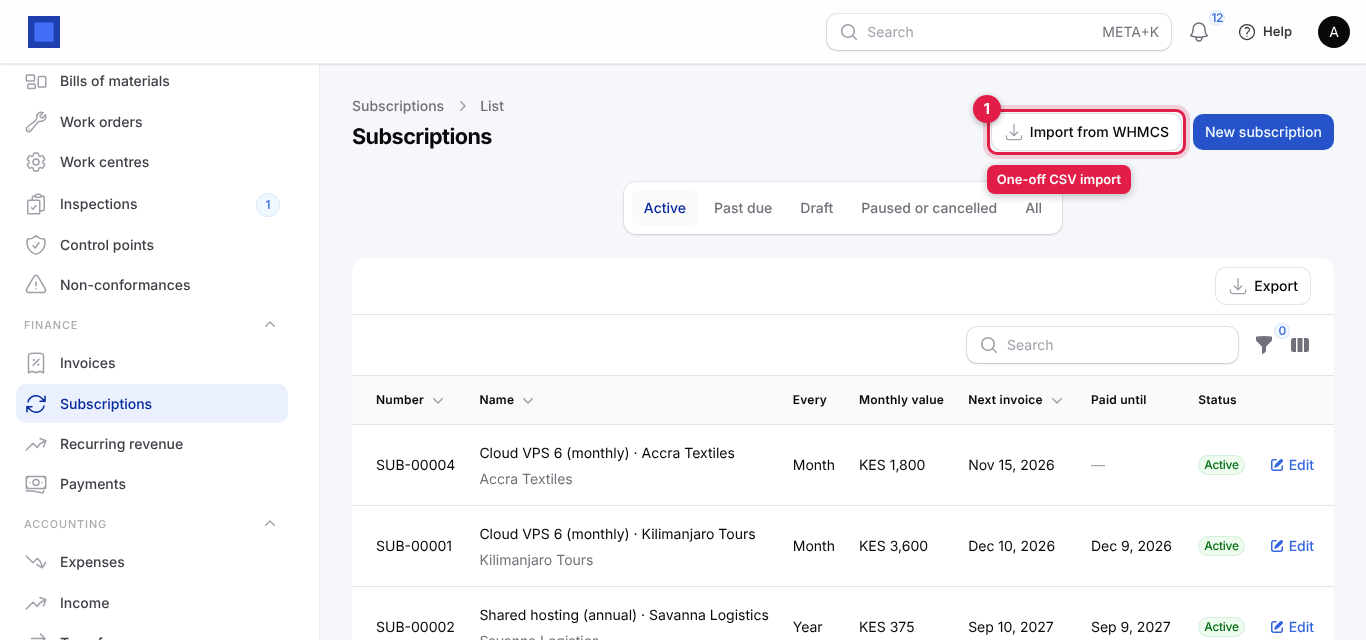
- In NaliSuite, open Finance → Subscriptions and click Import from WHMCS (marker 1).
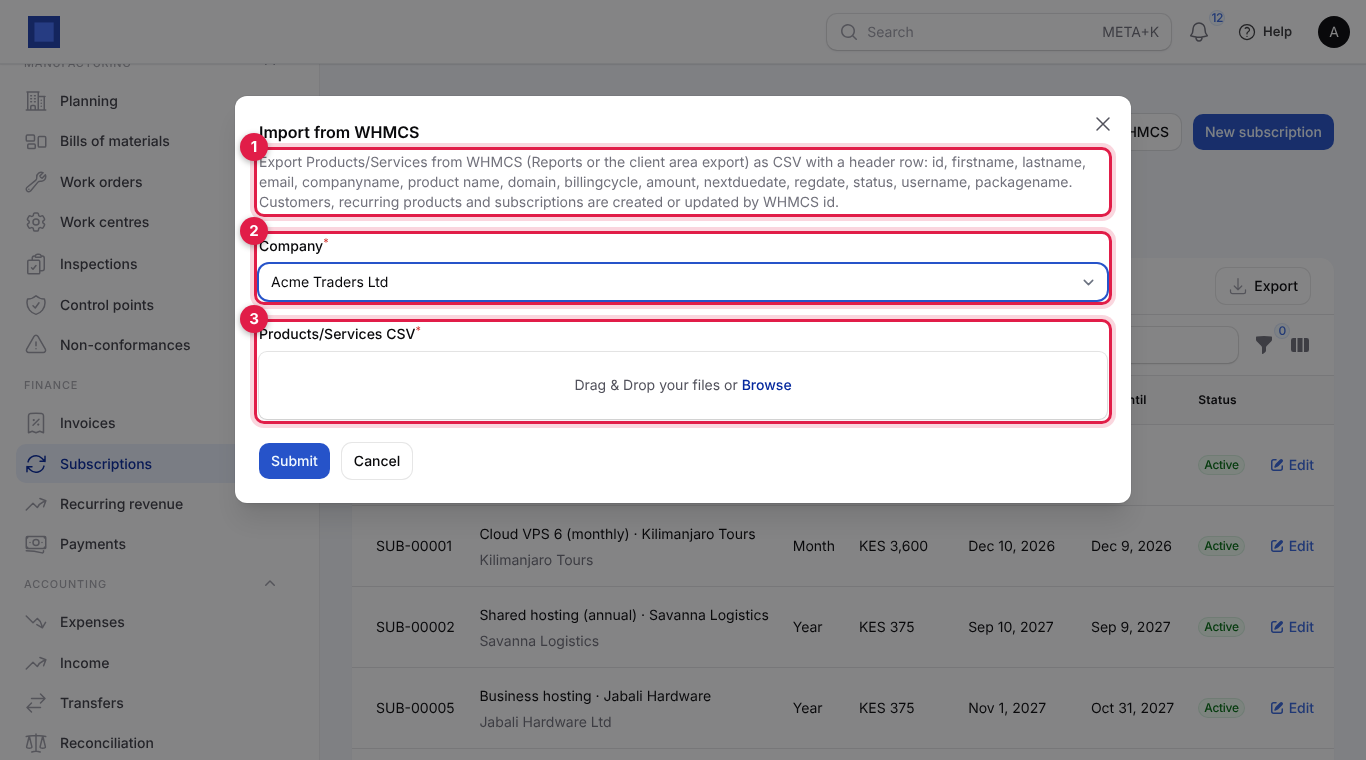
- Read the list of columns the file needs (marker 1): id, firstname, lastname, email, companyname, product name, domain, billingcycle, amount, nextduedate, regdate, status, username, packagename.
- Choose the Company (marker 2), drop the file on Products/Services CSV (marker 3) and click Submit.
The message at the end says how many subscriptions were created, updated and skipped, with the first errors (for example Row 7: needs an email and a product name). Rows are matched on the WHMCS id, so importing the same file again updates rather than duplicates. See Subscriptions for how plans, cycles and statuses are mapped.
Moving off WHMCS
- Connect and run Sync now until Recent syncs shows Finished with nothing left to bring.
- Check a few clients, subscriptions and invoices against WHMCS.
- Set up your payment gateways and invoice emails in NaliSuite, and turn on automatic renewal invoices under Settings → Preferences → Subscriptions.
- On the change-over day, stop WHMCS from invoicing (or put it in maintenance), run a last Sync now, then turn Sync every hour off.
- Domains are not part of the sync. Record them with Hosting → Domains → Add an existing domain if you use Web hosting.
Common questions
Will clients get emails when their invoices come across? No. Nothing is emailed during a sync.
Can I edit a synced invoice in NaliSuite? It is an issued invoice like any other: record payments, issue credit notes. If you keep using WHMCS for billing, make changes in WHMCS and let them sync, or the two will disagree.
A part-payment made in WHMCS did not come across. Payments are picked up when the invoice's status changes in WHMCS (for example from Unpaid to Paid). A second part-payment on an invoice that stays Unpaid arrives when it is finally paid in full.
Why is the WHMCS tax shown as a line rather than as VAT? The tax WHMCS charged is copied as a separate line so the totals match WHMCS exactly. Ask your accountant how to treat it in your VAT returns for the overlap period.
Can I stop and restart? Yes. Turn Sync every hour off and on, or change which parts sync, at any time. Links are kept, so nothing is duplicated.
Why is Sync now greyed out? The WHMCS address, API identifier or API secret has not been saved yet. Fill them in on the WHMCS tab of Settings → Preferences and click Save preferences.
Which company do the records go into? Your default company (the one marked default under Settings → Companies). Invoices are created in that company's currency.