Gym and Fitness
Gym and Fitness is for gyms, fitness studios and sports clubs. You set up your membership plans (with joining fees, visit allowances, off-peak hours and freezes), register members and print them a member card with a QR code, and sell, renew, freeze and cancel memberships, each invoiced. At the door, the front desk scans the card or searches by name, and NaliSuite lets the member in or says exactly why not. You run a class timetable with a number of places, a waiting list that moves up by itself, and attendance. Every morning, auto-renew memberships are renewed and invoiced and the rest are reminded before they end. You can also publish your timetable on a public page.
It is in the Gym group of the left menu: Check-in, Members, Expiring memberships, Class schedule, Plans and Class types.
Note: There are three permissions. gym.view lets staff see members, memberships, plans, classes and print member cards. gym.checkin opens the Check-in screen and lets staff check members in, book members into classes, mark attendance and cancel bookings. gym.manage lets staff register members, sell, renew, freeze and cancel memberships, reissue cards, cancel members, and set up plans, class types and the timetable. Owners and admins have all three; the member role has only gym.view, so give your front desk a role with gym.checkin. Set permissions under Settings → Roles (see Workspace settings).
Switch it on
Gym and Fitness is an add-on sold separately from your plan. It needs the Contacts app. With Invoicing on, every membership is invoiced; with Marketing and an SMS provider, members also get texts.
- Open Settings → Marketplace and type Gym in the Search add-ons… box (marker 1).
- On the Gym and Fitness card (marker 2), click Start free trial (or Add to subscription) and confirm. The Gym group appears in the left menu.
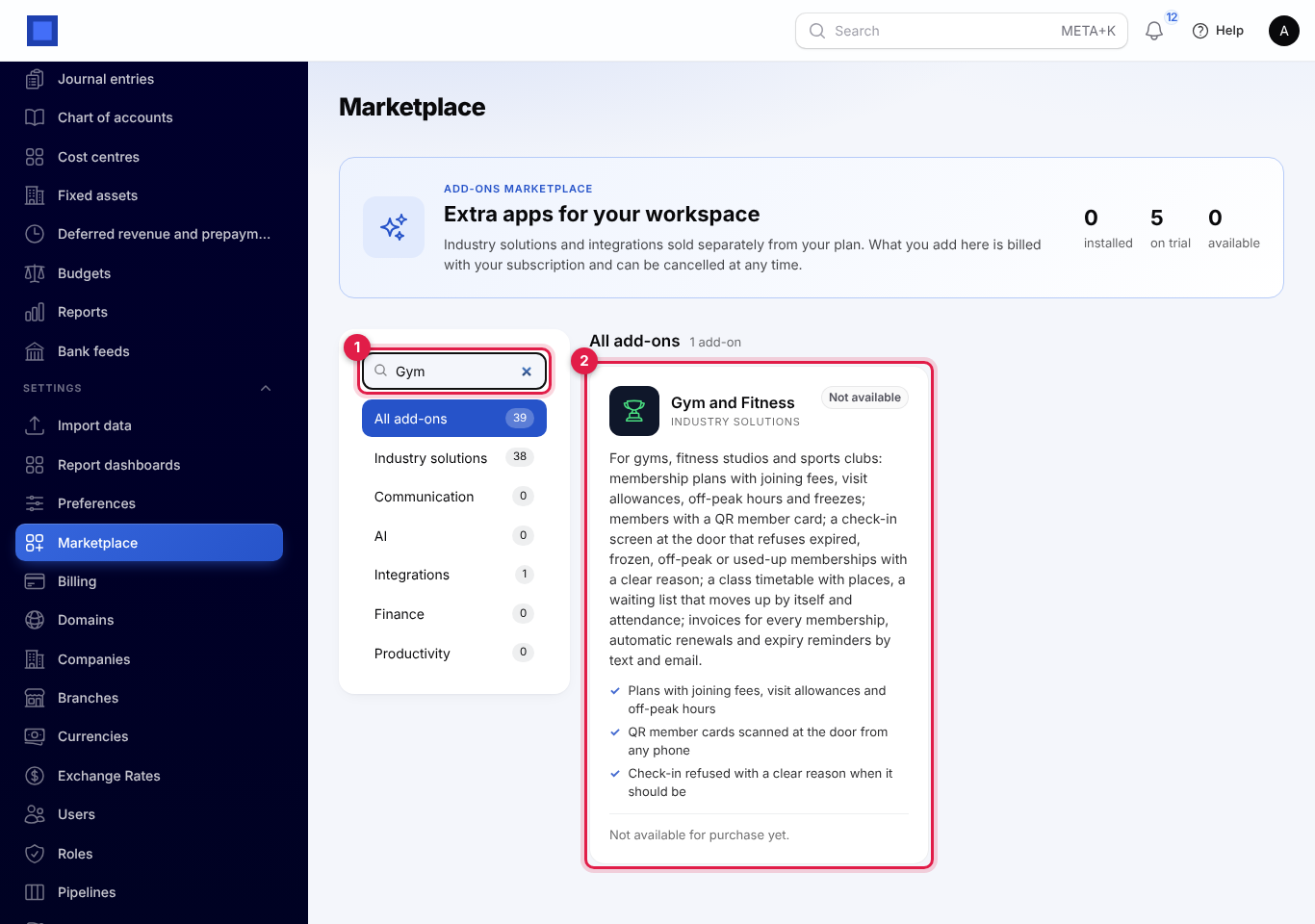
If the card says Not available for purchase yet (as in the screenshot), the add-on has not been priced for your plan: ask NaliSuite support to switch it on. See Billing and marketplace.
Gym settings
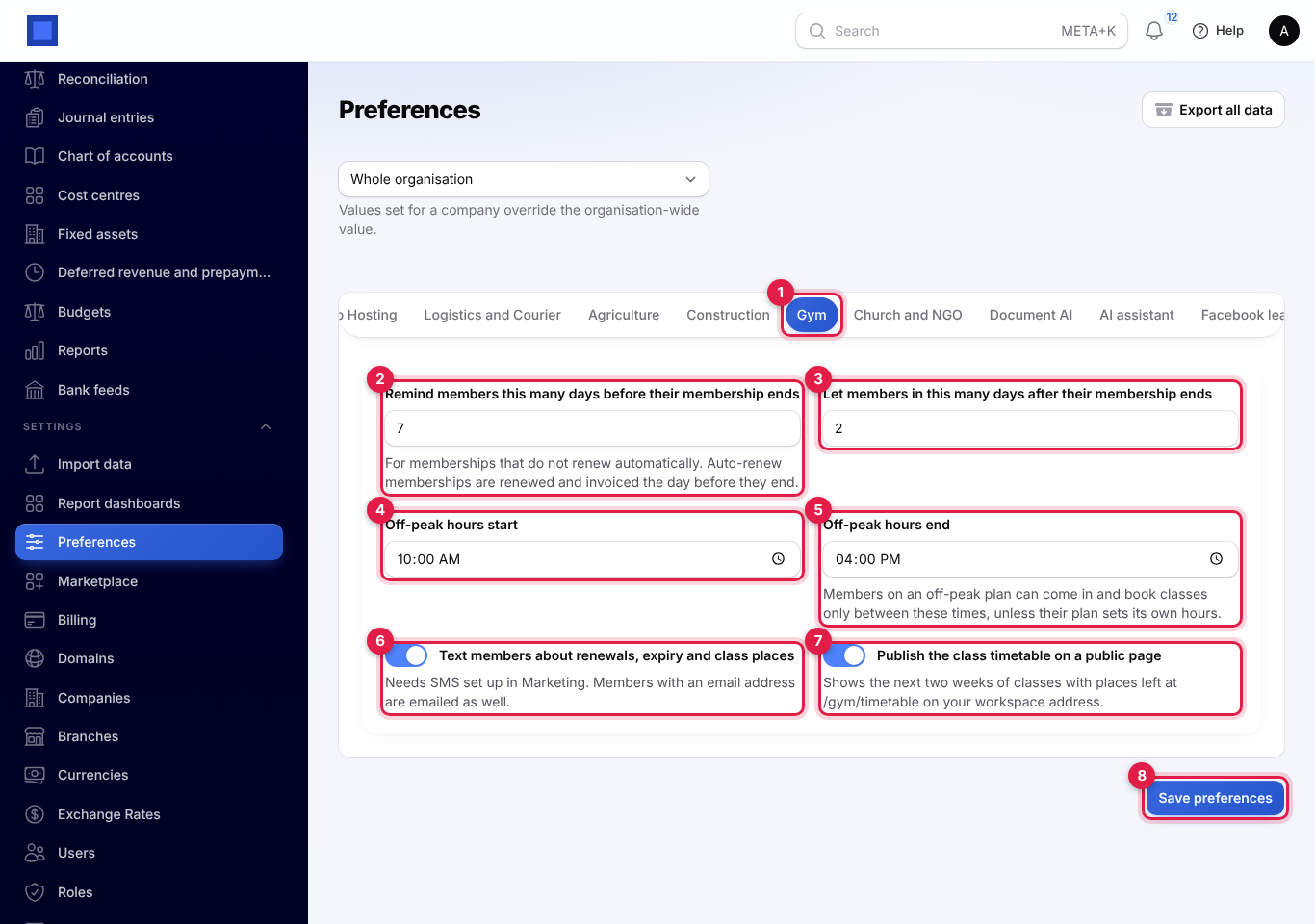
- Open Settings → Preferences and click the Gym tab (marker 1).
- Fill in the fields and click Save preferences (marker 8).
| Setting | Default | What it does |
|---|---|---|
| Remind members this many days before their membership ends (marker 2) | 7 | For memberships that do not renew automatically. Auto-renew memberships are renewed and invoiced instead (see The daily run). |
| Let members in this many days after their membership ends (marker 3) | 0 | Grace days, 0 to 30. With 2, a member whose membership ended on Monday can still come in on Tuesday and Wednesday. |
| Off-peak hours start (marker 4) and Off-peak hours end (marker 5) | 10:00 and 16:00 | Members on an off-peak plan can come in and book classes only between these times, unless their plan sets its own hours. |
| Text members about renewals, expiry and class places (marker 6) | On | Texts need an SMS provider under Settings → Preferences → Marketing (see Marketing). Members with an email address are emailed as well, whatever this switch says. |
| Publish the class timetable on a public page (marker 7) | Off | Shows the next two weeks of classes at /gym/timetable on your workspace address (see The public timetable). |
The dropdown at the top of Preferences lets one company use different settings from the rest of the organisation. Days and off-peak hours follow your company's time zone.
Membership plans
Open Gym → Plans. Each plan shows its Length, Price, Joining fee, Allowance (for example 8 visits a month or Unlimited), whether it is Off-peak, its Freeze days, how many memberships are Running now, and whether it is On sale. Filter by On sale.
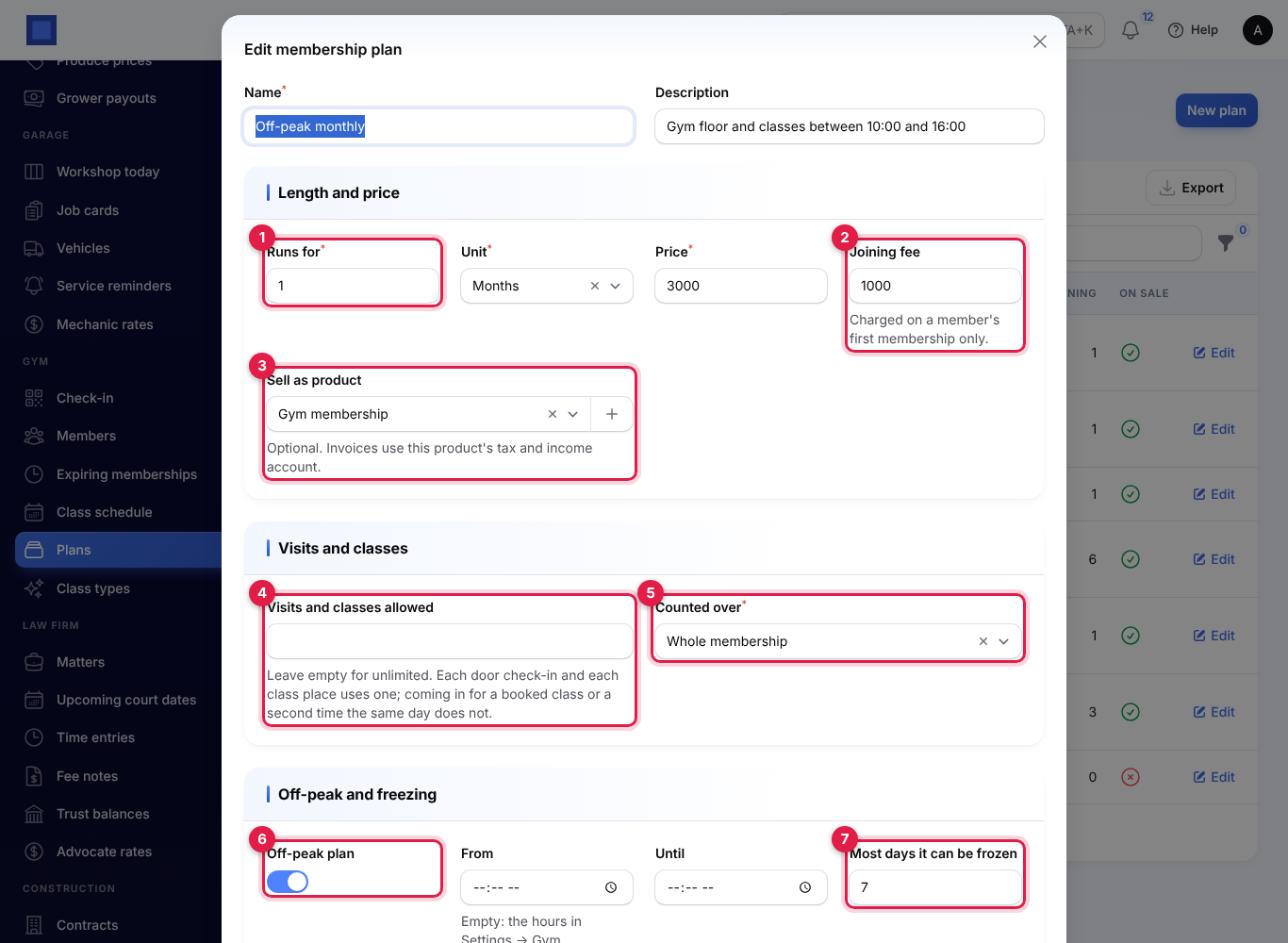
Click New plan, or Edit on a plan:
| Field | What to enter |
|---|---|
| Name (required), Description | Monthly unlimited, Gym floor and all classes, any time. |
| Runs for (marker 1) and Unit | For example 1 Months, 3 Months or 1 Days (a day pass). A one-month membership from 1 November runs to 30 November. |
| Price (required) | The price of one term. |
| Joining fee (marker 2) | Charged on a member's first membership only. |
| Sell as product (marker 3) | Optional. A product from Sales → Products; invoices then use its tax and income account. Without one, membership invoices carry no tax. |
| Visits and classes allowed (marker 4) | Leave empty for unlimited. Each door check-in and each class place uses one; coming in for a class booked that day, or a second time the same day, does not. |
| Counted over (marker 5) | Whole membership, Each calendar month or Each week (Monday to Sunday). |
| Off-peak plan (marker 6), From, Until | On for a plan limited to quiet hours. Leave From and Until empty to use the hours in Gym settings, or set the plan's own, for example 05:00 to 08:00 for an early-bird plan. |
| Most days it can be frozen (marker 7) | The freeze allowance for each membership of this plan. 0 means it cannot be frozen. |
| On sale (marker 8) | Off to stop selling the plan. Running memberships carry on, but they cannot be renewed on it. |
Members and member cards
Open Gym → Members.
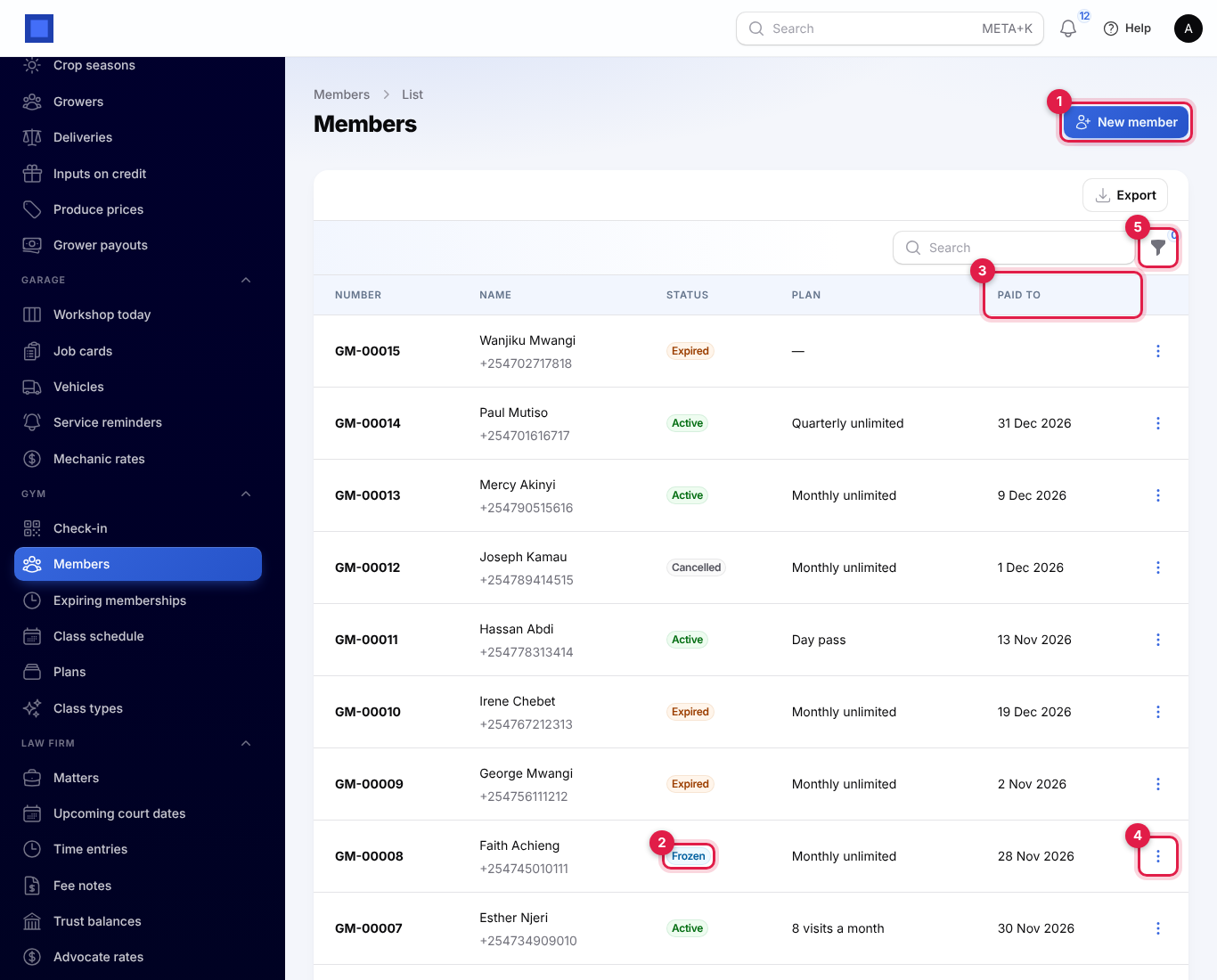
Each member has a number such as GM-00014, their name and phone, a Status (marker 2), their current Plan and the date they are Paid to (marker 3).
| Status | Meaning |
|---|---|
| Active | A membership is running today. |
| Frozen | Today falls in a freeze. |
| Expired | No membership is running today: it ended, or it has not started yet. A new member is Expired until they buy one. |
| Cancelled | The member was cancelled. They cannot come in or book classes. |
The filter (marker 5) has Status and Waiver (Not signed or Signed). Under ⋮ (marker 4) are Edit, Sell a membership, Check in now and Member card.
Register a new member
- Click New member (marker 1).
- Choose an Existing contact, or fill in Name, Phone and Email for someone new (they are added to your contacts as a customer).
- Add the Emergency contact and Emergency phone, and Waiver signed on if they have signed your health and liability waiver.
- Click Submit. You see "Wanjiku Mwangi joined as GM-00015" and the member's page opens.
A contact can be a member only once: "Wanjiku Mwangi is already a member."
The member page
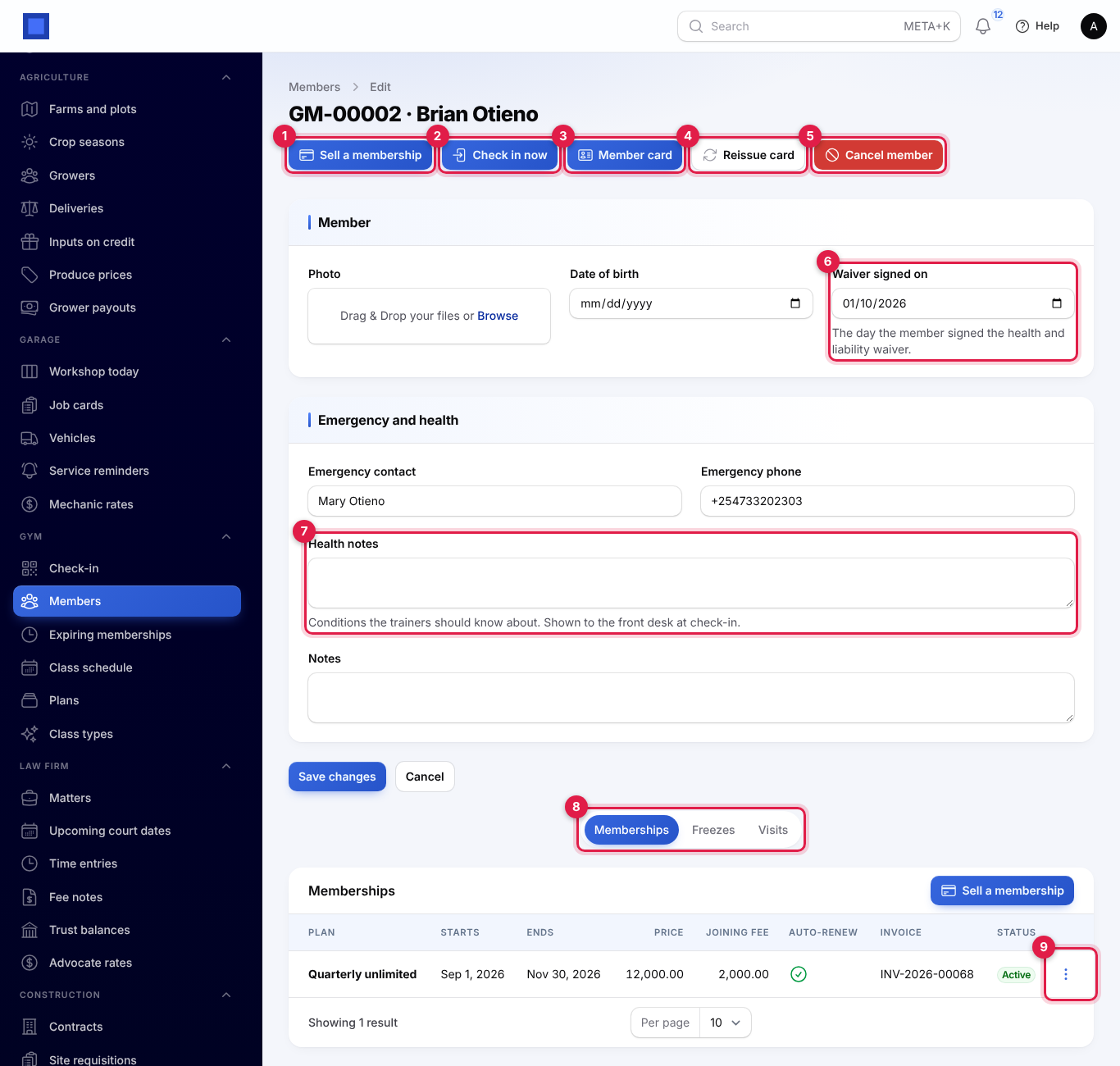
- Sell a membership (marker 1), see below.
- Check in now (marker 2) checks the member in without the check-in screen, with the same rules.
- Member card (marker 3) opens the card PDF.
- Reissue card (marker 4) and Cancel member (marker 5), see below.
- On the form: Photo (shown at the door; kept private, up to 4 MB), Date of birth, Waiver signed on (marker 6), Emergency contact, Emergency phone, Health notes (marker 7; shown to the front desk at check-in, for example Asthma: keeps an inhaler in her bag) and Notes. Click Save changes.
- The tabs (marker 8): Memberships, Freezes and Visits. The ⋮ on a membership (marker 9) holds its actions.
Visits lists every time the member came in: when, who checked them in, How (Card scanned or Searched), the class it was for, and whether it Used a visit.
The member card
Click Member card to open a printable PDF card with your logo, the member's name, number, photo, plan, the date it is valid to, and the QR code to scan at the door. Cut it out along the border. The member's emergency contact is printed under the card.
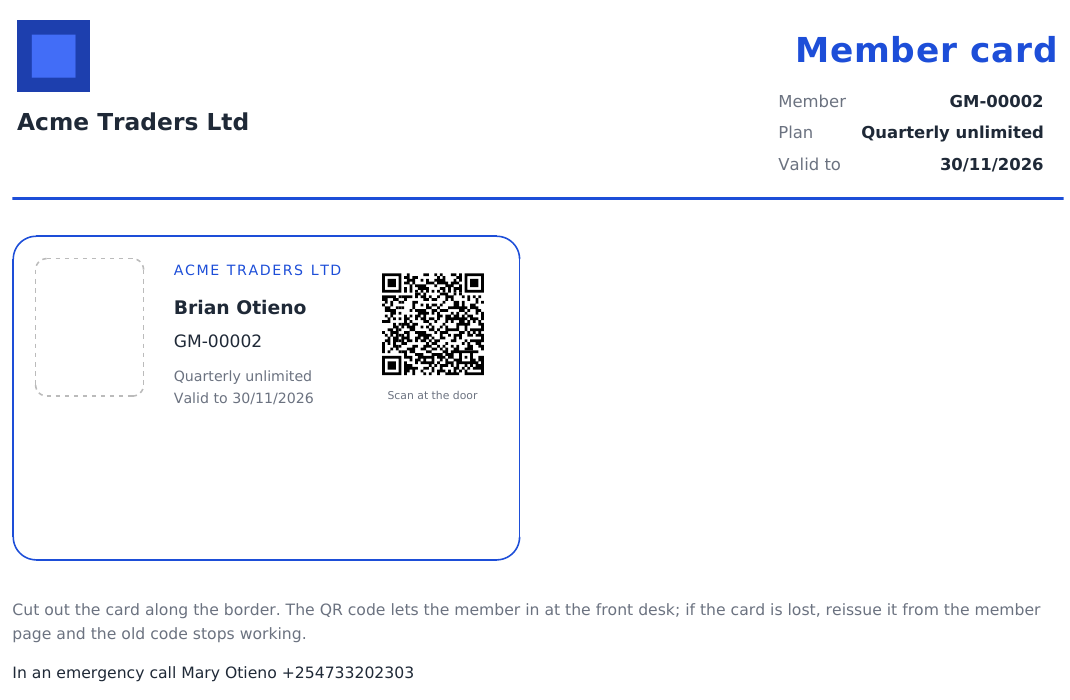
The QR code holds a link to your Check-in screen with the member's own signed code. A code that has been changed by hand, or belongs to a reissued card, is refused.
Reissue a lost card
Click Reissue card and confirm. The old card's QR code stops working at once; print the new card with Member card. Scanning the old one shows "This member card is not valid. It may have been reissued or altered."
Cancel or bring back a member
Cancel member (confirm) stops the member checking in or booking classes, and switches off automatic renewal on their memberships. Their memberships and invoices stay as they are. Reactivate brings a cancelled member back; their status then follows their memberships again.
Sell, renew and cancel memberships
Sell a membership
- On the member, click Sell a membership (on the page header or the Memberships tab).
- Fill in the window and click Submit.
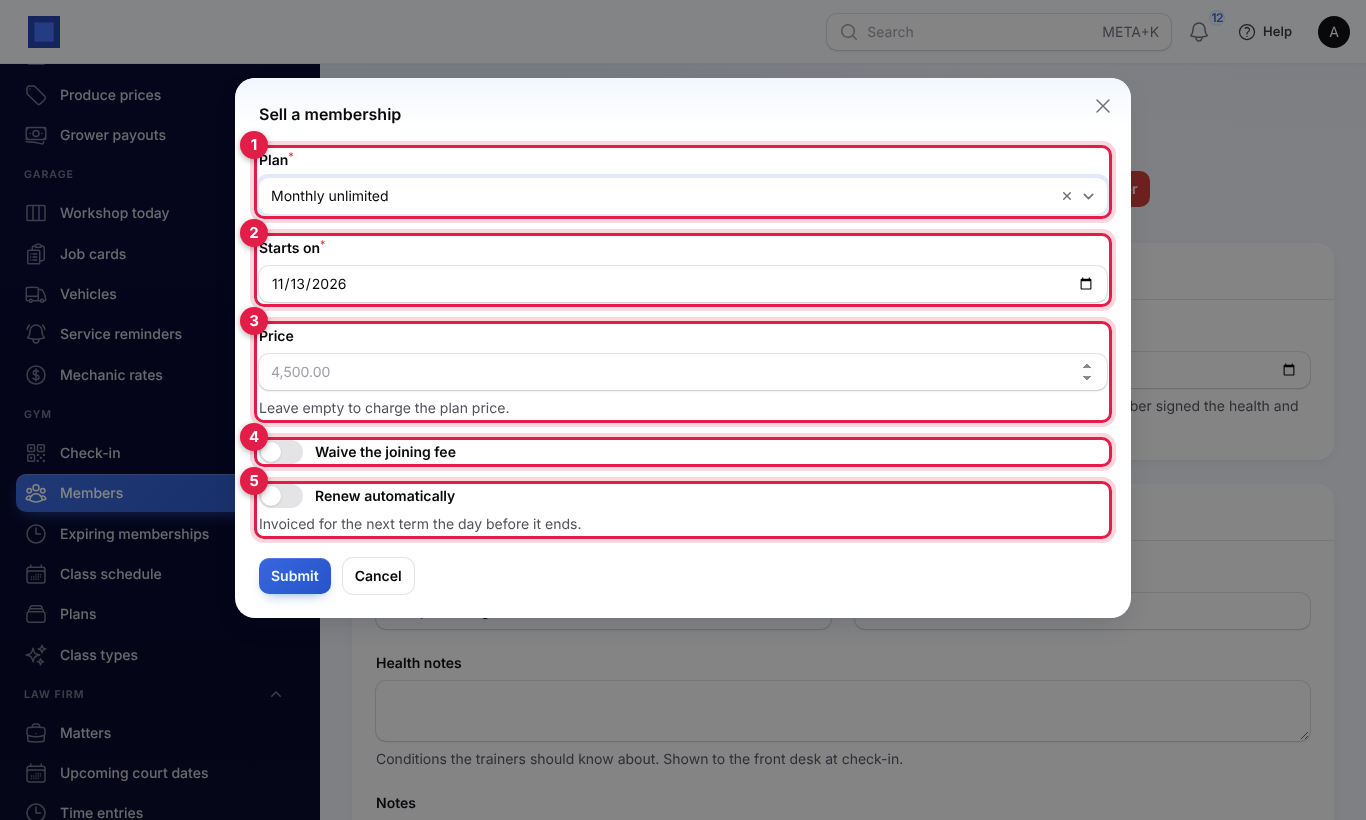
| Field | What to enter |
|---|---|
| Plan (required, marker 1) | Plans on sale. |
| Starts on (required, marker 2) | Filled with the day after the member's current membership ends, or today. The end date is worked out from the plan. |
| Price (marker 3) | Leave empty to charge the plan price (shown in grey), or type a special price. |
| Waive the joining fee (marker 4) | Shown on a member's first membership when the plan has a joining fee. On to let them join free. |
| Renew automatically (marker 5) | On to renew and invoice the next term the day before this one ends. |
You see, for example, "Monthly unlimited sold to Wanjiku Mwangi, 13 Nov 2026 to 12 Dec 2026" and "Invoice INV-2026-00085 issued."
- The invoice (with Invoicing on): issued to the member's contact, dated today and due on the start date (or today, if it has already started), for the membership period. It has a line Monthly unlimited membership, 13 Nov 2026 to 12 Dec 2026 and, on a first membership, a Joining fee line. Its reference is the member number. See Invoices and payments to take payment. Without Invoicing, the membership is recorded with no invoice.
- The joining fee is charged only when the member has no other membership that was not cancelled.
- Memberships cannot overlap: "This overlaps the membership Monthly unlimited · 20 Oct 2026 – 19 Nov 2026. Start the new one on 20 Nov 2026 or later."
The membership actions
The Memberships tab lists each membership with its dates (with includes 14 frozen days when frozen), price, joining fee, Auto-renew, Invoice and status (Active or Cancelled). Click ⋮ on one:
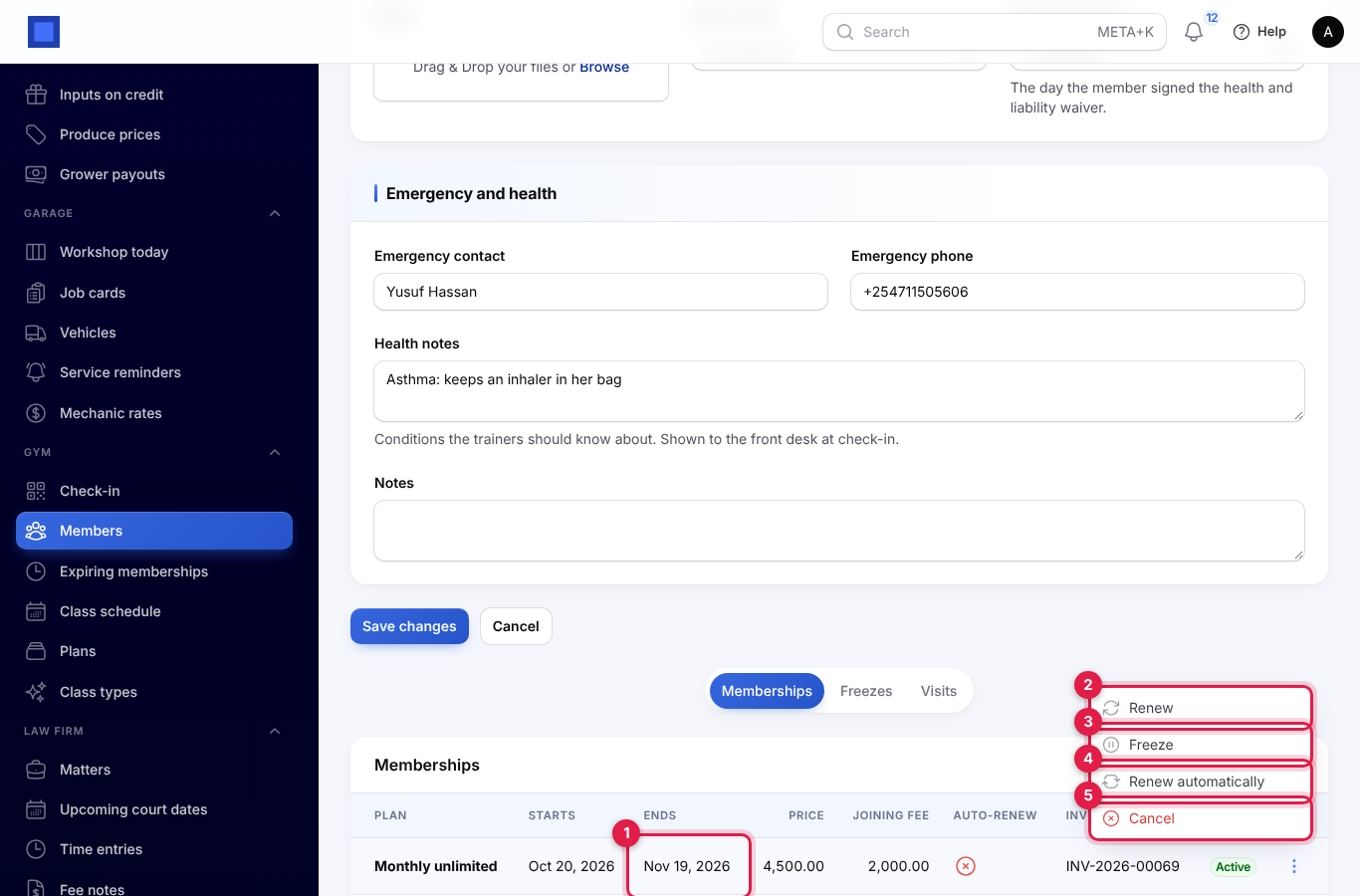
- Renew (marker 2): a new membership of the same plan starting the day after this one ends (marker 1), at today's plan price, with no joining fee and the same auto-renew choice. It is invoiced like a sale. A membership can be renewed once; renew the newest one next time.
- Freeze (marker 3), see Freezes.
- Renew automatically / Stop renewing automatically (marker 4) switches automatic renewal.
- Cancel (marker 5): the member can no longer come in on this membership. Its invoice is cancelled too if nothing has been paid on it; otherwise handle a refund or credit note in Invoicing.
Freezes
A freeze pauses a membership, for example while a member travels or recovers from an injury, and moves its end date out by the days frozen.
- On the Memberships tab, click ⋮ → Freeze on the membership. The window says how many freeze days are left.
- Enter From (it must fall within the membership's dates), To, and a Reason (Travelling, injury).
- Click Submit. You see "Frozen for 14 days; the membership now ends on 28 Nov 2026."
The rules: the plan must allow freezing (Freeze is not shown otherwise), the days cannot be more than the plan's allowance left on this membership ("Only 5 freeze days are left on this membership (the plan allows 14)."), and two freezes cannot overlap. Any renewal already sold after the membership moves out by the same days. While the freeze runs, the member's status is Frozen and they cannot come in.
Come back early
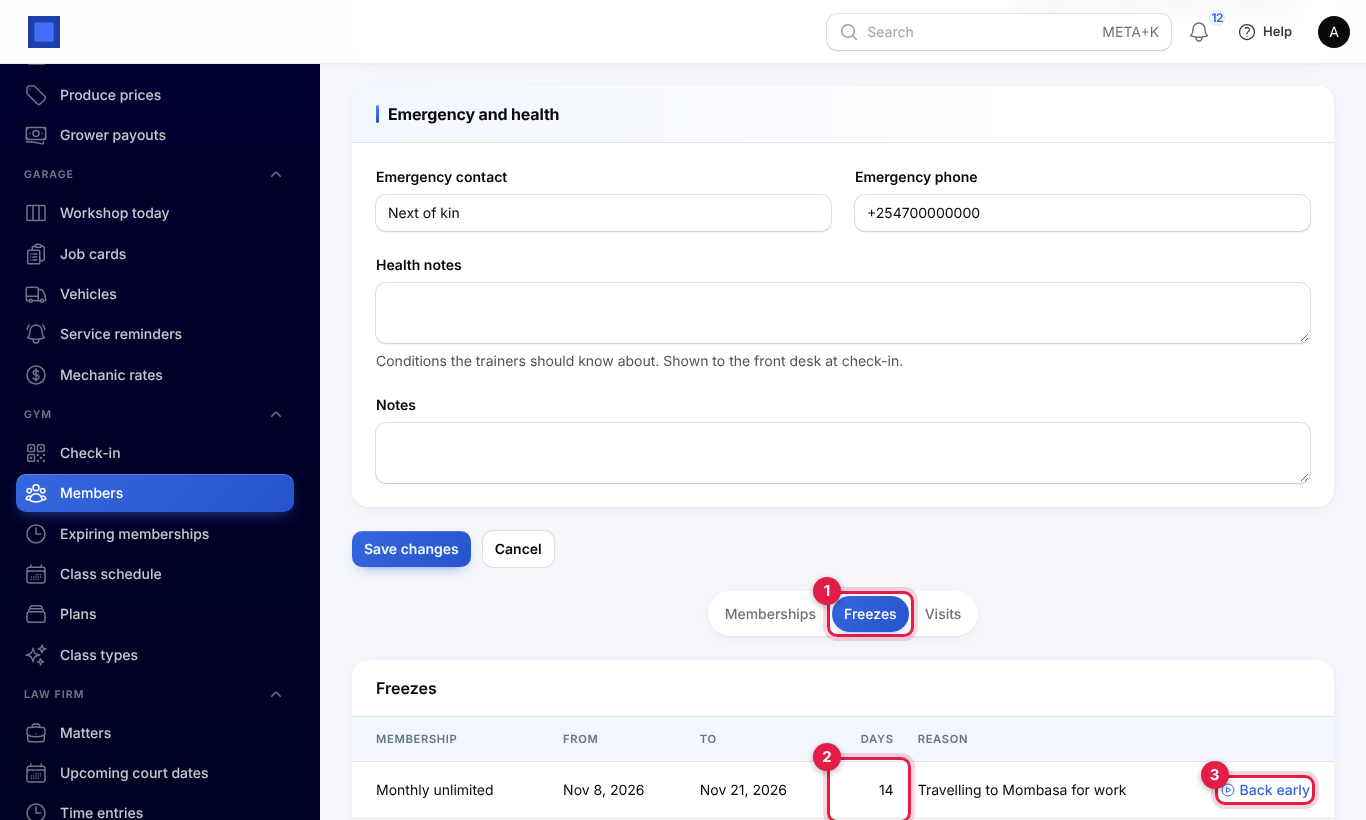
If the member returns sooner, open the Freezes tab (marker 1), which lists each freeze with its dates, Days (marker 2) and reason, and click Back early (marker 3). Enter the day they are Back from and click Submit. The unused days are taken off the end date again, and you see "Freeze lifted; the unused days were taken off the end date." Lifting it on or before its first day removes the freeze completely.
The check-in screen
Open Gym → Check-in at the front desk.
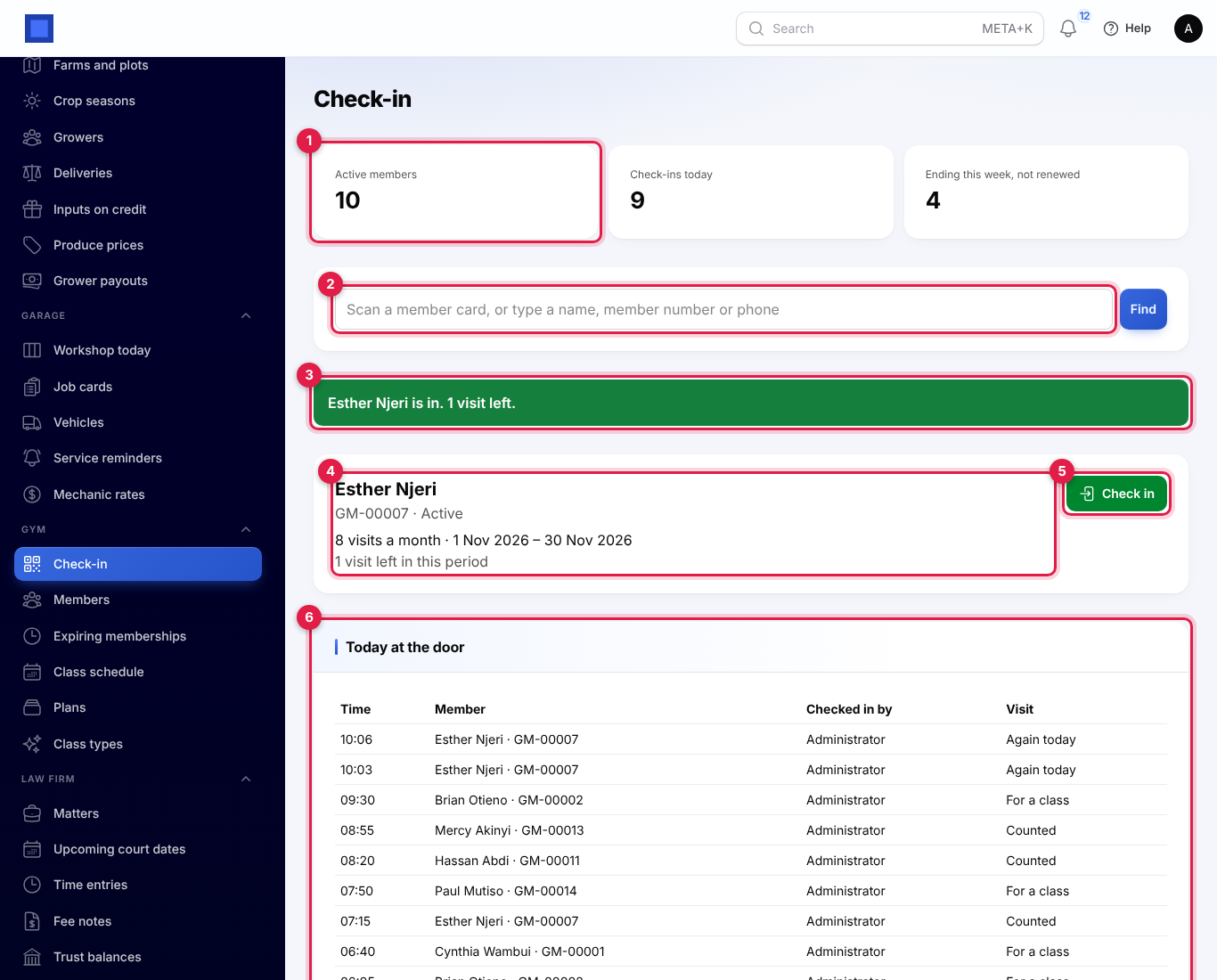
The counters at the top (marker 1) show Active members, Check-ins today and memberships Ending this week, not renewed.
Check a member in
There are three ways to find the member in the box (marker 2):
- Search: type at least two letters of their name, their member number or phone. Click the right person in the list, or press Enter (or Find) when only one matches. Their details appear (marker 4): photo, name, number, status, membership, and the visits left in this period (or Unlimited visits). Click Check in (marker 5).
- A USB or Bluetooth barcode scanner: click in the box and scan the card. The scanner types the card's code and presses Enter, and the member is checked in at once, with no click.
- A phone camera: on a phone signed in to NaliSuite, open the camera and point it at the card's QR code. The link opens the Check-in screen with the member already shown; tap Check in.
When the member may come in, a green message says so (marker 3): "Esther Njeri is in. 1 visit left." (or just "Cynthia Wambui is in." on an unlimited plan). The visit is added to Today at the door (marker 6) with the time, the member, who checked them in, and whether the visit was Counted, For a class (they have a class booked today) or Again today (second time today, not counted).
The details also warn the front desk, in amber, about "No signed waiver on file." and the member's Health notes.
When entry is refused
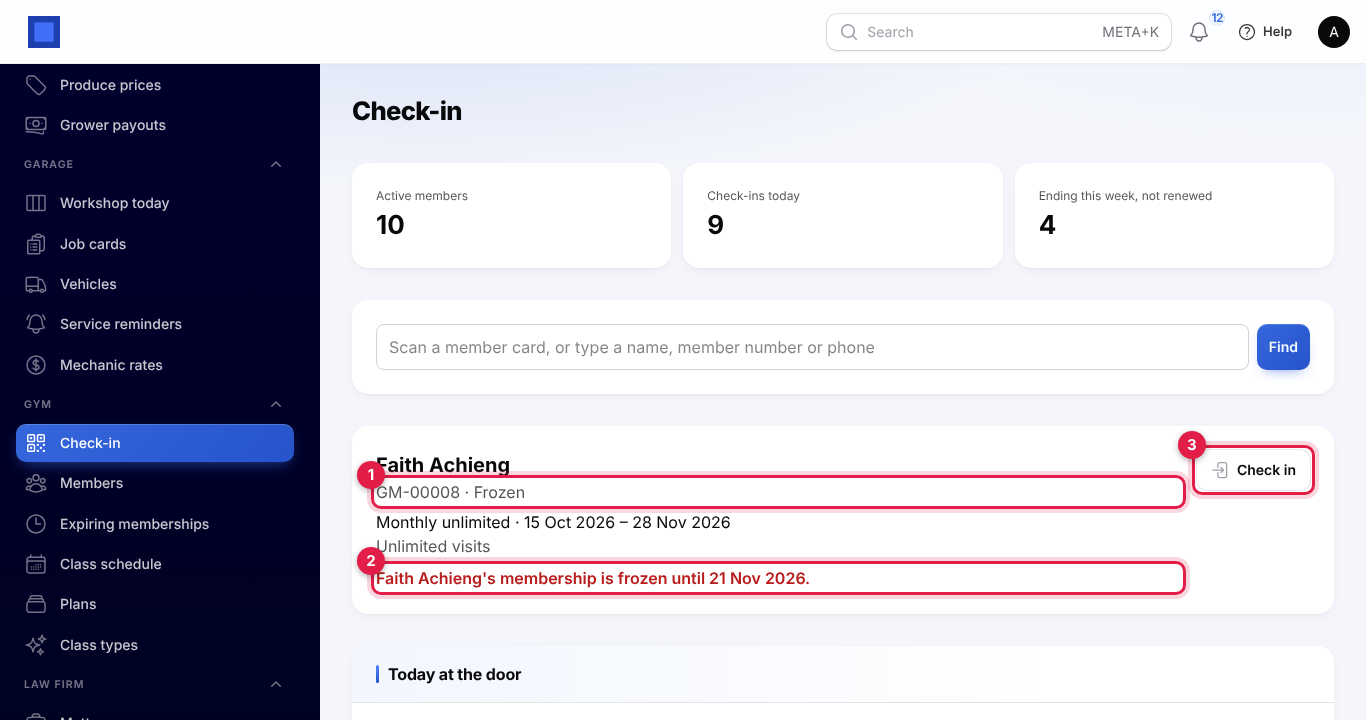
If the member may not come in, the reason shows in red under their details and the Check in button turns grey. Clicking it anyway shows the reason in a red banner, and nothing is recorded.
| Message | Why | What to do |
|---|---|---|
| Name has no membership. Sell one first. | The member has never had a membership (or only cancelled ones). | Sell a membership. |
| Name's membership starts on 20 Nov 2026. | The membership sold has not started yet. | Wait for the start date, or cancel that membership and sell one starting today. |
| Name's membership expired on 2 Nov 2026. | It ended more than the grace days ago. | Renew or sell a new membership. |
| Name's membership is frozen until 21 Nov 2026. | Today falls in a freeze (marker 2). | Back early on the Freezes tab if they are back. |
| Off-peak monthly is an off-peak plan: entry between 10:00 and 16:00 only. | An off-peak plan outside its hours. | Ask them to come back in the off-peak hours, or sell a full plan. |
| All 8 visits for this month are used. | The plan's allowance is used up (for this week and on this membership for the other periods). | Wait for the next period, or sell a new membership. |
| Name's membership was cancelled. | The member was cancelled. | Reactivate the member and sell a membership. |
| This member card is not valid. It may have been reissued or altered. | The scanned card is an old one or not yours. | Find the member by name and print a new card. |
Check in now on the member list or page uses the same rules and shows "Check-in refused" with the reason.
Classes
Class types
Open Gym → Class types and click New class type: Name (Spinning), Description, Length (minutes) (5 to 600), Places (the usual number) and Active. Click Create. Edit a type to change it for classes you schedule from then on.
Schedule classes
- Open Gym → Class schedule and click Schedule a class (marker 1).
- Choose the Class (active class types), when it Starts, the Instructor (any user), the Places (empty for the class type's usual number), the Studio or room, and Every week for a number of weeks (1 to 52) to repeat it at the same day and time.
- Click Submit. You see "8 classes scheduled". Each class ends after the class type's length.
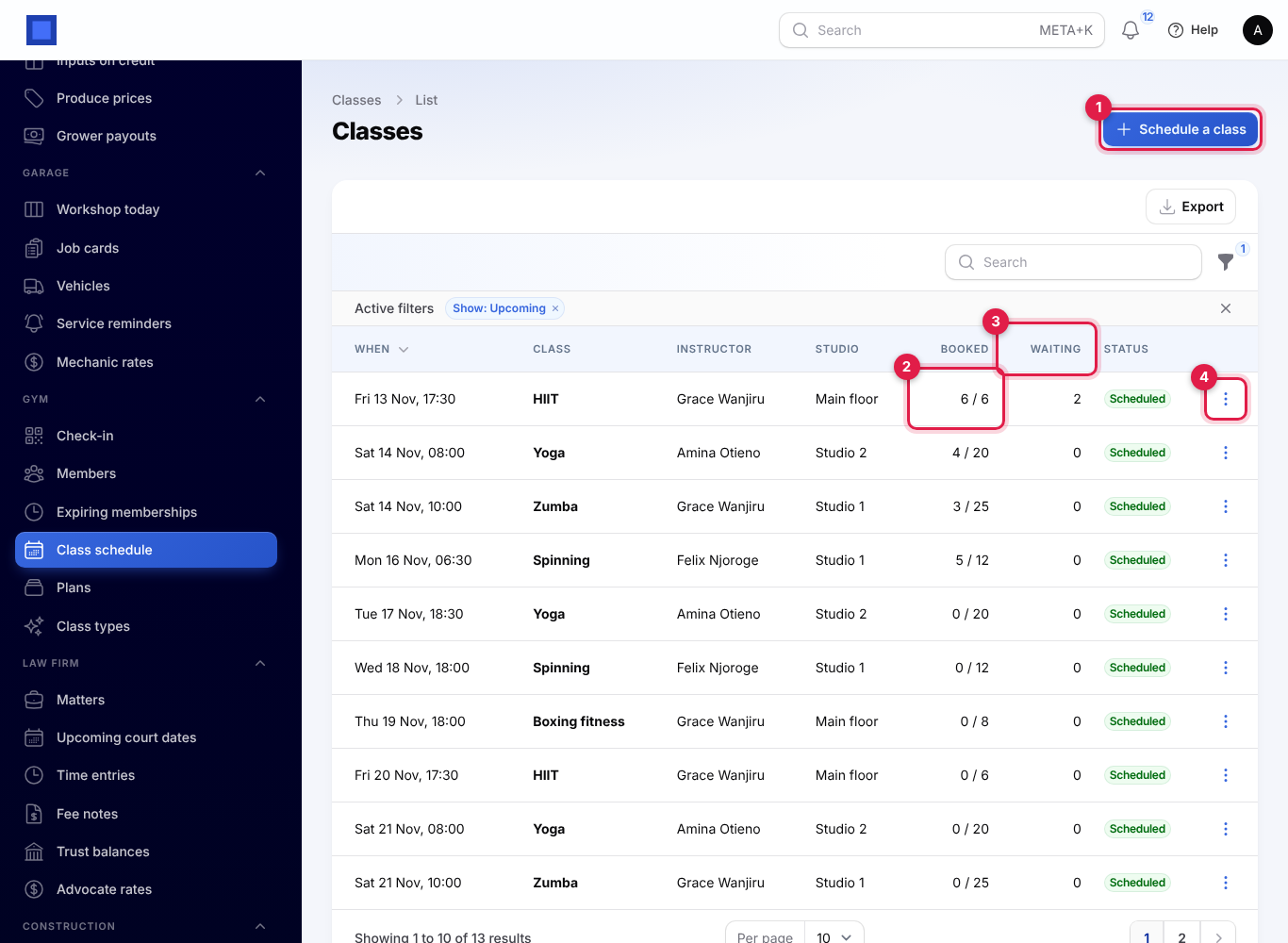
The list shows When, the Class, Instructor, Studio, places Booked out of the total (marker 2), how many are Waiting (marker 3) and the status. The filter shows Upcoming classes by default (or Past), by Class and by Instructor. Under ⋮ (marker 4):
- Bookings and details opens the class.
- Cancel class (confirm): everyone booked or waiting is told by text or email (HIIT on Fri 13 Nov, 17:30 is cancelled. Sorry for the change.) and their bookings are cancelled. You see "Class cancelled; 8 members told."
Bookings, the waiting list and attendance
Open a class with Bookings and details.
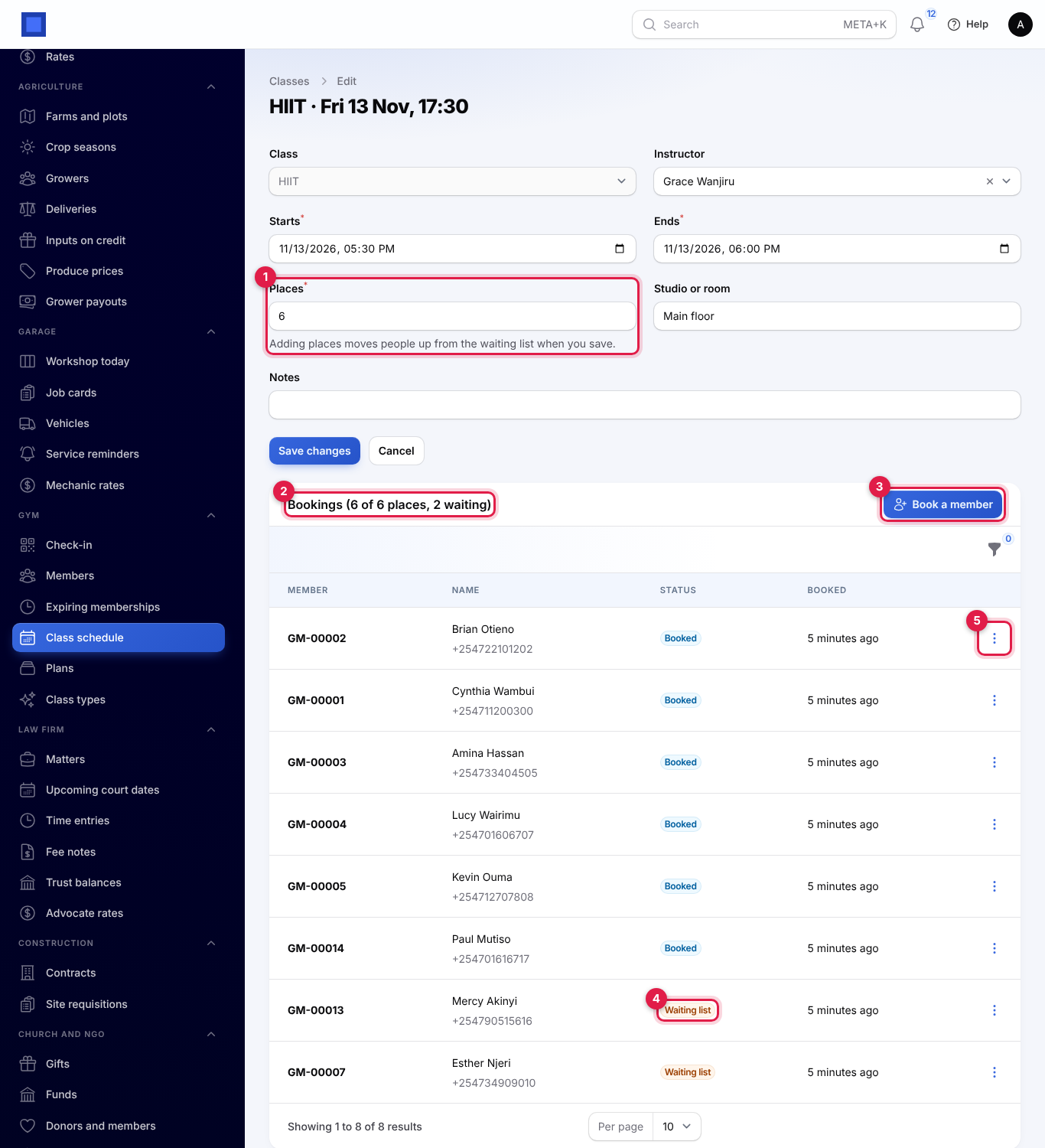
At the top you can change the instructor, times, Places (marker 1), studio and notes, then Save changes. Adding places moves people up from the waiting list when you save. The class itself cannot be changed.
The Bookings heading (marker 2) shows how many places are taken and how many are waiting, for example Bookings (6 of 6 places, 2 waiting).
Book a member (marker 3): choose the member by name or number and click Submit.
- While places are left: ":name is booked in."
- When the class is full: "The class is full; :name is on the waiting list." (marker 4).
- The member must be allowed in at the class's start time, by the same rules as the door (running membership, not frozen, off-peak hours, visits left), so a booking can be refused with the same reasons, under "Not booked". A class place uses a visit from the allowance. Other refusals: "This class was cancelled.", "This class has already started.", and ":name is already booked into this class." or "…already on the waiting list."
Under ⋮ on a booking (marker 5):
- Came and Did not come record attendance (Attended or Did not come). A no-show still used the place.
- Cancel booking (confirm) frees the place. The first person on the waiting list who can still come (in the order they joined it) is moved up, shown as Moved up from the waiting list, and told by text or email: A place opened up in HIIT on Fri 13 Nov, 17:30. You are booked in. Anyone whose membership no longer allows the class is passed over and stays waiting.
Filter the bookings by Status: Booked, Waiting list, Attended, Did not come or Cancelled.
Expiring memberships
Open Gym → Expiring memberships to see who to call before they lapse. The list shows memberships that have not been renewed, of members who are not cancelled.
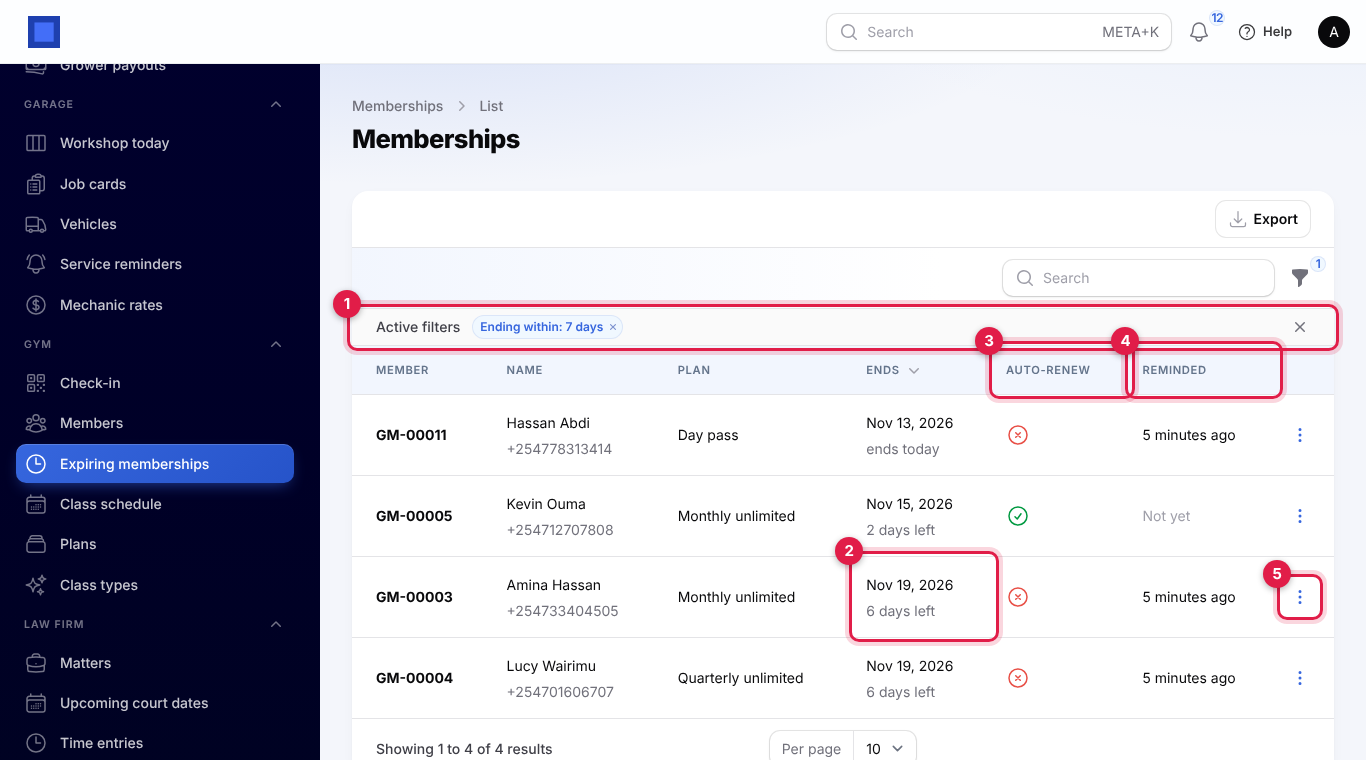
- The filter (marker 1) shows memberships Ending within 7 days by default; choose Today, 14 days, 30 days or Already ended (last 30 days). You can also filter by Auto-renew.
- Ends (marker 2) shows the date with 6 days left, ends today or ended 3 days ago.
- Auto-renew (marker 3) and Reminded (marker 4, when the reminder went, or Not yet).
- Under ⋮ (marker 5): Renew, Renew automatically / Stop renewing automatically, and Open member.
The daily run
Every morning at 04:17 UTC (07:17 in Nairobi), for each company, NaliSuite:
- Renews each auto-renew membership that ends today or tomorrow and has not been renewed, at today's plan price, with an invoice. The member is told by email and text: Acme Traders Ltd: your Monthly unlimited membership is renewed to 14 Dec 2026. Invoice INV-2026-00090 for KES 4,500.00. A renewal that cannot be made (for example the plan is no longer on sale) is skipped.
- Reminds each member whose membership does not renew automatically and ends within the reminder days (7 by default), once: Acme Traders Ltd: your Monthly unlimited membership ends on 19 Nov 2026. Renew at the front desk to keep training. The email says the same with the member number.
- Updates every member's status (Active, Frozen or Expired) for the new day.
Texts need Text members about renewals, expiry and class places on and an SMS provider in Marketing; emails go to members with an email address.
The public timetable
Turn on Publish the class timetable on a public page in Gym settings, and your timetable is at /gym/timetable on your workspace address, for example https://yourgym.nalisuite.com/gym/timetable. Link to it from your website or social media.
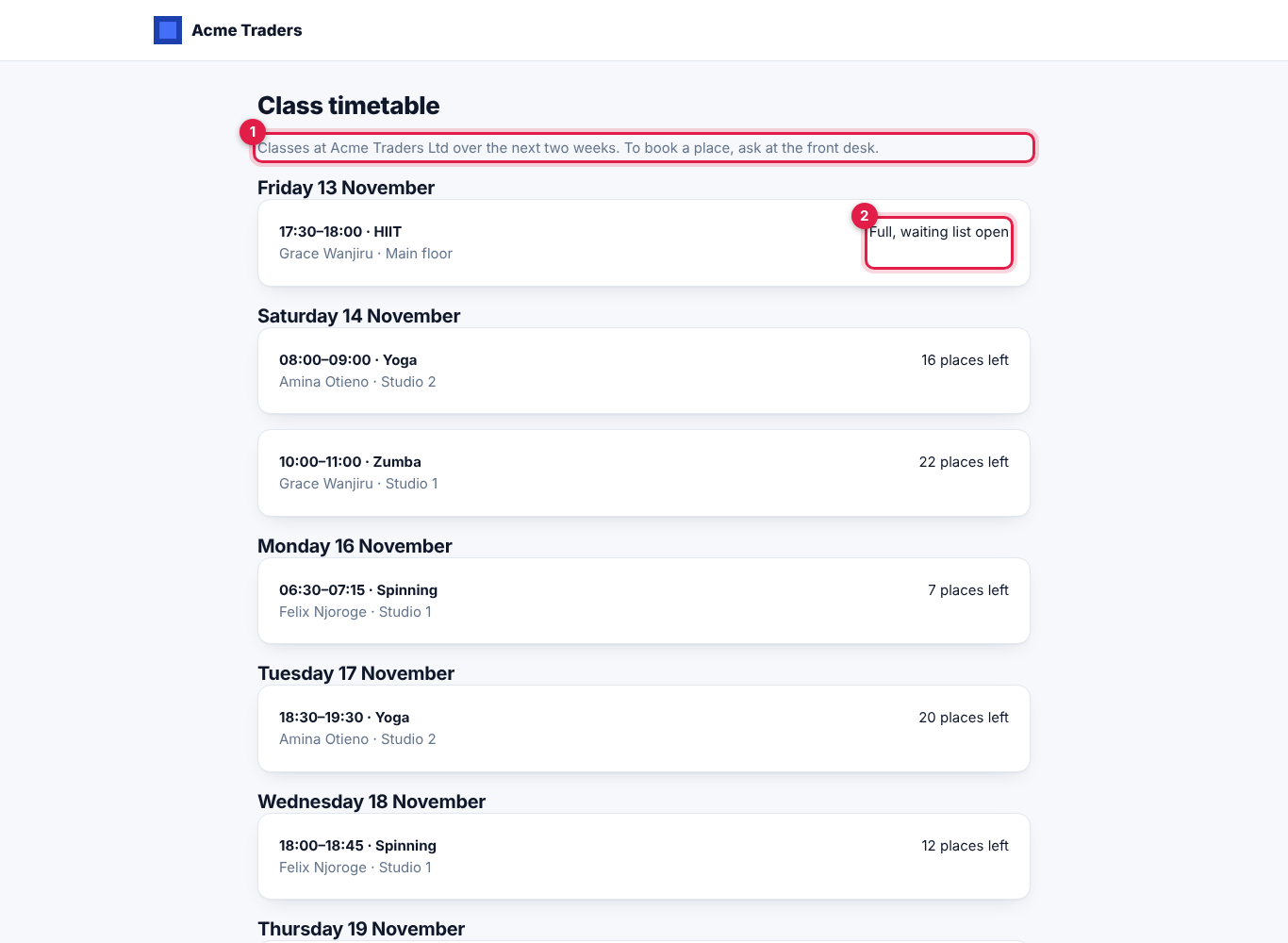
It lists the classes of the next two weeks by day, with the time, class, instructor and studio, and either the places left or Full, waiting list open (marker 2). It says visitors book at the front desk (marker 1); there is no online booking. Cancelled classes are not shown. With the setting off, the page does not exist.
Good to know
What counts as a visit? Each door check-in on a new day, and each class place booked (including a no-show). Coming in for a class booked that day, or coming back a second time the same day, is free. Unlimited plans are not counted at all.
A member lost their card. Click Reissue card on the member and print the new card. The old QR code stops working at once.
Can members book classes themselves? Not yet: staff book them in from the class. The public timetable tells visitors to ask at the front desk.
What happens when a member stops paying? Membership invoices are ordinary invoices: follow them up in Invoicing. Check-in does not look at payment, so cancel the membership (or the member) if they should not train.
Off-peak and time zones. Off-peak hours, today's visits and membership dates follow your company's time zone under Settings → Companies.
Two members share a phone. Search by name or member number instead; search by phone lists everyone with that number.