Optical shop
The Optical shop app is for opticians and eye clinics. You record eye tests with the full refraction for each eye and print a prescription that shows when it expires. Frames are kept as stock products and lenses are priced from your own price list by power. A spectacle order holds the frame, lenses and fitting measurements, takes a deposit when the customer orders, goes to an outside lab if you use one, and texts the customer when the glasses are ready; the balance is paid at collection, through Invoicing or the till. Contact lens wearers get a reminder before their supply runs out, and customers due their next eye test get a recall text.
Everything is in the Optical shop group of the left menu: Eye tests, Spectacle orders, Frames, Lenses, Contact lenses and Recalls and reorders. If you also run a medical clinic, see Clinic and Pharmacy for patients, consultations and the pharmacy.
Note: Three permissions control the Optical shop (under Settings → Roles). optical.view lets people see eye tests, orders, frames, lenses and recalls, and print prescriptions. optical.examine is for optometrists: recording and correcting eye tests and contact lens prescriptions; only people with it can be chosen as the examiner. optical.manage is needed for frames, lenses, spectacle orders, recording contact lens supplies and sending reminders. Owners and admins have all three; the member role has optical.view.
Switch it on
The Optical shop is a marketplace app. It needs Contacts and Sales. To take deposits and balances it uses Invoicing or Point of Sale, to count frames it uses Inventory, and to send texts it uses SMS in Marketing.
- Open Settings → Marketplace and type Optical in the Search add-ons… box (marker 1).
- On the Optical shop card (marker 2), click Start free trial (or Add to subscription) and confirm. The Optical shop group appears in the menu.
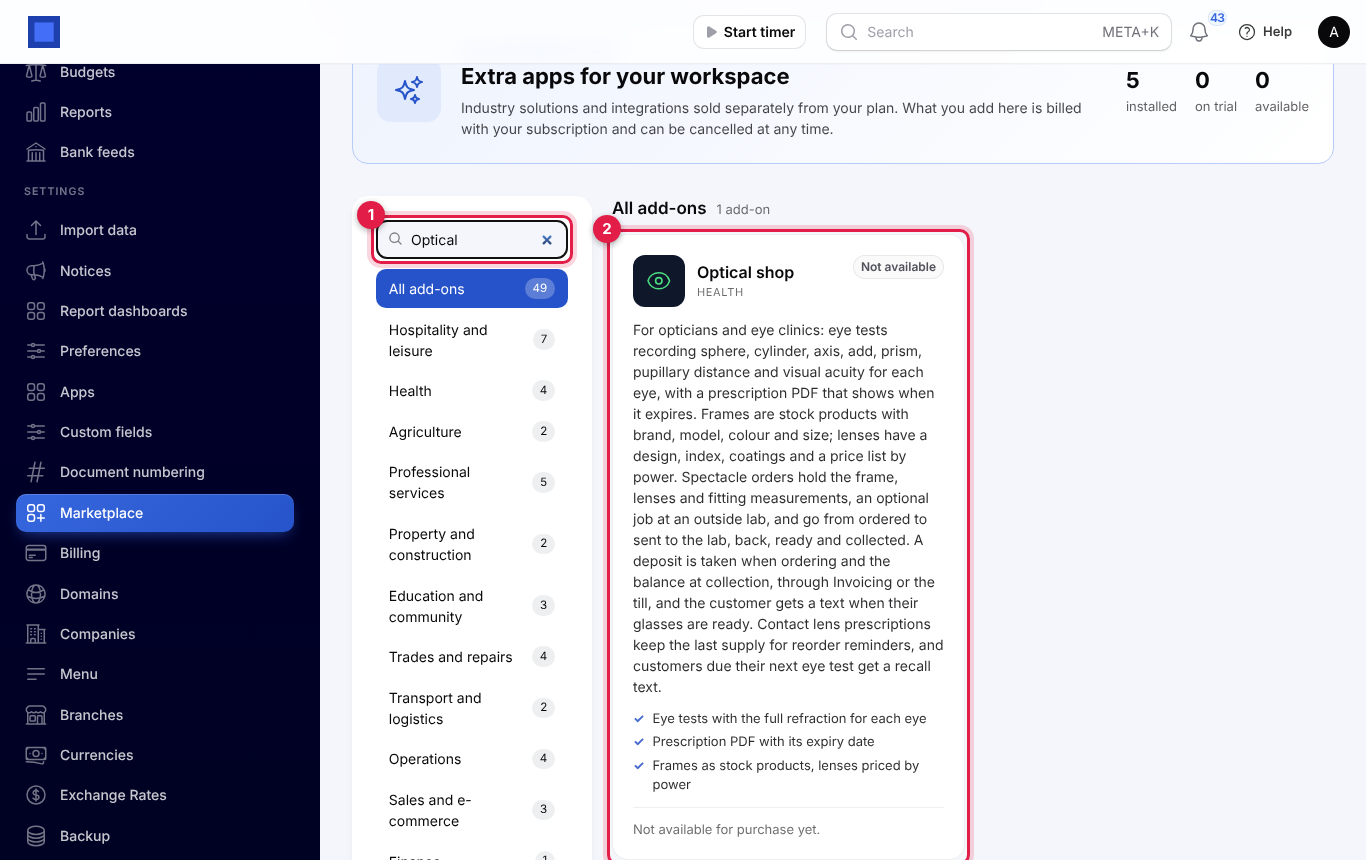
If the card says Not available for purchase yet, ask NaliSuite support to switch it on. See Billing and marketplace.
Settings
Open Settings → Preferences, click the Optical shop tab (marker 1), change what you need and click Save preferences.
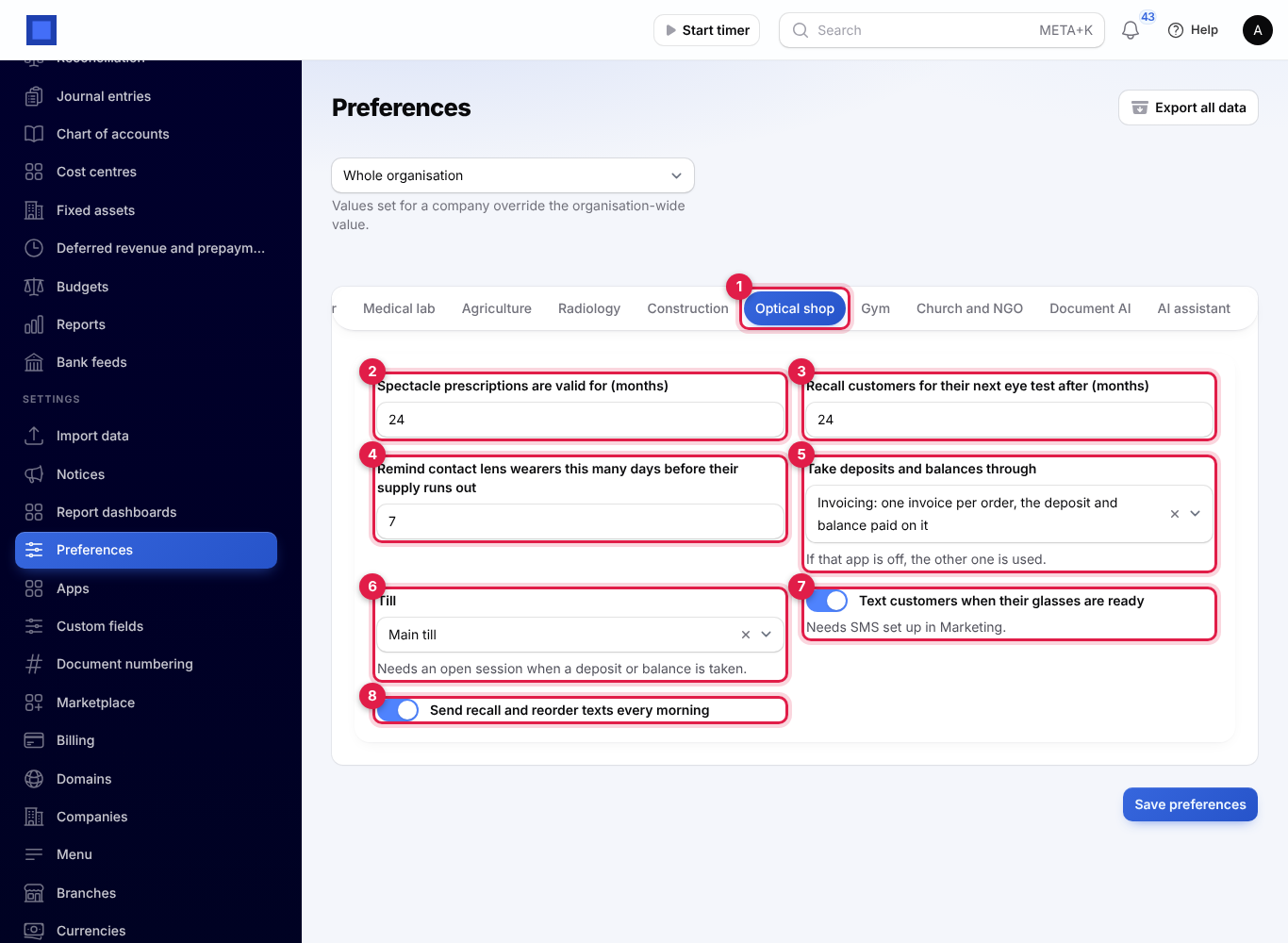
| Setting | Default | What it does |
|---|---|---|
| Spectacle prescriptions are valid for (months) (marker 2) | 24 | How long a prescription can be used for glasses after the test. Orders refuse an expired prescription. |
| Recall customers for their next eye test after (months) (marker 3) | 24 | When a customer is due their next eye test. |
| Remind contact lens wearers this many days before their supply runs out (marker 4) | 7 | How early the reorder reminder goes out. |
| Take deposits and balances through (marker 5) | Invoicing | Invoicing: one invoice per order, the deposit and balance paid on it, or The till: rung up in Point of Sale. If that app is off, the other one is used; with neither, the amounts are only noted on the order. |
| Till (marker 6) | — | The till used for deposits and balances when you work through Point of Sale. It needs an open session when money is taken. With none chosen, your first active till is used. |
| Text customers when their glasses are ready (marker 7) | On | Sends the "ready" text. Needs SMS set up in Marketing (see SMS providers). |
| Send recall and reorder texts every morning (marker 8) | On | Once a day, everyone due an eye test or a contact lens reorder who has not been reminded yet gets a text. |
Change the validity and recall months before you start: each eye test's expiry and recall dates are worked out when it is saved.
Eye tests and prescriptions
Record an eye test
- Open Optical shop → Eye tests and click Record an eye test (marker 1 in the list screenshot).
- Choose the Customer (marker 1), or click + to add one with their Name, Mobile and Email. The mobile is used for texts.
- Check Tested on (marker 2), today by default and never in the future, and Examined by.
- For the Right eye (R) (marker 3) and the Left eye (L), fill in:
- Sphere, Cylinder and Add, in dioptres in steps of 0.25.
- Axis (marker 4), from 1 to 180 degrees. It is required when there is a cylinder.
- Prism and Prism base (in, out, up or down).
- PD (marker 5), the pupillary distance for that eye in millimetres.
- Visual acuity, for example 6/6.
- Write any Notes and advice (marker 6), for example a referral to an ophthalmologist.
- Click Create. The test gets a number such as EYE-2026-00001.
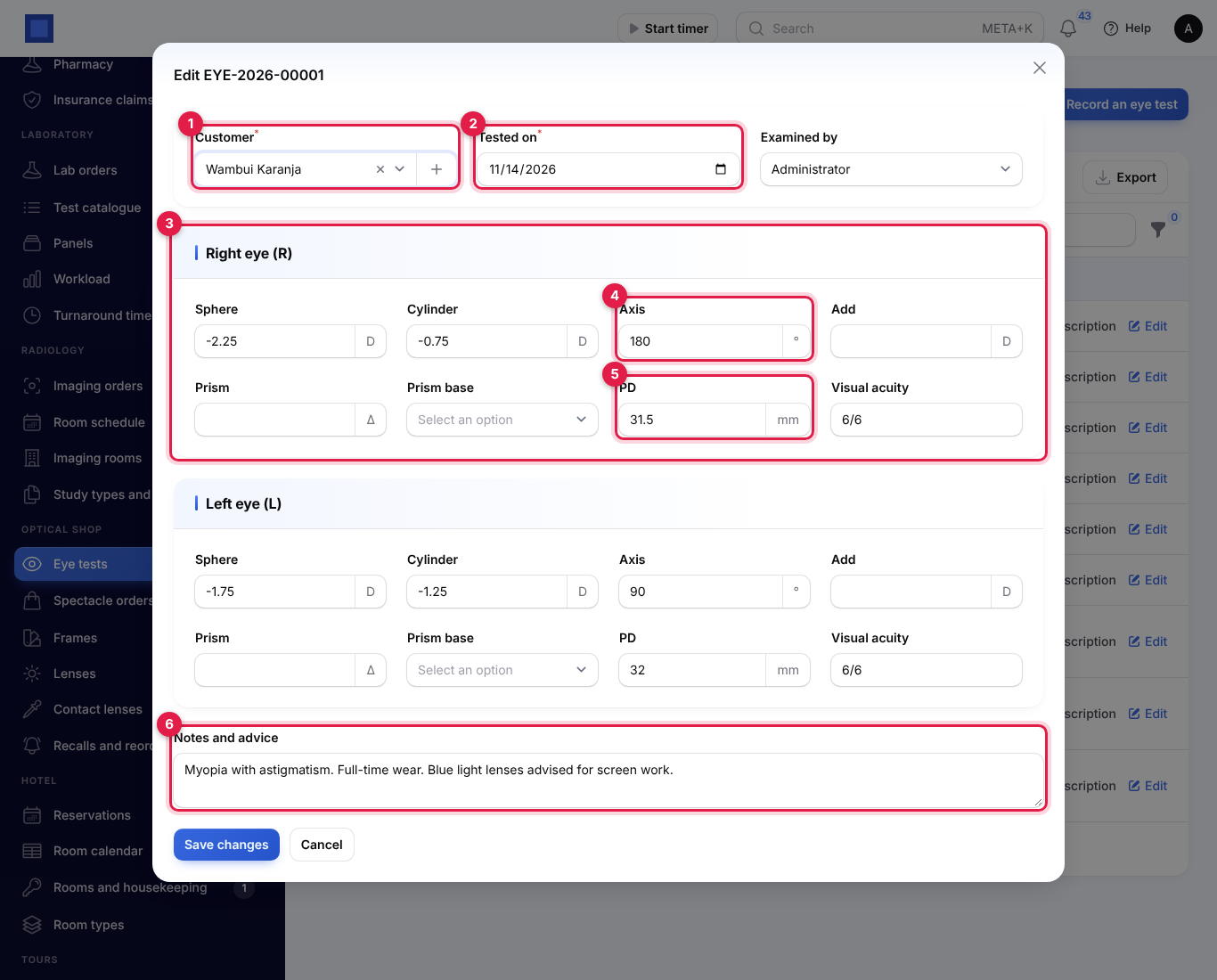
To correct a test, click Edit on it. Its expiry and recall dates follow the corrected test date.
The eye test list
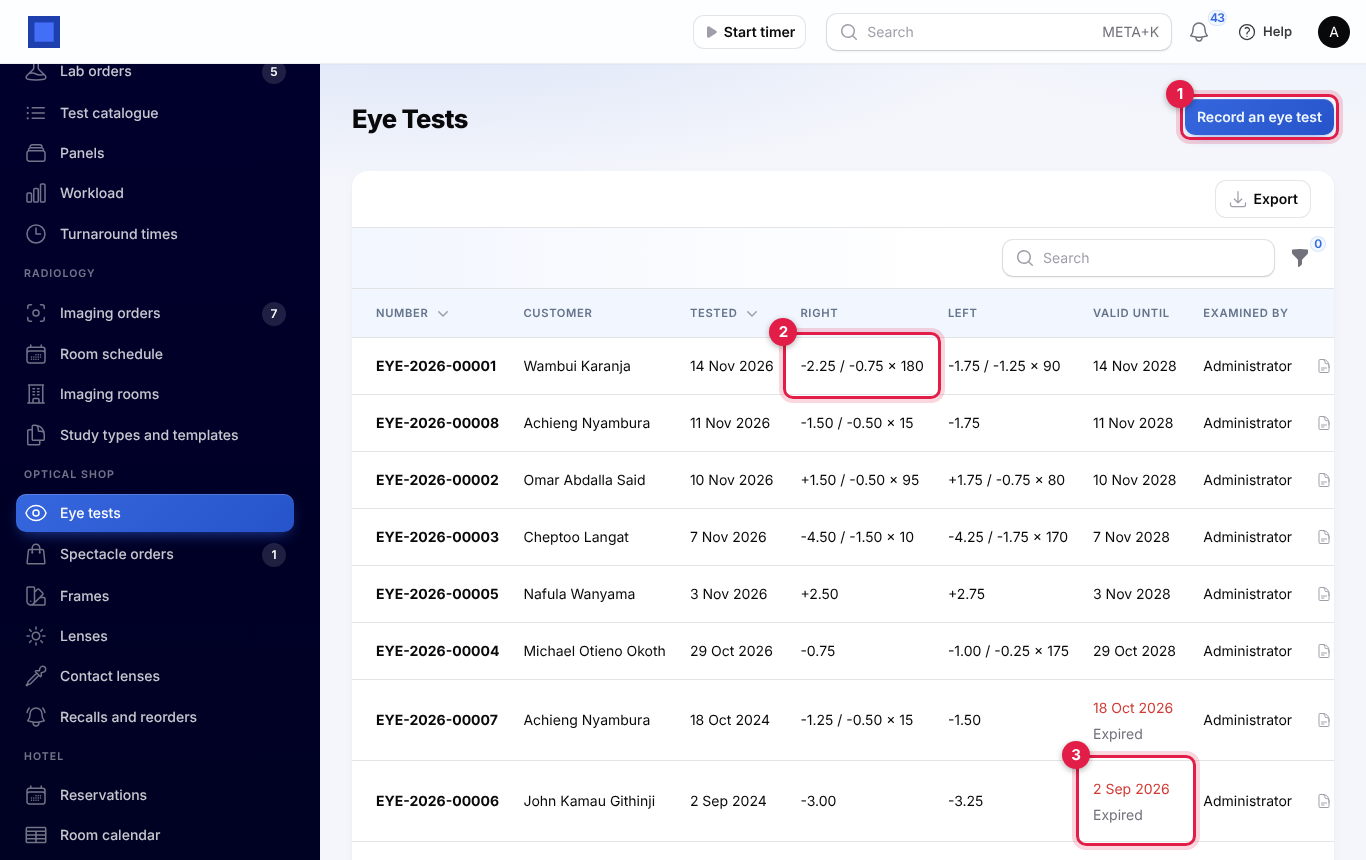
Each test shows the customer, the date, a summary for each eye (marker 2), such as -2.25 / -0.75 × 180, Valid until, and who examined. Expired prescriptions show the date in red with Expired (marker 3). Use the Still valid filter to hide them.
The prescription PDF
Click Prescription on a test to open the PDF. It shows the customer, examiner and test date, a table with each eye's sphere (Plano when empty), cylinder, axis, add, prism, PD and visual acuity, any contact lens prescription made from this test, the notes, Valid until and when the next eye test is due. An expired prescription carries a notice to book a new test before ordering glasses.
Frames and lenses
Frames
Every frame is also a stock product, so you can receive stock, print labels and sell it like any other product.
- Open Optical shop → Frames and click Add a frame (marker 1).
- Fill in the Brand, Model, Colour and Material, and the Eye size, Bridge and Temple in millimetres.
- Under Selling, type the Price, Cost, SKU and Barcode.
- Click Create. A product named, for example, Frame: Ray-Ban RB5154 Clubmaster Tortoise is added to your products.
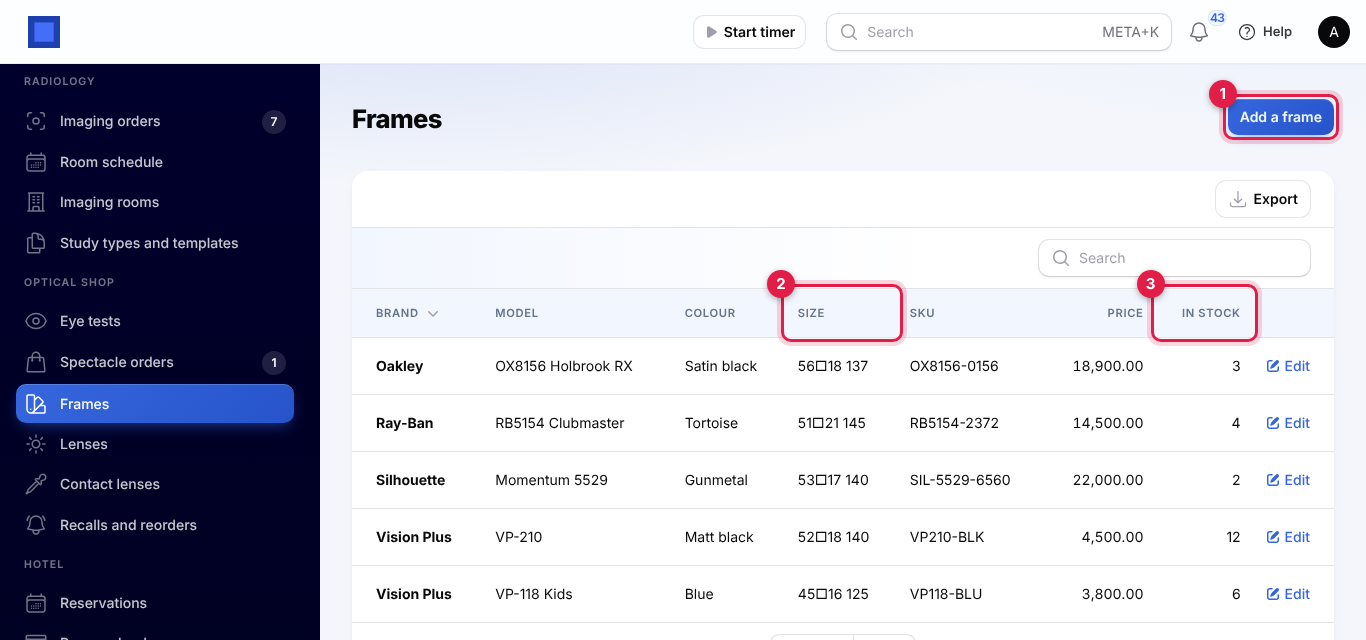
The list shows the frame's size (marker 2), written as eye size, bridge and temple, its SKU and price and, when Inventory is on, how many are In stock (marker 3). Receive frames into stock in Inventory (see Inventory).
Lenses and the price list by power
Open Optical shop → Lenses and click Add a lens, or Edit one.
- Give the lens a Name, for example Standard single vision.
- Choose the Design (marker 1): single vision, bifocal, varifocal, reading, or office or computer.
- Choose the Index (marker 2), for example 1.50, 1.56 or 1.60.
- Tick the Coatings (marker 3): anti-reflective, blue light filter, photochromic, scratch resistant, UV protection, tint or water repellent.
- Under Price per pair by power (marker 4), add a band for each price: Sphere up to (±D), Cylinder up to (±D) and the Price per pair. Leave a limit empty for no limit.
- Leave On sale on and click Save changes.
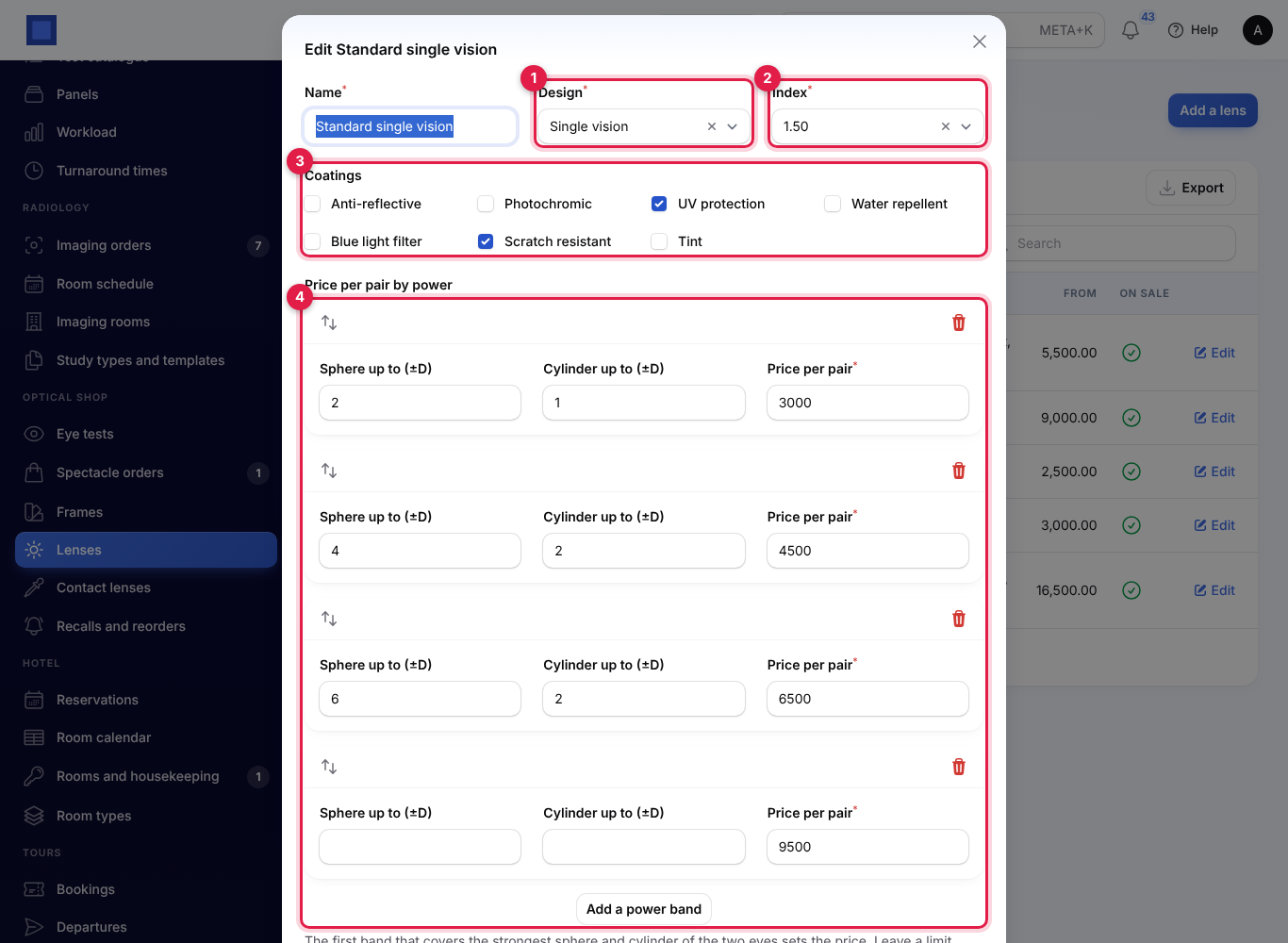
The price for an order is worked out from the strongest sphere and the strongest cylinder of the two eyes, ignoring plus or minus. The narrowest band that covers both sets the price. With the bands in the screenshot, a prescription of -2.25 / -0.75 in one eye and -1.75 / -1.25 in the other needs a band up to 4 and 2: KES 4,500 a pair. The From column in the list shows the lens's lowest price.
Spectacle orders
Place an order and take the deposit
- Open Optical shop → Spectacle orders and click New spectacle order.
- Choose the Customer (marker 1). Customers with an eye test are listed; type to find anyone else.
- Choose the Prescription (marker 2). Only prescriptions that have not expired are listed.
- Choose the Frame (marker 3) from your frames, or leave it on Customer's own frame and describe it under Own frame.
- Choose the Lenses (marker 4). The list price for this prescription shows under the field. Type a Lens price (marker 5) only to charge something else, and Lens details to describe the lenses differently.
- Under Fitting (marker 6), the PD right and PD left come from the test when left empty; add the fitting heights, the Promised for date and any notes.
- Under Deposit, type the Deposit taken (marker 7) and how it was Paid by, then click Submit. The order gets a number such as SPO-2026-00005 and opens.
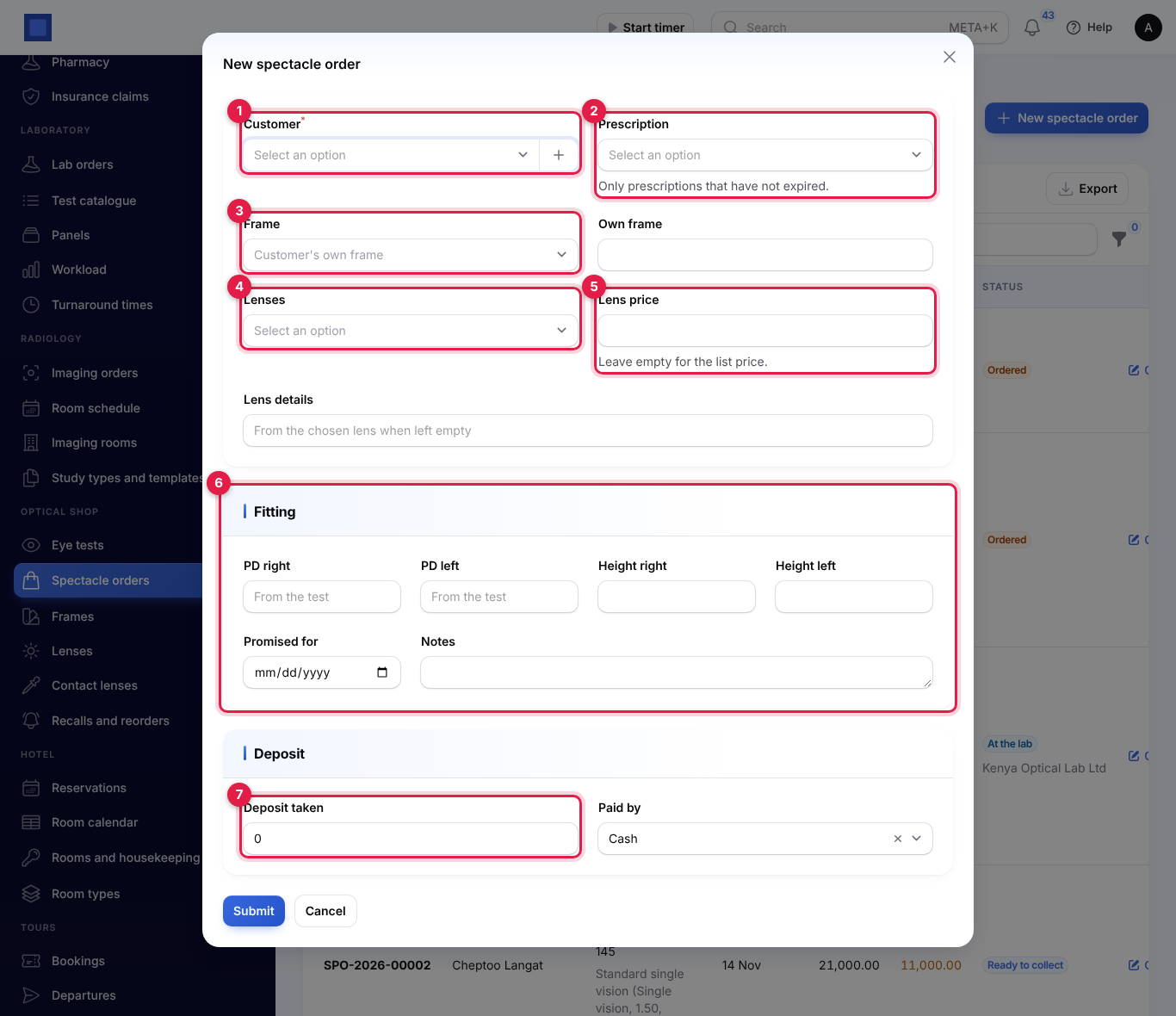
The order's total is the frame's price plus the lens price. The deposit cannot be more than the total. When the prescription is outside the lens's price list, NaliSuite asks you to type the lens price.
How the money is taken
| Through | When the order is placed | At collection |
|---|---|---|
| Invoicing | An invoice for the frame and lenses is issued to the customer, due on the promised date, and the deposit is recorded as a payment on it. With Inventory on, the frame leaves stock when the invoice is issued, unless Deliver tracked goods when an invoice is issued is off in the inventory settings. | The balance due on the invoice is recorded as a payment. Open the invoice opens it. |
| The till | The deposit is rung up on the till as "Deposit for spectacle order …". | The frame and lenses are sold on the till with a "Less the deposit paid" line, so only the balance changes hands. |
| Neither | The deposit is noted on the order. | The balance is noted on the order. |
On the till, a session must be open on the chosen till, or you are asked to open one first. Paid by can be cash, mobile money or card on the till; with Invoicing, also bank transfer or cheque. See Invoices and payments and Point of Sale.
Follow the order
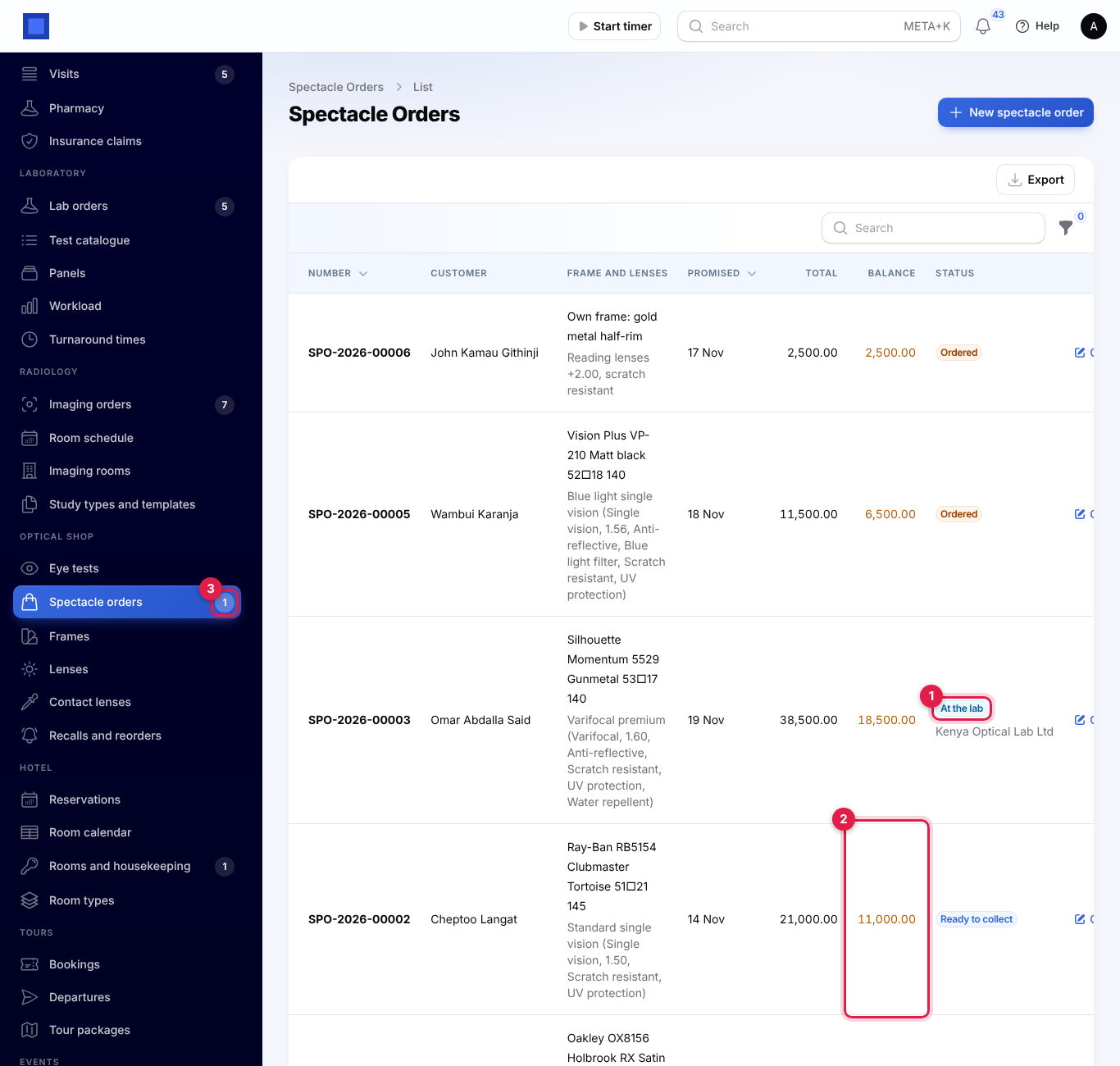
The list shows each order's customer, frame and lenses, promised date, total, Balance (orange while money is owed, marker 2) and status (marker 1); an order at the lab shows the lab's name under it. The number next to Spectacle orders in the menu (marker 3) counts glasses ready to collect. Filter by Status.
| Status | Means |
|---|---|
| Ordered | Placed, with the deposit taken. |
| At the lab | Sent to an outside lab. |
| Back from the lab | Received from the lab, to check. |
| Ready to collect | Glazed and checked; the customer was texted. |
| Collected | Paid and handed over. |
Open an order to see its frame, lenses, total, deposit and balance under the title (marker 4).
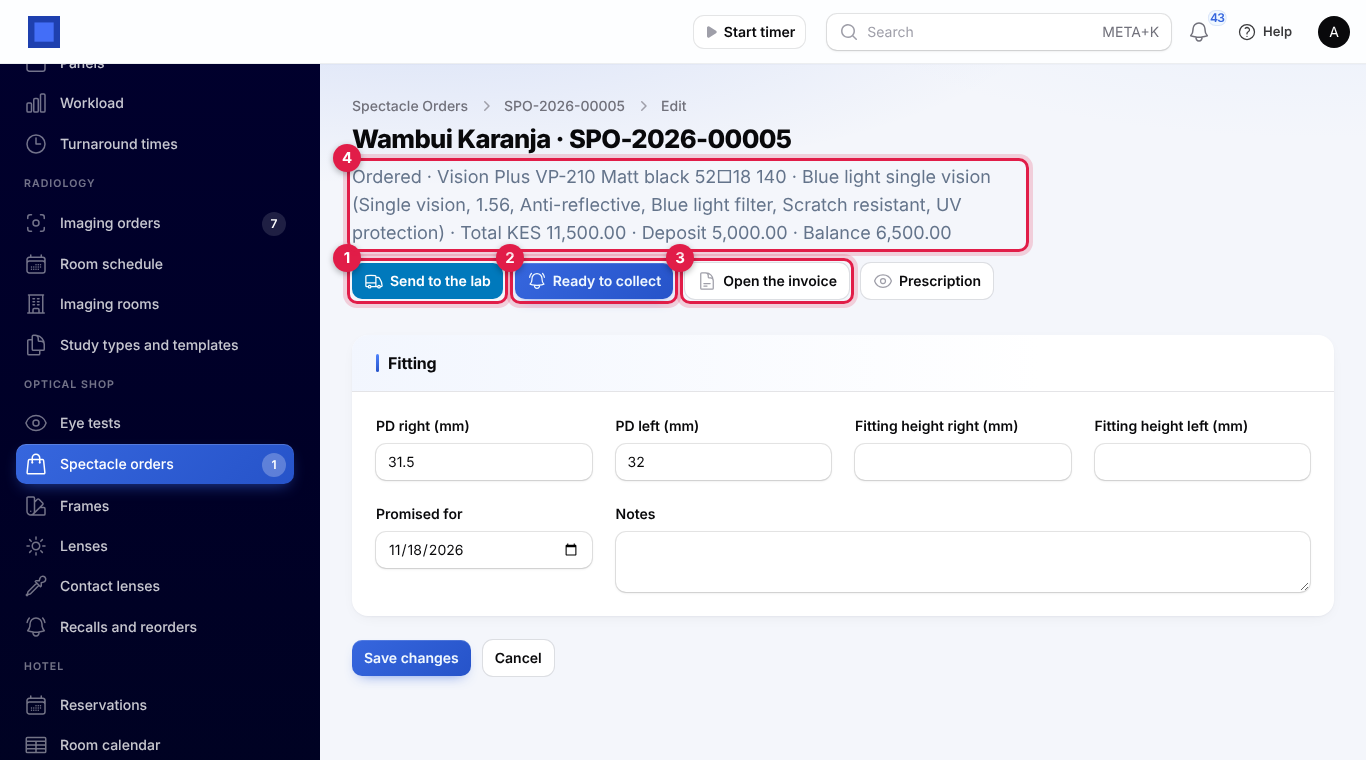
- Click Send to the lab (marker 1), choose the Lab or workshop (a supplier in your contacts), and type the Lab job number and the Lab charge. Skip this when you glaze the lenses yourself.
- When the glasses come back, click Back from the lab.
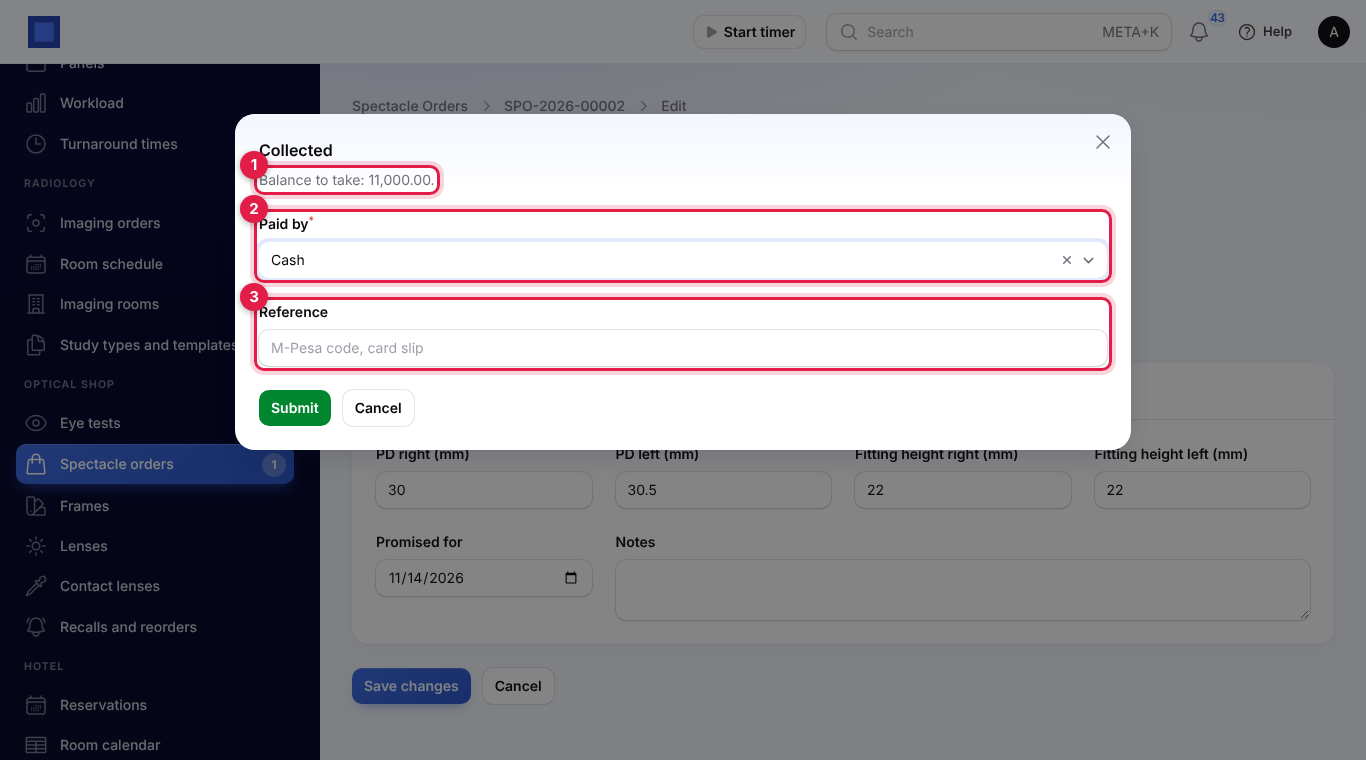
- Check the glasses and click Ready to collect (marker 2), then confirm. The customer is texted, for example "Hello Cheptoo, your glasses (order SPO-2026-00002) are ready to collect at Acme Traders Ltd. Balance to pay: KES 11,000.00." If the text cannot be sent, you are asked to check the customer's phone number and SMS in Marketing. Text again sends it once more.
- When the customer collects, click Collected. The Balance to take (marker 1) is shown; choose how it was Paid by (marker 2), type a Reference (marker 3) such as the M-Pesa code, and click Submit.
Open the invoice (marker 3 on the order) and Prescription open the invoice and the prescription PDF. The Fitting section can be corrected until the glasses are collected.
Contact lenses
- Open Optical shop → Contact lenses and click Add a contact lens prescription (marker 1).
- Choose the Customer and, if it came from one, the eye test under From eye test.
- Fill in Prescribed on, the Brand, the Lens, the Replacement (daily, two-weekly, monthly, three-monthly or yearly) and Valid until.
- For each eye, type the Sphere, Cylinder, Axis, Add, Base curve and Diameter, then click Create.
When you hand over lenses, click Record a supply on the prescription, check Supplied on and type how many days The supply lasts, for example 90 for three months. The Last supply (marker 2) and the date it Runs out (marker 3) are updated, and a new reorder reminder can go out.
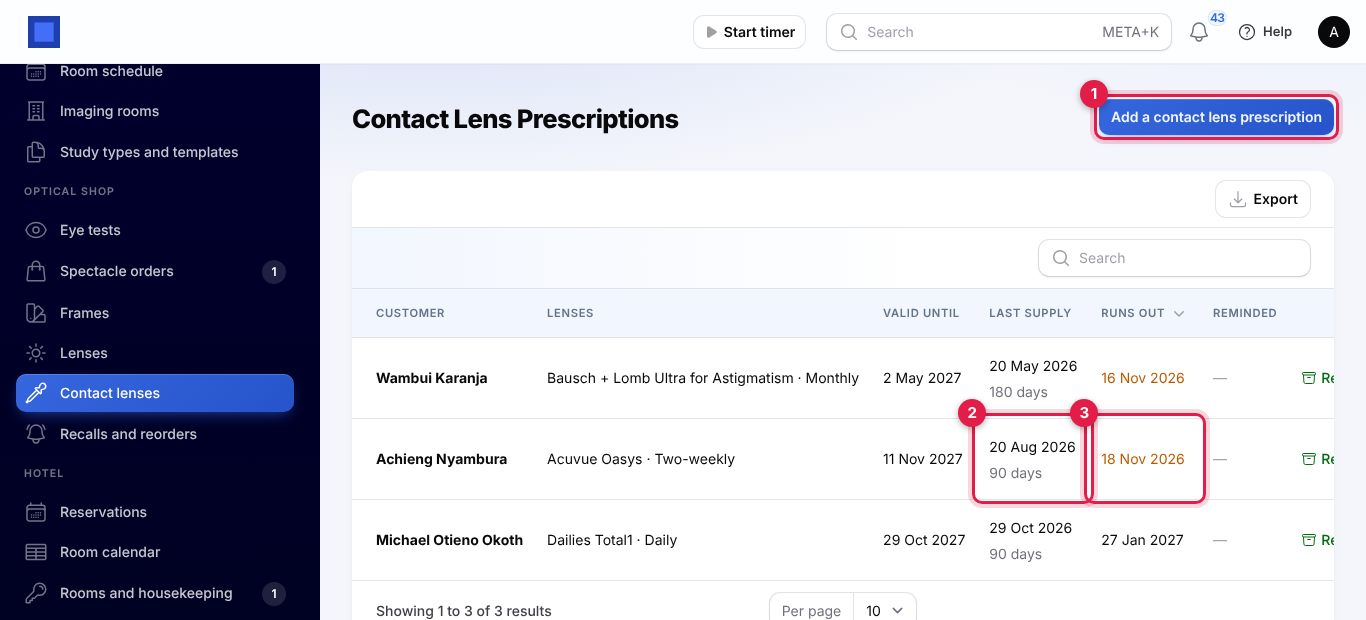
Runs out turns orange within a week and Valid until turns red once the prescription has expired. Reminded shows when the last reorder text went out. A contact lens prescription made from an eye test also prints on that test's prescription PDF.
Recalls and reorders
Optical shop → Recalls and reorders lists who to remind.
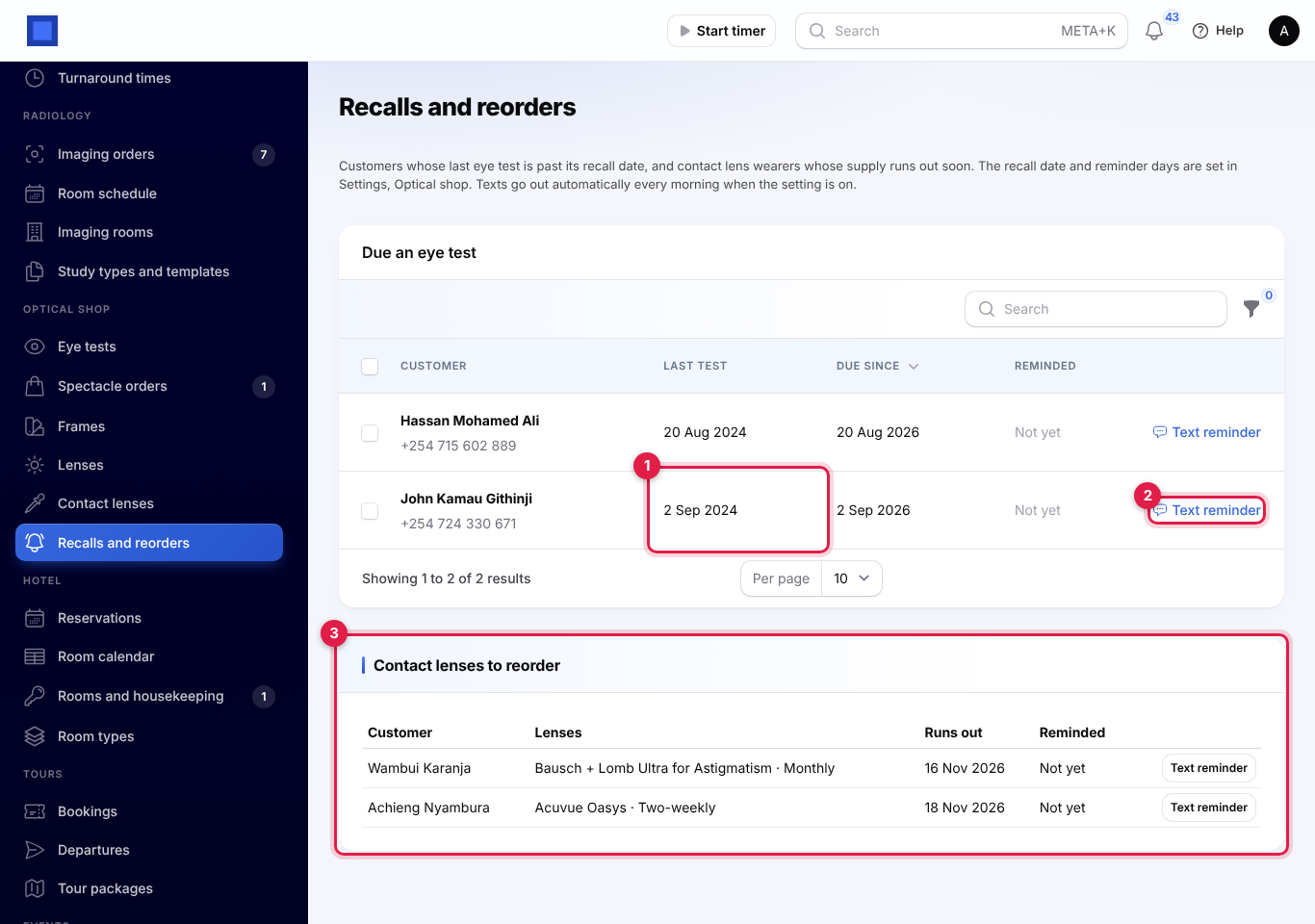
- Due an eye test: customers whose latest eye test (marker 1) is past its recall date, with Due since and when they were Reminded. Click Text reminder (marker 2) to text one, or tick several and click Text reminders. Filter with Not reminded yet.
- Contact lenses to reorder (marker 3): wearers whose supply runs out within the reminder days set in the settings, with a Text reminder button each.
The texts read, for example, "Hello John, it is time for your next eye test at Acme Traders Ltd. Your last one was on 2 Sep 2024. Call us or drop in to book." and "Hello Wambui, your Bausch + Lomb Ultra for Astigmatism contact lenses run out around 16 Nov 2026. Reply or call Acme Traders Ltd to reorder."
With Send recall and reorder texts every morning on, NaliSuite texts everyone due who has not been reminded yet once a day. The buttons only show when SMS is set up in Marketing; otherwise the page asks you to set it up.
Good to know
What if the customer's prescription has expired? It is not offered on a new order, and NaliSuite refuses it if chosen another way. Test their eyes again first.
Can I sell glasses without an eye test? Yes. Leave Prescription empty, describe the lenses and type the Lens price. Reading glasses and the customer's own frame work the same way.
Who receives the texts? The customer's mobile number, or their phone number when there is no mobile. Customers without either are skipped.
Is the lab charge billed to the customer? No. It is noted on the order for your own records; pay the lab's bill in Purchases.
Does a new eye test stop the recall? Yes. Only each customer's latest test counts, so a customer tested again drops off the recall list until their new recall date.