Custom fields
Add your own fields to records so you can keep what your business needs: a customer's KRA PIN, a product's shelf, an employee's shirt size, the delivery site on an invoice. They appear on the record's form, as columns in its list, in exports and imports, and on PDFs when you ask.
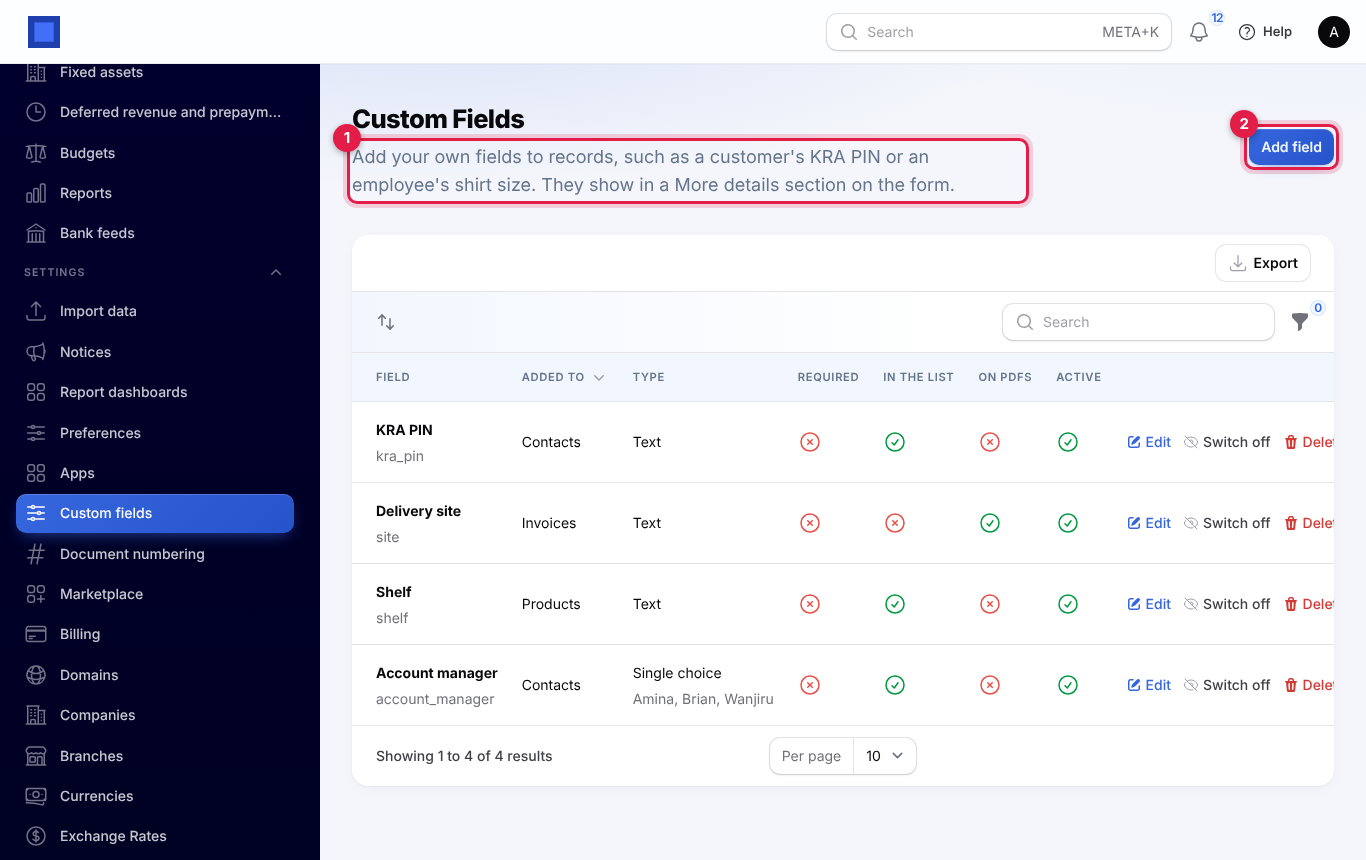
You will find them under Settings → Custom fields.
Note: Anyone who can see the settings can see the list. Adding, changing, switching off and deleting fields needs the Manage settings permission (the owner and admin roles by default).
Add a field
- Open Settings → Custom fields. Each field shows the record it is added to, its kind, and whether it is required, in the list and on PDFs (marker 1).
- Press Add field (marker 2).
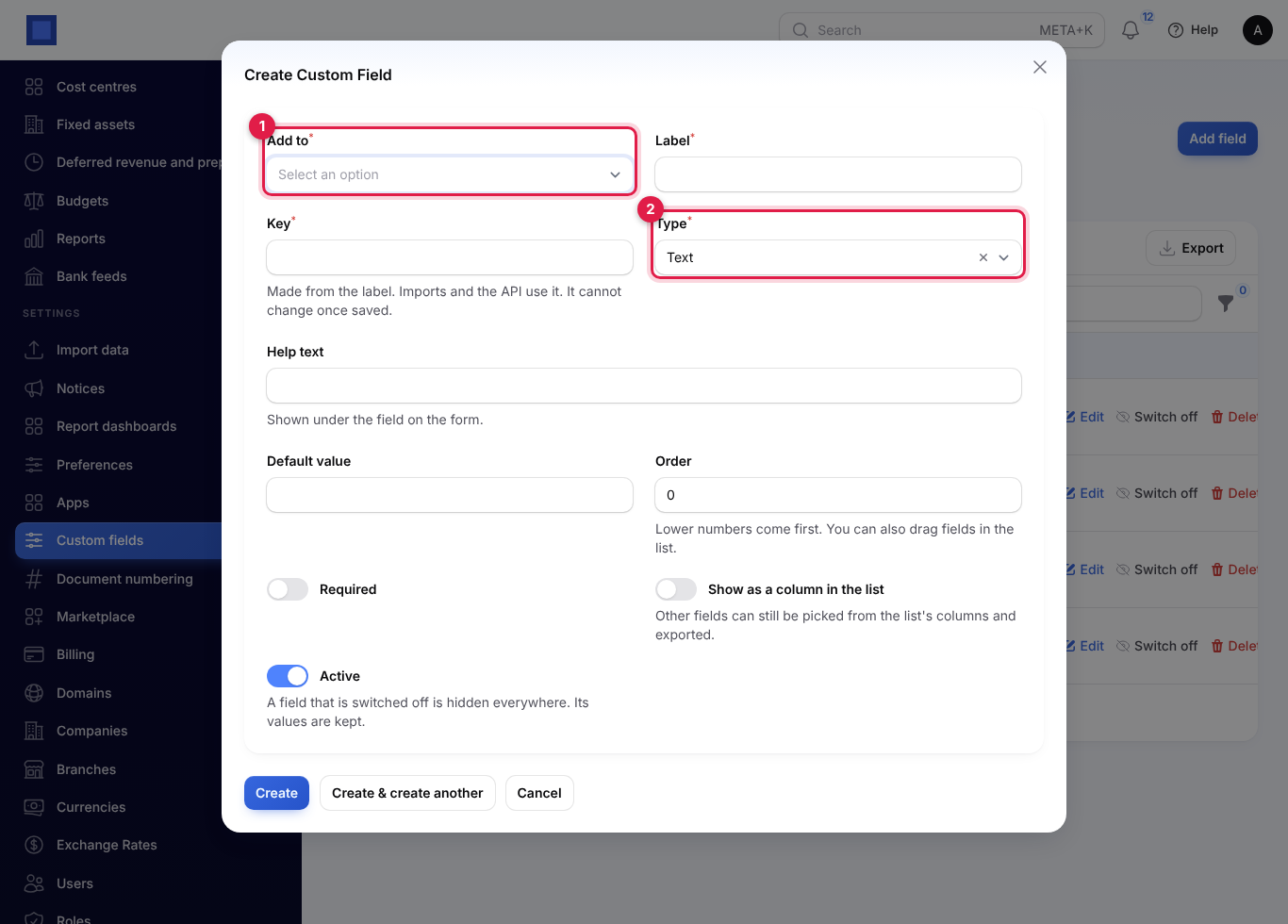
- Choose the record it belongs to (marker 1): contacts, CRM leads, products, quotations and sales orders, invoices, purchase orders, vendor bills, employees, projects, project tasks or helpdesk tickets. Only records of apps you have switched on are offered.
- Give it a label. The key is made from the label (for example "KRA PIN" becomes
kra_pin) and cannot change once saved. - Pick the kind of field (marker 2): text, long text, whole number, decimal, money, date, yes/no, single choice, multiple choice, email, phone or web address. Choice fields need their list of choices.
- Choose whether it is required, its help text and default value, whether to show it as a column in the list, and, for records with a PDF (invoices, quotations and orders, purchase orders), whether to show it on PDF documents.
Where fields appear
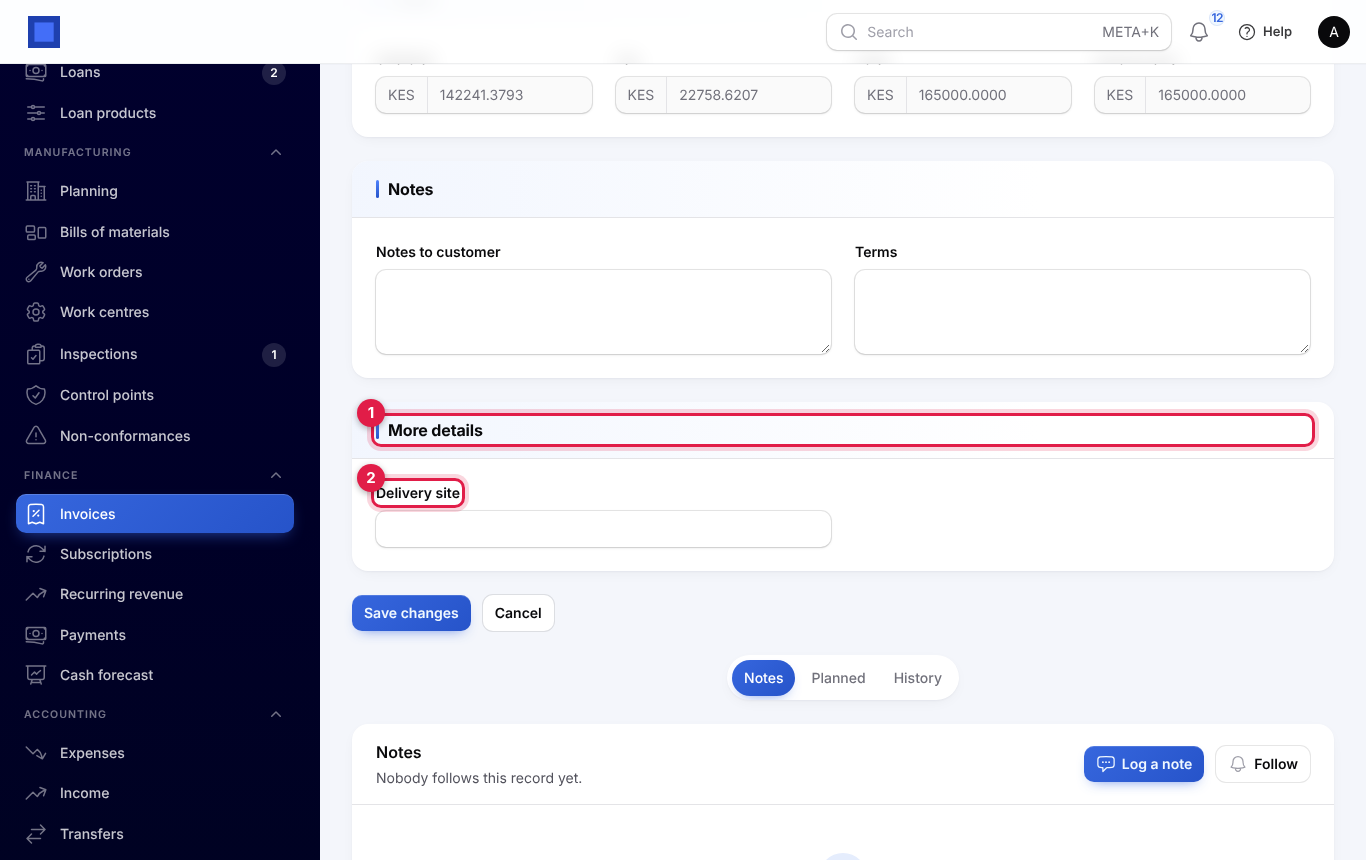
- On the record's form, in a More details section, checked by kind (a number must be a number, an email an email, a choice one of its choices).
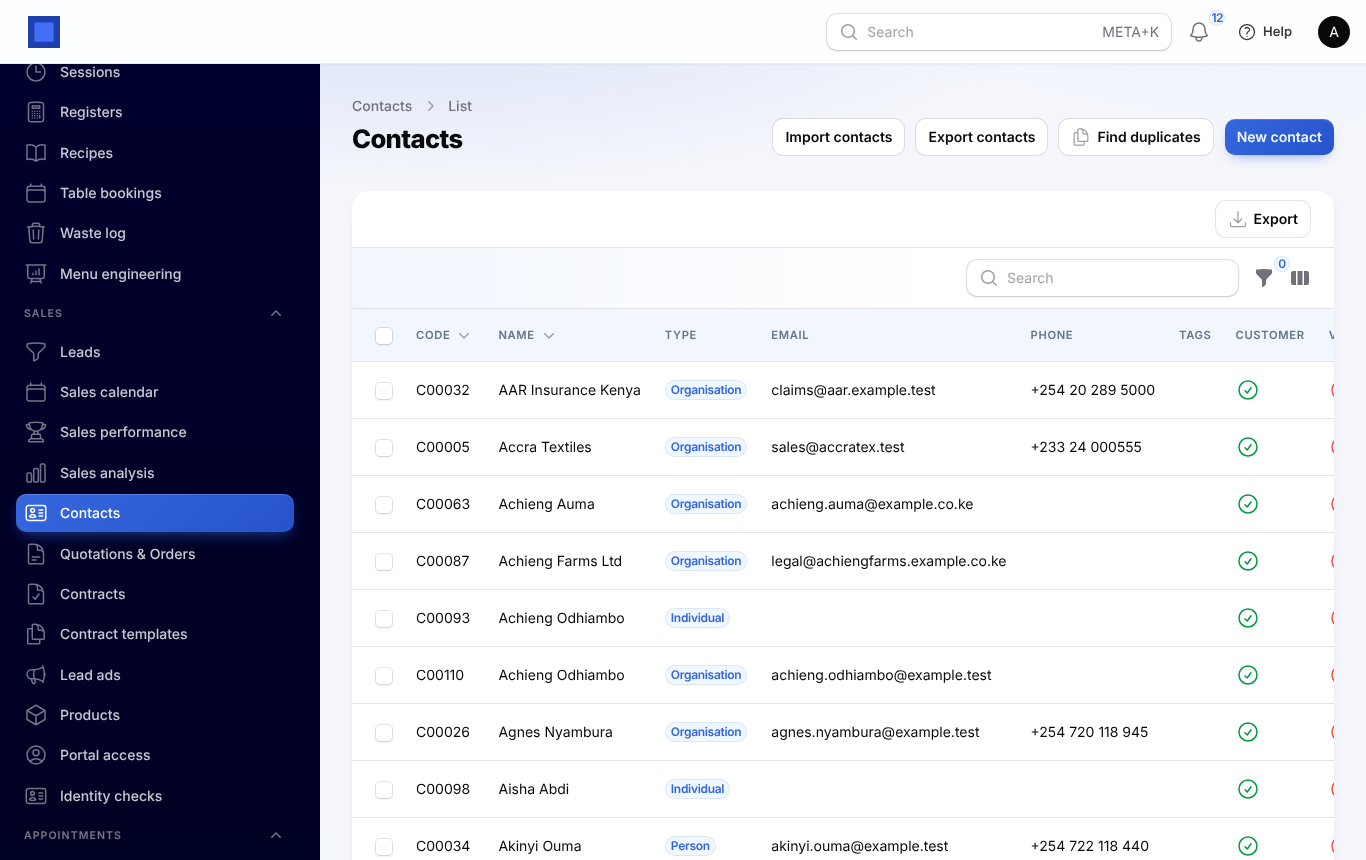
- In the record's list as columns. Fields marked "show as a column" are shown straight away (marker 1 and 2); the others can be picked from the column menu, and text fields can be searched.
- On invoices, quotations and purchase orders, fields marked show on PDF documents print in a small Details box when they have a value.
- In the list's Export, and as columns you can map when you import contacts, leads, products or employees from a spreadsheet.
- On helpdesk tickets, which have no edit page, the values show in the side panel with an Edit details button.
Switch off or delete a field
- Switch off hides the field everywhere but keeps every value. Switch it on again and they are back.
- Delete tells you how many records hold a value, then removes the field and those values for good. Switch off instead if you might need them.
Fields of an app you switch off under Settings → Apps are hidden too, and come back with the app.