Rental
The Rental app is for businesses that hire things out by the hour, day, week or month: generators, tents and chairs for events, construction tools, cars, venues, sound systems. It keeps an availability calendar so nothing is double-booked, prices each booking with the best-fitting rate, holds a deposit, checks items out and back in, charges late days and damage, and issues the invoice with the deposit settled against it. Customers can see their bookings and deposits in the customer portal. Everything is under Rental in the left menu: Availability, Bookings and Items for hire.
Switch the Rental app on
Rental is an add-on sold separately from your plan.
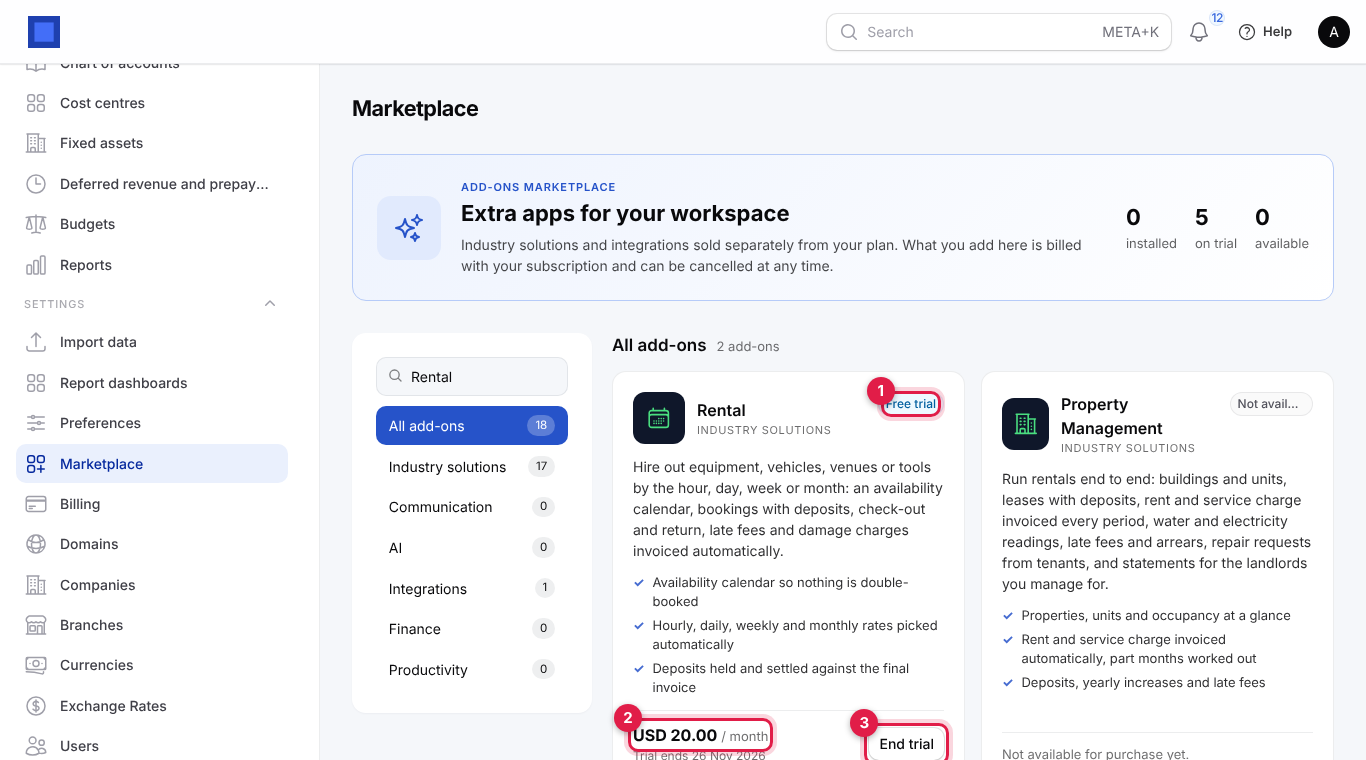
- Open Settings → Marketplace and find Rental under Industry solutions. The card shows the monthly price (marker 2).
- Click Start free trial (or Add to subscription) and confirm. During the trial the card shows Free trial and its end date (marker 1). The Rental menu appears straight away.
- End trial (marker 3) or Cancel switches it off at the end of the paid period; bookings and invoices are kept.
Permissions (under Settings → Roles): rental.view (see items, availability and bookings) and rental.manage (create and change items and bookings, take deposits, check out and return).
Set the rental rules
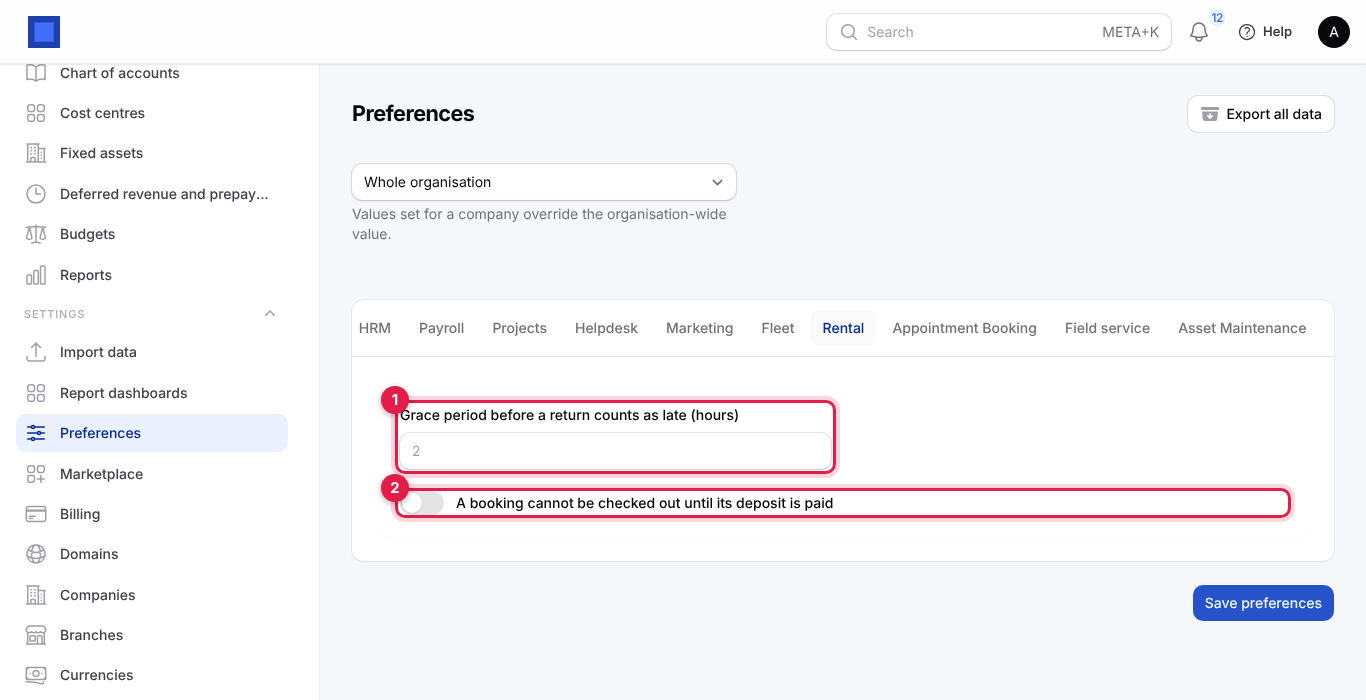
Open Settings → Preferences, click the Rental tab, set these and click Save preferences.
| Setting | What it does |
|---|---|
| Grace period before a return counts as late (hours) (marker 1) | Default 2. Items back within this many hours of the booked end are not charged a late day. |
| A booking cannot be checked out until its deposit is paid (marker 2) | When on, Check out is refused until Take deposit has been done. Recommended for valuable items. |
Add items for hire
- Open Rental → Items for hire (titled Rental Items). Each item shows its code, category, units owned, how many are Free today (marker 2), the daily and weekly rate, the Deposit per unit (marker 3) and whether it is available for hire.
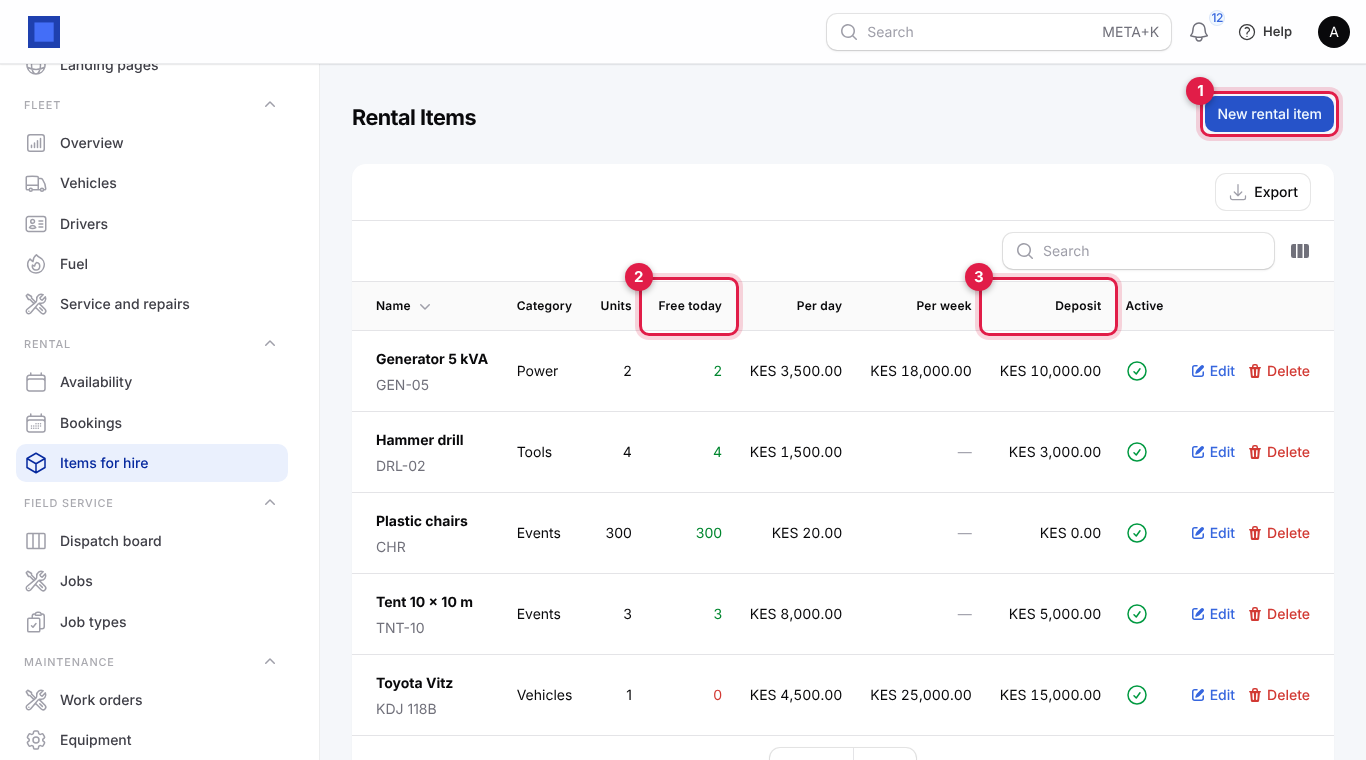
- Click New rental item (marker 1).
| Field | What to enter |
|---|---|
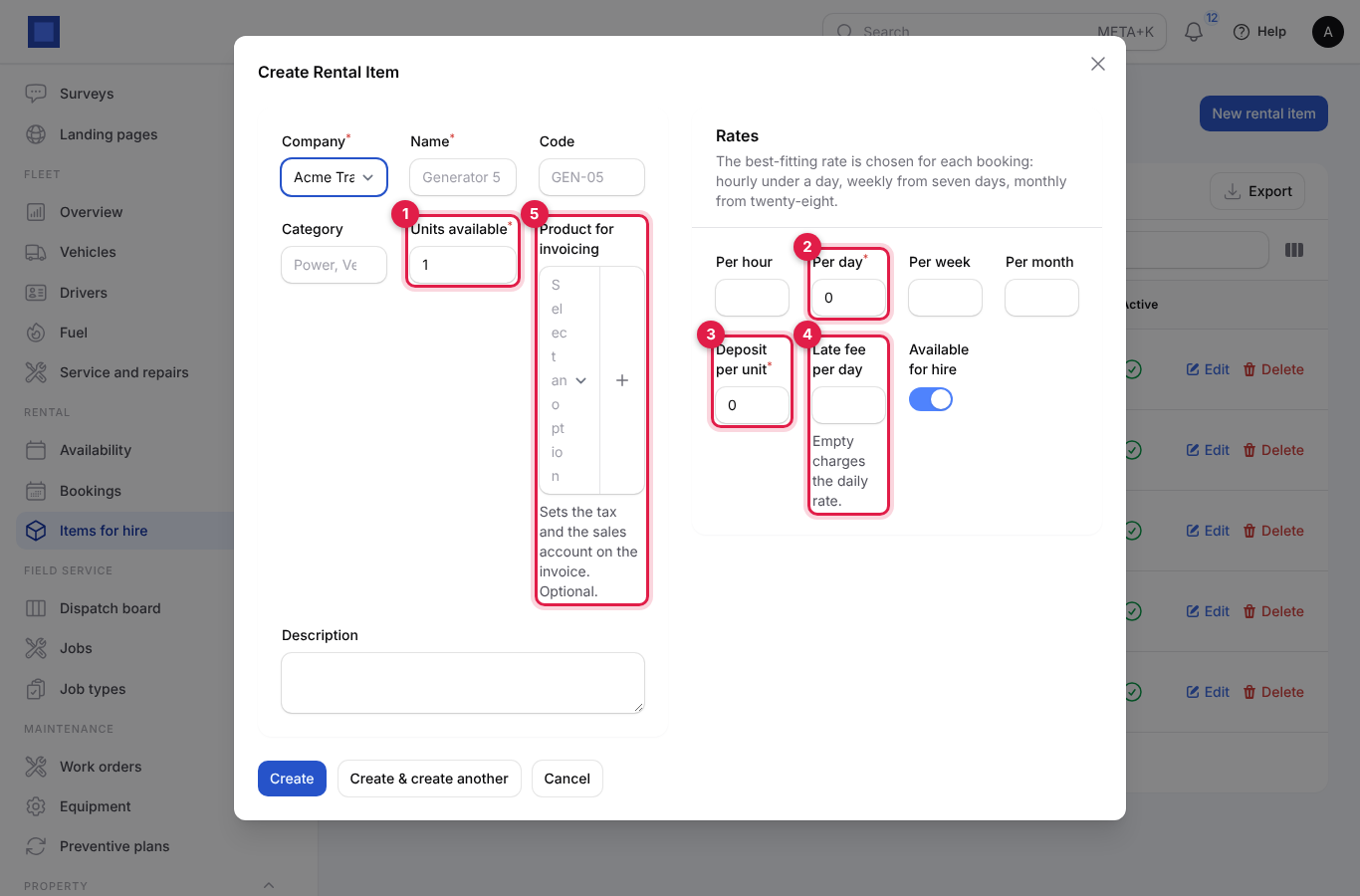
| Company (required), Name (required) | For example Generator 5 kVA. |
| Code | Your short code, for example GEN-05. |
| Category | Power, Vehicles, Tents, Tools… (pick an existing one or type a new one). |
| Units available (required, marker 1) | How many identical units you own: 300 plastic chairs, 2 generators. Bookings can never take more than this at the same time. |
| Product for invoicing (marker 5) | Optional. A product that sets the tax and sales account on the invoice lines. |
| Description | Shown on quotes and the portal. |
| Per hour, Per day (required, marker 2), Per week, Per month | The rates. Leave a rate empty if you do not offer it. The best-fitting rate is chosen for each booking: hourly under a day, weekly from seven days, monthly from twenty-eight days, daily otherwise. |
| Deposit per unit (required, marker 3) | Refundable deposit for each unit hired. 0 for none. |
| Late fee per day (marker 4) | Charged per unit for each late day. Empty charges the daily rate. |
| Available for hire | Off to take an item out of service without deleting it. |
- Click Create.
Check availability
Open Rental → Availability to see a month at a glance (use ‹ and › to change month). The grid (marker 1) has a row per item with the units owned, and a column per day: the number is how many units are booked that day, amber when some are still free and red when fully booked (marker 2 explains the colours). Below, Bookings this month lists reserved and outstanding bookings with their customer, items, dates and status; overdue returns are red.
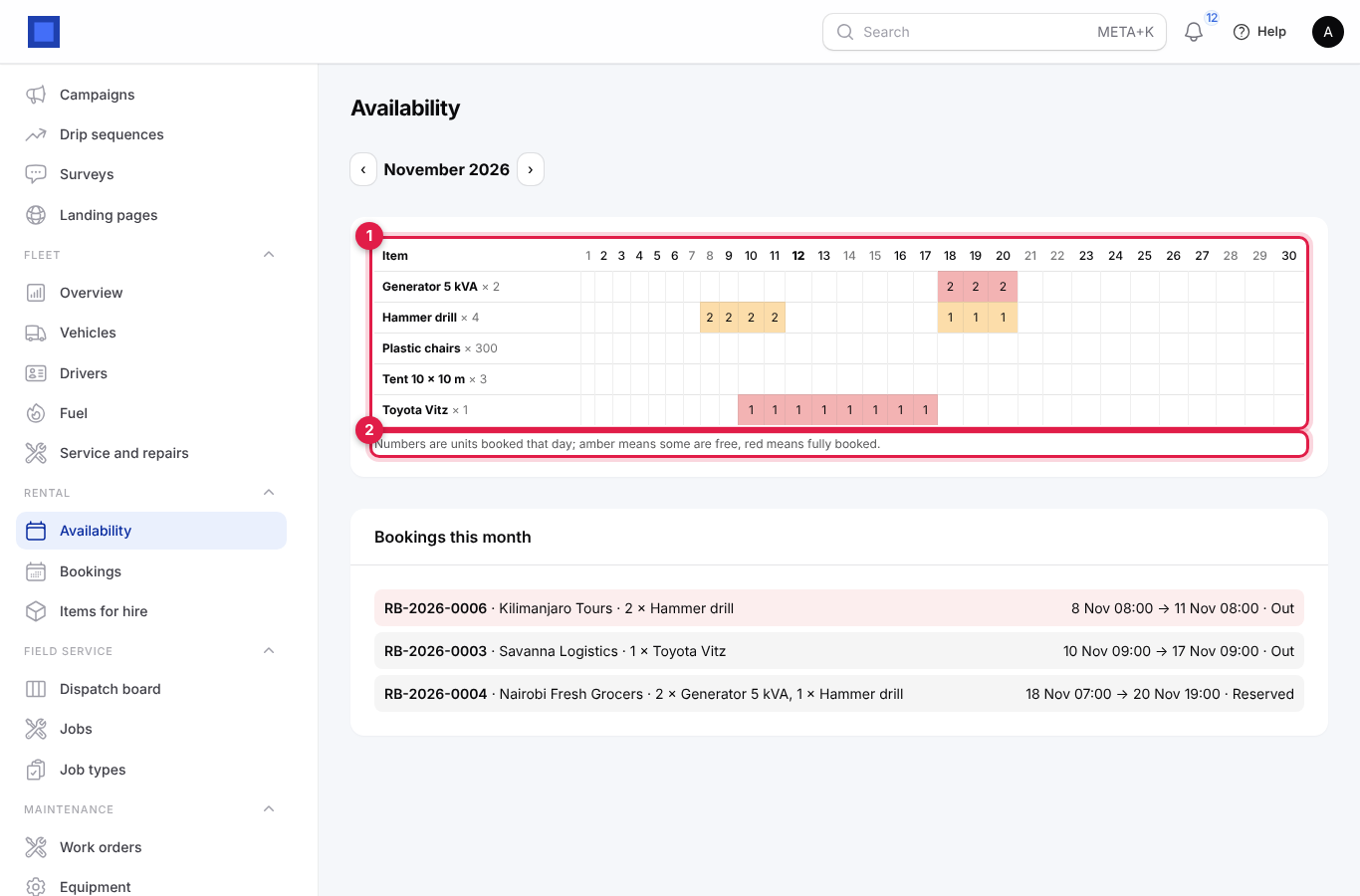
Only Reserved and Out bookings hold units. Quotes do not block anything.
Create a booking
- Open Rental → Bookings. Each booking shows its number, customer, items, from and until (red when overdue), the rental amount, the Deposit with Due or Taken (marker 2) and the Status (marker 3). Filter by status or customer; Open (marker 4) opens a booking.
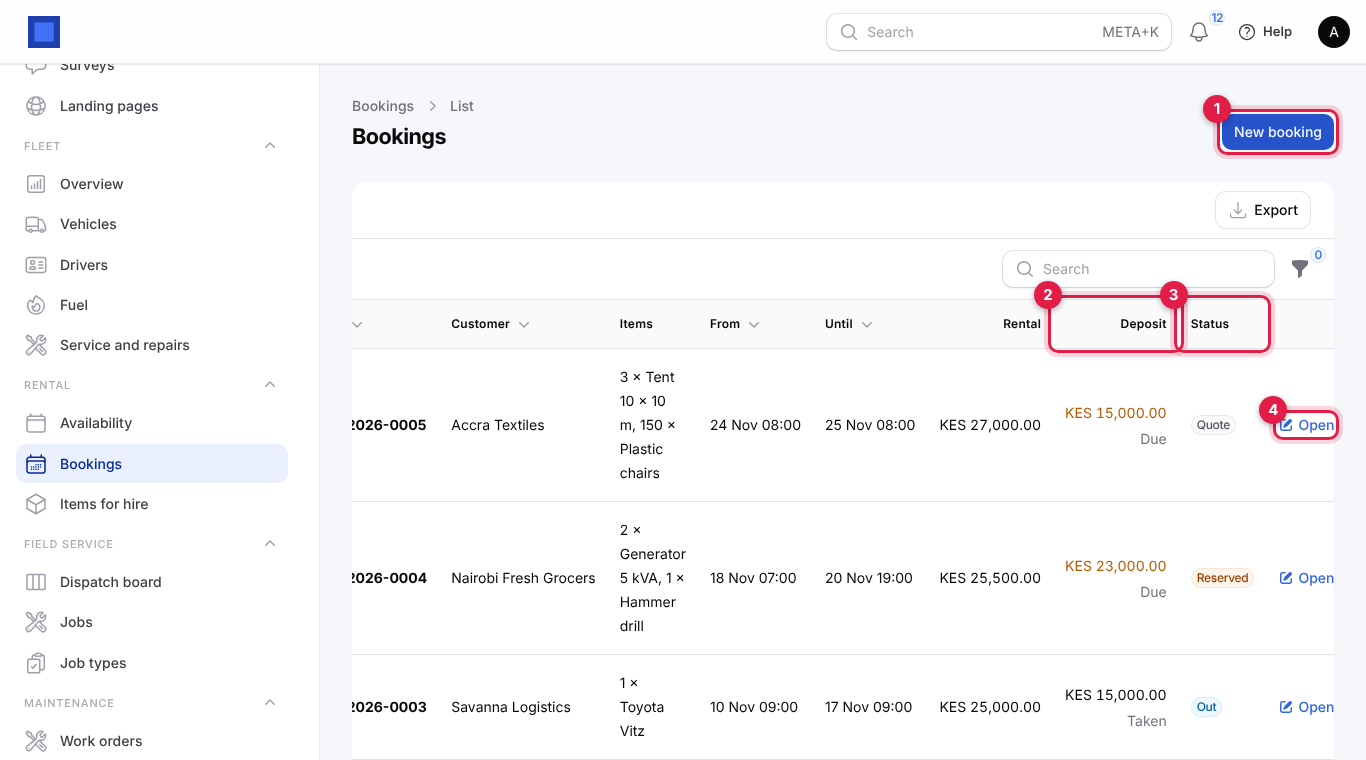
- Click New booking (marker 1).
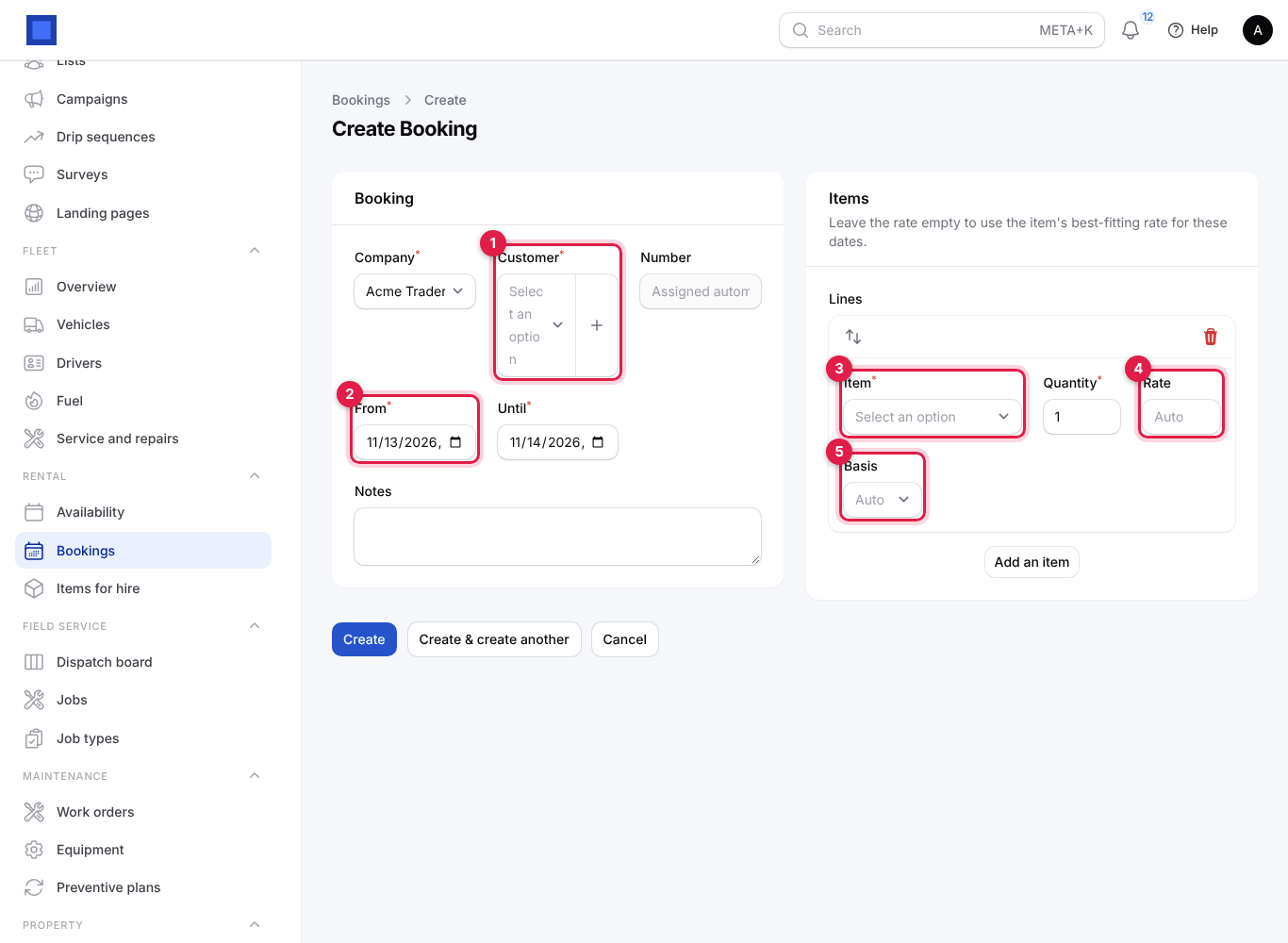
| Field | What to enter |
|---|---|
| Company (required) | Who hires out. |
| Customer (required, marker 1) | The contact. Click + to add a new one. |
| Number | Given automatically (RB-2026-0007). |
| From (required, marker 2), Until (required) | Pick-up and return date and time. Until must be after From. |
| Notes | For example Wedding at Karen; delivery to the venue. |
| Item (required, marker 3) | What is hired. The list shows each item's daily rate. |
| Quantity (required) | How many units. |
| Rate (marker 4) | Leave empty (Auto) for the item's best-fitting rate, or type a negotiated rate. |
| Basis (marker 5) | Per hour, Per day, Per week or Per month; empty (Auto) picks it from the length of the booking. |
Click Add an item for more lines.
- Click Create. The booking is a Quote: priced (rental = rate × periods × quantity, rounded up to whole periods) with a deposit equal to the items' deposits × quantities, but not holding any units yet.
Run the booking
The buttons on a booking follow its status. On a Quote:
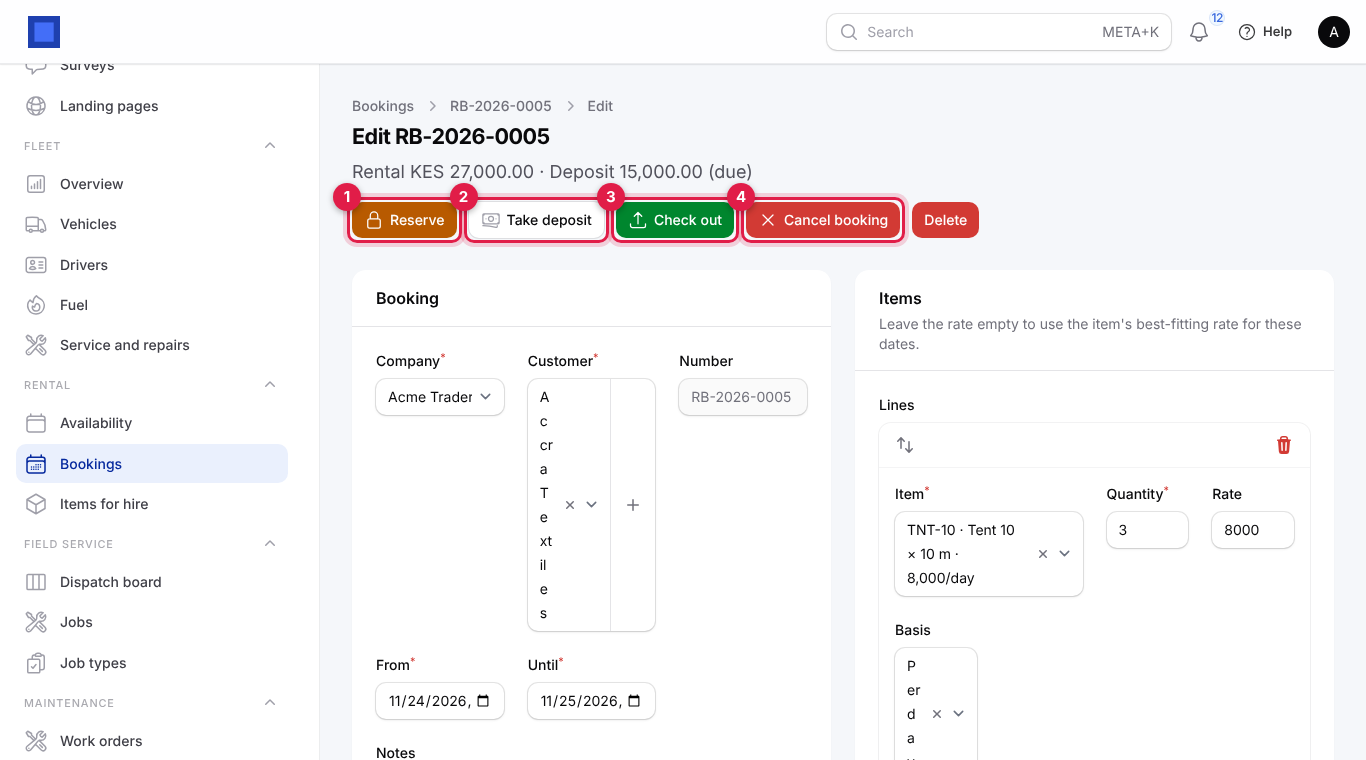
- Reserve (marker 1): holds the units for the dates. If they are not free you see, for example, Only 1 of 2 Generator 5 kVA available for those dates. The status becomes Reserved.
- Take deposit (marker 2): records the deposit (see below).
- Check out (marker 3): the items leave now. A quote is reserved first; availability and (if required) the deposit are checked.
- Cancel booking (marker 4): for quotes and reservations. Items that went out cannot be cancelled; return them instead.
- Delete: only for quotes.
Until a booking is returned or cancelled you can still change its dates and lines; the price is recalculated when you save.
Take the deposit
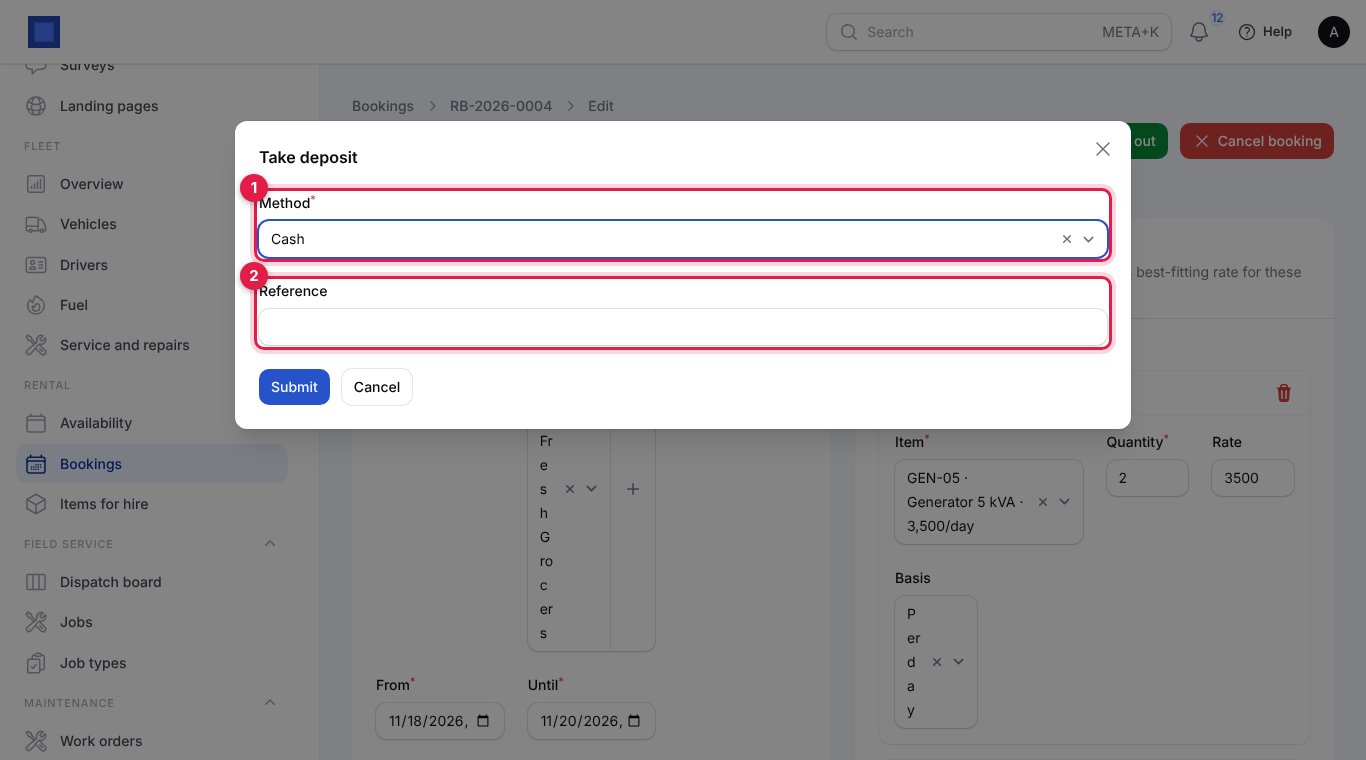
Click Take deposit, choose the Method (marker 1: cash, M-Pesa, bank transfer, card…) and type a Reference (marker 2, for example the M-Pesa code), then click Submit. The deposit is recorded as a customer payment, not yet applied to any invoice, and the booking shows Deposit … (taken).
Return the items
A booking that is Out shows its rental and deposit under the title (marker 1) and a Return button (marker 2).
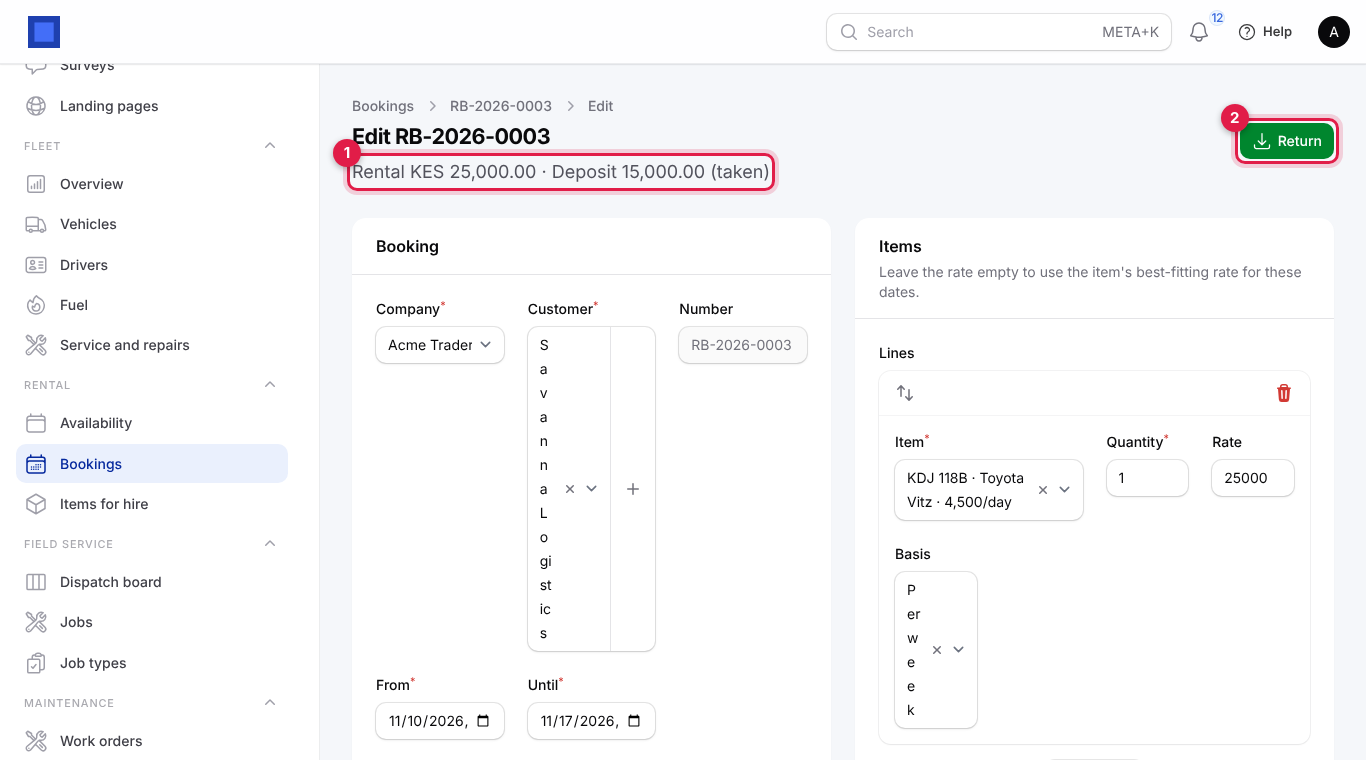
- When the items come back, click Return.
| Field | What to enter |
|---|---|
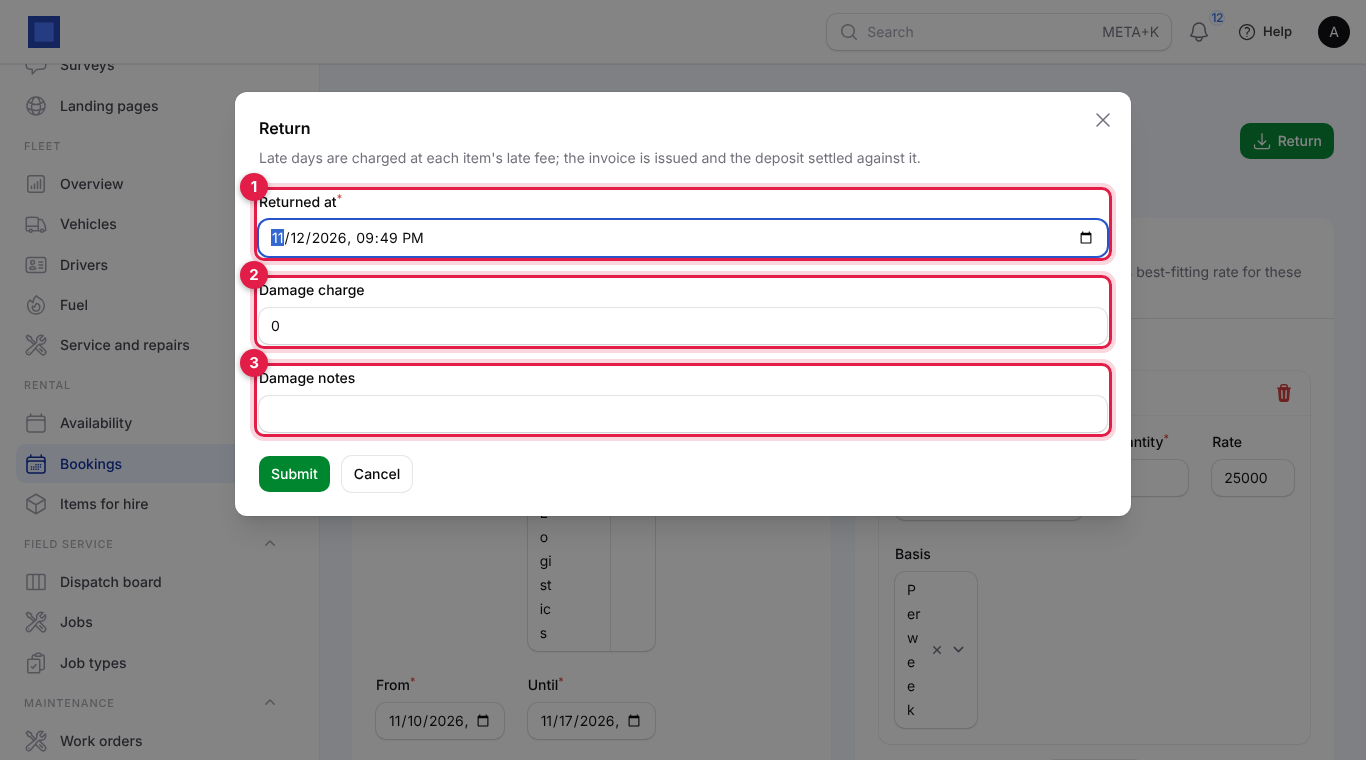
| Returned at (required, marker 1) | When the items came back. |
| Damage charge (marker 2) | Amount to charge for damage or loss, 0 for none. |
| Damage notes (marker 3) | What was damaged, printed on the invoice. |
- Click Submit. The dialog explains: Late days are charged at each item's late fee; the invoice is issued and the deposit settled against it. Late days are counted when the return is later than the booked end plus the grace period, rounded up to whole days.
What happens: the booking becomes Returned; an invoice is issued to the customer with the rental, any late fees and the damage charge; the deposit payment is applied to it. If the deposit is more than the invoice, the difference is a refund due to the customer; if it is less, the balance is due on the invoice.
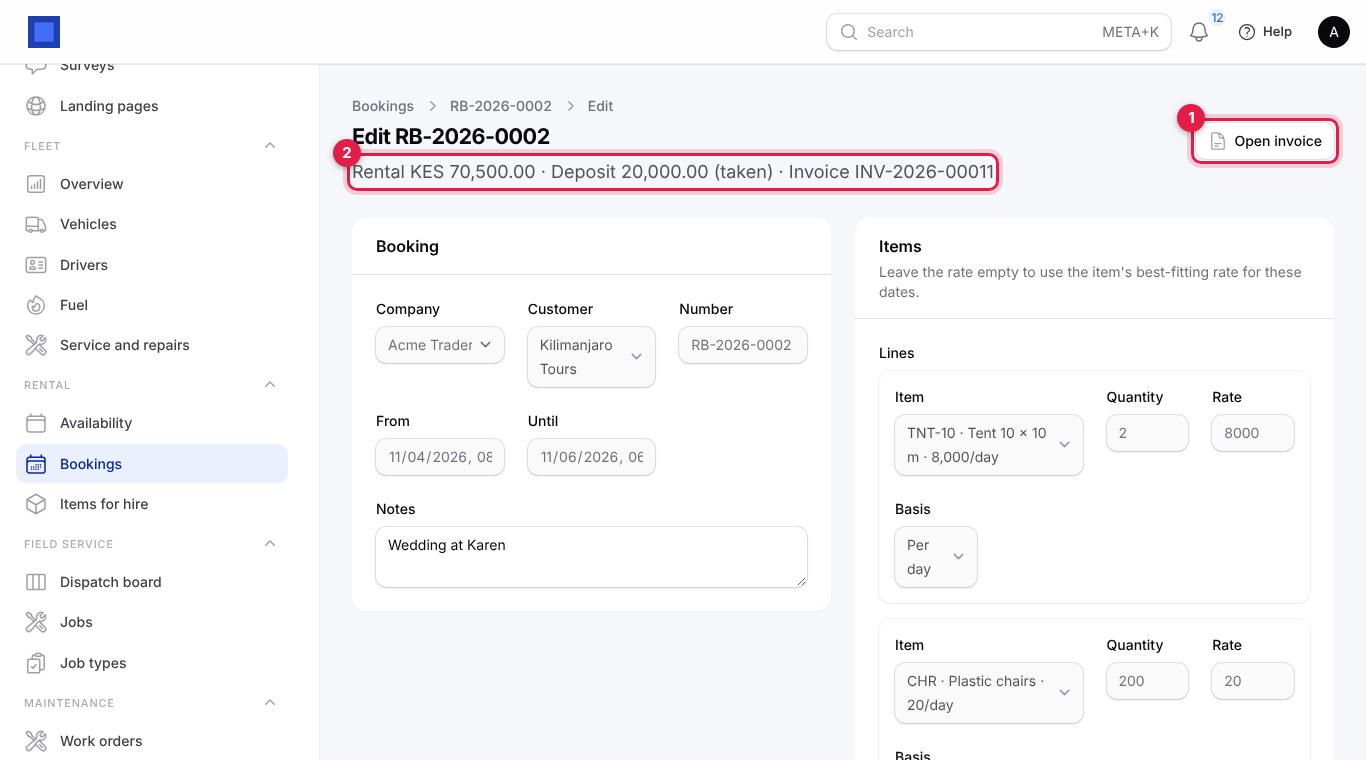
- When you have paid back a refund, click Deposit refunded to record it. Open invoice (marker 1 below) goes to the invoice to send it or record the balance payment. The summary (marker 2) shows the rental, the deposit and the invoice number.
Booking statuses: Quote (priced, not holding units) → Reserved (units held, deposit due) → Out (items with the customer; red when overdue) → Returned (invoiced). Cancelled for quotes or reservations that will not go ahead.
What customers see
Customers with portal access see a Bookings page in the customer portal listing their bookings with dates, items, amounts, the deposit (due, taken, refund due or refunded) and any damage charge, next to their invoices. Invite them from the contact with portal access (see the customer portal pages of this guide).
Common questions
Why does a booking cost more than days × daily rate? It may cross into a longer basis (weekly from seven days), or the hours round up to an extra day. Type a Rate and Basis on the line to override.
A customer wants the item for two extra days. Open the booking, change Until and click Save changes (the rental is repriced), or leave it and charge the late days on return.
Can I hire out things I have in stock for sale? Rental items are separate from stock. Link a Product for invoicing only to get the tax and sales account right.
Reserve says not enough units. Look at Rental → Availability for that period; another reservation or a booking that is out holds them. Adjust the dates or quantity.
Where do deposits show in the accounts? As a customer payment received (unapplied) until the booking is returned and the payment is applied to the invoice.