Approvals and automations
Two tools let NaliSuite enforce your rules for you. Approval rules make large purchase orders, vendor bills and expenses wait until a manager approves them; approvers decide from the Approvals inbox. Automations react to things that happen (an invoice is overdue, a ticket is opened, a deal is won) by sending an email, alerting colleagues in the app, or calling another system. Rules are set up by an owner or admin under Settings → Approval rules and Settings → Automations; everyone uses the Approvals page at the top of the sidebar.
Who can do what. Seeing approval rules needs core.approvals.view, changing them core.approvals.manage. Seeing automations needs core.automations.view, changing them core.automations.manage. Owners and admins have these. Every signed-in user has the Approvals page: it shows what waits for their decision and what they asked for.
How approvals work
- Someone tries the step that commits money: Confirm on a purchase order, Post on a vendor bill, or saving an expense.
- NaliSuite looks for an active approval rule for that company and kind of document whose From amount the document reaches. If several rules apply, the one with the highest amount wins (so "over 1,000,000 → owner" beats "over 100,000 → admin" for a 1.5 million order).
- If the person doing it is themselves an approver for that rule, the step goes ahead at once and the approval is recorded as "Approved by the requester, who holds the approving role."
- Otherwise the step stops. The document stays as it was (a draft order, a draft bill, an unposted expense), the person sees "Sent for approval: … needs approval by … because it is … or more.", and every approver is notified: Approval needed: … with a Review button.
- When an approver clicks Approve, the waiting step runs straight away on their behalf: the order is confirmed, the bill posted, the expense posted. The requester is notified ("… was approved by …").
- If the approver clicks Reject, nothing happens to the document and the requester is told why. They can fix it and try again, which creates a new request.
Trying again while a request is still pending just shows "Waiting for approval by … (requested …)". An approval also covers later attempts as long as the amount has not grown; if someone raises the total, a new approval is needed.
Create an approval rule
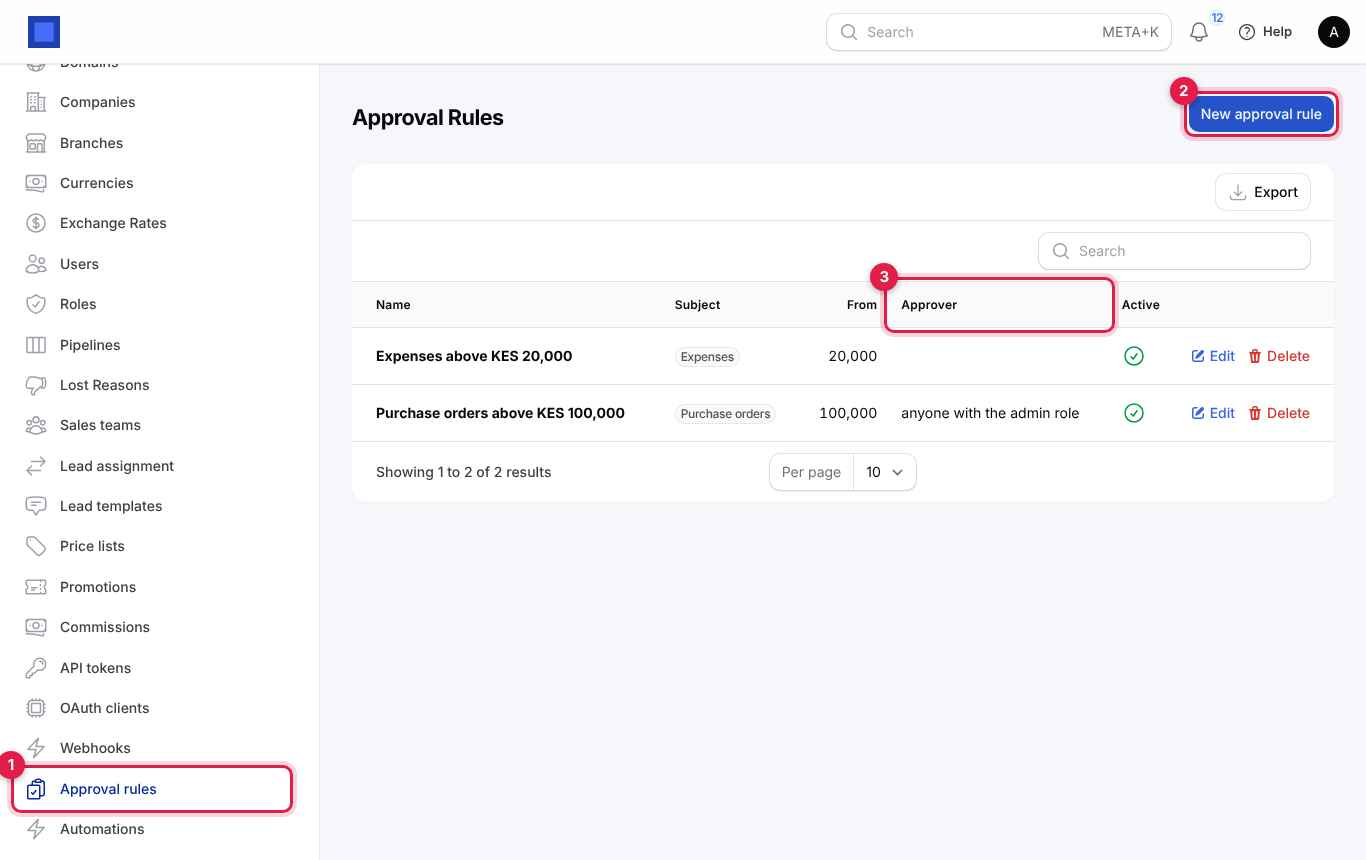
- Open Settings → Approval rules (marker 1) and click New approval rule (marker 2). The list shows each rule's kind, From amount and Approver (marker 3).
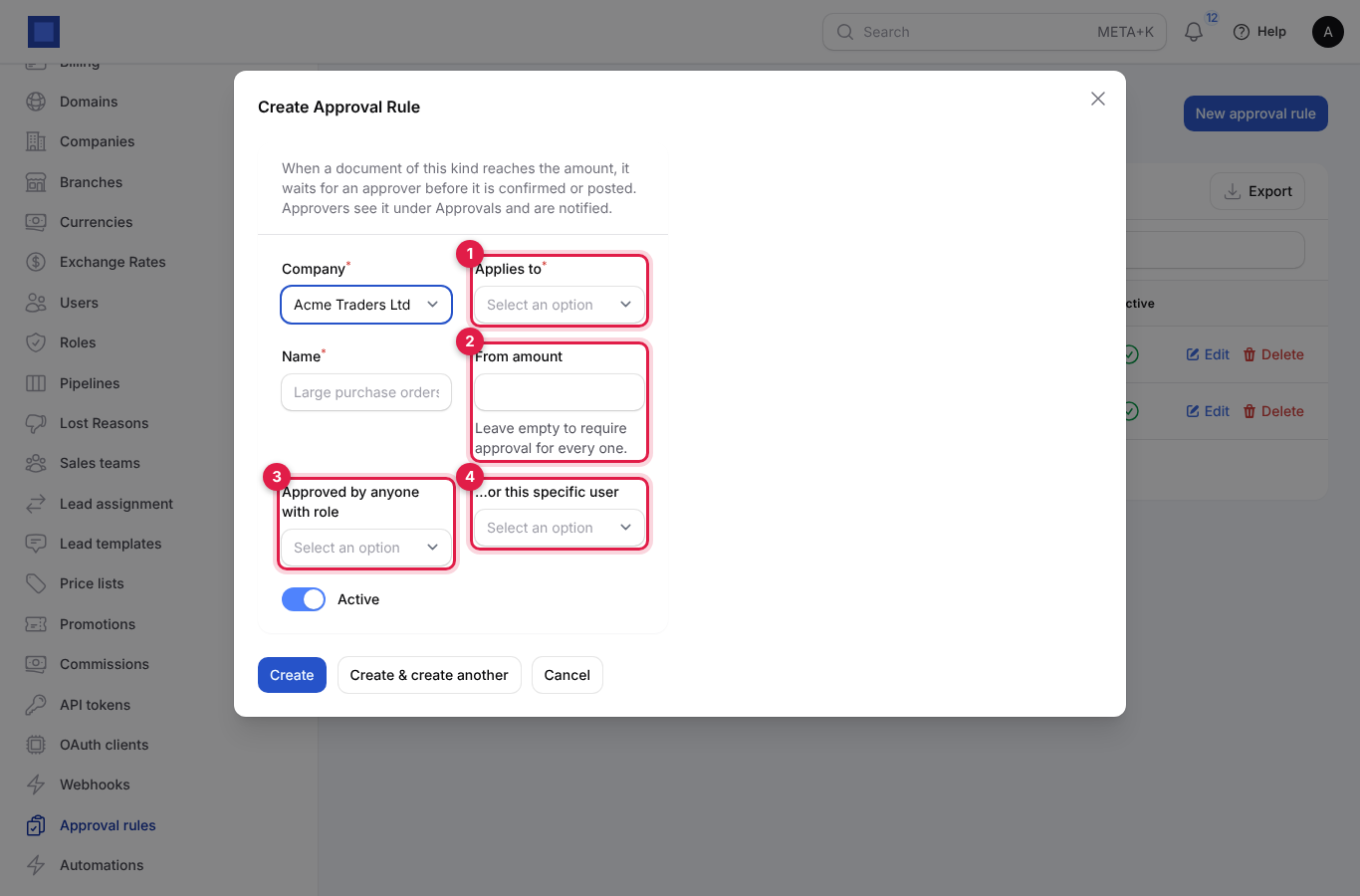
- Fill in the window and click Create:
| Field | What to enter |
|---|---|
| Company | The company the rule applies to. Make one rule per company if you have several. Required. |
| Applies to (marker 1) | Purchase orders (checked on Confirm), Vendor bills (checked on Post) or Expenses (checked when an expense is saved, including expense claims and imports). Required. |
| Name | For example Large purchase orders. Required. |
| From amount (marker 2) | The document total, in the company currency, from which approval is needed. Leave empty to require approval for every one. |
| Approved by anyone with role (marker 3) | For example Owner or Admin. Anyone holding that role can approve. |
| …or this specific user (marker 4) | A named person instead of a role. |
| Active | Switch off to pause the rule without deleting it. |
Fill in either a role or a user. Owners can always approve any request.
Tip: Set two levels for purchase orders: from 100,000 approved by an admin, from 1,000,000 approved by the owner. Use Edit and Delete on the list to change rules; pending requests keep the rule they were raised under.
Approve or reject requests
- Click Approvals at the top of the sidebar. The number next to it (marker 1) is how many requests are waiting for you.
- The list opens filtered to Status: Pending (marker 2). Remove the filter, or choose Approved or Rejected under the filter icon, to see the history. You see requests you can decide and requests you made; owners see all.
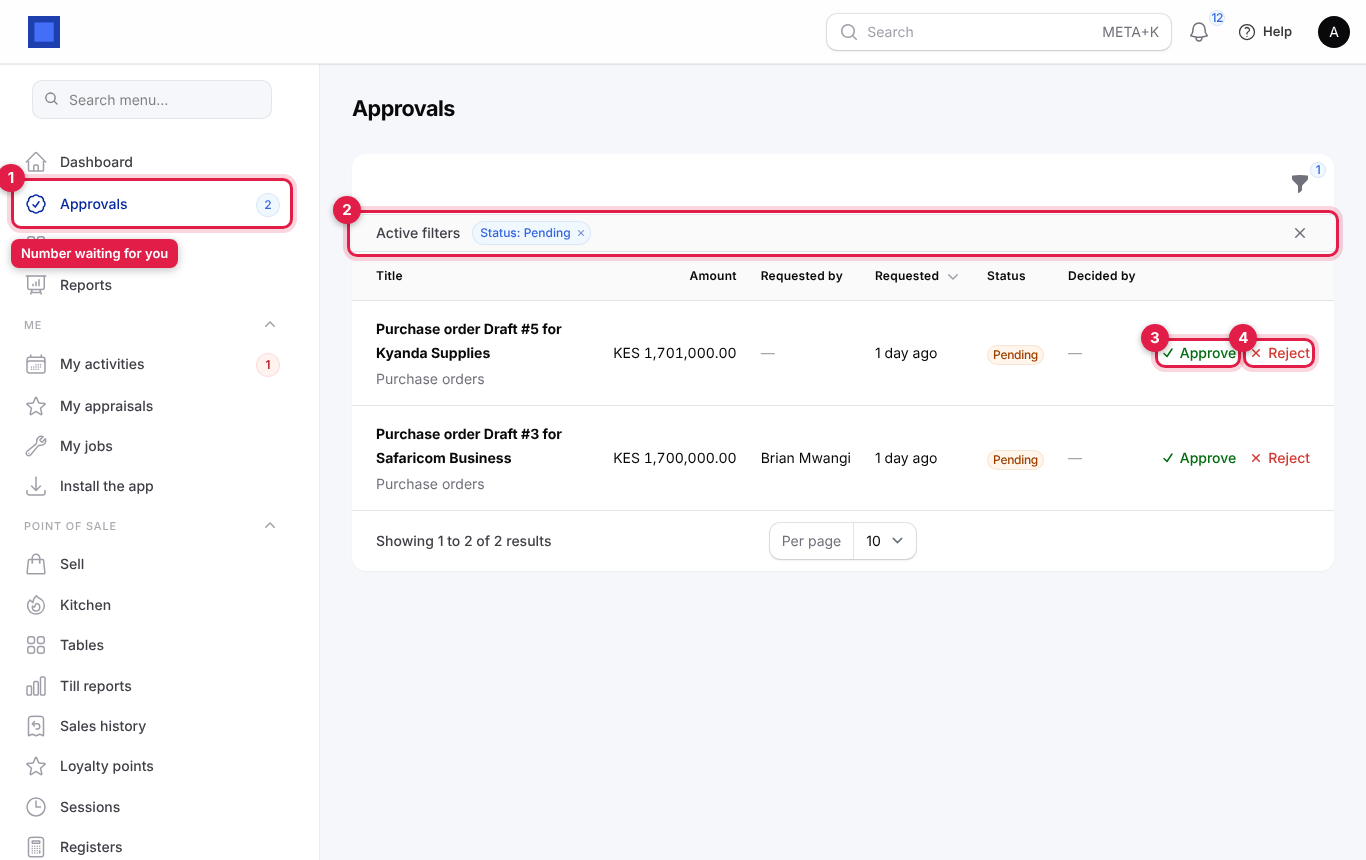
Each row shows the Title (for example Purchase order Draft #5 for Kyanda Supplies) and the kind of document under it, the Amount, Requested by, when it was Requested, the Status and, once decided, Decided by with the note.
- To approve, click Approve (marker 3), add a Note (optional) (marker 1 below) and click Submit (marker 2). The waiting step runs at once (confirm, post).
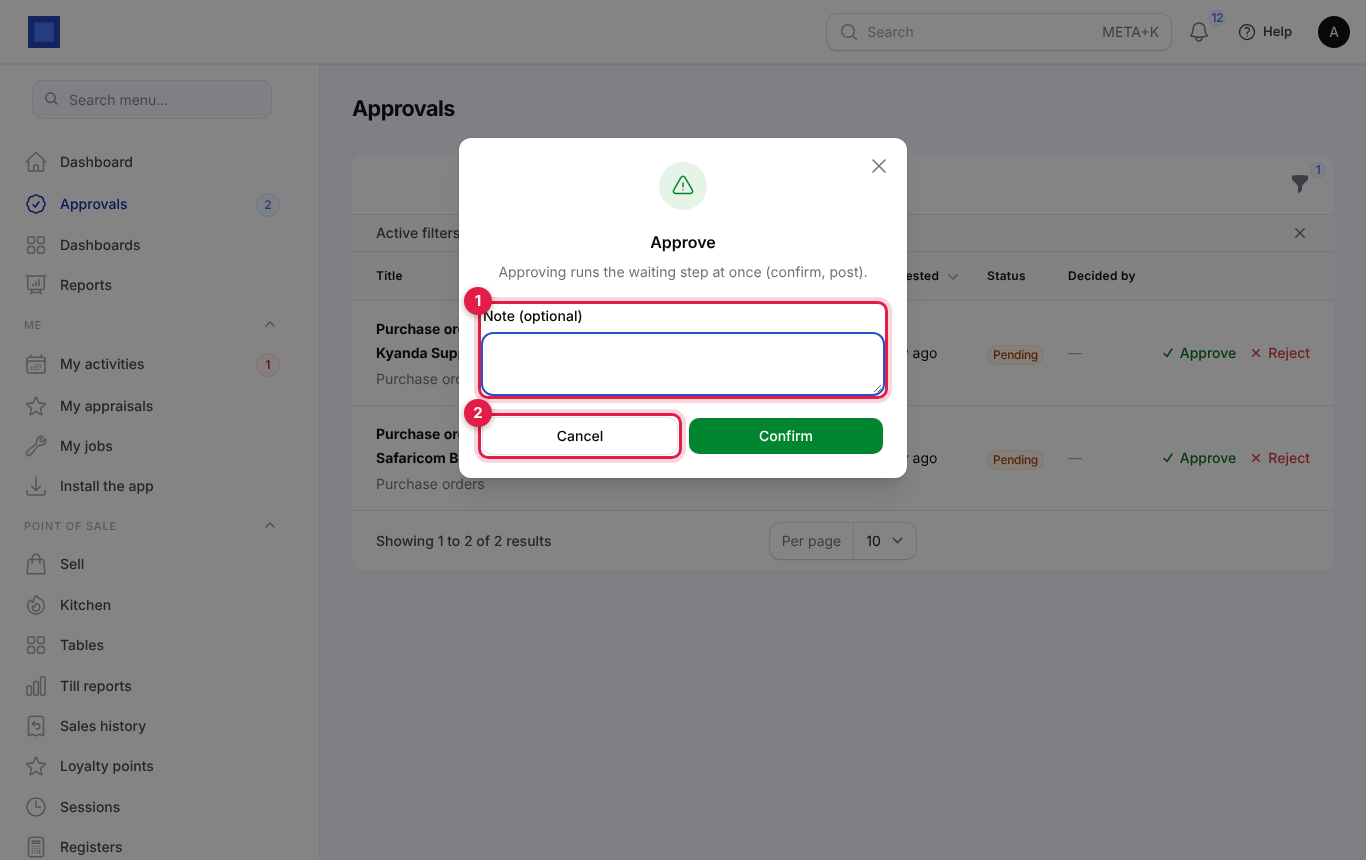
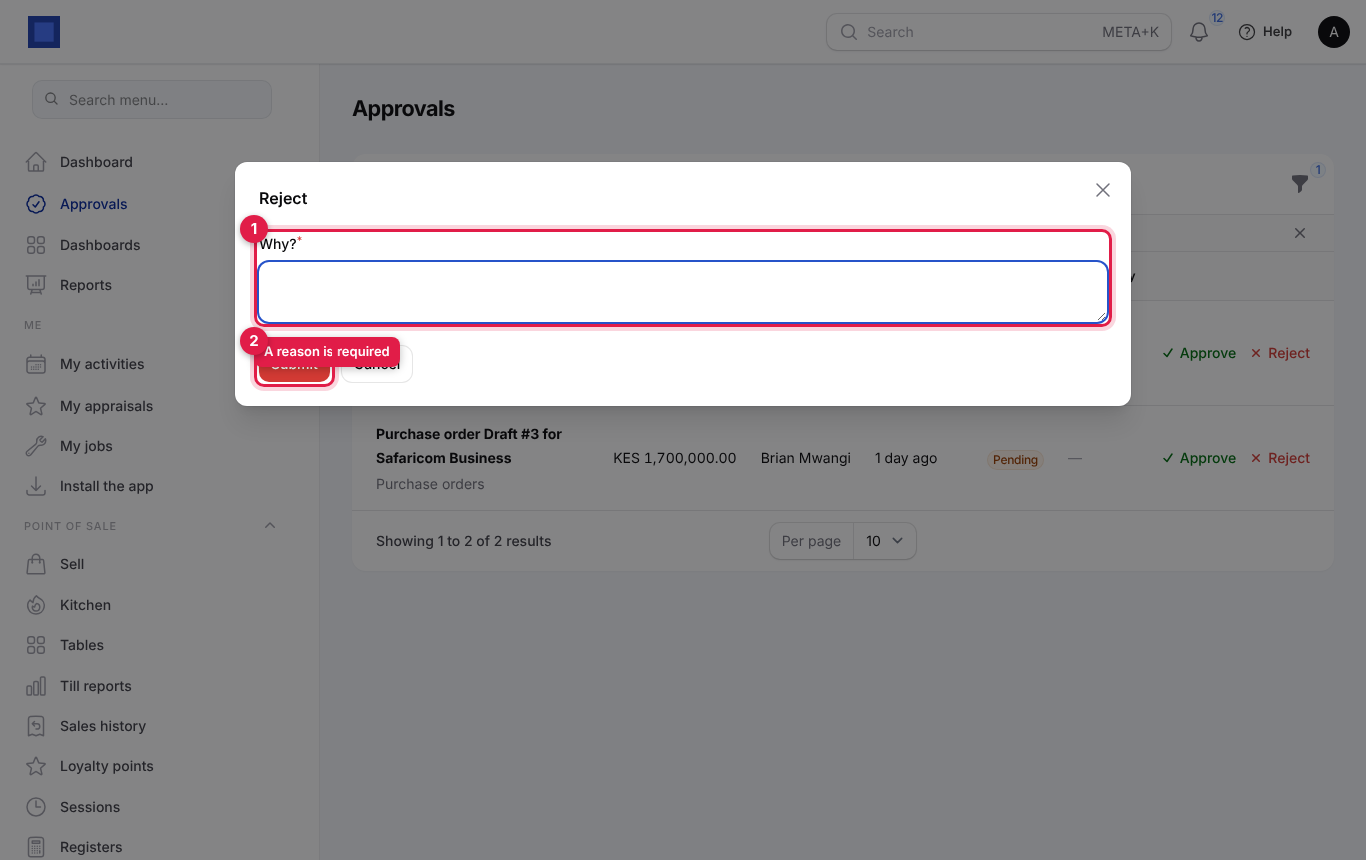
- To reject, click Reject (marker 4 in the inbox), say Why? (marker 1 below; required, the requester sees it) and click Submit (marker 2).
| Status | Meaning |
|---|---|
| Pending | Waiting for an approver. |
| Approved | Approved; the step ran. |
| Rejected | Refused; the document is unchanged. |
Notifications. By default approvers get the Approval needed alert in the app (the bell) and as a push notification on devices where they installed the app; requesters get approval decided alerts. Each person can add email, SMS or WhatsApp, or turn alerts off, in Notification settings in the menu under their avatar.
Create an automation
An automation is a rule of the form When (a trigger) Only if (optional conditions) Then (one or more actions).
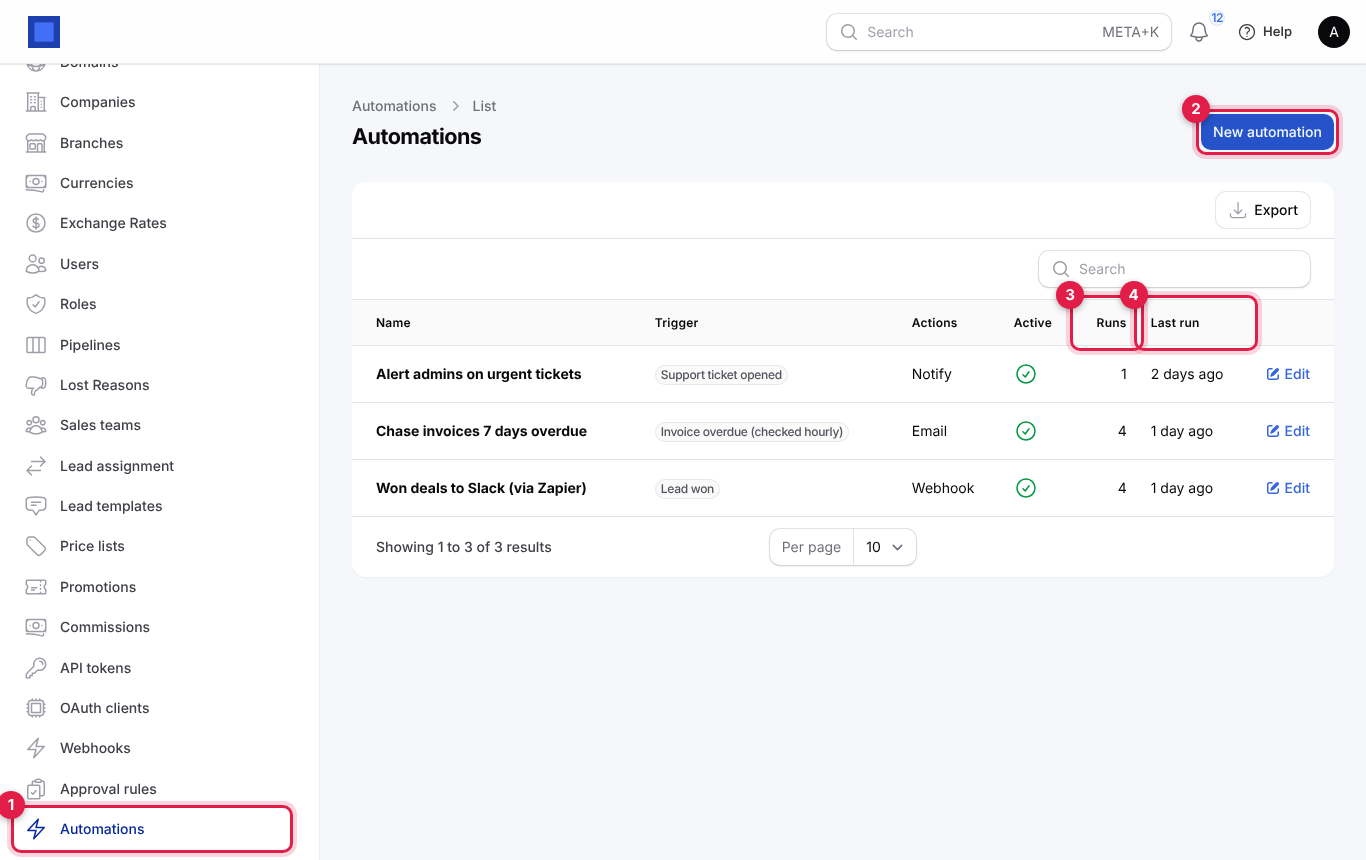
- Open Settings → Automations (marker 1) and click New automation (marker 2). The list shows each rule's trigger, actions, whether it is Active, how many times it has run (Runs, marker 3) and when it Last run (marker 4).
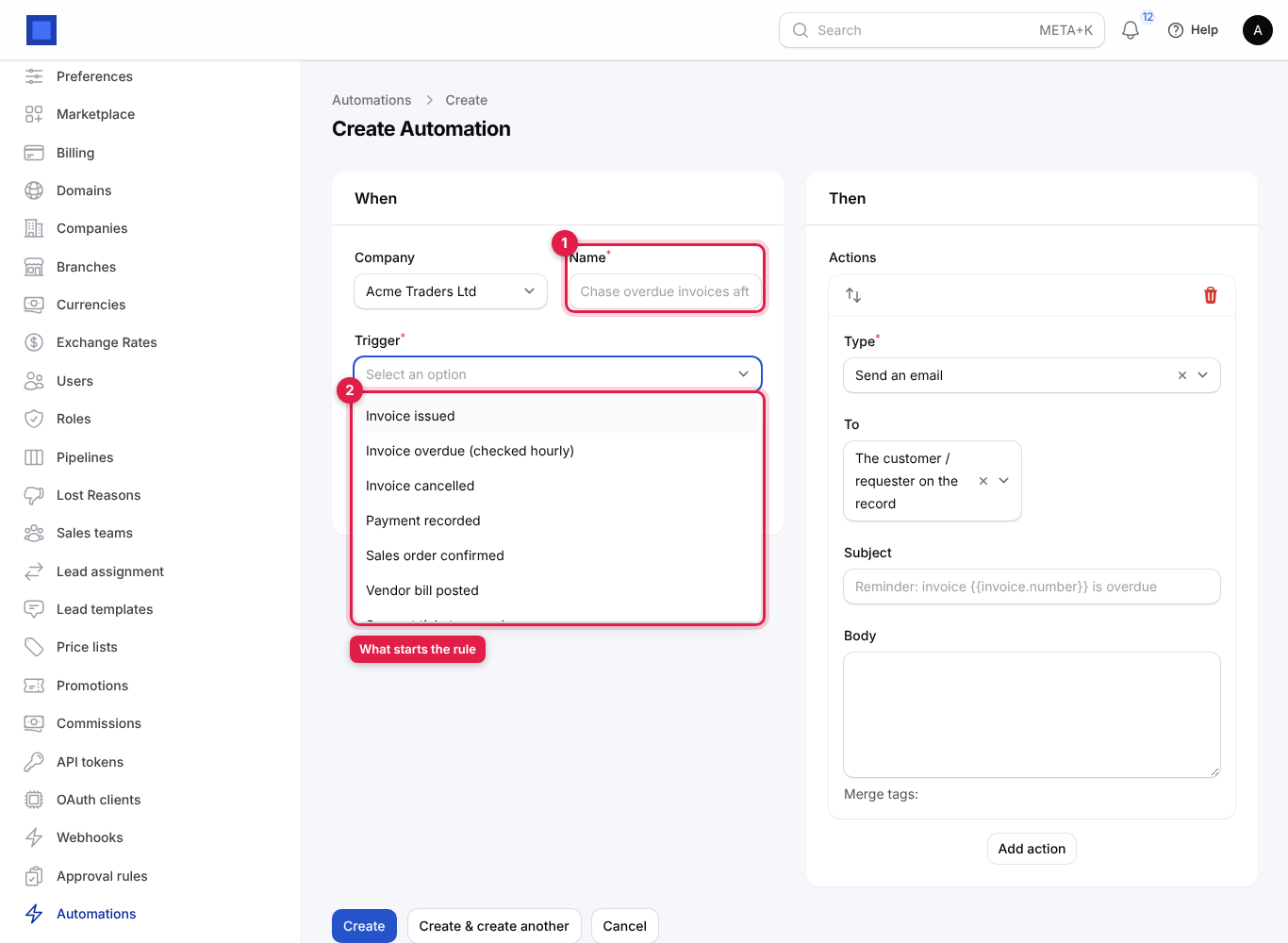
- In When, give the rule a Name (marker 1 below) and choose the Trigger (marker 2; the list is shown below).
| Trigger | Fires when | Sends email to ("the customer / requester on the record") |
|---|---|---|
| Invoice issued | An invoice is issued. | The invoice's customer. |
| Invoice overdue (checked hourly) | An invoice is past its due date and unpaid. Runs once per invoice. | The customer. |
| Invoice cancelled | An invoice is cancelled. | The customer. |
| Payment recorded | A customer payment is recorded. | The customer. |
| Sales order confirmed | A quotation is confirmed as an order. | The customer. |
| Vendor bill posted | A vendor bill is posted. | The vendor. |
| Support ticket opened | A helpdesk ticket is created. | The requester. |
| Support ticket resolved | A ticket is resolved. | The requester. |
| Support ticket past its response target (checked hourly) | A ticket breaches its SLA. Runs once per ticket. | The requester. |
| Document signed | A document is signed. | The signer. |
| Lead won / Lead lost | A CRM lead is marked won or lost. | The lead's email. |
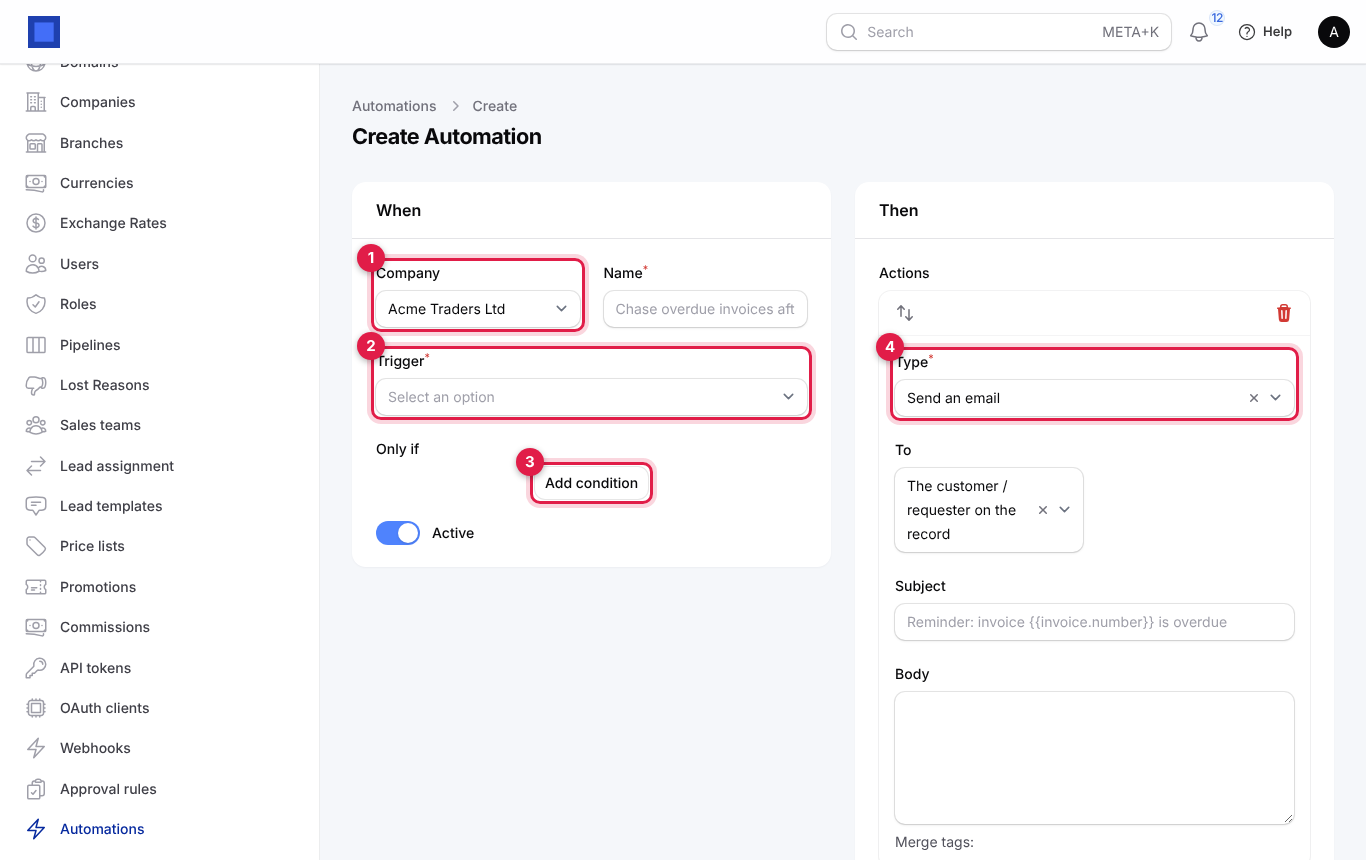
- Set the rest of the When section:
| Field | What to enter |
|---|---|
| Company (marker 1) | The company whose records the rule watches. |
| Trigger (marker 2) | See the table above. Required. |
| Only if → Add condition (marker 3) | Optional. Each condition has a Field from the trigger (for example Days overdue, Invoice total, Priority), an Operator (equals, does not equal, is greater than, is at least, is less than, is at most, contains, is empty, is not empty) and a Value. All conditions must be true for the actions to run. |
| Active | Switch off to pause the rule. |
For example, a reminder 7 days after the due date uses the field Days overdue (marker 1), the operator is at least (marker 2) and the value 7 (marker 3):
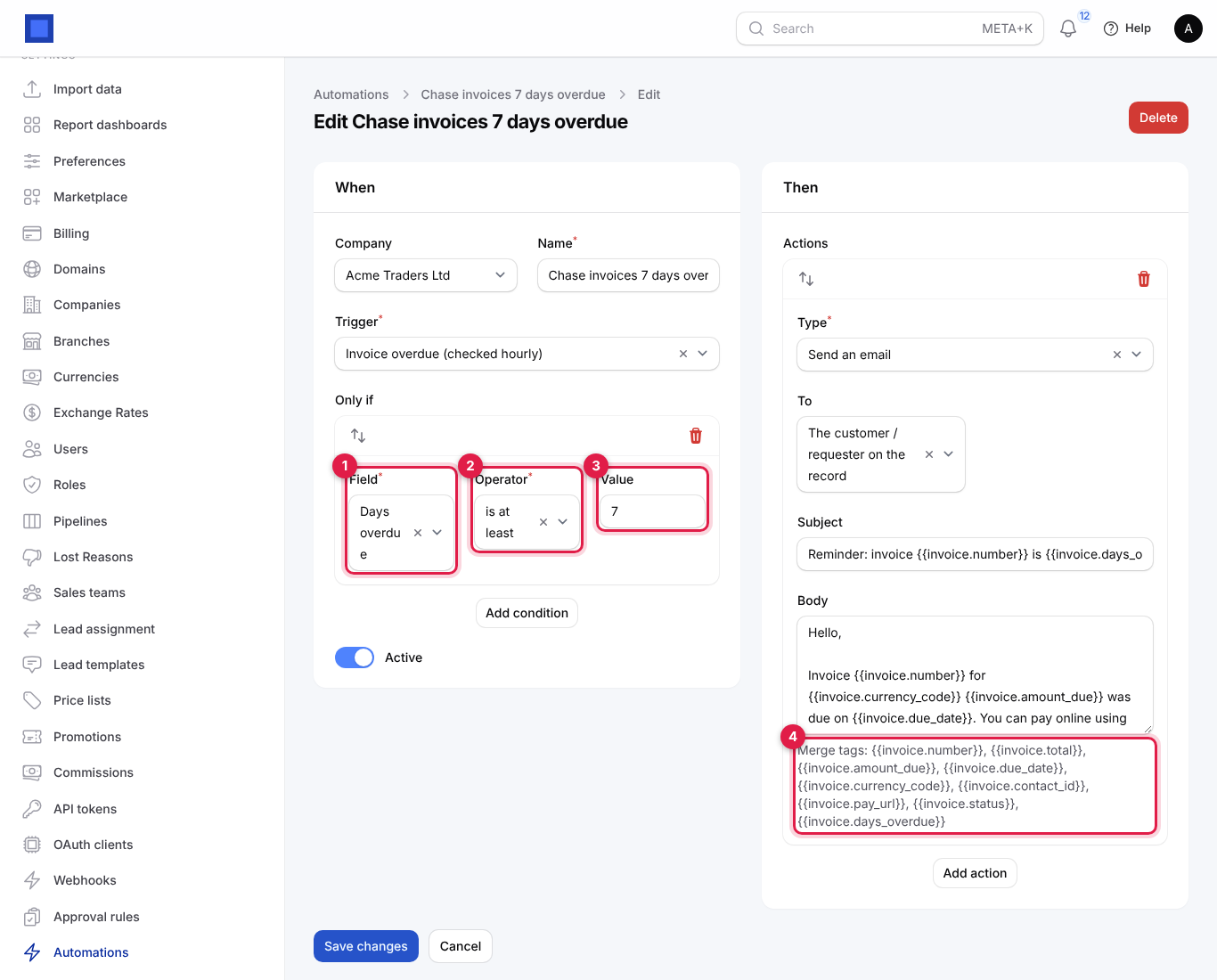
- In Then, choose what happens. Every action has a Type (marker 4 in the form picture):
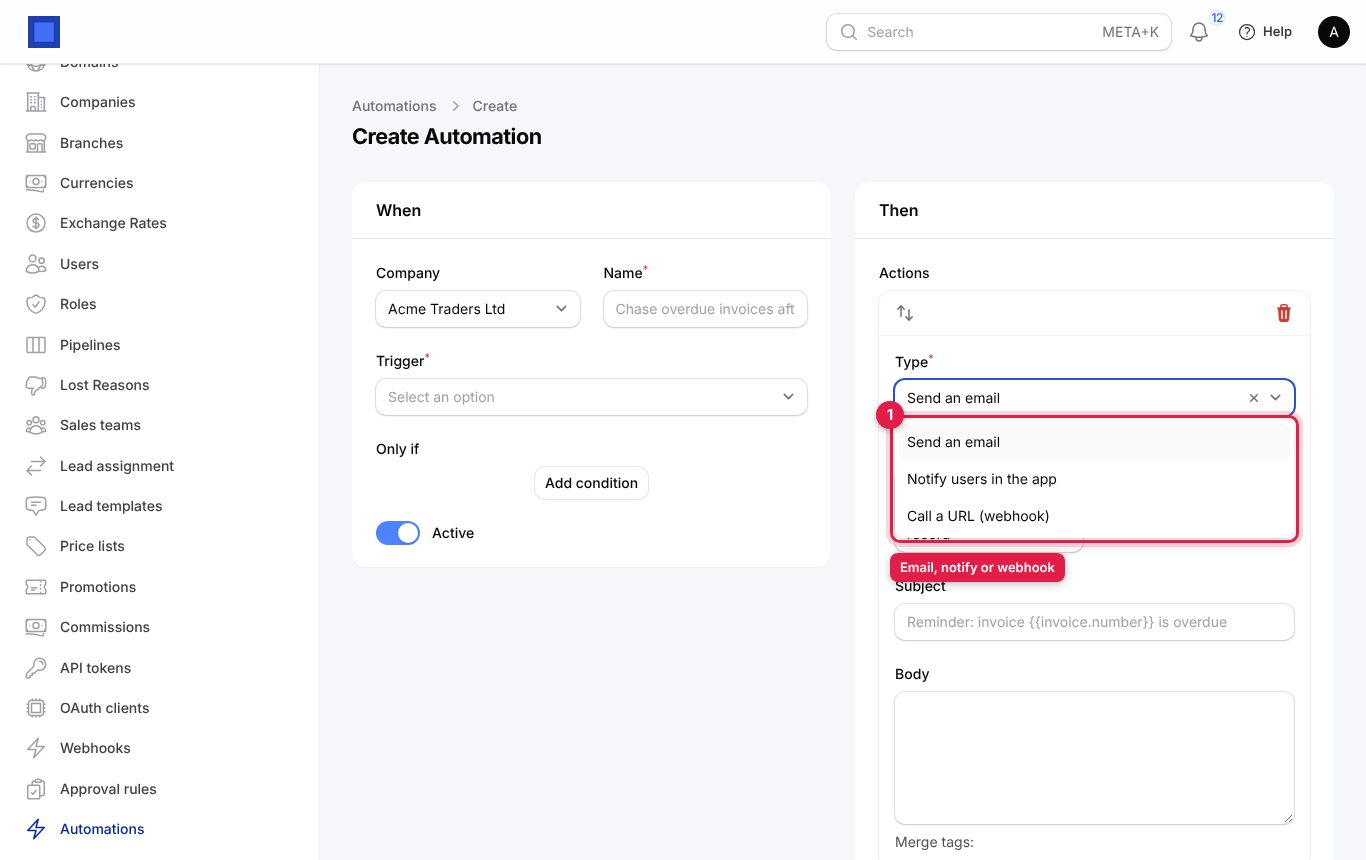
Send an email
| Field | What to enter |
|---|---|
| To | The customer / requester on the record (see the trigger table), or A fixed address, then type the Email address. |
| Subject | For example Reminder: invoice {{invoice.number}} is overdue. |
| Body | The message. Use the merge tags listed under the box (marker 4 in the condition picture), such as {{invoice.number}}, {{invoice.amount_due}}, {{invoice.due_date}}, {{invoice.pay_url}}. |
The email goes out with your company name and colours. When the trigger has a link (the invoice's pay link, the ticket link), the email gets an Open button.
Notify users in the app
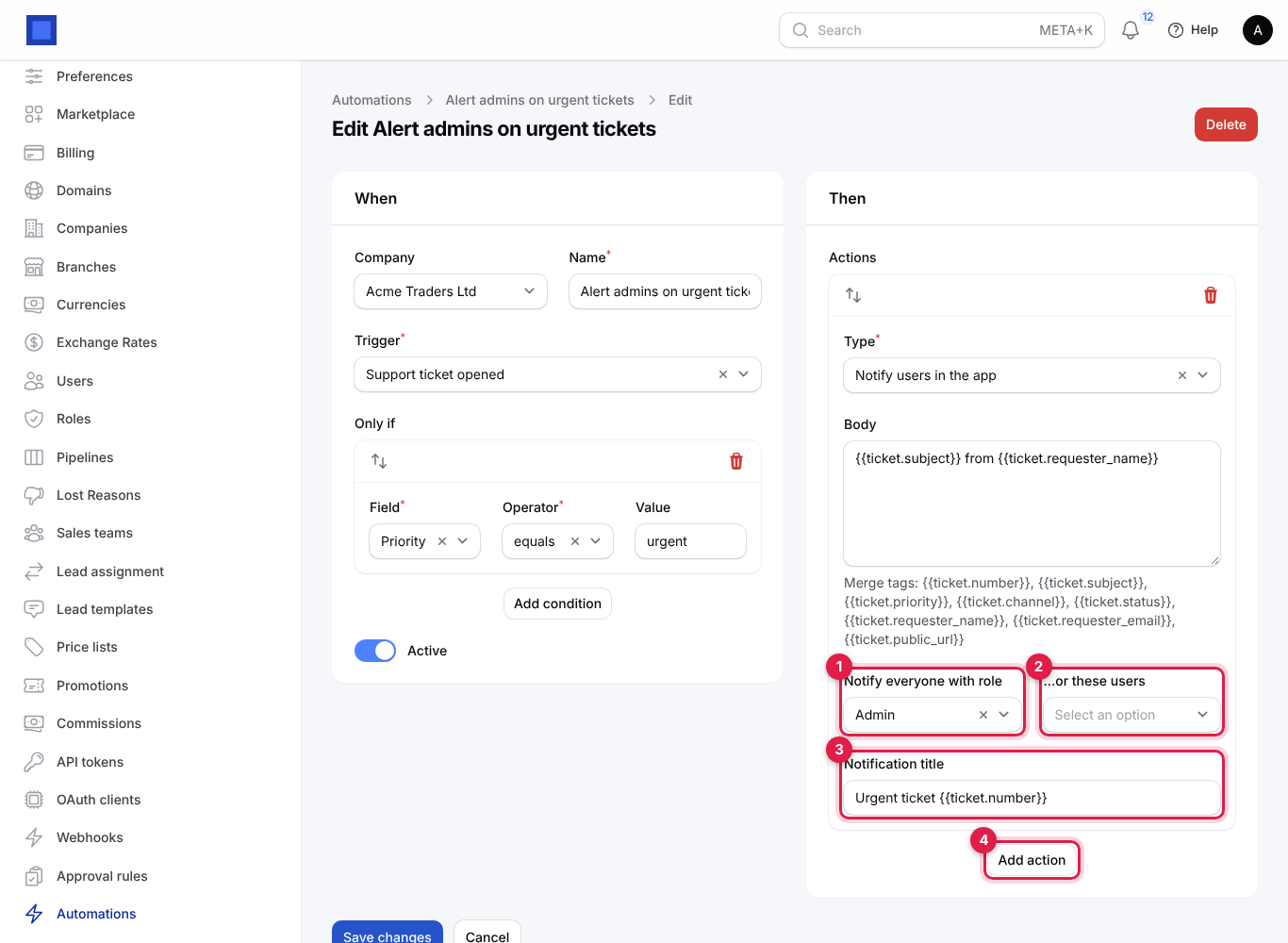
| Field | What to enter |
|---|---|
| Notify everyone with role (marker 1) | For example Admin. |
| …or these users (marker 2) | Named people instead of a role. |
| Notification title (marker 3) | For example Urgent ticket {{ticket.number}}. |
| Body | Optional detail, with merge tags. |
People get it in the bell (and on their other channels, per their Notification settings for Automation rules).
Call a URL (webhook)
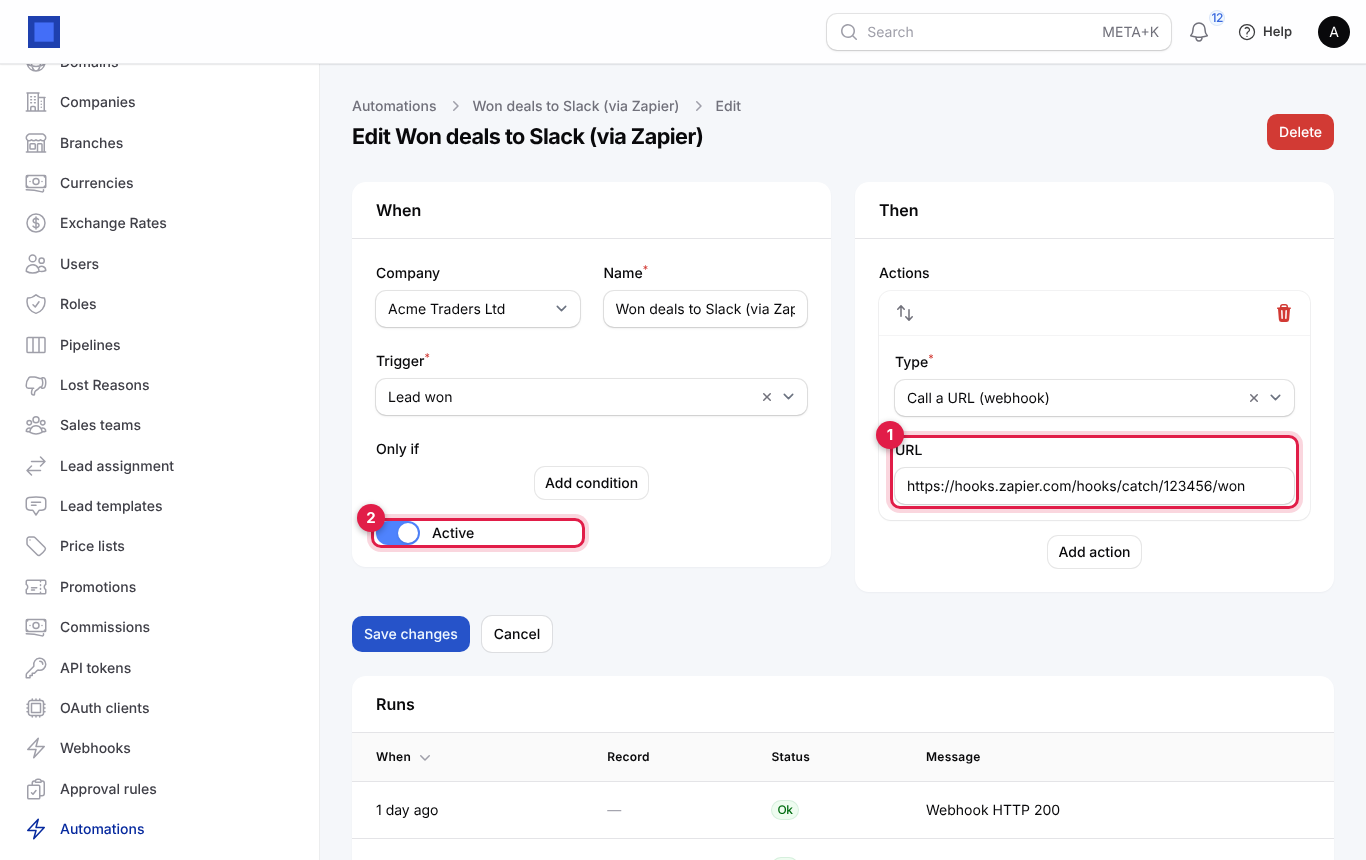
| Field | What to enter |
|---|---|
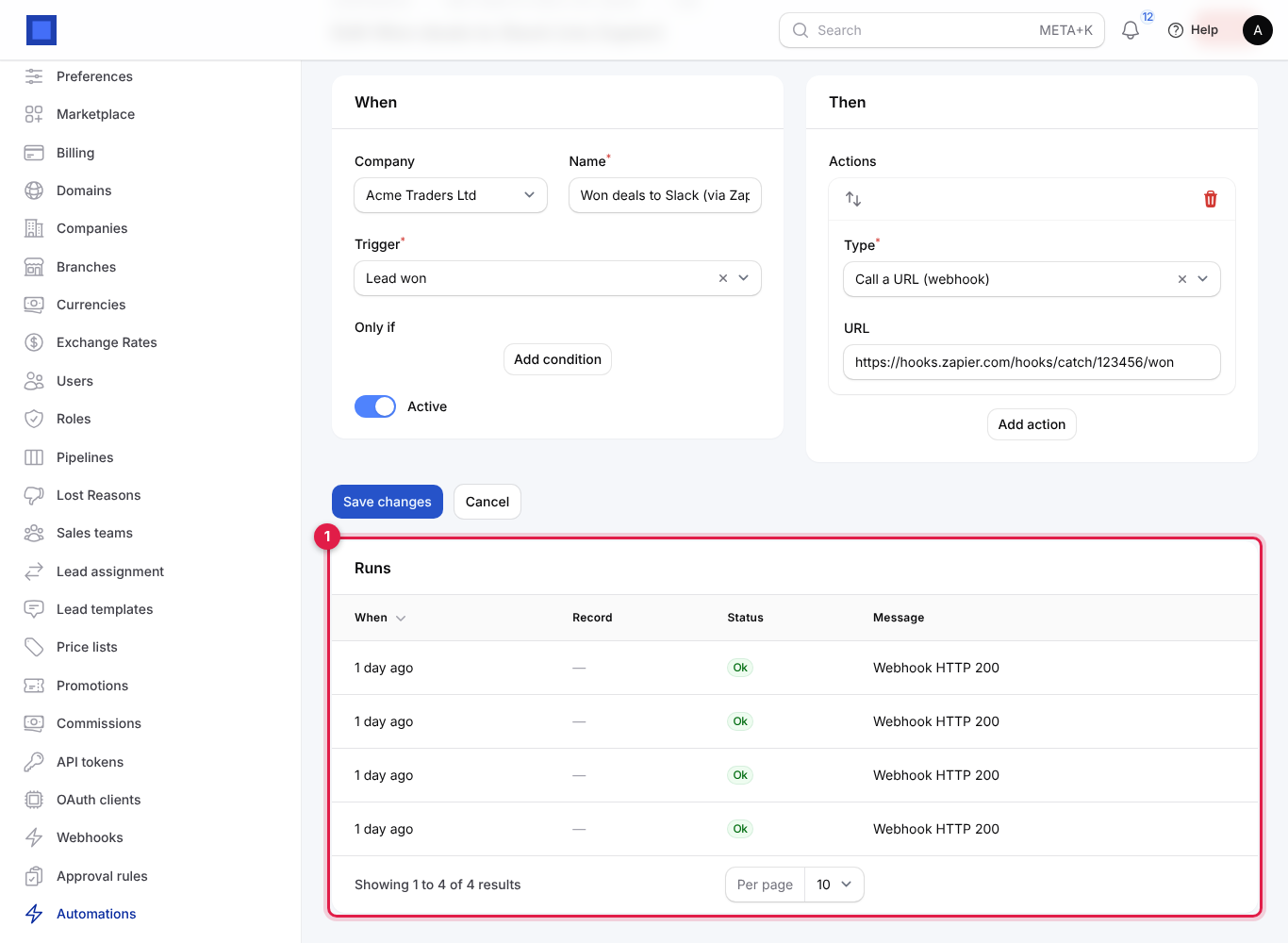
| URL (marker 1) | A web address starting with https:// (or http://), for example a Zapier or Make catch hook. NaliSuite sends a POST with JSON { "event": …, "rule": …, "data": { …the trigger fields… } } and the headers X-NaliSuite-Event and X-NaliSuite-Rule. Anything other than a 2xx answer counts as a failed run. The address must be on the public internet: private and internal network addresses are refused, and redirects are not followed. |
Use Add action (marker 4 in the notify picture) to do several things, for example email the customer and notify the account manager. Drag the arrows to change the order; the bin removes an action. At least one action is required.
- Click Create. The rule opens again with its run log underneath. Check that Active (marker 2 in the webhook picture) is on.
Check that an automation ran (run log)
Open the automation from Settings → Automations. Under the form, Runs (marker 1) lists every time the rule fired: When, the Record it ran for, the Status and a Message.
| Run status | Meaning |
|---|---|
| Ok | All actions ran. The message says what was done, for example Email to amina@example.com or Webhook HTTP 200. |
| Skipped | The trigger fired but the Only if conditions were not met ("Conditions not met"). |
| Failed | An action failed, for example "No valid email address for the recipient." (the customer has no email) or "Webhook answered HTTP 500". |
Scheduled triggers (overdue invoices, SLA breaches) are checked every hour and run once per record, so a customer is not emailed every hour about the same invoice.
Common questions
I am the owner. Why do my own big orders not wait for approval? The requester is approved automatically when they hold the approving role, and owners can always approve.
Can an expense claim need approval? Yes. A rule that Applies to Expenses covers expenses recorded under Accounting → Expenses, imported expenses and staff expense claims.
The approver is away. Who else can approve? Any owner. Or edit the rule to name another role or user; new requests will go to them.
My automation did not send anything. Open it and look at Runs. Skipped means the conditions were not met; Failed gives the reason. No row at all means the trigger has not happened since the rule was made active, or the rule is for another company.
Will a new overdue rule email every old overdue invoice? On its first hourly check it runs once for every invoice that matches at that moment. Add a condition such as Days overdue is at most 30 if you do not want to chase old ones.
Can I test a webhook? Point it at a free request-catcher URL, trigger the event (for example mark a test lead won) and look at the run log and the catcher.