Payroll
Payroll turns each employee's contract into a monthly payslip with the right statutory deductions for your country, posts the salaries to the books, produces the files you upload to the tax authority, the bank and M-Pesa, sends payslips by email or WhatsApp, and keeps staff loans and the year-end figures. The owner, the accountant or an HR officer runs it once a month. Everything is under HRM in the left menu: Payroll (the pay runs), Staff loans and Payroll year-end. Employees are set up under HRM → Employees (see HR); each employee sees their own payslips under Me → My payslips (see Employee self-service).
Who can do what. Payroll has three permissions, set per role under Settings → Roles: payroll.view (see pay runs, payslips, files, year-end, tax cards), payroll.manage (create and recalculate runs, mark paid, remit, send payslips and salaries, manage staff loans) and payroll.approve (Approve and post and Cancel run). Keeping payroll.approve for the owner or finance manager gives you a maker–checker control: one person prepares the run and another approves it.
Before your first pay run
Check these once:
- Employees and contracts. Every person to be paid needs an employee record with status Active (or On leave), a Start date on or before the end of the month, and a current contract with a Basic salary per month. Allowances, recurring deductions and benefits in kind live on the same contract (see Pay elements: allowances, deductions and benefits in kind).
- Statutory numbers and pay method. On each employee's Statutory and pay tab fill in the tax PIN, social security and health insurance numbers (they appear on the returns) and how they are paid (bank details or mobile money number).
- Country rules. Your company's country (under Settings → Companies) picks the statutory rules. Check them in Settings → Preferences → Payroll (next section).
- Accounting. Approving a run posts journal entries. The accounts it needs (Salaries and wages, Employer statutory contributions, Income tax (PAYE) payable, Pension / social security payable, Health insurance payable, Housing / training levy payable, Other payroll deductions payable, Staff loans and advances, Net salaries payable) come with your chart of accounts.
Check payroll settings and country rules
NaliSuite ships with current statutory rules for Kenya, Uganda, Tanzania, Rwanda, Nigeria, Ghana, South Africa, Ethiopia, Egypt, Morocco, Côte d'Ivoire, Senegal and Cameroon. For Kenya that is PAYE with the monthly personal relief, NSSF at 6% + 6% of pay up to 72,000 a month, SHIF at 2.75% (minimum 300) and the Affordable Housing Levy at 1.5% + 1.5%. You only change these settings when the law changes before an update reaches you, or when your situation differs.
- Open Settings → Preferences and click the Payroll tab.
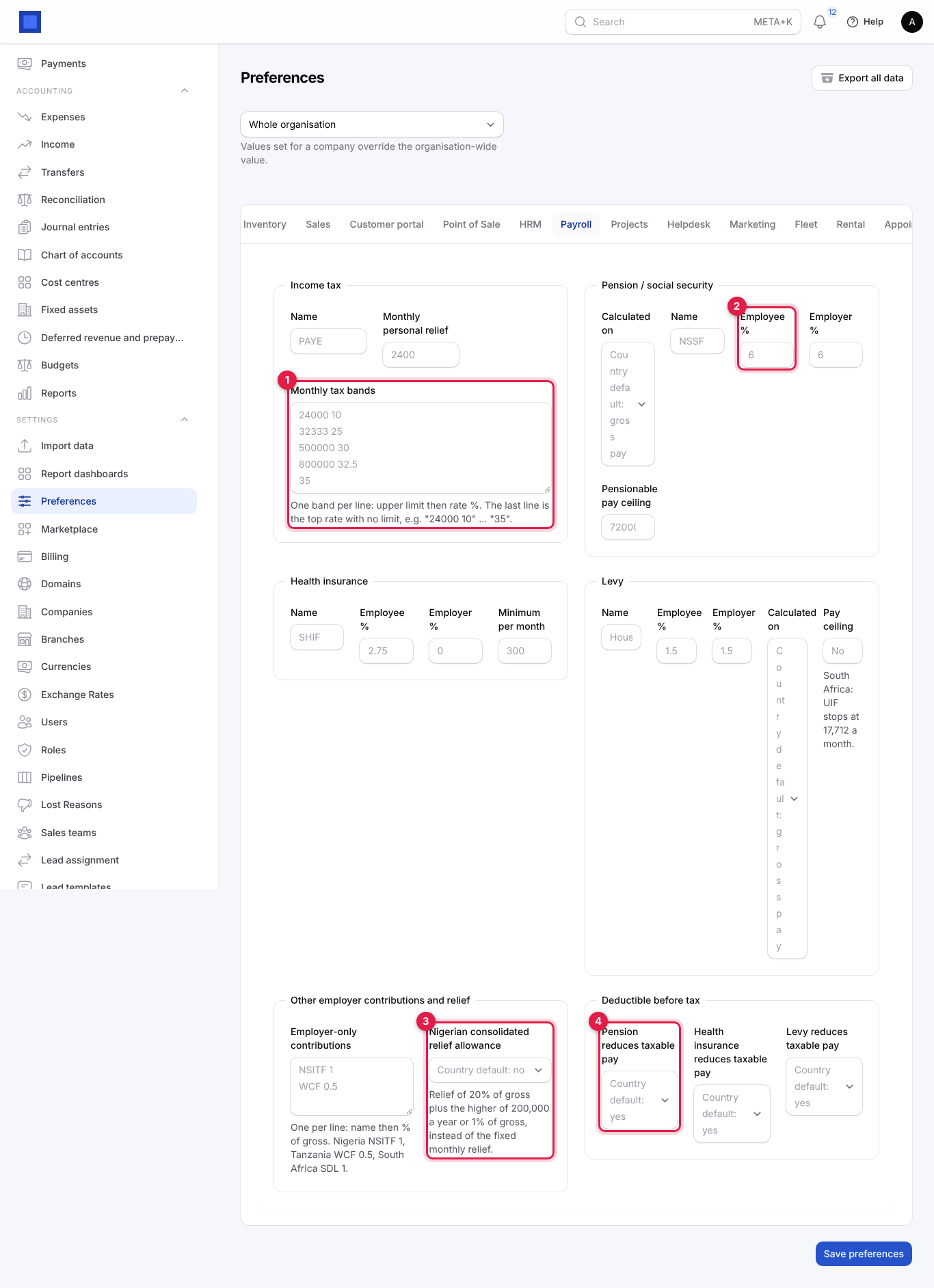
Every box shows the country default in grey. Leave a box empty to use the default; type a value only to override it.
| Setting | What it does |
|---|---|
| Income tax → Name | The label on payslips and returns (PAYE, IR, ITS…). |
| Income tax → Monthly personal relief | Relief deducted from the tax each month (Kenya 2,400). |
| Income tax → Monthly tax bands (marker 1) | One band per line: the upper limit of the band, a space, then the rate in %. The last line is the top rate with no limit, for example 24000 10, 32333 25, 500000 30, 800000 32.5, 35. |
| Pension / social security → Calculated on | Gross pay or Basic salary. |
| Pension → Name, Employee % (marker 2), Employer %, Pensionable pay ceiling | The scheme's name and both rates. The ceiling caps the pay the percentage applies to (Kenya NSSF upper earnings limit). Empty means no ceiling. |
| Health insurance → Name, Employee %, Employer %, Minimum per month | For SHIF, NHIF, RSSB medical, AMO… The minimum applies when the percentage comes to less. |
| Levy → Name, Employee %, Employer %, Calculated on, Pay ceiling | Housing Levy (Kenya), NHF (Nigeria), UIF (South Africa, capped at 17,712 a month), SDL… A levy with both rates at 0 is not shown on payslips or returns. |
| Employer-only contributions | One per line: name then % of gross, paid by the employer only, for example NSITF 1 (Nigeria), WCF 0.5 (Tanzania), SDL 1 (South Africa). They add to employer cost, not to deductions. |
| Nigerian consolidated relief allowance (marker 3) | Nigeria: relief of 20% of gross plus the higher of 200,000 a year or 1% of gross, instead of a fixed monthly relief. |
| Deductible before tax (marker 4) | Whether pension, health insurance and the levy reduce taxable pay. In Kenya all three (NSSF, SHIF and the Housing Levy) reduce taxable pay. |
- Click Save preferences. Use the selector at the top of Preferences to set different rules for each company if your companies are in different countries. New and recalculated payslips use the new values; approved runs are never changed.
Common mistake: typing a rate as a fraction (0.06) instead of a percentage (6).
Pay elements: allowances, deductions and benefits in kind
Each employee's pay comes from their current contract on the Job tab of the employee record (HRM → Employees → Edit → Job).
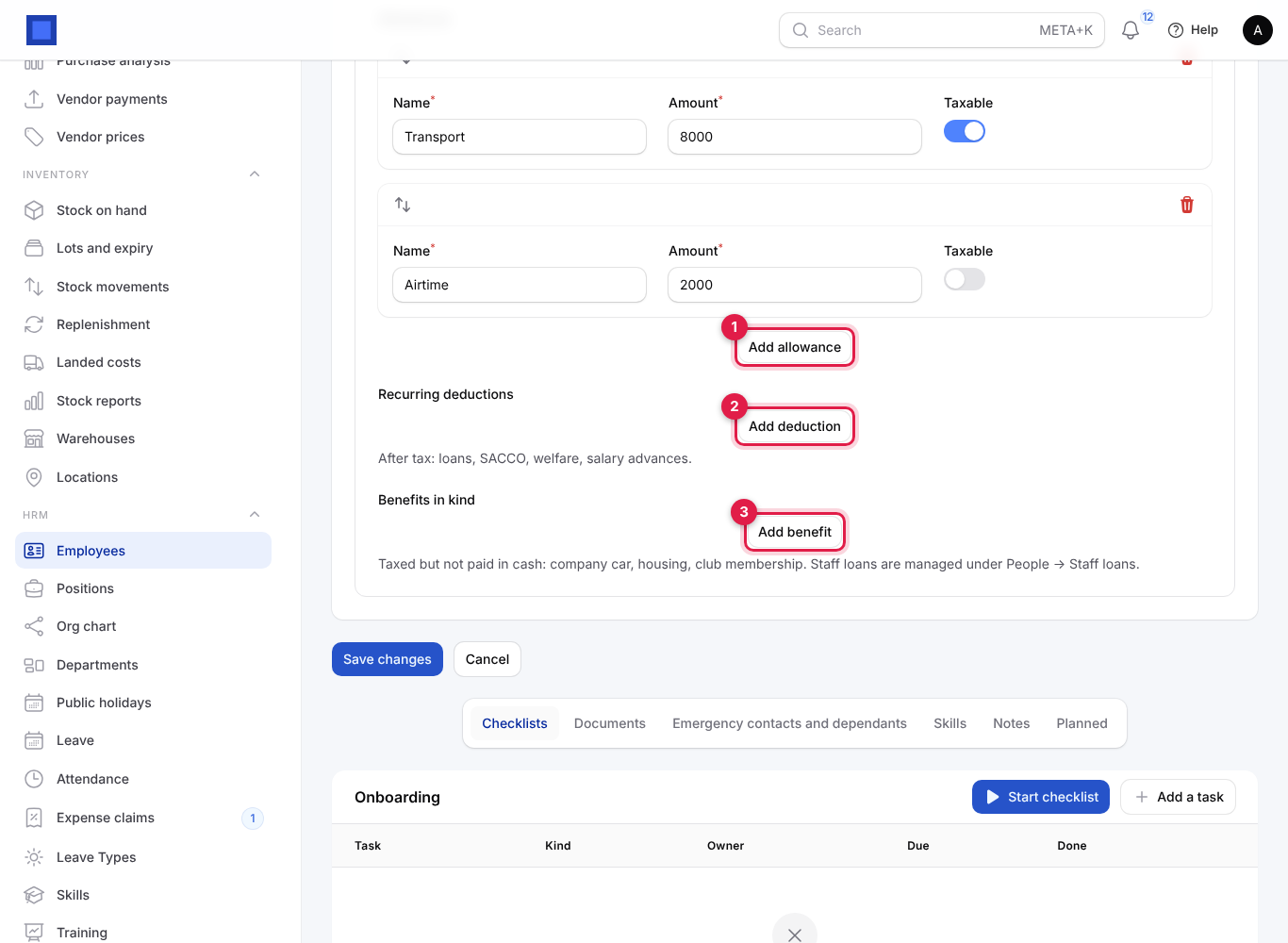
- Allowances (marker 1): house, transport, airtime, hardship. Each has a monthly Amount and a Taxable switch. All allowances are paid and count in gross pay; only taxable ones are taxed.
- Recurring deductions (marker 2): SACCO, welfare, union dues, taken after tax every month. They are credited to Other payroll deductions payable in the books, to be paid over to the SACCO or union.
- Benefits in kind (marker 3): company car, housing, school fees paid by the company, club membership. Enter the taxable Monthly value. It is added to taxable pay (so PAYE goes up) but is not paid in cash, so net pay does not include it. It appears on the payslip, the P9 card and the year-end summary under Benefits.
Staff loans and salary advances with a repayment schedule are not entered here: use HRM → Staff loans (see Lend to staff and recover it through payroll).
Create a pay run
- Open HRM → Payroll. The list shows each run's reference (Draft until approved, then PAY-2026-001…), name, period, pay date, number of staff, gross and net, and status.
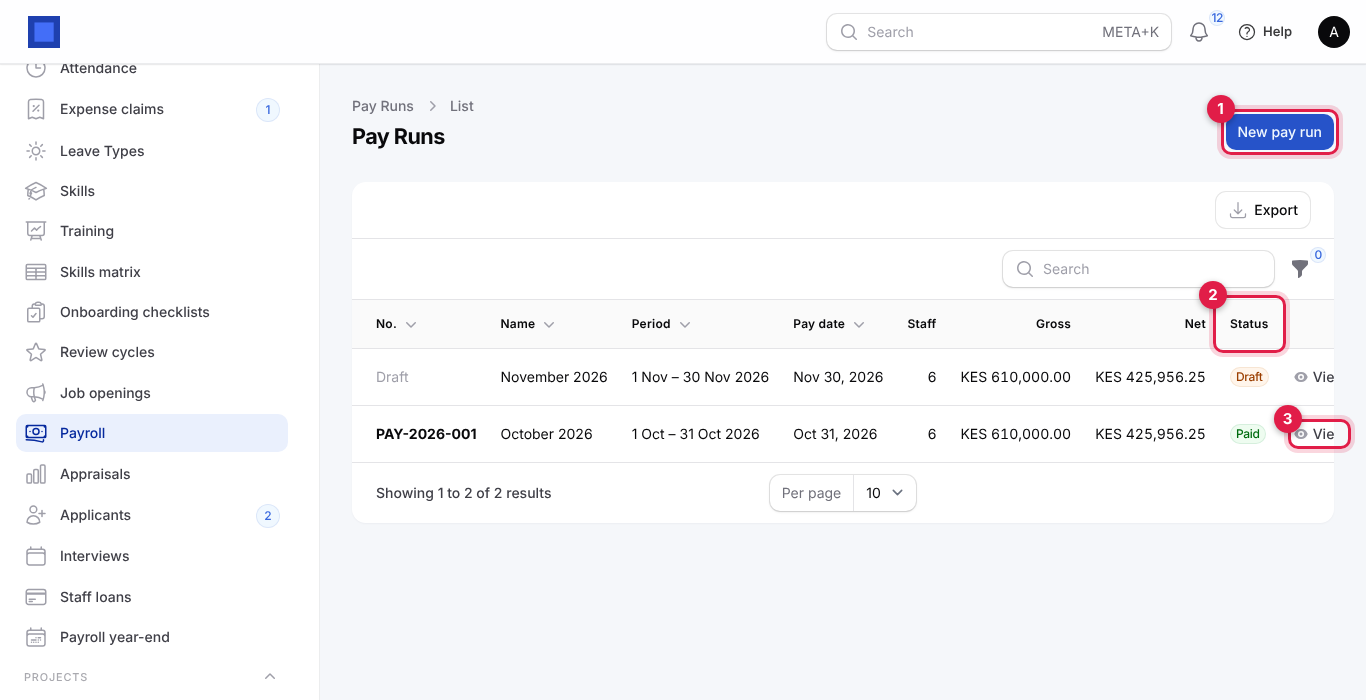
- Click New pay run (marker 1).
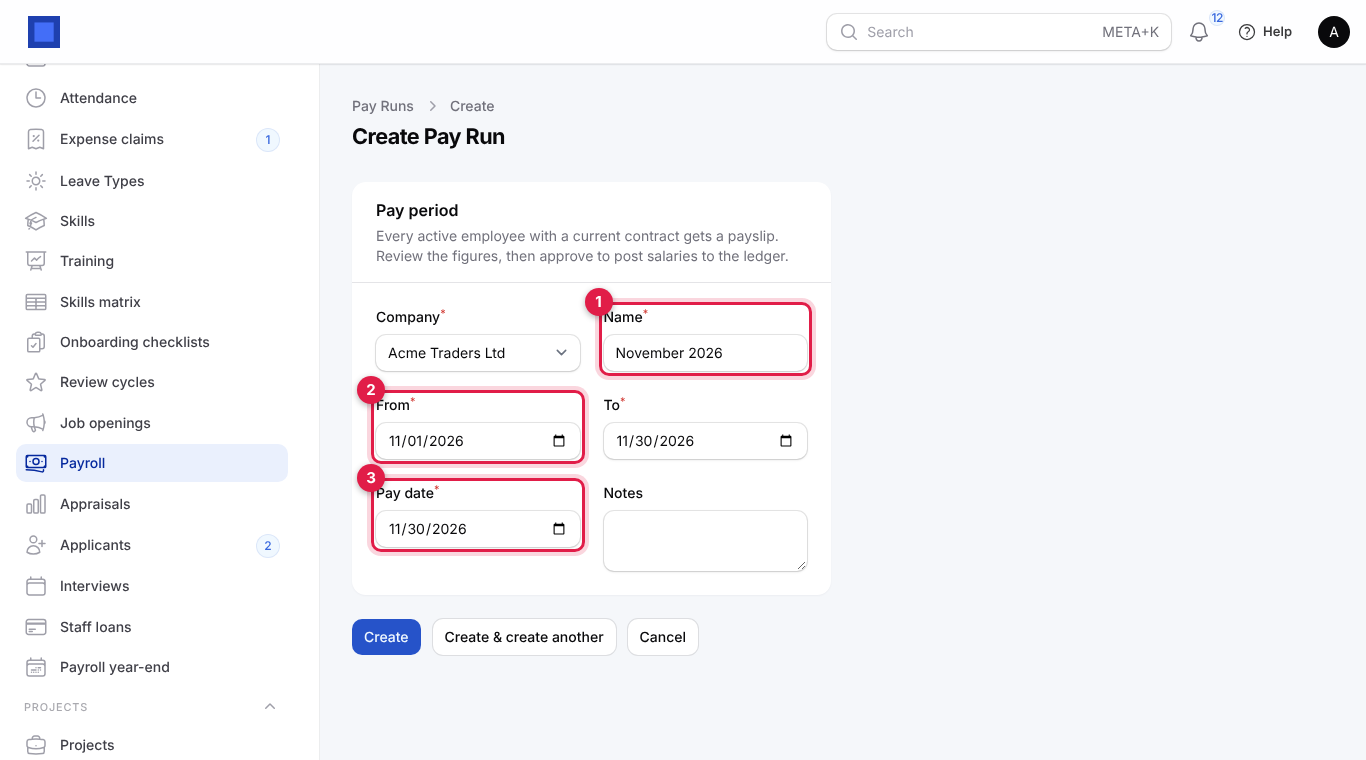
| Field | What to enter |
|---|---|
| Company (required) | The employing company. One run covers one company and month. |
| Name (required, marker 1) | For example November 2026. Shown on payslips and in the ledger memo. Filled in when you pick From. |
| From (required, marker 2) | First day of the period. Choosing it fills To, Pay date and Name for the whole month. |
| To (required) | Last day of the period. |
| Pay date (required, marker 3) | When salaries are paid. It decides the year the run counts in for the P9 card and the year-end summary. |
| Notes | Internal notes, for example includes December bonus. |
- Click Create. A payslip is calculated for every active or on-leave employee of the company with a current contract who started by the end of the period and has not left before it started. The run opens in Draft.
Review a draft pay run
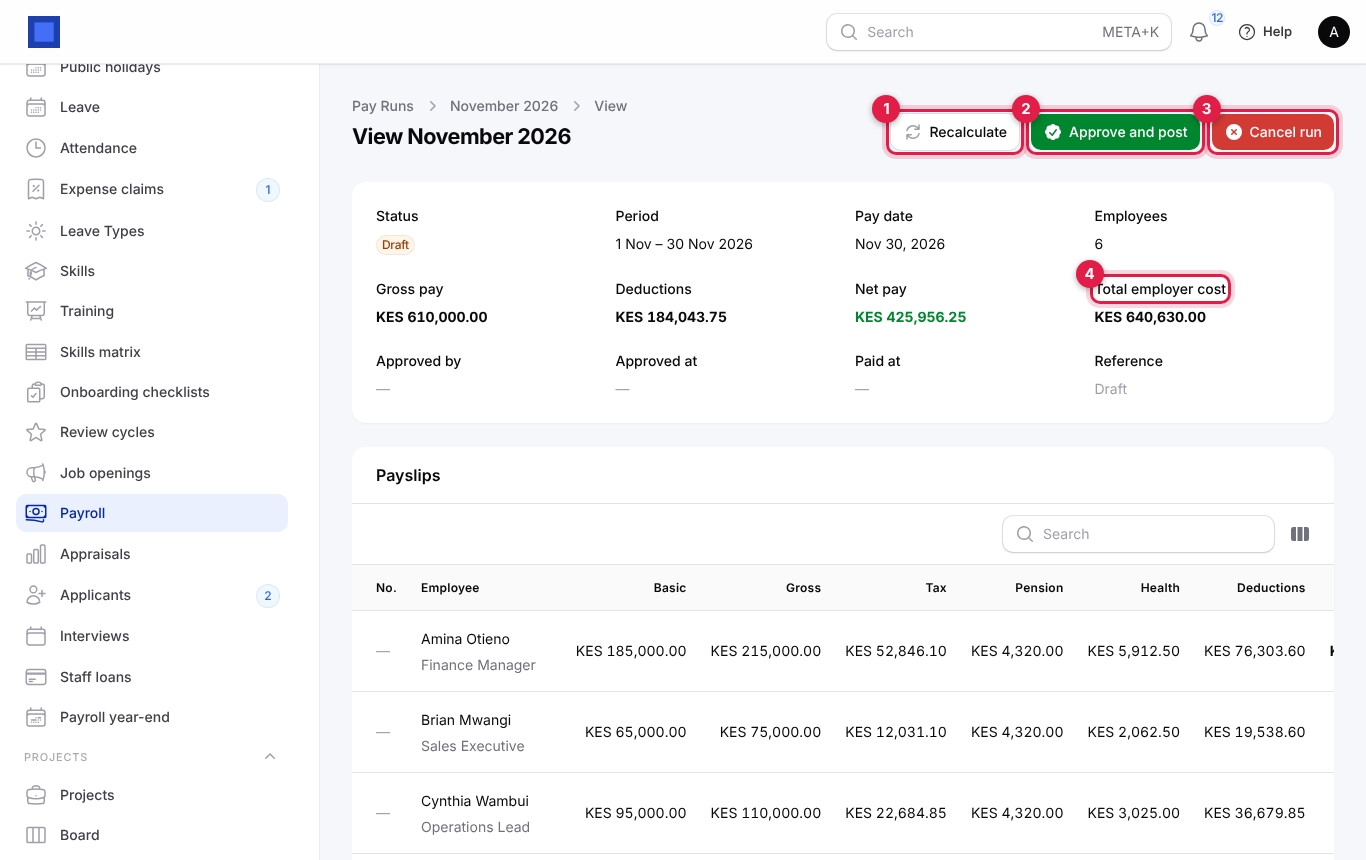
The top shows the Status, Period, Pay date, number of Employees, and the totals: Gross pay, Deductions, Net pay and Total employer cost (marker 4: gross plus the employer's statutory contributions).
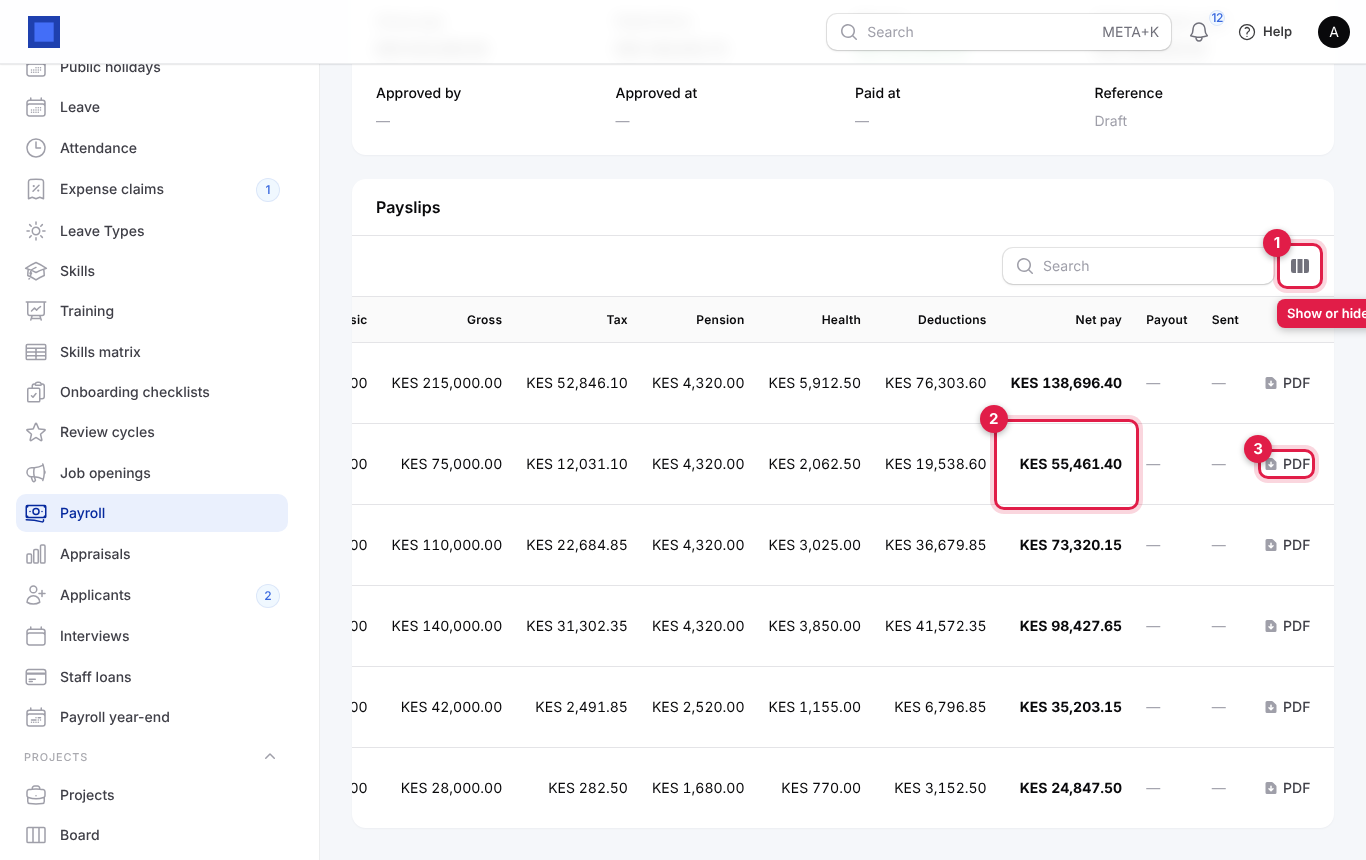
The Payslips table lists every employee's basic, gross, tax, pension, health, total deductions and Net pay in bold (marker 2 below). Use the column button (marker 1) to show the levy and employer cost columns, and PDF (marker 3) to open a payslip.
How each payslip is worked out:
- Gross pay = basic salary + all allowances.
- Taxable pay = gross − allowances marked not taxable + benefits in kind − the statutory contributions that are deductible before tax.
- Income tax = the tax bands applied to taxable pay, minus the personal relief (never below zero).
- Deductions = income tax + employee pension + employee health + employee levy + recurring deductions + staff loan instalments due this month.
- Net pay = gross − deductions.
- Employer cost = gross + employer pension, health, levy and employer-only contributions.
If something is wrong, fix the employee's contract or the settings, then click Recalculate (marker 1 on the run). All payslips of the draft are rebuilt from the current contracts, and employees who have since left or were added are taken out or put in. Recalculate as often as you like until you approve.
Approve and post the pay run
- On the draft run, click Approve and post (marker 2 on the run). The confirmation says Payslips are frozen and salaries, deductions and employer contributions are posted to the ledger.
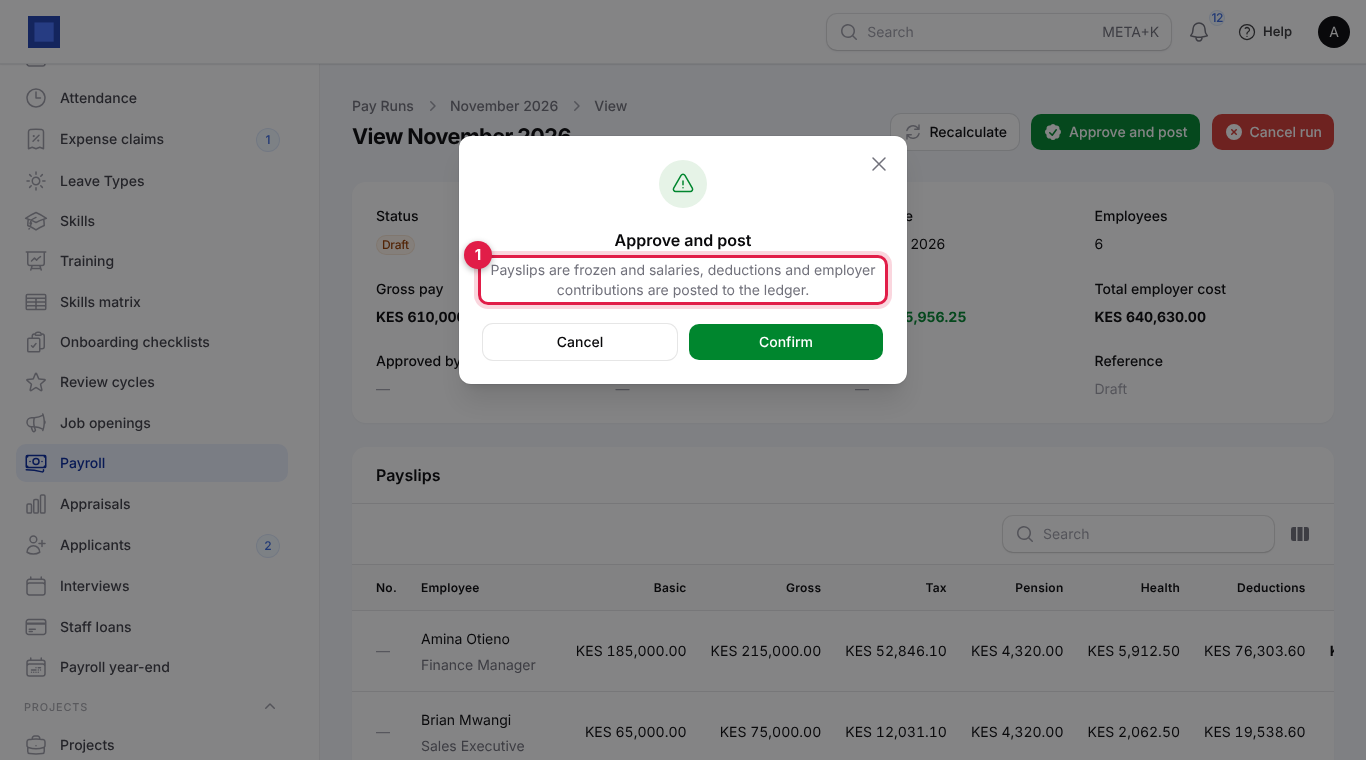
- Click Confirm.
What happens:
- The run gets its reference (PAY-2026-002) and every payslip a number (PS-2026-00007…). Payslips can no longer change.
- One journal entry dated the end of the period is posted: debit Salaries and wages (gross pay) and Employer statutory contributions; credit Income tax (PAYE) payable, Pension / social security payable, Health insurance payable, Housing / training levy payable (employee and employer shares), Other payroll deductions payable, Staff loans and advances (loan instalments recovered) and Net salaries payable (what you owe staff).
- Staff loan instalments on the payslips become repayments and reduce each loan's balance.
- Employees can now see the payslip under Me → My payslips.
- The status is Approved and the buttons change.
You need payroll.approve. A run with no payslips cannot be approved.
Pay salaries and remit statutory deductions
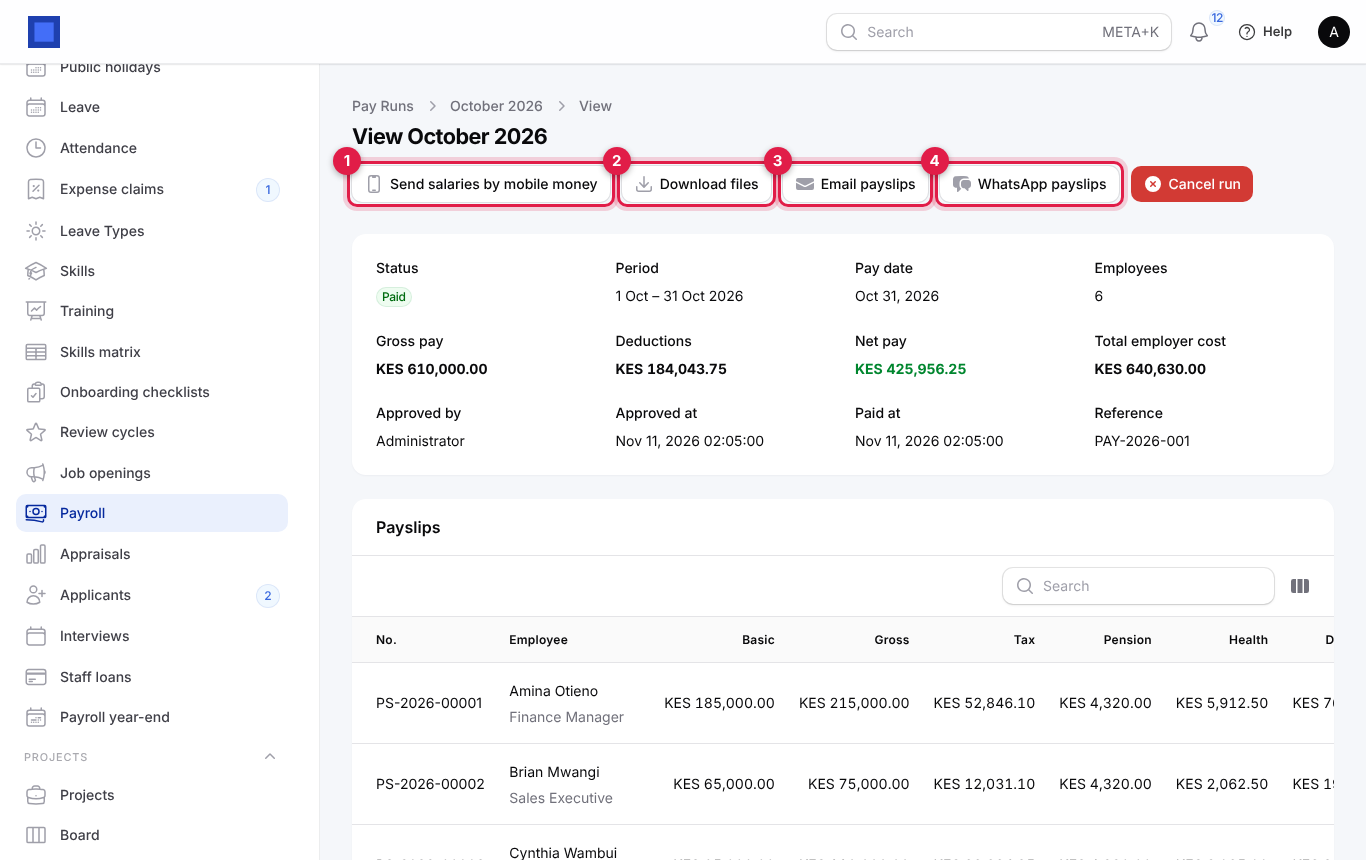
An approved run has these buttons:
Download the bank, M-Pesa and statutory files
Click Download files (marker 2) and choose a file. Each downloads as a CSV.
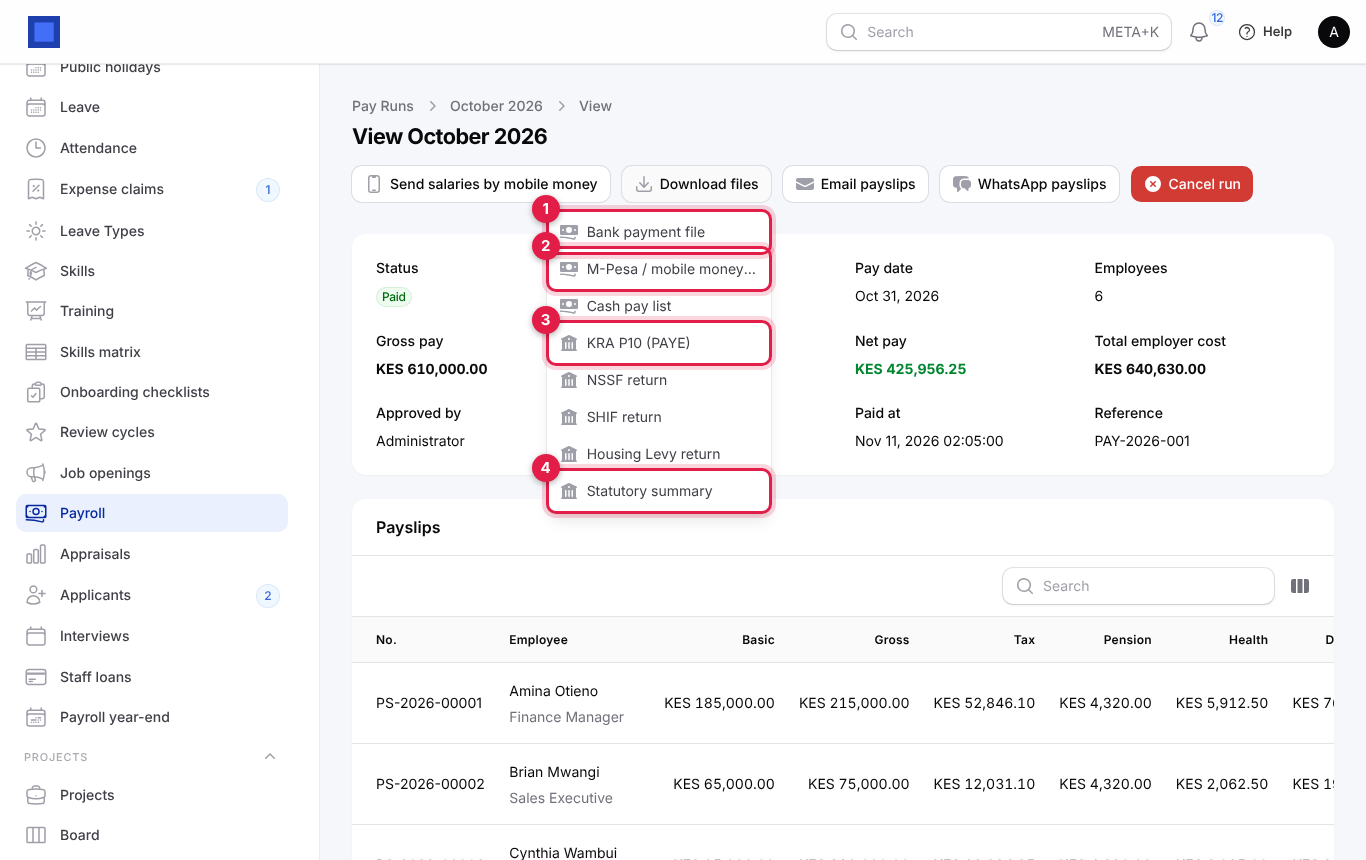
| File | What it contains and what to do with it |
|---|---|
| Bank payment file (marker 1) | Employees paid by bank transfer: employee no, beneficiary name, bank, account number, net amount, currency and reference (Salary November 2026). Upload it to your bank's bulk payment service, or re-key it. |
| M-Pesa / mobile money bulk file (marker 2) | Employees paid by mobile money: phone (in international format, 2547…), amount, name and reference. Upload it to M-Pesa bulk disbursement (B2C) or your mobile money provider's bulk portal. |
| Cash pay list | Employees paid in cash: employee no, name, amount, currency and a signature column to print and have signed. |
| KRA P10 (PAYE) (marker 3) | Kenya: the PAYE return in the column layout of the KRA P10 / iTax employee details sheet. In other countries: the PAYE return (or the income tax name you set). |
| NSSF return | Kenya: the NSSF contributions file (payroll number, names, ID, KRA PIN, NSSF number, gross, employee and employer contribution). Other countries: the pension or social security return. |
| SHIF return | Kenya: SHIF contributions. Other countries: the health insurance return. |
| Housing Levy return | Kenya: Affordable Housing Levy. Shown only when a levy applies. |
| Statutory summary (marker 4) | Every employee's gross, taxable pay, tax, each employee and employer contribution, other deductions, net pay and employer cost, for your accountant or auditor. |
Tip: Open the CSV in Excel to check it before uploading. Employees with no bank details or phone number appear with empty cells; fix them on the employee and download again.
Send salaries straight to mobile money wallets
When a payout-capable gateway is set up, click Send salaries by mobile money (marker 1 on the run). It is only shown while some mobile-money employees have not been paid out.
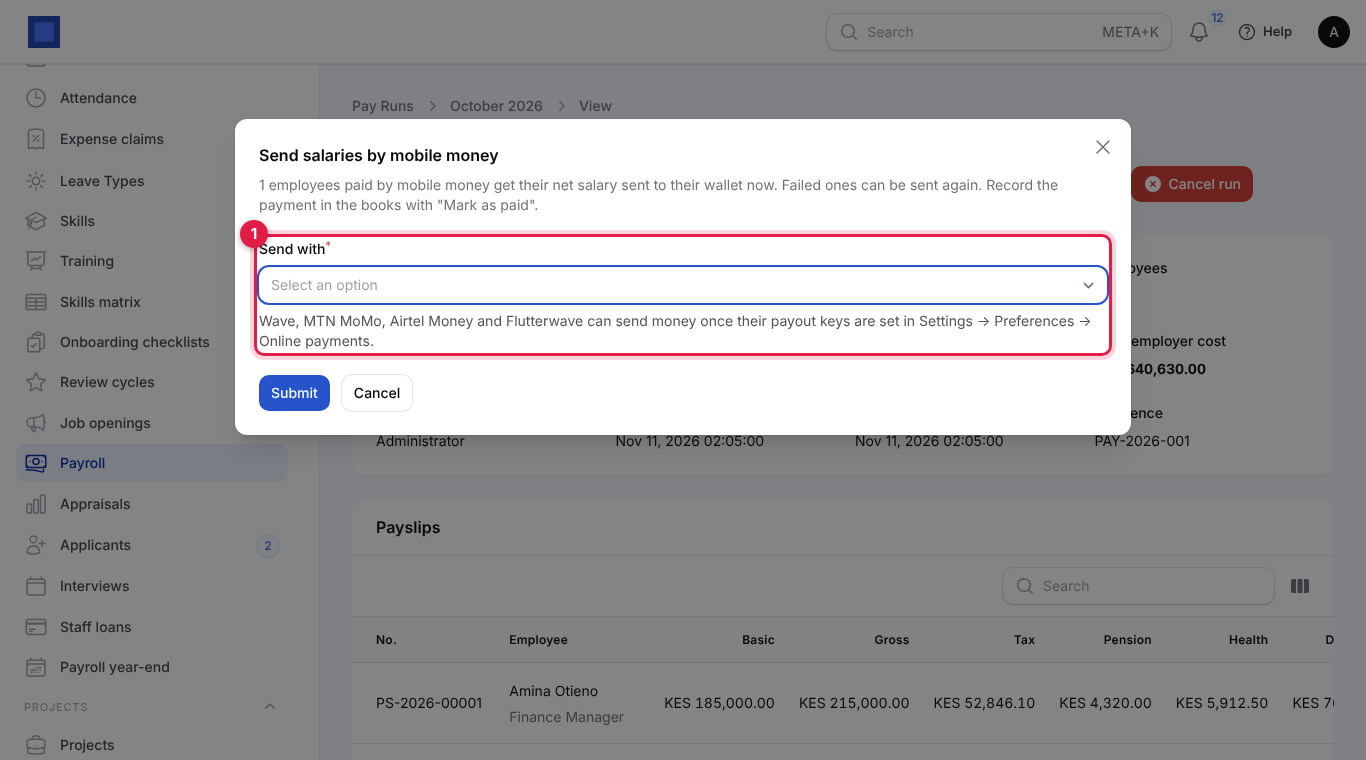
- Choose Send with (marker 1): Wave, MTN MoMo, Airtel Money or Flutterwave, whichever have payout keys in Settings → Preferences → Online payments (see Integrations).
- Click Submit. Each employee paid by mobile money gets their net salary sent to their wallet. A message says how many were sent and how many failed. The Payout column on the payslips shows Paid out, Processing or Failed; hover a failed one to see why (for example an invalid number), fix the employee's Mobile money number and send again. Only failed and unsent salaries are sent again.
- Sending the money does not record it in the books: still click Mark as paid below.
Mark the run as paid
After the bank, M-Pesa or cash payment has gone out, click Mark as paid (shown on approved runs). Choose Paid from (the bank, cash or mobile money account the salaries left) and the Payment date, then click Submit. The books get debit Net salaries payable, credit the chosen account, and the run's status becomes Paid.
Remit statutory deductions
When you pay PAYE, NSSF, SHIF and the levy to the authorities (by the 9th of the next month in Kenya), click Remit statutory. Choose Paid from and the Payment date and click Submit. The dialog explains: Records PAYE, pension, health and levy payments to the authorities from the chosen account. The books get debit each payable account (employee and employer shares) and credit the money account. The button disappears once the remittance is recorded, so it cannot be posted twice.
Note: The demo workspace had no run in the Approved (not yet paid) state, so the Mark as paid and Remit statutory dialogs are described here rather than pictured.
Pay run statuses: Draft (being prepared, can be recalculated) → Approved (frozen and posted) → Paid (salaries recorded as paid). Cancelled at any point.
Cancel a pay run
Cancel run (red, needs payroll.approve) reverses every ledger entry of the run (accrual, payment and remittance) with reversing entries, puts loan instalments back on the loans and marks the run Cancelled. Payslips stay for reference. Use it when a run was approved with mistakes, then create a new run for the same month.
Send payslips by email or WhatsApp
On an approved or paid run:
- Email payslips (marker 3 on the approved run) sends each employee with an email address an email Your payslip for November 2026 with the payslip PDF attached and the net pay in the message. Employees without an email are skipped, and the message tells you how many.
- WhatsApp payslips (marker 4) sends each employee with a phone number a short WhatsApp message with gross pay, each deduction, net pay and a link to sign in and download the PDF. It uses the WhatsApp Business connection of the Helpdesk app (Settings → Preferences → Helpdesk); without it you see WhatsApp is not configured.
To send one payslip, scroll the Payslips table to the right and use the row's buttons:
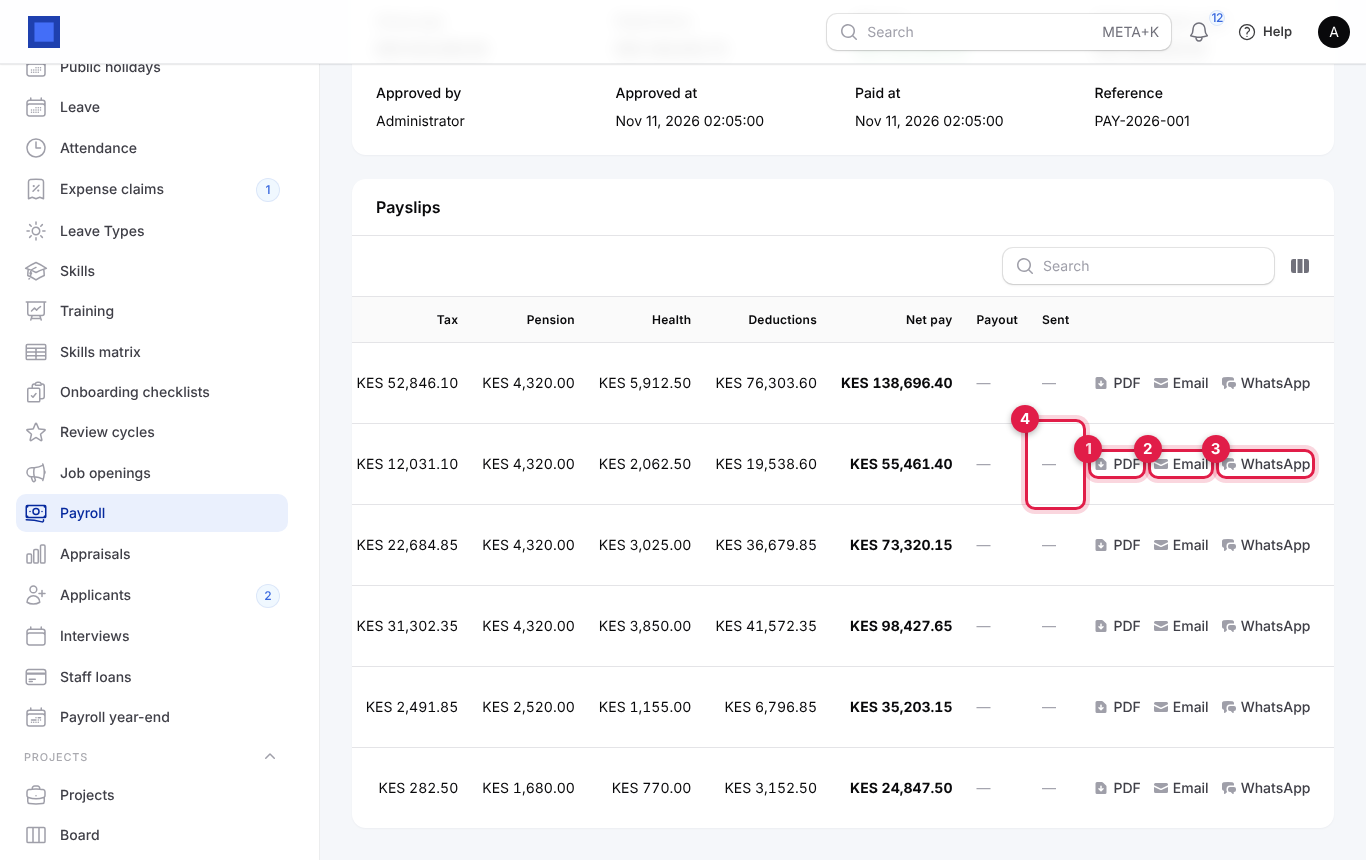
- PDF (marker 1): opens the payslip PDF (company logo, employee details, earnings, benefits, each deduction, net pay and employer contributions) to print or save.
- Email (marker 2): emails this payslip to the employee.
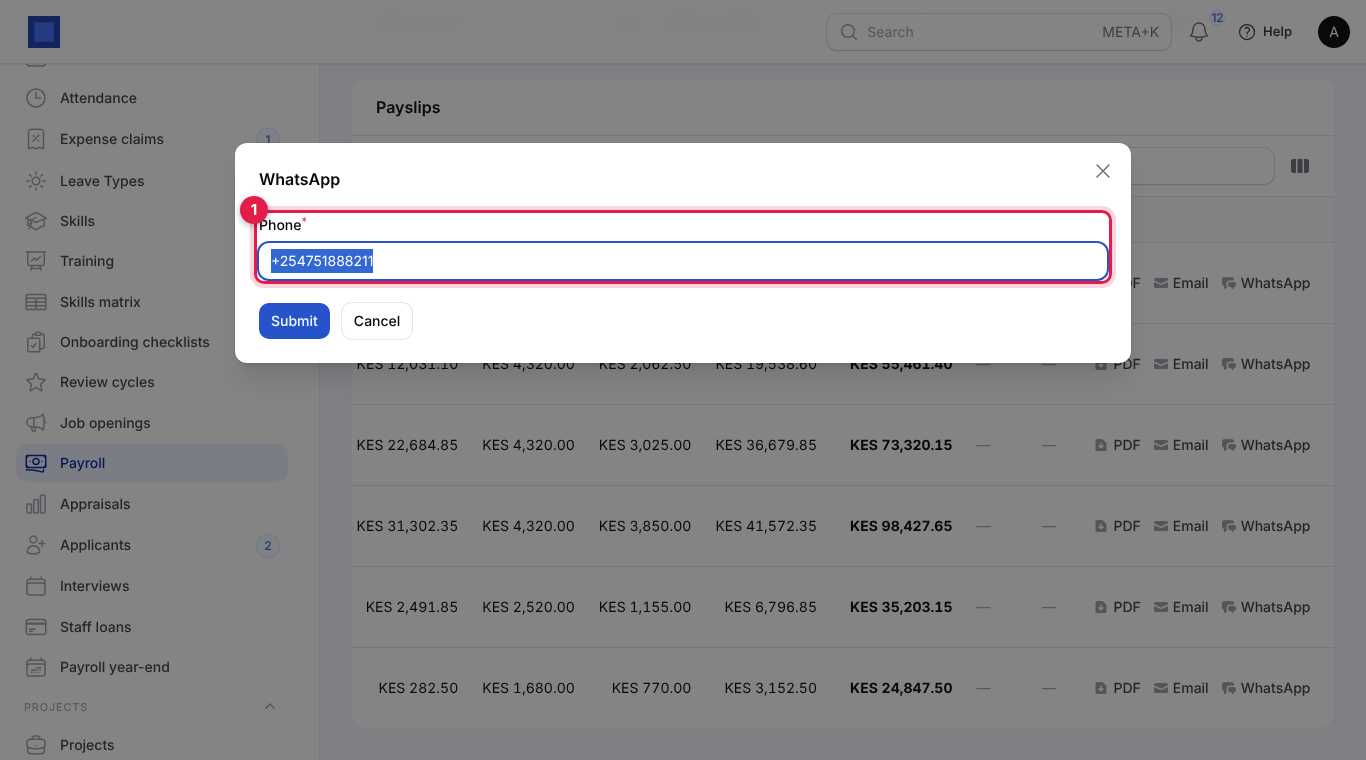
- WhatsApp (marker 3): sends it to a Phone you can change before sending (defaults to the employee's phone or mobile money number).
The Sent column (marker 4) shows when and how each payslip was last sent.
Lend to staff and recover it through payroll
Salary advances, laptop loans and school-fee loans are recovered automatically from each pay run.
- Open HRM → Staff loans.
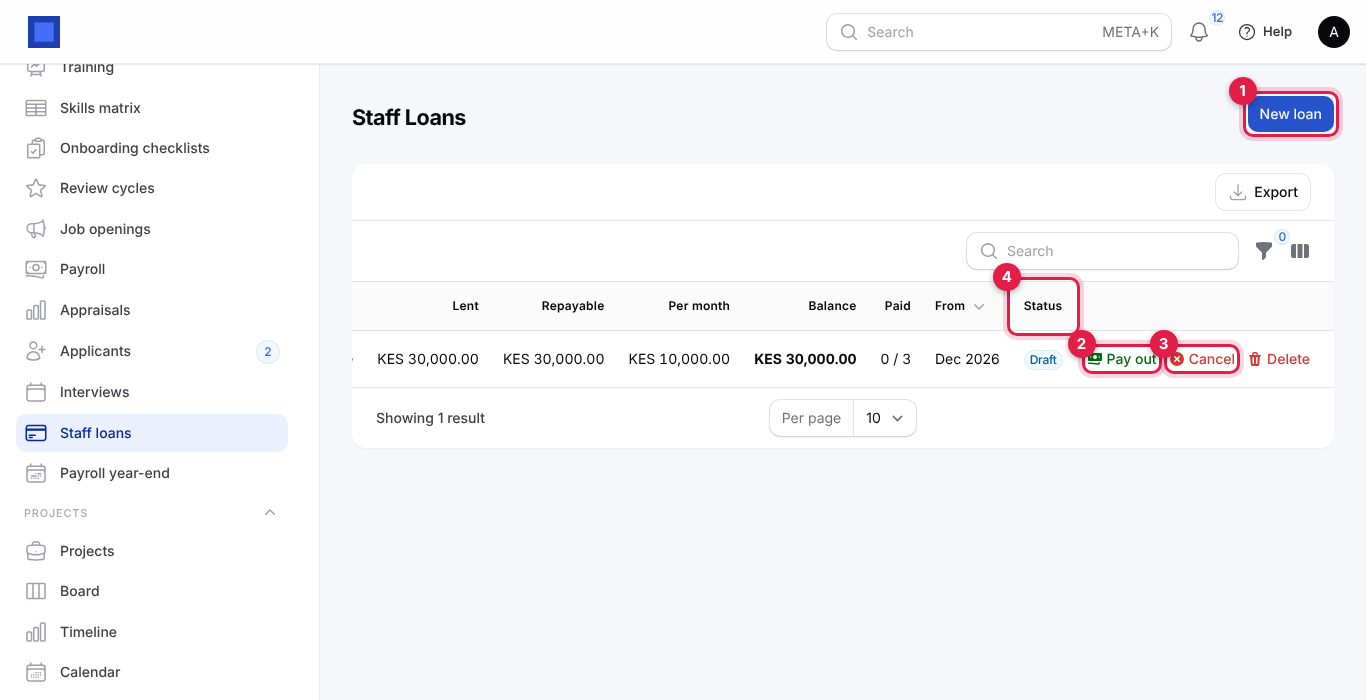
- Click New loan (marker 1).
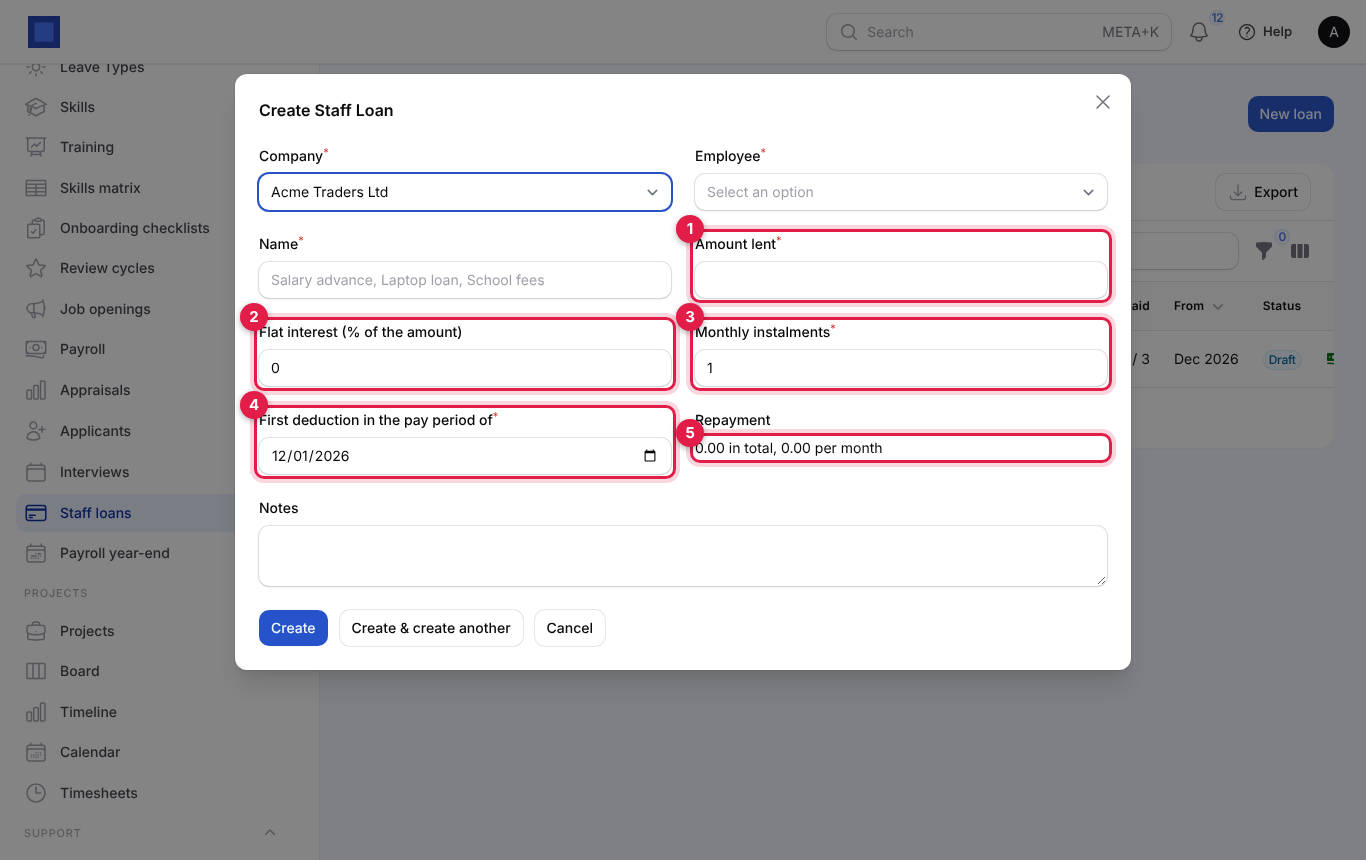
| Field | What to enter |
|---|---|
| Company (required), Employee (required) | Who borrows. Only active employees are listed. |
| Name (required) | Salary advance, Laptop loan, School fees… It appears as the deduction name on payslips. |
| Amount lent (required, marker 1) | The amount paid out. |
| Flat interest (% of the amount) (marker 2) | 0 for an interest-free advance. 10 means 10% of the amount is added once. |
| Monthly instalments (required, marker 3) | Over how many pay runs it is repaid (1 to 120). |
| First deduction in the pay period of (required, marker 4) | The month of the first instalment. Defaults to next month. |
| Repayment (marker 5) | A live preview: total repayable and the monthly instalment. |
| Notes | The agreement, for example approved by MD on 3 Nov. |
- Click Create. The loan is a Draft: nothing is deducted yet.
- When you hand over the money, click Pay out (marker 2 on the list).
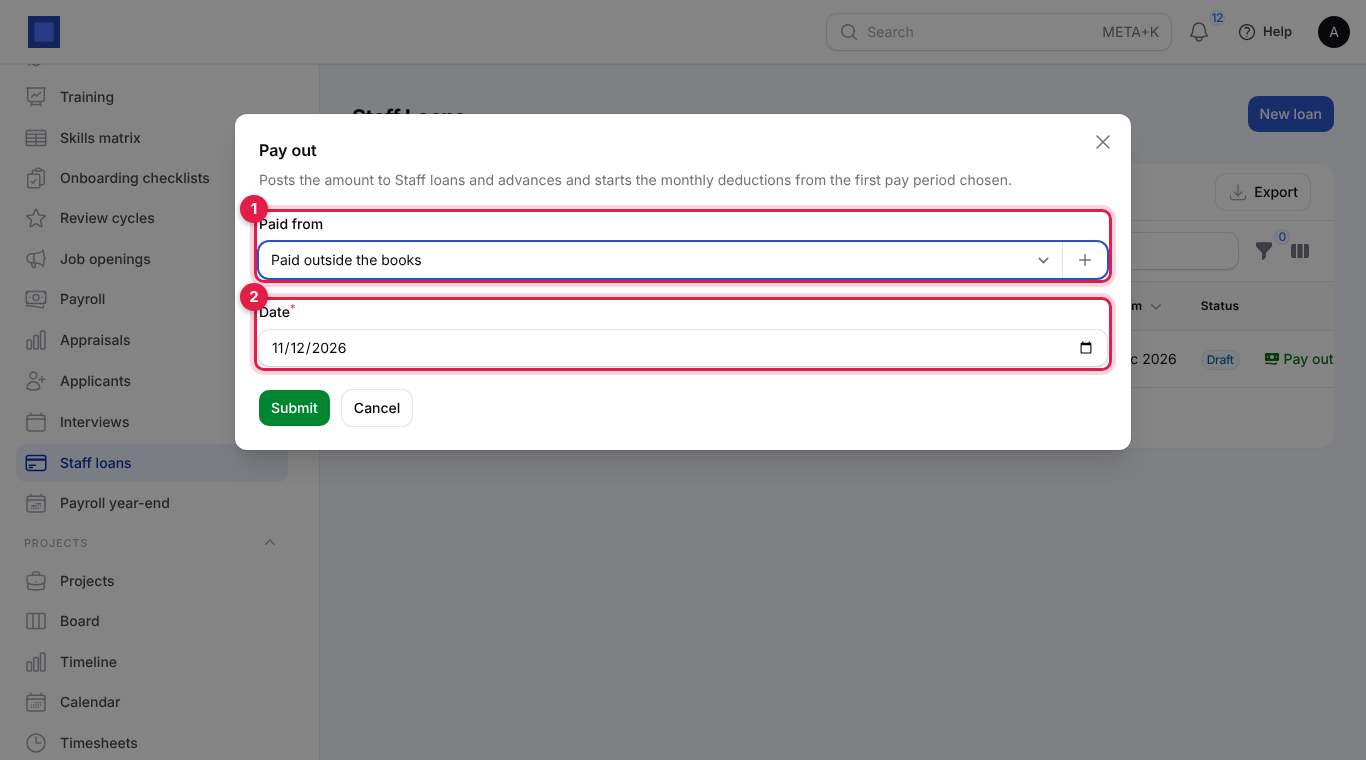
- Choose Paid from (marker 1: the bank, cash or mobile money account; leave Paid outside the books if it was already recorded) and the Date (marker 2), then click Submit. The books get debit Staff loans and advances, credit the money account. The loan becomes Active and its instalment is added to the employee's payslip from the chosen month.
- Each approved pay run records the instalment as a repayment and reduces the Balance; Paid shows instalments made, for example 1 / 3. Repayments on the row lists them with their pay run. When the balance reaches zero the loan is Settled. The last instalment is capped at what is left.
Loan statuses: Draft → Active (being repaid) → Settled; or Cancelled. Cancel (marker 3) stops further deductions; a paid-out loan with no repayments yet is also reversed in the books, otherwise write the remainder off with a journal entry. Delete removes a draft loan.
Download the tax deduction card (P9)
The tax deduction card shows, month by month for one employee and one year, gross pay, benefits, pension, health and levy contributions, taxable pay, tax charged, relief and PAYE deducted. In Kenya it is the P9 form employees need for their annual iTax return.
- HR or payroll: open the employee (HRM → Employees → Edit), click Tax deduction card, choose the Year (marker 1) and click Submit. The PDF downloads.
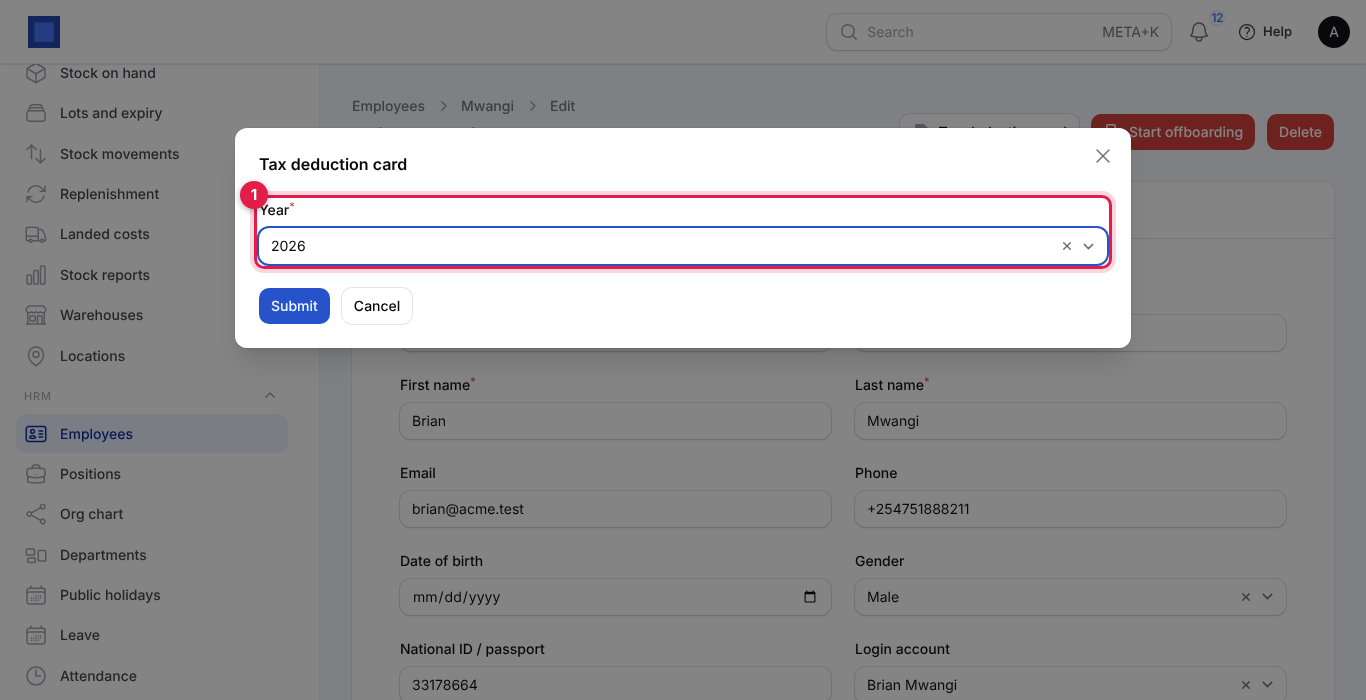
- From the year-end page: click Tax card on the employee's row (see below).
- Employees themselves: Me → My payslips → Tax deduction card.
Only approved and paid runs count, by their pay date.
Year-end summary
Open HRM → Payroll year-end for the year's totals: number of employees, gross pay, PAYE, pension (NSSF), net pay and employer cost, then a table By employee (marker 3: months paid, gross, benefits, taxable pay, PAYE, each contribution, other deductions, net and employer cost) and the statutory totals by month for checking against what you filed.
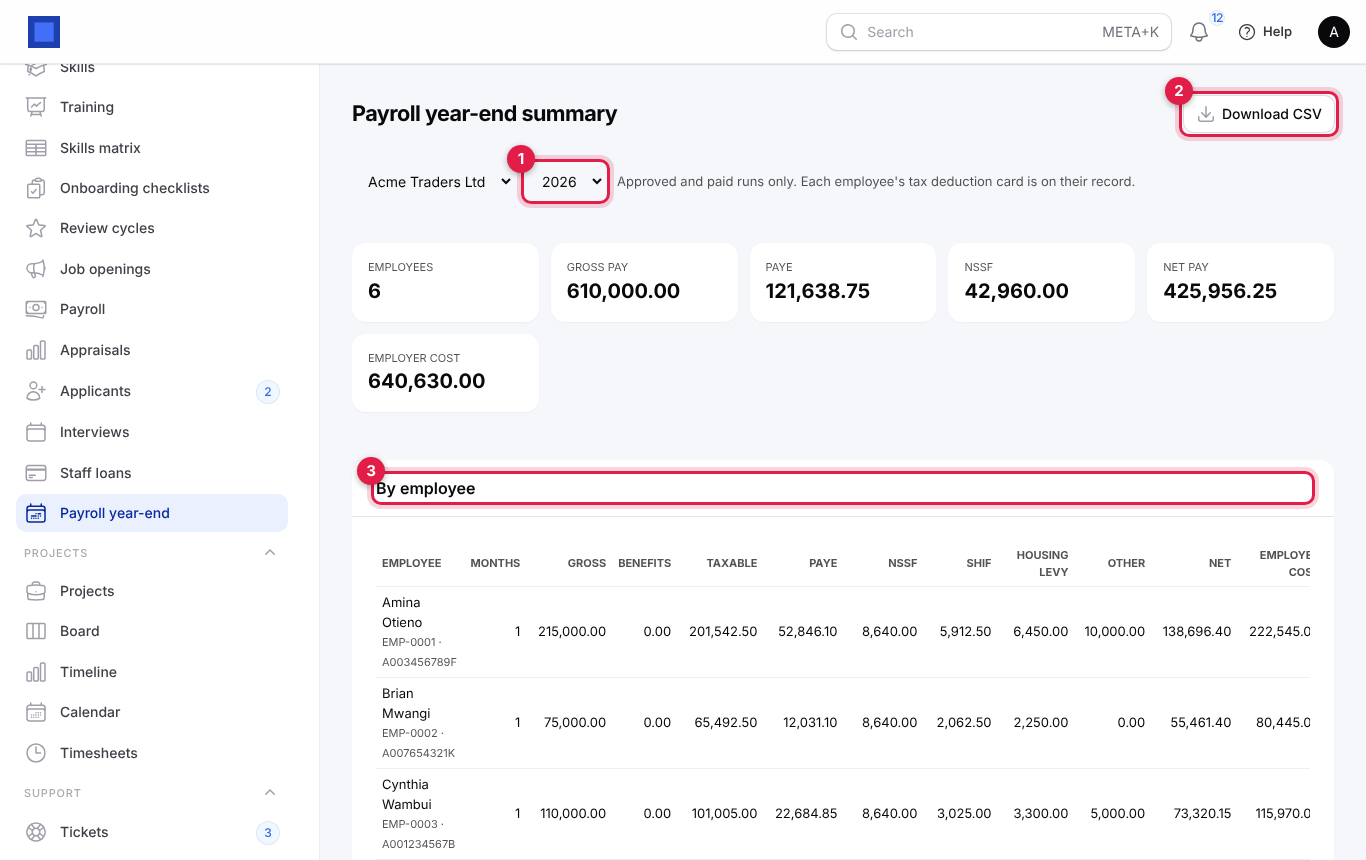
- Pick the company and the year (marker 1). Only approved and paid runs are counted.
- Click Download CSV (marker 2) to give the figures to your accountant (in Kenya, they support the annual P10 reconciliation).
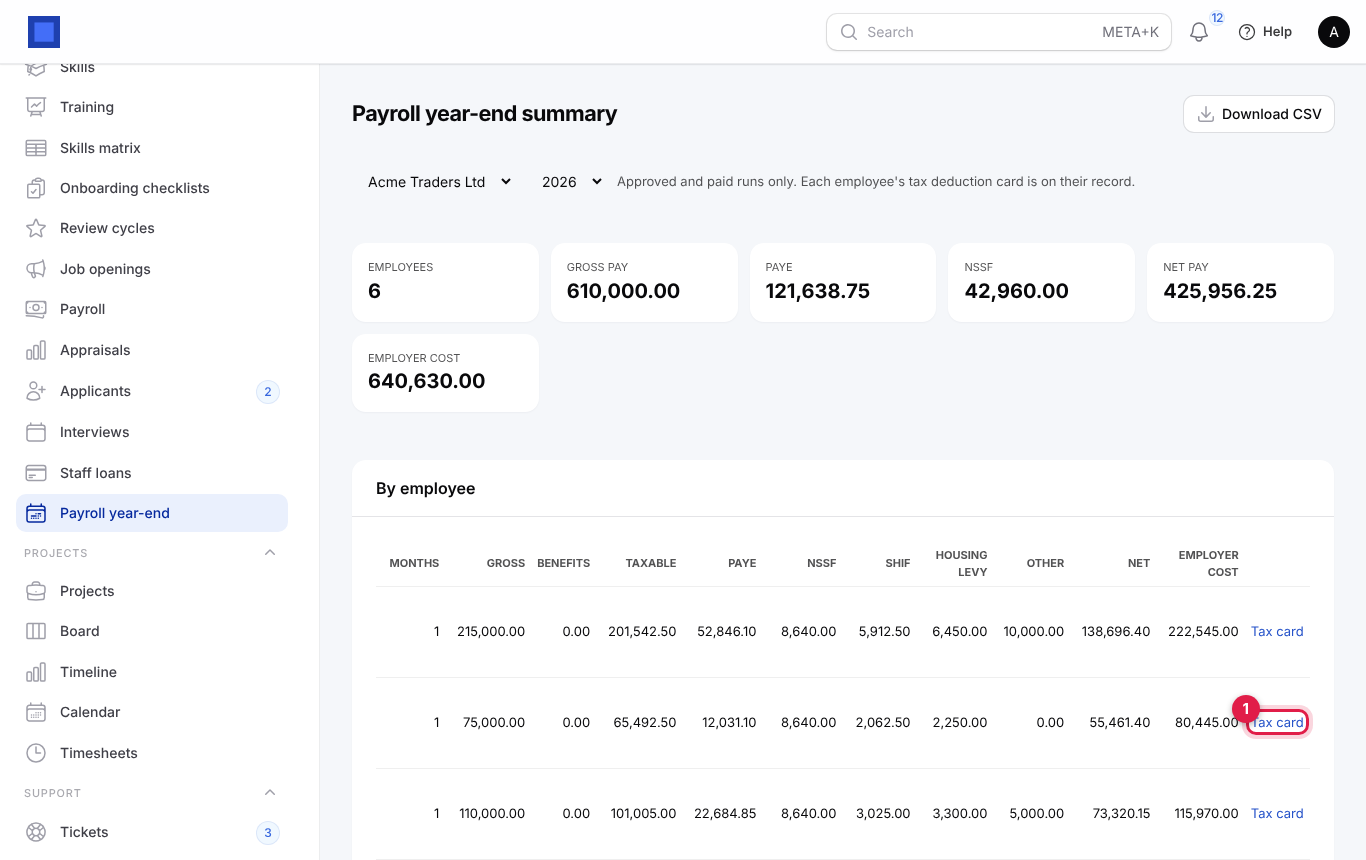
- Click Tax card on any employee's row (marker 1 below) to download their tax deduction card for the year.
Common questions
An employee is missing from the pay run. Check that their status is Active or On leave, their start date is before the end of the period, they have a current contract with a basic salary, and they belong to the run's company. Then click Recalculate on the draft.
The PAYE figure looks wrong. Check the employee's taxable allowances and benefits in kind, and the tax bands and relief in Settings → Preferences → Payroll. Empty boxes use the built-in country rules; a stale override can be wrong after a budget change. Clear it to go back to the default.
Can I change an approved payslip? No. Cancel the run (this reverses its entries and loan repayments), fix the contract and create a new run for the month.
Does Mark as paid send money? No. It only records the payment in the books. Money moves through your bank, the M-Pesa bulk upload or Send salaries by mobile money.
WhatsApp payslips says it is not configured. The Helpdesk app's WhatsApp connection is needed: add the phone number ID and access token under Settings → Preferences → Helpdesk.
Where do I pay a one-off bonus? Add a taxable allowance to the contract for that month, recalculate and approve, then remove it before next month's run.
How do I pay a final salary? Start offboarding with the last day (see HR). The person is included in the run for their final month and dropped after it. Settle any outstanding staff loan first.