Hotel and Guest House
Hotel and Guest House runs the front desk of a hotel, lodge, guest house, Airbnb block or serviced apartments. You set up your room types and their nightly rates, list your rooms, take reservations that are checked against what is free, check guests in to a clean room, charge meals, drinks, laundry and transport to the room, and check them out with one bill. Every night the room charge is posted for each guest in house, and a room goes to housekeeping when its guest leaves. It is in the Hotel group of the left menu: Reservations, Room calendar, Rooms and housekeeping and Room types.
Switch the Hotel app on
Hotel and Guest House is an add-on sold separately from your plan. It needs the Contacts and Invoicing apps, which every workspace has.
- Open Settings → Marketplace and type Hotel in the search box, or click Industry solutions.
- On the Hotel and Guest House card, click Start free trial (or Add to subscription) and confirm. The Hotel group appears in the menu straight away.
- To stop, click End trial or Cancel on the same card. Reservations, folios and bills are kept.
If the card says Not available for purchase yet, the add-on has not been priced for your plan; ask NaliSuite support to switch it on. See Billing and marketplace for how add-ons are billed.
Permissions (under Settings → Roles):
| Permission | What it allows |
|---|---|
| hotel.view | See reservations, the room calendar, rooms and room types, and open a guest's folio. Front-office staff who only answer questions need this. |
| hotel.manage | Make reservations, check in, charge to the room, check out, cancel and mark no-shows, mark rooms clean, and add or change rooms and room types. |
Owners and admins have both. The member role gets hotel.view only.
Settings that affect the hotel
The hotel has no tab of its own under Settings → Preferences. These settings elsewhere decide how the bill comes out:
| Setting | Where | Effect on the hotel |
|---|---|---|
| Prices include tax | Settings → Preferences (invoicing) | When on, the nightly rate and charges you type already include VAT, and the bill works the tax out of them. When off, VAT is added on top. |
| The tax on the room-night product | Sales → Products | The Product for the bill of a room type sets the VAT (and sales account) on every room night. Room types without one are billed with no tax. |
| The company currency | Settings → Companies | Bills are raised in the company's currency. |
1. Set up your room types
A room type is a kind of room you sell at one rate: Standard double, Deluxe twin, Family suite, Banda, Dormitory bed.
- Open Hotel → Room types. The list shows each type's rate Per night (marker 2), how many people it Sleeps (marker 3) and how many Rooms you have of that type (marker 4).
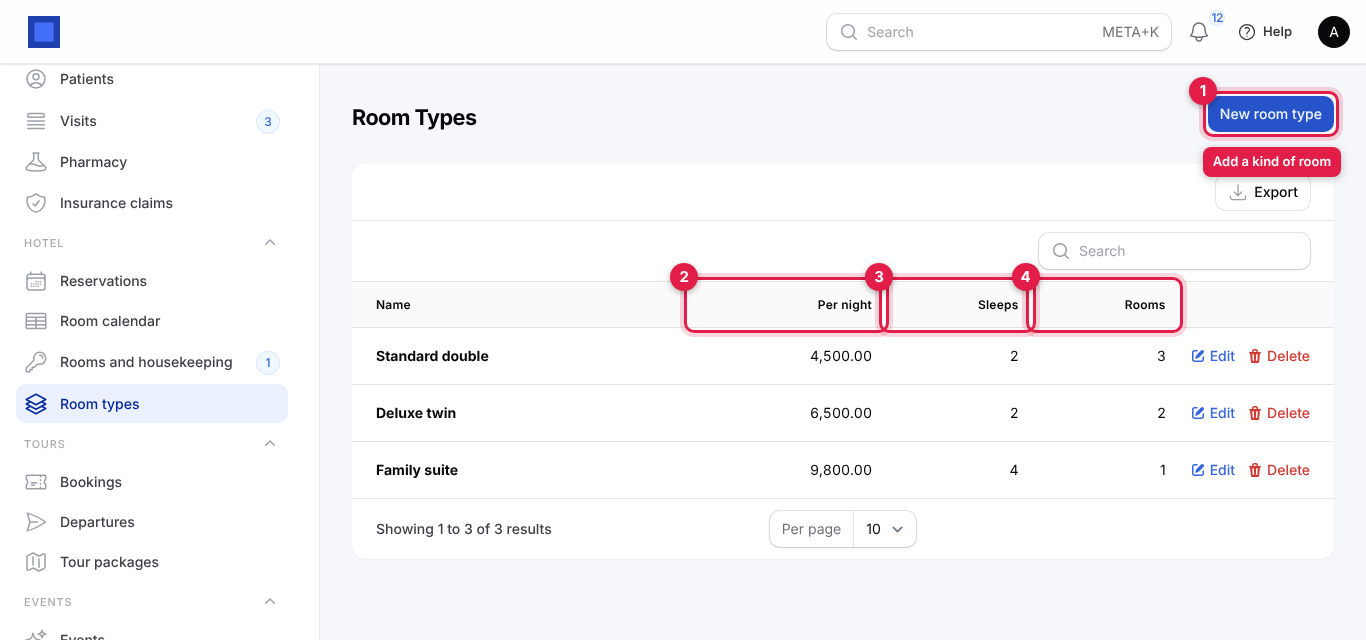
- Click New room type (marker 1).
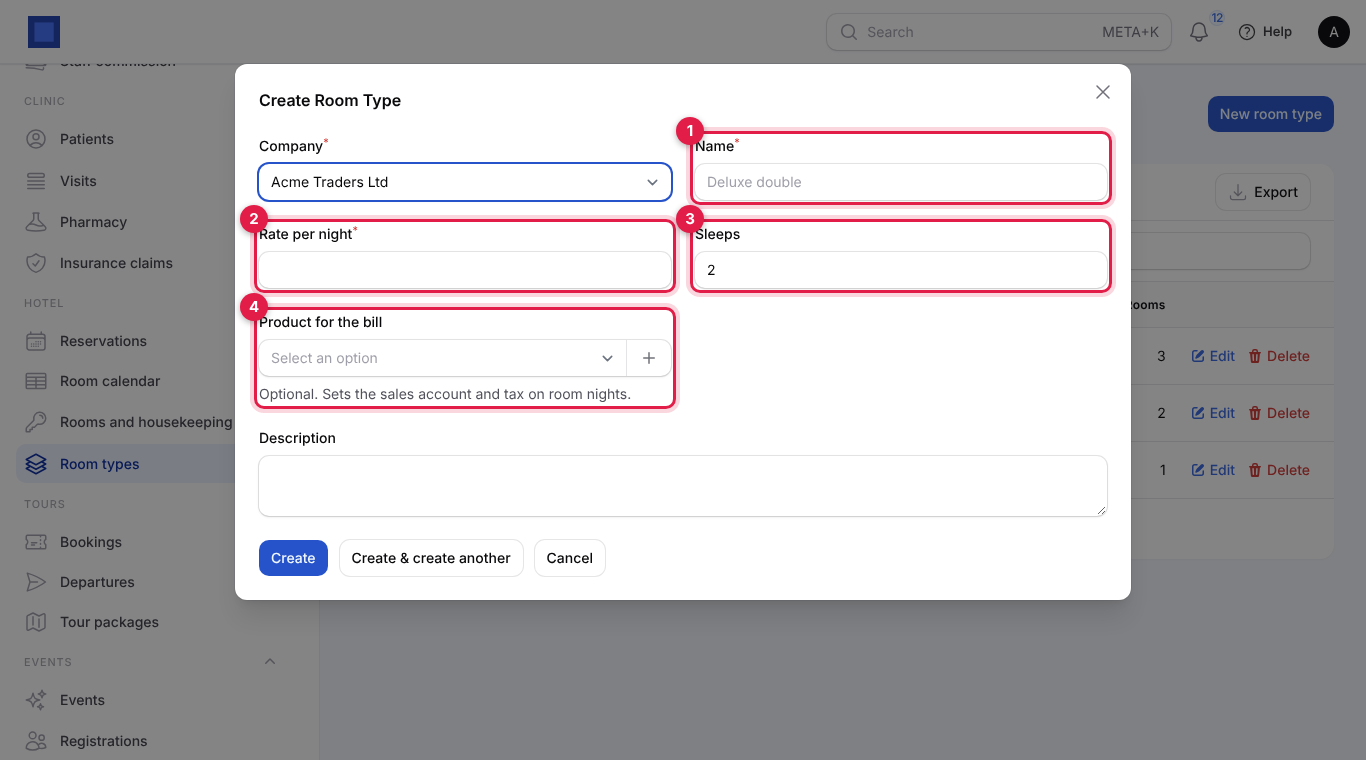
| Field | What to enter |
|---|---|
| Company (required) | The company that bills the guest. Starts on your default company. |
| Name (required, marker 1) | For example Deluxe double. Shown on the reservation and on every room-night line of the bill. |
| Rate per night (required, marker 2) | Your standard rate, for example 6,500. It fills in when a reservation is made and can be changed on each reservation (for agents, long stays or a negotiated price). |
| Sleeps (marker 3) | How many people the room takes, 1 to 20. For your information; it is not checked against the number of guests on a reservation. |
| Product for the bill (marker 4) | Optional but recommended. A service product, for example Room night (accommodation) with VAT 16%. It sets the sales account and the VAT on room nights. Click + to create the product without leaving the form. |
| Description | What the room has: Queen bed, en-suite shower, breakfast for two. |
- Click Create (or Create & create another to add the next type).
On the list, Edit changes a type and Delete removes it. A new rate applies to new reservations only; stays already booked keep the rate they were booked at.
2. Add your rooms
- Open Hotel → Rooms and housekeeping (titled Rooms). Each room shows its number, type and floor, the Guest tonight (marker 2; Vacant when nobody is checked in) and its Housekeeping state (marker 3). The menu shows a badge with the number of rooms that need cleaning.
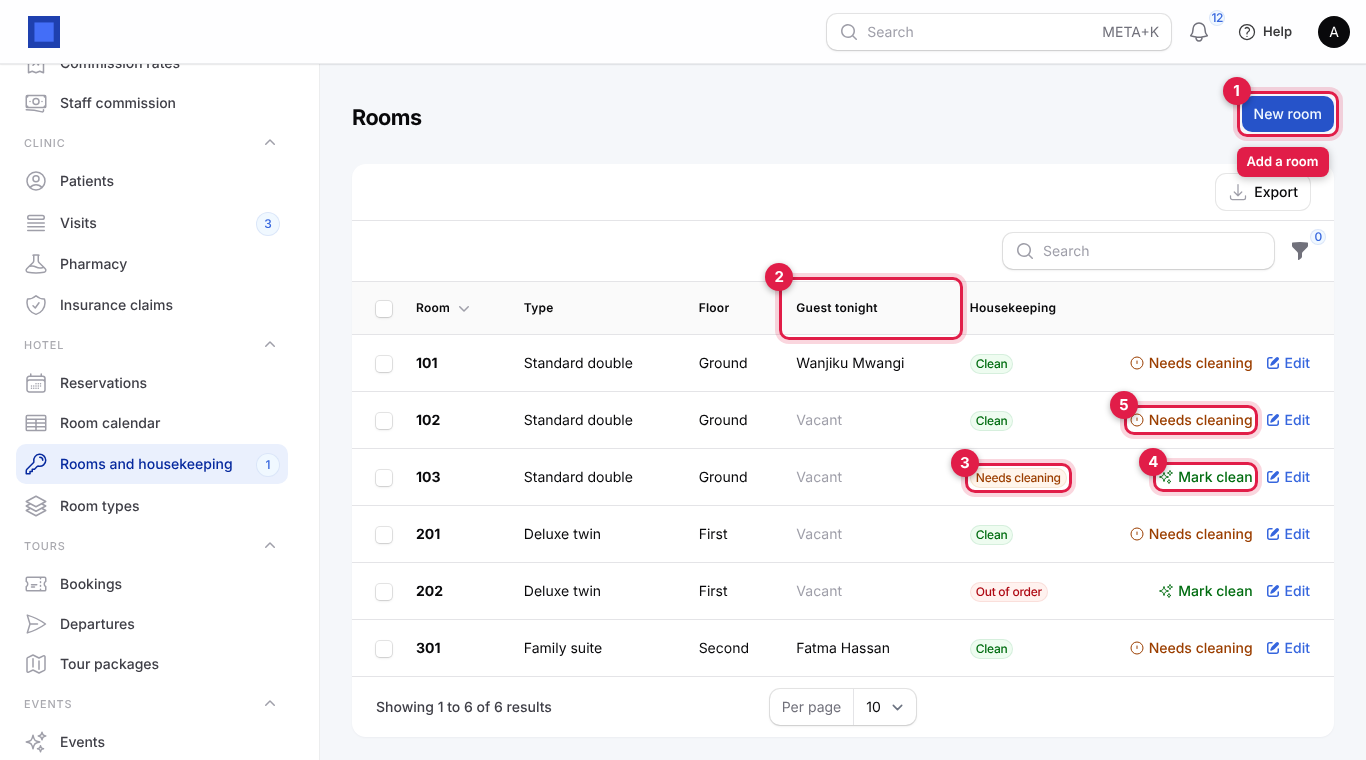
- Click New room (marker 1).
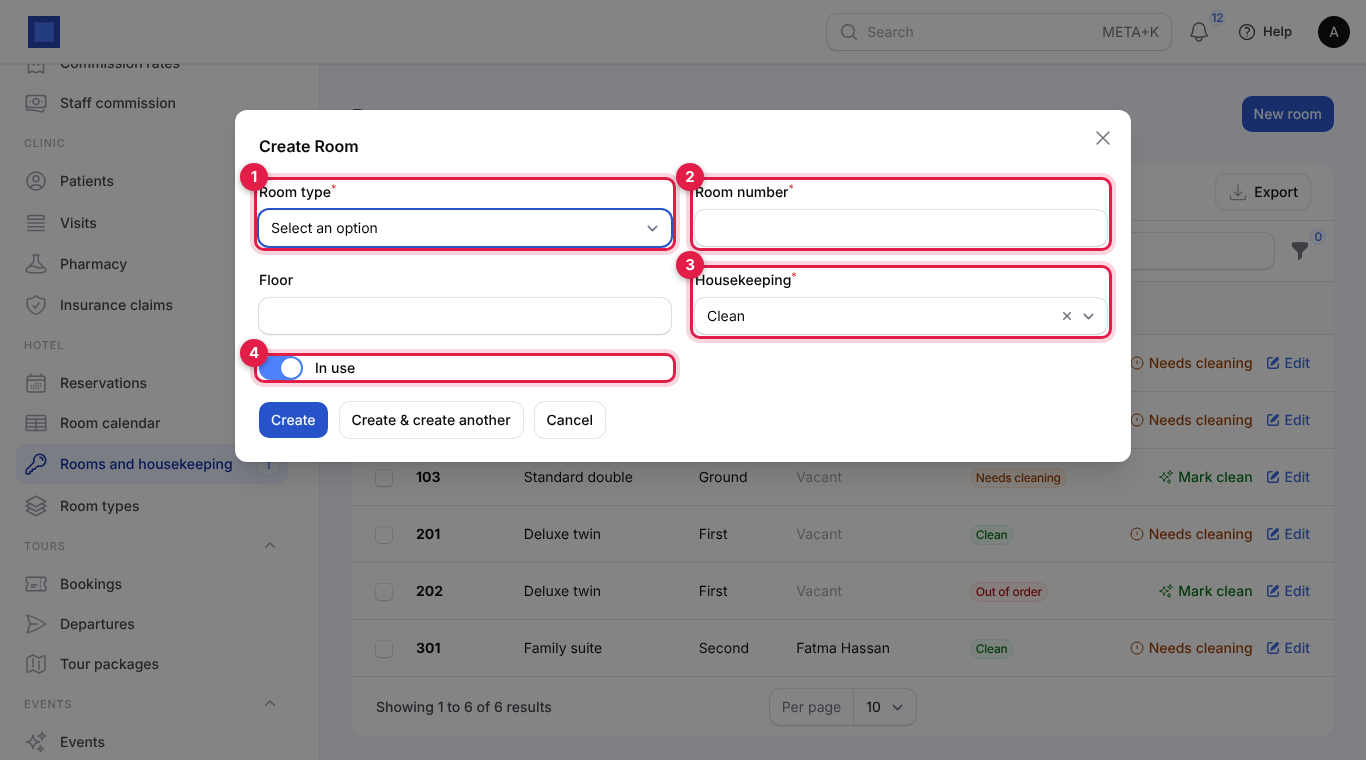
| Field | What to enter |
|---|---|
| Room type (required, marker 1) | The type the room is sold as. |
| Room number (required, marker 2) | As on the door: 101, Banda 3, Tsavo. |
| Floor | Optional: Ground, First. |
| Housekeeping (required, marker 3) | Clean, Needs cleaning or Out of order. A new room starts Clean. |
| In use (marker 4) | On by default. Turn it off for a room you no longer let; it disappears from availability and the calendar. |
- Click Create, or Create & create another to add the rest of the rooms one after the other.
Housekeeping
The buttons on each row of Rooms and housekeeping:
| Button | When it shows | What it does |
|---|---|---|
| Mark clean (marker 4) | The room needs cleaning or is out of order | The room is ready to sell and to check a guest into. |
| Needs cleaning (marker 5) | The room is clean | Sends the room back to housekeeping, for example after a day guest. |
| Edit | Always | Change the room, or set it Out of order. |
To mark several rooms clean at once, tick them in the first column and choose Mark clean from the bulk actions. Filter the list by Housekeeping state or Type with the filter icon.
What each state means:
- Clean: ready. Only clean rooms are given out at check-in.
- Needs cleaning: set automatically when a guest checks out. The room still counts as available for future reservations, but a guest cannot be checked into it until it is marked clean.
- Out of order: under repair. The room does not count towards availability at all, so reservations cannot be made against it.
3. Take a reservation
- Open Hotel → Reservations. Each reservation shows its number (
RES-2026-00004), the guest and phone, the Room type with the room number or Not assigned (marker 2), arrival, departure with the number of nights, the rate Per night, the Folio (marker 3, everything charged so far) and the Status (markers 4 and 5).
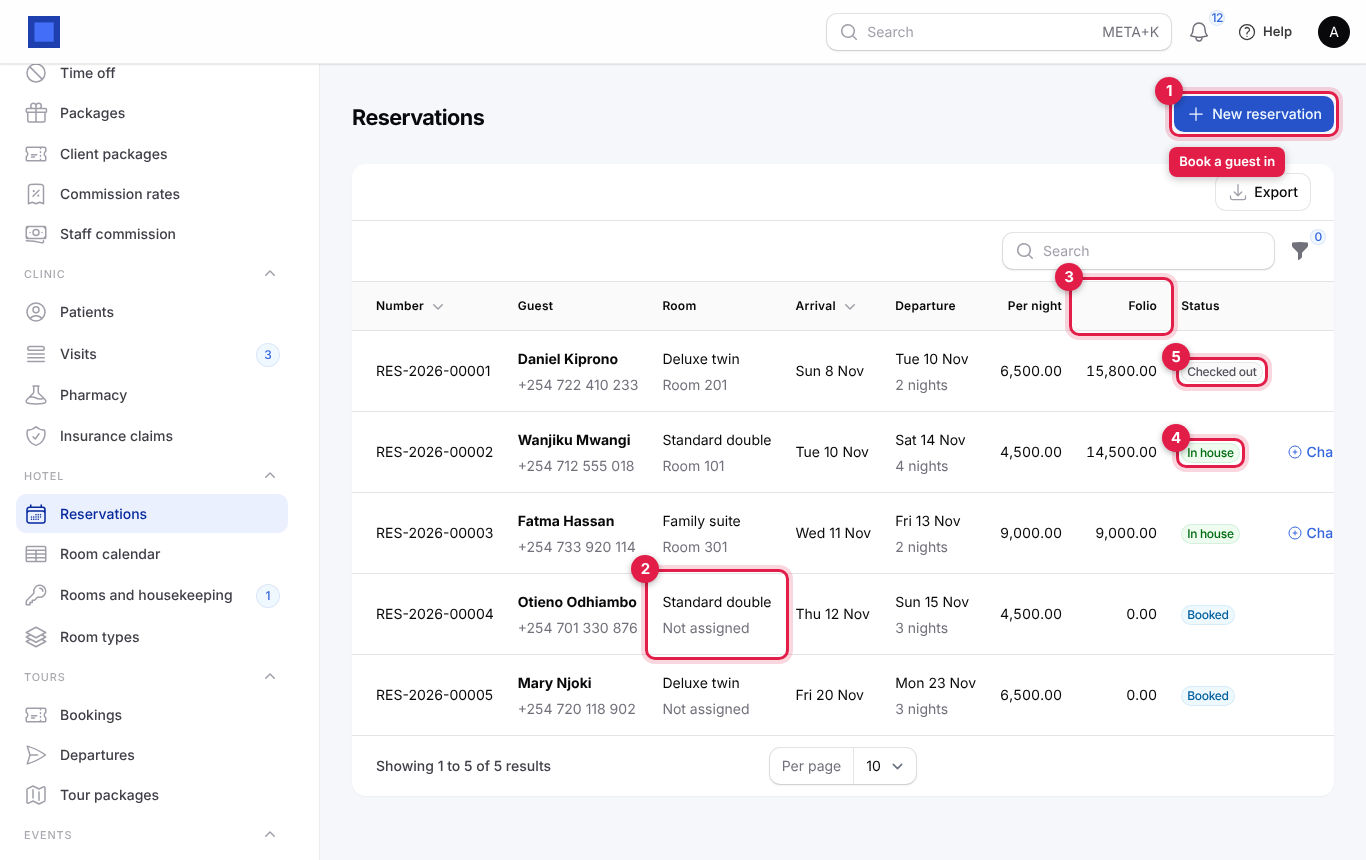
- Click New reservation (marker 1).
- Fill in the form. When you pick the Room type (marker 2) the rate fills in, and once both dates are set the line under Departure (marker 3) tells you how many rooms of that type are free for every night, for example 1 room free.
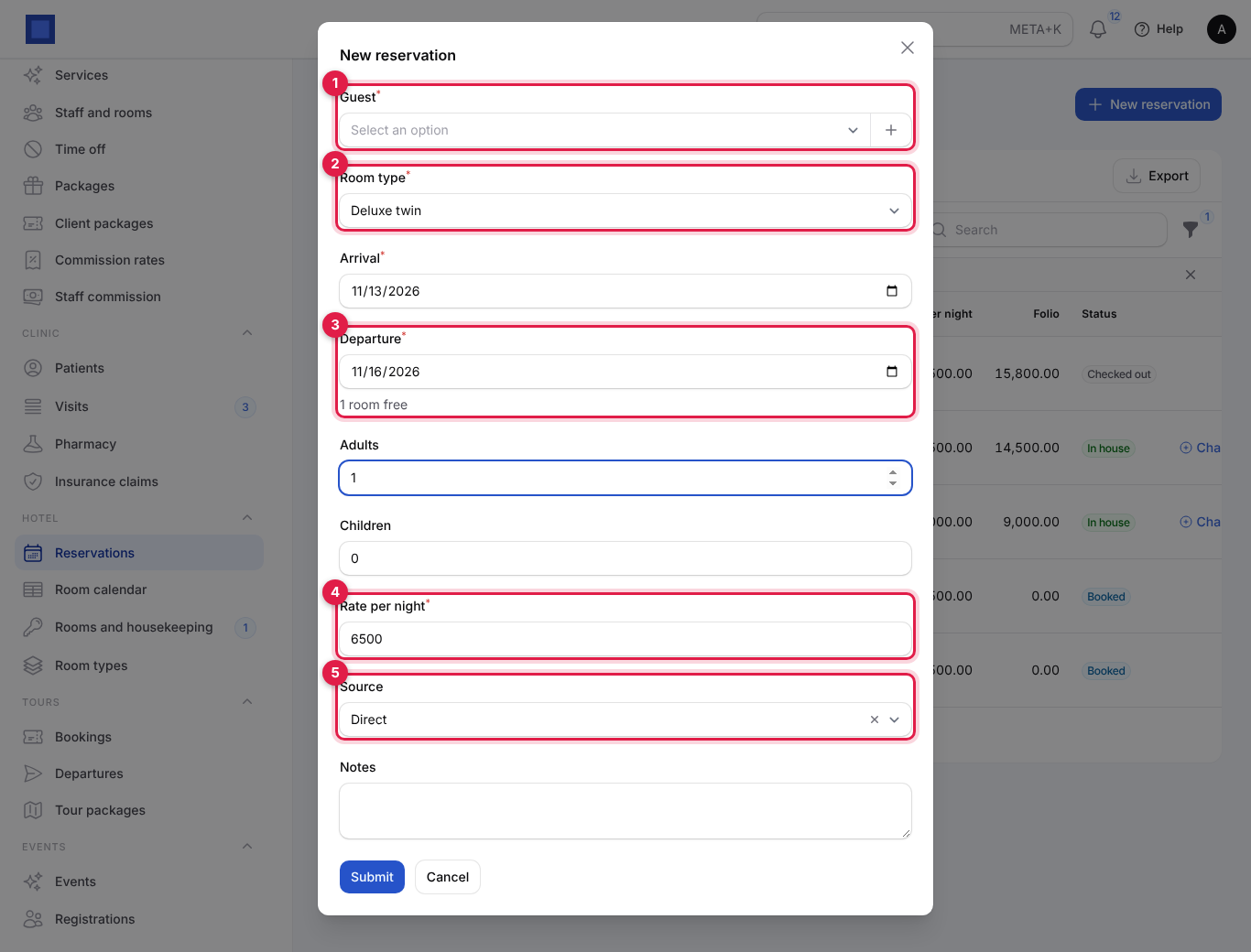
| Field | What to enter |
|---|---|
| Guest (required, marker 1) | Search your contacts. Click + to add a new guest with Name, Phone and Email. |
| Room type (required, marker 2) | What the guest booked. |
| Arrival (required) | Starts on today. |
| Departure (required, marker 3) | Must be after arrival. The number of nights is departure minus arrival. |
| Adults / Children | 1 and 0 by default. |
| Rate per night (required, marker 4) | Filled from the room type; change it for a special rate. |
| Source (marker 5) | Direct, Walk-in, Phone, Online or Travel agent. For your reports. |
| Notes | Late arrival around 9 pm, airport pick-up booked, honeymoon. |
- Click Submit. You see Reservation RES-2026-… made. The reservation is Booked.
If no room of that type is free for every night, the reservation is refused with, for example, No Deluxe twin is free from 20 Nov to 23 Nov 2026. Choose other dates or another type. A room is counted as taken by every reservation that is Booked or In house over those nights; rooms Out of order or not In use are not counted as free.
Note: A reservation holds a room type, not a particular room. The room number is chosen at check-in. Nothing is invoiced and no email is sent when a reservation is made; take a deposit, if you want one, as a normal invoice from Finance → Invoices.
Find reservations
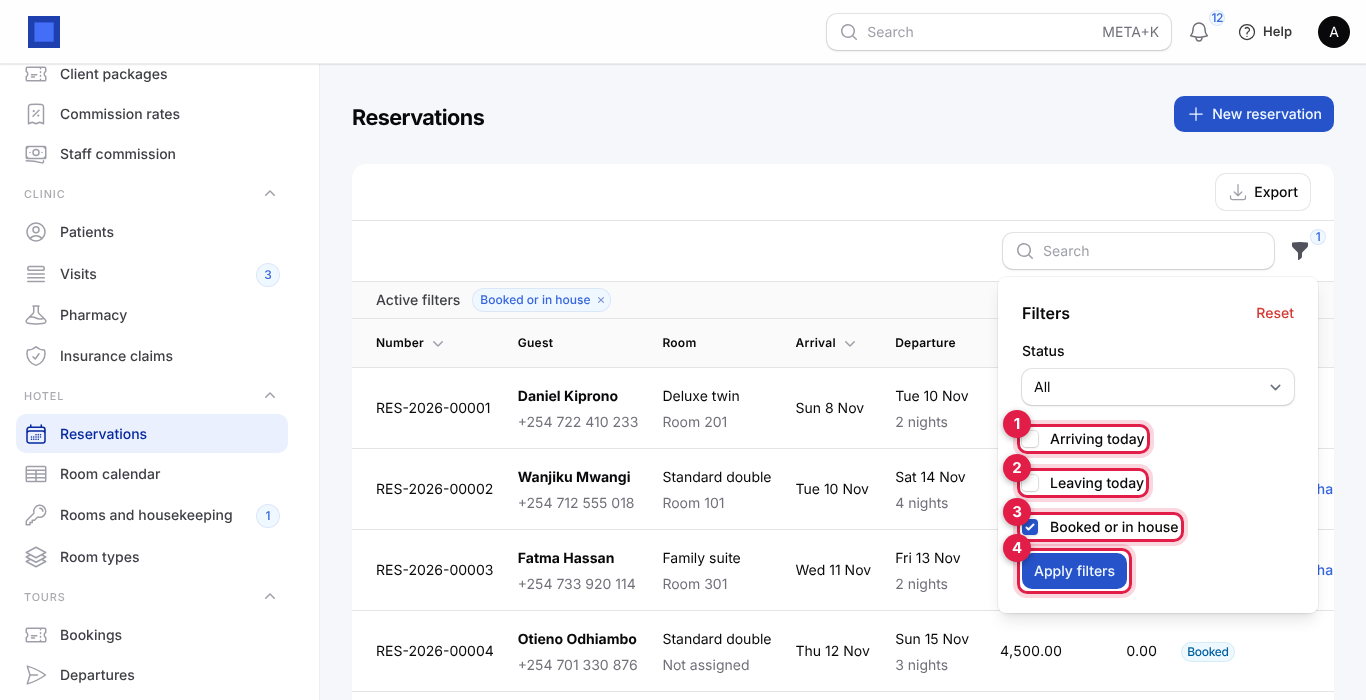
The list opens with the Booked or in house filter. Click the filter icon to switch filters:
| Filter | Shows |
|---|---|
| Status | One status only. |
| Arriving today (marker 1) | Booked reservations arriving today: your check-in list. |
| Leaving today (marker 2) | Guests in house whose departure is today or has passed: your check-out list. |
| Booked or in house (marker 3) | Everything still open. Remove it (click × on the chip) to see checked-out, cancelled and no-show stays too. |
Tick the filters you want and click Apply filters (marker 4). Search by number or guest name in the search box.
4. Work through a stay
The buttons on each reservation follow its status:
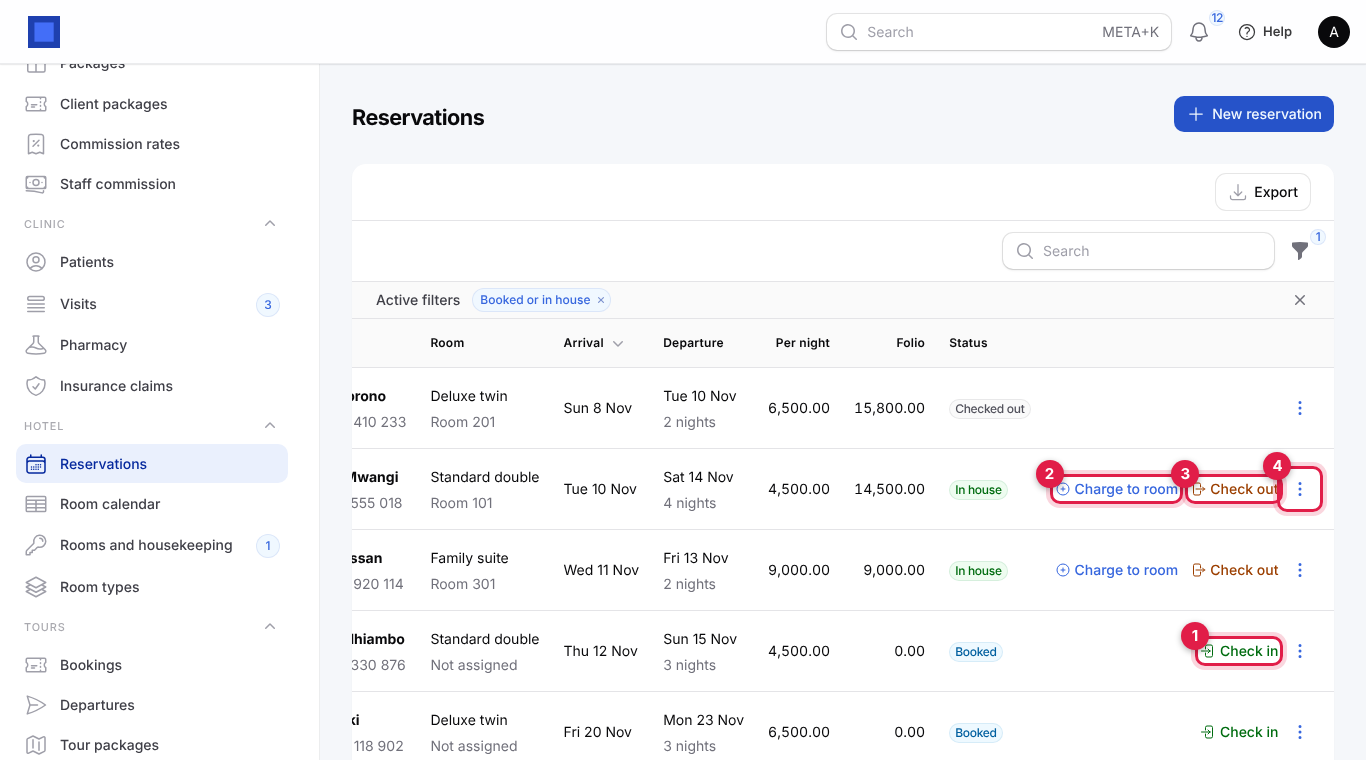
| Button | Shows when | Marker |
|---|---|---|
| Check in | Booked | 1 |
| Charge to room | In house | 2 |
| Check out | In house | 3 |
| ⋮ (Actions) | Always: Folio, Open bill, No-show, Cancel as they apply | 4 |
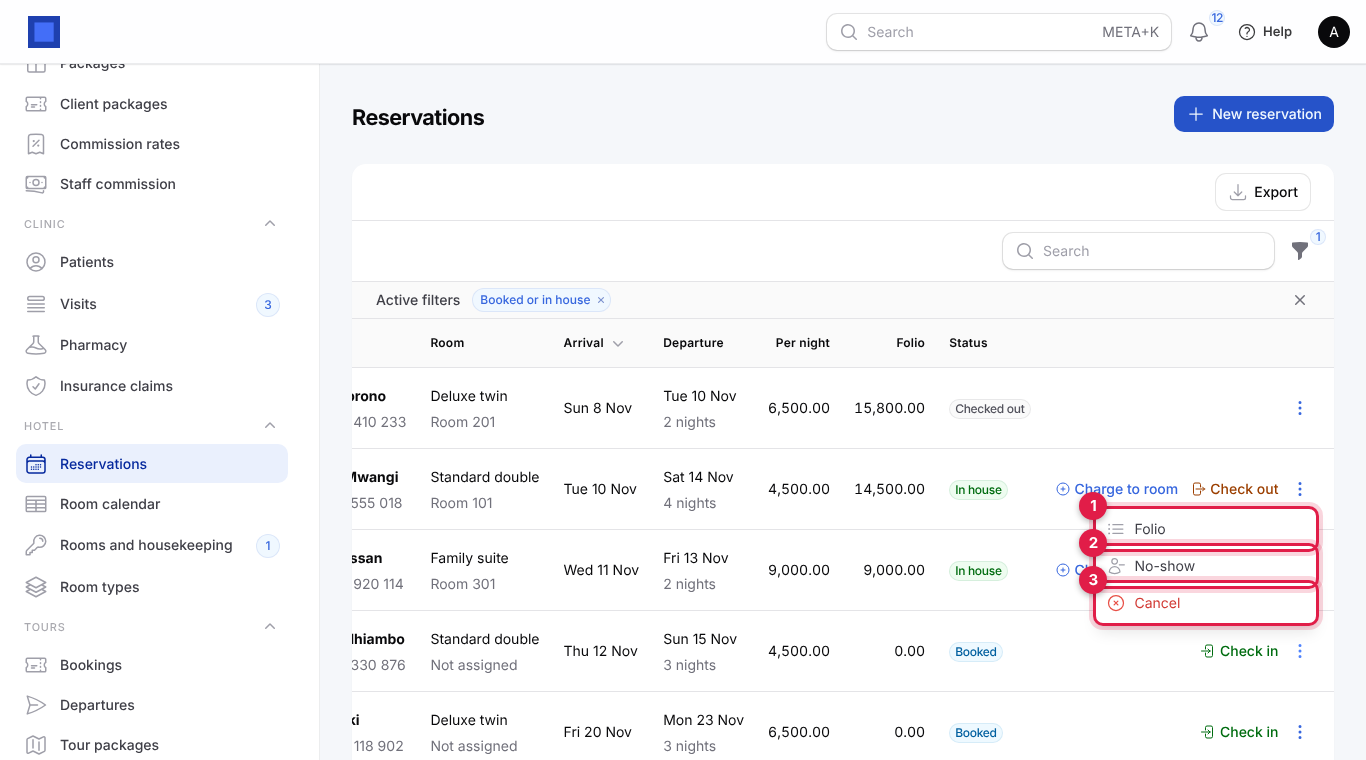
| ⋮ action | When | What it does |
|---|---|---|
| Folio (marker 1) | Always | Shows everything charged to the stay so far. |
| Open bill | After check-out | Opens the invoice issued at check-out. |
| No-show (marker 2) | Booked, on or after the arrival day | Marks the guest as a no-show and frees the room. Nothing is charged. |
| Cancel (marker 3) | Booked | Cancels the reservation and frees the room. Nothing is charged. |
A guest who is in house cannot be cancelled; check them out instead.
Check the guest in
- On the reservation, click Check in.
- Room (marker 1) lists every room of the booked type that is free for the whole stay; rooms still to be cleaned say needs cleaning. The first clean room is chosen for you.
- Click Submit (marker 2). The status becomes In house, the room number shows on the reservation and the guest appears under Guest tonight on the rooms list and on the calendar.
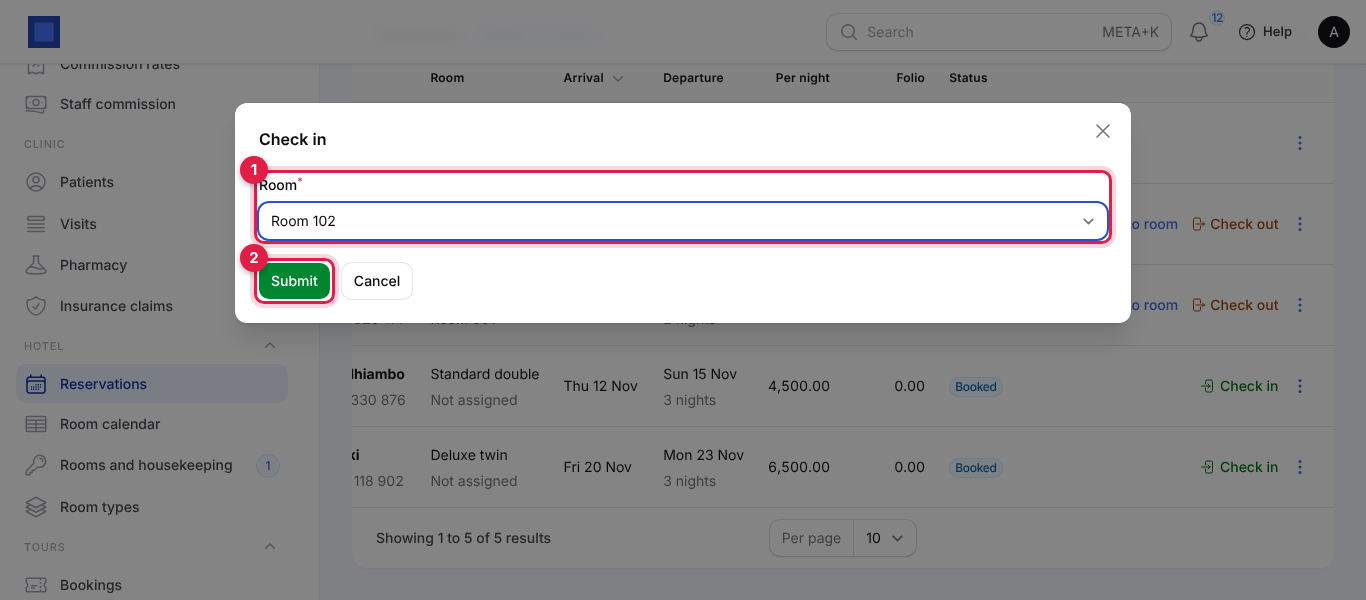
If the room you pick still needs cleaning you see Room 103 still needs cleaning. Have it cleaned and click Mark clean first, or pick another room. A guest can be checked in before the arrival date (an early arrival); nights are still charged from the booked arrival date.
Charge meals, drinks and services to the room
- On an in-house reservation, click Charge to room.
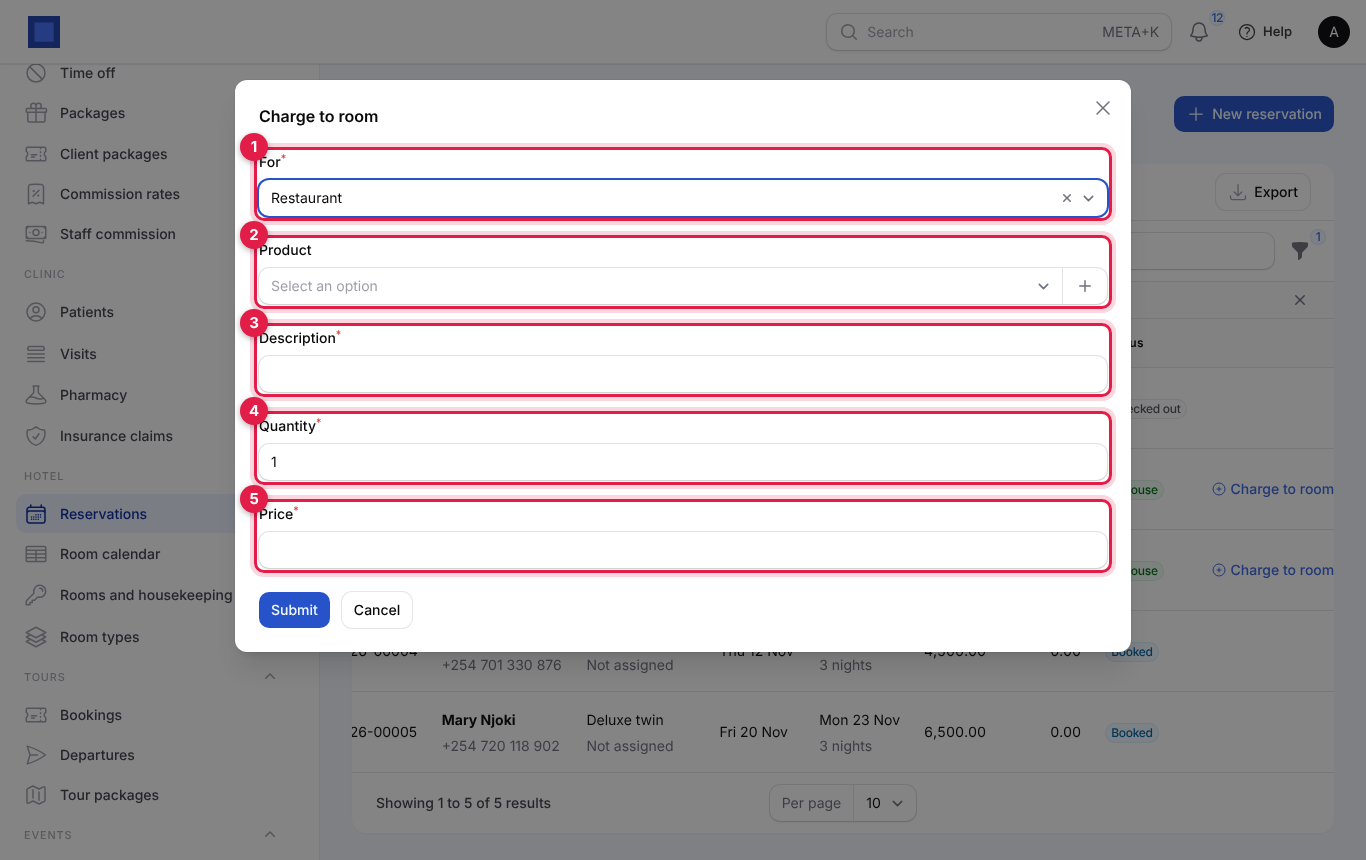
| Field | What to enter |
|---|---|
| For (required, marker 1) | Restaurant, Bar, Laundry, Transport or Other. |
| Product (marker 2) | Optional. Picking a product fills the description and price, and on the bill it sets the VAT and sales account (and takes stock items out of stock when the bill is issued). |
| Description (required, marker 3) | What it was: 2 x Tusker lager, Airport pick-up, JKIA. |
| Quantity (required, marker 4) | 1 by default. |
| Price (required, marker 5) | The price of one. |
- Click Submit. You see Charged to the room. and the Folio total goes up. The charge is dated today.
Tip: If you run Restaurant Pro and a dish has a recipe, picking the dish as the Product means its ingredients leave stock when the bill is issued at check-out. See Restaurant Pro.
See the folio
Click ⋮ → Folio. The window lists every charge with its date, description, quantity and amount (marker 1), and the Total so far (marker 2): the room nights posted so far plus everything charged to the room.
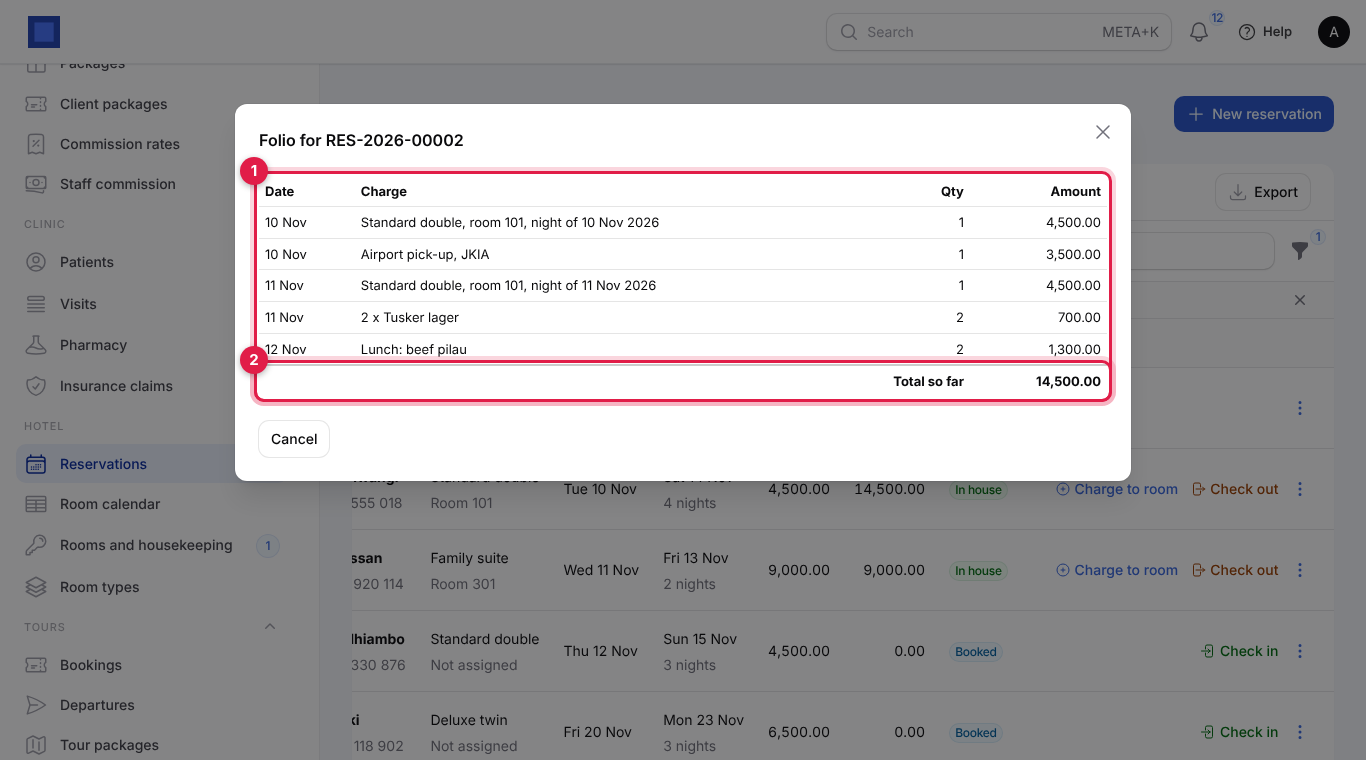
The night audit: room nights are posted for you
Every night at 23:45 NaliSuite posts one room night to the folio of each guest in house: Standard double, room 101, night of 10 Nov 2026, at the reservation's rate. A night is never posted twice, so you can check in late or run things in any order. You do not need to do anything.
Check the guest out
- On an in-house reservation, click Check out.
- The window tells you the bill (marker 1): Room nights not yet posted are added, the bill of 14,500.00 is issued to the guest and the room goes to housekeeping. Click Confirm (marker 2).
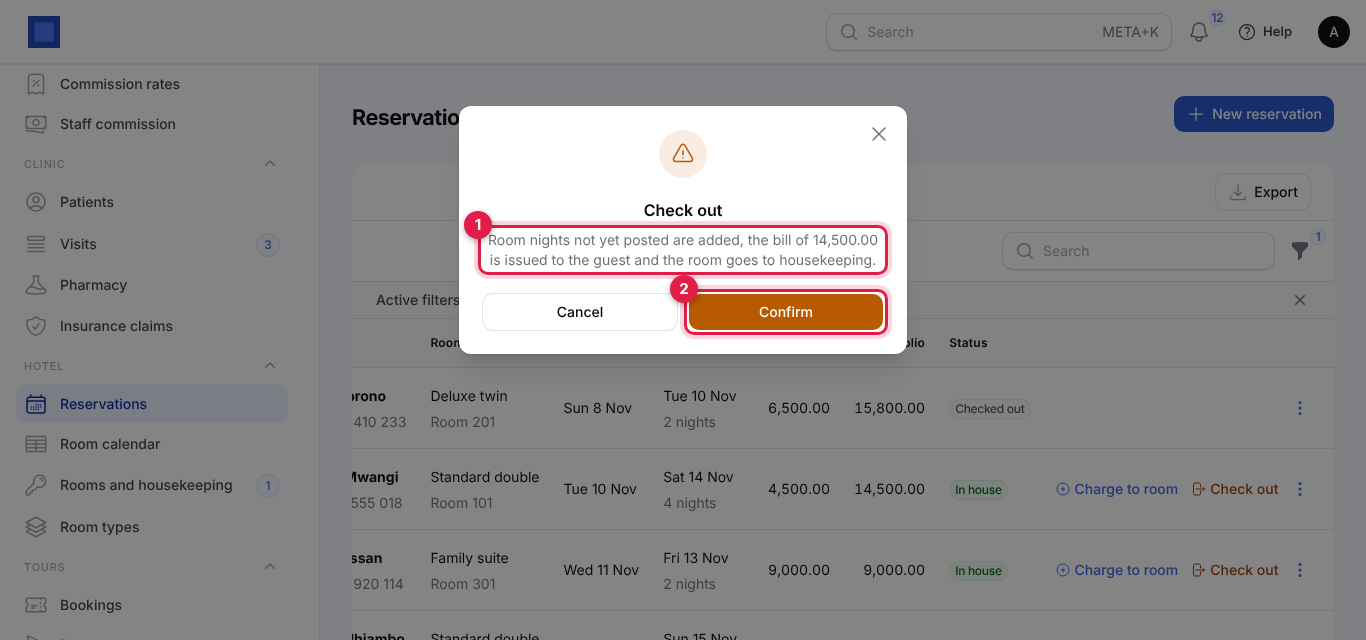
What happens:
- Any room night from arrival up to the night before today (or up to the booked departure, if the guest stayed longer) that the night audit has not yet posted is posted now. A guest who leaves early is only charged for the nights stayed.
- A stay with nothing charged at all (a day room) is charged one night.
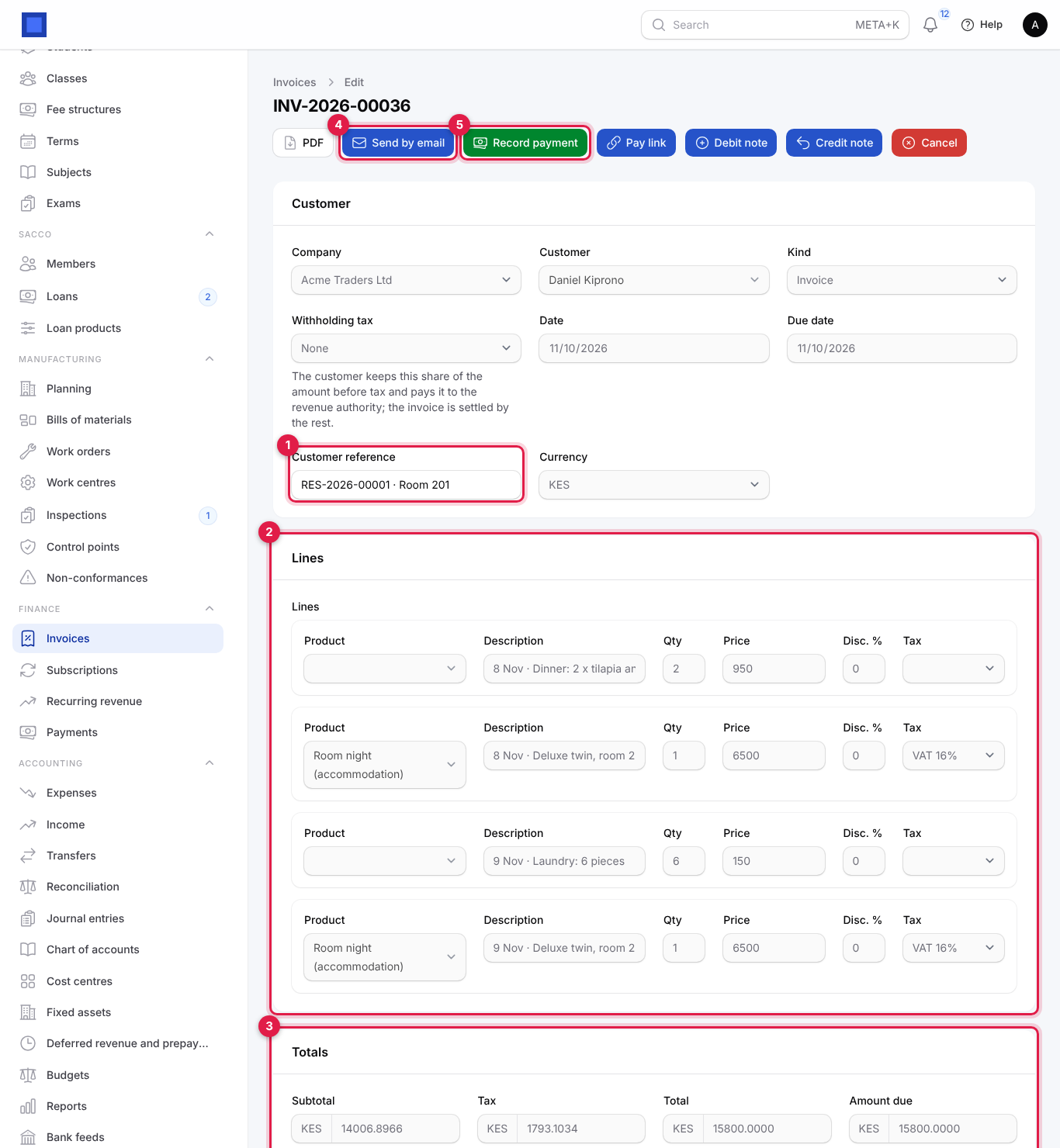
- One invoice is issued to the guest with every folio line, each starting with its date (10 Nov · Airport pick-up, JKIA). The customer reference is the reservation number and room, for example RES-2026-00001 · Room 201. It is dated and due today.
- The reservation becomes Checked out and the room becomes Needs cleaning.
- You see Checked out. with Bill INV-2026-… issued.
Take payment on the bill
Click ⋮ → Open bill to open the invoice. From there use Send by email (marker 4), Record payment (marker 5) for cash, M-Pesa or card, or Pay link to send an M-Pesa or card payment page. The customer reference (marker 1), all the lines (marker 2) and the totals with VAT (marker 3) are on the invoice. See Invoices and payments.
Reservation statuses
| Status | Meaning | What moves it on |
|---|---|---|
| Booked | Reserved; holds one room of the type for its nights. | Check in, Cancel or No-show. |
| In house | Checked in to a room; nights and charges build up on the folio. | Check out. |
| Checked out | Billed; the room went to housekeeping. | Final. |
| Cancelled | Will not happen; the room is free again. | Final. |
| No-show | The guest did not come; the room is free again. | Final. |
5. The room calendar
Open Hotel → Room calendar to see your rooms down the side and the next 14 days across, starting today (today's date is highlighted in the header). Use Earlier and Later (marker 1) to move a week at a time.
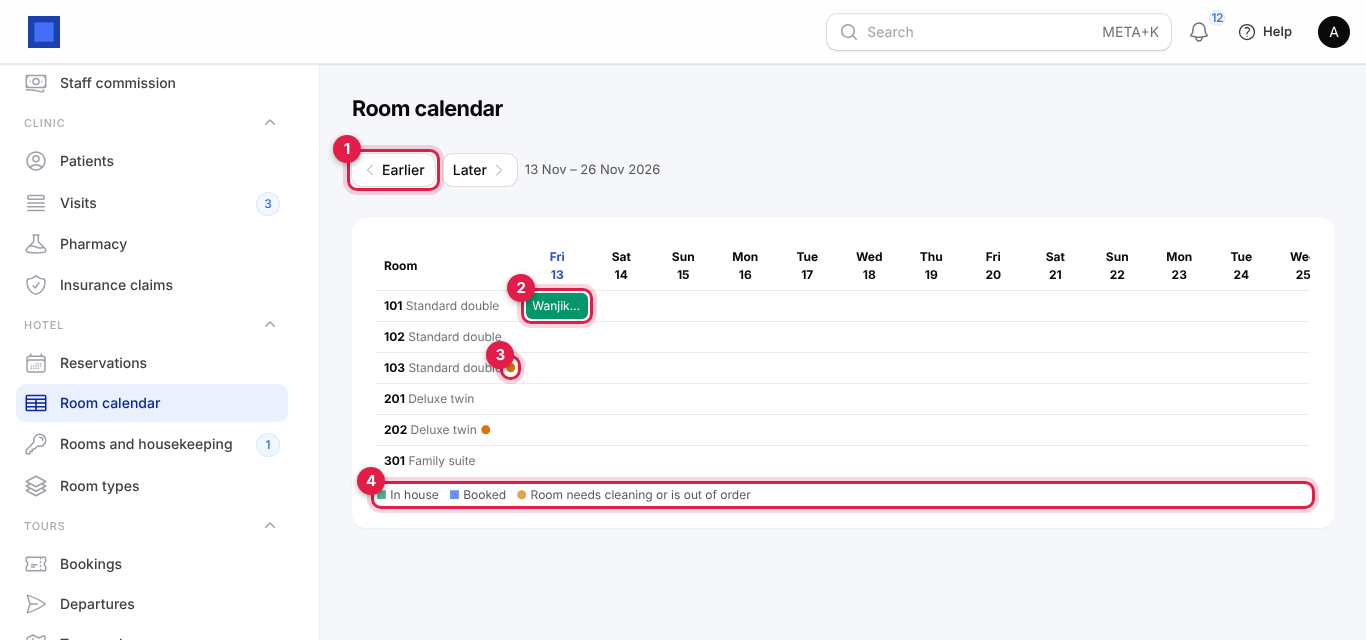
- A green bar (marker 2) is a guest in house, with their name on the first day shown. Hover over it for the reservation number and full name.
- A blue bar is a booked stay that already has a room assigned.
- An orange dot next to a room (marker 3) means it needs cleaning or is out of order.
- The legend is under the grid (marker 4).
Rooms are given out at check-in, so reservations that are only Booked usually have no room yet and do not appear on the calendar. Use the Reservations list with the Arriving today filter, or the rooms-free figure on New reservation, to see what is coming.
What guests receive
Guests receive the bill when you send it from the invoice (Send by email or Pay link). The hotel app itself does not send booking confirmations or reminders, and reservations do not appear in the customer portal; the bills do, under Invoices, for guests with portal access. See Customer and vendor portal.
Common questions
A guest wants to extend their stay. The dates of a reservation cannot be changed after it is made. Keep the guest in house: the night audit keeps posting a night while the booked departure is still ahead, so make a second reservation for the extra nights, or charge the extra nights with Charge to room (For: Other, Extra night 14 Nov).
Why can I not check a guest into room 103? It still needs cleaning, or another stay holds it for some of those nights. Mark it clean on Rooms and housekeeping, or choose another room.
A guest paid a deposit. How do I take it off the bill? The hotel app does not take deposits itself, and the bill at check-out is for the whole stay. Keep the deposit money aside and, when the bill is issued, click Record payment on it and enter the deposit with its M-Pesa or bank reference; then record the balance when the guest pays it.
Can I charge a company instead of the guest? The bill goes to the guest on the reservation. Make the reservation for the company contact, and put the guest's name in Notes.
Why are there no taxes on the room nights? The room type has no Product for the bill, or that product has no tax. Edit the room type and choose a product with your VAT.
Is the restaurant at the till charged to the room? No. Sales at the till are paid at the till. Use Charge to room for anything the guest signs for.