Marketing
Marketing lets you build mailing lists from your contacts or public sign-up forms, send email, SMS and WhatsApp campaigns with personal greetings, run automatic welcome sequences, ask customers how you did with surveys, and collect leads with landing pages. Opens, clicks and unsubscribes are tracked, and every subscribe and unsubscribe is recorded as consent on the contact. Everything is in the Marketing group of the sidebar: Lists, Campaigns, Drip sequences, Surveys and Landing pages.
Note: Permissions: marketing.view to see marketing, marketing.manage to create lists, campaigns, sequences, surveys and landing pages, and marketing.send to schedule and send campaigns. Give marketing.send only to people you trust to message your whole customer base. Set these under Settings → Roles.
Before you start: sender settings
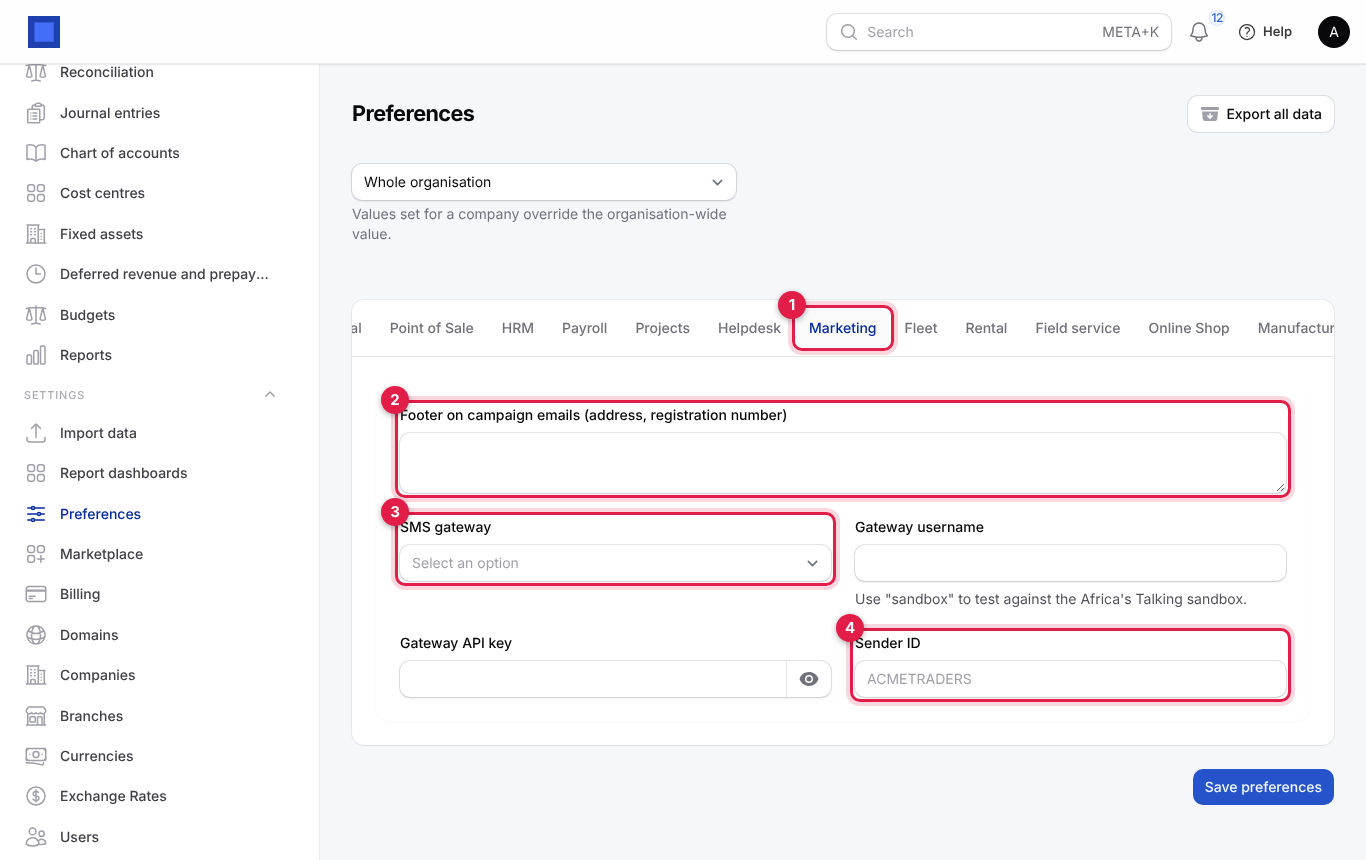
- In the menu, open Settings → Preferences and click the Marketing tab (marker 1).
- Fill in the settings and click Save preferences.
| Setting | What to enter |
|---|---|
| Footer on campaign emails (address, registration number) | Marker 2. Printed at the bottom of every campaign email with the unsubscribe link, for example "Acme Traders Ltd, Enterprise Road, Nairobi. Reg. PVT-ABC123." The law and email providers expect a physical address. |
| SMS provider | Marker 3. None (log only) (default: messages are written to the log, nothing is sent, useful for testing), Africa's Talking (recommended in Africa), Twilio, Vonage, Infobip or Sinch. Only the chosen provider's fields are shown, for example the Africa's Talking Username and API key. Use sandbox as the Africa's Talking username to test against its sandbox. |
| Sender ID (Sender ID or from number for Twilio, Vonage and Sinch) | Marker 4. The approved sender name or number shown on phones, for example ACMETRADERS. Leave blank to use the provider's shared number where it has one. Sender IDs must be registered with the provider and the networks first. |
The same provider sends till receipts by SMS, sign-in codes, reminders and every other text from NaliSuite.
For every SMS provider (Africa's Talking, Twilio, Vonage, Infobip and Sinch), test messages, balances and delivery reports, see Sending text messages.
WhatsApp campaigns use the WhatsApp Cloud API connection under Settings → Preferences → Helpdesk → WhatsApp (Meta Cloud API), where you also list your approved message templates. See Helpdesk.
Email campaigns and the email steps of drip sequences are sent only through your own mail server, never the platform's. Before your first email campaign, open Settings → Preferences → Email, switch on Send our email through our own mail server, fill in your server, click Send test email and save. See Send email from your own address and mail server. Until then, Schedule, Send now and Send me a test on an email campaign show "Email campaigns and sequences are sent only through your own mail server. Connect it under Settings → Email (Send our email through our own mail server) first." and nothing is sent; drip emails are recorded as failed with the same reason. SMS and WhatsApp campaigns are not affected: they always use your own SMS provider and WhatsApp account.
Why? Bulk email sent from a shared server can get that server blocked for everyone. Sending from your own server and domain keeps your reputation in your hands, and your provider's limits are yours to choose.
Build mailing lists
A list is a group of people you message: all customers, a newsletter, wholesale buyers, people interested in an event.
- In the menu, open Marketing → Lists.
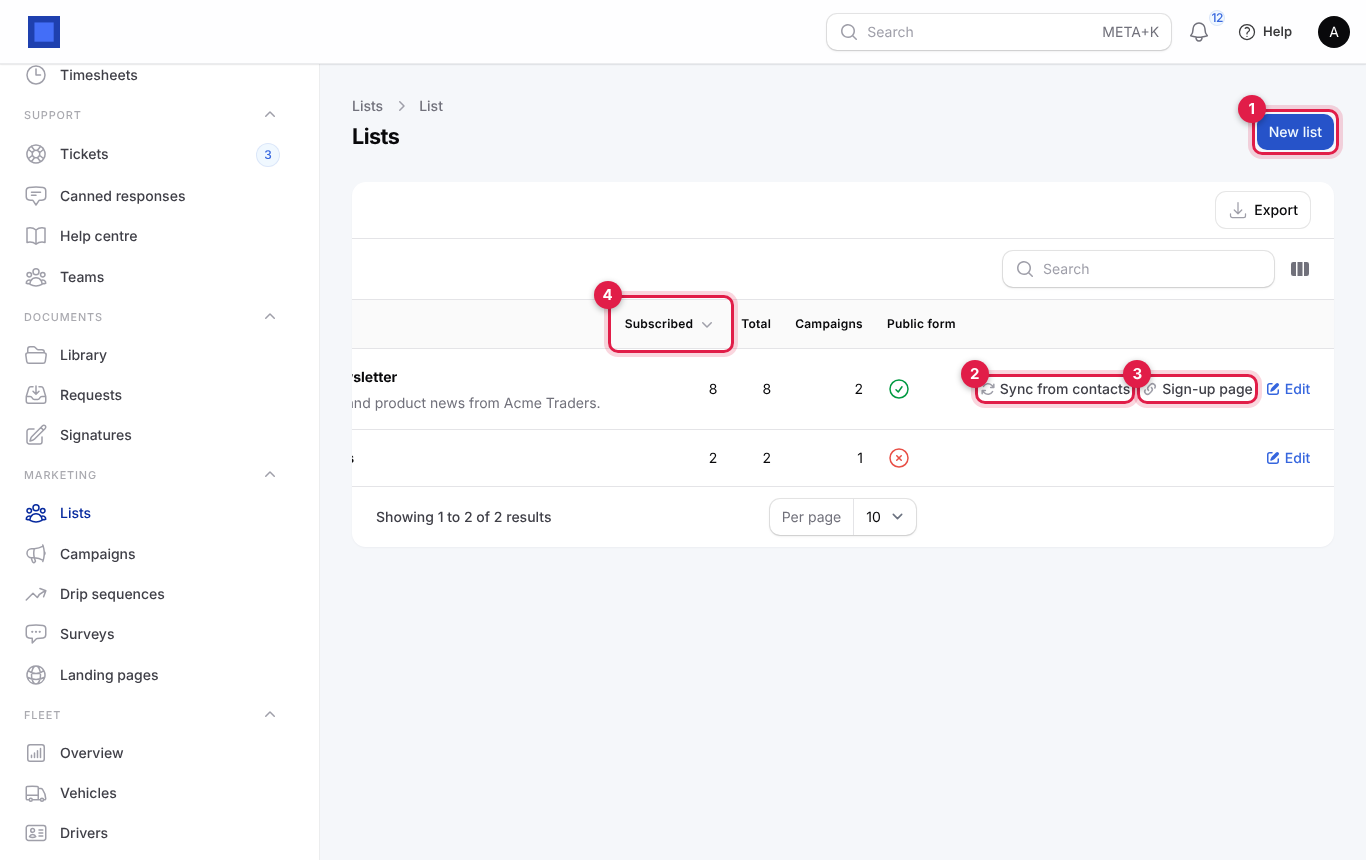
The list shows Subscribed (marker 4) and Total members, how many Campaigns used it, and whether it has a Public form. Row buttons: Sync from contacts (marker 2), Sign-up page (marker 3, lists with a public form) and Edit. Delete appears only for lists never used in a campaign.
- Click New list (marker 1), fill in the form and click Create. The list opens so you can add people.
List section
| Field | What to enter |
|---|---|
| Company | Required. |
| Name | Required, for example "Customers newsletter". Shown on the sign-up page. |
| Description | Optional. Shown on the public sign-up page, for example "Monthly offers and product news from Acme Traders." |
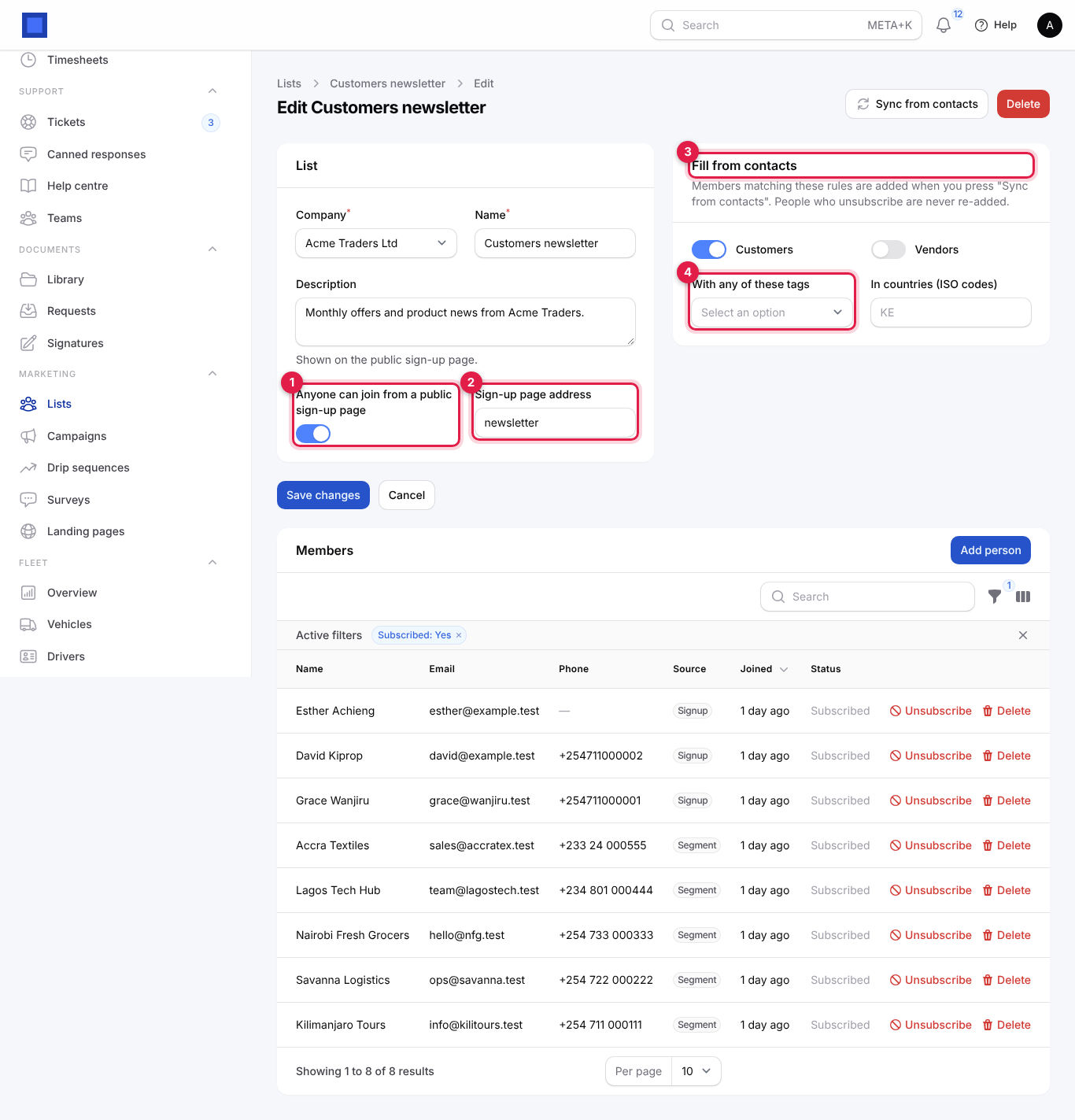
| Anyone can join from a public sign-up page | Marker 1. Turns on a public page where people subscribe themselves. |
| Sign-up page address | Marker 2. Letters, numbers, dashes. The page is /subscribe/<address> on your workspace address. Generated from the name when empty. |
Fill from contacts section (marker 3)
Rules for adding contacts in bulk. Members matching these rules are added when you press Sync from contacts. People who unsubscribed are never re-added.
| Field | What to enter |
|---|---|
| Customers | Include contacts marked as customers. |
| Vendors | Include contacts marked as vendors. |
| With any of these tags | Marker 4. Only contacts with at least one of these tags, for example VIP, wholesale. |
| In countries (ISO codes) | Only contacts in these countries. Type a code and press Enter: KE, UG, TZ. |
Only contacts with an email, phone or mobile number are added.
Add and manage members
Open a list. Below the form is Members.
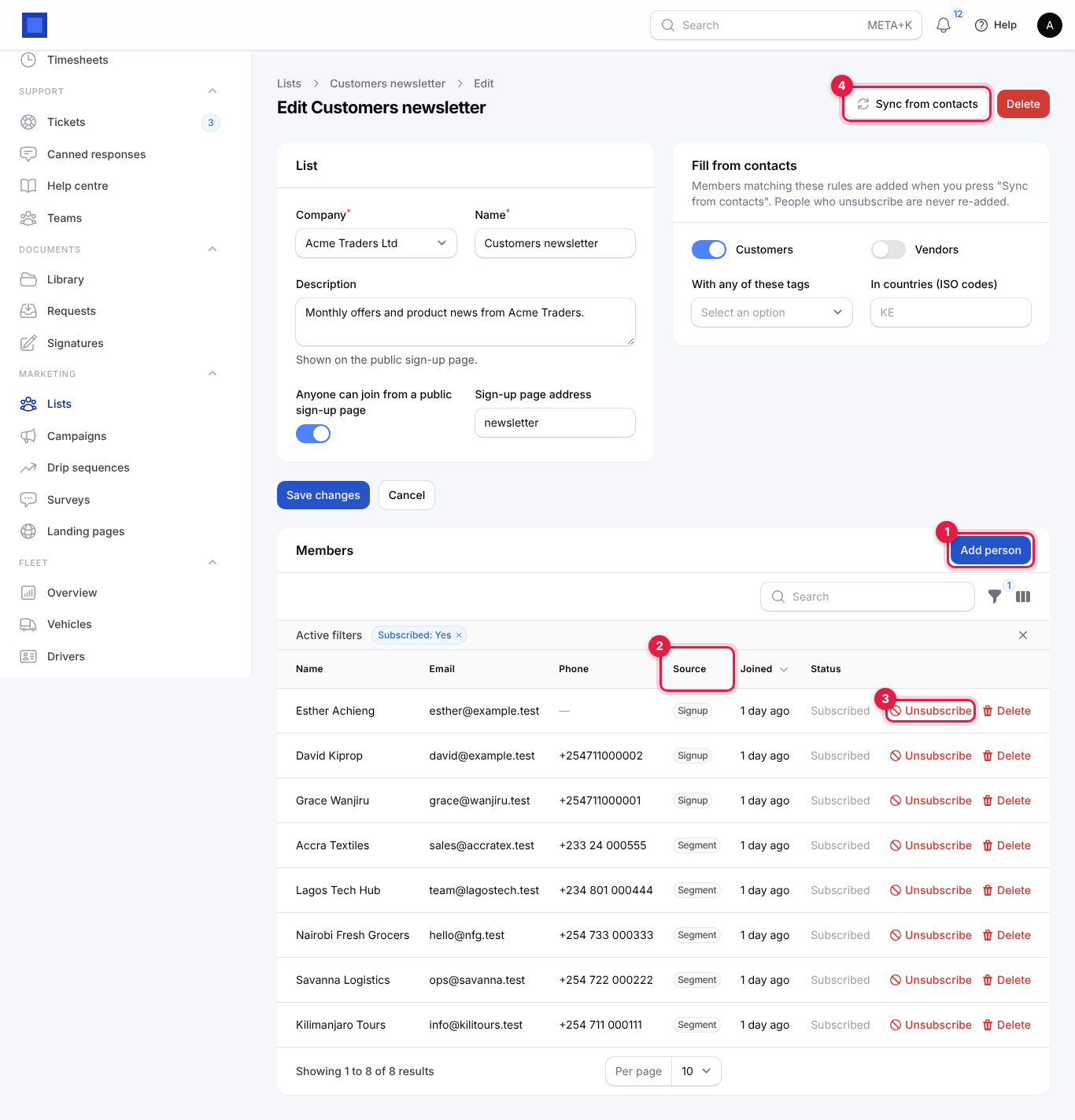
- Sync from contacts (marker 4): adds every contact matching the rules. You see "n contact(s) added". Run it again after adding contacts; existing members are not duplicated.
- Add person (marker 1): add one person by Name, Email and Phone (
+2547…). Email or phone is required. - Source (marker 2): how they joined: Segment (sync), Signup (public page), Landing (landing page), Import, or added by staff.
- Unsubscribe (marker 3): stops all messages to that person on this list. Use it when someone asks by phone. Delete removes them completely.
- The Subscribed filter is on by default; change it to see people who unsubscribed (their Status shows Unsubscribed in red).
Note: Every subscribe and unsubscribe of a member linked to a contact is recorded as consent on the contact (email or SMS), with the source, the list and the date. This is your evidence under the Data Protection Act.
The public sign-up page
For lists with a public form, click Sign-up page to open it, then copy its address onto your website, social media bio or a QR code at the till.
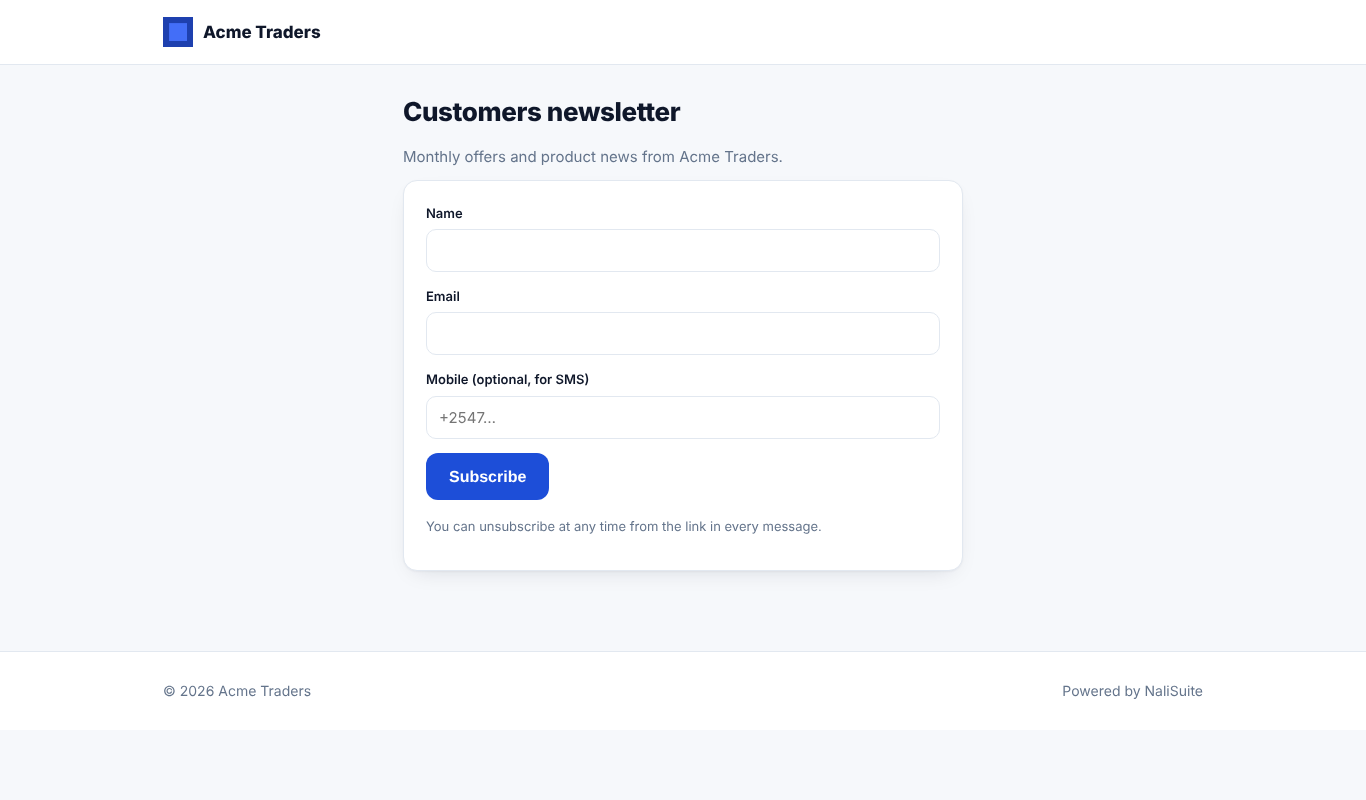
Visitors enter their Name, Email and Mobile (optional, for SMS) and click Subscribe. They join the list (and its drip sequences) straight away. Every message carries an unsubscribe link.
Create an email campaign
- In the menu, open Marketing → Campaigns and click New campaign (marker 1).
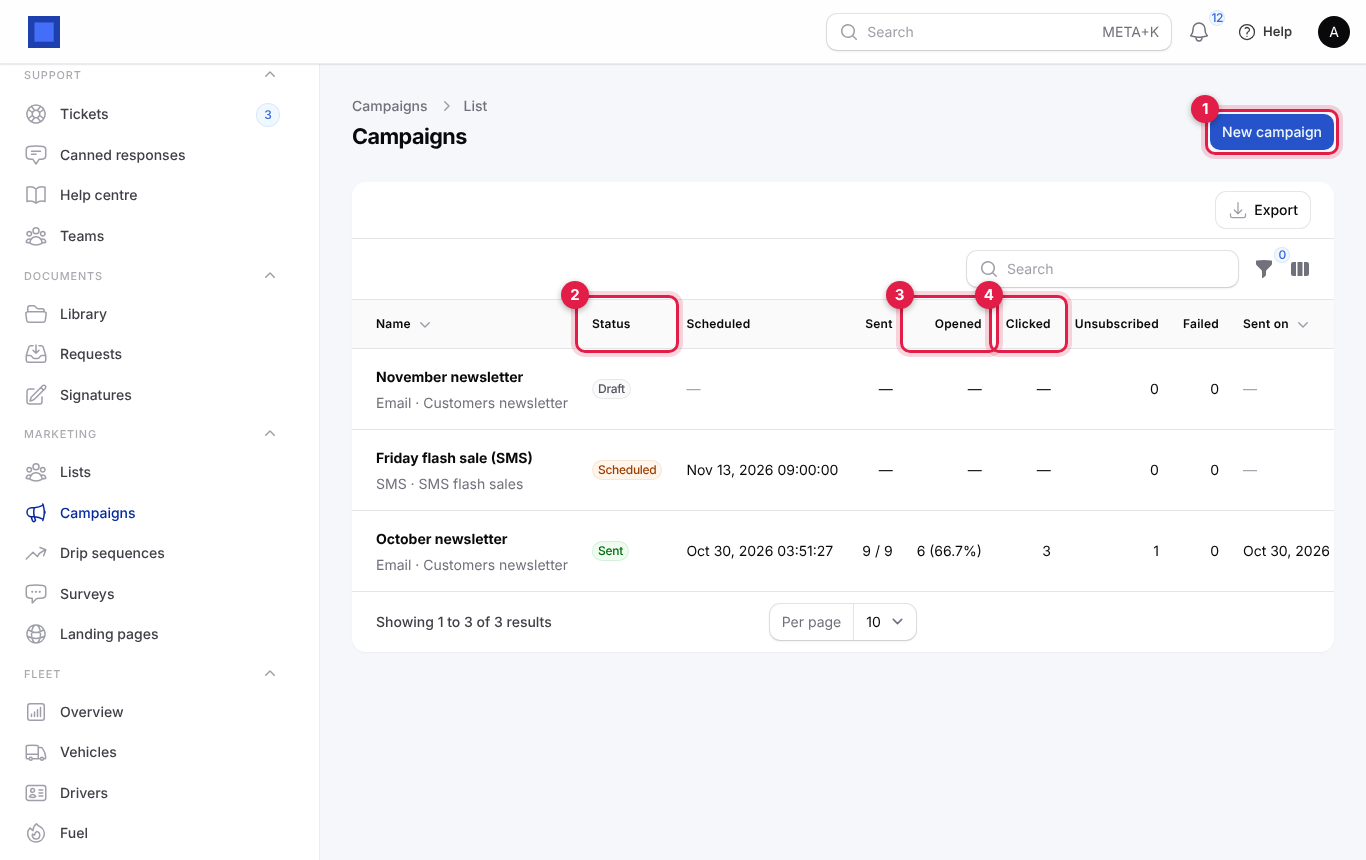
The list shows each campaign's channel and list, Status (marker 2), Scheduled time, Sent (sent out of recipients), Opened (with the open rate, marker 3), Clicked (marker 4), Unsubscribed, Failed and Sent on. Filter by status. Click Open to work on one.
- Fill in the form and click Create. The campaign is saved as a Draft.
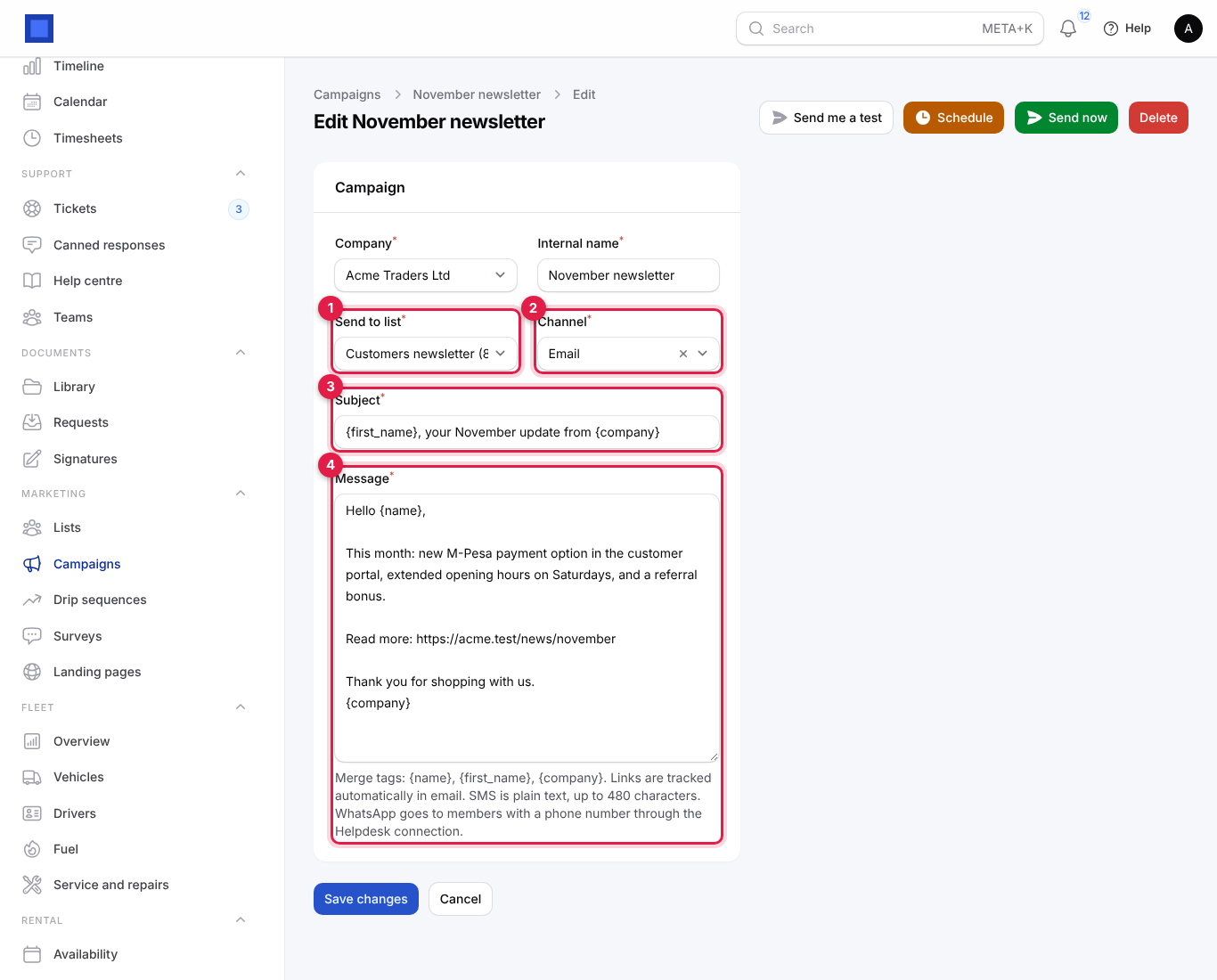
| Field | What to enter |
|---|---|
| Company | Required. |
| Internal name | Required. Only staff see it, for example "November newsletter". |
| Send to list | Required (marker 1). The list shows how many subscribed members each has. |
| Channel | Required (marker 2). Email, SMS or WhatsApp. |
| Subject | Email only, required (marker 3). Can use merge tags, for example "{first_name}, your November update from {company}". |
| Message | Required (marker 4). The body. |
Merge tags are replaced for each person:
| Tag | Becomes |
|---|---|
{name} |
The member's full name ("there" if unknown). |
{first_name} |
Their first name ("there" if unknown). |
{company} |
Your company name. |
{survey:link-name} |
A link to the survey with that link name, tied to the reader so you know who answered. For example {survey:how-did-we-do}. |
In email, links are tracked automatically (clicks), an invisible image tracks opens, and your footer and a one-click unsubscribe link are added.
Test, schedule and send a campaign
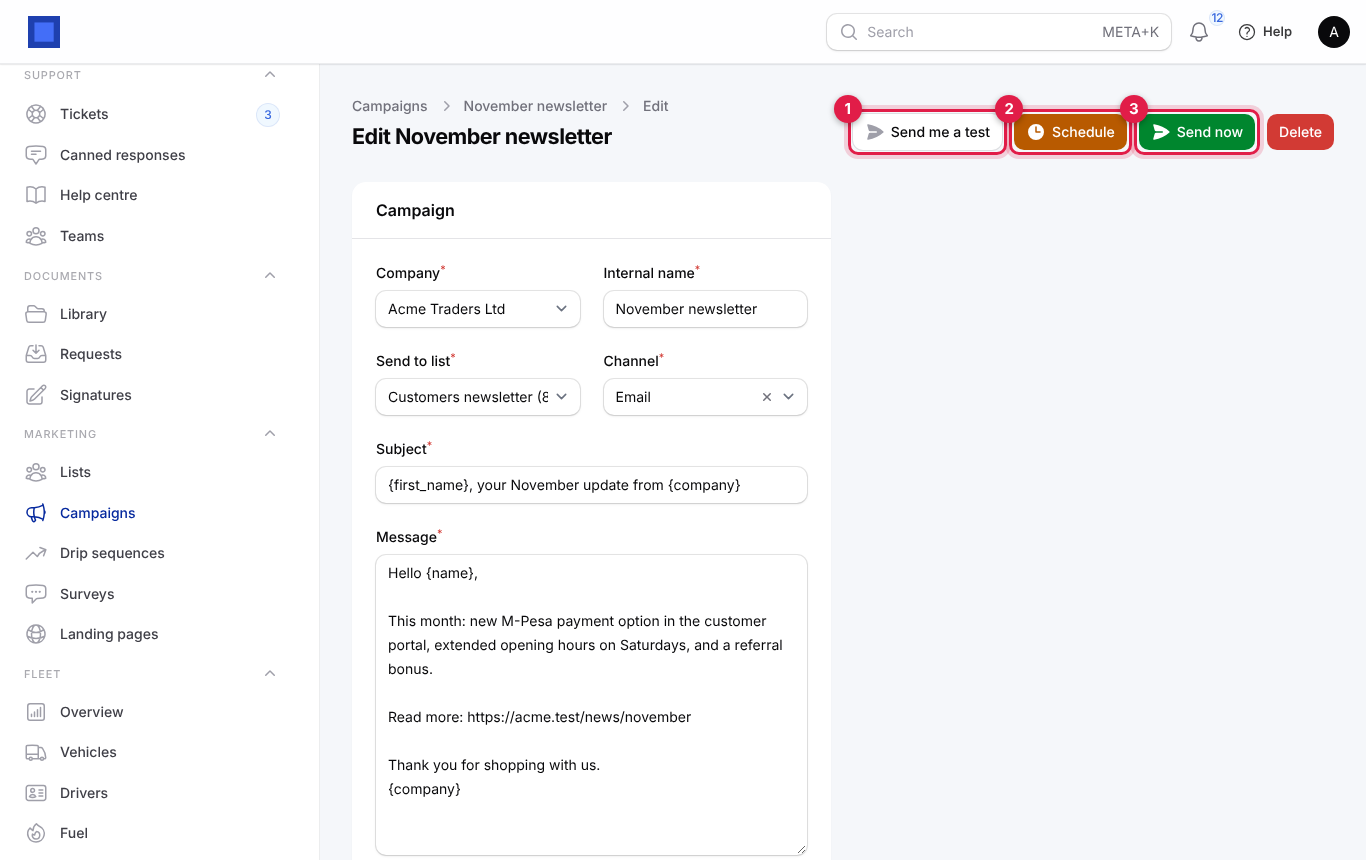
Open the draft campaign. The header buttons are:
| Button | What it does |
|---|---|
| Send me a test (marker 1) | Email only. Sends one copy to the address you give (yours by default) so you can check the layout and links. Needs your own mail server, like the campaign itself. |
| Schedule (marker 2) | Sends at a set time. Choose Send at and click Submit. Needs marketing.send. |
| Send now (marker 3) | Sends to every subscribed member now after you confirm ("Send to every subscribed member of … ? This cannot be undone."). Needs marketing.send. |
| Cancel schedule | On a scheduled campaign: back to Draft. |
| Delete | Drafts only. |
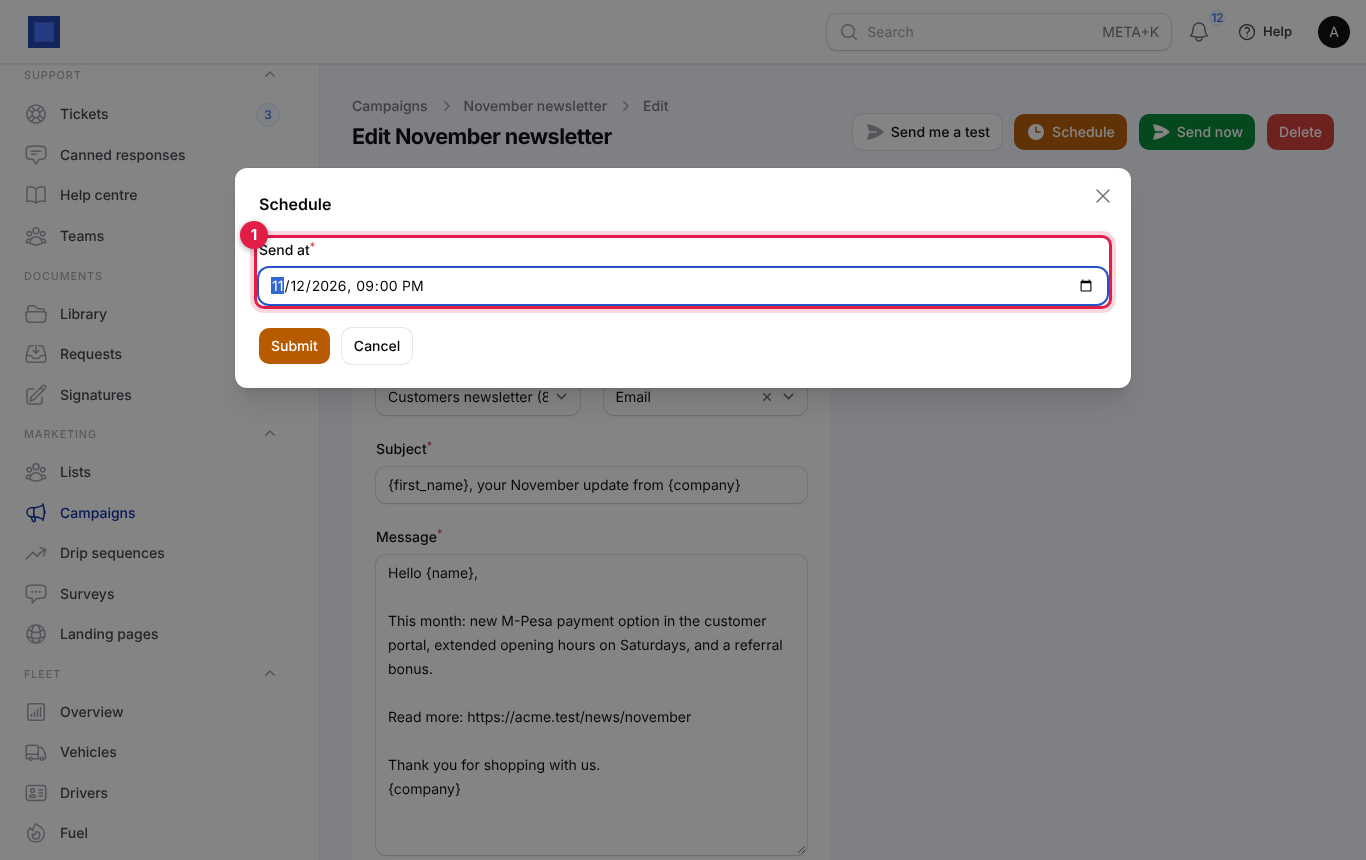
Scheduled and large campaigns are sent by the server every five minutes, about 200 recipients per campaign each time, so a big list takes a few runs to finish.
Campaign statuses
| Status | Meaning |
|---|---|
| Draft | Being prepared. Editable. |
| Scheduled | Will send at the scheduled time. Still editable; Cancel schedule returns it to Draft. |
| Sending | Going out in batches. |
| Sent | Finished. Shows the summary. |
| Cancelled | Will not send. |
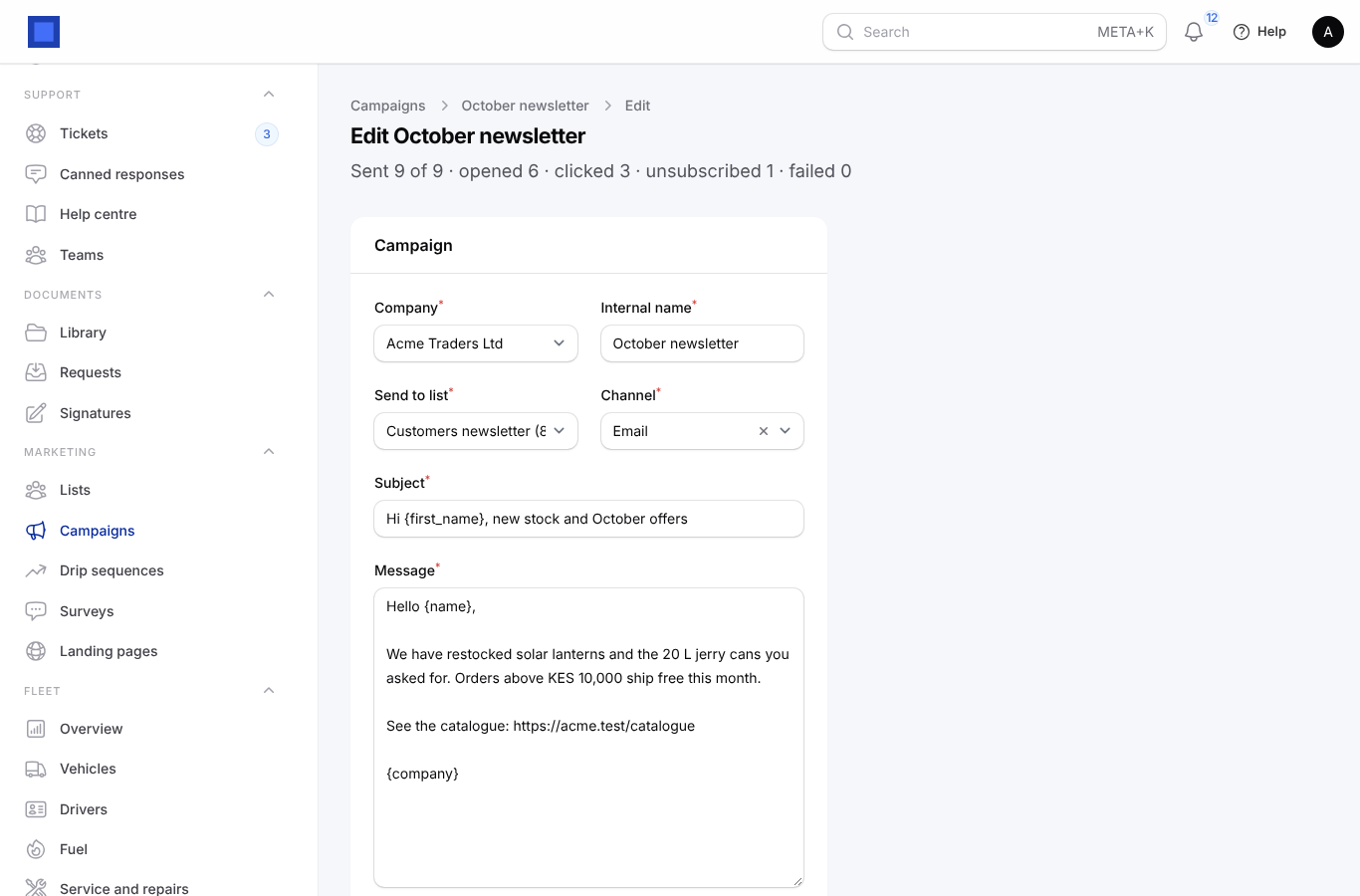
A sent campaign shows its results at the top, for example "Sent 9 of 9 · opened 6 · clicked 3 · unsubscribed 1 · failed 0":
SMS campaigns
Choose SMS as the Channel (marker 1). There is no subject. Messages are plain text, up to 480 characters (three SMS segments); merge tags work. They go to members with a phone number, through the SMS provider in Preferences.
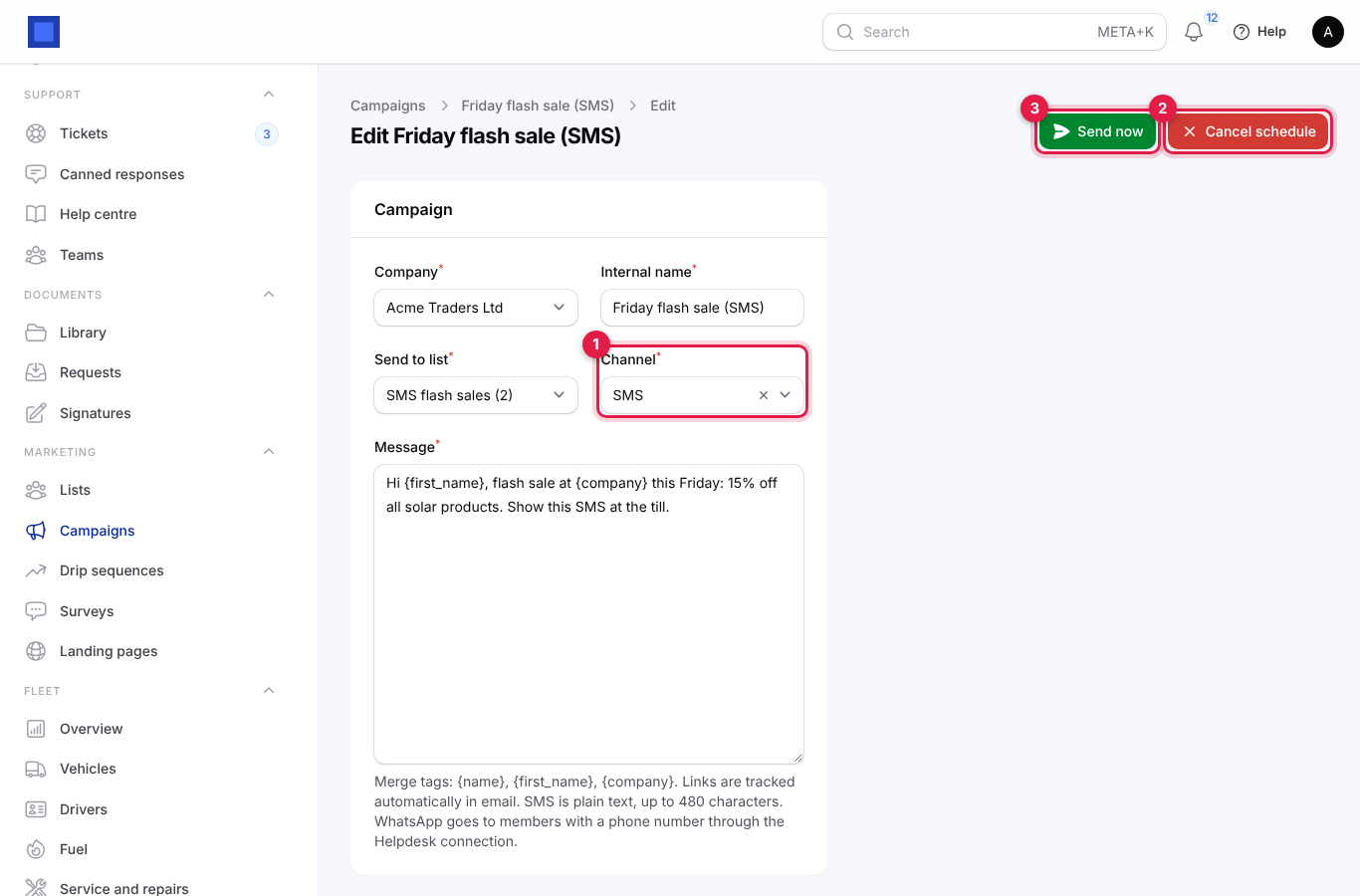
This campaign is Scheduled: Cancel schedule (marker 2) returns it to Draft, and Send now (marker 3) sends it immediately. There is no Send me a test for SMS; send it first to a small test list.
Tip: Keep SMS short and include your name and how to opt out, for example "Acme Traders: 15% off solar products this Friday. Reply STOP to opt out." Each 160 characters is billed as one SMS.
WhatsApp broadcasts and templates
Choose WhatsApp as the Channel. Messages go to members with a phone number through the Helpdesk WhatsApp connection.
| Field | What to enter |
|---|---|
| Approved template name | The name of a message template approved in Meta Business Manager, for example monthly_offer. Needed to reach people who have not written to you in the last 24 hours. The Message fills the template's {{1}}. Leave empty to send plain text (which only reaches people who wrote to you in the last 24 hours). |
| Template language | The template's language code, for example en or sw. Default en. |
If WhatsApp is not connected you see "WhatsApp broadcasts go through the Helpdesk WhatsApp connection. Enable Helpdesk and add the Cloud API details in Preferences → Helpdesk."
Note: WhatsApp bills per conversation and blocks numbers that send unwanted messages. Only broadcast to people who agreed to hear from you on WhatsApp.
Drip sequences
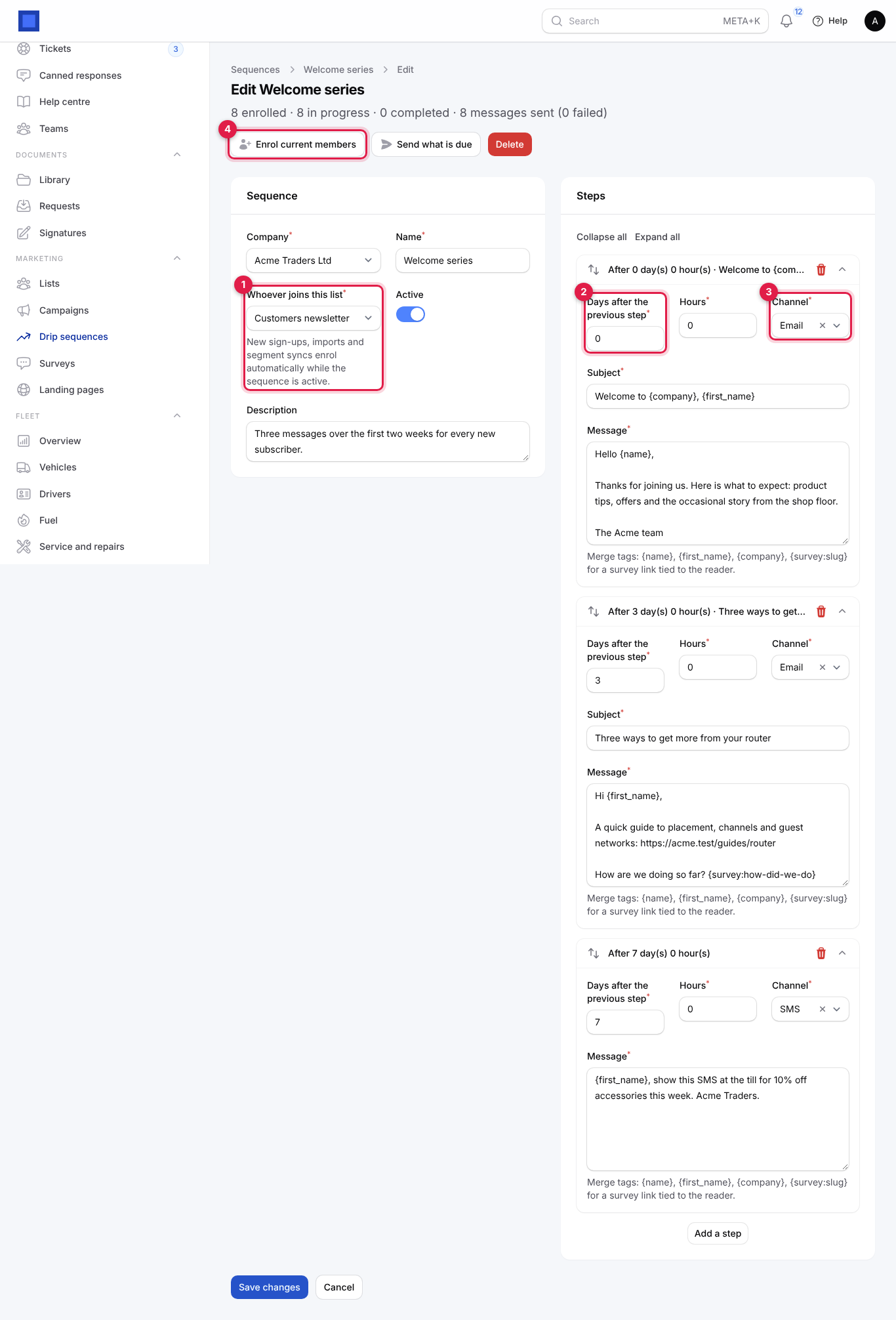
A drip sequence sends a series of messages automatically to everyone who joins a list, for example a welcome series: a thank-you on day 0, tips on day 3 and an offer on day 7.
- In the menu, open Marketing → Drip sequences (headed Sequences) and click New sequence (marker 1).
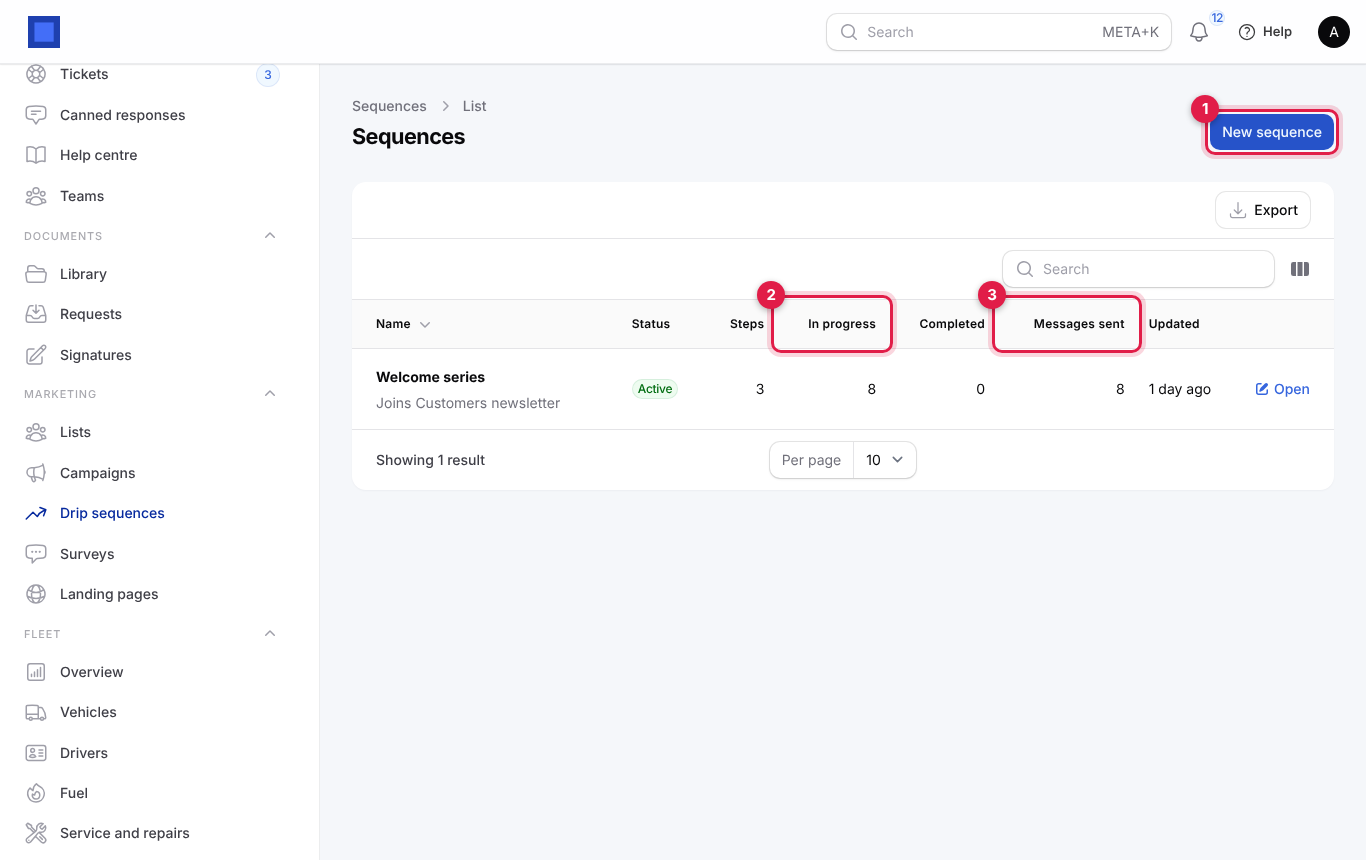
The list shows the list people join, Status, number of Steps, people In progress (marker 2) and Completed, and Messages sent (marker 3).
- Fill in the sequence and its steps and click Create.
Sequence
| Field | What to enter |
|---|---|
| Company | Required. |
| Name | Required, for example "Welcome series". |
| Whoever joins this list | Required (marker 1). New sign-ups, imports and segment syncs enrol automatically while the sequence is active. |
| Active | On to run. Turn off to pause; nobody new is enrolled. |
| Description | Optional, for your team. |
Steps (add as many as you need with Add a step; drag to reorder, collapse to tidy)
| Field | What to enter |
|---|---|
| Days after the previous step | Required (marker 2). 0 for the first message to go straight away. |
| Hours | Required, 0 to 23, added to the days. |
| Channel | Email or SMS (marker 3). |
| Subject | Email steps. |
| Message | Required. Merge tags: {name}, {first_name}, {company}, {survey:slug}. |
On an existing sequence, the header shows how many are enrolled, in progress, completed and how many messages were sent, plus:
- Enrol current members (marker 4): everyone already on the list who is not in this sequence starts it now, from the first step. Use it after creating a sequence for an existing list.
- Send what is due: sends all messages that are due now, instead of waiting for the next automatic run (every five minutes).
- Delete: removes the sequence.
People who unsubscribe stop receiving the sequence.
Surveys
Surveys measure customer satisfaction with one main score and optional follow-up questions.
- In the menu, open Marketing → Surveys and click New survey (marker 1).
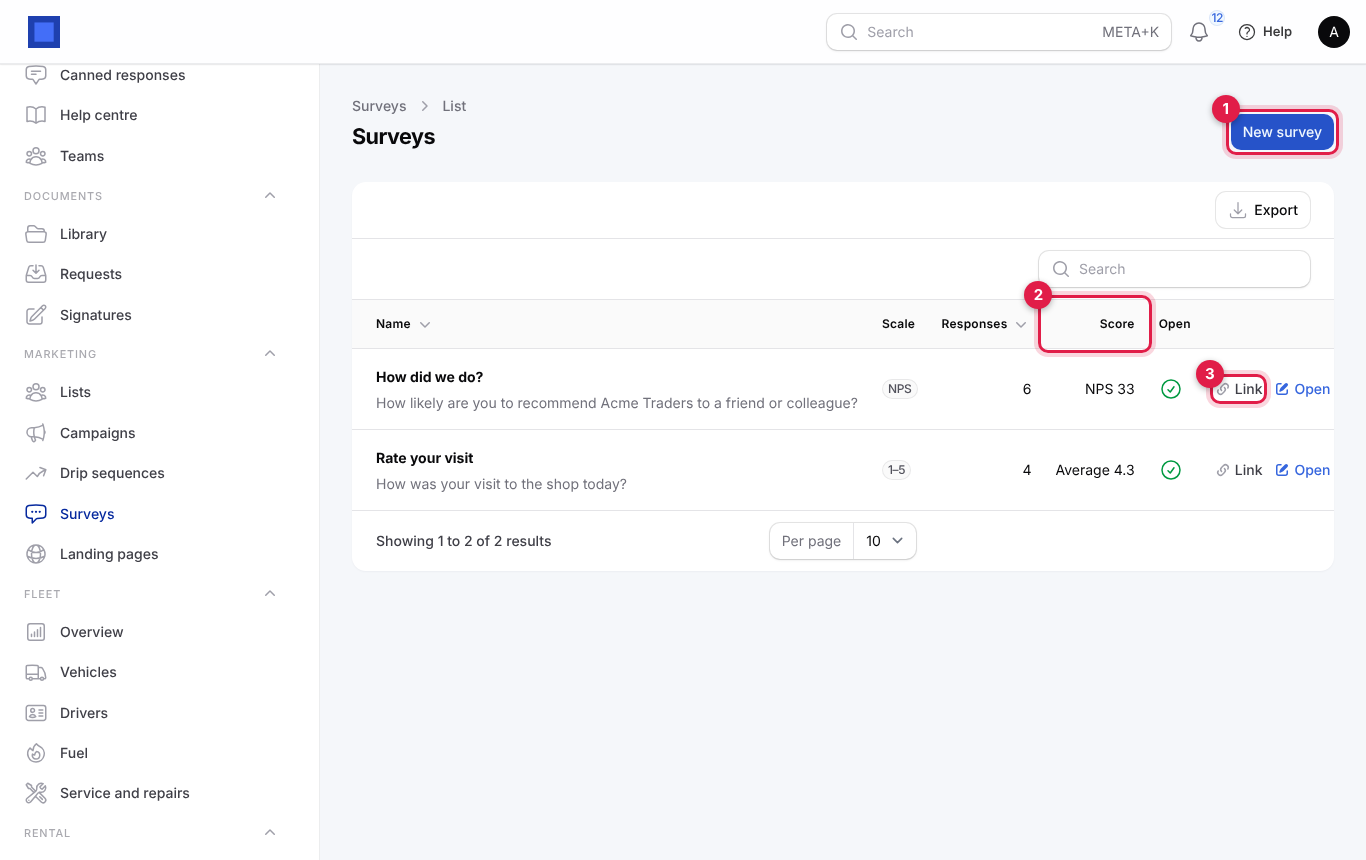
The list shows the Scale, Responses, Score (marker 2: NPS or the average rating) and whether it is Open. Link (marker 3) opens the public survey page.
- Fill in the survey and click Create.
| Field | What to enter |
|---|---|
| Company | Required. |
| Name | Required, for example "Customer satisfaction". |
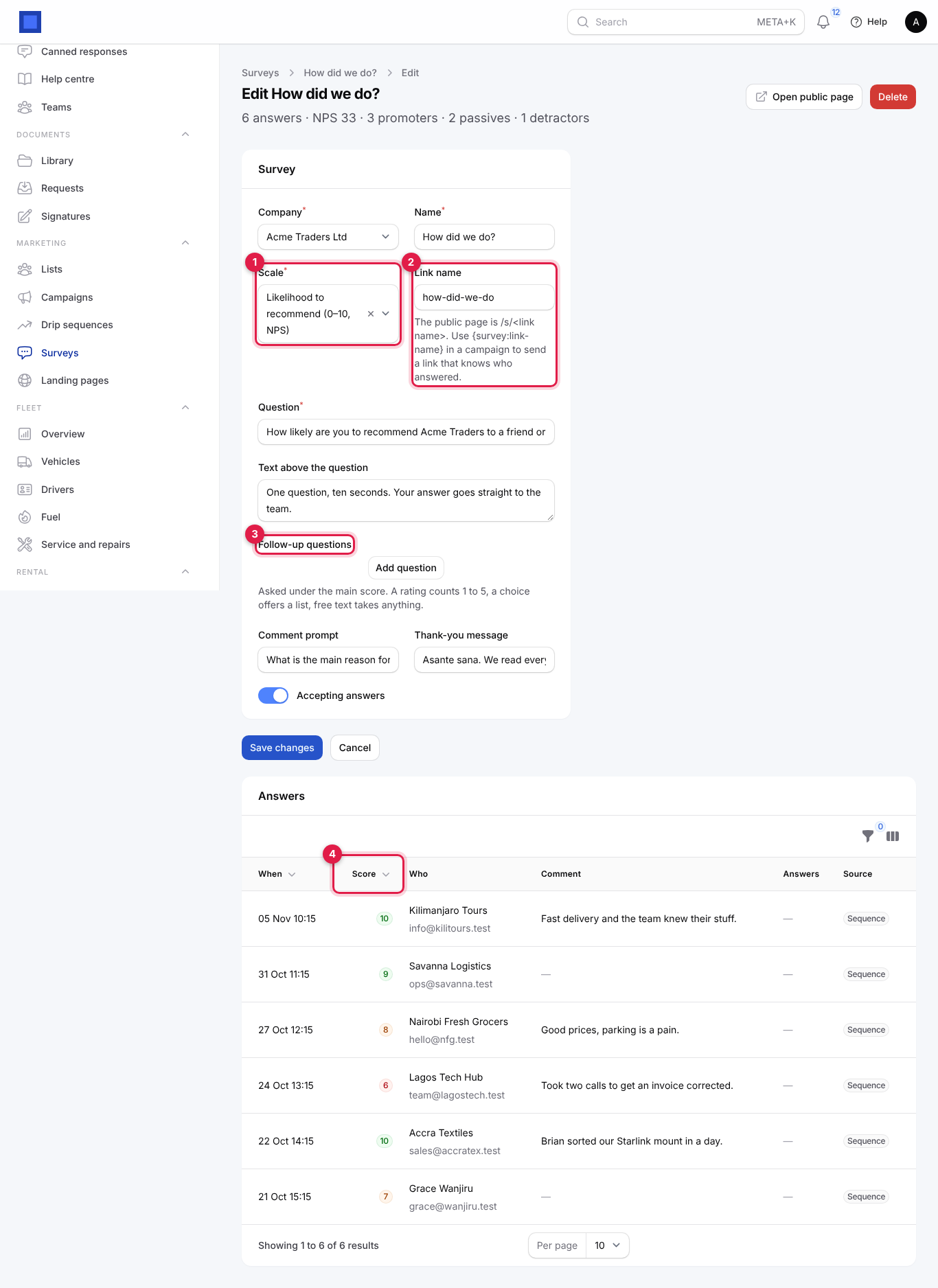
| Scale | Required (marker 1). Likelihood to recommend (0–10, NPS) or Star rating (1–5). |
| Link name | Marker 2. The public page is /s/<link name>. Use {survey:link-name} in a campaign or sequence to send a link that knows who answered. |
| Question | Required. The main question, for example "How likely are you to recommend us to a friend or colleague?" |
| Text above the question | Optional introduction. |
| Follow-up questions | Marker 3. Click Add question and give the Question and its Type: Rating 1 to 5, One choice from a list (with Options (comma-separated), for example Price, Service, Delivery) or Free text. |
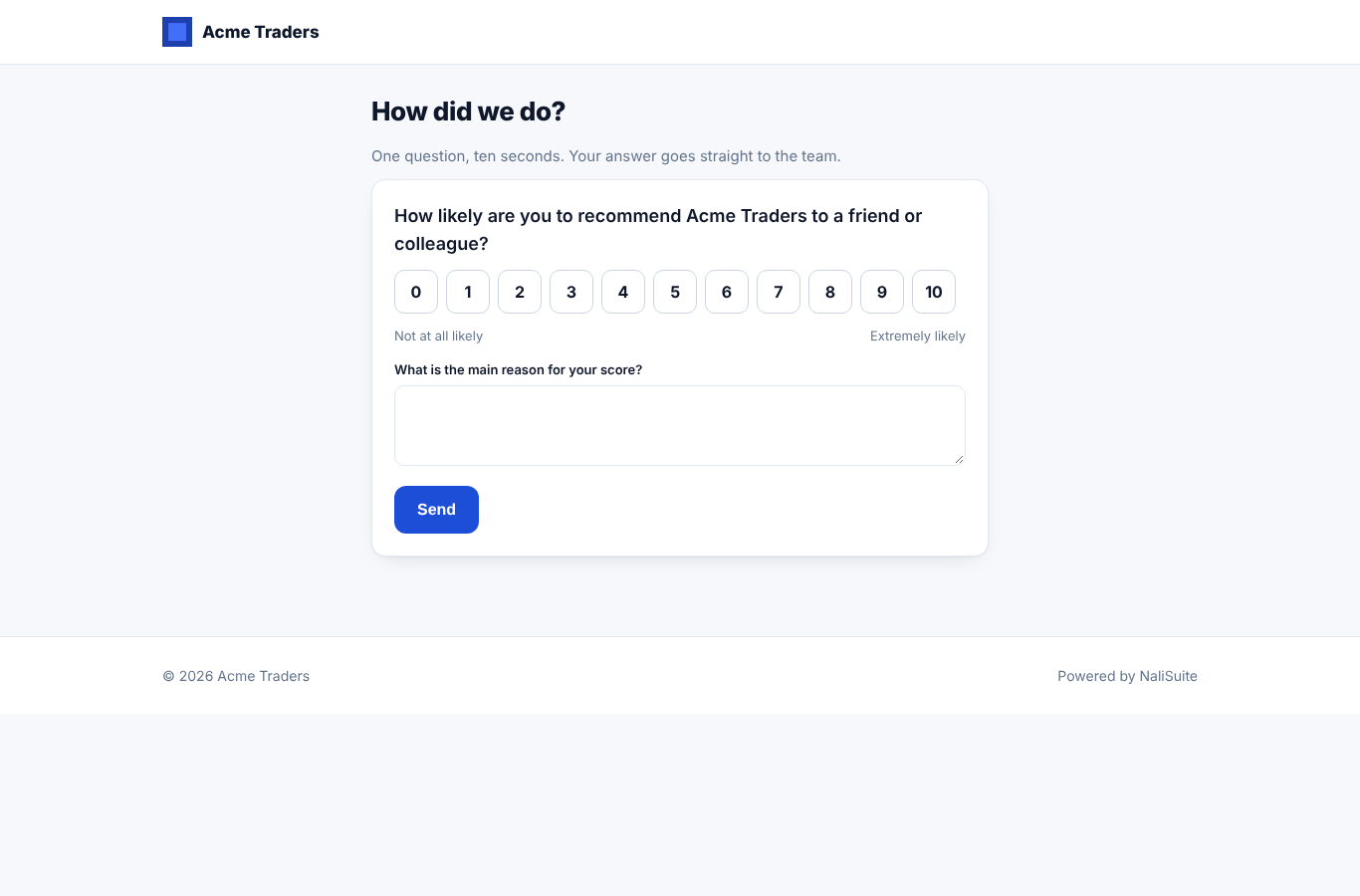
| Comment prompt | Optional, for example "What is the main reason for your score?" |
| Thank-you message | Optional, shown after answering. |
| Accepting answers | Turn off to close the survey. |
The survey page header shows the number of answers and the score, for example "6 answers · NPS 33 · 3 promoters · 2 passives · 1 detractors". Question results summarises the follow-up questions, Open public page opens the survey, and Delete removes it.
The Answers table lists each response: When, the Score (marker 4; coloured green, amber or red), Who (or Anonymous), the Comment, the follow-up Answers and the Source (Link, Campaign or Sequence). Filter by source.
NPS (Net Promoter Score) is the percentage of promoters (9–10) minus the percentage of detractors (0–6), from −100 to 100. Above 30 is good for most small businesses.
This is what customers see:
Tip: Add
{survey:how-did-we-do}to the last step of your welcome sequence, or print the survey link as a QR code on receipts.
Landing pages and lead capture
A landing page is a simple one-page website for a campaign, with a form that adds people to a mailing list and creates a lead in the CRM.
- In the menu, open Marketing → Landing pages and click New landing page (marker 1).
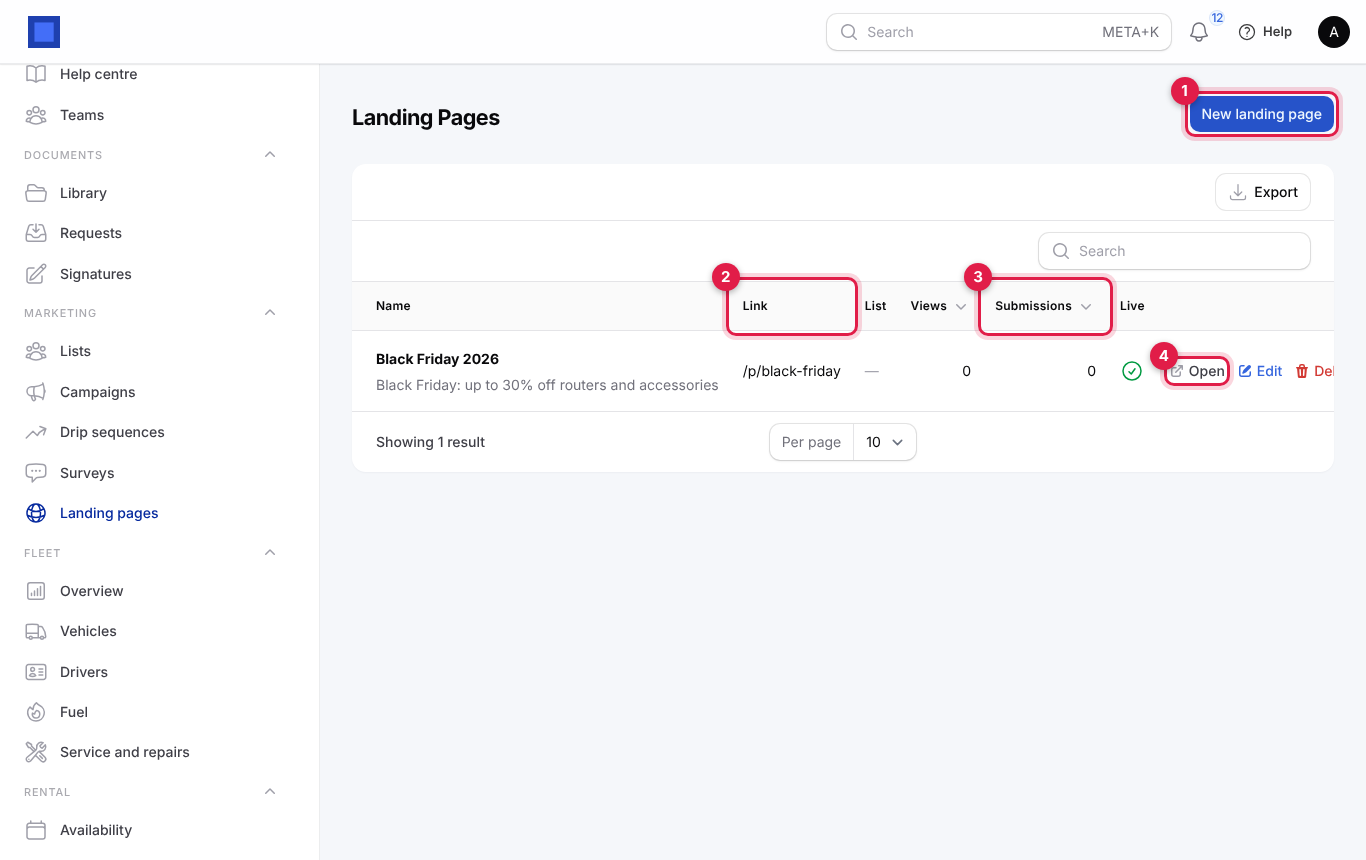
The list shows the Link (marker 2; click to copy), the List, Views, Submissions (marker 3) and whether it is Live. Open (marker 4) shows the public page; Submissions (once there are some) lists who filled in the form; Edit and Delete are on each row.
- Fill in the page and click Create.
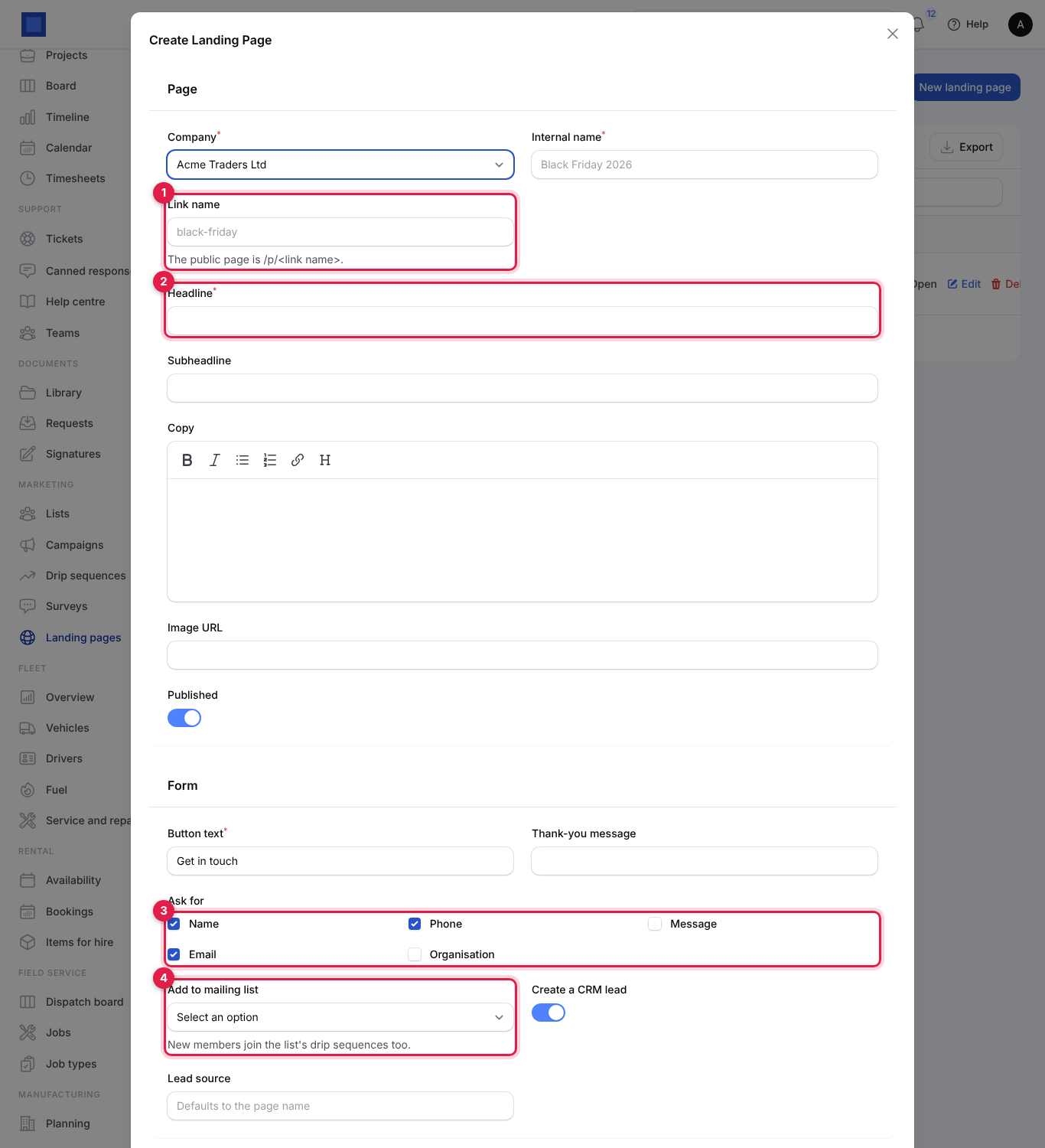
Page
| Field | What to enter |
|---|---|
| Company | Required. |
| Internal name | Required, for example "Black Friday 2026". |
| Link name | Marker 1. The public page is /p/<link name>, for example /p/black-friday. |
| Headline | Required (marker 2). The big title. |
| Subheadline | Optional line under it. |
| Copy | Optional body text with bold, lists, links and headings. |
| Image URL | Optional picture address (https). |
| Published | On by default. Off hides the page. |
Form
| Field | What to enter |
|---|---|
| Button text | Required, for example "Send me the deals". Default "Get in touch". |
| Thank-you message | Shown after submitting. |
| Ask for | Marker 3. Which fields to show: Name, Email, Phone, Organisation, Message. |
| Add to mailing list | Optional (marker 4). Visitors join this list; new members also join the list's drip sequences. |
| Create a CRM lead | On by default. Each submission becomes a lead in Sales → Leads. |
| Lead source | Optional. Defaults to the page name; shown on the lead for reporting. |
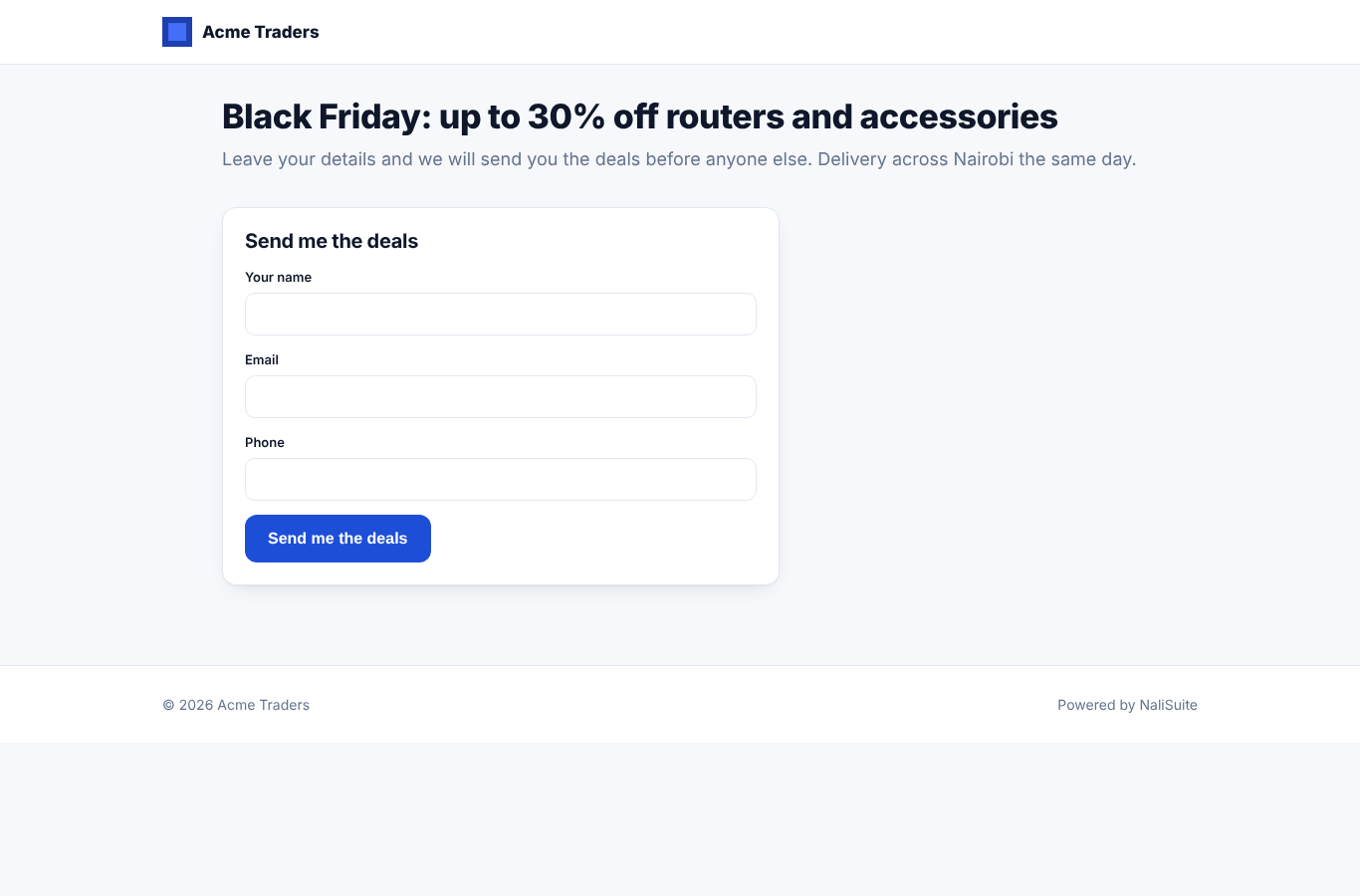
The public page looks like this:
What is tracked
| Event | Where you see it |
|---|---|
| Email opened | Opened on the campaign (open tracking can undercount when email apps block images). |
| Link clicked | Clicked on the campaign. |
| Unsubscribed | Unsubscribed on the campaign; the member shows Unsubscribed; consent is withdrawn on the contact. |
| Failed | Failed on the campaign, for bad addresses or gateway errors. |
| Landing page view and submission | Views and Submissions on the landing page; a lead in CRM. |
| Survey answer | Responses and the score on the survey. |
Common questions
My email campaign will not send: "sent only through your own mail server". Your workspace has no mail server of its own switched on. Everyday emails such as invoices still go out through the platform, but marketing email does not. Set it up under Settings → Preferences → Email, test it, save, then send the campaign again.
Why did my SMS campaign say sent but nobody received it? The SMS provider is set to None (log only). Choose your provider, fill in its details, use Send a test message to check them, and make sure the account has credit. See Sending text messages.
Can I send to only some people on a list? Create another list with the right Fill from contacts rules (tags, countries) and sync it, then send to that list.
Someone unsubscribed by mistake. Can I add them back? Only if they ask you to. Add them again with Add person, or ask them to use the sign-up page so their consent is recorded.
Why are some members skipped in an SMS or WhatsApp campaign? Only members with a phone number receive SMS and WhatsApp; only members with an email receive email.
How do I stop a campaign that is sending? Large campaigns go out in batches. Contact your administrator straight away; a sent message cannot be recalled. Always use Send me a test first.
Why does my WhatsApp broadcast only reach some people? Without an Approved template name, WhatsApp only delivers to people who messaged you in the last 24 hours.