Online payment providers
This page is for owners and finance staff who want customers to pay invoices online. It lists every payment provider NaliSuite works with, what each one takes and where it works, how to connect one, what the customer sees on the pay page and how refunds work. For the pay link itself and recording payments by hand, see Invoices and payments.
Workspaces connect their providers under Settings → Preferences → Online payments. Platform staff connect the providers that collect subscription fees under Platform settings → Payments.
Note: Online payments come with the Invoicing app, so the Online payments tab shows while Invoicing is switched on. Anyone who can see the settings can open the tab; connecting a provider and saving needs the Manage settings permission (
core.settings.manage: the owner and admin roles by default). Refunds needinvoicing.payments.manage(owners, admins and accountants by default).
Every provider at a glance
Each provider is offered on the pay page only when it is switched on, its keys are filled in and it accepts the invoice's currency. "Any" means the provider takes whatever currency your account with them allows.
| Provider | Where it works | Currencies | How the customer pays | Refunds |
|---|---|---|---|---|
| M-Pesa | Kenya | KES | Mobile money: a PIN prompt on their phone | Recorded by hand |
| Paystack | Nigeria, Ghana, Kenya, South Africa and more | NGN, GHS, ZAR, KES, USD | Card, bank transfer, mobile money or USSD on Paystack's page | Through Paystack |
| Flutterwave | Most of Africa | KES, UGX, TZS, RWF, NGN, GHS, ZAR, XOF, XAF, ZMW, MWK, ETB, USD, EUR, GBP | Card, bank transfer, mobile money (M-Pesa, MTN, Airtel) or USSD | Through Flutterwave |
| Monnify | Nigeria | NGN | Card, bank transfer or USSD | Through Monnify |
| Stripe | Worldwide | Any | Card | Through Stripe |
| PayPal | Worldwide | USD, EUR, GBP, CAD, AUD, JPY and 17 more | PayPal balance or card | Through PayPal |
| Pesapal | Kenya, Uganda, Tanzania, Rwanda, Malawi, Zambia | KES, UGX, TZS, RWF, MWK, ZMW, USD | Card or mobile money (M-Pesa, Airtel, MTN) | Through Pesapal |
| DPO Pay | Over 20 African countries | Any | Card or mobile money | Through DPO |
| MTN Mobile Money | Uganda, Ghana, Rwanda, Zambia, Cameroon, Côte d'Ivoire, Benin and more | UGX, GHS, RWF, ZMW, XAF, XOF, GNF, LRD, SZL, CDF, EUR | Mobile money: a PIN prompt on their phone | Recorded by hand |
| Airtel Money | Kenya, Uganda, Tanzania, Rwanda, Zambia, Malawi, Nigeria and more | KES, UGX, TZS, RWF, ZMW, MWK, NGN, XAF, XOF, CDF, MGA, SCR, USD | Mobile money: a prompt on their phone | Recorded by hand |
| Orange Money | Côte d'Ivoire, Senegal, Cameroon, Mali, Guinea, Madagascar and more | XOF, XAF, GNF, MGA, SLE, CDF, LRD, BWP, MAD | Mobile money on Orange's page | Recorded by hand |
| Wave | Senegal, Côte d'Ivoire, Mali, Burkina Faso, Uganda, Gambia | XOF, UGX, GMD | Mobile money in the Wave app | Through Wave |
| CinetPay | Côte d'Ivoire, Senegal, Cameroon, Mali, Burkina Faso, Togo, Benin, Guinea, DR Congo | XOF, XAF, CDF, GNF, USD | Mobile money (Orange, MTN, Moov, Wave) or card | Recorded by hand |
| FedaPay | Benin, Togo, Côte d'Ivoire, Senegal, Niger, Burkina Faso, Guinea, Mali | XOF, GNF | Mobile money or card | Recorded by hand |
| Paiement Pro | Côte d'Ivoire | XOF | Mobile money (Orange, MTN, Moov, Wave) or card | Recorded by hand |
| PayFast | South Africa | ZAR | Card, Instant EFT or QR wallets (SnapScan, Zapper) | Recorded by hand |
| Ozow | South Africa | ZAR | Instant EFT from their own bank | Recorded by hand |
| Peach Payments | South Africa, Kenya, Mauritius | ZAR, KES, MUR, USD | Card, EFT, M-Pesa or wallets | Through Peach |
| Yoco | South Africa | ZAR | Card, Apple Pay, Google Pay or Instant EFT | Through Yoco |
| Paynow | Zimbabwe | USD or ZWG (one per integration) | Card, EcoCash, OneMoney, ZimSwitch or InnBucks on Paynow's page, or an EcoCash or OneMoney prompt on their phone | Recorded by hand |
| Fawry | Egypt | EGP | Card, Meeza, wallets, or cash at a Fawry outlet with a reference number | Through Fawry |
| Cellulant (Tingg) | Over 30 African countries | Any | Mobile money, card or bank on one Tingg page | Recorded by hand |
| Square | US, UK, Europe, Canada, Australia, Japan | USD, GBP, EUR, CAD, AUD, JPY | Card, Apple Pay or Google Pay | Through Square, confirmed later |
| Braintree | Worldwide | One currency: the merchant account's | Card or PayPal, in a form on the pay page itself | Through Braintree |
| Adyen | Worldwide | Any | Card or local payment methods on an Adyen payment link | Through Adyen, confirmed later |
| Bank transfer | Anywhere | Any | Your bank details; they pay by transfer | Recorded by hand |
"Recorded by hand" means the provider has no refund service NaliSuite can use: give the money back in the provider's own dashboard, then record the refund here (see Refunds).
Connect a provider in your workspace
- Open Settings → Preferences and click the Online payments tab. If you have more than one company, pick the company at the top first: each company can have its own accounts.
- M-Pesa, Paystack, Flutterwave and Stripe are at the top. Every other provider has its own section further down. Click a section's name (marker 1) to open it.
- Switch on Accept … (marker 2) and paste the keys from the provider's dashboard (marker 3). The grey line under the provider's name says where to find them.
- Copy the Notification URL (marker 4) and paste it where the provider's dashboard asks for a webhook, callback or notification URL. This is how the provider tells NaliSuite that a payment went through. Yoco has a Register the webhook with Yoco button under the address (marker 5) that does this for you; see Yoco.
- Click Save preferences.
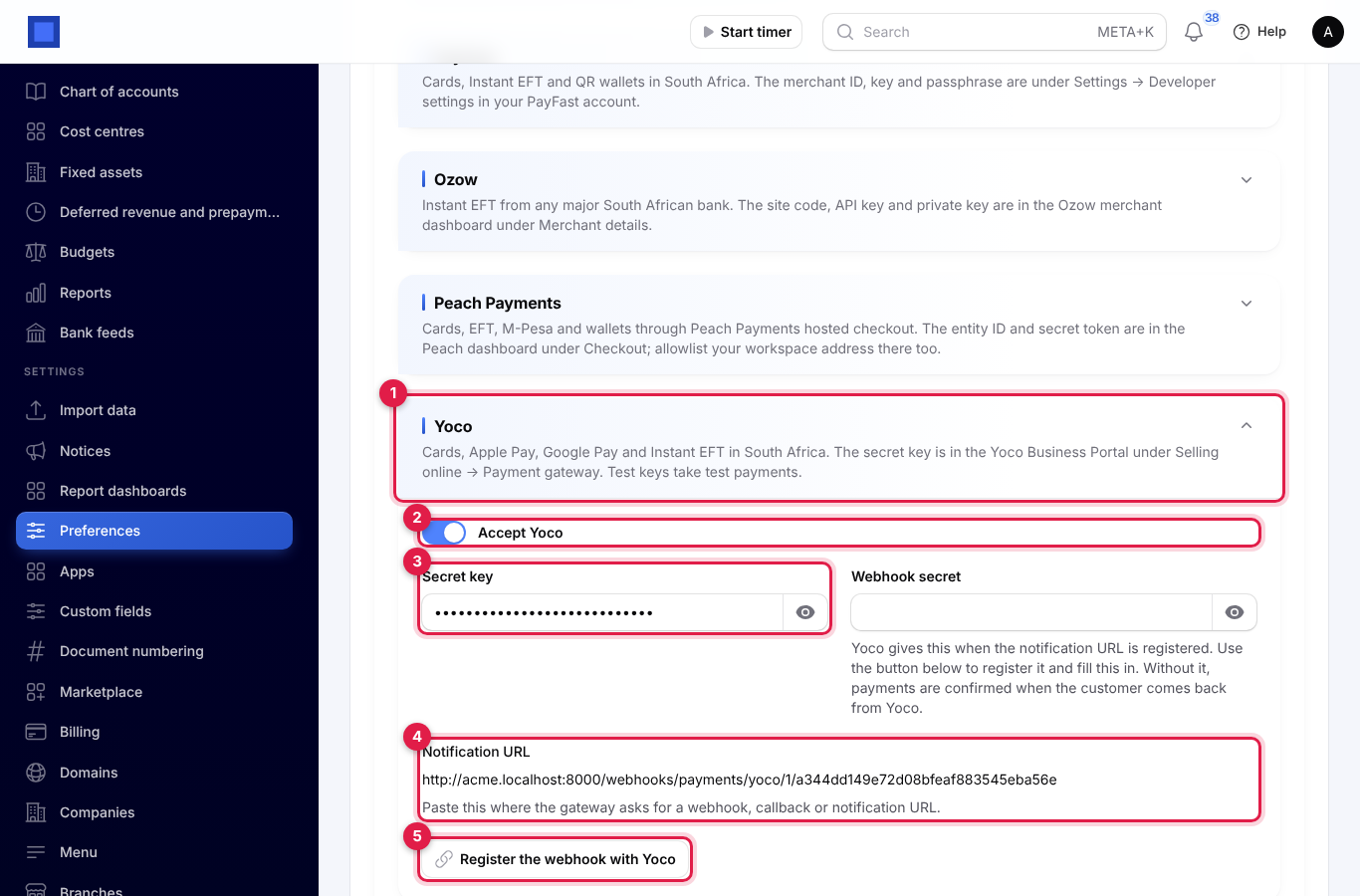
Keys and secrets are stored encrypted. Where a section has an Environment choice, use Sandbox (testing) with the provider's test keys first, then switch to Live with the live keys.
The notification URL
Each section shows the address to give that provider, for example https://yourname.nalisuite.com/webhooks/payments/yoco/1/…. The end of the address is a private code for your company, so treat it like a password and only paste it into the provider's own dashboard.
- M-Pesa is told the address with each payment, and NaliSuite registers the address with Pesapal itself, so there is nothing to paste for those two.
- Paystack, Flutterwave and Stripe at the top of the tab show their Notification URL under their keys, for example
…/webhooks/payments/stripe/1/…. - For Yoco, press Register the webhook with Yoco instead of pasting the address yourself.
What the customer sees on the pay page
The pay page lists one box for each provider that is ready and takes the invoice's currency. This dollar invoice offers Paynow, Square, Braintree, Adyen and bank transfer; M-Pesa is on too but only takes shillings, so it is not shown.
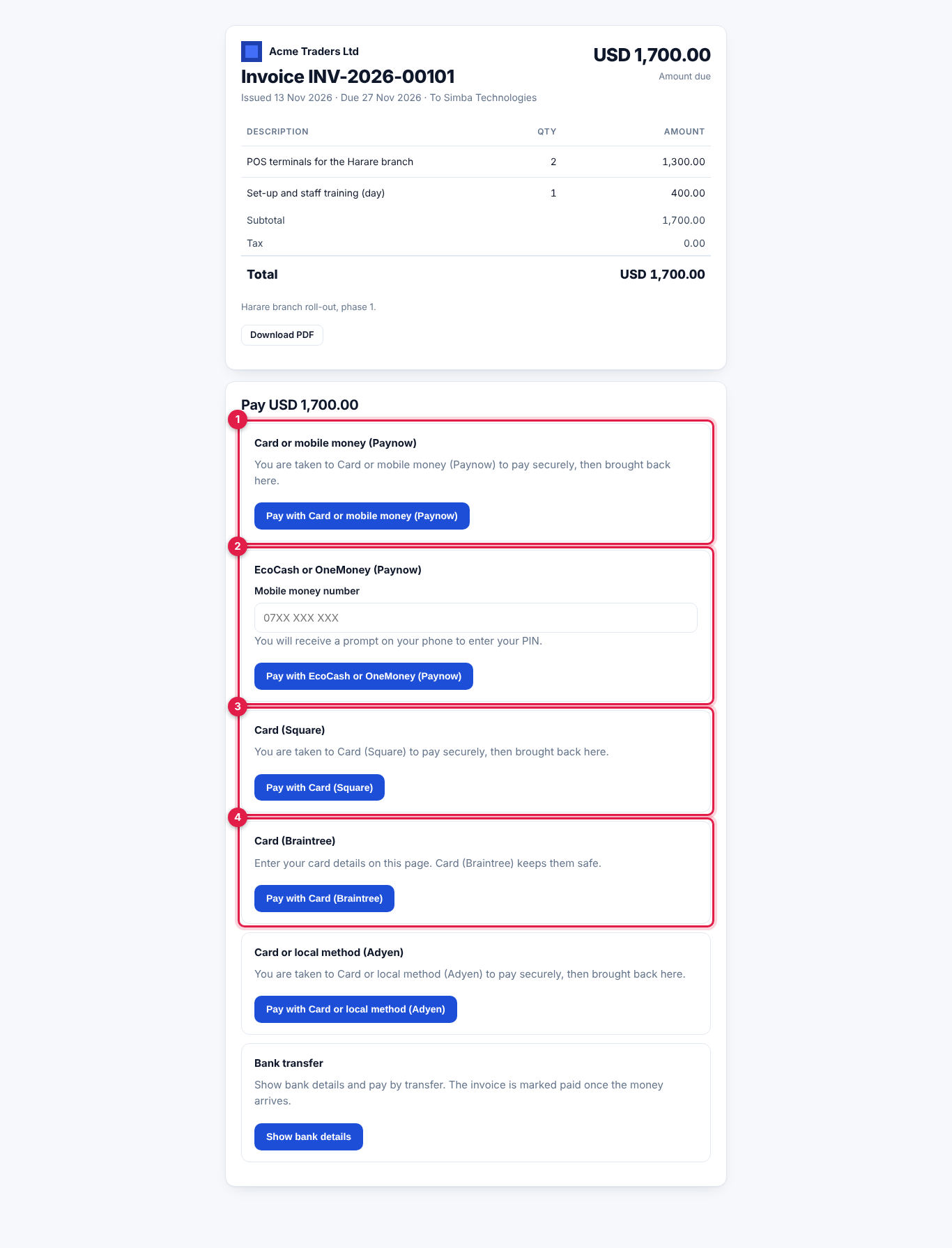
- Most providers (marker 1, marker 3): the customer clicks Pay with …, pays on the provider's own secure page and is brought back. The invoice turns Paid as soon as the provider confirms.
- Phone prompts (marker 2): M-Pesa, MTN Mobile Money, Airtel Money and Paynow's EcoCash or OneMoney box ask for the Mobile money number. The customer types it, clicks Pay with … and enters their PIN in the prompt on their phone.
- Braintree (marker 4): the card form opens on the pay page itself. The customer clicks Pay with Card (Braintree), types their card details or picks PayPal in the form, and clicks Pay with the amount. If the card is declined they can try again straight away. Card details go to Braintree and are never stored in NaliSuite.
- Paystack asks for an Email for the receipt.
- Bank transfer: Show bank details shows the bank details from Settings → Preferences → Invoices. You record the payment by hand when it arrives.
When the customer comes back from Yoco, Paynow, Peach Payments, Monnify, FedaPay, CinetPay, Paiement Pro, Square, Adyen and several others, NaliSuite asks the provider about the payment straight away, so the invoice is usually marked paid before the customer has finished reading the page.
See which methods are live
Each provider sits in its own folded section; opening one folds the others. At the top of each, Status says whether customers see it on the pay page, or that it still needs to be turned on, given its keys and saved. For Flutterwave the Webhook secret hash is optional: without it, payments are confirmed when the payer returns to the pay page.
Rename a method for your customers
The pay page lists the methods as choices, each with its name and a short line under it, and one Pay button for the one chosen.
Every provider's settings have two more boxes: Name shown to payers and Line under the name. Leave them empty and the pay page shows the provider's own name, for example "Card or bank (Paystack)". Fill them in to show your own wording, for example Card / Mobile money with "Visa, Mastercard, M-Pesa and Airtel Money" underneath. The same boxes are in the staff panel under Settings → Payments, for the invoices workspaces pay for their subscription.
Charge each method in its own currency (staff)
For the invoices workspaces pay for their subscription, staff can let each method charge in its own currency under Settings → Payments → Currencies and exchange rates: for example M-Pesa in KES and cards in USD. The pay page then shows each method with its own amount, converted from the invoice at the day's rate (fetched every morning; Fetch today's rates gets it now) or at a Fixed rate typed there, rounded up to whole units. The invoice keeps its own currency, and a payment made in another currency clears it at the amount that was quoted. A method shows in that list once it is switched on and saved, and a currency once it is added under Billing and currencies.
The plan line on the invoice lists the apps the plan includes. Under the invoice, Back to your workspace billing takes the workspace owner back to Settings → Billing in their workspace. The From block on these invoices shows the legal company name, address, Billing email, Billing phone and tax number set under Settings → Legal. With no billing email, the support email is shown.
The pay page and the M-Pesa Paybill fallback
Each method is a choice on the pay page, and what it needs appears right under it: the phone number under M-Pesa, nothing under card payments (Paystack uses the email already on file, and only asks when there is none). The line under a method's name appears only when you write one in Line under the name.
When the M-Pesa prompt does not arrive, the payer can click Switch to M-Pesa Paybill under the phone number. This shows the Paybill number, the Account number (the invoice number) and the Amount, each with a Copy button, and the steps to pay by hand. Switch back to the phone prompt returns to the prompt. Under the M-Pesa settings, Offer Paybill as a fallback turns this on or off, and Paybill number for manual payments sets a different number from the one used for prompts. Payments made by hand are matched to the invoice by its number; record them on the invoice when they arrive.
Check your M-Pesa keys
Under the M-Pesa details, Test M-Pesa connection asks Safaricom for a token with the keys typed on the page, saved or not. If it fails, the message says why, most often that the consumer key and secret do not match the Environment: sandbox keys only work with Sandbox, and production keys with Production. The pay page shows the same reason if a prompt cannot be sent, instead of "not reachable".
When a payment is confirmed
After an M-Pesa or mobile money prompt is sent, the pay page shows Check your phone with a spinner and checks every few seconds. When the payment arrives it shows Payment received and the invoice turns to paid by itself; if the payer cancels on the phone, it shows the reason so they can try again.
The payment is confirmed by the provider's notification (the Notification URL above). Paystack, Yoco, Paynow and Peach Payments are also asked directly when the payer comes back to the pay page, so the invoice shows as paid straight away even if the notification has not arrived or was not set up.
Yoco
Cards, Apple Pay, Google Pay and Instant EFT in South Africa, in rand. The customer pays on Yoco's page.
| Field | What to enter |
|---|---|
| Accept Yoco | Switch on to offer Yoco. |
| Secret key | From the Yoco Business Portal, under Selling online → Payment gateway. Test keys take test payments. |
| Webhook secret | Filled in for you when you press Register the webhook with Yoco. |
To register the notification URL with Yoco:
- Enter the Secret key.
- Press Register the webhook with Yoco under the notification URL. A window shows the address Yoco will send payment updates to.
- Leave Replace a webhook already registered for this address (marker 1) off the first time, and press Register (marker 2). The webhook secret is filled in and saved straight away.
- Press Save preferences to keep the secret key too.
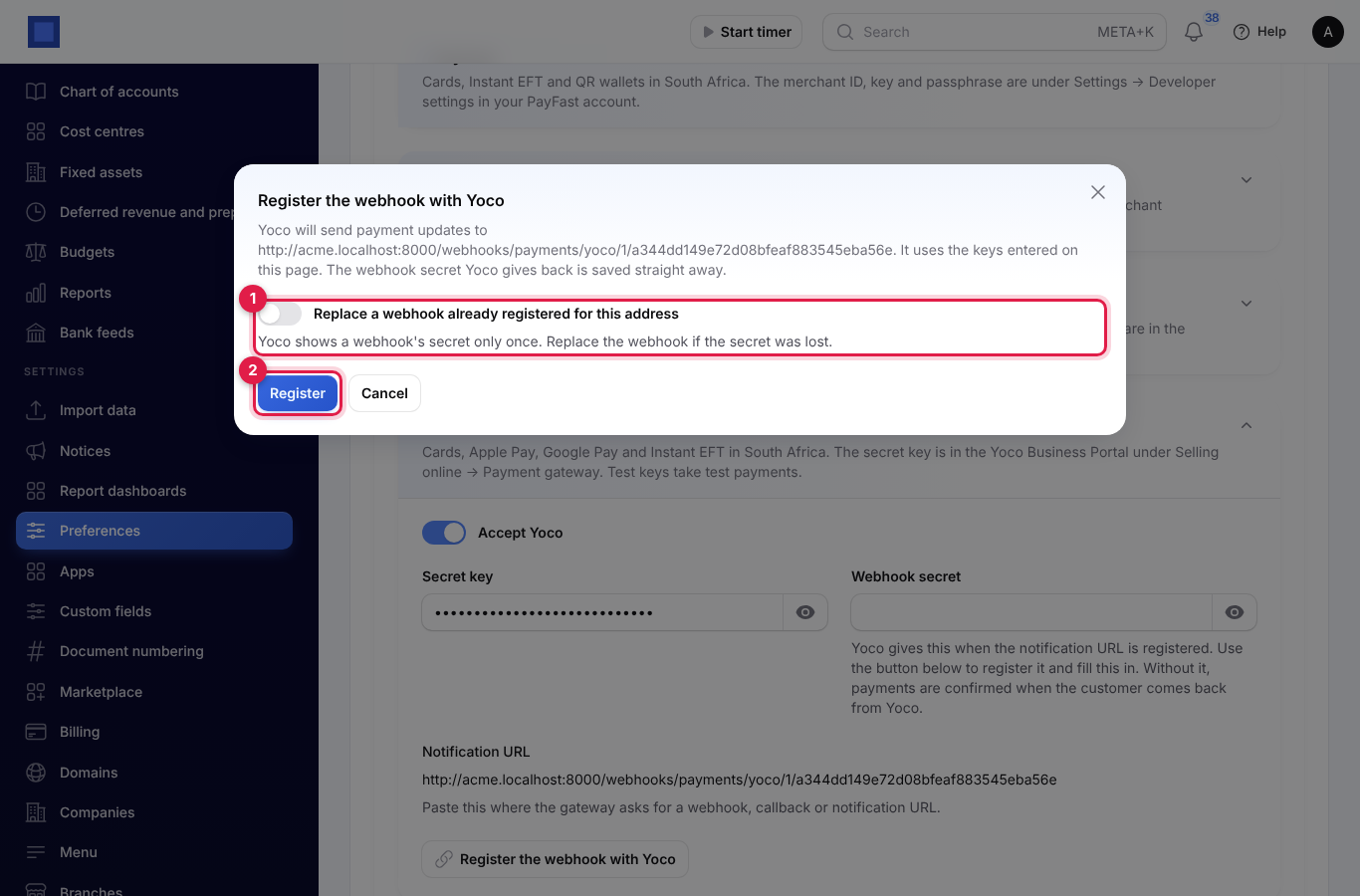
If Yoco already has a webhook for this address, NaliSuite says so and changes nothing. If Yoco refuses, for example because the secret key is wrong, Yoco's message is shown and nothing is saved.
Yoco shows a webhook's secret only once. If it is lost, register again with Replace a webhook already registered for this address switched on. Test keys register a test webhook, so register again after you change to live keys. Yoco allows up to five webhooks per account. For a company with its own Yoco settings, choose the company at the top of Preferences first.
Paynow
Cards, EcoCash, OneMoney, ZimSwitch and InnBucks in Zimbabwe. Each Paynow integration takes one currency, so only invoices in that currency offer Paynow.
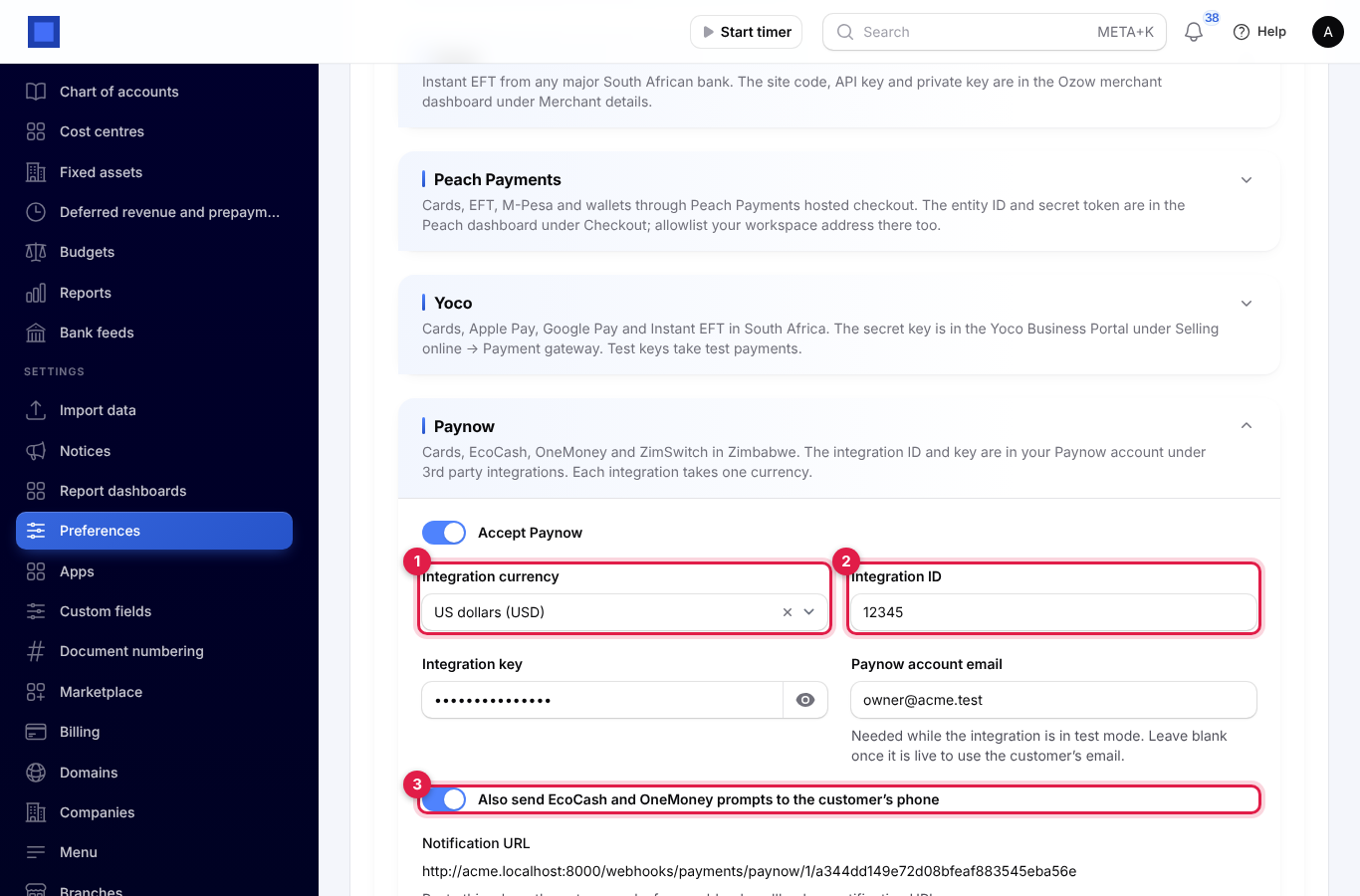
| Field | What to enter |
|---|---|
| Accept Paynow | Switch on to offer Paynow. |
| Integration currency | Marker 1. US dollars (USD) or Zimbabwe Gold (ZWG), as set up in Paynow. |
| Integration ID and Integration key | Marker 2. In your Paynow account under 3rd party integrations. |
| Paynow account email | Needed while the integration is in test mode. Leave it empty once it is live, so the customer's own email is used. |
| Also send EcoCash and OneMoney prompts to the customer's phone | Marker 3. Adds a second box, EcoCash or OneMoney (Paynow), where the customer types their number and gets a PIN prompt. Numbers starting 077 or 078 go to EcoCash and 071 to OneMoney. |
Monnify
Cards, bank transfer and USSD in Nigeria, in naira.
| Field | What to enter |
|---|---|
| Accept Monnify | Switch on to offer Monnify. |
| Environment | Sandbox (testing) or Live. |
| API key, Secret key, Contract code | Under Developer in the Monnify dashboard. The secret key also checks that notifications really come from Monnify. |
FedaPay
Mobile money and cards in Benin, Togo, Côte d'Ivoire, Senegal, Niger, Burkina Faso, Guinea and Mali, in CFA francs or Guinean francs.
| Field | What to enter |
|---|---|
| Accept FedaPay | Switch on to offer FedaPay. |
| Environment | Sandbox (testing) or Live. |
| Secret key | Under Developers → API keys in the FedaPay dashboard. It starts with sk_sandbox_ or sk_live_. |
| Webhook secret | Shown when you add a webhook under Developers → Webhooks, using the notification URL. Required. |
CinetPay
Orange, MTN, Moov and Wave wallets and cards on one page, in Côte d'Ivoire, Senegal, Cameroon, Mali, Burkina Faso, Togo, Benin, Guinea and DR Congo.
| Field | What to enter |
|---|---|
| Accept CinetPay | Switch on to offer CinetPay. |
| API key and Site ID | Under Integration in the CinetPay back office. |
| Secret key | Optional, from the same place. When set, notifications that do not carry CinetPay's matching signature are refused. Every payment is also checked with CinetPay before it is recorded. |
Paiement Pro
Orange Money, MTN MoMo, Moov Money, Wave and cards in Côte d'Ivoire, in CFA francs.
| Field | What to enter |
|---|---|
| Accept Paiement Pro | Switch on to offer Paiement Pro. |
| Environment | Sandbox (testing) or Live. |
| Merchant ID | In your Paiement Pro dashboard, for example PP-F324. |
| Payment channel | Optional. For example CARD, OMCIV2, MOMOCI, FLOOZ or WAVECI to send every customer to one method. Leave it empty to let the customer choose. |
Square
Cards, Apple Pay and Google Pay in the US, UK, Europe, Canada, Australia and Japan. The customer pays on a Square payment link.
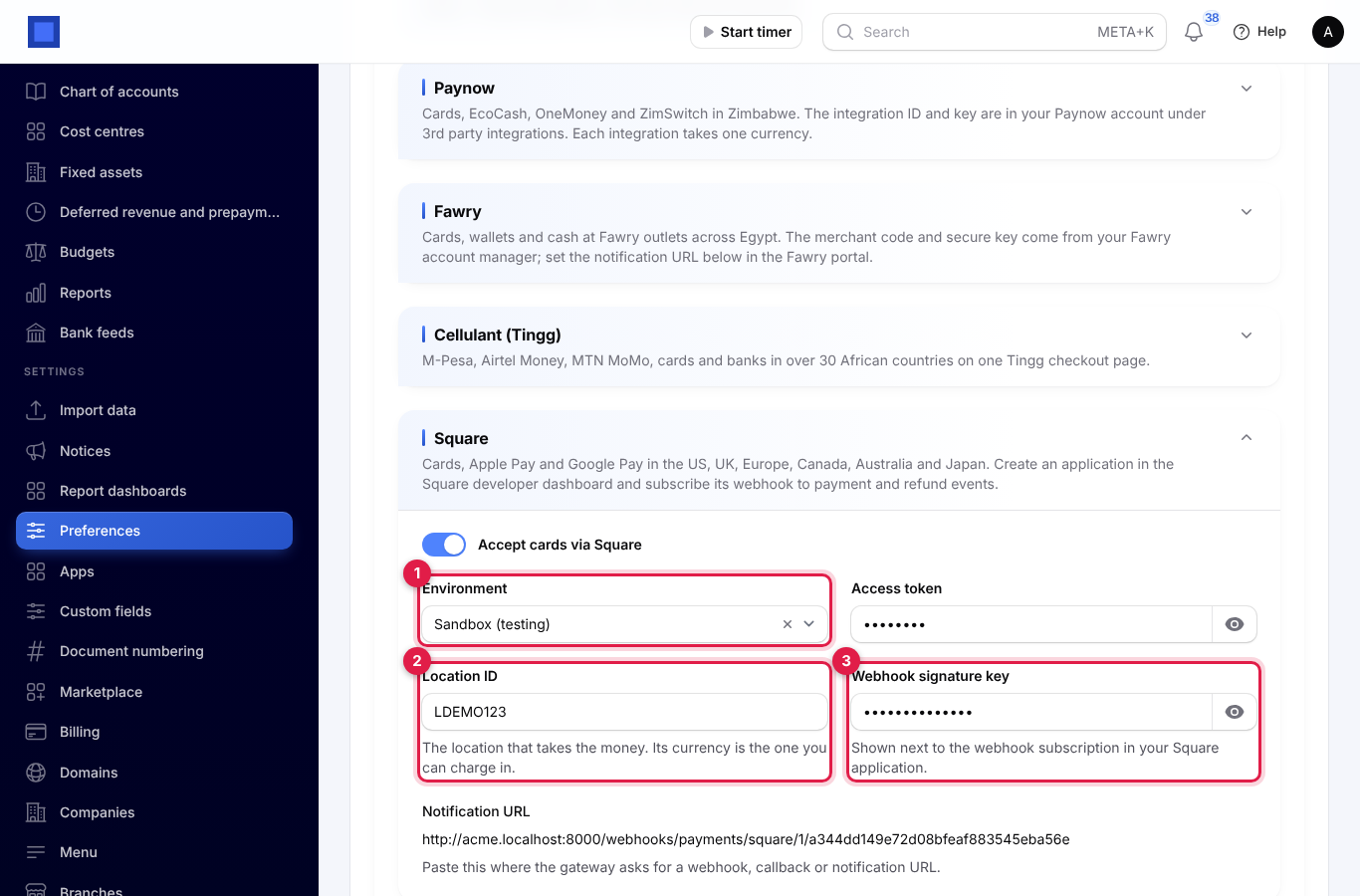
| Field | What to enter |
|---|---|
| Accept cards via Square | Switch on to offer Square. |
| Environment | Marker 1. Sandbox (testing) or Live. |
| Access token | From your application in the Square developer dashboard. |
| Location ID | Marker 2. The Square location that takes the money. Its currency is the one you can charge in. |
| Webhook signature key | Marker 3. Shown next to the webhook subscription in your Square application. Subscribe the webhook to payment and refund events, using the notification URL. |
Braintree
Cards and PayPal through Braintree, in a form on your own pay page.
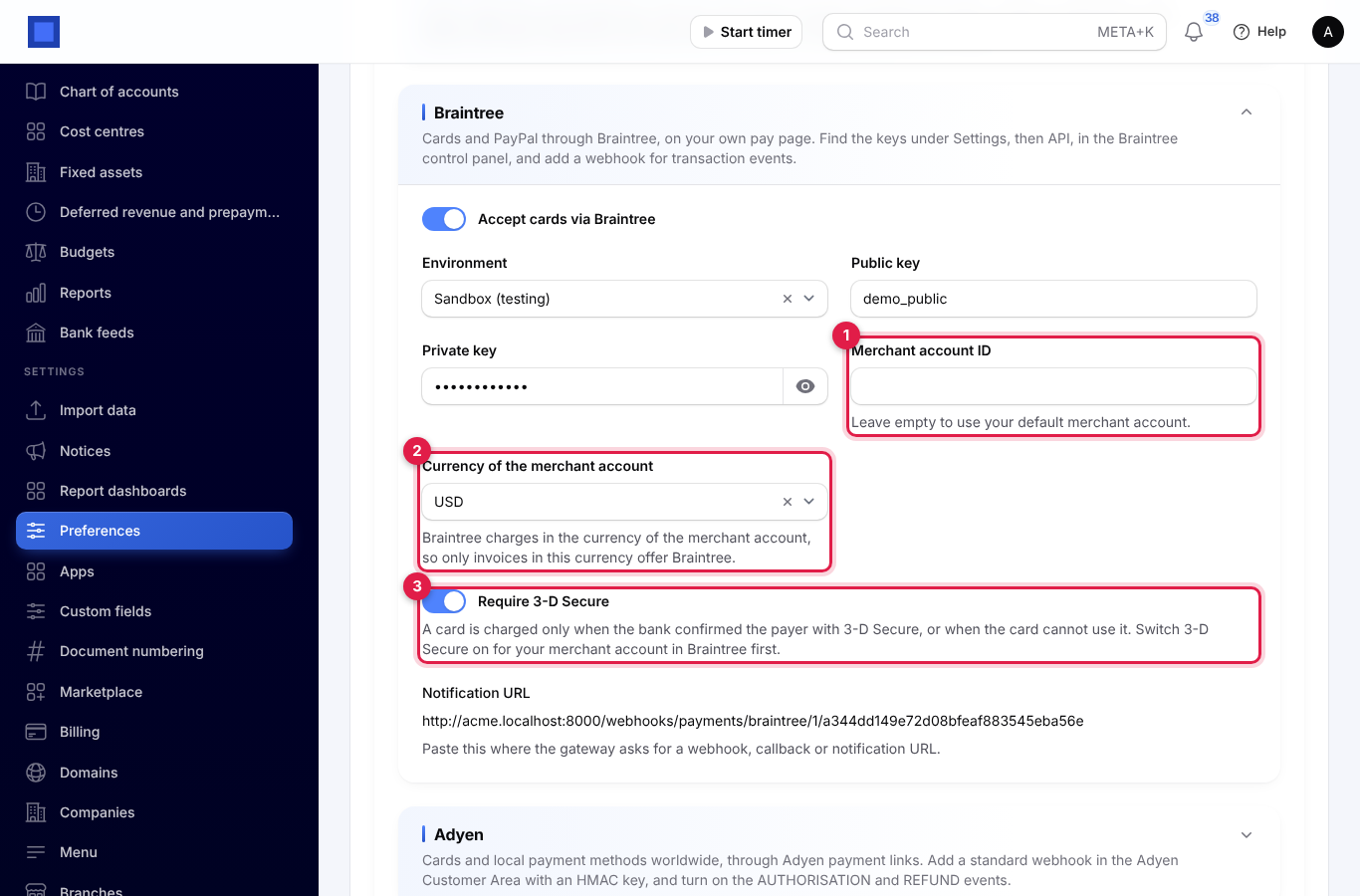
| Field | What to enter |
|---|---|
| Accept cards via Braintree | Switch on to offer Braintree. |
| Environment | Sandbox (testing) or Live. |
| Public key and Private key | In the Braintree control panel under Settings → API. |
| Merchant account ID | Marker 1. Leave it empty to use your default merchant account. |
| Currency of the merchant account | Marker 2. Braintree charges in the merchant account's currency, so only invoices in this currency offer Braintree. |
| Require 3-D Secure | Marker 3. On by default. Customers may be asked by their bank to confirm the card (a code or an app approval), and a card is charged only when the bank confirms it, or when the card cannot use 3-D Secure. PayPal is not affected. Switch 3-D Secure on for your merchant account in the Braintree control panel first. Turning this off accepts cards without a confirmed check, and the risk of a disputed payment then stays with you. |
Add a webhook for transaction events in the Braintree control panel, using the notification URL.
Adyen
Cards and local payment methods worldwide, through Adyen payment links.
| Field | What to enter |
|---|---|
| Accept payments via Adyen | Switch on to offer Adyen. |
| Environment | Sandbox (testing) or Live. |
| API key and Merchant account | From the Adyen Customer Area. |
| Webhook HMAC key | Generated when you set up a standard webhook in the Adyen Customer Area. Turn on the AUTHORISATION and REFUND events and use the notification URL. |
| Live URL prefix | Needed for live payments: Adyen is not offered in Live until it is filled in. Find it under Developers → API URLs in the Adyen Customer Area. |
Set up providers for subscription fees (platform staff)
Platform staff collect the workspaces' subscription fees with the same providers. Open Platform settings → Payments (marker 1). The sections and fields are the same as a workspace's, and each section shows its own Notification URL (marker 3) on the platform address, for example https://nalisuite.com/webhooks/billing/monnify/…. Paste it into the platform's account with that provider. Yoco's section has the same Register the webhook with Yoco button as a workspace's, which registers the platform address with the platform's Yoco account. Bank transfer at the bottom holds the bank details shown to workspaces.
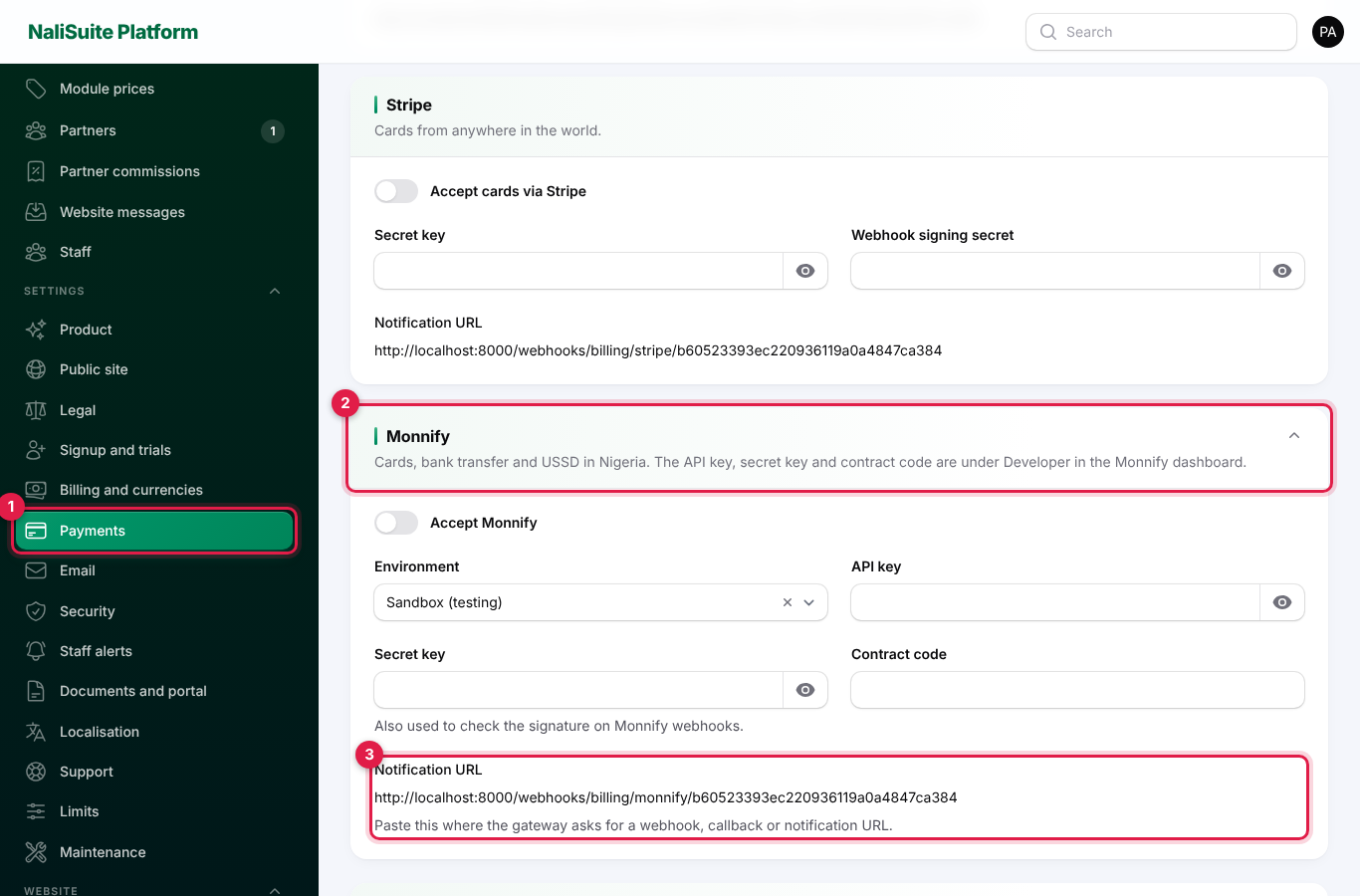
Workspaces then see these providers when they pay their subscription; see Billing and marketplace.
Refunds
- Open Finance → Payments and the payment.
- Click Refund. Enter the Amount (marker 1); it starts at everything that can still be refunded.
- For a payment taken by a provider that can refund, Send the money back through … (marker 2) is on: NaliSuite asks the provider to return the money to the customer. Switch it off if you gave the money back another way, such as cash; the refund is then only recorded.
- Add a Reason and click Refund.
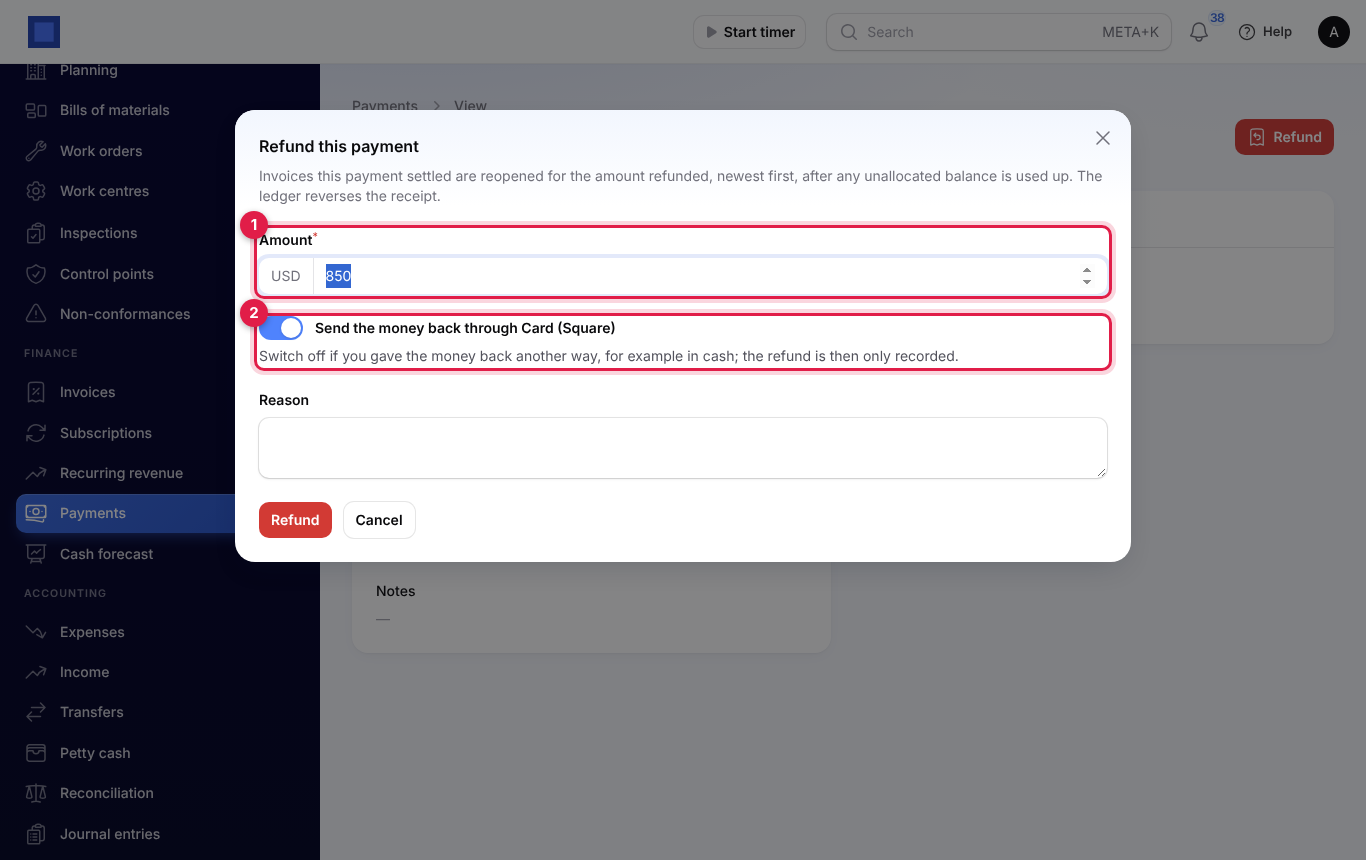
The invoices the payment settled are reopened for the amount refunded and the ledger reverses the receipt. Providers marked "recorded by hand" in the table never show the switch: refund in their dashboard first, then record it here.
Refunds that are still processing
Some providers, including Adyen and Square, accept a refund and confirm it later. The payment's Refunds list (marker 1) then shows the refund with "(processing)".
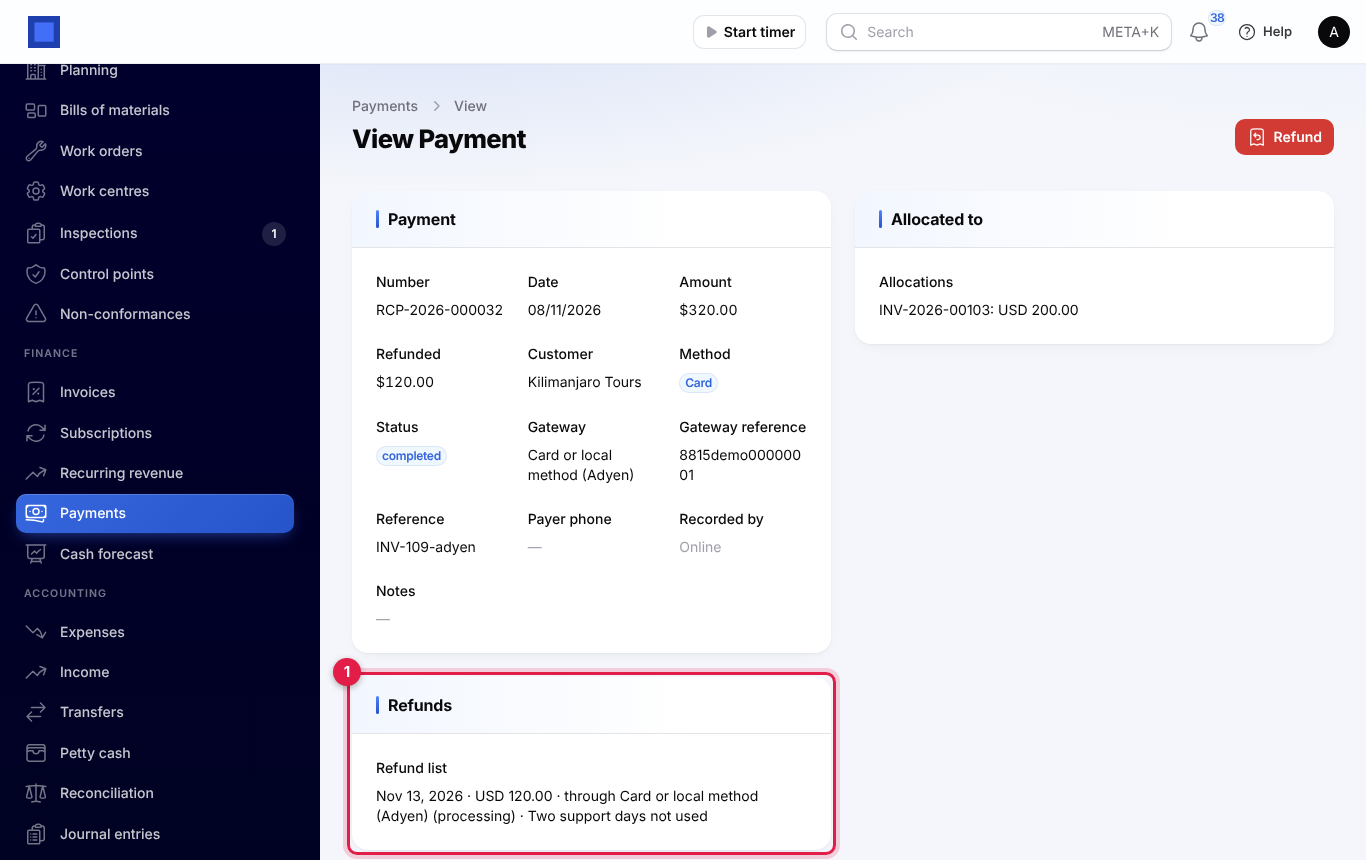
- When the provider confirms, "(processing)" disappears.
- If the provider refuses it, the refund is marked "refused by the gateway, nothing was refunded": the money is put back on the payment, the invoices it reopened are settled again while they are still open, and the ledger entry is reversed.
Good to know
- Yoco's webhook secret. Until the webhook is registered, Yoco's notifications are ignored and each payment is confirmed when the customer comes back to the pay page. A customer who closes the browser before coming back leaves the payment pending, so register the webhook as soon as you connect Yoco.
- Currency decides what is offered. A provider only appears for invoices in a currency it takes. Braintree and Paynow take one currency each, set in their sections.
- Nothing is recorded on trust. Notifications are checked with the provider's signature, or the payment is read back from the provider, before the invoice is marked paid. A payment is recorded once, however many notifications arrive.
- The full amount. The pay page always asks for the whole amount due.
- Per company. Each company can have its own provider accounts. Pick the company at the top of Preferences before you fill them in.
- Mobile money payouts. MTN Mobile Money, Airtel Money, Flutterwave and Wave can also send money out, which payroll uses to pay salaries to wallets.