Social posts
This page is for business owners and marketers who post on their Facebook Page and Instagram account. You write a post once in NaliSuite, choose Facebook, Instagram or both, and publish it straight away or at a time you set. NaliSuite keeps a list of what is scheduled, what went out and what failed, tries failed posts again for you, and shows the likes and comments each post got.
You will find it under Marketing → Social posts.
Note: You need the marketing.view permission to see social posts, and marketing.manage to write, publish, edit and delete them. Connecting your Facebook Page needs the Manage settings permission. Set permissions under Settings → Roles.
Social posts are part of the Marketing app, which comes with the Professional plan. An administrator can switch it on or off under Settings → Apps (see Switching apps on and off). For email, SMS and WhatsApp campaigns, see Marketing.
Connect your Facebook Page and Instagram
Posts go out through your workspace's own Meta app, Facebook Page and the Instagram business account linked to it. The connection is on Settings → Preferences → Facebook and Instagram, and it is the same one Helpdesk uses for Messenger and Instagram messages, so you set it up once.
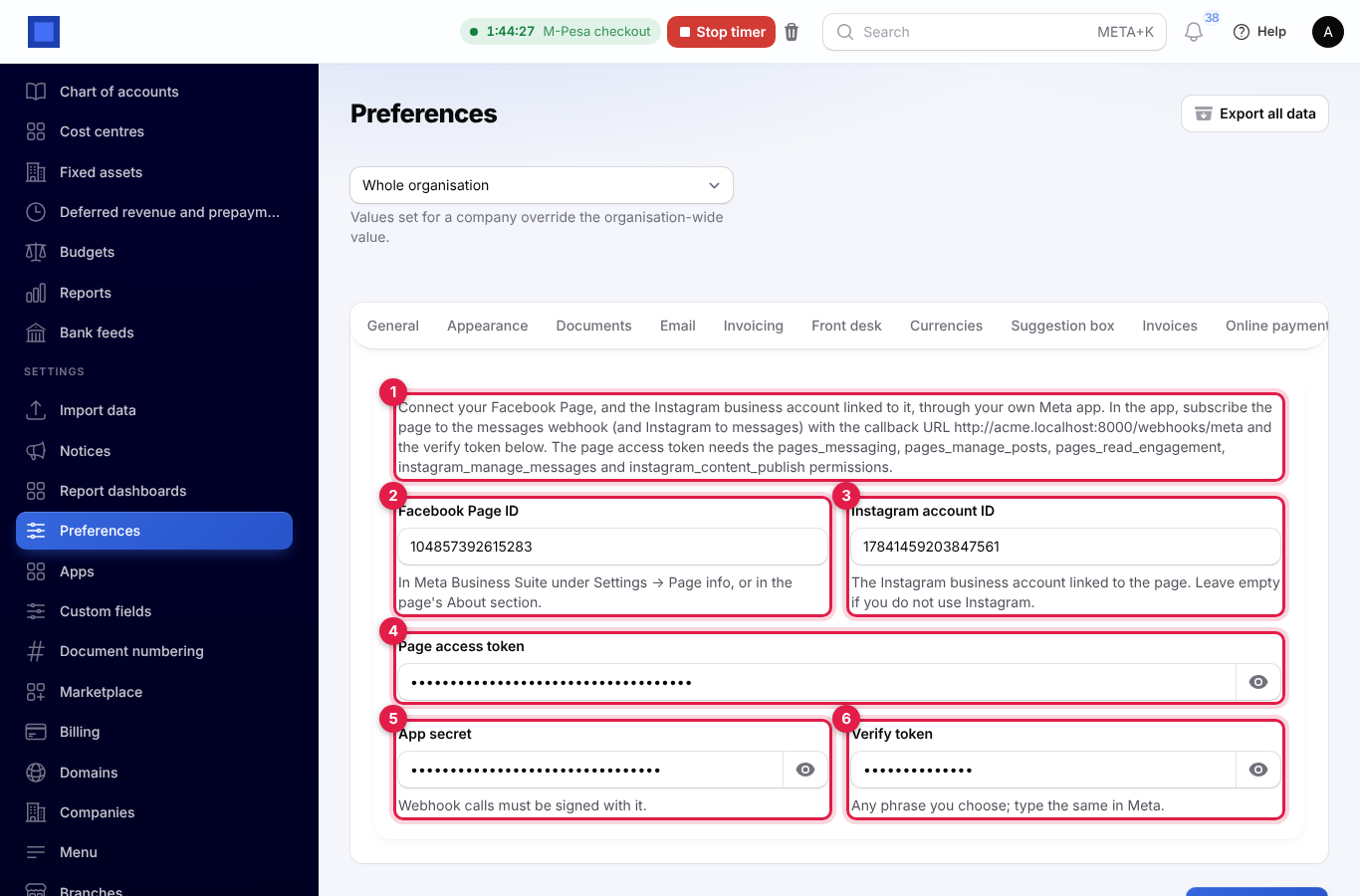
For posting you need:
- the Facebook Page ID (marker 2) and a Page access token (marker 4) with the pages_manage_posts and pages_read_engagement permissions;
- for Instagram, also the Instagram account ID (marker 3) and the instagram_content_publish permission on the token.
The App secret and Verify token are only needed for Messenger and Instagram messages. How to get each of these from Meta is explained in Connect Facebook and Instagram.
Until the Page is connected, the Post on the Facebook Page switch is greyed out with "Connect the page in Preferences → Facebook and Instagram." Until the Instagram account ID is added, Post on Instagram is greyed out too.
Write a post
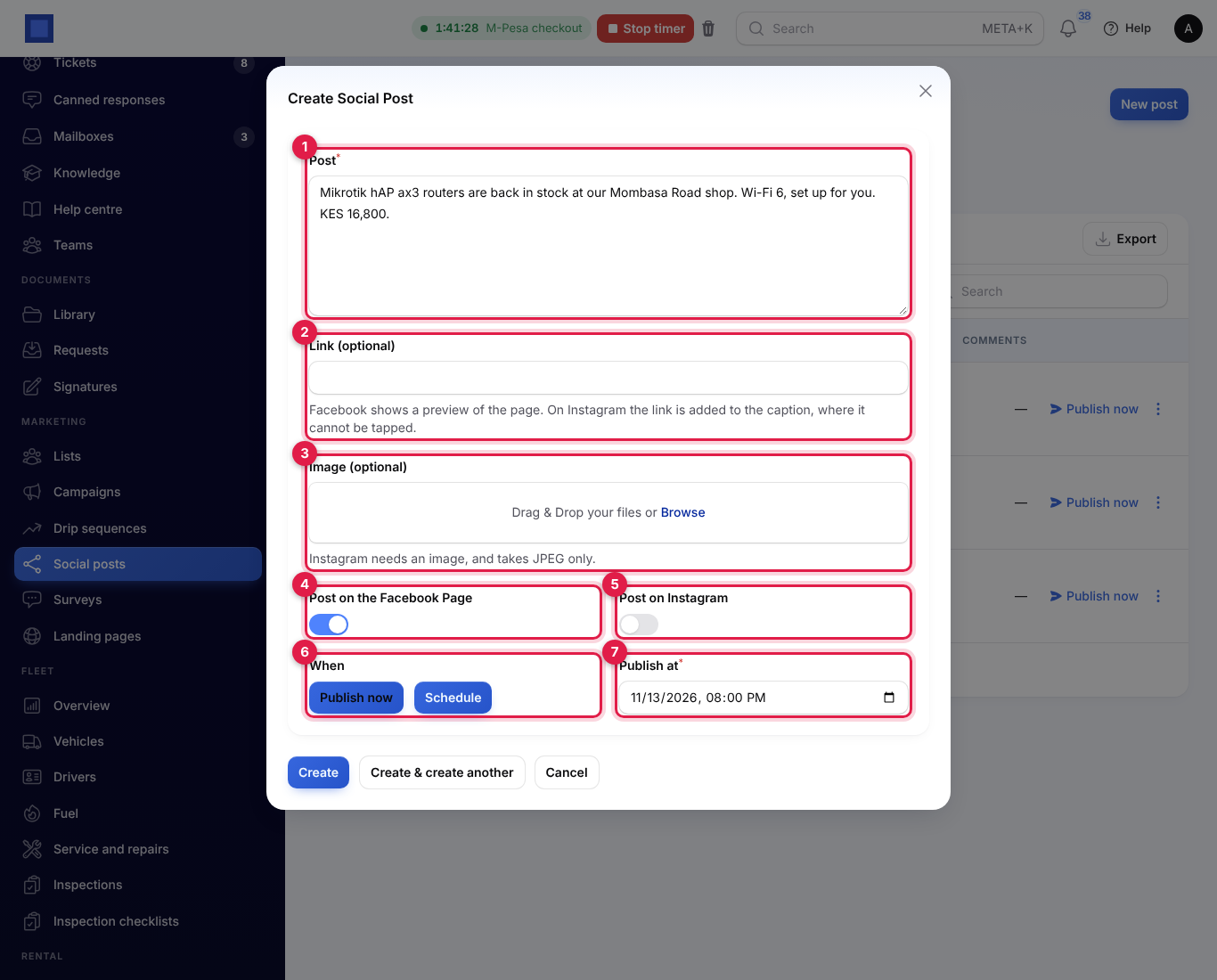
- Open Marketing → Social posts and press New post (marker 2 in the list screenshot below).
- Write the Post (marker 1), up to 2,200 characters.
- Add a Link (marker 2) if you like. Facebook shows a preview of the page. On Instagram the link is added to the end of the caption, where it cannot be tapped.
- Add an Image (marker 3) if you like: a JPEG or PNG photo, up to 8 MB.
- Choose where it goes: Post on the Facebook Page (marker 4), on by default once the Page is connected, and Post on Instagram (marker 5).
- Under When (marker 6), choose Publish now or Schedule. With Schedule, set Publish at (marker 7); it starts at the next full hour and cannot be in the past.
- Press Create.
What you see next:
- Post published: it is on Facebook and Instagram.
- Post scheduled for and the time: it goes out then.
- The post could not be published, with the reason. The message stays until you close it, and the post is listed under Failed (see When a post fails).
Before saving, NaliSuite checks the post and tells you what to fix:
| Message | What to do |
|---|---|
| Choose Facebook, Instagram or both. | Switch on at least one. |
| Instagram posts need an image. | Add an image, or switch Instagram off. |
| Instagram takes JPEG images only. | Save the picture as a JPEG and add it again. |
| Connect your Facebook Page first in Preferences → Facebook and Instagram. | See Connect your Facebook Page and Instagram. |
A post with an image goes on Facebook as a photo with your text, and the link at the end of the text. A post without an image goes on Facebook as a text post with the link preview.
The tabs
Marketing → Social posts has four tabs (marker 1):
| Tab | Shows |
|---|---|
| Scheduled | Posts waiting for their time, soonest first. The number counts them. This tab opens first. |
| Published | Posts that went out, newest first. |
| Failed | Posts that could not go out on every network you chose. The red number counts them. |
| All | Everything. |
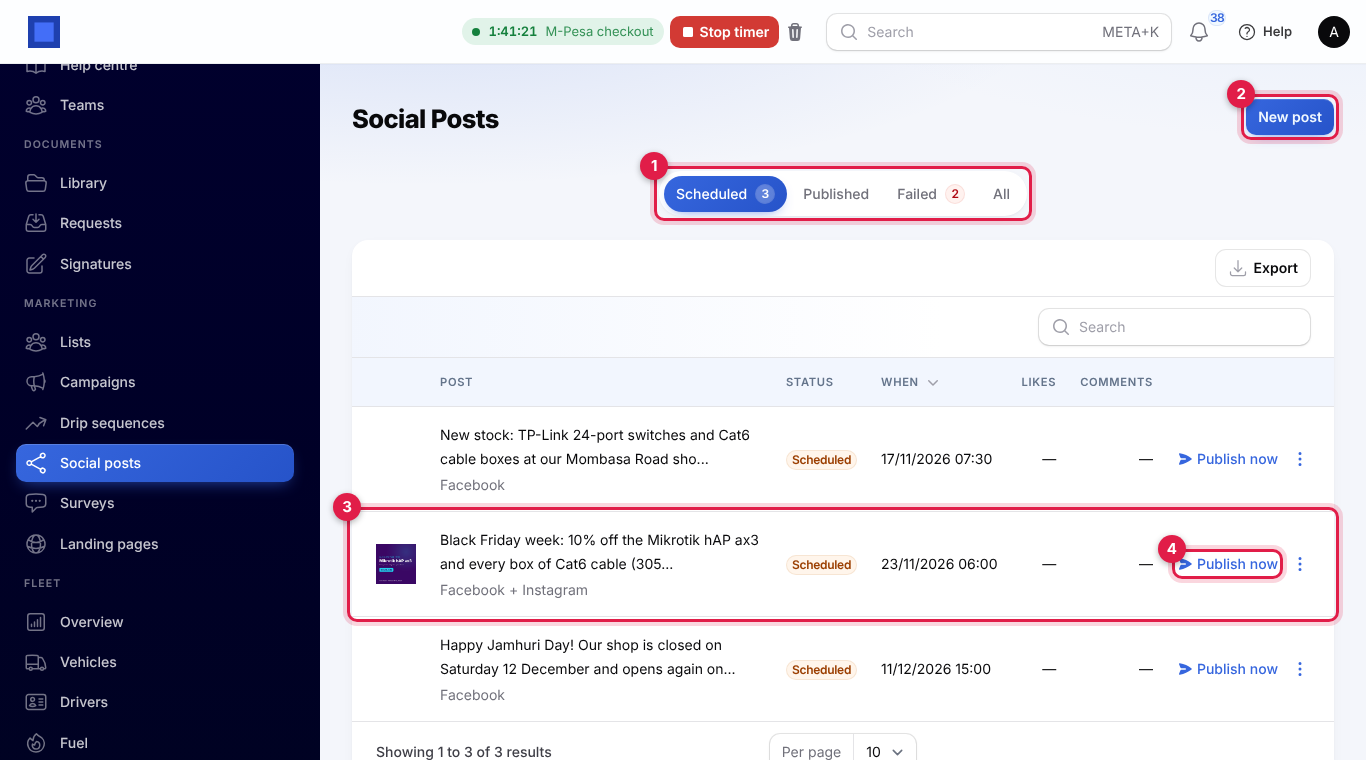
Each row (marker 3) shows the image, the start of the post with the networks and the link under it, the Status, When (the time it went out, or the time it is due), and the Likes and Comments (Facebook and Instagram added together; — until they have been read).
On a scheduled post:
- Publish now (marker 4) sends it straight away instead of waiting. Confirm when asked.
- The ⋮ menu has Edit and Delete. Edit lets you change the text, link, image, networks and Publish at; saving schedules the post afresh.
Scheduled posts are sent automatically, within about five minutes of their Publish at time, while the Marketing app is on.
When a post fails
If Facebook or Instagram refuses a post, it moves to the Failed tab with the reason under Failed (marker 1), for example "Instagram: Facebook said: Media download has failed." The reason starts with the network that refused the post.
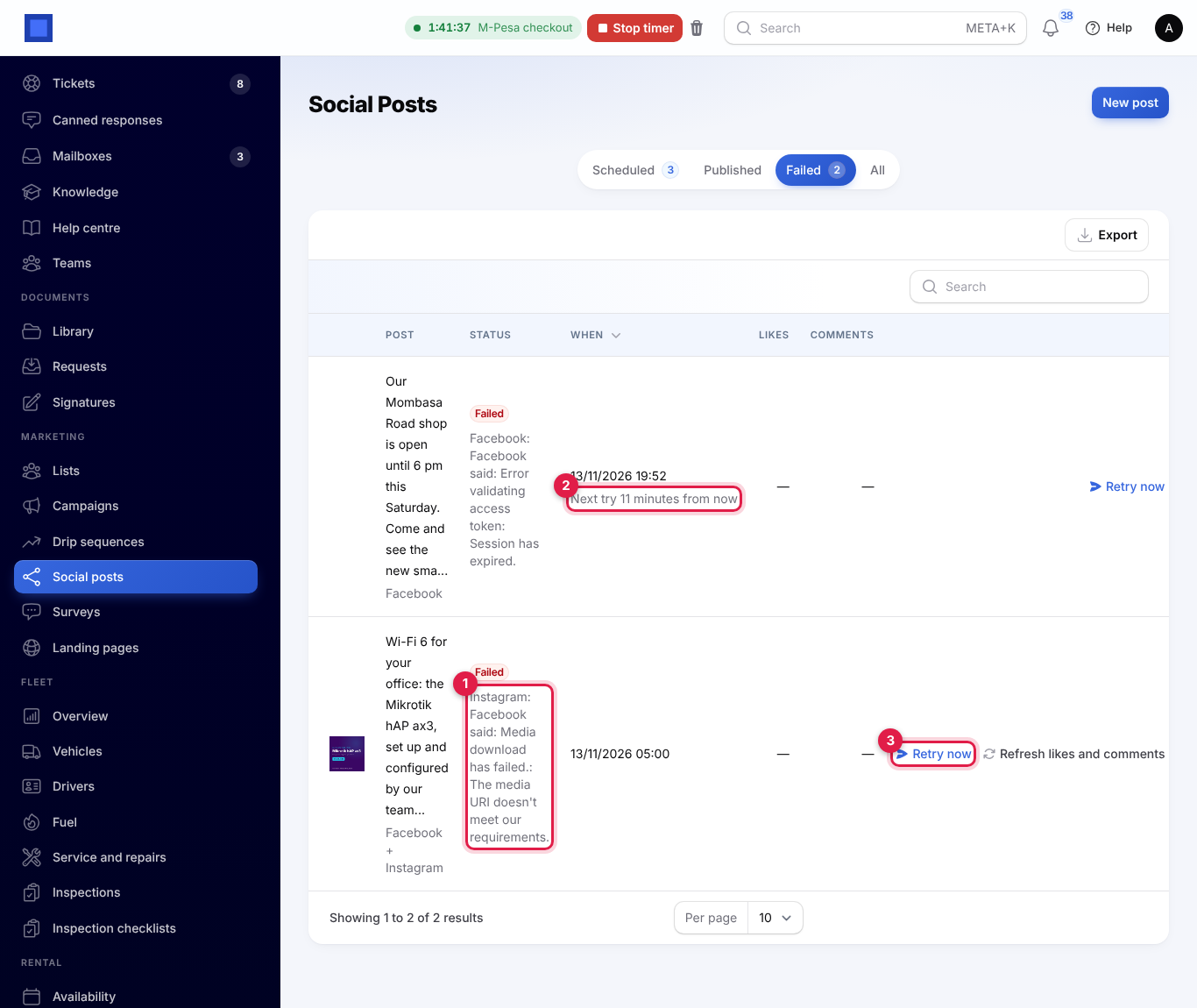
- NaliSuite tries again by itself: 15 minutes after the first failure, then 30 minutes after the second. Next try (marker 2) shows when.
- After three tries it stops and waits for you. Fix the cause, then press Retry now (marker 3). Each Retry now counts as a try.
- A network that already worked is never posted to twice. If a post went on Facebook but Instagram refused it, only Instagram is tried again. Refresh likes and comments already works for the Facebook post.
- You can also Edit a failed post from the ⋮ menu, for example to change the image. Saving schedules it afresh and starts the tries again.
Common reasons:
| Reason | What to do |
|---|---|
| Error validating access token or Session has expired | The page access token expired. Make a new one and paste it on Settings → Preferences → Facebook and Instagram. |
| Media download has failed | Instagram could not fetch the image. Check that your workspace is reachable from the internet, then retry. |
| A missing permission | The token lacks pages_manage_posts or instagram_content_publish. Make a token with them. |
| Could not reach Facebook | A connection problem. The automatic tries usually deal with it. |
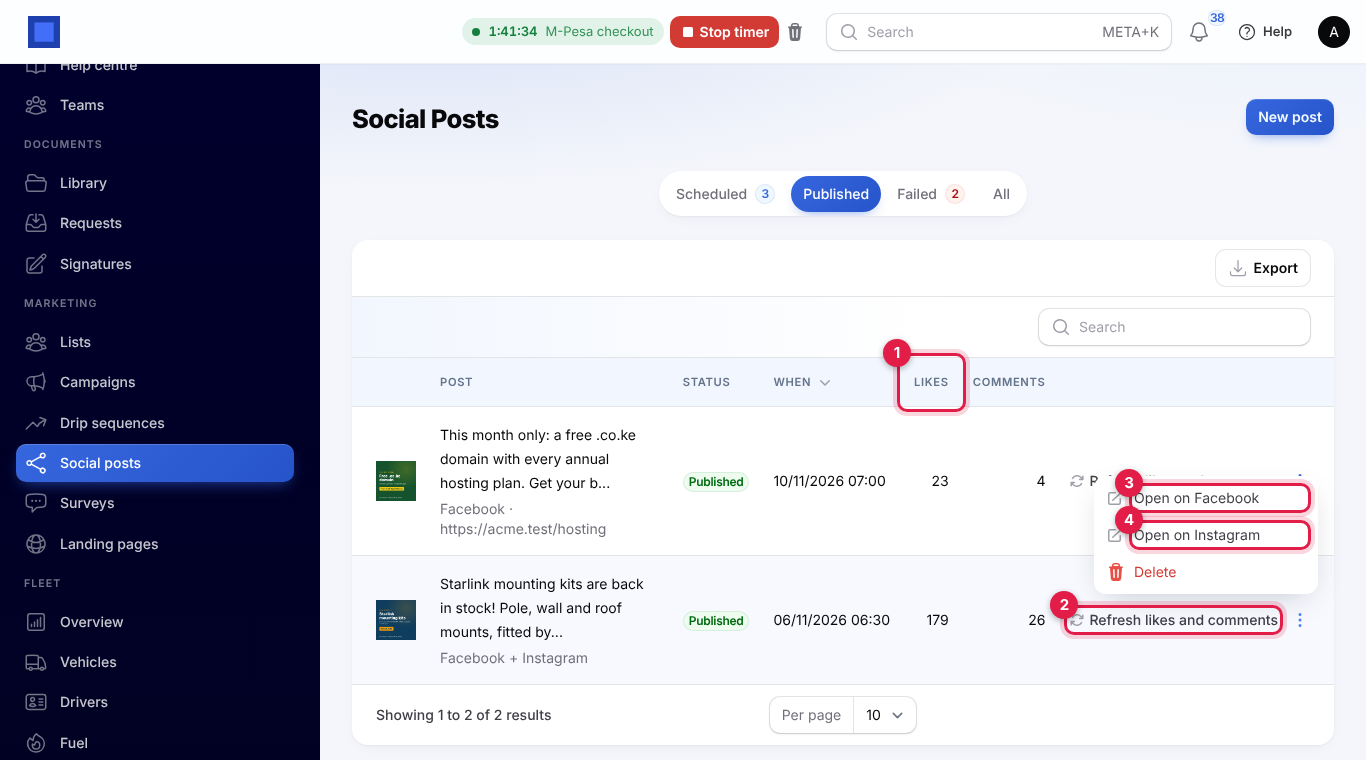
Likes and comments
On the Published tab:
- Press Refresh likes and comments (marker 2) on a post. NaliSuite reads the latest numbers from Facebook and Instagram, and you see "Likes and comments updated".
- The Likes and Comments columns (marker 1) show the totals for both networks.
The numbers are read only when you press the button, not by themselves.
The ⋮ menu has Open on Facebook (marker 3) and Open on Instagram (marker 4), to see the post and answer comments there, and Delete.
Good to know
Can I change a post after it is published? No. Edit it on Facebook or Instagram. Edit is only offered on posts that have not gone out.
What does Delete do? It removes the post from this list only. Anything already published stays on Facebook and Instagram.
Why is Post on Instagram greyed out? The Instagram account ID is missing on Settings → Preferences → Facebook and Instagram.
Can I post a video or several pictures? No. A post has one picture at most.
What if the Marketing app is switched off? Scheduled posts are not sent while it is off. Switch it on again and posts whose time has passed go out within about five minutes.
Where do comments and messages from customers go? Comments stay on Facebook and Instagram; use Open on Facebook or Open on Instagram to answer them. Direct messages can become helpdesk tickets: see Live chat, Messenger and Instagram.