Cleaning Services
Cleaning Services is for cleaning companies that look after homes, offices, clinics and blocks of flats. You keep a price list of cleaning services and add-ons; record each client site with its address, how to get in and a checklist for every room or area; agree recurring contracts that plan the visits weeks ahead; and give each visit to a crew of cleaners. The crew board shows each day's work and warns you when a crew is booked twice or a cleaner is on leave. On the day, the crew check in on their phones, tick off each area with before and after photos, record the supplies they used and any problems, and the client signs on the phone. Supervisors audit the quality of the work, contracts are invoiced every month, and clients follow their visits in the customer portal.
It is in the Cleaning group of the left menu: Crew board, Visits, Sites, Contracts, Crews, Services and add-ons, Issues, Quality audits and Audit scores. Cleaners use Me → My cleaning visits on their phones.
Note: Three permissions control the app (under Settings → Roles). cleaning.view lets someone see the crew board, visits, sites, contracts, crews, issues, audits and scores. cleaning.manage lets them set up services, sites, crews and contracts, book and change visits, resolve issues, run audits and bill. cleaning.crew gives a cleaner the My cleaning visits phone screen. Owners and admins have all three; the member role has cleaning.view only, so give your cleaners a role with cleaning.crew (see Roles and permissions).
Switch it on
Cleaning Services is a marketplace add-on. It needs the Contacts, HR and Invoicing apps: cleaners are HR employees, and visits and contracts are invoiced through Invoicing. With Inventory on, the supplies a crew uses are taken out of stock.
- Open Settings → Marketplace and type Cleaning services in the Search add-ons… box (marker 1).
- On the Cleaning services card (marker 2), click Start free trial (or Add to subscription) and confirm. The Cleaning group appears in the menu, and My cleaning appears in the customer portal for clients with a site.
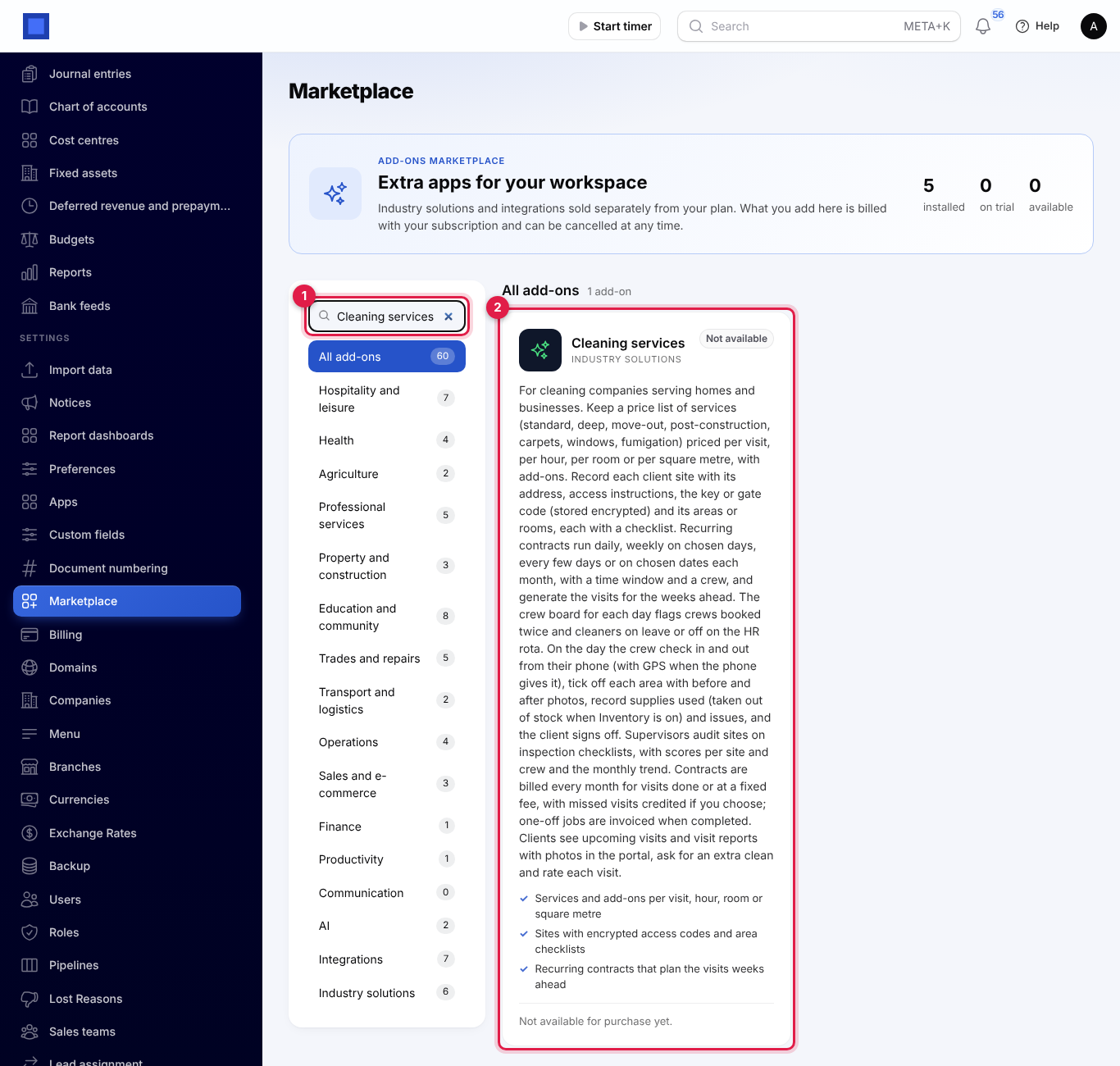
If the card says Not available for purchase yet (as in the screenshot), the add-on has not been priced for your plan: ask NaliSuite support to switch it on. See Billing and marketplace.
Cleaning settings
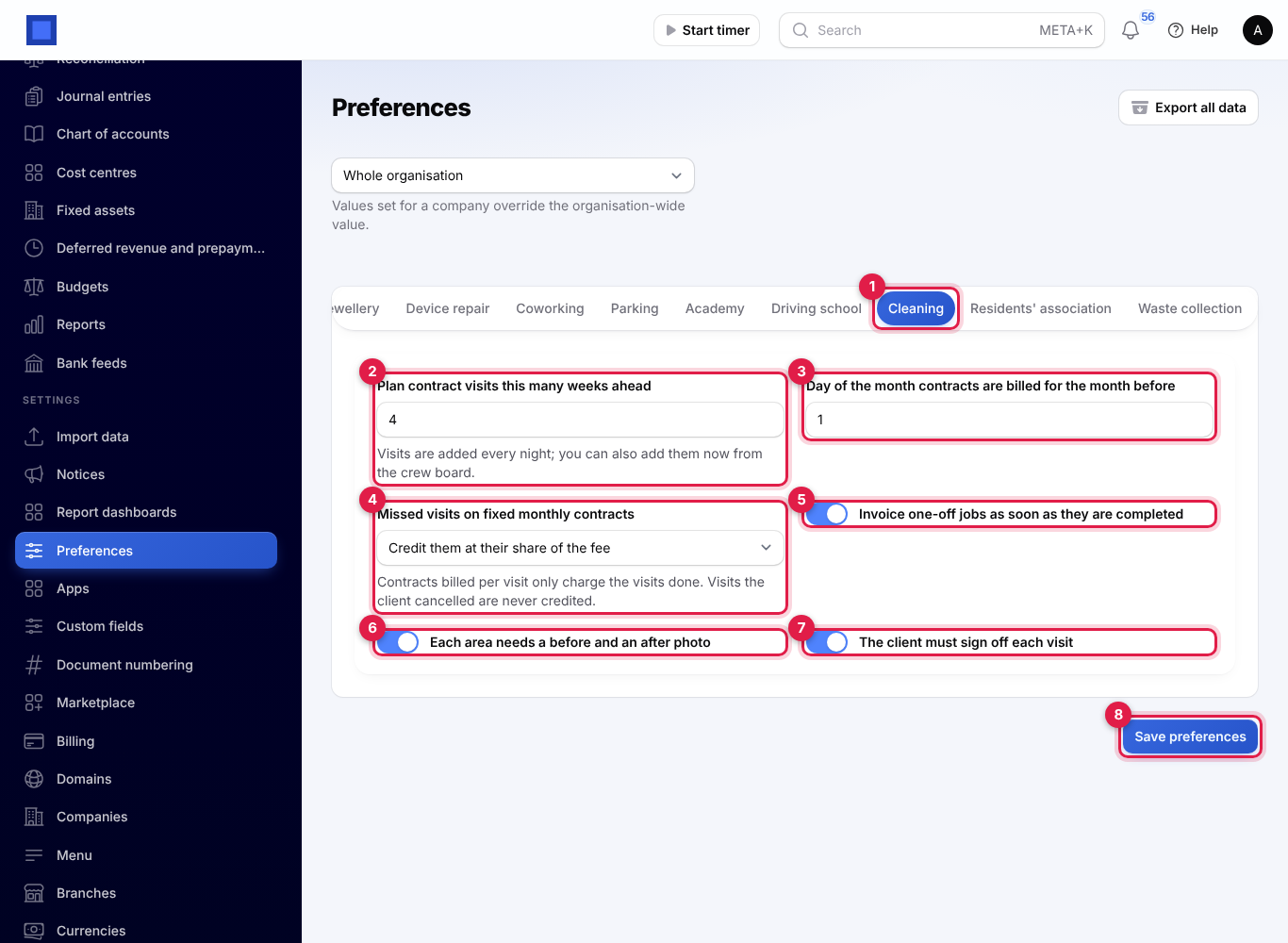
- Open Settings → Preferences and click the Cleaning tab (marker 1).
- Change what you need and click Save preferences (marker 8).
| Setting | Default | What it does |
|---|---|---|
| Plan contract visits this many weeks ahead (marker 2) | 4 | How far ahead visits are created from your contracts (1 to 12 weeks). New visits are added every night; you can also add them straight away with Plan contract visits now on the crew board. |
| Day of the month contracts are billed for the month before (marker 3) | 1 | From this day (1 to 28), every active contract is invoiced for last month. See Monthly billing. |
| Missed visits on fixed monthly contracts (marker 4) | Credit them at their share of the fee | Credit them at their share of the fee takes each missed visit off the monthly fee, or Charge the full fee. Contracts billed per visit only ever charge the visits done, and visits the client cancelled are never credited. |
| Invoice one-off jobs as soon as they are completed (marker 5) | On | A one-off job (or an extra clean a client asked for) is invoiced the moment the crew sign it off. Off: you invoice it yourself with Invoice the job. |
| Each area needs a before and an after photo (marker 6) | On | The crew cannot finish a visit until every area has at least one before and one after photo. |
| The client must sign off each visit (marker 7) | On | The crew cannot finish a visit without the client's name and signature on the phone. |
The dropdown at the top of Preferences lets one company use different settings from the rest of the organisation.
Services and add-ons
Your price list holds each kind of clean you sell and the add-ons that go with them, such as Inside the oven or Ironing.
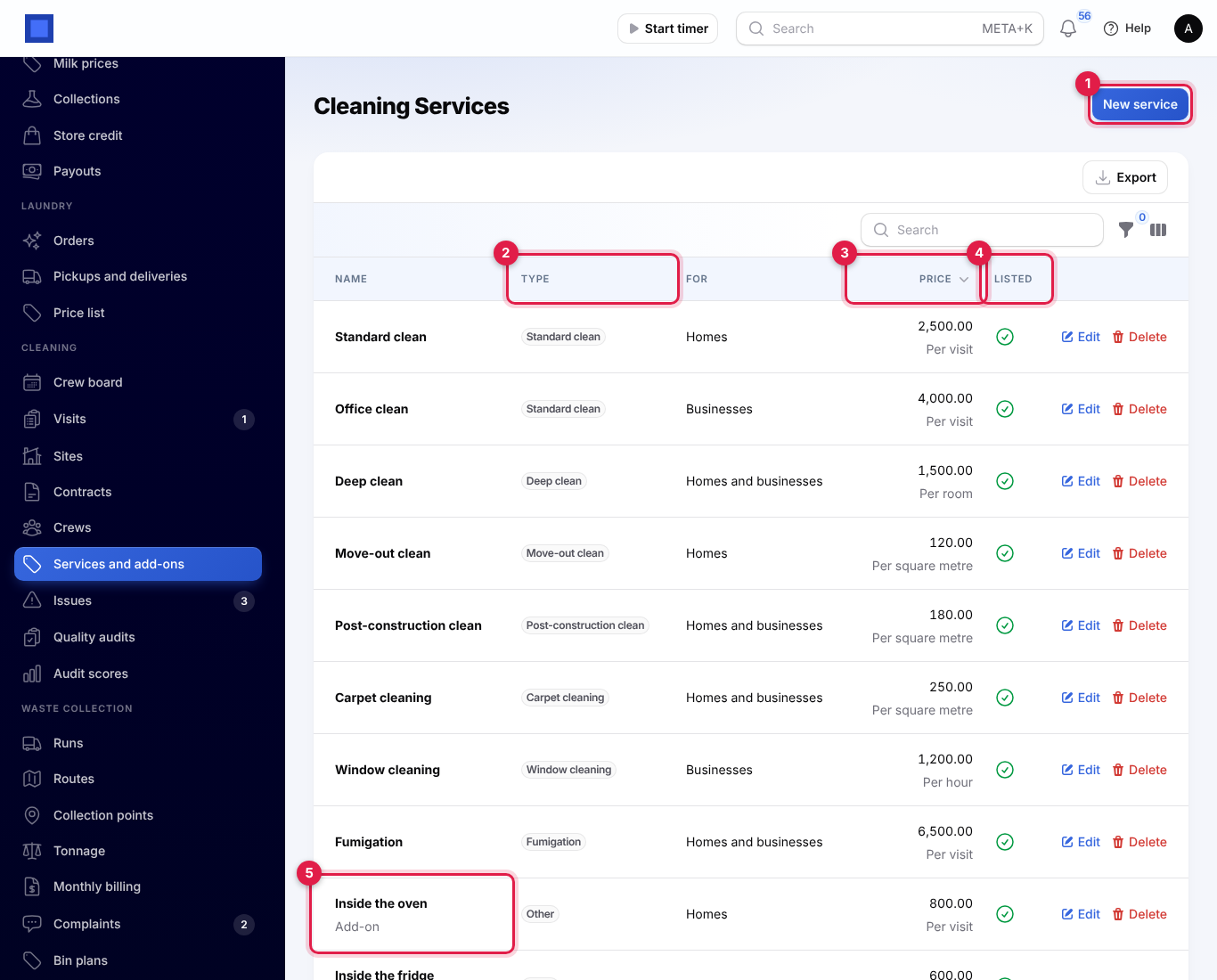
- Open Cleaning → Services and add-ons and click New service (marker 1). The list shows each service's Type (marker 2), its Price with how it is charged underneath (marker 3), and whether it is Listed (marker 4). Add-ons say Add-on under their name (marker 5).
- Fill in the window and click Create:
| Field | What to enter |
|---|---|
| Name (required) | For example Deep clean or Office clean. |
| Add-on | On for something sold with a service rather than on its own. Add-ons cannot be booked by themselves. |
| Type of clean (required) | Standard clean, Deep clean, Move-out clean, Post-construction clean, Carpet cleaning, Window cleaning, Fumigation or Other. |
| For (required) | Homes and businesses, Homes or Businesses. For your own reference. |
| Priced (required) | Per visit (a flat price), Per hour, Per room or Per square metre. |
| Price (required) | The price per visit, hour, room or square metre. |
| Usually takes (minutes) | For your reference. |
| Order in the list | Lower numbers come first. |
| What is included | A short description. |
| On the price list | Off to stop offering the service on new contracts, jobs and the portal without deleting it. |
How a visit is priced: the service's price times the hours, rooms or square metres, plus each add-on. An add-on priced per visit is added once; an add-on priced per hour, room or square metre is multiplied by the same quantity as the service. For example, a deep clean of 4 rooms at 1,500 with the oven at 800 is 6,800.
Sites and their checklists
A site is a place you clean for a client: a flat, a house, an office floor, a clinic.
- Open Cleaning → Sites and click Add a site. Choose the Client (a contact), type the Site name and choose the Type (Home or Business premises), then click Create. The site's page opens.
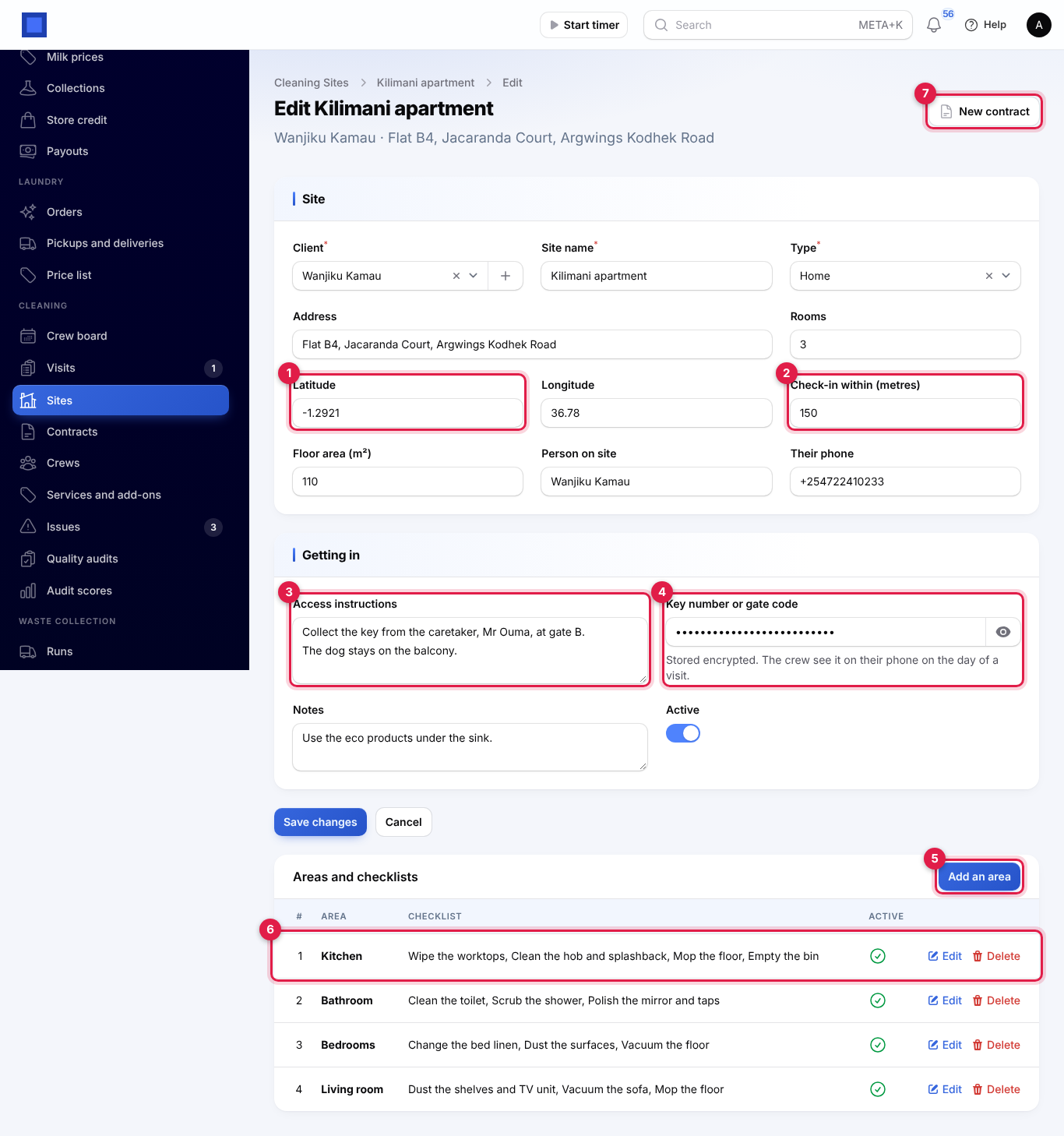
- Fill in the rest of the site and click Save changes.
| Field | What to enter |
|---|---|
| Address, Rooms, Floor area (m²) | Rooms and floor area are used to price extra cleans clients ask for in the portal. |
| Latitude and Longitude (marker 1) | The site's position, copied from a map. With them, the crew's check-in records how far away they were. |
| Check-in within (metres) (marker 2) | Default 200 (20 to 5,000). A crew checking in further away than this is flagged to the office. |
| Person on site and Their phone | Shown to the crew with a Call button. |
| Access instructions (marker 3) | How to get in, for example Collect the key from the caretaker at gate B. The crew see it on every visit. |
| Key number or gate code (marker 4) | Stored encrypted and hidden on screen (click the eye to show it). The crew see it on their phone only on the day of a visit. |
| Notes, Active | Inactive sites cannot be chosen for new contracts or jobs. |
Areas and checklists
Under Areas and checklists, each room or area of the site (marker 6) has its own checklist that the crew tick off on every visit.
- Click Add an area (marker 5).
- Type the Area or room (Kitchen), its Order, and the Checklist: one line per job (Wipe the worktops, Mop the floor), with Add an item for more. Drag items to reorder them.
- Leave Active on and click Create.
Changes to a checklist apply to visits that have not started yet; a visit takes its areas and checklists from the site when the crew check in.
New contract (marker 7) starts a contract with this site already chosen.
Crews
A crew is a team of cleaners who go out together. Cleaners are HR employees (see HR).
- Open Cleaning → Crews and click New crew.
- Type the Crew name (Crew A), choose the Team leader and the Cleaners (active HR employees), leave Active on and click Create.
The list shows each crew's team leader and cleaners. To let a cleaner use My cleaning visits, their HR employee record must be linked to their NaliSuite user, and the user needs the cleaning.crew permission.
Contracts
A contract is a recurring arrangement with a client: what is cleaned, how often, when, by which crew, and how it is billed. Contracts are numbered CLC-2026-0001 and so on.
- Open Cleaning → Contracts and click New contract, or click New contract on a site.
- Fill in the three sections and click Create. The visits for the weeks ahead are planned straight away and the contract opens.
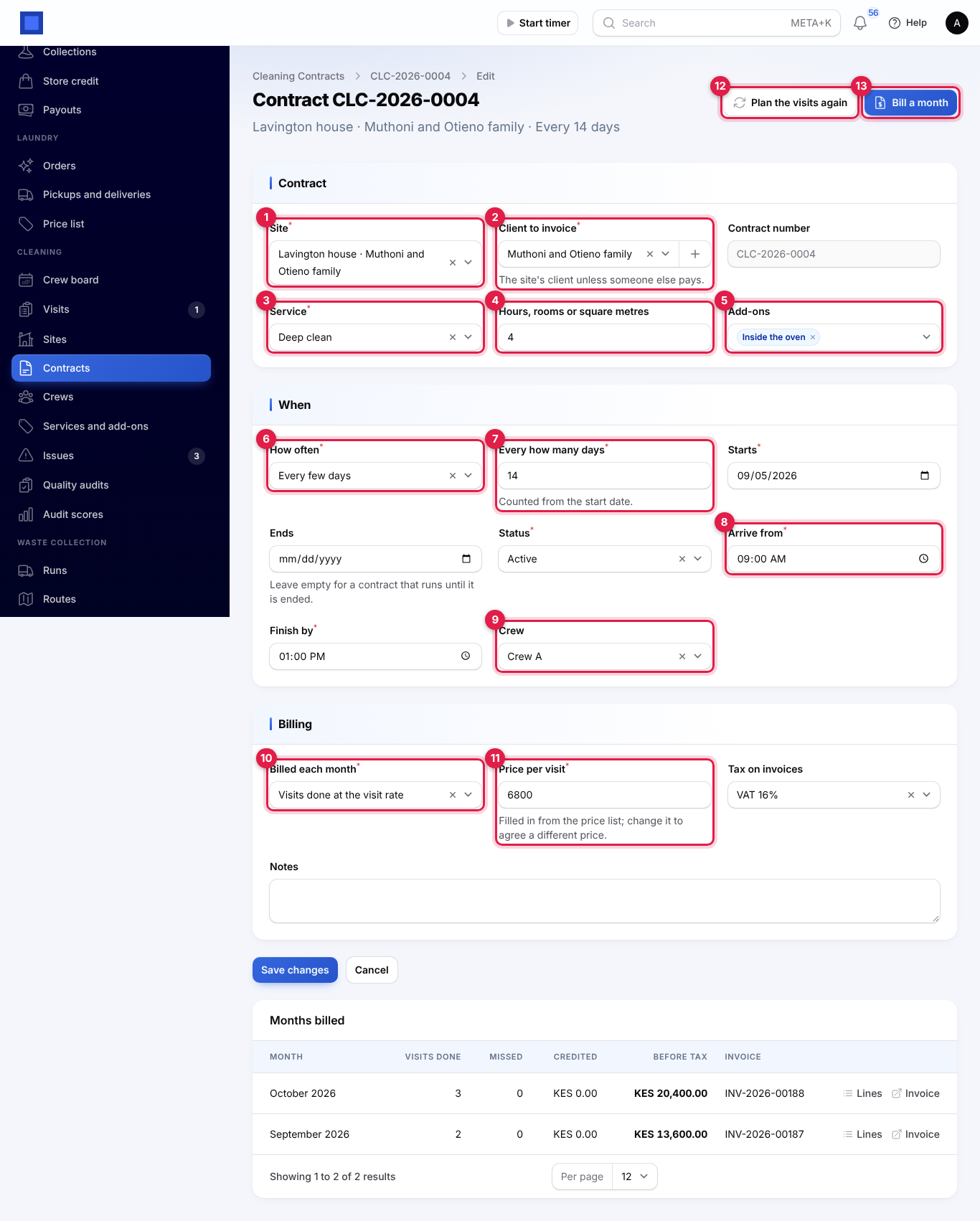
Contract
| Field | What to enter |
|---|---|
| Site (required, marker 1) | The site to clean. The client is filled in from it. |
| Client to invoice (required, marker 2) | The site's client, unless someone else pays (a landlord, a head office). |
| Service (required, marker 3) | A service from the price list (not an add-on). |
| Hours, rooms or square metres (marker 4) | Shown for services not priced per visit. |
| Add-ons (marker 5) | Any add-ons done on every visit. |
When
| Field | What to enter |
|---|---|
| How often (required, marker 6) | Every day; Weekly, on certain days (tick the days under On these days); Every few days (marker 7, Every how many days, 2 to 90, counted from the start date); or Monthly, on certain dates (pick the dates; a date the month does not have, such as the 31st, falls on its last day). |
| Starts (required), Ends | Leave Ends empty for a contract that runs until you end it. |
| Status | Active or Ended. Ended contracts plan no more visits. |
| Arrive from and Finish by (required, marker 8) | The time window of each visit, on your company's clock. A finish time earlier than the start runs into the next morning (for night cleaning). |
| Crew (marker 9) | The crew who do the visits. Leave empty to give each visit a crew later. |
Billing
| Field | What to enter |
|---|---|
| Billed each month (required, marker 10) | Visits done at the visit rate, or A fixed monthly fee. |
| Price per visit (required, marker 11) | Filled in from the price list when you choose the service, quantity and add-ons; change it to agree a different price. |
| Fixed fee per month | Shown for a fixed monthly fee. |
| Tax on invoices | Your default tax is filled in, for example VAT 16%. |
| Notes | For the office. |
Change a contract
Edit the contract and click Save changes. Saving does not change visits already planned. To apply new days, times, a new crew or a new price to them, click Plan the visits again (marker 12) and confirm: visits from today on that have not started are replaced by visits planned from the contract as it is now. You see, for example, 24 visits planned.
To stop a contract, set Ends (or Status to Ended) and click Plan the visits again.
Bill a month (marker 13) invoices the contract for a month now; see Monthly billing.
The crew board
Open Cleaning → Crew board to see one day's work, crew by crew. It opens on today.
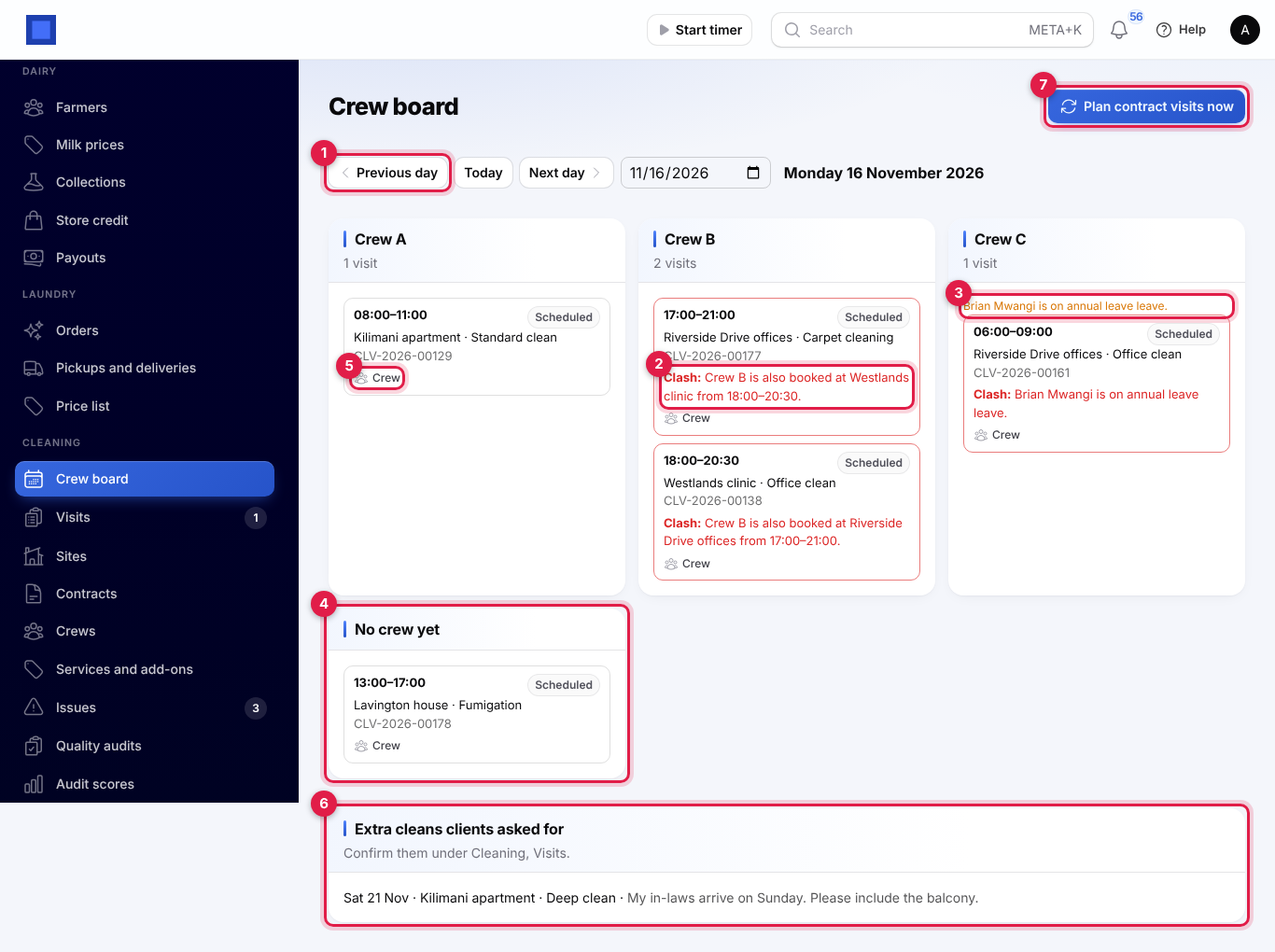
- Previous day, Today, Next day and the date box (marker 1) move between days.
- Each active crew has a column with its visits in time order: the time window, status, site, service and visit number.
- Clash (marker 2), in red: the crew, or one of its cleaners, is booked on another visit at the same time. The visit's border turns red.
- In amber at the top of a crew (marker 3): a cleaner on approved leave that day, or marked off on the staff rota. The same is shown as a clash on each of the crew's visits.
- No crew yet (marker 4): visits that still need a crew.
- Crew (marker 5), on a scheduled visit: give it to another crew. The change is saved even when it clashes, and you are told what it clashes with.
- Extra cleans clients asked for (marker 6): requests from the portal waiting for you. Confirm them under Cleaning → Visits (see below).
- Plan contract visits now (marker 7) adds any missing contract visits for the weeks ahead without waiting for the night.
Visits and one-off jobs
Cleaning → Visits lists every visit, newest date first: contract visits, one-off jobs and extra cleans. Visits are numbered CLV-2026-00001 and so on. The number under Visits in the menu counts extra cleans waiting for you.
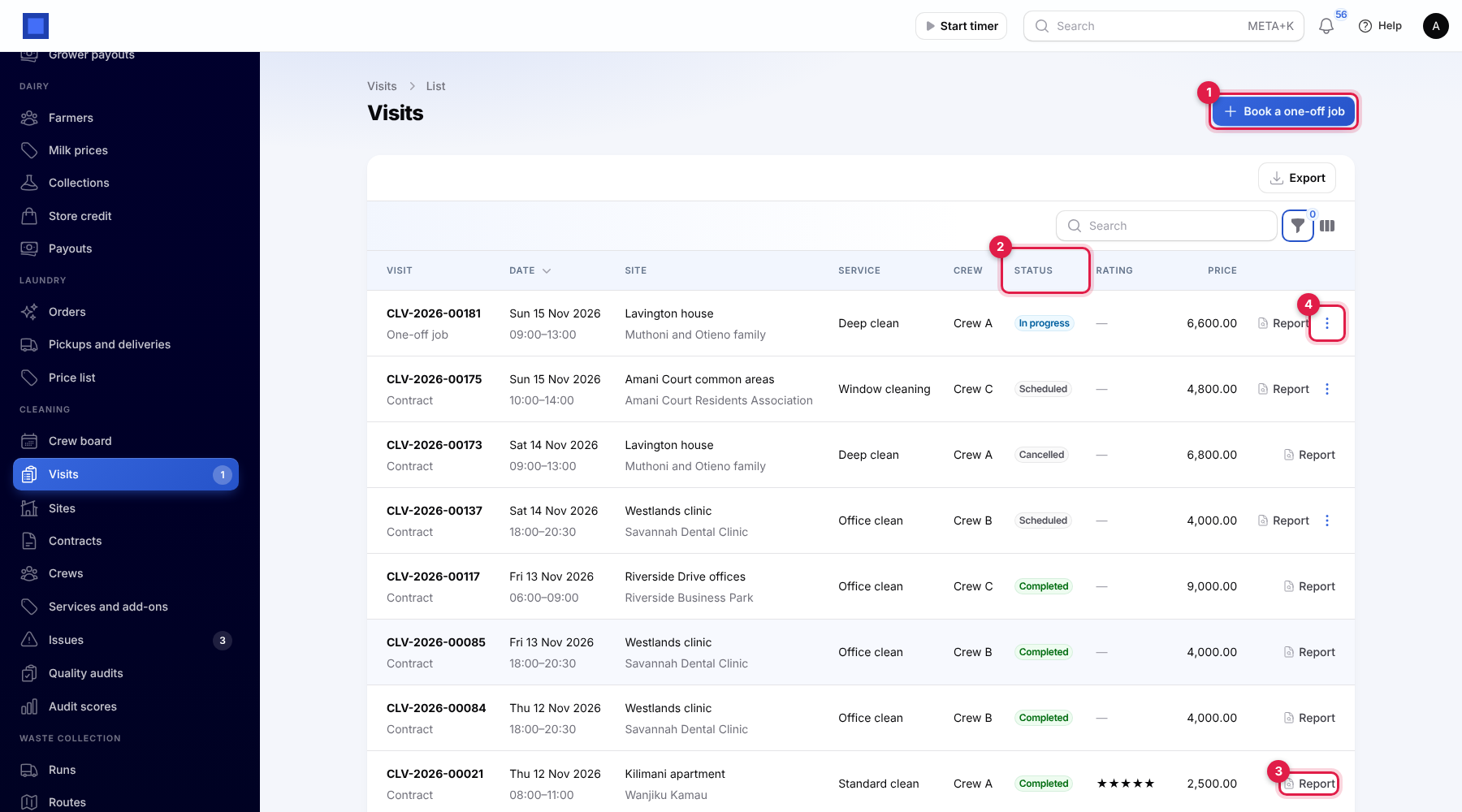
Under each number it says Contract, One-off job or Extra clean; under the date, the time window. The Status (marker 2) is one of:
| Status | Meaning |
|---|---|
| Requested by the client | An extra clean asked for in the portal, not confirmed yet. |
| Scheduled | Planned, waiting for the crew. |
| In progress | The crew have checked in. |
| Completed | Signed off and checked out. |
| Missed visit | Nobody came, with the reason. |
| Cancelled | Cancelled at the client's request. |
The table also shows the client's Rating in stars and the Price. Use the filter icon for Status, Crew, Site and From/Until dates (then Apply filters).
Book a one-off job
For a move-out clean, carpets or a fumigation outside any contract:
- Click Book a one-off job (marker 1).
- Choose the Site and Service, type the Hours, rooms or square metres (used when the service is not priced per visit), choose any Add-ons, the Date, Arrive from and Finish by, the Crew, and add Notes for the crew.
- Click Submit. You see, for example, Job CLV-2026-00128 booked for 10,800.00.
Report and actions
Report (marker 3) opens what happened on the visit (see The visit report). The ⋮ menu (marker 4) holds the actions that fit the visit:
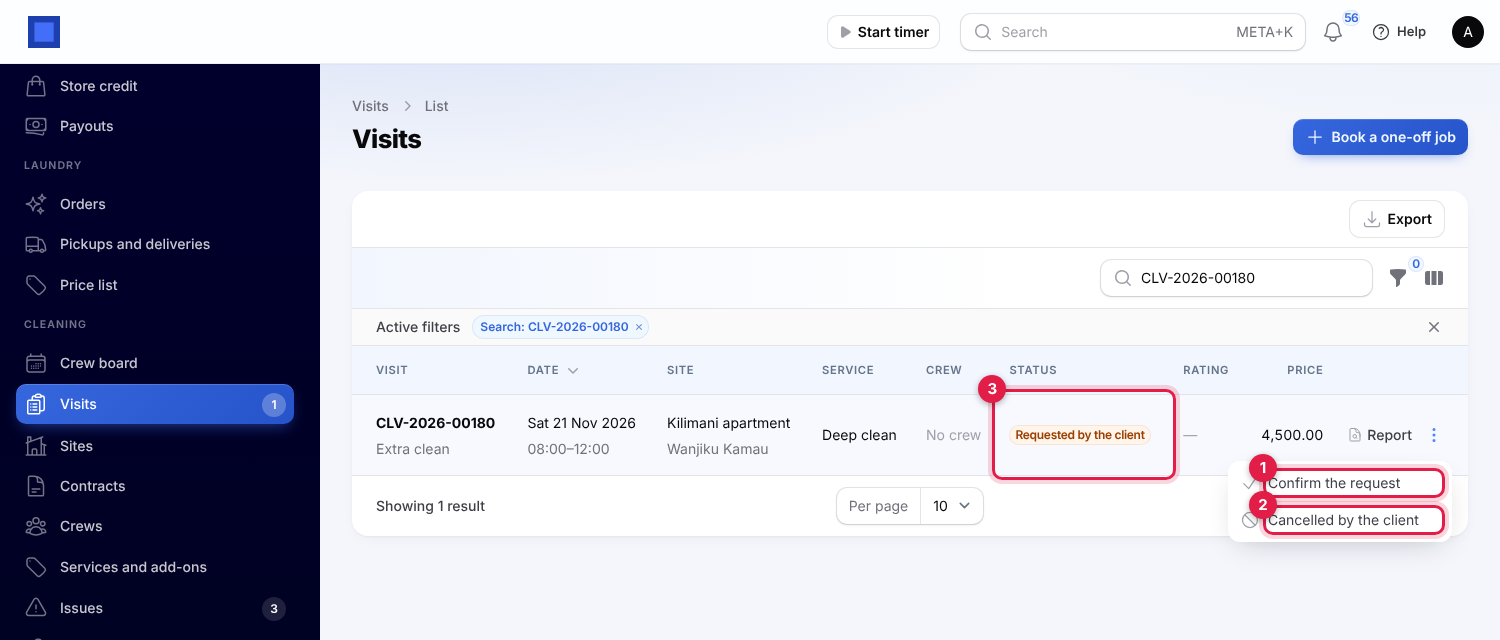
| Action | When | What it does |
|---|---|---|
| Confirm the request (marker 1) | Requested by the client (marker 3) | Choose the Date, Arrive from, Finish by and Crew. The visit becomes Scheduled: Extra clean confirmed. |
| Change the crew | Scheduled | Give the visit to another crew; clashes are shown. |
| Mark missed | Scheduled or in progress | Type Why it was missed. |
| Cancelled by the client (marker 2) | Scheduled or requested | With an optional Reason. A cancelled visit is not billed and not credited. |
| Invoice the job | A completed one-off job or extra clean not invoiced yet | Issues the invoice now (when automatic invoicing is off). |
| Open the invoice | The visit has an invoice | Opens it in Invoicing. |
Visits that nobody checked in to are marked Missed visit with the reason Nobody checked in. by the nightly run, a day after their window ended.
The visit report
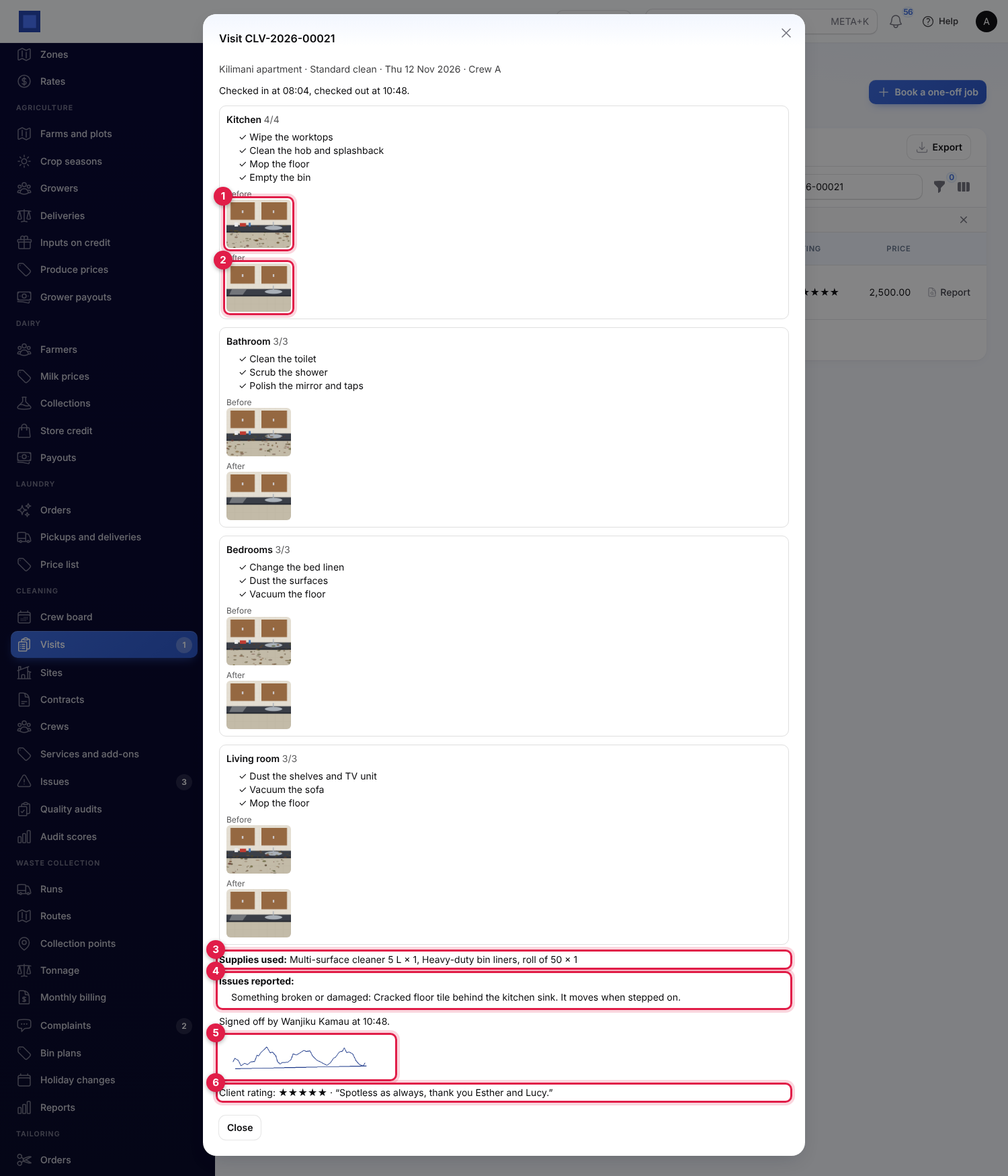
The report shows the check-in and check-out times (and, for staff, how far from the site the crew checked in if they were outside the check-in distance), each area with its ticked checklist and its Before (marker 1) and After (marker 2) photos (click a photo to open it full size), the Supplies used (marker 3), the Issues reported (marker 4), who signed it off and when with the signature (marker 5), and the Client rating with their comment (marker 6).
The crew's phone: My cleaning visits
Cleaners open Me → My cleaning visits on their phones. It shows their crew's visits from yesterday to six days ahead that are scheduled or in progress, and the visits finished today. Each card shows the site, the day and time window and the service, the address, a Call button for the person on site (marker 1), the access instructions, the Key or code (marker 2, only on the day of the visit) and the office's notes.
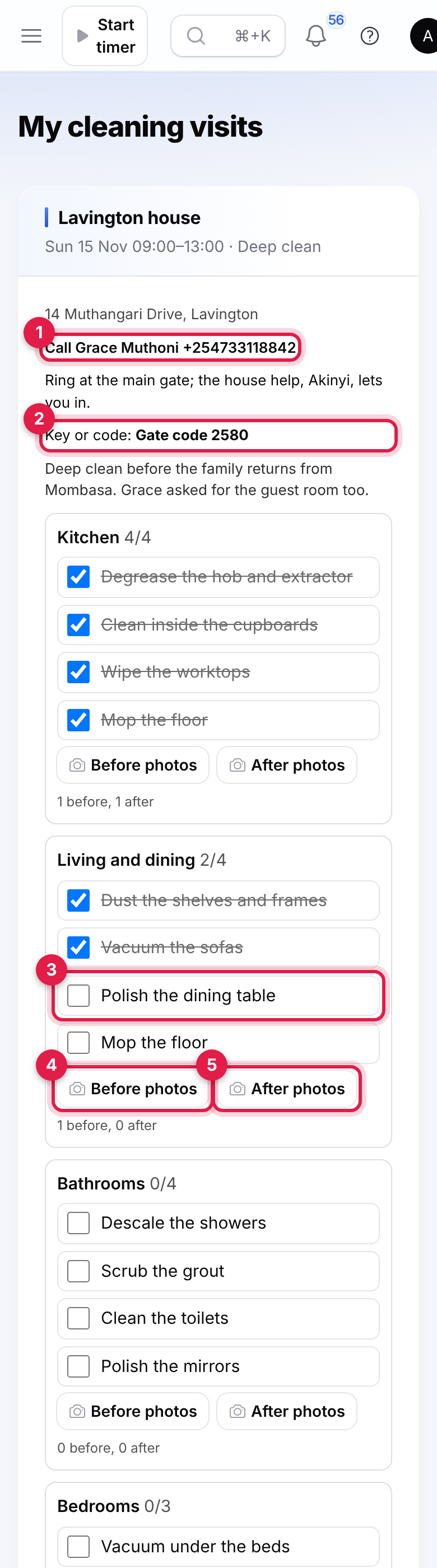
- At the site, tap Check in. The phone's position is recorded when the phone allows it. If the crew are further from the site than its check-in distance, they see Checked in. You seem to be away from the site; the office can see this. Check-in opens two hours before the visit's window.
- The site's areas appear, each with its checklist. Tap each job when it is done (marker 3); tap again to untick it. The count next to the area shows how many are done, for example 2/4.
- Tap Before photos (marker 4) and After photos (marker 5) for each area to take or choose up to six photos at a time. The line under the buttons counts them.
At the bottom of the visit:
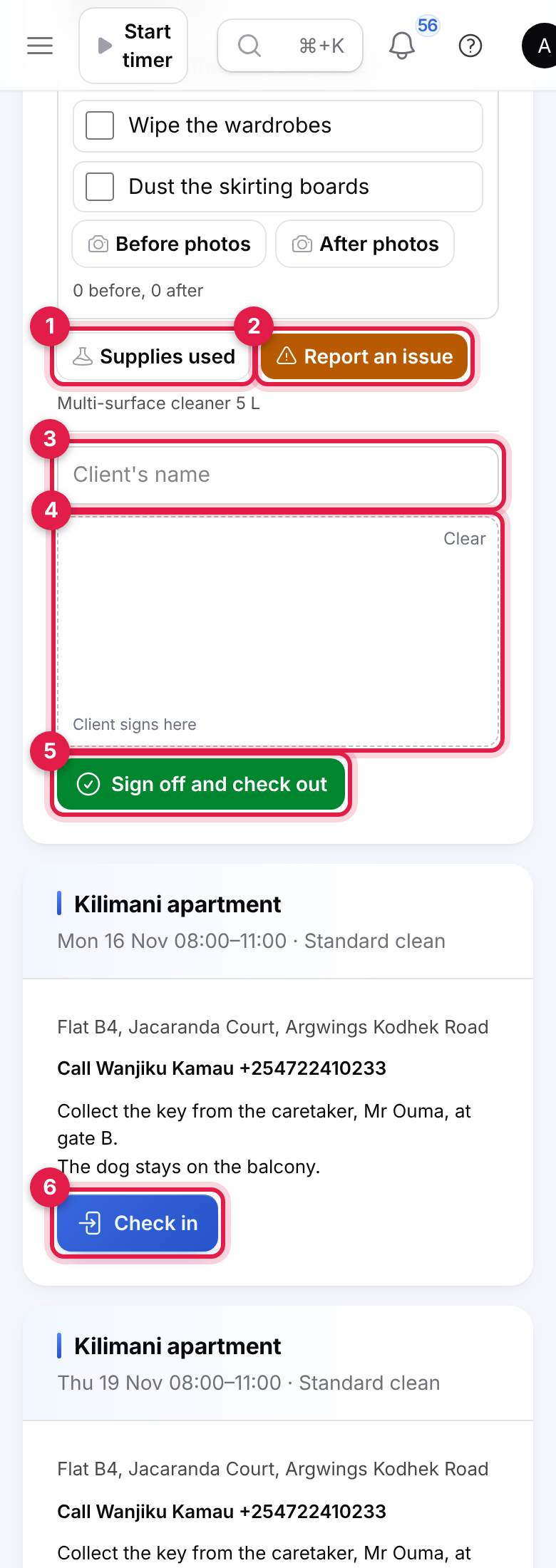
- Supplies used (marker 1): choose the Product and How much. Only products that track stock are offered; with Inventory on, the quantity is taken out of your main warehouse with the visit number as its reference. The products used are listed under the buttons.
- Report an issue (marker 2): choose What happened (Something broken or damaged, Could not get in, Supplies ran out, Safety problem or Other), type the Details and add up to four photos. The office sees it under Cleaning → Issues.
- Hand the phone to the client: they type their name under Client's name (marker 3) and sign with a finger in the box (marker 4). Clear starts the signature again.
- Tap Sign off and check out (marker 5). You see Visit completed. Thank you. and the visit shows Done. Signed off by ….
Signing off is refused until every job is ticked (Finish the checklist in Kitchen first.), and, when the settings ask for them, until each area has a before and after photo (Add a before and an after photo of Kitchen.) and the client has signed with their name. A one-off job is invoiced at once when that setting is on.
The next visit's Check in button (marker 6) is further down the screen.
Issues
Problems the crews report are listed under Cleaning → Issues, newest first, open ones only at first (marker 4, the filter icon, to see resolved ones or filter by type). The number in the menu counts open issues.
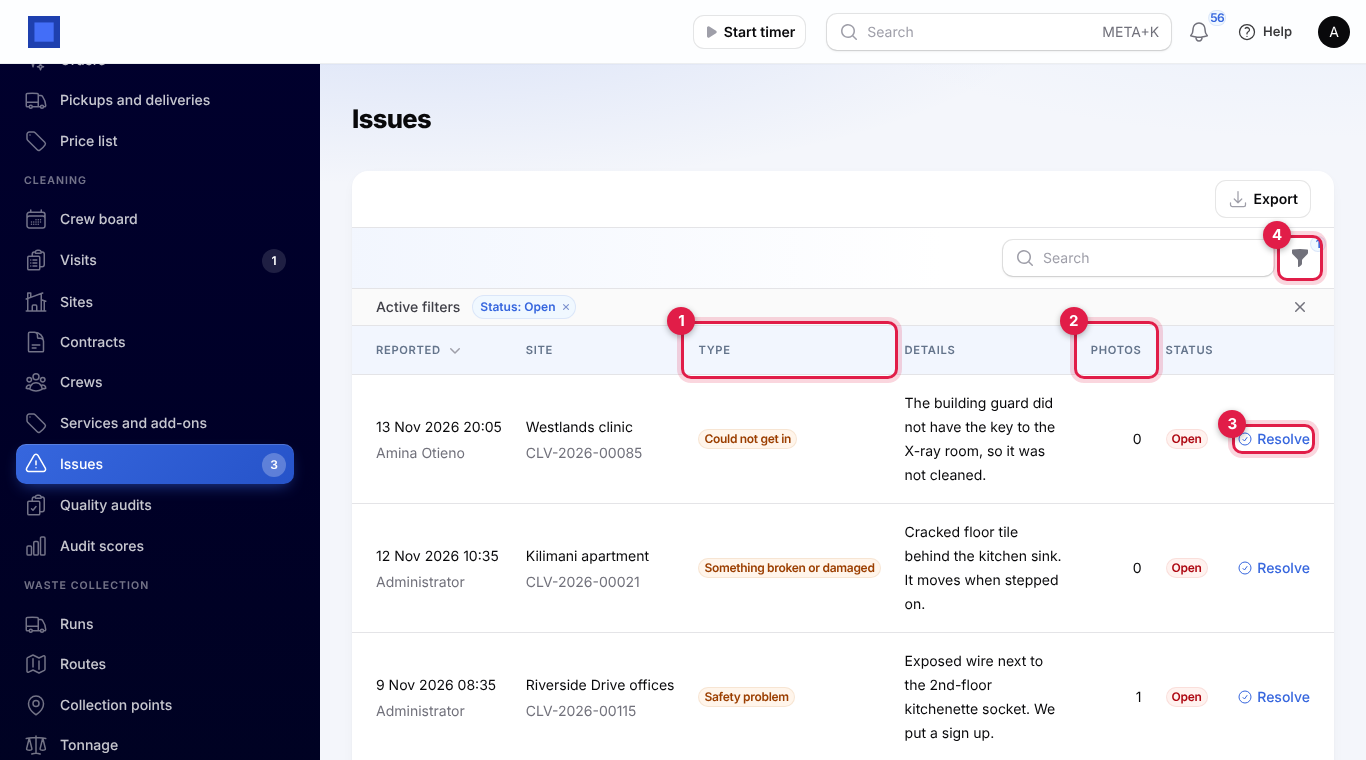
Each issue shows when and by whom it was reported, the site and visit number, the Type (marker 1), the details, and the number of Photos (marker 2; click it to open the first photo). Click Resolve (marker 3), type What was done and click Submit. The issue shows Resolved: … under its details, also in the visit report.
Quality audits
Supervisors check the quality of the work by walking a site with a checklist. Audits use the same checklists and phone screen as vehicle inspections (see Vehicle inspections); only checklists made for cleaning can be used.
Make an audit checklist
- Open Cleaning → Quality audits and click Audit checklists (marker 2), or open Inspection checklists in the menu (it sits under Fleet or Garage when one of those apps is on, otherwise under Cleaning).
- Click New inspection checklist, give it a Name (Office cleaning audit), set Used for to Cleaning quality audits, and add sections (Washrooms, Offices) with their items (Soap and paper full). Click Create.
Do an audit
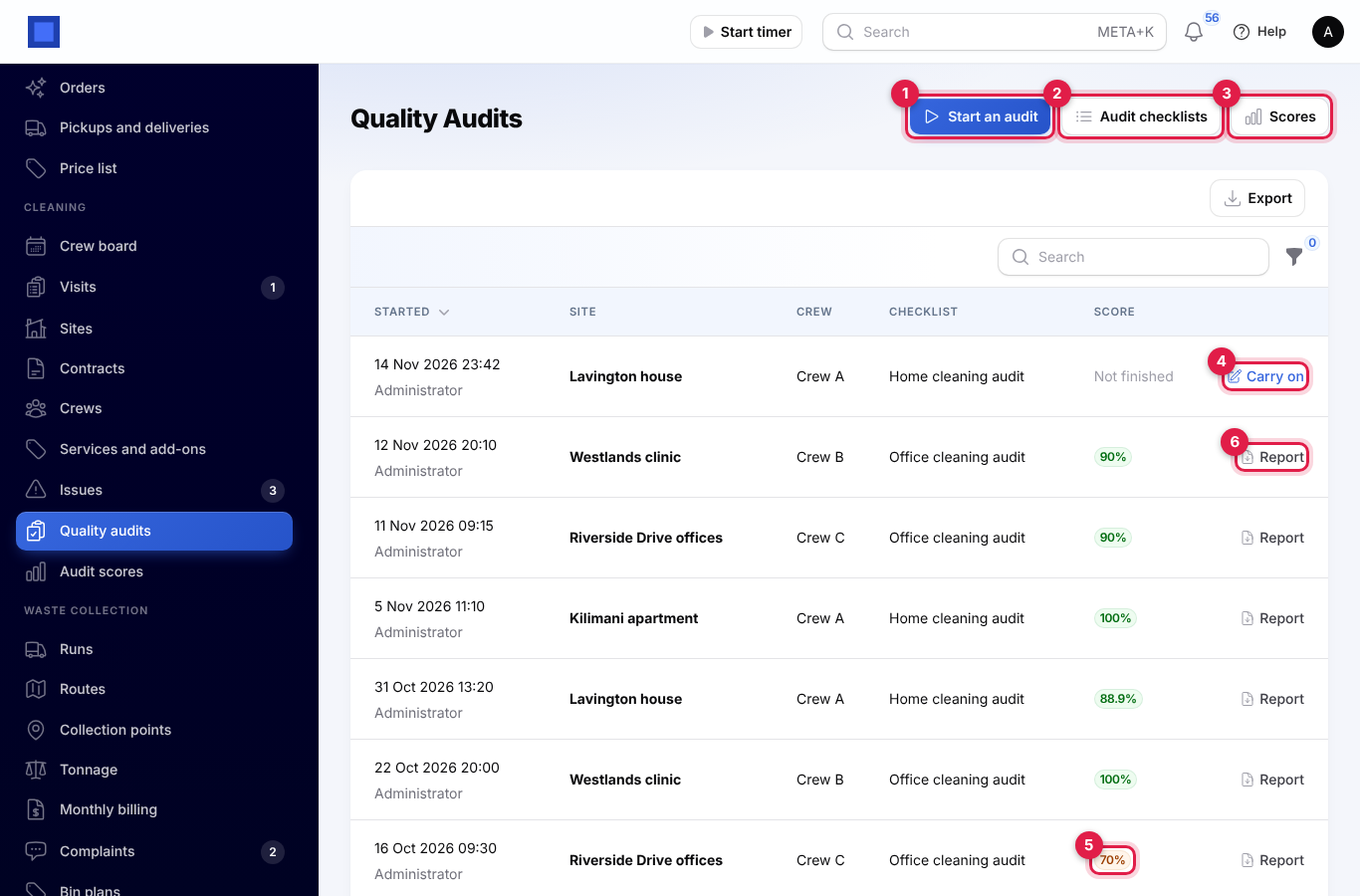
- Click Start an audit (marker 1). Choose the Site, the Checklist, the Crew audited and, if you like, the completed Visit being checked. Click Submit.
- The inspection screen opens. Answer each item Pass, Fail or Not applicable, add notes and photos, then sign off (see Do the inspection on a phone). Save and finish later keeps the answers; Carry on (marker 4) opens it again.
- Once signed off, the audit is scored: the share of answered items that passed, not counting items marked not applicable. The Score (marker 5) is green from 85%, amber from 70% and red below.
Report (marker 6) opens the signed-off checklist as a PDF.
Audit scores
Click Scores (marker 3), or open Cleaning → Audit scores.
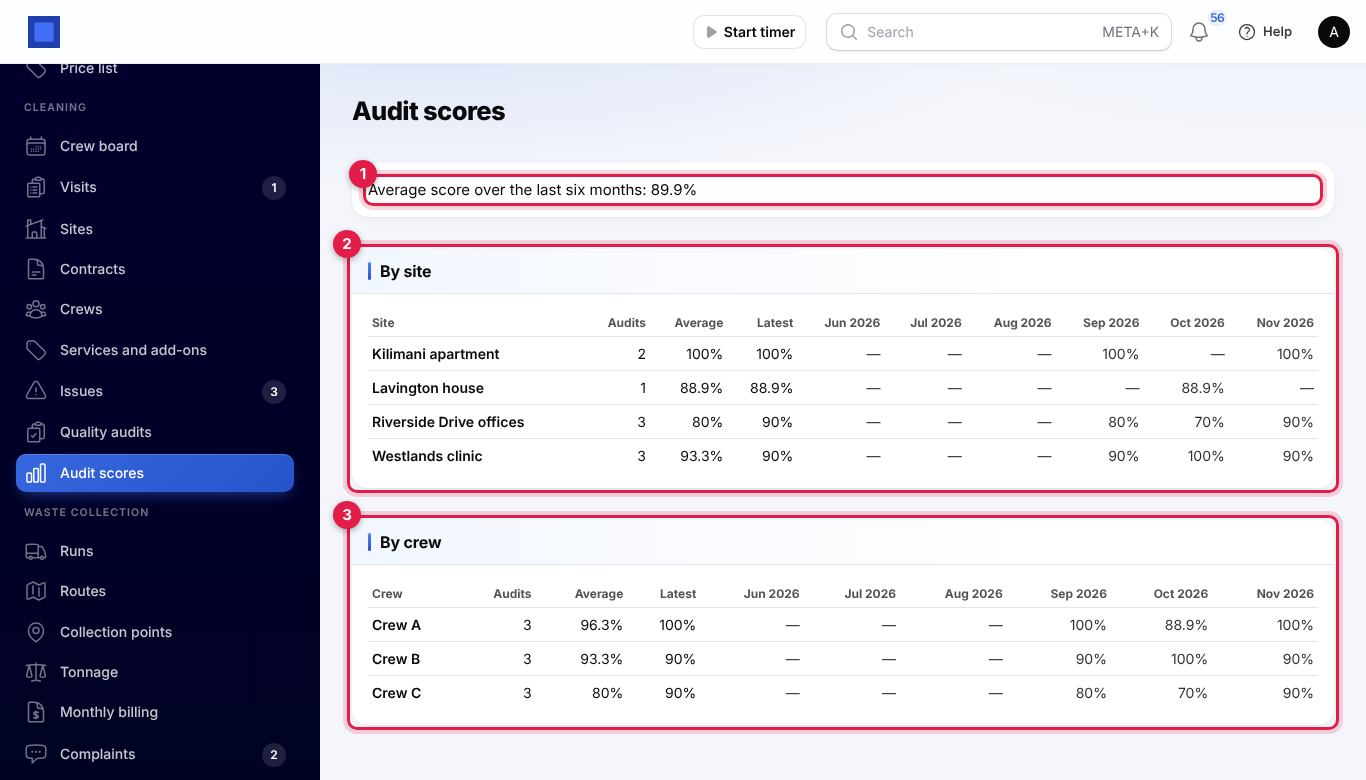
The page shows the average score of all audits signed off in the last six months (marker 1), then for each site (marker 2) and each crew (marker 3): the number of audits, the average, the latest score and the average for each of the last six months.
Monthly billing
Contracts are invoiced once a month for the month before. From the day set in Cleaning settings, the nightly run invoices every active contract that ran last month and is not billed for it yet. Running again bills nothing twice.
What goes on the invoice:
- Visits done at the visit rate: one line, for example Standard clean at Kilimani apartment: 8 visits, October 2026, for the completed visits only.
- A fixed monthly fee: the fee for the month, or a share of it for a month the contract only partly ran ((12 of 31 days)). With Credit them at their share of the fee, a line Less 1 missed visit takes off the fee divided by the visits planned that month for each missed visit.
- Visits cancelled by the client are neither billed nor credited.
The invoice goes to the Client to invoice, with the contract's tax, the contract number and site as its reference and the period covered. A contract whose end date falls in the month billed is set to Ended.
To bill now, click Bill a month on a contract (or in its row on Contracts), choose the Month (the last six months are offered; last month is suggested when it is not billed yet) and click Submit. You see, for example, Invoice INV-2026-00186 raised for 128,492.31. A month already billed is refused, and a month with nothing to charge is recorded without an invoice.
Every month billed is listed under Months billed on the contract:
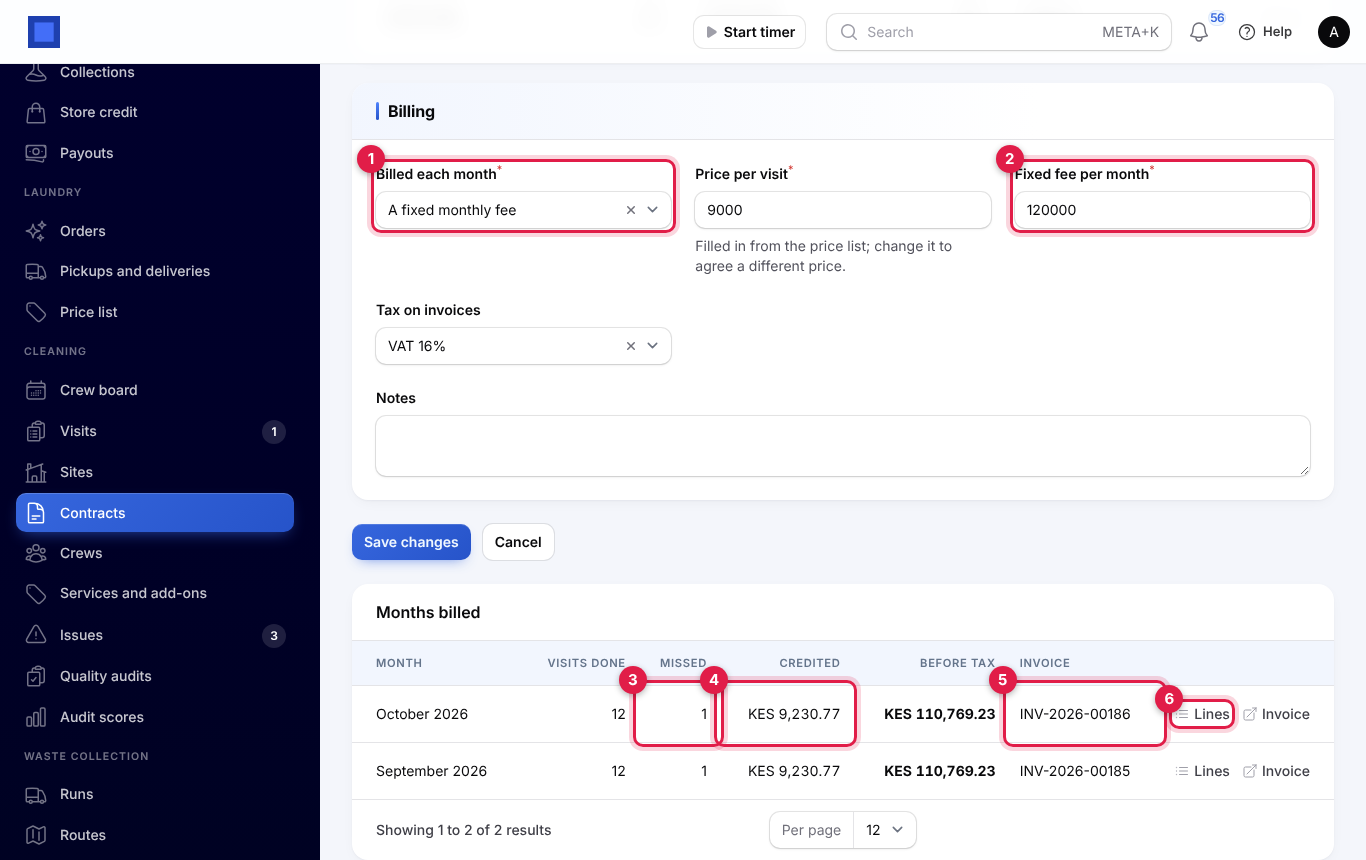
Each month shows the Visits done, Missed visits (marker 3), the amount Credited (marker 4), the total Before tax and the Invoice (marker 5). Lines (marker 6) shows the lines billed; Invoice opens the invoice. The Last billed column on Contracts shows the latest month billed.
One-off jobs and extra cleans are invoiced on their own when completed (or with Invoice the job): one line for the service and one for each add-on, with your default tax.
What clients see in the portal
Clients with portal access (see Customer and vendor portal) and at least one site have a My cleaning page.

- Upcoming visits (marker 1): visits in the next three weeks with the date, time window, site, service and status. Extra cleans they asked for show Waiting for confirmation (marker 2) until you confirm them.
- Ask for an extra clean (marker 3): they choose the Site, Service and Preferred day (from tomorrow), add Anything we should know and click Send the request. It reaches you as Requested by the client, priced from the price list using the site's rooms or floor area.
- Visit reports (marker 4): their last ten finished visits with the checklist, before and after photos, issues reported and who signed off. Supplies used are not shown to clients. Under a visit they have not rated, they choose the stars under Rate this visit, add a comment and click Send rating.
The key or gate code is never shown in the portal.
Good to know
- Every night (04:37) the visits for the weeks ahead are planned from active contracts, visits nobody checked in to a day after their window are marked Missed visit, and contracts are billed from the invoice day.
- Times are on your company's clock (Settings → Companies), so set its time zone.
- A visit takes its checklist when the crew check in. Change a site's areas before the visit starts; visits in progress keep what they started with.
- Clashes do not stop you. A crew booked twice, or with a cleaner on leave, can still be given the visit; the crew board shows the problem so you can fix it.
- Crews see only their own visits. A cleaner sees the visits of the active crews they belong to, and cannot open anyone else's.
- Supplies come out of stock only when Inventory is on and the product tracks stock; otherwise they are recorded at the product's cost price.
- One-off prices come from the price list at the time the job is invoiced. If you change a price after booking, the invoice uses the new one.
- Extra cleans asked for in the portal are booked from 08:00 to 12:00 until you confirm them with the real time.