Waste Collection
Waste Collection is for rubbish collectors who serve homes, businesses, markets and estates. You record each customer's collection points with their bins and the day they are collected, build routes that a Fleet truck, a driver and a crew drive on that day, and plan each day's runs from them. On the road the crew mark every stop collected, missed (with the reason) or collected with extra bags, from a phone. You record the tonnes tipped at the dump site or recycling centre from the weighbridge ticket, bill every customer each month for their bins and extra bags with missed collections credited, text reminders and holiday changes, follow up complaints and read the collection reports.
It is in the Waste collection group of the left menu: Collection runs, Routes, Collection points, Tonnage, Monthly billing, Complaints, Bin plans, Holiday changes and Reports. Crews use Me → My collection run on their phones.
Note: Three permissions control the app (under Settings → Roles). waste_collection.view lets someone see every screen and the reports. waste_collection.manage lets them set up bin plans, points and routes, plan runs, change trucks and crews, record tips, bill, log and resolve complaints and send holiday texts. waste_collection.crew gives a crew member the My collection run phone screen and lets them record tips. Owners and admins have all three; the member role has waste_collection.view only (see Roles and permissions).
Switch it on
Waste Collection is a marketplace add-on. It needs the Contacts, Fleet, HR and Invoicing apps: trucks and drivers come from Fleet, crews are HR employees, and bills go through Invoicing. Texts need an SMS provider set up in Marketing (see SMS providers).
- Open Settings → Marketplace and type Waste collection in the Search add-ons… box (marker 1).
- On the Waste collection card (marker 2), click Start free trial (or Add to subscription) and confirm. The Waste collection group appears in the menu.
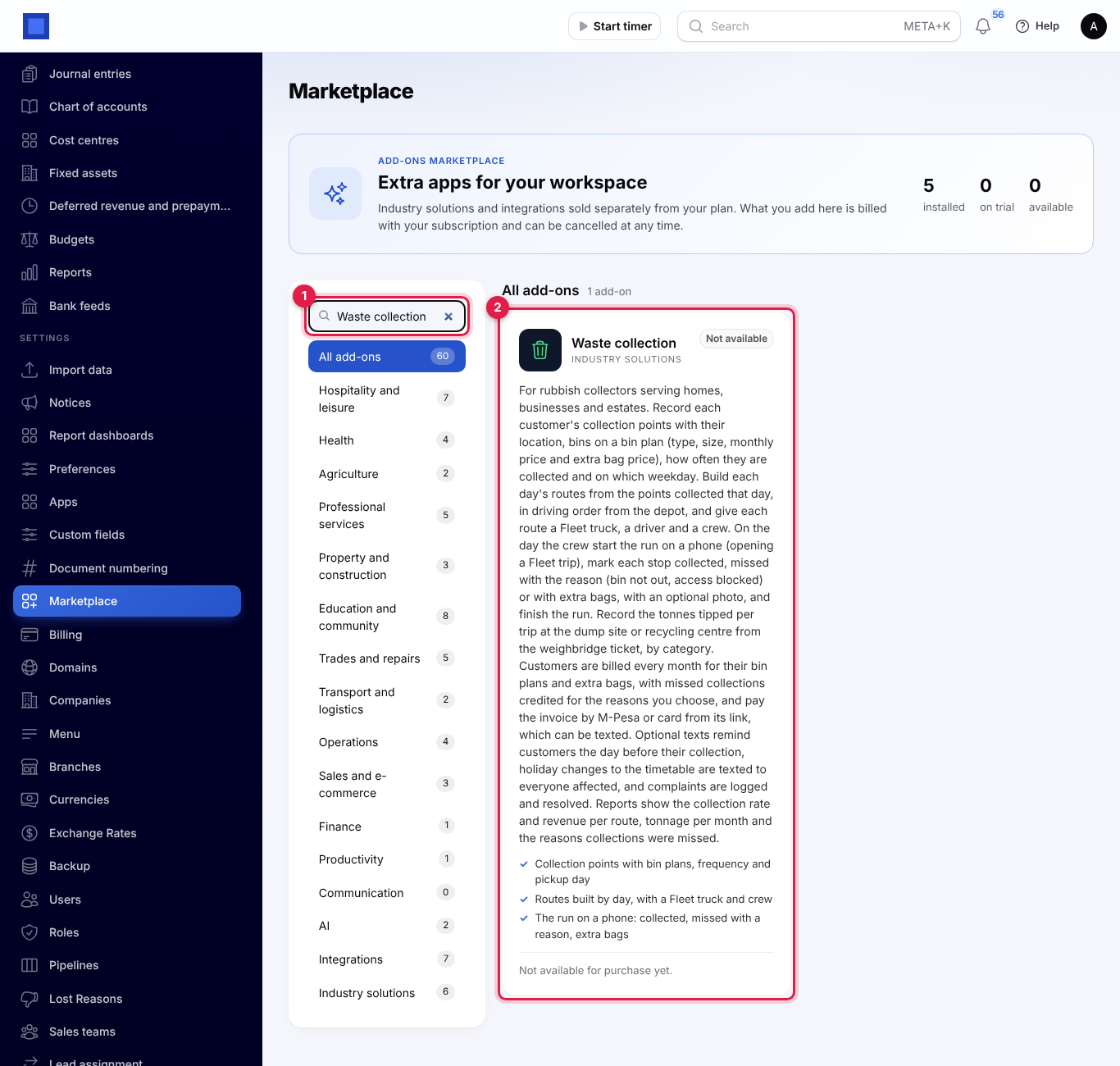
If the card says Not available for purchase yet, ask NaliSuite support to switch it on. See Billing and marketplace.
Waste collection settings
- Open Settings → Preferences and click the Waste collection tab (marker 1).
- Change what you need and click Save preferences (marker 9).
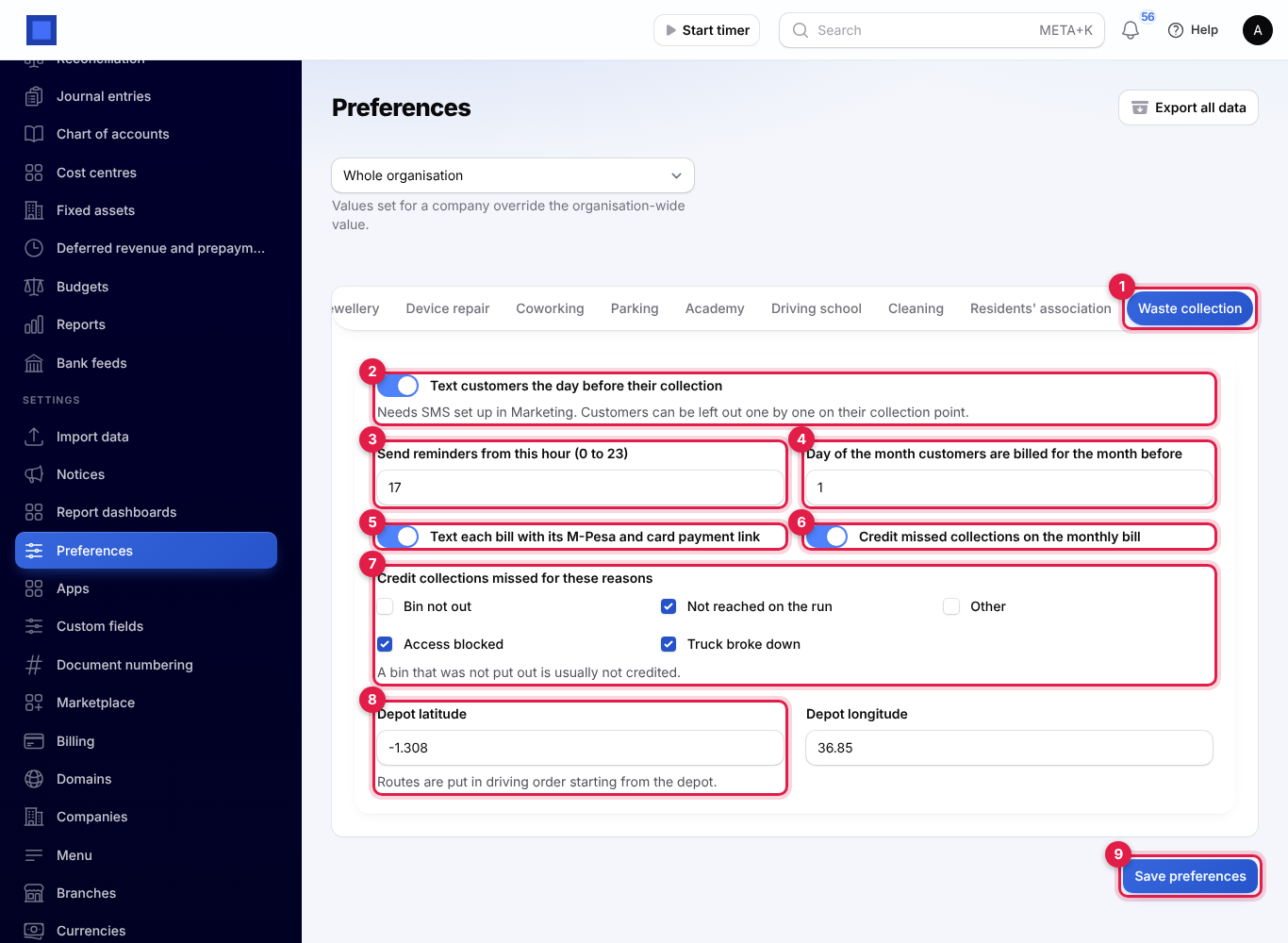
| Setting | Default | What it does |
|---|---|---|
| Text customers the day before their collection (marker 2) | Off | Sends each customer a reminder the day before their bin is collected, for example Hello Njeri, your rubbish is collected tomorrow, Monday 16 Nov. Please put your bin out by 7am. Needs SMS set up in Marketing. A customer can be left out on their collection point. |
| Send reminders from this hour (0 to 23) (marker 3) | 17 | Reminders go out from this hour of the day before, once per collection. |
| Day of the month customers are billed for the month before (marker 4) | 1 | From this day (1 to 28), every customer is billed for last month. See Monthly billing. |
| Text each bill with its M-Pesa and card payment link (marker 5) | Off | Texts the customer their bill number, amount and pay link as soon as the bill is issued. Needs SMS set up. |
| Credit missed collections on the monthly bill (marker 6) | On | Takes missed collections off the monthly bill. |
| Credit collections missed for these reasons (marker 7) | Not reached on the run, Truck broke down | Only collections missed for the reasons ticked are credited. A bin that was not put out is usually not credited. |
| Depot latitude (marker 8) and Depot longitude | — | Where your trucks start. Routes are put in driving order starting from the depot. |
Bin plans
A bin plan is what a customer pays for each bin: the bin type and size, the monthly price per bin and the price of an extra bag.
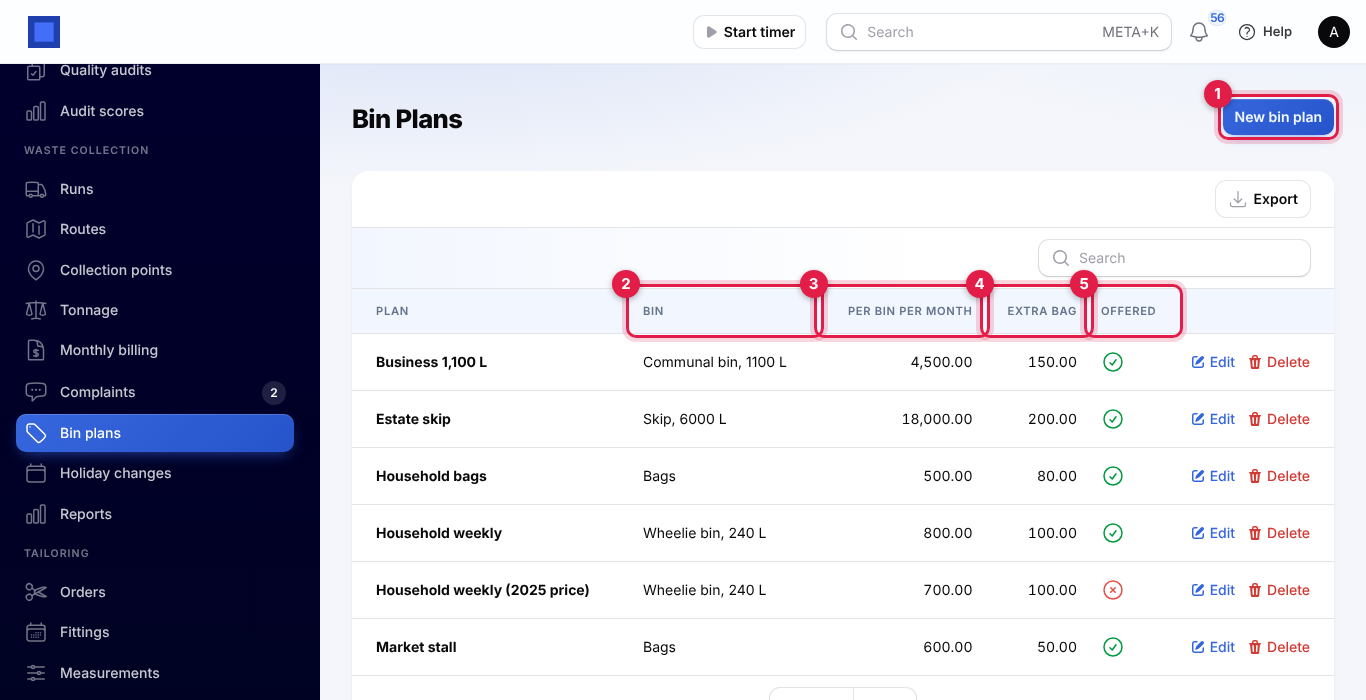
- Open Waste collection → Bin plans and click New bin plan (marker 1).
- Fill in Plan (Household weekly), Bin type (Wheelie bin, Bags, Skip or Communal bin), Size (litres), Price per bin per month and Price per extra bag, leave Offered on and click Create.
The list shows the Bin with its size (marker 2), the price Per bin per month (marker 3), the Extra bag price (marker 4) and whether the plan is Offered (marker 5). Turn Offered off to stop using a plan for new points; points already on it keep it.
Collection points
A collection point is one place you collect from: a house, a shop, a block of flats, a market stall. One customer can have several points.
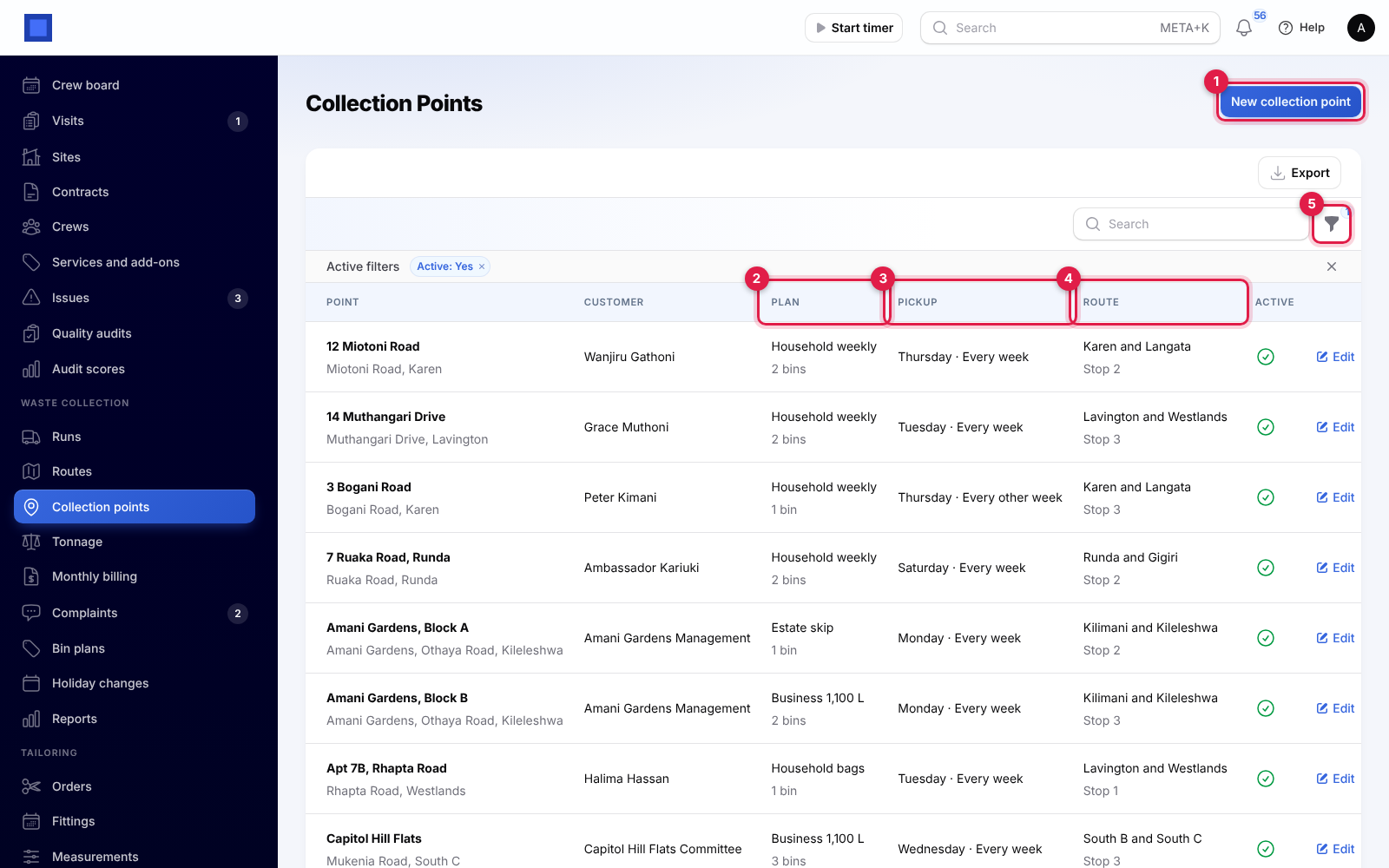
The list shows each point with its address, the Customer, the Plan and number of bins (marker 2), the Pickup day and how often (marker 3), and the Route with its stop number (marker 4). Use the filter (marker 5) for Pickup day, Route, On a route and Active (only active points are shown at first).
To add a point, click New collection point (marker 1), fill in the window and click Create.
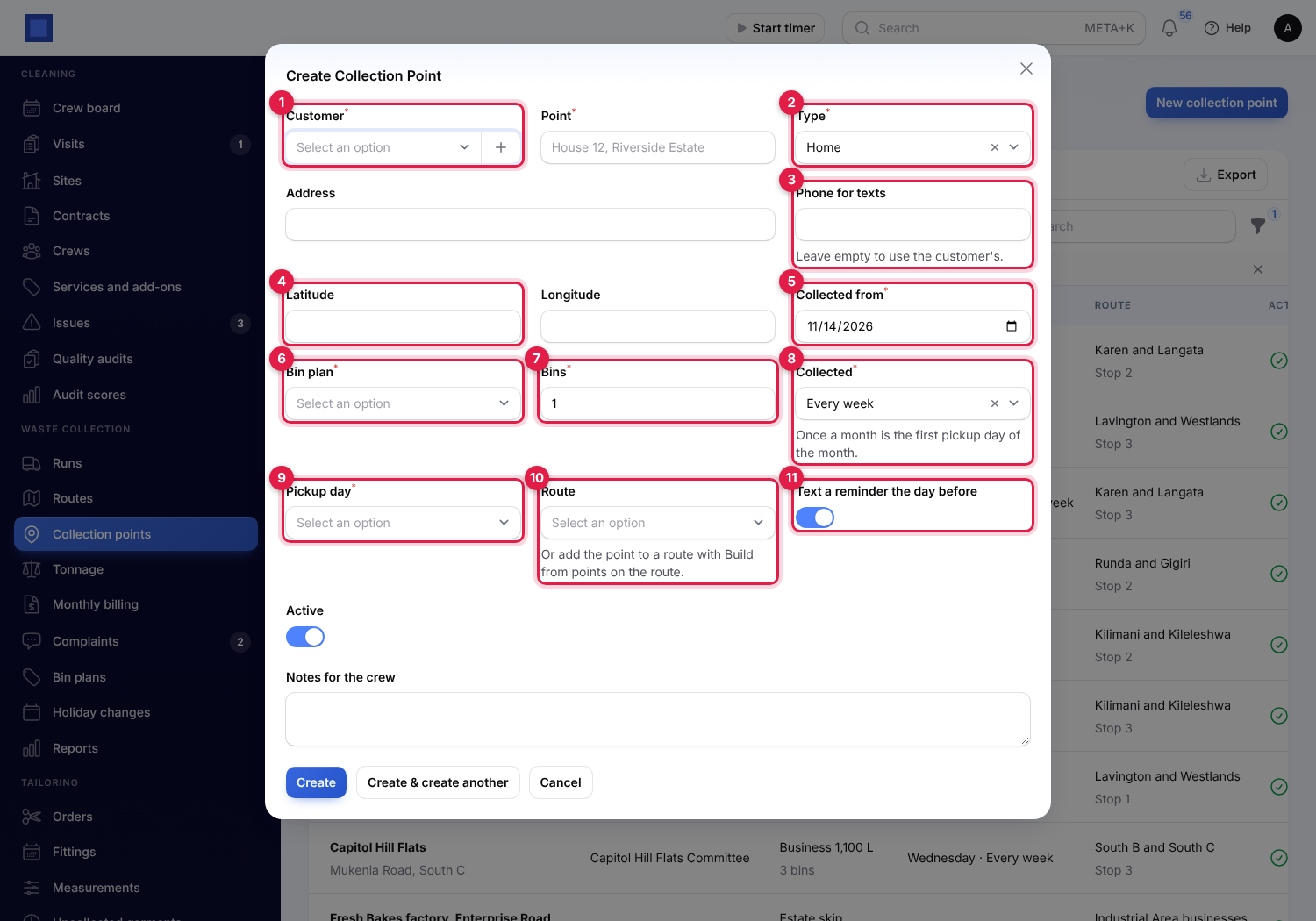
| Field | What to enter |
|---|---|
| Customer (required, marker 1) | The contact who is billed. Click + to add a new contact. |
| Point (required) | A name the crew recognise, for example House 12, Riverside Estate. |
| Type (required, marker 2) | Home, Business or Estate or flats. |
| Address | Shown to the crew. |
| Phone for texts (marker 3) | Leave empty to use the customer's mobile or phone. |
| Latitude and Longitude (marker 4) | Used to put the route in driving order. |
| Collected from (required, marker 5) | The first day the point is collected and billed. |
| Bin plan (required, marker 6) and Bins (required, marker 7) | The plan and how many bins (1 to 200). The monthly bill is the plan's price times the bins. |
| Collected (required, marker 8) | Every week, Every other week (counted in weeks from the Collected from date) or Once a month (the first pickup day of the month). |
| Pickup day (required, marker 9) | The weekday the point is collected. |
| Route (marker 10) | The route that collects it, or leave it empty and use Build from points on the route. Choose a route that runs on the point's pickup day. |
| Text a reminder the day before (marker 11) | Off to leave this customer out of the reminders. |
| Active, Notes for the crew | Inactive points are not collected or billed. The notes are shown to the crew at the stop. |
Routes
A route is a round collected on one weekday, with its stops in order, its truck, driver and crew.
- Open Waste collection → Routes and click New route. Type the Route name, choose the Collection day and click Create. The route's page opens.
- Choose the Truck (an active Fleet vehicle), the Driver (a Fleet driver) and the Crew (HR employees), and click Save changes.
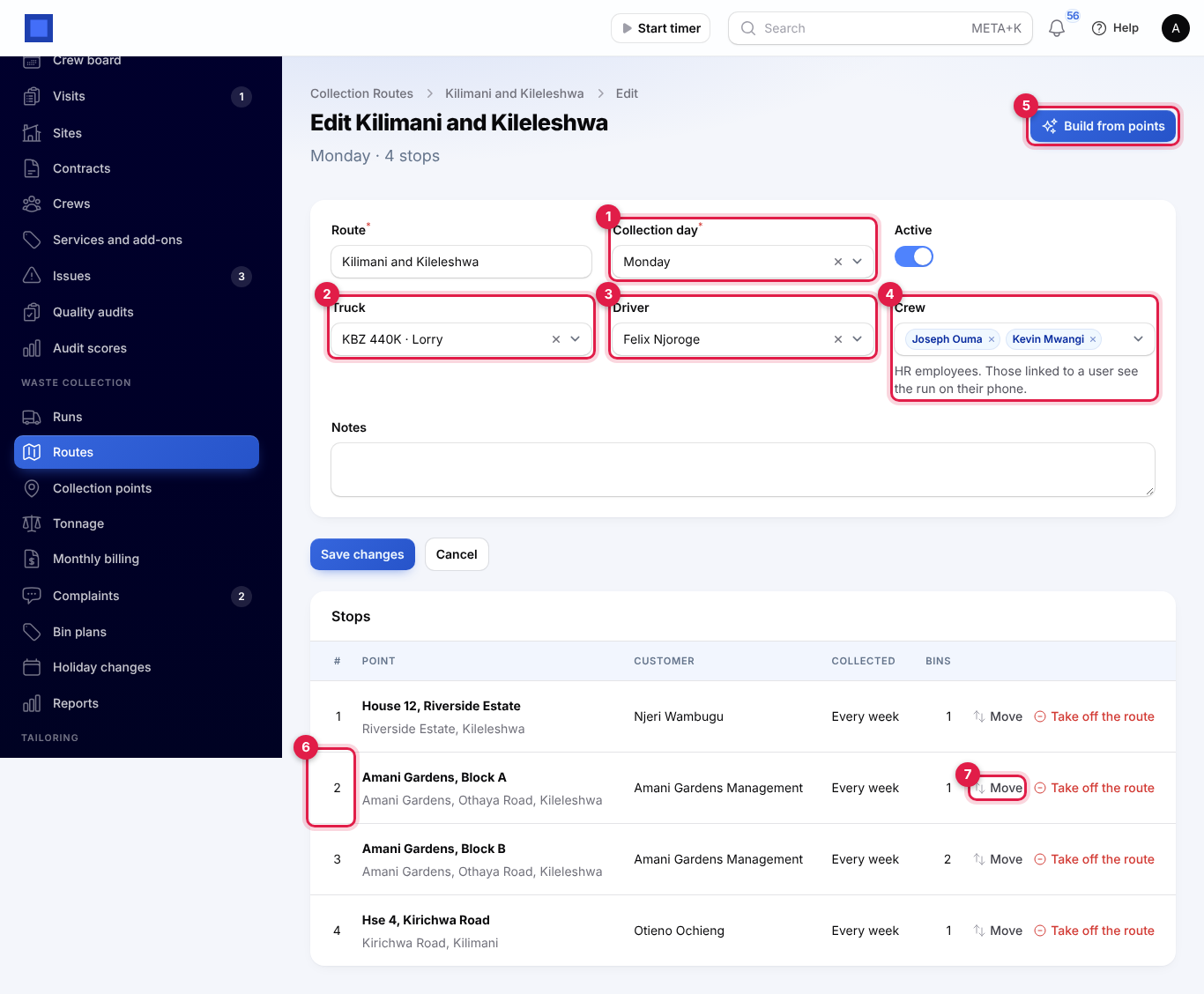
| Field | What to enter |
|---|---|
| Collection day (required, marker 1) | The weekday the route runs. |
| Truck (marker 2) | From Fleet. Each run opens a Fleet trip for it. |
| Driver (marker 3) | From Fleet. A driver linked to an HR employee sees the run on their phone. |
| Crew (marker 4) | HR employees. Those linked to a user see the run on their phone. |
| Active, Notes | Inactive routes get no runs. |
Add the stops
Click Build from points (marker 5; also in the route's row on Routes).
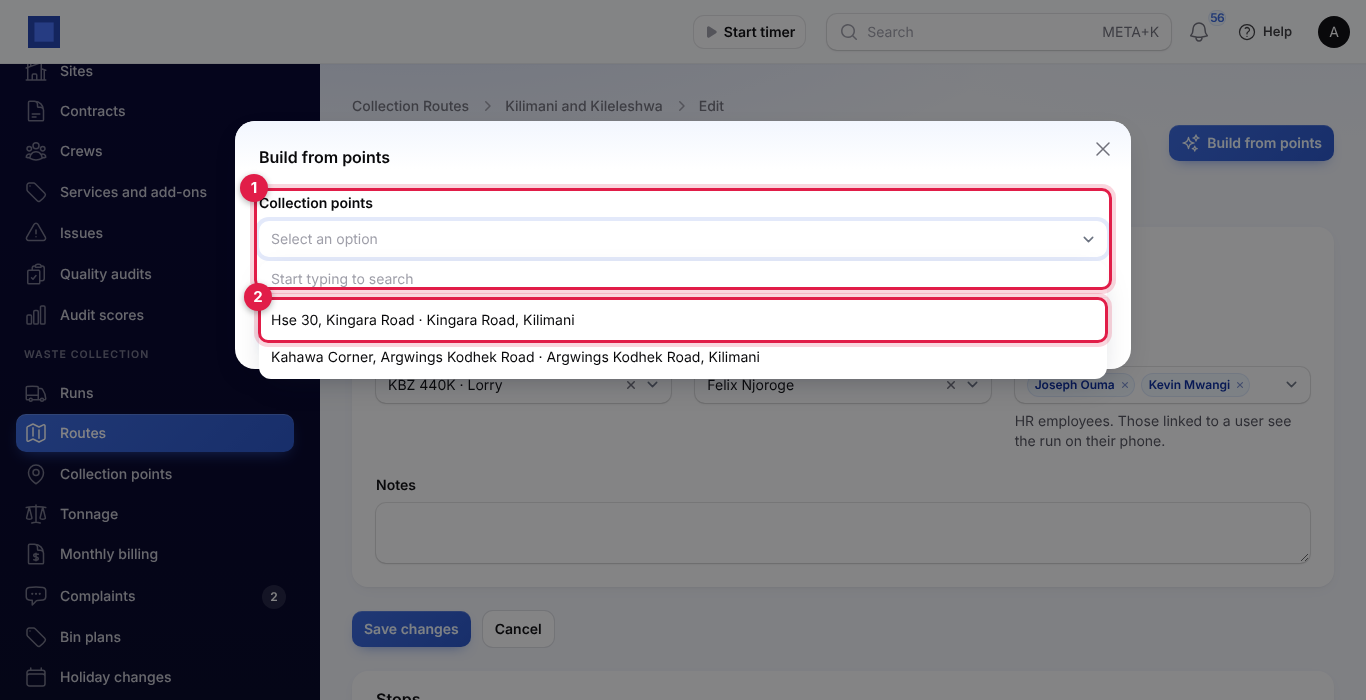
- Leave Collection points (marker 1) empty to add every active point collected on the route's day that is on no route yet, or pick the ones you want (marker 2).
- Click Submit. You see, for example, 2 stops added. They are put in driving order: nearest first, starting from the last stop on the route (or from the depot in Settings), with points that have no location added at the end by address.
Under Stops, each point shows its stop number (marker 6), customer, how often it is collected and its bins. Move (marker 7) gives a stop another Stop number; Take off the route removes it (the point stays, with no route).
Runs
A run is one day's collection on one route. Runs are planned by themselves every hour for today and tomorrow, from the routes collecting that day, with a stop for every point due. Holiday changes are taken into account (see Holiday changes).
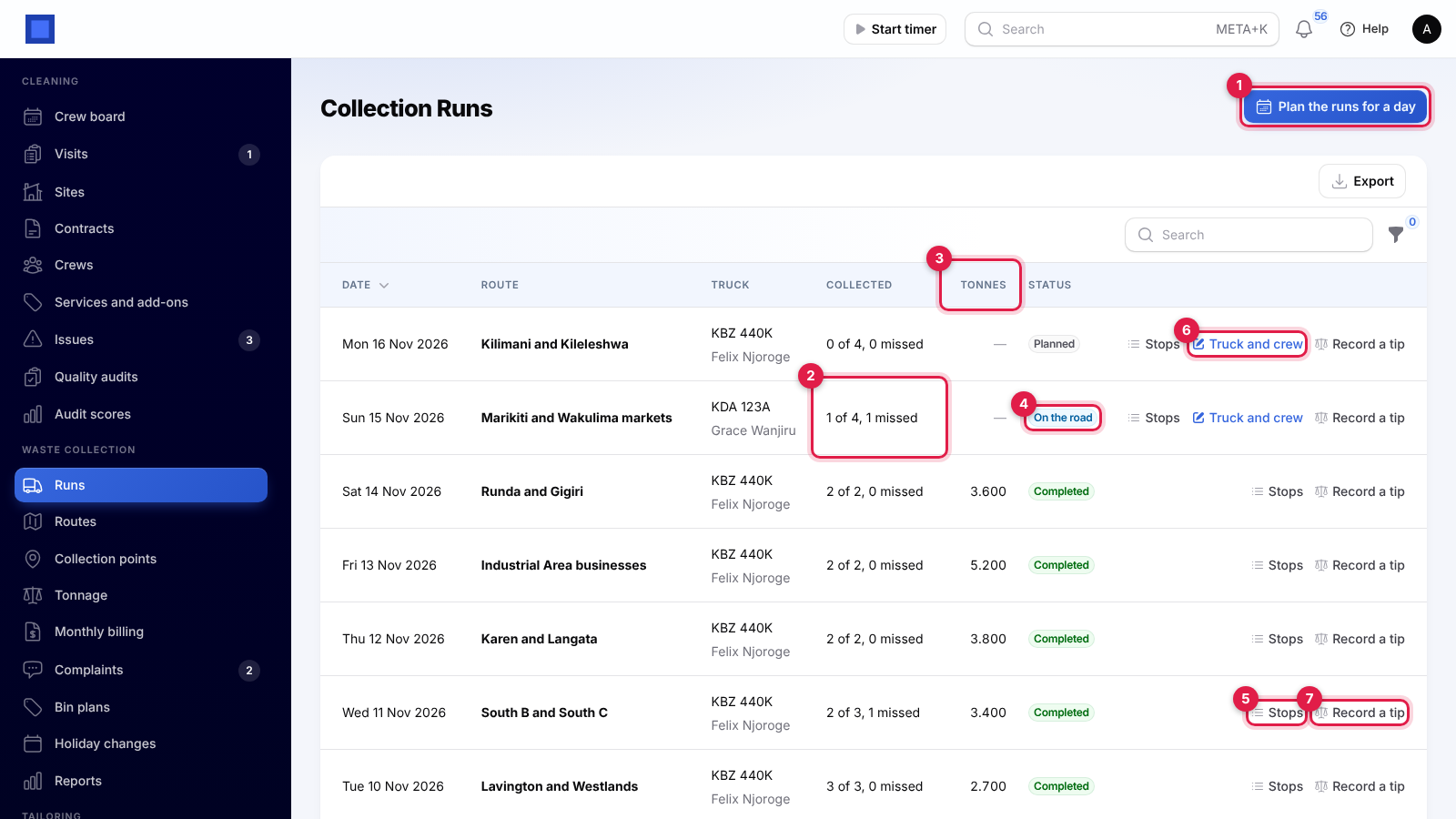
- Plan the runs for a day (marker 1): choose the Day and click Submit to plan it now, for example a week ahead. Planning again only adds what is missing.
- Each run shows the date, route, truck and driver, how many stops were Collected with how many missed (marker 2), the Tonnes tipped (marker 3) and the Status (marker 4): Planned, On the road or Completed.
- Stops (marker 5) shows each stop's result. Truck and crew (marker 6), on runs not completed, changes the truck, driver or crew for that day only. Record a tip (marker 7) records a load for the run (see Tonnage).
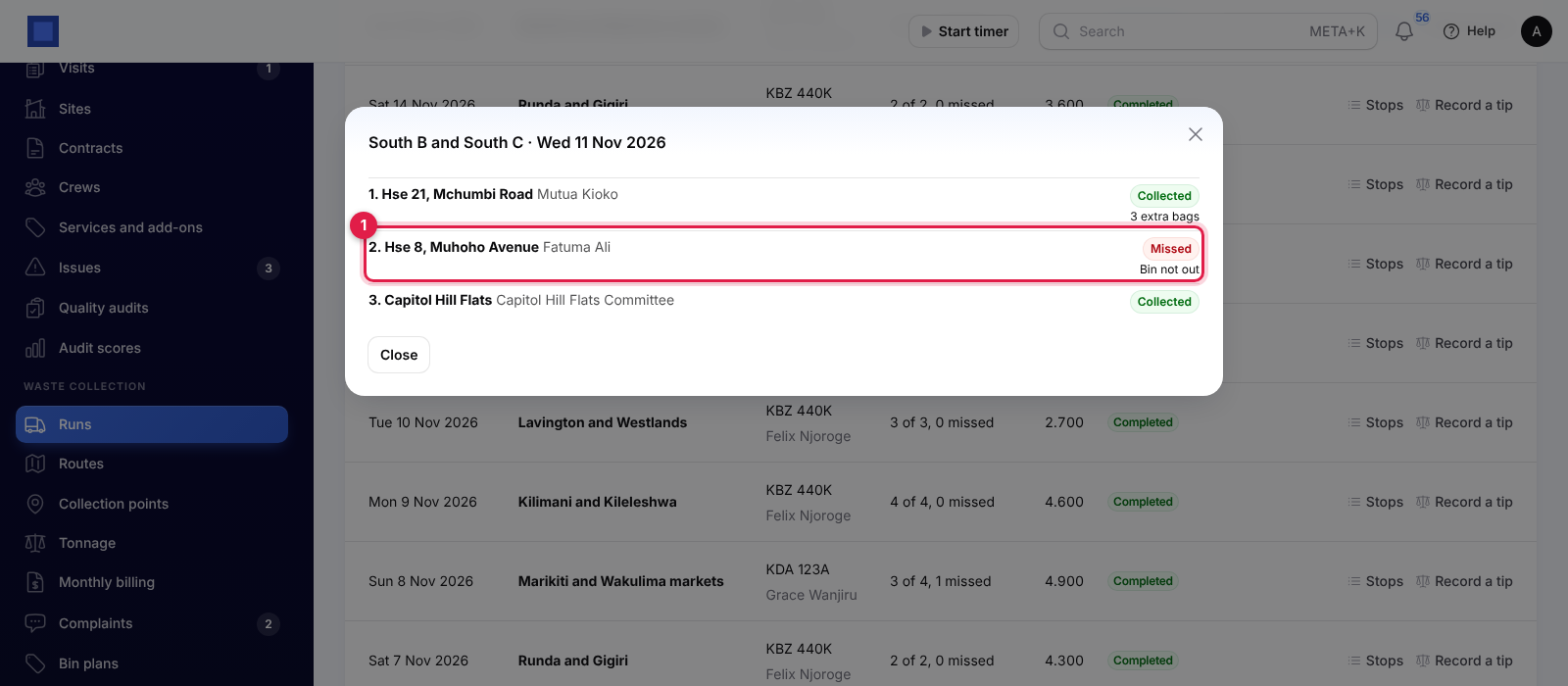
The stops window lists every stop with its customer, the result, the reason a stop was missed (marker 1), any extra bags, the crew's note and a link to the Photo if they took one.
The crew's phone: My collection run
The driver and crew open Me → My collection run on their phones. It shows today's runs they are on: as crew, or as the driver when their Fleet driver record is linked to their HR employee.
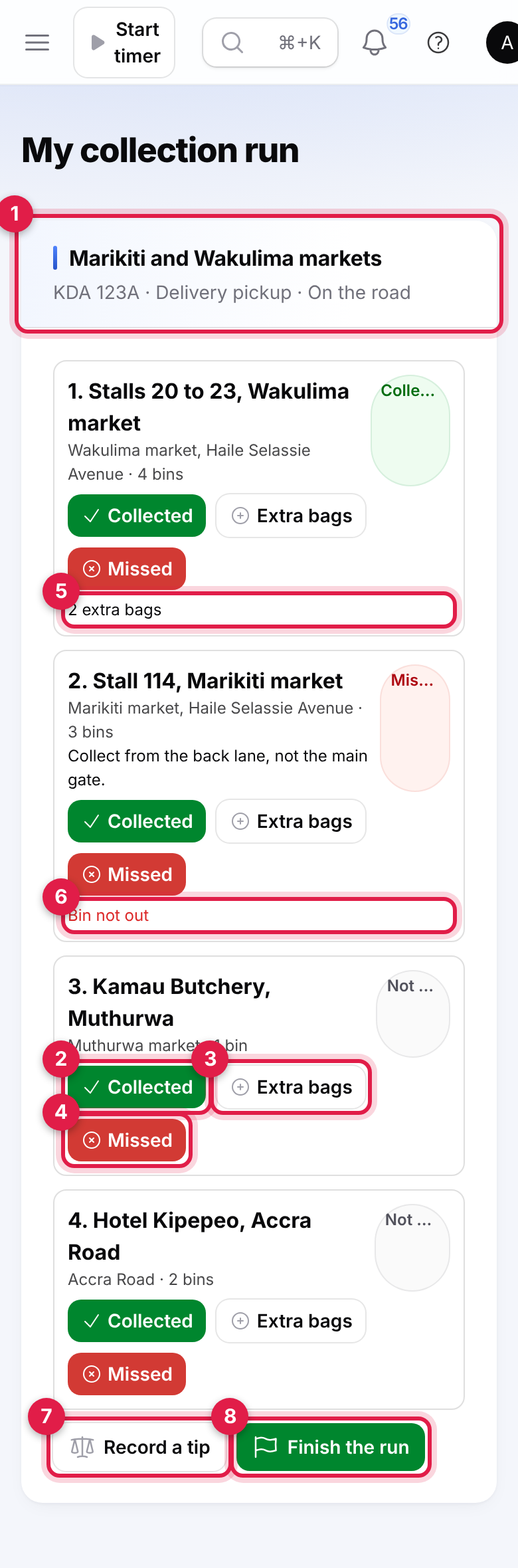
- Before leaving, tap Start the run, type the Odometer (km) and tap Submit. You see Run started. Drive safely. With a truck, a Fleet trip is opened at that reading. The heading (marker 1) shows the route, the truck and On the road.
- At each stop (with its address, bins and the notes for the crew):
- Collected (marker 2): the bins were emptied.
- Extra bags (marker 3): collected, with the number of Extra bags taken (1 to 500) and an optional Photo. The stop shows, for example, 2 extra bags (marker 5); they are charged on the monthly bill.
- Missed (marker 4): choose Why (Bin not out, Access blocked, Not reached on the run, Truck broke down or Other), add a Note and a Photo as proof. The reason shows in red (marker 6). A stop can be marked again if a mistake was made.
- At the dump site, tap Record a tip (marker 7) and fill in the weighbridge ticket (see Tonnage).
- Back at the depot, tap Finish the run (marker 8), type the Odometer (km) and tap Submit. Stops not marked yet are recorded as missed, not reached. The Fleet trip is closed and the truck's odometer moves on. A reading lower than at the start is refused.
Tonnage
Waste collection → Tonnage lists every load tipped, newest first, with where it went, the run and truck, the weighbridge Ticket, the tonnes By category and the total Tonnes.
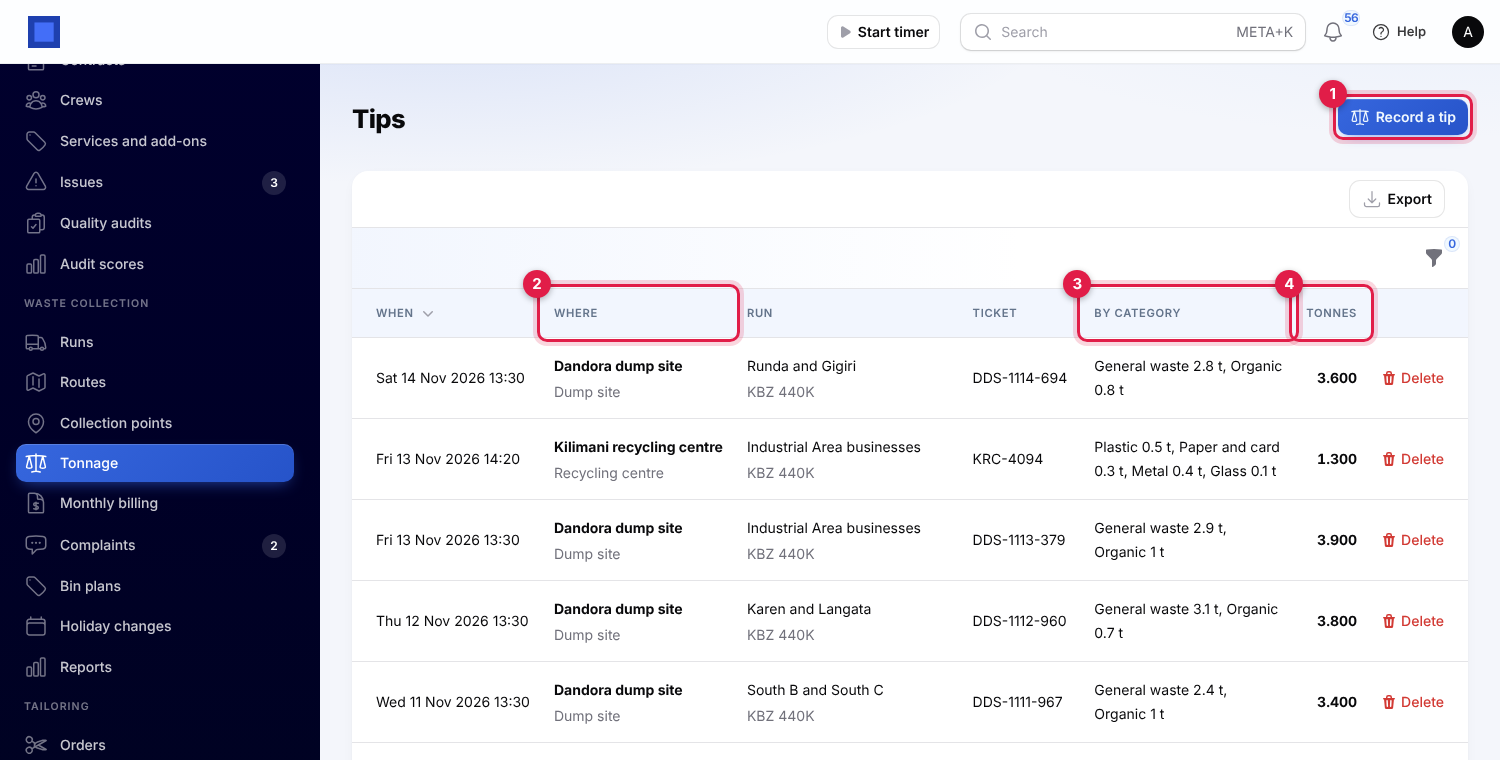
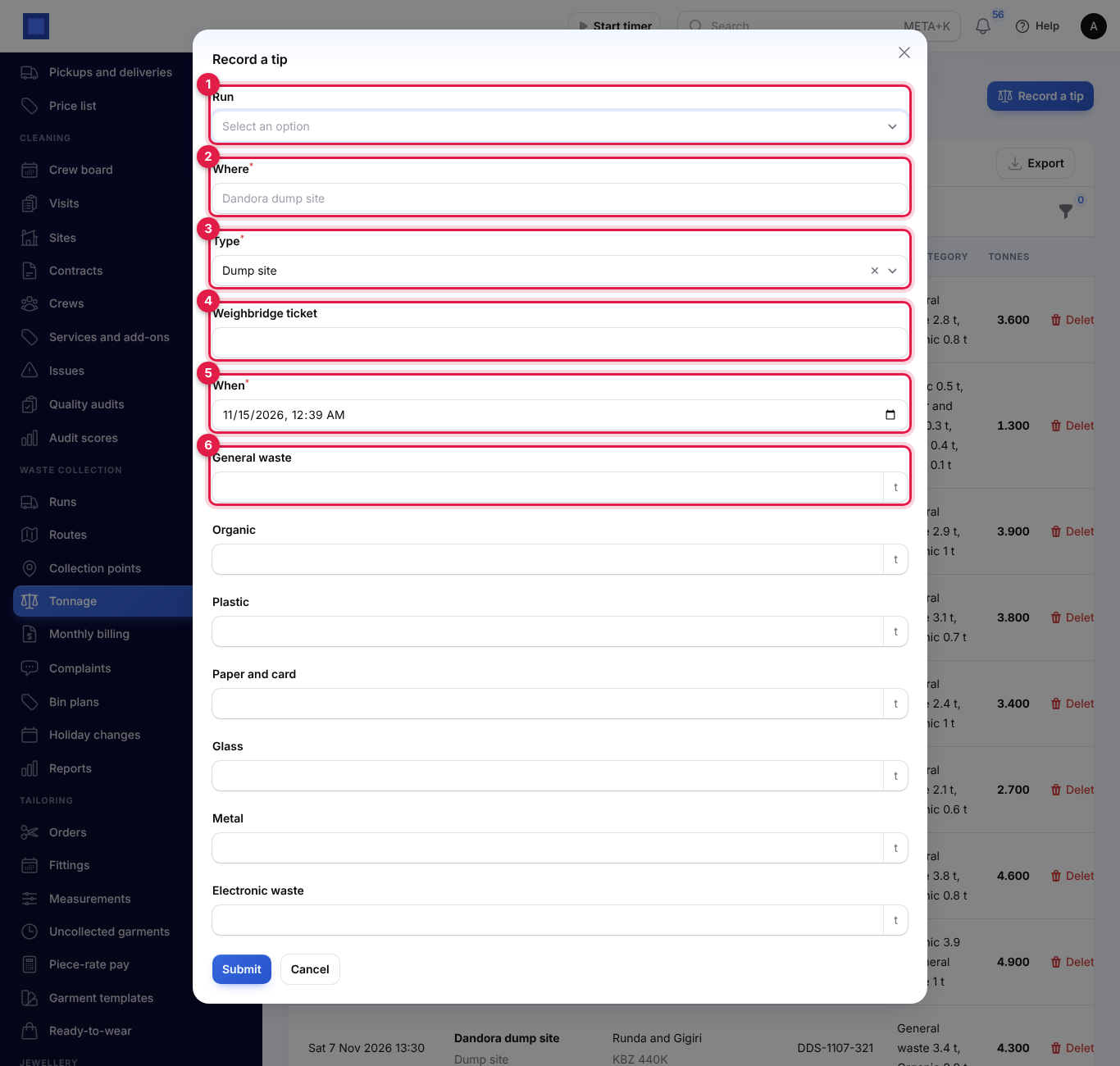
Click Record a tip (marker 1 above), fill in the window from the weighbridge ticket and click Submit:
| Field | What to enter |
|---|---|
| Collection run (marker 1) | The run the load came from (the last 60 runs are offered). Not shown when you record it from a run or the phone. |
| Where (required, marker 2) | For example Dandora dump site. |
| Type (required, marker 3) | Dump site or Recycling centre. |
| Weighbridge ticket (marker 4) | The ticket number. |
| When (required, marker 5) | Filled in with now. |
| Tonnes per category (marker 6 and below) | General waste, Organic, Plastic, Paper and card, Glass, Scrap metal and Electronic waste. Fill in at least one. |
Managers can Delete a tip recorded by mistake. The filter icon shows dump site or recycling centre loads only.
Monthly billing
Customers are billed once a month for the month before. From the day set in Waste collection settings, the hourly run bills every customer with an active collection point who is not billed for last month yet. Each customer gets one invoice for all their points:
- one line per point for its bin plan: Household weekly (240 L) at House 12, Riverside Estate, October 2026, the number of bins times the price per bin;
- the extra bags collected that month at the plan's extra bag price;
- with credits on, a line such as Less 1 missed collection at 3 Bogani Road for collections missed for the reasons chosen. Each is credited at the point's monthly charge divided by the collections its timetable has that month.
The invoice is issued with your default tax, due after the customer's payment terms (14 days when none are set), with Waste collection, October 2026 as its reference. When Text each bill with its M-Pesa and card payment link is on, the customer gets a text with the amount and the pay link (see Get paid online with the pay link).
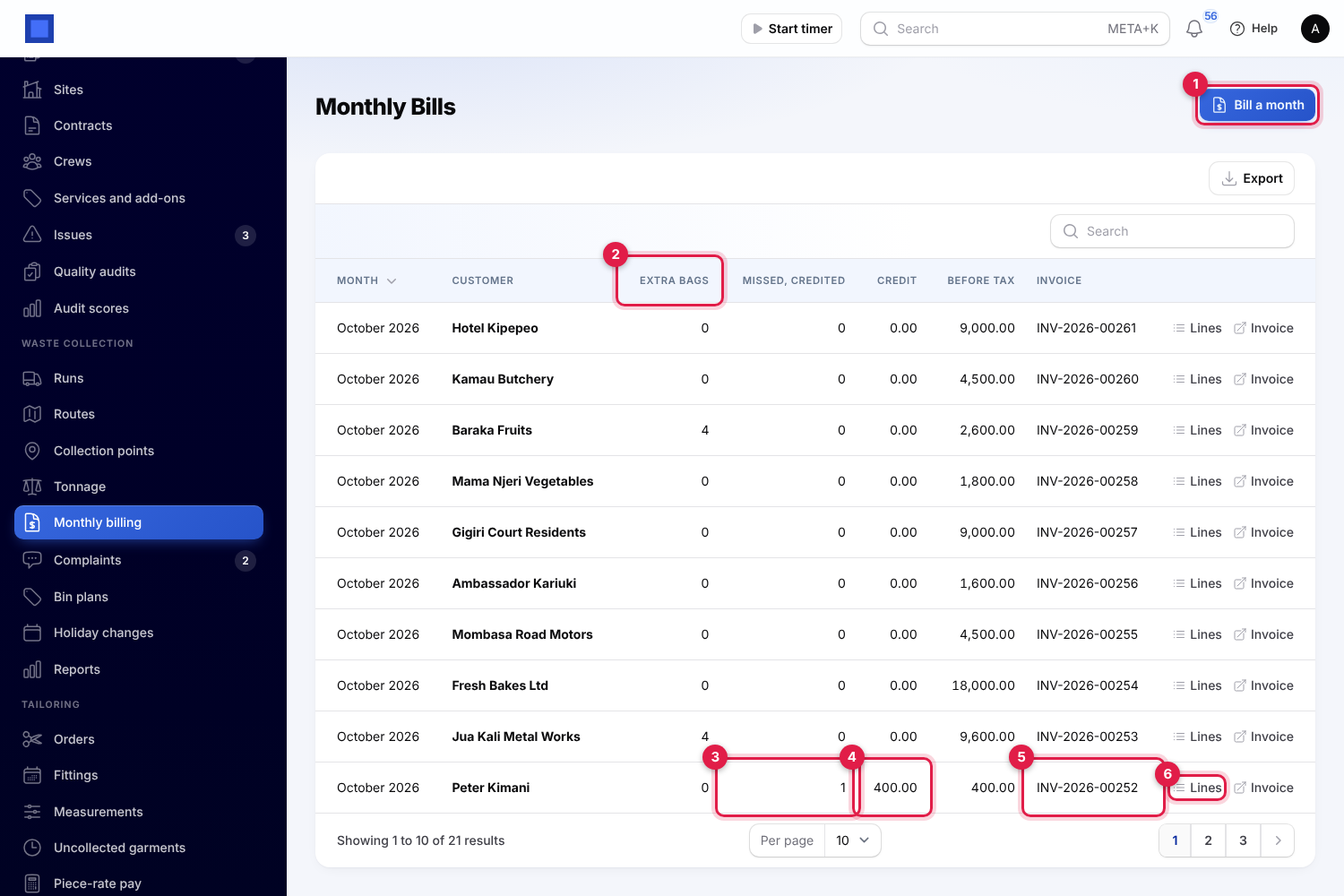
Waste collection → Monthly billing lists every bill: the month, customer, Extra bags (marker 2), Missed, credited (marker 3), the Credit (marker 4), the total before tax and the Invoice (marker 5, with Paid under it once paid). Lines (marker 6) shows the lines billed; Invoice opens the invoice.
To bill now, click Bill a month (marker 1), choose the Month (the last six months; last month is suggested) and click Submit. Every customer with a collection point who is not billed for that month gets an invoice, and you see, for example, 21 customers billed. A customer is billed only once per month.
Note: Waste Collection has no page of its own in the customer portal. Customers pay each bill from its pay link (by M-Pesa or card), which you can text to them, or see their invoices under Invoices in the portal (see Customer and vendor portal).
Complaints
Waste collection → Complaints keeps customer complaints until they are dealt with. Open complaints are shown at first, and their number is shown in the menu.
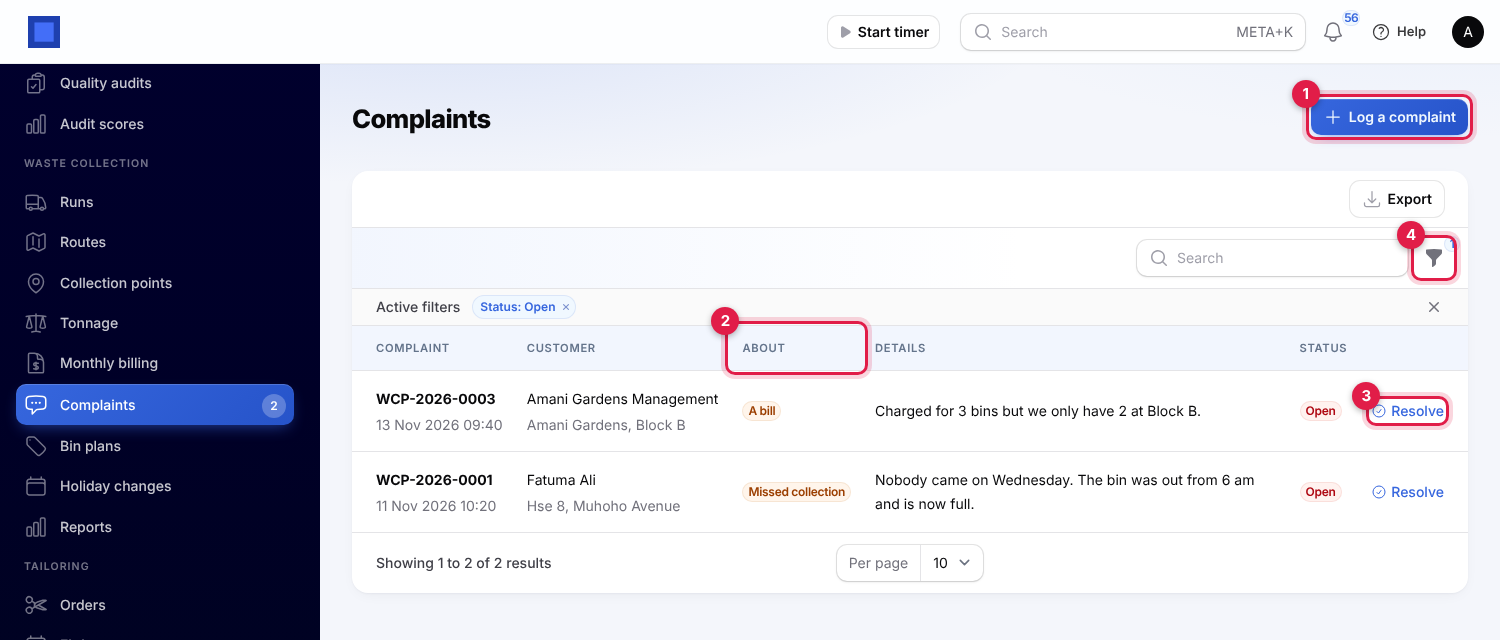
- Click Log a complaint (marker 1).
- Choose the Collection point (the customer is filled in from it) or the Customer, what it is About (Missed collection, Spillage or mess left, The crew's conduct, A bill or Other), the Phone to reply to (the point's number when left empty) and What the customer said. Click Submit. You see, for example, Complaint WCP-2026-0004 logged.
- When it is dealt with, click Resolve (marker 3), type What was done, leave Text the customer on to tell them by text, and click Submit.
The filter (marker 4) shows resolved complaints or one kind (marker 2).
Holiday changes
On public holidays you may not collect, or collect on another day. Waste collection → Holiday changes holds these changes.
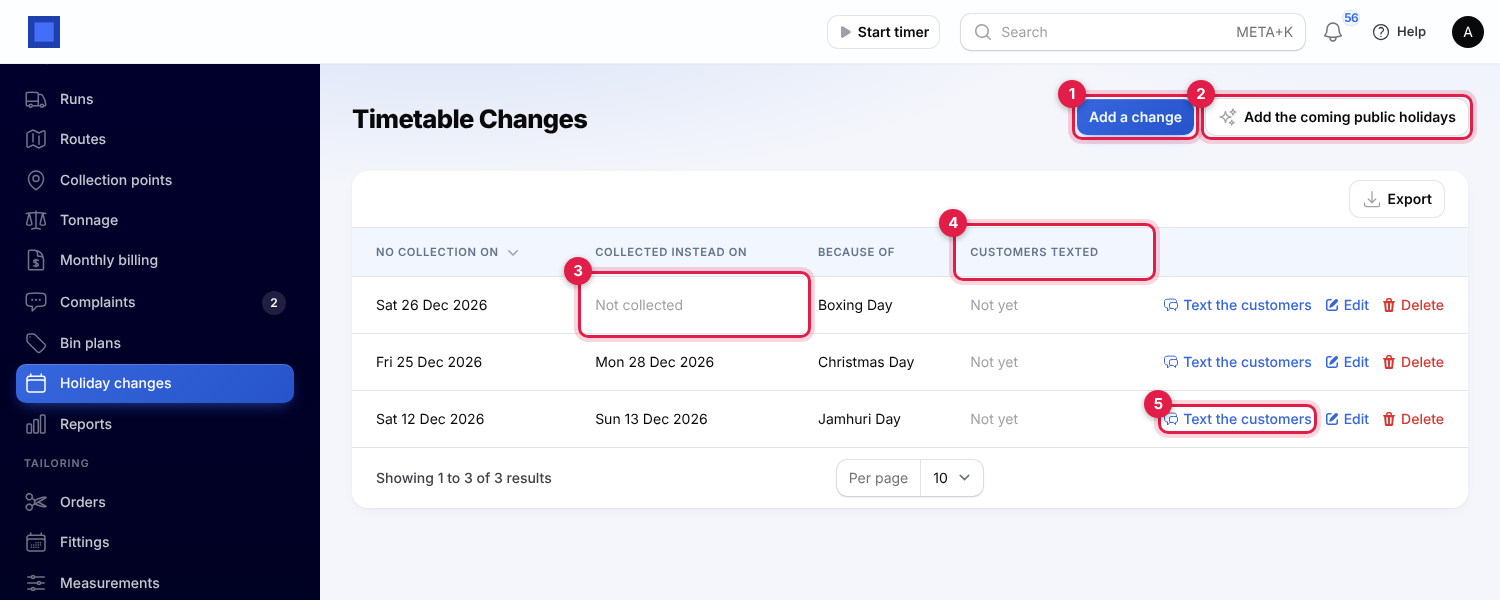
- Add a change (marker 1): the day with No collection on, the day it is Collected instead on (leave it empty when there is no collection that week, marker 3), and Because of (Jamhuri Day).
- Add the coming public holidays (marker 2): adds each public holiday in HR for the next 90 days (see Load public holidays), with its collections moved to the next day. Check them and change any before texting customers.
- Text the customers (marker 5): after you confirm, every customer collected on that day gets a text about the new day, for example Acme Traders Ltd: because of Jamhuri Day there is no collection on Saturday 12 Dec. Your bin is collected on Sunday 13 Dec instead. Customers texted (marker 4) then shows when and how many. Needs SMS set up in Marketing.
Runs follow the changes: no run is planned for the day off, and the points due that day are added to the runs of the day they move to.
Reports
Waste collection → Reports shows a period, the last six months by default. Change From and Until (marker 1).
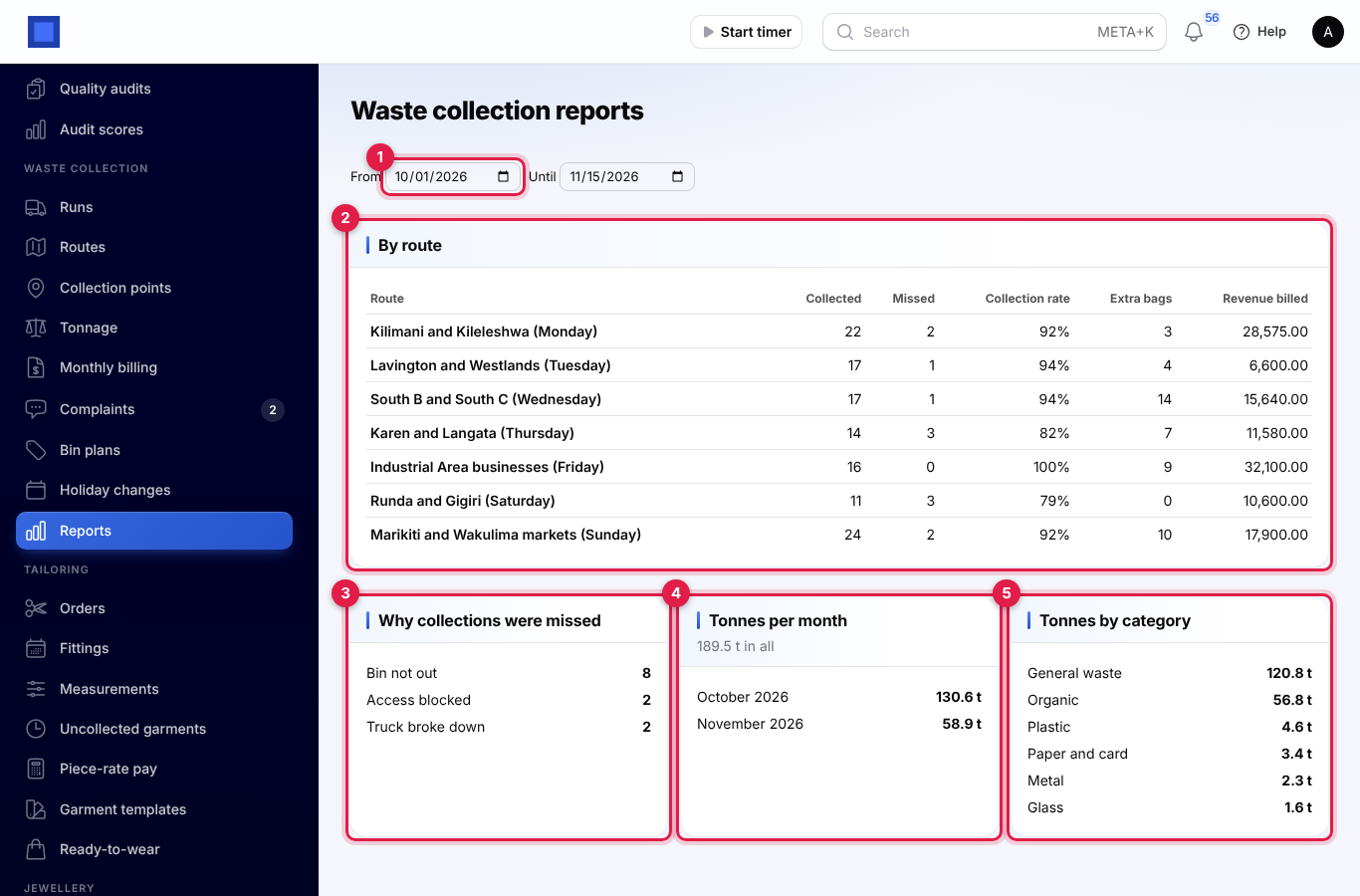
- By route (marker 2): stops collected and missed, the Collection rate, extra bags and the Revenue billed for the months in the period.
- Why collections were missed (marker 3): the number of misses per reason.
- Tonnes per month (marker 4), with the total, and Tonnes by category (marker 5).
Good to know
- Every hour (at 11 minutes past) today's and tomorrow's runs are planned, reminders are sent from the reminder hour, and last month is billed from the invoice day.
- A point is collected only by a route on its pickup day. If you put a point on a route that runs on another weekday, it is never added to a run; change the point's pickup day or move it to the right route.
- Every other week counts from the week of the point's Collected from date. Once a month is the first pickup day of the month.
- Changing a route's truck or crew applies to runs planned after the change. Use Truck and crew on a run for one day.
- Credits are for missed collections only; extra bags are charged even when other collections were missed.
- Customers have no portal page for waste collection. They pay from the bill's pay link and see their invoices in the portal's Invoices page.
- Texts (reminders, holiday changes, bills, resolved complaints) go out only when SMS is set up in Marketing; without it, nothing is texted and holiday texting says Set up SMS in Marketing to text customers.