Academies
Academies is for sports clubs and academies (football, swimming, tennis, athletics) and arts academies (dance, music, art, yoga). You set up programmes with their levels or grades and fees, weekly classes with a coach, a venue, an age group and a number of places, and enrol children and adults with their guardians. Coaches take the register on their phones and guardians hear at once when a child is absent. You assess students against each level's skills, promote them with a certificate, run squads with fixtures and player stats, hold recitals and tournaments, hire out courts and studios, work out what each coach earned, and invoice each family their fees with a sibling discount. Families book free trial classes on a public page and follow everything in the customer portal.
It is in the Academy group of the left menu: Registers, Students, Classes, Trial classes, Programmes and levels, Terms and seasons, Coaches and teachers, Venues, Teams and fixtures, Recitals and tournaments, Venue hire, Fees and Coach pay.
Note: Two permissions control the app (under Settings → Roles). academies.view lets someone see every screen, take registers, assess students and write to families. academies.manage lets them set up programmes, classes, coaches and venues, enrol and withdraw students, promote, record results, hire out venues, invoice fees and see Coach pay. Owners and admins have both; the member role has academies.view, which suits coaches (see Roles and permissions).
Switch it on
Academies is a marketplace add-on. It needs the Contacts and Invoicing apps: guardians and payers are contacts, and fees and hires are invoiced through Invoicing. Texts to guardians need an SMS provider set up in Marketing (see SMS providers); tickets for events need the Events app.
- Open Settings → Marketplace and type Academies in the Search add-ons… box (marker 1).
- On the Academies card (marker 2), click Start free trial (or Add to subscription) and confirm. The Academy group appears in the menu, the trial booking page goes live, and Academy appears in the customer portal for families.
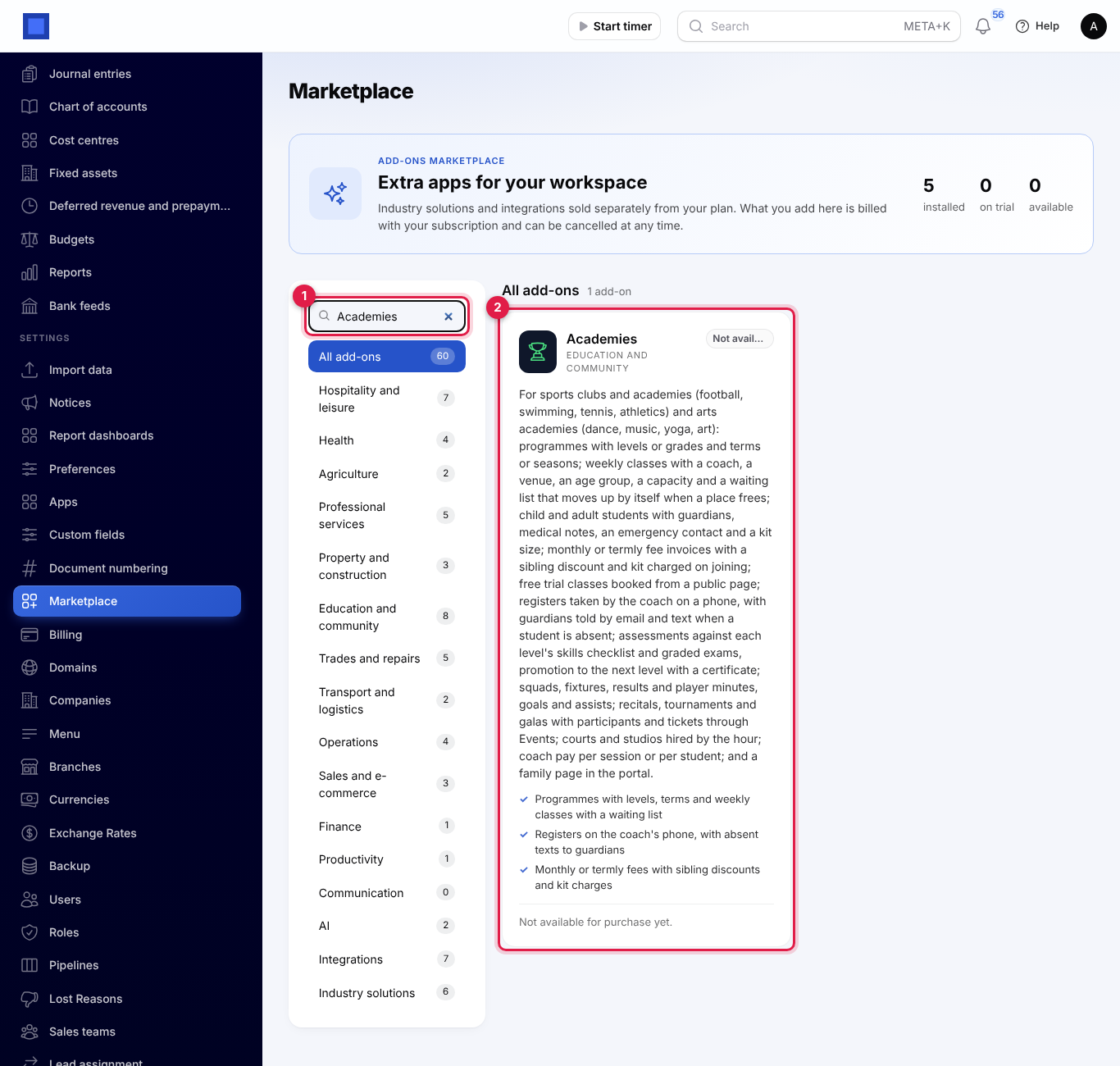
If the card says Not available for purchase yet, ask NaliSuite support to switch it on. See Billing and marketplace.
Academy settings
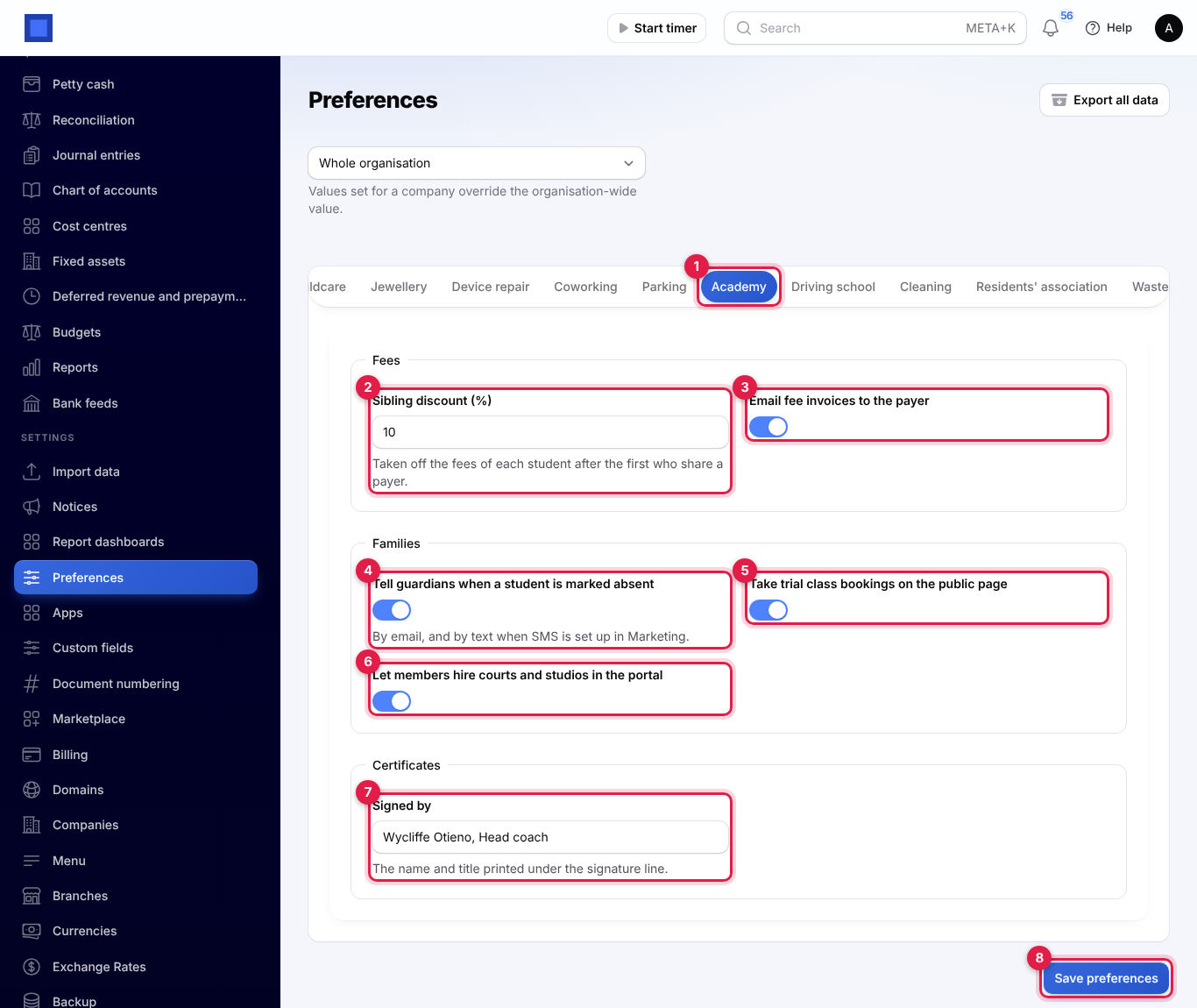
- Open Settings → Preferences and click the Academy tab (marker 1).
- Change what you need and click Save preferences (marker 8).
| Setting | Default | What it does |
|---|---|---|
| Sibling discount (%) (marker 2) | 10 | Taken off the fees of each student after the first who share a payer. See Fees. |
| Email fee invoices to the payer (marker 3) | On | Each fee invoice is emailed to the family when it is issued. |
| Tell guardians when a student is marked absent (marker 4) | On | By email, and by text when SMS is set up in Marketing. |
| Take trial class bookings on the public page (marker 5) | On | Turns the public trial page on or off. |
| Let members hire courts and studios in the portal (marker 6) | Off | Adds a booking form for venues to the family's portal page. |
| Signed by (marker 7) | — | The name and title printed under the signature line on certificates, for example Wycliffe Otieno, Head coach. |
Programmes, levels and terms
A programme is what you teach (Junior football, Piano), with its fee and its levels or grades.
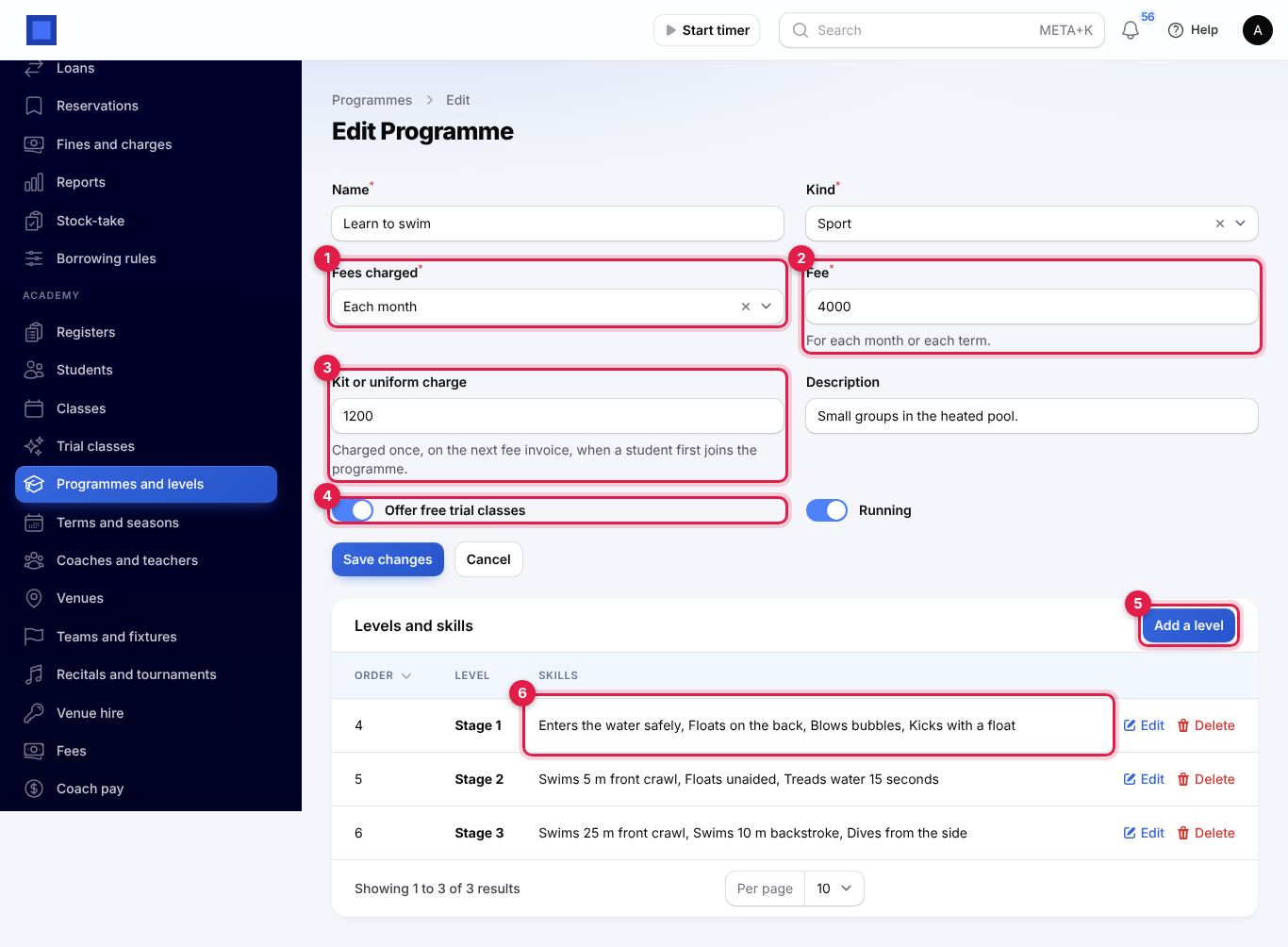
- Open Academy → Programmes and levels and click New programme. Fill in the window and click Create; the programme's page opens.
| Field | What to enter |
|---|---|
| Name (required), Kind (required) | Sport or Arts. |
| Fees charged (required, marker 1) | Each month, or Each term or season. |
| Fee (required, marker 2) | For each month or each term. |
| Kit or uniform charge (marker 3) | Charged once, on the next fee invoice, when a student first joins the programme. |
| Description | Shown with the programme. |
| Offer free trial classes (marker 4) | Its classes can be booked on the public trial page. |
| Running | Off to stop using the programme for new classes. |
- Under Levels and skills, click Add a level (marker 5). Type the Name (Stage 1, Grade 1, Yellow belt), its Order, and the Skills checklist (marker 6): type each skill and press Enter. Every skill must be ticked in a passed assessment before a student moves up.
Terms and seasons: open Academy → Terms and seasons, click New term and type the Name (Term 1 2027), Starts on and Ends on. A class can run within one term, and termly fees are invoiced for a term.
Coaches and venues
Academy → Coaches and teachers → New coach:
| Field | What to enter |
|---|---|
| Name (required), Phone, Email | |
| Signs in as | The coach's NaliSuite user. The registers page then shows this coach their own classes first. |
| Paid (required) | Per session taught or Per student who came. |
| Rate (required) | For each session taught, or for each student who came. See Coach pay. |
| Active |
Academy → Venues → New venue: the Name (Court 1), Kind (Court, Pitch, Pool, Studio, Hall, Track or Other), the Hire rate per hour, Can be hired out and In use. With the Booking app on, Room in the Booking app links the venue to a room there, so hires are refused when the room is booked.
Classes and the waiting list
A class meets every week on one day, at one time, at one venue, with one coach.
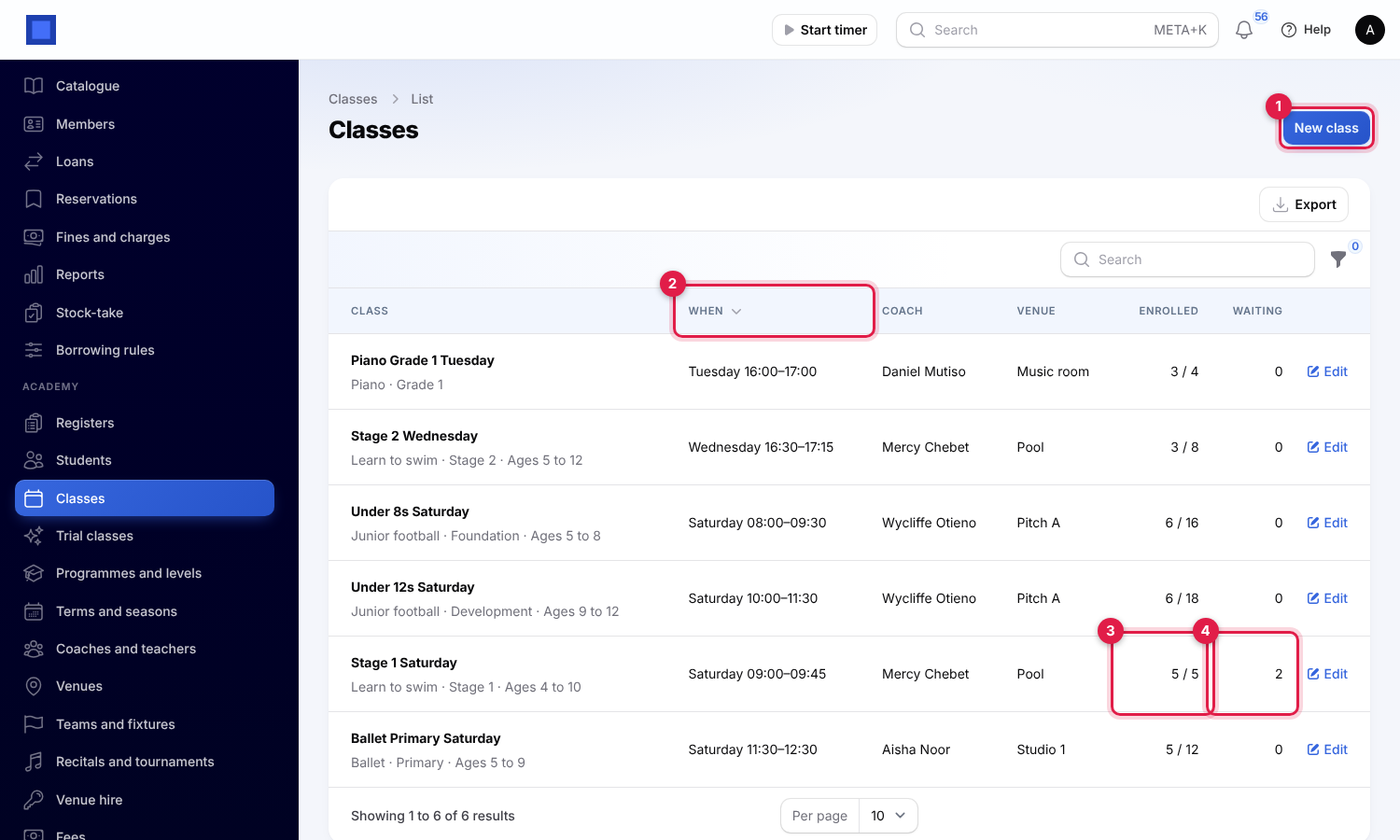
Open Academy → Classes. Each class shows its programme, level and age group, When (marker 2), the coach and venue, how many are Enrolled out of the places (marker 3) and how many are Waiting (marker 4). Filter by programme, coach or day.
Click New class (marker 1), fill in the form and click Create:
| Field | What to enter |
|---|---|
| Name (required) | Under 8s Saturday. |
| Programme (required), Level | New students start at this level. |
| Coach or teacher, Venue | |
| Runs in term | Leave empty for a class that runs all year. |
| Day, Starts at, Minutes (all required) | |
| Places (required) | When the class is full, new students go on the waiting list. |
| Youngest age, Oldest age | Students outside the age group cannot be enrolled. |
| Running | Off to stop the class. |
The class's page lists its Students and waiting list (enrolled students at first; use the Status filter for the waiting list), with any medical notes under each name. Enrol a student adds one. When a place frees (a student is withdrawn, or you increase Places and save), the first person waiting moves up by themselves and the family is told by email and text: A place opened up in Stage 1 Saturday.
Students and guardians
Open Academy → Students and click New student. Students are numbered AC-0001 and so on.
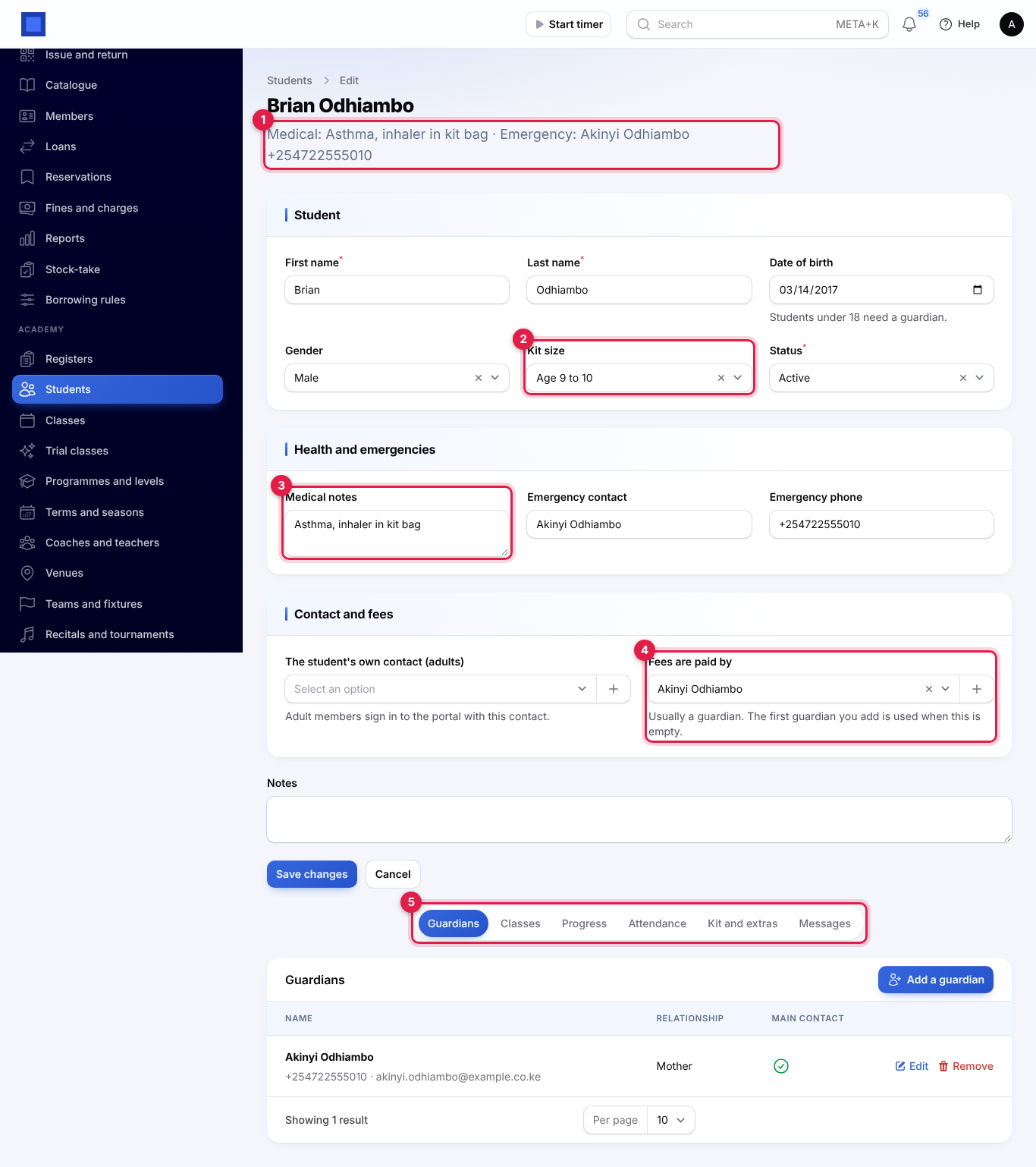
| Field | What to enter |
|---|---|
| First name, Last name (required) | |
| Date of birth | Students under 18 need a guardian. |
| Gender, Kit size (marker 2), Status | Active or Left. Students who left are not billed or enrolled. |
| Medical notes (marker 3) | Shown to coaches on the register, the class list and events. |
| Emergency contact, Emergency phone | |
| The student's own contact (adults) | For an adult member: they sign in to the portal with this contact, and pay their own fees when nobody else does. |
| Fees are paid by (marker 4) | Usually a guardian. The first guardian you add is used when this is empty. |
The summary under the name (marker 1) shows the medical notes and emergency contact, and warns A student under 18 needs a guardian until one is added. The tabs (marker 5) hold:
- Guardians: Add a guardian links a contact (or creates one) with their Relationship. Guardians hear about absences, promotions and places that open, and see the student in the portal.
- Classes: Enrol in a class, and for each class Assess, Set level and Withdraw (or Take off the waiting list).
- Progress, Attendance (every mark, and when the family was told about an absence), Kit and extras (see Fees) and Messages (see The family portal).
Assessments, promotion and certificates
On the student's Classes tab, click Assess on the class.
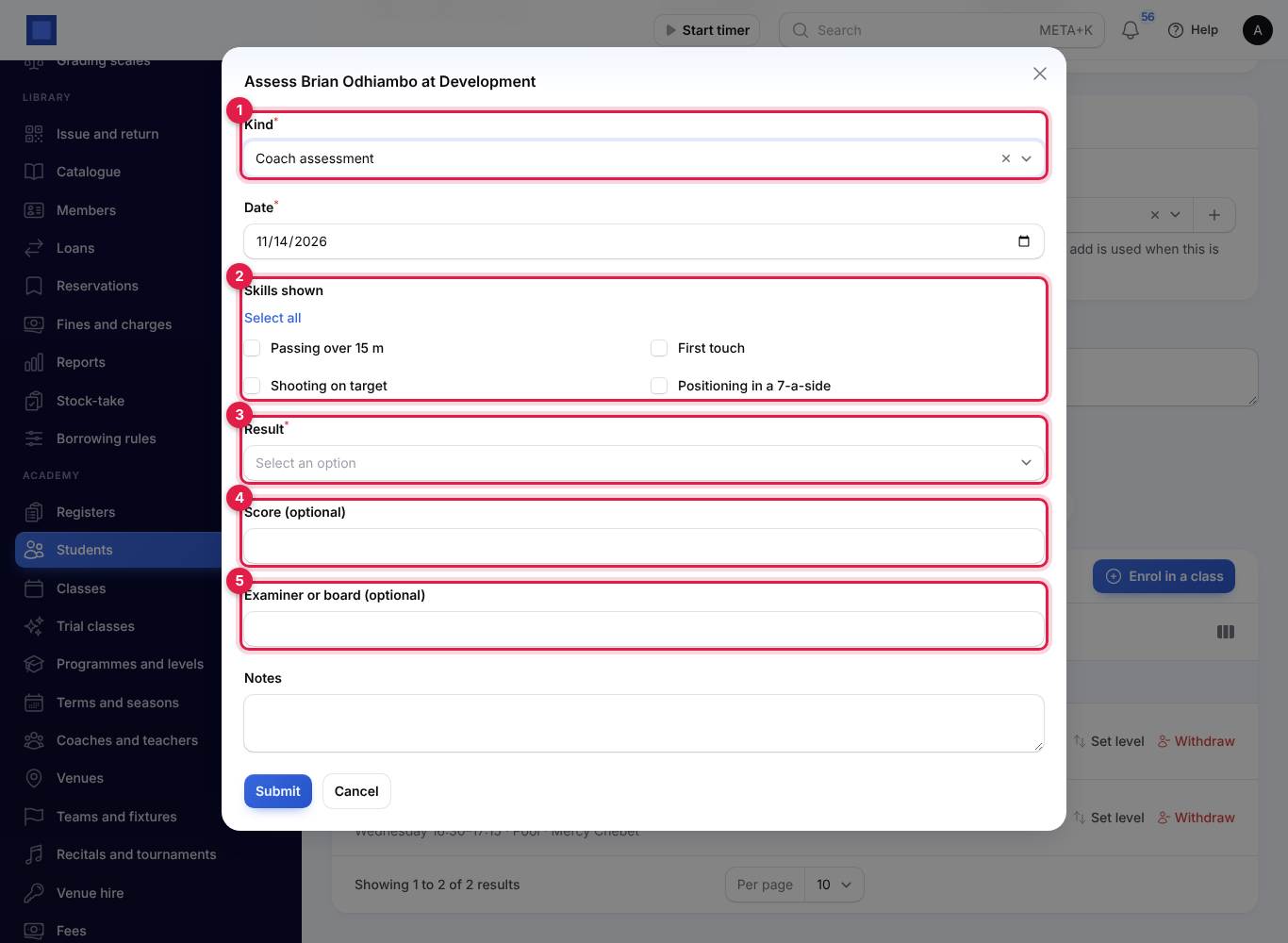
- Choose the Kind (marker 1): Coach assessment or Grading or exam, and the Date.
- Tick the Skills shown (marker 2), the skills of the level the student is working at.
- Choose the Result (marker 3): Distinction, Merit, Passed or Not yet. Add a Score (marker 4), the Examiner or board (marker 5) and Notes if you like, and click Submit.
The assessment appears on the Progress tab:
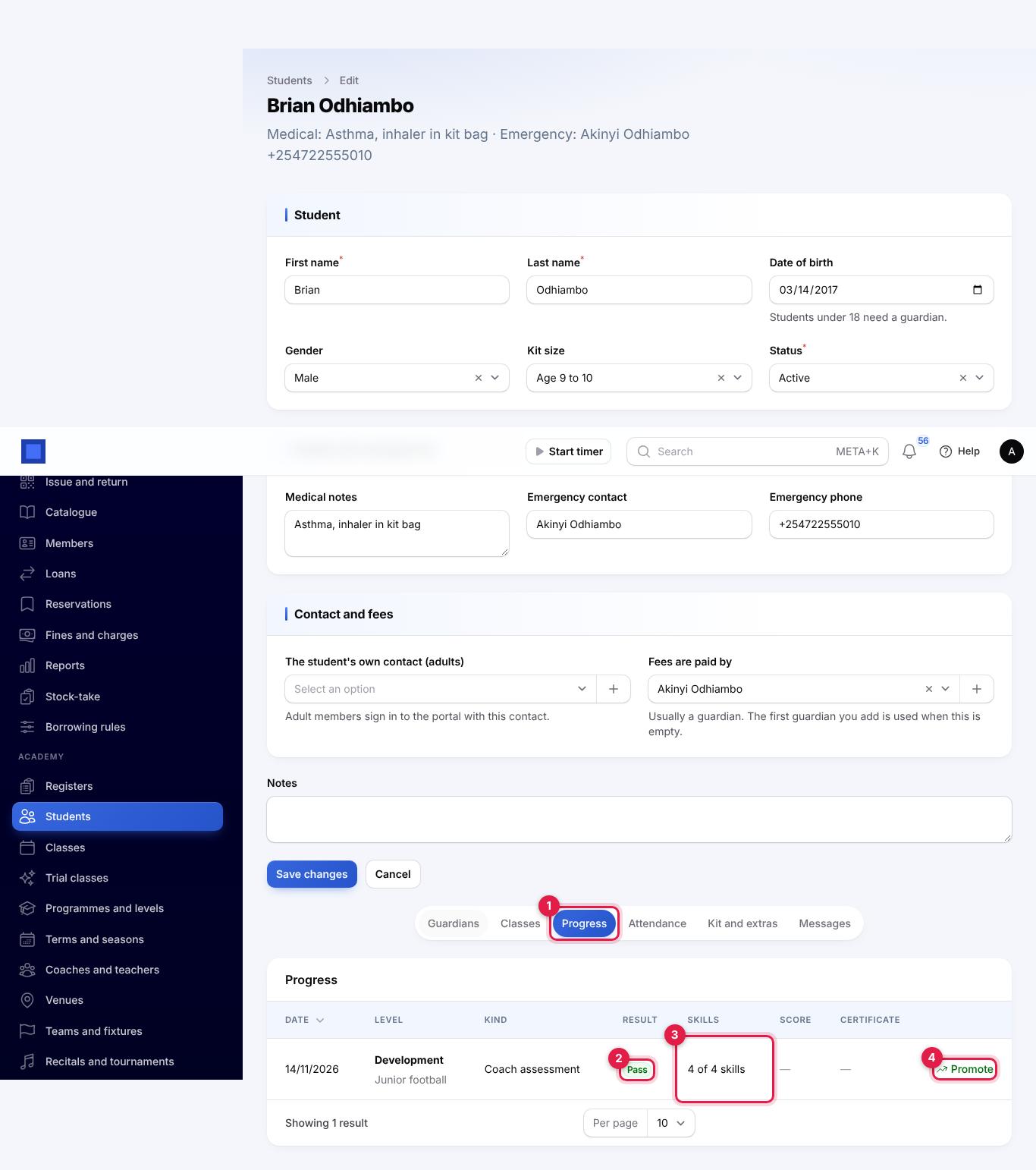
When the result is a pass (marker 2) with every skill shown (marker 3, 4 of 4 skills), Promote (marker 4) appears. Confirm it: the student moves up to the next level (or completes the top level) and gets a numbered certificate, and the family is emailed Congratulations. Certificate opens it as a PDF, signed by the name in Settings; families download it in the portal too.
Registers on a phone
Coaches open Academy → Registers on their phones.
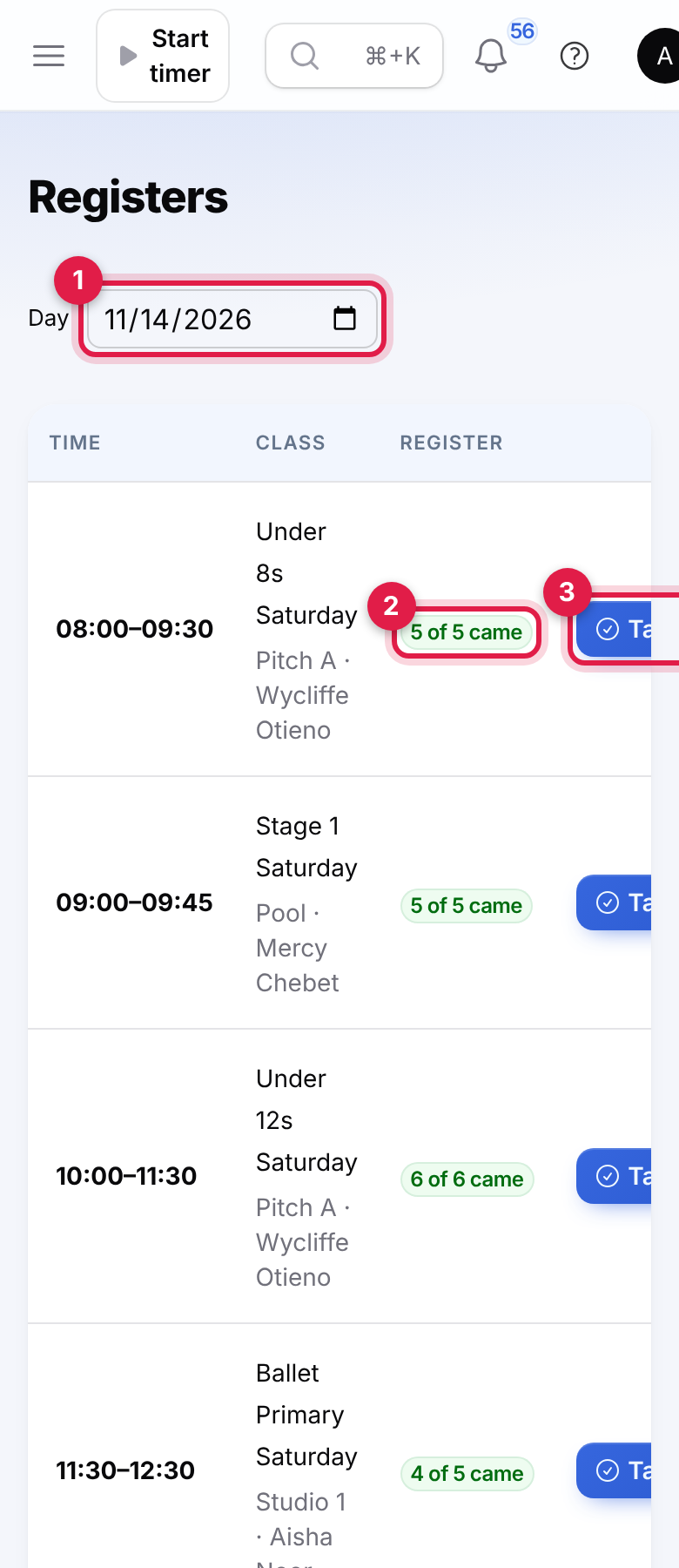
- Check the Day (marker 1); it opens on today. The classes meeting that day are listed with their time, venue and coach. A coach linked to their user sees only their own classes; ticking Show every coach's classes shows all.
- Tap Take the register (marker 3). On a narrow phone the button may sit at the right edge of the table; scroll the table sideways or turn the phone.
- Every student is marked Present at first. Tap Late, Absent (marker 2) or Excused for the others. Medical notes show next to the name (marker 1).
- Tap Save the register.
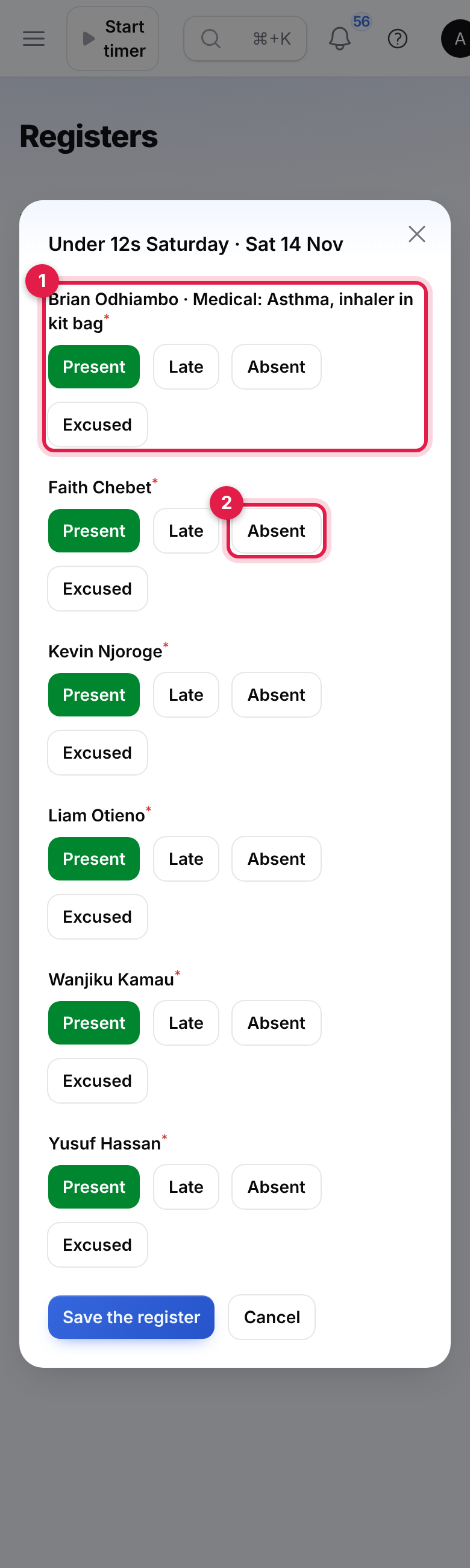
You see Register saved, with 2 families told about an absence. when guardians were told. The register column then shows, for example, 5 of 5 came (marker 2 on the list). Registers can be taken on the day or later, never ahead. Saving again corrects the marks; a family is told about an absence only once.
Trial classes
Families book free trial classes on your public page at /academy/trial on your workspace address, for example https://yourbusiness.nalisuite.com/academy/trial. Link to it from your website. Open the trial booking page (marker 1 on the list below) opens it.
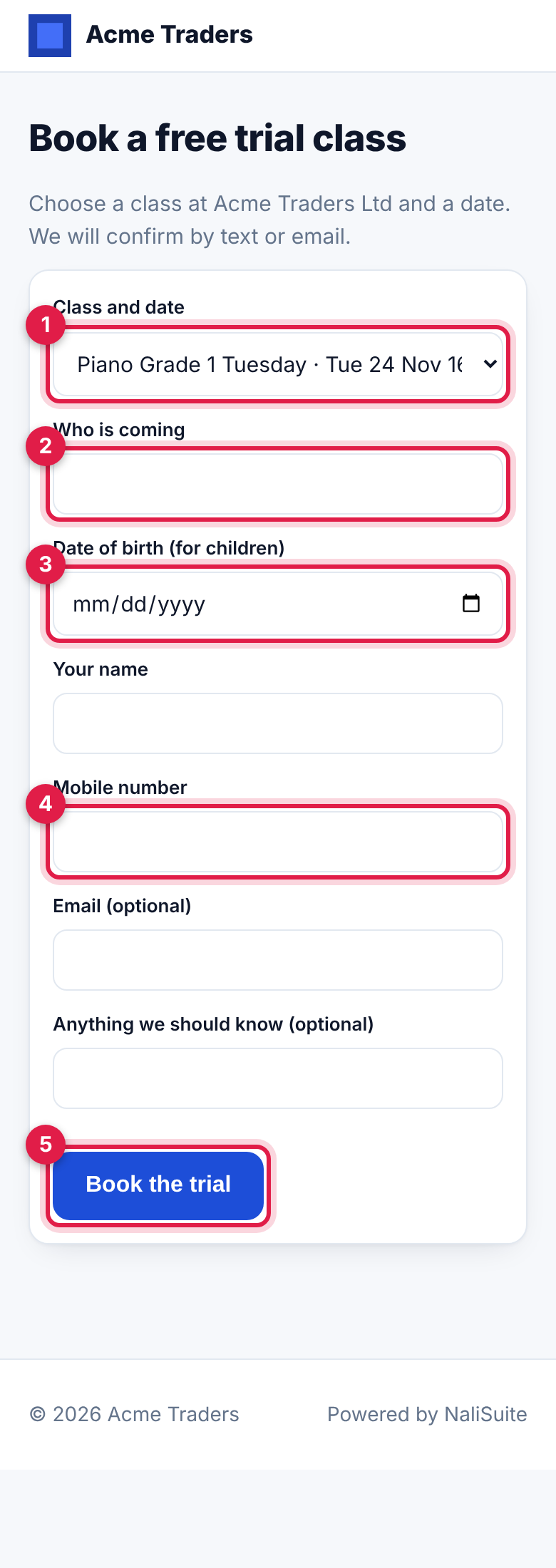
They choose a class and one of its next dates under Class and date (marker 1; classes of programmes that offer trials), type Who is coming (marker 2), the Date of birth (for children) (marker 3), Your name, Mobile number (marker 4), an optional Email and Anything we should know, and tap Book the trial (marker 5). They get a confirmation by email and text; you get a notification Trial class booked.
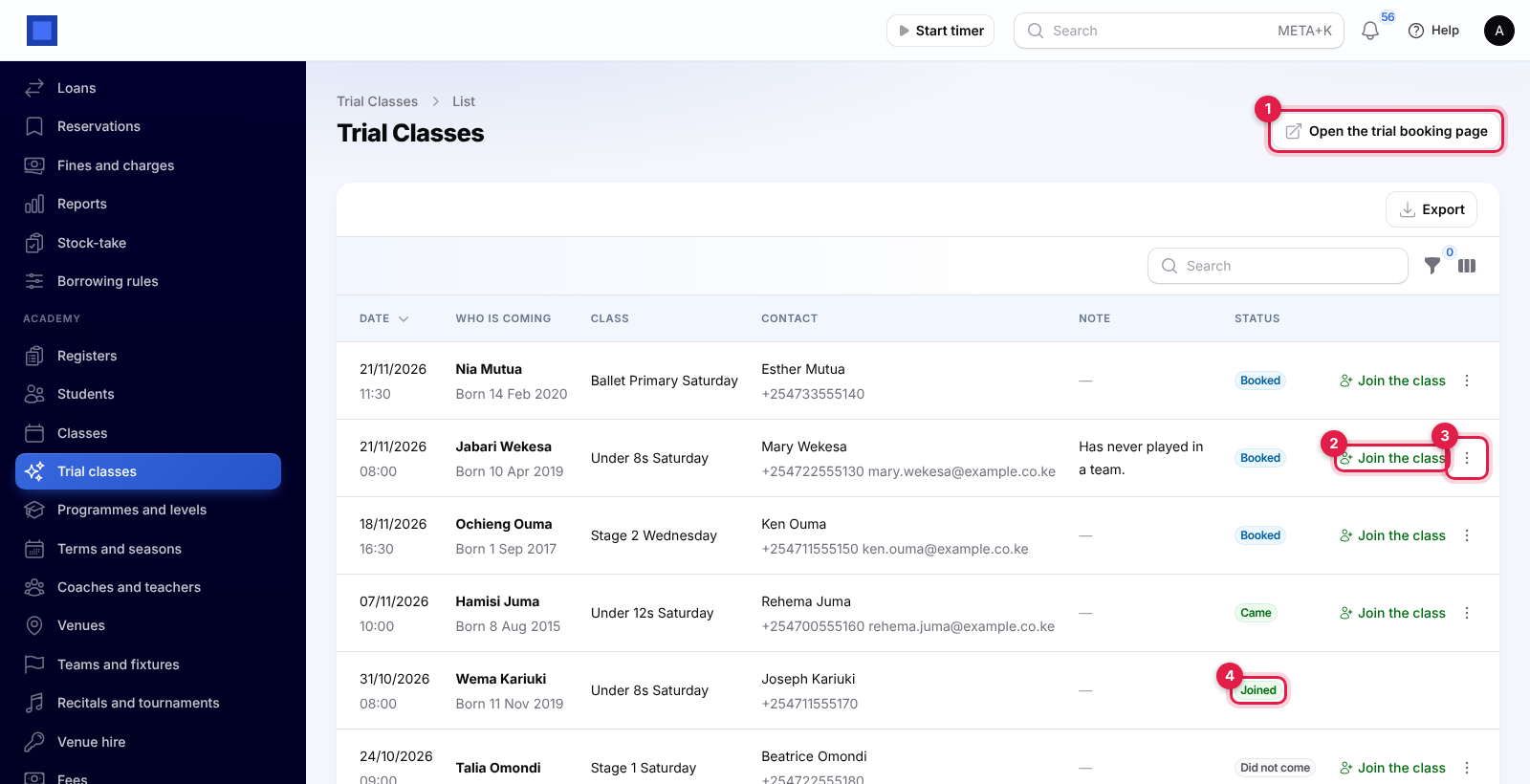
Academy → Trial classes lists each booking with the class, contact and status. After the class:
- Join the class (marker 2) adds a student record (with the contact as guardian of a child, or as the adult's own contact) and enrols them in the class. The status becomes Joined (marker 4) and links to the student.
- ⋮ (marker 3): Came, Did not come or Cancel.
Fees
Fees are invoiced by staff, one invoice per paying family per month or term, with Invoice fees under Academy → Fees. They are not invoiced on a schedule: run it each month (and each term) yourself.
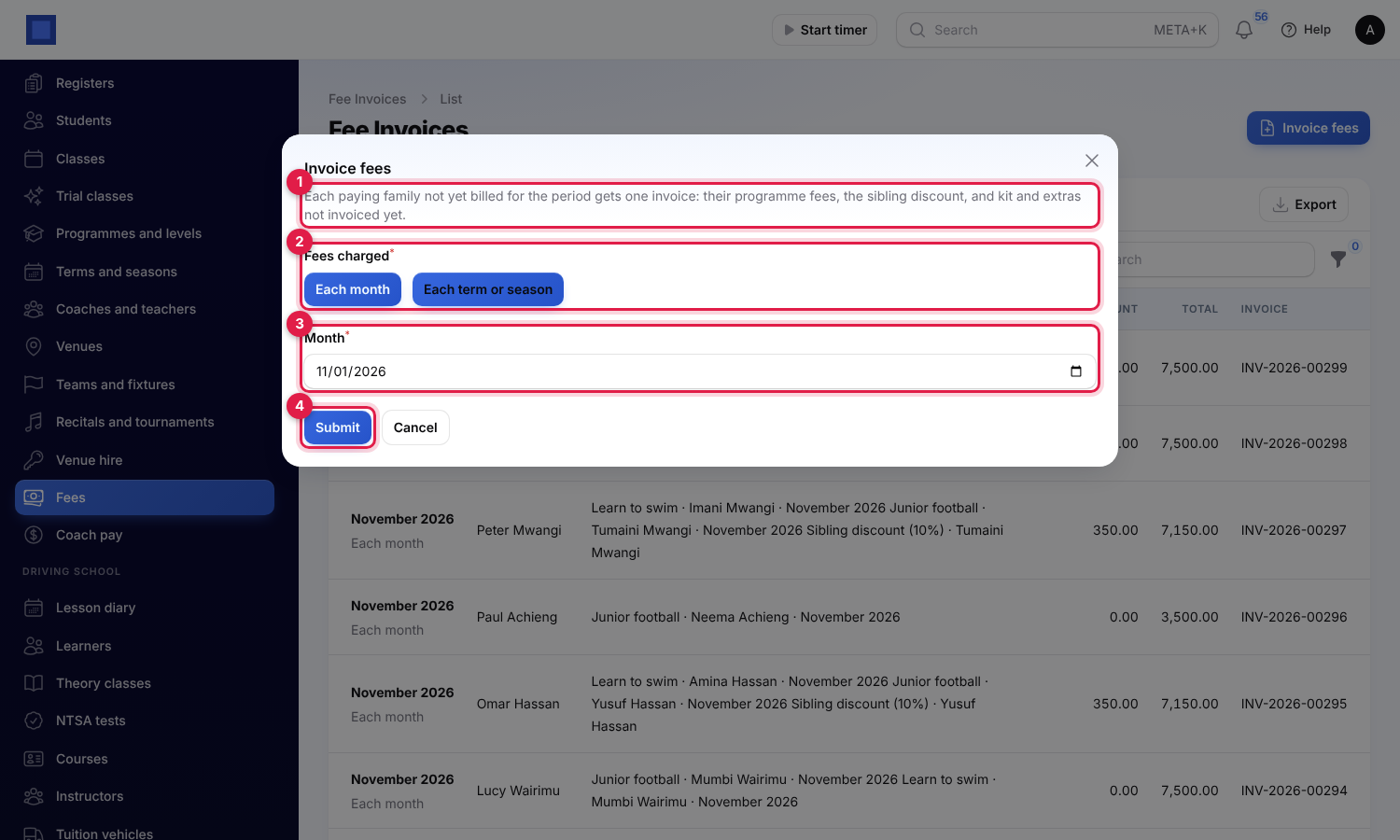
- Click Invoice fees.
- Choose Fees charged (marker 2): Each month with the Month (marker 3), or Each term or season with the Term.
- Click Submit (marker 4). You see, for example, 12 families invoiced for November 2026.
As the window says (marker 1), each paying family not billed yet for that period gets one invoice with:
- the fee of each programme each of their students is enrolled in that is charged that way (monthly or termly), for students enrolled by the end of the period: Learn to swim · Imani Mwangi · November 2026;
- the sibling discount: the students sharing a payer are ranked by their fees, and each one after the first gets the percentage in Settings off their fees: Sibling discount (10%) · Tumaini Mwangi;
- kit charged on joining and extras added on the student's Kit and extras tab that are not invoiced yet. Add an extra there adds a Description (Tournament entry), Date, Quantity and Price for the next invoice.
Fee invoices are issued without tax, due after the payer's payment terms (7 days when none are set), and emailed when that setting is on. A family is invoiced once per period; students on a waiting list, withdrawn, or who left are not charged.
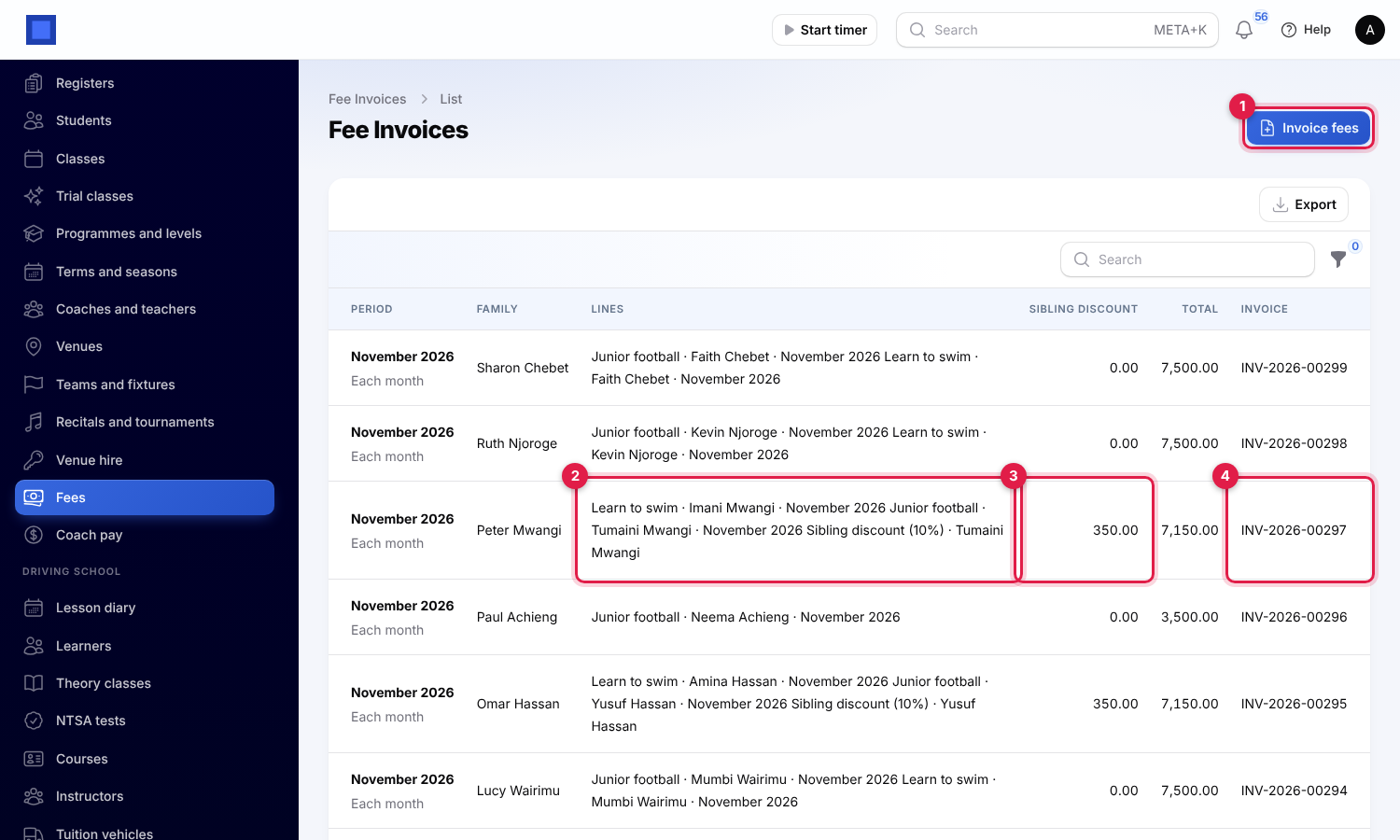
The list shows each family's Lines (marker 2), the Sibling discount (marker 3), the Total and the Invoice (marker 4; click to open it).
Teams and fixtures
Open Academy → Teams and fixtures, click New team and type the Name, Season, Programme and Coach. The team's page shows its record (marker 1), for example Won 1 · Drew 1 · Lost 1.
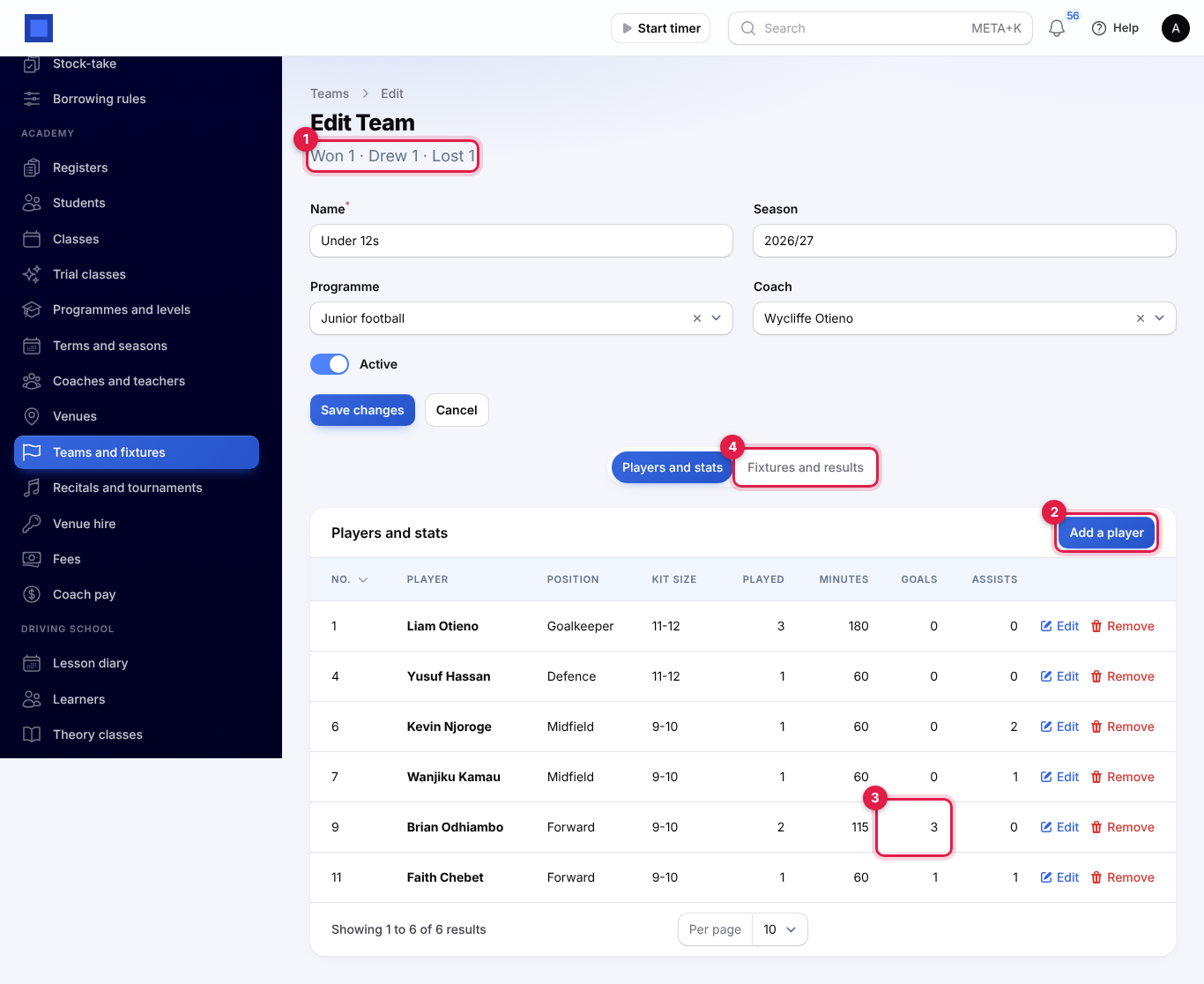
Under Players and stats, Add a player (marker 2) adds a student with their Shirt number and Playing position. Each player's kit size, matches Played, Minutes, Goals (marker 3) and Assists over the season are totalled from the results.
On Fixtures and results (marker 4):
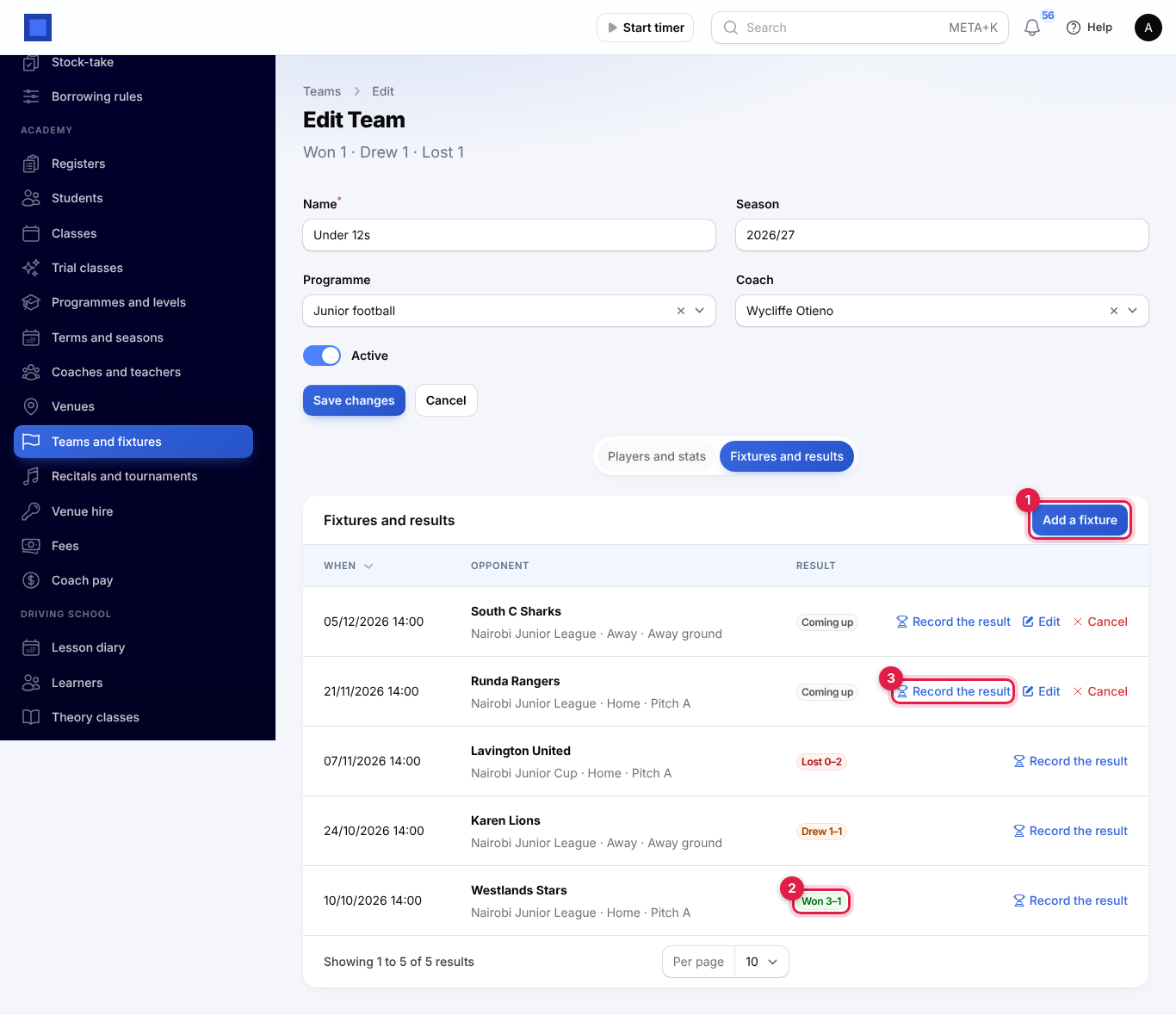
- Add a fixture (marker 1): the Opponent, Competition, Kick-off or start, Venue and whether it is a Home fixture.
- After the match, Record the result (marker 3): Our score, Their score, then Add a player for each player with their Minutes, Goals and Assists, and a Match report. The players' goals cannot add up to more than the team's score. The result shows as Won 3–1 (marker 2), Drew or Lost.
- Cancel a fixture that will not be played.
Recitals and tournaments
Academy → Recitals and tournaments → New event: the Name, Kind (Recital or concert, Show or exhibition, Tournament, Gala or Other), Starts, Venue and Description. On the event's page, Add a participant lists each student with their Piece, race or role; their medical notes are shown alongside.
With the Events app on, Sell tickets puts the event on a public page in the Events app with one ticket type: the Ticket name, Price and Tickets available (empty for no limit). The list then shows the Tickets sold, and Ticket sales opens the event in the Events app.
Venue hire
Open Academy → Venue hire to hire out courts, pitches and studios by the hour. Bookings are numbered HIRE-2026-0001.
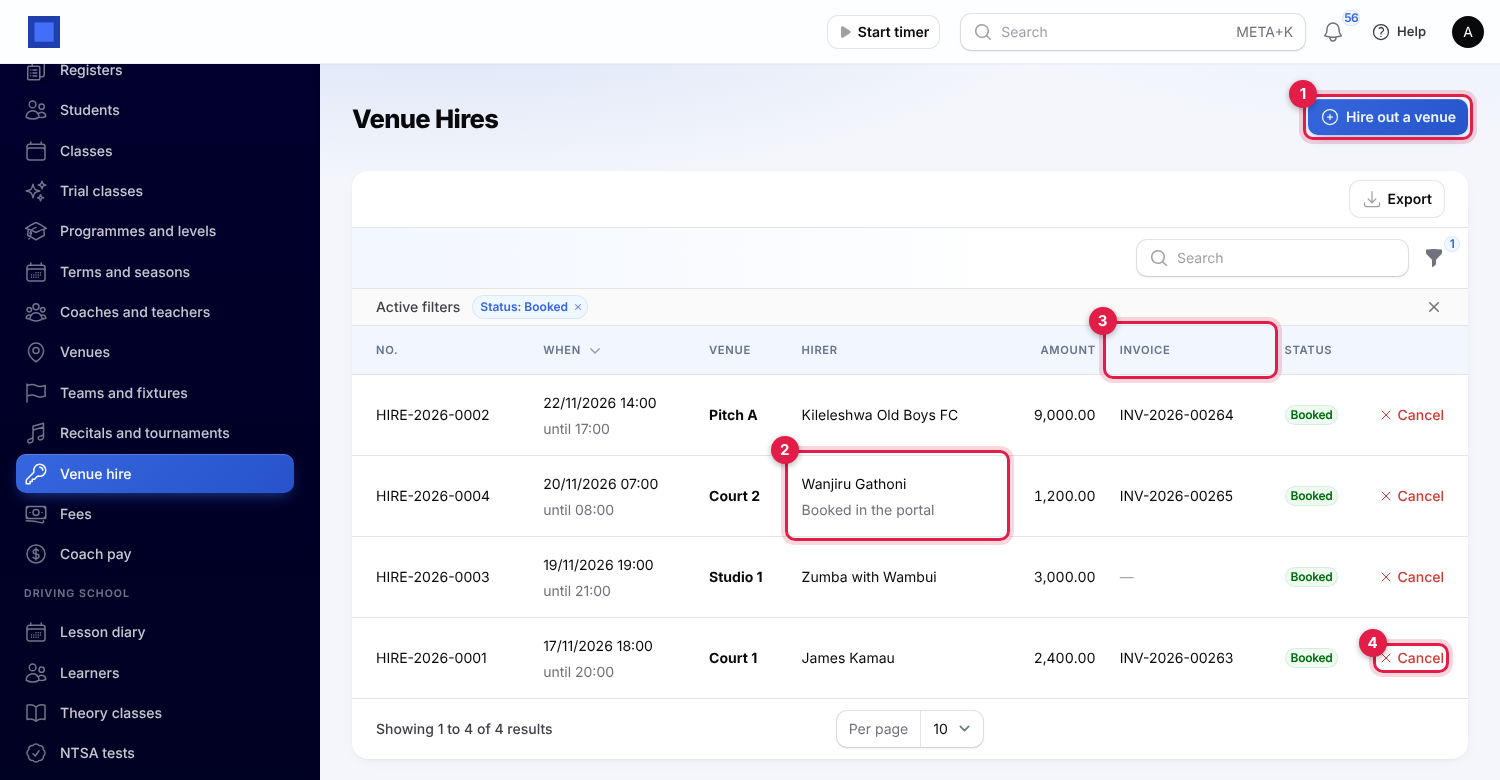
- Click Hire out a venue (marker 1).
- Choose the Venue (only venues that can be hired out), the Date, From and To, and who it is Hired by: A member (a student), A contact, or Someone else (a name only).
- Click Submit. You see Venue booked.
The hire is charged at the venue's hourly rate for the time booked and invoiced at once to the member's payer or the contact (marker 3), due after their payment terms. Someone else is not invoiced; add them as a contact to invoice them. A hire is refused when it clashes with another hire, with a class at that venue, or with a booking of its room in the Booking app, for example Under 8s Saturday uses Pitch A from 08:00 to 09:30. Hires booked by families show Booked in the portal (marker 2).
Cancel (marker 4) frees the slot. It does not credit the invoice: if the hire was already invoiced, issue a credit note or refund under Invoicing (see Credit notes, debit notes and cancelling).
Coach pay
Academy → Coach pay works out what each coach earned between From and To (marker 1), this month at first, from the registers taken.
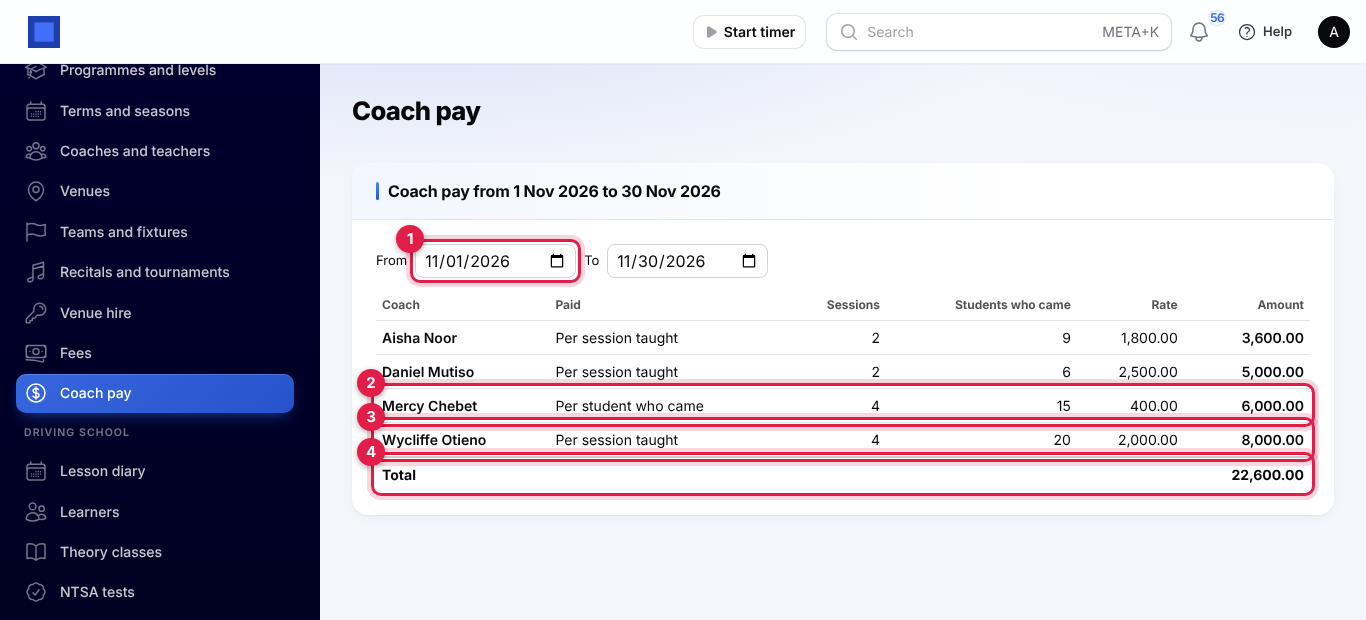
Each coach shows how they are Paid, the Sessions they taught (registers taken for their classes), the Students who came (present or late), their Rate and the Amount: rate times students who came for a coach paid per student (marker 2), or rate times sessions for a coach paid per session (marker 3). The Total (marker 4) is at the bottom. Pay coaches through Payroll or as a bill; this page does not record the payment.
The family portal
Guardians and adult members with portal access (see Customer and vendor portal) have an Academy page with each of their students.
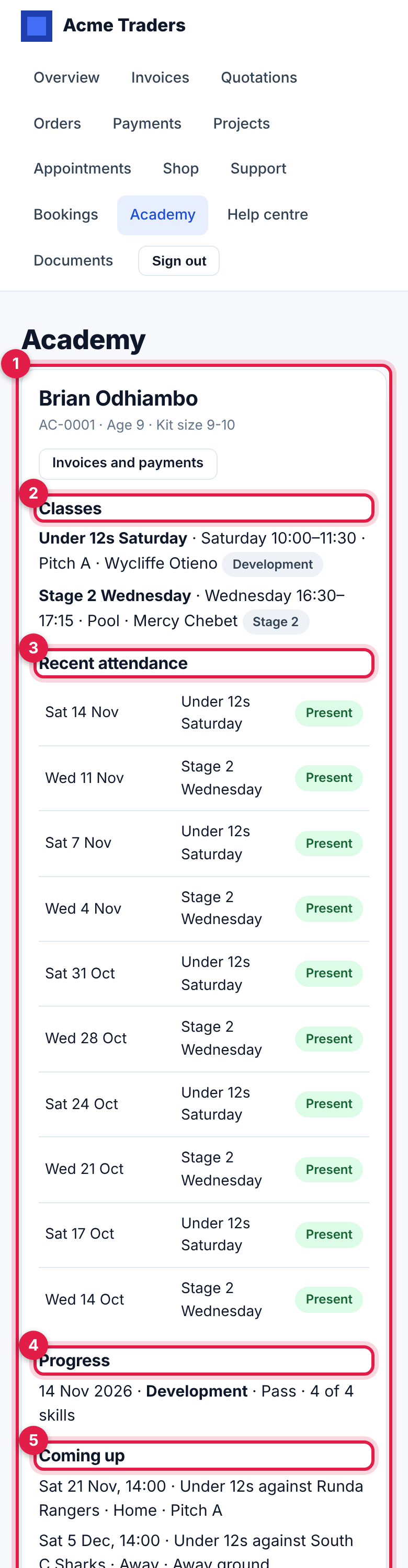
- Each student (marker 1) with their number, age and kit size, and Invoices and payments to pay fees online.
- Classes (marker 2) with the day, time, venue, coach and level, or Waiting list.
- Recent attendance (marker 3) from the registers.
- Progress (marker 4) with each assessment and a Certificate to download after a promotion.
- Coming up (marker 5): the student's team fixtures.
Further down:
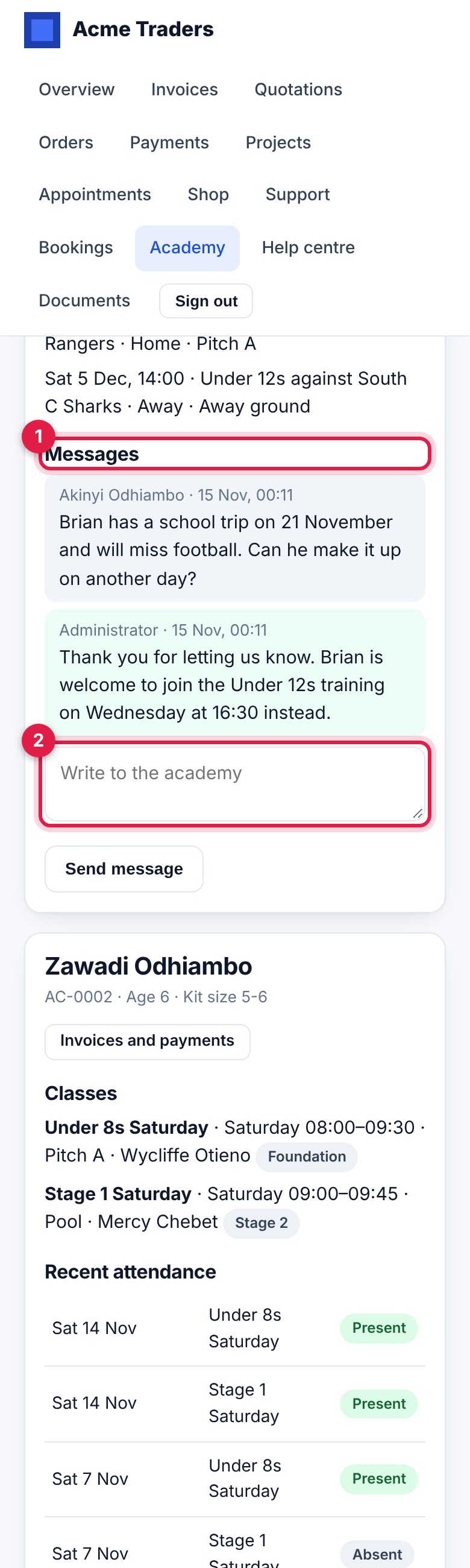
- Messages (marker 1): the conversation with the academy. They type under Write to the academy (marker 2) and tap Send message; your managers are notified, and the message appears on the student's Messages tab, where Write to the family replies by email and in the portal.
- Hire a court or studio (marker 3), when that setting is on: they choose the Venue, Date, Start time and Hours (1 to 4) and tap Book and invoice me (marker 4). The hire is invoiced to them and appears under Invoices; your managers are notified.
Good to know
- Fees are not invoiced on a schedule. Use Invoice fees every month for monthly programmes and every term for termly ones. Running it twice for the same period only invoices families not invoiced yet.
- Fee and venue hire invoices carry no tax. They are issued at once, without a tax line.
- Cancelling a venue hire does not credit its invoice. Credit or refund it under Invoicing.
- Age groups are checked on enrolment from the date of birth; a student without one can join any class.
- Absences are told to the family once per register, by email (and text with SMS set up).
- Registers cannot be taken for a day in the future, or for a day the class does not meet.
- The kit charge is added once per student per programme, the first time they are enrolled (not when they go on a waiting list).