Clinic and Pharmacy
Clinic and Pharmacy is for clinics, medical centres, dental and eye clinics, maternity homes and pharmacies. The front desk registers patients with their allergies, long-term conditions and insurance cover, and checks them in to a waiting queue. The clinician calls the patient in, records vitals, history, examination, diagnosis and plan, and adds the consultation, lab tests with their results, procedures and prescriptions. When the visit is complete, one bill goes to the patient; for an insured patient the insurer's share is taken off it and invoiced to the insurer as a claim. The pharmacy sees every prescription waiting to be handed over. It is in the Clinic group of the left menu: Patients, Visits, Pharmacy and Insurance claims.
Switch the Clinic app on
Clinic and Pharmacy is an add-on sold separately from your plan. It needs the Contacts, Sales and Invoicing apps, which every workspace has. Turn on Inventory too if you want medicines to leave your pharmacy stock.
- Open Settings → Marketplace and search for Clinic, or click Industry solutions.
- On the Clinic and Pharmacy card, click Start free trial (or Add to subscription) and confirm. The Clinic group appears in the menu.
- To stop, click End trial or Cancel on the card. Patients, visits and bills are kept.
If the card says Not available for purchase yet, ask NaliSuite support to switch it on. See Billing and marketplace.
Who can do what
The app separates the front desk, the clinical notes and the pharmacy. Give each role only what it needs under Settings → Roles.
| Permission | For | What it allows |
|---|---|---|
| clinic.view | Everyone in the clinic | See patients, the queue, visits, prescriptions and claims. |
| clinic.manage | Front desk, cashier | Register and edit patients, check them in, Complete and bill, Cancel visit, mark claims Rejected. |
| clinic.clinical | Doctors, clinical officers, nurses | Call in patients, fill in vitals and consultation notes, record lab Results. Only users with this permission appear under To see at check-in. |
| clinic.dispense | Pharmacists | Dispense prescriptions on the Pharmacy screen. |
Owners and admins have all four. The member role has clinic.view only, so it can read but not write clinical notes. Users without clinic.clinical see the vitals and notes greyed out.
Settings: the consultation fee
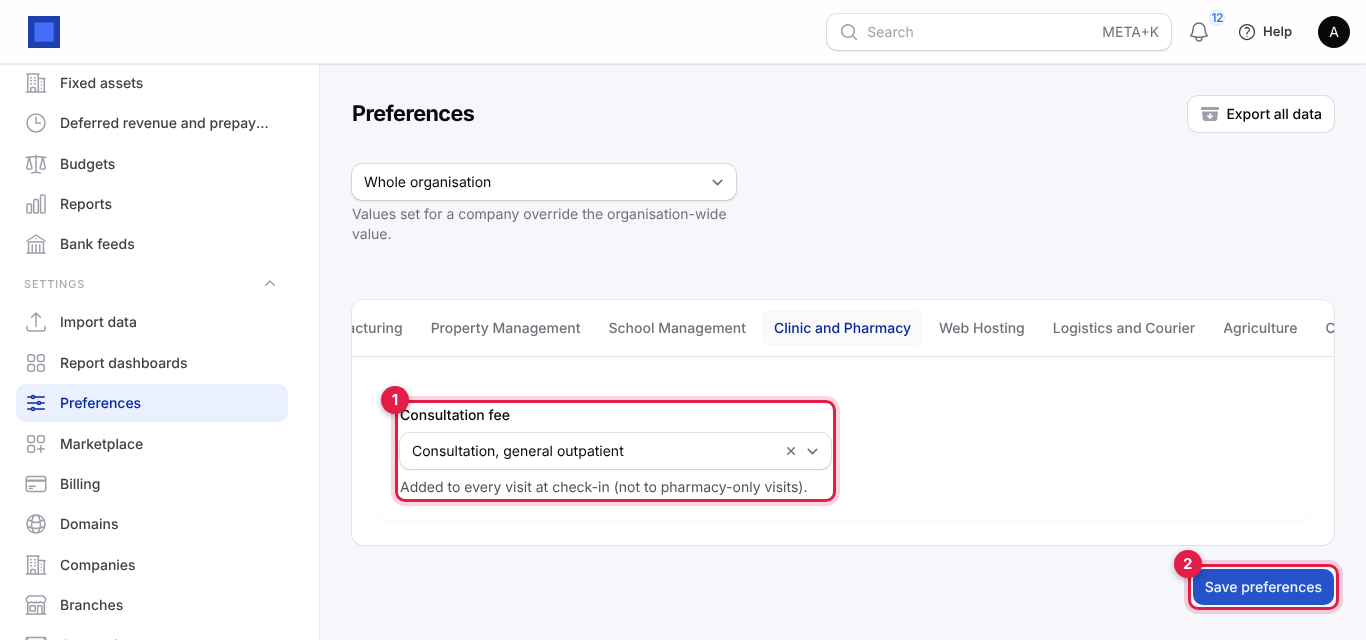
- Open Settings → Preferences and click the Clinic and Pharmacy tab.
- Choose the Consultation fee (marker 1) and click Save preferences (marker 2).
| Setting | What it does |
|---|---|
| Consultation fee | A service product (for example Consultation, general outpatient, KES 1,000, VAT exempt) added to every visit at check-in, except Pharmacy only visits. Leave it empty if you charge consultations by hand. |
The dropdown at the top of Preferences lets one company use a different fee from the rest of the organisation.
Prepare your price list
Everything billed at the clinic is a product under Sales → Products (see Products and pricing). Set them up before you open:
- Services for consultations, lab tests (Full haemogram, Malaria rapid test) and procedures (Wound dressing), with the right tax, usually VAT Exempt for medical services.
- Goods for medicines, with Track inventory on so the pharmacy stock goes down when they are billed. Use lots with expiry dates under Inventory to have the oldest lots used first.
You can still type any charge by hand on a visit; a product just fills the name and price and sets the tax.
1. Register a patient
- Open Clinic → Patients. Each patient shows their number (
PT-00004), name and phone, Age, Allergies in red (marker 2), Insurer (marker 3; Self-paying when there is none, Cover expired under it when the cover has ended) and the number of Visits.
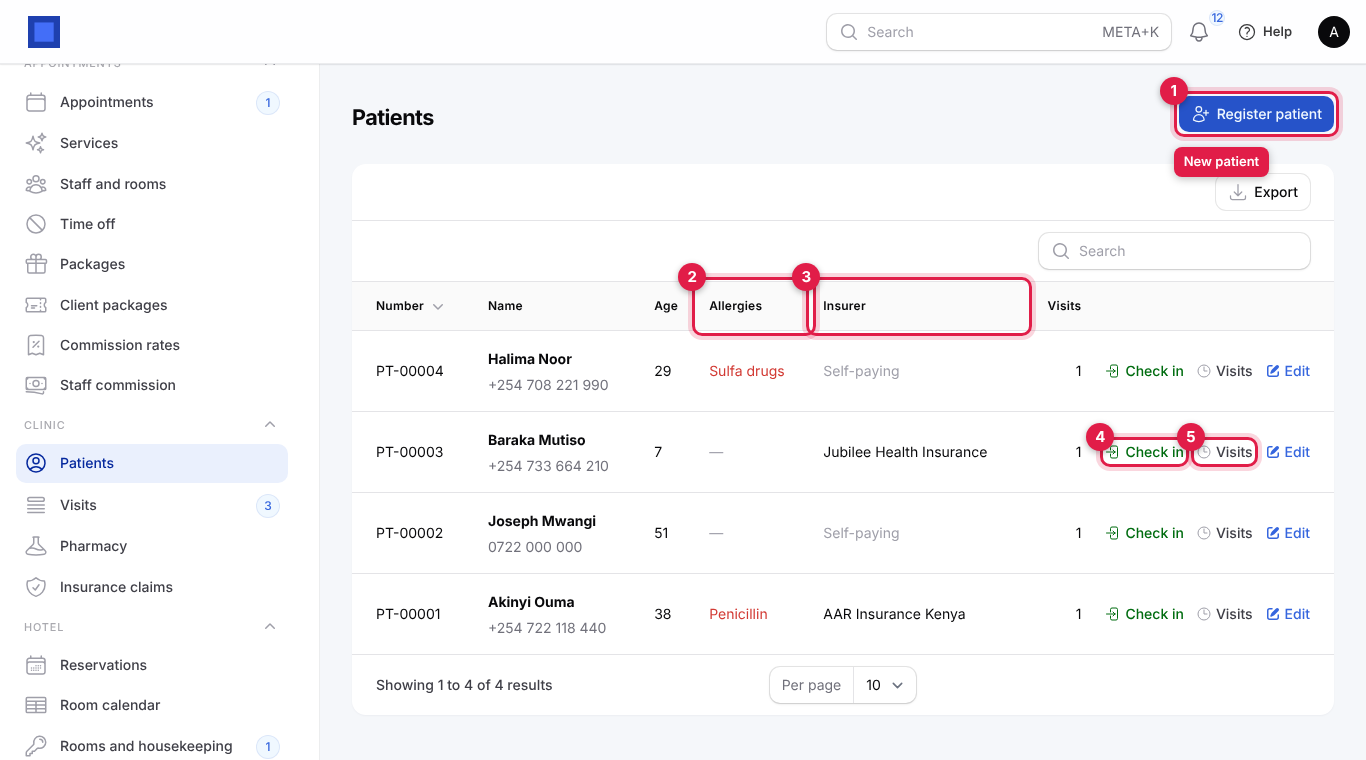
- Click Register patient (marker 1).
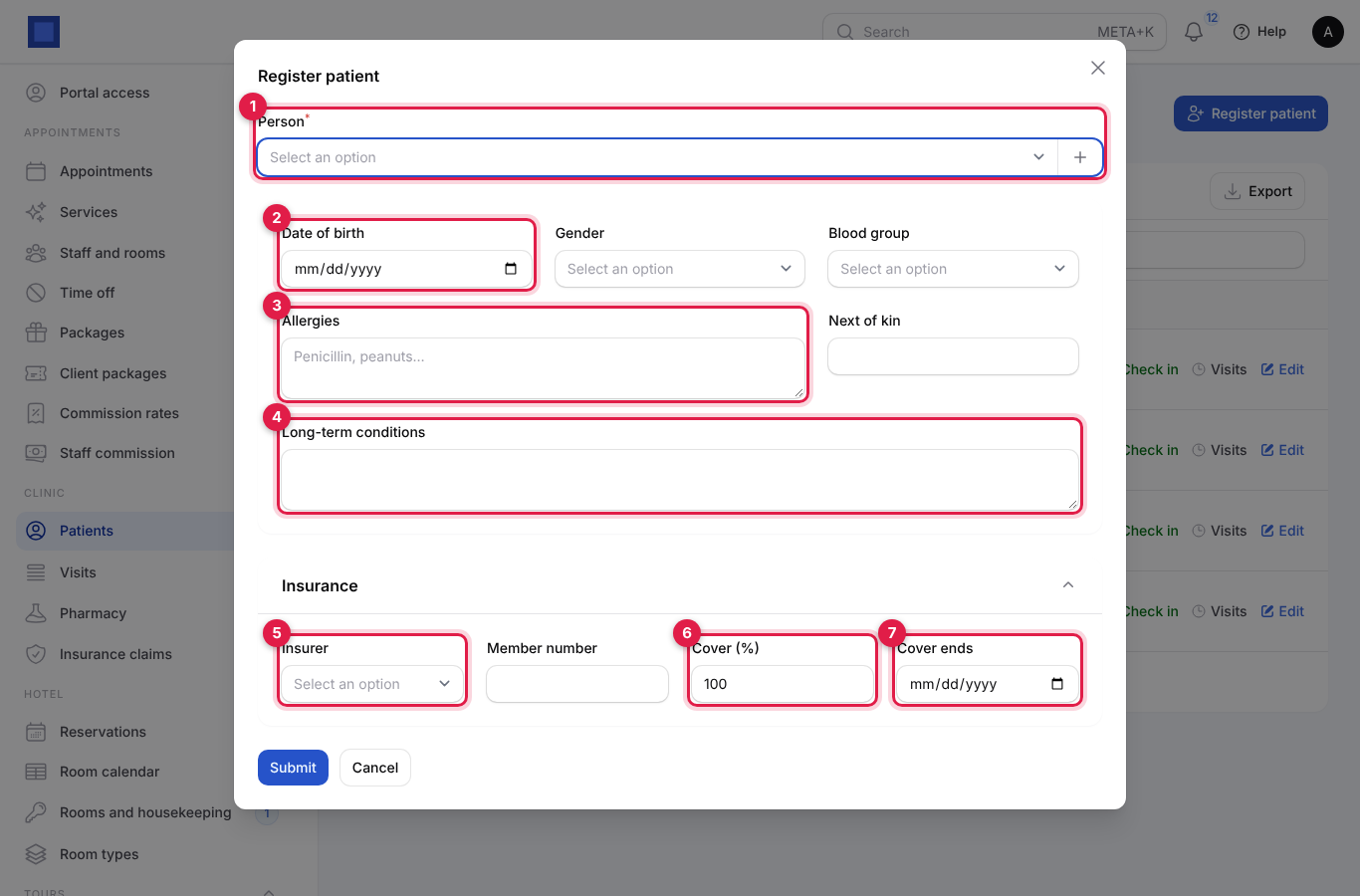
| Field | What to enter |
|---|---|
| Person (required, marker 1) | The patient's contact. The list leaves out people who are already patients. Click + to add a new person with Name, Phone and Email. |
| Date of birth (marker 2) | Used to show the age on the list and at the top of every visit. |
| Gender | Female or Male. |
| Blood group | A+, A-, B+, B-, AB+, AB-, O+ or O-. |
| Allergies (marker 3) | For example Penicillin, sulfa drugs, peanuts. Shown in red on the patient list, next to the patient in the queue, at the top of every visit and on the pharmacy screen. |
| Next of kin | Name, relationship and phone. |
| Long-term conditions (marker 4) | Asthma, Type 2 diabetes, hypertension. Shown at the top of every visit. |
| Insurer (marker 5, in the Insurance section) | The insurance company's contact, for example AAR Insurance Kenya or Jubilee Health Insurance. Add the insurer as a contact first. |
| Member number | The patient's membership number on the card. Printed on the bill and on the claim. |
| Cover (%) (marker 6) | How much of the bill the insurer pays: 100 for full cover, 80 when the patient pays a 20% co-pay. |
| Cover ends (marker 7) | The last day of the cover. Leave empty if it does not end. After this date the patient is treated as self-paying. |
- Click Submit. You see Patient PT-… registered.
To change a patient's details later, click Edit on their row (the same fields). Their name, phone and email belong to the contact; change those on the contact. Visits (marker 5) opens every visit of that patient.
2. Check the patient in
When the patient arrives:
- On Clinic → Patients, click Check in on their row (marker 4 above).
- Fill in the window and click Submit (marker 4).
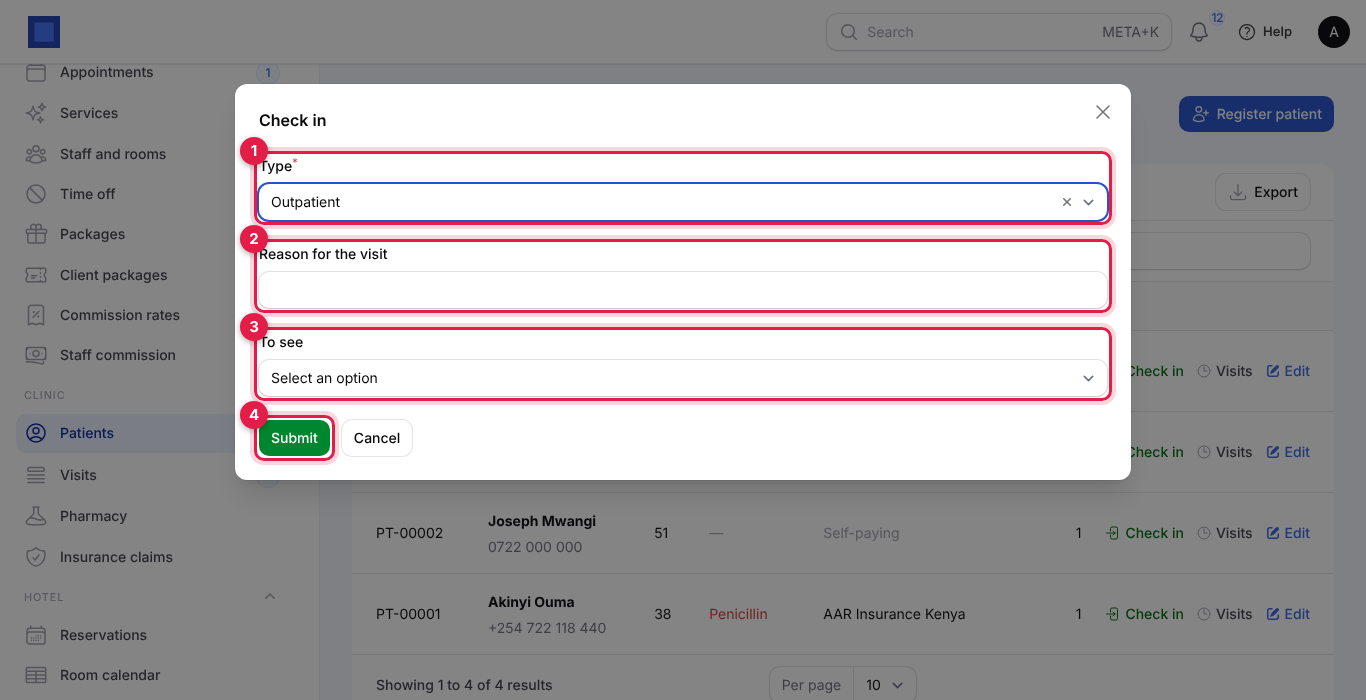
| Field | What to enter |
|---|---|
| Type (required, marker 1) | Outpatient, Review, Emergency (shown in red in the queue) or Pharmacy only (no consultation; no fee is added). |
| Reason for the visit (marker 2) | What the patient says: Fever and vomiting for two days. |
| To see (marker 3) | Optional. The clinician, from users with clinic.clinical. If left empty, the clinician who calls the patient in is recorded. |
What happens: a visit is opened in the queue with a number such as VIS-2026-00004 and the status Waiting; the Consultation fee is added as its first charge; and if the patient's insurance cover is current, the visit is marked to be claimed from the insurer. You see Joseph Mwangi is in the queue (VIS-2026-00003). A patient who is already waiting or with a clinician cannot be checked in twice.
3. The queue
Open Clinic → Visits. The menu shows a badge with the number of patients waiting or with a clinician. The list opens filtered to Status: Waiting (marker 3), oldest first, with how long each patient has waited under the check-in time.
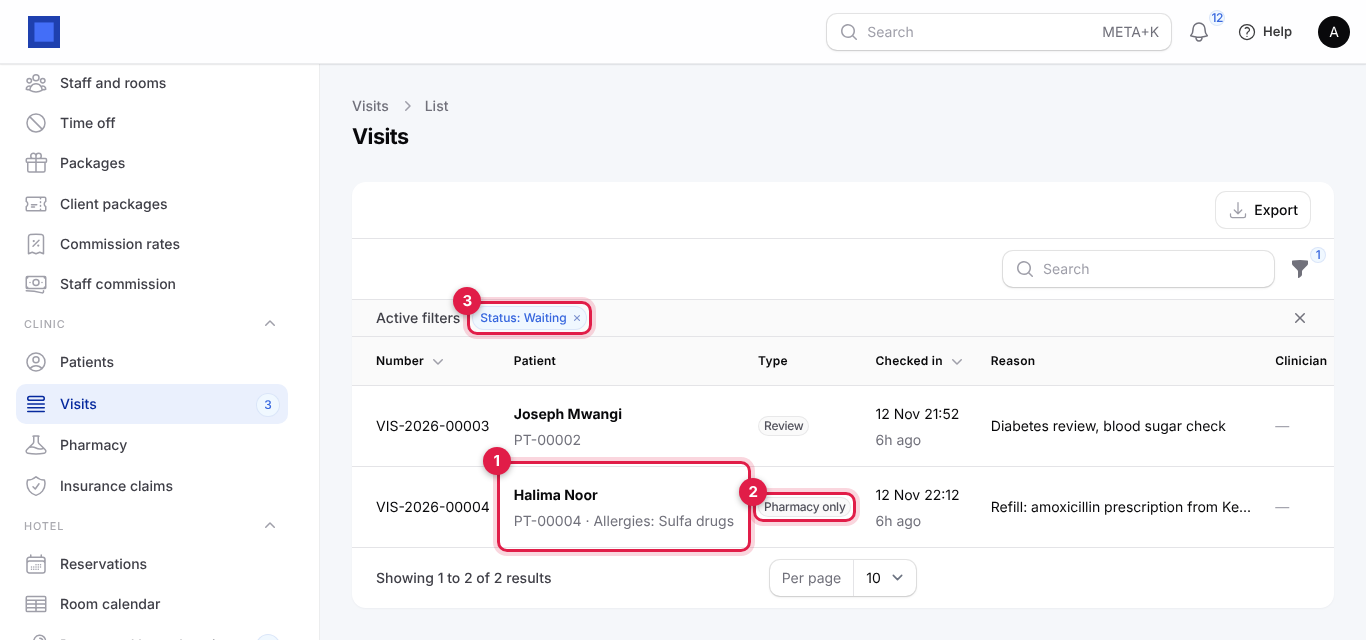
- Allergies show under the patient's name (marker 1); the Type badge shows Pharmacy only and Emergency visits (marker 2).
- To see patients already with a clinician, or past visits, click the × on the Status: Waiting chip, or choose another status with the filter icon. Filter by Patient to see one patient's history.
At the end of each row (scroll the list sideways if you do not see them) are the two buttons:
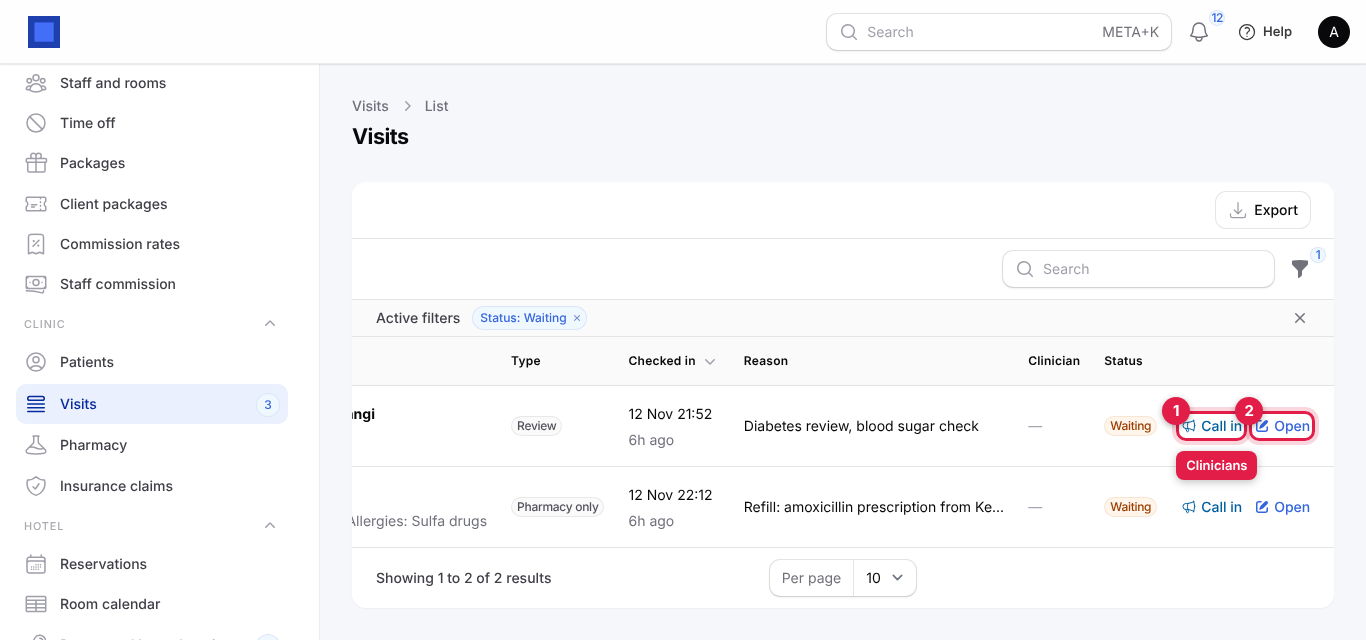
- Call in (marker 1): for clinicians. The visit becomes With the clinician, the clinician is recorded and the visit opens.
- Open (marker 2): opens the visit without changing its status, for the front desk or a nurse taking vitals.
4. The consultation
The visit page shows the patient's name, visit number and age as the title (marker 1), and their allergies and long-term conditions underneath (marker 2), so they are always in front of the clinician.
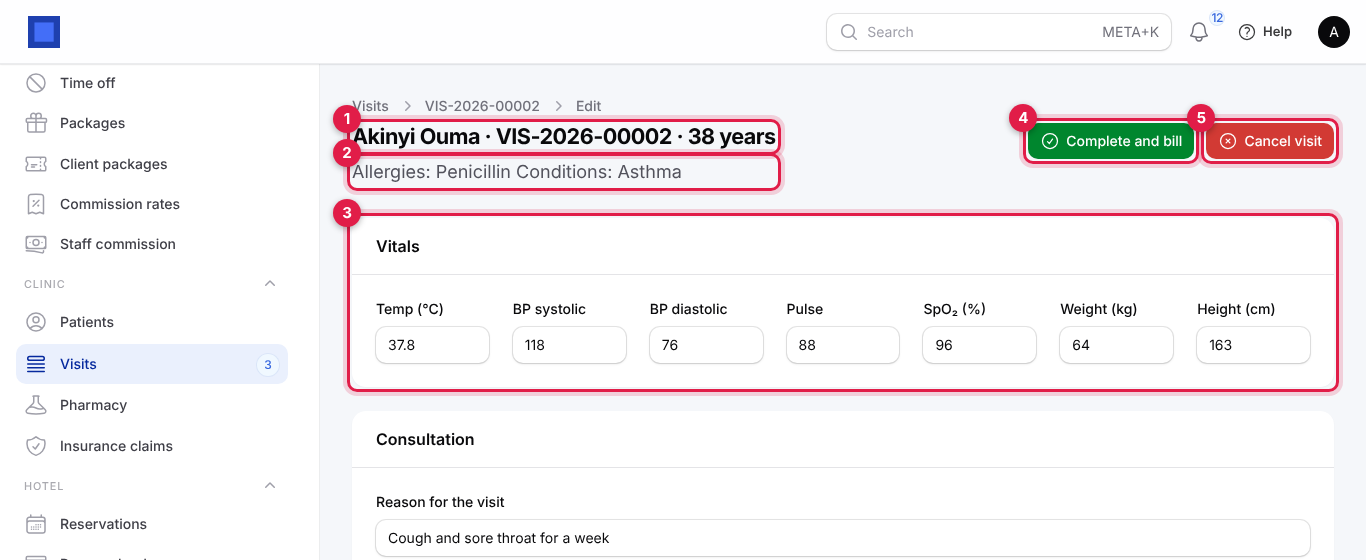
Vitals (marker 3): Temp (°C), BP systolic, BP diastolic, Pulse, SpO₂ (%), Weight (kg) and Height (cm). Values outside sensible limits (for example a temperature below 30 or above 45) are refused.
Scroll down to Consultation:
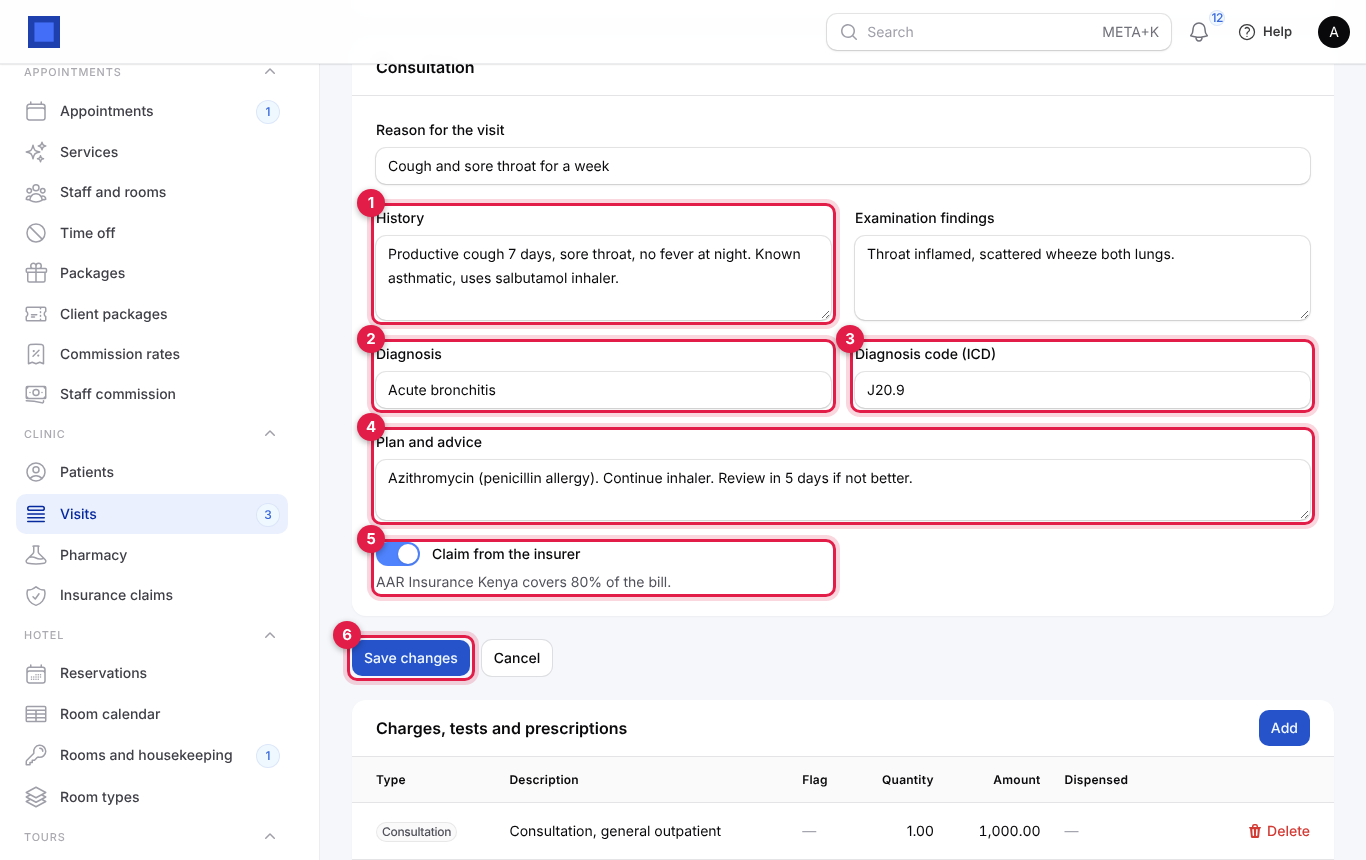
| Field | What to enter |
|---|---|
| Reason for the visit | From check-in; can be corrected. |
| History (marker 1) | The history of the complaint. |
| Examination findings | What you found. |
| Diagnosis (marker 2) | Acute bronchitis. |
| Diagnosis code (ICD) (marker 3) | J20.9. Insurers usually ask for it. |
| Plan and advice (marker 4) | Treatment, advice and review date. |
| Claim from the insurer (marker 5) | On when the patient's cover was current at check-in. The line under it says who pays what: AAR Insurance Kenya covers 80% of the bill. Turn it off if the patient chooses to pay cash. It cannot be turned on for a patient without current cover. |
Click Save changes (marker 6) as you go. Vitals and notes can only be changed while the visit is open and only by users with clinic.clinical.
Add charges, tests and prescriptions
Below the notes is Charges, tests and prescriptions: everything that will be on the bill. Each line shows its Type, description (with the dosage or the lab result underneath, marker 3), the result Flag, Quantity, Amount (marker 4) and when it was Dispensed.
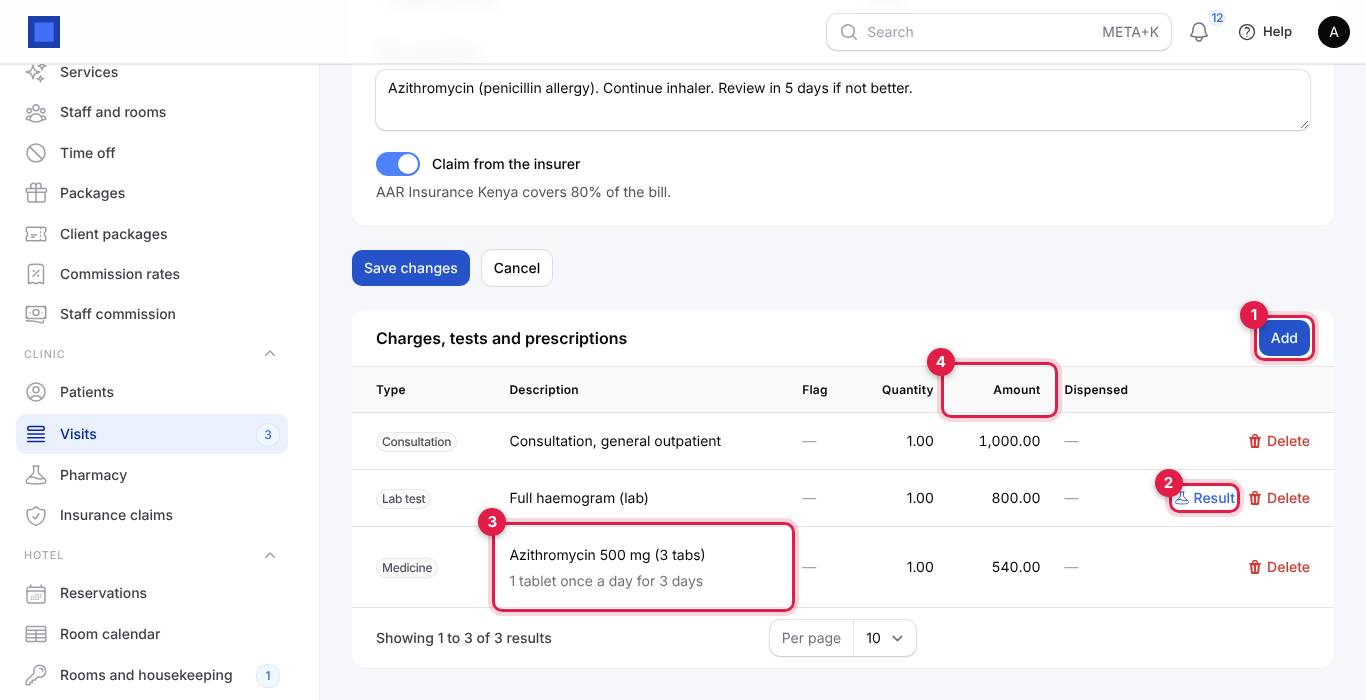
- Click Add (marker 1).
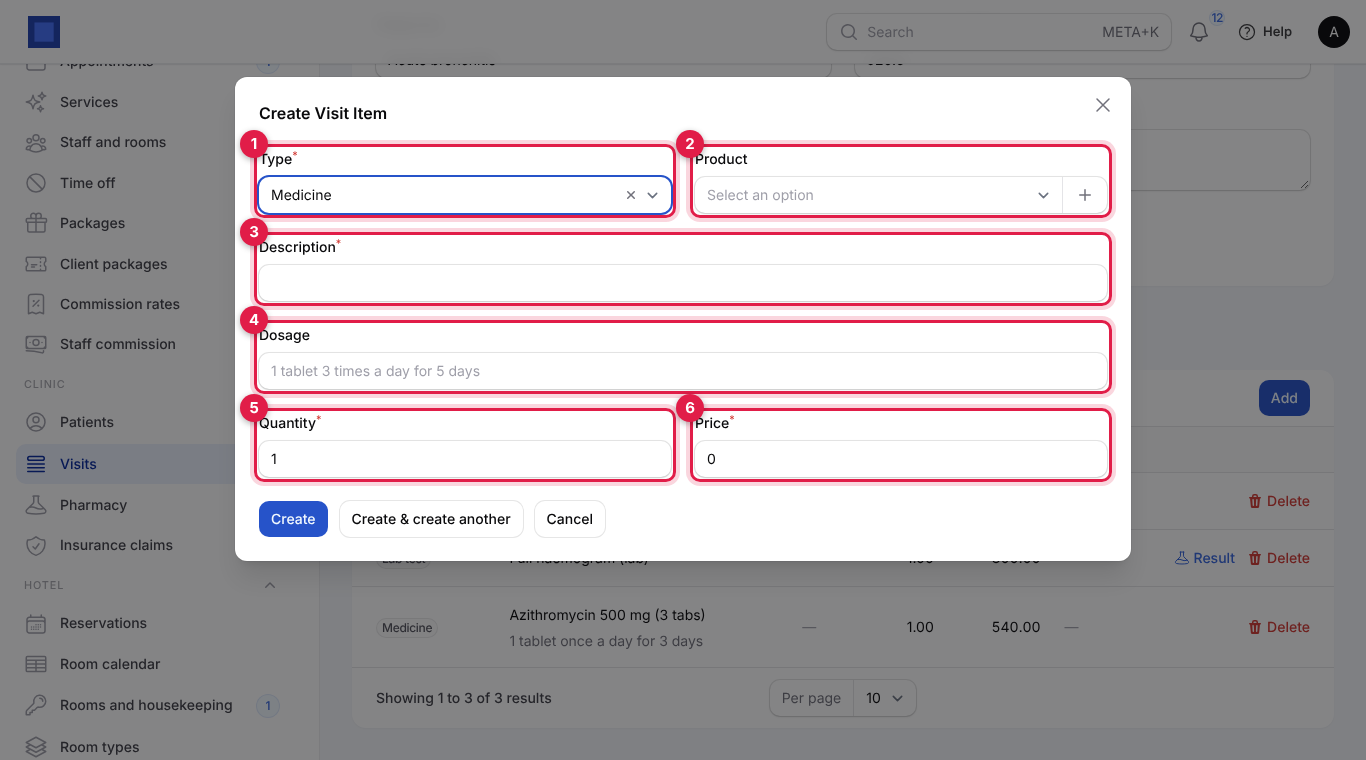
| Field | What to enter |
|---|---|
| Type (required, marker 1) | Consultation, Lab test, Procedure or Medicine (the default). |
| Product (marker 2) | Optional. For a medicine only stocked goods are listed. Picking a product fills the description and price, sets the tax on the bill and, for medicines, takes it out of stock when the bill is issued. |
| Description (required, marker 3) | Azithromycin 500 mg (3 tabs), Full haemogram. |
| Dosage (marker 4, medicines only) | 1 tablet 3 times a day for 5 days. Printed on the bill and shown to the pharmacist. |
| Quantity (required, marker 5) | Packs, tests or sessions. |
| Price (required, marker 6) | The price of one; filled from the product. |
- Click Create, or Create & create another to add the next item. Remove a line with Delete while the visit is open.
Record a lab result
- On a Lab test line, click Result (marker 2 above).
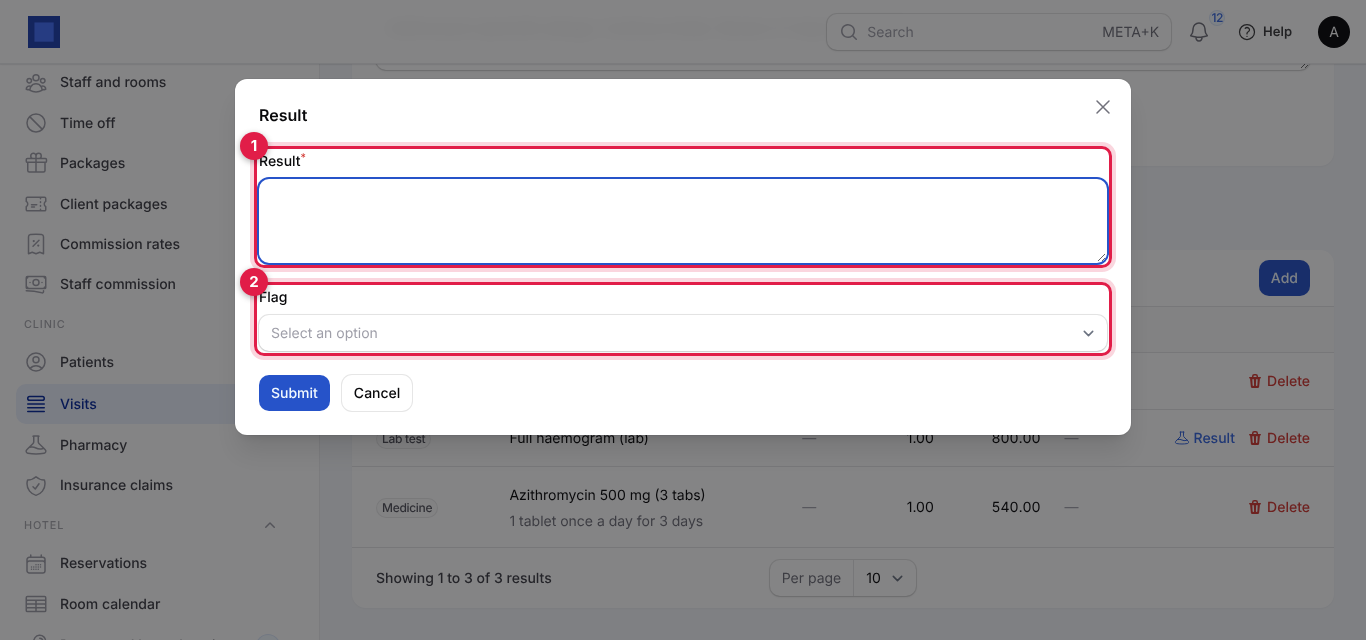
- Type the Result (marker 1), for example Hb 11.2 g/dL, WBC 12.4, and choose the Flag (marker 2): Normal, High, Low, Positive or Negative. Click Submit.
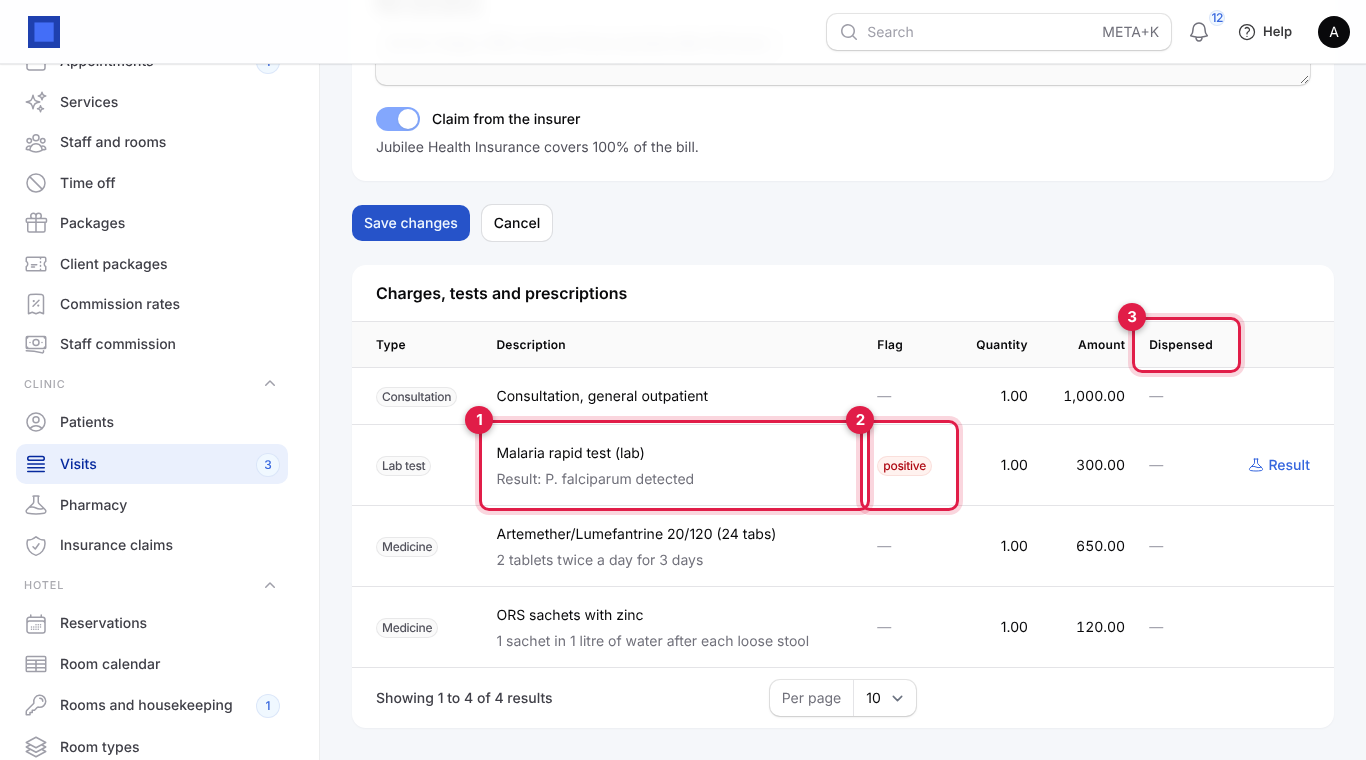
The result shows under the test (Result: P. falciparum detected, marker 1 below) and the flag in its own column (marker 2): high, low and positive in red, the others in green. Only users with clinic.clinical can record results.
5. Complete and bill
When the patient is done (and before they leave the cashier):
- On the visit, click Complete and bill (marker 4 on the visit screenshot). Your notes are saved first.
- Read the message (marker 1) and click Confirm (marker 2).
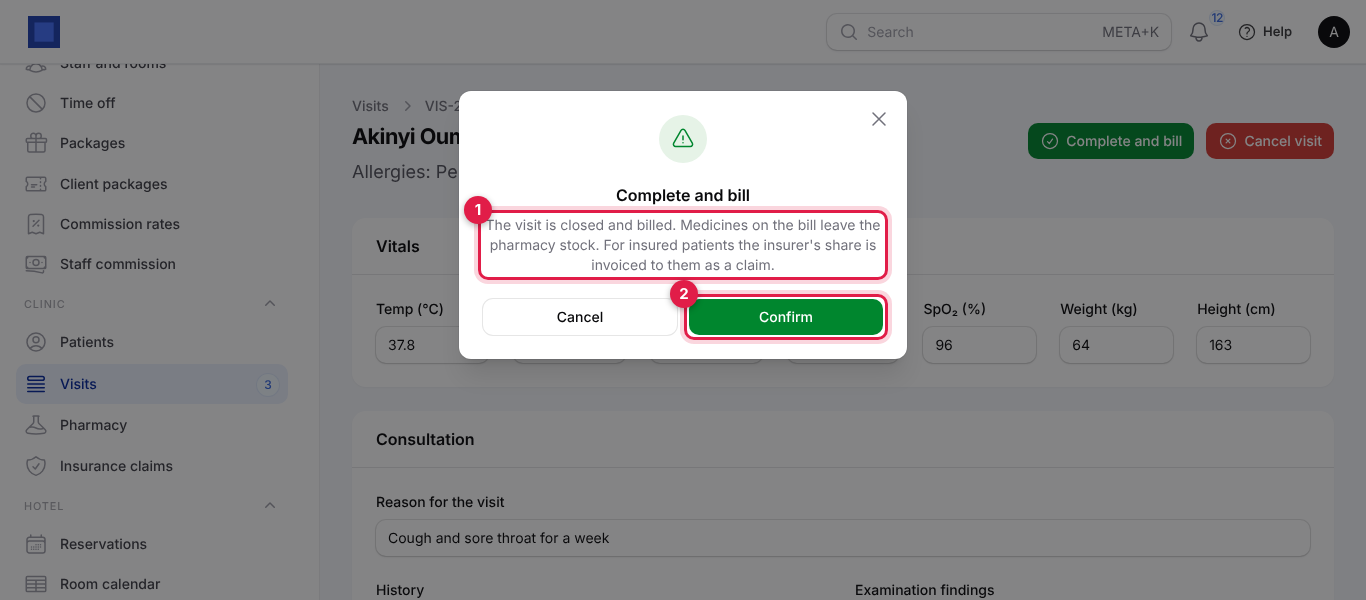
What happens:
- The visit becomes Completed and can no longer be changed.
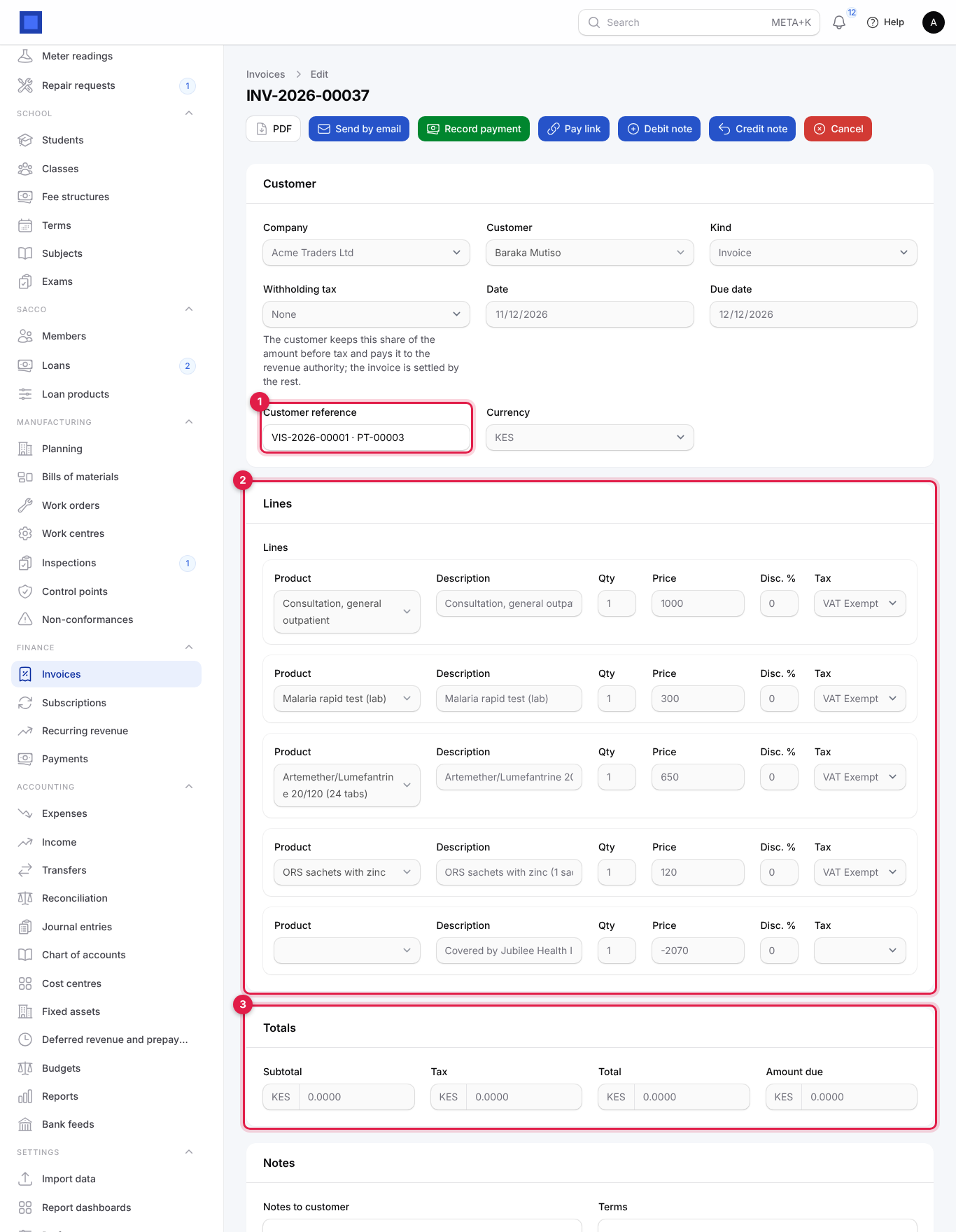
- One invoice is issued to the patient with every charge on the visit (medicines with their dosage in brackets), each with its product's tax. The customer reference is the visit and patient number, for example VIS-2026-00001 · PT-00003 (marker 1 below).
- For an insured visit (with Claim from the insurer on and cover current on the check-in date), the insurer's share is worked out as the cover percentage of the charges before tax, and taken off the patient's bill with a line such as Covered by Jubilee Health Insurance (member JHI-55120-03). The patient pays the rest.
- A second invoice goes to the insurer for that share, with one line: Treatment of Baraka Mutiso (JHI-55120-03) on 11 Nov 2026, visit VIS-2026-00001, and the member number as its reference. A claim is added under Insurance claims with the status Submitted.
- Medicines leave the pharmacy stock when the bill is issued, from your default warehouse, if the Inventory app is on and Deliver tracked goods when an invoice is issued is on in Inventory's preferences.
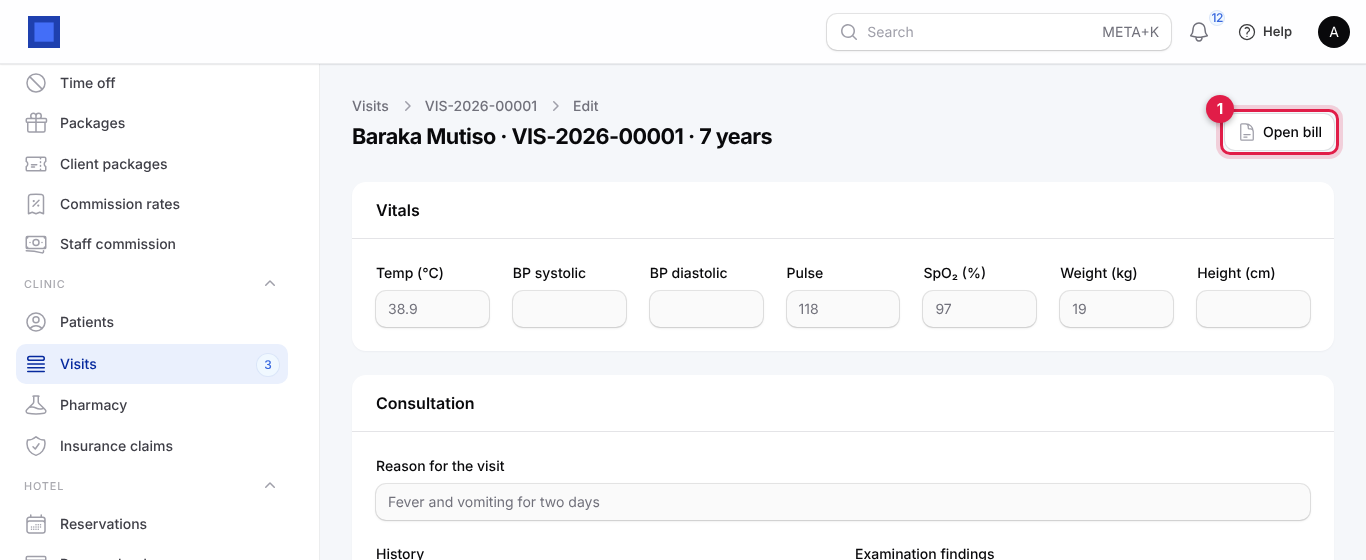
- You see Visit completed and billed. Use Open bill (at the top of the visit) to print the bill, take payment with Record payment or send an M-Pesa Pay link. See Invoices and payments.
A visit with no charges cannot be completed (Add at least one charge before completing the visit.). An insured visit whose patient has no insurer on file is refused too.
Cancel a visit
Click Cancel visit (marker 5 on the visit screenshot) and confirm, for a patient who left without being seen. Nothing is billed and the visit's prescriptions disappear from the pharmacy screen.
Visit statuses
| Status | Meaning | What moves it on |
|---|---|---|
| Waiting | Checked in, in the queue. | Call in, Complete and bill or Cancel visit. |
| With the clinician | Being seen. | Complete and bill or Cancel visit. |
| Completed | Billed. Read only. | Final. |
| Cancelled | Left without being billed. | Final. |
6. The pharmacy
Open Clinic → Pharmacy (titled Prescriptions). It lists every medicine prescribed on visits that were not cancelled, newest first, filtered to those not yet handed over (Dispensed: No, marker 1). Each line shows the visit, the patient with their allergies (marker 2), the medicine with its dosage, the quantity and the Bill state (marker 3): Billed when the visit is completed, Not billed yet while it is still open.
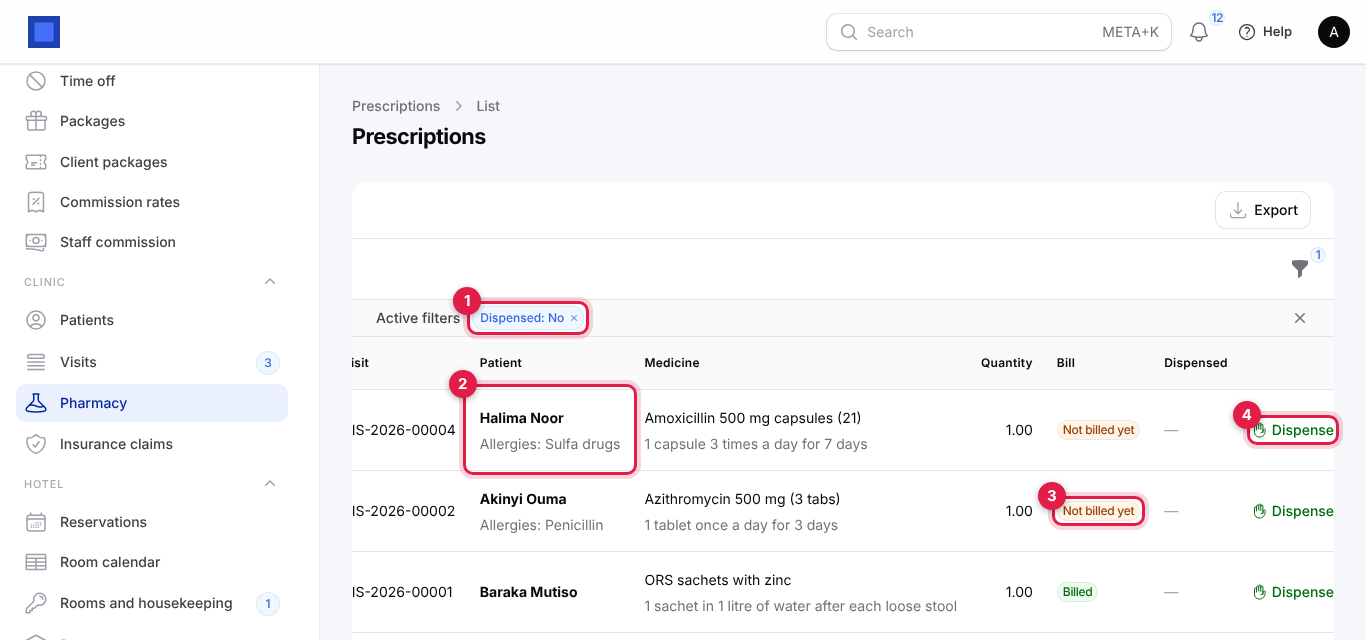
- Check the allergies and the dosage.
- Hand the medicine over and click Dispense (marker 4). The time and the pharmacist are recorded and the line leaves the list.
- To hand over several at once, tick them and choose Dispense from the bulk actions.
Tip: Look at Bill before you hand over: Not billed yet means the patient has not been through the cashier. Dispensing does not move stock; stock moves when the bill is issued.
To see what was handed over, change the Dispensed filter to Yes or remove it.
For a walk-in who only wants to buy medicine, check them in with Type: Pharmacy only, add the medicines on the visit and Complete and bill. For simple counter sales without a patient record, use the Point of sale instead.
7. Insurance claims
Open Clinic → Insurance claims (titled Claims). Each claim shows when it was submitted, the insurer, the patient with their member number, the visit, the insurer's Invoice, the Amount and the Status (marker 1). Filter by Status or Insurer to prepare a batch for one insurer.
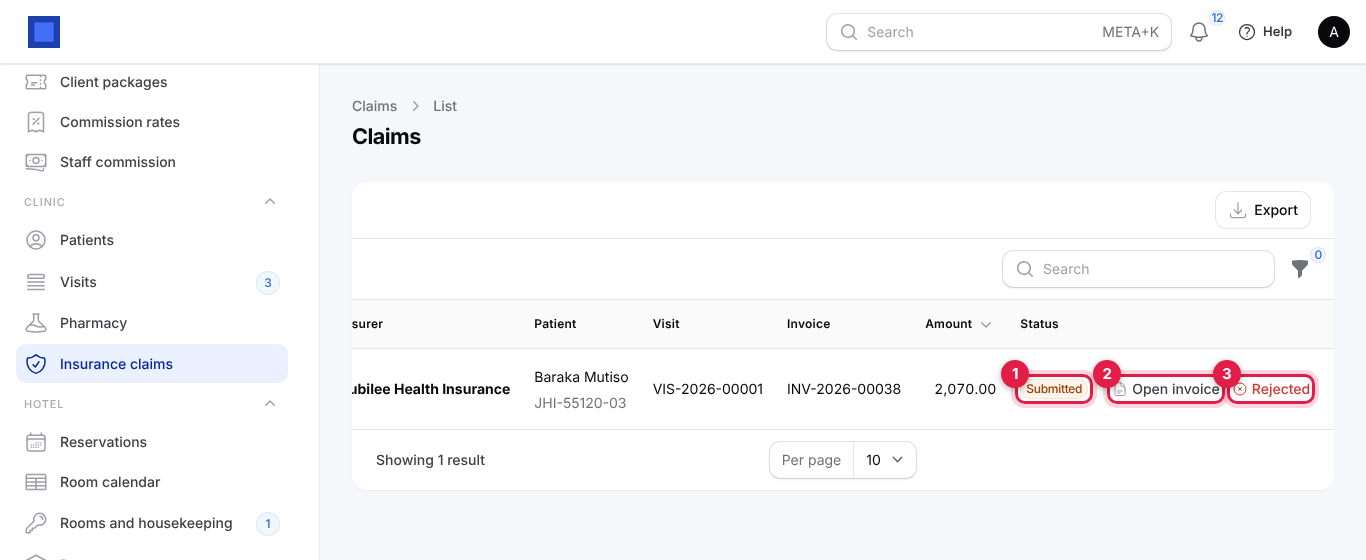
- Open invoice (marker 2): opens the invoice to the insurer, to print or email it with your claim form, or to record the insurer's payment.
- When the insurer pays, record the payment on that invoice (Record payment, or receive it through bank reconciliation). As soon as the invoice is paid in full, the claim becomes Paid by itself.
- Rejected (marker 3): the insurer declined. Type the Reason (marker 2 below) and click Submit.
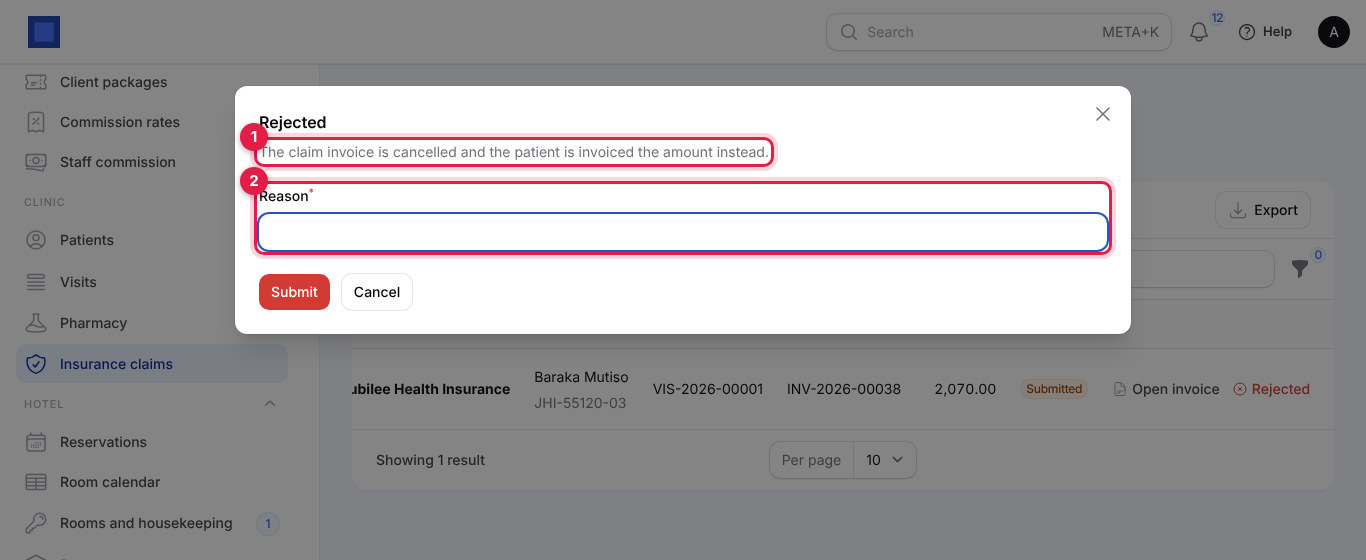
When a claim is rejected, its invoice to the insurer is cancelled (if nothing has been paid on it), and a new invoice is issued to the patient for the same amount with the line Not covered by Jubilee Health Insurance: (your reason). The claim shows Rejected with the reason.
| Claim status | Meaning |
|---|---|
| Submitted | Invoiced to the insurer, waiting for payment. |
| Paid | The insurer's invoice is paid in full. |
| Rejected | Declined; the patient was billed instead. |
What patients receive
The app does not send emails itself. Send the bill from the invoice (Send by email, Pay link), and patients with portal access see their bills and pay them online under Invoices in the customer portal (see Customer and vendor portal). Clinical notes, results and prescriptions are not shown in the portal.
Common questions
The patient's cover ends next week. Will the claim still go through? Cover is checked on the day of check-in. A visit checked in while the cover is current is claimed even if it is completed after the cover ends.
The patient wants to pay cash although they are insured. On the visit, turn off Claim from the insurer and click Save changes before Complete and bill.
How do I handle an insurer's co-pay or excess? Set the patient's Cover (%), for example 90 for a 10% co-pay. Fixed-amount excesses are not supported; adjust the bill by hand if you need one.
Why did the medicine not leave stock? Either the visit line has no product (it was typed by hand), the product does not track inventory, the Inventory app is off, or Deliver tracked goods when an invoice is issued is off in Inventory's preferences.
I added the wrong charge after completing the visit. A completed visit cannot be changed. Issue a credit note on the bill for the wrong line, and add any missing charge as a new invoice.
Can a receptionist read the clinical notes? Yes, with clinic.view they can open a visit and read it, but not change it. Notes are written only by users with clinic.clinical.
Is the tax on the insured share billed to the insurer? No. The insurer is invoiced the cover percentage of the charges before tax, and any tax on the charges stays on the patient's bill. Most medical services are VAT exempt, so this rarely matters.