Ordering from the table by QR code
For restaurants, cafés and bars that use the till in restaurant mode. Each table gets a QR code. A guest scans it with their phone, sees your menu with pictures and prices, and sends an order, calls a waiter or asks for the bill. Orders wait on the till for staff to accept them (or go straight to the kitchen), then land on the table's tab and the kitchen display like any order a waiter takes. Guests can also pay the bill online by card or mobile money.
You set it up under Settings → Preferences → Point of Sale and Point of Sale → Tables. Staff handle orders and calls on the till, Point of Sale → Sell.
Note: Saving the settings needs core.settings.manage. Printing QR codes and making new ones needs pos.manage. Accepting orders and answering calls on the till needs pos.sell; everyone with pos.sell is also told when a table orders or calls. Guests need no login: the QR code is their key.
Before you start
- Point of Sale must be on, with Restaurant mode and your tables set up. See Restaurants: tables, tabs, the kitchen and split bills.
- Put the dishes and drinks guests can order in product categories, for example Food and Drinks. Add a picture and a short description to each product: the table menu shows them.
- A till session must be open while guests order. With no open till, the menu says "We are not taking orders from the table right now. Please ask a waiter."
Switch on ordering from the table
- Open Settings → Preferences and click the Point of Sale tab.
- With Restaurant mode on, switch on Ordering from the table (marker 1). More settings appear.
- Fill them in, then click Save preferences.
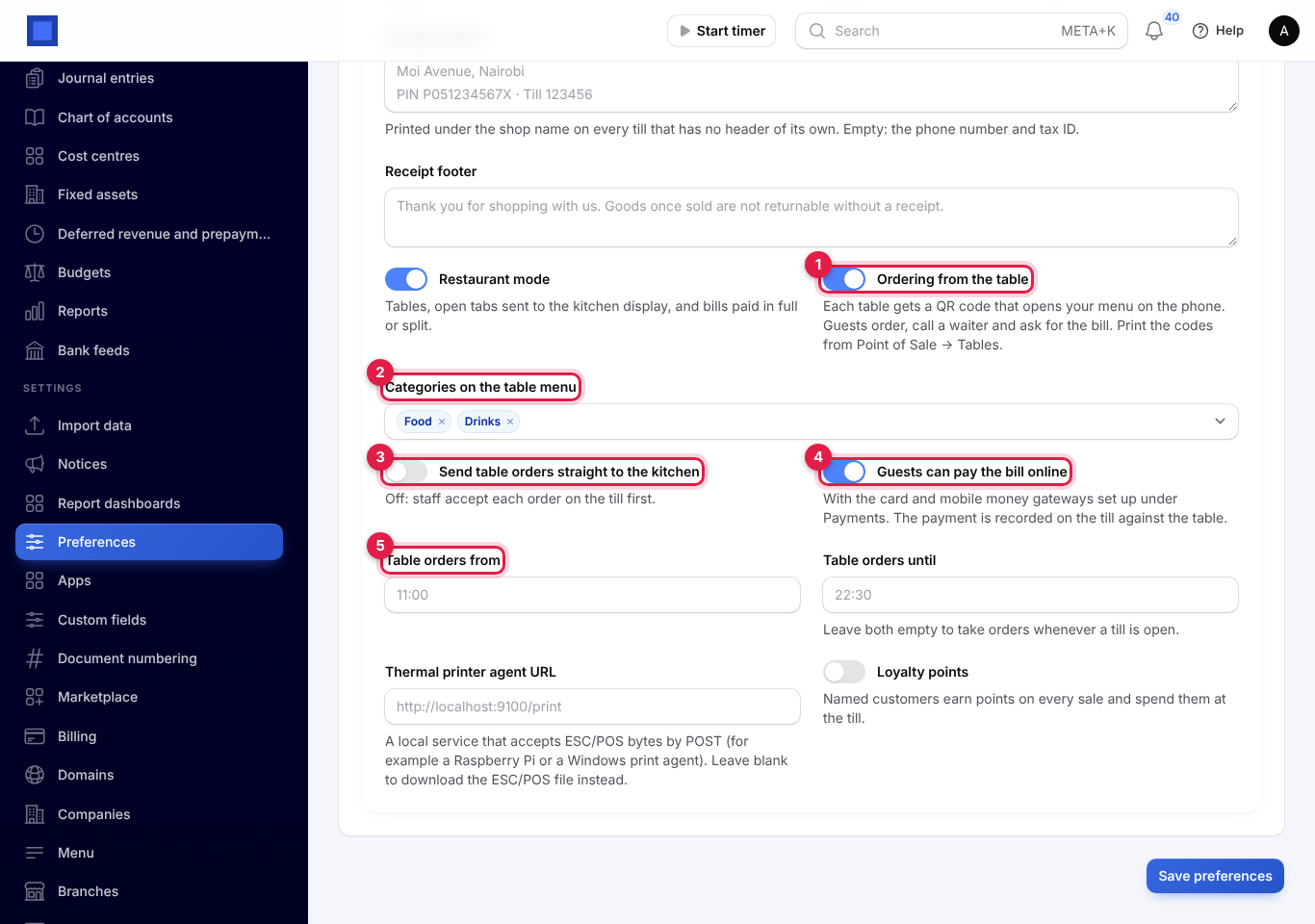
| Setting | What it does |
|---|---|
| Ordering from the table (marker 1) | Each table gets a QR code that opens your menu. Off: every printed code stops working. |
| Categories on the table menu (marker 2) | Only products in these categories show on the menu. Choose none and the menu says it is not ready yet. |
| Send table orders straight to the kitchen (marker 3) | Off (the default): staff accept each order on the till first. On: orders go to the table's tab and the kitchen display at once. |
| Guests can pay the bill online (marker 4) | Shows Pay now on the bill page. It uses the card and mobile money payment gateways set up for online payments (bank transfer is not offered). |
| Table orders from and Table orders until (marker 5) | The hours guests can order, as HH:MM, in your company's time zone. Leave both empty to take orders whenever a till is open. A closing time before the opening time runs past midnight. |
Print the QR codes
- Open Point of Sale → Tables.
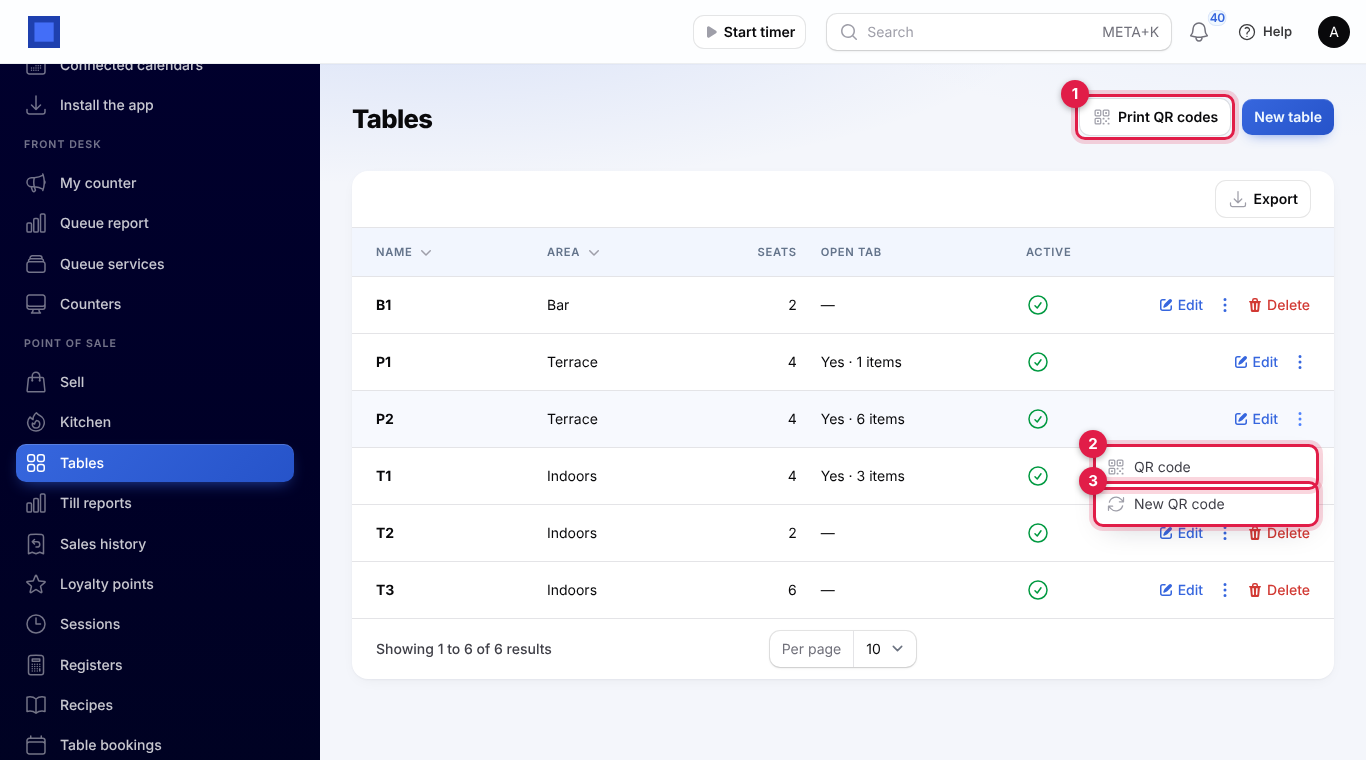
- Click Print QR codes (marker 1) to print a card for every active table. To print one table only, open its ⋮ menu and click QR code (marker 2).
- Put each card on its table.
If a code is copied or misused, click New QR code (marker 3) in the table's ⋮ menu and confirm. The printed card on that table stops working at once, so print the new one and swap it.
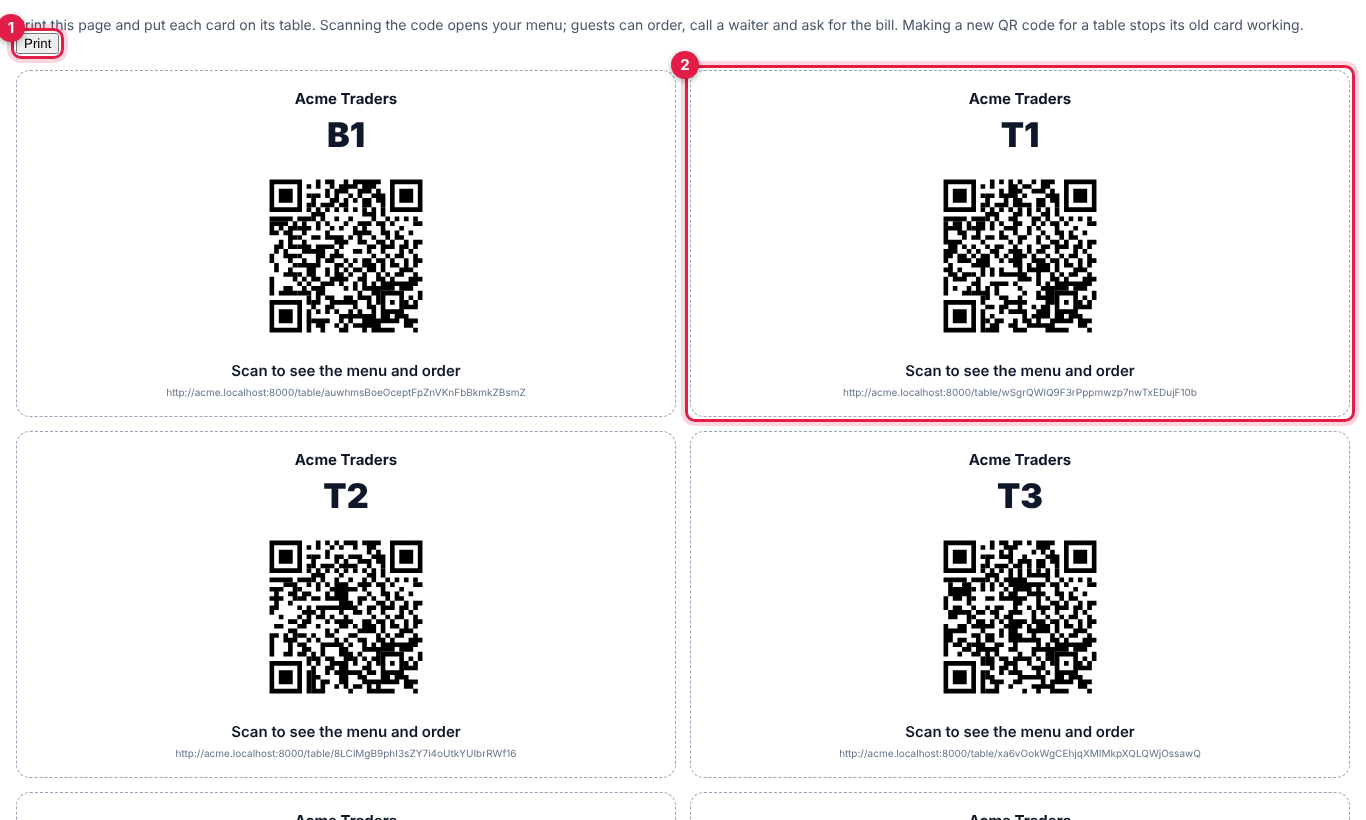
The print page shows one card per table with your business name, the table name, the QR code and the web address under it. Click Print (marker 1).
What guests see on their phone
Scanning the code opens your menu with the table name at the top. Guests do not need an app or an account.
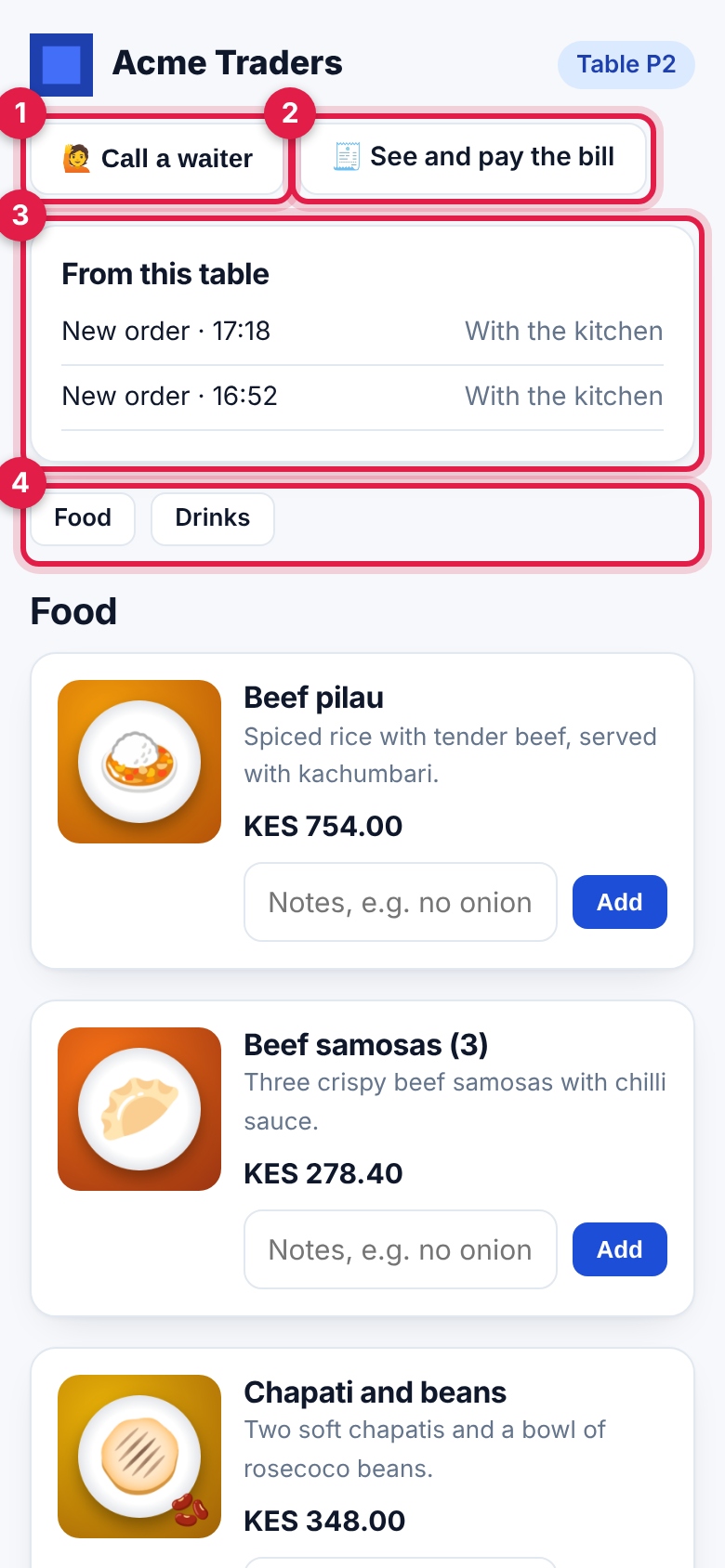
- Call a waiter (marker 1) sends a call to the till. "A waiter is on the way."
- See and pay the bill (marker 2), or See the bill when paying online is off, opens the bill page.
- From this table (marker 3) lists what was sent from this table in the last four hours and where each request is: Waiting for staff to confirm, With the kitchen, Not accepted, please ask a waiter, Staff are on their way or Seen by staff.
- The category buttons (marker 4) jump to Food, Drinks and your other categories.
Order
- For a dish with options, such as a cup or a flask of tea, choose the option (marker 1).
- Type a note for the kitchen if needed, for example no onions (marker 2).
- Tap Add (marker 3). Tap it again to add another one.
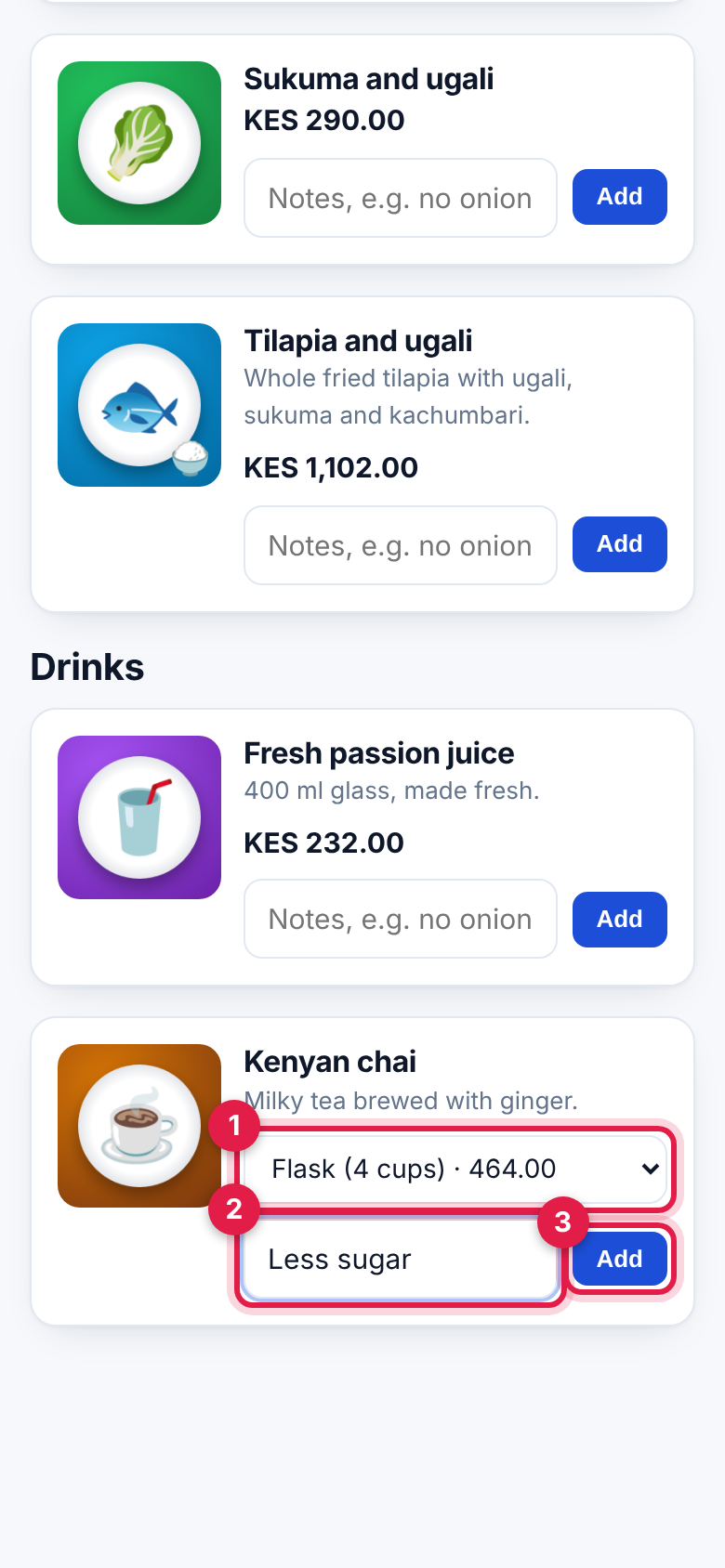
The basket opens at the bottom of the screen.
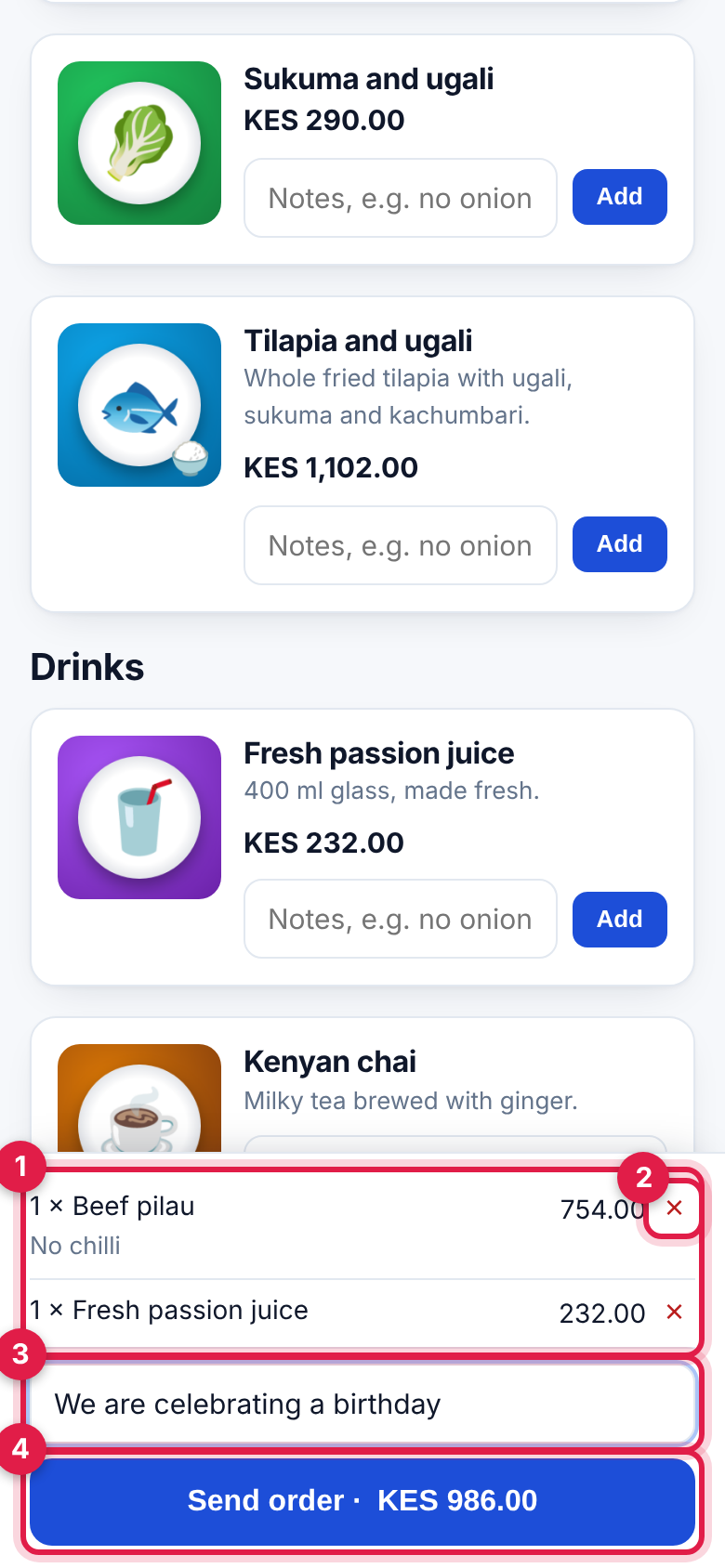
- Check the lines (marker 1). The × (marker 2) removes one.
- Add anything else the kitchen should know (marker 3).
- Tap Send order (marker 4), which shows the total. The guest sees "Thank you. Your order is waiting for staff to confirm it.", or "Your order is with the kitchen." when orders go straight through.
The basket is kept on the phone until it is sent, so it survives the page being closed.
The bill and paying online
The bill page lists everything on the table's tab with each line's amount and the Total (marker 1).
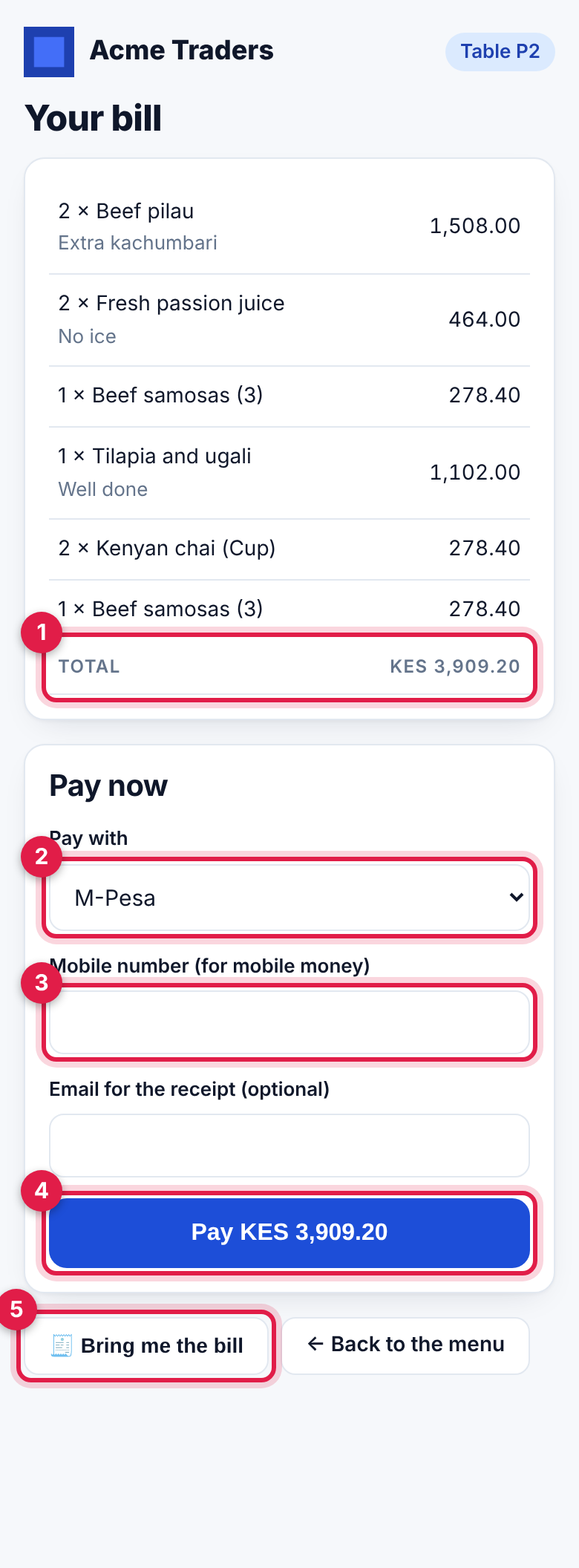
When paying online is on:
- Choose how to pay under Pay with (marker 2), for example M-Pesa or a card gateway.
- For mobile money, enter the Mobile number (marker 3). An Email for the receipt is optional.
- Tap Pay with the amount (marker 4). A card payment opens the gateway's page; mobile money sends a prompt to the phone.
Bring me the bill (marker 5) asks a waiter to bring it instead. Back to the menu returns to ordering.
Handle orders and calls on the till
On the till (Point of Sale → Sell), a strip above the products lists everything waiting from the tables, oldest first. It refreshes every 15 seconds, and everyone with pos.sell also gets a notification with Open the till.
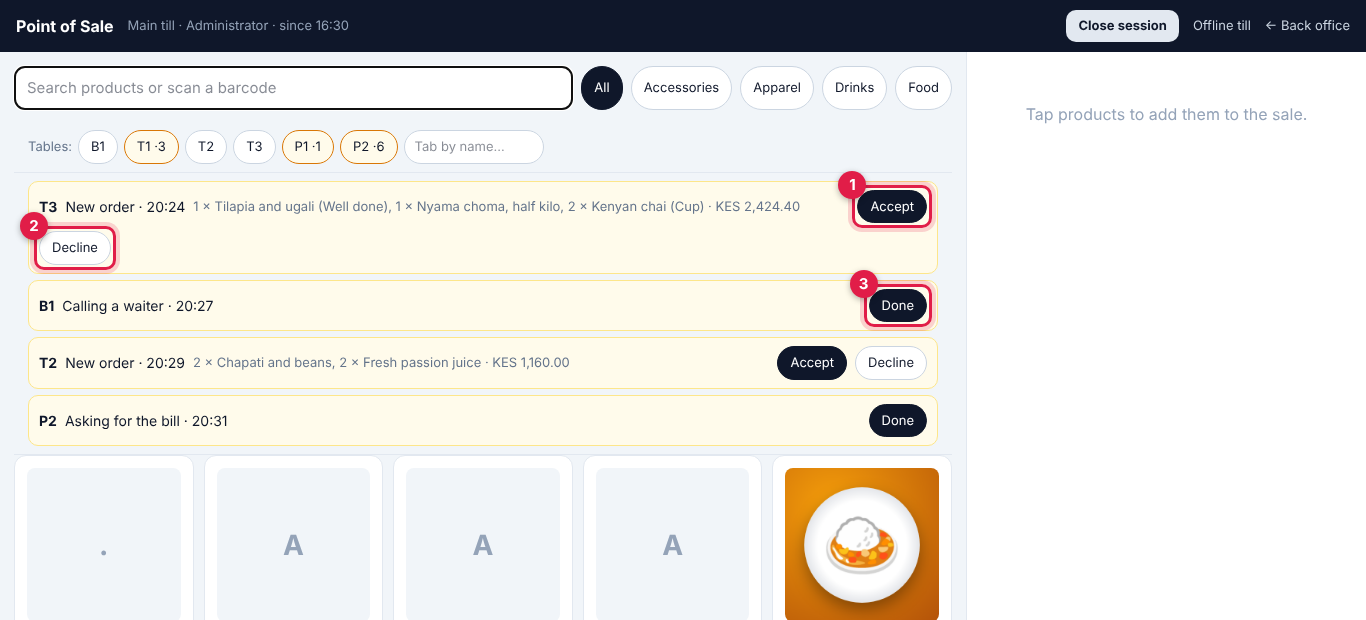
- New order shows the table, the time, each line with its notes and the total.
- Accept (marker 1) puts the order on the table's open tab, or opens one, and sends it to the kitchen display. The till shows "Order from T3 sent to the kitchen".
- Decline (marker 2) turns it down. Nothing reaches the tab, and the guest's phone shows Not accepted, please ask a waiter.
- Calling a waiter and Asking for the bill: go to the table, then click Done (marker 3).
Accepted orders join the table's tab like any other order, so you can add to it, split the bill and take payment on the till as usual.
When guests pay online
When the payment gateway confirms the payment:
- the bill is recorded on the till as a sale paid by card or mobile money, against the table, with the gateway's reference;
- the tab is closed and the table is free again;
- the sale appears in Point of Sale → Sales history like any other.
The payment covers what was on the tab when the guest tapped Pay. Anything ordered after that stays on the tab to pay separately.
If the money arrives but cannot be recorded, for example because staff already closed the tab, the till shows an Asking for the bill line with the note "Paid online … but not recorded on the till … Settle the table by hand.", and staff are told. Settle that table on the till yourself.
A failed or cancelled payment leaves the bill open; the guest can try again or pay the waiter.
Good to know
- Only menu items can be ordered. The menu shows active, sellable products in the chosen categories. Subscription products are left out. A product with options is ordered as one of its options.
- Prices include tax. The menu and the basket show what the guest pays for each item: the till price from the default price list, its discount and the product's tax, worked out as the till does. So the basket total, the order on the till and the bill all add up to the same amount, whether or not Shelf prices include tax is on.
- Limits that keep the till calm:
- a table can have up to three orders waiting for staff at once;
- up to 50 of one item and 40 lines per order;
- one waiter call and one bill request at a time, until staff click Done;
- each phone can send about eight requests a minute per table.
- Accepting needs an open till. With Send table orders straight to the kitchen on but no till open, orders wait on the strip like any other.
- Outside the hours or with no till open, guests can still read the menu and the bill, but cannot order or call.
- Turning a table off, switching off Ordering from the table or making a New QR code makes the old code show page not found.
- Choose who is told about table orders under your initial → Notification settings, event Table orders and calls.