Childcare
Childcare is for daycares, nurseries, kindergartens and after-school clubs. You keep each child's record with their room, allergies, medical needs, doctor, immunisations and consents; link the parents and guardians from Contacts and list everyone else allowed to collect the child, each with their own PIN. During the day your caregivers work from the room board: who is on duty, who has arrived, meals, naps, nappies, activities and photos. Parents sign their children in and out on a tablet at the door, and anyone without the right PIN is refused and reported. Incidents and medication are recorded and shared with the family, fees are invoiced every month with sibling discounts and late pick-up fees, and parents follow their child's day in the customer portal.
Everything is in the Childcare group of the left menu: Room board, Children, Incidents, Pick-up approvals, Monthly fees, Classrooms, Fee plans, Attendance and absences, Immunisations due and Occupancy.
Note: Two permissions control Childcare (under Settings → Roles). childcare.view lets caregivers open the room board, sign children in and out, fill in the daily log, give medication against a consent, report incidents and read the reports. childcare.manage is needed to add and change children, guardians, pick-up people and PINs, classrooms and fee plans, to approve pick-up changes, invoice fees, open the kiosk and use the privacy tools. People with childcare.manage also receive the safety and parent alerts. Owners and admins have both; the member role has childcare.view.
Switch it on
Childcare is a marketplace app. It needs the Contacts, Invoicing and HR apps: guardians are contacts, fees are invoices and caregivers are employees. The parent page also needs the customer portal.
- Open Settings → Marketplace and type Childcare in the Search add-ons… box (marker 1).
- On the Childcare card (marker 2), click Start free trial (or Add to subscription) and confirm. The Childcare group appears in the menu.
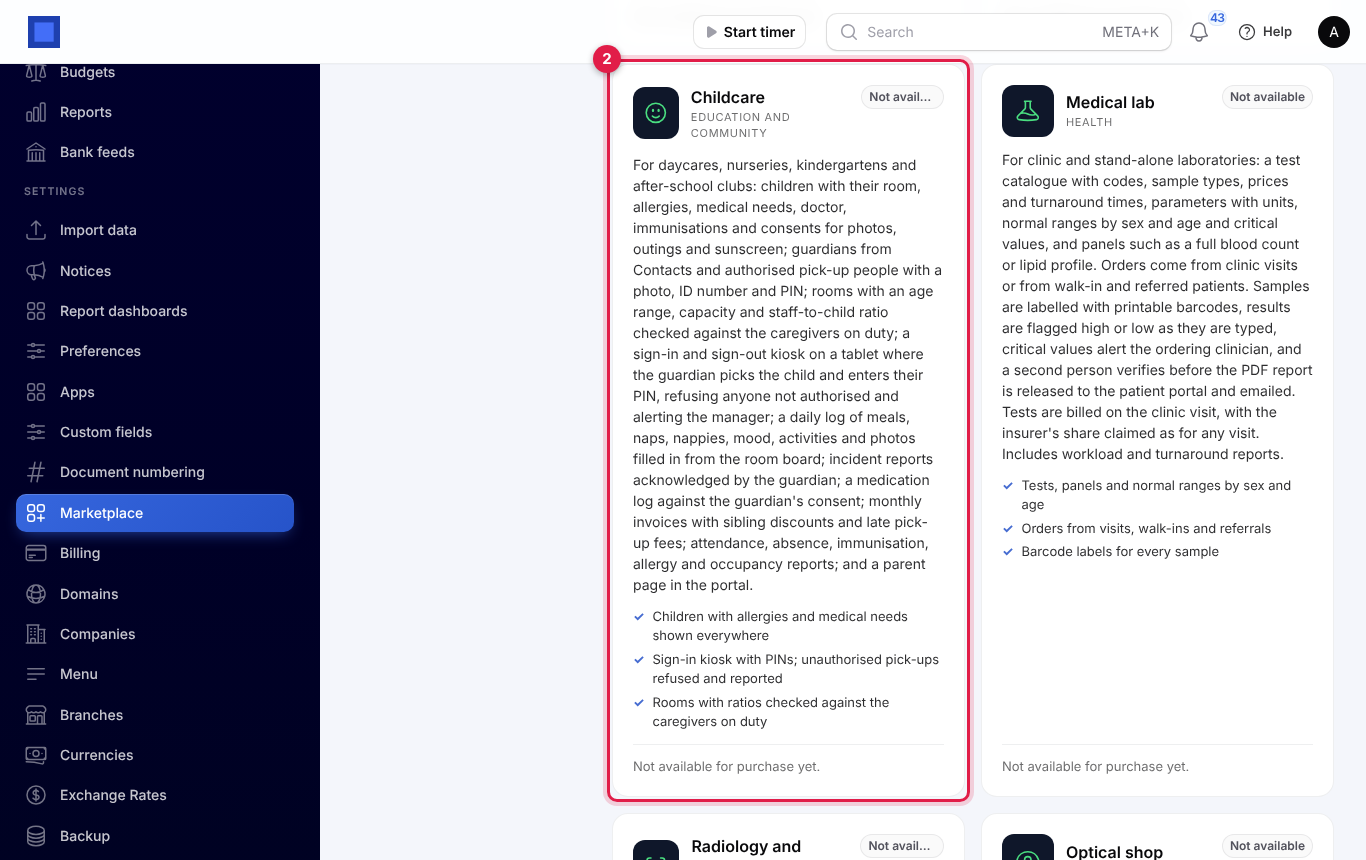
If the card says Not available for purchase yet, ask NaliSuite support to switch it on. See Billing and marketplace.
Settings
Open Settings → Preferences and click the Childcare tab (marker 1). Change what you need and click Save preferences (marker 8).
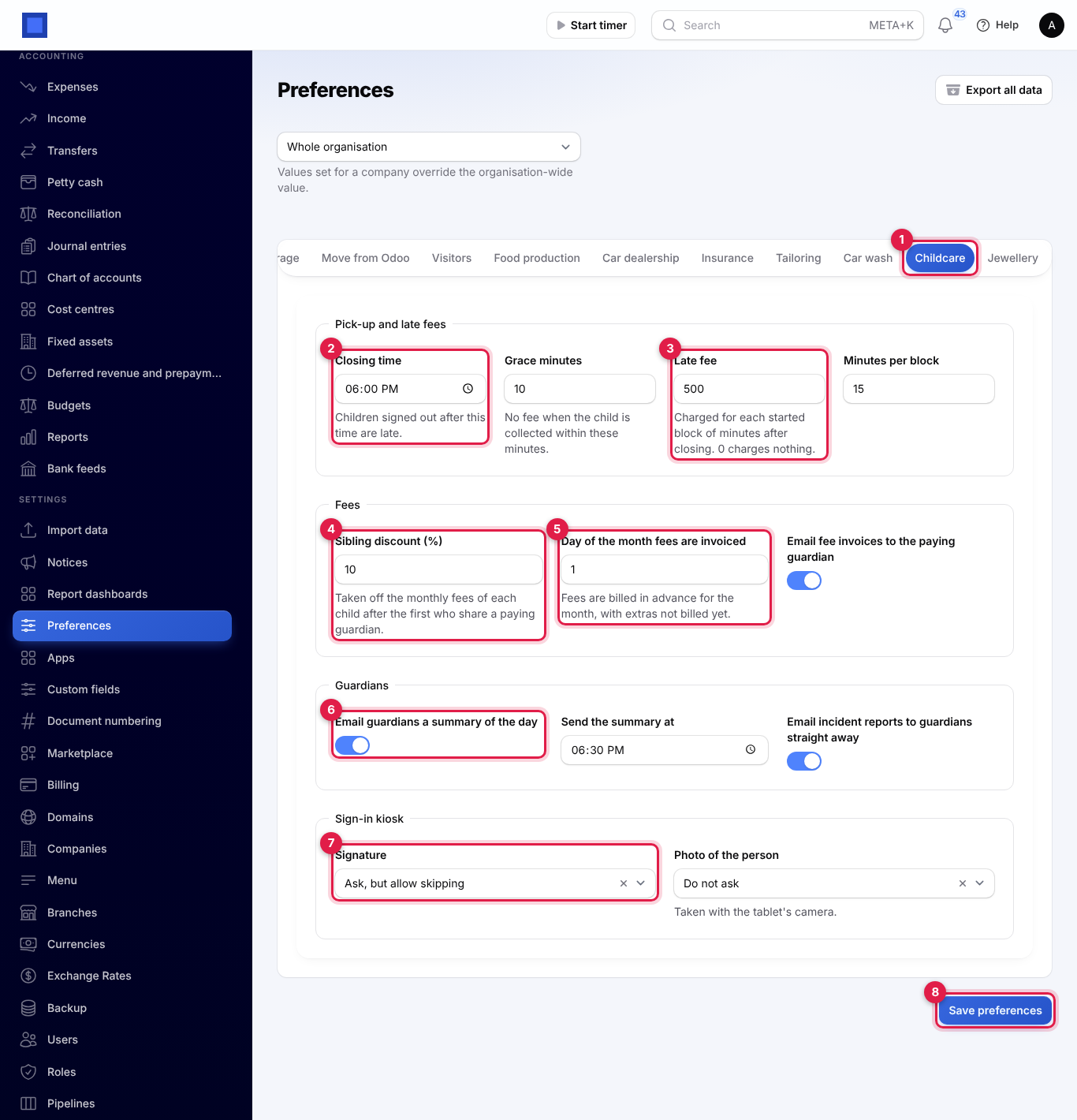
Pick-up and late fees
| Setting | Default | What it does |
|---|---|---|
| Closing time (marker 2) | 18:00 | Children signed out after this time are late. It is on your company's own clock. |
| Grace minutes | 10 | No fee when the child is collected within these minutes after closing. |
| Late fee (marker 3) | 0 | Charged for each started block of minutes after closing. 0 charges nothing. |
| Minutes per block | 15 | The length of one block. |
Once a child is collected after the grace minutes, the fee counts every started block from the closing time itself. With the settings in the screenshot, a child collected at 18:42 is 42 minutes late: three blocks of 15 minutes, so KES 1,500 goes on the family's next invoice.
Fees
| Setting | Default | What it does |
|---|---|---|
| Sibling discount (%) (marker 4) | 10 | Taken off the monthly fees of each child after the first who share a paying guardian. |
| Day of the month fees are invoiced (marker 5) | 1 | From this day (1 to 28) the month's fees are invoiced by themselves. Fees are billed in advance for the month, with extras not billed yet. |
| Email fee invoices to the paying guardian | On | Each invoice is emailed to the paying guardian when it is raised. |
Guardians
| Setting | Default | What it does |
|---|---|---|
| Email guardians a summary of the day (marker 6) | On | Each evening, guardians of every child who came get an email of the day: sign-in and sign-out, and everything logged. |
| Send the summary at | 18:30 | When the evening summary goes out. |
| Email incident reports to guardians straight away | On | A new incident report is emailed to the guardians as soon as it is recorded. |
Sign-in kiosk
| Setting | Default | What it does |
|---|---|---|
| Signature (marker 7) | Do not ask | Whether the kiosk asks the person to sign on the screen: Do not ask, Ask, but allow skipping or Always ask. |
| Photo of the person | Do not ask | Whether the kiosk asks for a photo taken with the tablet's camera, with the same three choices. |
Classrooms and fee plans
Classrooms
Open Childcare → Classrooms and click New room. Each room or group has:
- Name, for example Babies, Toddlers or Pre-school.
- Youngest age (months) and Oldest age (months): the ages it takes. The occupancy report counts children outside this range.
- Places: how many children fit.
- Children per caregiver: 4 means a ratio of 1:4. Check your local rules for each age group.
- Order in the lists, and In use.
The list shows each room's ages, children enrolled against places and its ratio. Room board opens the room on the board and Allergy list prints the kitchen list for the room (see Reports).
Fee plans
Open Childcare → Fee plans and click New fee plan. Give it a Name, a Kind and a Price:
| Kind | Price is |
|---|---|
| Full day (monthly), Half day (monthly), After school (monthly), Extended hours (monthly) | A month, invoiced in advance on the monthly invoice. |
| Casual (per day attended) | A day, charged on each day the child is signed in. |
The list shows how many children in care are on each plan. Turn In use off for a plan you no longer offer.
Children, health and consents
- Open Childcare → Children and click New child.
- Under Child, fill in the First name, Last name, Known as (the name used everywhere when given), Date of birth, Gender and a Photo.
- Choose the Room or group (marker 1), the Status (In care or Left), Starts on and Left on, and tick the Days in care (marker 2). The days decide who is expected each day.
- Under Health, fill in Allergies, Medical conditions (marker 3), Regular medication (marker 4) and Diet, and the Doctor, Doctor's phone and Clinic or practice. Allergies, conditions and medicines are shown under the child's name on the room board, the children list, the register and the kitchen allergy list.
- Under Consents (marker 5), turn on what the family agreed to: Photos may be taken, May go on outings and Sunscreen may be put on. Without a consent the room board refuses a photo, an outing or sunscreen for that child.
- Under Fees, choose the child's Fee plans and who Fees are paid by. The first guardian you add pays when this is empty.
- Click Create. The child gets a number such as CH-0001 and their record opens.
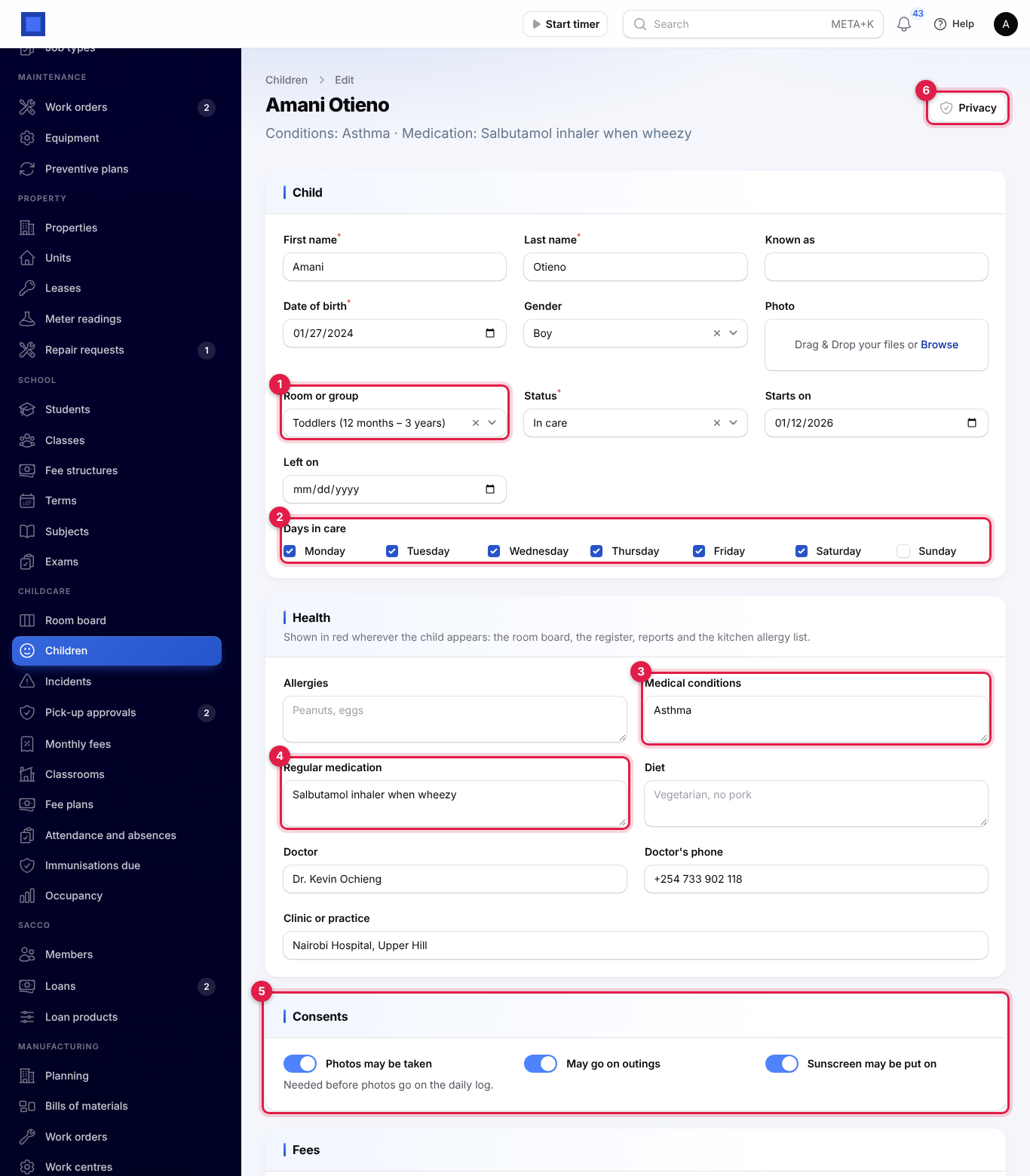
The Privacy button (marker 6) is explained in Privacy. The children list shows each child's room, age, guardians and photo and outing consents. It filters by Room, Status (in care by default) and Allergies or medical needs.
Below the record are tabs: Guardians, Authorised pick-up, Attendance, Medication, Immunisations, Extras to invoice and Messages.
Guardians, authorised pick-up and PINs
Guardians
Parents and guardians are contacts in Contacts, each with their own pick-up PIN.
- On the child's record, open the Guardians tab (marker 1) and click Add a guardian (marker 2).
- Choose the Contact, or click + to add one with their Full name, Email and Mobile.
- Type the Relationship, for example Mother.
- Give a Pick-up PIN of 4 to 6 digits, used at the sign-in kiosk.
- Leave May collect the child on, or turn it off when a court order or the family says this guardian may not collect.
- Click Submit.
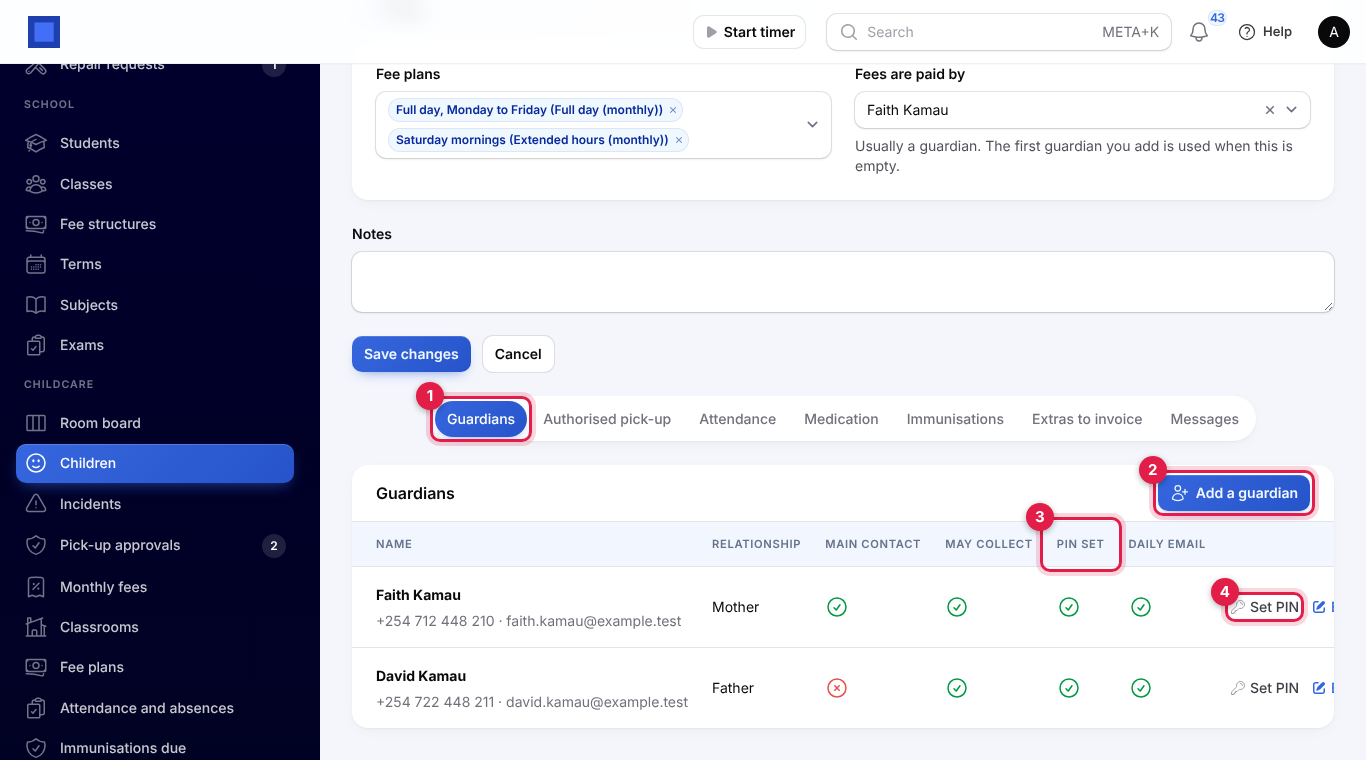
The table shows each guardian's phone and email, Main contact, May collect, PIN set (marker 3) and Daily email. Click Set PIN (marker 4) to give a new PIN, or Edit to change the relationship, Main contact, May collect the child and Gets the end-of-day email. The first guardian you add is the main contact.
Brothers and sisters share guardians: add the same contact to each child, with a different PIN on each child if you like.
Authorised pick-up
Other people allowed to collect the child, such as a grandmother, a driver or a nanny, are listed on the Authorised pick-up tab.
- Click Add a pick-up person (marker 1).
- Fill in the Full name, Relationship, Phone, ID number and a Photo, so staff can check them at the door.
- Give a Pick-up PIN of 4 to 6 digits and click Submit. The person can collect the child at once.
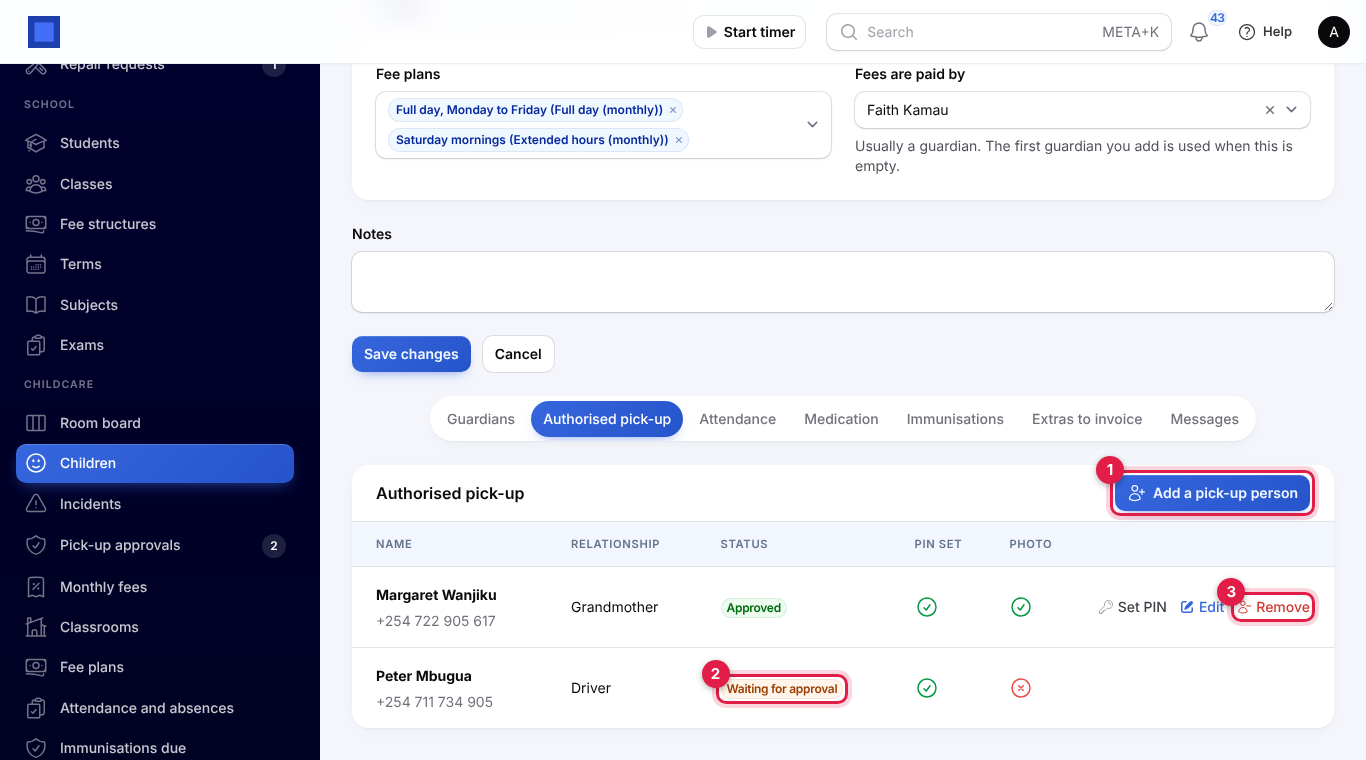
People that a guardian asked for in the portal show Waiting for approval (marker 2) until a manager approves them (see Pick-up approvals). Set PIN, Edit and Remove (marker 3) work on approved people; a removed person's PIN stops working at once.
Important: Everyone who drops off or collects the same child needs a different PIN. NaliSuite refuses a PIN already used by someone else for that child. PINs are stored scrambled, so nobody can read them back: if someone forgets theirs, set a new one.
The room board
Caregivers keep Childcare → Room board open during the day, one room at a time.
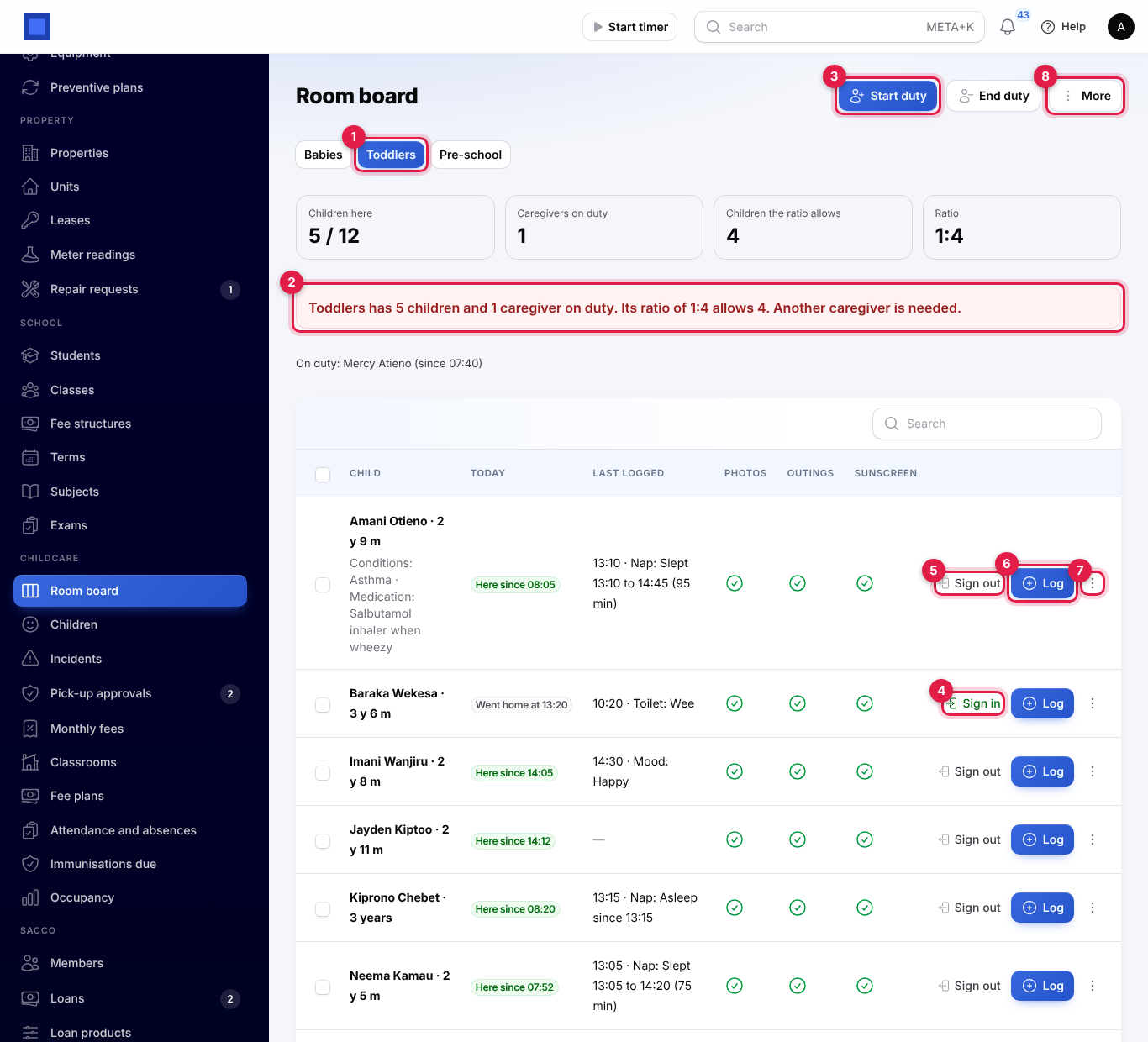
- Pick the room with the buttons at the top (marker 1).
- The tiles show Children here against the places, Caregivers on duty, Children the ratio allows and the room's Ratio.
- When the room is short of staff or over its places, a red warning says so (marker 2).
Duty and ratio warnings
When a caregiver arrives in the room, click Start duty (marker 3), choose them from the Caregiver list (active employees in HR) and click Submit. A caregiver can be on duty in one room at a time. Click End duty when they leave; if that leaves the room short, a warning stays on the screen.
The ratio is checked every time a child is signed in. If the children present would be more than the caregivers on duty allow, or more than the places, the child is still signed in but:
- a Ratio warning appears on the screen,
- the warning is saved on the child's attendance, and
- everyone with childcare.manage gets a Ratio warning alert.
Sign in and out
Each child's row shows where they are today: Here since 07:52, Went home at 13:10, Absent with the reason, Not here yet, or Not due today on a day that is not in their days in care.
- Click Sign in (marker 4), choose who Dropped off by, or Someone else and type their name, and click Submit.
- Click Sign out (marker 5) and choose who Collected by. Only guardians allowed to collect and approved pick-up people are listed. Never hand a child to anyone else.
Signing in a child on a casual plan adds the day's charge to their next invoice. Signing out after the closing time and the grace minutes adds the late fee (see Settings).
The daily log
Click Log (marker 6) on a child's row and choose what to record. Every entry also has a Note.
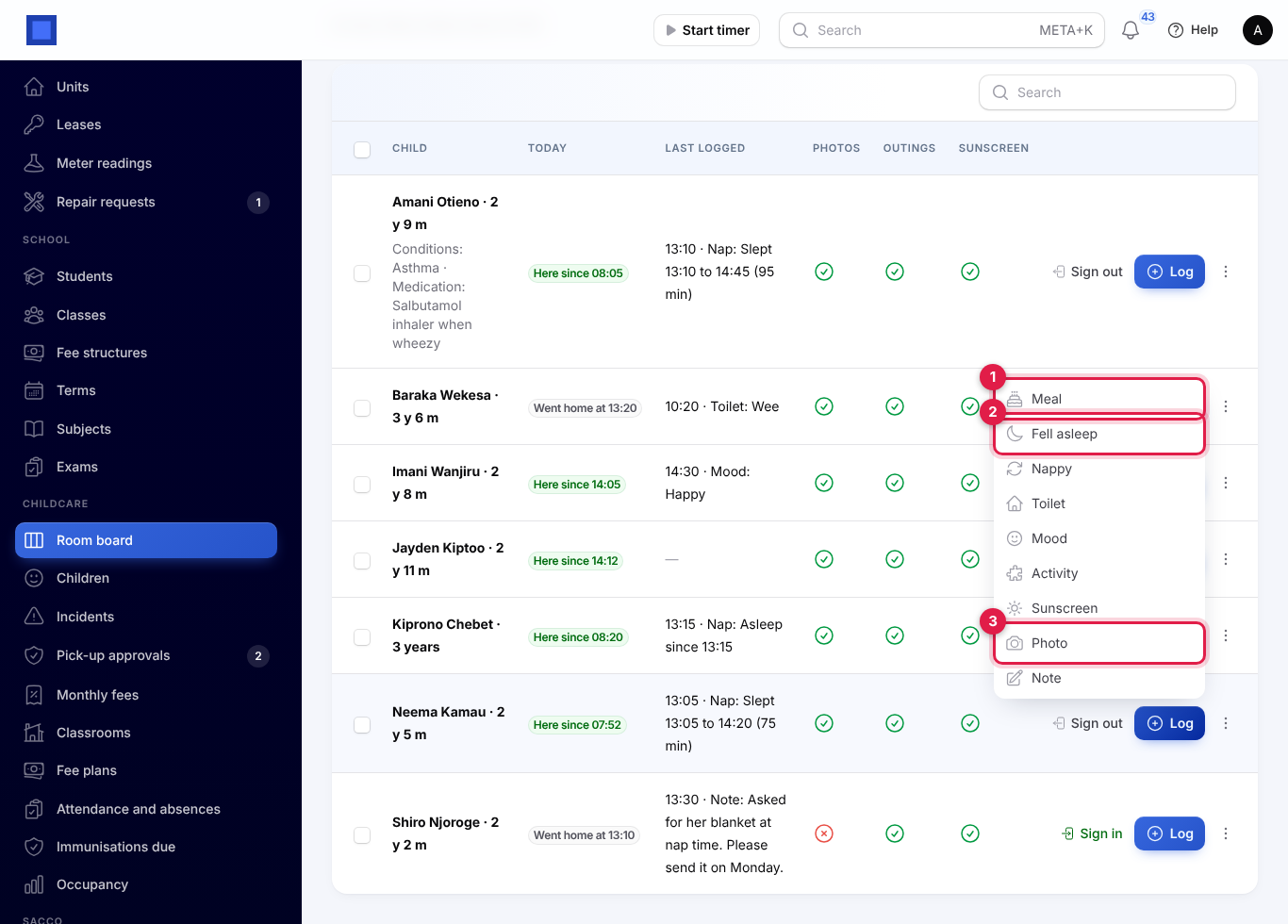
| Choice | What you fill in |
|---|---|
| Meal (marker 1) | Meal (breakfast, snack, lunch, tea or bottle), What was served and How much was eaten. |
| Fell asleep (marker 2) / Woke up | Starts the nap; Woke up ends it. The log shows how long the child slept. |
| Nappy | Wet, dirty, wet and dirty, or dry. |
| Toilet | Wee, poo, tried with nothing, or an accident. |
| Mood | Happy, calm, quiet, tired, upset or unwell. |
| Activity | The Activity, and Outing away from the centre, refused for children without the outings consent. |
| Sunscreen | Only shown for children with the sunscreen consent. |
| Photo (marker 3) | Upload a photo. Only shown for children with the photo consent. |
| Note | A note on its own. |
The Last logged column shows the latest entry. To log the same thing for several children, tick them and use Log an activity for the selected or Log a meal for the selected above the table. Children who may not go on an outing are skipped and named in the message.
The row's ⋮ menu (marker 7) has Give medication, Report an incident and, for a child not signed in today, Mark absent with the Reason (sick, holiday or other) and a Note.
The More menu at the top (marker 8) has Print the allergy list for the room and, for managers, Open the sign-in kiosk and New kiosk link.
The sign-in kiosk
Put a tablet at the door so parents sign their own children in and out. The kiosk needs no sign-in: its address holds a secret key.
- On the room board, click More → Open the sign-in kiosk. It opens in a new tab.
- Open that same address on the tablet and add it to the home screen.
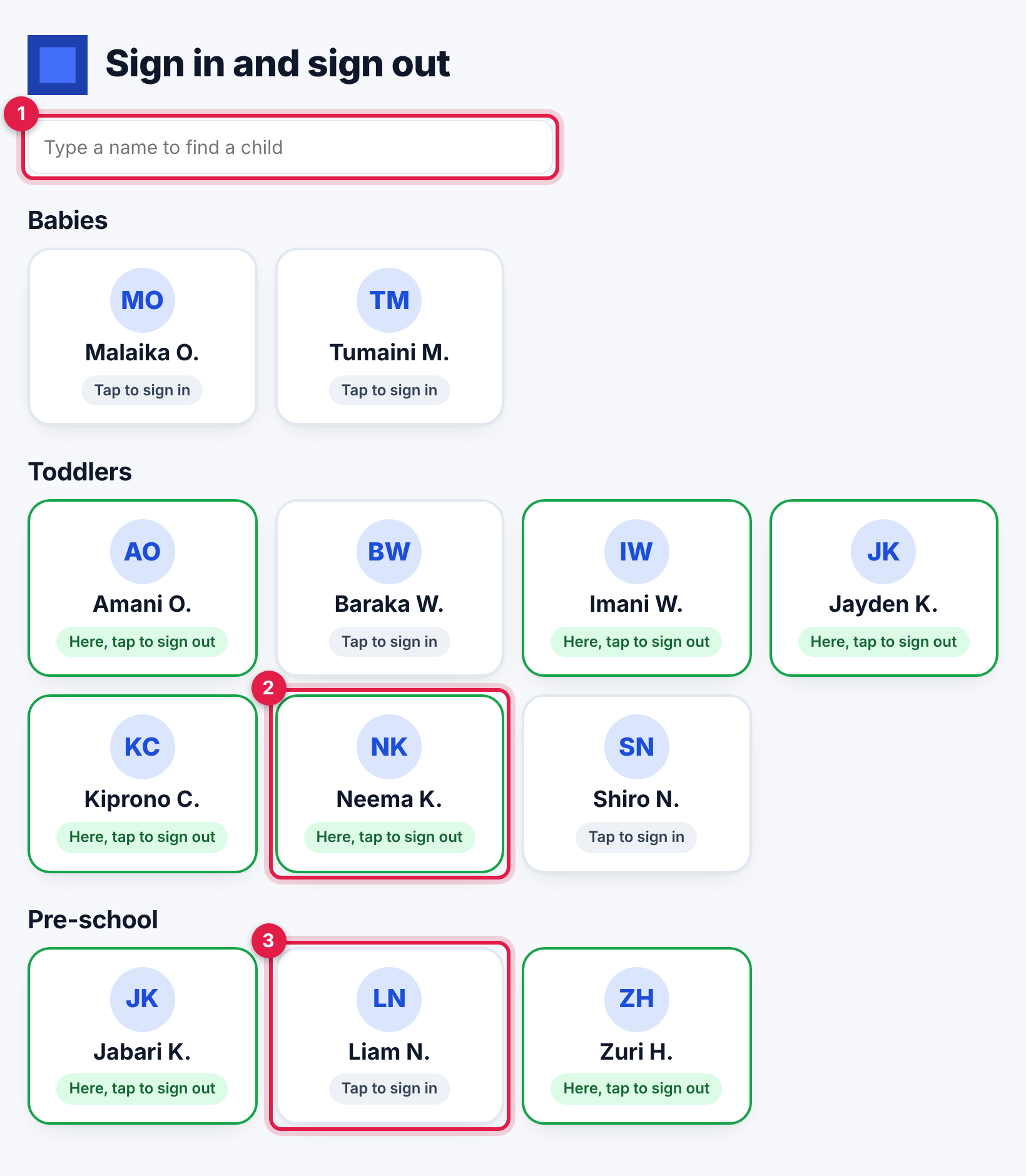
The kiosk lists the children in care by room. Type in the search box (marker 1) to find a name. A child who is here has a green border and Here, tap to sign out (marker 2); a child who is not yet here shows Tap to sign in (marker 3).
- The parent taps their child.
- They type their PIN (marker 1) on the number pad (marker 2).
- If the settings ask for it, they sign in the box (marker 3) or take a photo of themselves.
- They tap Sign in or Sign out (marker 4). The kiosk says "Neema K. is signed in at 07:52. Have a good day." and goes back to the list.
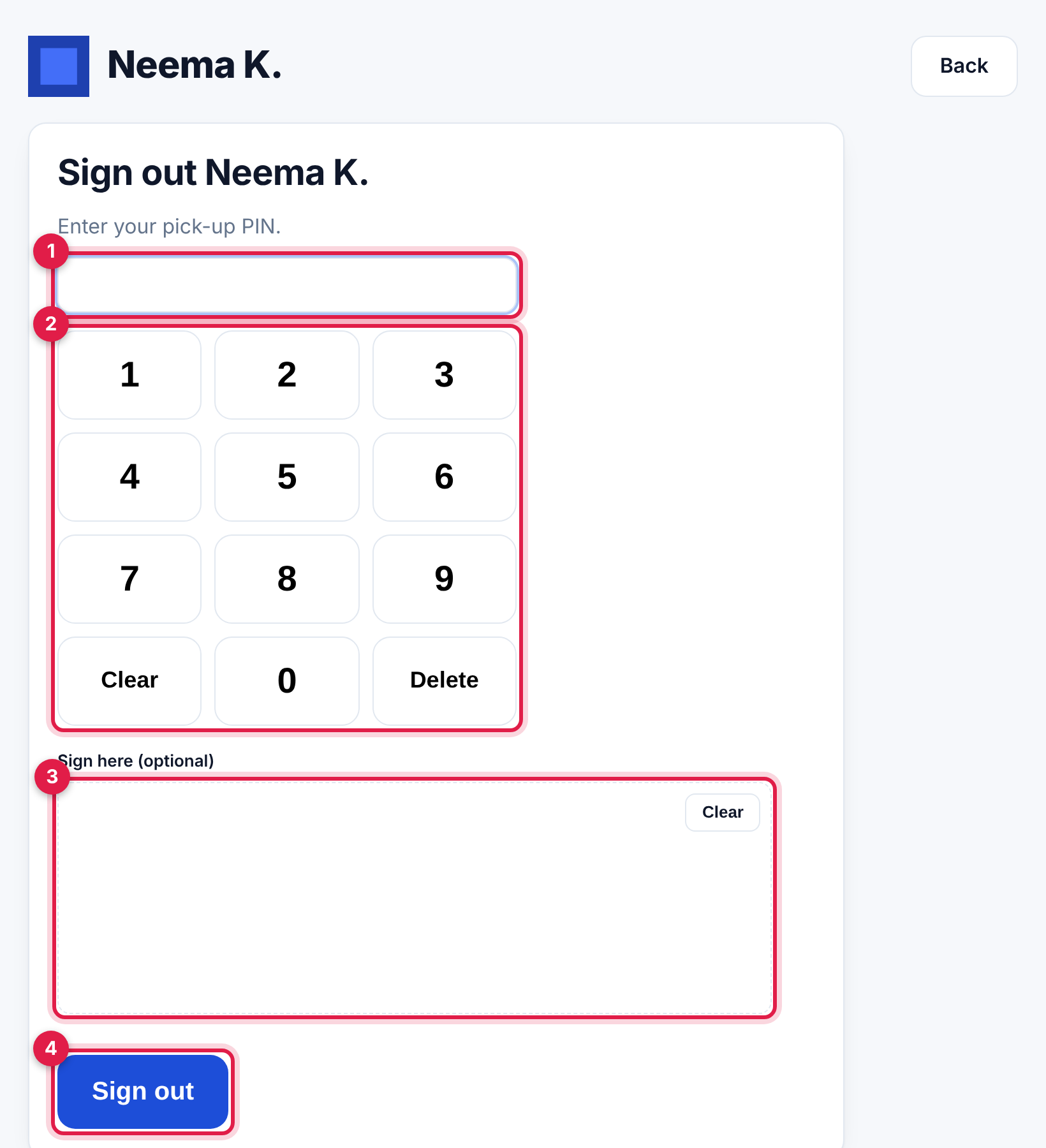
Any guardian with a PIN can drop off; collecting follows the pick-up rules. Signatures and photos taken at the kiosk are kept on the child's Attendance tab: open the row's menu and choose Signature at drop-off, Photo at drop-off, Signature at pick-up or Photo at pick-up. The kiosk goes back to the list by itself after two minutes.
Why the kiosk shows initials, not photos
The kiosk shows each child's initials in a circle and their first name with the first letter of their surname, such as Neema K., never their photo or full name. The tablet sits at the door where any visitor, delivery person or stranger can see it, without signing in. Showing children's faces and full names there would tell anyone which children attend, what they look like and when they are in. Children's photos stay private: only signed-in staff see them, on the child's record. Parents recognise their own child's name without a photo.
Refused pick-ups
When a child is here, the kiosk only signs them out with the PIN of a guardian who may collect or of an approved pick-up person. If someone enters:
- a PIN that does not belong to anyone allowed to collect the child, or
- the PIN of a guardian who is not allowed to collect,
the child stays signed in, the kiosk says "Amani O. cannot be signed out with this PIN. A member of staff is on the way.", the attempt is saved with the time and the name when known, and everyone with childcare.manage gets a Pick-up refused alert at once with a link to the child's record. Go to the door straight away.
After five wrong PINs for the same child, the kiosk stops trying for that child for 15 minutes and asks the person to see a member of staff.
Tip: If the kiosk address is lost or seen by someone it should not be, click More → New kiosk link on the room board. The old address stops working at once; open the new one on the tablet.
Incidents
Any caregiver can record an accident or incident: from the room board row's ⋮ → Report an incident, or from Childcare → Incidents → Report an incident (choose the Child there).
- Fill in When, Where, What happened, Injury, First aid given and Witness.
- Leave Email the report to the guardians now on to email it straight away (when the setting allows it).
- Click Submit. The report gets a number such as INC-2026-0002 and managers get an alert. When you report from the Incidents screen, the new report opens.
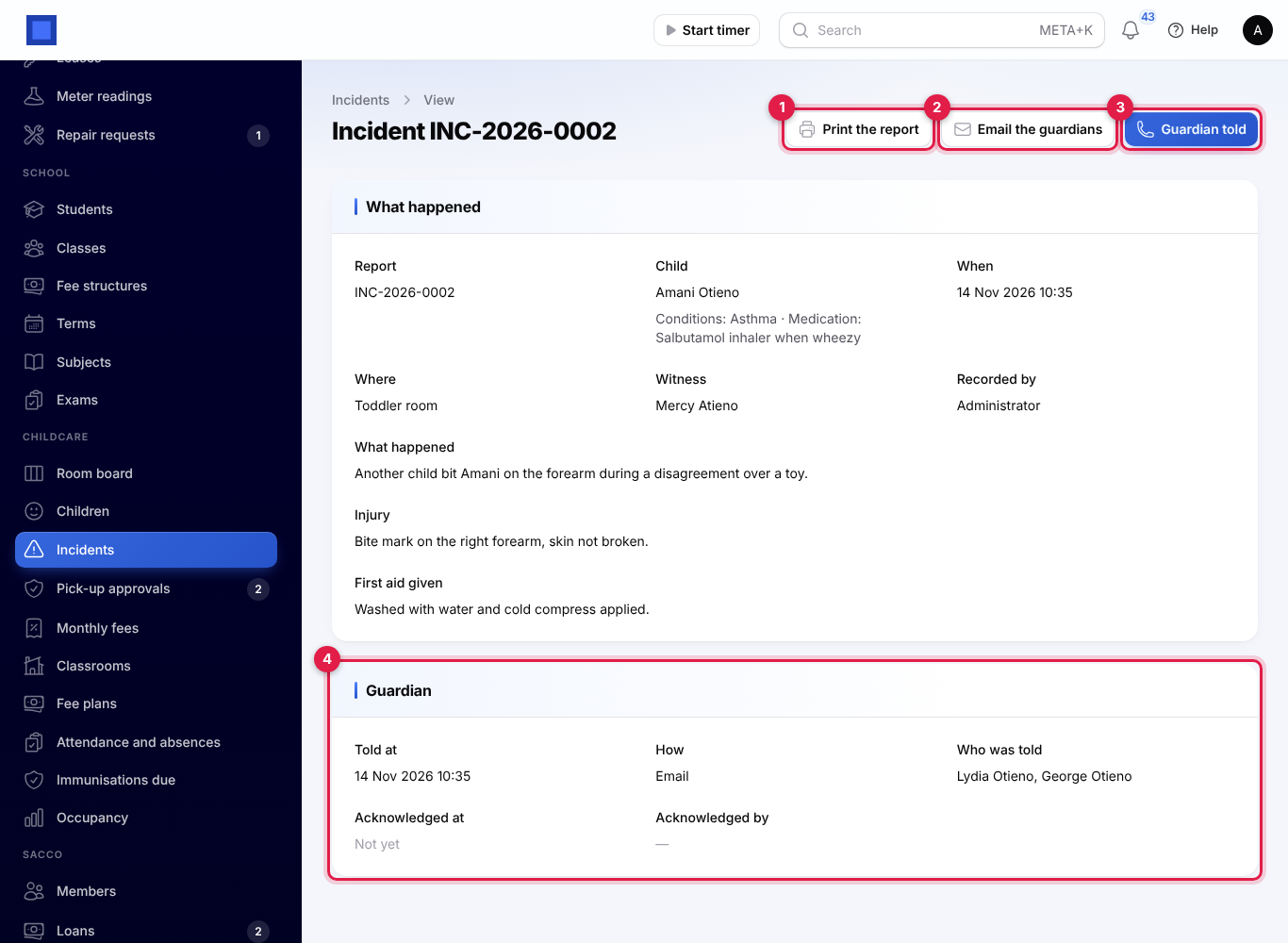
On the report:
- Print the report (marker 1) opens the PDF to print and sign.
- Email the guardians (marker 2) emails it again. If no guardian has an email address you are told to tell them another way.
- Guardian told (marker 3) records how you told them: In person, Phone call, Email or Text message, Who was told and When.
- The Guardian section (marker 4) shows when and how the guardian was told, and when and by whom the report was acknowledged.
Guardians read the report in the portal and click I have read this report; managers get an alert. In the Incidents list, Guardian told shows red while nobody has been told and Acknowledged shows orange until the guardian confirms. Filter with Not acknowledged yet or Guardian not told yet.
Medication
Medicine is only given against a guardian's written consent for that medicine.
Record a consent
Guardians give consent in the portal, or you record a paper consent:
- On the child's record, open the Medication tab and click Record a consent (marker 1).
- Choose the Guardian giving consent, then fill in the Medicine, Dose, When to give it, Most times a day, From and Until.
- Click Submit.
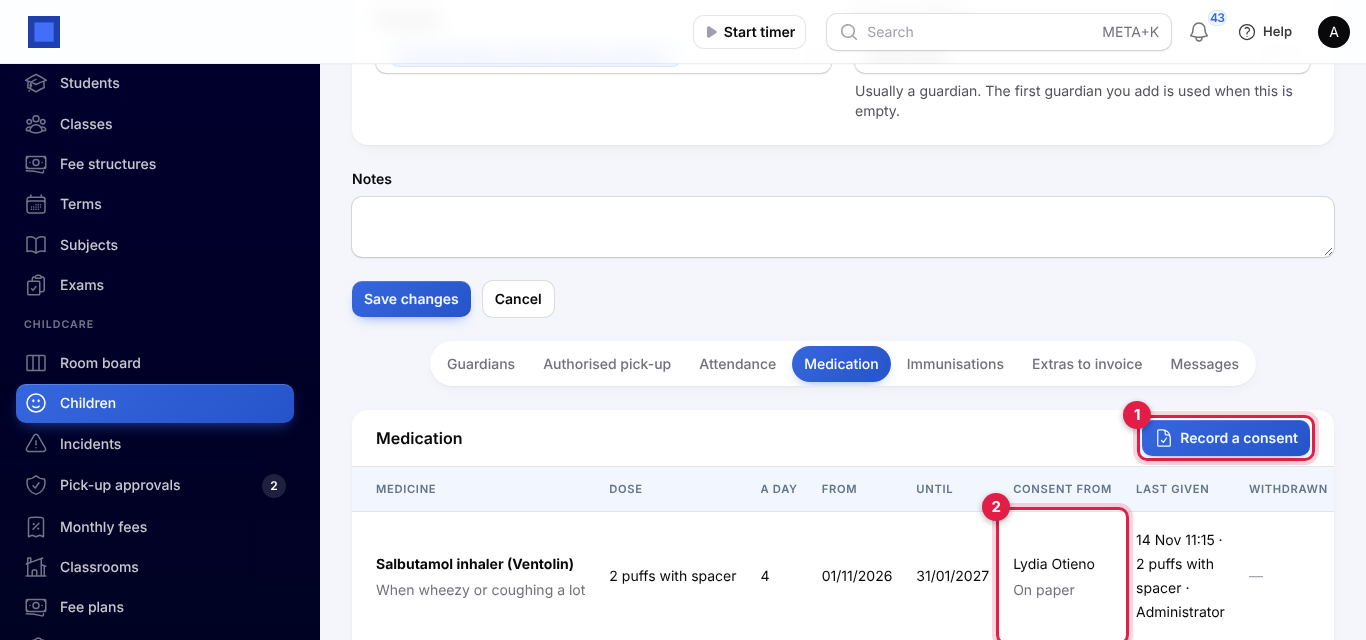
Consent from (marker 2) shows the guardian and whether the consent was given On paper or In the portal. Last given shows the latest dose, when and by whom.
Give a dose
From the room board row's ⋮ → Give medication, choose the Medicine (only medicines with a consent for today are listed), the Dose given (empty means the dose in the consent), Given at and Witness. On the Medication tab, Give a dose does the same with a Notes field.
NaliSuite refuses the dose when the consent was withdrawn, does not cover today, or when the child already had the most doses a day it allows. Managers can click Withdraw on a consent the family cancelled; it can no longer be used.
Immunisations
On the child's Immunisations tab, click Add a vaccine and fill in the Vaccine, Dose, Due on, Given on and Notes. A dose not given after its due date shows in red. Click Mark given with the date when the family shows the clinic card.
Childcare → Immunisations due lists, for children in care, every dose not given yet that is overdue or due in the next 30 days, with Overdue in red. Filter by Room and click Mark given from there.
Fees and monthly invoices
Each family gets one invoice a month, raised in Invoicing to the guardian in Fees are paid by. It holds:
- each child's monthly fee plans for the month, billed in advance,
- a Sibling discount line on the monthly fees of every child after the first, when several children share the same paying guardian (the child with the highest fees pays in full),
- the extras not invoiced yet: late pick-ups, casual days and anything staff added.
Invoices are raised by themselves every hour from the invoice day in the settings, for every family not billed for the month yet, and emailed to the paying guardian when the setting is on. A family is never billed twice for the same month.
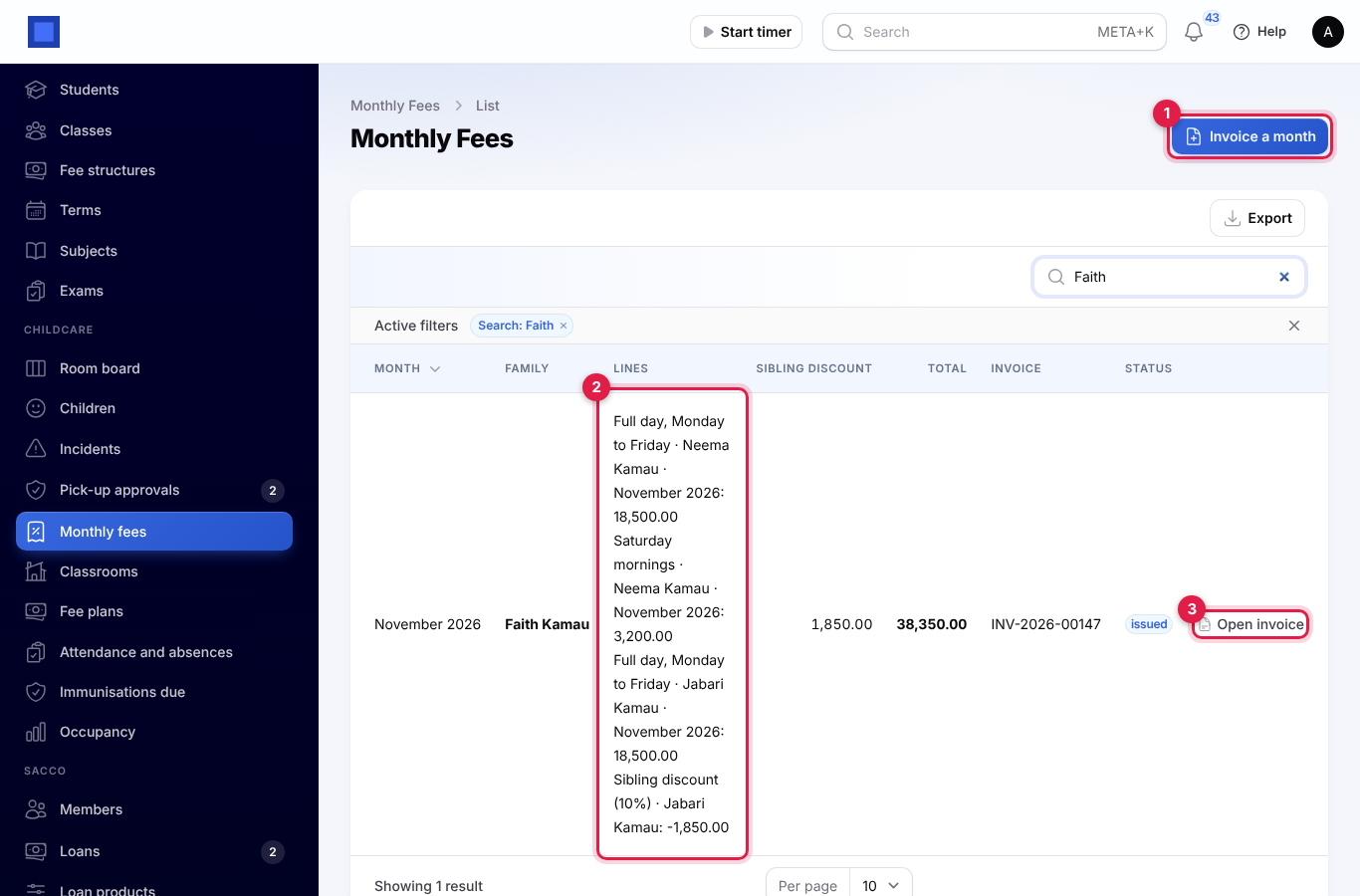
To invoice by hand, open Childcare → Monthly fees, click Invoice a month (marker 1), choose the Month (this month, next month or the two before) and click Submit. Families already invoiced for that month are skipped.
The list shows each family's Lines (marker 2), Sibling discount, Total, invoice number and status. Open invoice (marker 3) opens it in Invoicing, where you record payments as for any invoice. See Invoices and payments.
Extras to invoice
The child's Extras to invoice tab lists what goes on the next invoice: Late pick-up and Casual day charges added by themselves, and anything staff add. Click Add an extra for a school trip or photos, with the Description, Date, Quantity and Price. Invoiced for shows the month once it is billed; until then you can delete it.
Pick-up approvals
Guardians can ask in the portal to add someone, change someone's details or remove someone from the pick-up list. Each request waits in Childcare → Pick-up approvals, with a count next to the menu item, and managers get an alert.
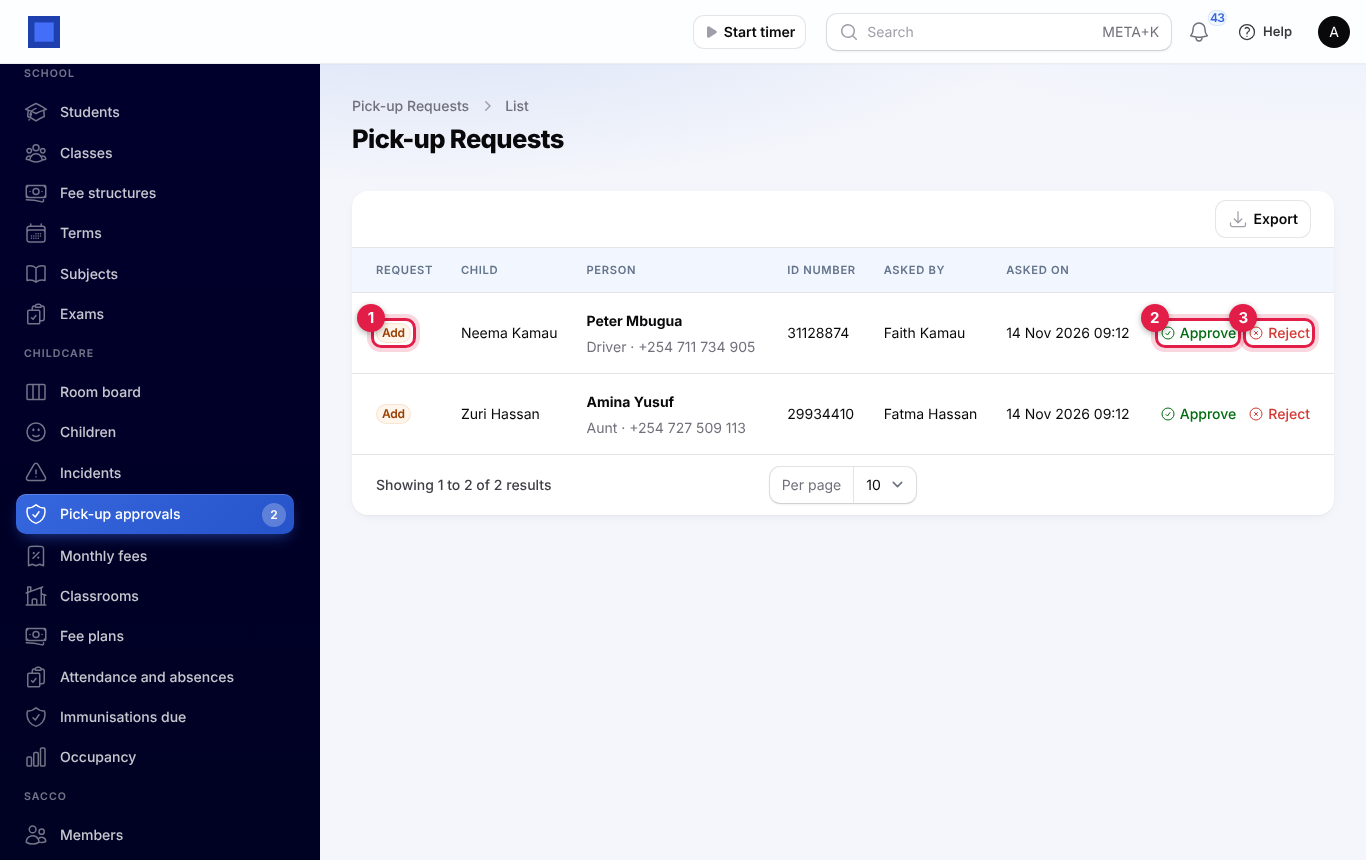
- Check the Request (marker 1): Add, Change or Remove, with the child, the person's details, ID number and who asked. Click Photo to see their photo.
- Click Approve (marker 2) and confirm. An added person can collect with their PIN at once (check their ID at the door the first time); a change replaces the old details; a removed person can no longer collect.
- Or click Reject (marker 3) and give a Reason.
Until a removal is approved, the person can still collect the child. A guardian with an urgent change should tell you in person.
The parent portal page
Guardians who have customer portal access see Childcare in the portal menu while one of their children is in care. Invite guardians from their contact as described in Customer and vendor portal.
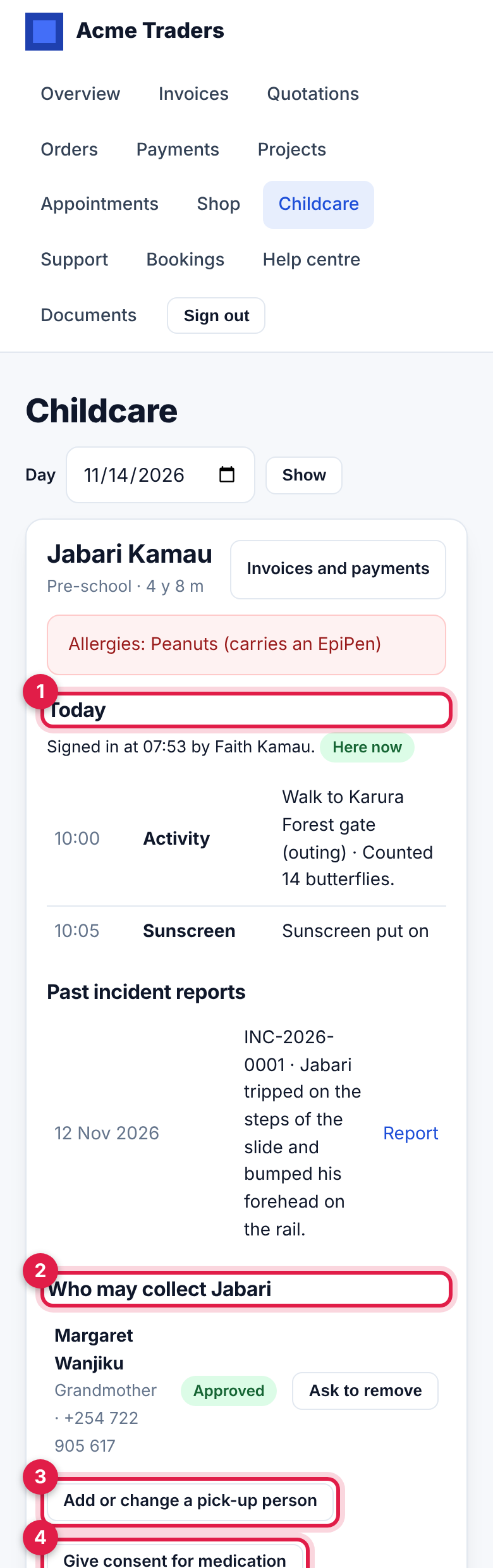
For each child the page shows:
- the child's room, age and health alert, and a link to Invoices and payments;
- any incident report still to read, with I have read this report and Download the report;
- Today (marker 1): when the child was signed in and out and by whom, and the daily log with photos. Choose another Day and click Show to look back;
- Medication given and Past incident reports;
- Who may collect (marker 2), with Ask to remove next to each approved person;
- Add or change a pick-up person (marker 3): the Full name, Phone, Relationship to the child, ID number, a Pick-up PIN and a Photo, sent for approval;
- Give consent for medication (marker 4): the medicine, dose, when to give it, most times a day and the dates, with a tick to confirm;
- Tell us about an absence (marker 5) for today or a day ahead, with a reason and a note;
- Messages with the team.
Messages from guardians alert managers and appear on the child's Messages tab. Click Write to the guardians there to reply; the guardians get it by email and see it in the portal.
Reports
- Attendance and absences: pick a Day to see each room's children Enrolled, Expected, those who Came, are Still here and are Absent; below, every sign-in and sign-out of the day with minutes late. Absences lists children expected but not signed in From a date until today, with the reason, or Not told in orange.
- Immunisations due: see Immunisations.
- Occupancy: Places, Children enrolled, Places free and Here now for the centre, then each room's enrolled children against places, how Full it is, Expected today, Here now, On duty, what the Ratio allows, children Outside age range, any ratio warning, and its Allergy list.
- Allergy list: a PDF per room, for the kitchen wall, of the children with allergies, medical conditions or diet needs.
Privacy
When a family who has left asks for their data or to be forgotten, open the child's record and click Privacy (marker 6 on the child's record screenshot):
- Download the child's data saves a file with everything held about the child: details, guardians, pick-up people, attendance, absences, daily log, incidents, medication, immunisations, charges and messages.
- Erase the child's data works only once the child's Status is Left. Type ERASE and click Erase for good. The name, date of birth, photo, health details, doctor, daily log and photos, messages, immunisations, guardian links and pick-up list are removed for good. Attendance times, fees, incident and medication records stay under an anonymous name, because they must be kept.
Download the data first if the family also asked for a copy, and erase the guardians in Contacts as well.
Good to know
Who gets the alerts? Everyone with childcare.manage, through their notification bell and the channels they chose: Childcare safety alerts (refused pick-ups, ratio warnings, new incidents) and Childcare parent requests (pick-up changes, guardian messages, medication consents, acknowledged incidents).
What do guardians get by email? The evening summary of the day (to guardians with Gets the end-of-day email on), incident reports, staff messages and the monthly invoice. Guardians without an email address are skipped.
Can I sign a child in for a parent who forgot their PIN? Yes. Staff can sign in and out from the room board, choosing the person from the list; set a new PIN for the parent from the child's record.
What times are used? The closing time, the summary time, the invoice day and "today" all follow the time zone of your company, so a centre in Nairobi works on Nairobi time.
Is a refused pick-up kept? Yes, with the time, the reason, the name when the PIN belonged to a guardian, and the tablet's address. You see it through the alert, which links to the child's record.