Financial reports, assets and year end
This page covers the statements your bank, KRA and your accountant ask for, and the month-end and year-end work behind them: profit and loss, balance sheet, cash flow, changes in equity, trial balance, general ledger, tax report, results by cost centre and budget against actual; fixed assets and depreciation; deferred revenue and prepaid expenses; currencies, daily exchange rates and currency revaluation; closing the financial year; and consolidated reports across companies. The reports are under Accounting → Reports; assets under Accounting → Fixed assets; deferrals under Accounting → Deferred revenue and prepayments; currencies under Settings → Currencies and Settings → Exchange Rates.
Who can do what. The reports need the accounting.reports permission. Close fiscal year, Revalue currencies, Post month-end and Dispose need accounting.post. Creating assets and deferrals needs accounting.manage. Currencies and exchange rates need core.settings.manage to change. The owner, admin and accountant roles have all of these.
All reports are built from posted journal entries only (drafts are ignored), on the accrual basis: income counts when invoiced, costs when billed or spent, not when cash moves (except the cash flow statement).
Run a report
- In the menu, open Accounting → Reports (marker 1). The page opens on Profit and loss for the current year to date.
- Choose the Report (marker 2), the Company (marker 3) and the period with From and To (marker 4). The report below refreshes as soon as you change a field; there is no Run button.
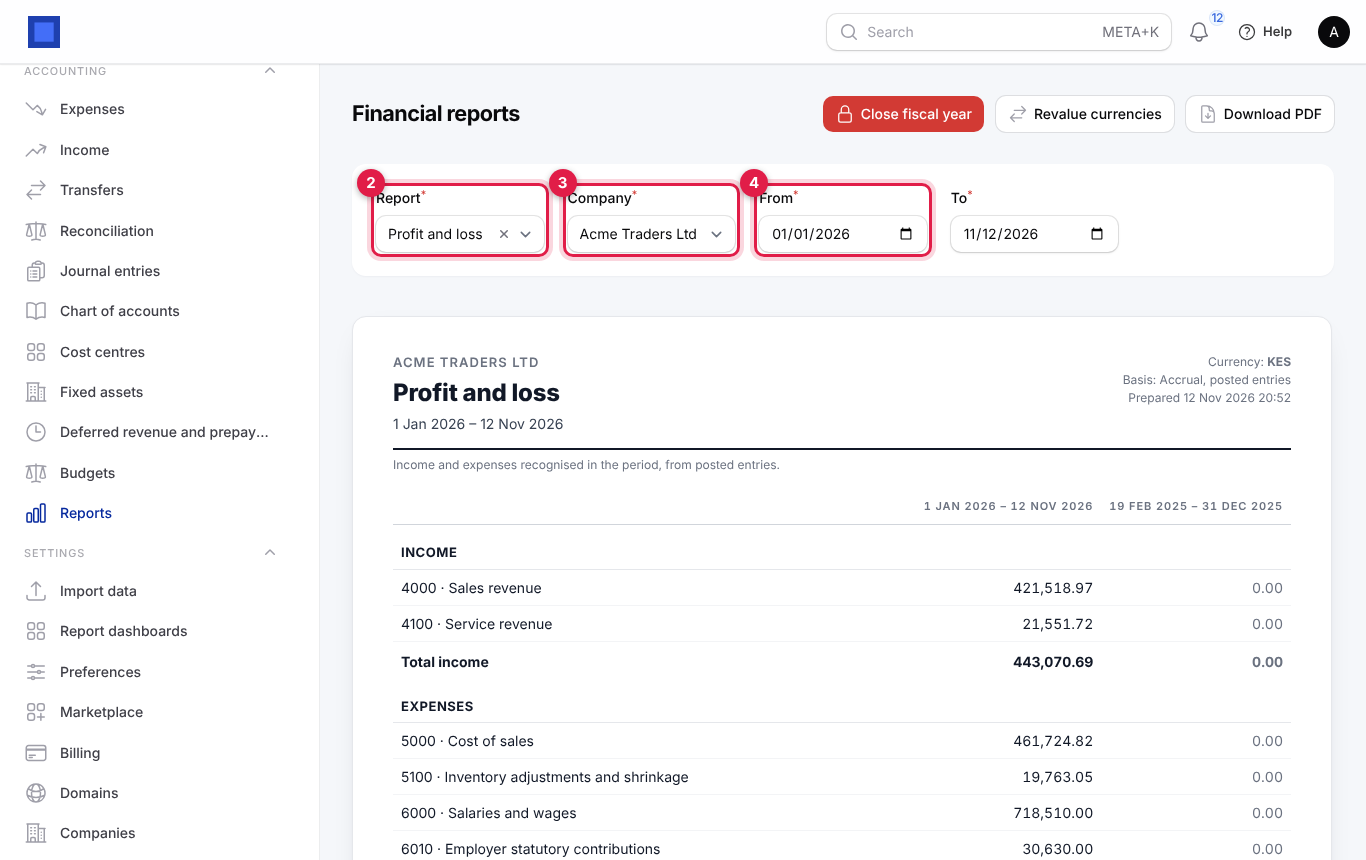
The Report list offers:
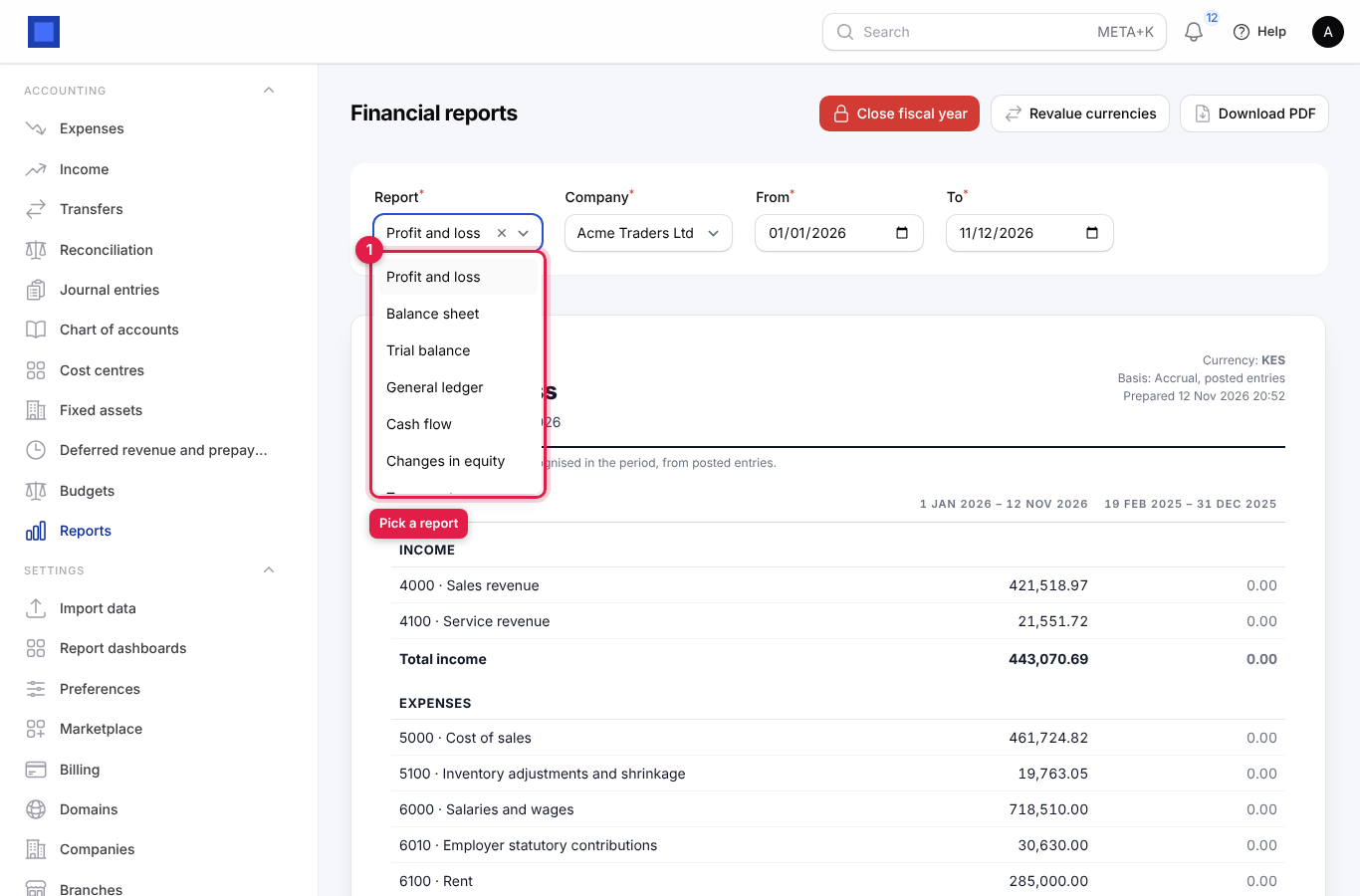
| Report | What it shows | Extra fields |
|---|---|---|
| Profit and loss | Income minus expenses for the period, with net profit or loss and net margin, and the previous period alongside. | — |
| Balance sheet | Assets, liabilities and equity on one date, with the same date last year alongside. | From is hidden; To becomes As at. |
| Trial balance | Every account's total debits and credits for the period, which must balance. Hand this to your auditor. | — |
| General ledger | Every posted line on one account with a running balance, opening and closing. | Account |
| Cash flow | Money in and out of your bank, cash and mobile money accounts, grouped as operating, investing and financing, with opening and closing cash. | — |
| Changes in equity | Opening equity, profit for the period, owner contributions and drawings, closing equity. | — |
| Tax report | Tax collected on sales and paid on purchases in the period, by tax, and the net to pay or reclaim. Use it to prepare your VAT return. | — |
| By cost centre | Income and expenses per cost centre. | — |
| Budget against actual | Your budget for the months in the period against what was posted, with the variance and % used. | Budget |
- Click Download PDF to save the report as a branded PDF with your logo, ready to email or print. The file name is the report and the end date, for example profit-and-loss-2026-11-12.pdf.
Read the profit and loss
The heading (marker 1) shows the company, the report, the period, the currency, the basis ("Accrual, posted entries") and when it was prepared. The first figures column (marker 2) is the period you chose; the second (marker 3) is the previous period of the same length: the previous months if you chose whole months, otherwise the same number of days just before. Download PDF is marker 4.
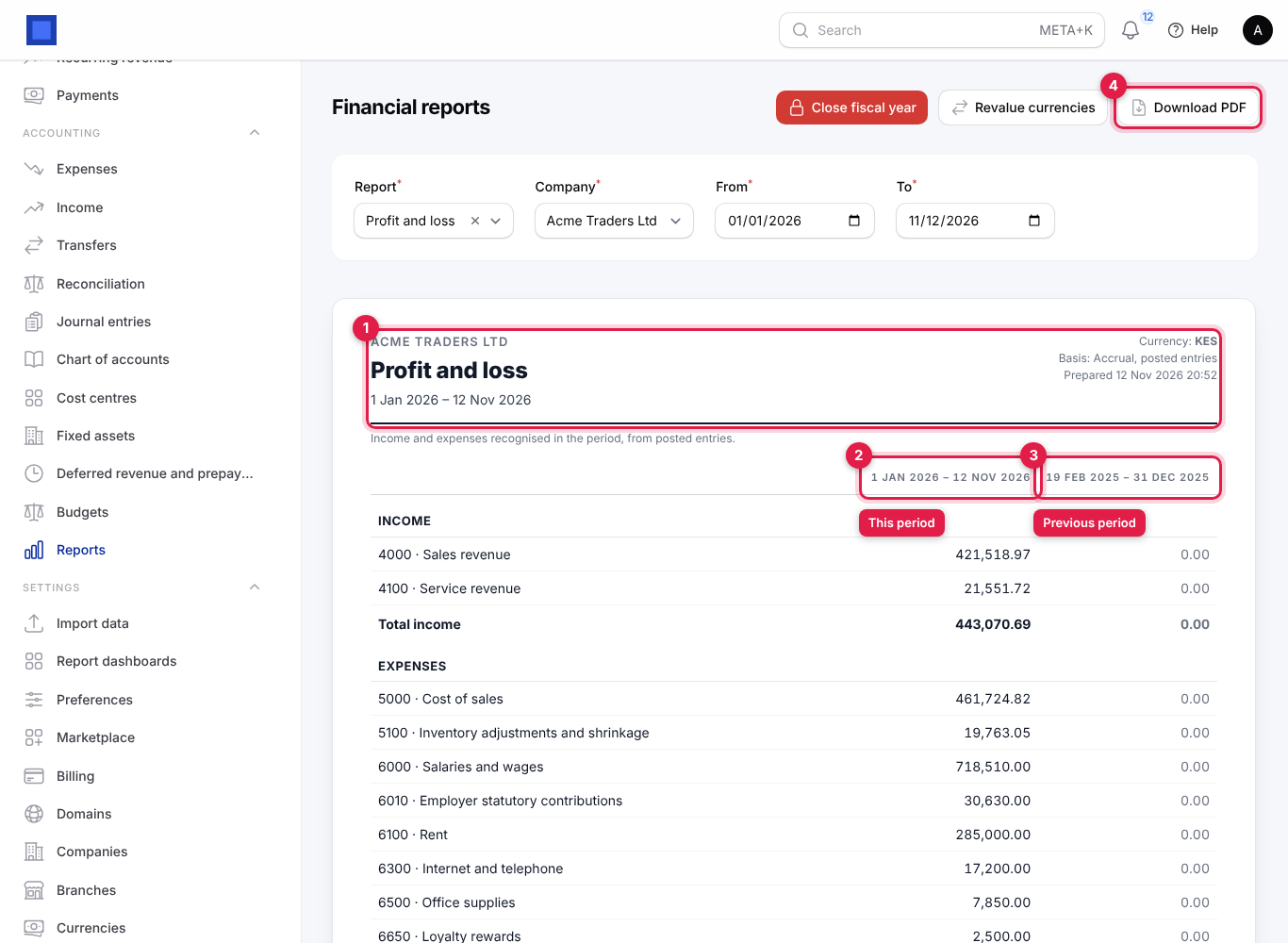
Losses and negative figures are shown in brackets, for example (1,563,033.10).
Balance sheet
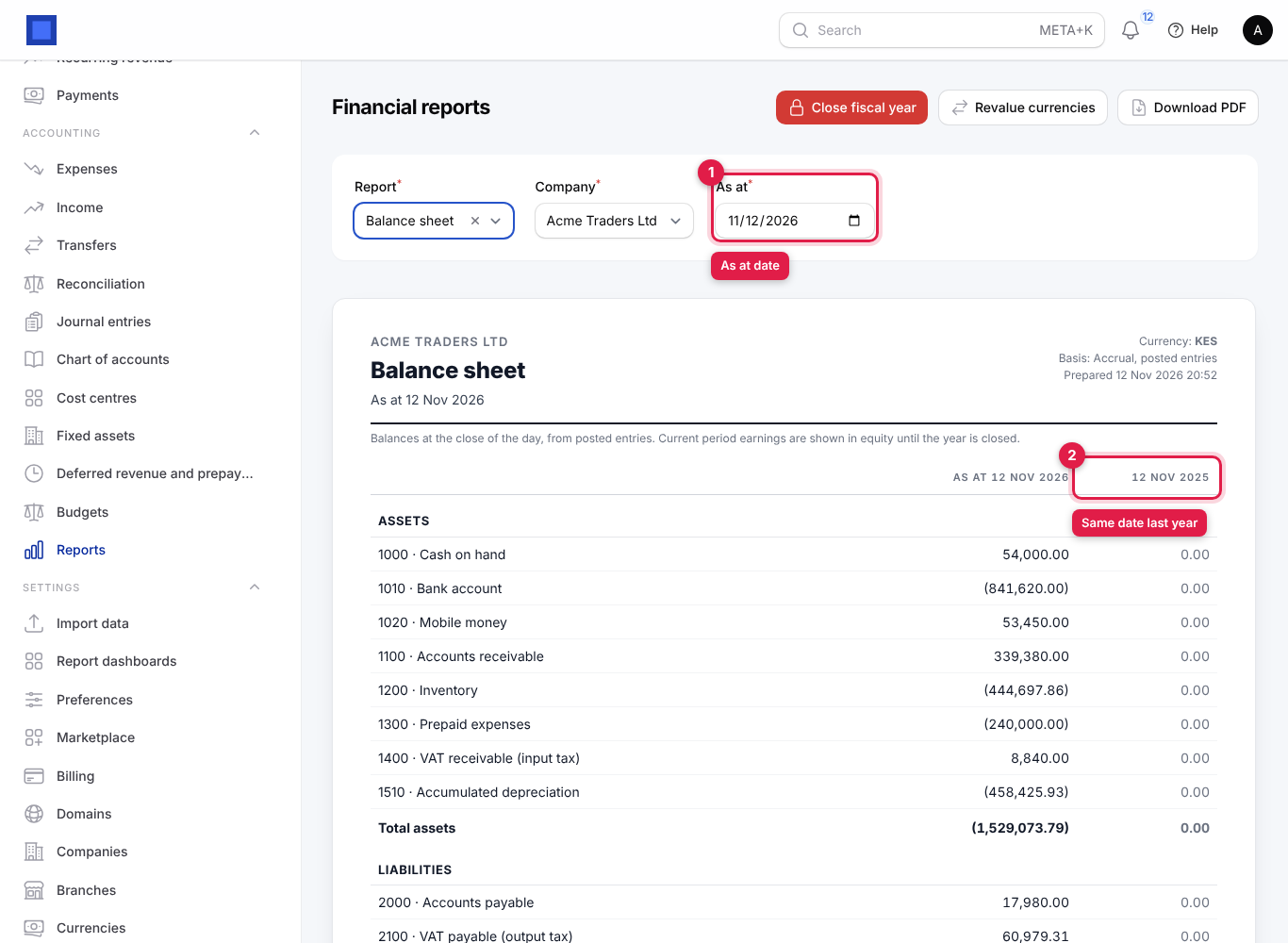
Pick Balance sheet and set As at (marker 1). The comparison column (marker 2) is the same date a year earlier. The last line, Total liabilities and equity (marker 3), equals Total assets when the books balance. Current period earnings in the equity section is this year's profit not yet closed to retained earnings.
General ledger for one account
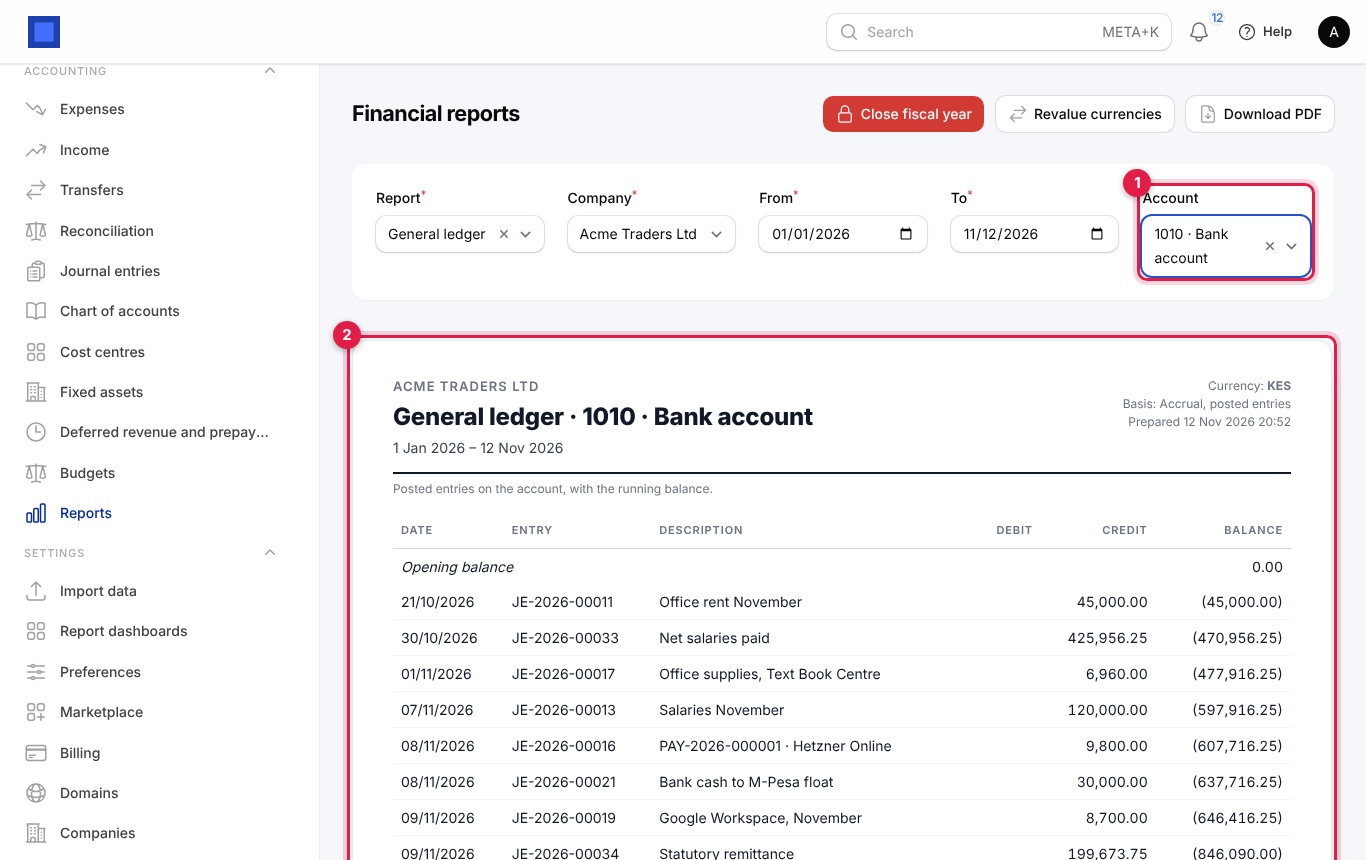
Pick General ledger, then the Account (marker 1; type to search). The report (marker 2) lists the opening balance, every posted line with date, entry number, description, debit, credit and running balance, and the closing balance. Use it to answer "what makes up this figure?", or to find unreconciled bank lines.
Cash flow, equity and tax
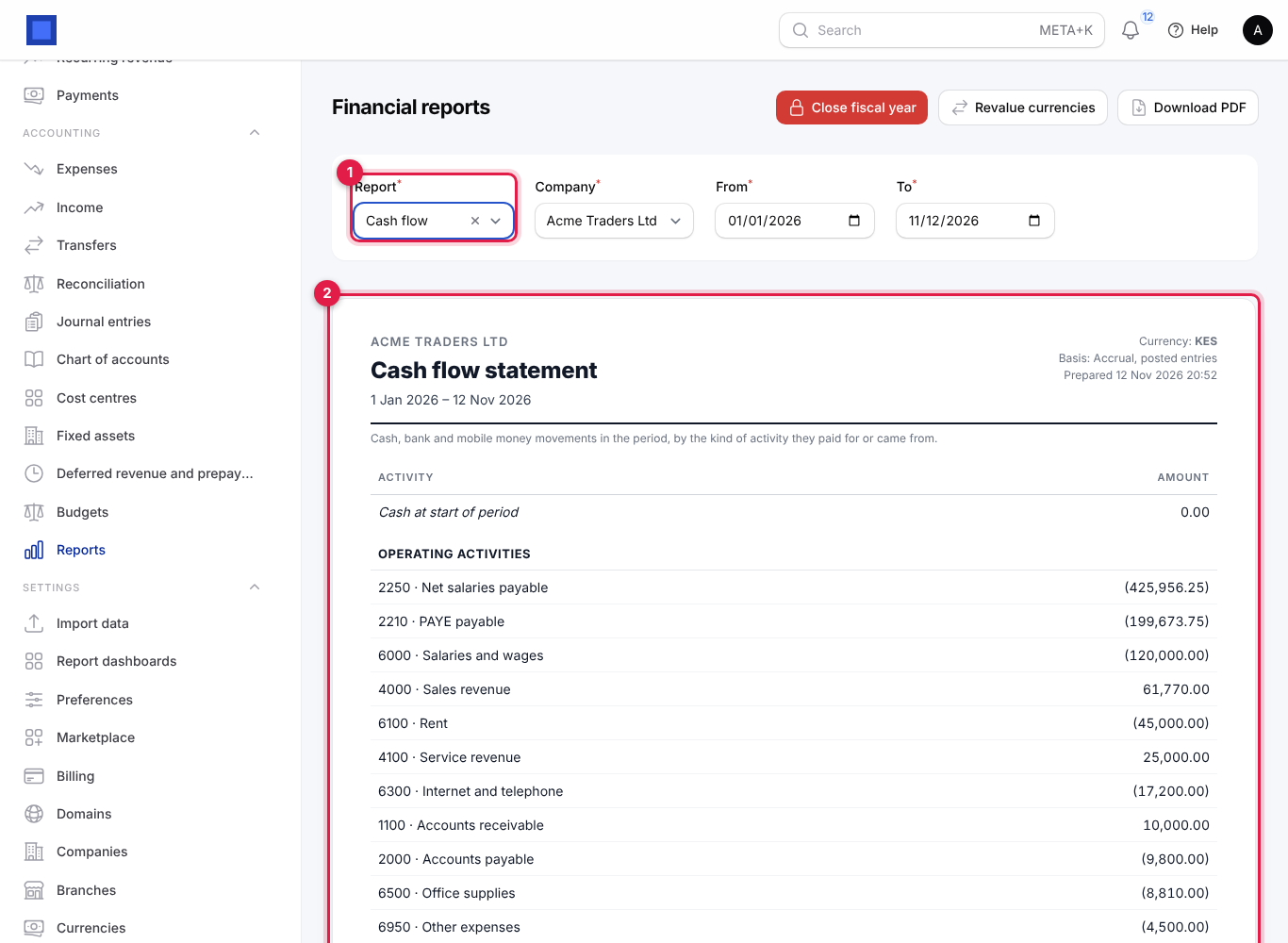
Pick Cash flow in Report (marker 1) to see where cash came from and went (marker 2). Lines are grouped by the account on the other side of each cash movement: operating (sales, salaries, rent, suppliers, tax), investing (fixed assets) and financing (loans, owner's capital, drawings).
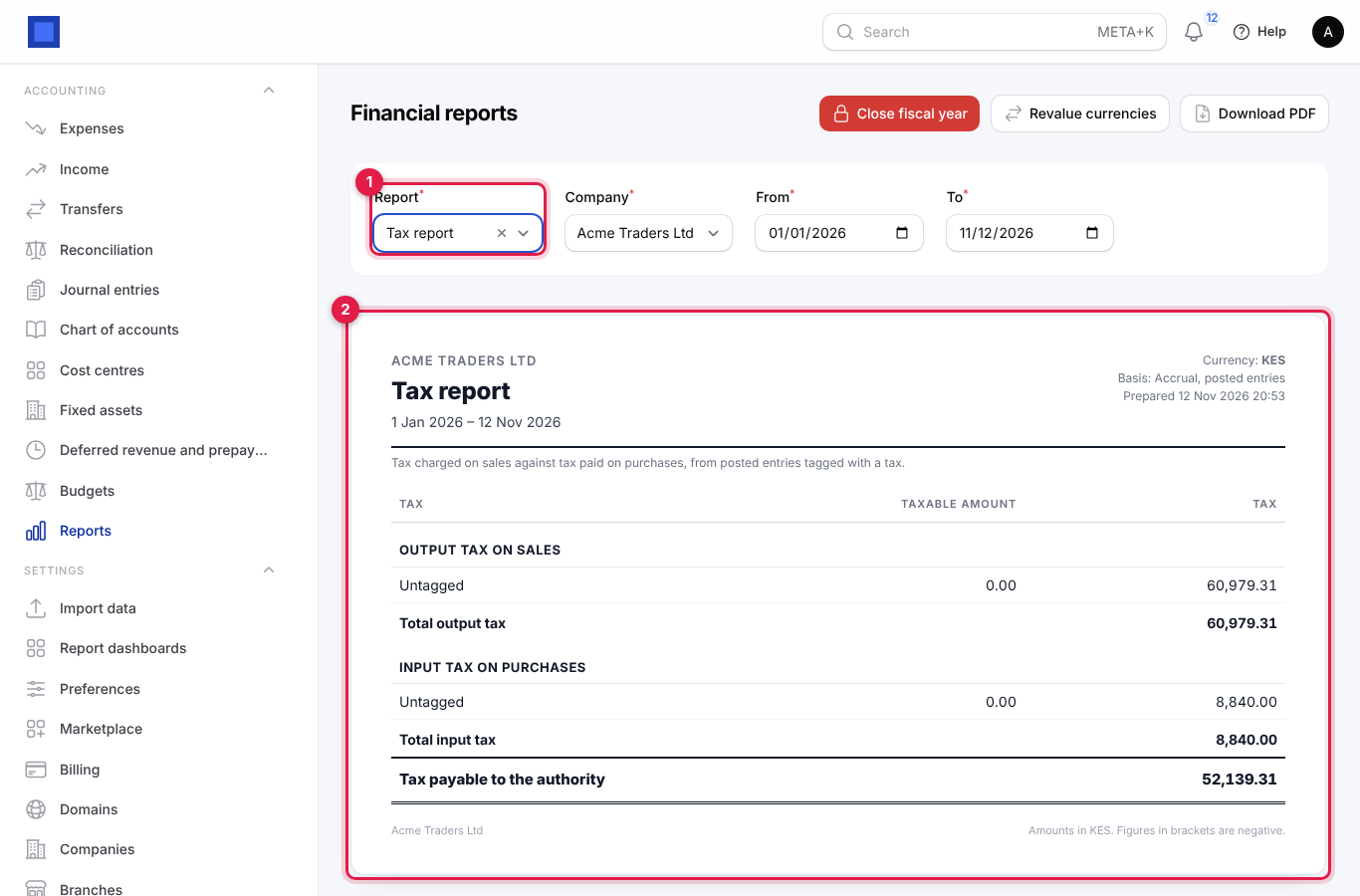
Pick Tax report to see output tax on sales and input tax on purchases for the period, per tax (for example VAT 16%), with the net amount due (marker 2). Set From and To to your VAT period (one calendar month in Kenya).
Compare with your budget
- Create a budget first under Accounting → Budgets (see Set a budget).
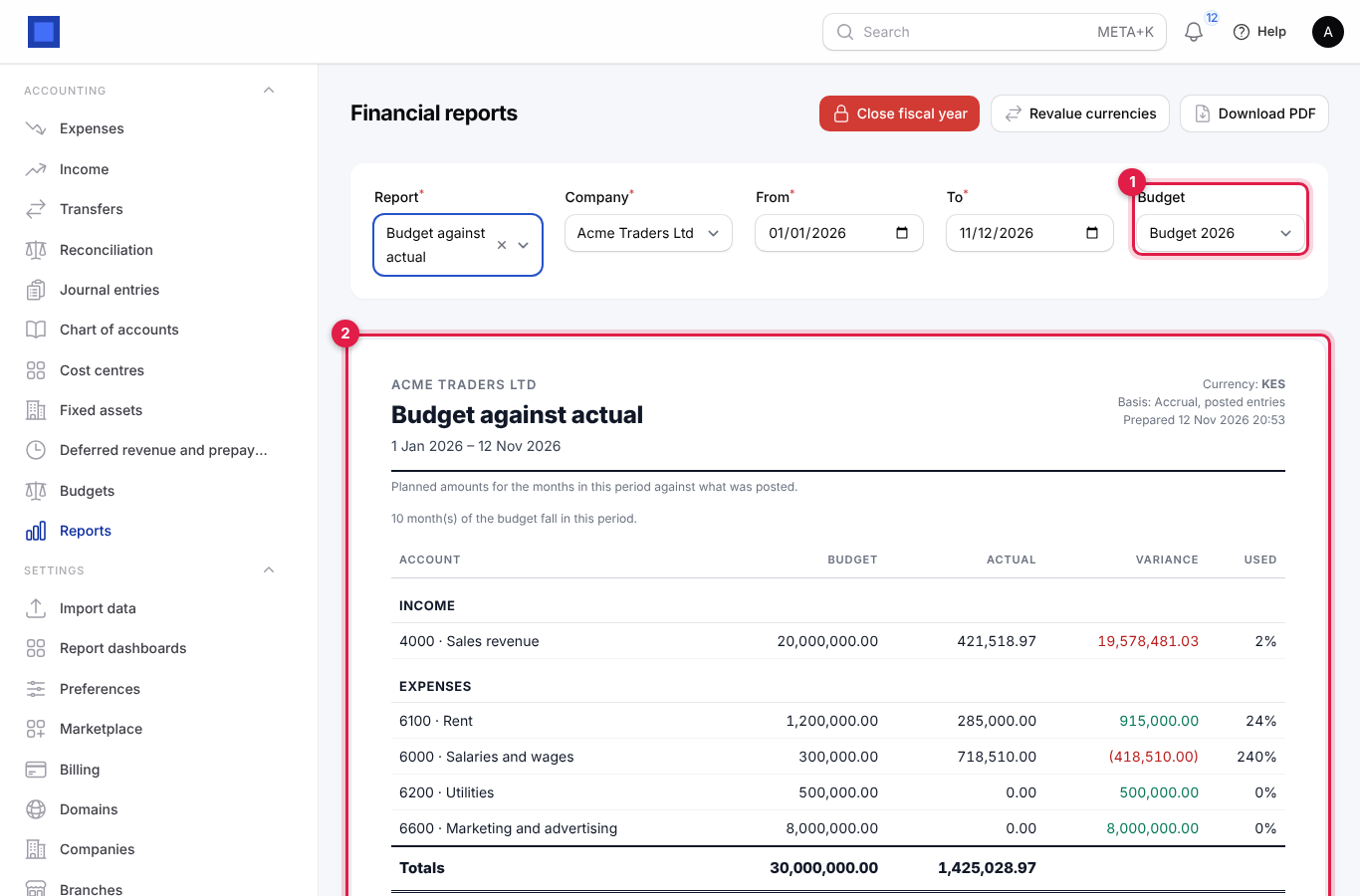
- Pick Budget against actual and choose the Budget (marker 1).
- Set From and To. Only the budget months that fall inside the period count ("10 month(s) of the budget fall in this period"), so a year-to-date view compares fairly with a full-year budget.
| Column | Meaning |
|---|---|
| Budget | The planned amount for the months in the period. |
| Actual | What was posted to the account. |
| Variance | Budget minus actual. Green is favourable (income above budget or costs below it); red in brackets is unfavourable. |
| Used | Actual as a percentage of budget. |
Consolidated reports for several companies
If your workspace has more than one company and two or more of them keep their books in the same currency as your default company, the Company list has an extra first choice: All companies (consolidated, KES) (with your currency). Choosing it adds those companies together, account by account, matched by account code (or by name and type where there are no codes), for the profit and loss, balance sheet and trial balance. The period line says which companies are included.
Note: Balances between your own companies (one company's receivable that is another's payable) are not eliminated; they appear as booked. Companies in a different currency are not included.
Fixed assets and depreciation
Register vehicles, machinery, computers and furniture as fixed assets so their cost is spread over their useful life instead of hitting one month's profit.
- Open Accounting → Fixed assets.
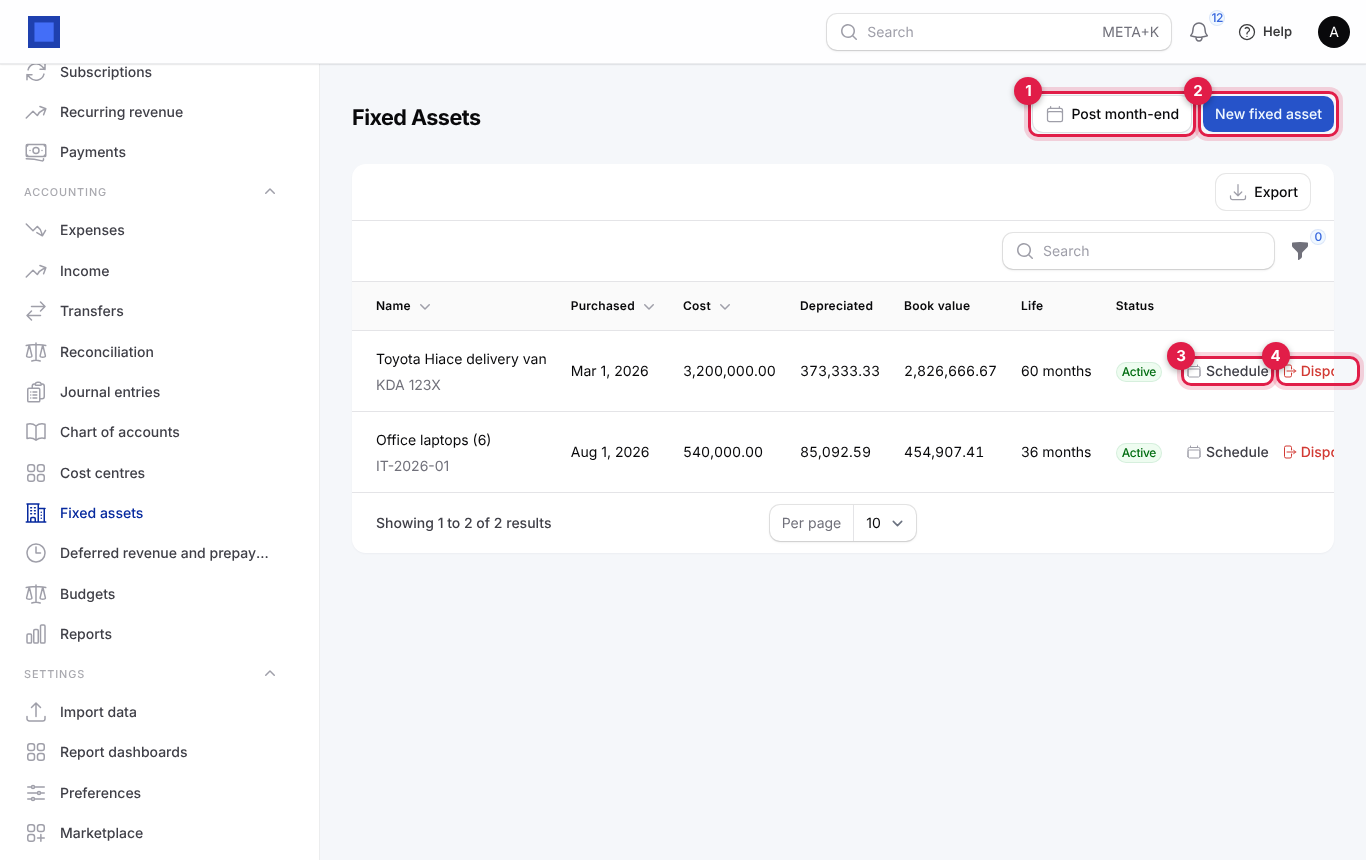
- Click New fixed asset (marker 2) and fill in the form:
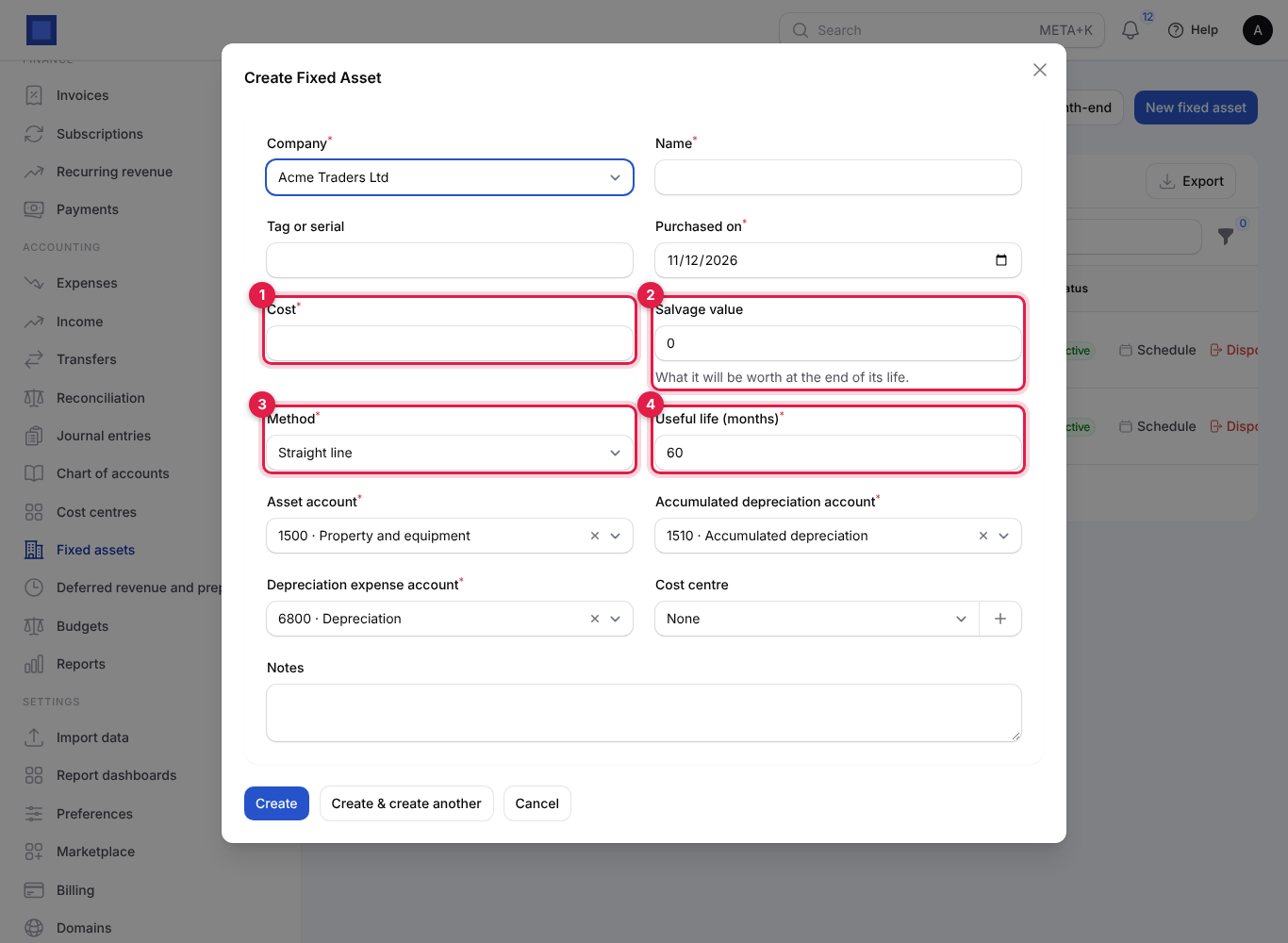
| Field | What to enter |
|---|---|
| Company | Required. |
| Name | For example Toyota Hiace delivery van. Required. |
| Tag or serial | Registration number, serial or asset tag, for example KDA 123X. |
| Purchased on | Depreciation starts in this month. Required. |
| Cost (marker 1) | What you paid, before VAT you can reclaim. Required. |
| Salvage value (marker 2) | What it will be worth at the end of its life. Depreciation stops when the book value reaches it. |
| Method (marker 3) | Straight line: the same amount every month. Declining balance: a larger charge early on (twice the straight-line rate on the remaining value), smaller later. |
| Useful life (months) (marker 4) | For example 60 for a vehicle, 36 for laptops. Between 1 and 600. Required. |
| Asset account | Where the cost sits on the balance sheet. Defaults to your Property and equipment account. |
| Accumulated depreciation account | Where the write-downs build up. Defaults to Accumulated depreciation. |
| Depreciation expense account | The monthly charge in the profit and loss. Defaults to Depreciation expense. |
| Cost centre | Optional, to charge depreciation to a branch or project. |
| Notes | Optional. |
- Click Create.
Note: Creating the asset does not record the purchase. Record how you paid for it (a vendor bill, an expense or a journal entry) to the asset account as usual. The asset register only handles depreciation and disposal.
List columns: Purchased, Cost, Depreciated (so far), Book value (cost minus depreciated), Life and Status: Active (still depreciating), Fully depreciated (book value has reached salvage value) or Disposed. Edit is only offered until the first month's depreciation is posted.
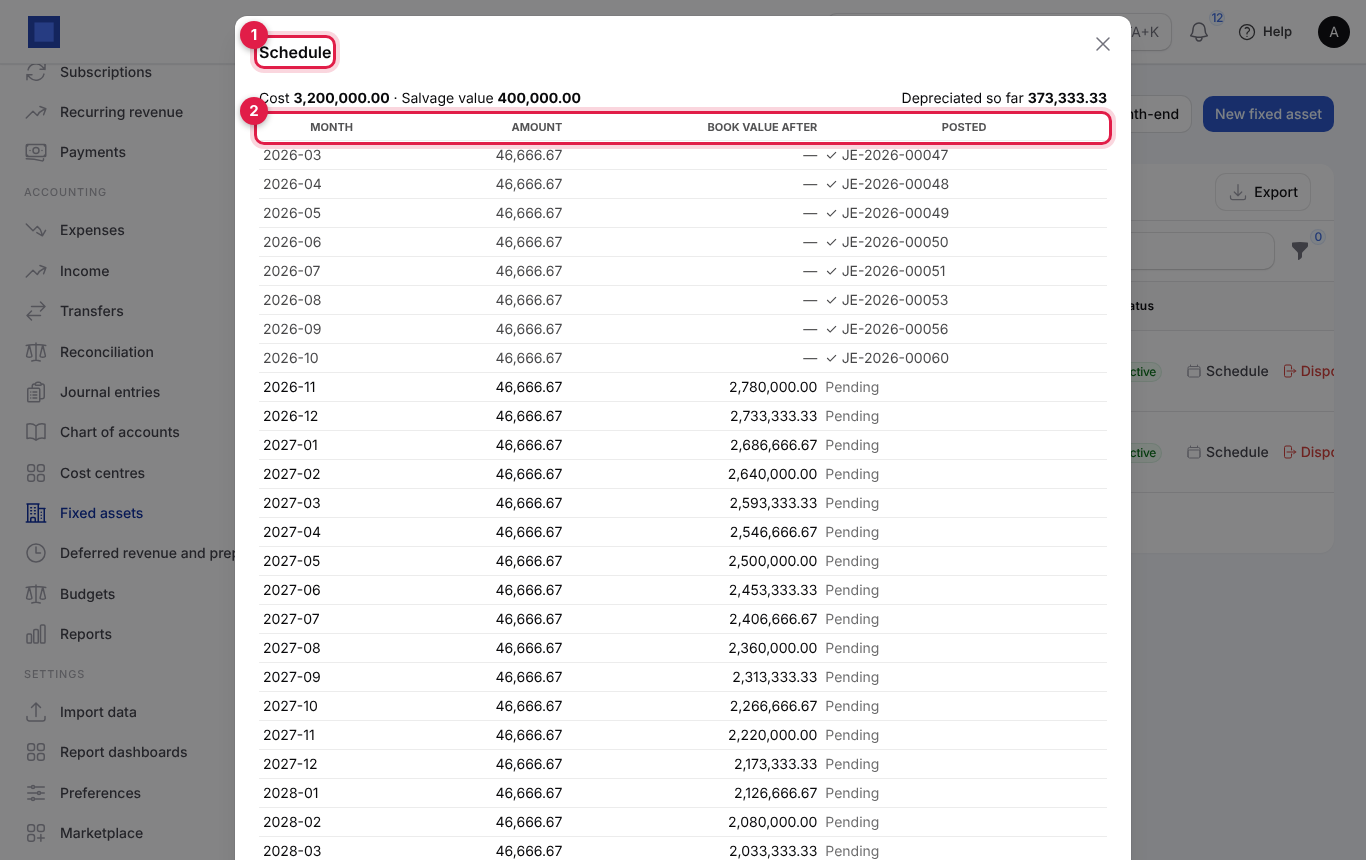
See the depreciation schedule
Click Schedule on an asset (marker 3 in the list). The window (marker 1) shows the cost, salvage value and depreciation so far, then one row per month (marker 2): the month, the amount, the book value after it, and either the journal entry number that posted it or Pending.
Post depreciation each month
Depreciation, deferred revenue and prepaid expenses are posted automatically for every company early on the 1st of each month, for the month just ended. You can also post a month yourself, for example after adding assets late:
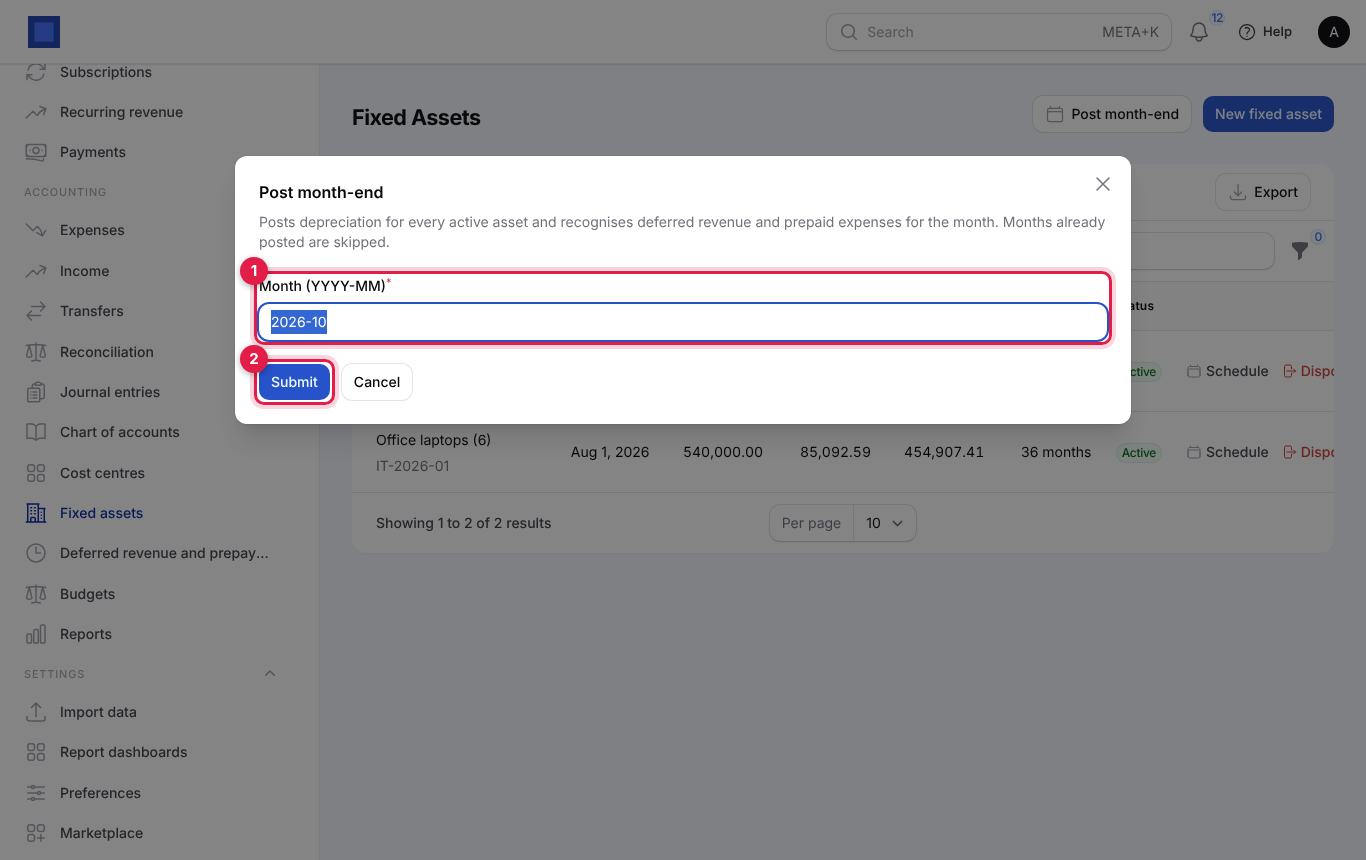
- Click Post month-end (marker 1 in the list).
- Type the Month (YYYY-MM) (marker 1), for example 2026-10. It defaults to last month.
- Click Submit (marker 2). Each active asset gets one journal entry for the month (debit depreciation expense, credit accumulated depreciation), and each active deferral is recognised for the month. Months already posted are skipped, so running it twice does no harm. The message says how many entries were posted.
Dispose of an asset
When you sell, scrap or lose an asset:
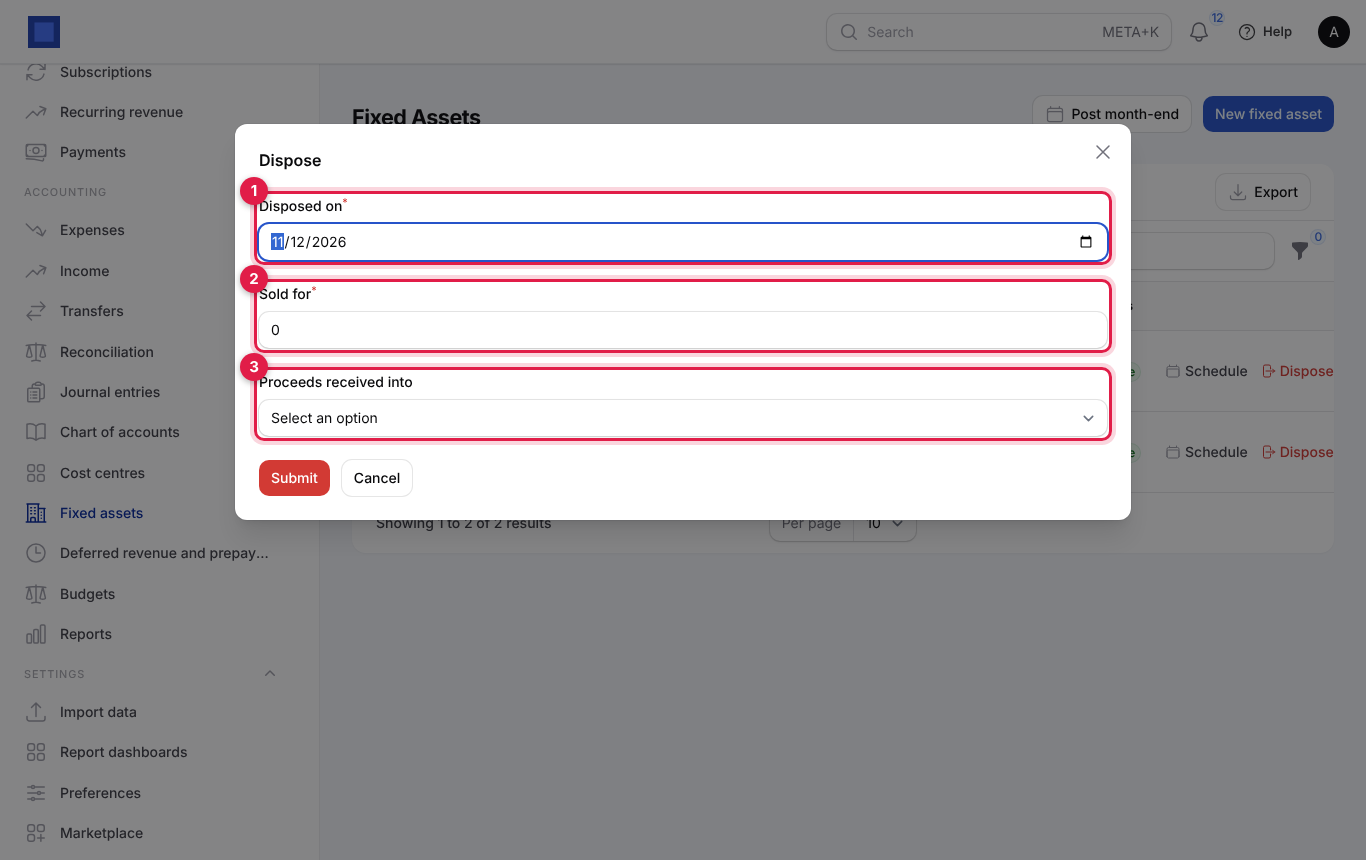
- Click Dispose on its row (marker 4 in the list).
- Enter the date in Disposed on (marker 1), the sale price in Sold for (marker 2; 0 if scrapped), and where the money went in Proceeds received into (marker 3: a bank, cash, M-Pesa or receivables account).
- Click Submit. NaliSuite removes the cost and accumulated depreciation from the books, records the proceeds, and posts the difference to the depreciation account as a gain or loss. The asset becomes Disposed.
Deferred revenue and prepaid expenses
When a customer pays a year's subscription up front, the money is not all earned this month; when you pay a year's rent or insurance in advance, it is not all this month's cost. A deferral spreads such an amount over the months it belongs to.
- Open Accounting → Deferred revenue and prepayments.
- Click New deferral (marker 3 in the list screenshot below) and fill in the window:
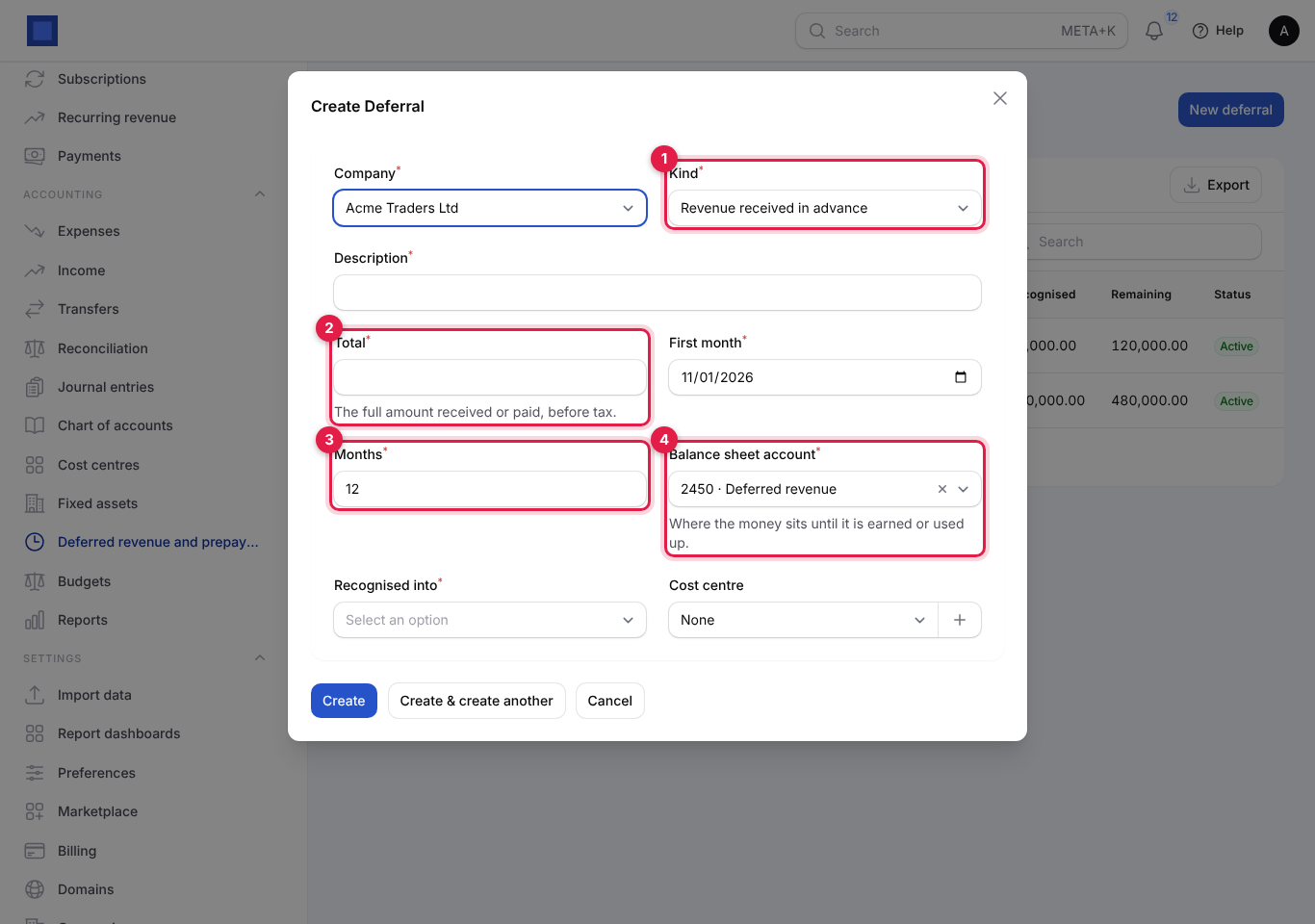
| Field | What to enter |
|---|---|
| Company | Required. |
| Kind (marker 1) | Revenue received in advance or Expense paid in advance. Changing it fills in the matching balance sheet account. Required. |
| Description | For example Annual hosting, Kilimanjaro Tours or Office rent Jan–Dec 2027. Required. |
| Total (marker 2) | The full amount received or paid, before tax. Required. |
| First month | The first month to recognise. Required. |
| Months (marker 3) | How many months to spread it over, 1 to 120. Required. |
| Balance sheet account (marker 4) | Where the money sits until it is earned or used up: Deferred revenue (a liability) for revenue, Prepaid expenses (an asset) for expenses. Required. |
| Recognised into | The income or expense account each month's share moves to, for example 4100 · Service revenue or 6100 · Rent. Required. |
| Cost centre | Optional. |
- Click Create.
Record the original invoice or payment to the balance sheet account (for example invoice the customer with a line on Deferred revenue, or pay the rent as an expense in the Prepaid expenses category). Then, each month, the month-end run moves one month's share: total ÷ months.
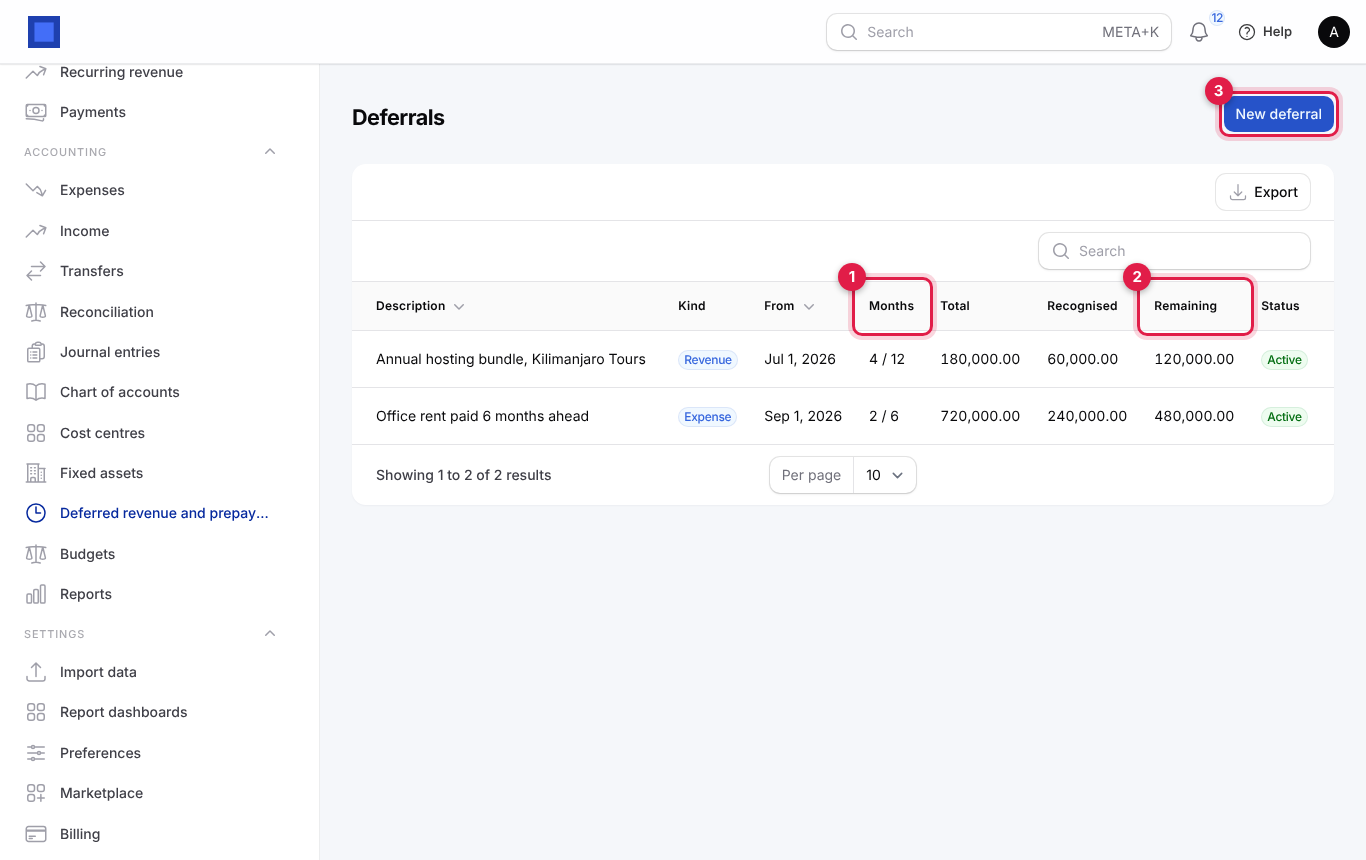
The list shows Months as recognised so far out of the total (marker 1), Total, Recognised, Remaining (marker 2) and the status: Active, or Done once every month is recognised. Edit is only offered before the first month is recognised.
Currencies and exchange rates
You can price, invoice, bill and pay in any currency. Each company keeps its books in one currency (its company currency); foreign-currency documents are converted at the exchange rate of their date.
Turn on a currency
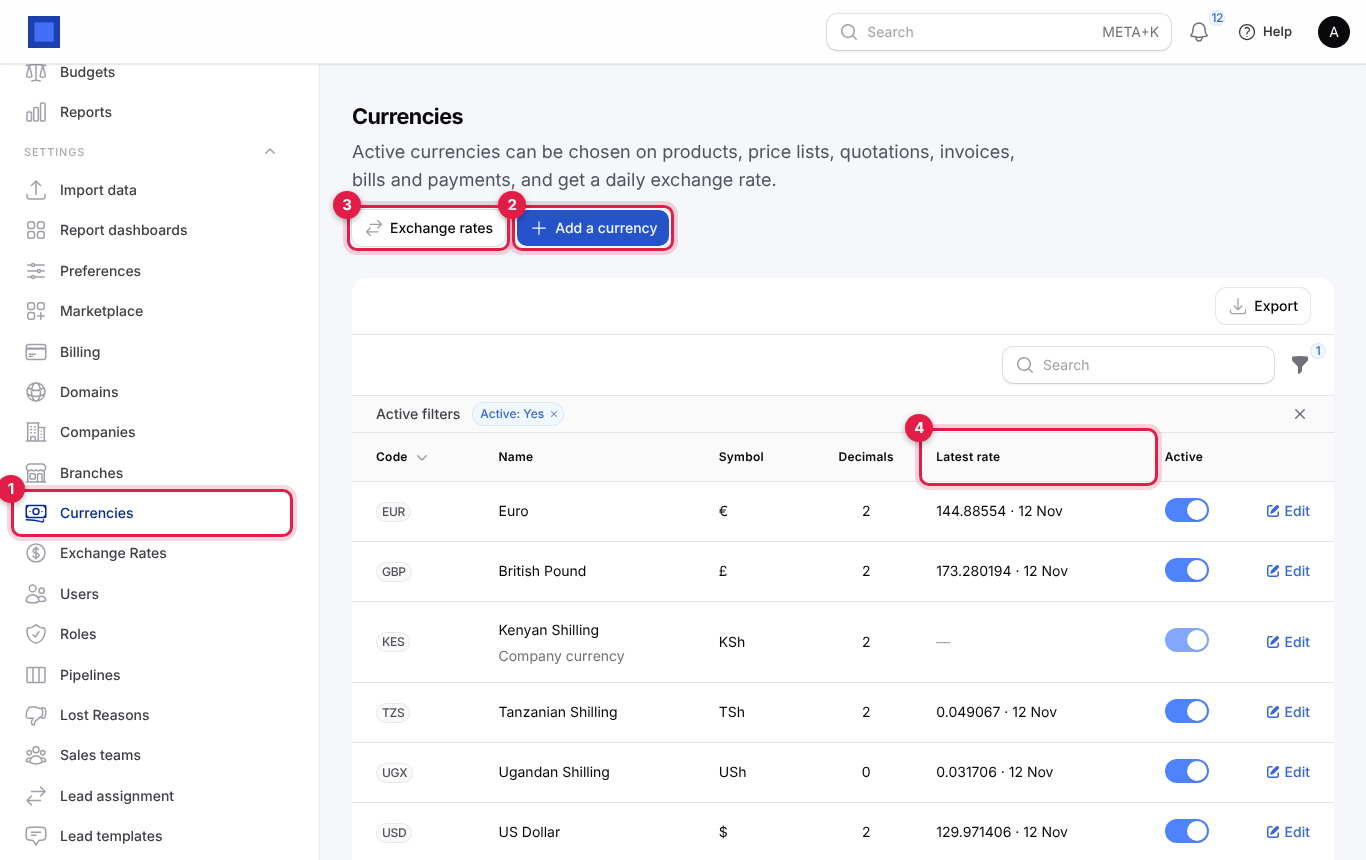
- Open Settings → Currencies (marker 1).
- Click Add a currency (marker 2), pick the Currency from the ISO list (name, symbol and decimal places fill themselves in), adjust them if you like, and click Submit. The message reminds you that its rate is fetched with the others the next morning; click Fetch today's rates under Exchange rates to get it now.
| Column | Meaning |
|---|---|
| Code, Name, Symbol, Decimals | The currency. Decimals is how many digits after the point amounts show (0 for UGX). Edit changes name, symbol and decimals. |
| Latest rate (marker 4) | The most recent stored rate and its date, for example 129.97 · 12 Nov. Empty for company currencies. |
| Active | Switch off a currency you no longer use; it disappears from dropdowns. A company currency is marked "Company currency" and cannot be switched off. |
Exchange rates (marker 3) takes you to the rates.
Automatic daily rates
Every morning NaliSuite fetches the day's rate for every active currency, for each company, and stores it. Documents in a foreign currency take the latest rate on or before their date; a rate typed on the document itself always wins.
Choose where the rates come from in Settings → Preferences → Currencies (marker 1):
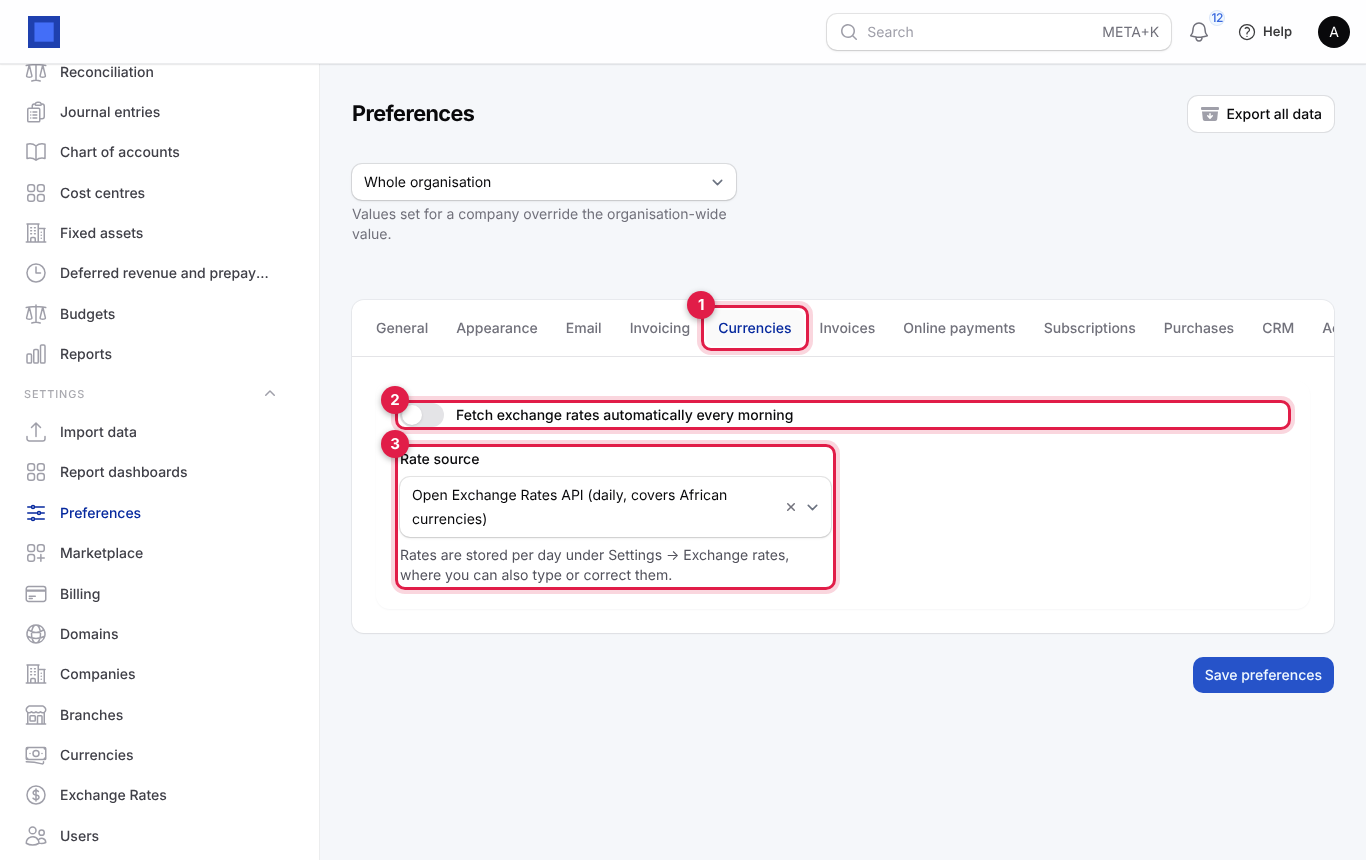
| Setting | Choices |
|---|---|
| Fetch exchange rates automatically every morning (marker 2) | On by default. Switch off to type every rate yourself. |
| Rate source (marker 3) | Open Exchange Rates API (daily, covers African currencies such as KES, UGX, TZS, NGN, GHS, ZAR); European Central Bank (daily reference rates for major currencies); Manual: I type rates myself. |
Click Save preferences after changing them.
Look at, fetch or type rates
Open Settings → Exchange Rates. The line under the title (marker 1) says where rates come from, or that automatic rates are off.
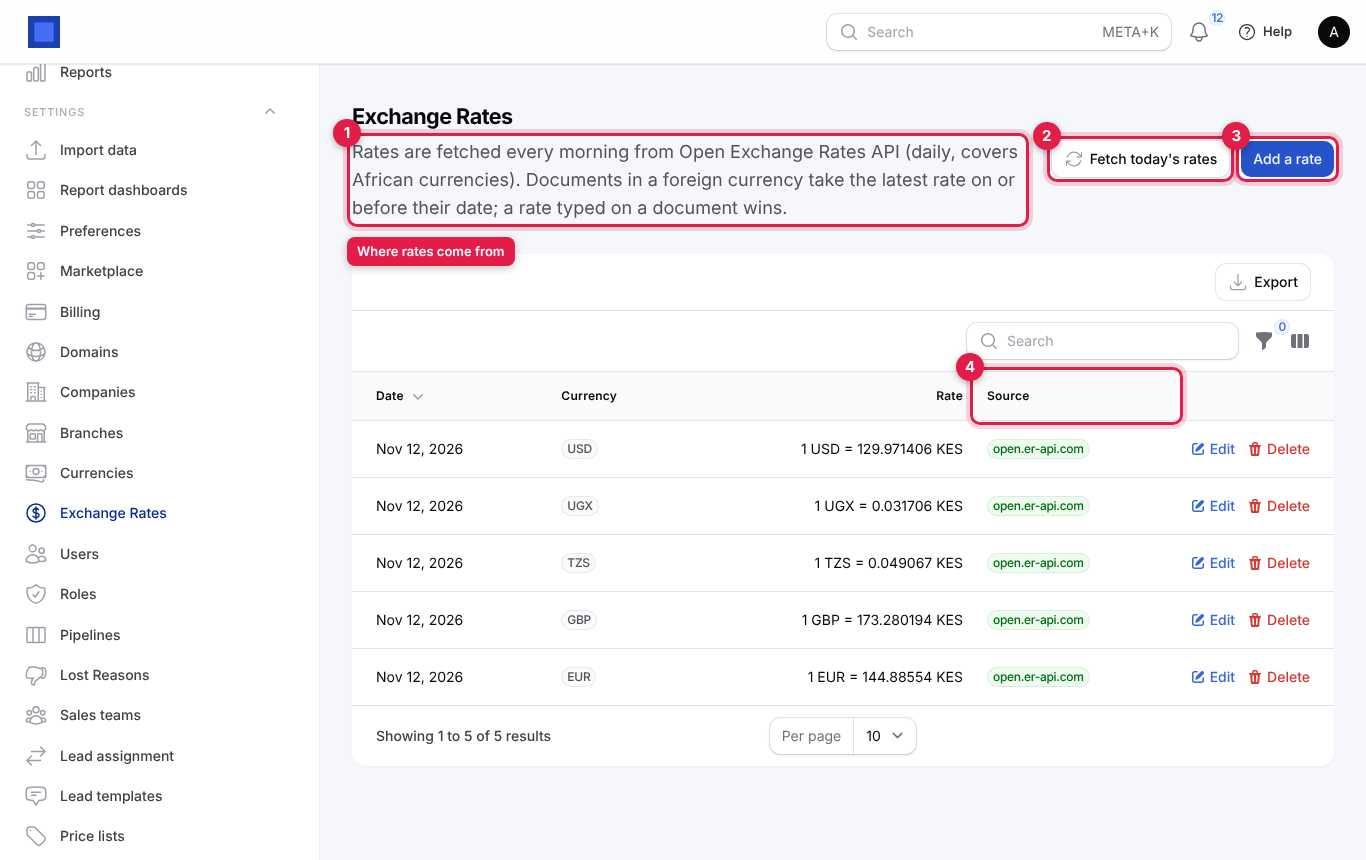
- Fetch today's rates (marker 2) fetches now for every company. The message lists how many rates were stored per company and any currency the source has no rate for.
- Add a rate (marker 3) types a rate by hand, for example the rate your bank actually gave you.
- The Source column (marker 4) shows open.er-api.com, European Central Bank or Typed in.
- Edit corrects a rate (it becomes Typed in); Delete removes it. Filter by Currency to see one currency's history.
To add a rate by hand, fill in the window and click Create:
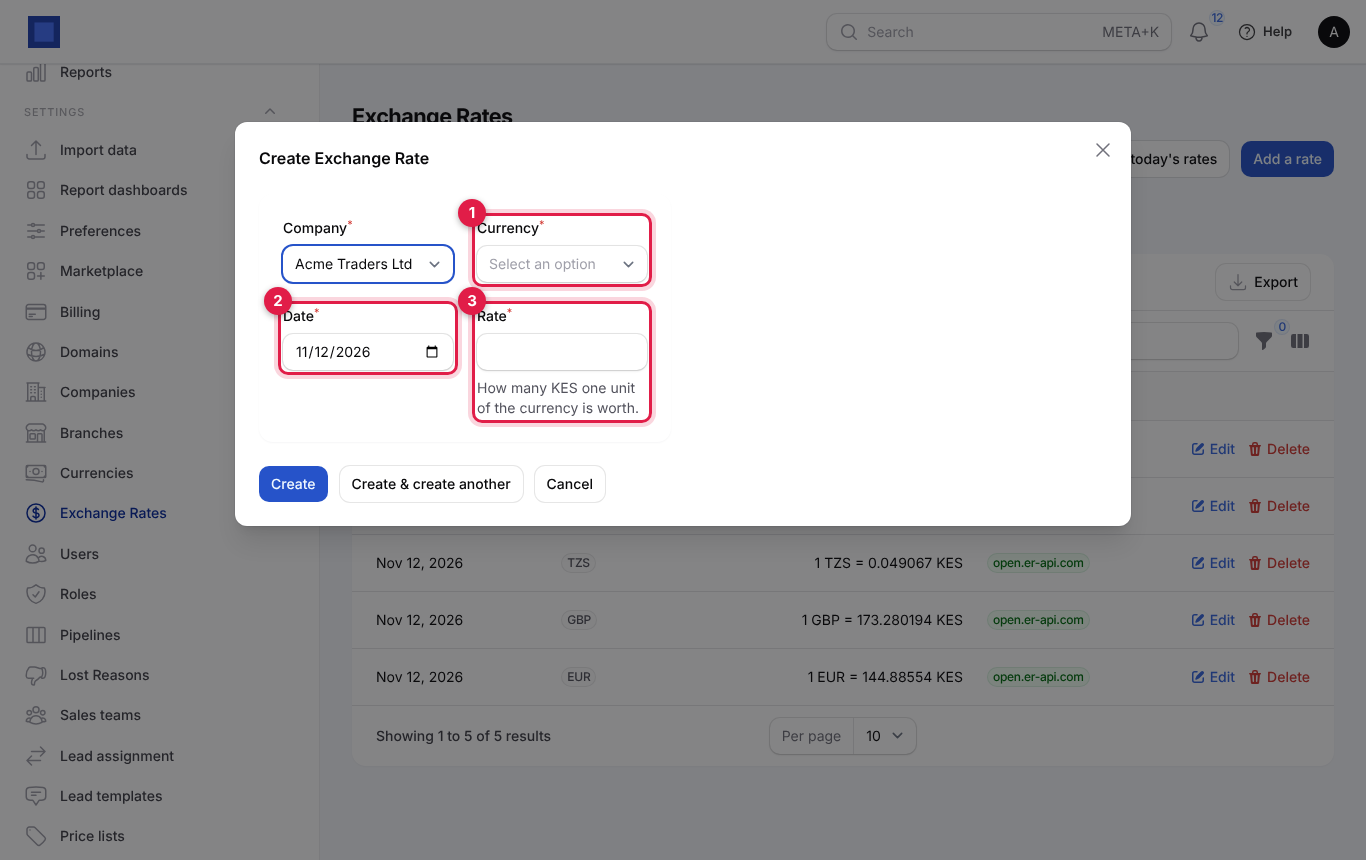
| Field | What to enter |
|---|---|
| Company | The company whose books the rate is for. |
| Currency (marker 1) | The foreign currency. |
| Date (marker 2) | The day the rate applies from. |
| Rate (marker 3) | How many units of the company currency one unit of the foreign currency is worth. For example, for USD in a KES company, 129.50 means 1 USD = 129.50 KES. |
Revalue foreign-currency balances
If customers owe you, or you owe vendors, in a foreign currency, the value of those balances in your currency changes with the rate. At month end or year end you can restate them:
- Open Accounting → Reports and choose the Company.
- Click Revalue currencies.
- Set As at (marker 1), usually the last day of the month.
- Check the Closing rates (marker 2): one row per currency with the number of company-currency units per 1 unit. NaliSuite fills in the latest stored rates; click Add row for any that are missing.
- Click Submit (marker 3).
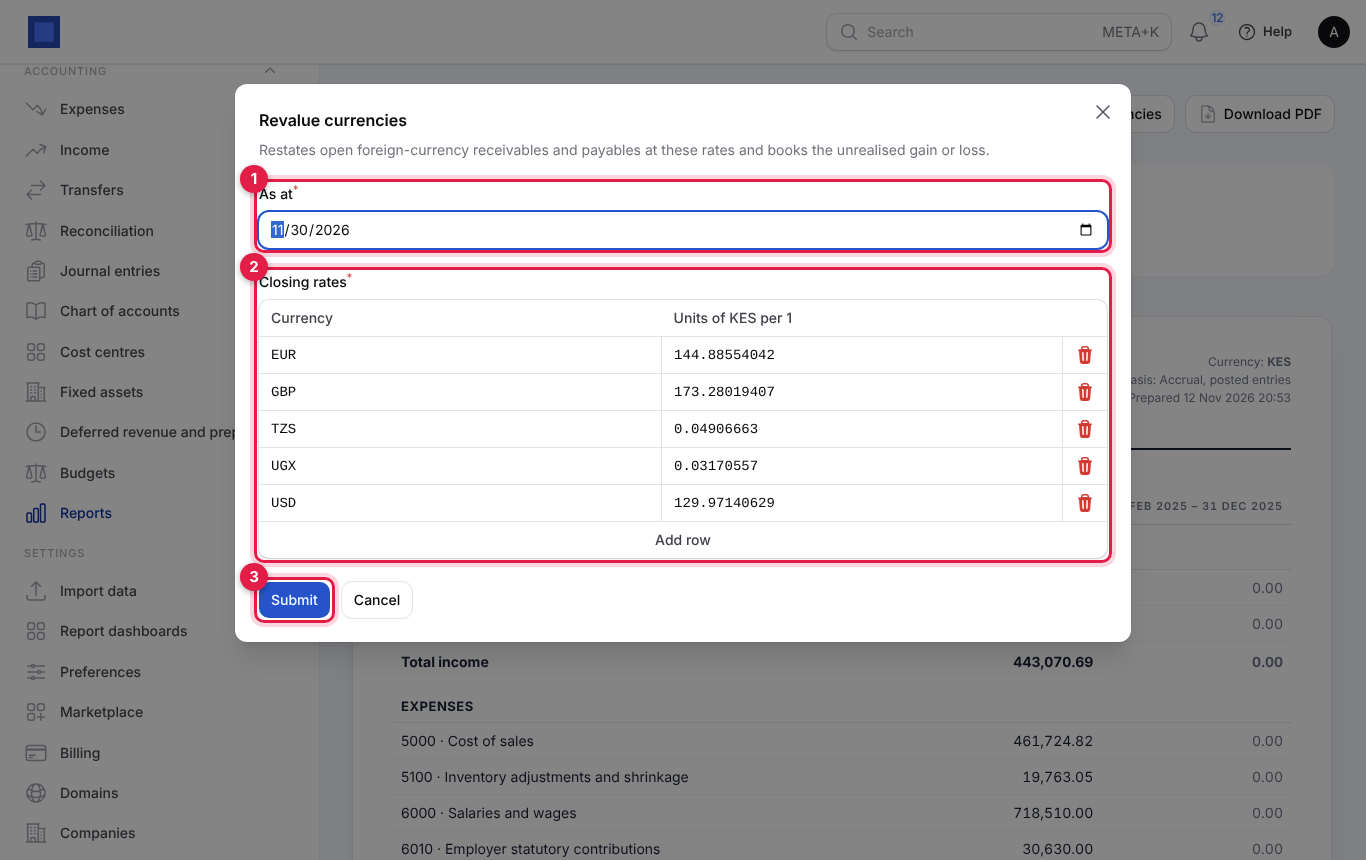
NaliSuite works out each open foreign-currency balance on your receivable and payable accounts at the new rate and posts one journal entry, Currency revaluation as at …, with the unrealised gain or loss going to your Foreign exchange gains and losses account. If nothing changes at those rates, it says "Nothing to revalue at these rates".
Close the financial year
At the end of the year, after the last adjustments and once your accountant is happy with the figures:
- Open Accounting → Reports and choose the Company.
- Click Close fiscal year.
- Check Last day of the year (marker 1). It defaults to 31 December of last year; change it if your year ends, for example, on 30 June.
- Click Submit (marker 2).
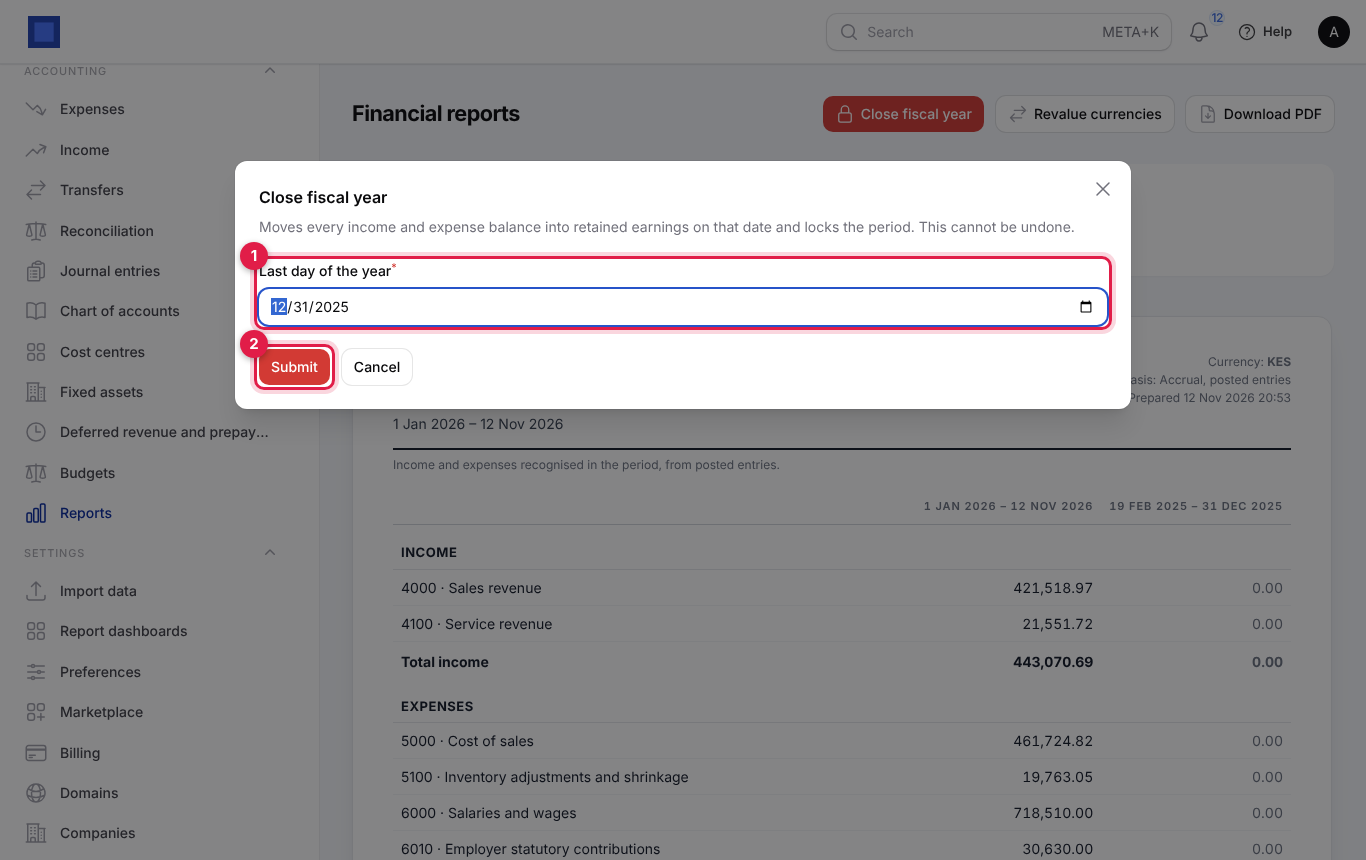
NaliSuite moves the balance of every income and expense account into your Retained earnings account with one journal entry dated on that day, and sets the lock date to it so nothing more can be posted into the closed year. The message gives the entry number, or "Year closed; nothing to transfer" if there was no income or expense. This cannot be undone from the screen; closing a year that is already closed is refused with "The period up to … is already closed."
After closing, next year's profit and loss starts from zero and the balance sheet shows last year's result in retained earnings.
Common questions
Why does the report not include an invoice I just created? Reports use posted entries only. A draft invoice is not posted until it is issued. Also check the dates and the company.
The previous-period column shows 0.00 everywhere. There were no posted entries in that earlier period, for example because you started using NaliSuite this year.
My balance sheet does not balance. That should not happen with posted entries. If it does, the trial balance will show it; contact support with the report PDF.
Do I have to click Post month-end every month? No. It runs by itself on the 1st of each month for the month before. Use the button only to post a month early or after adding assets backdated into an earlier month.
What rate is used on a USD invoice? The latest stored rate on or before the invoice date for that company, unless you typed a rate on the invoice.
Can I reopen a closed year? Not with a button. An owner or accountant can move the lock date back in Settings → Preferences → Accounting, post a correcting entry, and set the lock date again. The year-end entry stays; post the correction in the new year if possible.
Which companies are in "All companies"? Every company whose currency is the same as your default company's. The report's period line lists them.