Online Shop
Online Shop gives your business a ready-made web shop on your own workspace address. You choose which products are on sale; customers browse, fill a basket, check out with delivery or collection and pay online through your own payment gateways (M-Pesa, card, bank transfer and others). Every order becomes a confirmed sales order and an issued invoice, so it lands in Sales and Invoicing like any other sale. Shop owners, sales staff and dispatch use it. It is in the eCommerce group of the sidebar: Shop products and Shop orders.
Online Shop is a marketplace module. The owner buys it under Settings → Marketplace; Shop products and Shop orders appear in the eCommerce group once it is switched on. It needs the Contacts, Sales and Invoicing apps.
Note: You need the storefront.view permission to see the shop pages and storefront.manage to add or remove products, switch On sale and Featured, mark orders delivered and cancel orders. People with storefront.manage are also notified of each new paid order. Owners and admins have both. Set permissions under Settings → Roles.
How the shop works
- The product is the source of truth. The name, price, picture, unit and tax come from the product under Sales → Products. A shop product only adds the shop category, an optional shop description, its order and whether it is on sale or featured.
- Only active products that can be sold appear. If you deactivate a product or stop selling it, it disappears from the shop.
- Stock is checked for goods you count. When Inventory is on and the product tracks stock, the product page shows how many are in stock (or Sold out) and checkout refuses more than you have.
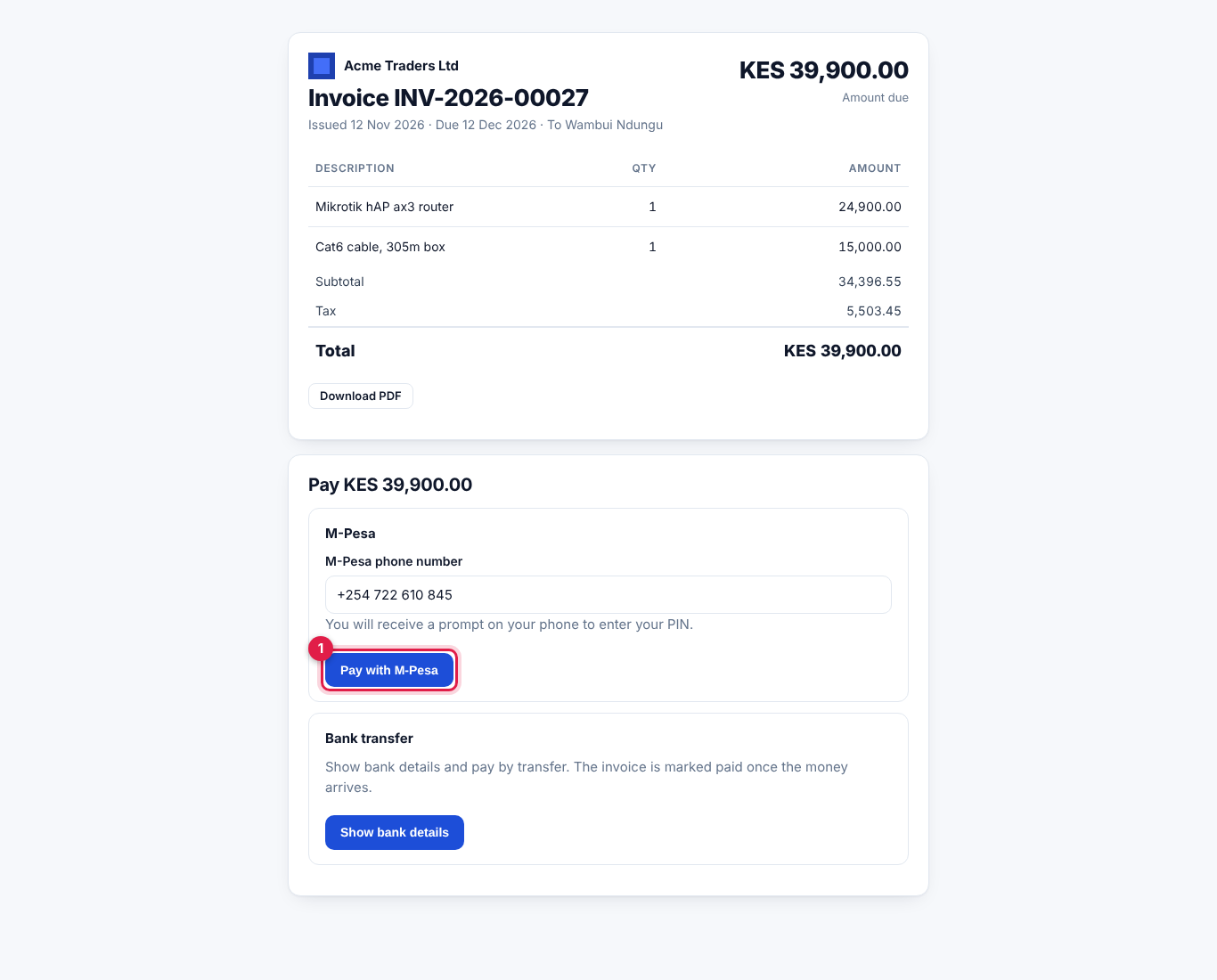
- An order is paid on the invoice pay page. Checkout creates the customer (or reuses the contact with the same email), a confirmed sales order, an issued invoice, and sends the customer to pay. The order number is the sales order number, for example
SO-2026-00006.
Put products in the shop
- In the menu, open eCommerce → Shop products.
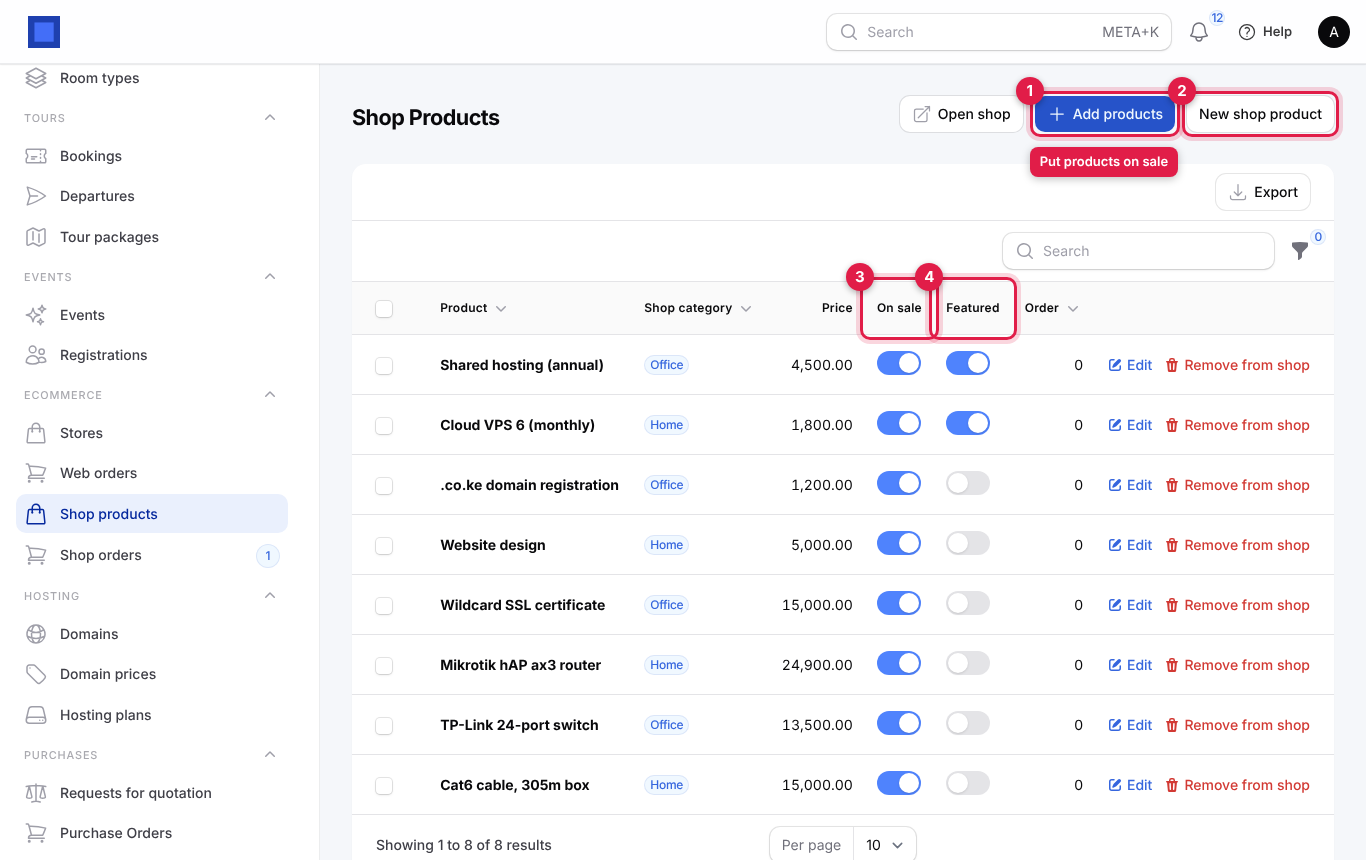
- Click Add products (marker 1) to put several products on sale at once, or New shop product (marker 2) to add one with all its shop details. The On sale (marker 3) and Featured (marker 4) switches on each row work straight from the list.
Add several products at once
- Click Add products.
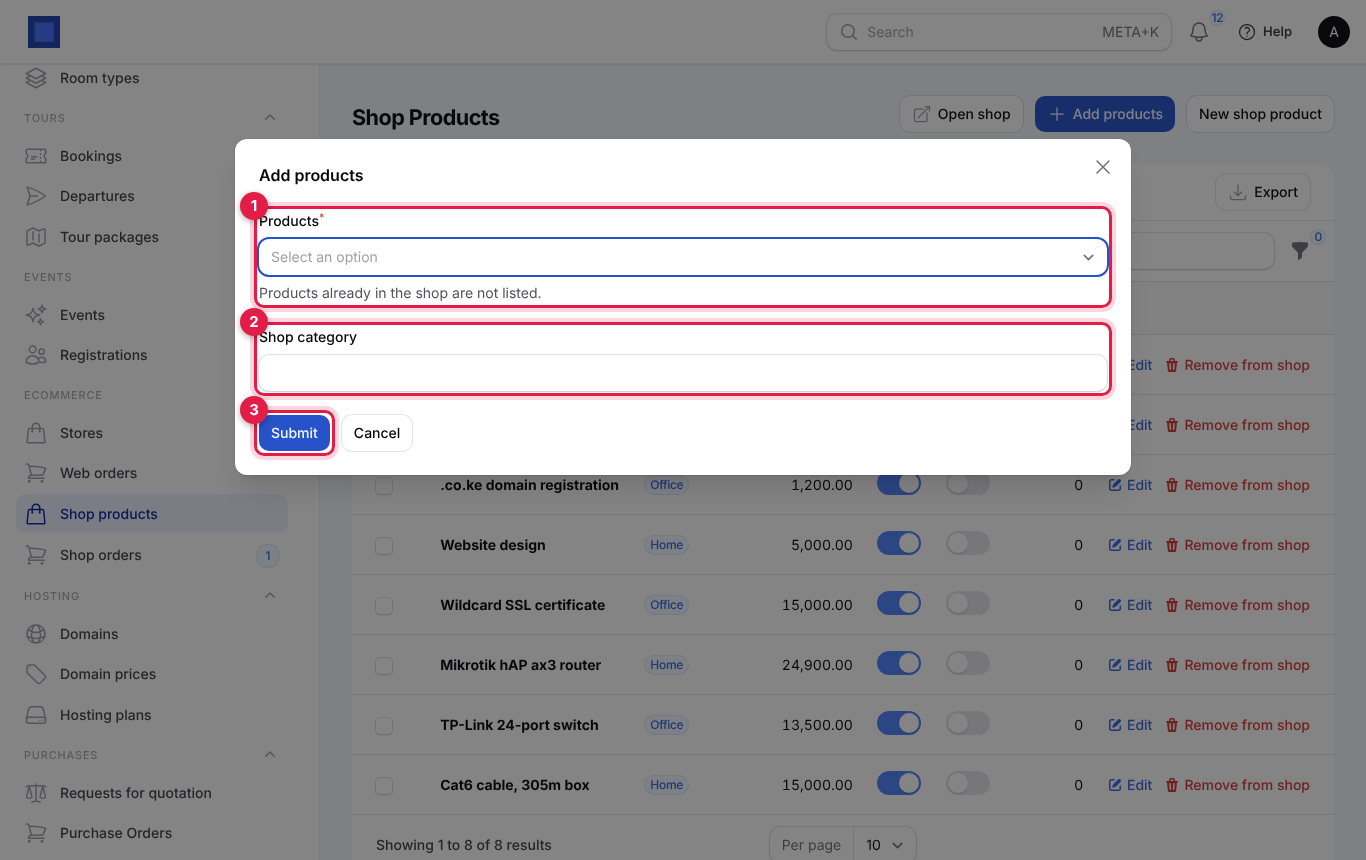
- Pick the Products (marker 1). Type to search; products already in the shop are not listed. Only active products of your default company that can be sold are offered.
- Optionally type a Shop category for all of them (marker 2), such as "Networking" or "Home". Click Submit (marker 3).
You see "n products added to the shop". They are on sale straight away.
Add or edit one shop product
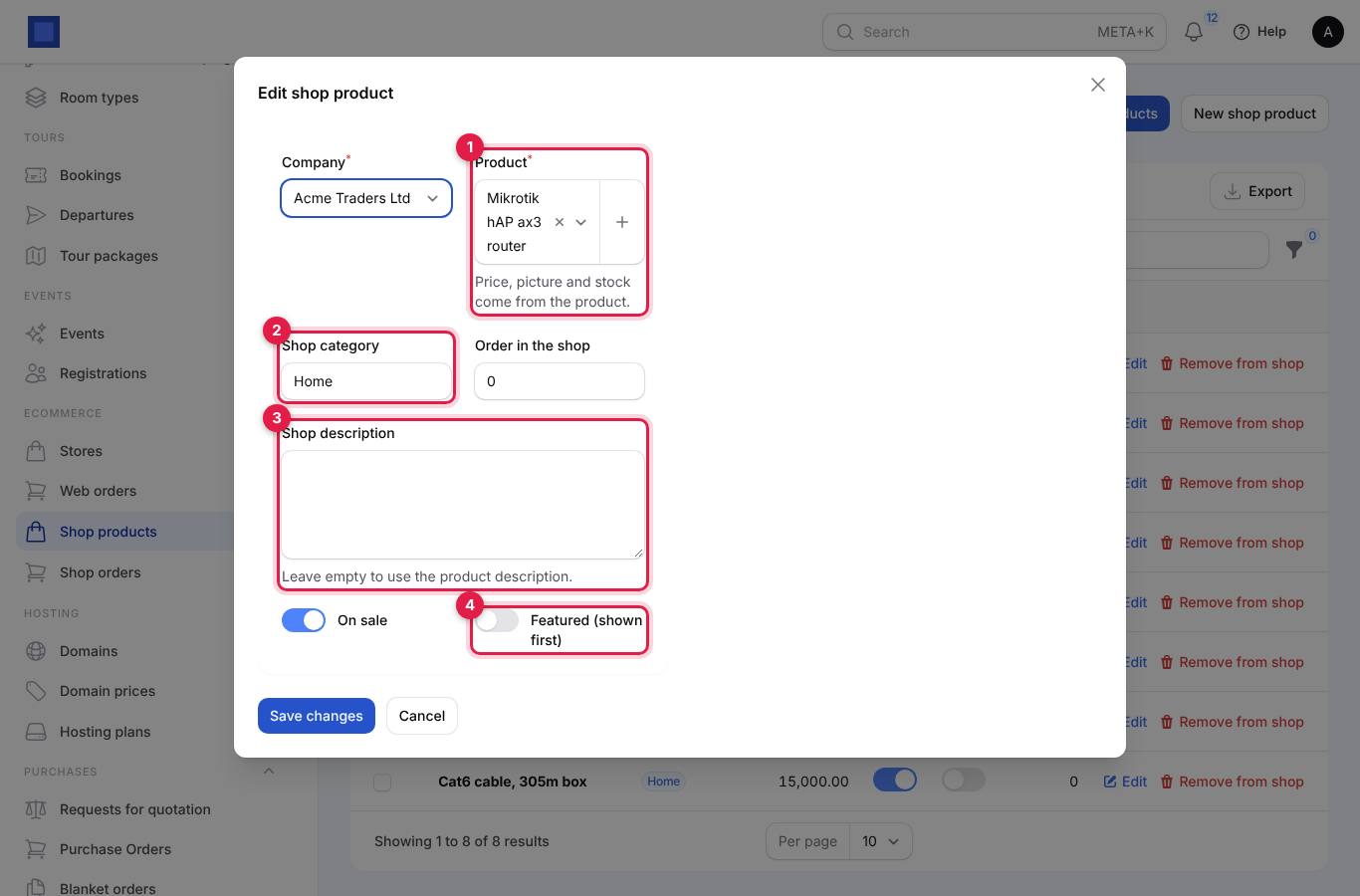
Click New shop product, or Edit on a row.
| Field | What to enter |
|---|---|
| Company | Required. The company that sells it; the product list follows it. |
| Product | Required (marker 1). A product can be in the shop only once. Price, picture and stock come from the product. Click + to add a new product without leaving the form. |
| Shop category | Optional (marker 2). Groups products on the shop page. Earlier categories are suggested as you type. |
| Order in the shop | Optional. Lower numbers show first (after featured products). |
| Shop description | Optional (marker 3). Shown on the product page. Leave empty to use the product's own description. |
| On sale | On by default. Turn off to hide the product from the shop without removing it. |
| Featured (shown first) | Optional (marker 4). Featured products are listed before the others. |
Tip: Customers buy with their eyes. Add a picture to each product under Sales → Products before you open the shop; products without a picture show a shopping-bag icon.
Change several products at once
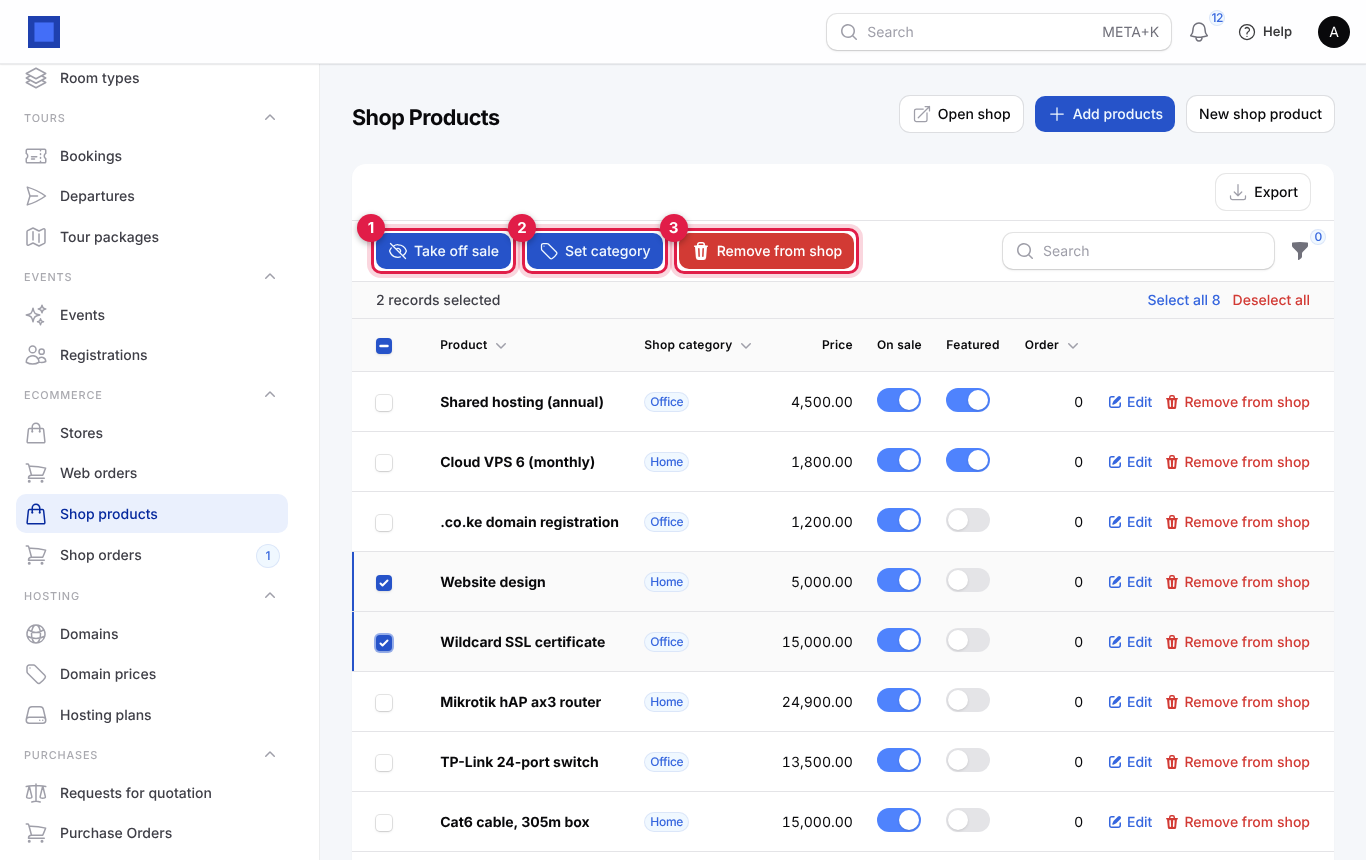
Tick the products in the list. The buttons above the list change:
| Button | What it does |
|---|---|
| Take off sale (marker 1) | Turns On sale off for the ticked products. |
| Set category (marker 2) | Gives them one Shop category (leave it empty to clear it). |
| Remove from shop (marker 3) | Removes them from the shop. The products themselves are not deleted. |
Use the filter icon to filter the list by Shop category or On sale.
What your customers see
Your shop is at /shop on your workspace address, for example https://yourbusiness.nalisuite.com/shop, or on your own domain if you have one. Click Open shop on Shop products or Shop orders to open it in a new tab. The portal also shows a Shop link to signed-in customers.
Browse
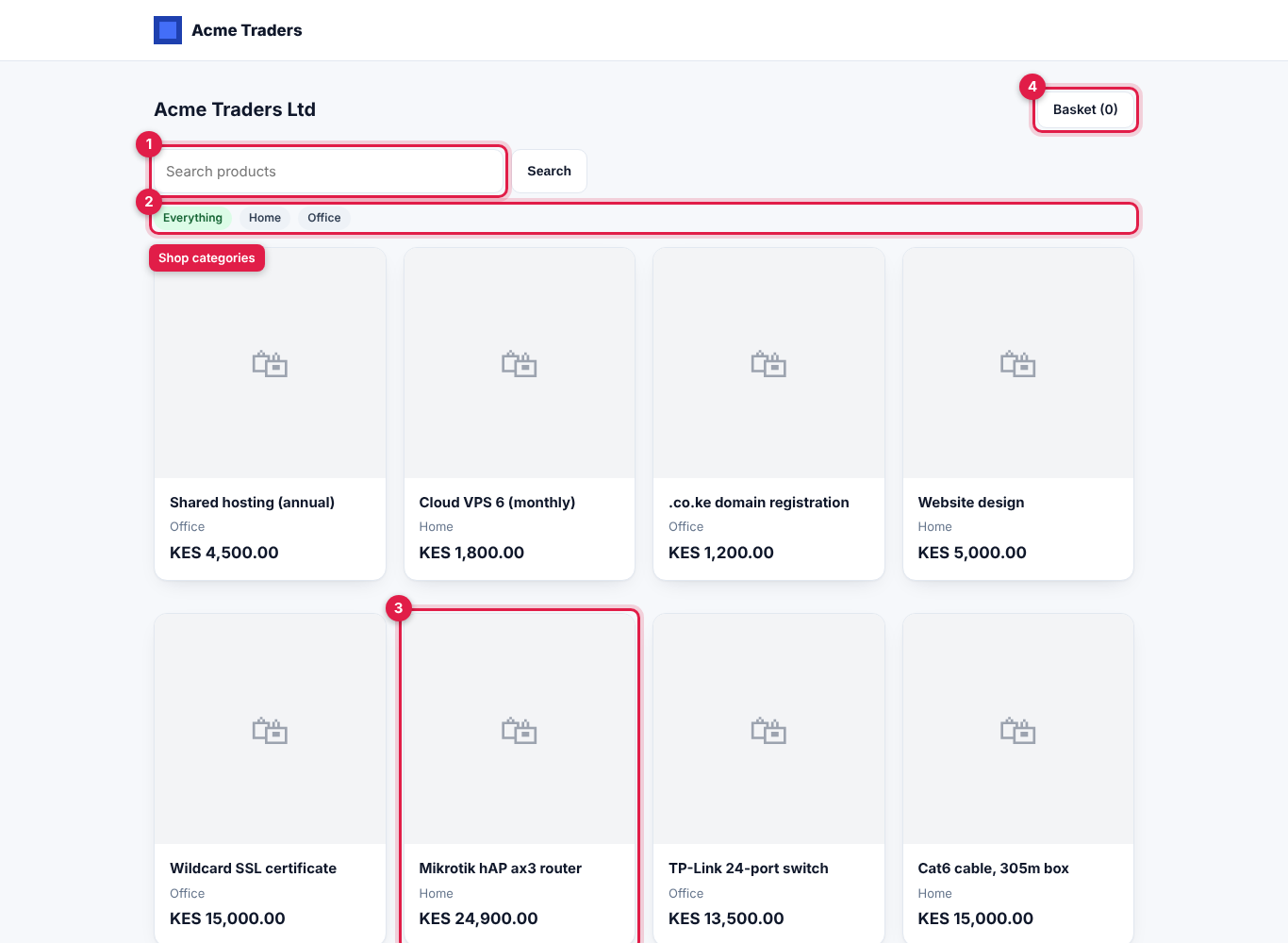
Customers search by name (marker 1), pick a category (marker 2; Everything shows all), and click a product (marker 3). The Basket button (marker 4) shows how many items are in the basket. Up to 24 products show per page.
Product page and basket
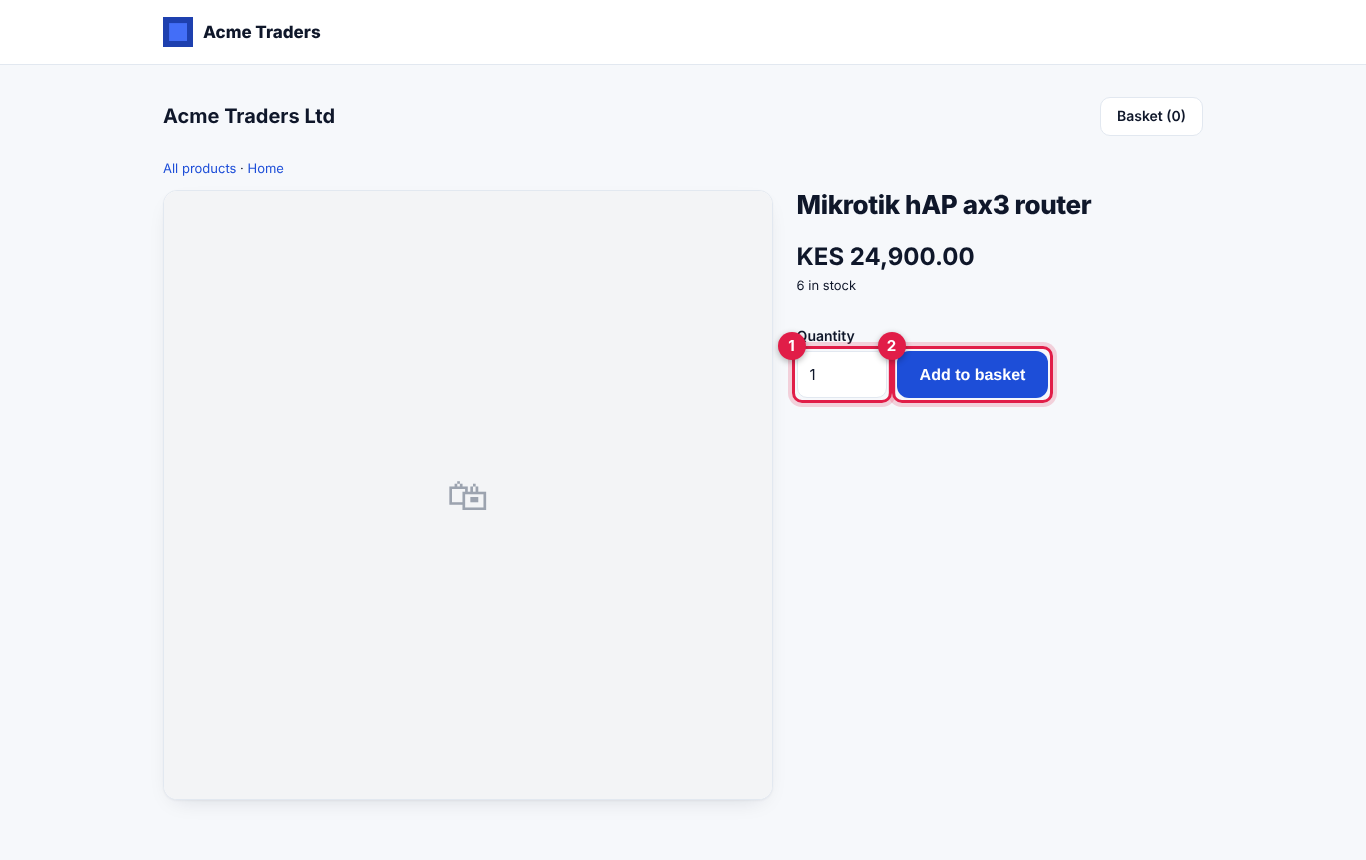
On a product page they choose the Quantity (marker 1) and click Add to basket (marker 2). For goods whose stock you count, the page shows "n in stock", or Sold out with no button.
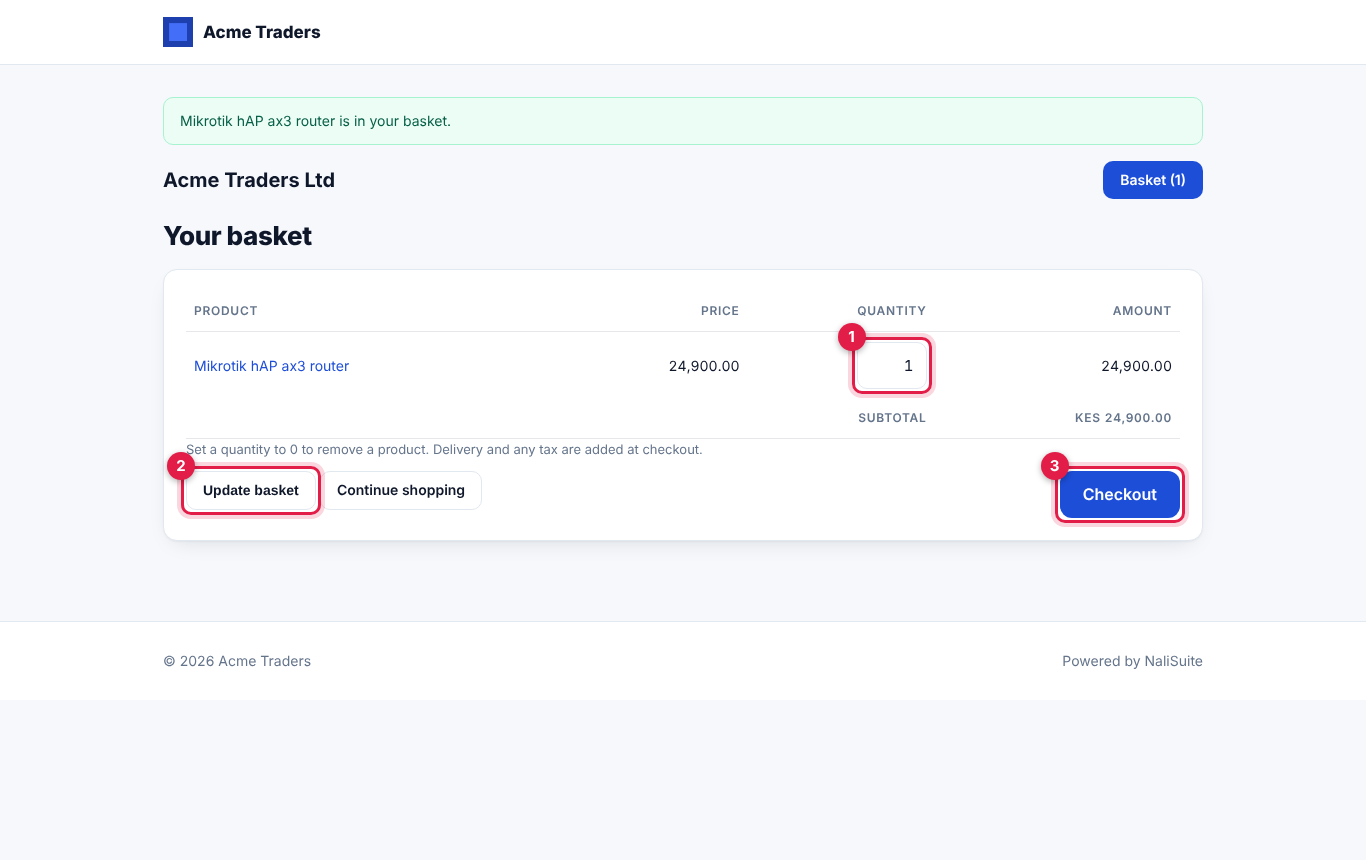
The basket lists each product with its price and amount. Customers change a Quantity (marker 1) and click Update basket (marker 2); a quantity of 0 removes the product. Continue shopping goes back, Checkout (marker 3) moves on. Delivery and any tax are added at checkout.
Checkout
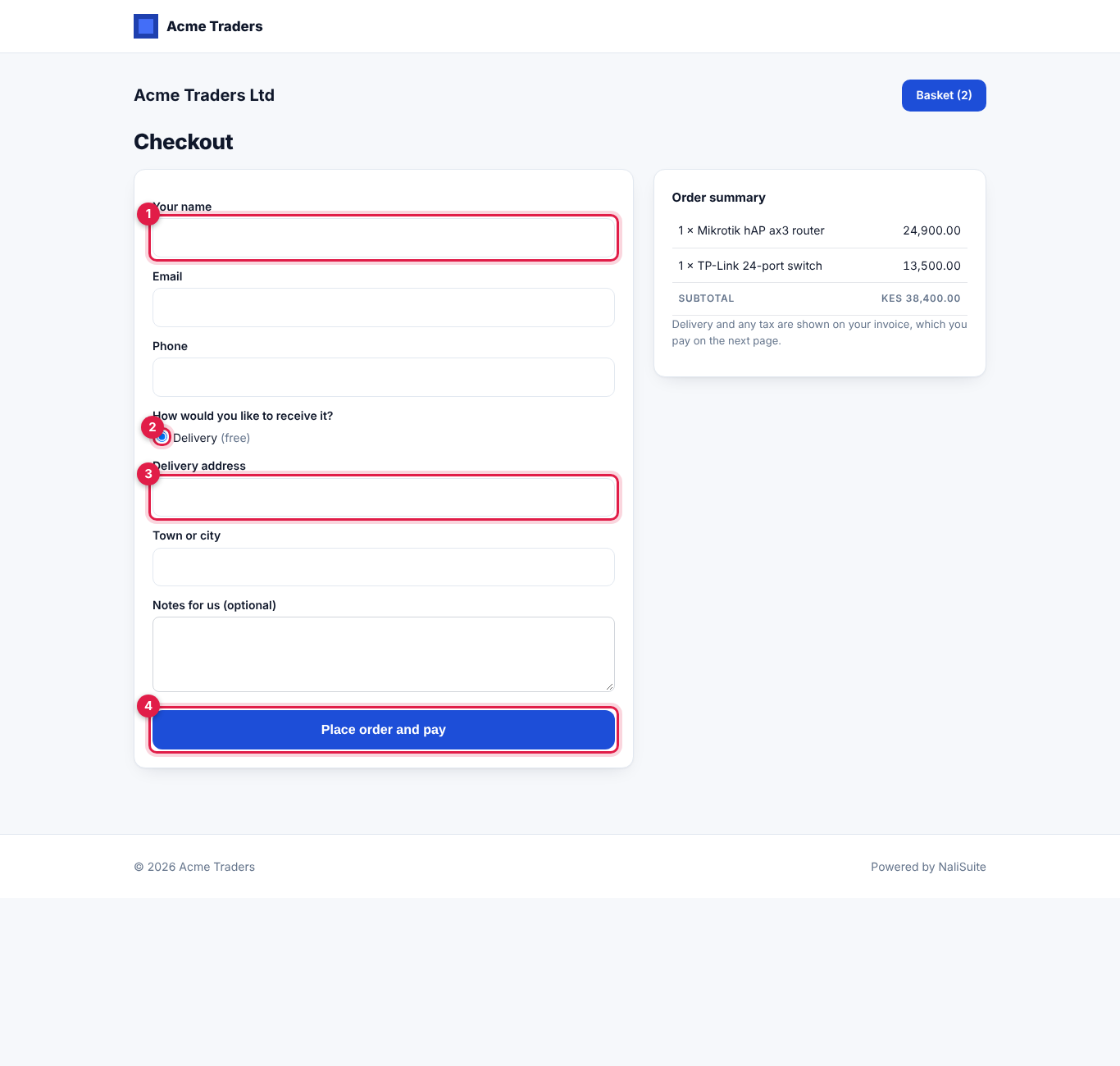
Customers fill in Your name, Email and Phone (all required; marker 1), choose How would you like to receive it? (marker 2) — Delivery, showing the fee or "free", and Collect from us when you offer collection — then the Delivery address (marker 3, required for delivery) and Town or city, and optional Notes for us. Your Note shown at checkout appears above the button. They click Place order and pay (marker 4).
What happens when they place the order:
- Stock is checked again. If there is not enough, they see "Only n of … left" or "… has just sold out" and nothing is created.
- The customer is matched to an existing contact by email, or a new customer contact is created with their phone and address.
- A confirmed sales order is created with the products, a Delivery line when there is a fee, the customer reference "Online shop" and the delivery address or "To be collected" in the notes.
- An invoice is issued from the sales order.
- The customer is taken to the invoice pay page to pay with your gateways, and receives an email "Order SO-… received" with a Pay for your order button.
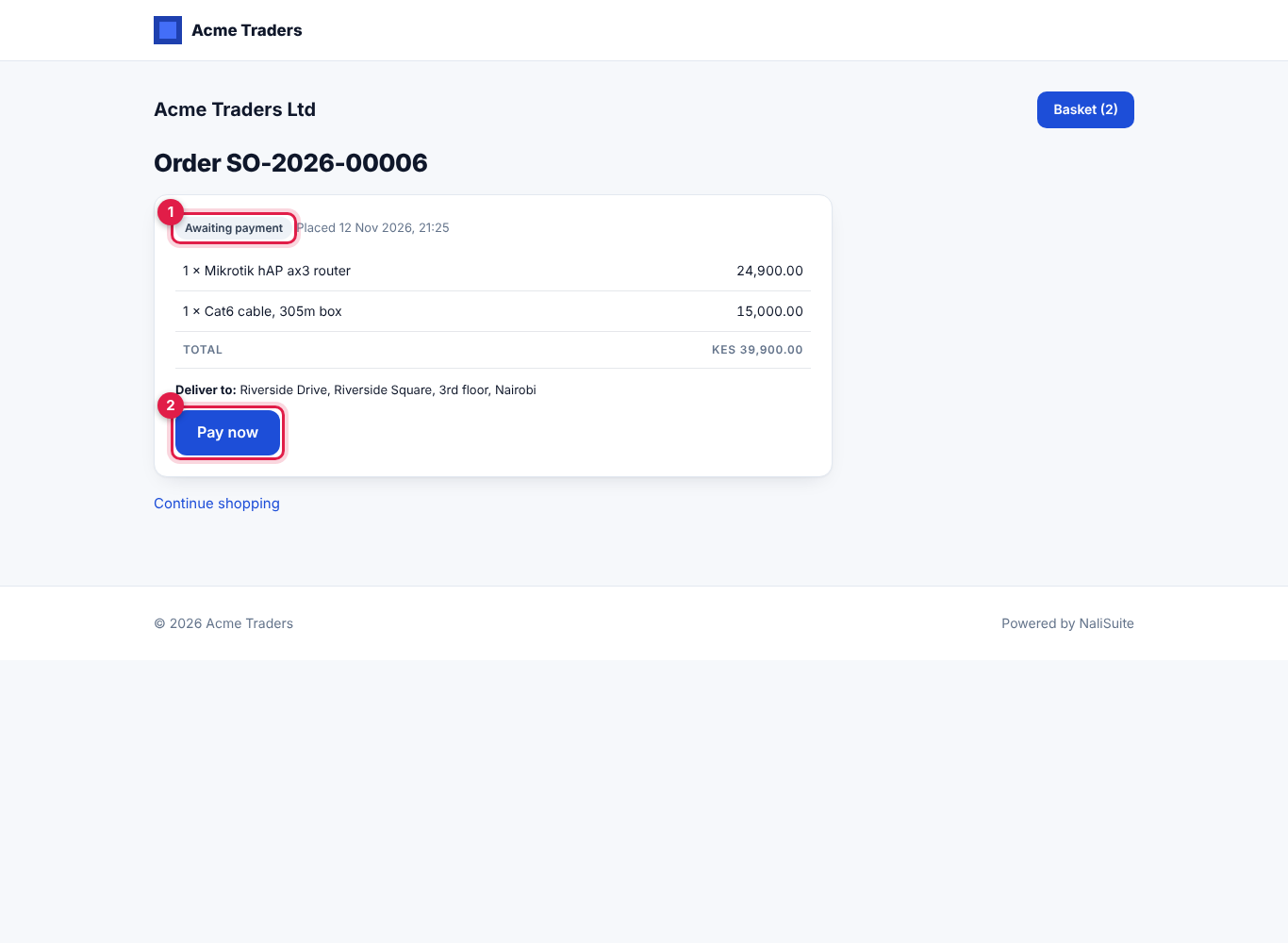
The order page
Every email links to the customer's own order page. It shows the status (marker 1), the lines, tax and total, where it goes, and Pay now (marker 2) while it is unpaid.
Emails the customer receives
| When | Subject | Button |
|---|---|---|
| Order placed | Order SO-… received | Pay for your order |
| Invoice fully paid | Payment received for order SO-… | View your order |
| You mark it delivered | Order SO-… is on its way | View your order |
Handle shop orders
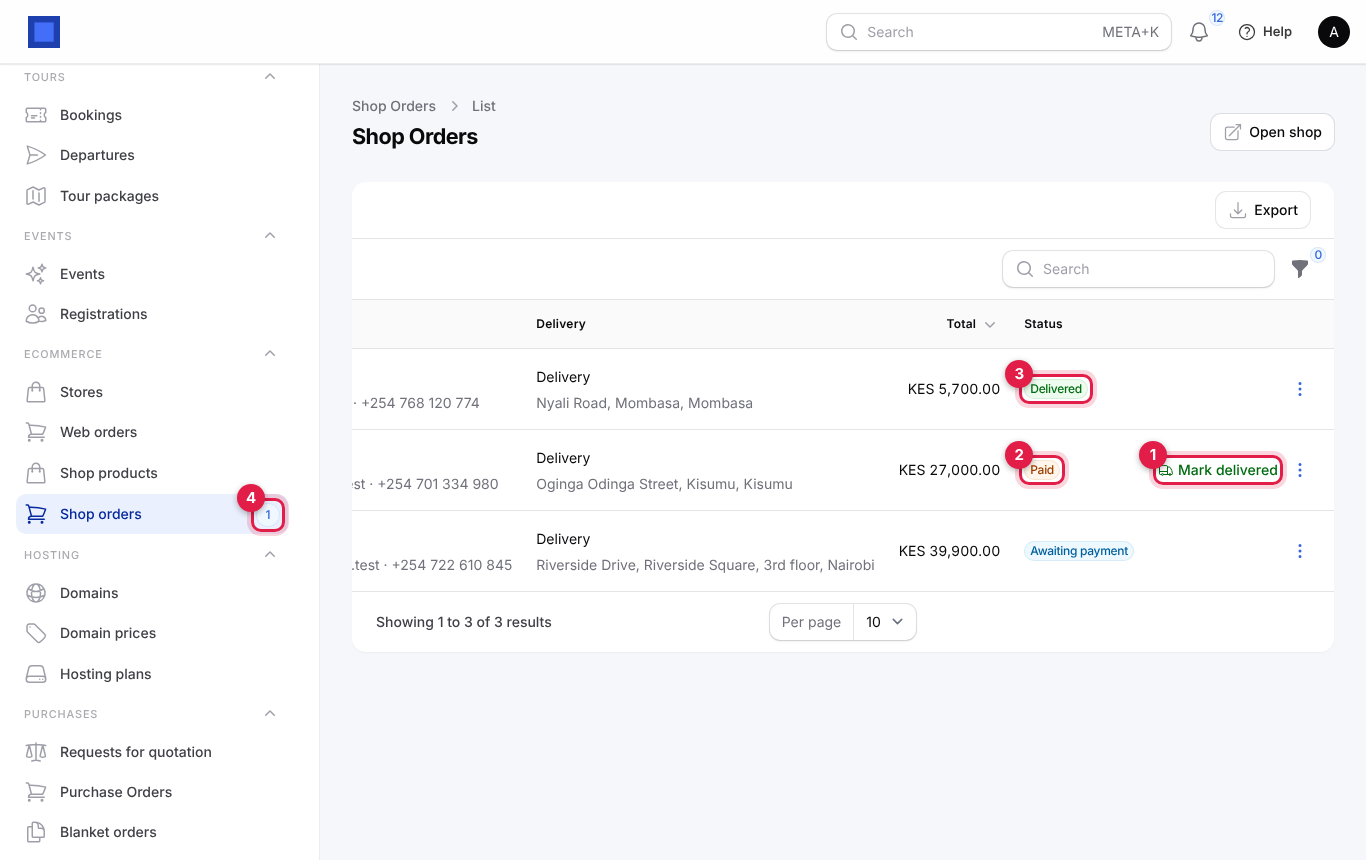
- In the menu, open eCommerce → Shop orders. The menu badge (marker 4 below) counts paid orders waiting to be delivered.
- Each row shows the order number, when it was placed, the customer with email and phone, Delivery or Collect with the address, the Total and the Status. Filter by Status with the filter icon.
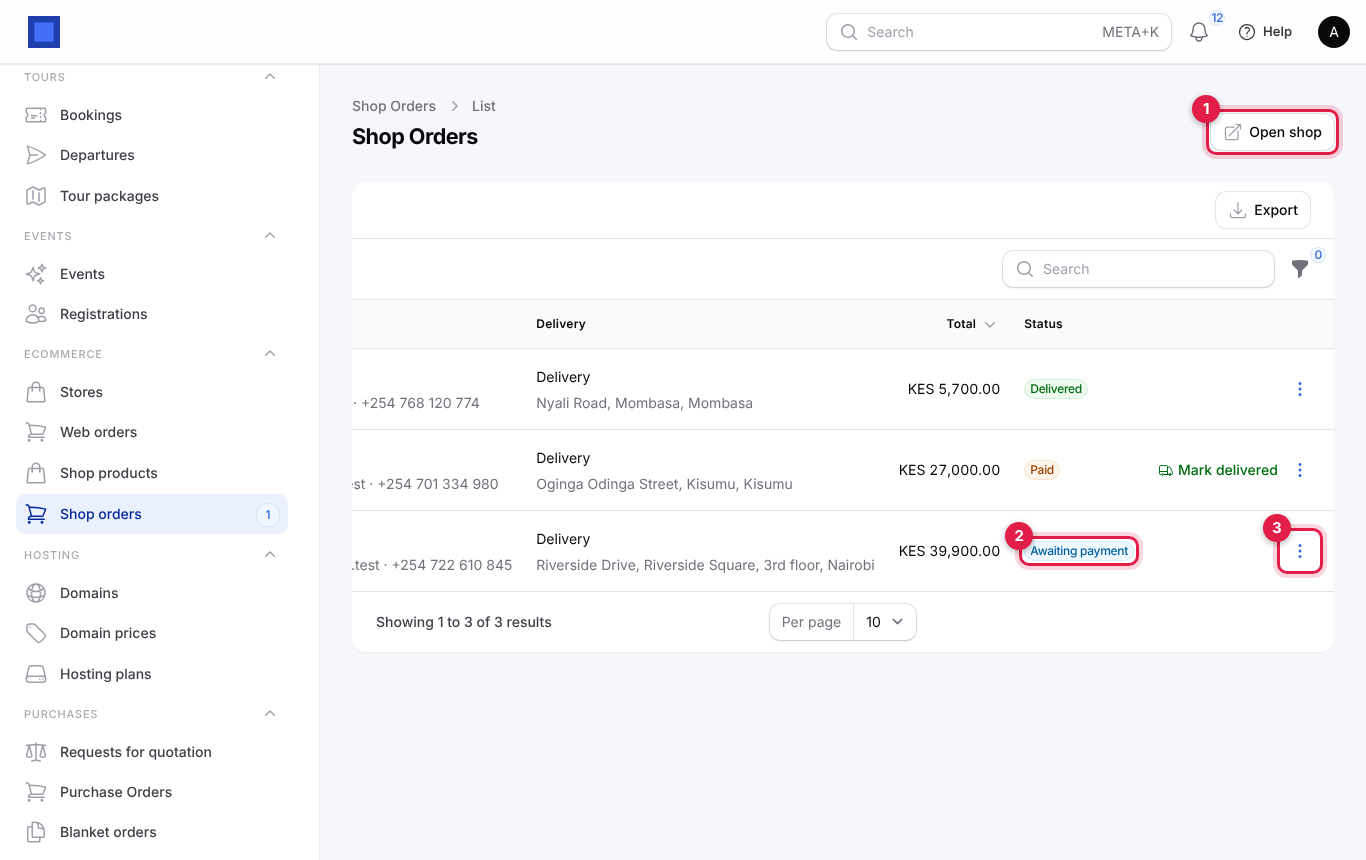
Order statuses
| Status | What it means | What moves it on |
|---|---|---|
| Awaiting payment | Placed; the invoice is not fully paid yet. | Payment of the whole invoice → Paid. Cancel order → Cancelled. |
| Paid | The invoice is fully paid. Prepare and send it. | Mark delivered → Delivered. |
| Delivered | Sent out or collected. | Final. |
| Cancelled | Cancelled before payment, with its invoice and sales order. | Final. |
An order becomes Paid by itself when the customer pays online, or when you record the payment on its invoice (⋮ → Open invoice → Record payment), for example a cash or bank payment. Everyone with storefront.manage gets a "New paid shop order" notification.
Mark an order delivered
- On a Paid order, click Mark delivered (marker 1). Paid orders show the Paid badge (marker 2); delivered ones show Delivered (marker 3).
- Read the reminder (marker 1) and click Confirm (marker 2). The customer is emailed that the order is on its way (or was collected).
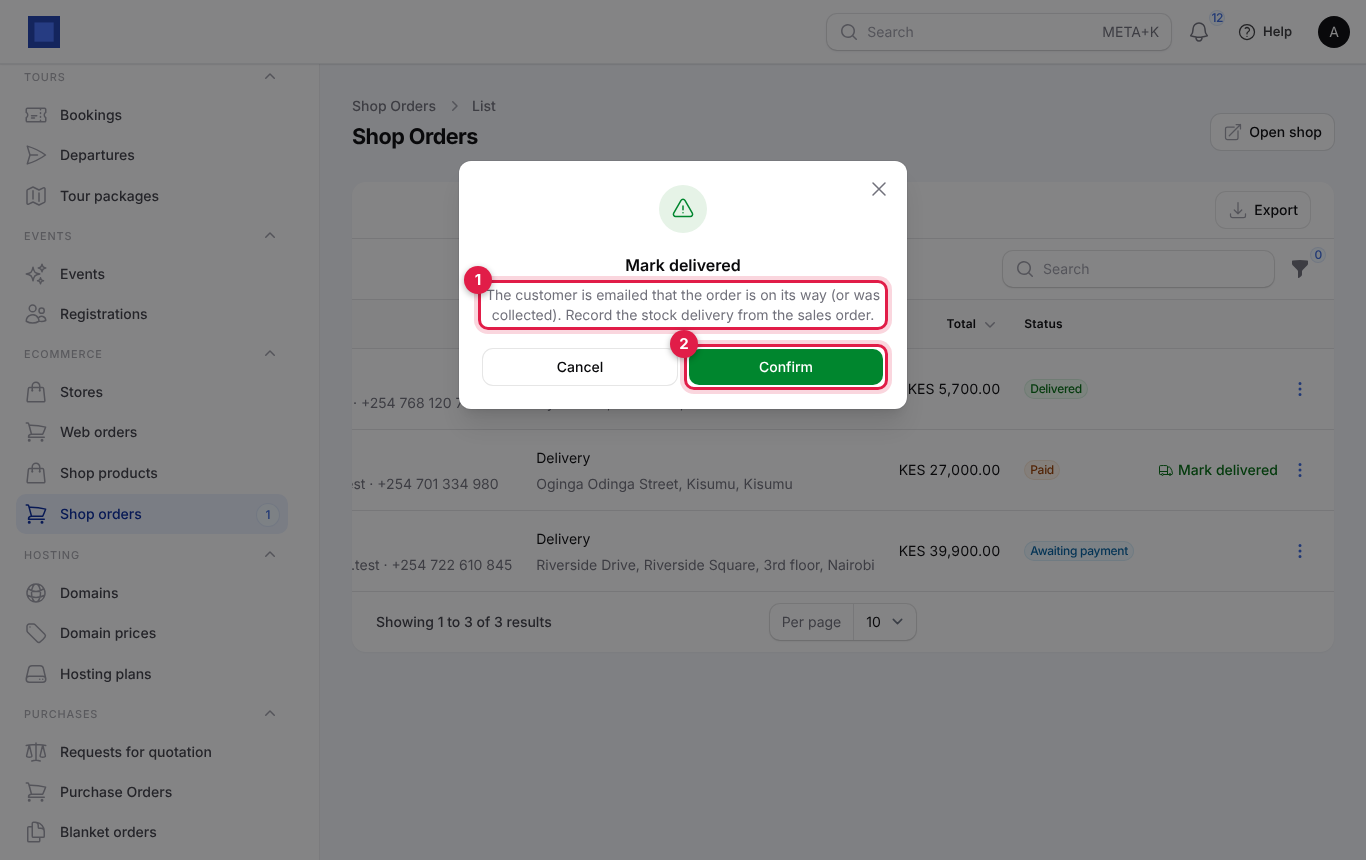
Note: Marking an order delivered does not move stock. Open the sales order (⋮ → Open sales order) and record the delivery there, so Inventory is right.
Other order actions
Click ⋮ on an order:
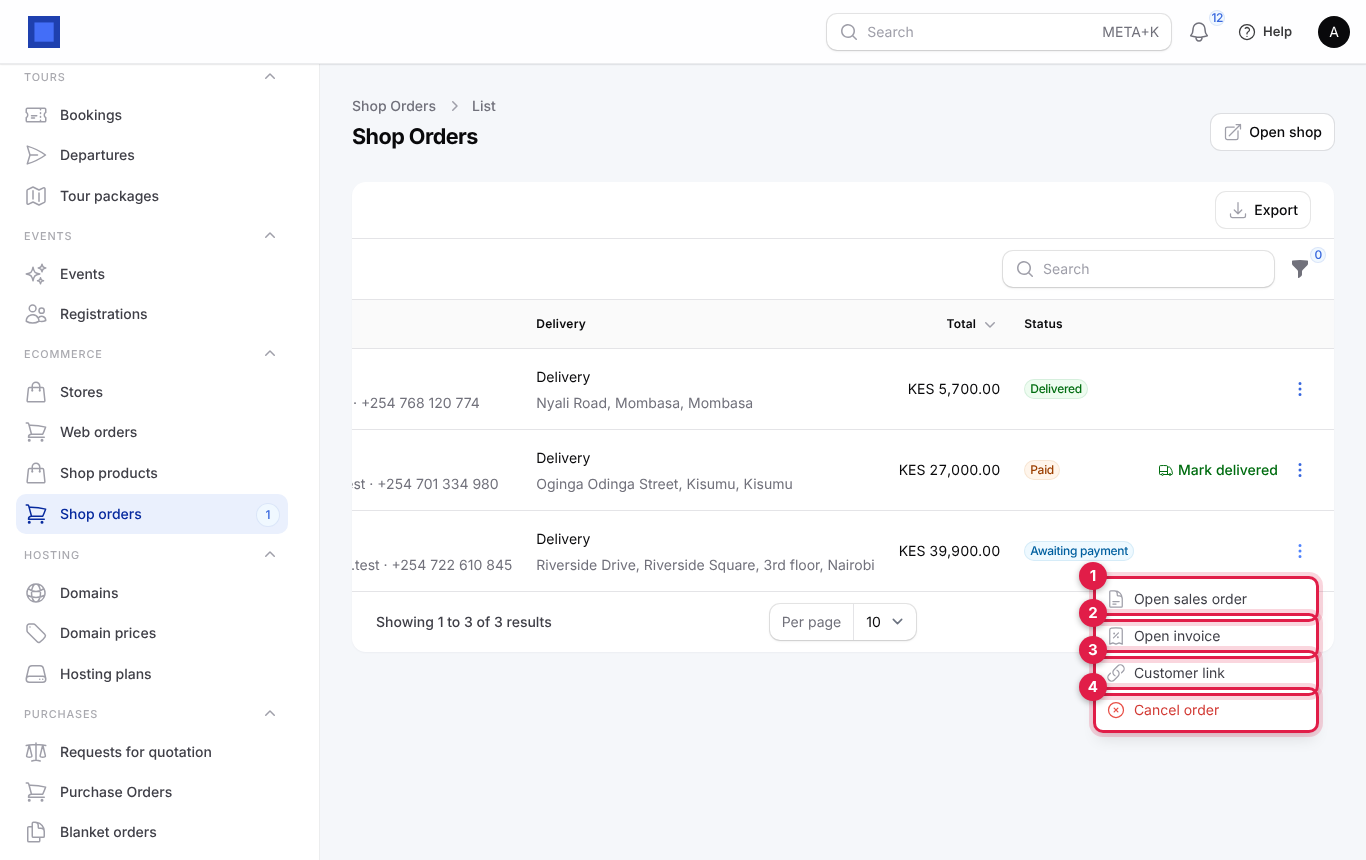
| Action | What it does |
|---|---|
| Open sales order (marker 1) | Opens the sales order to deliver stock or see the lines. |
| Open invoice (marker 2) | Opens the invoice to record a payment, resend it or print it. |
| Customer link (marker 3) | Opens the customer's order page; copy it to send by WhatsApp or SMS. |
| Cancel order (marker 4) | Only for Awaiting payment orders. After you confirm, the invoice and sales order are cancelled too. A paid order cannot be cancelled here; refund it with a credit note. |
Shop settings
- In the menu, open Settings → Preferences.
- Click the Online Shop tab, change the settings and click Save preferences.
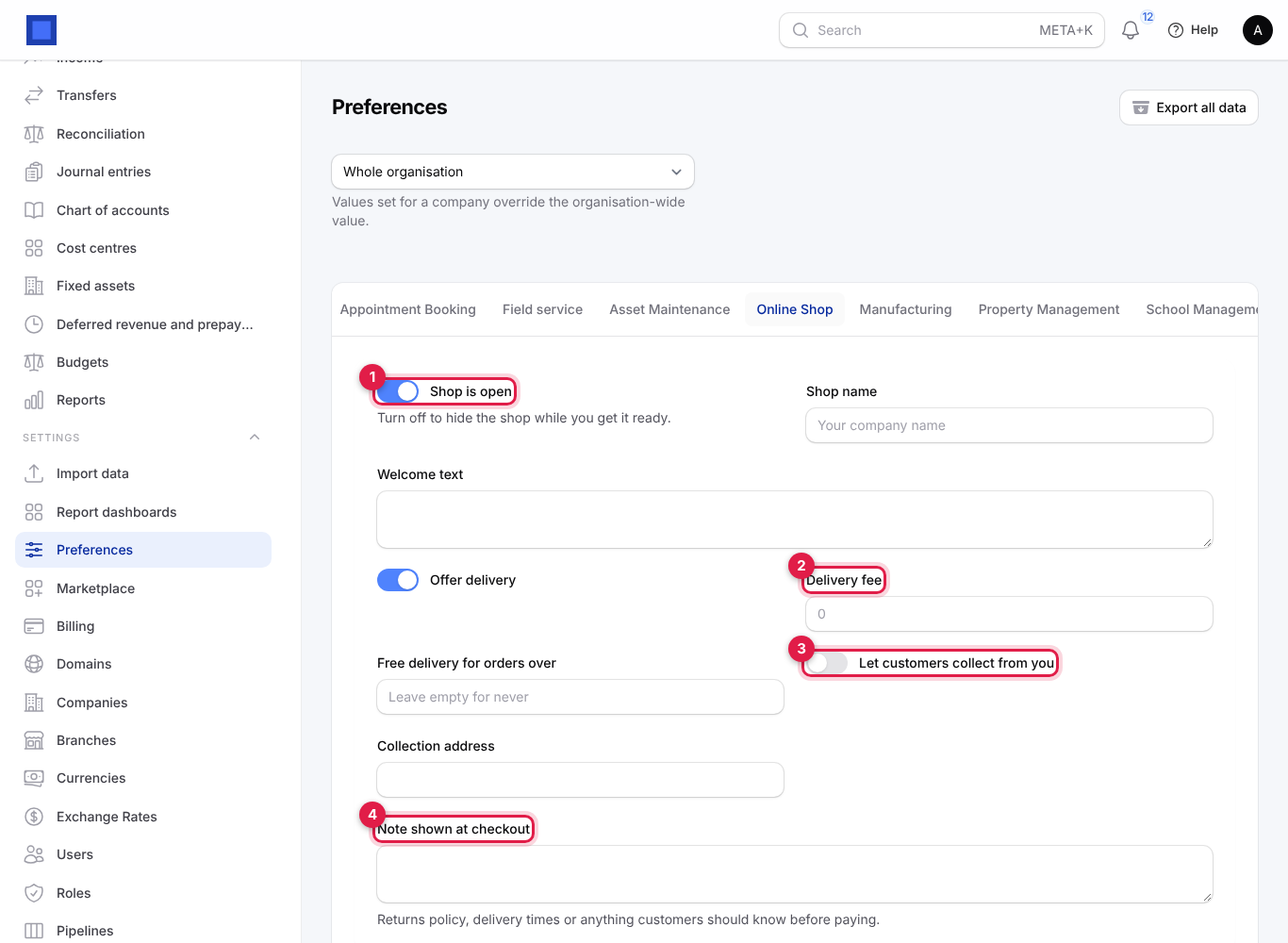
| Setting | What it does |
|---|---|
| Shop is open (marker 1) | On by default. Turn off to hide the whole shop while you get it ready; the address then shows "not found". |
| Shop name | Shown at the top of the shop. Empty uses your company name. |
| Welcome text | A line under the shop name on the home page. |
| Offer delivery | On by default. Customers can ask for delivery to an address. |
| Delivery fee (marker 2) | Added as a Delivery line on the sales order and invoice. Empty or 0 means free delivery. |
| Free delivery for orders over | Orders whose products add up to this amount or more get free delivery. Leave empty for never. |
| Let customers collect from you (marker 3) | Adds Collect from us at checkout, with no delivery fee. |
| Collection address | Shown at checkout as "Collect from: …". |
| Note shown at checkout (marker 4) | Your returns policy, delivery times or anything customers should know before paying. |
If you switch off both delivery and collection, the shop still offers delivery.
The customer portal
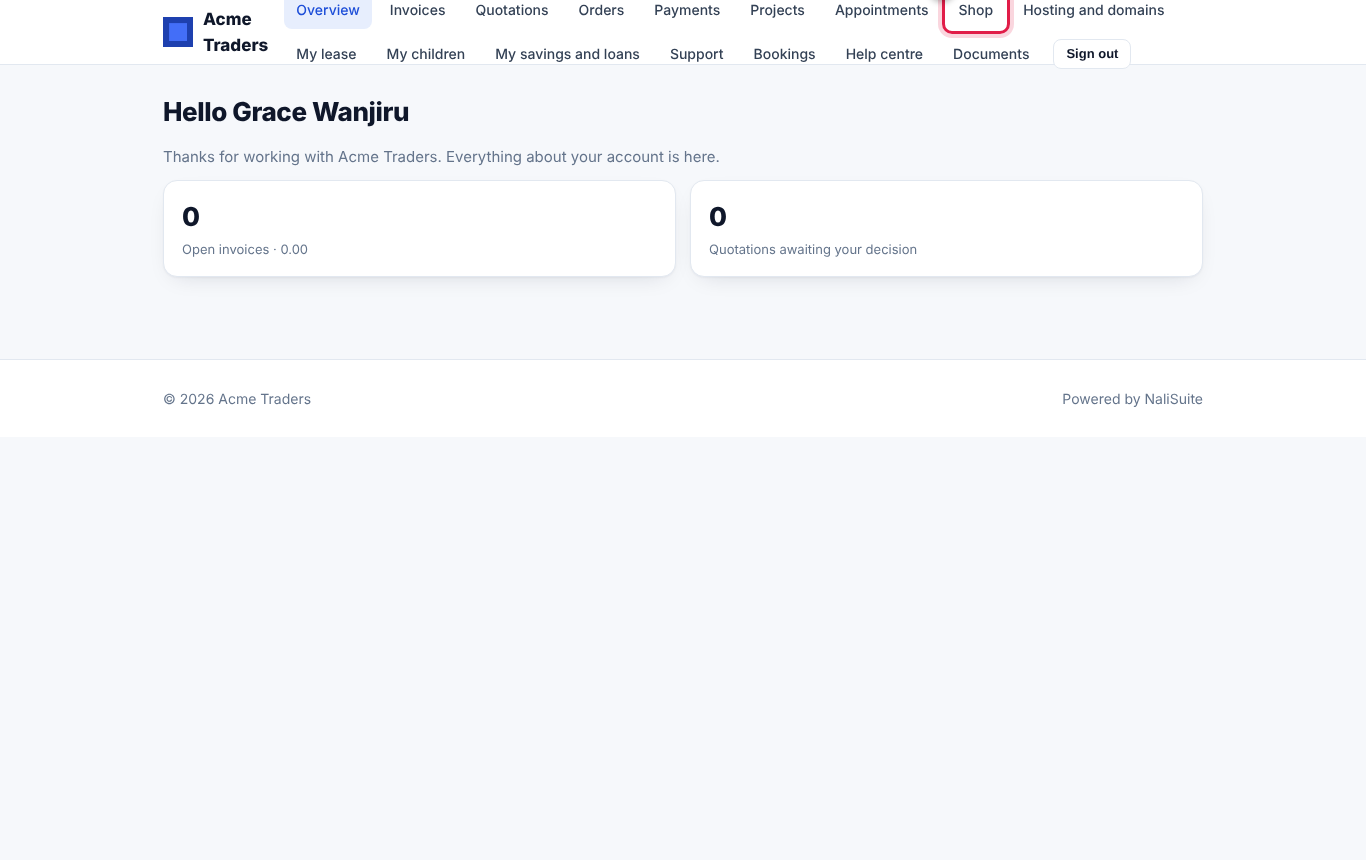
Customers signed in to your customer portal see a Shop link in the portal menu that opens your shop.
Common questions
How do customers pay? On the invoice pay page, with the payment gateways set up for your workspace (for example M-Pesa or card). See Invoices and payments.
A customer paid by bank transfer. How do I mark the order paid? Open the order's invoice (⋮ → Open invoice) and click Record payment. Once the invoice is fully paid, the order turns Paid.
Can I sell services, such as hosting or design work? Yes. Any active product that can be sold can be put in the shop. Stock is only checked for goods that track stock.
Why is a product missing from the shop? Check that it is On sale under Shop products, and that the product is active and can be sold under Sales → Products.
Is the price in the shop with or without tax? The shop shows the product's sale price. Tax set on the product is added on the invoice, which the customer sees before paying.
Can I cancel an order that is already paid? Not from Shop orders. Issue a credit note and refund the customer from the invoice.