Tours and Travel
Tours and Travel is for tour operators, safari companies, travel agents and anyone who sells trips: a 3-day Maasai Mara safari, a Diani beach week, a school trip to Hell's Gate, a pilgrimage. You describe each tour once with its prices, deposit rule and day-by-day itinerary; schedule group departures with a number of seats; take bookings that are priced for you; invoice the deposit when the client confirms and the balance before the trip; record what suppliers charge you so you see the profit on every booking; and print an itinerary and travel voucher for the client. It is in the Tours group of the left menu: Bookings, Departures and Tour packages.
Switch the Tours app on
Tours and Travel is an add-on sold separately from your plan. It needs the Contacts and Invoicing apps, which every workspace has.
- Open Settings → Marketplace and search for Tours, or click Industry solutions.
- On the Tours and Travel card, click Start free trial (or Add to subscription) and confirm. The Tours group appears in the menu.
- To stop, click End trial or Cancel on the card. Packages, bookings and invoices are kept.
If the card says Not available for purchase yet, ask NaliSuite support to switch it on. See Billing and marketplace.
Permissions (under Settings → Roles):
| Permission | What it allows |
|---|---|
| tours.view | See packages, departures and bookings, and print itineraries. |
| tours.manage | Add and change packages and departures, take bookings, confirm, invoice balances, cancel, mark completed, and record travellers and supplier costs. |
Owners and admins have both; the member role has tours.view.
Settings
Tours and Travel has no tab of its own under Settings → Preferences. The rules that matter are set on each package (deposit and balance) and in your invoicing settings:
| Setting | Where | Effect |
|---|---|---|
| Deposit (%) and Balance due (days before departure) | On each tour package | When the deposit and the balance are invoiced. |
| Invoice email and sender | Settings → Preferences (email) and Invoices and payments | Tour invoices are emailed with your normal invoice email and pay link. |
| The company currency | Settings → Companies | Prices and invoices are in the company's currency. Quote tourists in that currency, or keep a second company for USD. |
The balance run happens by itself every morning at 07:20.
1. Describe your tours
- Open Tours → Tour packages. Each tour shows its code, name and destination, the number of Days, the price Per adult (marker 2), the Deposit percentage (marker 3) and whether it is On sale.
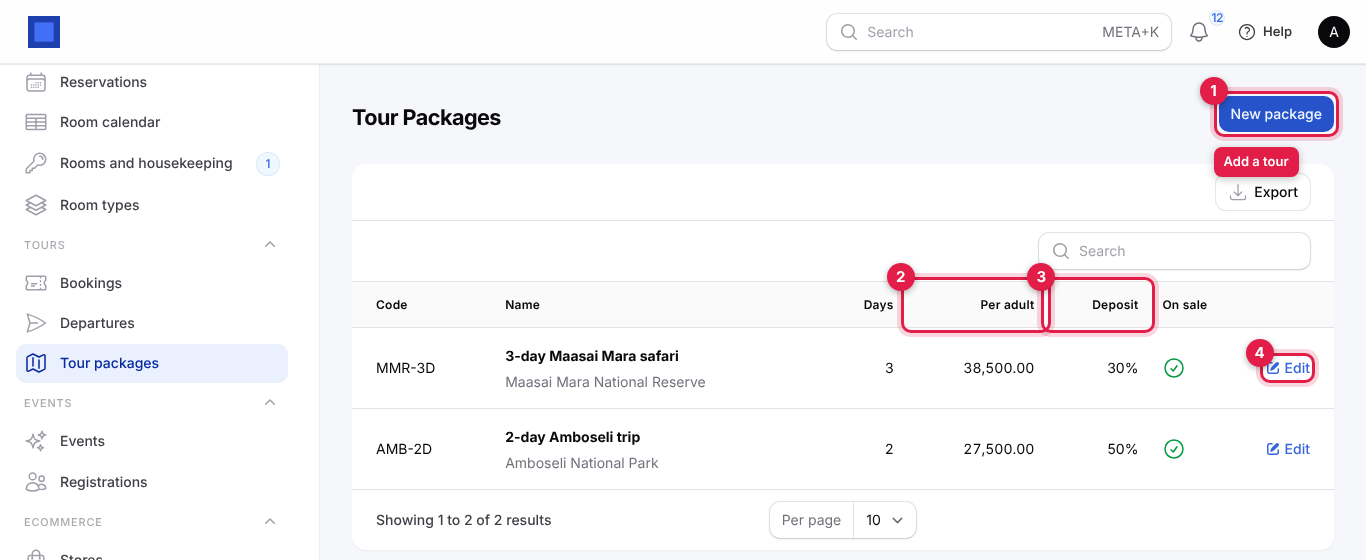
- Click New package (marker 1), or Edit (marker 4) to change one.
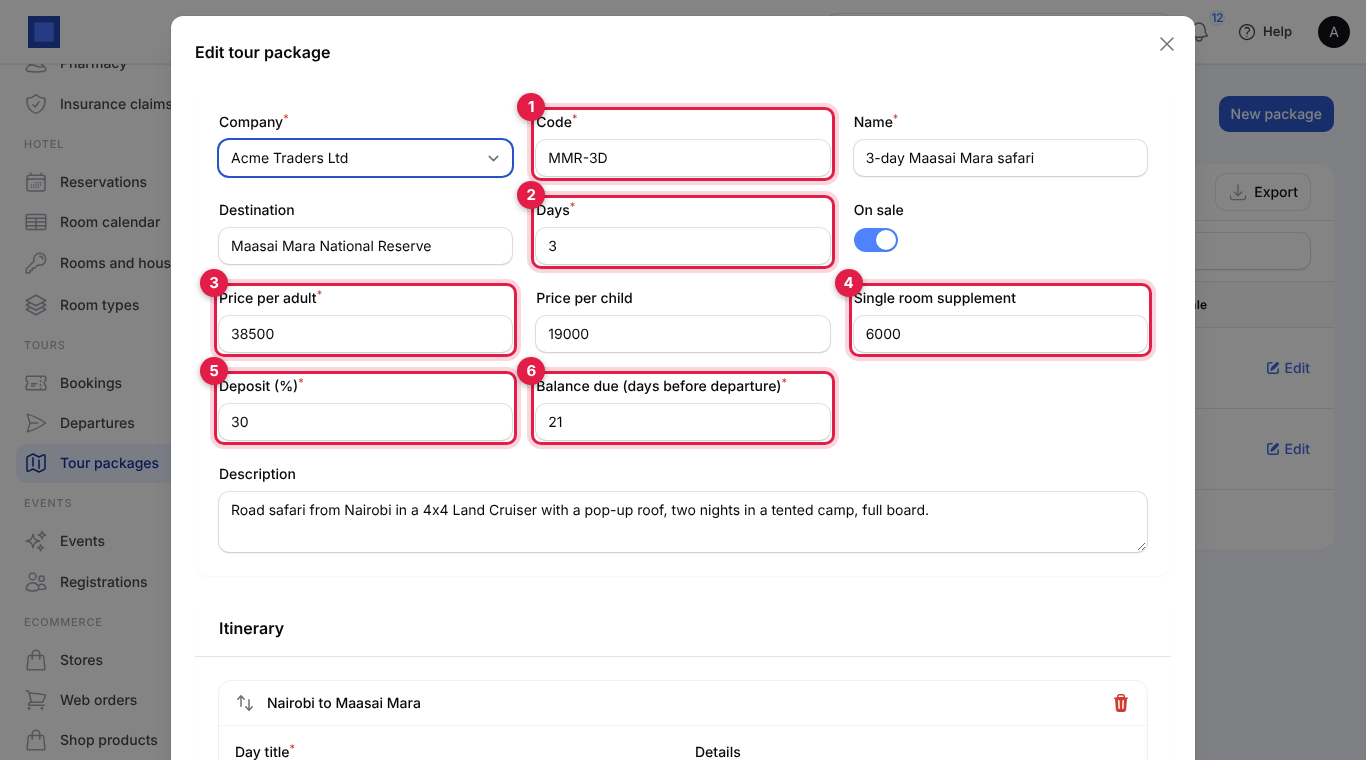
| Field | What to enter |
|---|---|
| Company (required) | Who sells the tour. |
| Code (required, marker 1) | Your short code, for example MMR-3D. |
| Name (required) | 3-day Maasai Mara safari. Shown to the client on invoices and the itinerary. |
| Destination | Maasai Mara National Reserve. |
| Days (required, marker 2) | Length of the tour, 1 to 90. The itinerary dates and the end date on the voucher follow it. |
| On sale | Off to stop taking bookings for the tour; it disappears from New booking and New departure. |
| Price per adult (required, marker 3) | 38,500. |
| Price per child | 19,000. 0 if children pay nothing. |
| Single room supplement (marker 4) | Charged once for each single room booked. |
| Deposit (%) (required, marker 5) | Share of the total invoiced when the client confirms, 0 to 100. Default 30. Use 100 to take full payment up front, 0 for no deposit. |
| Balance due (days before departure) (required, marker 6) | The balance is invoiced, and falls due, this many days before the trip starts. Default 30. |
| Description | A short summary, printed on the itinerary when there are no itinerary days. |
- Scroll down to the Itinerary (marker 1) and Included / Not included (markers 3 and 4).
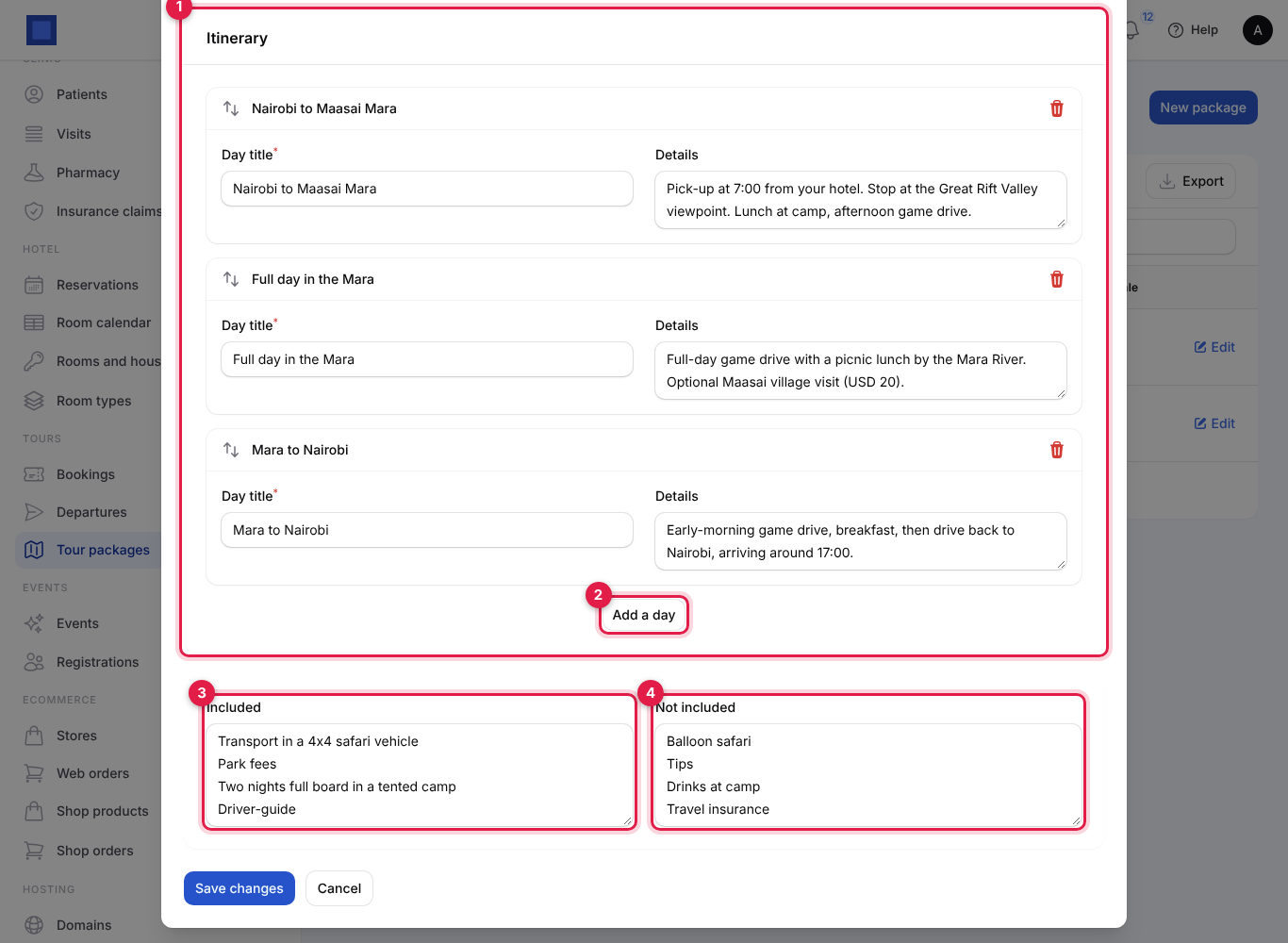
- Click Add a day (marker 2) for each day. Type the Day title (Nairobi to Maasai Mara) and the Details (Pick-up at 7:00, lunch at camp, afternoon game drive). Drag a day by its arrows to change the order; the bin removes it. The first day is day 1 of the trip.
- Included and Not included: one item per line, for example Park fees and Tips. Both are printed on the itinerary.
- Click Create (or Save changes).
2. Schedule group departures
A departure is a fixed date for a tour that several clients join, with a set number of seats (a vehicle, a bus, a boat). Private tours do not need one.
- Open Tours → Departures. Each departure shows the date, the tour, its Seats, the Seats left (marker 2: green, amber at 3 or fewer, red when full), the Guide (marker 3) and the Status. The Upcoming filter is on when the page opens.
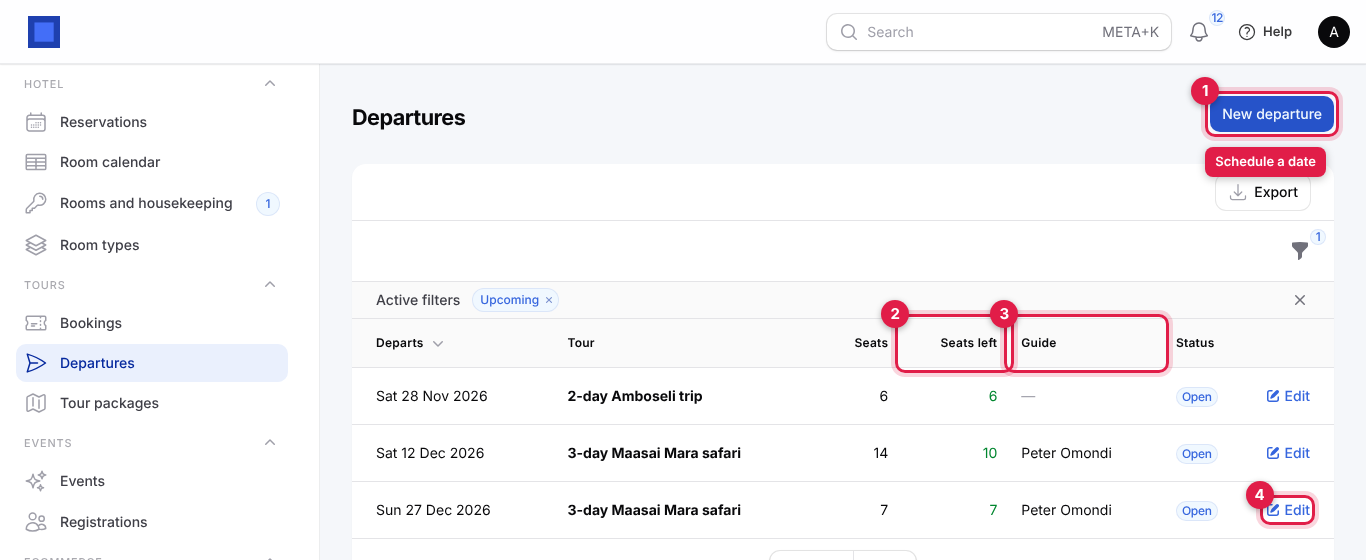
- Click New departure (marker 1), or Edit (marker 4) on a departure.
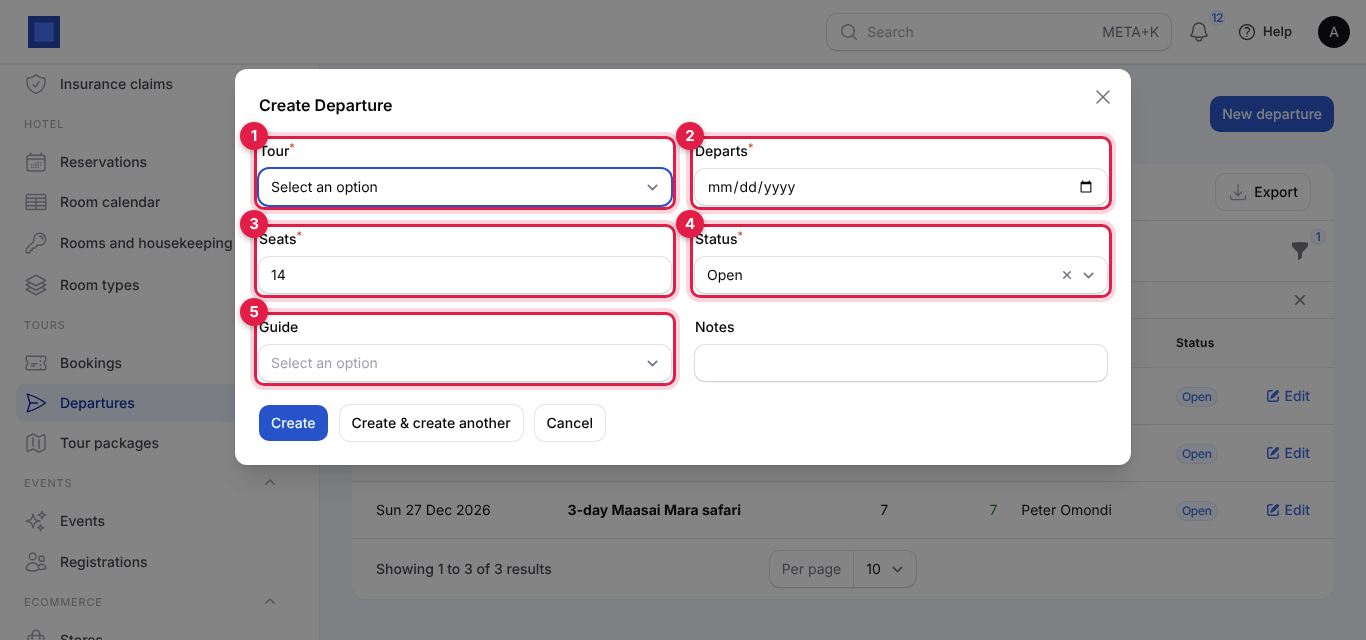
| Field | What to enter |
|---|---|
| Tour (required, marker 1) | Tours that are on sale. |
| Departs (required, marker 2) | Today or later. |
| Seats (required, marker 3) | How many travellers it can take. Default 14. |
| Status (required, marker 4) | Open (taking bookings), Closed (full or no more bookings) or Cancelled. Only open departures are offered on new bookings. |
| Guide (marker 5) | A workspace user. Printed on the itinerary. |
| Notes | Two vehicles, 7 seats each. |
- Click Create.
Seats are taken by bookings that are Enquiry or Confirmed, counting adults and children. An enquiry holds its seats until it is confirmed or cancelled, so cancel enquiries that go cold.
3. Take a booking
- Open Tours → Bookings (titled Tour Bookings). Each booking shows its number (
TB-2026-00001), the client, the tour, when it Starts, the Travellers as adults + children (marker 2), the Total, the Profit (marker 3: total less supplier costs) and the Status. Filter by Status with the filter icon.
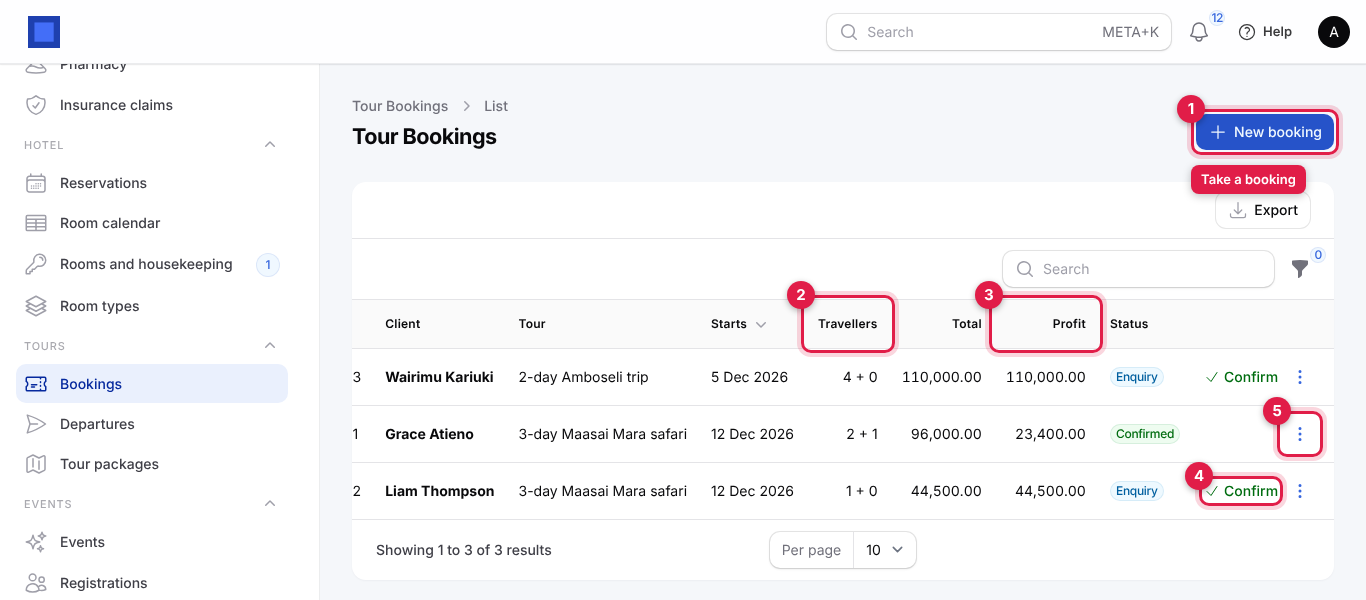
- Click New booking (marker 1).
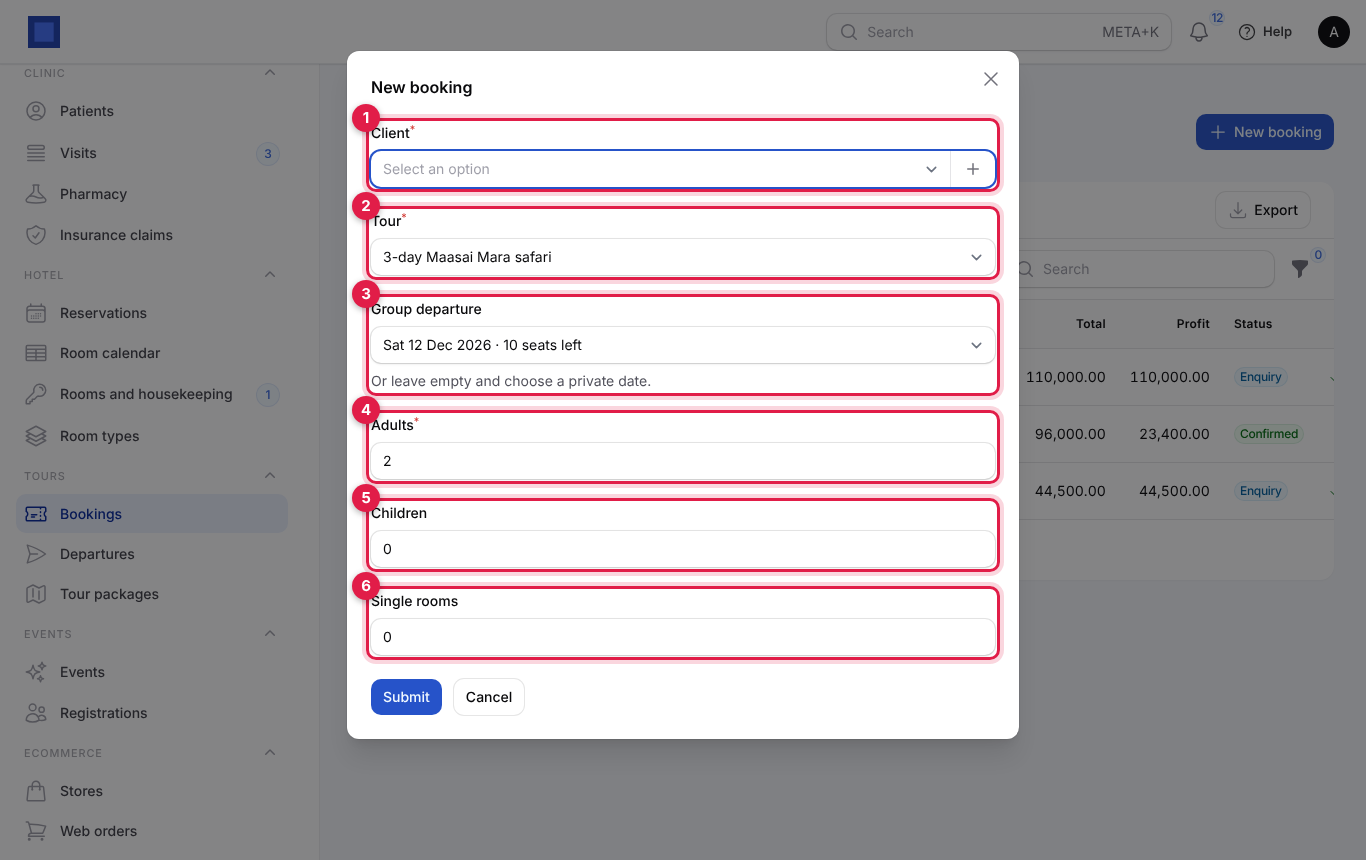
| Field | What to enter |
|---|---|
| Client (required, marker 1) | The lead traveller or the company paying. Click + to add a new client with Name, Phone and Email. Without an email the invoices are not emailed. |
| Tour (required, marker 2) | Tours on sale. |
| Group departure (marker 3) | The open, upcoming departures of that tour, each with its seats left, for example Sat 12 Dec 2026 · 10 seats left. |
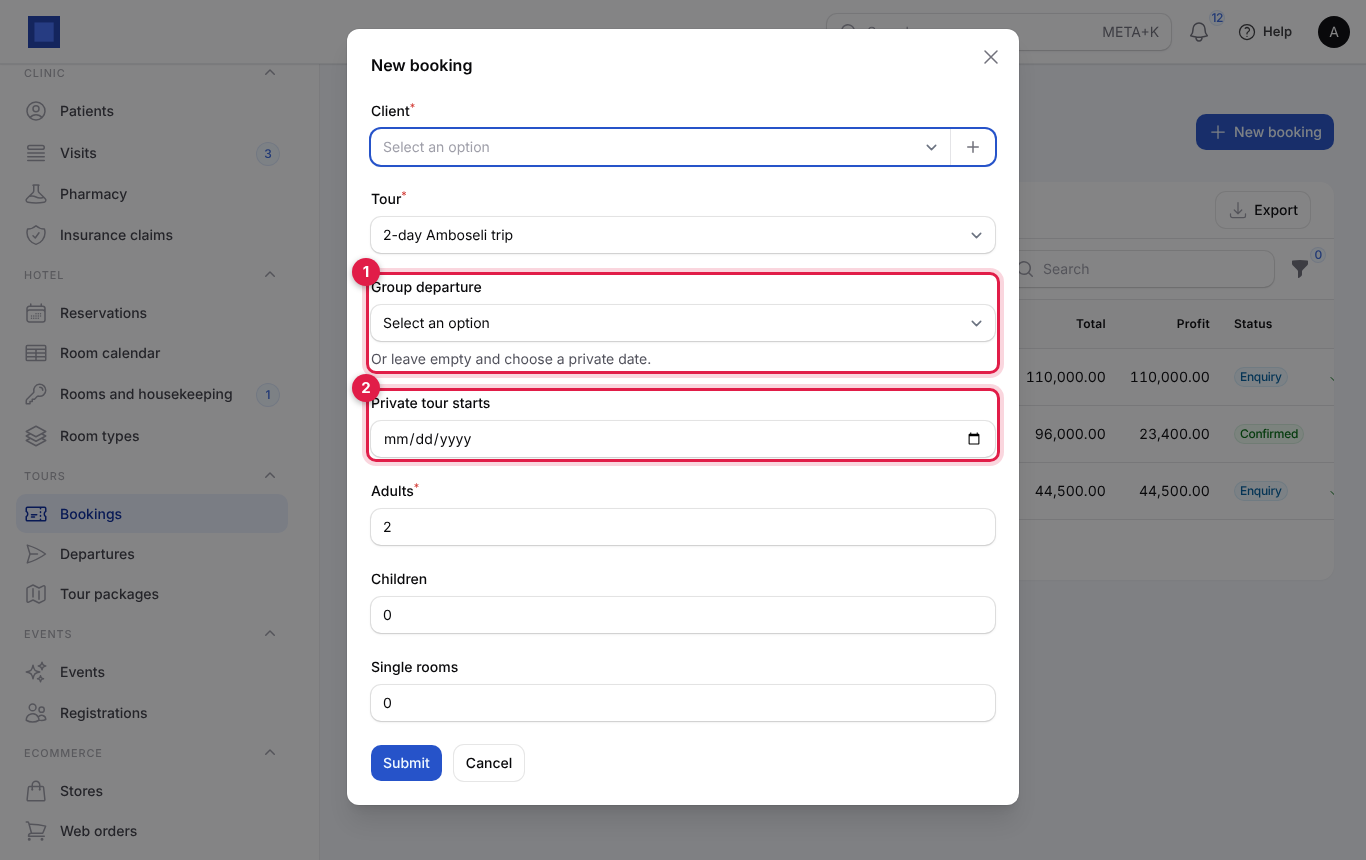
| Private tour starts | Shown when no departure is chosen (below). |
| Adults (required, marker 4) | Default 2. |
| Children (marker 5) | Default 0. |
| Single rooms (marker 6) | How many single-room supplements to charge. |
For a private tour, leave Group departure empty (marker 1) and pick the date under Private tour starts (marker 2). Private tours can start on any day from today.
- Click Submit. You see Booking TB-2026-… saved as an enquiry for 96,000.00.
How the price is worked out: adults × price per adult + children × price per child + single rooms × single room supplement. For 2 adults and 1 child on the Mara safari: 2 × 38,500 + 19,000 = 96,000.
If a departure does not have enough seats for everyone, you see Only 1 seat is left on this departure. and nothing is saved.
4. Confirm the booking: the deposit
When the client says yes:
- Click Confirm on the booking (marker 4 on the bookings list).
- The window tells you what will happen (marker 1): The deposit of 30% is invoiced and emailed to the client; the balance follows 21 days before departure. Click Confirm (marker 2).
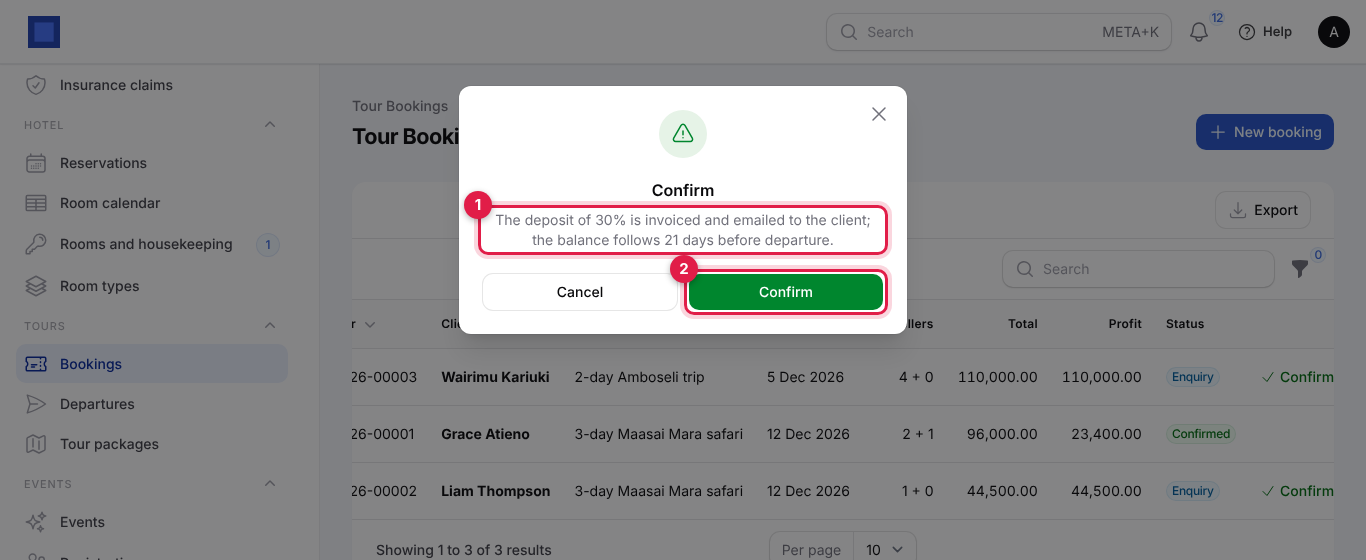
What happens:
- The status becomes Confirmed and the total is priced again from the package.
- A deposit invoice is issued to the client for the deposit percentage of the total, with the line Deposit (30%) for 3-day Maasai Mara safari starting 12 Dec 2026, dated and due today, with the booking number as its reference. It is emailed to the client with your pay link.
- If the deposit is 100%, or the balance due point has already passed (the trip is close), the balance invoice is issued at the same time.
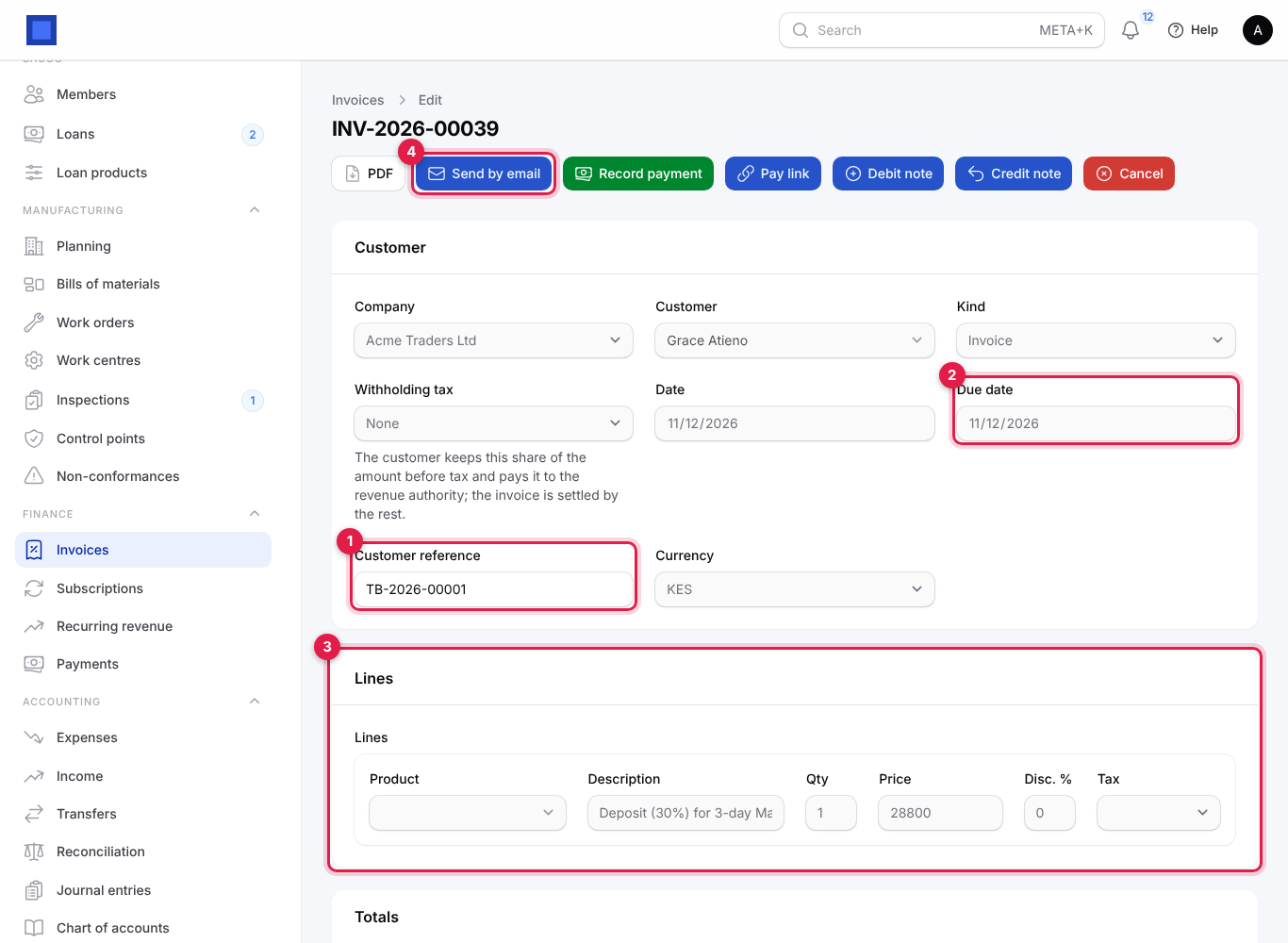
Record the client's payment on the invoice (Record payment), or let them pay with M-Pesa or card through the pay link. See Invoices and payments.
5. The balance
Every morning NaliSuite looks at confirmed bookings whose trip has not started and whose balance is due (the start date less the package's Balance due days has arrived). For each, it issues a balance invoice for the total less the deposit invoice, with the line Balance for 3-day Maasai Mara safari starting 12 Dec 2026 (2 adults, 1 children), due on that date, and emails it to the client.
To invoice the balance early, open ⋮ on the booking and click Invoice the balance now (marker 2 below). It is there only for confirmed bookings without a balance invoice. You see Balance invoiced.
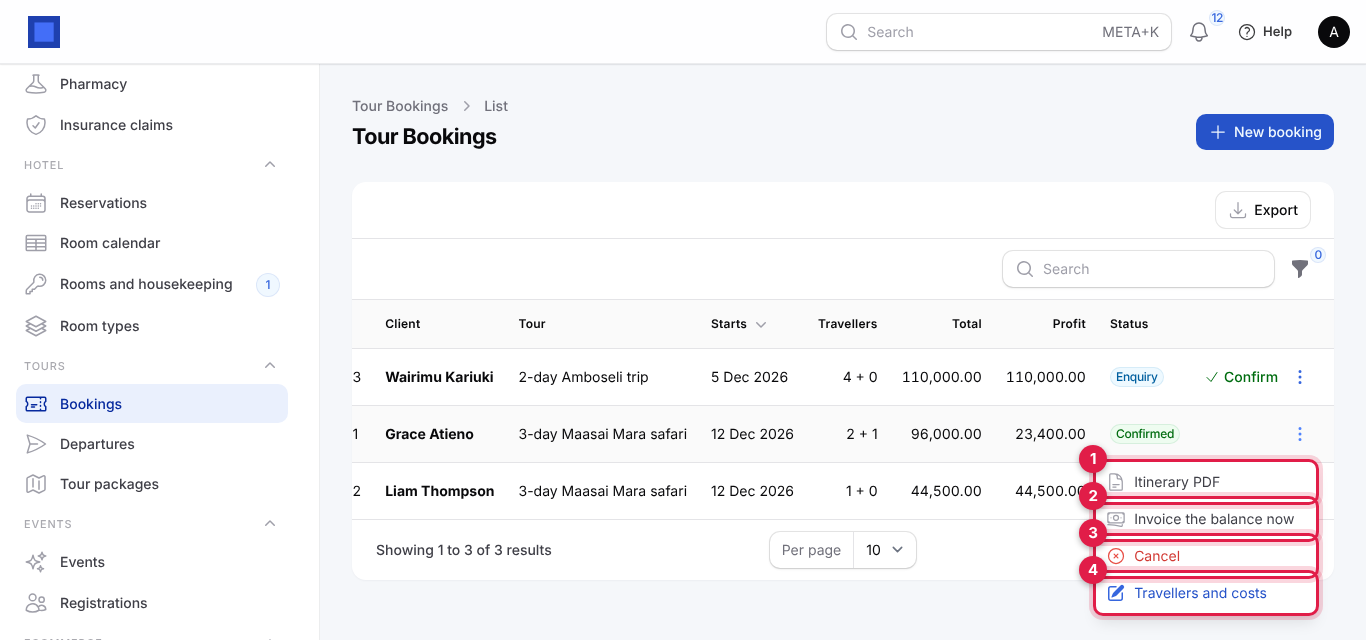
The ⋮ menu:
| Action | When | What it does |
|---|---|---|
| Itinerary PDF (marker 1) | Always | Opens the itinerary and travel voucher in a new tab. |
| Invoice the balance now (marker 2) | Confirmed, balance not yet invoiced | Issues and emails the balance invoice now. |
| Mark completed | Confirmed, after the start date | Closes the booking after the trip. |
| Cancel (marker 3) | Enquiry or confirmed | Cancels the booking (below). |
| Travellers and costs (marker 4) | Always | Opens the booking to record travellers and supplier costs. |
6. Travellers and supplier costs
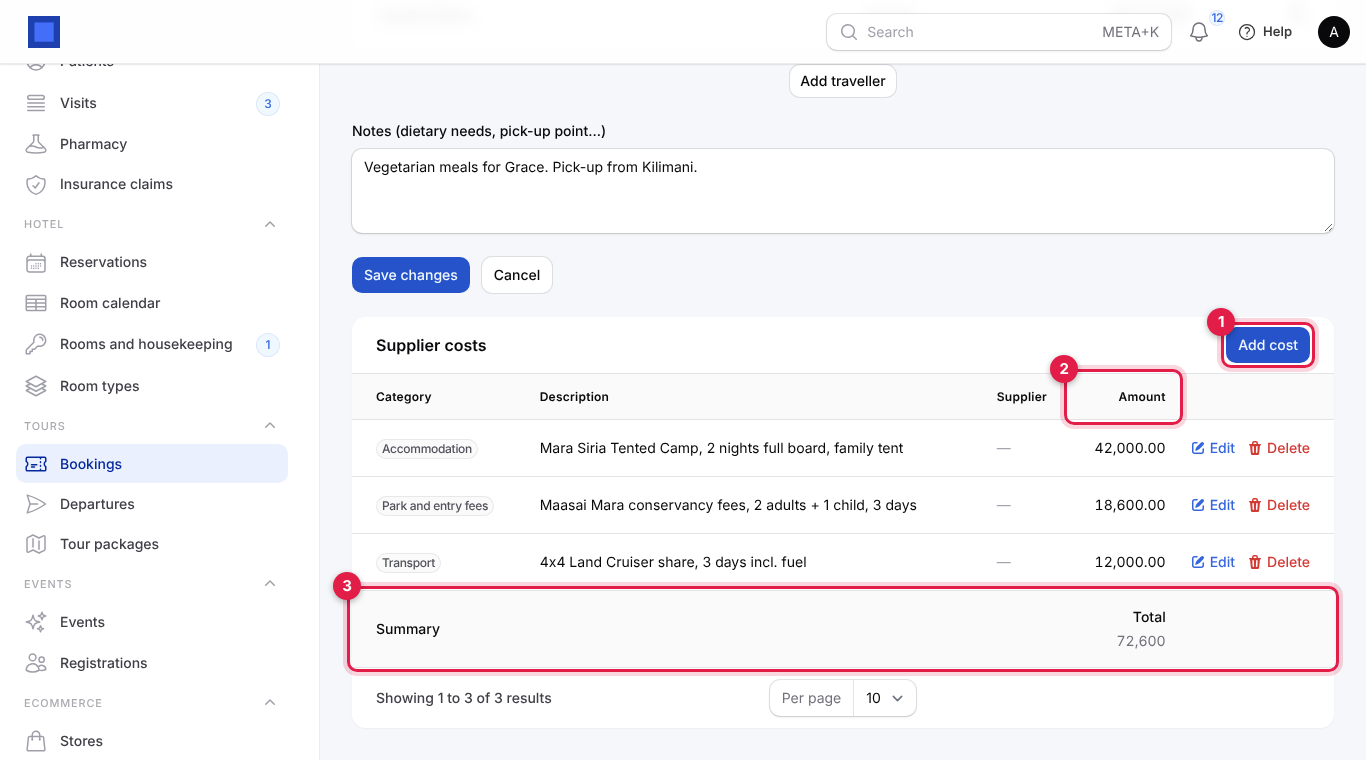
Click ⋮ → Travellers and costs. The heading (marker 1) sums up the booking: client, tour, start date, and Total 96,000.00, costs 72,600.00, profit 23,400.00.
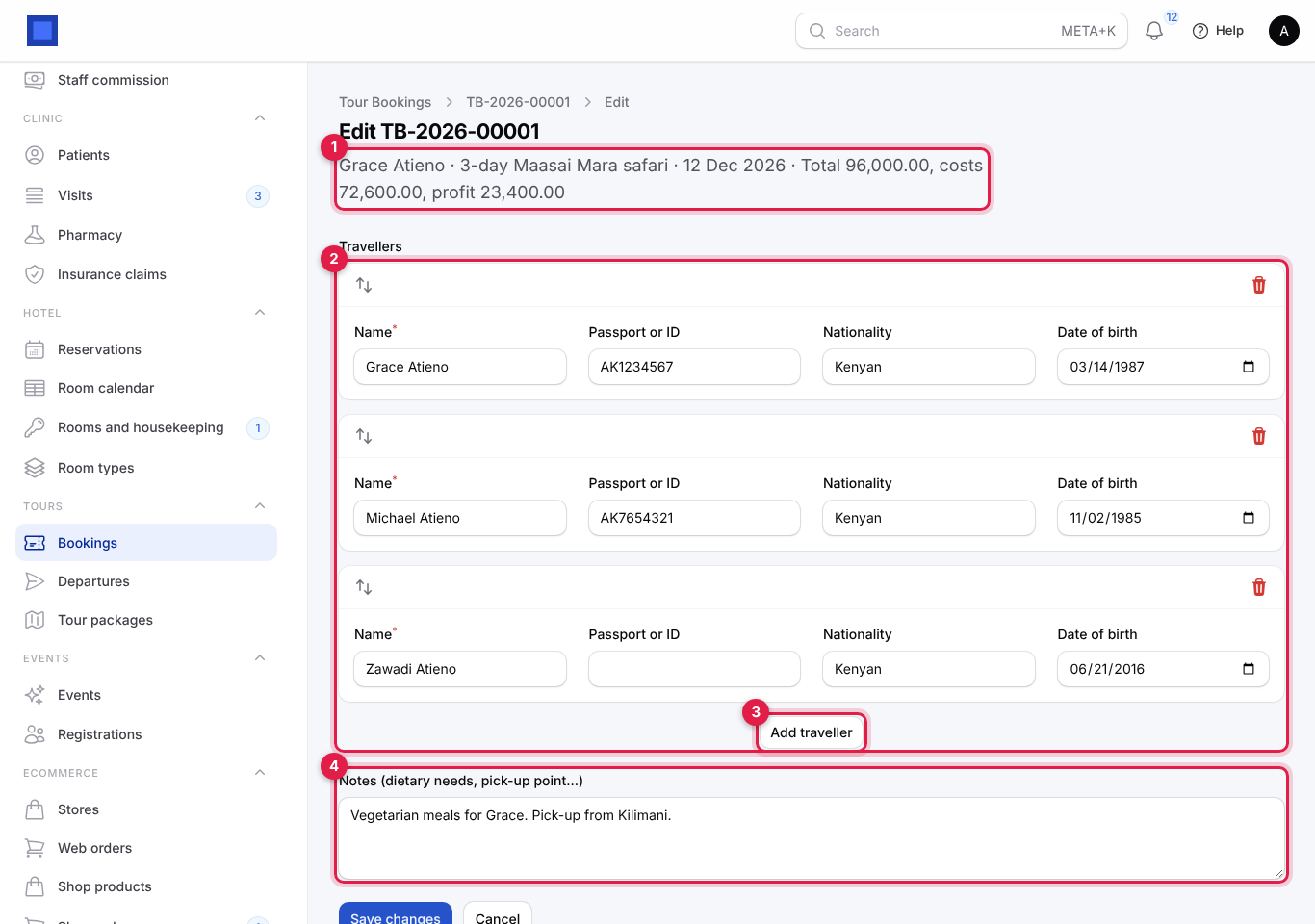
Travellers (marker 2): click Add traveller (marker 3) for each person.
| Field | What to enter |
|---|---|
| Name (required) | As on the passport or ID. |
| Passport or ID | Needed by parks, airlines and border posts. |
| Nationality | Park fees differ for citizens, residents and non-residents. |
| Date of birth | For child rates and insurance. |
Notes (dietary needs, pick-up point…) (marker 4): Vegetarian meals for Grace. Pick-up from Kilimani. Printed on the itinerary. Click Save changes.
Note: The number of adults and children, the tour and the date cannot be changed once the booking is made. To change them, cancel the booking and make a new one.
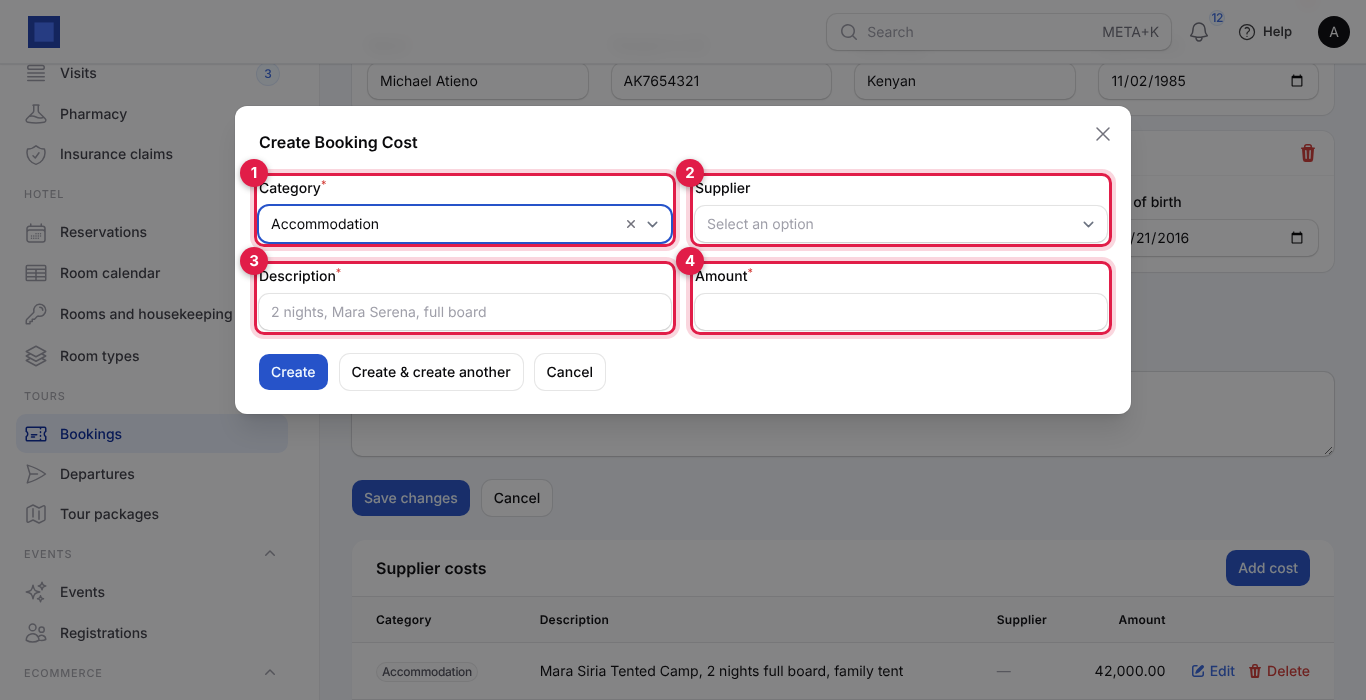
Below, Supplier costs list what you pay others for this booking. Click Add cost (marker 1); the Amount column (marker 2) is added up in the Total (marker 3).
| Field | What to enter |
|---|---|
| Category (required, marker 1) | Accommodation, Transport, Park and entry fees, Flights, Guide, Meals or Other. |
| Supplier (marker 2) | The lodge, transporter or airline, from your contacts. |
| Description (required, marker 3) | 2 nights, Mara Serena, full board. |
| Amount (required, marker 4) | What the supplier charges you. |
Costs are for your profit figures only: they are not bills and are not posted to the accounts. Enter the supplier's bill under Purchases as usual (see Purchases and bills) to pay it.
The Profit on the bookings list and in the heading is the booking total less its costs. The margin is profit ÷ total.
7. The itinerary and travel voucher
Click ⋮ → Itinerary PDF to open the voucher in a new tab, then download or print it and send it to the client (for example on WhatsApp or by email). It carries your company's letterhead and shows:
- the booking number, the dates of the trip (start to end, from the package's number of days) and the number of adults and children;
- the lead traveller with phone and email, the tour, the destination and the guide;
- each itinerary day with its date, title and details;
- the travellers with passport or ID and nationality;
- what is included and not included, and the booking notes.
The voucher is only available to signed-in staff; the client does not get a link to it.
Booking statuses
| Status | Meaning | What moves it on |
|---|---|---|
| Enquiry | Priced; holds seats on a departure. Nothing invoiced. | Confirm or Cancel. |
| Confirmed | Deposit invoiced; balance invoiced on time. | Mark completed after the trip, or Cancel. |
| Completed | The trip has happened. | Final. |
| Cancelled | Will not go ahead; seats are free again. | Final. |
Cancel a booking
Click ⋮ → Cancel and confirm. The deposit and balance invoices that have not been paid at all are cancelled, the seats are freed and the booking becomes Cancelled. Money already received is not refunded automatically: issue a credit note from the paid invoice for anything you give back (see Invoices and payments).
Emails the client receives
| When | What |
|---|---|
| Confirm | The deposit invoice, with your pay link. |
| The balance falls due (or Invoice the balance now) | The balance invoice, with your pay link. |
Emails go only to a client with an email address. Unpaid invoices are chased by your normal payment reminders. Clients with portal access see the invoices under Invoices in the customer portal; bookings and itineraries are not shown there.
Common questions
Can I quote in US dollars? Invoices are in the company's currency. Keep a separate company in USD for foreign clients and make its packages and bookings there.
A client wants to add a person after confirming. Make a second booking for the extra person on the same departure, or cancel and rebook the whole party.
Why does the departure show fewer seats left than I expected? Enquiries hold seats too. Cancel enquiries that will not go ahead.
The trip is in two weeks and the balance is due 30 days before. Confirming invoices the deposit and the balance at once, both due today.
Is VAT charged on tours? No. Deposit and balance invoices are issued with no tax and no product, so the amount is posted as untaxed sales. If your tours are VAT-able, talk to your accountant and NaliSuite support before you start.
Where do I see how much a client still owes? Open the client's contact and look at their invoices, or run the receivables reports (see Financial reports).