Sending text messages
This page is for owners and administrators who want NaliSuite to send real text messages. It explains how to pick and connect an SMS provider, test it, check your credit, get delivery reports back, and everything in NaliSuite that texts people through that provider.
You will find the settings under Settings → Preferences → Marketing.
Note: The SMS provider comes with the Marketing app, so the Marketing tab shows while Marketing is switched on. Anyone who can see the settings can open the tab; choosing a provider, saving, Send a test message and Check balance need the Manage settings permission (
core.settings.manage: the owner and admin roles by default).
Choose your SMS provider
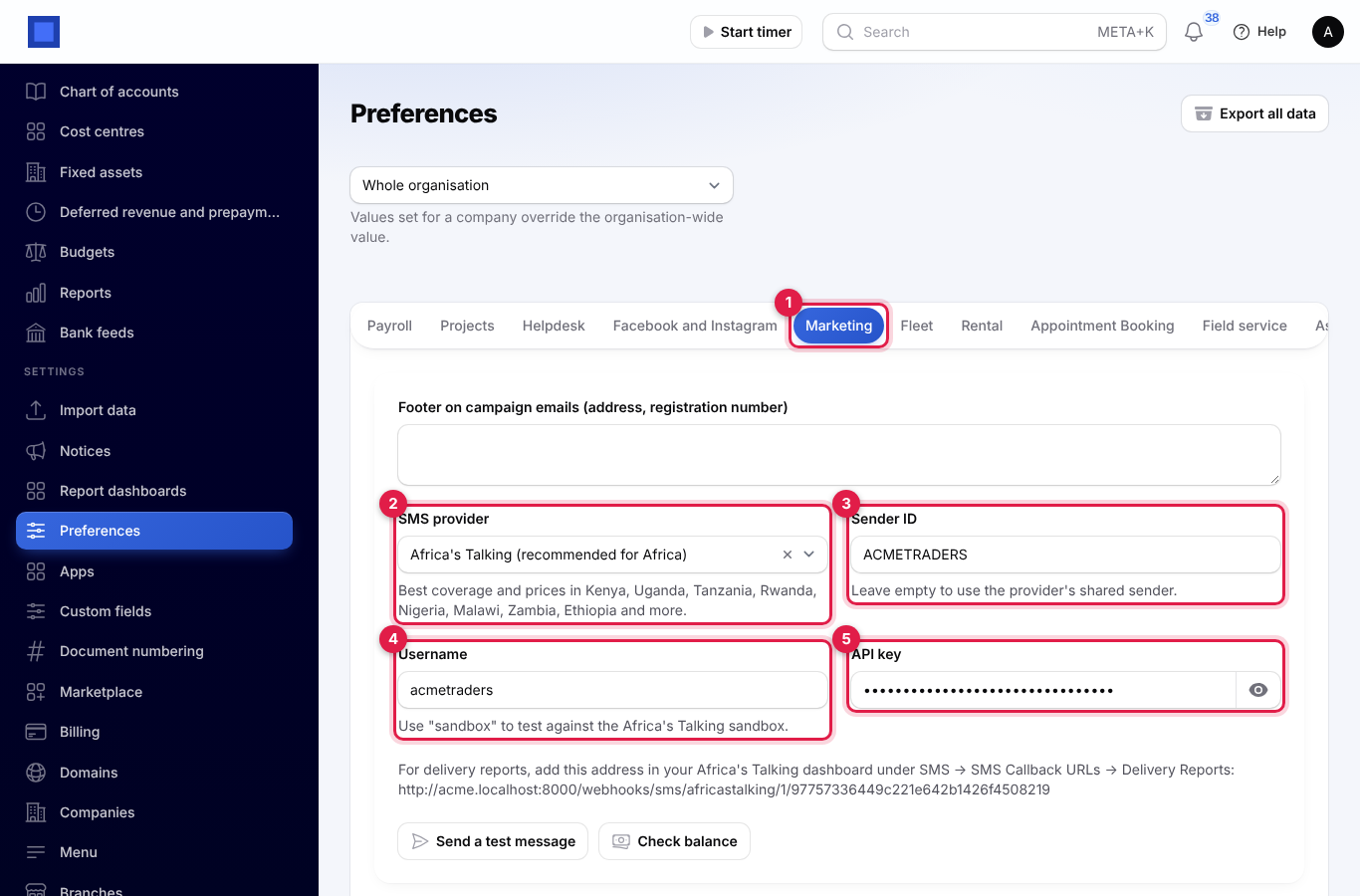
- Open Settings → Preferences and click the Marketing tab (marker 1).
- Choose the SMS provider (marker 2). The line under it says where the provider works best and where to find your keys.
- Fill in the Sender ID (marker 3) and the provider's own fields: for Africa's Talking, the Username (marker 4) and API key (marker 5).
- Click Save preferences.
The providers in the list (marker 1):
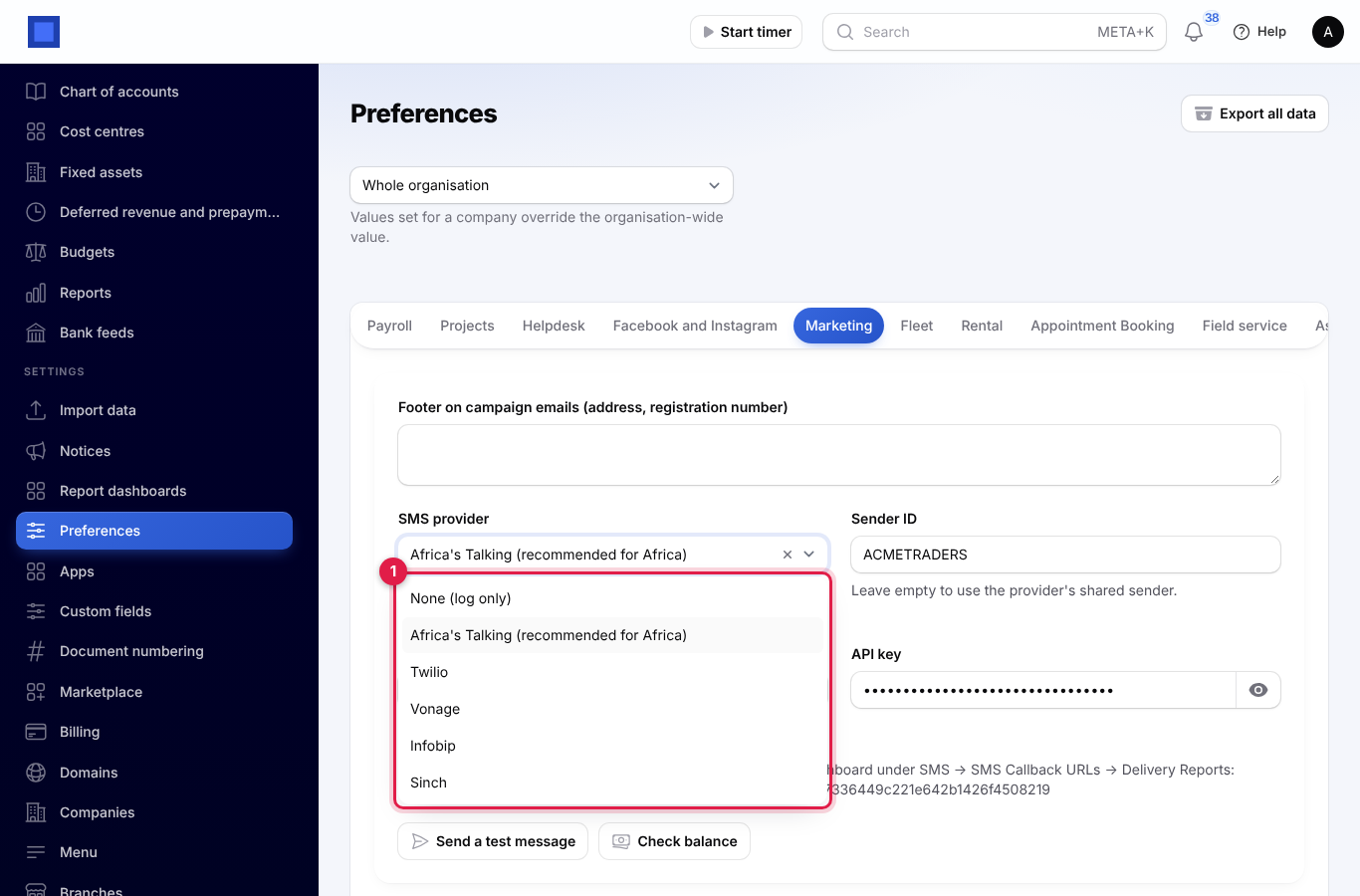
| Provider | Best for | Fields |
|---|---|---|
| None (log only) | Trying NaliSuite out | None. Texts are written to the log and never sent. This is where every workspace starts. |
| Africa's Talking (recommended for Africa) | Kenya, Uganda, Tanzania, Rwanda, Nigeria, Malawi, Zambia, Ethiopia and more: the best coverage and prices in Africa | Username (type sandbox to use the Africa's Talking sandbox while testing) and API key. |
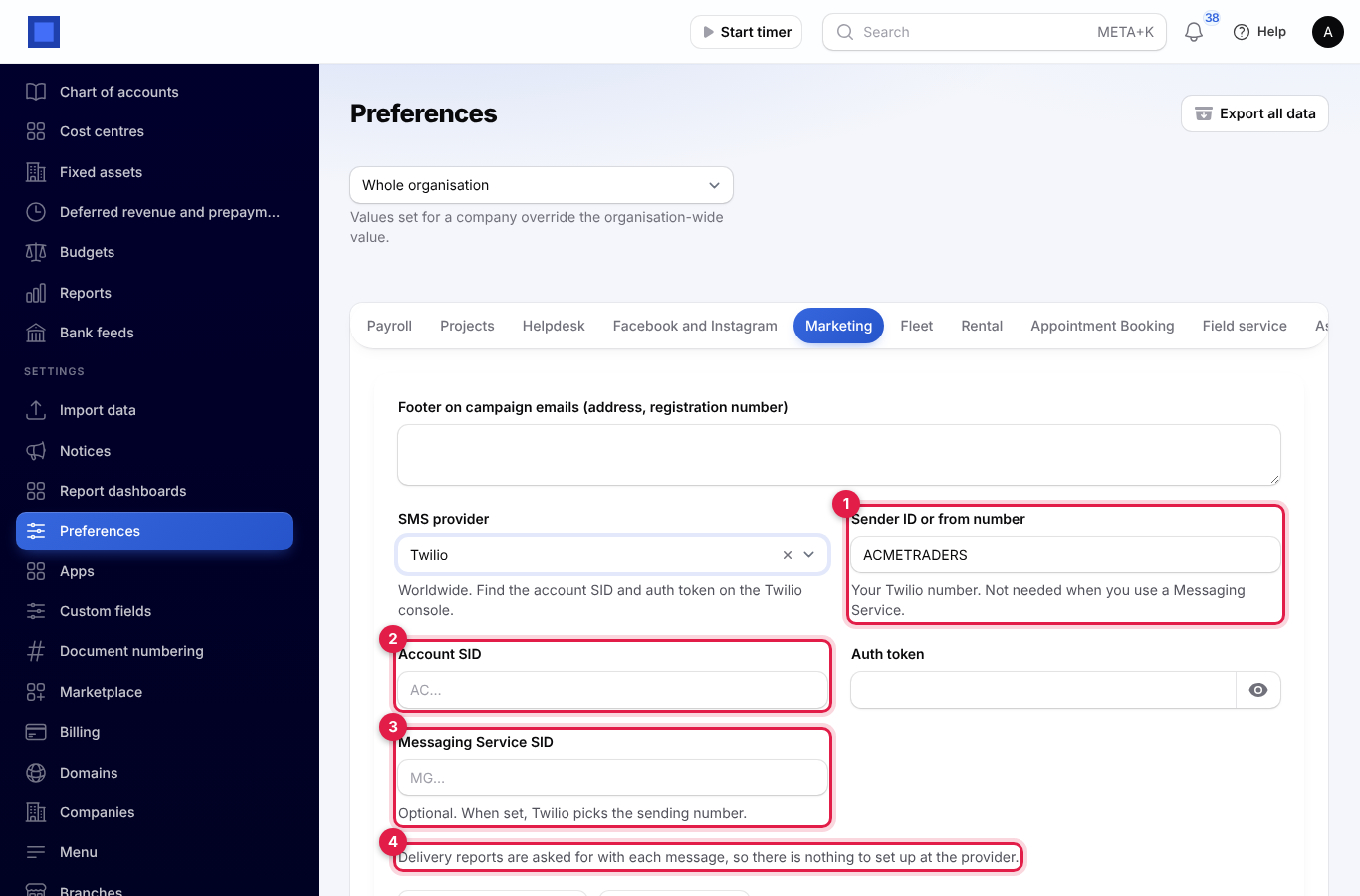
| Twilio | Worldwide | Account SID (starts AC), Auth token and an optional Messaging Service SID (starts MG). With a Messaging Service, Twilio picks the sending number; without one, put your Twilio number in Sender ID or from number. Both are on the Twilio console. |
| Vonage | Worldwide | API key and API secret from the Vonage dashboard. Sender ID or from number is required: a registered sender ID or a Vonage number. |
| Infobip | Worldwide | Base URL (like xxxxx.api.infobip.com) and API key, both on the Infobip portal home page. |
| Sinch | Worldwide | Service plan ID and API token under SMS → APIs on the Sinch dashboard, and the Region of your account: US, EU, AU, BR or CA. |
Choosing another provider shows its own fields straight away (Twilio here: marker 1 is the from number, marker 2 the account SID, marker 3 the optional Messaging Service).
Secrets such as API keys and tokens are stored encrypted. If you have more than one company, pick the company at the top of Preferences first: each company can use its own provider, and companies without one use the workspace's.
The sender ID
The Sender ID is the name or number people see as the sender, for example ACMETRADERS, up to 20 characters.
- Africa's Talking and Infobip: an alphanumeric name you have registered with the provider and the mobile networks. Leave it empty to use the provider's shared sender.
- Twilio: your Twilio number in international form, such as
+14155550100. Not needed when you use a Messaging Service. - Sinch: your Sinch number or sender ID, or leave it empty to use the shared sender.
- Vonage: required; a registered sender ID or a Vonage number.
Phone numbers people type locally, such as 0712 345 678, are turned into the international form using your company's country, so a Kenyan company sends to 254712345678.
Send a test message and check your balance
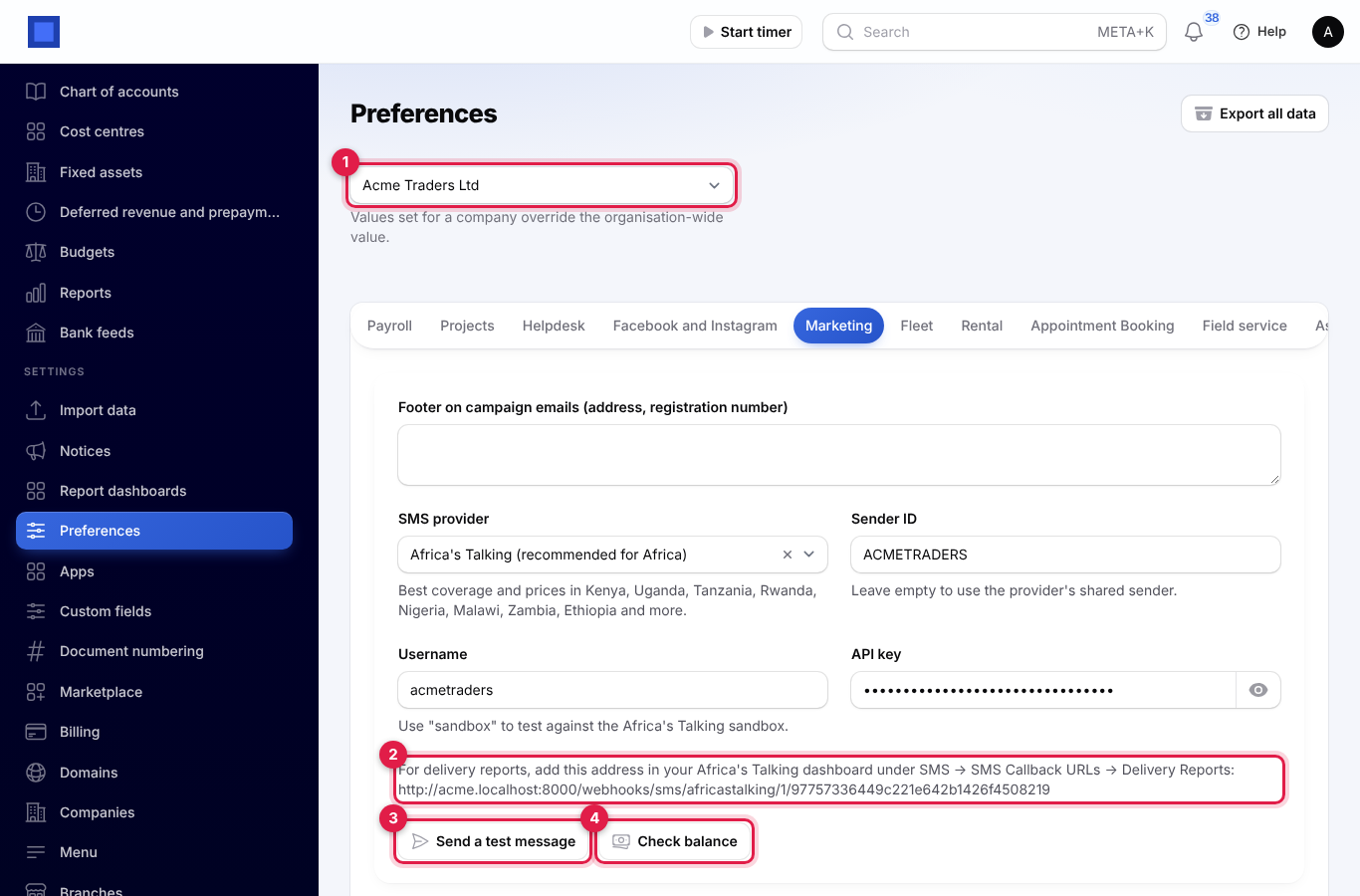
Both buttons sit under the provider's fields (marker 3 and marker 4) and use the details on the screen, so you can try them before you save.
- Click Send a test message.
- Check the Mobile number (marker 1); it starts with your own phone number from your profile.
- Change the Message (marker 2) if you like, up to 160 characters, and click Send (marker 3).
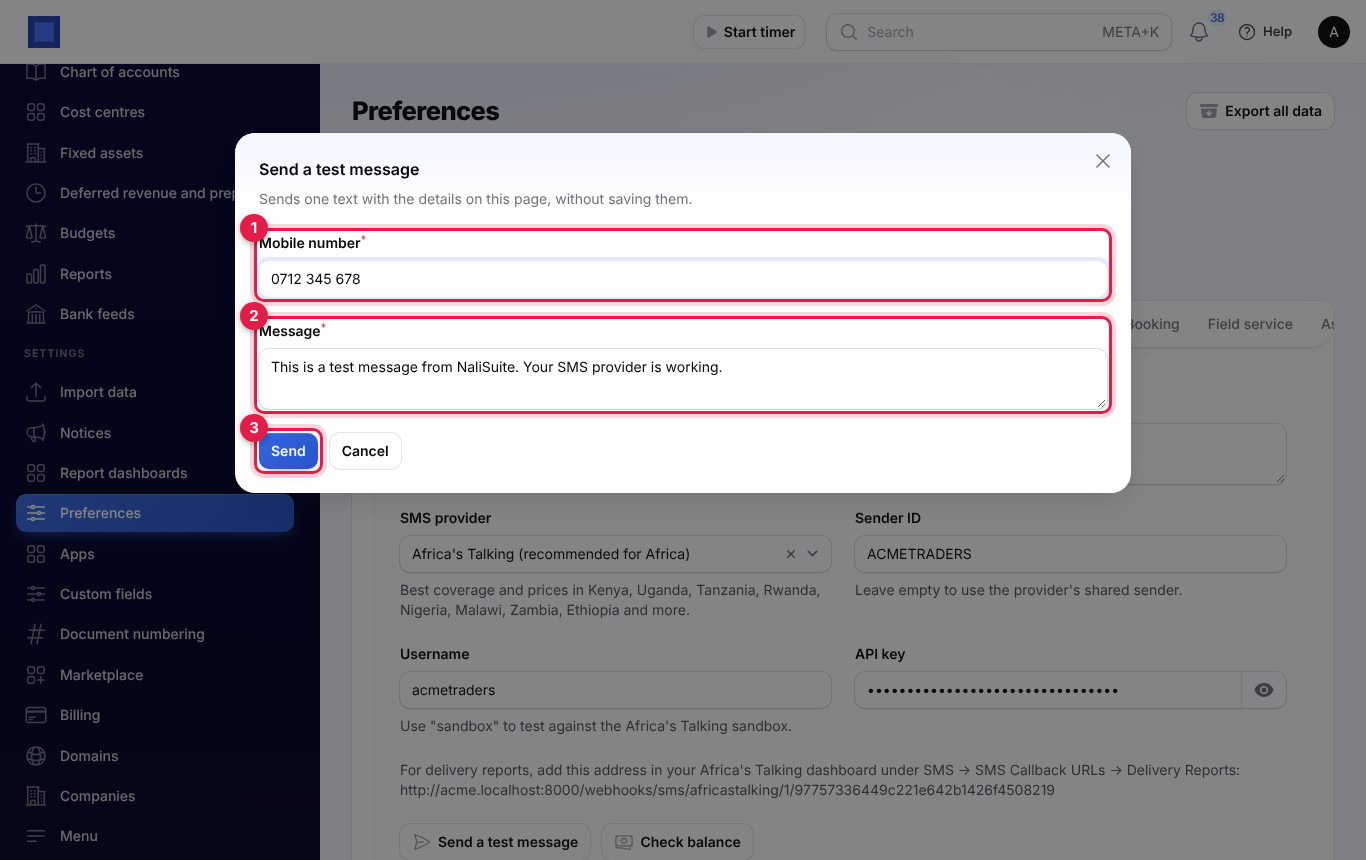
"Test message sent to …" with the provider's message ID means the provider took it. If it fails, the message says what the provider answered, for example a wrong key. "Fill in all the provider's details first." means a field is still empty.
Check balance shows the credit left on your account, for example "Africa's Talking balance: KES 1,250.00". Africa's Talking, Twilio, Vonage and Infobip report a balance; Sinch does not, so check it on the Sinch dashboard.
Delivery reports
A delivery report is the provider telling NaliSuite whether each text reached the phone.
- Africa's Talking: pick your company at the top of Preferences (marker 1), copy the address shown under the fields (marker 2) and add it in your Africa's Talking dashboard under SMS → SMS Callback URLs → Delivery Reports. It is set once for the whole account.
- Twilio, Vonage, Infobip and Sinch: "Delivery reports are asked for with each message, so there is nothing to set up at the provider."
The address ends in a private code for your company, so only paste it into the provider's dashboard. Reports from anyone else are refused, and Twilio's reports must also carry Twilio's signature. Once a text is marked delivered or failed, a late or repeated report cannot change it back.
See how many texts arrived
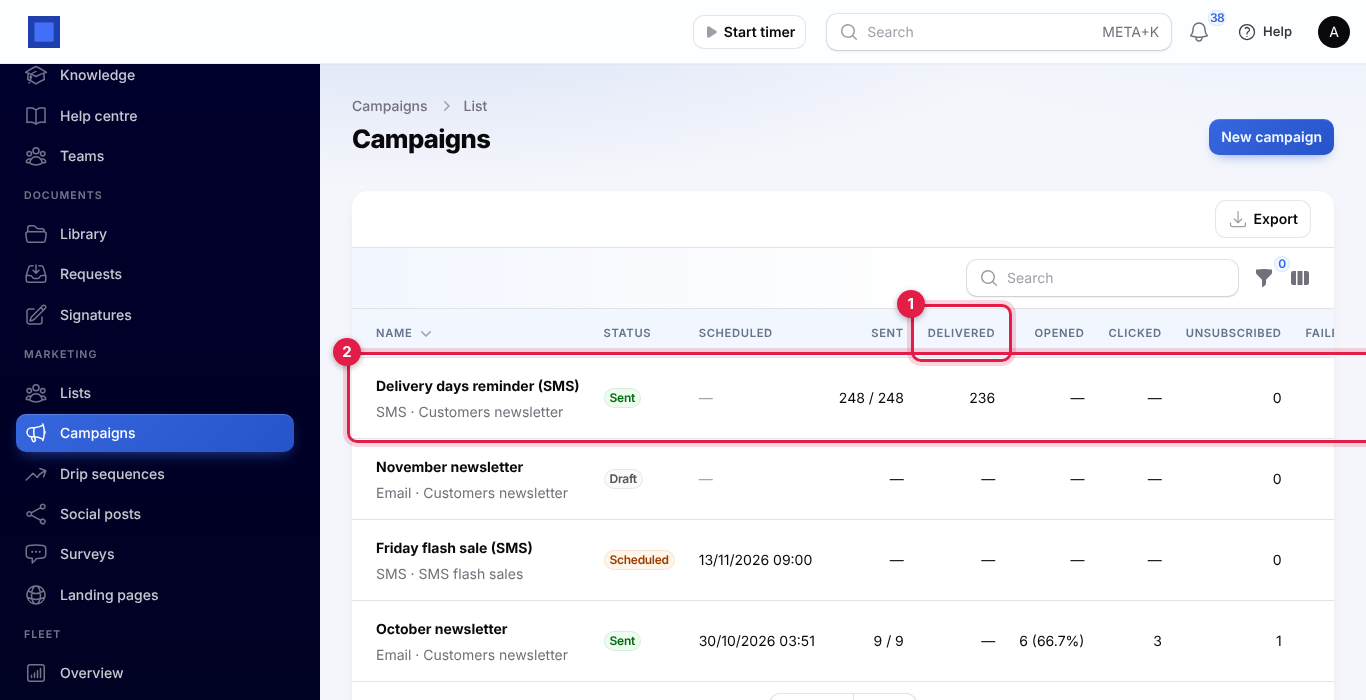
On Marketing → Campaigns, the Delivered column (marker 1) counts how many texts of each SMS campaign reached the phone (marker 2). It shows a dash for email campaigns and for SMS campaigns not yet sent, and rises as reports come in.
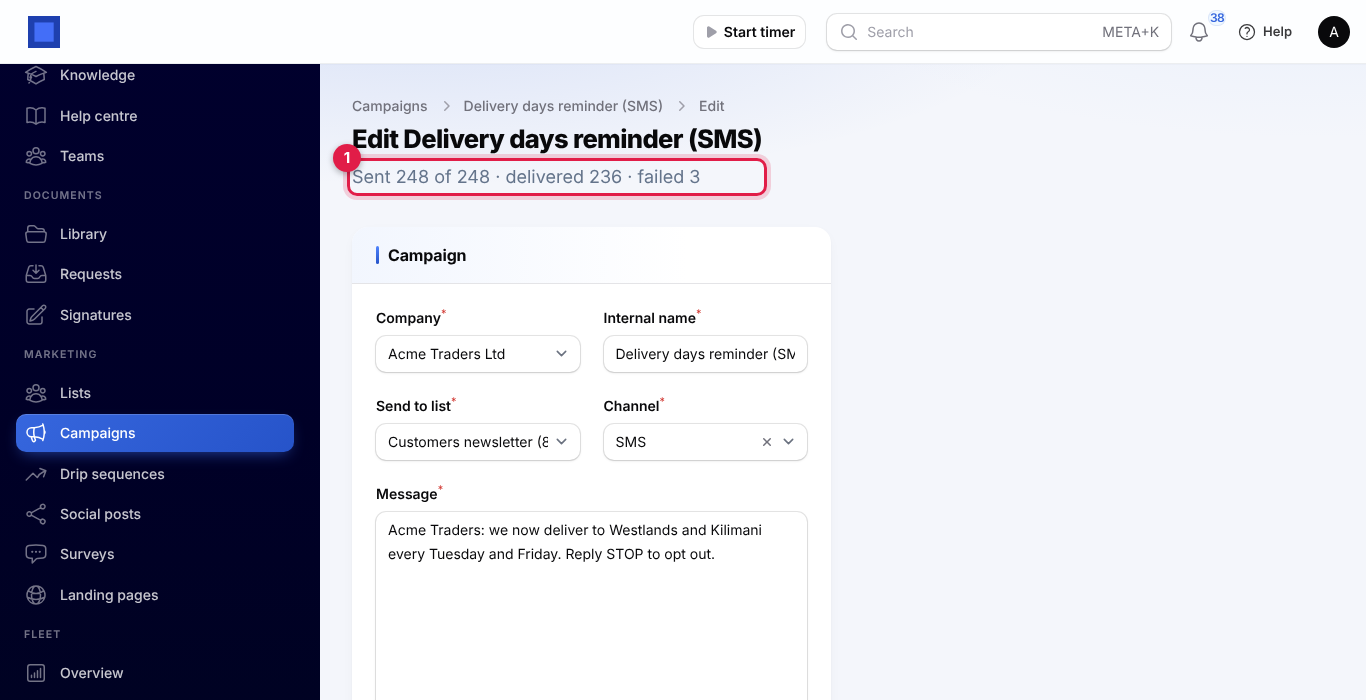
Open the campaign to see the totals under its name: "Sent 248 of 248 · delivered 236 · failed 3" (marker 1). Failed counts texts the provider refused when they were sent.
Drip sequence texts are tracked the same way.
What your SMS provider sends
Every text NaliSuite sends goes through the provider you chose here:
- SMS campaigns and drip sequences in Marketing; see Marketing.
- Receipts by SMS from the till in Point of sale.
- Texted sign-in codes for people who chose texted codes as their second sign-in step; see Workspace settings.
- Appointment reminders the day before, in Appointment booking.
- The queue: a text when a customer's turn is near, set by Text customers when this many people are ahead under Preferences → Front desk; see Front desk queue.
- Alerts by SMS for people who tick SMS in their Notification settings and have a mobile number there.
- Texts from industry apps that message customers or members, such as Garage, Gym, Laundry, Logistics, Clearing and forwarding, Security, Insurance, Dairy and Agriculture, and warranty claim updates from Inventory.
Good to know
- Missing details mean no texts. If the chosen provider's fields are incomplete, NaliSuite falls back to None (log only) and nothing is sent. Use Send a test message after every change.
- Pay as you go. Every provider charges per text, and each 160 characters counts as one. Keep your account topped up and check it with Check balance.
- Sandbox texts. With the Africa's Talking username
sandbox, texts only reach the Africa's Talking simulator, not real phones. - Opt-outs. Campaign and drip texts only go to members with a phone number who have not unsubscribed.