AI business assistant
The AI business assistant is for owners, managers and support staff who want quick answers without building a report. You ask a question in plain words, such as "Who owes us the most money?" or "Will we run short of cash in the next eight weeks?", and Claude (Anthropic's AI) answers from your workspace's own figures, limited to what your role lets you see. It also gives you a week-by-week cash forecast with a plain-words summary, and drafts replies to helpdesk tickets for your support team to check and send. This page covers switching it on, the API key and model, asking questions, the cash forecast, drafted replies, and what it costs and sends.
The AI business assistant is a marketplace module. Ask AI is near the top of the left menu, under Reports. Cash forecast is under Finance. Drafted replies appear in the reply window of a helpdesk ticket.
Note: You need the ai_assistant.use permission to see Ask AI, Cash forecast and Draft with AI. Owners and admins have it; the member role does not. Cash forecast also needs invoicing.view, and replying to tickets needs helpdesk.manage. Set permissions under Settings → Roles (see Roles and permissions).
Switch it on
- Open Settings → Marketplace and type AI business assistant in the Search add-ons… box (marker 1).
- On the AI business assistant card (marker 2), click Start free trial (or Add to subscription) and confirm. Ask AI appears in the left menu, and Cash forecast under Finance when the Invoicing app is on.
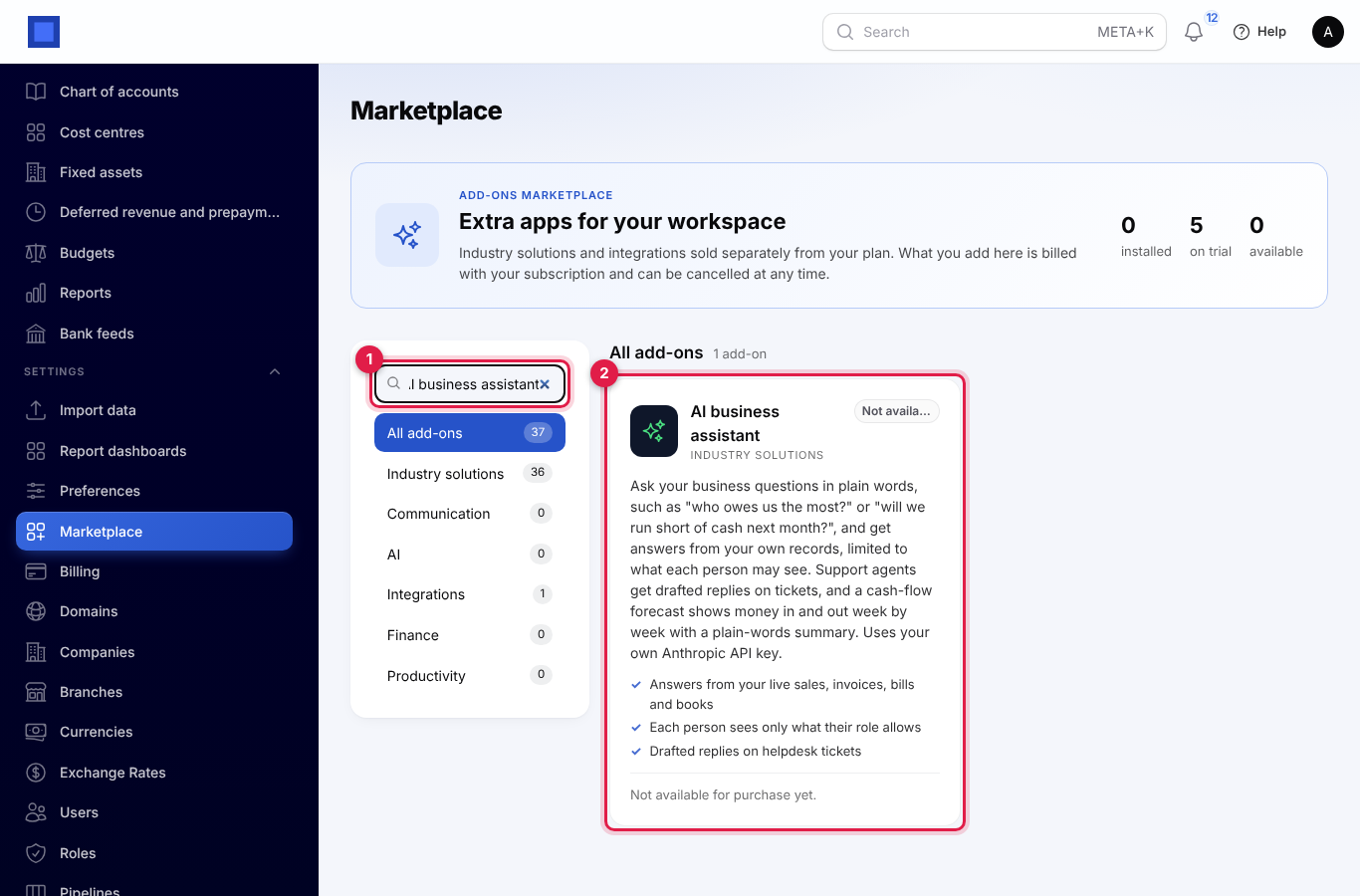
If the card says Not available for purchase yet (as in the screenshot), the add-on has not been priced for your plan: ask NaliSuite support to switch it on. See Billing and marketplace.
Add your Anthropic API key and choose the model
The assistant uses your workspace's own Anthropic API key, so its use is billed to your Anthropic account (see Cost and privacy).
If you already use Document AI and have added its key, you have nothing to do: the assistant uses the Document AI key whenever its own key is empty. To keep the two separate (for example to see their costs apart on the Anthropic console), give the assistant a key of its own.
To get a key, sign in at console.anthropic.com, add a payment method or credit under billing, open API keys and create a key. Copy it straight away: Anthropic shows it only once. The steps are the same as in Document AI.
- In the menu, open Settings → Preferences.
- Click the AI assistant tab (marker 1).
- Paste the key into Anthropic API key (marker 2), or leave it empty to use the Document AI key. It is stored encrypted; click the eye to check it.
- Choose the Model (marker 3):
- Claude Opus 5.5 (most capable): the default.
- Claude Sonnet 5.5 (faster, lower cost).
- Claude Haiku 5.5 (fastest, lowest cost).
- Click Save preferences (marker 4).
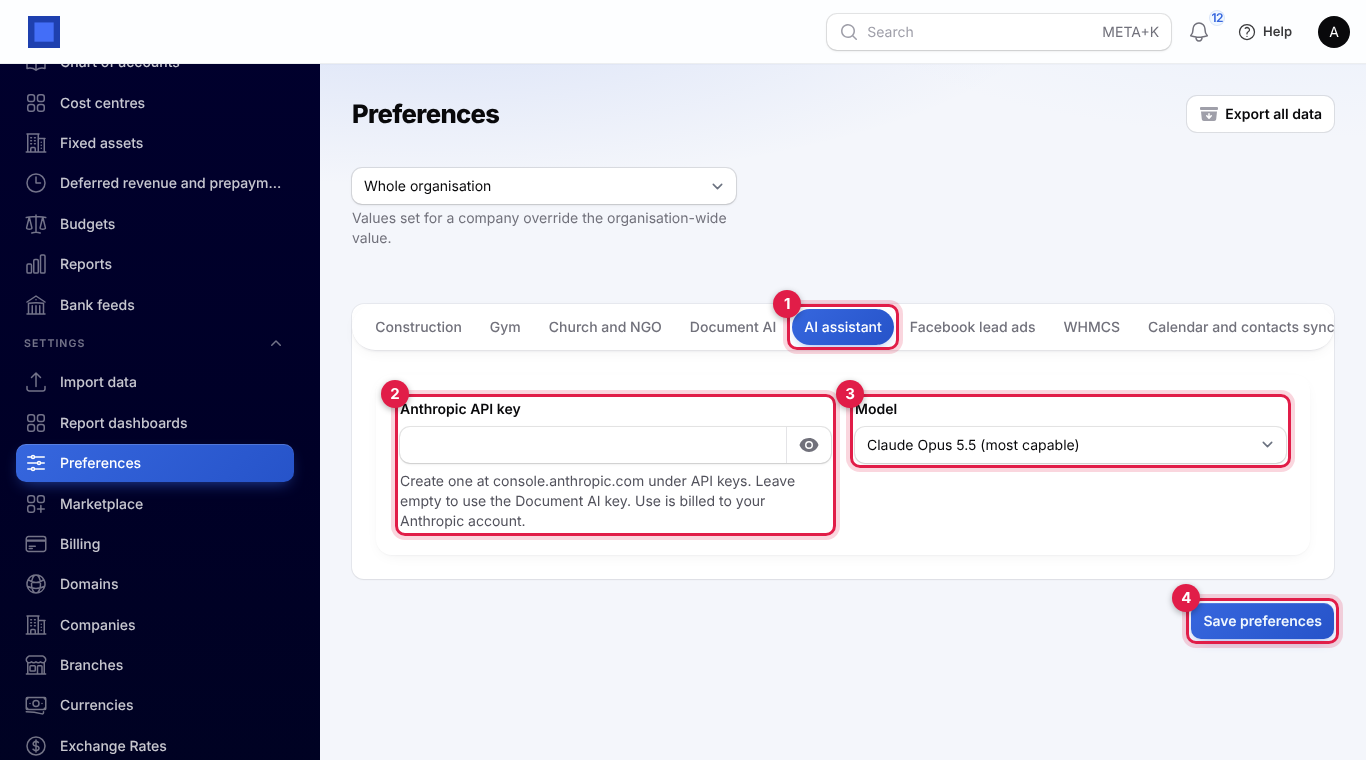
The model here is used for Ask AI, the forecast summary and drafted replies. Document AI keeps its own model setting.
Without any key, Ask AI shows "Add your Anthropic API key under Settings → Preferences → AI assistant to start asking questions. If you already use Document AI, its key is used.", and the question box, the example questions and Explain this forecast are greyed out.
Ask AI
- In the menu, click Ask AI (marker 1).
- Click one of the example questions (marker 2), or type your own in the box (marker 3), up to 2,000 characters.
- Click Ask (marker 4) or press Enter. "Looking at your records…" shows while the assistant looks up the figures.
- Read the answer. It leads with the answer, then a few short points, with amounts written in full, for example KES 12,500.00.
- Ask a follow-up, such as "and last month?". The assistant remembers the conversation so far (the last ten questions and answers).
- Click Start over to clear the conversation and begin a new one.
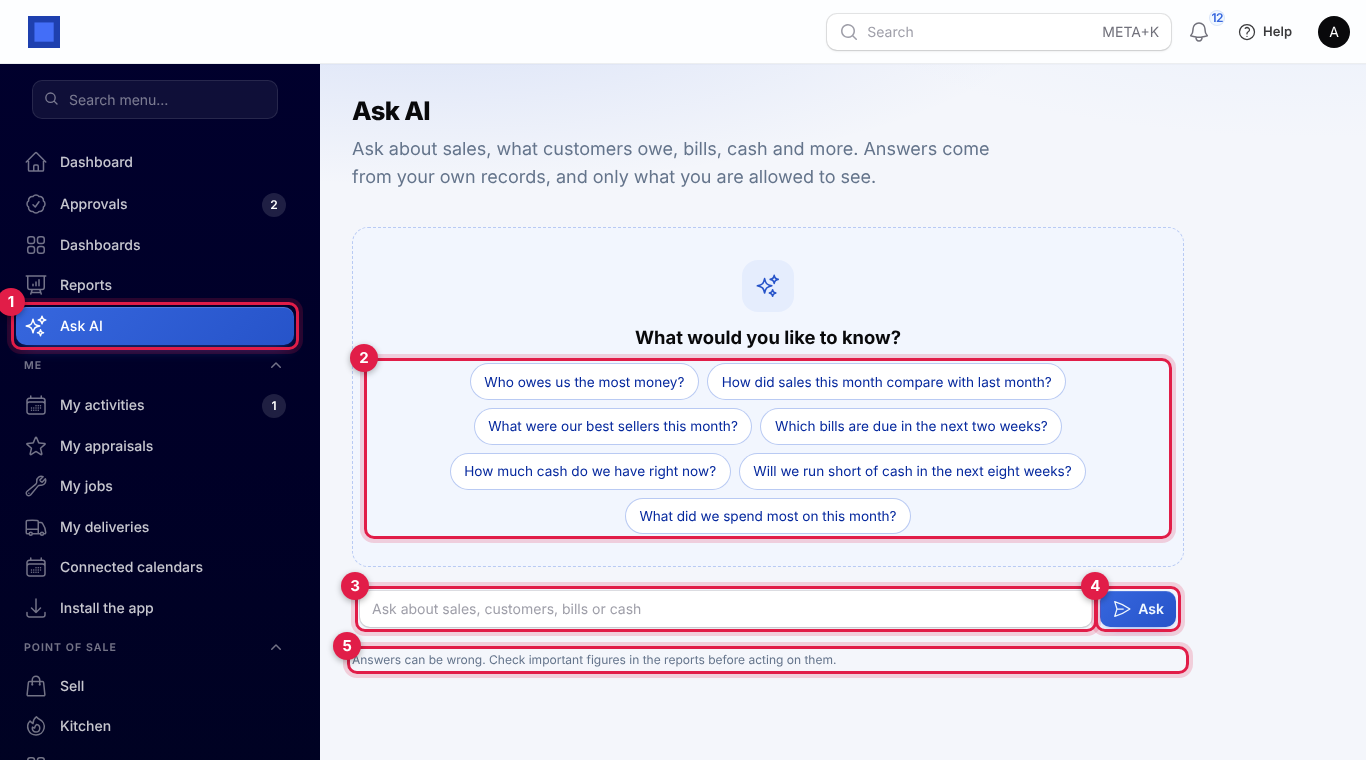
The example questions you see depend on what your role can see. Ask in English, Swahili, French or any other language: the answer comes back in the language you asked in.
The conversation is not saved. Leaving or reloading the page clears it.
Important: Answers can be wrong (marker 5). Check important figures in the reports before you act on them.
What it can see
The assistant cannot browse your database. For each question it uses a small set of ready-made lookups that return totals and short lists, and only those your role and your apps allow:
| Lookup | What it returns | Needs |
|---|---|---|
| What customers owe | Total outstanding and overdue, and the customers who owe the most with their oldest due date. | Invoicing app and invoicing.view |
| Overdue invoices | The most overdue invoices: number, customer, due date, days late and amount due. | Invoicing app and invoicing.view |
| Sales in a period | Sales before and after tax, number of invoices and the top customers, with the same figures for the period before. | Invoicing app and invoicing.view |
| Best sellers | The best-selling products and services in a period, by revenue, with quantities. | Invoicing app and invoicing.view |
| Cash forecast | Money expected in and out, week by week (as on the cash forecast). | Invoicing app and invoicing.view |
| What you owe suppliers | Total outstanding and overdue, bills due in the next 14 days and the suppliers owed the most. | Purchases app and bills.view |
| Cash position | Today's balance of each bank, cash and mobile money account in the books. | Accounting app and accounting.view |
| Profit and loss | Income, expenses by category and net profit for a period. | Accounting app and accounting.reports |
| Find a customer or supplier | Contact details, payment terms and what they owe or are owed. | Contacts app and contacts.view |
So a sales person without accounting permissions can ask about invoices and customers but gets no bank balances, and the example questions about cash and spending are not shown to them. If your role has none of these, the page says "Your role does not include any figures the assistant can read. Ask an administrator to give you access to invoices, bills or accounting.", and the assistant can only answer general questions about using NaliSuite.
Figures are for your default company, in its currency. Sales are issued invoices (not drafts or cancelled ones). When no dates are given, a period means the current month to today.
The assistant only reads. It cannot create, change, send or delete anything; if you ask it to, it tells you which screen does it.
When something goes wrong
Messages appear in red in the conversation and are not counted as part of it.
| Message | What to do |
|---|---|
| Add your Anthropic API key under Settings → Preferences → AI assistant first. | Add a key (see above), or add the Document AI key. |
| Anthropic refused the API key. Check it under Settings → Preferences → AI assistant. | The key is wrong, or was deleted or disabled on the Anthropic console. Paste a valid key and save. If the assistant's own key is empty, it is the Document AI key that was refused. |
| Anthropic is busy or your account has reached its limit. Try again in a minute. | Wait a minute and ask again. If it keeps happening, check your usage limits on the Anthropic console. |
| Could not reach Anthropic. Try again in a minute. | A connection problem. Ask again in a minute. |
| Anthropic could not answer: … | Anthropic's own reason follows. If it says your credit balance is too low, add credit on the Anthropic console. |
| That question needed too many lookups. Try asking something narrower. | Ask about one thing at a time, for example one period or one customer. |
| Claude would not answer that. Try asking another way. / No answer came back. Try asking another way. | Rephrase the question. |
The cash forecast
The cash forecast shows the money expected in from customer invoices and out to supplier bills, week by week by due date, starting from the cash you have today. It does not need an API key, except for Explain this forecast.
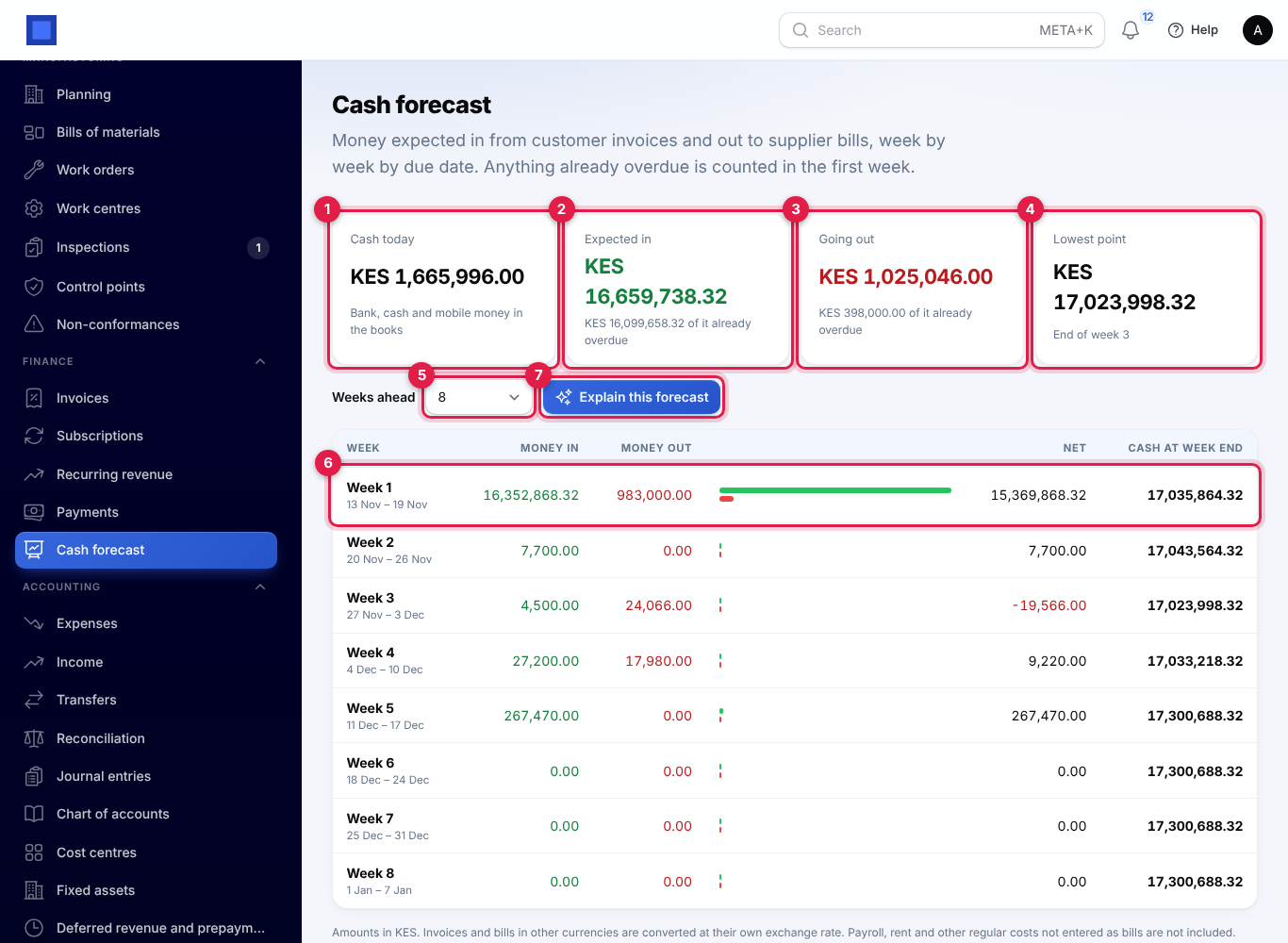
- In the menu, open Finance → Cash forecast.
- Read the four cards:
- Cash today (marker 1): the balance of your bank, cash and mobile money accounts in the books. Without the Accounting app it shows "—" and "Turn on Accounting to start from your real balance", and the forecast starts from zero.
- Expected in (marker 2): what customers owe on unpaid invoices due in the period, with how much of it is already overdue.
- Going out (marker 3): what you owe on unpaid supplier bills due in the period, with how much is already overdue. It needs the Purchases app.
- Lowest point (marker 4): the lowest cash at the end of any week, and which week. It turns red if it goes below zero.
- Choose how many Weeks ahead (marker 5): 4, 8 (the default), 13 or 26.
- Read the table: each week's dates, Money in, Money out, bars comparing the two, the Net and the Cash at week end (marker 6). Negative amounts are red.
- Click Explain this forecast (marker 7) for a short summary in plain words under What this means: whether cash runs short and when, the biggest weeks in and out, what the overdue money means, and one or two practical steps, such as which overdue money to chase. "Reading the forecast…" shows while it is written.
How the figures are worked out:
- Each unpaid invoice and bill counts in the week it is due. Anything already overdue is counted in week 1, on the assumption that it is paid or collected now.
- Invoices and bills in another currency are converted at their own exchange rate into your company's currency.
- Only invoices and bills are included. Payroll, rent and other regular costs that are not entered as bills are not, so the real outlook is usually tighter than the table.
The summary is written by AI from the figures in the table, in the language you use NaliSuite in. Check it before you act on it. Changing Weeks ahead clears the summary; click Explain this forecast again for the new period. If something goes wrong, the same messages as for Ask AI appear in red above the table.
Tip: Large overdue amounts in Expected in make the first week look better than it will be. Chase them, or look at the weeks after week 1 for a more cautious view.
Draft helpdesk replies with AI
Support agents can have a reply written for them from the ticket's conversation, then check, edit and send it. See Helpdesk for working on tickets.
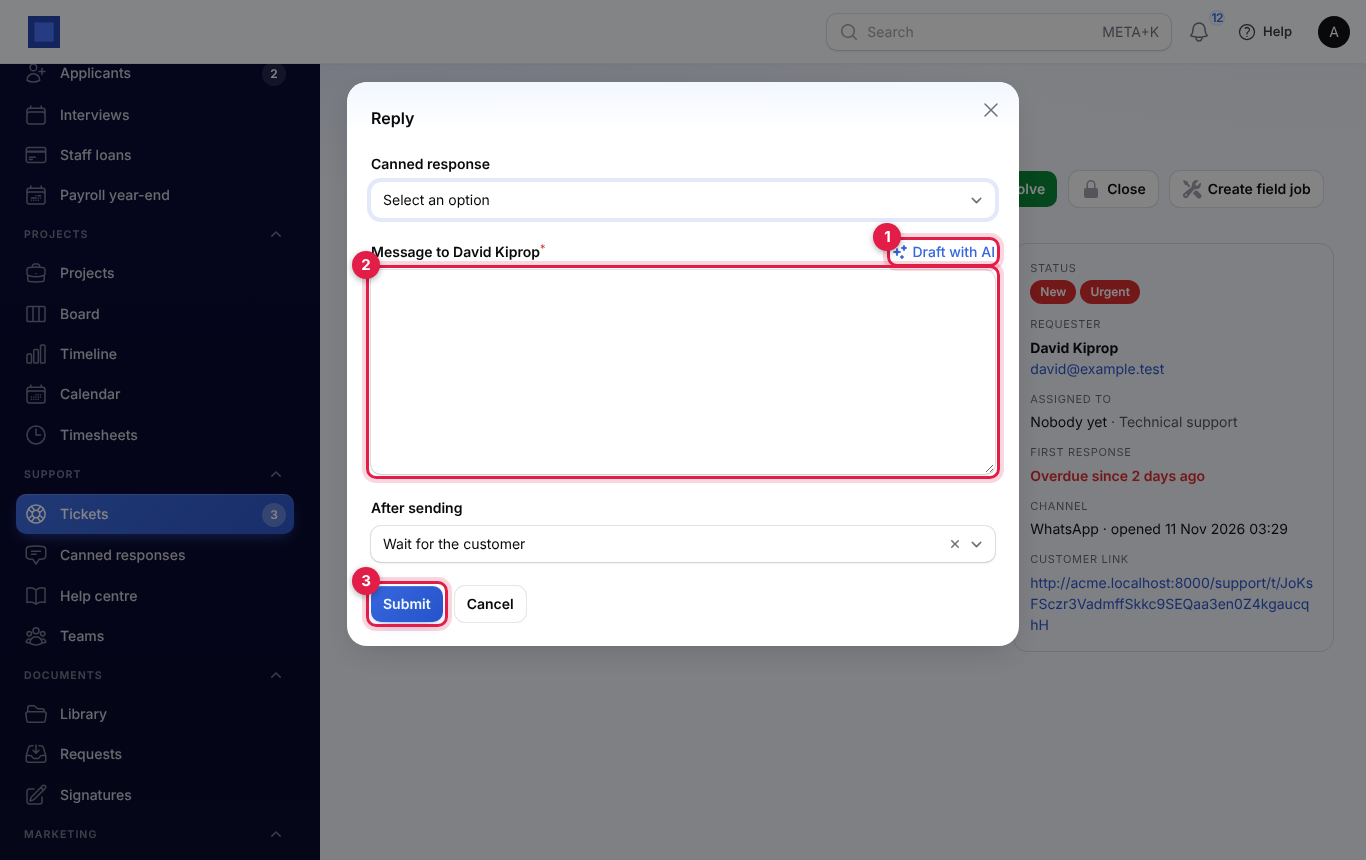
- Open a ticket and click Reply.
- Above the message box, click Draft with AI (marker 1).
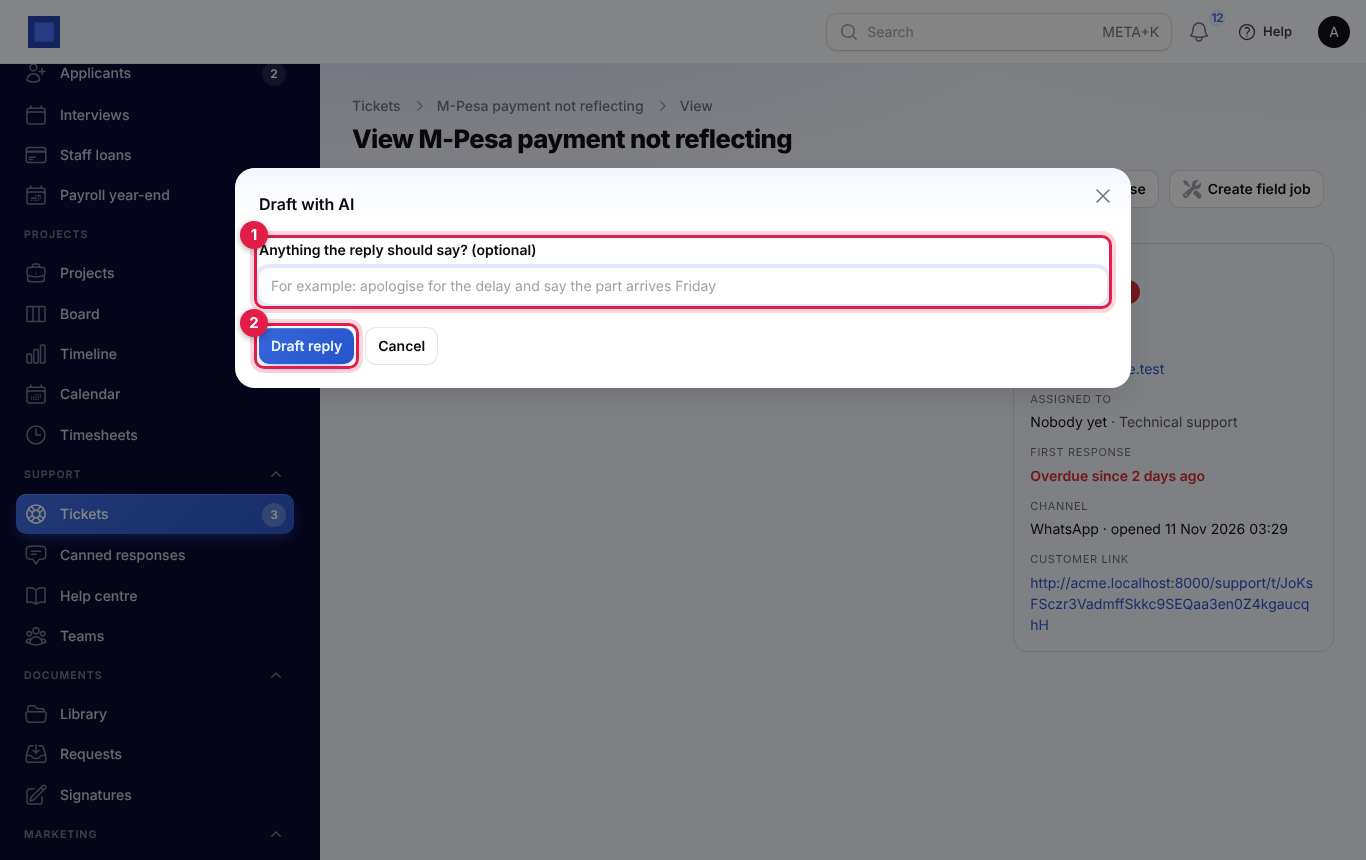
- If you want, type what the reply should say in Anything the reply should say? (optional) (marker 1), for example "apologise for the delay and say the part arrives Friday". Up to 500 characters.
- Click Draft reply (marker 2).
- The draft is put in the message box (marker 2 in the reply window), replacing anything typed there. It has a greeting with the customer's first name, the answer and a sign-off with your first name, in the language the customer wrote in.
- Read it and change anything that is not right. Then choose After sending and click Submit (marker 3) to send it, as for any reply.
What the draft is based on: the ticket number and subject, the customer's name, the channel and the last 30 messages of the conversation. Internal notes are used as background but never quoted to the customer. The draft does not promise refunds or dates that the conversation does not support; where something must be checked, it says the team is checking.
Nothing is sent until you click Submit. If drafting fails, a red message gives the reason (the same messages as for Ask AI) and the message box is left as it was.
Draft with AI shows only when the AI business assistant is on and you have ai_assistant.use.
Cost and privacy
What does it cost? Every question, forecast summary and drafted reply is billed by Anthropic to your own Anthropic account, at the price of the model you chose. A question can take a few requests when the assistant looks up several figures for it, and a follow-up resends the earlier conversation, so long conversations cost more than short ones. NaliSuite does not add a charge per question; the module itself is billed like any marketplace app. Claude Sonnet 5.5 costs less than Claude Opus 5.5, and Claude Haiku 5.5 costs least. Set a monthly spending limit on the Anthropic console.
What is sent to Anthropic? Only what each task needs, with your API key:
- For Ask AI: your question, the conversation so far, your name, your company's name and currency, today's date, and the results of the lookups it made (totals, and names, amounts and dates of the customers, suppliers and documents in them).
- For Explain this forecast: your company's name and currency and the forecast figures; no customer or supplier names.
- For Draft with AI: the ticket's subject, the customer's name, the channel, the last 30 messages including internal notes, your name and your instructions.
Nothing else from your workspace is sent, and the assistant never changes your records. Your API key is stored encrypted.
Who sees what? Each person only gets figures their own role allows (see What it can see under Ask AI). The conversation is visible only to the person asking and is not saved.
Good to know
Is it always right? No. It uses only the figures its lookups return and is told never to guess a number, but it can still misread a question. Check important figures in Reports or the financial reports before acting on them.
Which company does it answer for? Your default company. Use Reports for other companies.
Can it answer questions about stock, payroll or projects? Not yet. It can read invoices and sales, supplier bills, bank and cash balances, profit and loss and contacts. For anything else it says what is missing and where in NaliSuite to look.
Why does a colleague see different example questions? The examples are only those their role can answer. Someone without accounting.view, for example, does not see "How much cash do we have right now?".
Does the cash forecast need Ask AI? No. The table and cards are worked out by NaliSuite itself. Only Explain this forecast uses Anthropic.
Can I switch the model to save money? Yes, under Settings → Preferences → AI assistant. Try Claude Sonnet 5.5 and compare a few answers before you rely on it.