Google and Microsoft 365 sync
Google and Microsoft 365 sync links NaliSuite with each person's own Google Calendar and Google Contacts, or Outlook calendar and contacts in Microsoft 365. Appointments, CRM follow-ups, field service jobs and interviews appear in their calendar on their phone; the times they are busy in that calendar are kept out of online booking; and customers and suppliers can stay in step with their address book both ways. An administrator sets it up once under Settings → Preferences, then each person connects their own account under Me → Connected calendars.
Google and Microsoft 365 sync is a marketplace module. The owner switches it on under Settings → Marketplace (search for Google). It needs the Contacts app, which every workspace has.
Note: Your workspace uses its own Google and Microsoft apps. NaliSuite does not share one app between businesses, so before anyone can connect, an administrator must create an app with Google, Microsoft or both and enter its details in NaliSuite. This takes about 15 minutes and is done once.
Step 1: Create your app with Google or Microsoft (administrator, once)
These steps happen on Google's and Microsoft's own websites, not in NaliSuite. Their screens change from time to time, so follow their current help pages; what you need from each is listed here.
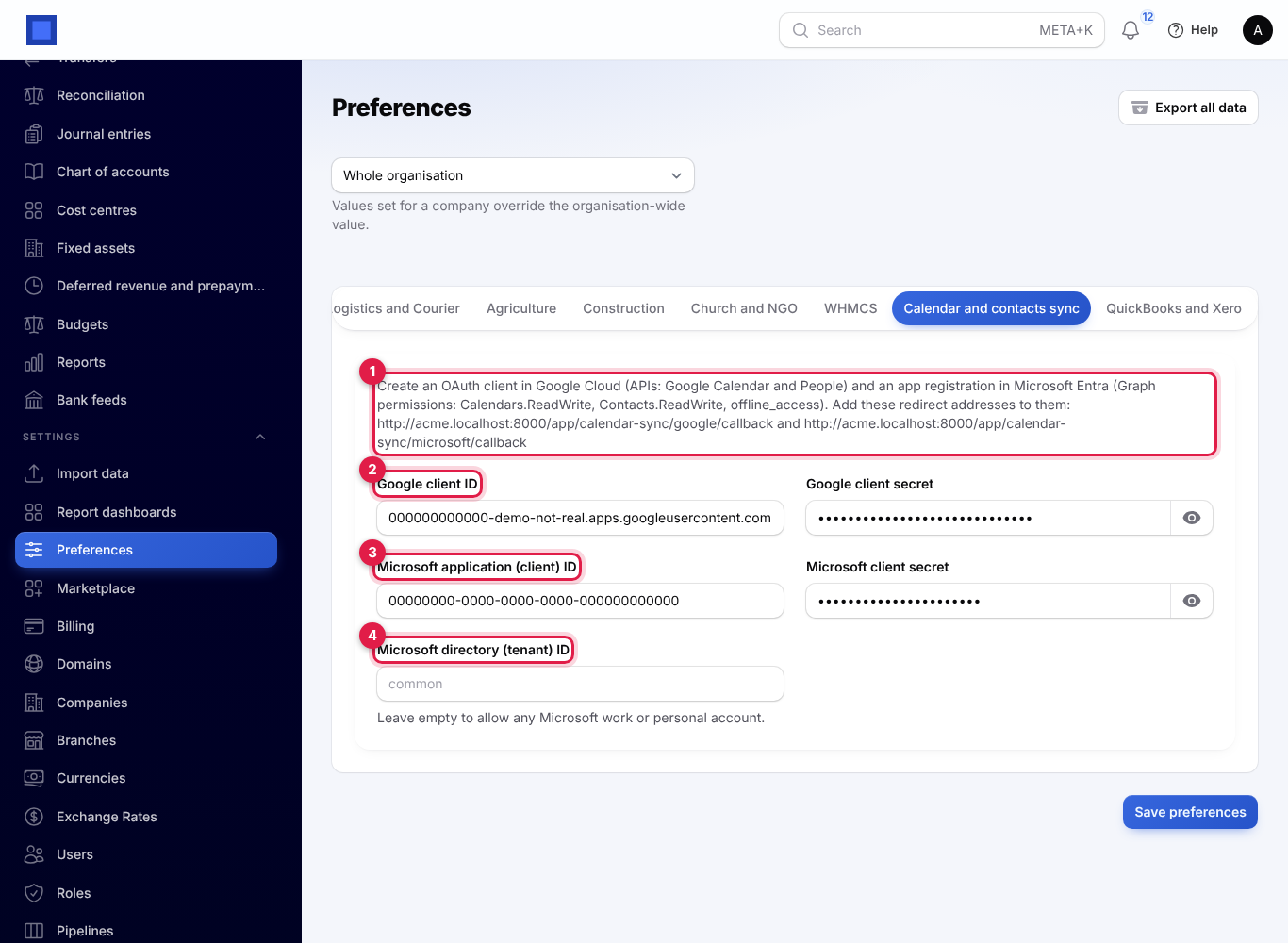
First open Settings → Preferences, click the Calendar and contacts sync tab and copy the two redirect addresses shown at the top (marker 1 in the screenshot under Step 2). They are your workspace address followed by:
/app/calendar-sync/google/callbackfor Google/app/calendar-sync/microsoft/callbackfor Microsoft
Google Workspace or Gmail
In the Google Cloud console (console.cloud.google.com), signed in with your business Google account:
- Create a project (or use an existing one) for NaliSuite.
- Turn on two APIs for the project: Google Calendar API and People API (for contacts).
- Set up the OAuth consent screen with your business name. For a Google Workspace organisation, choose Internal so only your staff can connect.
- Create an OAuth client ID of type Web application and add the Google redirect address above as an authorised redirect URI.
- Copy the Client ID and Client secret.
Microsoft 365
In the Microsoft Entra admin centre (entra.microsoft.com), signed in as a Microsoft 365 administrator:
- Under App registrations, register a new application for NaliSuite.
- Add the Microsoft redirect address above as a Web redirect URI.
- Under API permissions, add the Microsoft Graph delegated permissions Calendars.ReadWrite, Contacts.ReadWrite and offline_access, and grant admin consent for your organisation.
- Under certificates and secrets, create a client secret. Note its expiry date: you must create a new one and update NaliSuite before it expires.
- Copy the Application (client) ID, the secret's Value and, if you want only your own staff to connect, the Directory (tenant) ID.
Step 2: Enter the app details in NaliSuite (administrator, once)
- In the menu, open Settings → Preferences.
- Click the Calendar and contacts sync tab. The text at the top (marker 1) lists the permissions you need and your two redirect addresses.
- Fill in the details and click Save preferences.
| Setting | What to enter |
|---|---|
| Google client ID (marker 2) | The client ID from Google Cloud, ending in .apps.googleusercontent.com. |
| Google client secret | The client secret from Google Cloud. Stored encrypted; click the eye to check what you typed. |
| Microsoft application (client) ID (marker 3) | The application ID from Microsoft Entra. |
| Microsoft client secret | The secret's value from Microsoft Entra. Stored encrypted. |
| Microsoft directory (tenant) ID (marker 4) | Optional. Your organisation's tenant ID limits sign-in to your own Microsoft 365 accounts. Leave empty to allow any Microsoft work or personal account. |
Fill in only Google, only Microsoft, or both. A provider appears on Connected calendars only once its client ID and secret are filled in.
Step 3: Connect your calendar (each person)
- In the menu, open Me → Connected calendars.
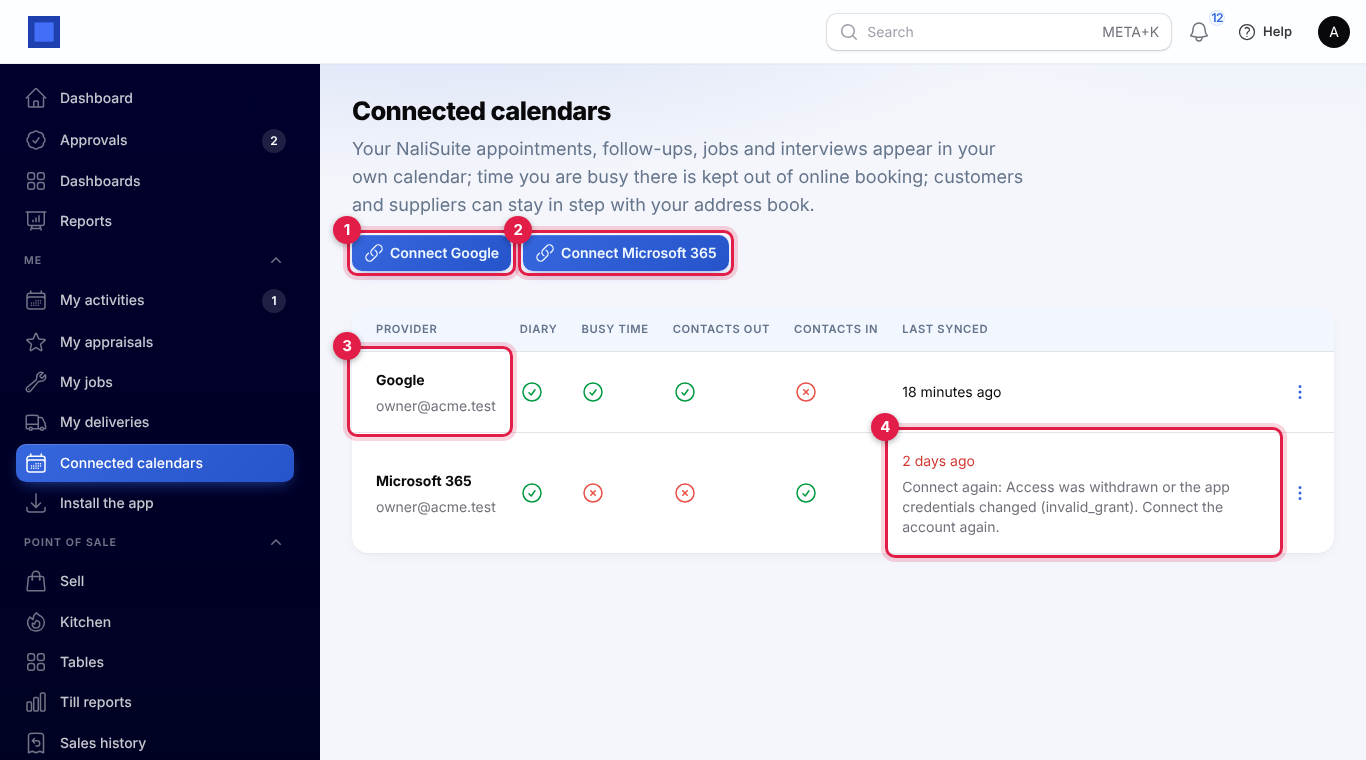
- Click Connect Google (marker 1) or Connect Microsoft 365 (marker 2).
- You are taken to Google's or Microsoft's sign-in page. Sign in with your work account and allow NaliSuite to manage your calendar and contacts. (This screen belongs to Google or Microsoft and shows your business's app name.)
- You come back to Connected calendars with "Google · you@yourbusiness.co.ke connected". Your account is listed (marker 3).
If you click Cancel or Deny on Google's or Microsoft's page, you come back with "Access was not allowed: …" and nothing is connected.
The list shows, for each connected account, whether NaliSuite copies your Diary, reads your Busy time, sends Contacts out and brings Contacts in, and when it Last synced. A problem shows in red under Last synced (marker 4).
Tip: If the page says "No calendar connected" and "An administrator first adds the workspace's Google or Microsoft app…", Step 2 has not been done yet.
What is synced
| What | Direction | Details |
|---|---|---|
| Your diary | NaliSuite → your calendar | Appointments where you are the linked staff member (Appointment Booking), open CRM follow-ups assigned to you, field service jobs where you are the technician, and interviews where you are the interviewer. From yesterday to 60 days ahead. A moved record moves its calendar entry; a cancelled, completed or deleted one is removed. |
| Busy time | Your calendar → NaliSuite | The times you are busy in your own calendar, for the next 60 days. Online booking and staff booking stop offering those times for you. Only the start and end are read, never what the event is. Entries marked "free" and the entries NaliSuite itself added are ignored. |
| Contacts out | NaliSuite → your address book | Customers and suppliers who have an email or phone number. Off until you switch it on. |
| Contacts in | Your address book → NaliSuite | Your address-book contacts, matched to NaliSuite contacts by email, then by the last nine digits of the phone. A match only fills in what NaliSuite is missing; anyone new is added as a contact. Off until you switch it on. |
After the first sync, a change on one side is copied to the other. When the same contact was changed on both sides, NaliSuite's version is kept.
Sync runs by itself every 15 minutes for everyone who is connected.
Choose what to sync
- On Me → Connected calendars, click ⋮ on your account.
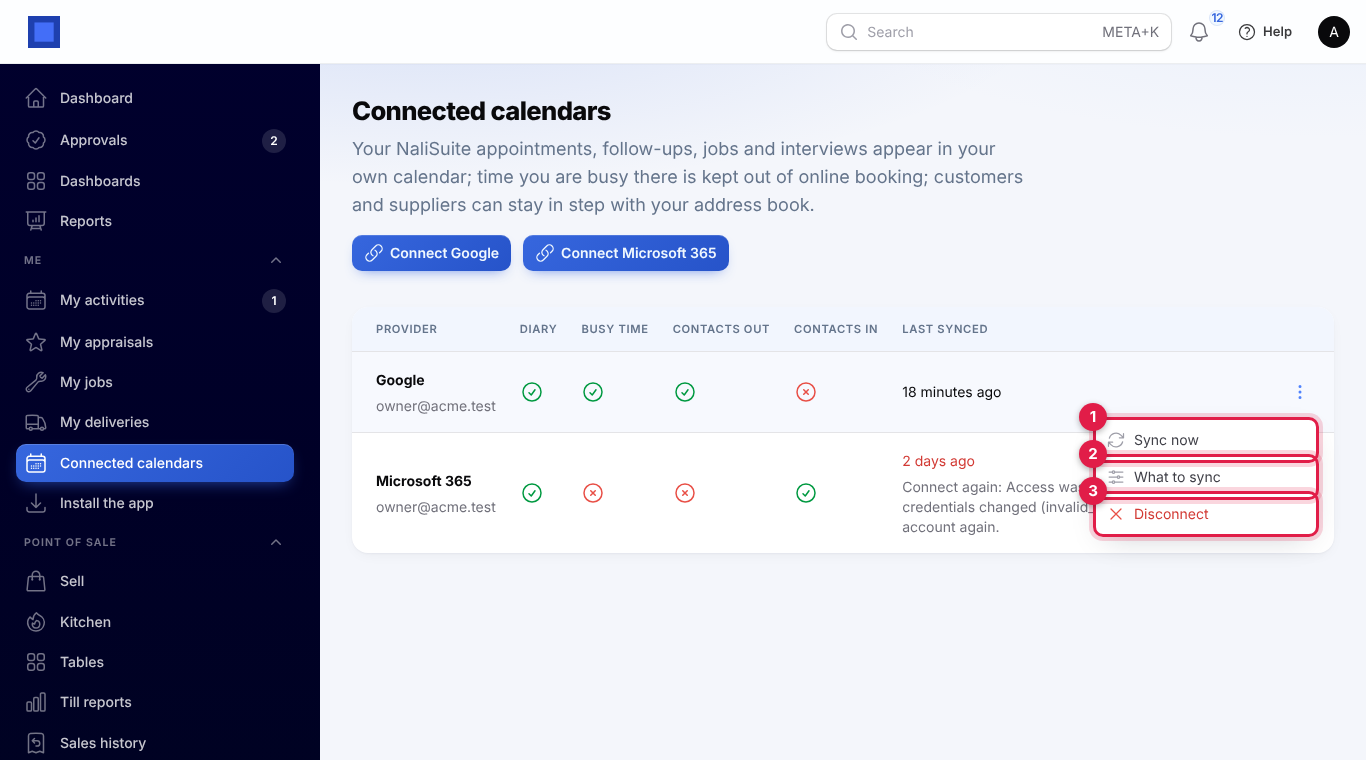
- Click What to sync (marker 2).
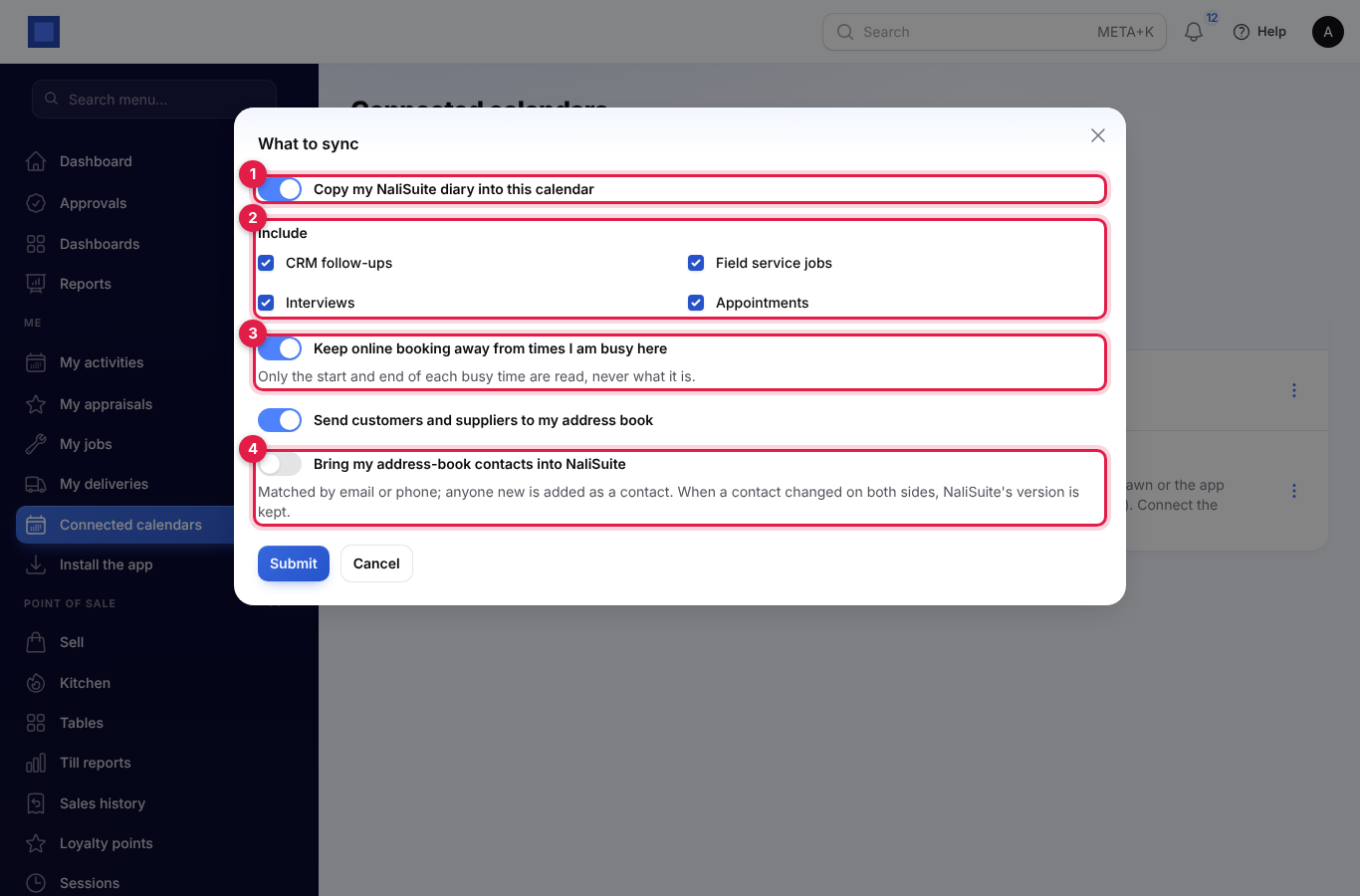
- Change the switches and click Submit.
| Switch | What it does |
|---|---|
| Copy my NaliSuite diary into this calendar (marker 1) | On by default. Switch off to stop copying entries. |
| Include (marker 2) | Appears while the diary switch is on. Tick which kinds of entry to copy: CRM follow-ups, Field service jobs, Interviews, Appointments. Only the apps your workspace uses are listed. |
| Keep online booking away from times I am busy here (marker 3) | On by default. Reads your busy times so customers cannot book you then. |
| Send customers and suppliers to my address book | Off by default. |
| Bring my address-book contacts into NaliSuite (marker 4) | Off by default. Matched by email or phone; anyone new is added as a contact. |
Tip: Think before switching on Bring my address-book contacts into NaliSuite on a personal phone: family and friends in your address book become contacts in the business.
Sync now
Click ⋮ → Sync now (marker 1 in the actions screenshot) to sync straight away instead of waiting up to 15 minutes. You see what happened, for example "Synced: 3 added, 1 updated, 0 removed in your calendar; 5 busy times; 0 contacts in, 12 out."
When an account needs connecting again
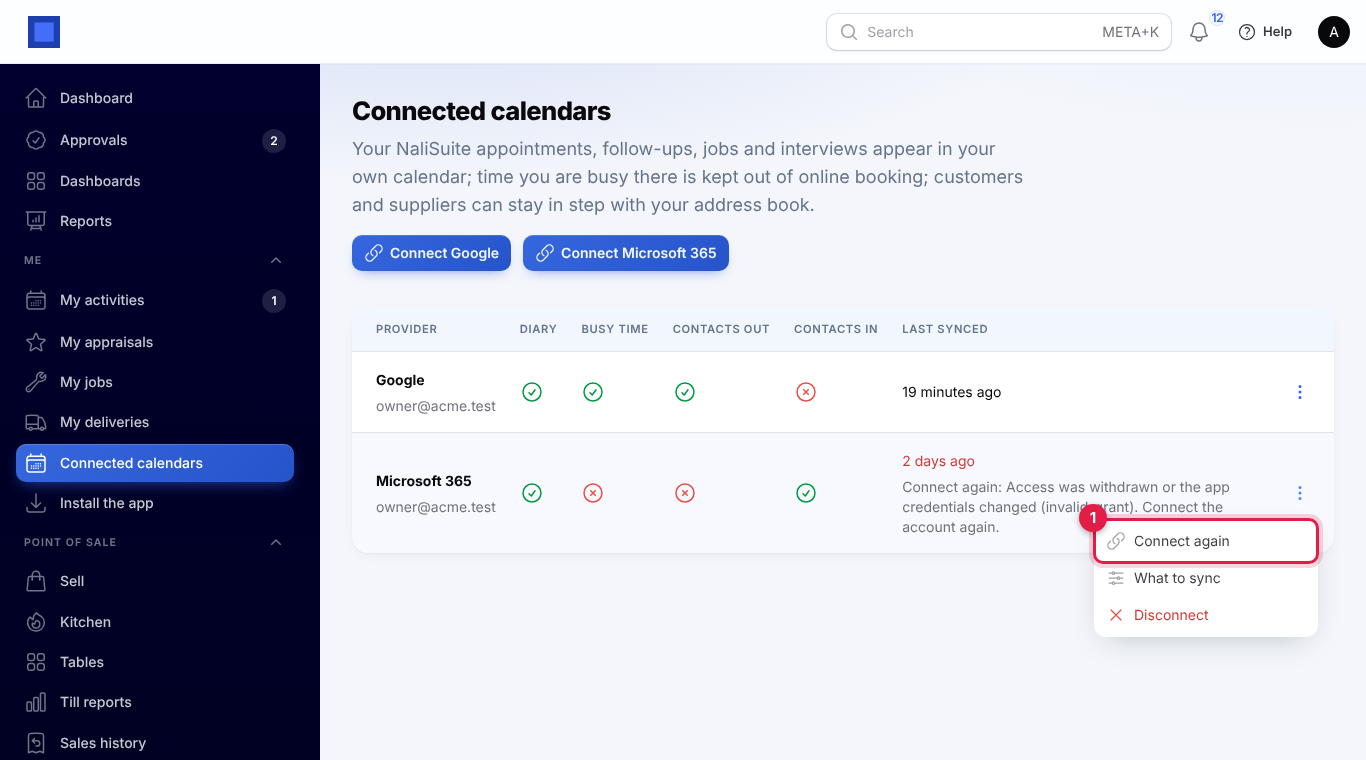
If the password changes, access is withdrawn in Google or Microsoft, or the administrator replaces the app secret, the account shows "Connect again: …" in red (marker 4 in the Connected calendars screenshot) and the 15-minute sync skips it.
- Click ⋮ on the account.
- Click Connect again (marker 1) and sign in to Google or Microsoft again.
Disconnect
- Click ⋮ → Disconnect (marker 3 in the actions screenshot).
- Leave Also remove the events NaliSuite added to this calendar (marker 1) on to delete the entries NaliSuite created in your calendar, or switch it off to keep them as they are.
- Click Confirm (marker 2).
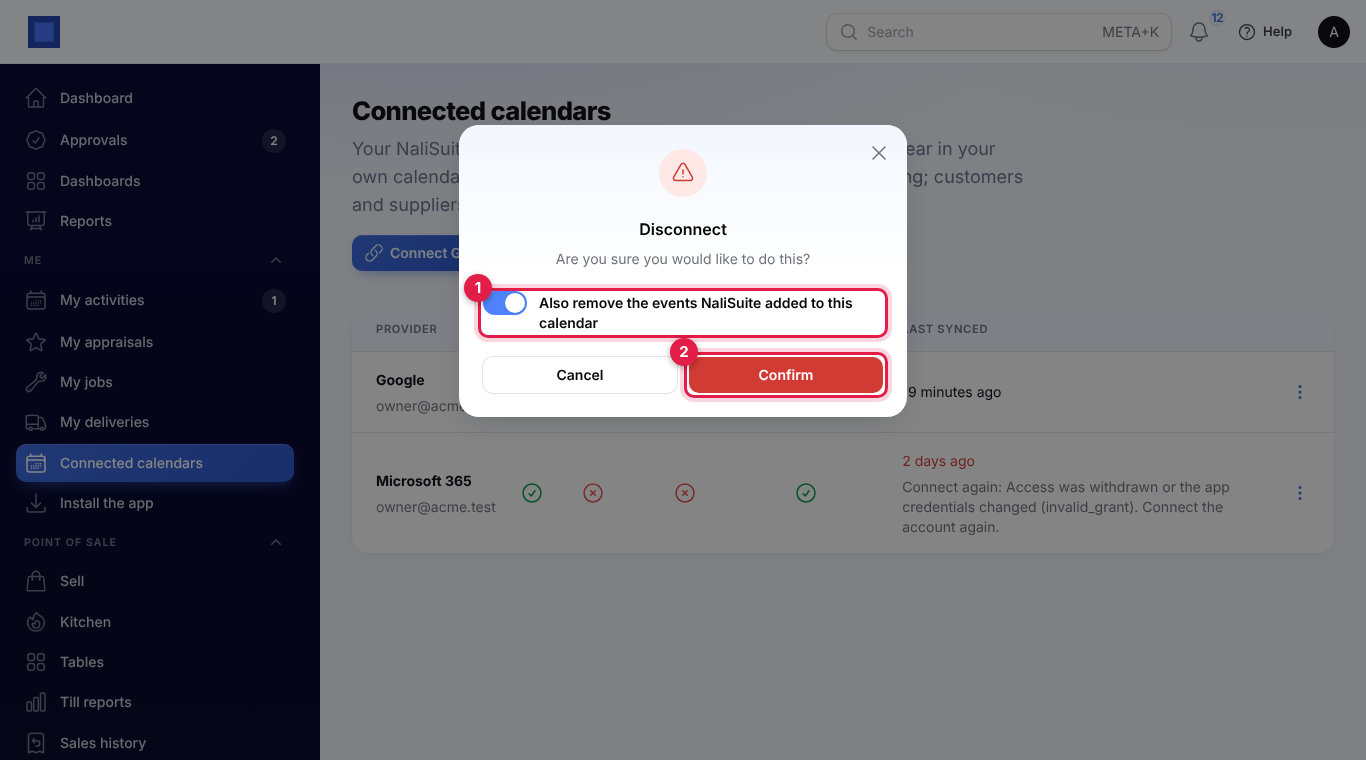
The account is removed from NaliSuite. Contacts already copied either way stay where they are. To also remove NaliSuite's access on Google's or Microsoft's side, remove it in your Google account security settings or your Microsoft account's app permissions.
Common questions
Do I see the details of other people's calendars? No. Each person connects their own account, and busy times are read as start and end only.
Why does a customer still see a time I am busy? Keep online booking away from times I am busy here must be on, the event must be marked busy (not free) in your calendar, and the next sync must have run. Click Sync now to check.
Can I edit a NaliSuite entry in my calendar? Change it in NaliSuite. The calendar copy is updated at the next sync; changes made only in the calendar are overwritten.
We use both Google and Microsoft. Is that a problem? No. Fill in both apps in Preferences; each person connects the one they use. One person can even connect both.
What happens when the Microsoft client secret expires? Everyone on Microsoft shows Connect again. Create a new secret in Microsoft Entra, enter it under Settings → Preferences → Calendar and contacts sync, then each person clicks Connect again.