Coworking
Coworking is for coworking spaces, business centres and shared offices. You set up your hot desks, dedicated desks, private offices, meeting rooms and event space, sell day passes, packs of days and monthly plans, and keep company accounts with several members on one bill. Members check in at a kiosk with their code, book meeting rooms from the portal using the room hours in their plan, and run up extras such as printing and coffee. Guests book a room on a public page and pay online. An occupancy dashboard and reports show how full the space is, how the rooms are used and what each kind of space earns.
Everything is in the Coworking group of the left menu: Occupancy, Members, Accounts, Room bookings, Extras, Guests, Spaces, Plans and Reports.
Note: coworking.view lets someone see members, accounts, bookings, extras, guests, spaces, plans, the occupancy dashboard and the reports. coworking.manage is needed to add and change them, check members in and out, sell passes, change plans, book and cancel rooms, add extras, register guests and raise invoices. Owners and admins have both; the member role has coworking.view. Set permissions under Settings → Roles (see Roles and permissions).
Switch it on
Coworking is a marketplace app. It needs the Contacts, Invoicing and Subscriptions apps. Turn on the Customer portal so members can book rooms and register guests, and Visitors if reception signs guests in there (see Visitor management). Guests pay for rooms online through your payment gateway (see Get paid online with the pay link).
- Open Settings → Marketplace and type Coworking in the Search add-ons… box (marker 1).
- On the Coworking card (marker 2), click Start free trial (or Add to subscription) and confirm. The Coworking group appears in the menu.
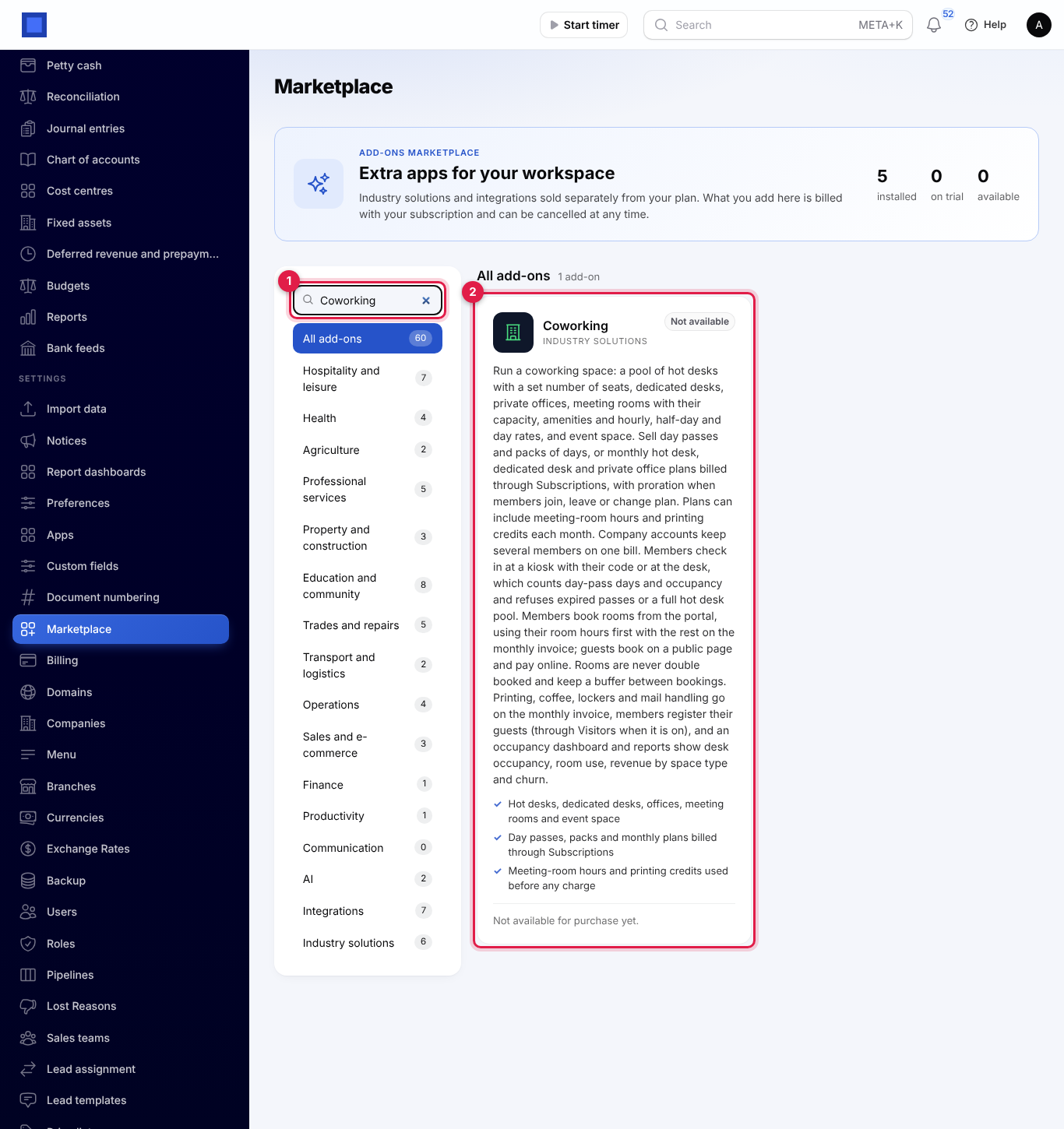
If the card says Not available for purchase yet, ask NaliSuite support to switch it on. See Billing and marketplace.
Settings
Open Settings → Preferences and click the Coworking tab (marker 1). Click Save preferences when you are done.
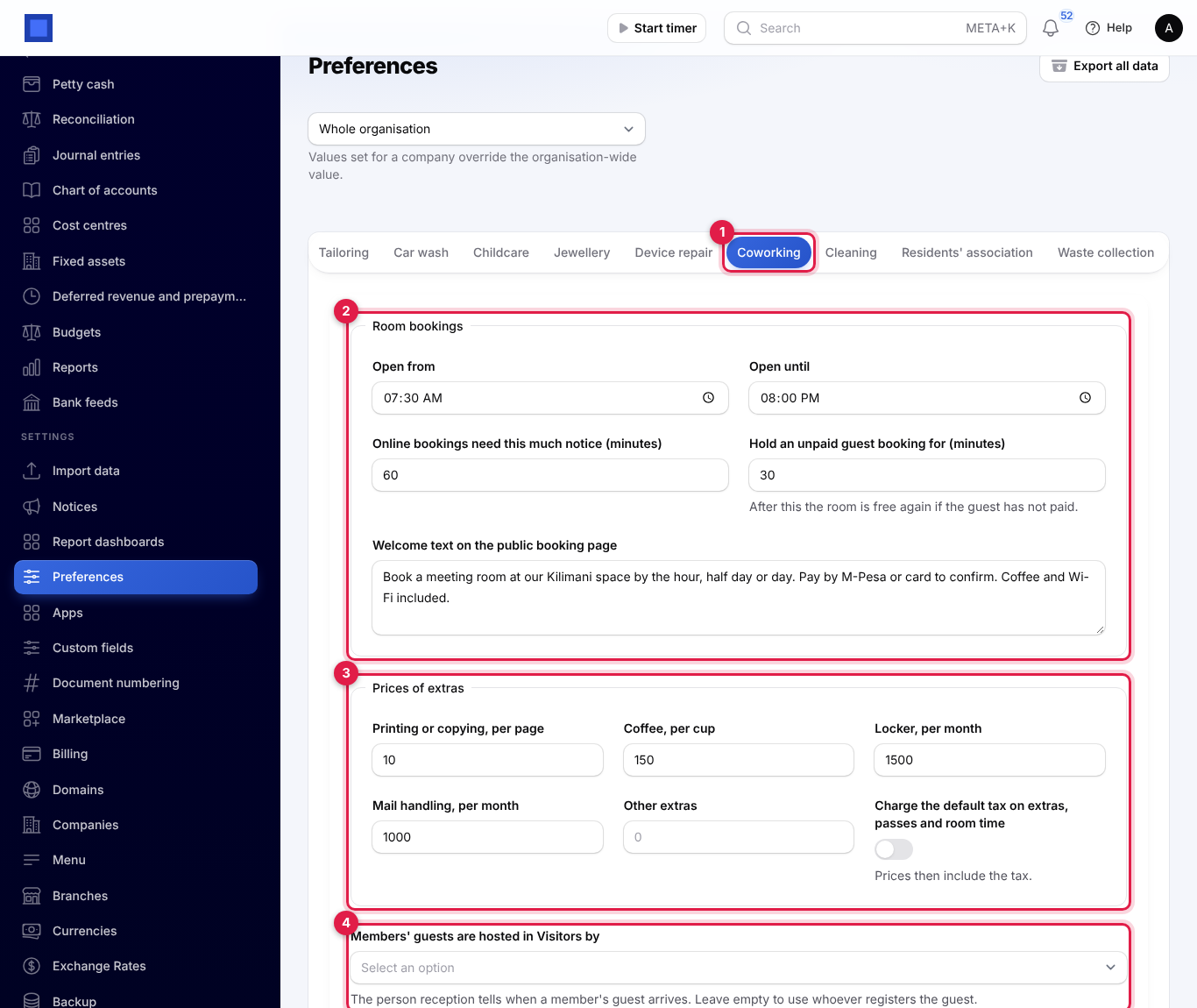
Room bookings (marker 2)
| Setting | What it does |
|---|---|
| Open from / Open until | The hours members and guests can book rooms. Default 08:00 to 18:00. Staff can book outside them. |
| Online bookings need this much notice (minutes) | How far ahead a booking from the portal or the public page must start. Default 60. |
| Hold an unpaid guest booking for (minutes) | After this, a guest's room is free again if they have not paid. Default 30. |
| Welcome text on the public booking page | Shown above the rooms. |
Prices of extras (marker 3)
| Setting | What it does |
|---|---|
| Printing or copying, per page, Coffee, per cup, Locker, per month, Mail handling, per month, Other extras | The prices used when you add an extra without typing a price. |
| Charge the default tax on extras, passes and room time | Off by default. When on, the prices include your default tax. |
Members' guests are hosted in Visitors by (marker 4) shows when the Visitors app is on: the person reception tells when a member's guest arrives. Leave it empty to use whoever registers the guest.
Spaces
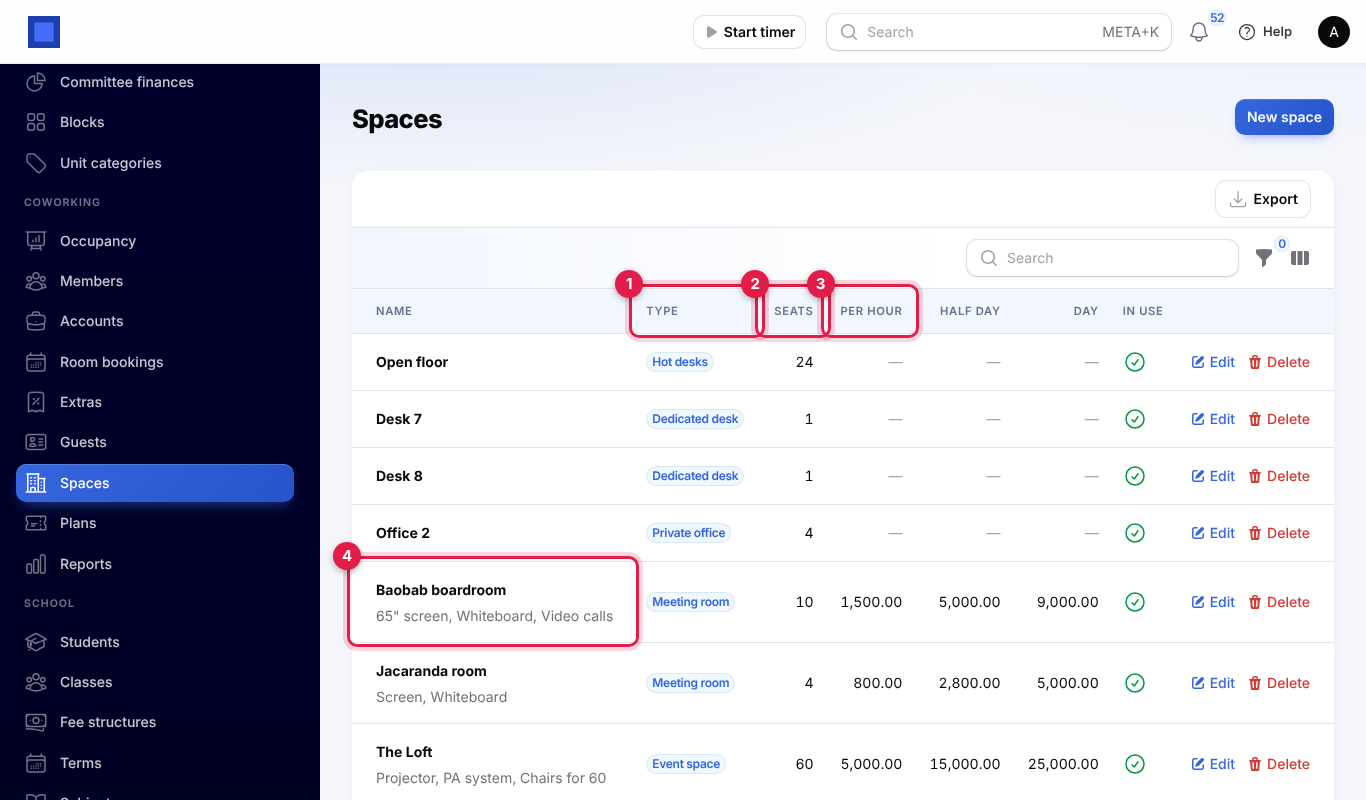
Open Coworking → Spaces and click New space. Each space has a Name and a Type (marker 1):
- Hot desks: one pool of shared desks. Number of hot desks is how many there are; check-ins are refused when they are all taken.
- Dedicated desk and Private office: given to a member or a company. Seats counts towards desk occupancy.
- Meeting room and Event space: bookable by the hour.
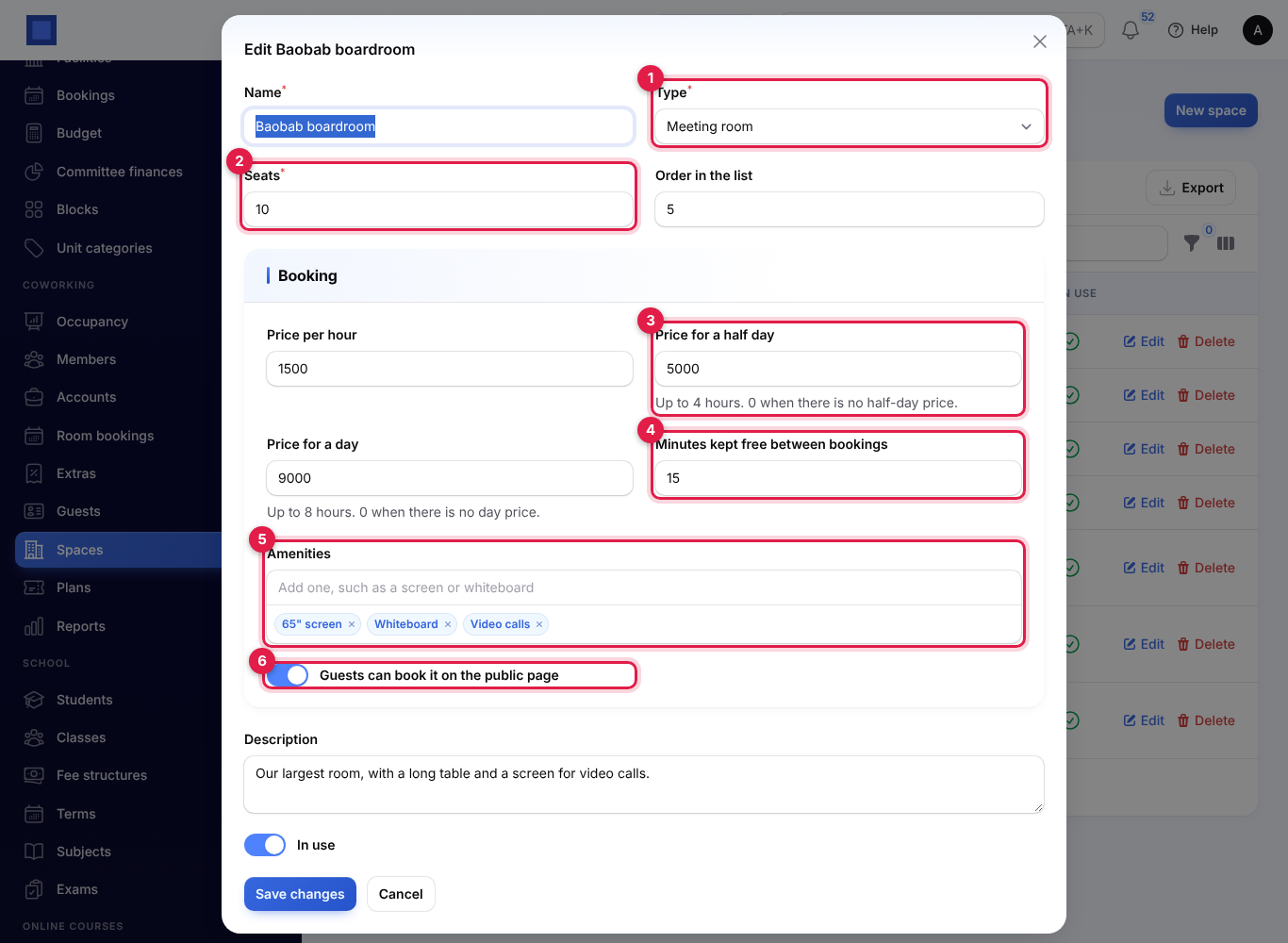
For a meeting room or event space, also fill in the Booking section:
- Seats (marker 2): no booking can have more people.
- Price per hour, Price for a half day (marker 3; up to 4 hours) and Price for a day (up to 8 hours). Enter 0 when there is no half-day or day price. A booking costs the cheapest of these, and longer bookings are whole days plus the rest.
- Minutes kept free between bookings (marker 4): default 15, so cleaners can reset the room.
- Amenities (marker 5): type one, such as Screen or Whiteboard, and press Enter.
- Guests can book it on the public page (marker 6).
Add a Description, set the Order in the list, and turn off In use to stop using a space.
Plans
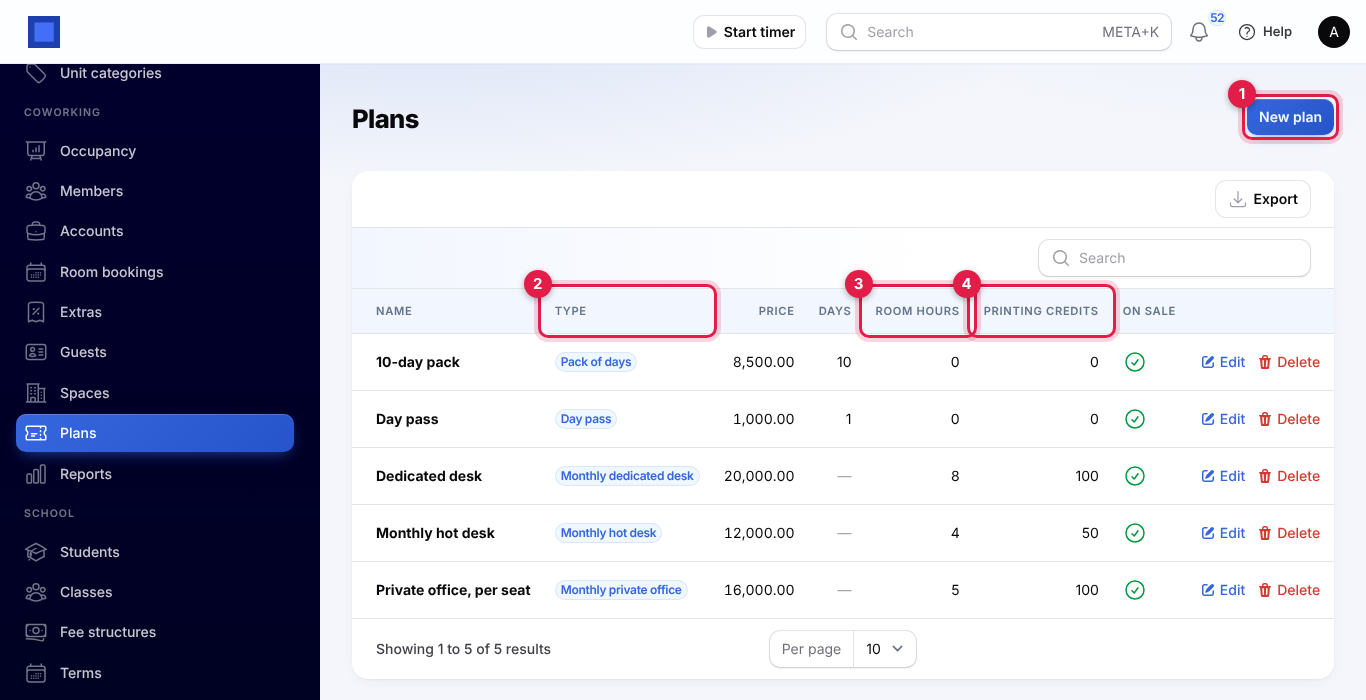
Open Coworking → Plans and click New plan (marker 1). Enter the Name and choose the Type (marker 2):
- Day pass and Pack of days: paid once. Enter the Price, the Days of desk use, and Use the days within (days), or leave it empty when the days never expire.
- Monthly hot desk, Monthly dedicated desk and Monthly private office: enter the Price per month. These are billed every month through Subscriptions.
Every plan can include Meeting-room hours each month (marker 3), used before any room time is charged, and Printing credits each month (pages) (marker 4). Turn off On sale to stop selling a plan.
Accounts
An account is who pays: a company with several members, or an individual. Open Coworking → Accounts and click New account (marker 1).
- Enter the Account name and choose the Type: Company or Individual.
- Choose who it is Billed to from Contacts, or leave it empty and enter a Billing email and Billing phone to add a new contact.
- Add Notes and click Create.
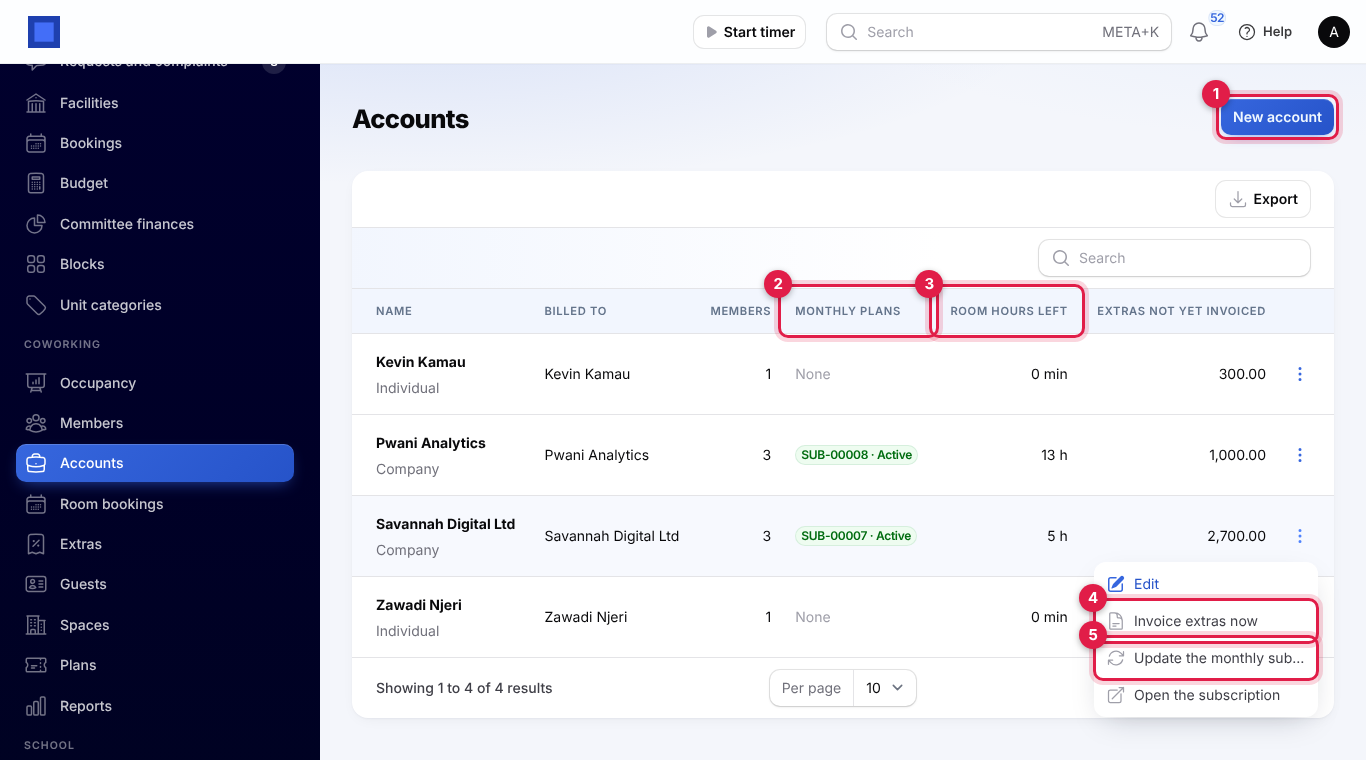
The list shows each account's active Members, its Monthly plans subscription and whether it is live (marker 2), the Room hours left this month for all its members together (marker 3), and the Extras not yet invoiced. Under ⋮:
- Invoice extras now (marker 4): puts every extra not invoiced yet, up to today, on one invoice to the account.
- Update the monthly subscription (marker 5): sets the subscription to bill exactly the members' monthly plans, with proration for the rest of the month. NaliSuite does this by itself when members join, leave or change plan; use it if someone changed the subscription by hand.
- Open the subscription: opens it in Subscriptions (see Subscriptions).
Members
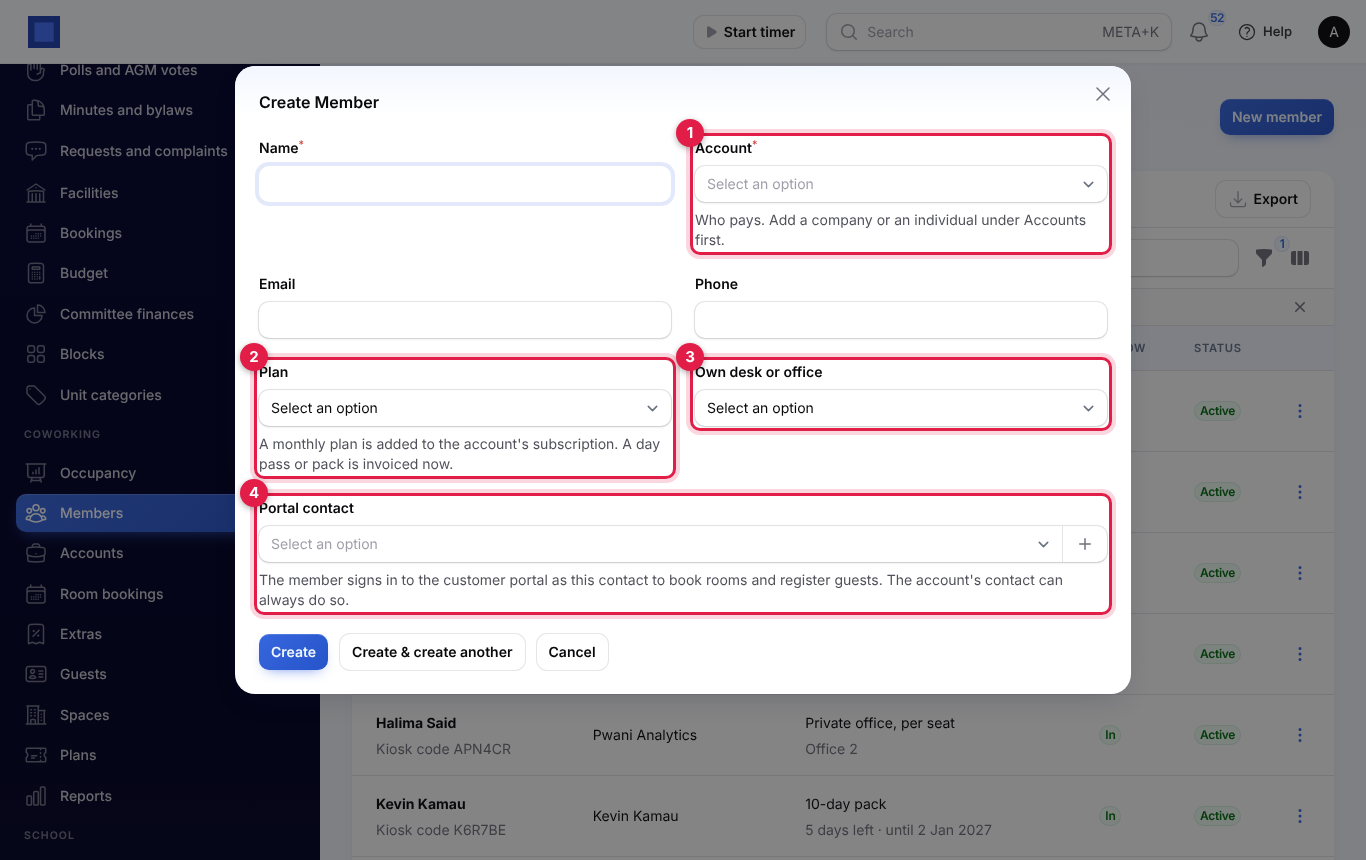
Open Coworking → Members and click New member:
- Enter the Name, Email and Phone.
- Choose the Account (marker 1) that pays.
- Choose the Plan (marker 2). A monthly plan is added to the account's subscription; a day pass or pack is invoiced now and its days are added.
- For a dedicated desk or private office plan, choose the Own desk or office (marker 3).
- Choose the Portal contact (marker 4) the member signs in to the portal as, to book rooms and register guests. The account's own contact can always sign in.
- Click Create.
Each member gets a six-character Kiosk code (marker 1 below), shown under their name. The list shows the account, the plan with the days left and when they expire for a pass or pack (marker 2), or the desk or office for a monthly plan, whether they are In now (marker 3), and their status. It refreshes every 30 seconds and shows active members; remove the filter to see members who left.
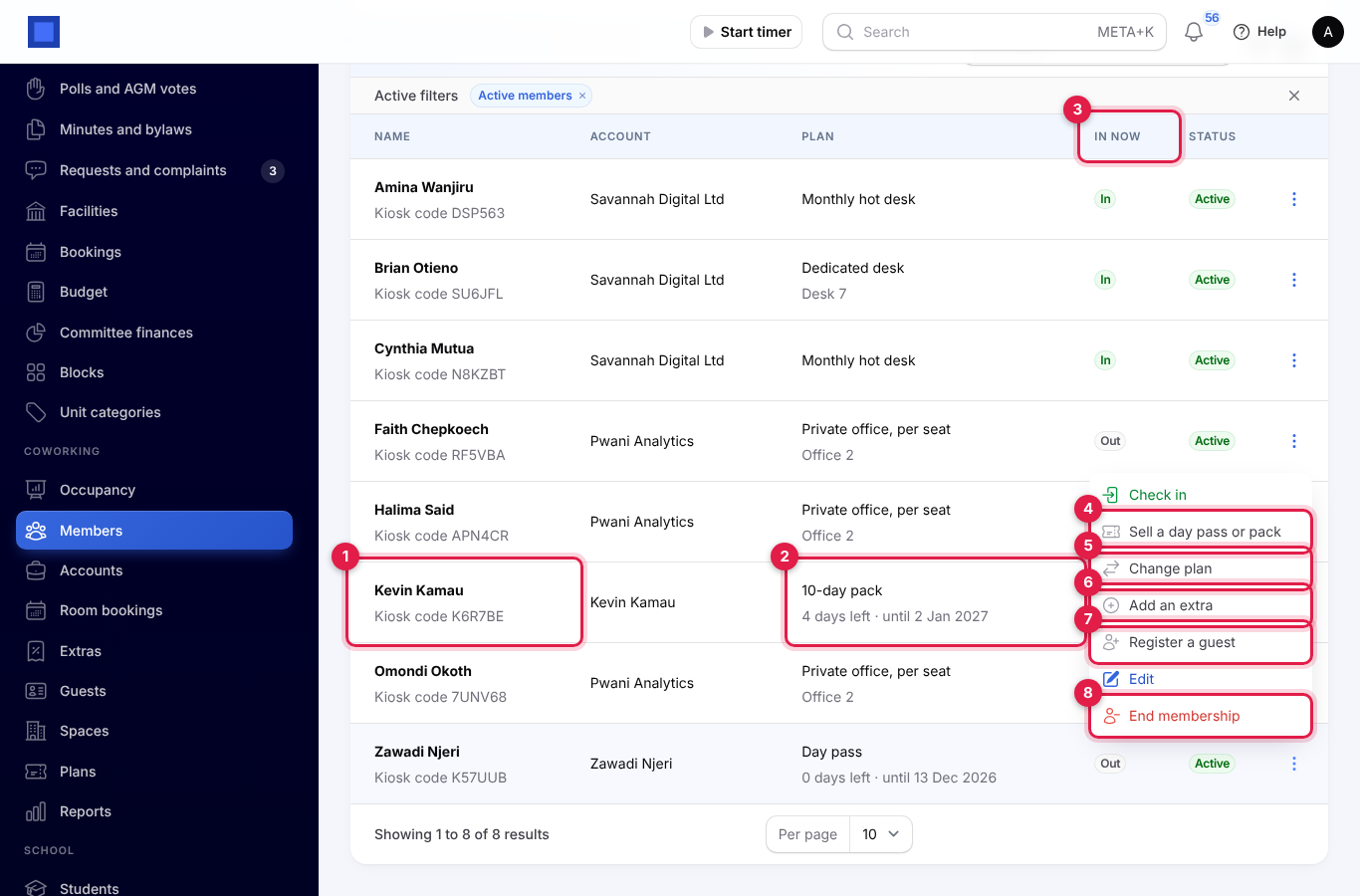
Under ⋮ on a member:
- Check in / Check out: at the desk.
- Sell a day pass or pack (marker 4): choose the Pass or pack. The days are added straight away and the account is invoiced.
- Change plan (marker 5): choose another Plan and Own desk or office. A change between monthly plans is prorated for the rest of the month on the subscription.
- Add an extra (marker 6): see Extras.
- Register a guest (marker 7): see Guests.
- Edit: change the name, email, phone or portal contact.
- End membership (marker 8): a monthly plan comes off the subscription with a prorated credit for the rest of the month. When an account has no monthly plans left, its subscription ends at the end of the period.
Check-in and the kiosk
Members check in when they arrive and out when they leave: at the kiosk with their code, or at the desk. A check-in is refused, with the reason shown, when:
- the membership has ended, or the member has no plan;
- a pass or pack has no days left, or its days have expired;
- the account's monthly subscription is not active;
- every hot desk is taken (for hot desk plans, passes and packs).
The first check-in of a day on a pass or pack uses one of its days. Anyone still checked in at the end of the day is checked out by the next morning.
To use the kiosk, open Coworking → Occupancy and click Check-in kiosk on the tablet at reception. The member types their Member code (marker 1) and taps Check in or out (marker 2); typing it again checks them out. The page shows Welcome with their name (and, on a pass or pack, how many days are left) or Goodbye, or why they were refused.
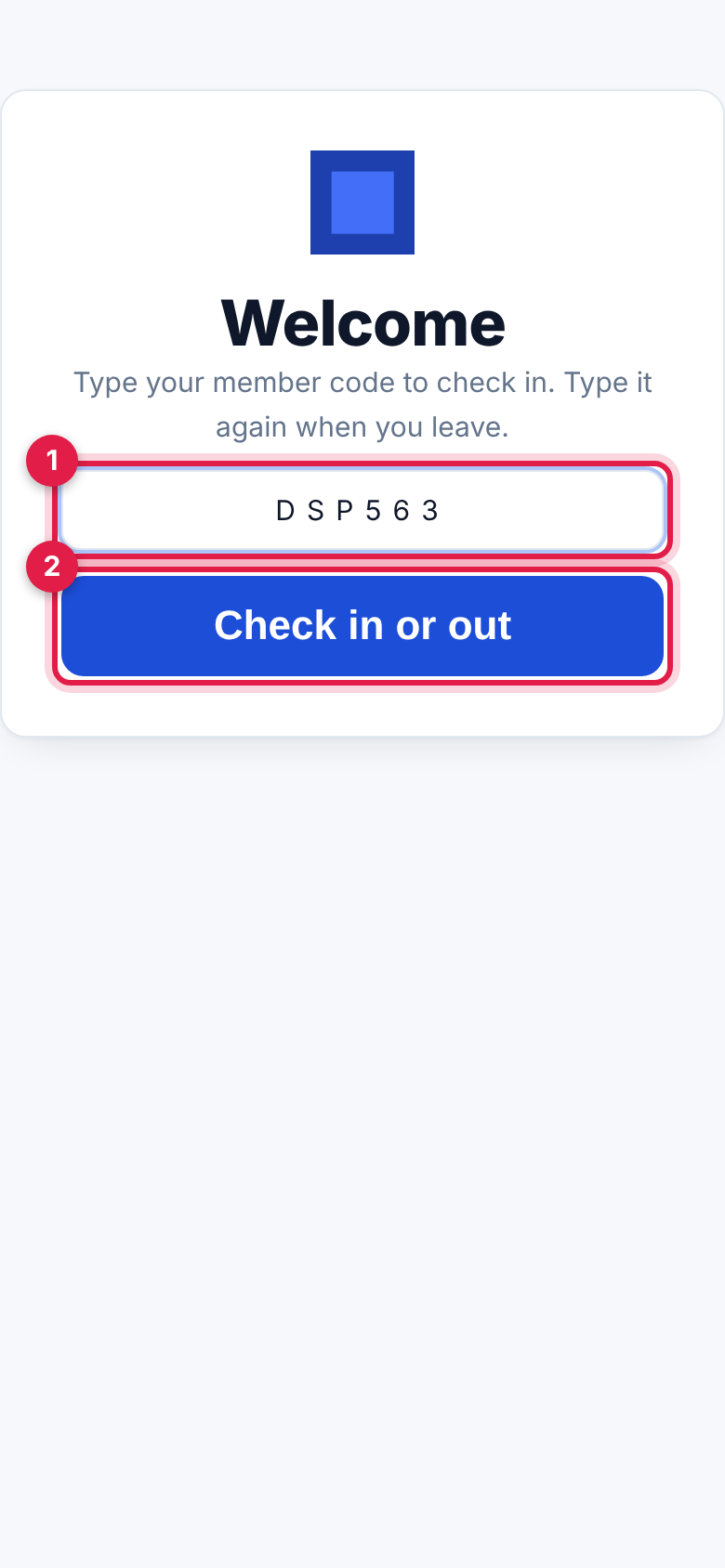
The kiosk works without signing in, behind a secret address. If the address gets out, click New kiosk address and open the new one on the tablet; the old one stops working.
The occupancy dashboard
Open Coworking → Occupancy. The boxes show who is In the building (marker 1), Hot desks in use out of the pool, Desk occupancy (everyone in, over all desk and office seats) and Guests expected today.
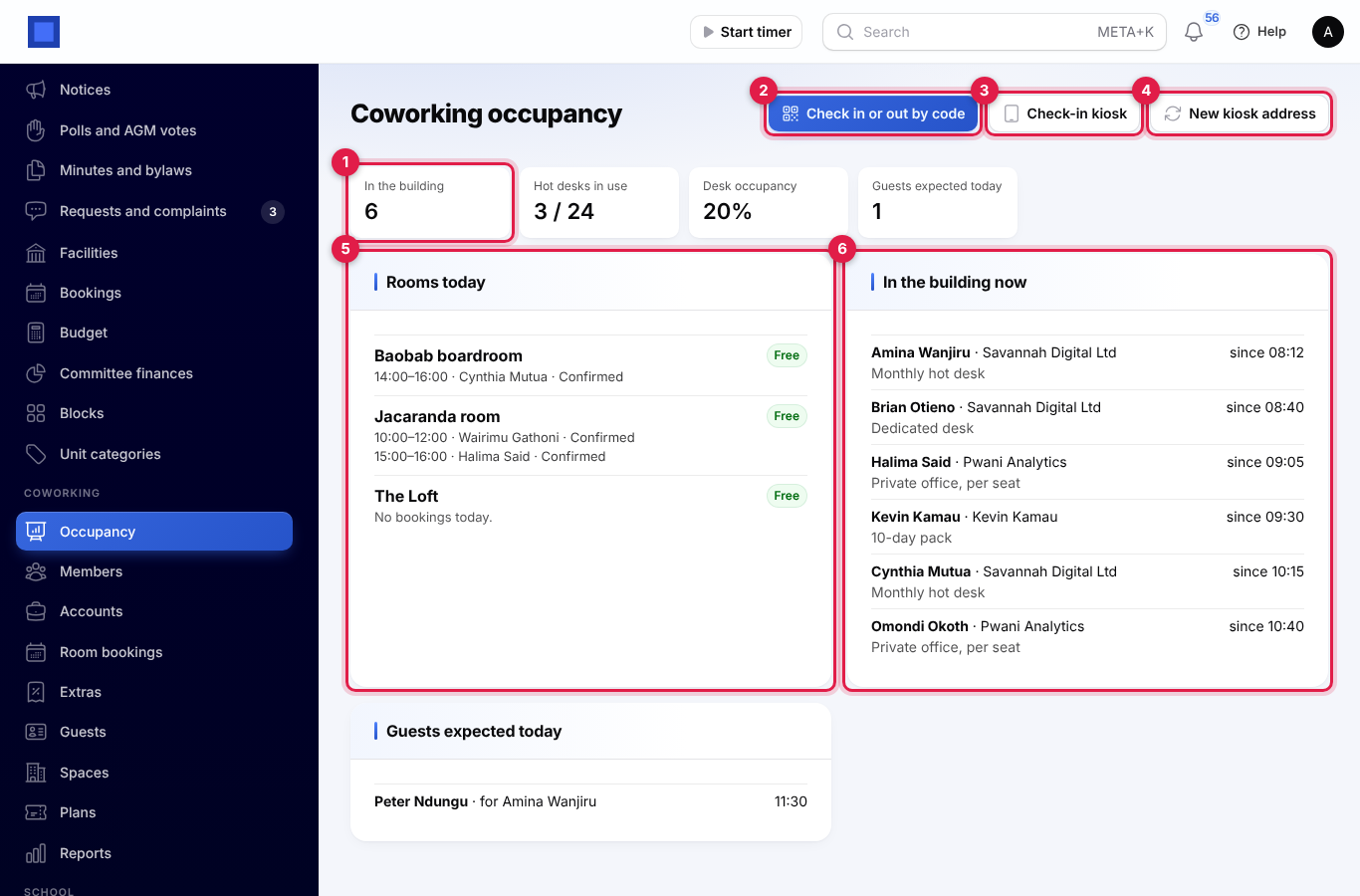
- Check in or out by code (marker 2): type a Member's code to check them in, or out if they are in.
- Check-in kiosk (marker 3) opens the kiosk; New kiosk address (marker 4) gives it a new address.
- Rooms today (marker 5): each room with today's bookings, and In use or Free right now.
- In the building now (marker 6): who is in, their account and plan, and since when.
- Guests expected today, with the member they are visiting and the time.
Room bookings
Open Coworking → Room bookings. The list shows bookings from today (remove the From today filter for older ones) with the time, room, who it is for and where it was made (staff, member portal or public page), the Room hours used (marker 3), what was Charged (marker 4) with Paid or the invoice, and the status (marker 5): Confirmed, Awaiting payment or Cancelled.
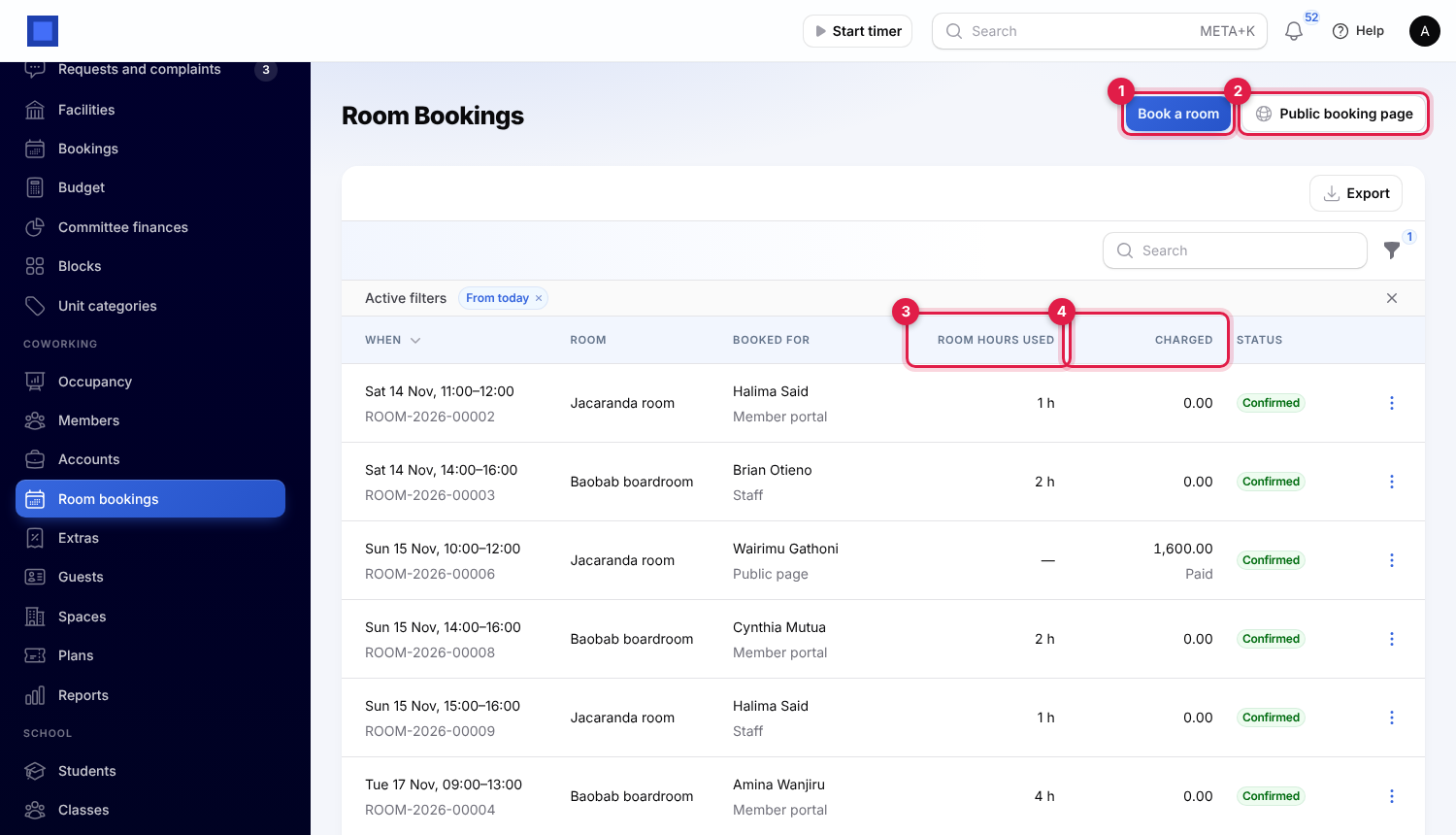
To book for someone, click Book a room (marker 1):
- Choose the Room (marker 1 below).
- Choose the Member (marker 2). Their account's room hours are used first; the rest goes on the monthly extras invoice. Leave it empty for someone who is not a member, and enter who it is Booked for, their Email and Phone: they get an invoice to pay online or at the desk.
- Choose the Day, Starts at (marker 3), How long (marker 4; 30 minutes to a full day), the Number of people and any Notes, and click Create.
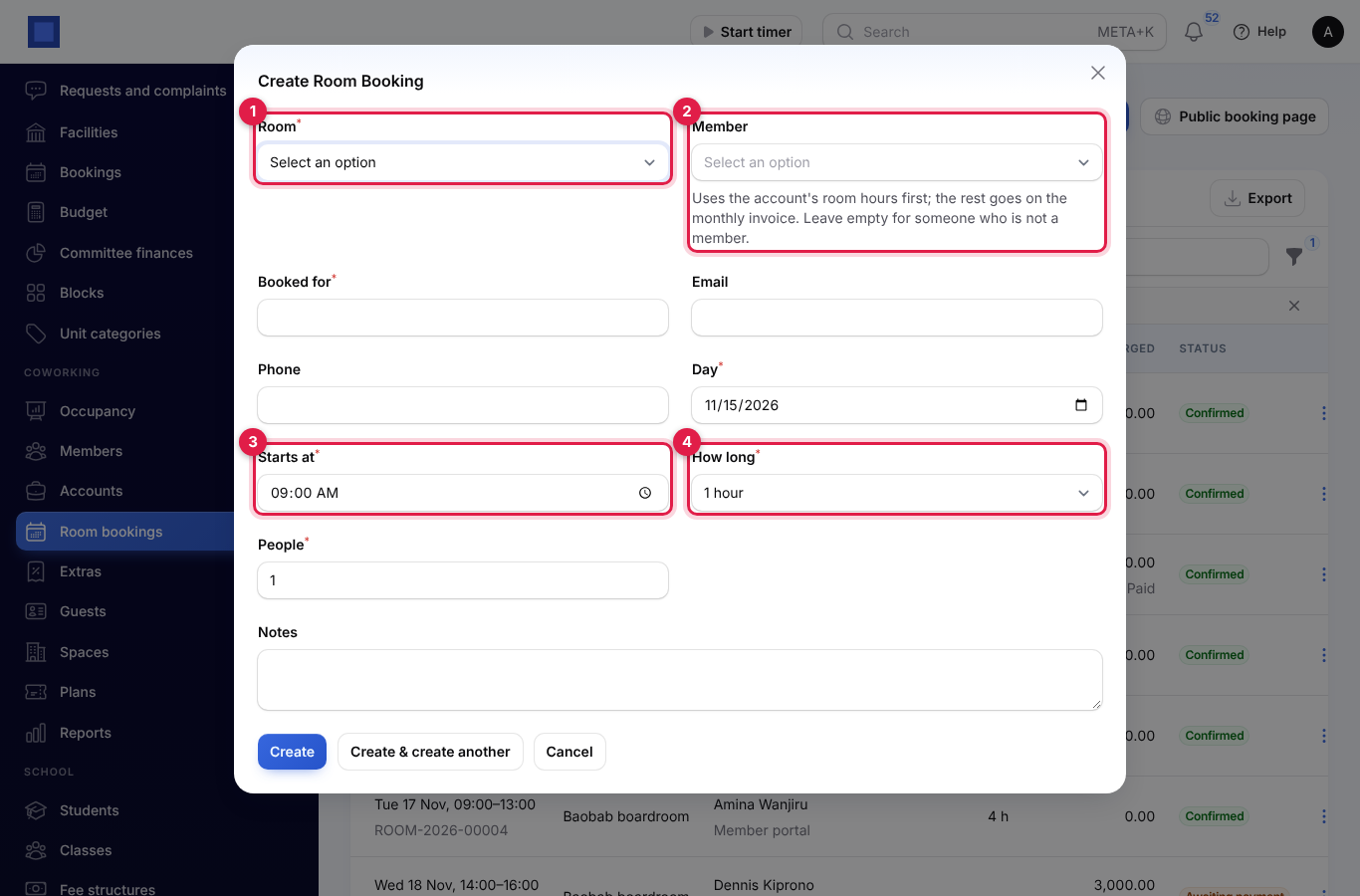
A room is never booked twice: the time and the room's free minutes before and after must be clear of other bookings. Staff can book outside opening hours and at short notice; members and guests cannot.
Under ⋮ on a booking:
- Open the pay page: for an unpaid invoice, to send or show the guest.
- Cancel: the room is free again, room hours used come back, a charge not yet invoiced is removed and an unpaid invoice is cancelled.
Public booking page (marker 2) opens the page guests use.
The public booking page
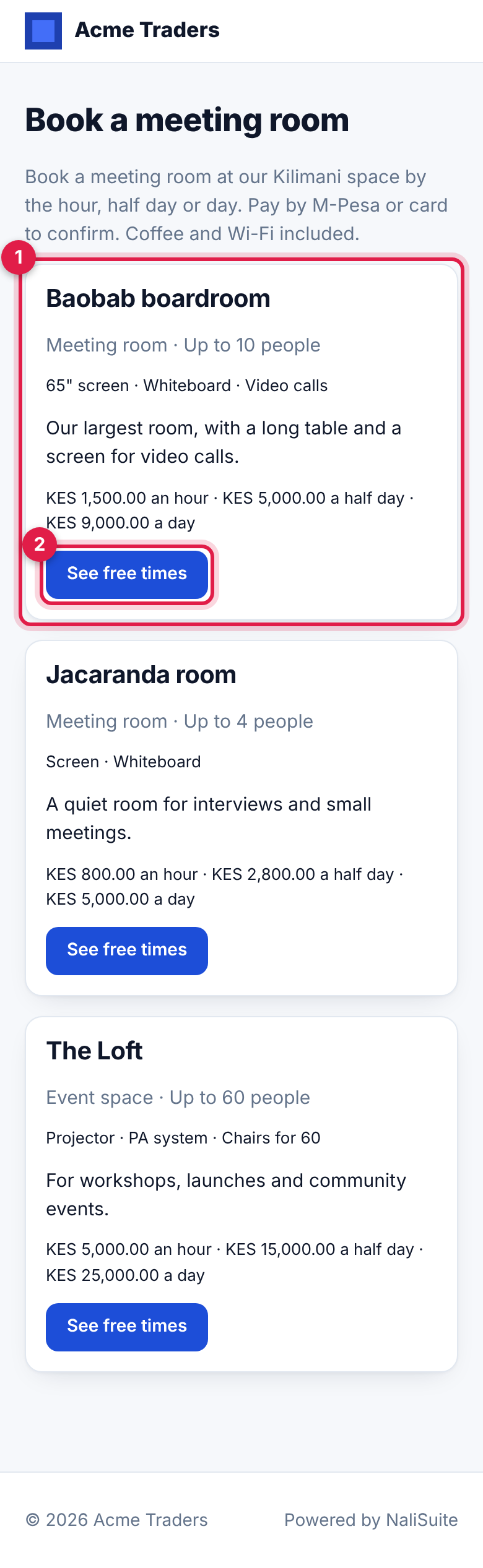
Guests open your workspace address followed by /rooms. It shows your welcome text and every room that guests can book (marker 1), with its seats, amenities, description and prices. They tap See free times (marker 2).
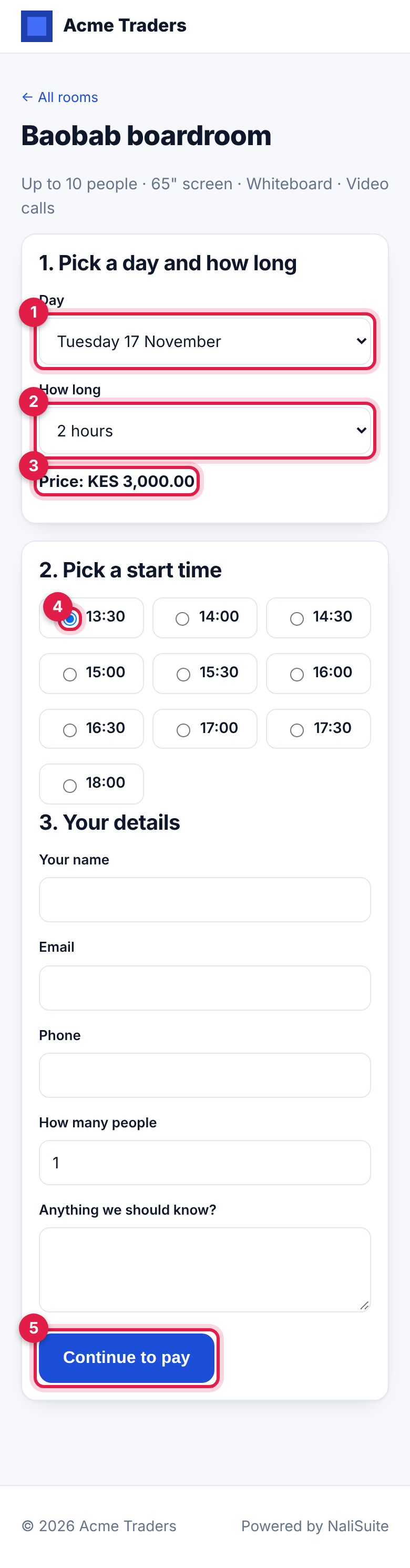
On the room's page they choose the Day (marker 1; up to 30 days ahead) and How long (marker 2; 1, 2, 3 or 4 hours, or a full day), see the Price (marker 3), pick a free start time (marker 4), fill in their name, email, phone, how many people and any notes, and tap Continue to pay (marker 5).
They go straight to the invoice's pay page. The booking shows Awaiting payment and holds the room for your hold time; when they pay (for example by M-Pesa) it becomes Confirmed. If they do not pay in time, the booking is cancelled and the room is free again. A free room is booked at once.
Extras
Open Coworking → Extras for everything members ran up: printing and copying, coffee, lockers, mail handling, meeting-room time beyond their plan's hours, day passes and packs, and other extras.
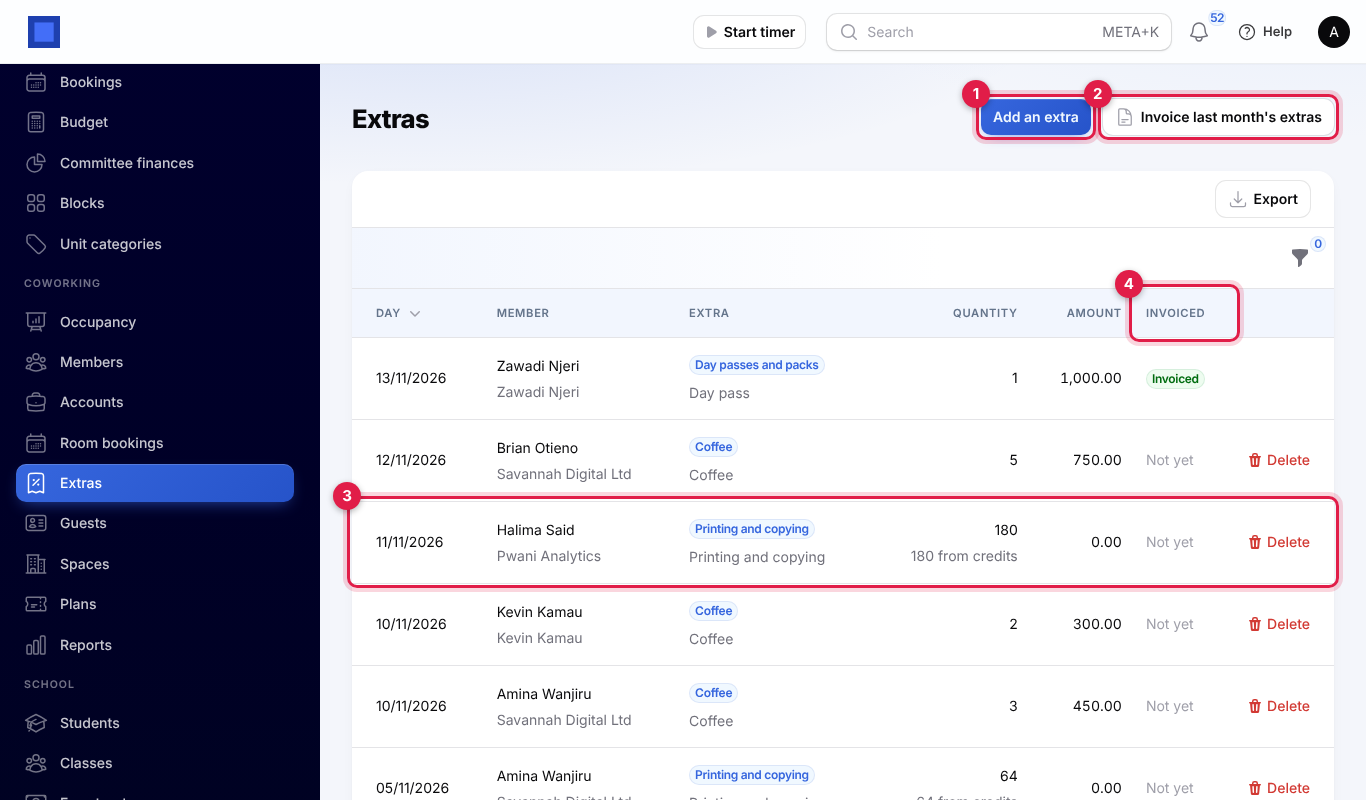
To add one, click Add an extra (marker 1), choose the Member, the Extra, the Quantity (pages for printing), and leave Price each empty to use the price in your settings, or type another. Pages within the plan's printing credits for the month are free: the line shows how many came from credits (marker 3).
Each account gets one invoice a month for its extras from the month before. This runs by itself early each month, or click Invoice last month's extras (marker 2). Invoiced (marker 4) shows which lines are on an invoice. Delete a line not invoiced yet with Delete. Filter by Not invoiced yet, Extra or Account.
Guests
Members register the people they expect from the portal, or you click Coworking → Guests → Register a guest (or Register a guest on a member). Choose the Member, enter the Guest's name, Phone, Email, Expected at and Purpose.
When the Visitors app is on, each guest is invited there too, with a code, link and QR code by email or text, so reception signs them in with the rest of the visitor log; the list then shows Invited under Visitor log.
Reports
Open Coworking → Reports and choose the From and To days (marker 1); it starts at the beginning of this month.
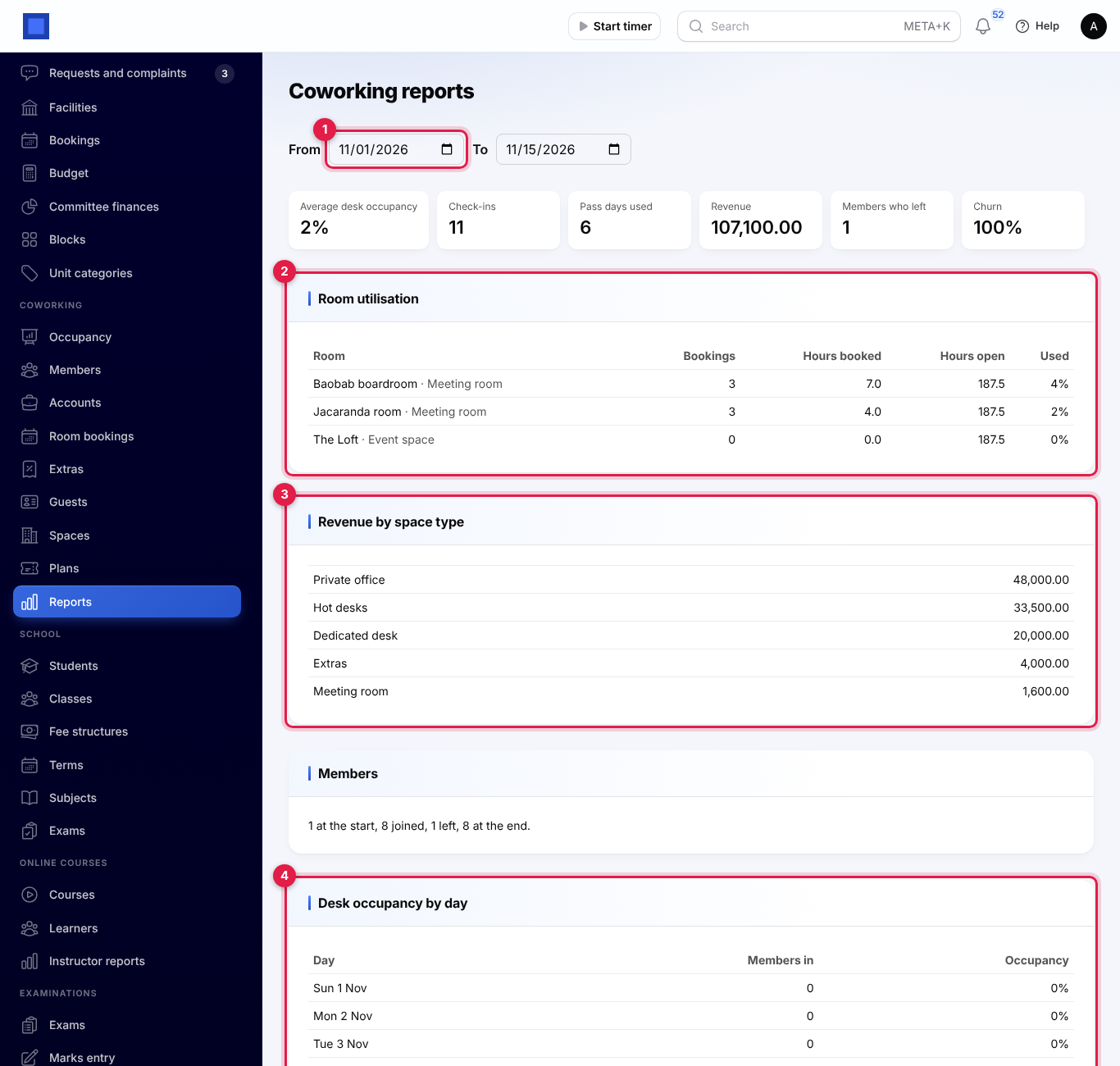
- The boxes: Average desk occupancy, Check-ins, Pass days used, Revenue, Members who left and Churn.
- Room utilisation (marker 2): each room's bookings, hours booked, hours open and how much it was used.
- Revenue by space type (marker 3): what monthly plans, passes and packs (under hot desks) and room bookings earned for each kind of space, and the extras.
- Members: how many there were at the start, joined, left and at the end.
- Desk occupancy by day (marker 4).
The members' portal
Members sign in to the customer portal (see Customer and vendor portal) and open Coworking.

- Meeting-room hours left and Printing credits left for this month (marker 1).
- Your members: their plan and kiosk code. The account's contact sees every member of the company.
- Upcoming room bookings (marker 2), with Cancel.
- Book a room: choose who it is For, the Room, Day, Starts at, How long and How many people, and tap Book (marker 3). Room hours are used first; the rest goes on the monthly invoice.
- Expecting a guest? (marker 4): choose who the guest is visiting, their name, phone, email, day, time and purpose, and tap Register guest.
Good to know
Why are extras on a separate invoice? Monthly plans are billed by the account's subscription. Extras, including room time beyond the plan's hours, go on their own invoice once a month for the month before. The account gets two invoices a month: one for the plans and one for the extras.
Are room booking confirmations emailed? No. Staff and members see bookings in NaliSuite and the portal, and a guest gets the invoice to pay, but no confirmation email is sent. Tell the guest or member yourself if you need to.
Do unused room hours carry over? No. Room hours and printing credits are for the calendar month, pooled across a company's members.
A member says the kiosk refused them. The message says why: no days left, days expired, subscription not active, or no hot desk free. Sell a pass, check the subscription in Subscriptions, or wait for a desk.
Can a guest cancel online? No. Cancel the booking for them under Room bookings; an unpaid invoice is cancelled with it. If they paid, refund the payment in Invoicing.
What if a monthly invoice is not paid? The account's subscription follows your Subscriptions settings. Once it is no longer active, its members' check-ins are refused.