Bank feeds
Bank feeds bring your bank and mobile-money transactions into NaliSuite by themselves, so you no longer download a statement and import it. Each feed belongs to one bank or mobile-money account in your books. New transactions arrive in that account's bank statements under Accounting → Reconciliation, where NaliSuite matches them to your ledger. Feeds are set up under Accounting → Bank feeds.
Bank feeds is a marketplace module. The owner switches it on under Settings → Marketplace (search for Bank feeds). It works with the Accounting app.
Note: You need the bank_feeds.manage permission to see and set up bank feeds. Owners and admins have it. Set permissions under Settings → Roles.
Three kinds of feed
| Comes from | Use it for | How it works |
|---|---|---|
| Equity Bank (Jenga API) | Equity Bank accounts. | NaliSuite signs in to Jenga with your workspace's own Jenga keys and reads the account's statement every hour. |
| Mono (Nigerian and Kenyan banks) | Banks supported by Mono. | NaliSuite reads the account through Mono with your workspace's Mono key every hour. |
| Pushed by the bank or a service (KCB Buni, Stanbic, middleware) | Banks whose APIs need a partner agreement, M-Pesa through a middleware, or any system that can send a web request. | The bank or service sends each new transaction to an address NaliSuite gives you. |
All keys belong to your business and are stored encrypted. NaliSuite has no shared bank connection.
Before you start: get your keys
These steps happen with Equity Bank, Mono or your bank's integration team, not in NaliSuite.
Equity Bank (Jenga)
On Jenga HQ (Equity's developer and merchant portal), with your business's Jenga account:
- Get your API key, merchant code and consumer secret from the Jenga HQ dashboard.
- Create a private and public key pair (Jenga's documentation shows how, for example with OpenSSL), and upload the public key to Jenga HQ. Keep the private key: you paste it into NaliSuite.
- Make sure the account you want is linked to your Jenga merchant profile. Test first with Jenga's sandbox (UAT) keys if you like.
Mono
On the Mono dashboard (mono.co), with your business's Mono account:
- Copy your secret key.
- Link the bank account through Mono Connect. Mono gives you an account ID for it.
Pushed feeds
Ask your bank (for example KCB Buni or Stanbic) or your integration partner to send transactions to a web address. After you add the feed in NaliSuite (below), give them the address and the signing secret from Connection details.
Connect a bank account
- In the menu, open Accounting → Bank feeds.
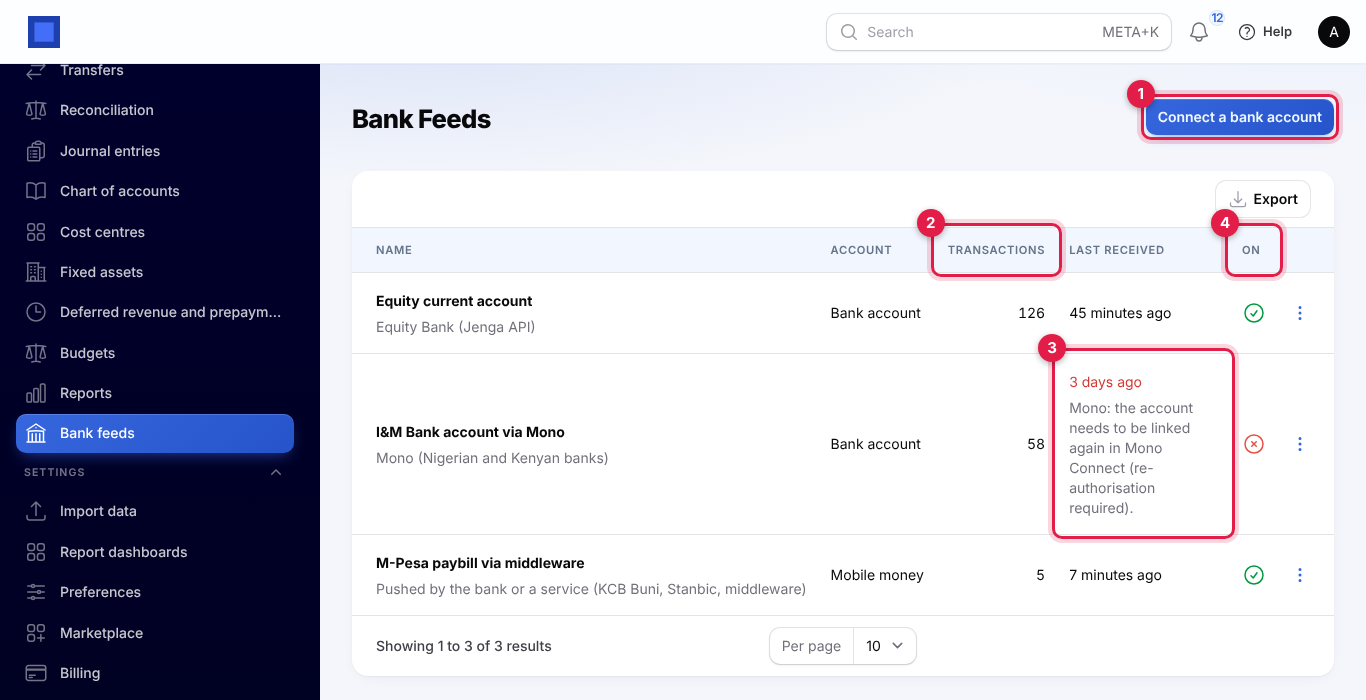
- Click Connect a bank account (marker 1). The list shows each feed with the account it feeds, how many Transactions have come in (marker 2), when the last ones were received (with any problem in red, marker 3) and whether it is On (marker 4).
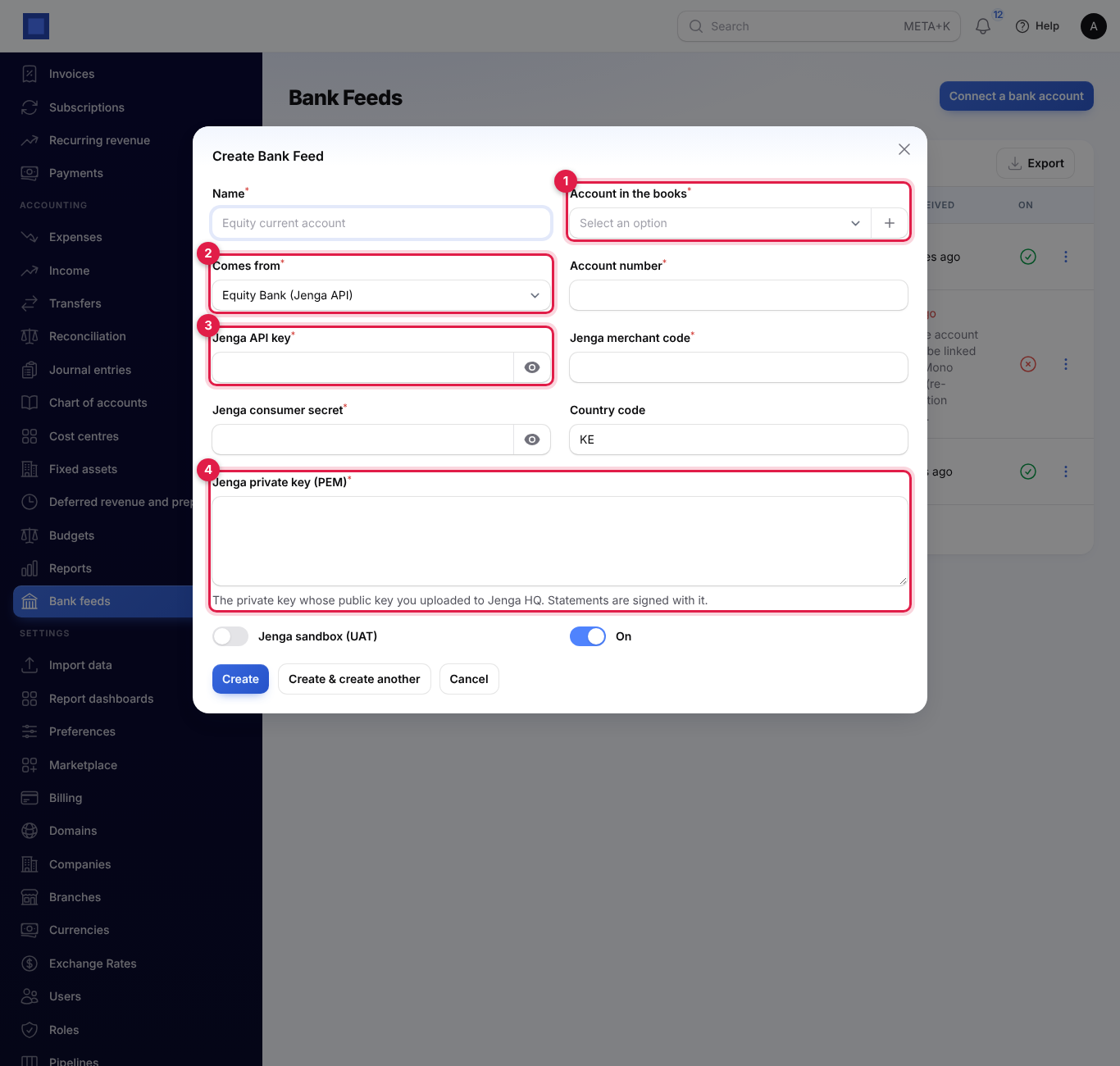
- Type a Name, for example "Equity current account", and pick the Account in the books (marker 1): one of your bank or mobile-money accounts from the chart of accounts.
- Pick where it Comes from (marker 2). The fields below change to match. You cannot change this later.
Equity Bank (Jenga API)
| Field | What to enter |
|---|---|
| Account number | Required. The Equity account number. |
| Jenga API key (marker 3) | Required. Stored encrypted. |
| Jenga merchant code | Required. |
| Jenga consumer secret | Required. Stored encrypted. |
| Country code | Starts on KE. |
| Jenga private key (PEM) (marker 4) | Required. Paste the whole private key, including the -----BEGIN and -----END lines. It is the key whose public key you uploaded to Jenga HQ; statements are signed with it. |
| Jenga sandbox (UAT) | Switch on to use Jenga's test environment with test keys. Off for your real account. |
| On | On by default. |
Mono
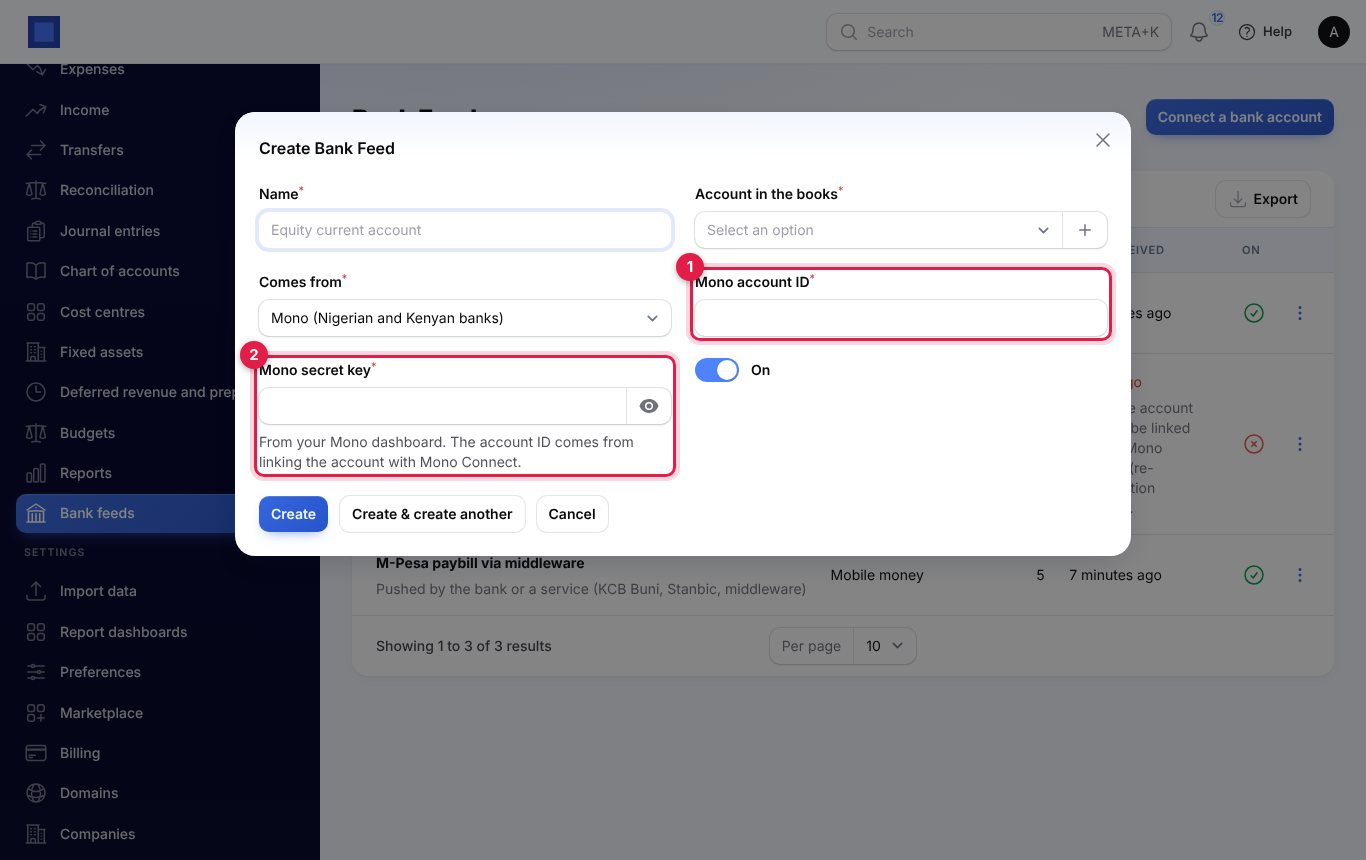
Type the Mono account ID (marker 1) from Mono Connect and the Mono secret key (marker 2) from your Mono dashboard.
Pushed by the bank or a service
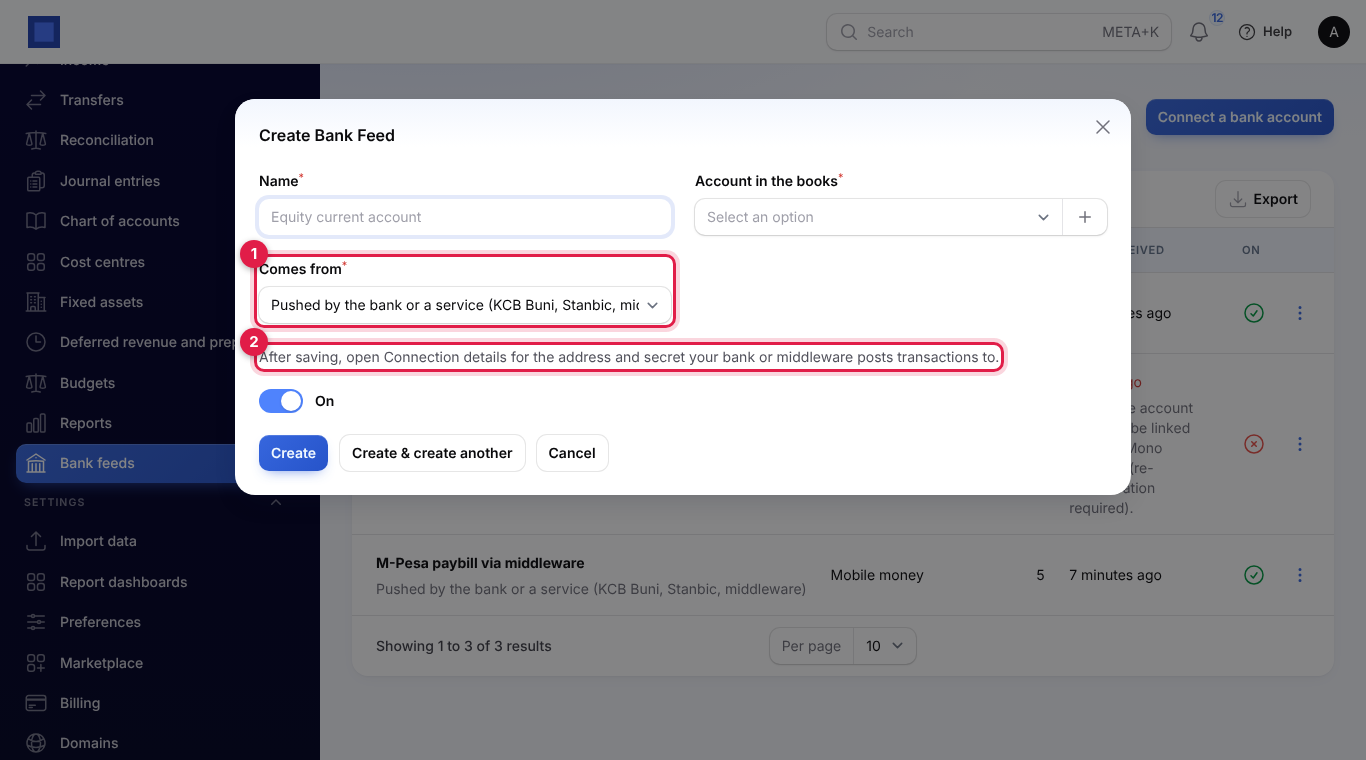
Only the name, account and Comes from (marker 1) are needed. As the window says (marker 2), the address and secret appear under Connection details after you save.
- Click Create.
How fetching works (Jenga and Mono)
- NaliSuite fetches every hour for every feed that is On.
- The first fetch reads the last 30 days. Later fetches start two days before the last one, because banks sometimes post transactions late.
- Transactions already in that account's statements (same date, amount, reference and description, whether they came from a feed or an imported file) are skipped, so nothing is counted twice. If nothing is new, no empty statement is created.
- If the bank refuses (wrong keys, expired link), the error shows in red on the feed (marker 3 in the list screenshot) and the next hourly fetch tries again.
Fetch now
To fetch straight away, for example after you fix a key or when you want transactions from further back:
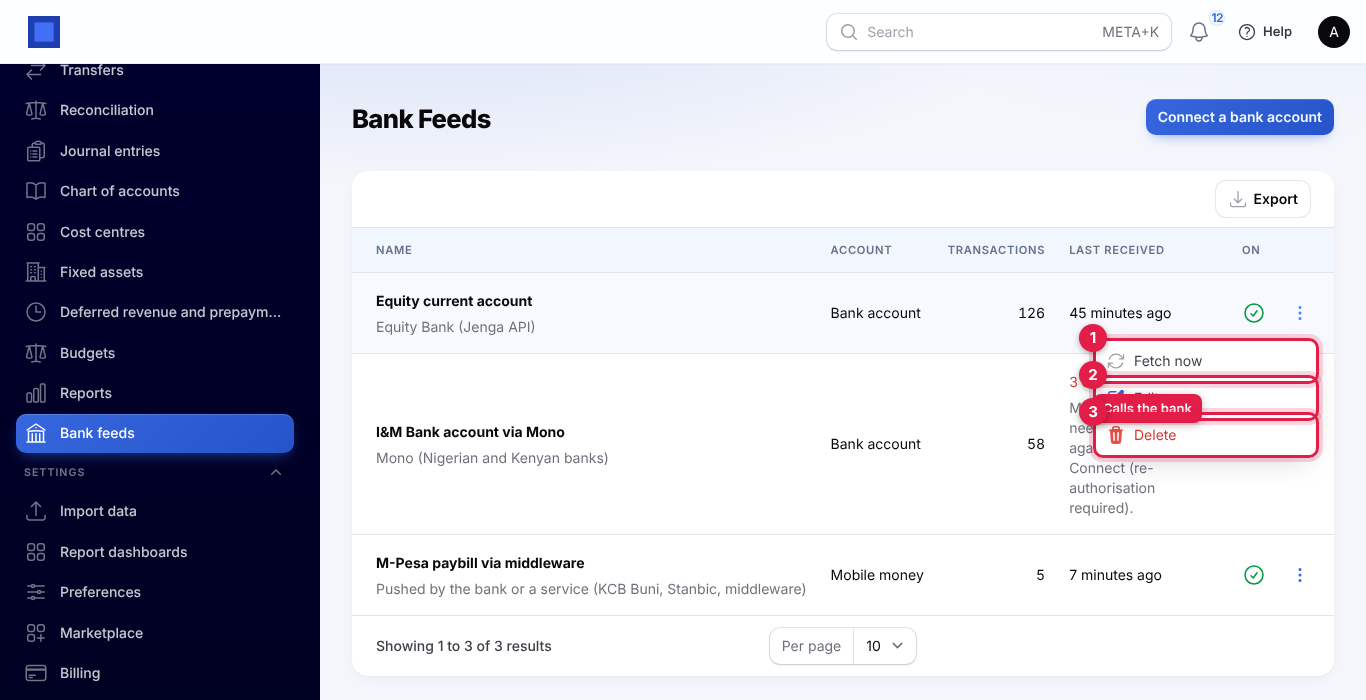
- Click ⋮ on the feed, then Fetch now (marker 1). This contacts your bank.
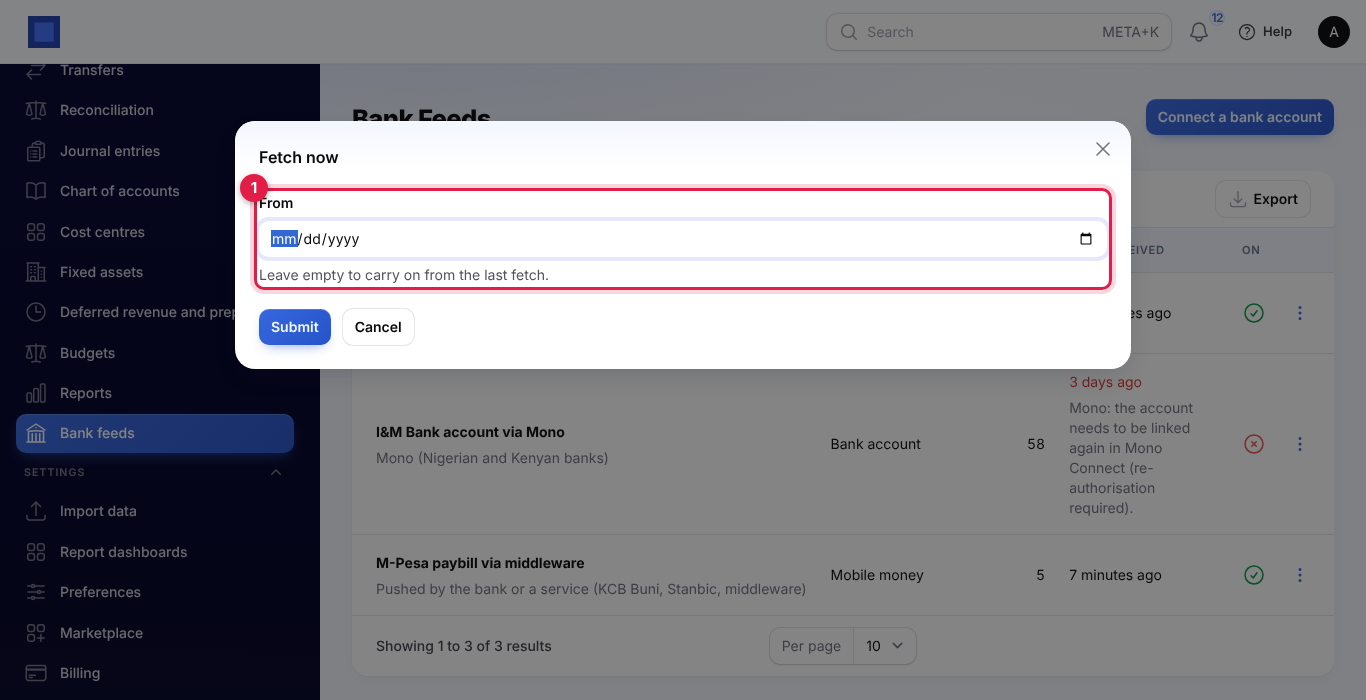
- Leave From (marker 1) empty to carry on from the last fetch, or pick an earlier date to read back further.
- Click Submit. You see "3 new transactions, ready to reconcile", "No new transactions" or the bank's error.
Edit (marker 2) changes the name, account, keys and On switch. Switch On off to pause a feed. Delete (marker 3) removes the feed; transactions already imported stay in the bank statements.
Set up a pushed feed
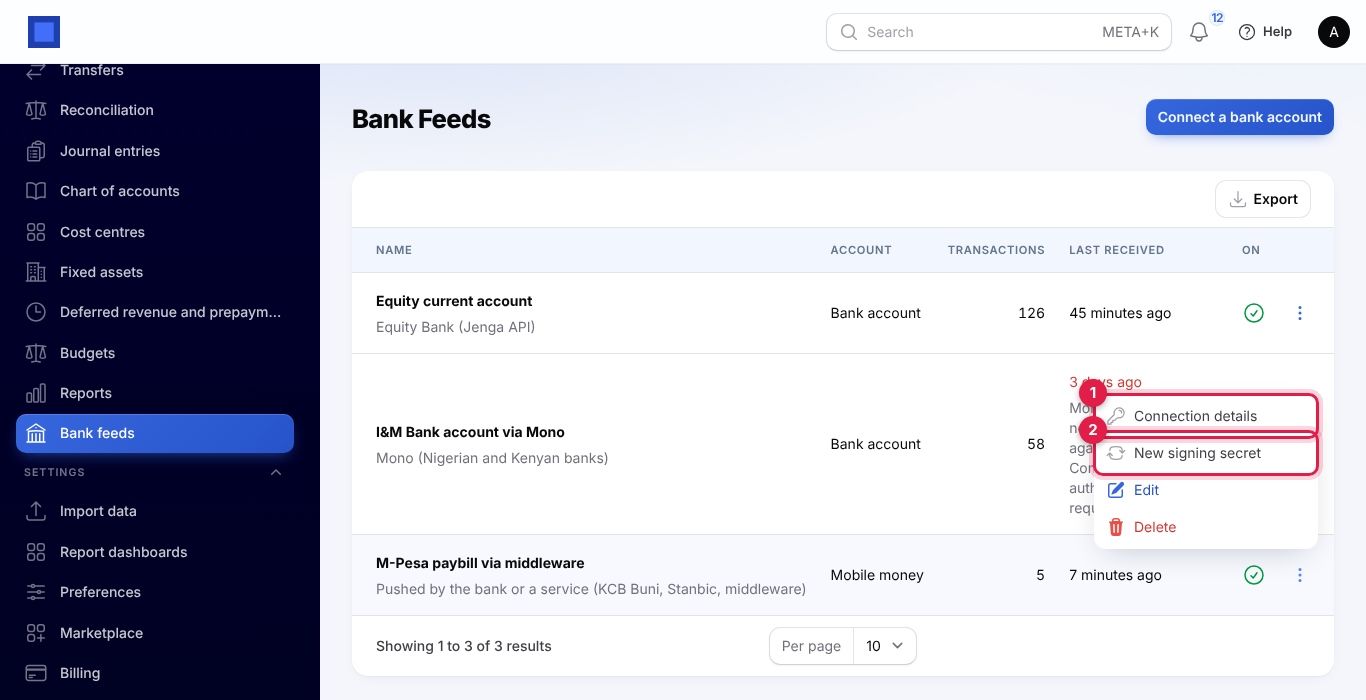
- Click ⋮ on the pushed feed, then Connection details (marker 1).
- Copy the address under Post transactions to (marker 1) and the Signing secret (marker 2) with the copy buttons, and send them to your bank or integration partner through a secure channel.
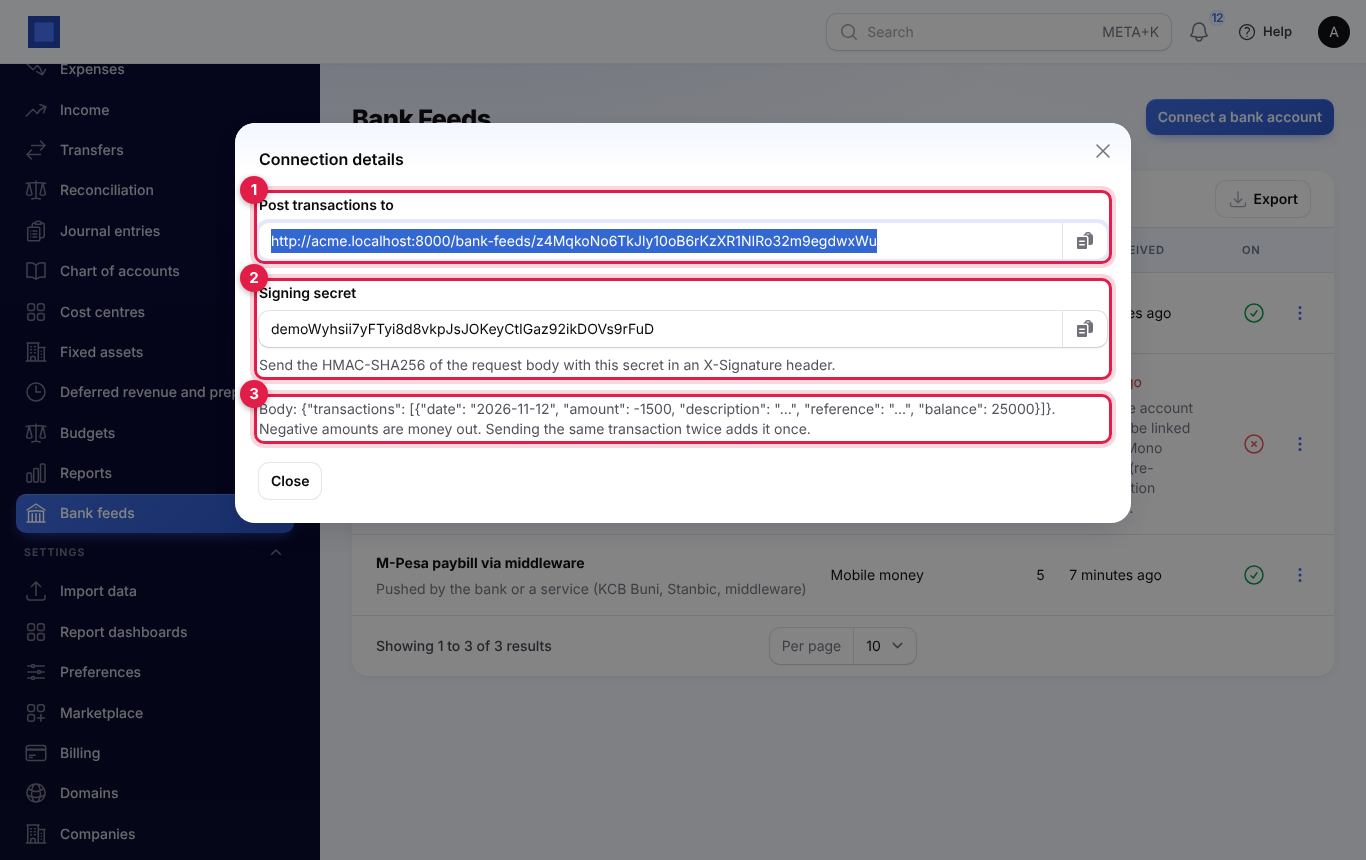
What the sender does (marker 3 summarises it):
-
Sends a
POSTrequest to the address with a JSON body such as:{"transactions": [ {"date": "2026-11-12", "amount": 12800, "description": "Paybill 522533 from NAIROBI FRESH GROCERS", "reference": "SKC5QM22RT", "balance": 197300}, {"date": "2026-11-12", "amount": -55, "description": "Paybill transaction charge", "reference": "SKC5QM22RT", "balance": 197245} ]} -
Negative amounts, or
"type": "debit", are money out.dateandamountare required for each transaction. -
Signs the exact body with HMAC-SHA256 using the signing secret and sends it in an
X-Signatureheader. -
NaliSuite answers with how many transactions were added, for example
{"received": 2}. A wrong signature gets401with "Invalid signature."; a transaction without a date or amount gets422.
Sending the same transaction twice adds it once.
Replace the signing secret
If the secret may have leaked, or your partner asks for a new one, click ⋮ → New signing secret (marker 2 in the actions screenshot) and confirm. The old secret stops working at once. Open Connection details to copy the new one and give it to the sender.
Where the transactions go
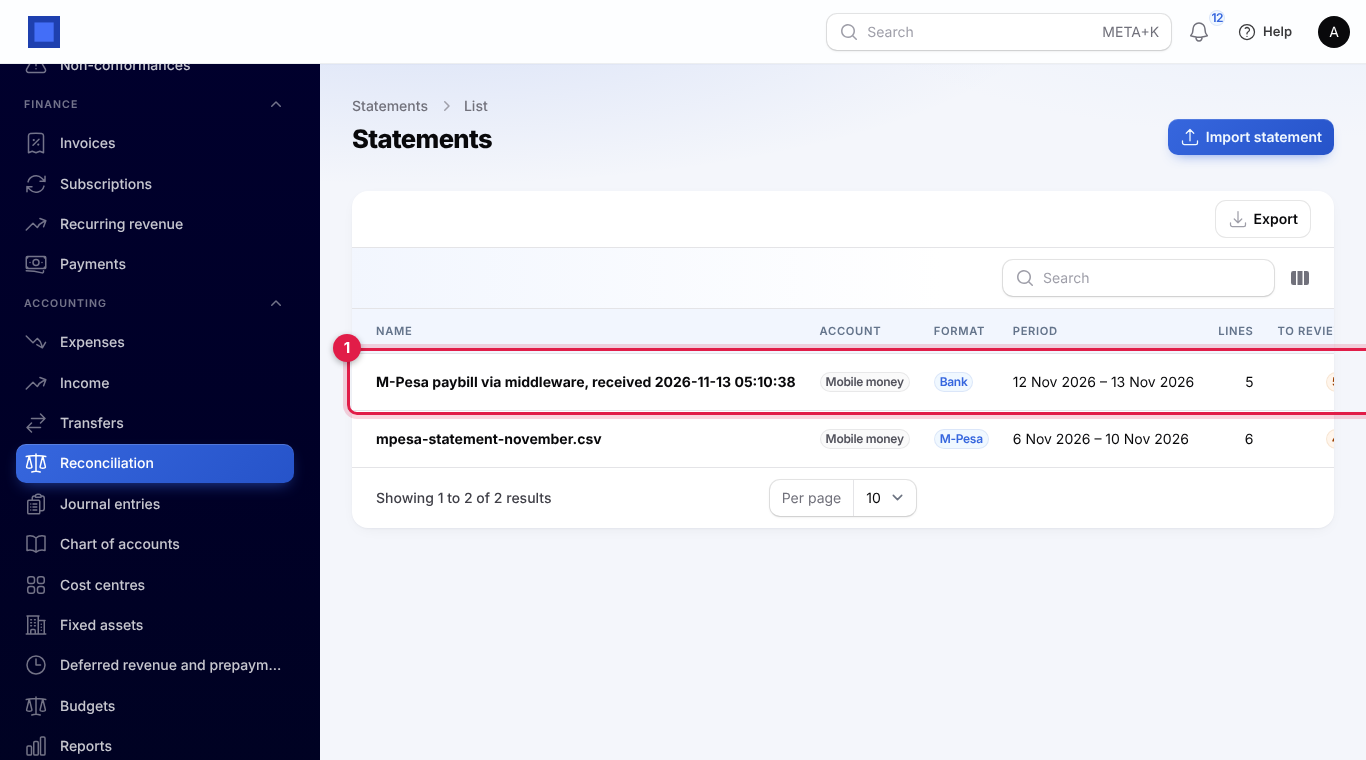
Every batch of new transactions becomes a bank statement on the feed's account, named after the feed and the dates (for example "Equity current account, 2026-10-14 to 2026-11-13") or the time it was received ("M-Pesa paybill via middleware, received 2026-11-13 05:10:38").
- In the menu, open Accounting → Reconciliation.
- The feed's statements are listed with the account, the period, the number of lines and how many are left to review (marker 1).
- Open a statement and reconcile it as usual: NaliSuite has already matched what it can. See the bank reconciliation chapter of this guide.
Common questions
Do I still need to import statement files? Not for an account with a working feed. You can still import a file for the same account; lines already brought in by the feed are skipped.
Why are transactions from the last day missing? Banks often post transactions a little late. The next hourly fetch looks two days back and picks them up. Use Fetch now to check straight away.
Can two feeds go into the same account? Yes, but transactions that look the same (date, amount, reference and description) are only added once, so use one feed per real account.
The feed shows an error in red. What do I do? Read the message: usually the keys are wrong, the Jenga public key does not match the private key, or the Mono account needs linking again in Mono Connect. Fix it with Edit (or on the bank's side), then click Fetch now.
Is it safe to paste our Jenga private key? It is stored encrypted and used only to sign statement requests to Jenga. Create a key pair just for NaliSuite so you can replace it without affecting other systems.
Which M-Pesa accounts can I connect? Through a pushed feed, any paybill or till whose transactions your integration partner can forward. The Equity and Mono feeds read bank accounts.