Driving School
Driving School is for driving schools that train learners for their licence. You set up a course for each licence class (Kenya's NTSA classes A, B, C, D and the combined BCE course) with its theory hours, the lessons in the package, the fee and how many instalments it is paid in. You keep each learner's ID, KRA PIN, provisional driving licence (PDL) and eye test, book lessons only in slots where the instructor, the car and the learner are all free, and record each lesson on the instructor's phone, signed by the learner with a finger. Theory classes, mock theory tests in the portal and NTSA test bookings with results and retests complete the picture, with fee instalments invoiced as they fall due, extra lessons charged, text reminders and pass-rate reports.
It is in the Driving school group of the left menu: Lesson diary, Learners, Theory classes, NTSA tests, Courses, Instructors, Tuition vehicles, Mock test questions and Reports.
Note: Two permissions control the app (under Settings → Roles). driving_school.view lets someone see the screens, record lessons and have them signed, mark a learner who did not come and take theory attendance, which suits instructors. driving_school.manage lets them book and cancel lessons, add and change learners, courses, instructors, vehicles and questions, book tests and record results, invoice instalments and see Reports. Owners and admins have both; the member role has driving_school.view (see Roles and permissions).
Switch it on
Driving School is a marketplace add-on. It needs the Contacts and Invoicing apps: each learner is a contact, and fees are invoiced through Invoicing. With Fleet on, tuition vehicles can be your Fleet vehicles. Texts need an SMS provider set up in Marketing (see SMS providers).
- Open Settings → Marketplace and type Driving school in the Search add-ons… box (marker 1).
- On the Driving school card (marker 2), click Start free trial (or Add to subscription) and confirm. The Driving school group appears in the menu, and Driving lessons appears in the customer portal for learners.
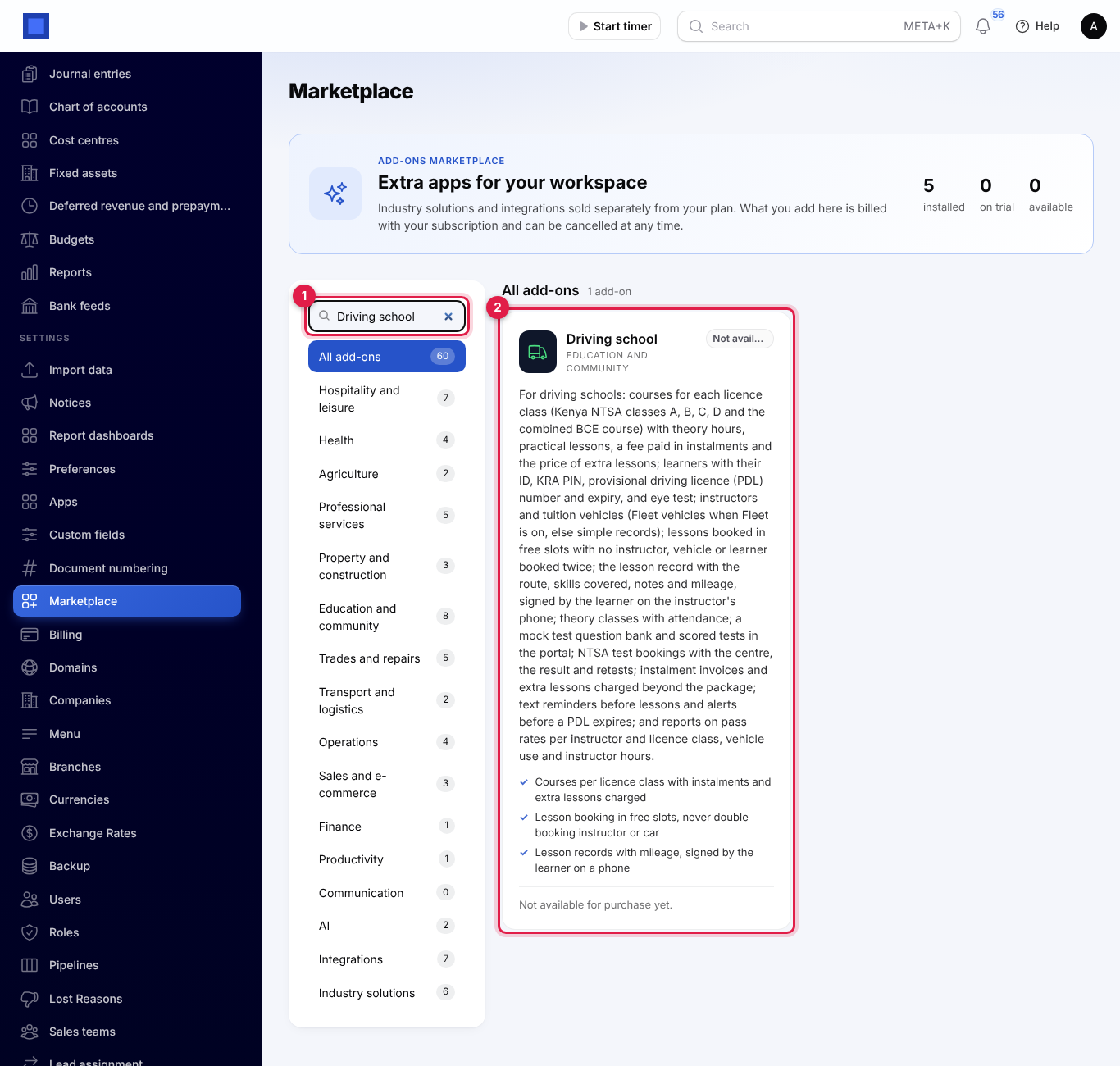
If the card says Not available for purchase yet, ask NaliSuite support to switch it on. See Billing and marketplace.
Driving school settings
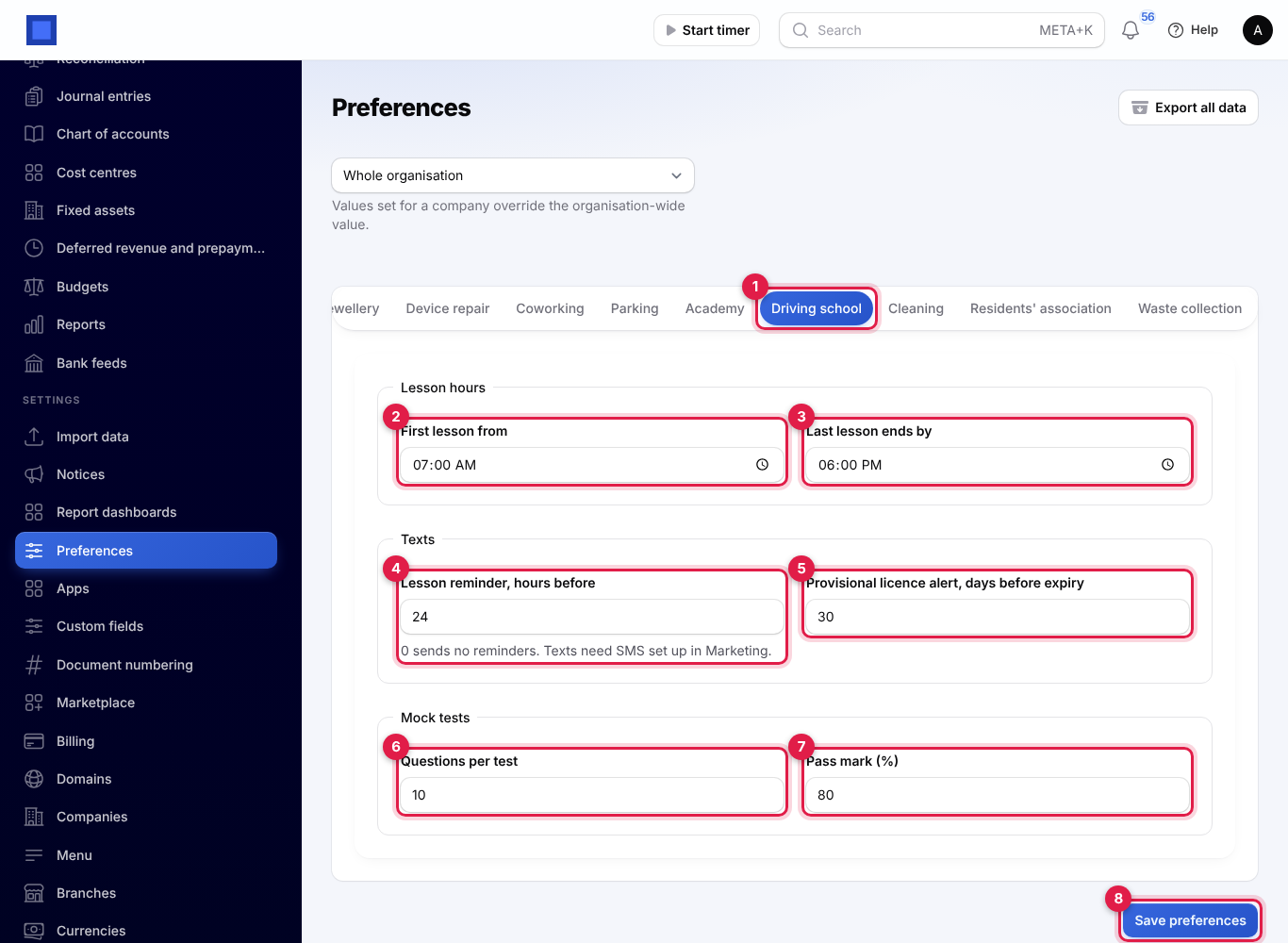
- Open Settings → Preferences and click the Driving school tab (marker 1).
- Change what you need and click Save preferences (marker 8).
| Setting | Default | What it does |
|---|---|---|
| First lesson from (marker 2) | 07:00 | The first time a lesson can start. |
| Last lesson ends by (marker 3) | 18:00 | Lessons must end by this time. Free slots are offered between the two. |
| Lesson reminder, hours before (marker 4) | 24 | Each learner is texted this many hours before a lesson: driving lesson on Mon 16 Nov at 08:00 with Samuel Kiprotich in KDE 412M. Bring your provisional licence. 0 sends no reminders. |
| Provisional licence alert, days before expiry (marker 5) | 30 | A learner whose PDL expires within this many days is texted once to renew it on eCitizen, and your managers get a notification. |
| Questions per test (marker 6) | 20 | How many questions a mock theory test has. |
| Pass mark (%) (marker 7) | 80 | The score needed to pass a mock test. |
Courses
A course is what a learner signs up for: one licence class, its package and its price.
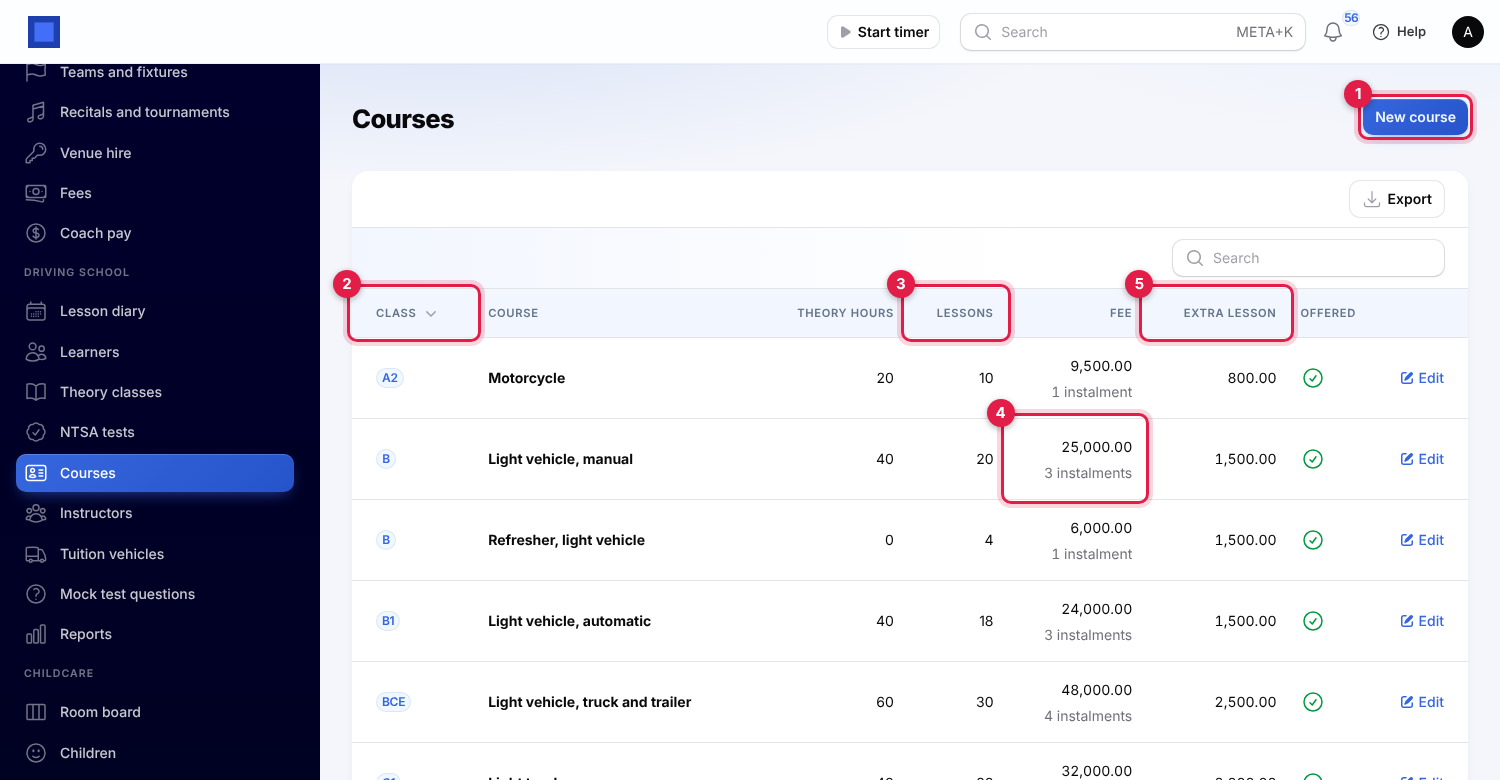
Open Driving school → Courses and click New course (marker 1):
| Field | What to enter |
|---|---|
| Licence class (required, marker 2) | From A1 · Moped to G · Industrial and construction, including B · Light vehicle, B1 · Light vehicle, automatic and BCE · Light vehicle, truck and trailer. |
| Name (required) | Light vehicle, manual. |
| Offered | Off to stop offering the course to new learners. |
| Theory hours (required) | The theory hours the course includes. |
| Lessons in the package (required, marker 3) | Practical lessons included in the fee. |
| Minutes per lesson (required) | 15 to 240. Lessons are booked this long. |
| Course fee (required, marker 4) | The price of the package. The list shows the number of instalments under it. |
| Paid in instalments (required) | 1 to 12, monthly, the first on the enrolment date. |
| Price of an extra lesson (required, marker 5) | Charged for each lesson driven beyond the package. |
Instructors and tuition vehicles
Driving school → Instructors → New instructor: the Name, Phone, Email, Instructor licence number, the Classes taught (empty for every class) and Signs in as: the instructor's NaliSuite user. The lesson diary then opens on their own lessons.
Driving school → Tuition vehicles → New vehicle: with Fleet on, choose the Vehicle in Fleet to fill in the registration, make and odometer, so the mileage driven on lessons moves the Fleet odometer on too. Otherwise type the Registration and Make and model. Choose the Gearbox (Manual gearbox or Automatic gearbox), the Used for classes (empty for every class), the Odometer (km) and In use.
A lesson can only be booked with an instructor who teaches the learner's class and a vehicle used for it.
Learners
Open Driving school → Learners and click New learner. Learners are numbered DS-0001 and so on. The list shows active learners at first; filter by Status, Course or PDL expires within 30 days. A PDL expiry date within 30 days shows in red.
| Field | What to enter |
|---|---|
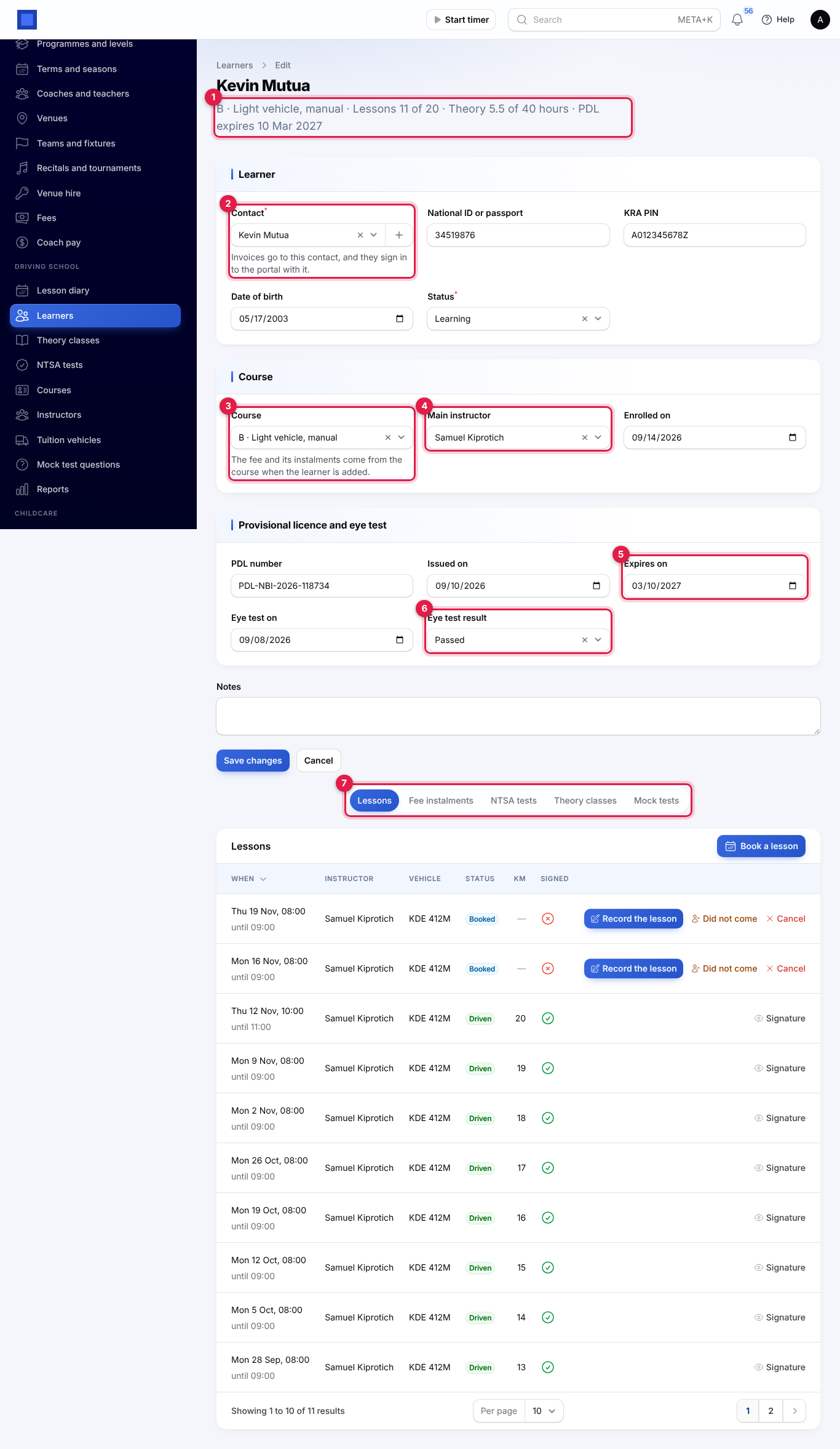
| Contact (required, marker 2) | The learner's contact. Invoices go to it, and the learner signs in to the portal with it. Click + to add a new one. |
| National ID or passport, KRA PIN, Date of birth | |
| Status | Learning, Passed or Withdrawn. A learner is marked Passed by themselves when they pass the road test. |
| Course (marker 3) | The fee and its instalments come from the course when the learner is added. |
| Main instructor (marker 4), Enrolled on | |
| PDL number, Issued on, Expires on (marker 5) | The provisional driving licence. No lesson can be booked after it has expired: The provisional licence of … has expired. Record the renewed licence first. |
| Eye test on, Eye test result (marker 6) | Passed, Passed with glasses or Failed. |
| Notes |
The summary under the name (marker 1) shows the course, the lessons used out of the package, the theory hours done and the PDL expiry. The tabs (marker 7) hold the learner's Lessons (with Book a lesson), Fee instalments, NTSA tests, Theory classes and Mock tests.
Fee instalments
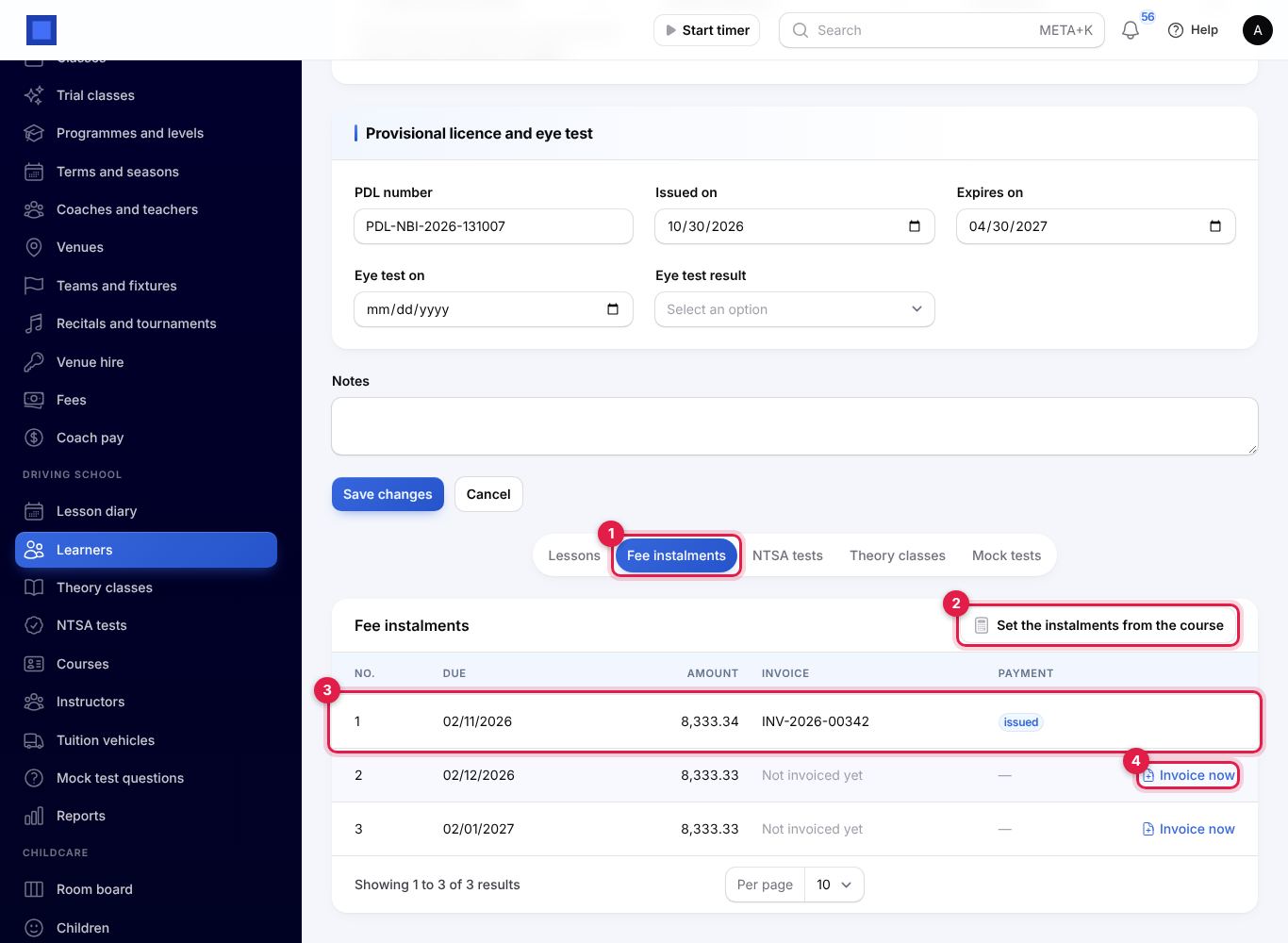
The course fee is split into equal monthly instalments from the enrolment date (any odd cents go on the first). Each is invoiced by itself when it falls due, or straight away with Invoice now (marker 4). An invoiced instalment shows its invoice and payment status (marker 3). Set the instalments from the course (marker 2) works the plan out again after a change of course, as long as none is invoiced yet.
The lesson diary
Driving school → Lesson diary lists the lessons of a day, today at first, for the signed-in instructor when they are linked to a user. Change the day, instructor, vehicle or status with the filter (marker 2).
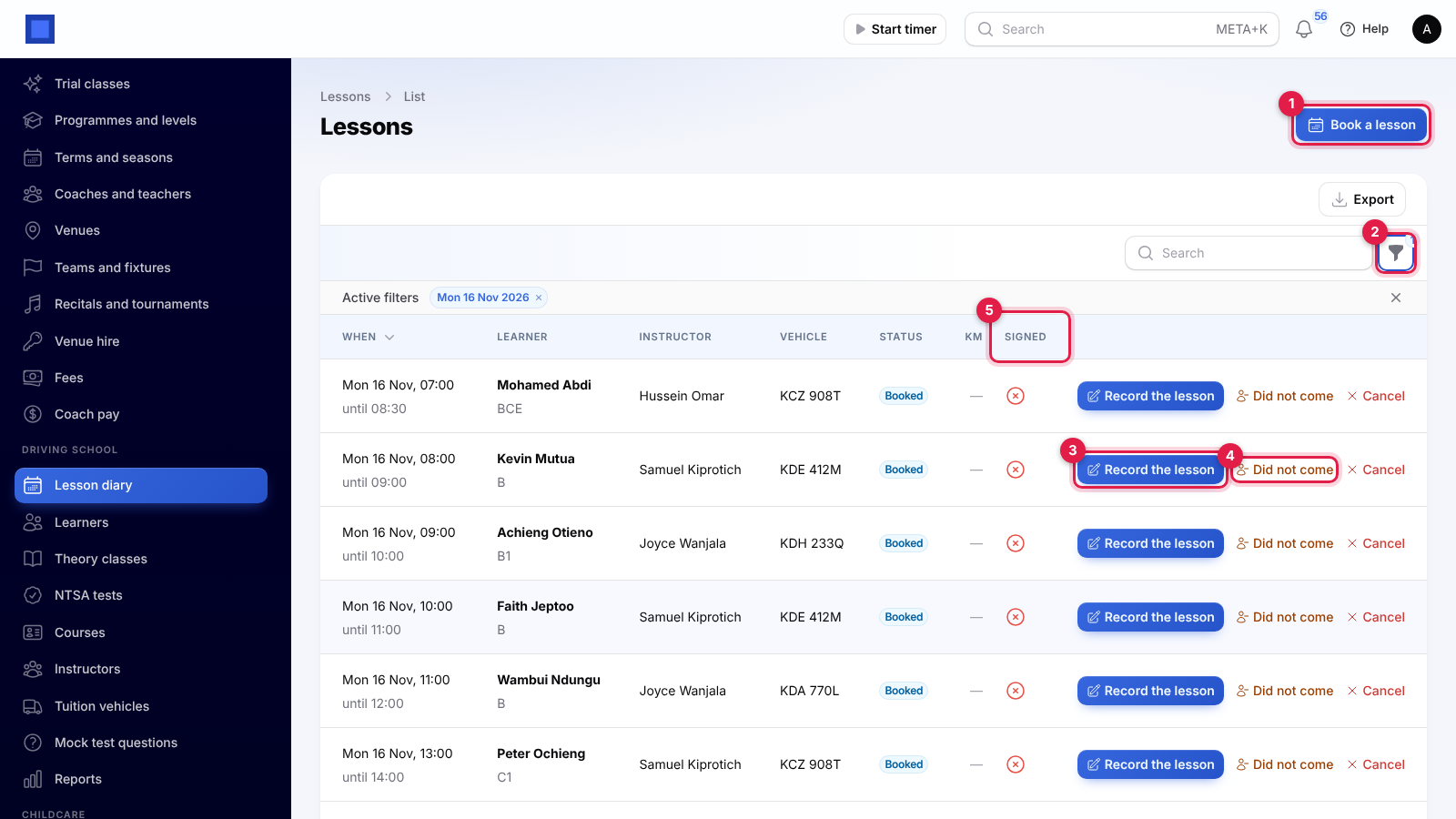
Each lesson shows when it starts and ends, the learner and their class, the instructor, vehicle, Status (Booked, Driven, Cancelled or Did not come, with Extra lesson, charged under lessons beyond the package), the distance in km and whether it is Signed (marker 5).
Book a lesson
Click Book a lesson (marker 1), or Book a lesson on the learner's Lessons tab.
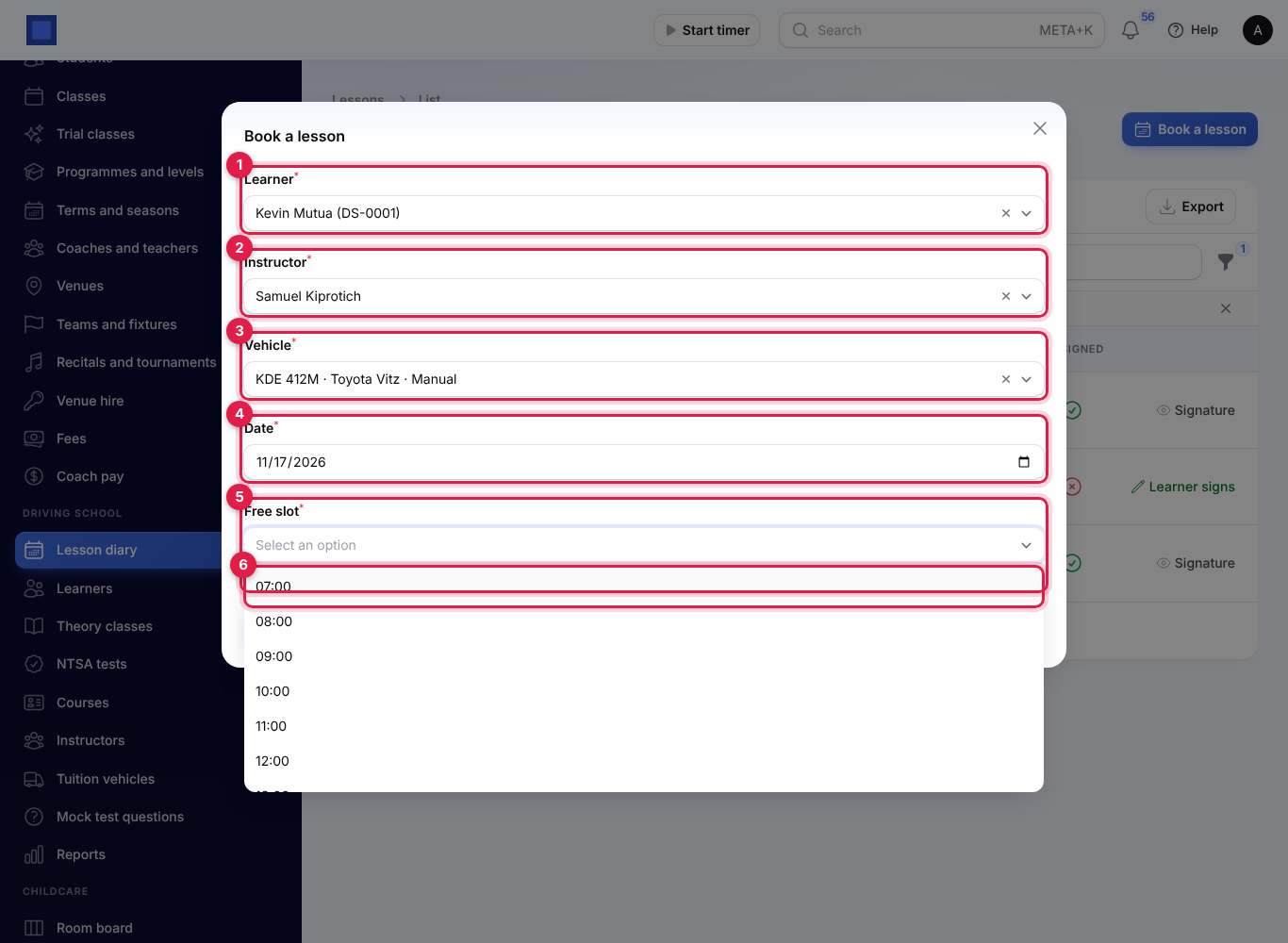
- Choose the Learner (marker 1), the Instructor (marker 2) and the Vehicle (marker 3; only vehicles used for the learner's class are offered).
- Choose the Date (marker 4).
- Open Free slot (marker 5): only start times when the instructor, the vehicle and the learner are all free are offered (marker 6), between the lesson hours in Settings, one lesson length apart.
- Click Submit. You see Lesson booked. Lessons are numbered LSN-2026-00001.
A lesson booked when the learner has already used (or booked) all the lessons in their package is an extra lesson: when it is recorded, it is invoiced at the course's extra lesson price.
Record a lesson and have it signed
After the lesson, the instructor clicks Record the lesson (marker 3 on the diary).
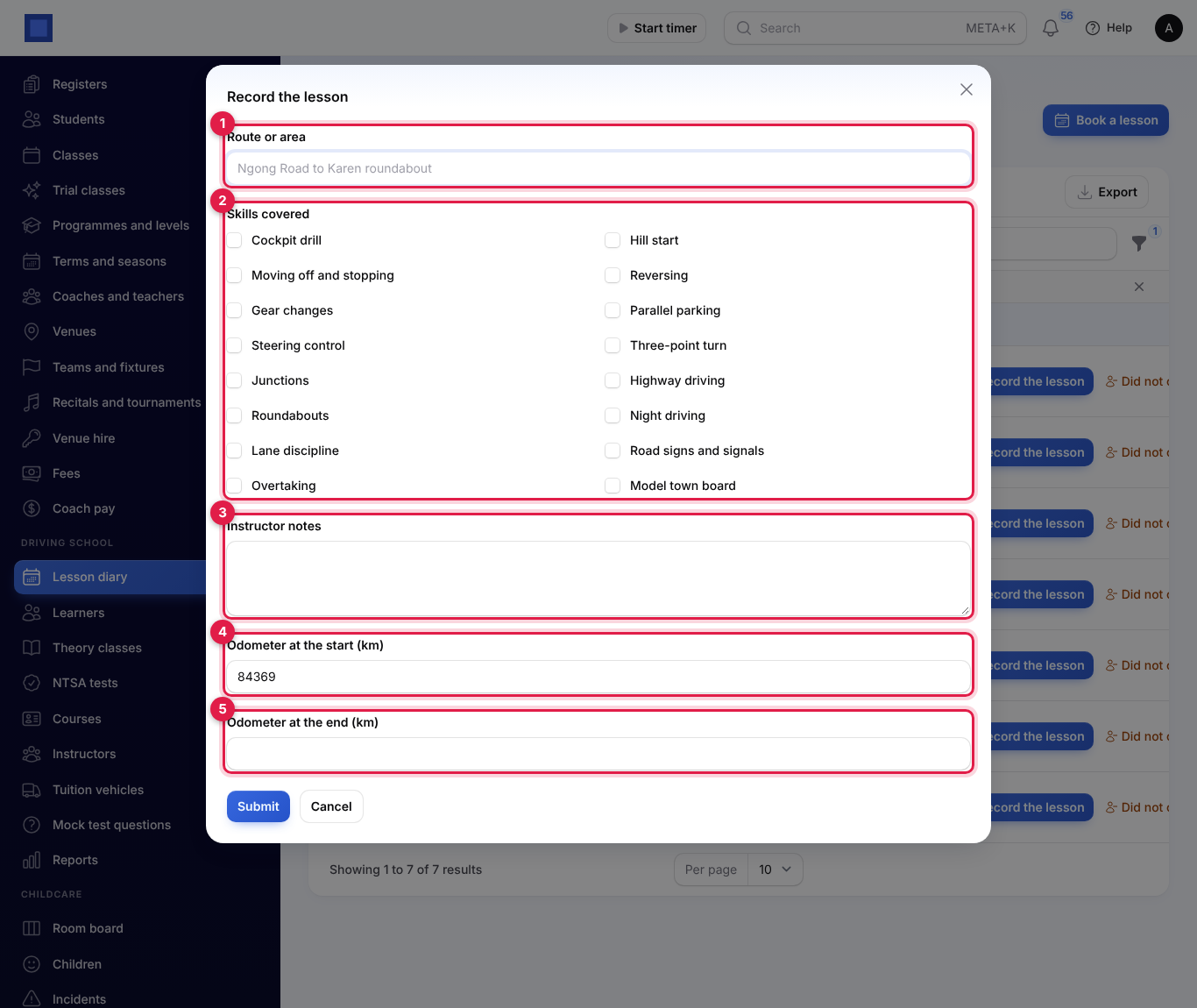
- Type the Route or area (marker 1), tick the Skills covered (marker 2), from Cockpit drill to Model town board, and add Instructor notes (marker 3).
- Check the Odometer at the start (km) (marker 4, filled from the vehicle) and type the Odometer at the end (km) (marker 5). The difference is the lesson's distance, and the vehicle's odometer moves on (in Fleet too).
- Click Submit. You see Lesson recorded. Hand the phone to the learner to sign. and the signing page opens.
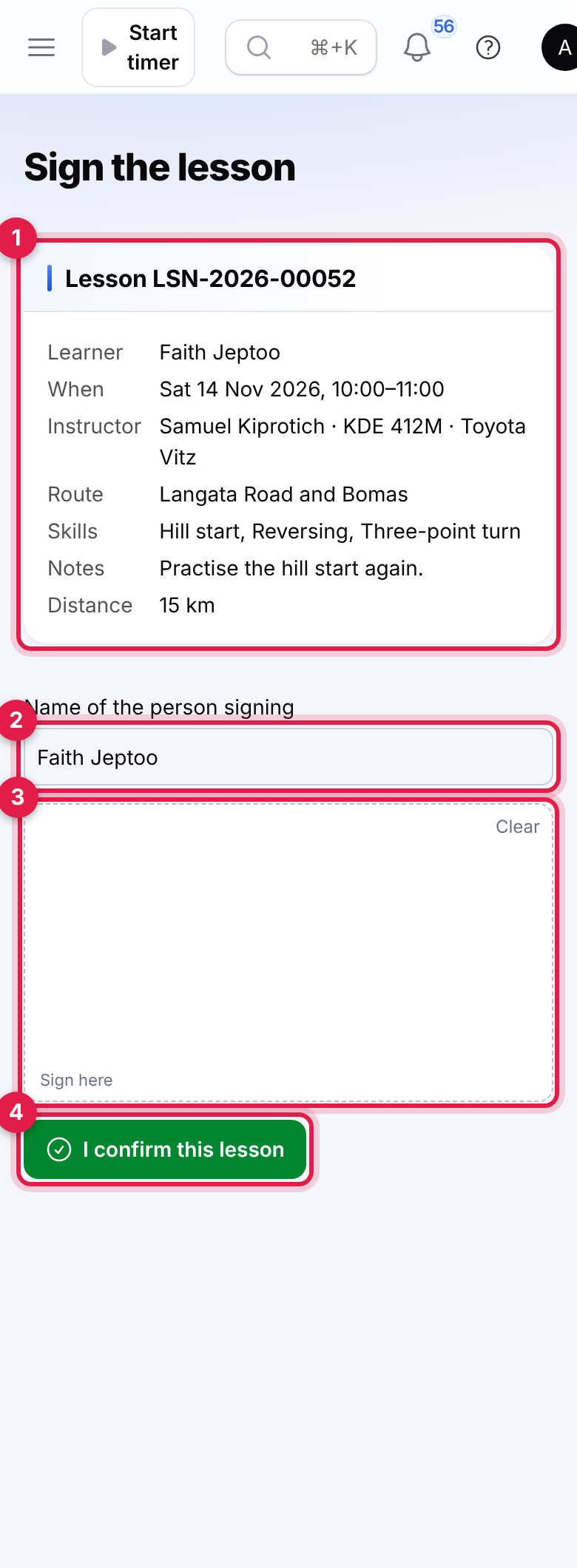
The learner reads the record (marker 1): when, the instructor and vehicle, the route, skills, notes and distance. They check the Name of the person signing (marker 2), sign with a finger in the box (marker 3; Clear starts again) and tap I confirm this lesson (marker 4). You see Signed. Thank you. The diary shows the lesson as signed, and Signature opens the signature. A recorded lesson not signed yet shows Learner signs on the diary to open the page again.
Other actions on a booked lesson: Did not come marks it missed (it still counts against the package), and Cancel (managers) frees the slot.
Theory classes
Driving school → Theory classes → New theory class: the Topic, the Licence class (empty for every class), Starts, Minutes and Instructor.
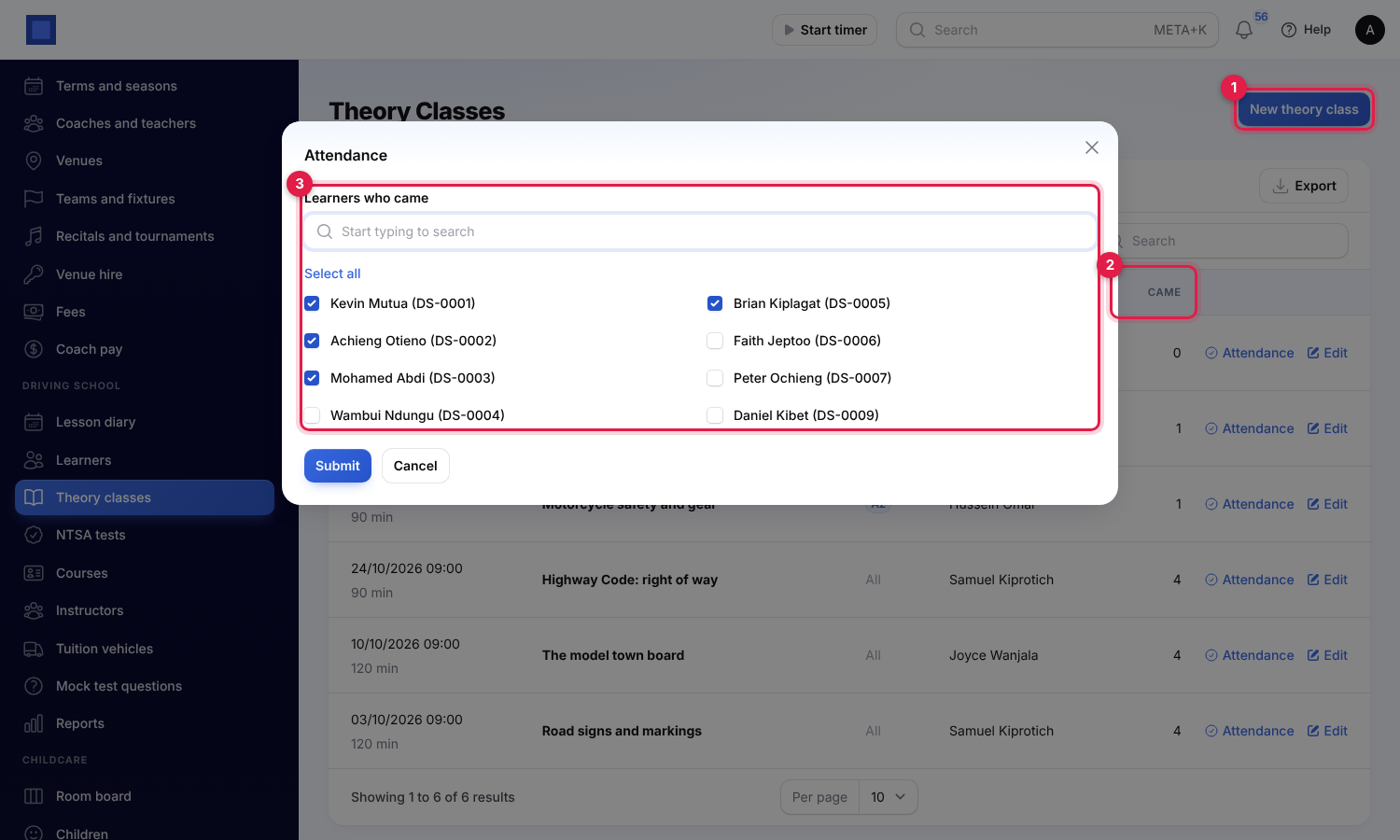
After the class, click Attendance and tick the Learners who came (marker 3; learners on that class's courses, or everyone). The Came column (marker 2) counts them, and the hours count towards each learner's theory hours.
NTSA tests
Book each learner's NTSA tests with Book a test on Driving school → NTSA tests (marker 1) or on the learner's NTSA tests tab: the Driving test (Theory and model town or Road test), the Date and time, the Test centre and the NTSA booking reference. A learner cannot have the same test booked twice, and a learner who passed cannot be booked again.
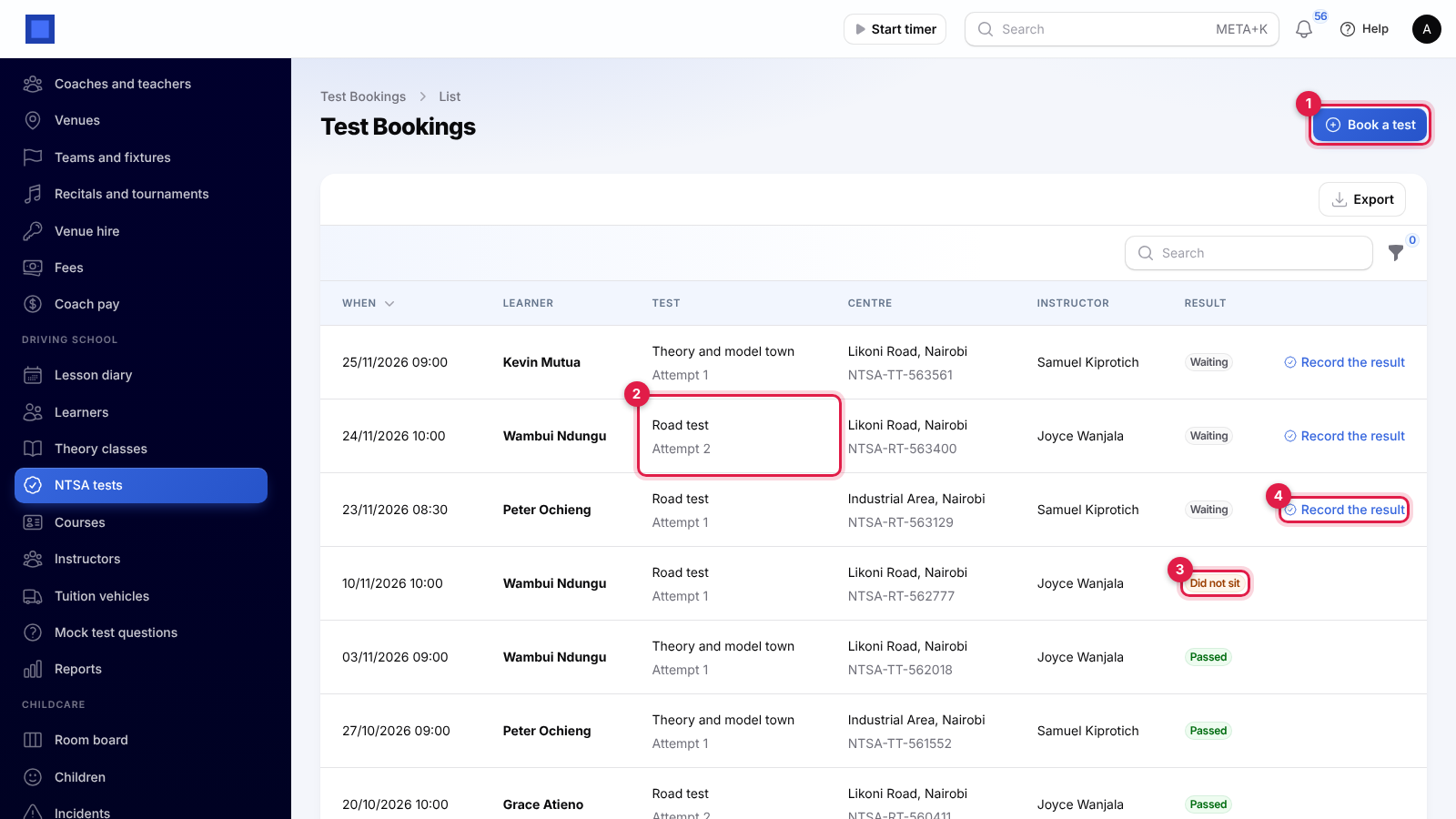
- Record the result (marker 4): Passed, Failed or Did not sit, with notes. A passed road test marks the learner Passed.
- Book the retest: after a fail or a test not sat (marker 3), book the next attempt at the same centre. The Attempt number (marker 2) goes up.
Filter by result, test or instructor.
Mock test questions
Driving school → Mock test questions is your bank of multiple-choice questions for the mock theory tests.
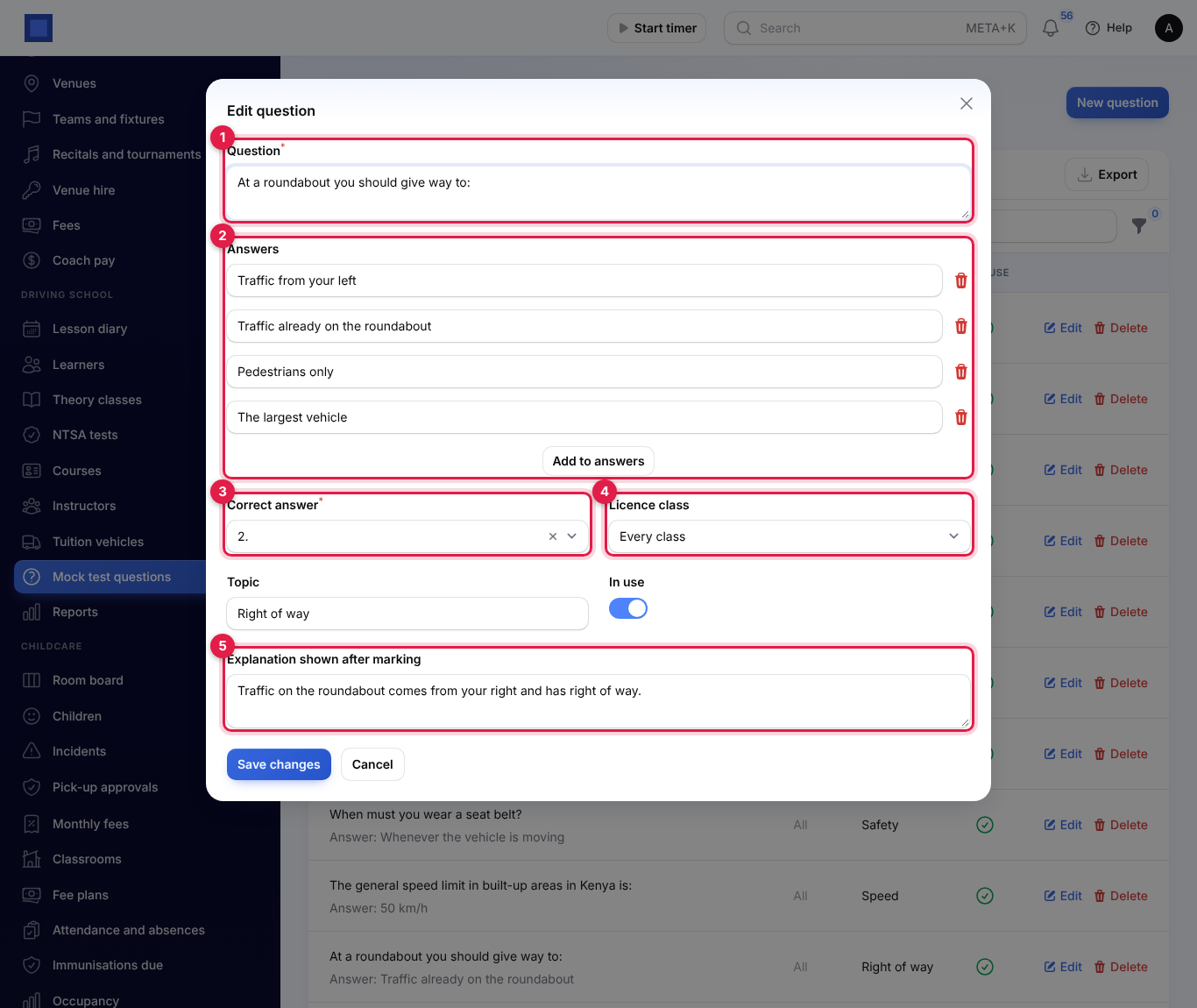
Click New question (or Edit): type the Question (marker 1), two to six Answers (marker 2), choose the Correct answer (marker 3), the Licence class (marker 4; empty for every class), a Topic, In use, and the Explanation shown after marking (marker 5).
Reports
Driving school → Reports covers a period, this month at first. Change From and To (marker 1).
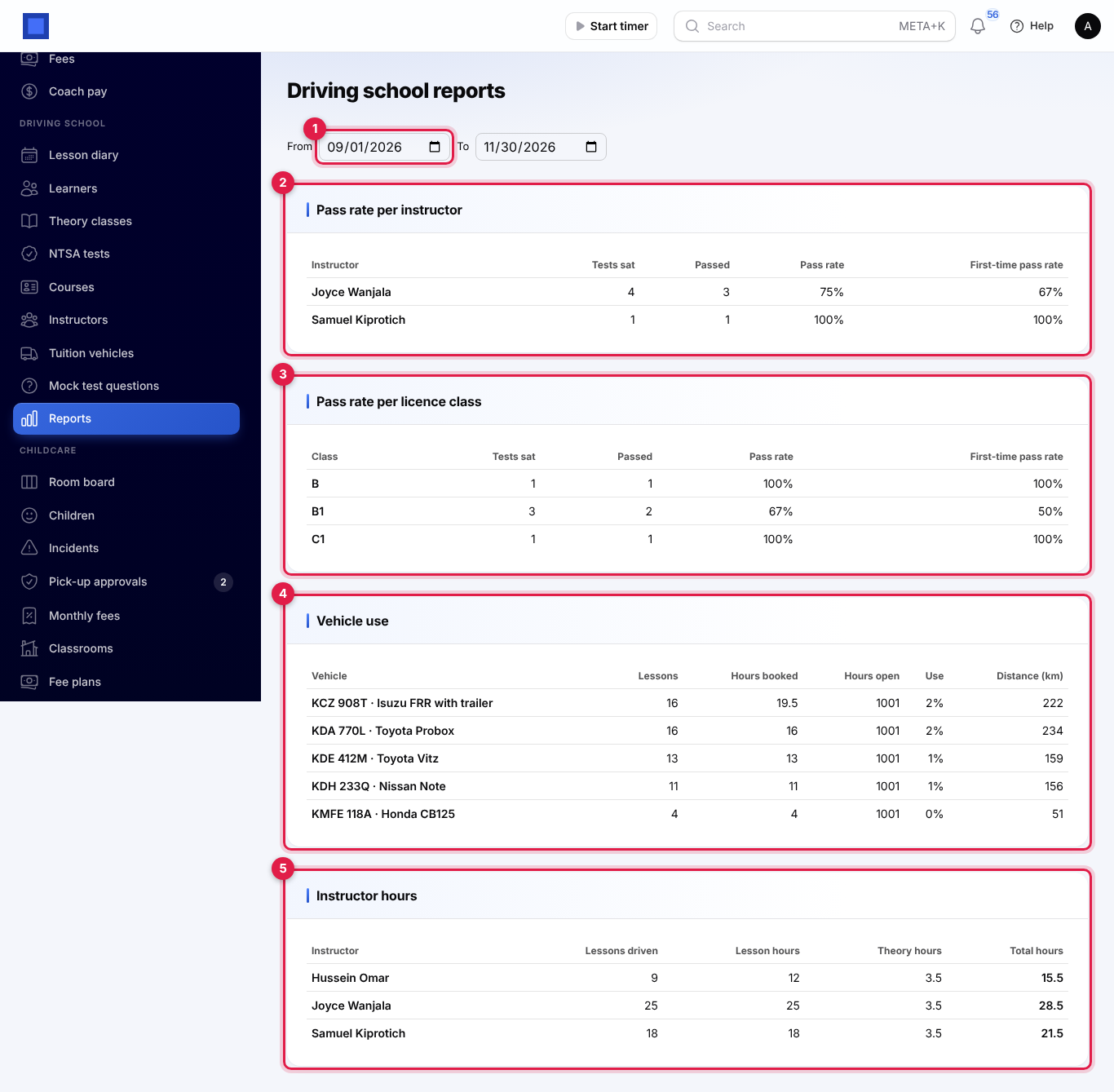
- Pass rate per instructor (marker 2) and Pass rate per licence class (marker 3): tests sat in the period, passed, the pass rate and the First-time pass rate (first attempts only).
- Vehicle use (marker 4): lessons, hours booked against the hours the school is open, the use as a percentage, and the distance driven.
- Instructor hours (marker 5): lessons driven, lesson hours, theory hours and the total.
What learners see in the portal
Learners with portal access (see Customer and vendor portal) have a Driving lessons page.
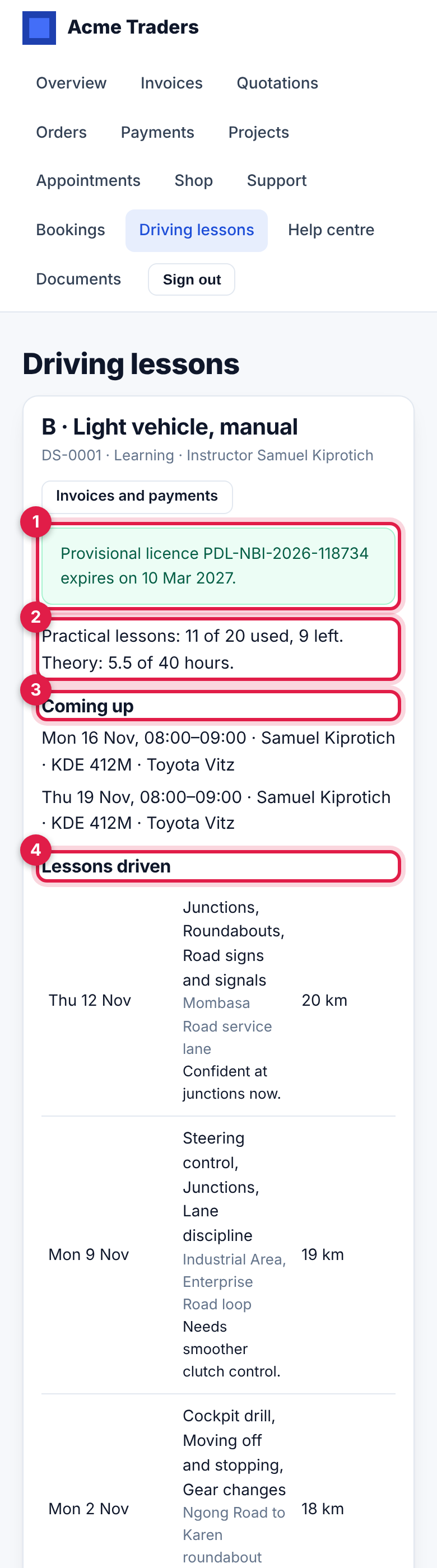
- The course, learner number, status and instructor, with Invoices and payments to pay instalments online.
- Their PDL expiry (marker 1), green, amber within 30 days or red once expired.
- Practical lessons: 11 of 20 used, 9 left and the theory hours done (marker 2).
- Coming up (marker 3): booked lessons with the instructor and vehicle, and Extra lesson on extras.
- Lessons driven (marker 4): each with the skills, route, notes and distance.
Further down:
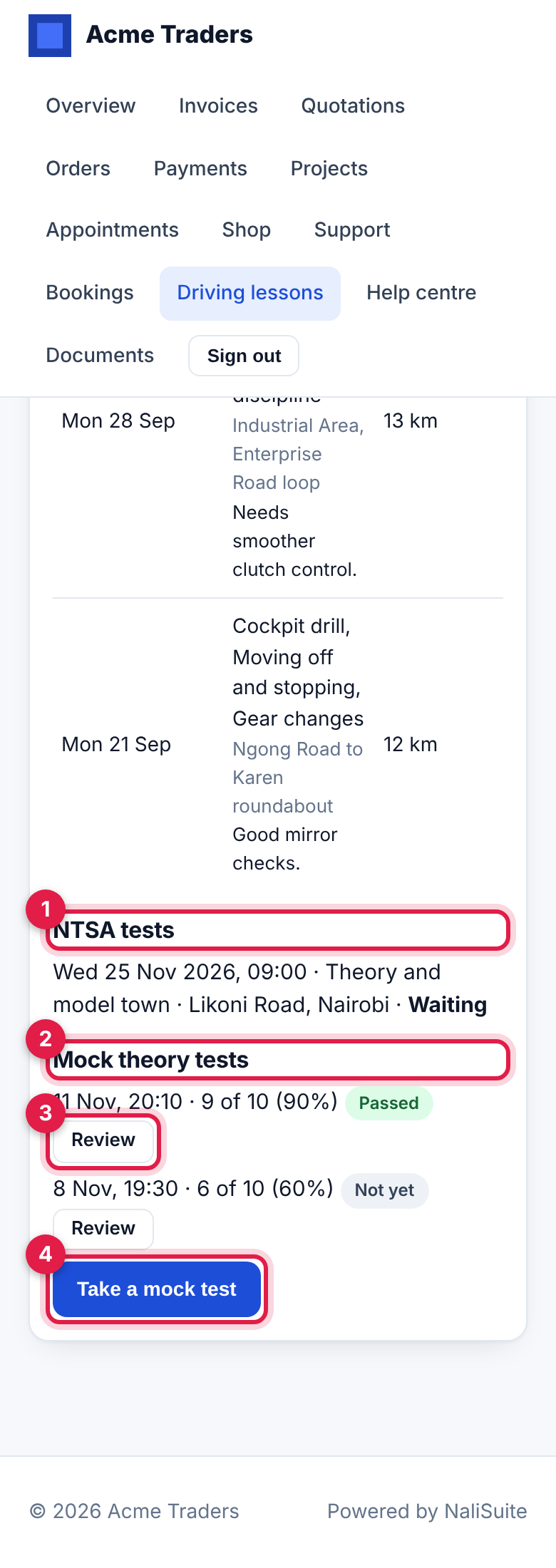
- NTSA tests (marker 1) with the date, test, centre and result.
- Mock theory tests (marker 2): each test with the score and Passed or Not yet, and Review (marker 3).
- Take a mock test (marker 4) draws questions at random from the bank (questions for every class and for the learner's class). They choose one answer for each and tap Mark my test; unanswered questions count as wrong.
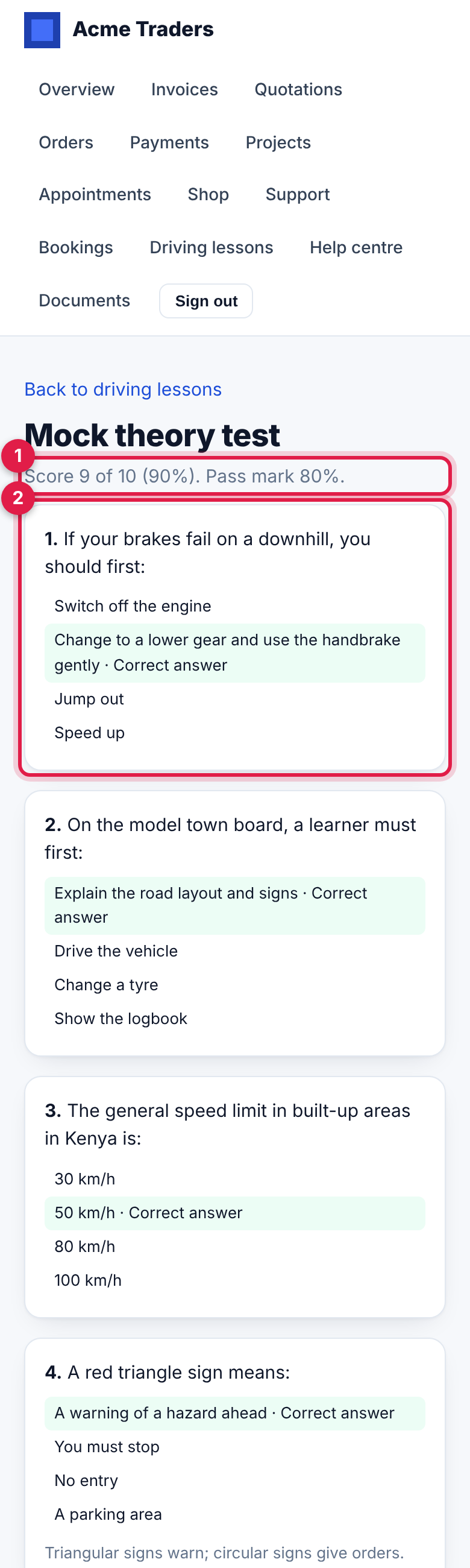
The marked test shows the score against the pass mark (marker 1), and each question with their answer and the correct answer, with the explanation (marker 2). Staff see every mock test on the learner's Mock tests tab.
Good to know
- Every hour (at 11 minutes past): lesson reminders go out, PDL alerts are sent, and instalments that have fallen due are invoiced.
- No double booking: an instructor, a vehicle or a learner can never have two lessons at the same time; only free slots are offered, and the check is made again when you submit.
- Lessons can only be booked in the future. Record past lessons from the diary.
- Driving school invoices carry no tax. Instalments are due on their due date (or after the learner's payment terms once that has passed); extra lessons are due after the payment terms.
- The lesson diary's Day filter starts on today's date; change the day in the filter to plan ahead.
- Texts go out only with SMS set up in Marketing. A reminder that could not be sent is tried again the next hour.