Switching apps on and off
Your plan may include many apps: CRM, Sales, Point of Sale, HR, Projects and more. You do not have to use them all. This page shows workspace administrators how to switch off the apps your business does not need, so the menu shows only what you use, and how to switch them back on. It works the same for apps in your plan and for apps you bought from the marketplace.
You will find it under Settings → Apps.
Note: Anyone who can see the settings can open Apps. Only people with the Manage settings permission (the owner and admin roles by default) can switch apps on or off. Switching a bought marketplace app on or off also needs the Manage billing permission, because it changes what you pay.
What switching off does
- The app's menu leaves the sidebar, and its tiles leave the dashboard and the quick-create menu.
- Your data is kept. Nothing is deleted. Switch the app back on and everything is where you left it.
- Reminders and automatic jobs for that app stop while it is off. (An app running in the background for another keeps its jobs.)
- An app you bought from the marketplace stops being billed from your next renewal (see Bought apps).
Some apps are built on others. Point of Sale uses the products from Sales; Payroll uses the employees from HR. If you switch off an app that another switched-on app needs, it keeps working in the background: it has no menu of its own, and the screens the other app needs appear inside that app's menu instead (see Apps that run in the background).
Choose the apps you use
- Open Settings → Apps (marker 1). Each app has a card with its name, where it comes from (In your plan, Bought from the marketplace or Added to your workspace) and its state: On, Off or In the background (marker 2). Switched-on apps are listed first.
- To hide an app, press Switch off on its card (marker 3) and confirm. The page reloads with the shorter menu.
- To bring one back, press Switch on (marker 4). Its menu returns straight away.
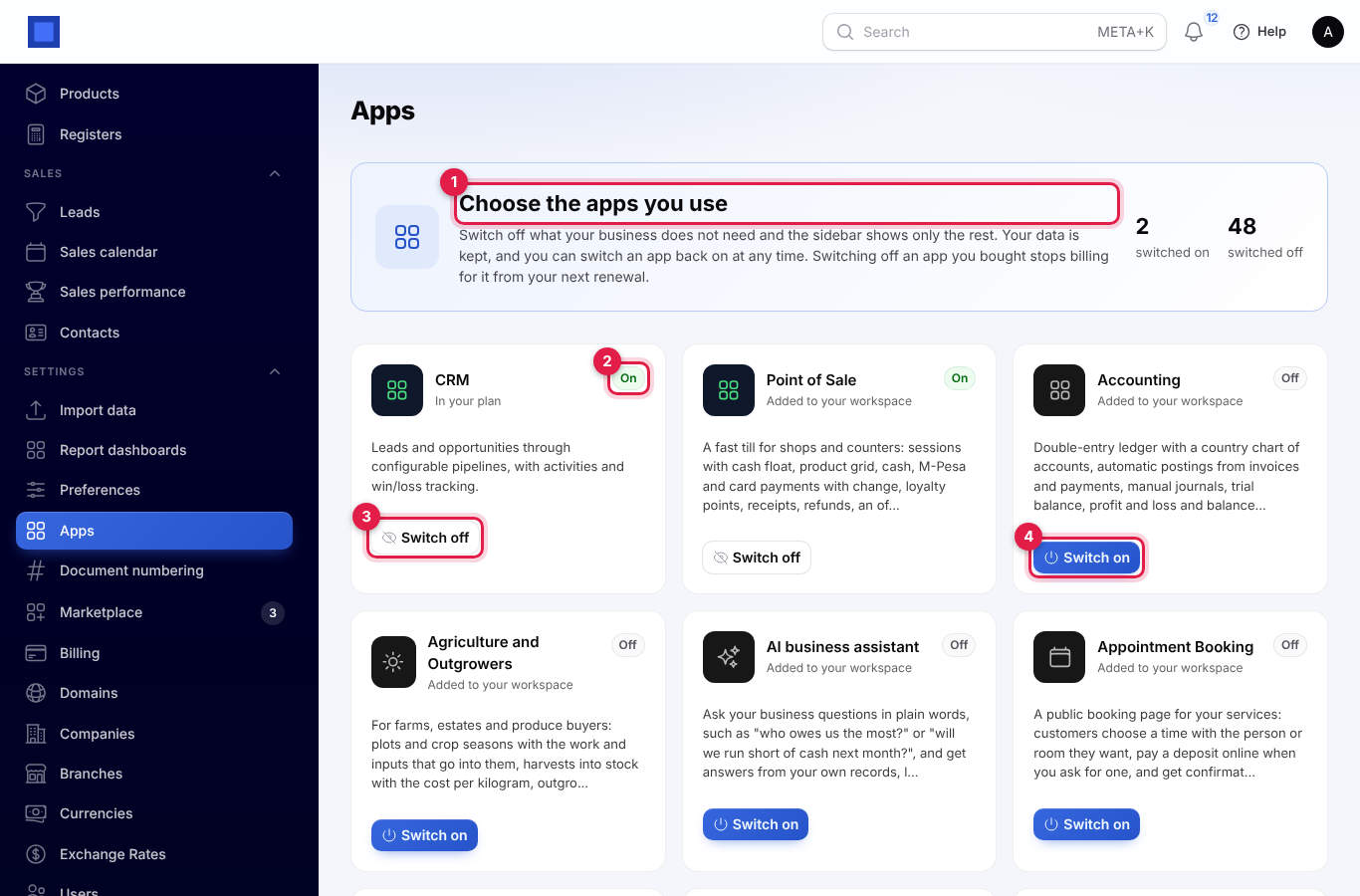
The two numbers at the top right count the apps switched on and switched off.
For example, a shop that only needs leads and a till switches off everything except CRM and Point of Sale. A company that only runs HR switches off everything but HR.
Apps that run in the background
When an app you switched off is still needed by one you use, its card says In the background (marker 1) and names the app that needs it (marker 2).
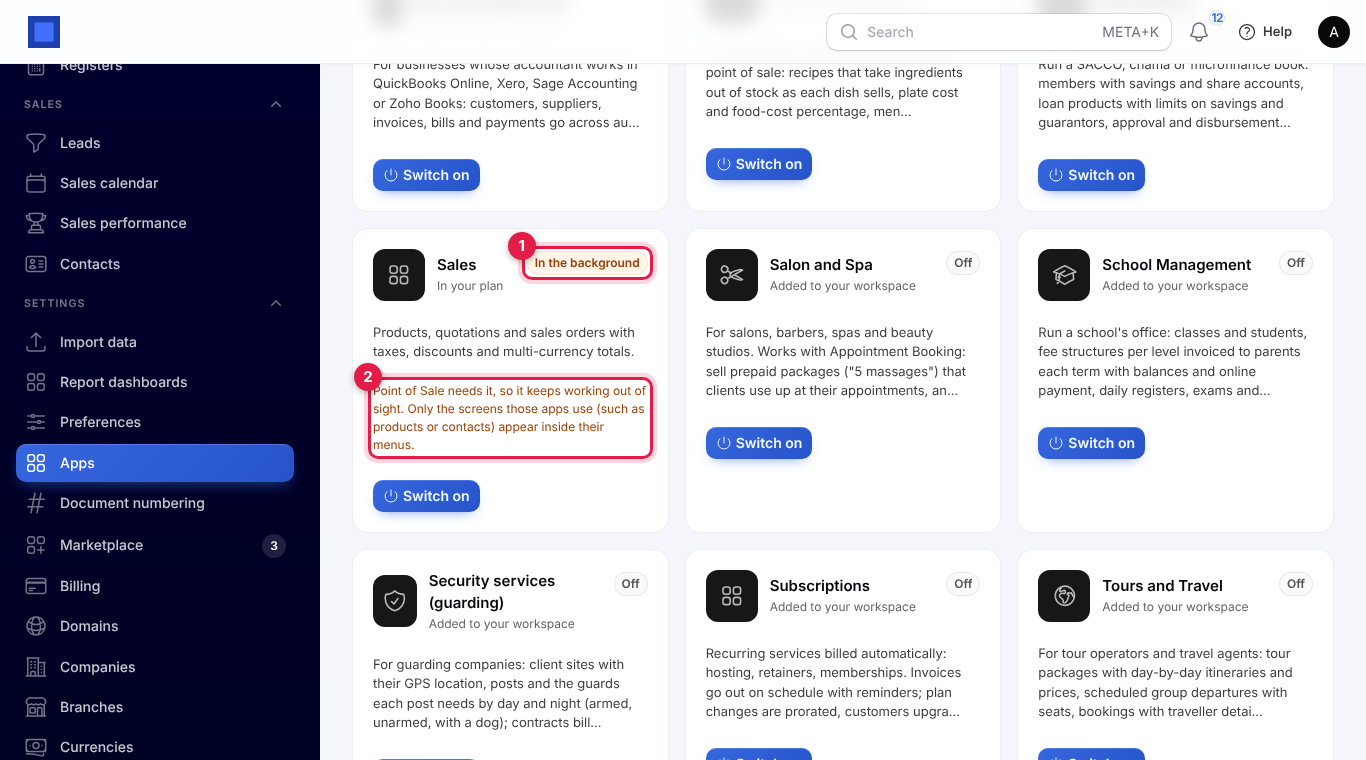
Its own menu stays hidden, but the screens the other app relies on appear inside that app's menu:
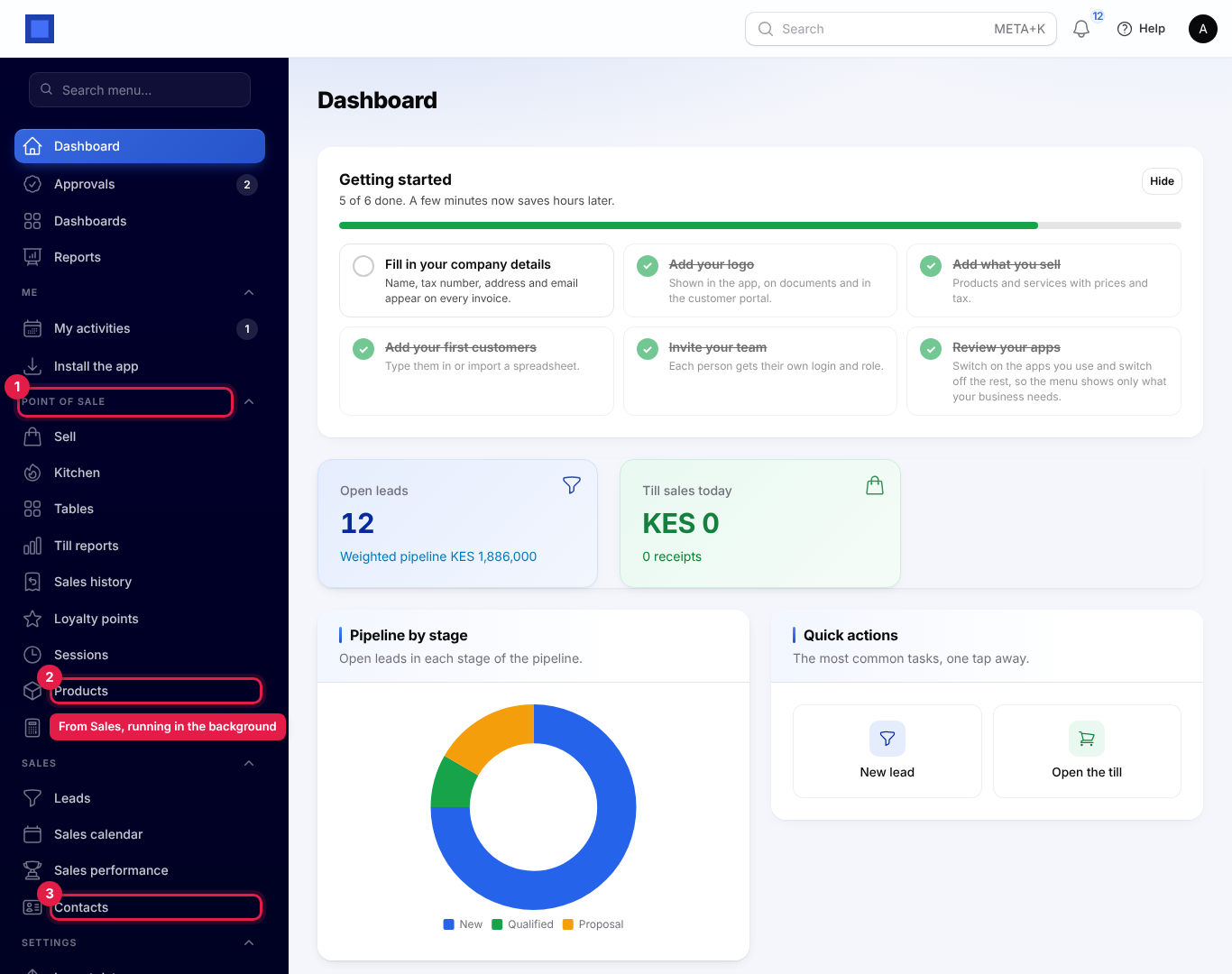
- Marker 1: the Point of Sale group.
- Marker 2: Products comes from Sales but sits inside Point of Sale, because the till sells them.
- Marker 3: Contacts sits with CRM, because leads belong to contacts.
These shared screens are: products, contacts, invoices and payments, employees, stock levels and warehouses, bills, appointments, subscriptions, leads and the till. When nothing needs the background app any more (you switch off Point of Sale as well), it stops too.
To get the full menu back, press Switch on on the background app's card. An app that is no longer in your plan and that you have not bought only runs in the background while another app needs it; it cannot be switched on by itself.
The Switched off group in the sidebar
Apps you have but switched off are listed at the end of the sidebar, in a Switched off group (marker 1). The group starts folded; press its name to open it. Each app is greyed out and tagged Off (marker 2), so you can see what else your plan gives you without it getting in the way.
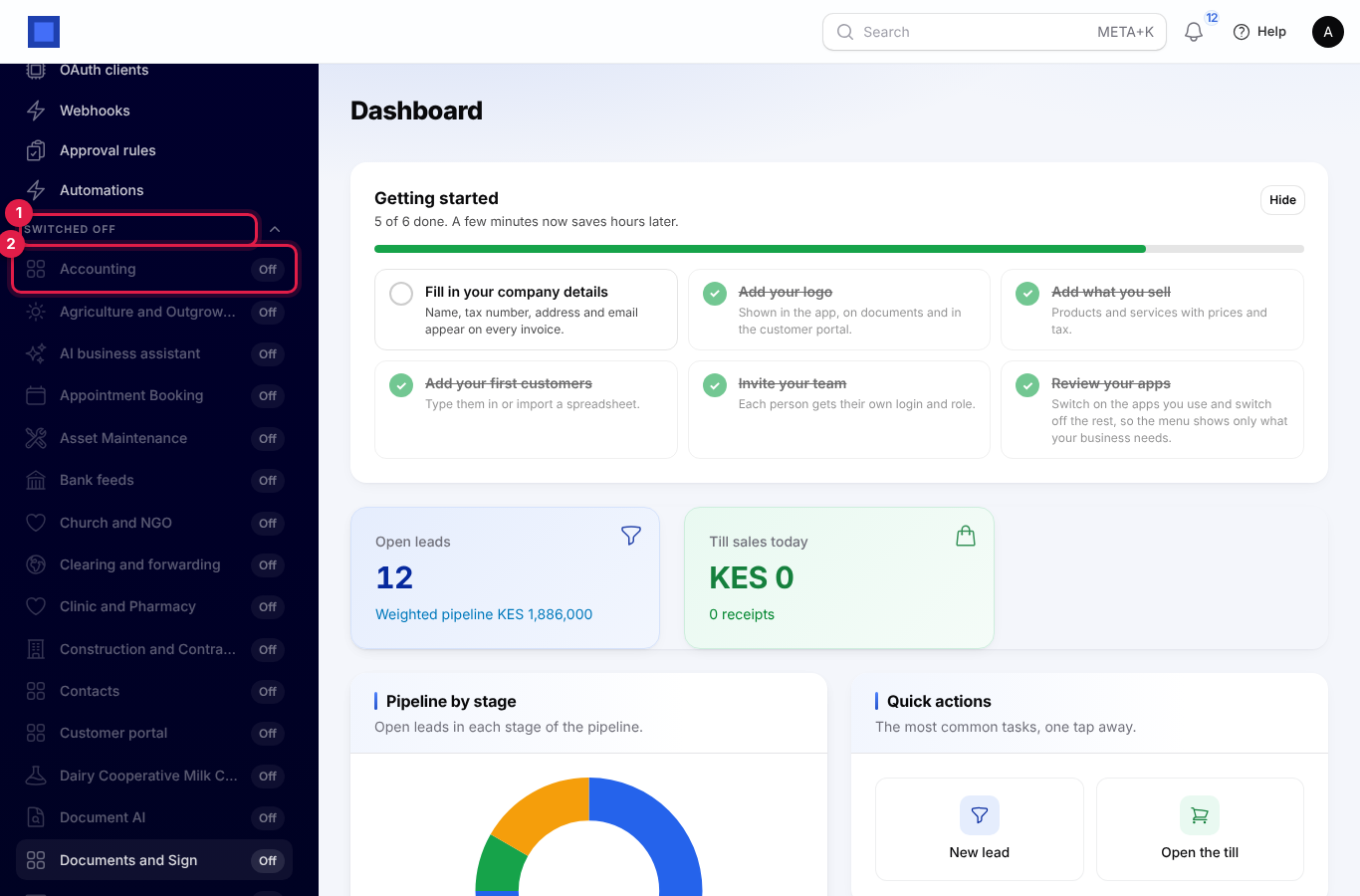
Apps you have not bought do not appear here; find them in the marketplace.
Switch an app back on
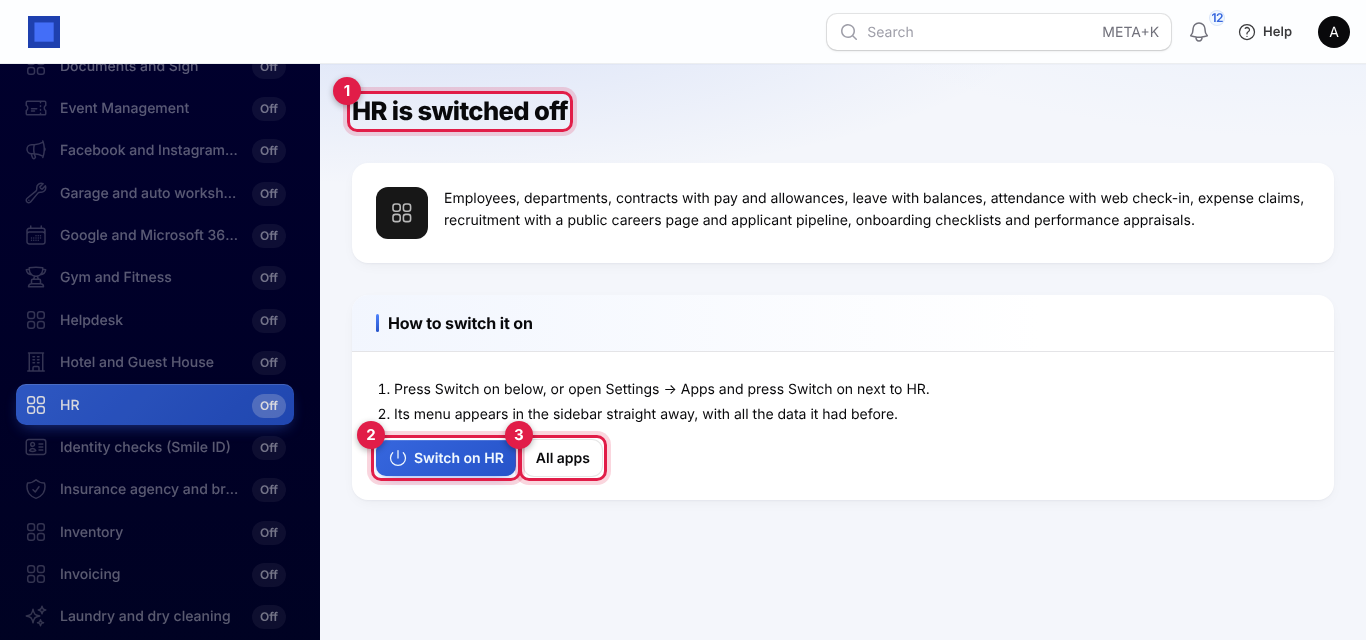
Press a greyed-out app in the Switched off group. A page opens saying what the app does (marker 1) and how to switch it on:
- Press Switch on with the app's name (marker 2), or All apps (marker 3) to go to Settings → Apps.
- The app's menu appears in the sidebar again, with all its data.
People who cannot change settings see "Only an administrator of your workspace can switch apps on", followed by the names of the people to ask.
Bought apps
Marketplace apps you bought are switched off and on the same way, with two differences:
- Switching off stops billing from your next renewal. You have already paid for the current period, so nothing is refunded. Until the period ends the card says "Billing stops after [date]. Switch it on before then to keep it." Switching it back on before that date keeps it on your subscription at no extra cost.
- After the period ends, the app leaves your subscription and this list. Your data is kept. To use it again, add it from Settings → Marketplace.
- An app on a free trial, or bought while your workspace is still on its free trial with nothing paid yet, stops at once when switched off.
Good to know
- Changing plan switches on the apps the new plan adds and leaves the ones you switched off as they are. If the new plan does not include an app, it is switched off and leaves your list, unless you bought it in the Marketplace.
- When your provider takes an app out of your plan, it is switched off in your workspace straight away and you get an "Apps removed from your plan" alert and email. Your data is kept; if the app is added back, it comes back with its data. A bought copy of the app is not affected.
- Core screens (dashboard, settings, users, companies, reports) are always there and cannot be switched off.
- Switching an app off does not change anyone's role. When it is switched back on, people see it again according to their permissions.
- If your provider added an app to your workspace outside your plan, it shows as Added to your workspace and can be switched off and on like the rest.
- Reports and dashboards only offer data from switched-on apps. The data of switched-off apps comes back with the app.