Car Wash
Car Wash is for car washes and valet bays. You keep a price list of packages for each vehicle type (saloon, SUV, pickup, truck, matatu or bus) with add-ons such as wax or an engine wash. Each car is taken in at the entrance by its number plate and the customer's phone, queued to a bay and a washer, and moved from waiting to washing, drying, ready, paid and collected. Payments go through the Point of sale till when it is on, otherwise through an invoice, otherwise as a simple cash or M-Pesa record. Washers earn a commission on every wash, every Nth wash can be free, plates on a monthly plan wash free, customers get a "your car is ready" text, and a large screen in the waiting area shows the cars ready to collect.
It is in the Car wash group of the left menu: Wash queue, Daily report, Monthly plans, Packages and add-ons, Bays and Washers.
Note: car_wash.view lets someone see the wash queue, the daily report, the ready screen and the lists of packages, bays, washers and monthly plans. car_wash.manage adds taking cars in, moving them on, taking payments, sending texts, cancelling, changing the ready screen address and editing packages, bays, washers and plans. Owners and admins have both; the member role has car_wash.view. Set permissions under Settings → Roles.
Switch it on
Car Wash is a marketplace add-on. It needs the Contacts app. These apps add to it when they are on:
- Point of sale: payments are rung up on the till (see Point of sale).
- Invoicing: without Point of sale, each payment is invoiced to the customer.
- Subscriptions: monthly unlimited plans (see Subscriptions).
- Marketing with an SMS provider: "your car is ready" texts (see SMS providers).
- Open Settings → Marketplace and type Car wash in the Search add-ons… box (marker 1).
- On the Car wash card (marker 2), click Start free trial (or Add to subscription) and confirm. The Car wash group appears in the menu.
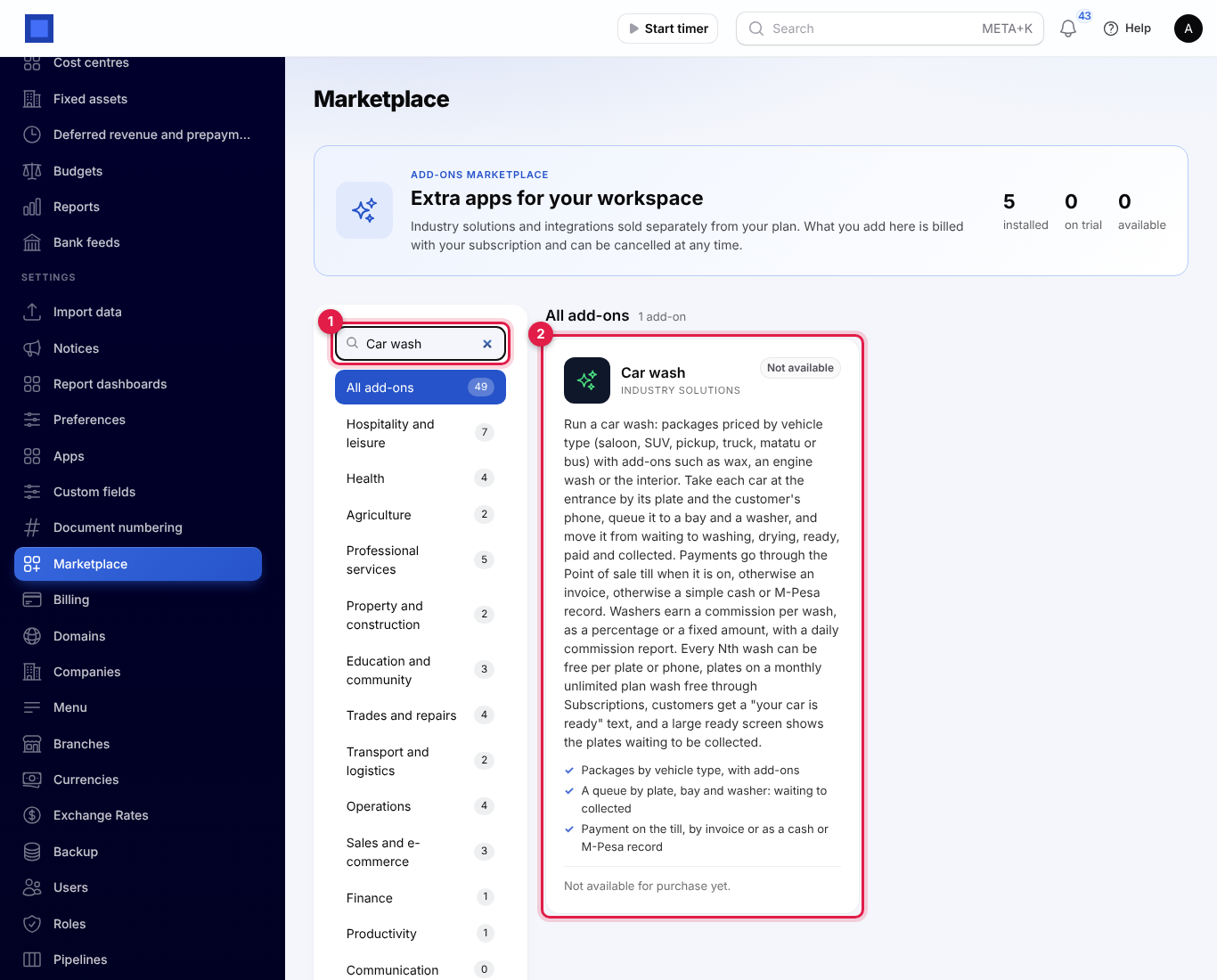
If the card says Not available for purchase yet, the add-on has not been priced for your plan: ask NaliSuite support to switch it on. See Billing and marketplace.
Car wash settings
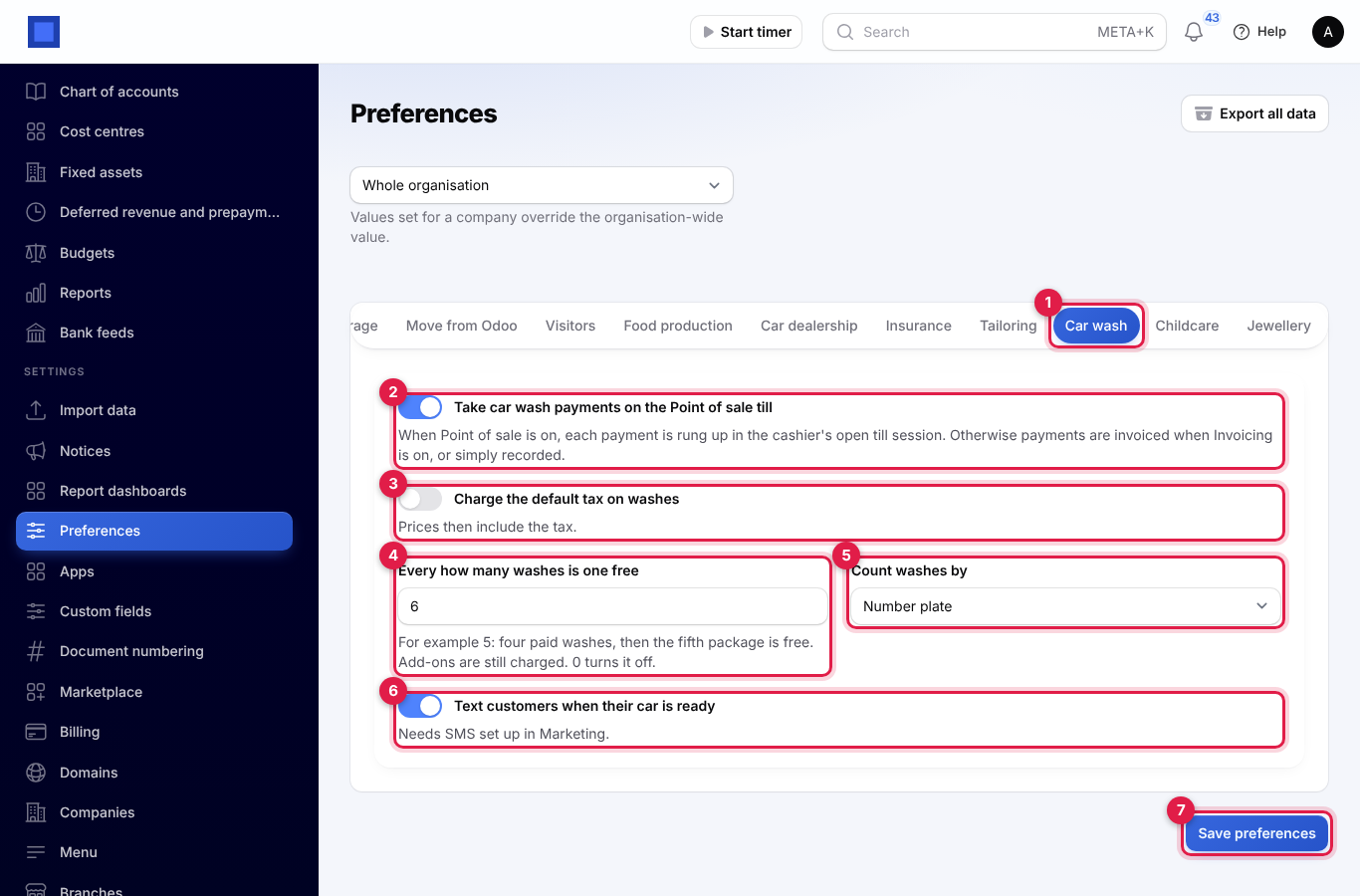
- Open Settings → Preferences and click the Car wash tab (marker 1).
- Fill in the fields and click Save preferences (marker 7).
| Setting | Default | What it does |
|---|---|---|
| Take car wash payments on the Point of sale till (marker 2) | On | When Point of sale is on, each payment is rung up in the cashier's open till session. Turn it off to invoice payments instead (with Invoicing on) or simply record them. See Payment. |
| Charge the default tax on washes (marker 3) | Off | Till sales and invoices for washes carry your default tax (for example VAT 16%). Your prices then include the tax. |
| Every how many washes is one free (marker 4) | 0 (off) | For example 5: four paid washes, then the fifth package is free. Add-ons are still charged. 0 turns it off. |
| Count washes by (marker 5) | Number plate | Count washes towards the free one per Number plate or per Customer's phone. |
| Text customers when their car is ready (marker 6) | On | Sends the "your car is ready" text. Needs SMS set up in Marketing. |
The dropdown at the top of Preferences lets one company use different settings from the rest of the organisation.
Packages and add-ons
Open Car wash → Packages and add-ons. Each package has a price for one vehicle type, so the same wash can be listed once per type (marker 2: Full valet for a saloon). Add-ons (marker 3) are sold on top of any package.
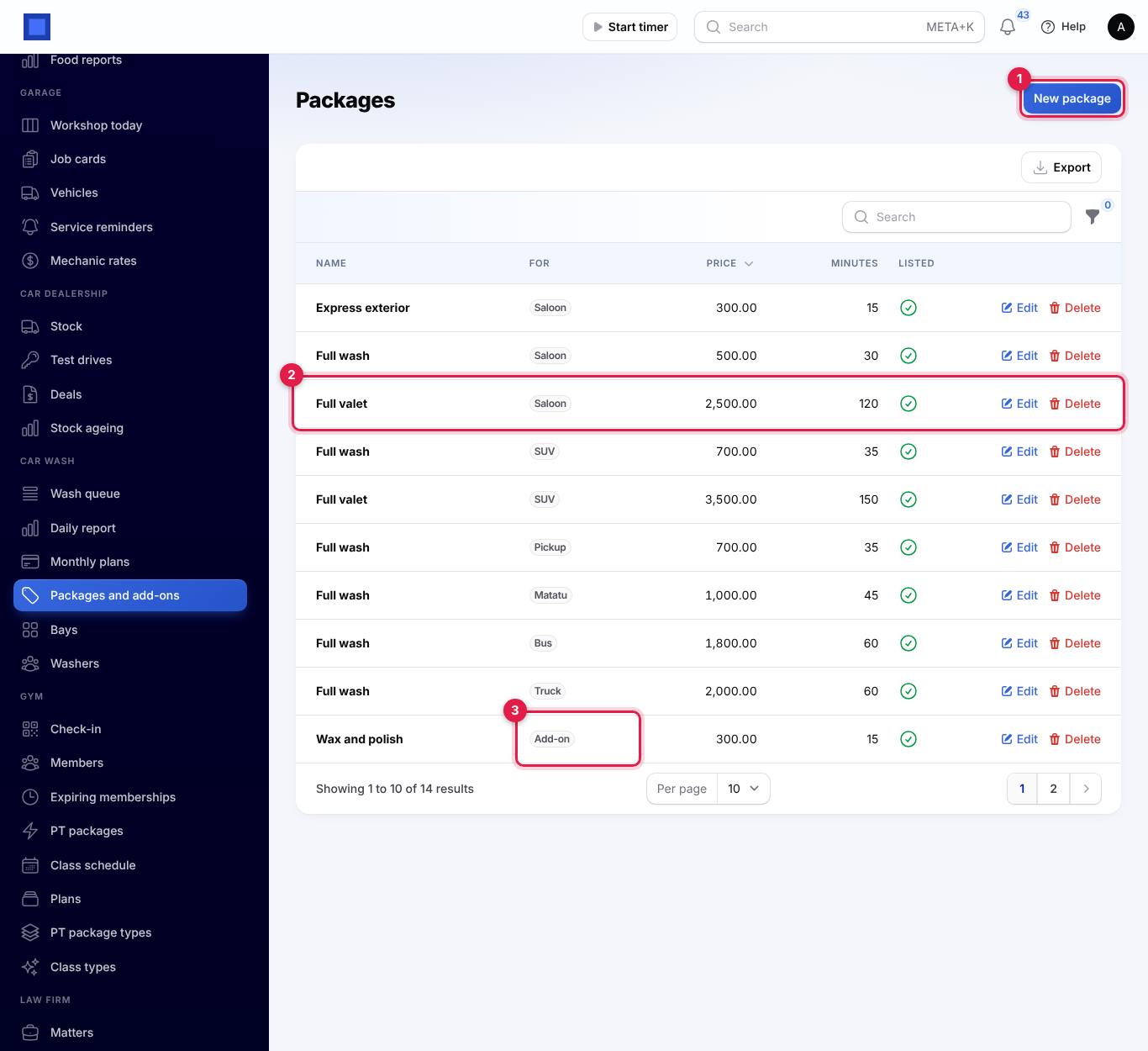
- Click New package (marker 1), or Edit on a row.
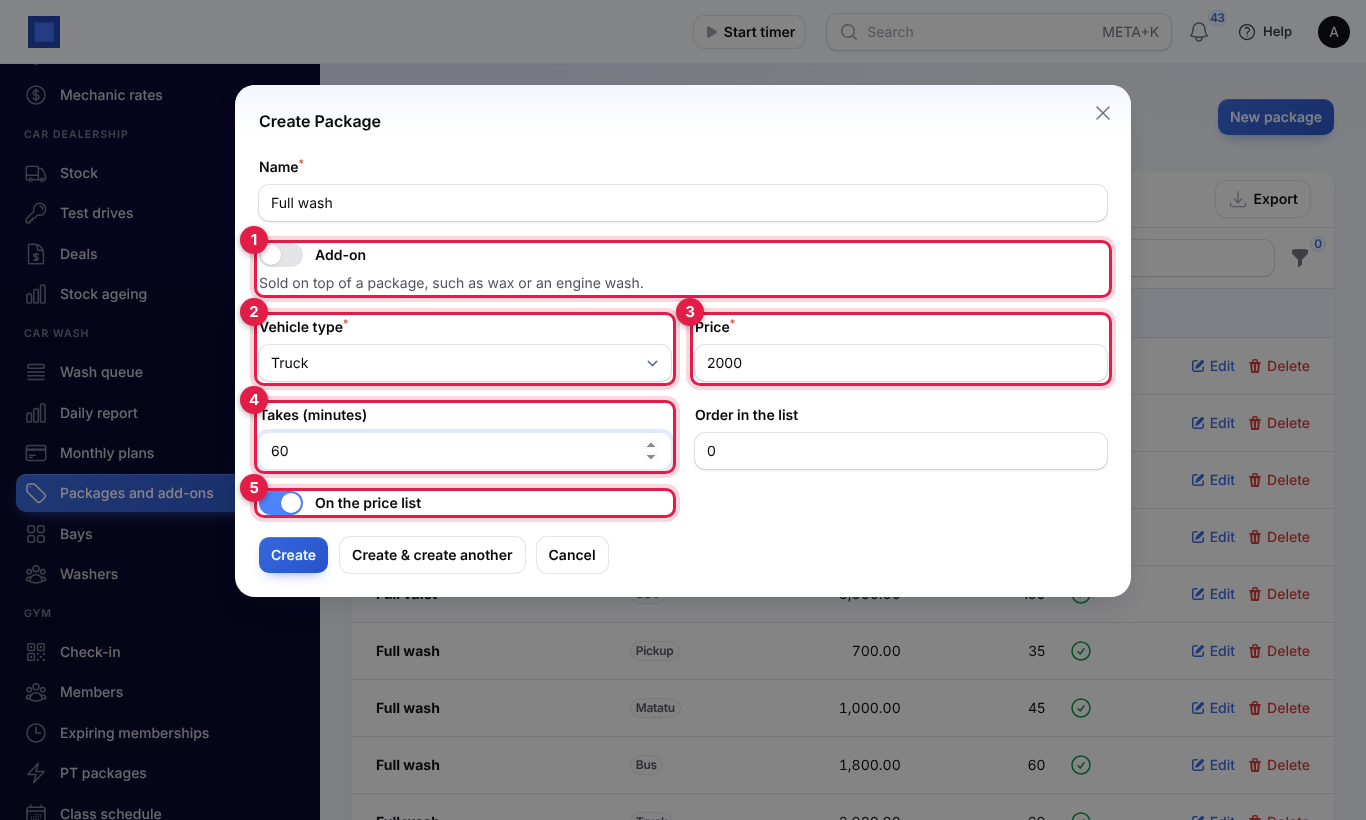
- Fill in the form and click Create.
| Field | What to enter |
|---|---|
| Name (required) | For example Full wash, Express exterior or Wax and polish. |
| Add-on (marker 1) | On for something sold on top of a package, such as wax or an engine wash. |
| Vehicle type (required for packages, marker 2) | Saloon, SUV, Pickup, Truck, Matatu or Bus. Not asked for add-ons. |
| Price (required, marker 3) | What the customer pays. |
| Takes (minutes) (marker 4) | How long it usually takes, for your own reference. |
| Order in the list | Where it comes in the lists; lower numbers first. |
| On the price list (marker 5) | Turn off to stop offering it without deleting it. |
Filter the list by Vehicle type or to show only Add-ons.
Bays and washers
Car wash → Bays lists the bays cars are washed in. Click New bay, enter the Name (for example Bay 1), the Order in the list and whether it is In use.
Car wash → Washers lists your washers with their commission. Click New washer, or Edit on a washer:
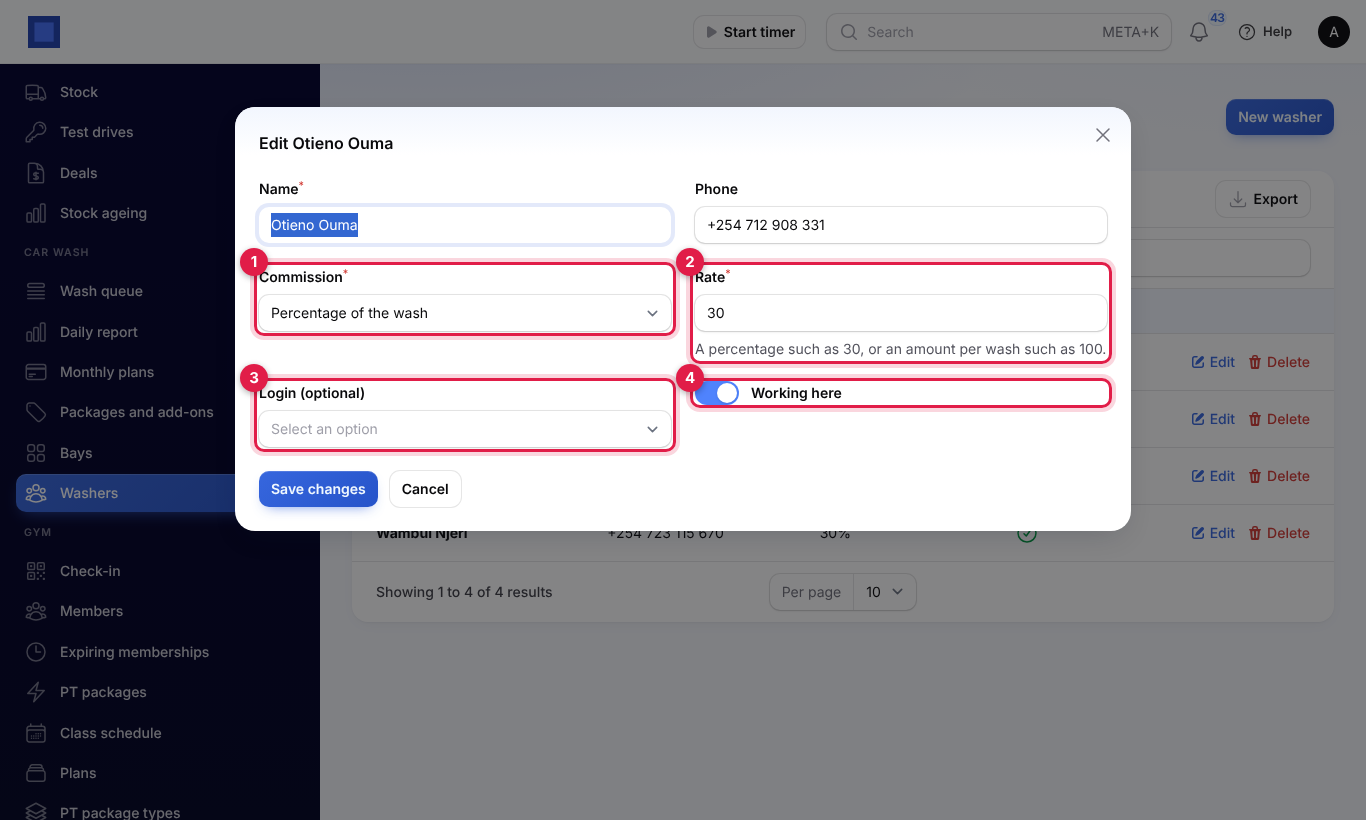
| Field | What to enter |
|---|---|
| Name (required) and Phone | The washer's name and phone. |
| Commission (marker 1) | Percentage of the wash or Fixed amount per wash. |
| Rate (required, marker 2) | A percentage such as 30, or an amount per wash such as 100. |
| Login (optional) (marker 3) | The washer's user in the workspace, if they have one. |
| Working here (marker 4) | Turn off when the washer leaves; they are no longer offered for new washes. |
Take a car in
Open Car wash → Wash queue.
- Click New wash (marker 1 in the queue screenshot below).
- Fill in the form and click Create (marker 8).
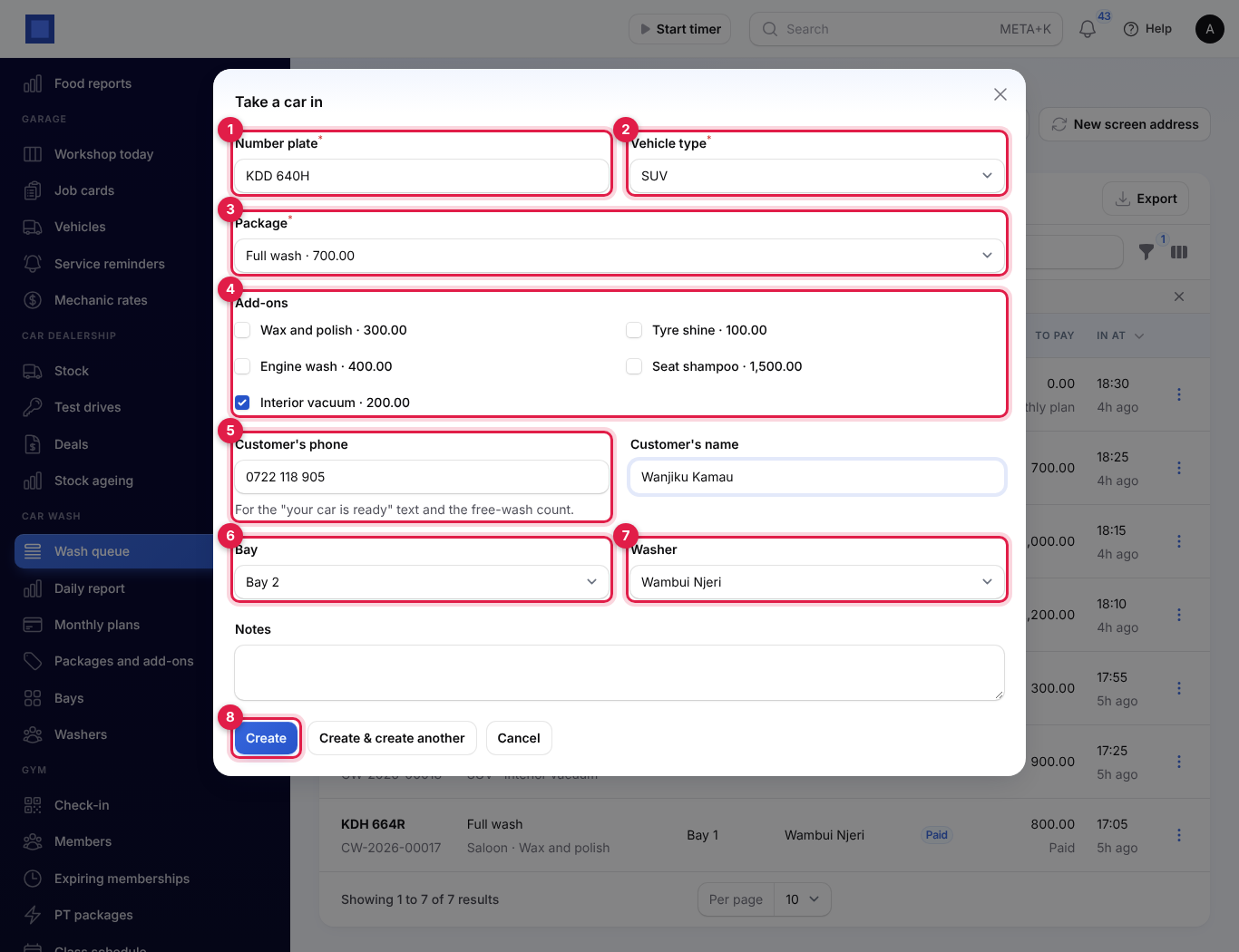
| Field | What to enter |
|---|---|
| Number plate (required, marker 1) | Saved in capitals with a space, so kcd123x becomes KCD 123X. |
| Vehicle type (required, marker 2) | Changing it empties the package, because packages are priced per type. |
| Package (required, marker 3) | The packages for that vehicle type, with their prices. |
| Add-ons (marker 4) | Tick each add-on the customer wants. |
| Customer's phone (marker 5) | For the "your car is ready" text and the free-wash count. |
| Customer's name | Optional. Used on the invoice when payments are invoiced. |
| Bay (marker 6) and Washer (marker 7) | Optional now; you can choose them when the wash starts. |
| Notes | For example Scratch on the rear door noted. |
The wash gets a number such as CW-2026-00024, starting again at 1 each year, and joins the queue as Waiting. If it is a free wash or the plate is on a monthly plan, you see "This is a free wash for KDG 456M." or "KCZ 900Z is on a monthly plan: the package is free."
The queue and its statuses
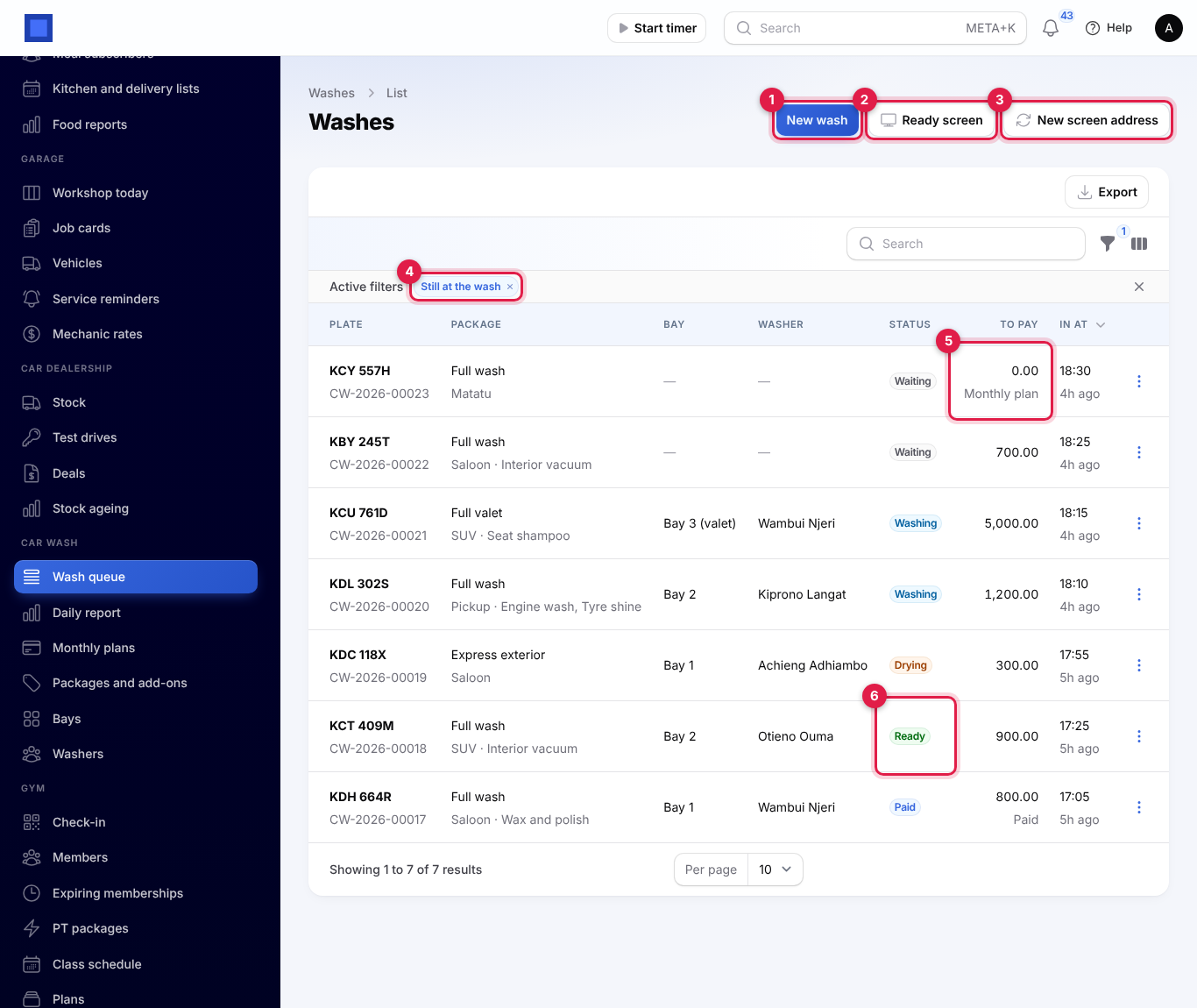
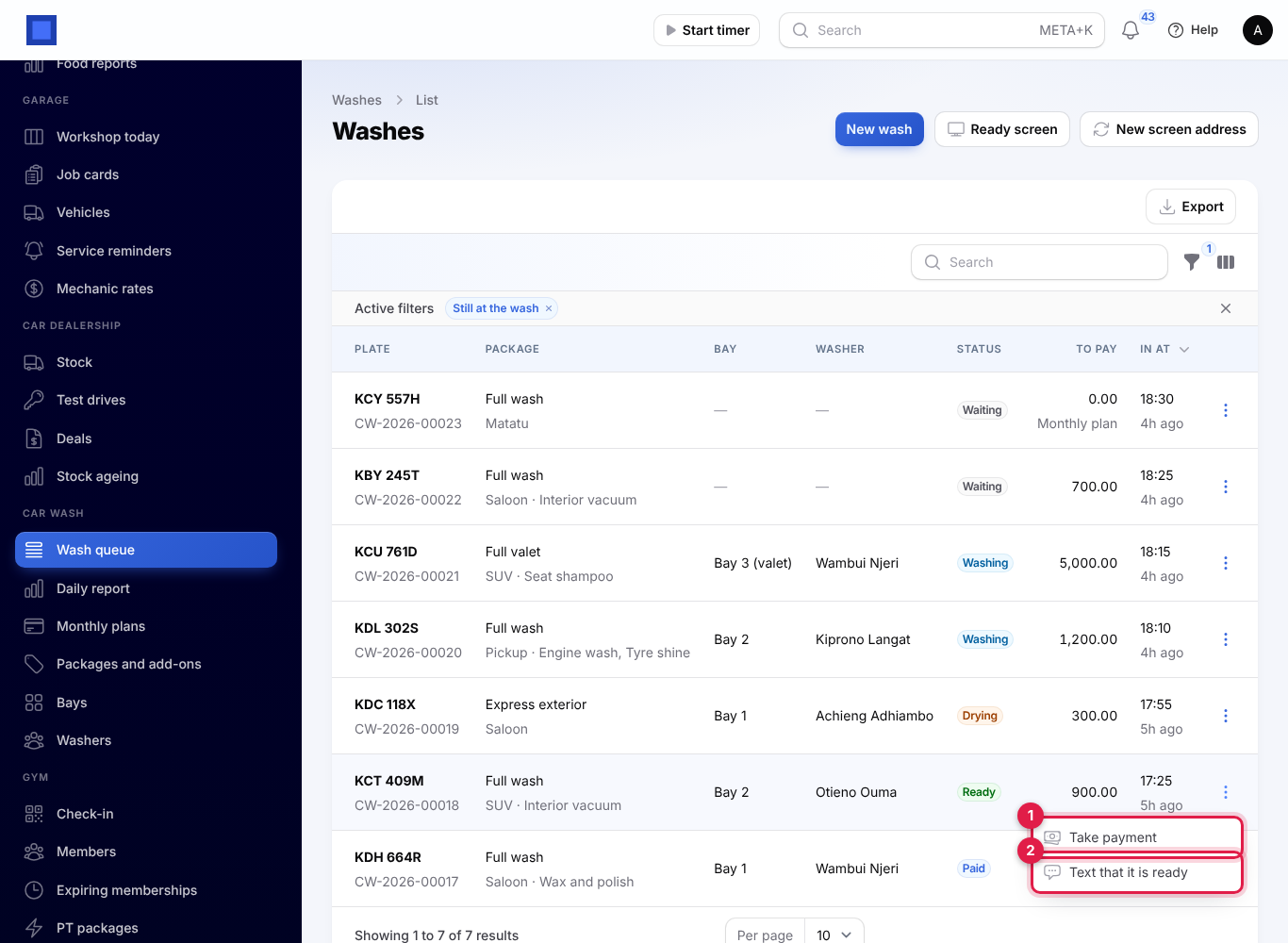
The queue shows each car's Plate and wash number, the Package with the vehicle type and add-ons, the Bay, the Washer, the Status (marker 6), what is To pay (with Free wash, Monthly plan or Paid under it, marker 5) and when it came In at, with how long ago. It refreshes by itself every 20 seconds.
- The Still at the wash filter (marker 4) is on when you open the queue, so cars already collected or cancelled are hidden. Remove it to see every wash, or filter by Status or Bay. Search by plate.
- Ready screen (marker 2) and New screen address (marker 3) are described in The ready screen.
| Status | What it means | Next step (⋮ menu) |
|---|---|---|
| Waiting | Taken in, waiting for a bay. | Start washing |
| Washing | In a bay with a washer. | Drying or Ready |
| Drying | Being dried. | Ready |
| Ready | Ready, not yet paid. | Take payment |
| Paid | Ready and paid, waiting to be collected. | Collected |
| Collected | The customer has driven off. | — |
| Cancelled | The wash was cancelled. | — |
Every step is in the ⋮ menu at the end of the row:
- Start washing: choose the Bay and the Washer (required) and click Submit.
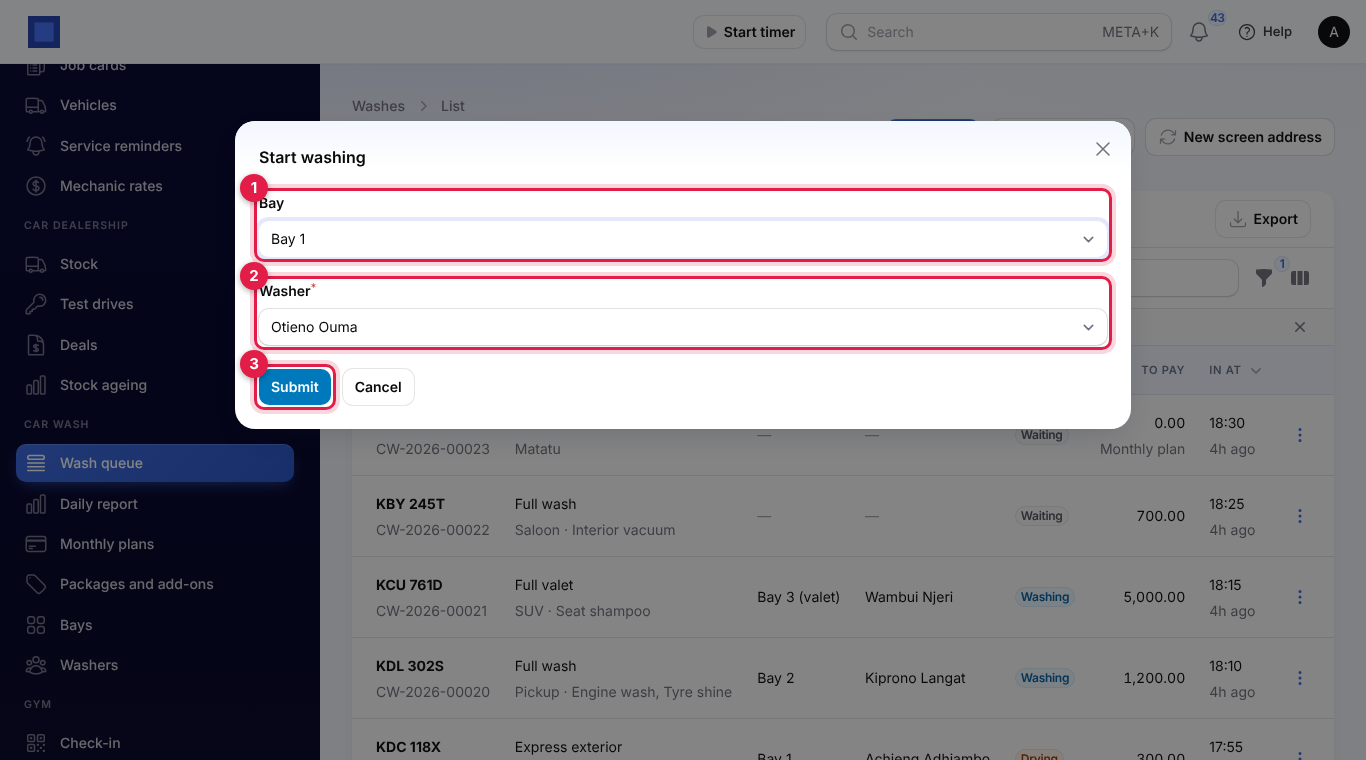
- Drying: the car moves to drying. You can also go straight from washing to ready.
- Ready: confirm. The washer's commission is worked out and the customer is texted (see Ready texts). A car already paid goes straight to Paid.
- Take payment: see the next section. It is offered at any step until the wash is paid, so a customer can pay when they drop the car off.
- Collected: once the wash is paid, or when it was free.
- Text that it is ready: sends the ready text again.
- Cancel: for a waiting, washing or drying car, after you confirm. A paid wash cannot be cancelled: refund it on the till or in Invoicing first.
Payment on the till, by invoice or as a record
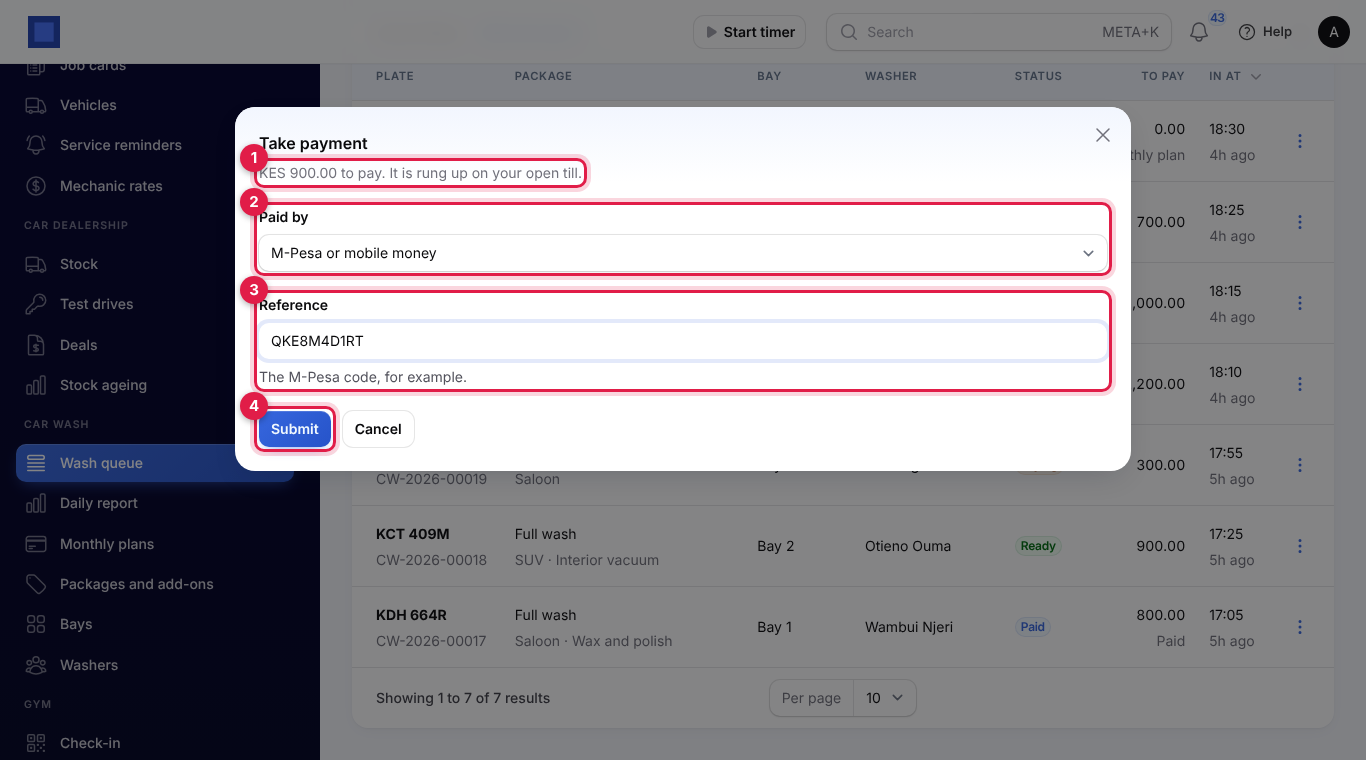
- Click ⋮ → Take payment (marker 1 in the menu screenshot).
- The window shows what is to pay and where it goes (marker 1).
- Choose how the customer Paid by (marker 2): Cash, M-Pesa or mobile money or Card (and Other when payments are not taken on the till).
- Type the Reference (marker 3), for example the M-Pesa code.
- Click Submit (marker 4). You see "Payment recorded".
Where the payment goes depends on your apps:
| Your apps | What happens |
|---|---|
| Point of sale on, and Take car wash payments on the Point of sale till on | The wash is rung up as a sale in your open till session: a line for the package (at no charge when free) and one for each add-on, paid by the method you chose. Open your till first in Point of sale; otherwise you see "Open your till in Point of sale first, or turn off taking car wash payments on the till in Settings." |
| Invoicing on (and not paying on the till) | An invoice is issued to the customer with the same lines and the payment is recorded against it, so it shows as paid. The customer is the contact on the wash, else a contact with the same phone, else a new contact named after the customer or "Car wash customer KCD 123X". |
| Neither | The method and reference are noted on the wash. |
A free wash with nothing to pay says "This wash is free."; click Submit to mark it paid.
Commission
When a car is marked Ready, its washer earns their commission on the value of the wash: the package and add-ons at their full price, even when the package was free. A percentage washer on 30% earns 210 on a 700 wash; a fixed-amount washer earns their amount on every wash. A cancelled wash earns nothing. Each washer's commission for a day is in the daily report.
Free washes
With Every how many washes is one free set to 6, every sixth wash of the same plate (or the same phone, if you count by phone) has its package free. NaliSuite counts the paid washes since the last free one; washes on a monthly plan do not count. The add-ons are still charged. The queue shows Free wash under the amount.
Monthly plans
With the Subscriptions app on, plates can be on a monthly unlimited plan: the customer pays a subscription and their washes are free while it is live. Car wash → Monthly plans appears only when Subscriptions is on.
- First set up the plan as a subscription for the customer in Subscriptions, for example Unlimited matatu washes (monthly) (see Subscriptions). It bills the customer every month.
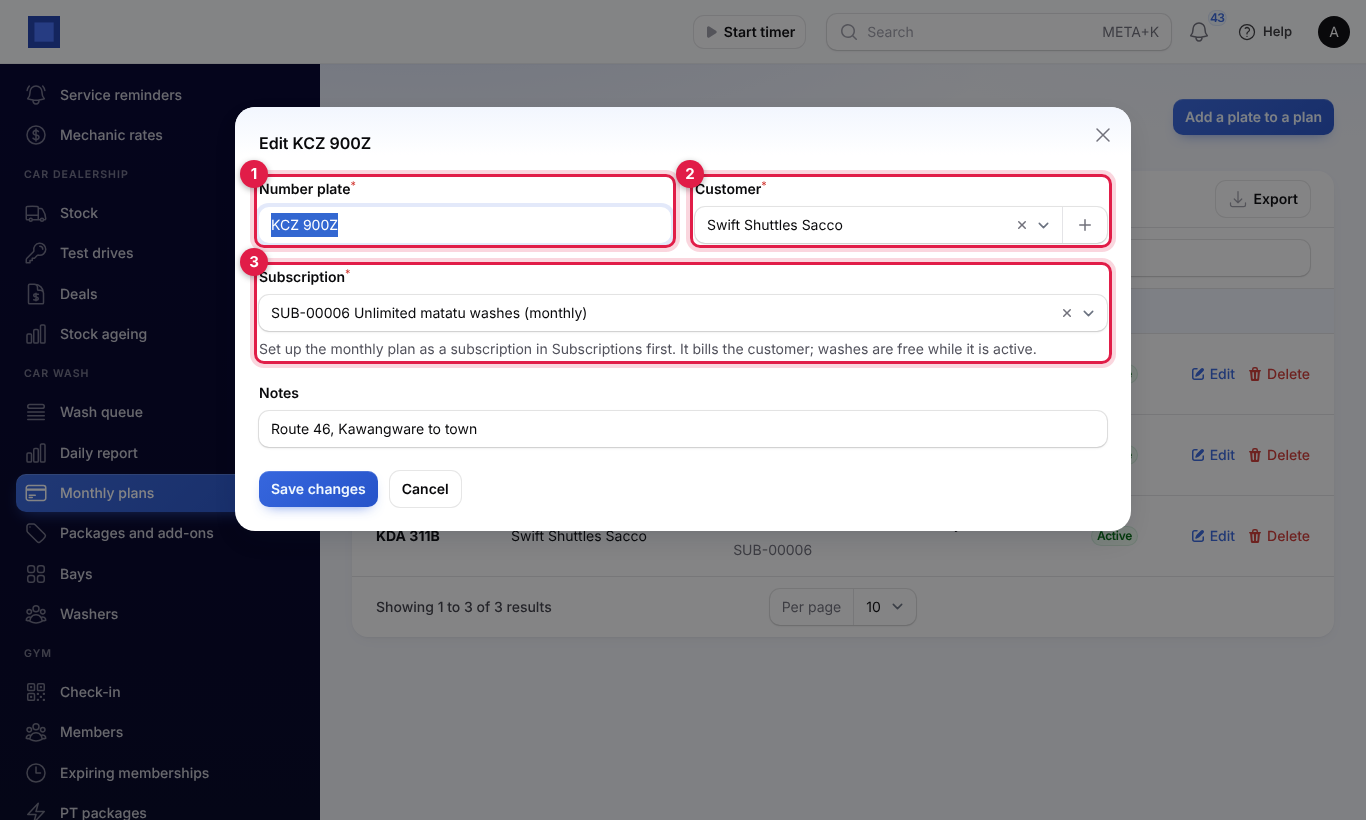
- Open Car wash → Monthly plans and click Add a plate to a plan, or Edit on a plate.
- Fill in the form and click Create or Save changes.
| Field | What to enter |
|---|---|
| Number plate (required, marker 1) | Each plate can be on one plan only. |
| Customer (required, marker 2) | The customer who pays the plan. |
| Subscription (required, marker 3) | Their active, trial or past-due subscription. Choosing the customer first narrows the list. |
| Notes | For example the matatu's route. |
A fleet can have several plates on one subscription. The list shows each plate with its customer, subscription and whether the plan is Active. A plate's package is free while the subscription is active or on trial; when it is paused, cancelled or past due, the plate pays again. Add-ons are always charged. The plan's customer is put on each of its washes.
Ready texts
When a car is marked Ready and has a phone number, the customer gets a text, as long as Text customers when their car is ready is on and SMS is set up in Marketing:
- "Hello, your car KCT 409M is ready for collection at Acme Traders. Amount to pay: KES 900.00. Thank you." when it is not paid yet;
- "Hello, your car KDH 664R is ready for collection at Acme Traders. Thank you." when it is paid or free.
⋮ → Text that it is ready sends it again. If it cannot be sent, you see "The text was not sent. Check SMS in Marketing and the car wash settings."
The ready screen
The ready screen is for a large TV in the waiting area. It needs no login: it works behind a secret address. Click Ready screen on the wash queue to open it, then open the same address on the TV's browser and make it full screen.
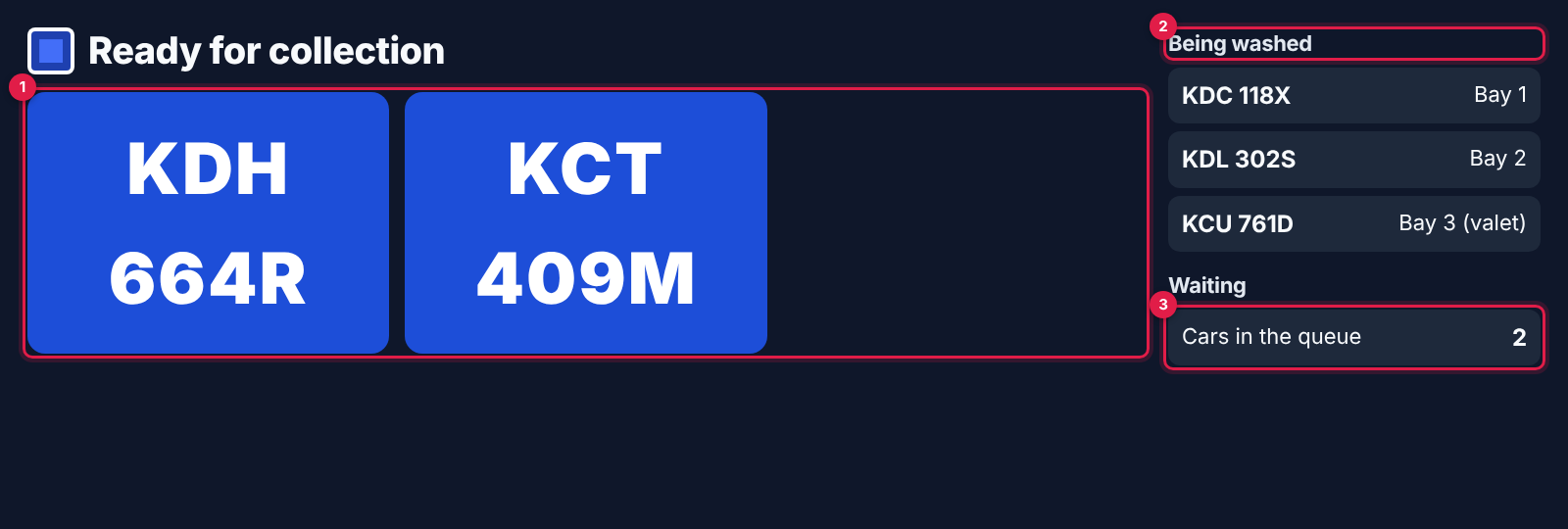
- Ready for collection (marker 1): the plates of cars ready or paid and not yet collected, in large letters.
- Being washed (marker 2): the plates washing or drying, with their bay.
- Waiting (marker 3): how many cars are in the queue.
The screen refreshes every 15 seconds. To stop an old address working, for example after a TV is replaced, click New screen address on the wash queue and confirm, then open the new address on the screen.
The daily report
Car wash → Daily report shows one day at the wash. It opens on today; choose another Day (marker 1) to look back.
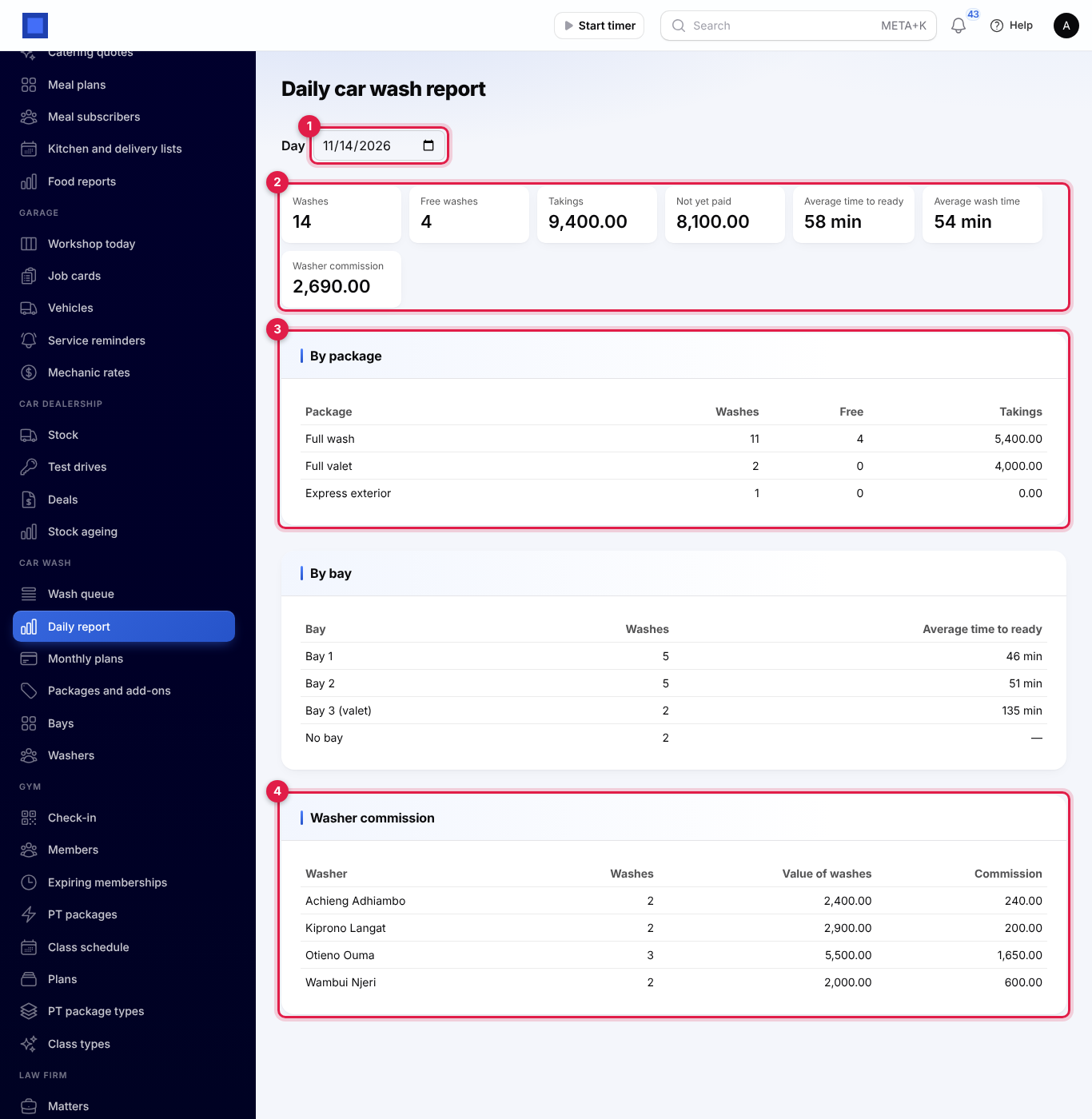
The totals (marker 2):
| Total | What it counts |
|---|---|
| Washes | Cars taken in that day, cancelled ones left out. |
| Free washes | Free washes and washes on a monthly plan. |
| Takings | What was paid for that day's washes. |
| Not yet paid | What is still owed on that day's washes. |
| Average time to ready | From joining the queue to ready. |
| Average wash time | From starting the wash to ready. |
| Washer commission | The commission on that day's finished washes. |
Below are the washes, free washes and takings By package (marker 3), the washes and average time to ready By bay, and Washer commission (marker 4): each washer's finished washes, their value and the commission to pay.
Good to know
Can a customer pay before the car is washed? Yes. Take payment is offered from the moment the car is taken in. When the car is then marked ready, it goes straight to Paid.
What if Point of sale is on but we want invoices? Turn off Take car wash payments on the Point of sale till in settings. Payments are then invoiced.
Do texts cost money? Yes, ready texts go through your own SMS provider and are charged by them. Without SMS set up, no text is sent and the rest works as normal.
Can I change a wash after taking it in? Not its package or add-ons. Cancel it and take the car in again, as long as it has not been paid.
What does the washer's login do? It records which user the washer is. Washers do not need a login to be chosen for washes.