Salon and Spa
Salon and Spa is for hair and beauty salons, barbers, nail bars, spas and massage studios. It works on top of Appointment booking, which gives you your services, your stylists, therapists and rooms, the public booking page, deposits and invoicing at the end of each appointment. Salon and Spa adds two things salons ask for:
- Prepaid packages: sell a bundle of sessions of one service ("5 full body massages for 20,000", "4 haircuts for 5,000") that the client uses up at their appointments, without a second bill.
- Commission: a percentage for each stylist or therapist on the services they do and the package sessions they perform, with a report for any period.
It adds four pages to the Appointments group of the left menu: Packages, Client packages, Commission rates and Staff commission.
Switch Salon and Spa on
Salon and Spa is an add-on sold separately from your plan. It needs Appointment Booking; switching it on switches Appointment Booking on too.
- Open Settings → Marketplace and search for Salon, or click Industry solutions.
- On the Salon and Spa card, click Start free trial (or Add to subscription) and confirm. The four pages appear under Appointments.
- To stop, click End trial or Cancel on the card. Packages sold and their sessions are kept.
If the card says Not available for purchase yet, ask NaliSuite support to switch it on. See Billing and marketplace.
Permissions (under Settings → Roles):
| Permission | What it allows |
|---|---|
| salon.view | See packages, client packages, commission rates and the commission report. |
| salon.manage | Create and change packages, Sell a package, Use a session, and set commission rates. |
Owners and admins have both; the member role has salon.view. Booking and completing appointments needs the Appointment Booking permissions (booking.view, booking.manage).
Before you start
Set up Appointment Booking first: your Services (with prices), your Staff and rooms and their hours. See Appointment booking. Salon and Spa has no settings tab of its own; the Appointment Booking tab under Settings → Preferences applies.
Tip: Book each appointment with the person who does the work, not with a room. Commission is paid to whoever the appointment is With. If you book massages against Treatment room 1, the room earns the commission and the therapist earns nothing.
1. Create your packages
- Open Appointments → Packages. Each package shows the Service it is for (marker 2), the number of Sessions, the Price with what it comes to per session (marker 3, for example 4,000.00 a session), how long it is Valid for (marker 4) and whether it is On sale (marker 5).
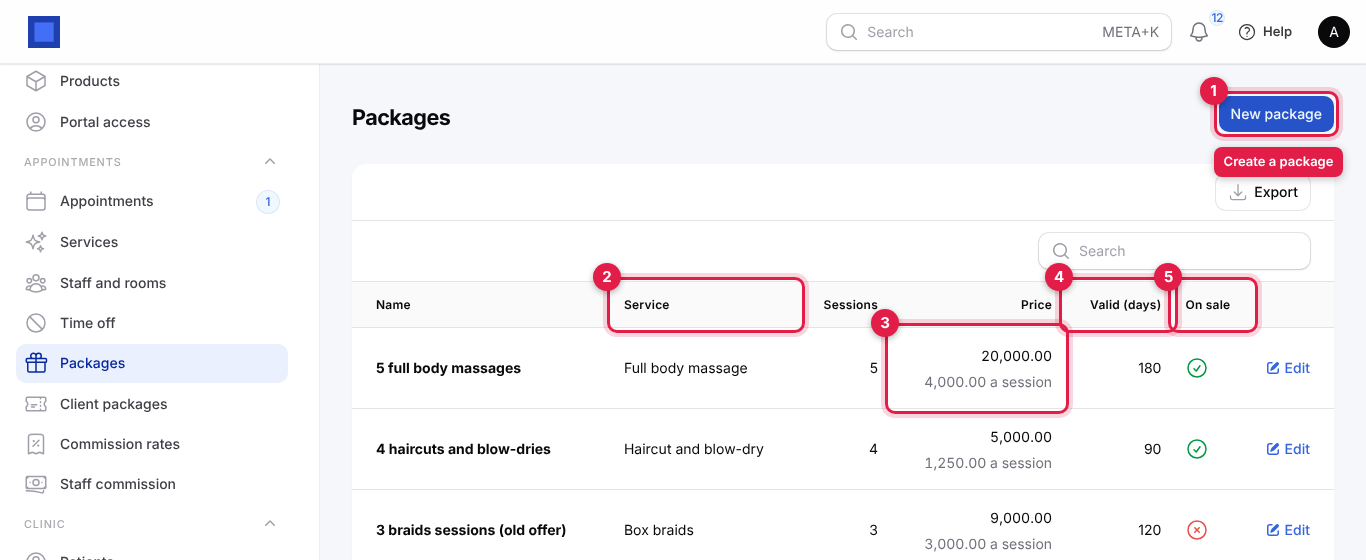
- Click New package (marker 1), or Edit to change one.
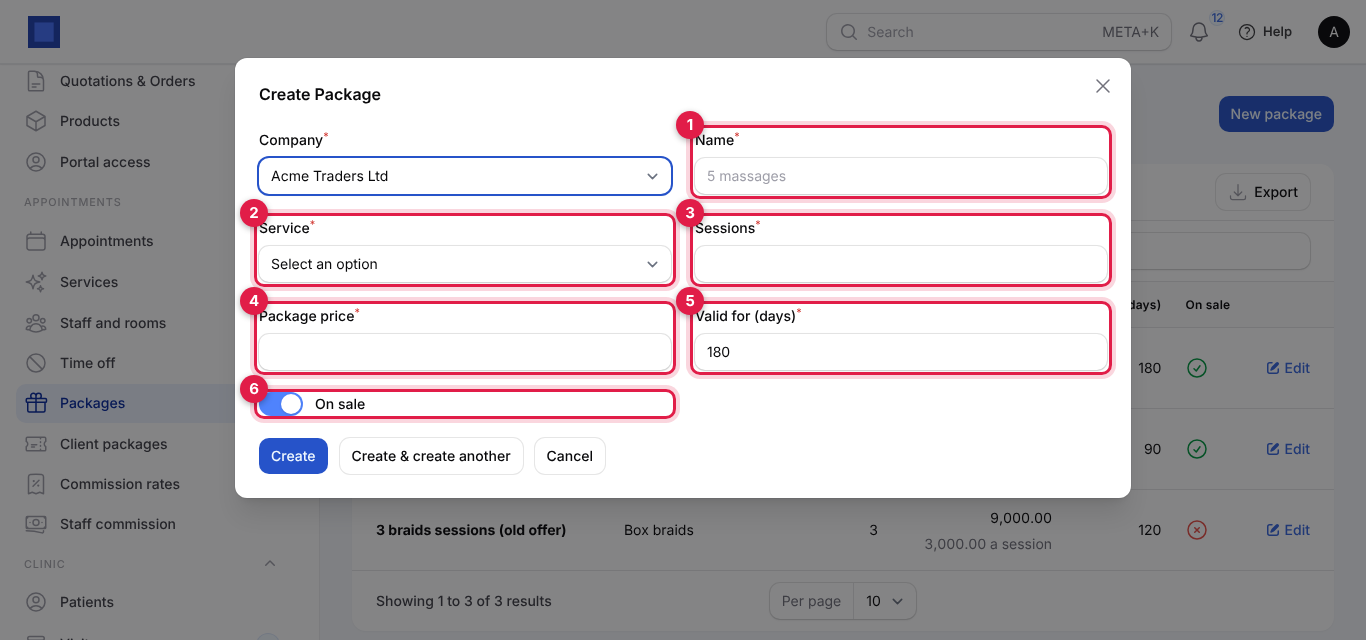
| Field | What to enter |
|---|---|
| Company (required) | Starts on your default company. |
| Name (required, marker 1) | What the client sees on the invoice: 5 full body massages. |
| Service (required, marker 2) | The booking service the sessions are for. A package can only be used on appointments for this service. |
| Sessions (required, marker 3) | 1 to 100. |
| Package price (required, marker 4) | What the client pays for the whole package, for example 20,000 for five massages that cost 4,500 each. |
| Valid for (days) (required, marker 5) | Counted from the day it is sold, 1 to 1,095. Default 180. Unused sessions cannot be used after that. |
| On sale (marker 6) | Off to stop selling an old offer. Clients who already bought it keep their sessions. |
- Click Create.
2. Sell a package to a client
- Open Appointments → Client packages. It lists the packages your clients have bought, newest first: the Client, the package and its service, Sessions left out of the total (marker 2), when it was Bought and when it Expires (marker 3, red once it has passed). The list opens with Can still be used: Yes (marker 5): packages with sessions left that have not expired. Remove the chip, or set it to No, to see used-up and expired packages.
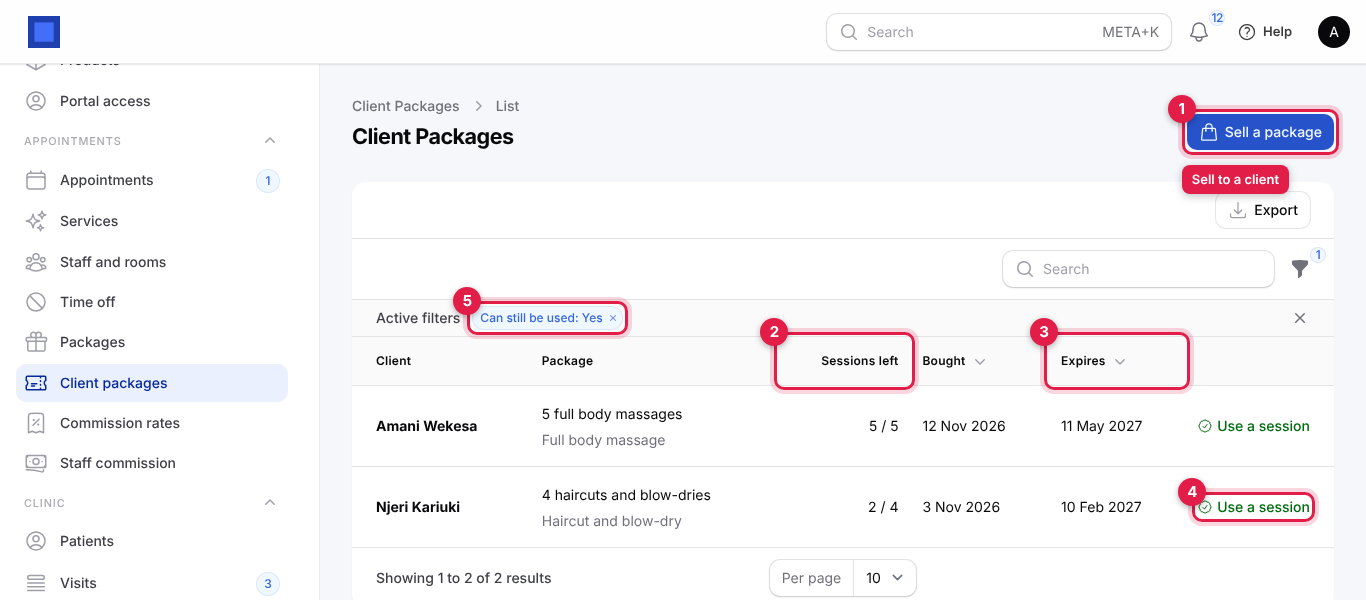
- Click Sell a package (marker 1).
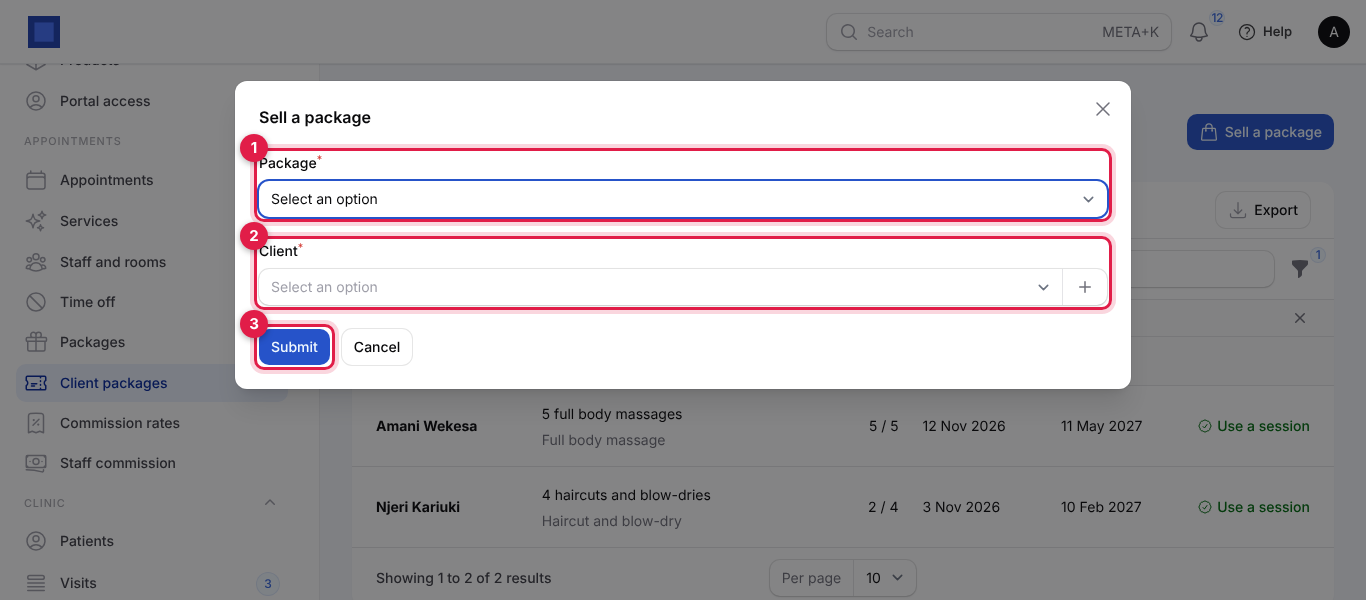
- Choose the Package (marker 1; only packages on sale are listed) and the Client (marker 2). Click + next to Client to add a new client with Name, Phone and Email. Click Submit (marker 3).
What happens: an invoice for the package price is issued to the client at once, dated and due today, with the package name as its reference (marker 1 below) and one line such as 4 haircuts and blow-dries: 4 sessions of Haircut and blow-dry (marker 2). The client gets the sessions straight away, valid from today. You see Package sold. The invoice is ready to be paid.
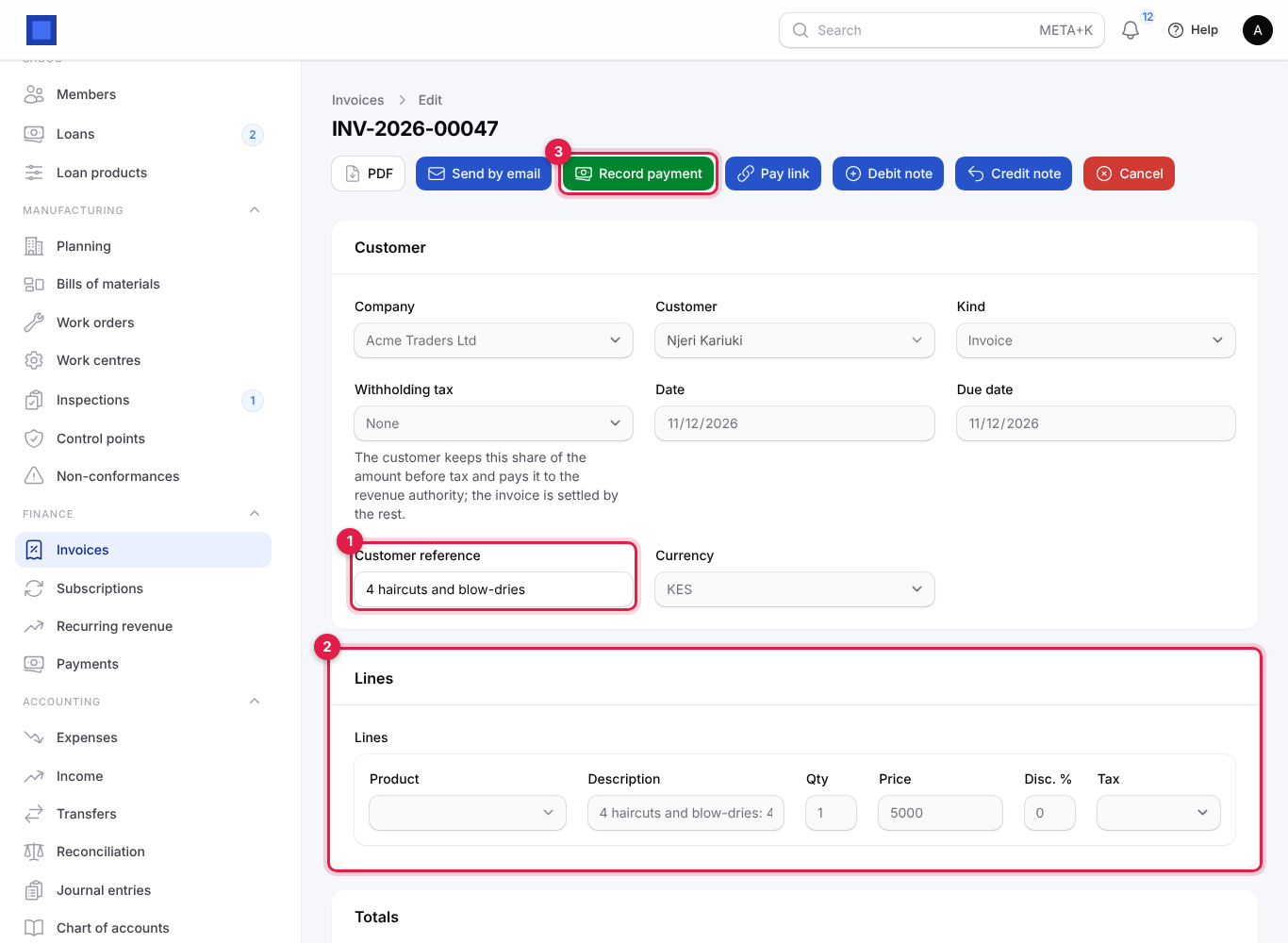
Take the money with Record payment (marker 3) for cash or M-Pesa received at the counter, or send a Pay link. See Invoices and payments. The invoice uses the service's Product for invoicing, if it has one, for the sales account; it is issued without tax.
Note: The sessions can be used before the invoice is paid. Check the invoice is paid before the client's first session.
3. Use a session at an appointment
Book the client's appointment as usual, under Appointments → Appointments → New appointment or from your booking page. When they come in:
- Open Appointments → Client packages and click Use a session (marker 4 on the client packages screenshot) on the client's package.
- Under Appointment (marker 1) choose their appointment. The list shows the open appointments (Confirmed or Awaiting deposit, not yet invoiced) for the package's service that belong to the client or have no client, for example Thu 17 Dec 12:00 · Njeri Kariuki · Wanjiru Kamau.
- Click Submit (marker 2).
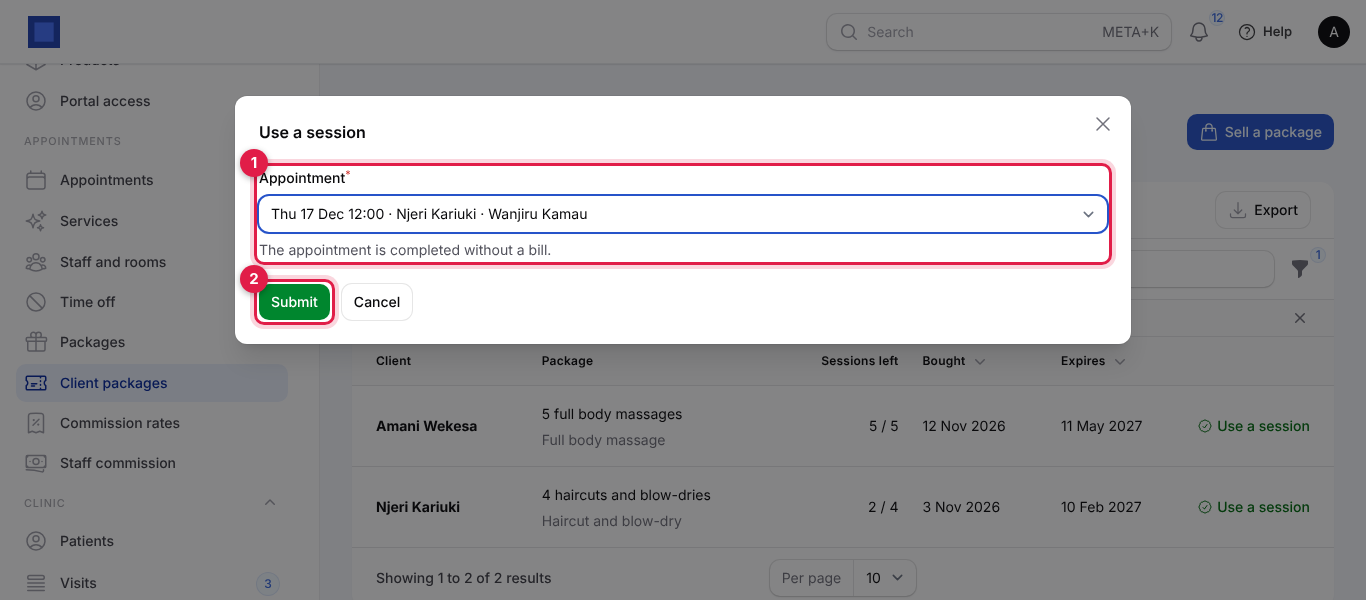
What happens: the appointment becomes Completed with no invoice, and one session is taken off the package. You see Session used. 2 left.
It is refused when:
| Message | Why |
|---|---|
| No sessions are left on this package. | All sessions used. Sell a new package. |
| This package expired on 10 Feb 2027. | Past its Valid for days. |
| This package is for Haircut and blow-dry. | The appointment is for another service. |
| Only open appointments can be paid with a package. | The appointment is already completed, cancelled or invoiced. |
| This package belongs to Njeri Kariuki. | The appointment is for another client. |
Important: Use the session instead of clicking Complete on the appointment. Complete issues an invoice for the service price. If you clicked it by mistake, cancel that invoice. For an appointment booked online with a deposit, take the deposit off before using a session: a session does not refund or cancel the deposit invoice.
4. Set commission rates
- Open Appointments → Commission rates. Each stylist or therapist with a rate shows the percentage On services (marker 2) and On package sessions (marker 3).
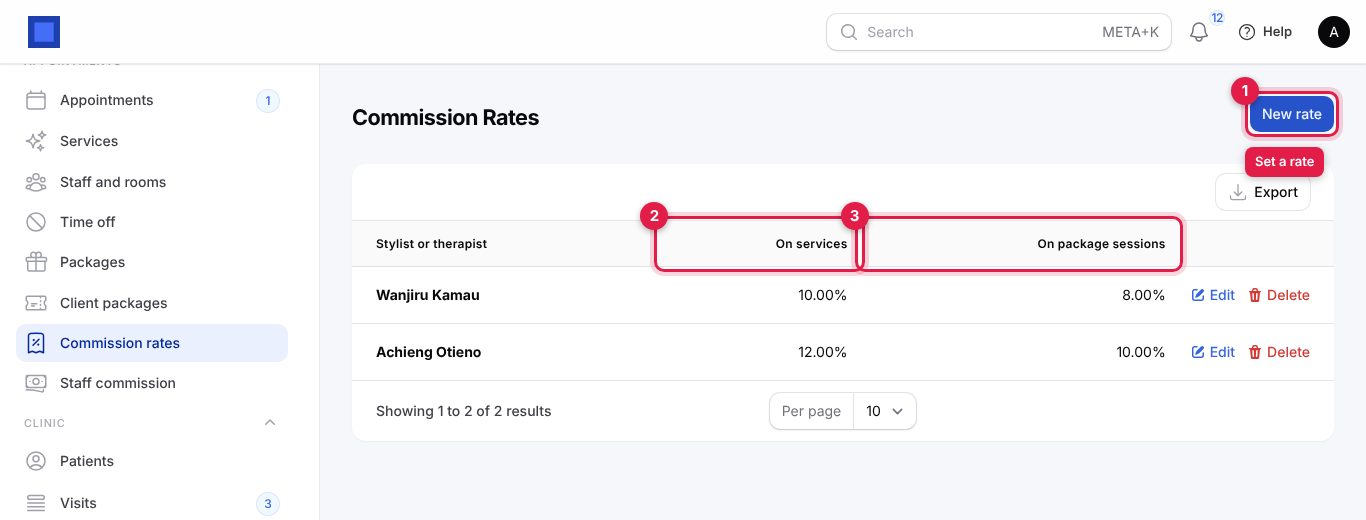
- Click New rate (marker 1), or Edit / Delete on a row.
| Field | What to enter |
|---|---|
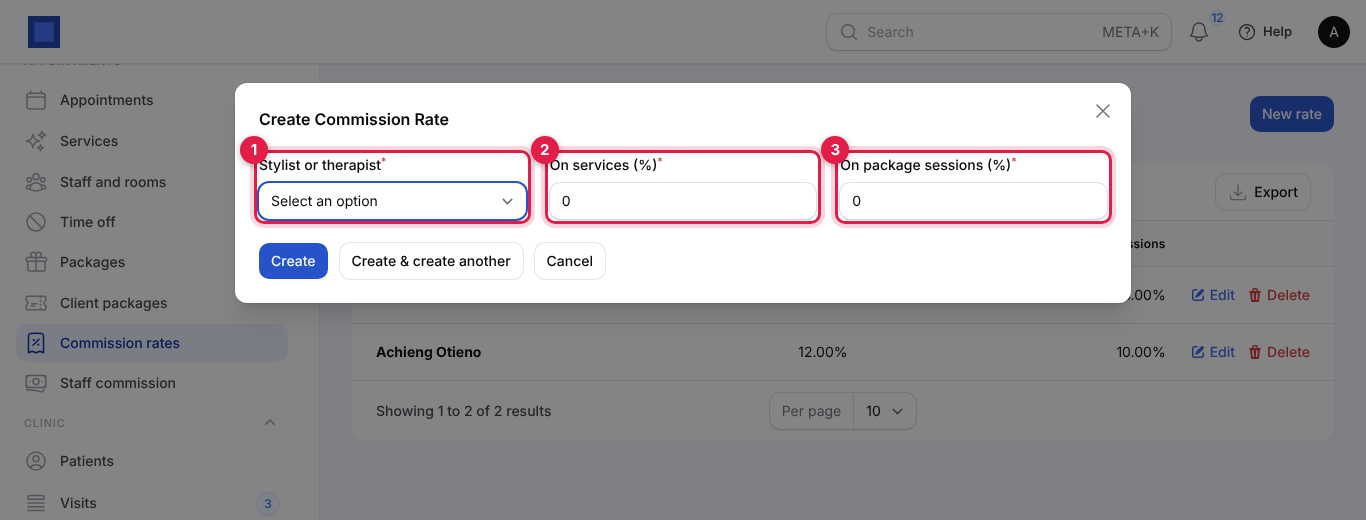
| Stylist or therapist (required, marker 1) | From Staff and rooms. One rate per person. |
| On services (%) (required, marker 2) | Percentage of the price of each completed appointment they did that was not paid with a package, for example 10. |
| On package sessions (%) (required, marker 3) | Percentage of the value of each package session they performed, for example 8. A session is valued at the package price divided by its sessions: 5,000 ÷ 4 = 1,250 for a haircut package. |
- Click Create.
5. The commission report
Open Appointments → Staff commission. Choose the period with From (marker 1) and To; it opens on the current month up to today.
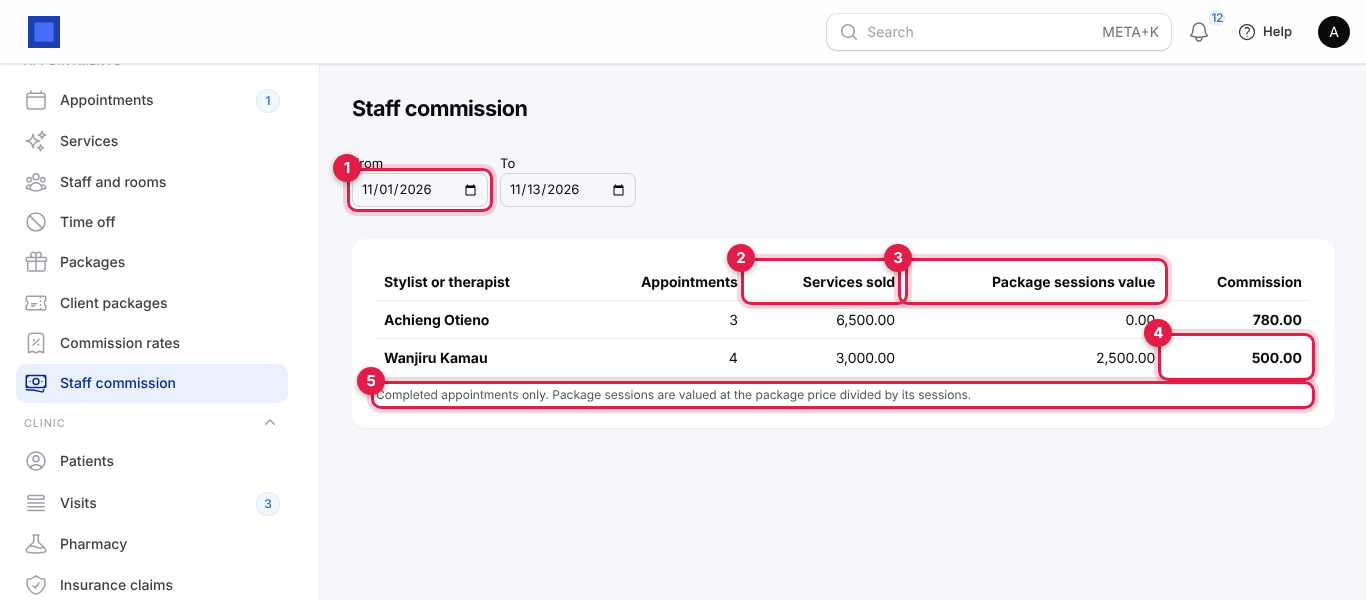
For each stylist, therapist or room that completed appointments in the period, or has a rate, the report shows:
| Column | What it is |
|---|---|
| Appointments | Completed appointments in the period that were With them, by appointment date. |
| Services sold (marker 2) | The price of those appointments that were not paid with a package. |
| Package sessions value (marker 3) | The value of the package sessions they performed. |
| Commission (marker 4) | Services sold × On services % plus package sessions value × On package sessions %. 0.00 when they have no rate. |
Example from the screenshot: Wanjiru did 3,000 of services at 10% (300) and 2,500 of package sessions at 8% (200): 500.00 commission.
The note under the table (marker 5) reminds you that only completed appointments count. Commission is worked out on the price of completed appointments, whether or not the client has paid the invoice yet. To pay it, add it to the person's pay as an allowance or bonus in Payroll, or pay it as an expense.
Common questions
Can a client share a package with a friend? Only appointments of the package's owner, or appointments without a client, can use its sessions.
A client's package expired with sessions left. Can I extend it? Expiry dates cannot be changed. Sell a new package, at a discount if you wish.
Can a package mix services (a massage and a facial)? No. Each package is for one service. Sell two packages.
Does the stylist earn commission on the package sale itself? No. Commission is earned when the sessions are performed, at their per-session value.
Is the package invoice taxed? No tax is added. If you must charge VAT, include it in the package price and discuss with your accountant.
Where do clients see their sessions left? Clients do not see packages in the customer portal. Tell them at the counter, or show them Client packages.