SACCO and Microfinance
SACCO and Microfinance keeps the books of a SACCO, chama, investment group or microfinance lender: a register of members with a savings account and a share capital account each, deposits and withdrawals, loan products, loan applications with guarantors, approval and disbursement with a monthly repayment schedule, repayments, penalties on late instalments, yearly dividends and interest, and statements members can see in the portal. Treasurers, loan officers, credit committees and managers use it. It is in the SACCO group of the sidebar: Members, Loans and Loan products.
SACCO and Microfinance is a marketplace module. The owner buys it under Settings → Marketplace; the SACCO group appears once it is switched on. It needs the Contacts app.
Note: There are three permissions. sacco.view shows the SACCO pages and statements. sacco.manage adds members, records deposits, withdrawals and repayments, applies for and disburses loans, adds loan products and pays dividends. sacco.loans.approve approves and rejects loan applications; give it to your credit committee or manager only, so the person who captures a loan is not the one who approves it. Owners and admins have all three. Set permissions under Settings → Roles.
Note: The SACCO books are kept inside this module. Deposits, loans and repayments are not posted to your general ledger under Accounting.
How it works
- Each member gets a number such as
MBR-00001and two accounts: Savings (MBR-00001-S) and Shares (MBR-00001-SH). - Savings can be deposited and withdrawn. Share capital can be bought but not withdrawn.
- Savings pledged as a guarantee on another member's loan that is still applied for, approved or running cannot be withdrawn.
- A loan product sets the interest rate and method, the longest term, the borrowing limit as a multiple of savings, the guarantors needed, a processing fee and a penalty.
- A loan goes from Applied to Approved to Running (disbursed) to Paid off, or is Rejected. Loans are numbered
LN-2026-00001.
Set up loan products
- In the menu, open SACCO → Loan products.
- Click New loan product (marker 1). The list shows the interest, longest term, limit as a multiple of savings (marker 2) and guarantors needed (marker 3).
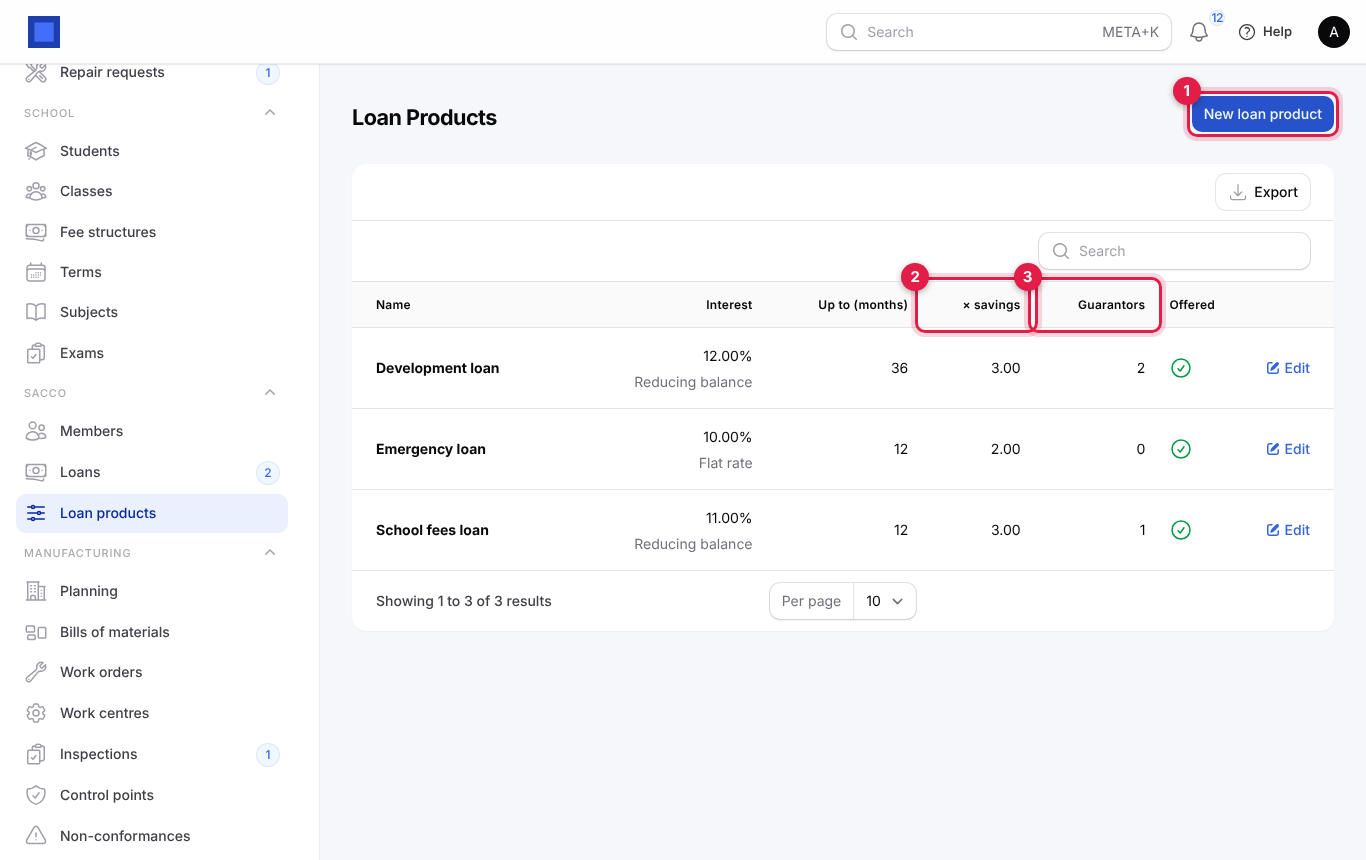
- Fill in the form and click Create. Use Edit to change a product; changes apply to new applications only.
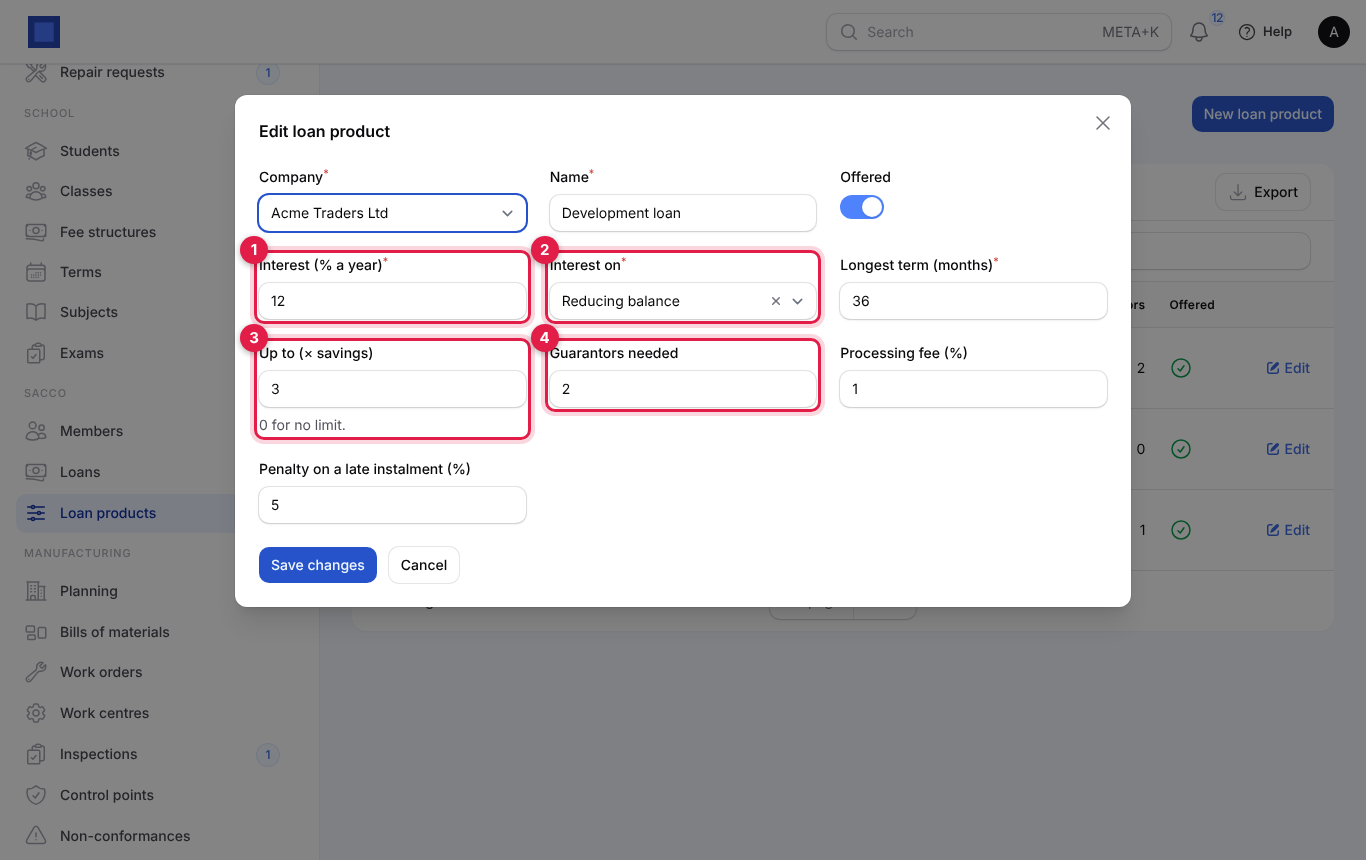
| Field | What to enter |
|---|---|
| Company | Required. |
| Name | Required, for example "Development loan", "Emergency loan" or "School fees loan". |
| Offered | On by default. Turn off to stop new applications on this product. |
| Interest (% a year) | Required (marker 1), for example 12. |
| Interest on | Required (marker 2). Reducing balance: equal monthly payments, with interest on what is still owed each month. Flat rate: the same interest every month, worked out on the amount borrowed, plus equal principal. |
| Longest term (months) | Required. The most months a member can take to repay. |
| Up to (× savings) | Marker 3. Default 3: a member with KES 60,000 savings can borrow up to KES 180,000. 0 for no limit. |
| Guarantors needed | Marker 4. How many other members must guarantee the loan. 0 for none. |
| Processing fee (%) | Optional. Worked out on the amount and recorded on the loan when it is disbursed. |
| Penalty on a late instalment (%) | Optional. Charged once on each instalment still unpaid after its due date. |
Members
- In the menu, open SACCO → Members.
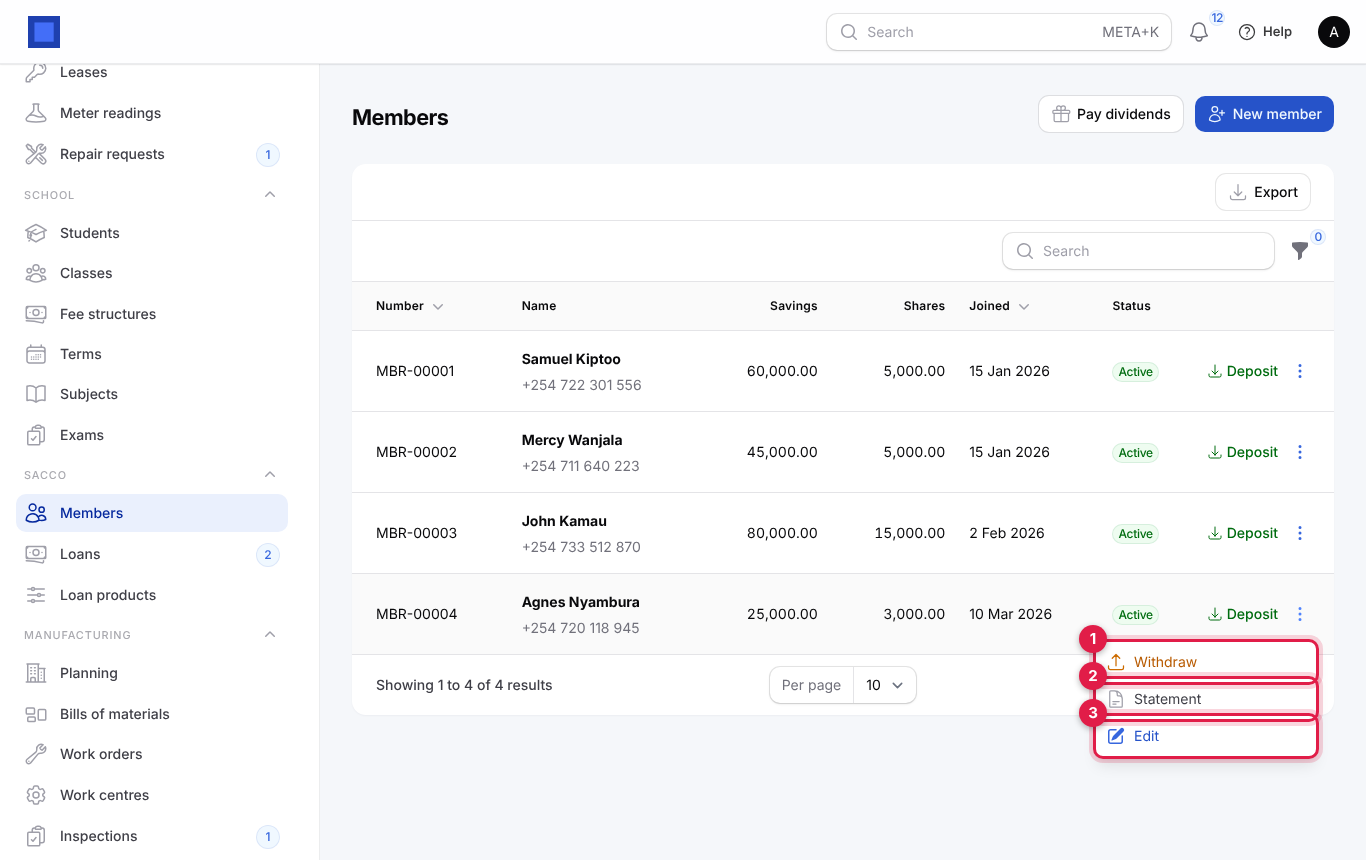
- The list shows each member's number, name and phone, Savings, Shares, date joined and status. Click New member (marker 1) to enrol someone. Pay dividends (marker 2) is covered below. Deposit (marker 3) records money paid in; ⋮ (marker 4) holds Withdraw, Statement and Edit.
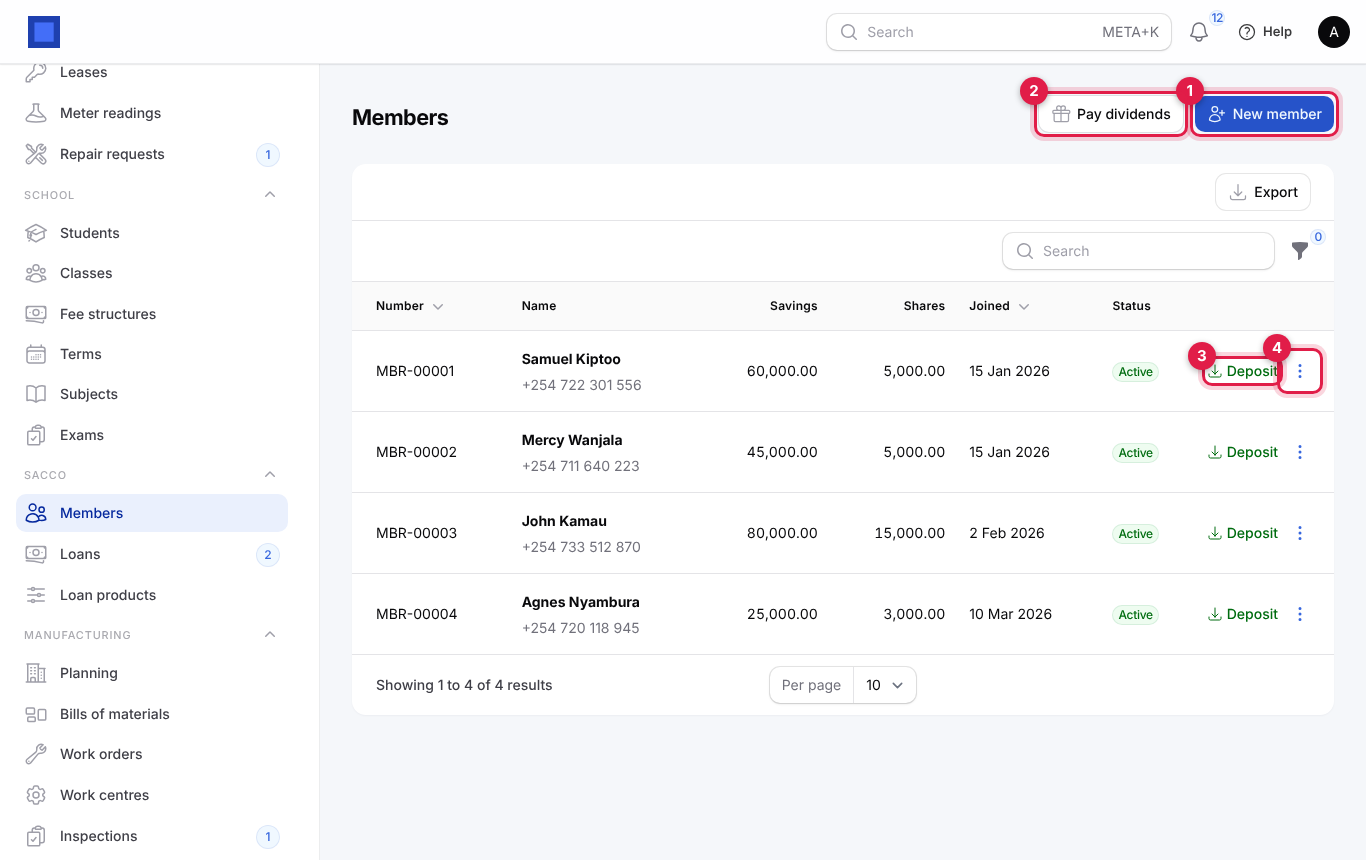
Enrol a new member
- Click New member.
- Pick the Person (marker 1). Only contacts who are not yet members are listed; click + to add a new contact.
- Enter the ID or passport number (marker 2), Joined on, Next of kin (marker 3) and Next of kin phone.
- If they pay their opening share capital now, enter it in Opening share capital (marker 4). It is recorded as a share purchase.
- Click Submit. You see "Member MBR-… added."
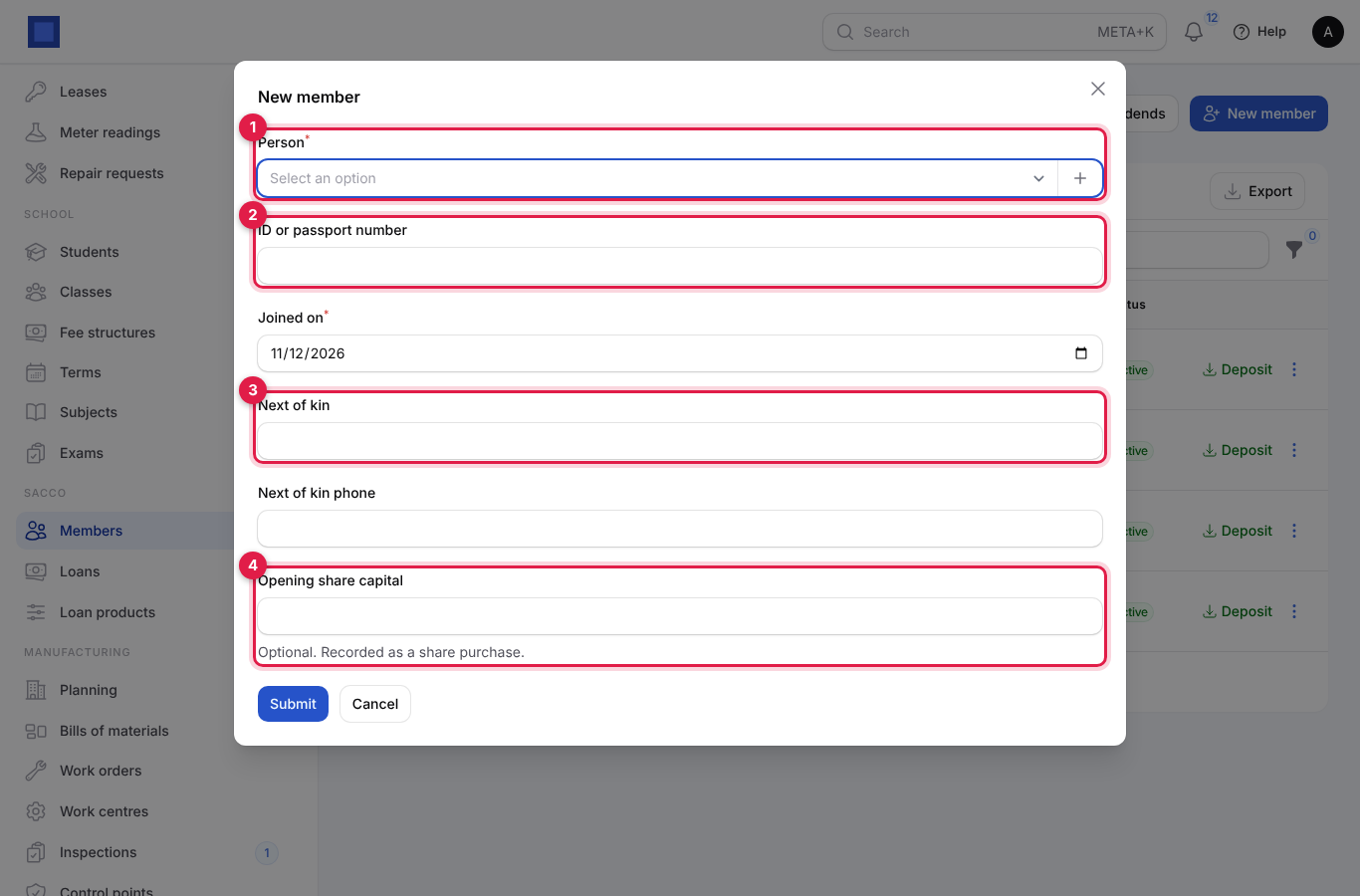
To change a member's ID number, Status (Active, Dormant or Exited) or next of kin, click ⋮ → Edit. Only active members can borrow; exited members get no dividend.
Record a deposit or share purchase
- Click Deposit on the member's row.
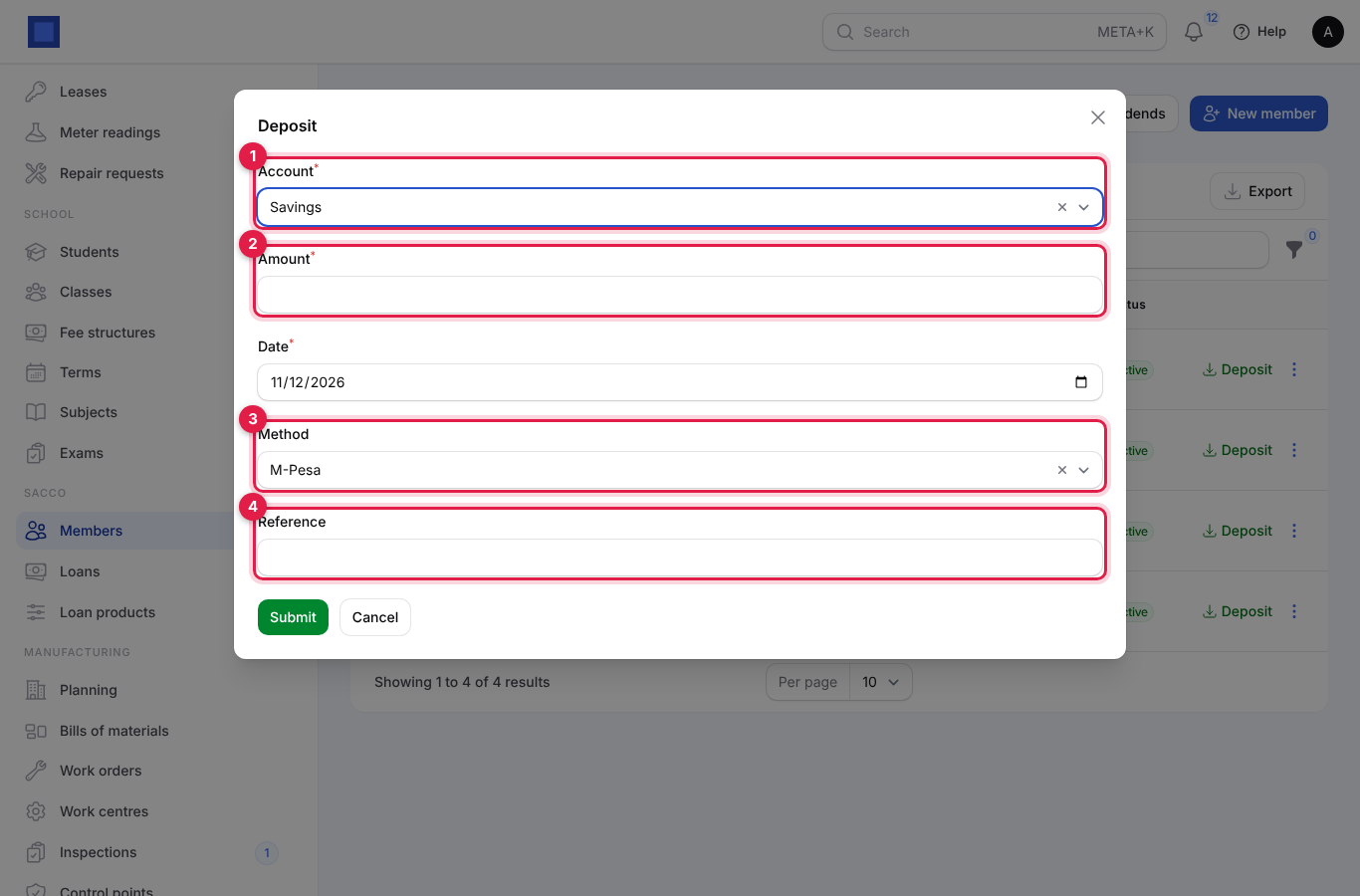
- Pick the Account (marker 1): Savings for a deposit, Shares for buying share capital.
- Enter the Amount (marker 2) and Date (today or earlier), pick the Method (marker 3): Cash, M-Pesa, Bank or Payroll check-off, and type the Reference (marker 4), such as the M-Pesa code or the month of the check-off.
- Click Submit. You see "Recorded. New balance …".
Record a withdrawal
- Click ⋮ on the member's row, then Withdraw (marker 1).
- The hint under Amount (marker 1) shows how much can be withdrawn: the savings balance less anything pledged as a guarantee. Enter the amount, date, method and reference, and click Submit.
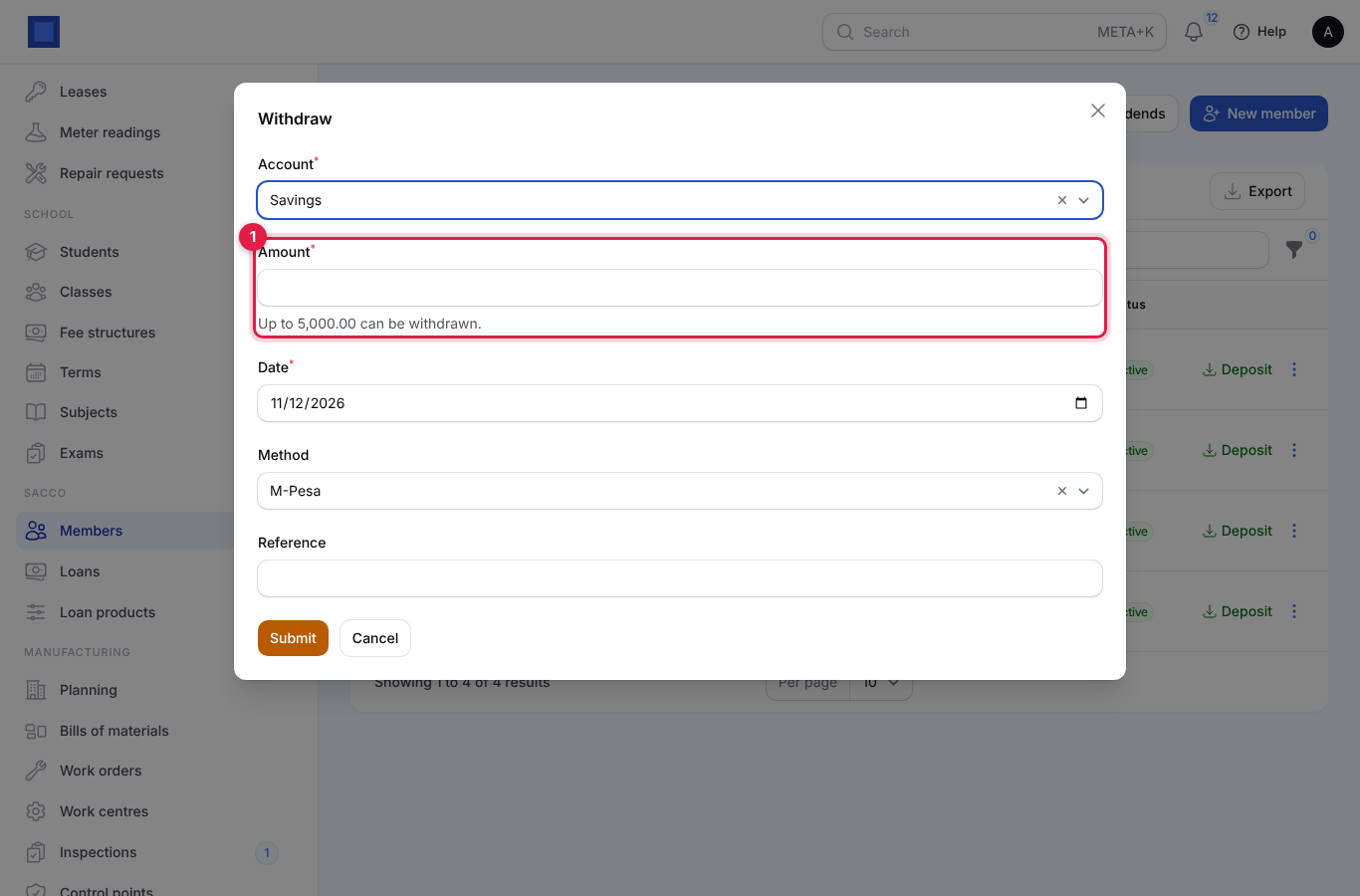
If the amount is more than can be withdrawn, you see "Only amount can be withdrawn. The rest is pledged as a guarantee or would leave too little." Withdrawals come from savings only.
Print a member statement
- Click ⋮ → Statement (marker 2 above). The statement opens in a new tab, from 1 January to today.
- Change From and To and click Show (marker 1) for another period, or Print (marker 2).
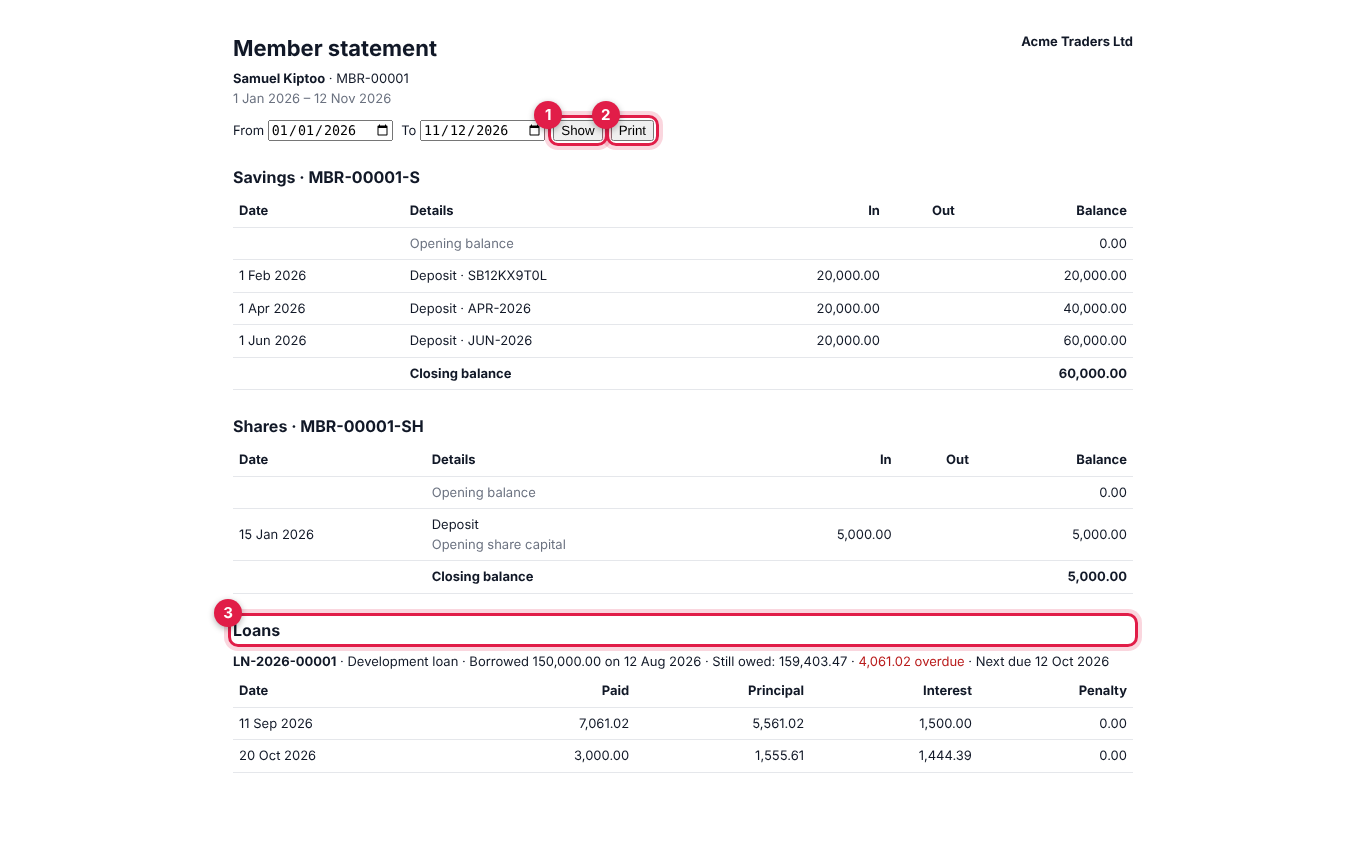
The statement shows each account (savings and shares) with the opening balance, every deposit, withdrawal, dividend and interest with its reference, and the closing balance. Under Loans (marker 3) it lists each loan with the amount, date, what is still owed, what is overdue and the next due date, and every repayment in the period split into principal, interest and penalty.
Loans
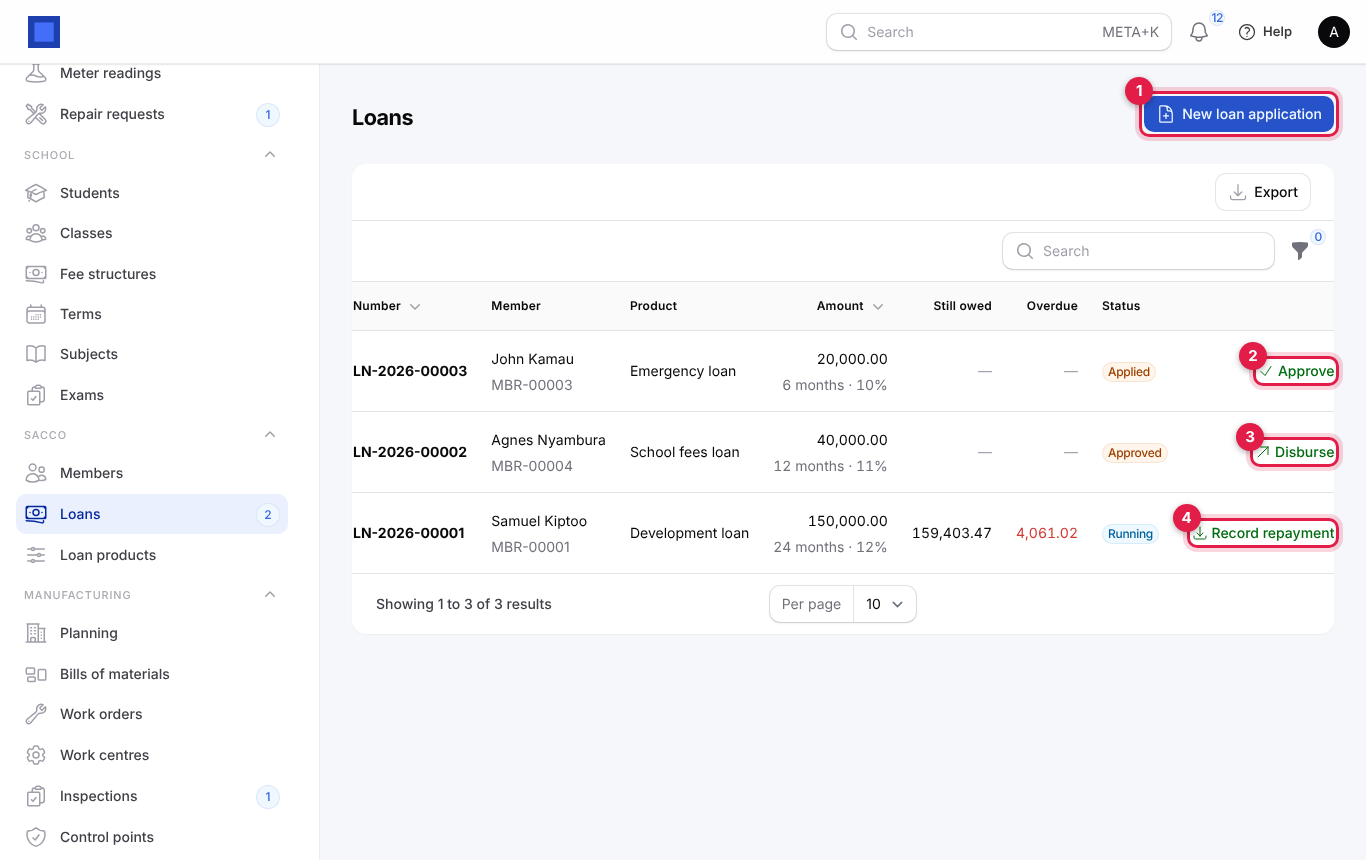
- In the menu, open SACCO → Loans. The menu badge counts applications waiting for approval or disbursement.
- Each row shows the number, member, product, Amount with the term and rate, Still owed, Overdue in red and the Status. The button on each row depends on the status: Approve (marker 2), Disburse (marker 3) or Record repayment (marker 4).
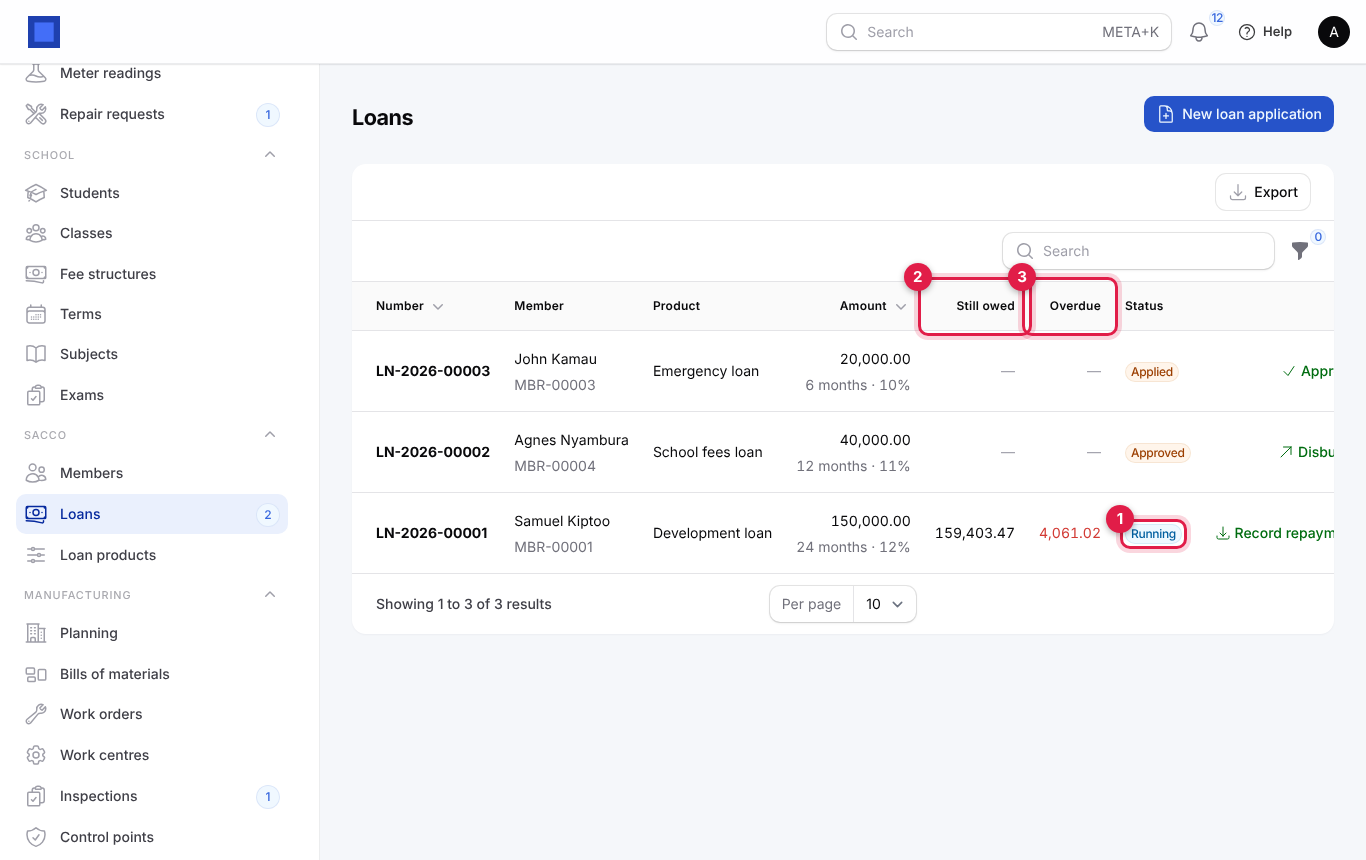
A running loan shows the Running status (marker 1 below), what is Still owed in total (marker 2) and what is Overdue (marker 3).
Use the filter icon to filter by Status or In arrears (running loans with an instalment past its due date and unpaid).
| Status | What it means | What moves it on |
|---|---|---|
| Applied | Captured, waiting for approval. Guarantors' pledges are held. | Approve → Approved; Reject → Rejected. |
| Approved | Approved, not yet paid out. | Disburse → Running; Reject → Rejected. |
| Running | Paid out and being repaid. | Repayments; when every instalment is paid → Paid off. |
| Paid off | Fully repaid. Pledges are released. | Final. |
| Rejected | Turned down, with the reason. Pledges are released. | Final. |
Capture a loan application
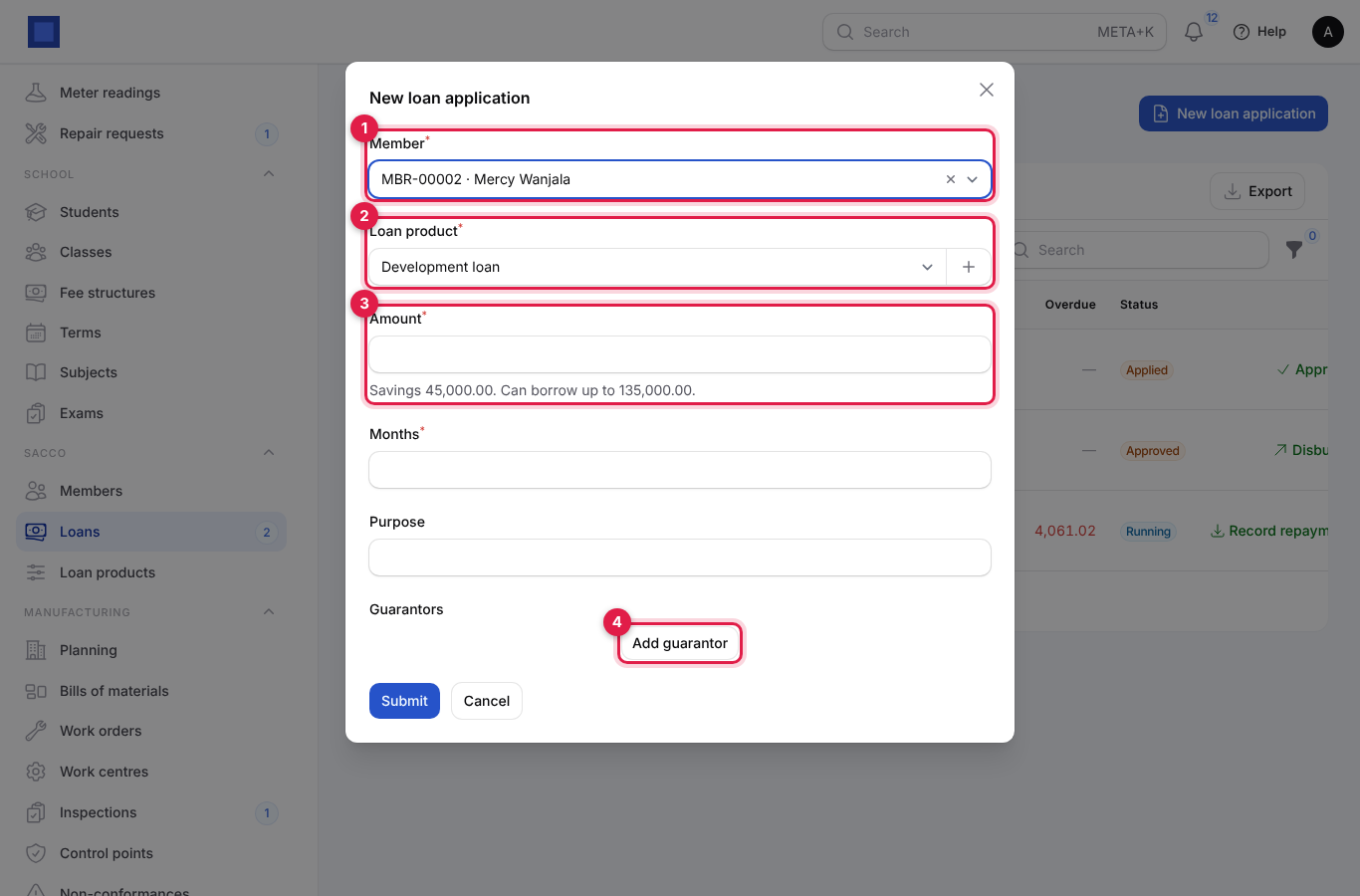
- Click New loan application (marker 1 on the loans list).
- Pick the Member (marker 1) and Loan product (marker 2). The hint under Amount (marker 3) shows the member's savings and how much they can borrow on that product.
- Enter the Amount, the Months (up to the product's longest term) and the Purpose.
- For each guarantor, click Add guarantor (marker 4), pick the Member and enter how much they Guarantees.
- Click Submit. You see "Application LN-… saved, waiting for approval."
The application is checked before it is saved. It is refused, with the reason, when:
- the member is not Active, or the product is no longer offered;
- the term is longer than the product allows;
- the amount is more than the savings limit ("The most … can borrow on … is …");
- there are fewer guarantors than the product needs (the borrower cannot guarantee their own loan);
- a guarantor pledges more than their free savings ("… can only guarantee up to …");
- for products with guarantors, the guarantees plus the borrower's own free savings do not cover the amount.
Approve or reject
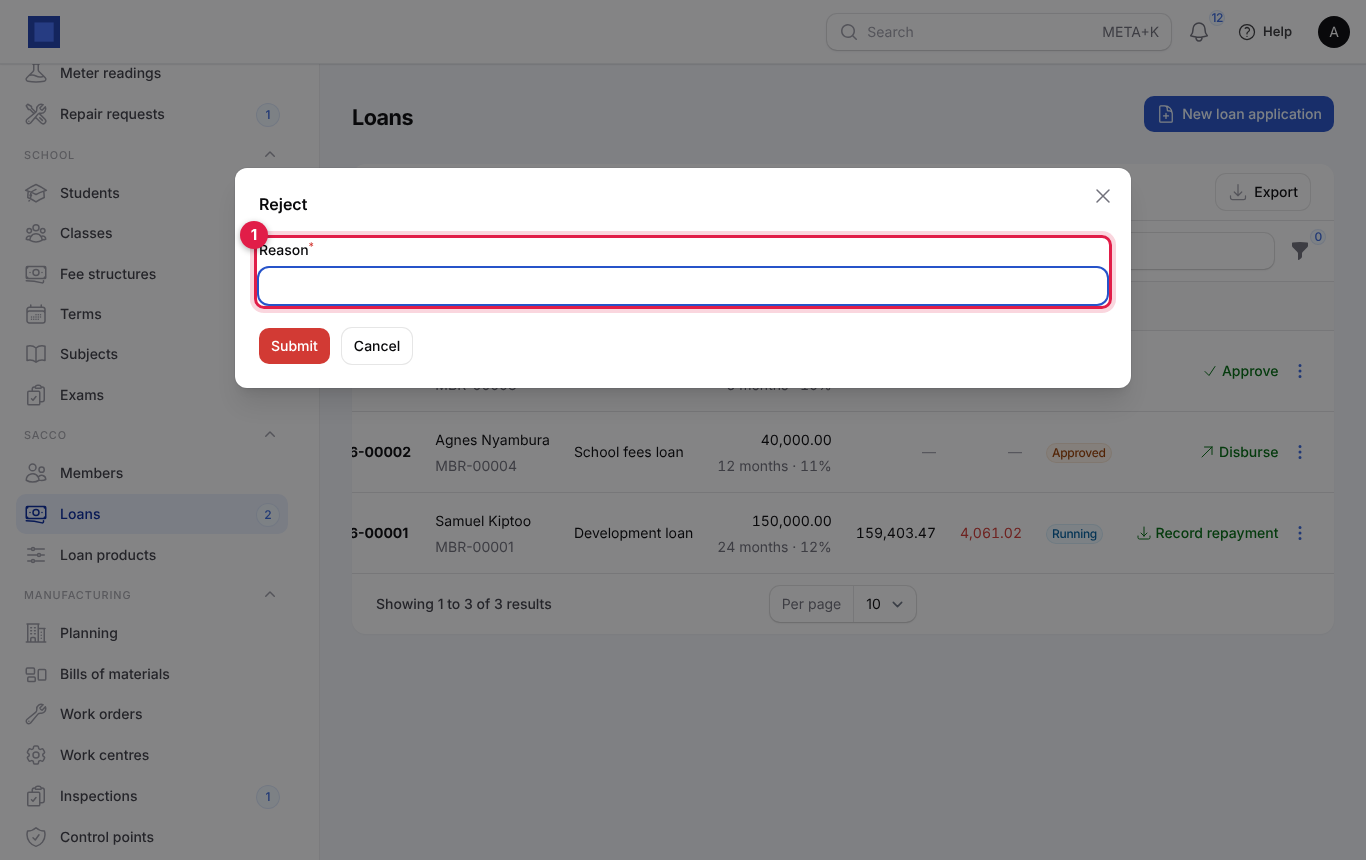
A user with sacco.loans.approve clicks Approve on an Applied loan and confirms. To turn a loan down, click ⋮ → Reject on an applied or approved loan, type the Reason (marker 1) and click Submit.
Disburse
- When the money is paid out, click Disburse on the Approved loan.
- The window confirms the amount and that the first instalment falls due a month later (marker 1). Set Paid out on (marker 2) and click Submit.
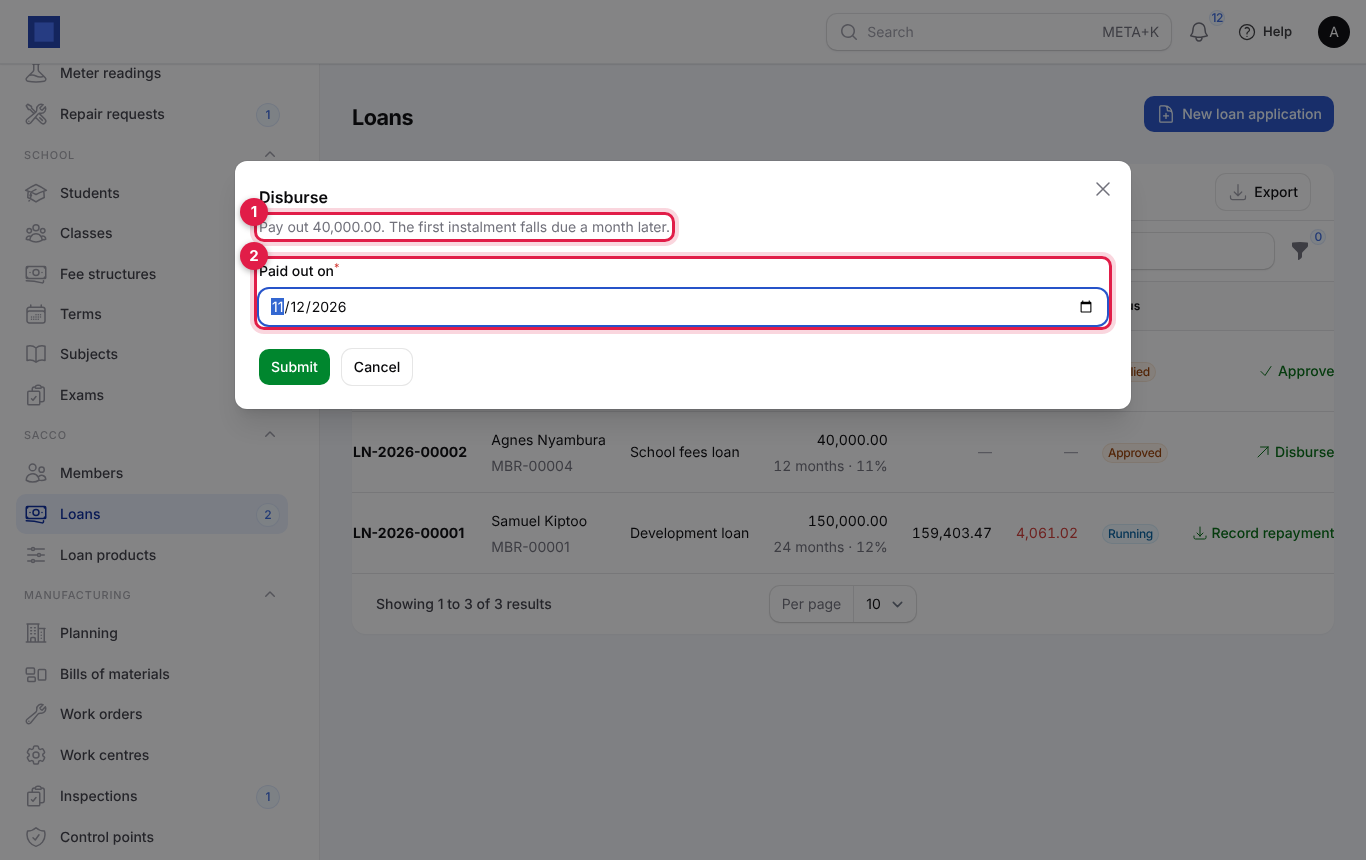
The loan becomes Running, the processing fee is worked out, and the monthly schedule is set from the disbursement date: on a reducing balance, equal monthly payments (for KES 150,000 over 24 months at 12%, KES 7,061.02 a month); on a flat rate, equal principal plus the same interest each month.
Note: Disbursing records the loan in the SACCO books only. Pay the member out from your bank or M-Pesa as usual.
See the repayment schedule
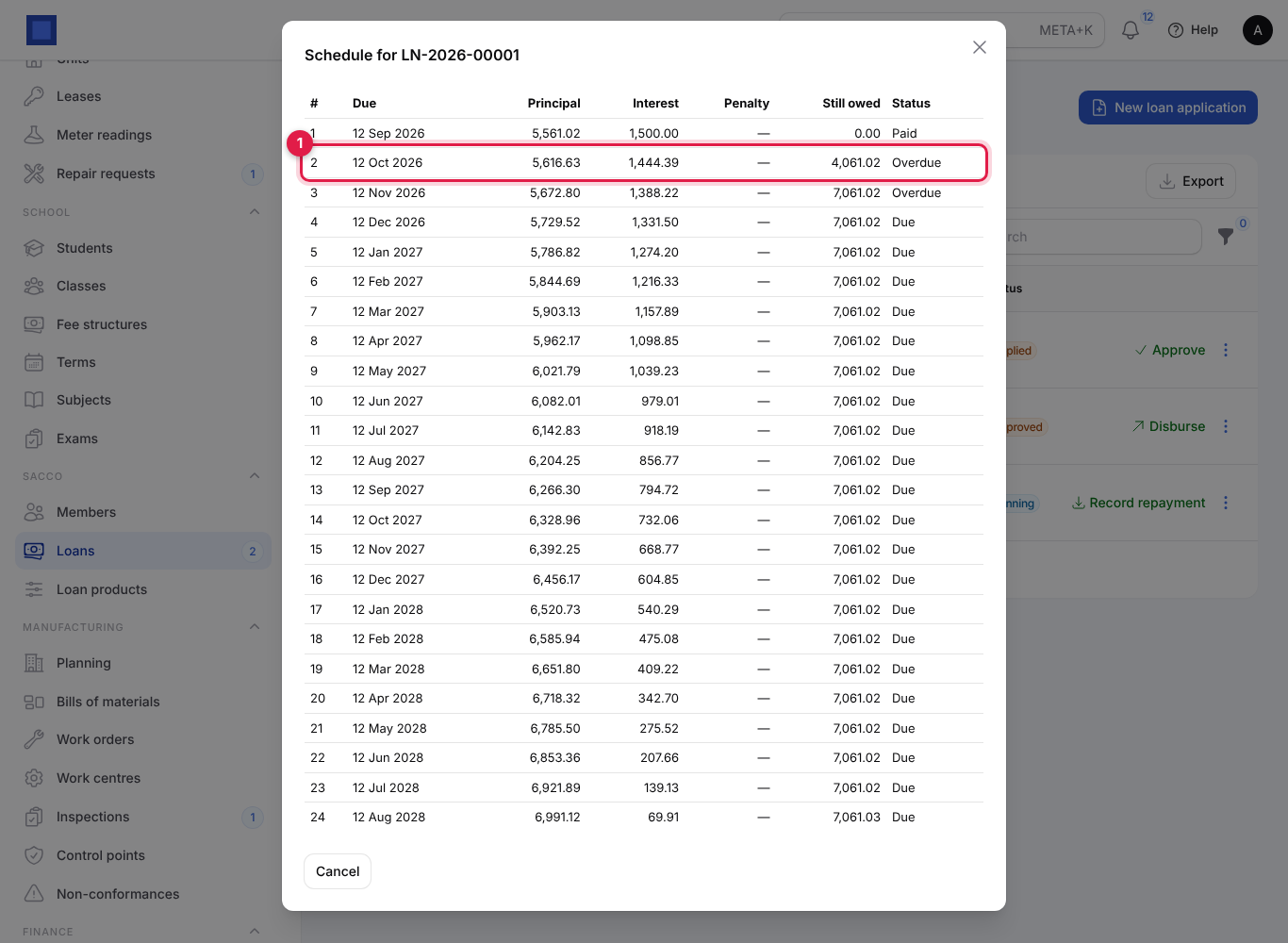
Click ⋮ → Schedule on a running or paid-off loan. Each instalment shows its due date, principal, interest, penalty, what is Still owed and whether it is Paid, Overdue or Due (marker 1 marks an overdue instalment).
Record a repayment
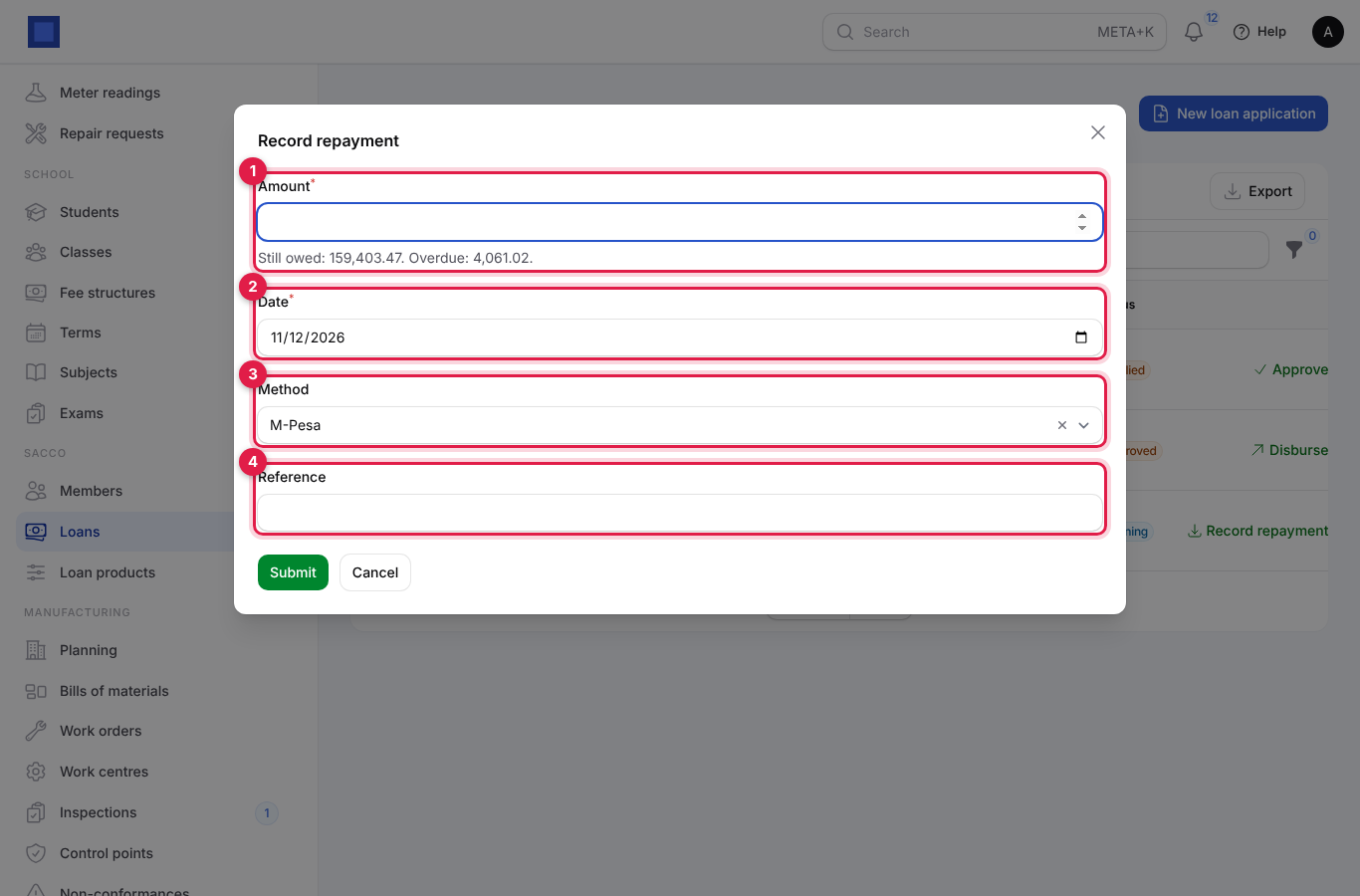
- Click Record repayment on the running loan.
- The hint under Amount (marker 1) shows what is still owed and what is overdue. Enter the amount, the Date (marker 2), the Method (marker 3) and the Reference (marker 4), and click Submit.
How a repayment is applied:
- To the oldest unpaid instalment first: its penalty, then its interest, then its principal; then the next instalment.
- An instalment is marked paid when nothing is left on it.
- When every instalment is paid, the loan becomes Paid off and the guarantors' pledges are released.
- Anything paid beyond the whole loan is deposited to the member's savings, with the note "Overpayment on loan LN-…".
Penalties on late instalments
Every morning at 05:30 (sacco:penalties), each instalment of a running loan that is past its due date and still unpaid is charged the product's Penalty on a late instalment (%) on what is still owed on it. Each instalment is charged once. The penalty shows on the schedule and is paid first by the next repayment.
Pay dividends and interest on savings
At the end of the year, after the annual general meeting has agreed the rates:
- On SACCO → Members, click Pay dividends.
- Set the Year end (marker 1; starts on 31 December last year), the Dividend on shares (%) (marker 2) and the Interest on savings (%) (marker 3).
- Click Confirm.
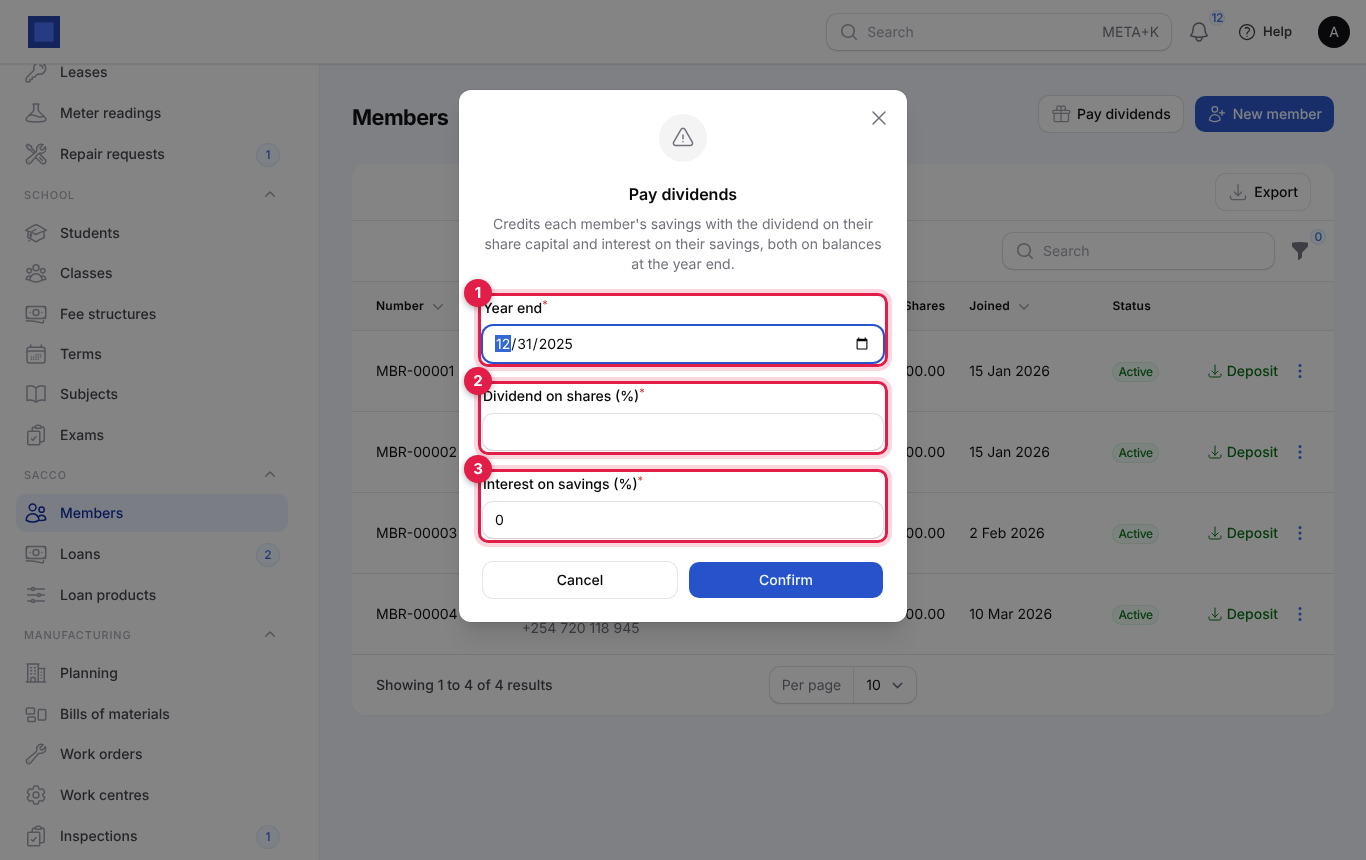
Each member who has not exited gets their dividend (the rate × their share capital at the year end) and interest (the rate × their savings at the year end) credited to their savings, as two entries dated today. You see how many members were paid and the totals. Dividends are paid for your default company's members.
Tip: Pay dividends once per year. Running it again for the same year end pays everyone again.
What members see in the portal
Members who sign in to your customer portal see My savings and loans: their member number and joining date, their Savings (marker 1) and Share capital (marker 2) balances, their applied, approved and running loans with the amount, what is still owed and overdue, and status (marker 3), and Print my statement (marker 4), which opens the same statement as staff see.
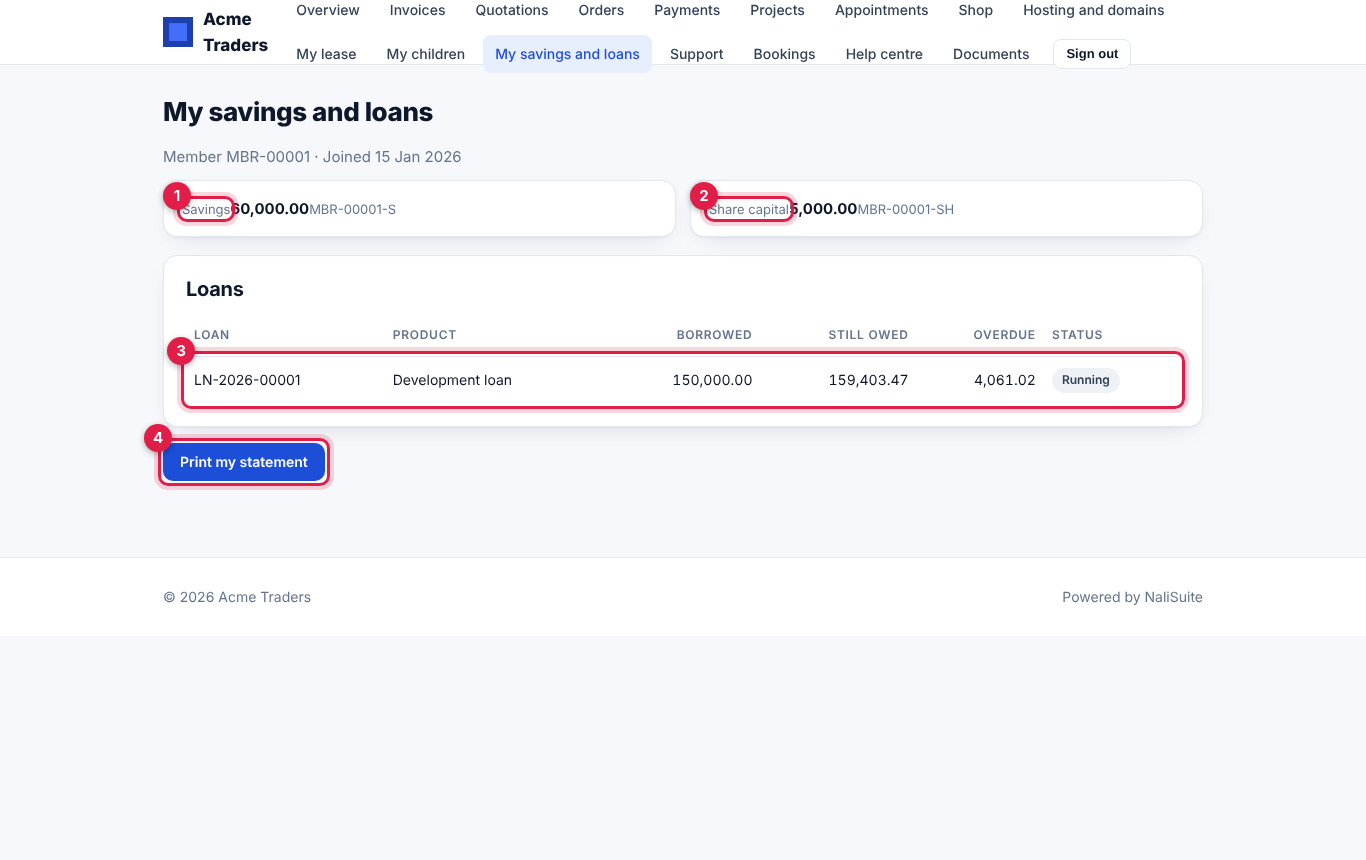
The page appears for portal users whose contact is a member; others see "Your account is not linked to a membership. Please contact the office." To give a member access, invite their contact under Sales → Portal access (see Customer and vendor portal).
Common questions
Can a member withdraw share capital? No. Share capital stays in the SACCO. Only savings can be withdrawn.
Why can a member not withdraw all their savings? Part of their savings is pledged as a guarantee on another member's loan that is still being repaid (or is applied for or approved). The hint under Amount shows what is free.
How do I record a payroll check-off for many members? Record a Deposit (or Record repayment) for each member with Method set to Payroll check-off and the month as the Reference, so it is easy to match to the employer's remittance.
A member paid more than the instalment. What happens? The extra pays the next instalments early. Anything beyond the whole loan goes to their savings.
Can I change the interest rate on a running loan? No. A loan keeps the rate and method it was applied for. Changes to the product apply to new applications.
Who can approve loans? Only users whose role has sacco.loans.approve.