Notice board, suggestion box and notes
Three tools under Me in the menu for everyone in the workspace:
- Notice board: the latest company news.
- Suggestion box: ideas for improving the business.
- My notes: private notes with reminders.
They come with every plan.
Notice board
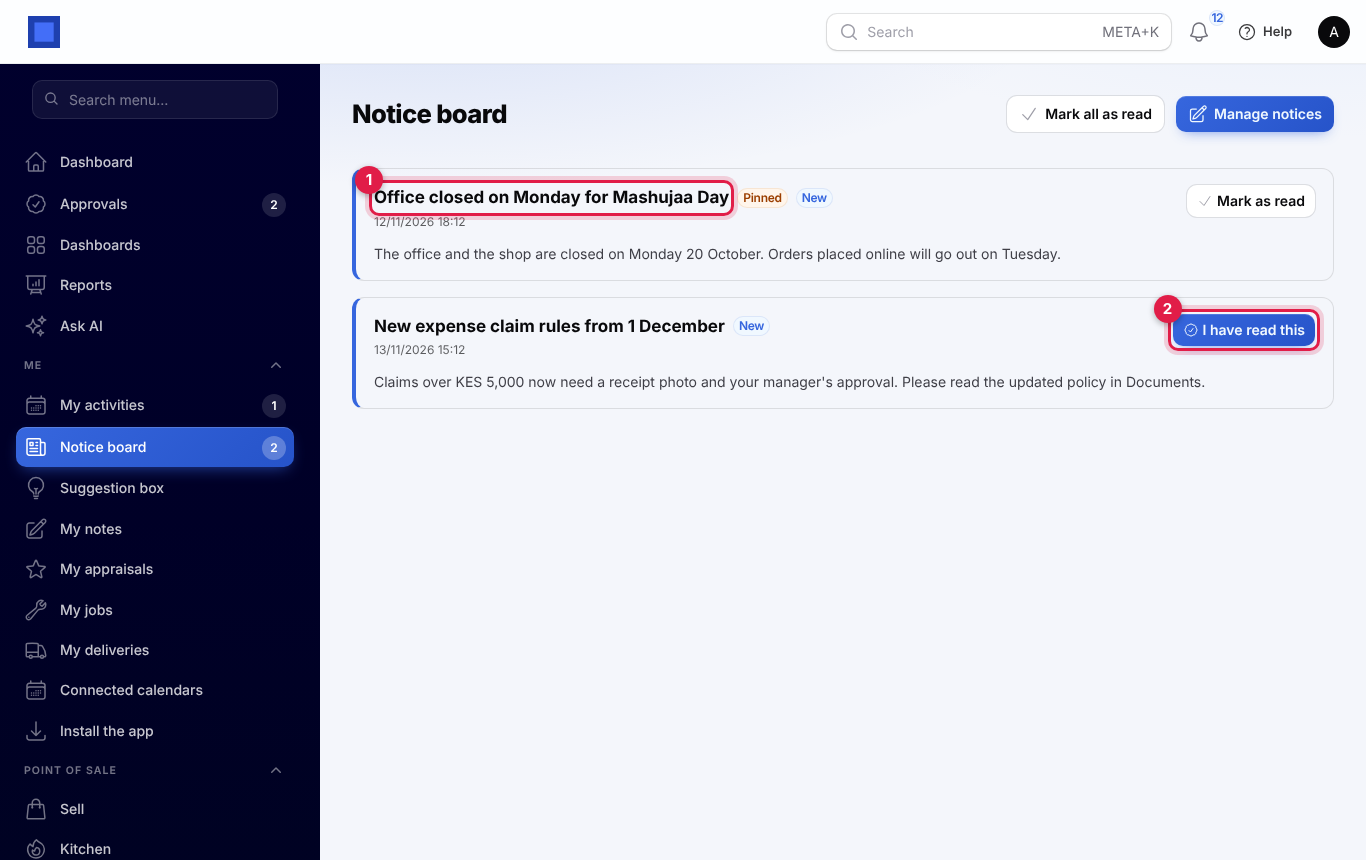
Open Me → Notice board to read the notices meant for you, pinned ones first (marker 1). New notices carry a New badge and a Mark as read button. Some notices ask you to confirm you have read them: press I have read this (marker 2). The menu shows how many you have not read yet, and the dashboard shows the newest ones.
Write a notice
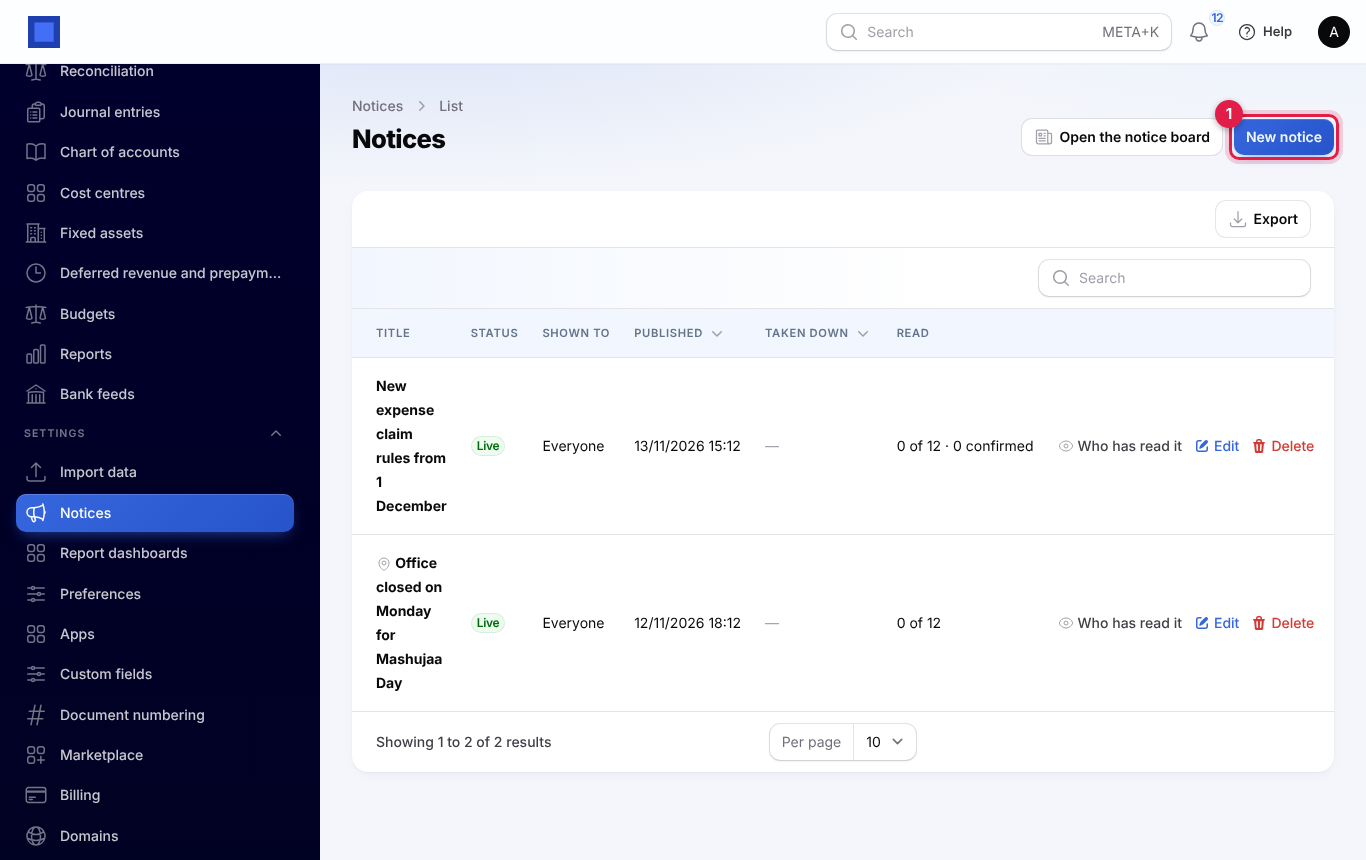
People with the Manage settings permission write notices under Settings → Notices (marker 1). A notice has:
- a title, a message, an optional attachment and a pin;
- who it is for: everyone, chosen roles or chosen departments (departments when the HR app is on);
- the date it goes up and, if you like, the date it comes down;
- Ask people to confirm they have read it.
The list shows whether each notice is scheduled, live or expired, and how many people have read and confirmed it (marker 2). Who has read it lists everyone in the audience with the time they read and confirmed it. People are alerted when a notice goes up.
Suggestion box
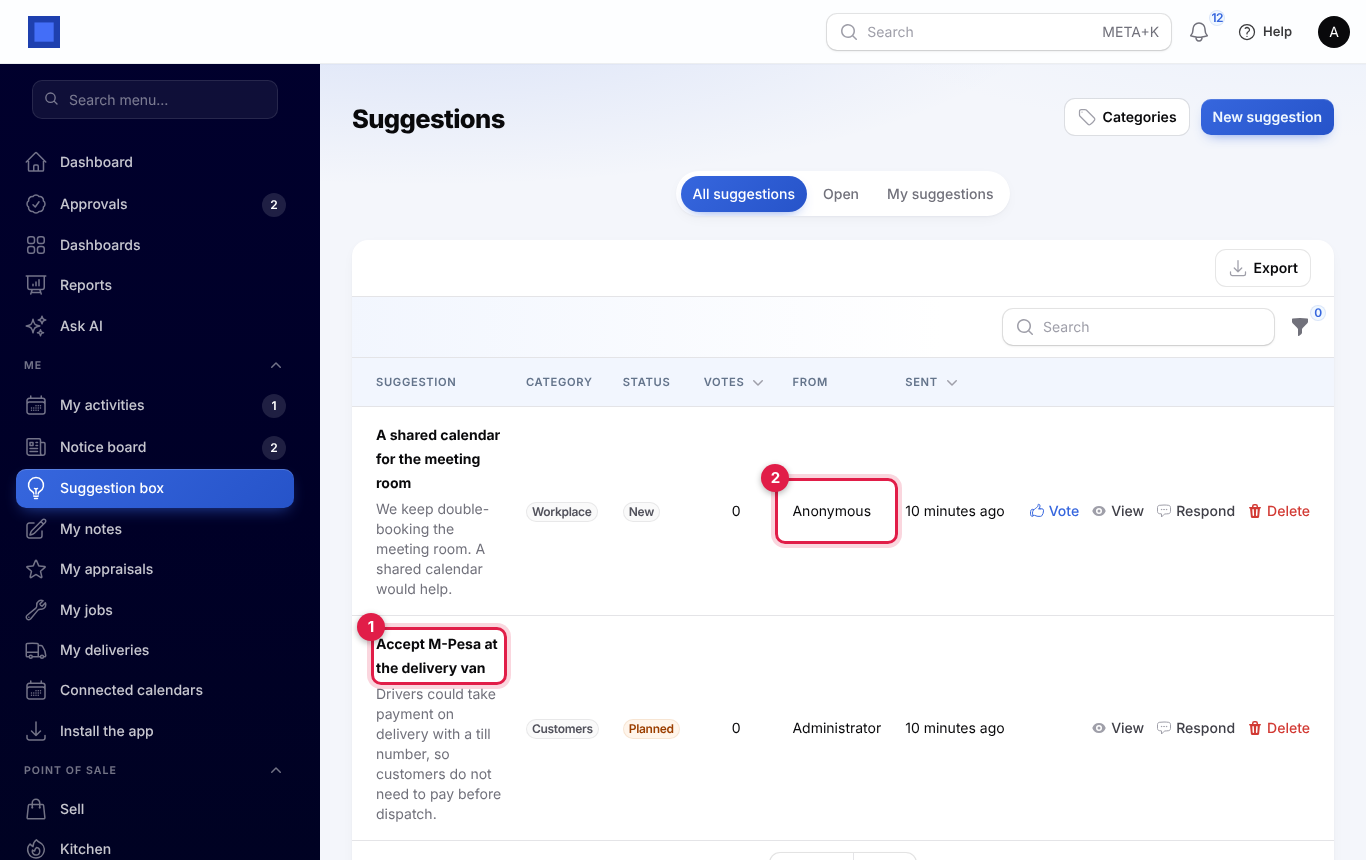
Open Me → Suggestion box to see suggestions and send your own (marker 1). A suggestion has a title, details and a category. Tick Send without my name to send it anonymously; it then shows as Anonymous (marker 2). Anonymous suggestions keep no record of who sent them, so no one can find out, admins included, and you will not hear back about them.
Everyone except the author can vote for a suggestion, once. Managers use Respond to set its status (new, under review, planned, done or declined) and write a reply, and the author is told. Categories are set in Settings → Preferences → Suggestion box.
My notes
Me → My notes keeps notes only you can see. Nobody else can read them, not even the workspace owner, and they are left out of the workspace data export.
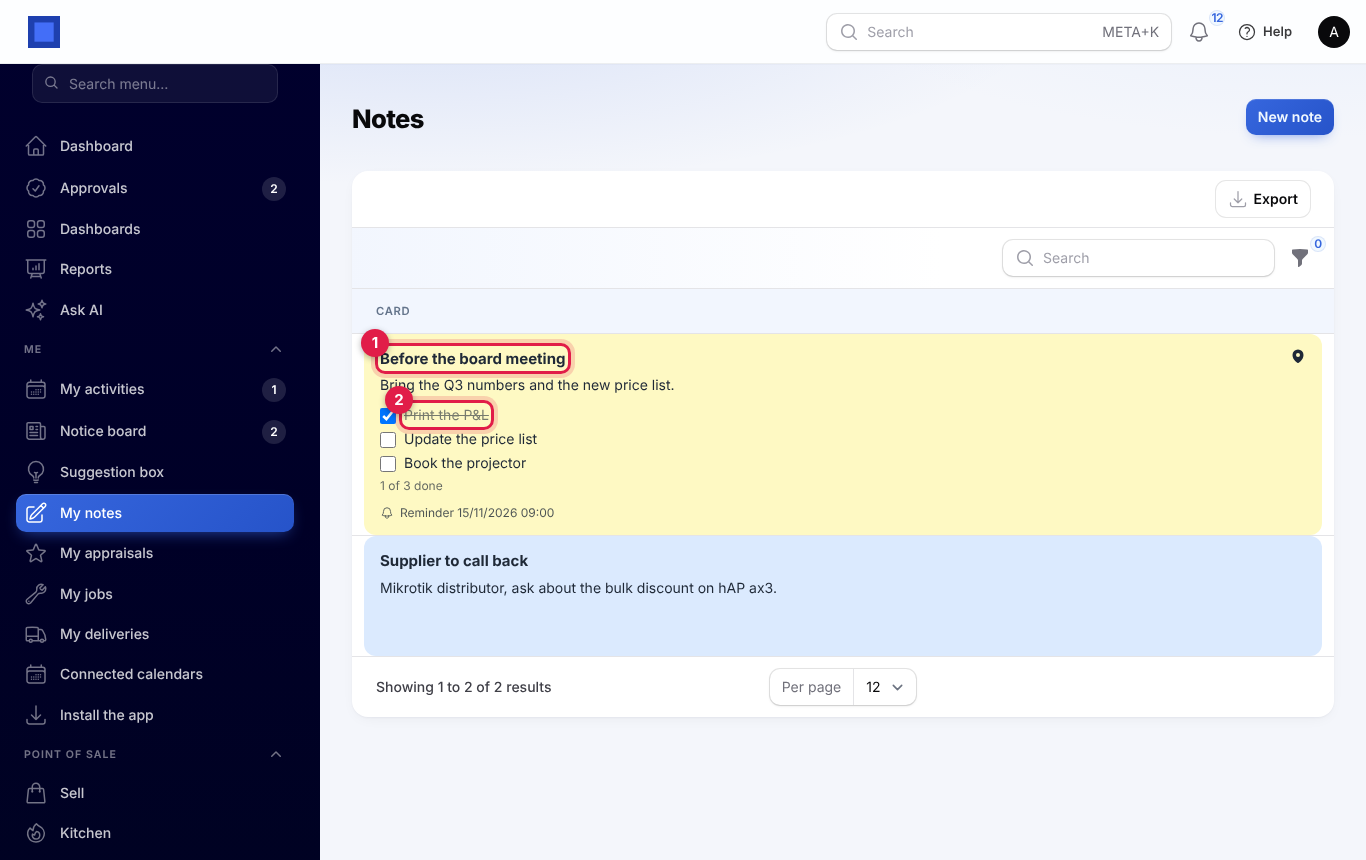
A note has a title, text, a colour and a pin (marker 1). You can add a checklist and tick items straight on the card (marker 2). Set Remind me on to be alerted at a date and time.