Helpdesk
The helpdesk collects customer requests from your website form, email, the customer portal, phone calls, WhatsApp and walk-ins into one list of tickets. Each ticket has a priority, a first-response deadline (SLA), an owner and a full conversation. Agents reply, add internal notes, log time and bill it, and resolve the ticket; the customer can rate the help they got. A public help centre answers common questions before they become tickets. Everything is in the Support group of the sidebar: Tickets, Canned responses, Help centre and Teams.
Note: Permissions: helpdesk.view to see tickets and helpdesk.manage to reply, assign, log calls, resolve and set up teams, canned responses and articles. Only people with helpdesk.manage can be assigned tickets or be team members. Record rules on roles can limit an agent to their own tickets or their team's. Set these under Settings → Roles.
Where tickets come from
| Channel | How a ticket arrives |
|---|---|
| Web form | The customer fills in your public support form at /support on your workspace address. |
Point your support mailbox's forwarding (Postmark, Mailgun, SendGrid or any relay that posts from, subject and text) at the inbound email webhook shown in Preferences. A reply whose subject contains the ticket number (for example [TKT-00012]) is added to that ticket; anything else opens a new one. |
|
| Customer portal | Signed-in customers open and follow tickets from the portal's Support page. |
| Phone | Log a call by hand (Log a call), or connect Africa's Talking Voice or Twilio so completed and missed calls open or update tickets automatically; callers hear a greeting and can leave a recording. |
| Connect the WhatsApp Cloud API; messages to your business number open tickets, and your replies go back on WhatsApp. | |
| Walk-in | Log a ticket by hand for someone at the counter. |
When a ticket opens, the requester gets an email with a link to follow the conversation (unless you turn this off), and the team or every agent is notified in the app.
The ticket list
- In the menu, open Support → Tickets. The number beside Tickets in the menu counts new and open tickets.
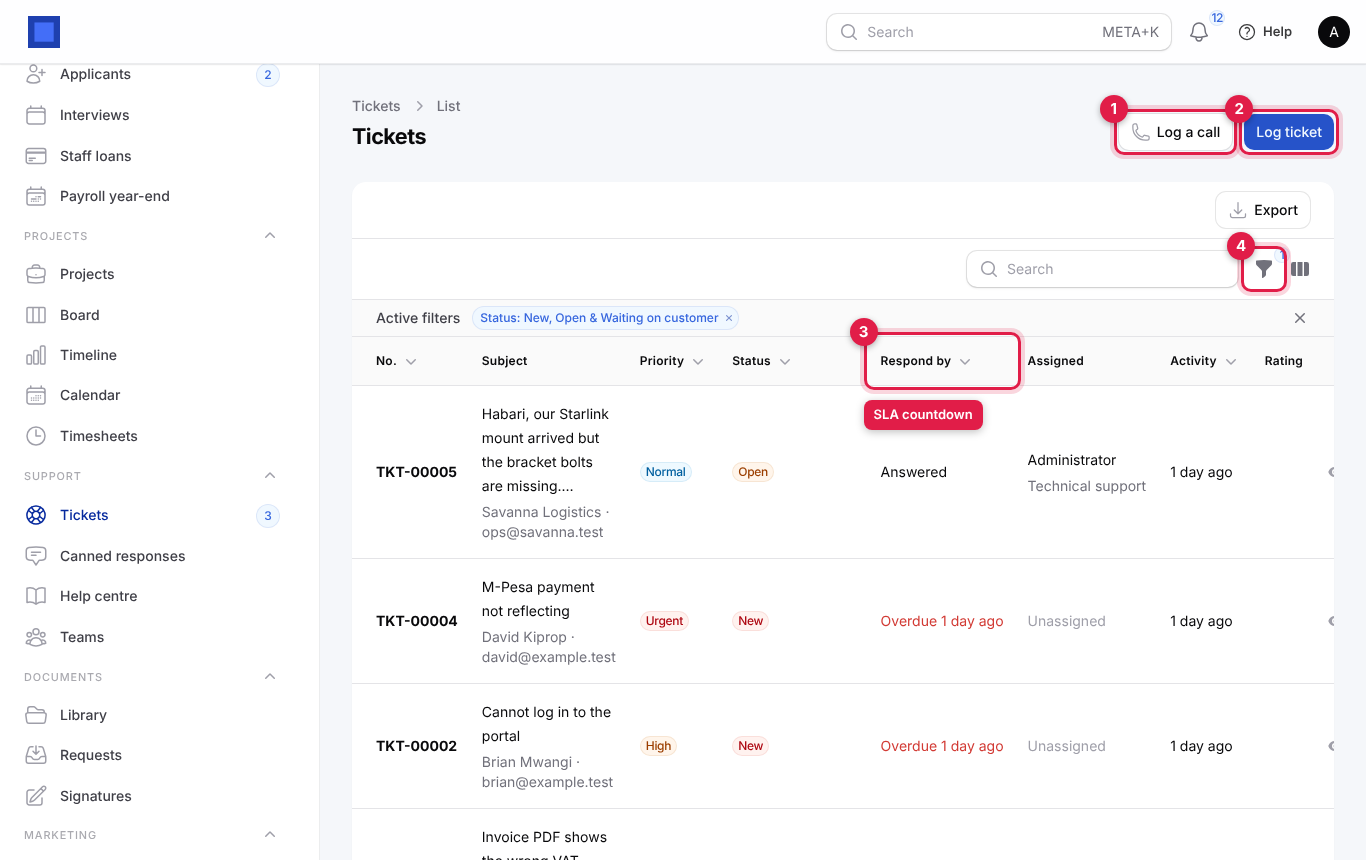
| Column | Meaning |
|---|---|
| No. | The ticket number, for example TKT-00005. |
| Subject | With the requester's name and email under it. |
| Priority | Low, Normal, High, Urgent. |
| Status | See Ticket statuses. |
| Respond by (marker 3) | Time left to the first-response deadline, Answered once you have replied, or Overdue … in red. |
| Assigned | The agent and team, or Unassigned. |
| Activity | Time of the last message. |
| Rating | Stars from the customer after resolution. |
| Escalated, Channel | Hidden by default; switch them on from the column manager. |
The list starts filtered to New, Open and Waiting on customer. Use the filter button (marker 4) for Status (several at once), Priority, Assigned to, Team, Assigned to me and SLA overdue. Click Open on a row to work on the ticket. Tickets are also found by number, subject, requester or customer from the global search (Ctrl/Cmd+K).
Log a ticket by hand
For requests that arrive by phone, WhatsApp or in person.
- On Tickets, click Log ticket (marker 2 above).
- Fill in the form and click Create. The ticket opens.
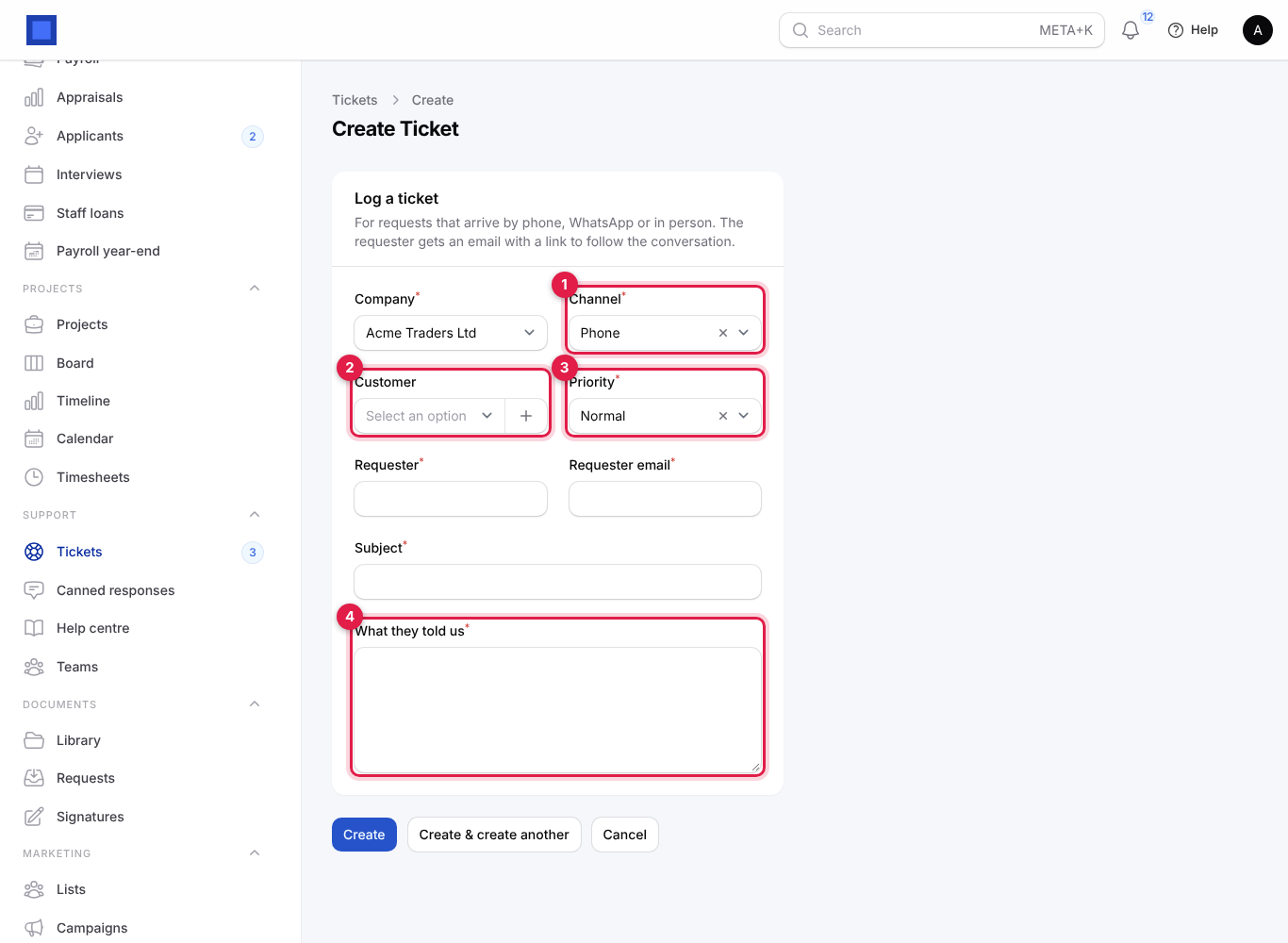
| Field | What to enter |
|---|---|
| Company | Required. The company the request is for. |
| Channel | Required (marker 1). Web form, Email, Customer portal, Phone (default), WhatsApp or Walk-in. For reporting. |
| Customer | Optional (marker 2). Choosing a contact fills in the requester's name and email. Needed later to bill time. |
| Priority | Required (marker 3). Sets the first-response deadline (see SLA targets). |
| Requester | Required. The person's name. |
| Requester email | Required. Replies and the follow link go here. |
| Subject | Required. A short summary, for example "Router keeps dropping connection". |
| What they told us | Required (marker 4). The request in their words. |
The requester gets an email with a link to follow the conversation.
Log a phone call
- On Tickets, click Log a call (marker 1 on the list picture).
- Fill in the call and click Submit.
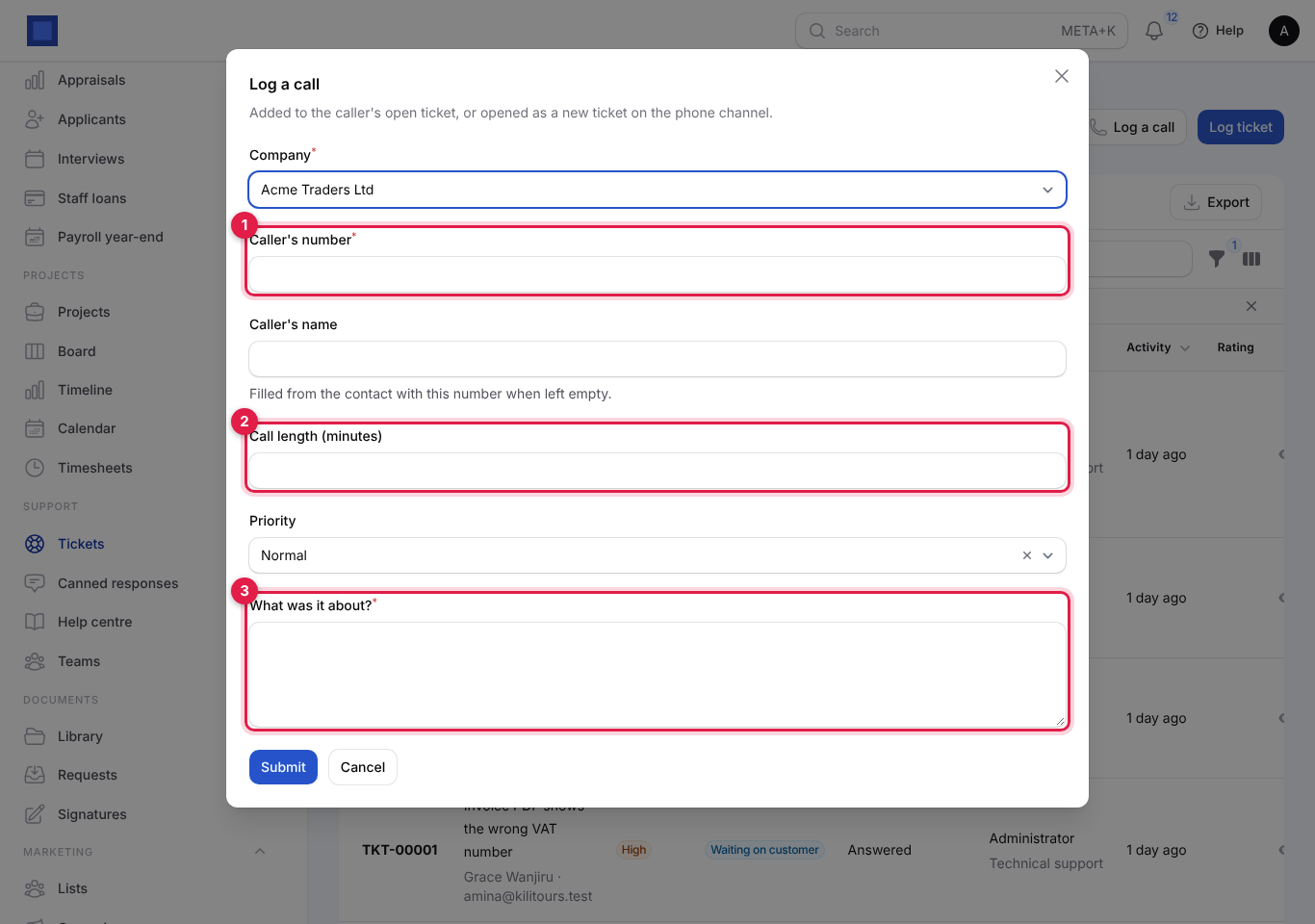
| Field | What to enter |
|---|---|
| Company | Required. |
| Caller's number | Required (marker 1), for example +254 722 000 222. |
| Caller's name | Optional. Filled from the contact with this number when left empty. |
| Call length (minutes) | Optional (marker 2). |
| Priority | Defaults to Normal. |
| What was it about? | Required (marker 3). |
The call is added to the caller's open ticket, or opens a new ticket on the phone channel. You see "Call logged on TKT-…". On an open ticket, Log a call in the header does the same for that ticket.
Work on a ticket
Open a ticket. The conversation is on the left, newest at the bottom; the details panel is on the right.
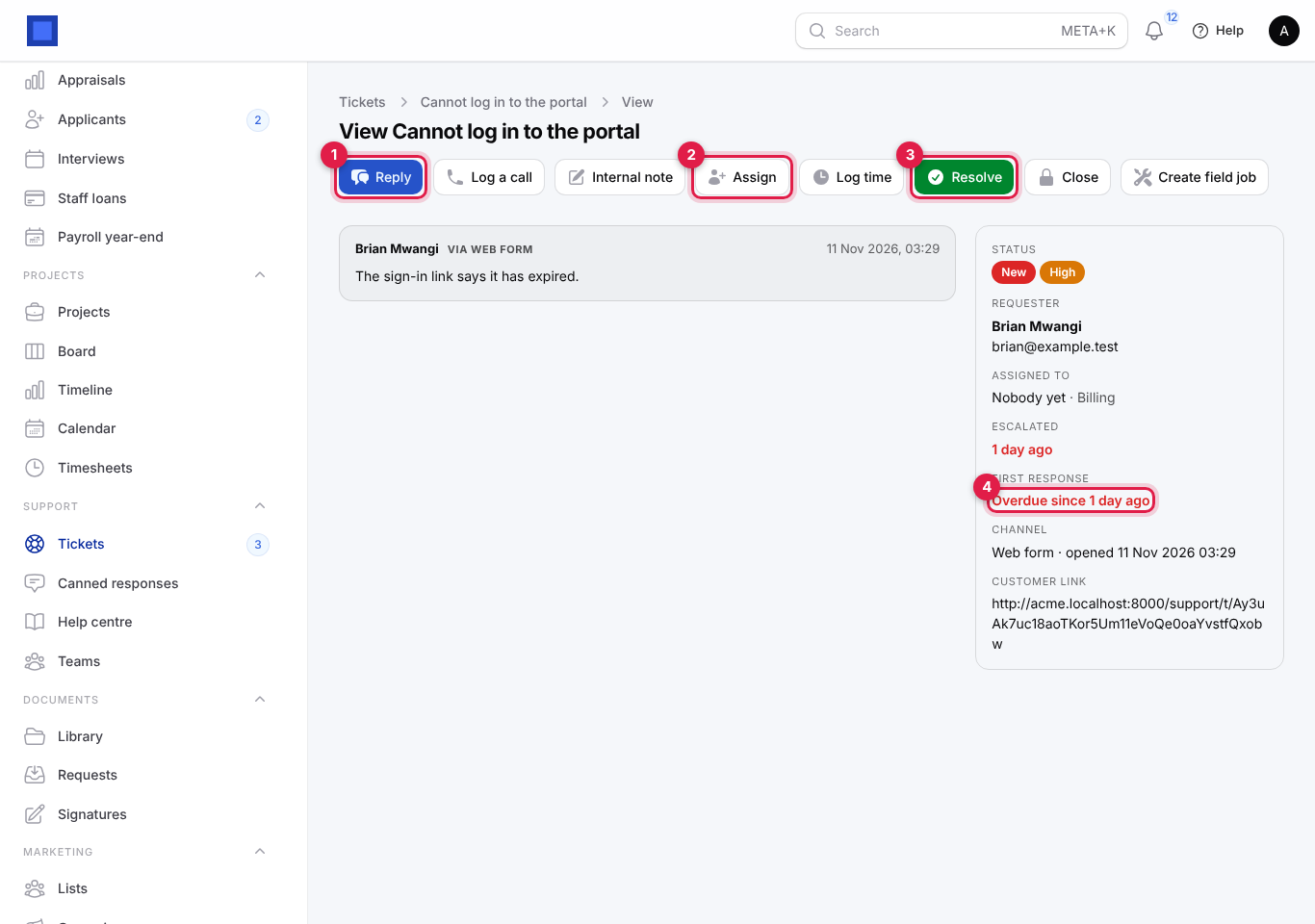
The details panel shows:
| Item | Meaning |
|---|---|
| Status | The status and priority badges. |
| Requester | Name, email, phone (with "(WhatsApp)" for WhatsApp tickets) and the linked customer. |
| Assigned to | The agent and team, or Nobody yet. |
| Escalated | When it was escalated for missing its SLA. |
| First response | Due …, Answered …, or Overdue since … in red (marker 4). |
| Channel | How it came in and when it opened. |
| Time logged | Total time, unbilled amount and each entry. |
| Customer rating | Stars and comment after resolution. |
| Customer link | The private link the customer uses to follow and reply. Copy it to send by SMS or WhatsApp. |
The header buttons:
| Button | What it does |
|---|---|
| Reply (marker 1) | Sends a message to the requester. |
| Log a call | Records a call on this ticket. |
| WhatsApp template | Sends an approved WhatsApp template (shown when templates are set up and the requester has a phone number). |
| Send a file on WhatsApp | Sends a PDF or image by link on WhatsApp (shown when WhatsApp is connected and there is a phone number). |
| Internal note | Adds a note only staff see. |
| Assign (marker 2) | Sets the team, the agent and the priority. |
| Log time | Records time spent. |
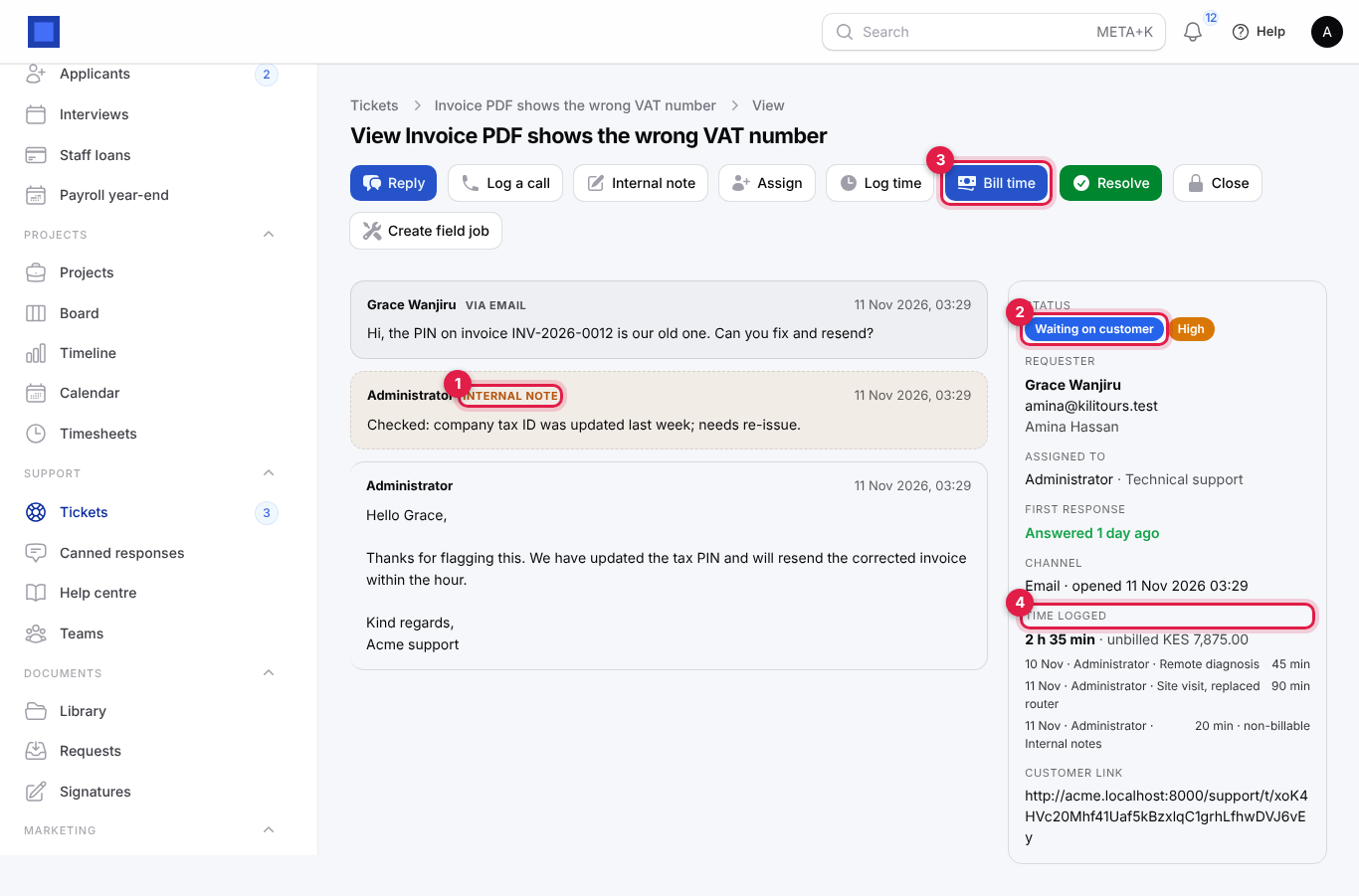
| Bill time | Invoices unbilled time (shown when there is some and the ticket has a customer). |
| Resolve (marker 3) | Marks it solved and asks the customer for a rating. |
| Close | Closes it for good. |
| Reopen | Shown on resolved and closed tickets. |
| Create field job | Sends a technician (needs the Field Service module). |
Reply to the customer
- Click Reply.
- Optionally pick a Canned response (marker 1). Its text fills the message; edit it as needed.
- Write the message in Message to … (marker 2).
- Choose After sending (marker 3): Wait for the customer (status becomes Waiting on customer) or Mark resolved.
- Click Submit.
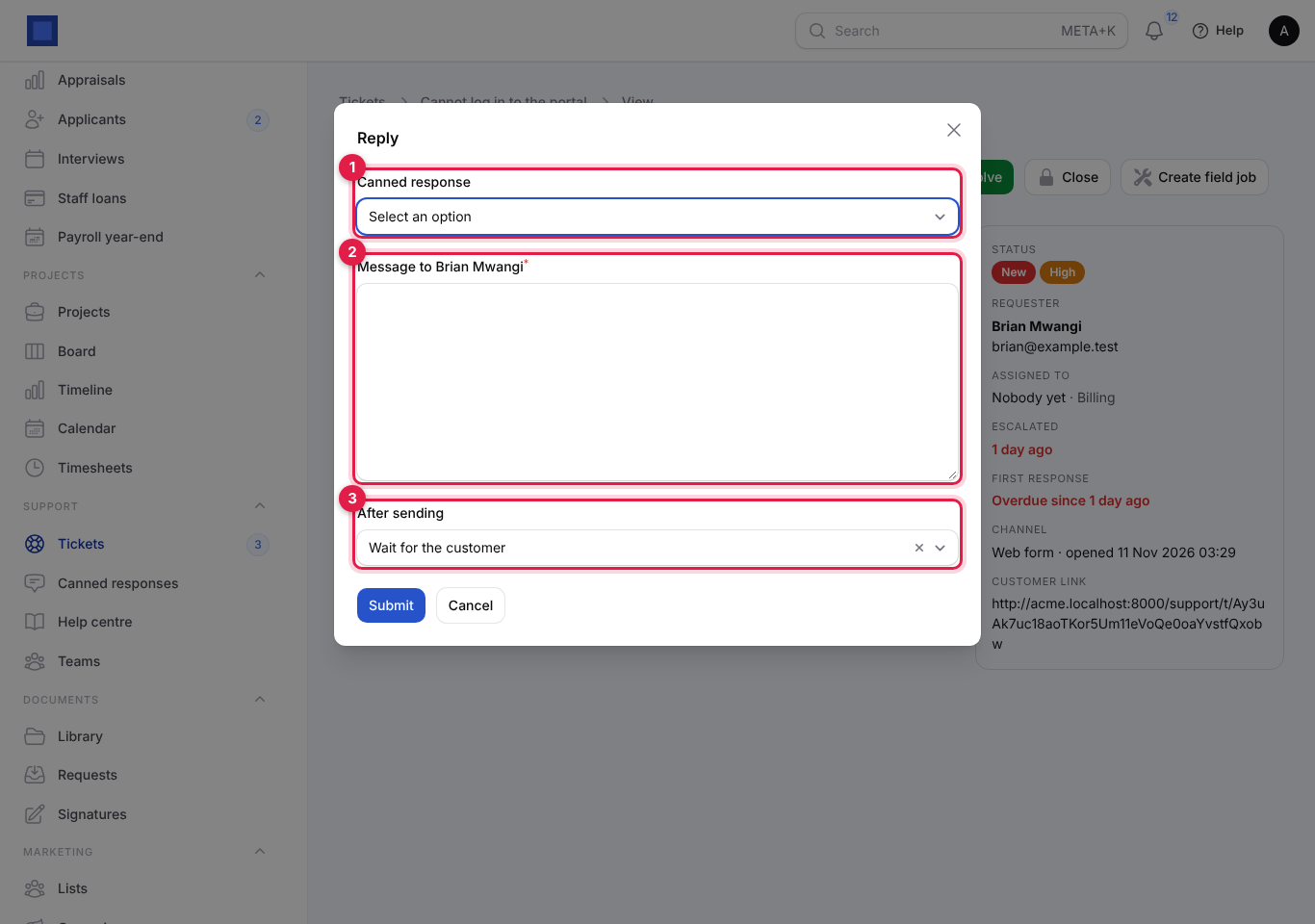
The reply is emailed to the requester (with your Signature on support emails), or sent on WhatsApp for WhatsApp tickets. The first reply stops the SLA clock and shows Answered. Closed tickets cannot be replied to; reopen them first. When the customer answers (by email, the link or WhatsApp), the ticket goes back to Open and the assignee is told.
Add an internal note
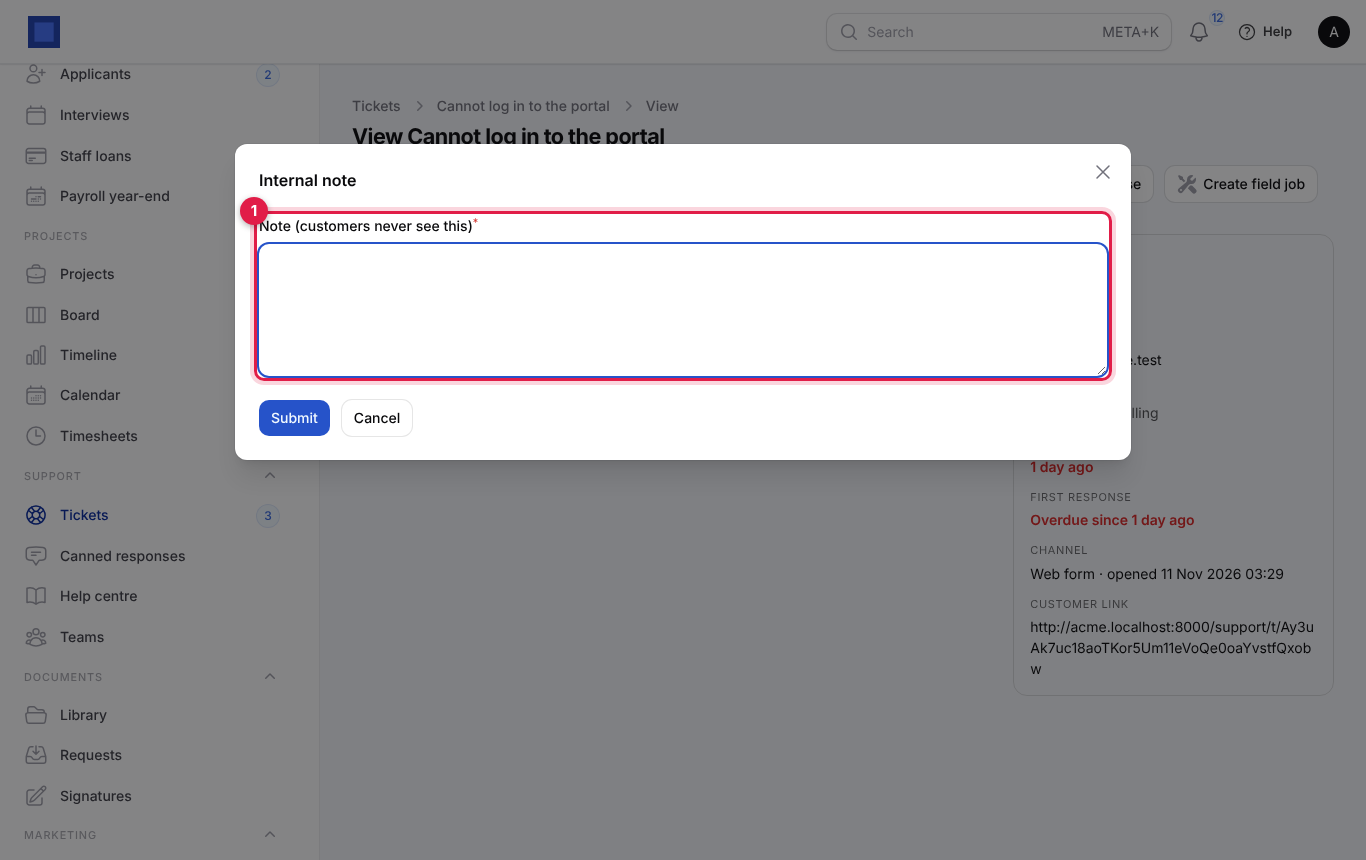
Click Internal note, type in Note (customers never see this) (marker 1) and click Submit. Notes show with an amber Internal note label in the conversation.
Assign a ticket
- Click Assign.
- Choose the Team (marker 1). If the team shares tickets in turn and you leave Assign to empty, the team's next member gets it.
- Choose who it is Assign to (marker 2). It starts with you.
- Change the Priority if needed (marker 3).
- Click Submit.
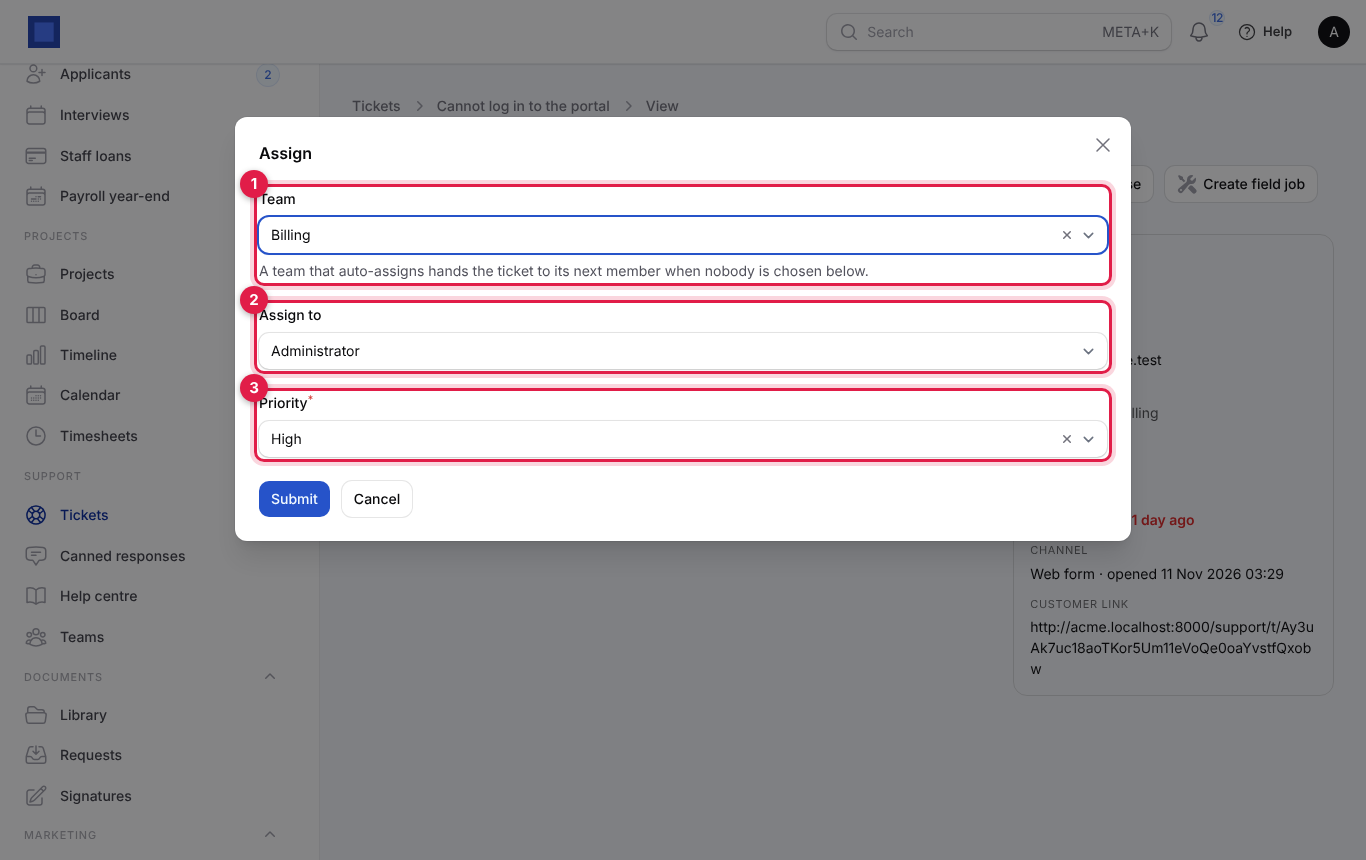
Assigning a New ticket moves it to Open.
Log and bill time
Use this for paid support, such as on-site visits or support outside a contract.
- On the ticket, click Log time.
- Enter the Minutes (marker 1), What you did (marker 2), the Date, and whether it is Billable (marker 3).
- Click Submit.
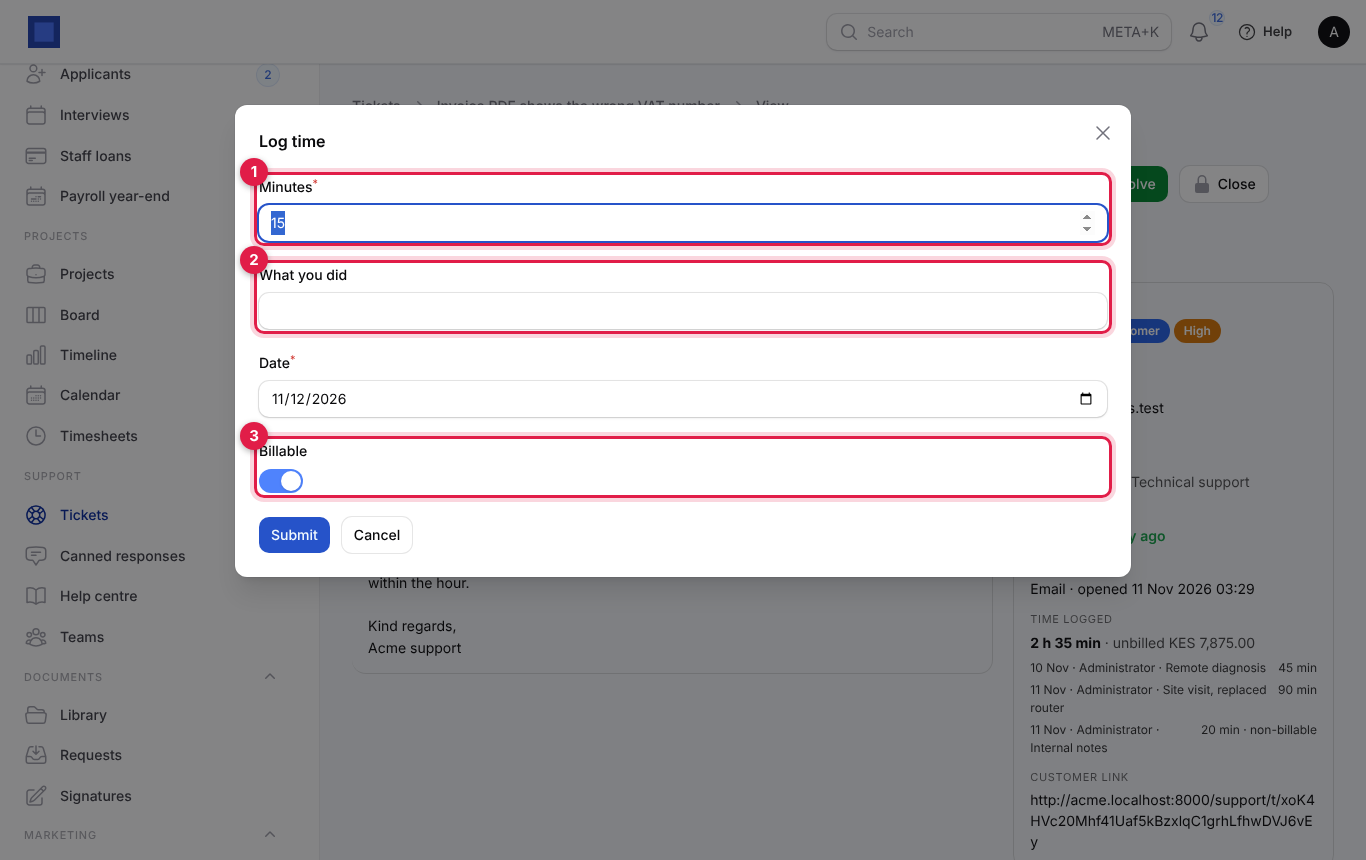
Time is charged at Support rate per hour from Preferences. The details panel shows the total and the unbilled amount, for example "2 h 35 min · unbilled KES 7,875.00", with each entry (non-billable ones are marked).
To invoice it, click Bill time (marker 3 below) and confirm. A draft invoice for the ticket's customer opens with a line "Support on TKT-…: subject". Check it and issue it from Finance → Invoices. The ticket must be linked to a customer ("Link the ticket to a customer before billing time.") and the Invoicing module must be on.
Resolve, close and reopen
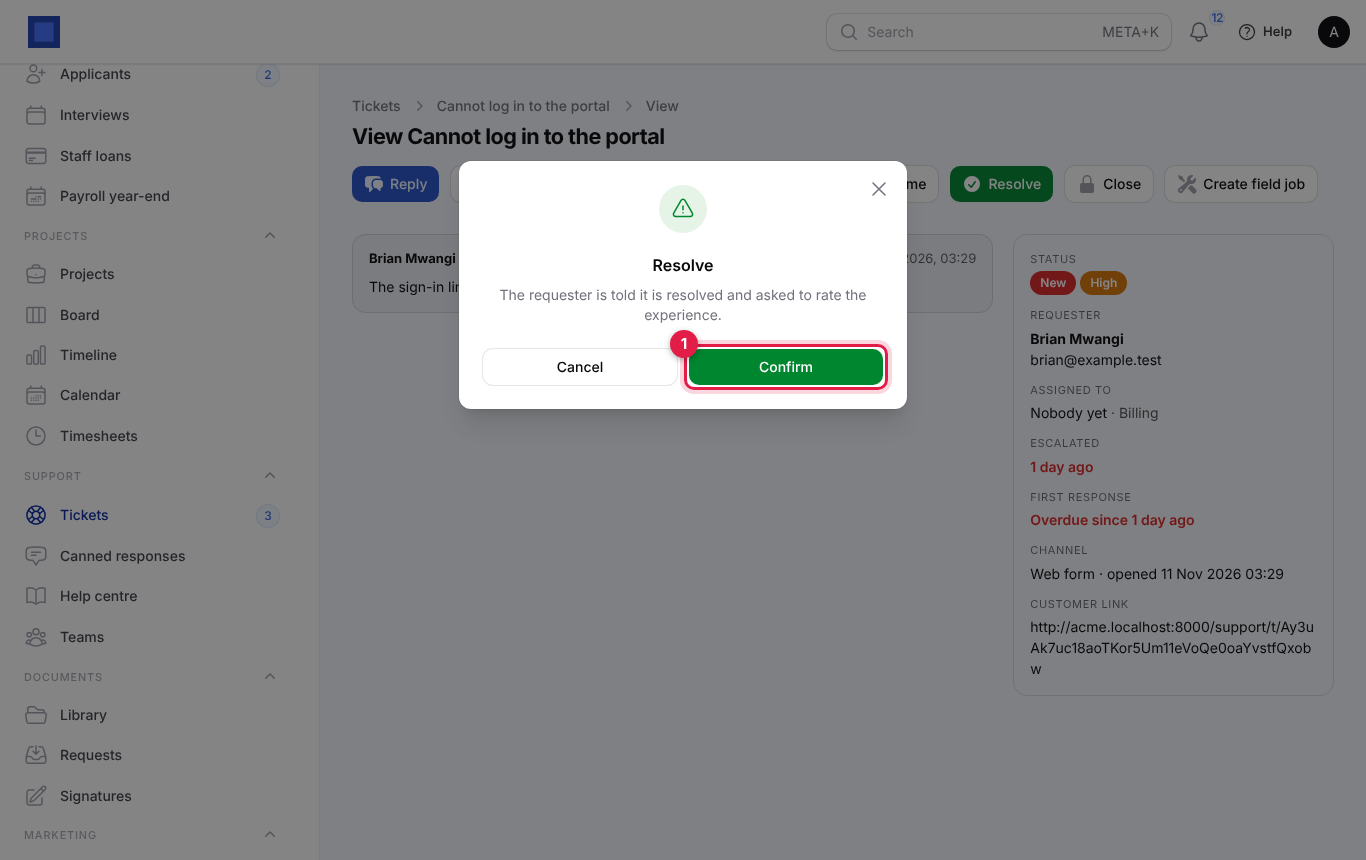
- Resolve: click it and Confirm (marker 1). The requester is told it is resolved and asked to rate the experience (1 to 5 stars with a comment) from their link.
- Close: locks the ticket. Use it for spam or once the customer has confirmed.
- Reopen: brings a resolved or closed ticket back to Open.
Ticket statuses
| Status | Meaning | What moves it |
|---|---|---|
| New | Just arrived, nobody assigned. | Assigning it, or a reply. |
| Open | Someone is working on it, or the customer just wrote back. | Reply (to Waiting on customer), Resolve. |
| Waiting on customer | You replied and are waiting. | The customer replies (back to Open), Resolve. |
| Resolved | Solved; the customer may rate it. | Close, Reopen, or the customer replies (back to Open). |
| Closed | Finished. No replies. | Reopen. |
WhatsApp tickets
When WhatsApp is connected, messages to your business number open tickets on the WhatsApp channel, and replies go back on WhatsApp.
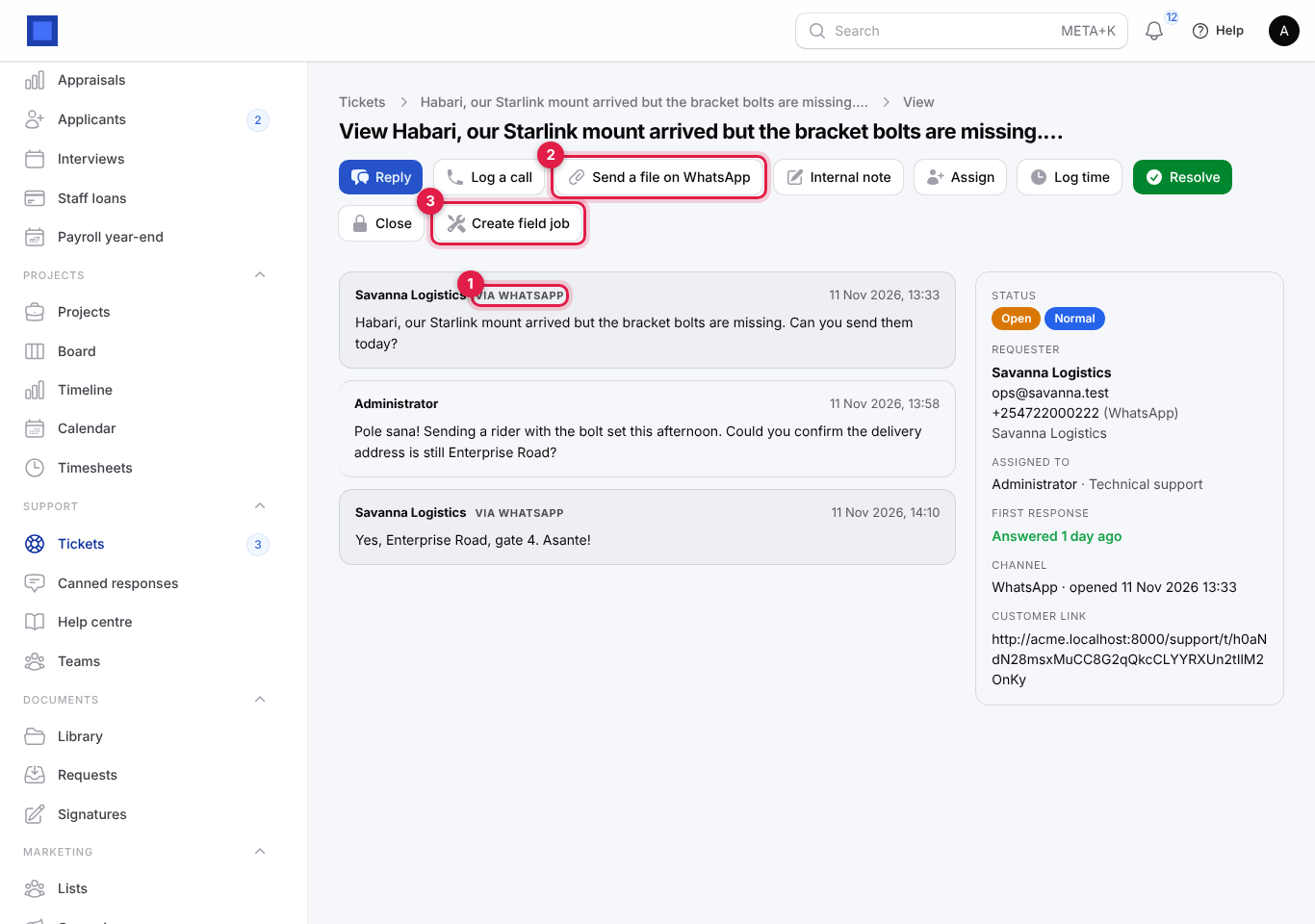
- Messages from the customer are labelled via WhatsApp (marker 1).
- Send a file on WhatsApp (marker 2): give a Public link to the file (PDF or image), a File name and an optional Caption. Images are sent as pictures, others as documents.
- WhatsApp template: WhatsApp only lets you message a customer freely within 24 hours of their last message. After that, choose an approved Template and enter the Text for {{1}}. Templates are approved in Meta Business Manager and listed in Preferences.
- Create field job (marker 3): enter a Title and choose a Job type to send a technician; the job opens.
Set up teams and assignment
Teams group agents by skill (Billing, Technical, Onboarding) and share new tickets among them.
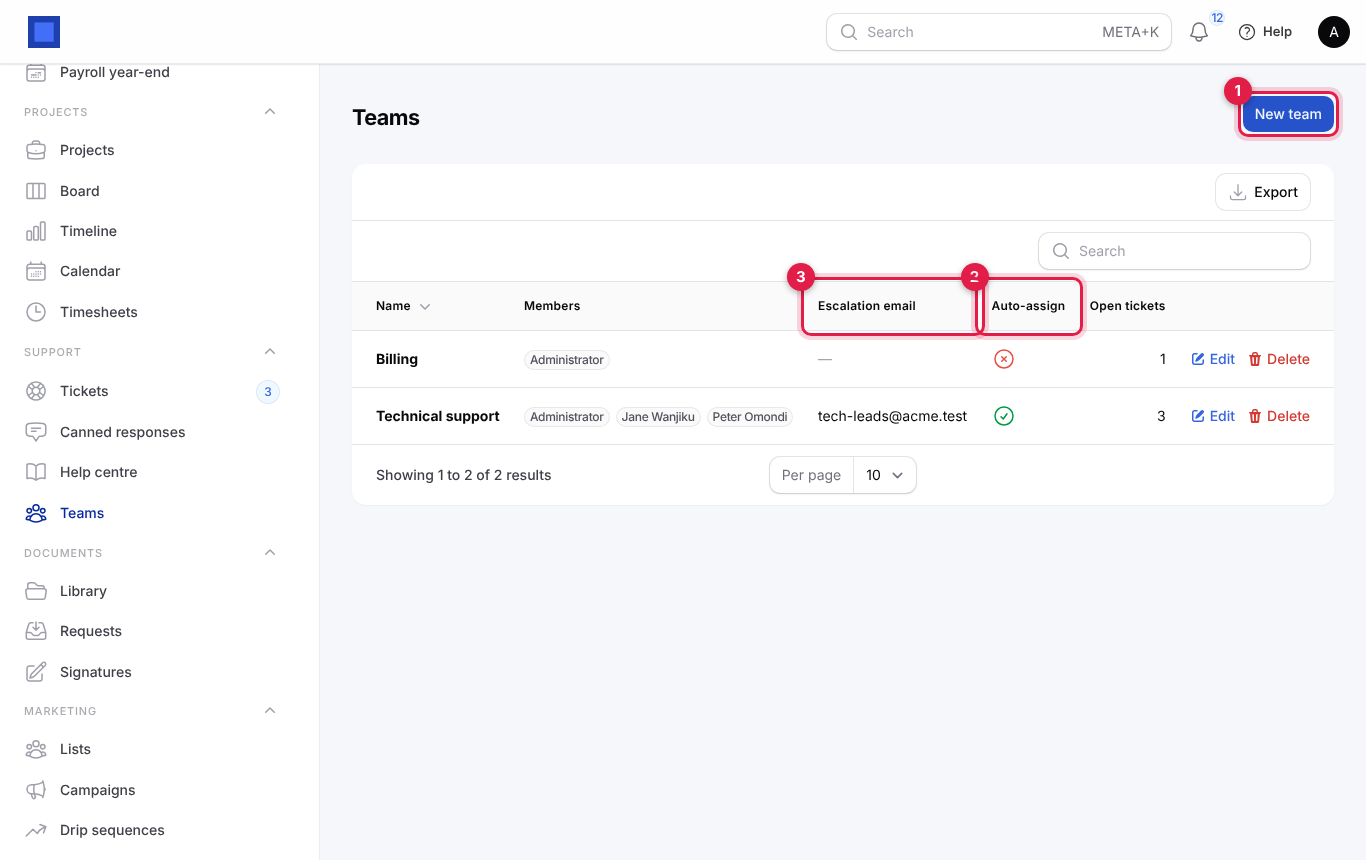
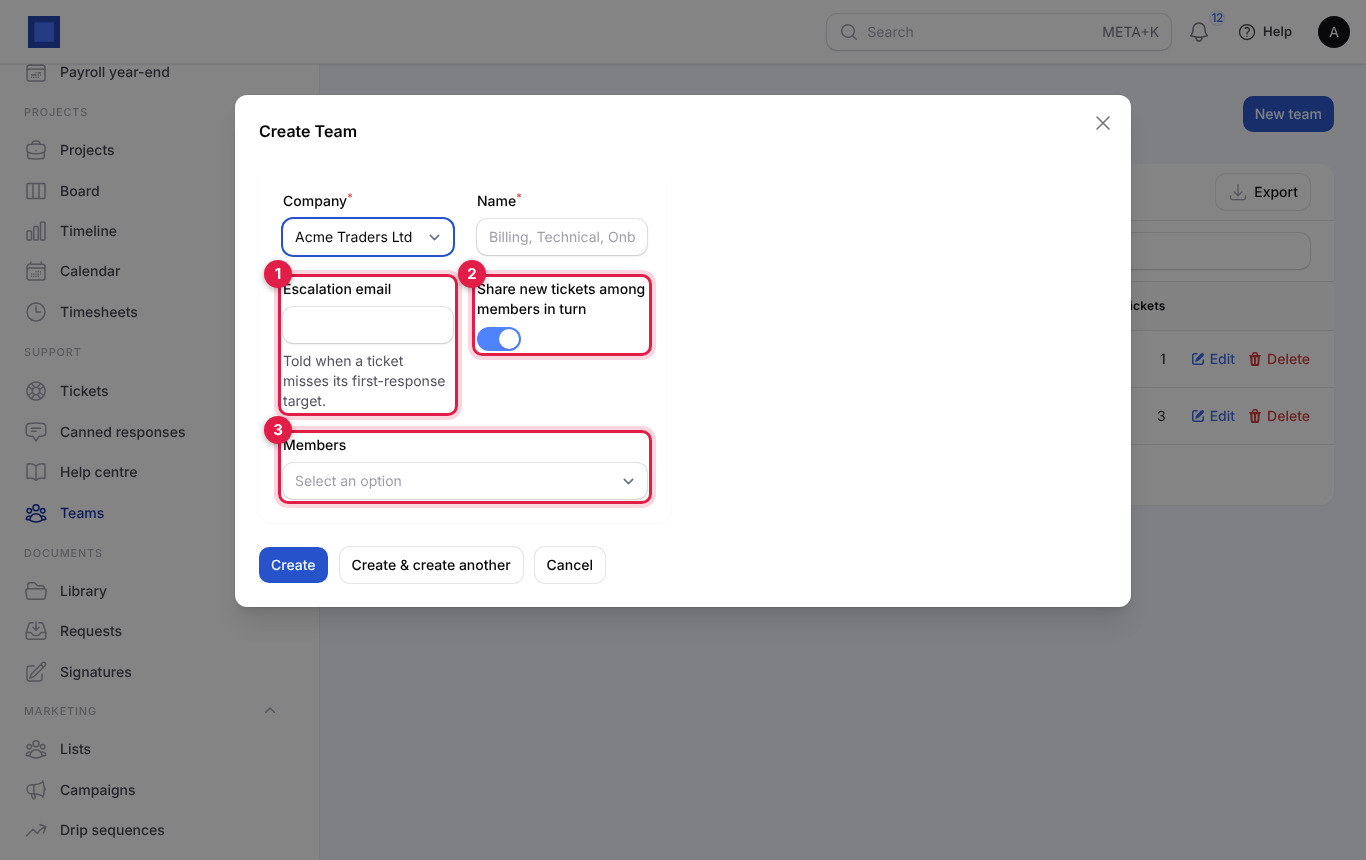
- In the menu, open Support → Teams and click New team (marker 1).
- Fill in the form and click Create.
| Field | What to enter |
|---|---|
| Company | Required. |
| Name | Required, for example "Technical support". |
| Escalation email | Optional (marker 1). An address (a team lead or a shared inbox) told when a ticket misses its first-response target. |
| Share new tickets among members in turn | On by default (marker 2). New tickets for the team go to the next member in turn (round robin). |
| Members | The agents in the team (marker 3). Only users with helpdesk.manage are listed. |
The list shows Members, Escalation email, Auto-assign and Open tickets per team. To send all new tickets to one team, set New tickets go to in Preferences.
Canned responses
Canned responses are saved replies for common questions.
- In the menu, open Support → Canned responses and click New canned response.
- Choose the Company, enter a short Title (marker 1; what agents pick from the list, for example "Need more details") and the Body (marker 2; the full text).
- Click Create.
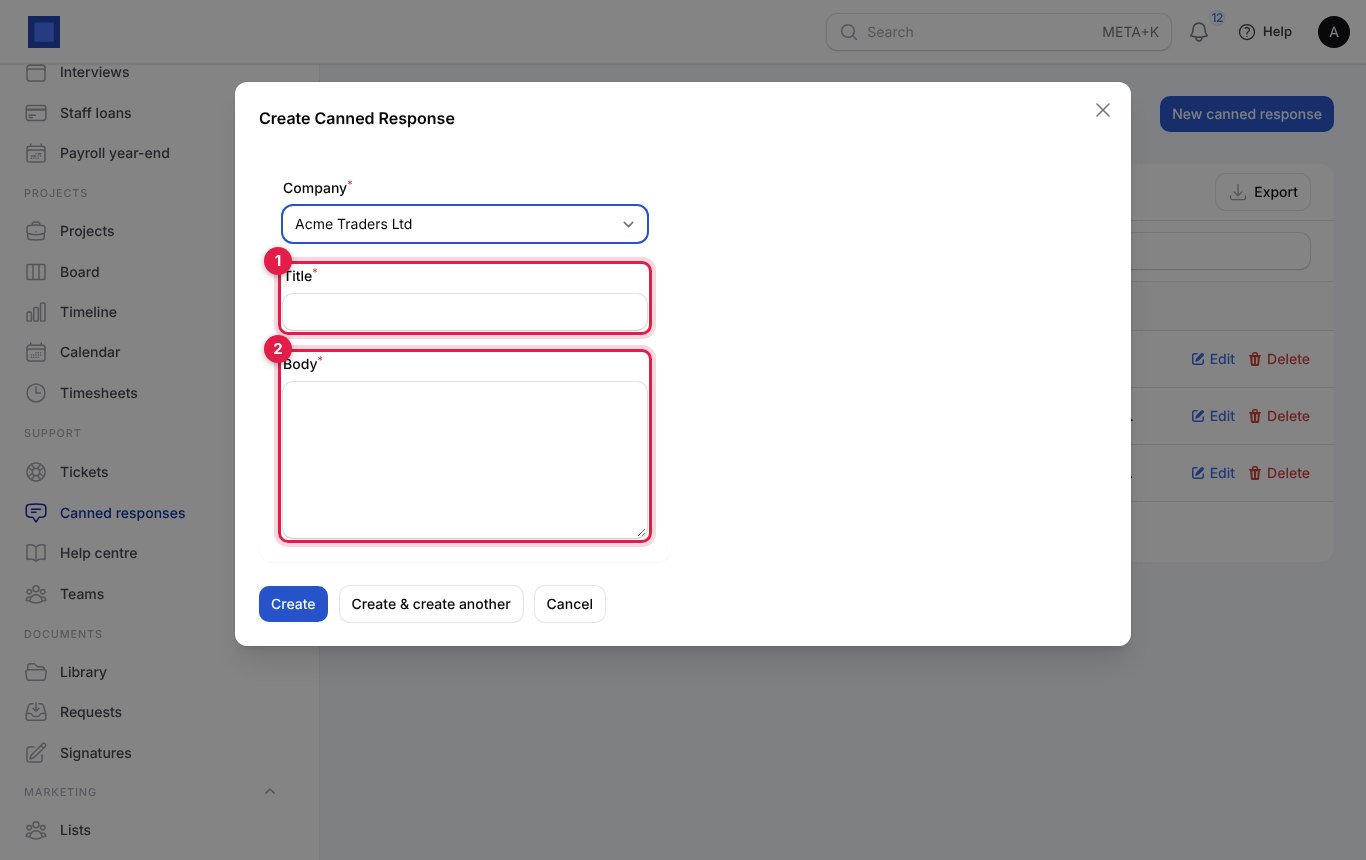
Use them from Reply → Canned response on any ticket. Edit and Delete are on each row.
Set SLA targets and escalation
The first-response target is how long you promise to take before the first reply. It depends on the priority.
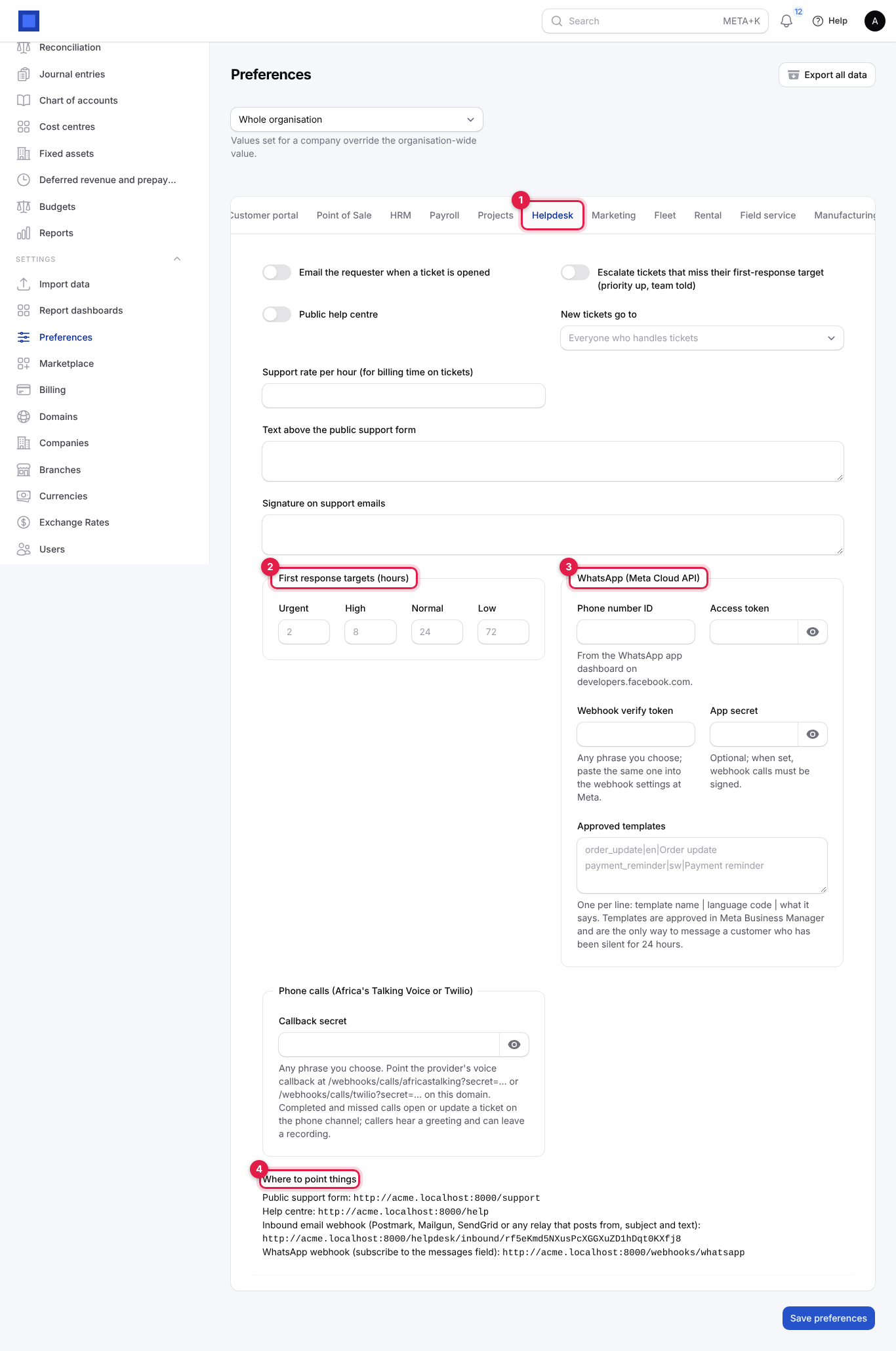
- In the menu, open Settings → Preferences and click the Helpdesk tab (marker 1).
- Set the options and click Save preferences.
| Setting | What it does |
|---|---|
| Email the requester when a ticket is opened | On by default. The acknowledgement email with the follow link. |
| Escalate tickets that miss their first-response target (priority up, team told) | On by default. Checked every hour. A ticket with no reply by its deadline is escalated once: priority goes up one step (Normal to High, High to Urgent), the team (or every agent) is notified in the app, and the team's Escalation email gets an email. |
| Public help centre | Turns the public help centre at /help on or off. When off, /help shows "Not found". |
| New tickets go to | A team for every new ticket, or Everyone who handles tickets. |
| Support rate per hour (for billing time on tickets) | The rate used by Log time and Bill time, for example 3,000. |
| Text above the public support form | An introduction on /support, for example opening hours. |
| Signature on support emails | Added to every reply. |
| First response targets (hours) (marker 2) | Urgent, High, Normal, Low. Defaults: 2, 8, 24 and 72 hours. |
| WhatsApp (Meta Cloud API) (marker 3) | Phone number ID and Access token from the WhatsApp app at developers.facebook.com; a Webhook verify token (any phrase, also pasted at Meta); the App secret (required: Meta signs every webhook call with it, and NaliSuite refuses WhatsApp messages until it is filled in; find it in the Meta app under App settings → Basic); and Approved templates, one per line as `name |
| Phone calls (Africa's Talking Voice or Twilio) | A Callback secret (any phrase). Point the provider's voice callback at /webhooks/calls/africastalking?secret=… or /webhooks/calls/twilio?secret=… on your workspace address. |
| Where to point things (marker 4) | The exact addresses of your public support form, help centre, inbound email webhook and WhatsApp webhook. Copy them into your website, mail provider and Meta. |
The public support form and customer view
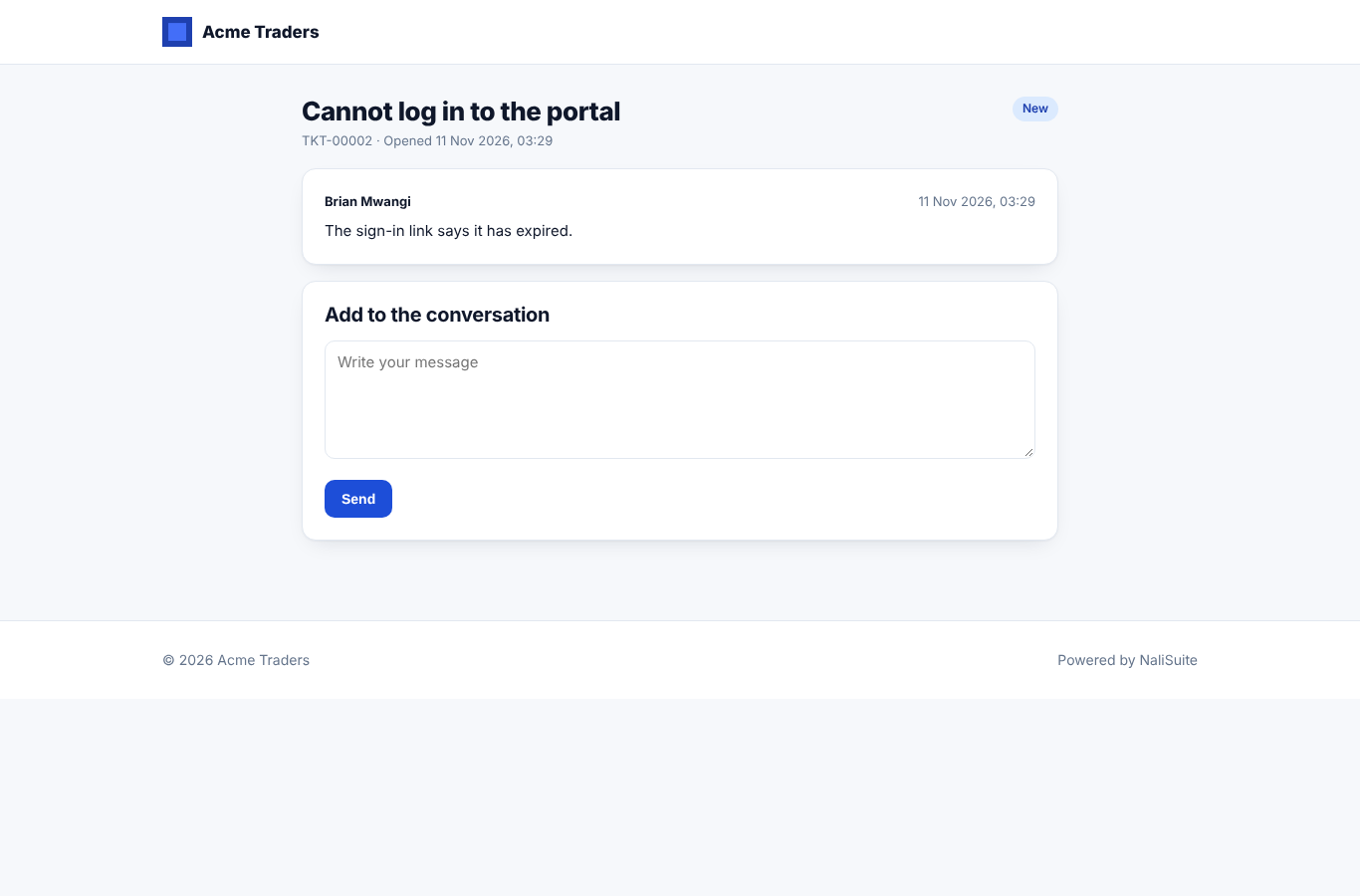
Link to /support on your workspace address (for example from your website's Contact page). Customers enter their name, email, subject, How urgent is it? and What is happening?, then click Send request. They get an email with a private link.
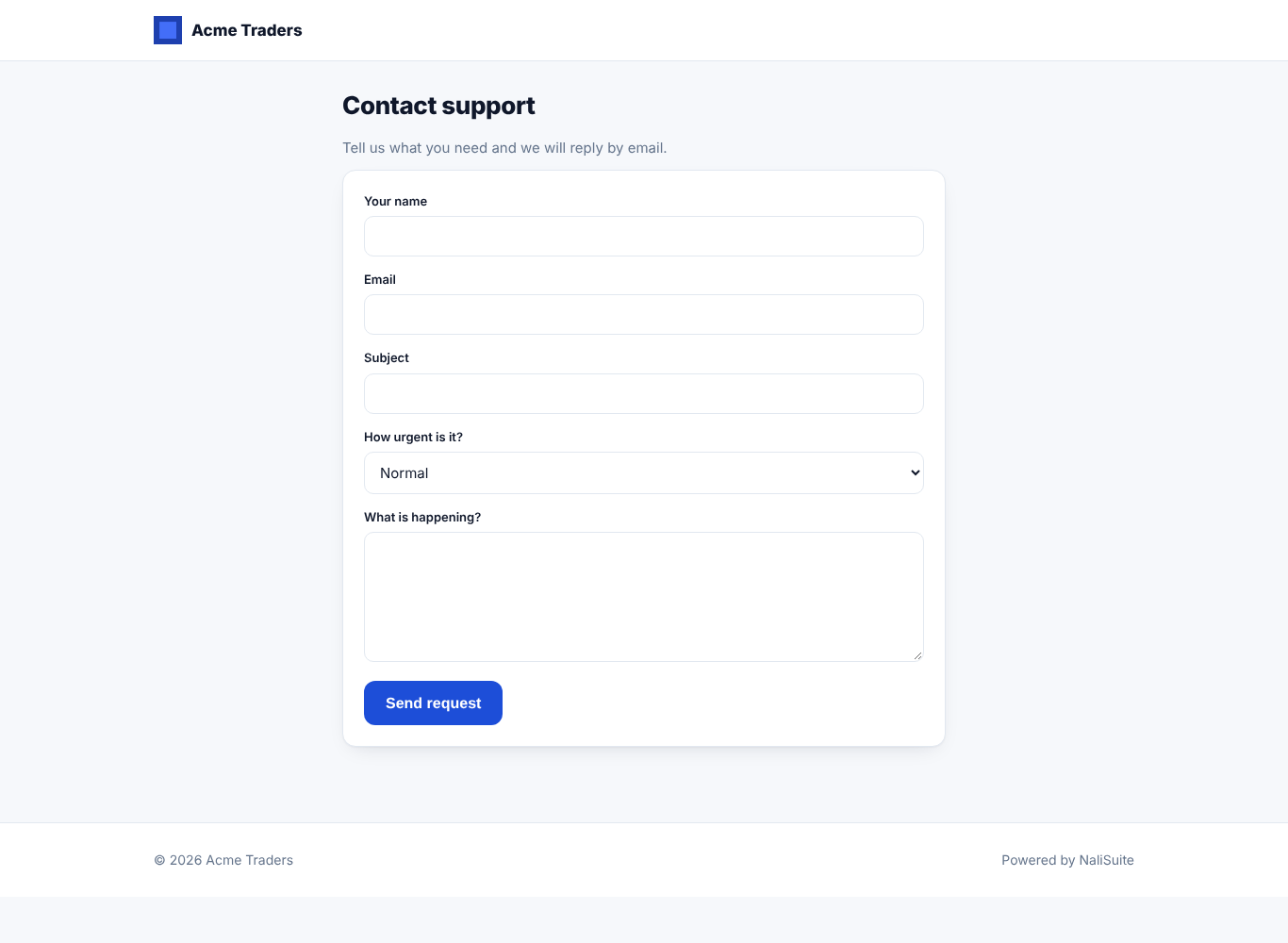
The private link shows the conversation and a box to add to it. After the ticket is resolved, the same page asks for a rating.
The knowledge base and public help centre
Articles answer common questions so customers can help themselves. Published articles appear at /help on your workspace address and in the customer portal.
- In the menu, open Support → Help centre (headed Articles).
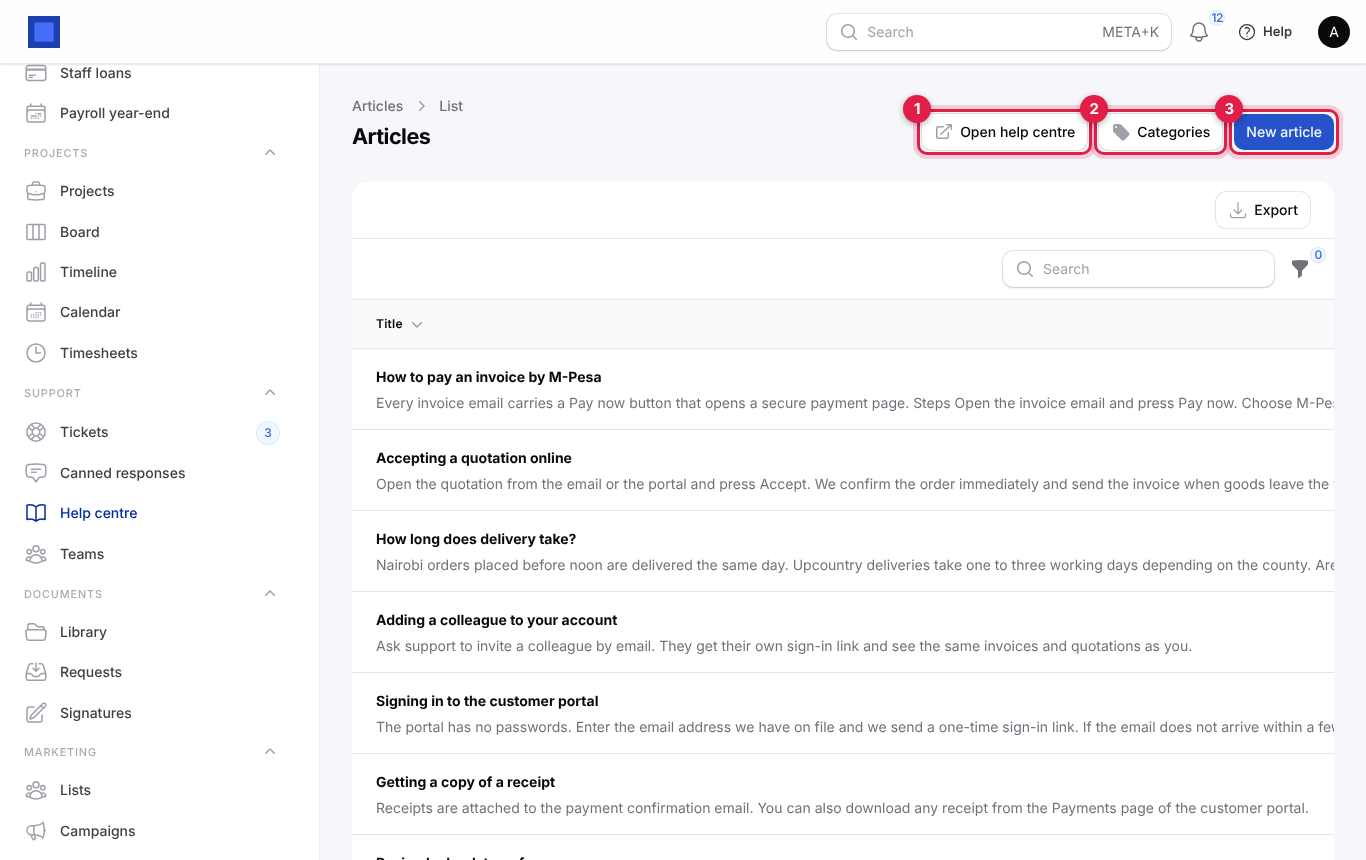
| Button or column | What it does |
|---|---|
| Open help centre (marker 1) | Opens the public help centre in a new tab. |
| Categories (marker 2) | Manages the help centre sections. |
| New article (marker 3) | Writes a new article. |
| Views (marker 4) | How many times the article has been read. Popular articles are worth keeping up to date. |
| View, Edit, Delete | On each row. View shows the published page. |
- Click New article, fill in the form and click Create.
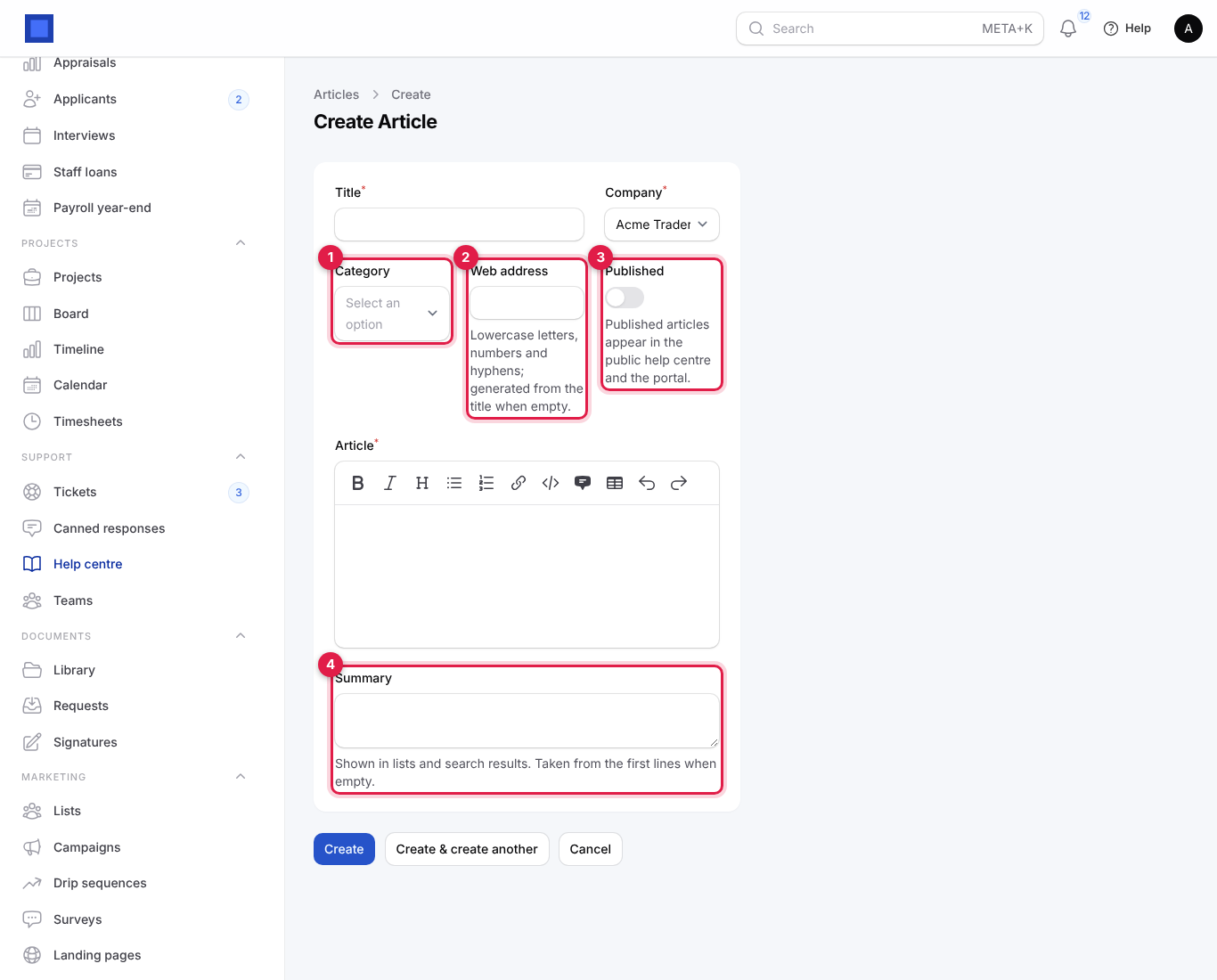
| Field | What to enter |
|---|---|
| Title | Required, for example "How to pay an invoice by M-Pesa". The web address is made from it. |
| Company | Required. |
| Category | Optional (marker 1). Pick one, or click + to create a new one. Articles without a category are listed under General. |
| Web address | Optional (marker 2). Lowercase letters, numbers and hyphens; generated from the title when empty. The article lives at /help/<web address>. |
| Published | Off until you are ready (marker 3). Published articles appear in the public help centre and the portal. |
| Article | Required. Write with the formatting bar: bold, lists, links, headings and so on. Use numbered steps. |
| Summary | Optional (marker 4). Shown in lists and search results. Taken from the first lines when empty. |
Help centre categories
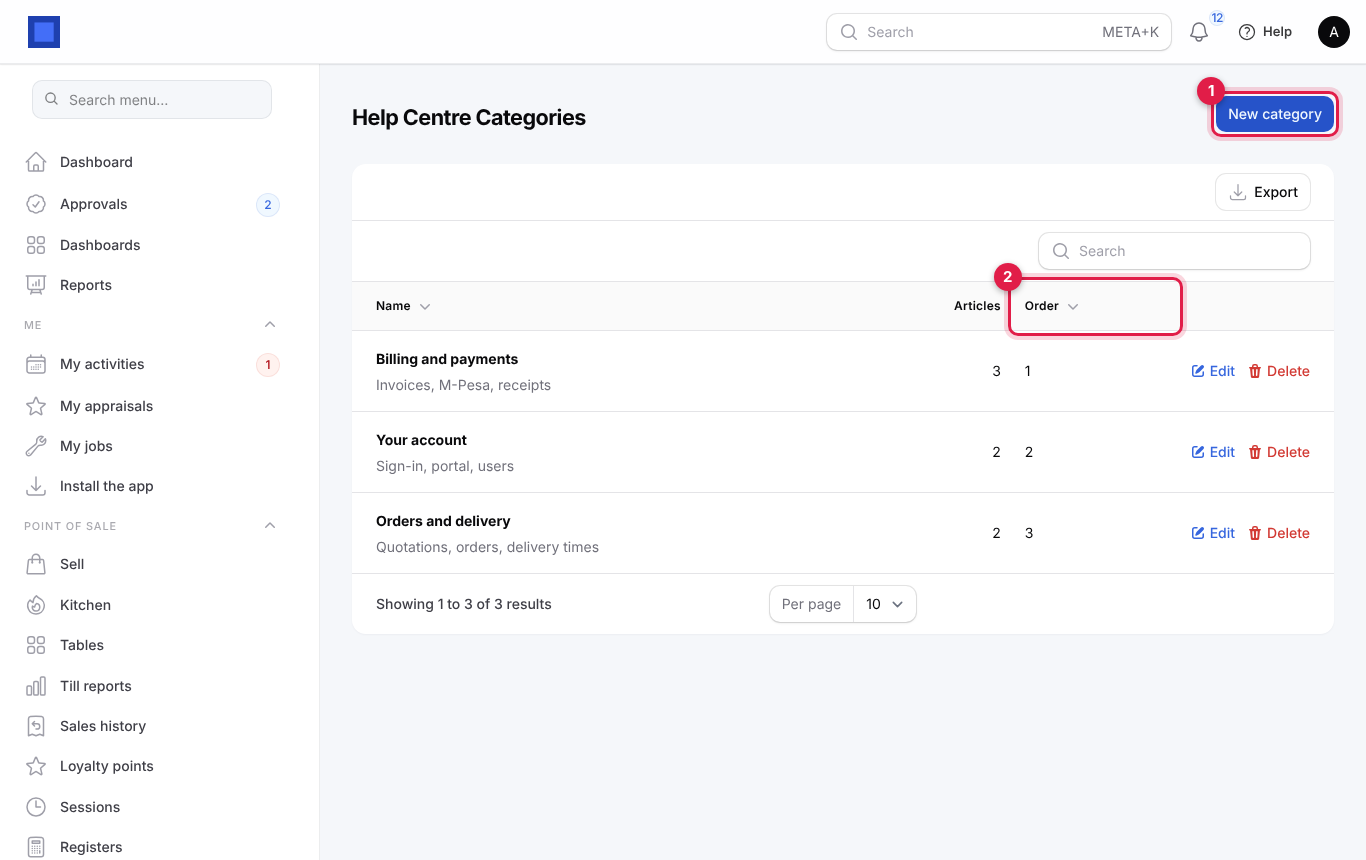
Click Categories on the articles page, then New category (marker 1). Enter the Company, Name (for example "Billing and payments"), a short Description shown under it, and the Order (marker 2; lower numbers come first). The list shows how many Articles each has.
In the public help centre, customers see your categories with their articles, a Search articles box, and Still need help? with a link to the support form.
What emails and notifications are sent
| When | Who gets what |
|---|---|
| A ticket opens | Requester: email (or WhatsApp) with the ticket number and follow link, if acknowledgement is on. Agents: in-app notification "New ticket …". |
| You reply | Requester: your message by email or WhatsApp, subject "Re: [TKT-…] …". |
| The customer replies | The assignee (or the team): in-app notification "… replied on TKT-…". |
| The SLA is missed | Team members or all agents: in-app "Escalated: … has had no reply for … hours". Team escalation email. |
| You resolve | Requester: resolved message with a request to rate. |
Common questions
Why did a ticket jump to Urgent? It missed its first-response target and was escalated. Reply to it; escalation happens only once per ticket.
Customer replies by email create new tickets instead of updating the old one.
The reply's subject must keep the ticket number in brackets, such as [TKT-00012]. Ask customers to reply to your email rather than writing a new one.
Why is Bill time missing? There is no unbilled billable time, the ticket is not linked to a customer, or the Invoicing module is off.
Our help centre link shows "Not found". Turn on Public help centre in Preferences → Helpdesk and publish at least one article.
Why can I not reply on WhatsApp? After 24 hours of silence WhatsApp only allows approved templates. Use WhatsApp template, or email the customer.
Can agents see only their own tickets? Yes. Add a record rule on their role under Settings → Roles to limit them to their own or their team's tickets.