Jewellery
Jewellery is for jewellers and goldsmiths. Every piece in stock has its own serial number, metal, purity, weights and stones, and is priced from the day's metal rate, so the whole shop is re-priced when you set a new rate. You sell pieces with the customer's old gold taken off the price, buy old gold over the counter, take in repairs and custom orders weighed in and out and signed for on collection, let customers pay for a piece on layaway, and print appraisal certificates and a stock valuation at today's rates.
Everything is in the Jewellery group of the left menu: Metal rates, Pieces, Repairs and custom orders, Old gold, Layaway and Stock valuation.
Note: jewellery.view lets someone see pieces, rates, repairs, old gold and layaways, print certificates and see the stock valuation. jewellery.manage is needed to set rates, add and re-price pieces, sell, buy old gold and pay it out, take in and move repairs, hand them back, and take layaway payments or release a layaway. Owners and admins have both; the member role has jewellery.view. Opening an invoice also needs invoicing.view. Set permissions under Settings → Roles.
Switch it on
Jewellery is a marketplace app. It needs the Contacts, Inventory and Invoicing apps. Point of Sale lets you sell pieces at the till, and Marketing with an SMS provider sends the repair texts (see SMS providers).
- Open Settings → Marketplace and type Jewellery in the Search add-ons… box (marker 1).
- On the Jewellery card (marker 2), click Start free trial (or Add to subscription) and confirm. The Jewellery group appears in the menu.
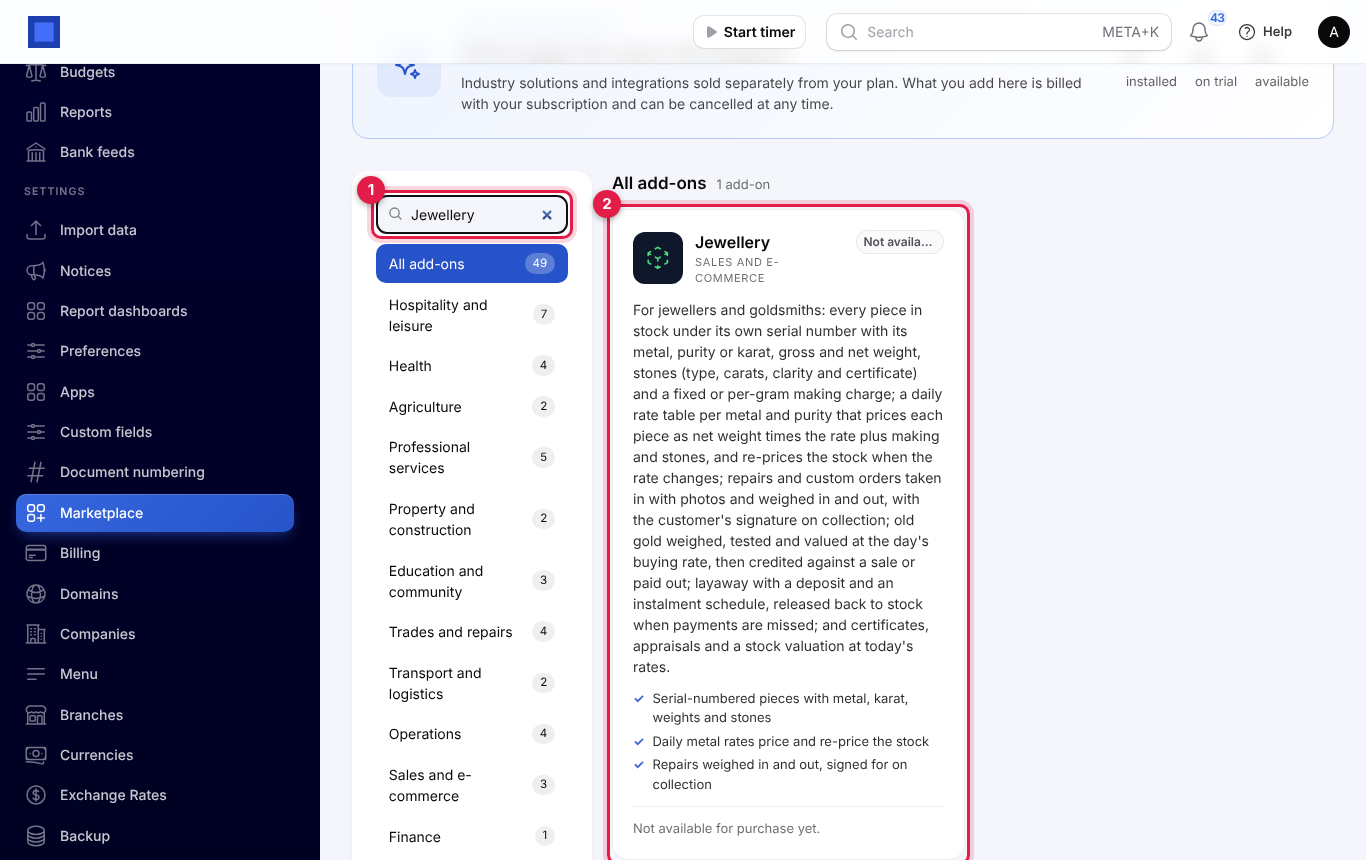
If the card says Not available for purchase yet, ask NaliSuite support to switch it on. See Billing and marketplace.
Daily metal rates
Set the day's rates every morning before you sell or buy. A rate is the price per gram of one metal at one purity:
| Metal | Purities |
|---|---|
| Gold | 24K, 22K, 21K, 18K, 14K, 9K |
| Silver | 999, 925, 800 |
| Platinum | 950, 900 |
Open Jewellery → Metal rates. The line under the title (marker 1) lists today's selling rates, or says No rates set for today yet. Pieces are priced at the latest rate set. The list shows every rate by day, with the Sell per gram (marker 3), the Buy per gram (marker 4) and who set it. Filter by Metal or Today only.
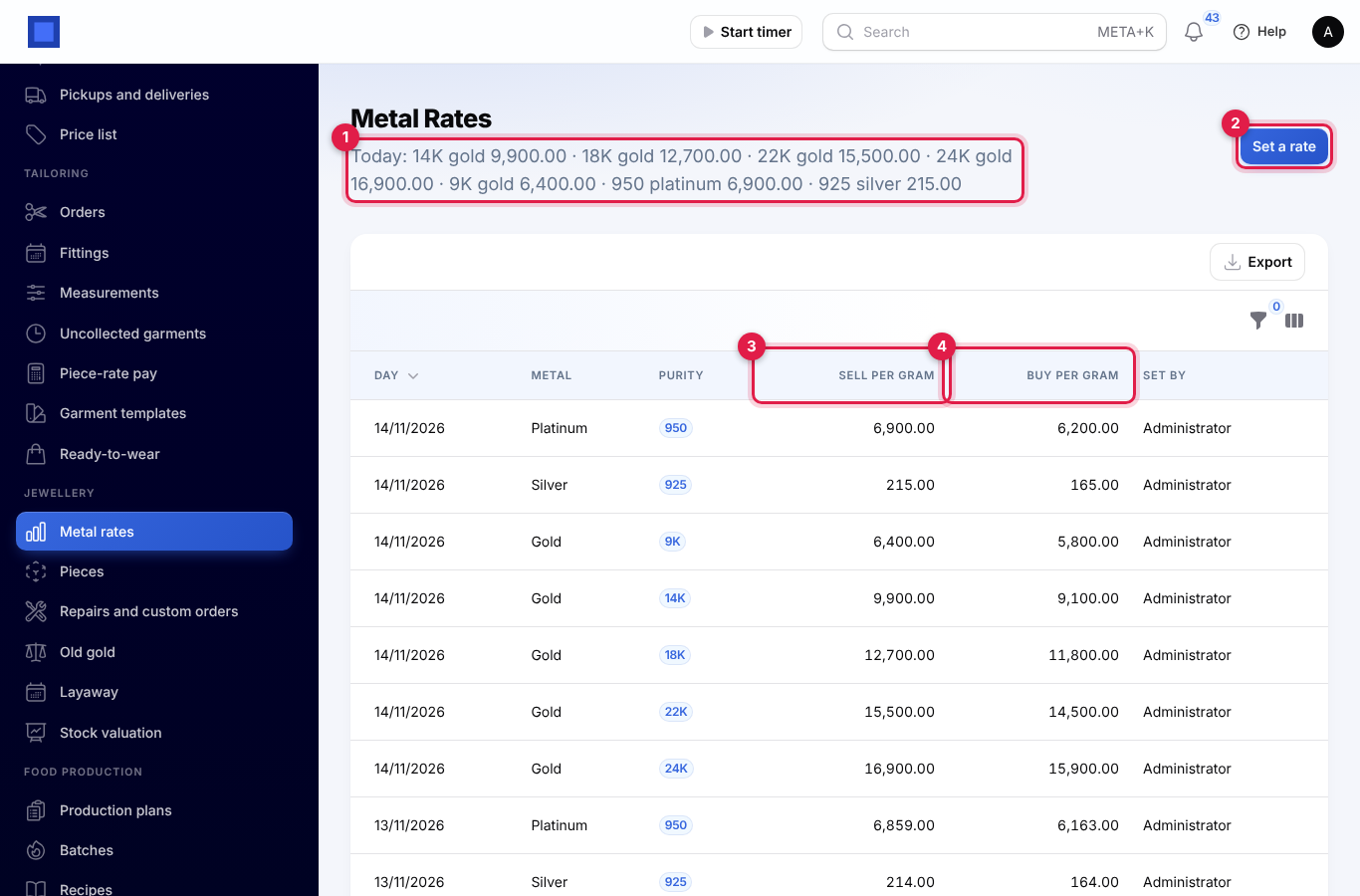
To set a rate:
- Click Set a rate (marker 2).
- Choose the Metal and its Purity (marker 2).
- Enter the Selling rate per gram (marker 3) and the Buying rate per gram for old metal (marker 4). The buying rate cannot be more than the selling rate.
- Check For the day (marker 5; today is filled in) and click Create.
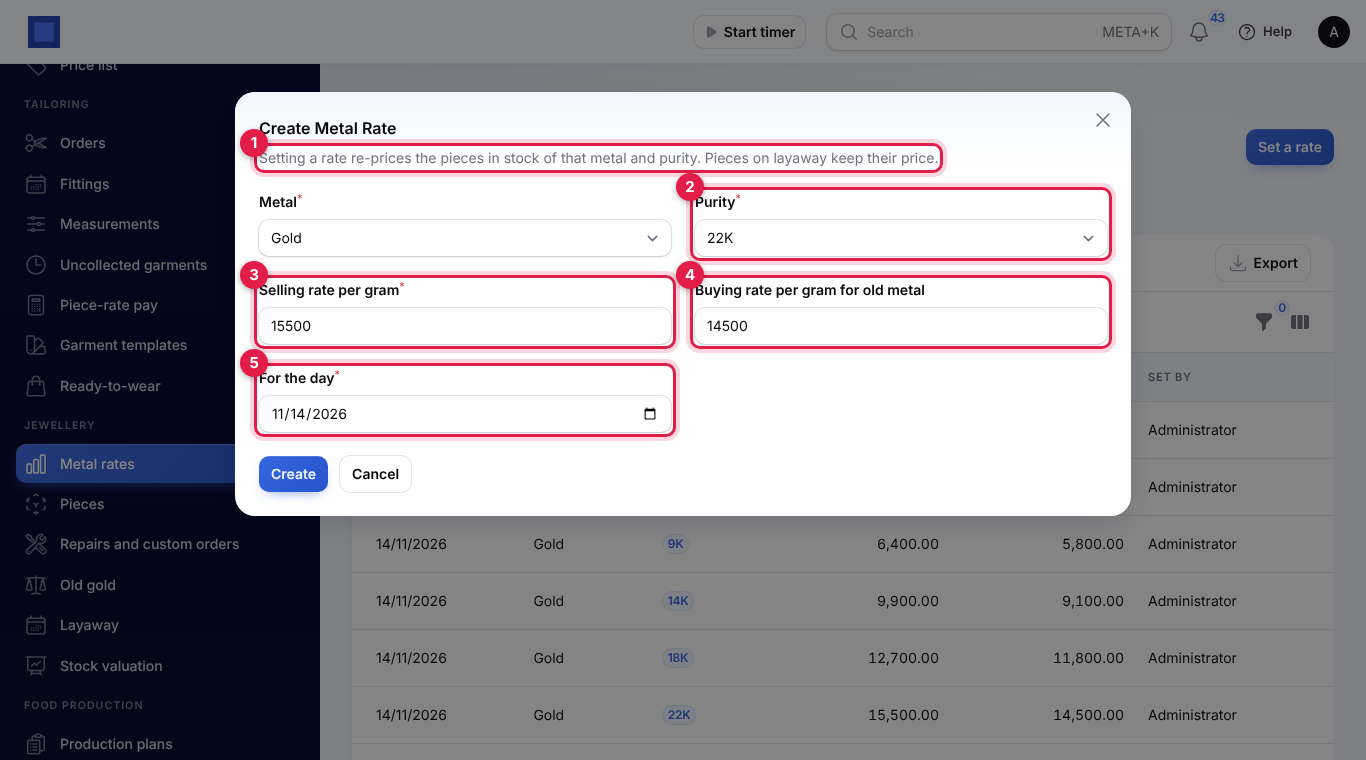
Every piece in stock of that metal and purity is re-priced at once, and you see, for example, 2 pieces re-priced. Pieces on layaway and sold pieces keep their price (marker 1). Setting the same metal, purity and day again corrects that day's rate.
Pieces are priced at the latest rate set on or before today, so yesterday's rate is used until you set today's. Old gold is different: it can only be bought at today's buying rate.
Pieces
Open Jewellery → Pieces. The line under the title (marker 1) gives the pieces in stock, what they are worth at today's prices and how many are on layaway. Each piece shows its serial and kind, name, metal, net and gross weight, the Price (marker 4) with the day of the rate it used, and its status: In stock, Reserved on layaway or Sold. At first only pieces in stock are listed; change the Status filter, or filter by Metal and Purity.
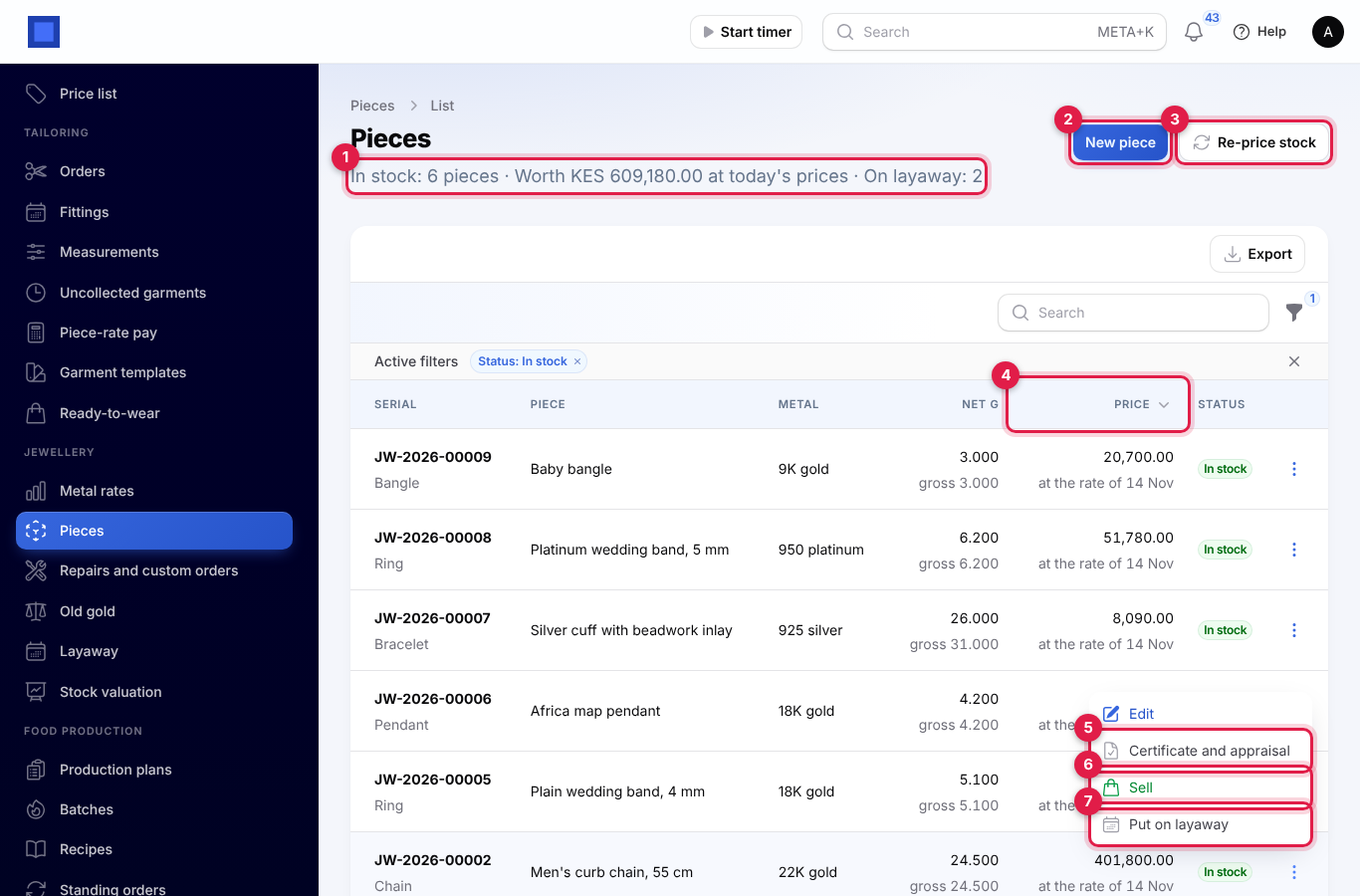
Re-price stock (marker 3) prices every piece in stock at the latest rate for its metal and purity, for example after correcting a rate.
The ⋮ menu of a piece has Edit, Certificate and appraisal (marker 5), Sell (marker 6), Put on layaway (marker 7) and, once sold, Open invoice.
Add a piece
- Click New piece (marker 2).
- Fill in the form; the line under Stones shows the price as you type.
- Click Create.
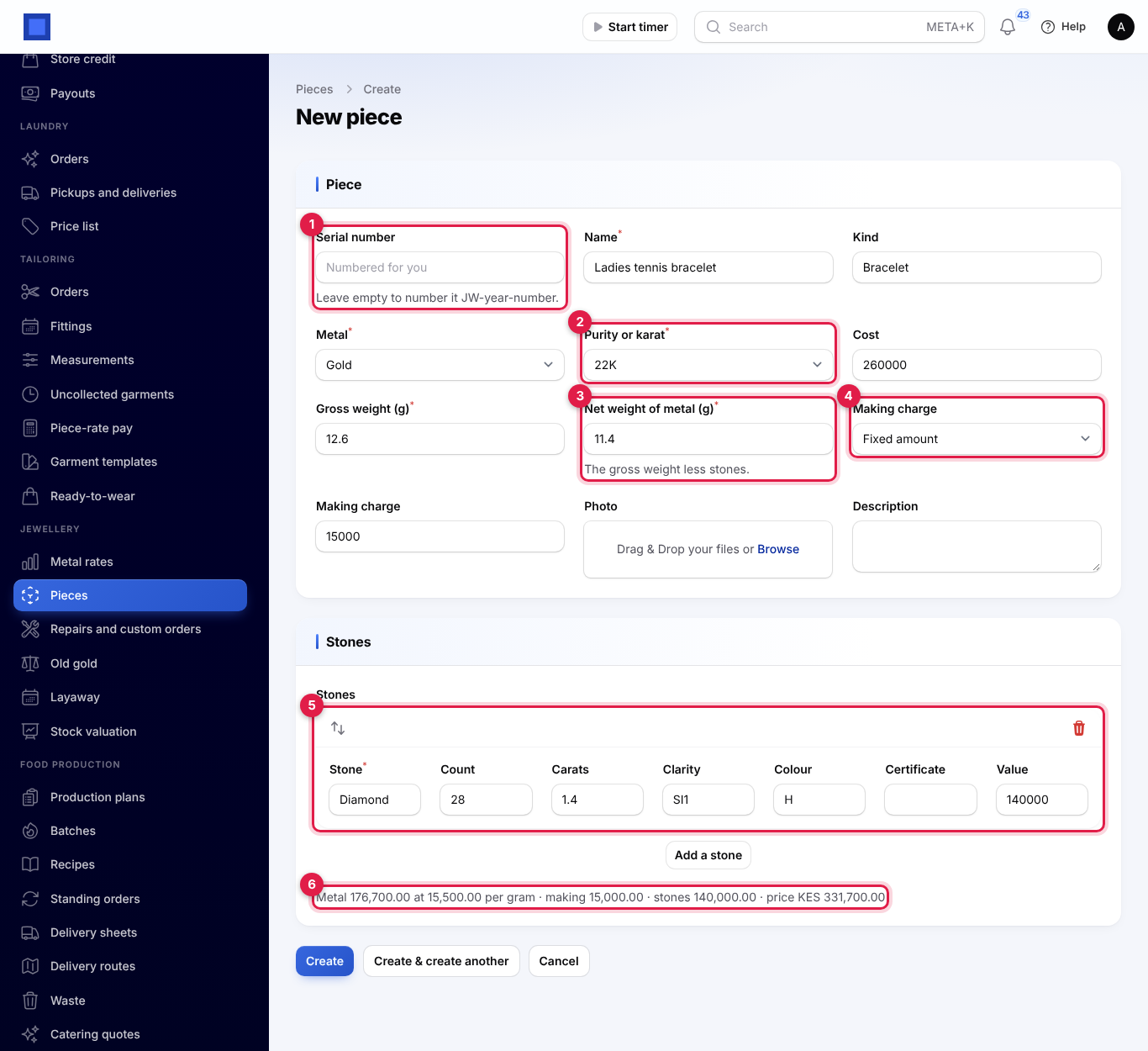
| Field | What to enter |
|---|---|
| Serial number (marker 1) | Your tag number, or leave it empty to number it JW-2026-00012. Each serial is used once. |
| Name (required), Kind | Ladies tennis bracelet, Bracelet. Kinds you have used before are suggested. |
| Metal and Purity or karat (required, marker 2) | A rate must be set for them first. |
| Cost | What the piece cost you. Used for the stock valuation. |
| Gross weight (g) (required) | The whole piece on the scale. |
| Net weight of metal (g) (required, marker 3) | The gross weight less stones. It cannot be more than the gross weight. |
| Making charge (marker 4) | Fixed amount, or Per gram of metal, then the amount. |
| Photo, Description | Shown on the certificate. |
| Stones (marker 5) | Add a stone for each kind: Stone (Diamond), Count, Carats, Clarity (VS1), Colour (G), Certificate number and Value. |
The price (marker 6) is: net weight × the selling rate + the making charge + the value of the stones. For example, 11.4 g of 22K at 15,500 per gram is 176,700, plus 15,000 making and 140,000 of diamonds: KES 331,700.
When you create the piece it is priced, a product with the serial as its code is added under Sales → Products (named, for example, Ladies tennis bracelet · 22K gold), and the piece is received into your default store under its serial number at its cost. That lets the till and invoices sell that exact piece.
A piece can be edited only while it is in stock: weights, making charge, stones, cost, photo and description. The serial, metal and purity cannot change. Saving prices it again.
Sell a piece, with old gold off the price
- On the piece, click ⋮ → Sell. The top line gives the price at today's rate.
- Choose the Customer (marker 2).
- Under Old gold to take off (marker 3), choose any old gold that customer has left with you as credit (see Buy old gold).
- Enter what is Paid now (marker 4), Paid by (cash, mobile money, card, bank transfer or cheque) and a Reference.
- Click Submit.
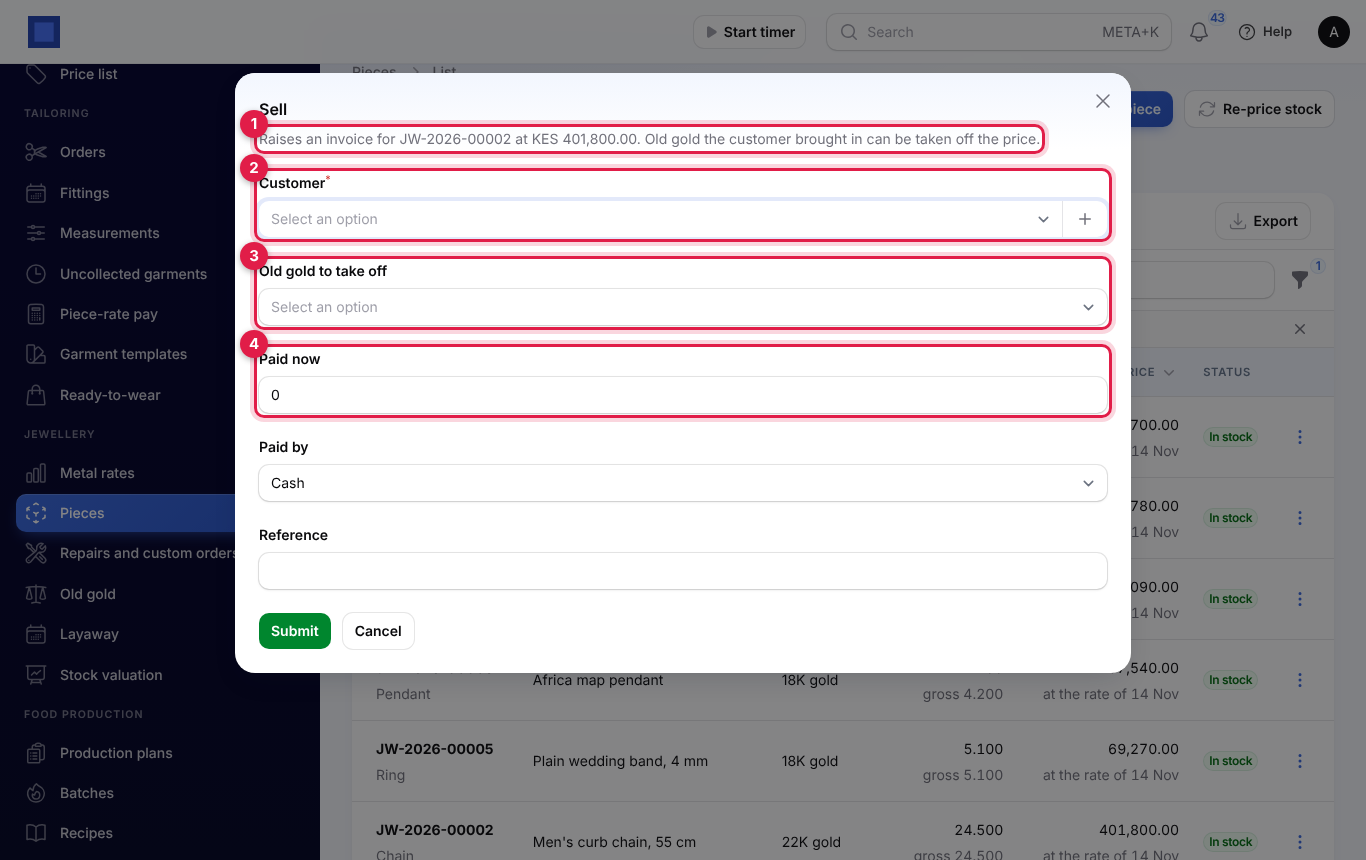
An invoice is issued for the piece at today's price, with a line for each old gold credit taking its value off (Old gold taken in exchange: OG-2026-00001: 8.100 g 18K gold, 95,580.00). The exact piece leaves stock, it is marked Sold and taken off the till, and the old gold becomes Used on a sale. The money paid now is recorded against the invoice; take the rest later in Invoices and payments.
If the old gold is worth more than the piece, the sale is refused: pay the customer out for the old gold instead, or choose less of it.
Selling at the till or on any invoice: search for the piece by its serial at the Point of Sale till, or put its product on an ordinary invoice. When the sale goes through, the piece is marked Sold for you. A till refund or a credit note puts it back in stock at today's price.
Buy old gold
Open Jewellery → Old gold. The line under the title (marker 1) gives the open credit customers have with you. Each purchase (OG-2026-00003) shows the customer, the metal and tested purity (with the purity the customer stated underneath when they differ, marker 3), the net weight, the rate, the value and the status (marker 4): Credit to use on a sale, Used on a sale (with the invoice) or Paid out (with how and the reference).
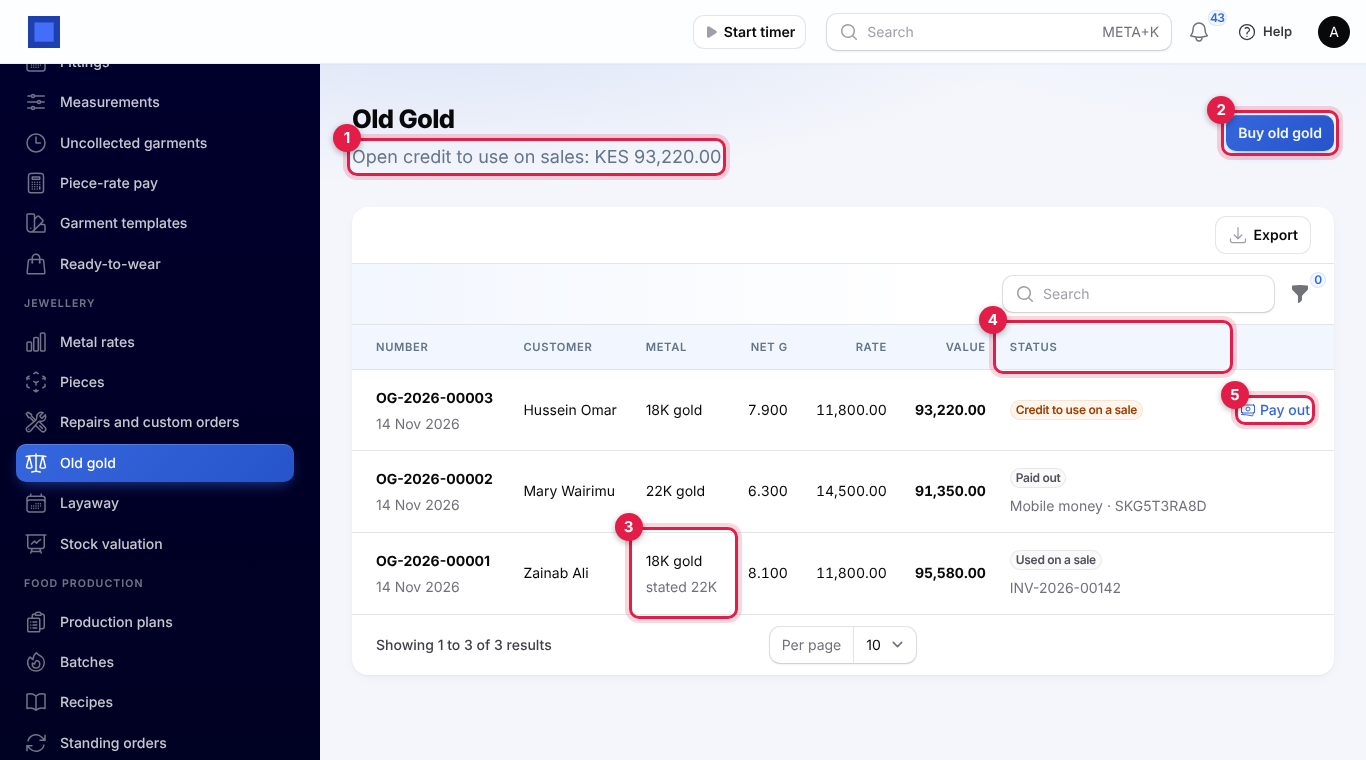
- Click Buy old gold (marker 2).
- Choose the Customer (or + to add one) and the Metal, and describe What was brought in.
- Enter the Purity the customer stated (marker 1) and the Purity tested (marker 2), and how it was Tested by: acid test, XRF analyser, touchstone, hallmark or electronic tester.
- Weigh it: the Gross weight (g) and the Net weight of metal (g) (marker 3) less stones and solder. Empty uses the gross weight.
- The line underneath (marker 4) shows today's buying rate and the value.
- Switch on Pay the customer now (marker 5) to pay them, and choose Paid by and a Reference. Leave it off to keep the value as credit for a purchase.
- Click Create.
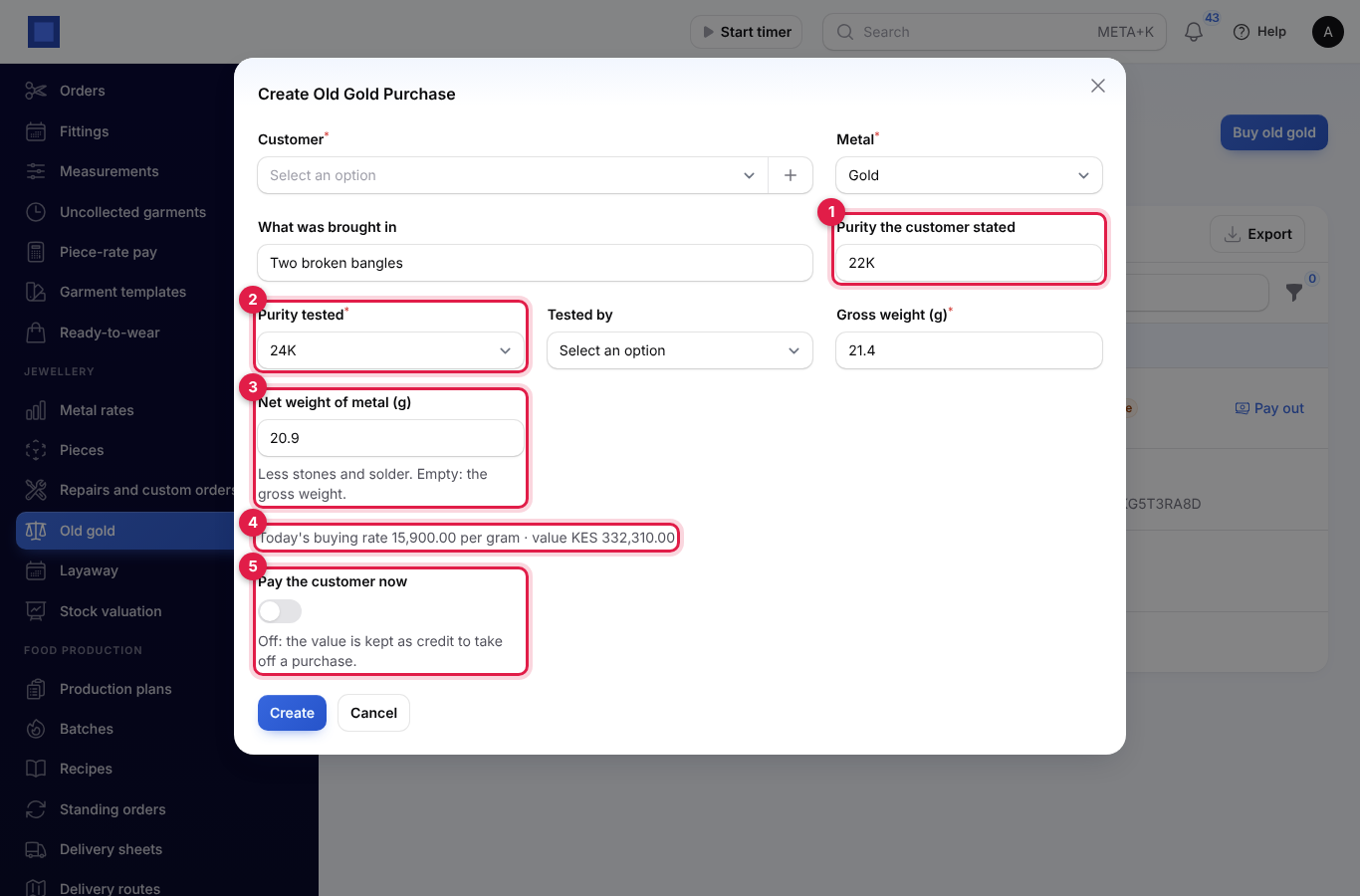
The value is net weight × today's buying rate for the purity you tested. If today's buying rate is not set, you see Set today's buying rate for 18K gold first, under Jewellery, Metal rates.
To pay out credit later, click Pay out (marker 5 in the list), choose Paid by and a Reference, and click Submit. If you paid out by mistake, Undo payout puts the old gold back as credit.
Old gold in your books
With Accounting on, old gold is posted to the books:
- Paying a customer out: the gold goes into an Old gold and scrap metal stock account, and the money comes out of Cash, Mobile money or Bank, depending on how you paid.
- Old gold taken off a sale: the sale is booked at the piece's full price, and the old gold is booked as stock received, so nothing is counted twice.
- Undoing: Undo payout reverses the payout's entry, and cancelling a sale invoice reverses the entry for the old gold used on it and gives the customer their credit back.
- Credit not yet used: old gold kept as credit is not posted until it is paid out or used on a sale.
Each old-gold record links to its journal entry in the Journal entry column. To use a different stock account, choose it under Settings → Jewellery → Account for old gold bought. Nothing can be posted into a period before the accounting lock date.
Repairs and custom orders
Open Jewellery → Repairs and custom orders. The tabs are In progress, Ready, Collected and All. Each job shows the customer, the piece and work, the Weight in / out, the status with the goldsmith, the ready-by date and the price.
Take in a job
- Click Take in a job.
- Choose the Job: Repair or Custom order. Choose the Customer; the Phone for texts is filled in.
- Describe the Piece (Gold chain with pendant) or, for a custom order, the Piece to make.
- Weigh the piece in front of the customer and enter the Weight in (g). It is required for repairs; for a custom order, enter any metal the customer hands over.
- Choose the Metal, Purity and Goldsmith, describe the Work to do, and add up to six Photos at intake.
- Enter the Price, Ready by, any Deposit paid now and Paid by. Click Create.
The job is numbered JR-2026-00004 (custom orders JC-2026-00001), and its history notes Weighed in at 12.400 g. A deposit is kept in Invoicing as the customer's payment until the job is invoiced.
Move it along
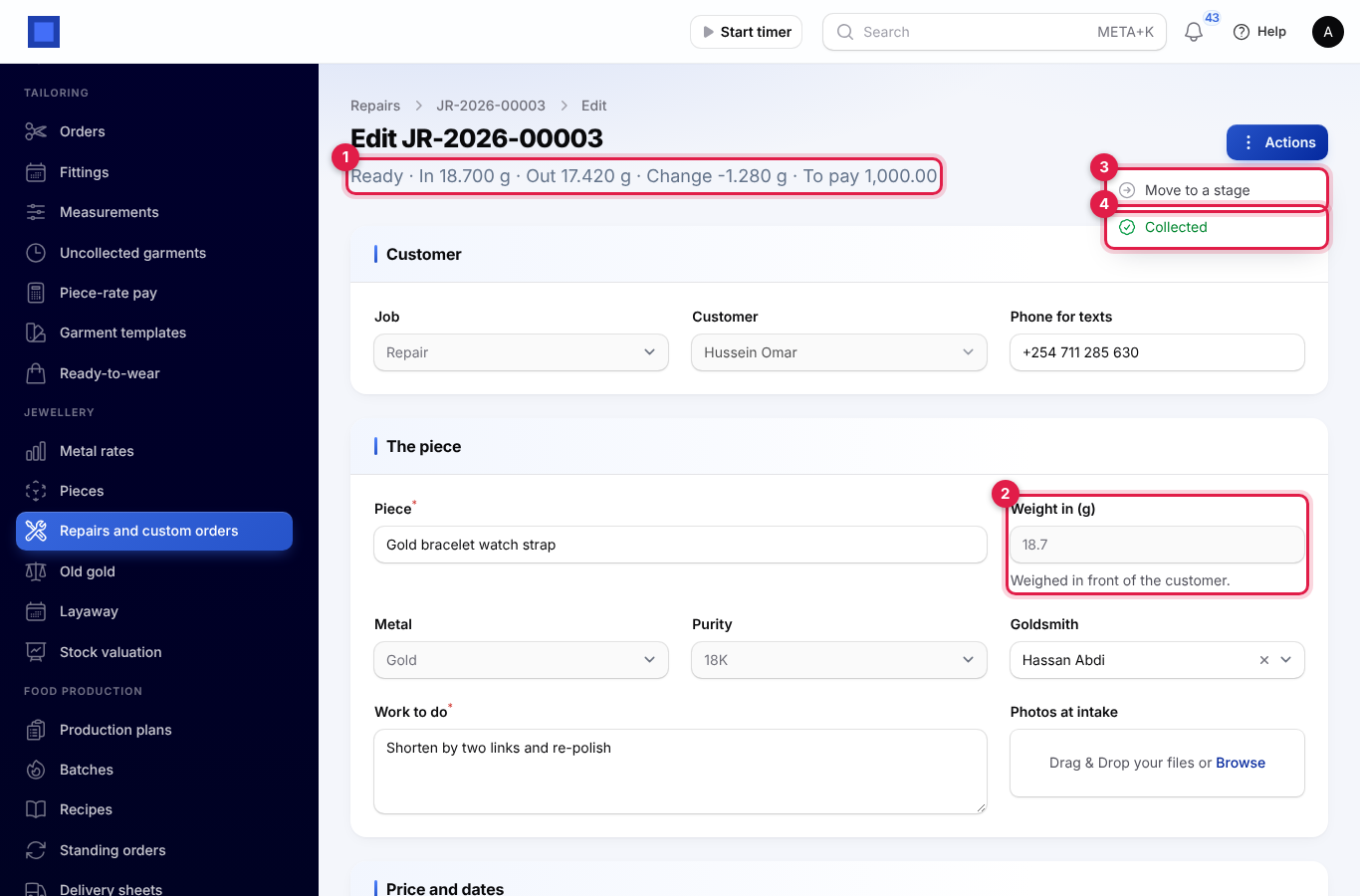
The line under the title (marker 1) shows the stage, the weight in and out, the change and what is still to pay. The Weight in (marker 2) cannot be changed after intake.
Click Actions → Move to a stage (marker 3), choose the Stage, the Goldsmith and a Note, and click Submit:
- Received goes to At the bench.
- At the bench goes to Quality check or Ready.
- Quality check goes back to At the bench, or to Ready.
- Ready can go back to At the bench.
Moving to Ready needs the Weight out (g) of the finished piece (the weight in is shown under it). The history records it with the change, for example Weighed out at 12.150 g (change -0.250 g), and the customer is texted Hello Fatuma, your Gold chain with pendant (JR-2026-00001) is ready at (your business name). To pay: KES 1,500.00.
Actions → Cancel cancels a job while it is received or at the bench. Any deposit stays on the customer's account in Invoicing, to use later or refund.
After intake you can still change the phone, piece, work, photos, ready-by date, goldsmith and, until it is invoiced, the price. Every step, with its weights, who did it and when, is under History.
Hand it back, signed for
- Click Actions → Collected (marker 4).
- The top line (marker 1) gives what is still to pay.
- Check Collected by, and enter the Paid now (marker 2) and Paid by. The job must be paid in full.
- The customer signs in the Signature box (marker 3) with a finger or the mouse. Clear starts again.
- Click Submit.
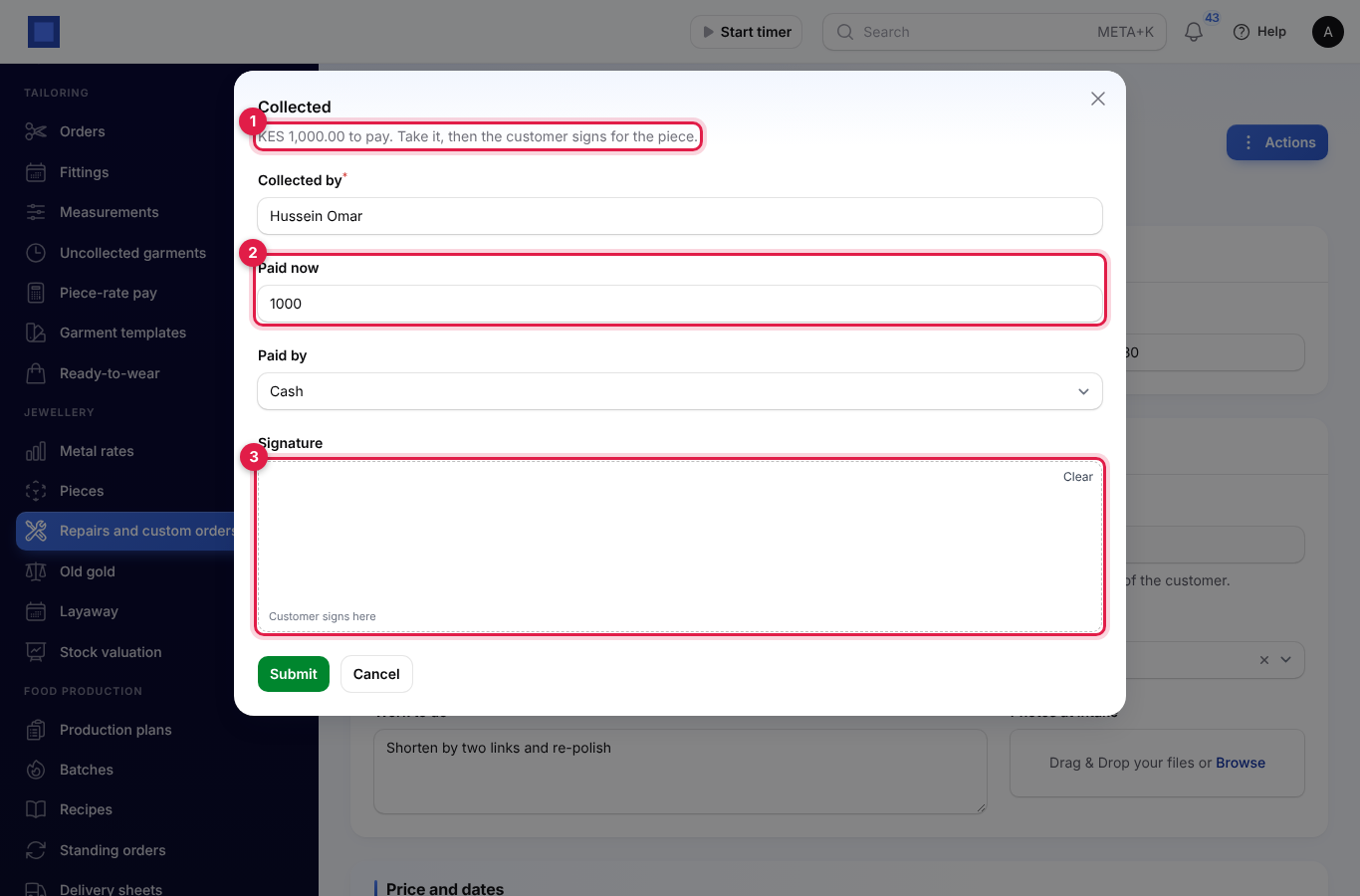
The job is invoiced (Repair: Solder the broken link… (Gold chain with pendant, JR-2026-00001)), the deposit and the payment settle the invoice, the signature is kept with the job, and the history notes Signed for by Fatuma Hassan. A job priced at zero is not invoiced.
If the balance is not paid, or there is no signature, the hand-over is refused. Switch off The customer signs when collecting a repair in the settings if you do not take signatures.
Layaway
Layaway reserves a piece for a customer at today's price while they pay a deposit and then instalments.
Put a piece on layaway
- On the piece, click ⋮ → Put on layaway, or open Jewellery → Layaway and click New layaway.
- Check the Piece (marker 1) and choose the Customer.
- Enter the Deposit (marker 2) and Paid by.
- Choose the number of Instalments (marker 3, 1 to 52), Every (marker 4) Weekly or Monthly, and when the First instalment due.
- Check the schedule in the line underneath (marker 5) and click Create.
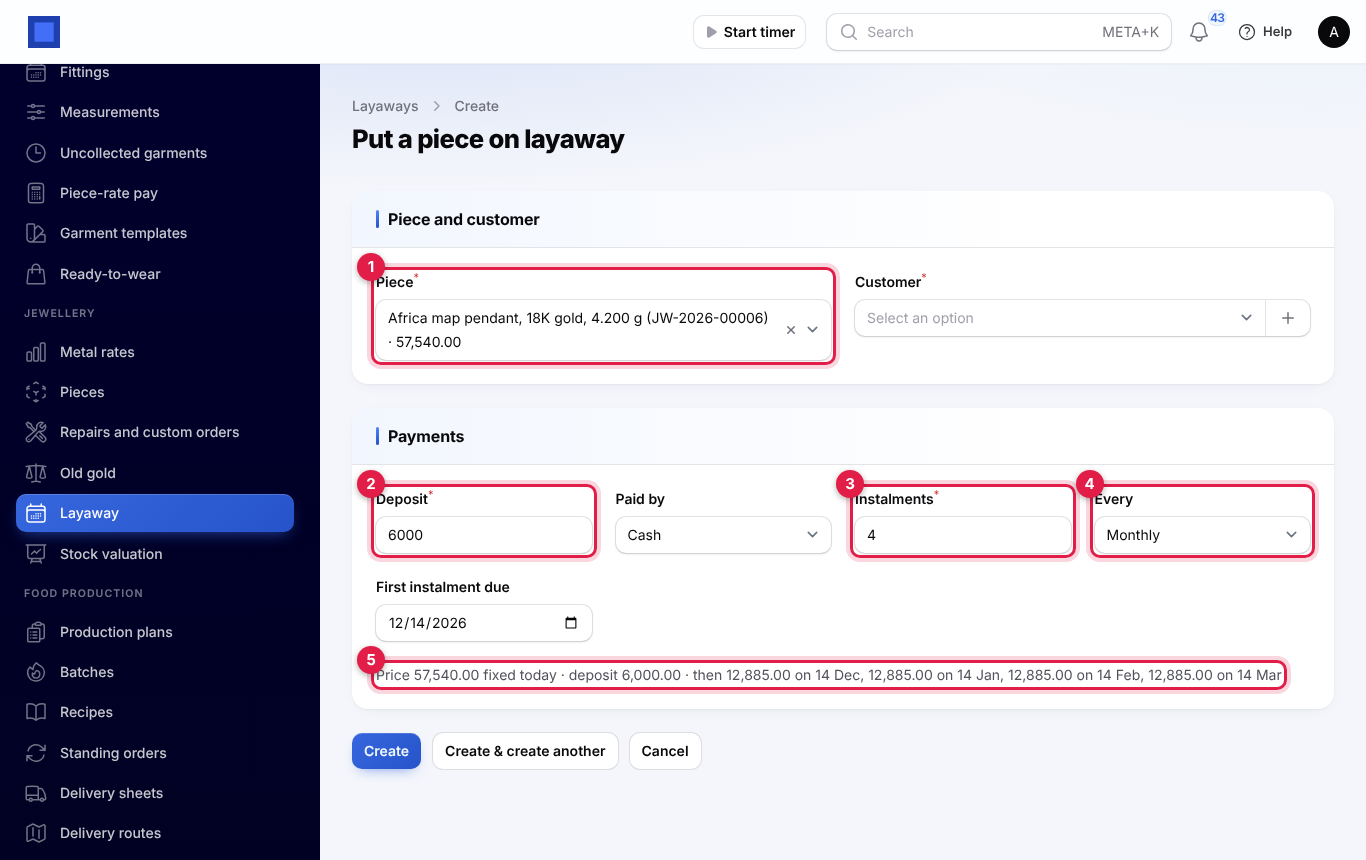
The price is fixed at today's price and the piece is Reserved on layaway: it cannot be sold, and new rates do not change its price. What is left after the deposit is split evenly across the instalments (the last one takes any rounding). The deposit must be at least the smallest deposit in the settings (10% by default) and less than the whole price; for a deposit that covers the price, sell the piece instead.
Take payments
Open the layaway (LA-2026-00002). The line under the title (marker 1) shows its status, the price, what has been paid and what is left. The Schedule tab (marker 2) lists each instalment's due date (red when it is late), amount, what has been paid and when; the Payments tab lists every payment and who took it.
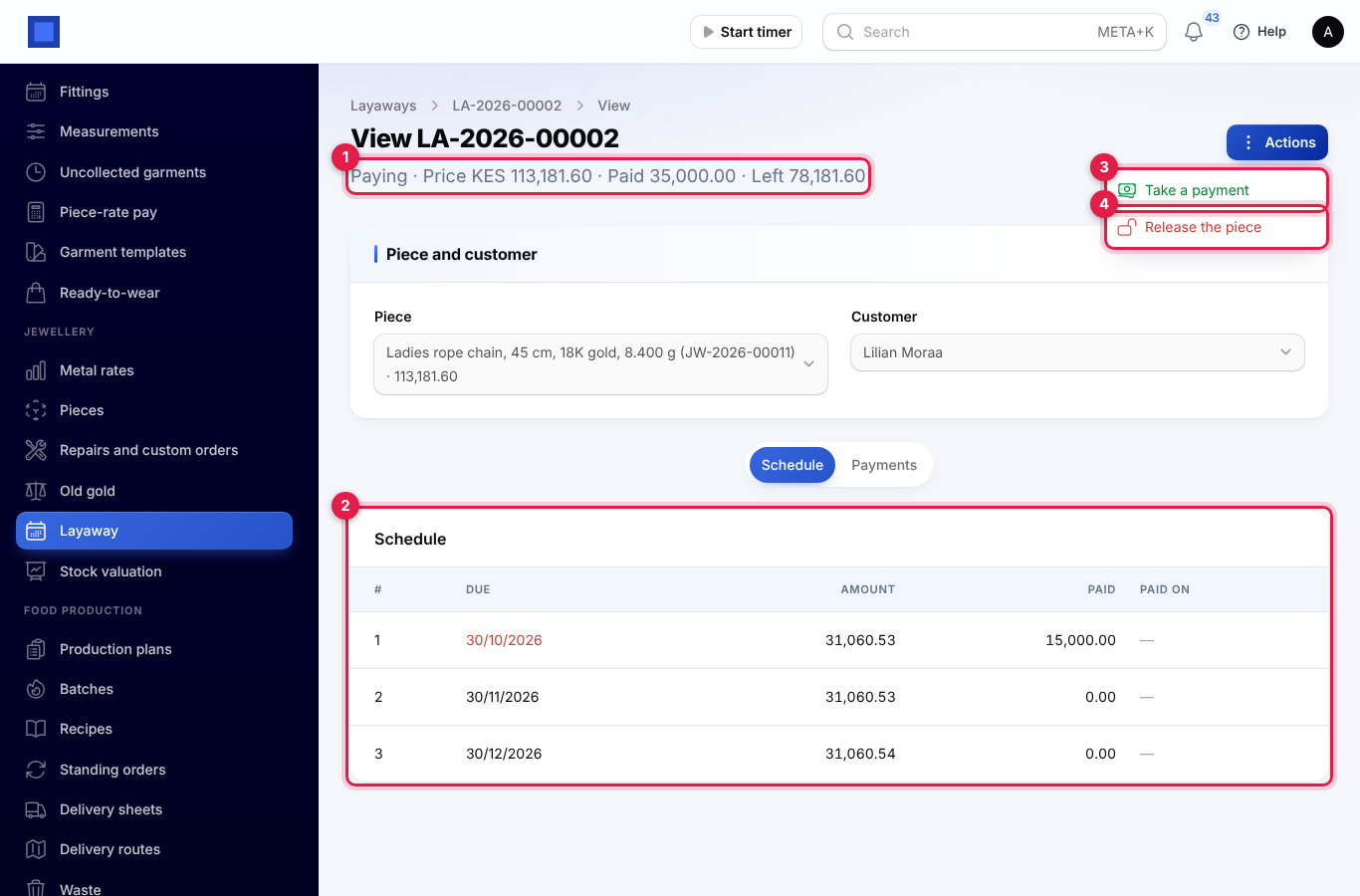
- Click Actions → Take a payment (marker 3).
- Check the Amount (the next instalment is filled in), choose Paid by and add a Reference. Click Submit.
The payment fills the oldest instalments first. Each payment is kept in Invoicing as the customer's money. When the last shilling is in, the piece is invoiced at the layaway price, the payments settle the invoice, the piece is Sold and the layaway is Paid off: hand the piece over.
Release a layaway
When a customer stops paying, click Actions → Release the piece (marker 4), say Why and click Submit. The piece goes back on sale at today's price. The money paid stays on the customer's account in Invoicing, to use on another purchase or to refund.
This also happens by itself: every morning, a layaway with an instalment unpaid more than 30 days (the setting) after it was due is released, with the reason. The Layaway list says how many days late releases a layaway; Release late layaways now runs the check at once.
The list shows each layaway's customer, piece, price, what has been paid and is left, the Next due date (red when an instalment is late) and the status: Paying, Paid off or Released. At first only layaways being paid are listed; change the Status filter for the rest.
Appraisal certificates and stock valuation
Certificate and appraisal
On any piece, click ⋮ → Certificate and appraisal. A PDF opens with the piece's name, kind, serial number, description and photo; the metal, purity, gross and net weight; a table of the stones with their carats, clarity, colour, certificate number and value; and the appraised value (metal at the rate per gram, making charge, stones) with the date of the rate used, and a line for your signature. Print it for the customer or for an insurer.
Stock valuation
Open Jewellery → Stock valuation to see what your stock is worth at today's rates. Pieces in stock and on layaway are counted.
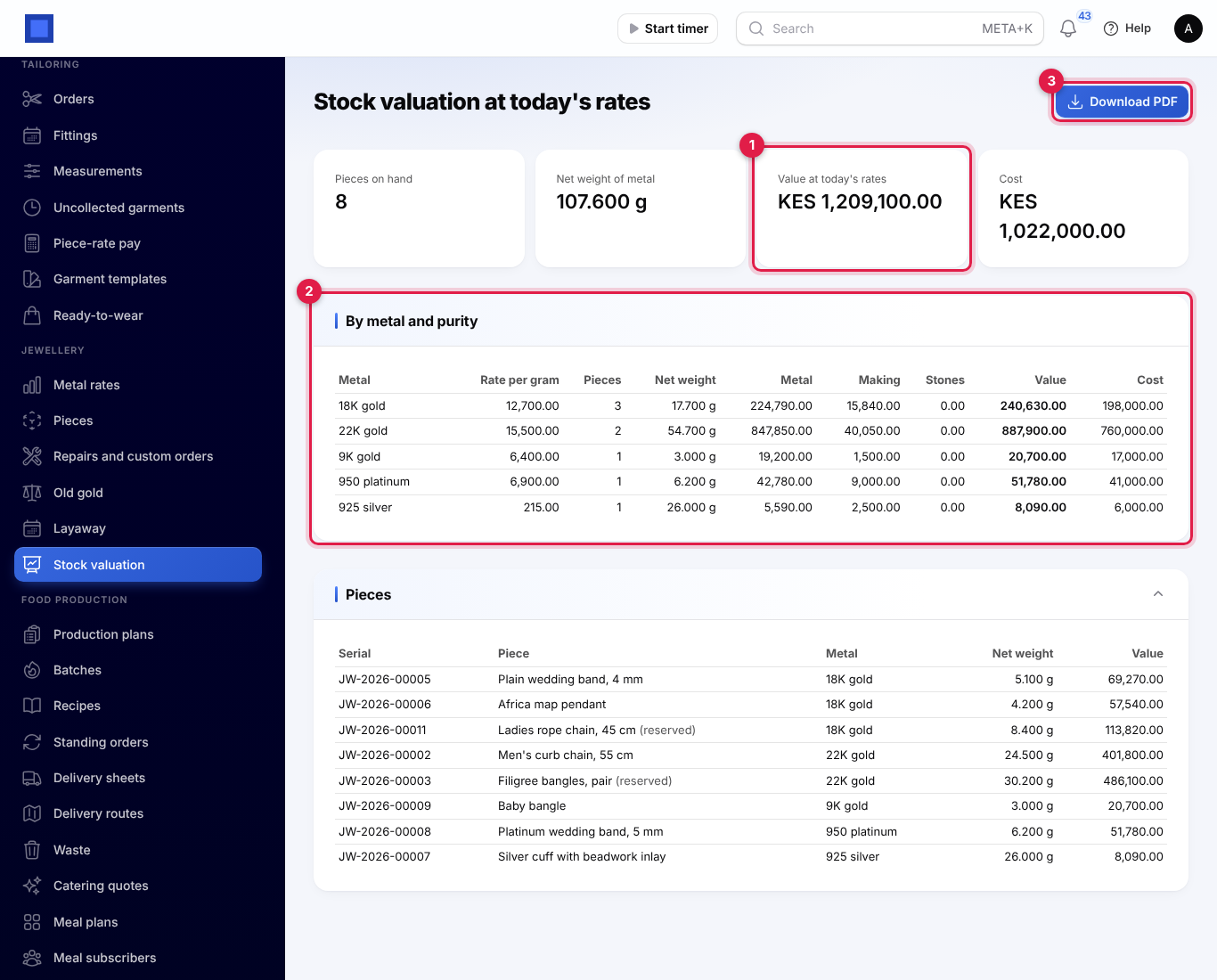
- The boxes at the top give the pieces on hand, the net weight of metal, the Value at today's rates (marker 1) and what the pieces cost.
- By metal and purity (marker 2): for each, the rate per gram, pieces, net weight, and the value of the metal, making charges and stones, the total value and the cost.
- Pieces: each piece with its serial, metal, net weight and value; reserved pieces are marked.
Click Download PDF (marker 3) for a copy, for example at the end of the month or for your insurer.
Jewellery settings
Open Settings → Preferences, click the Jewellery tab, change what you need and click Save preferences.
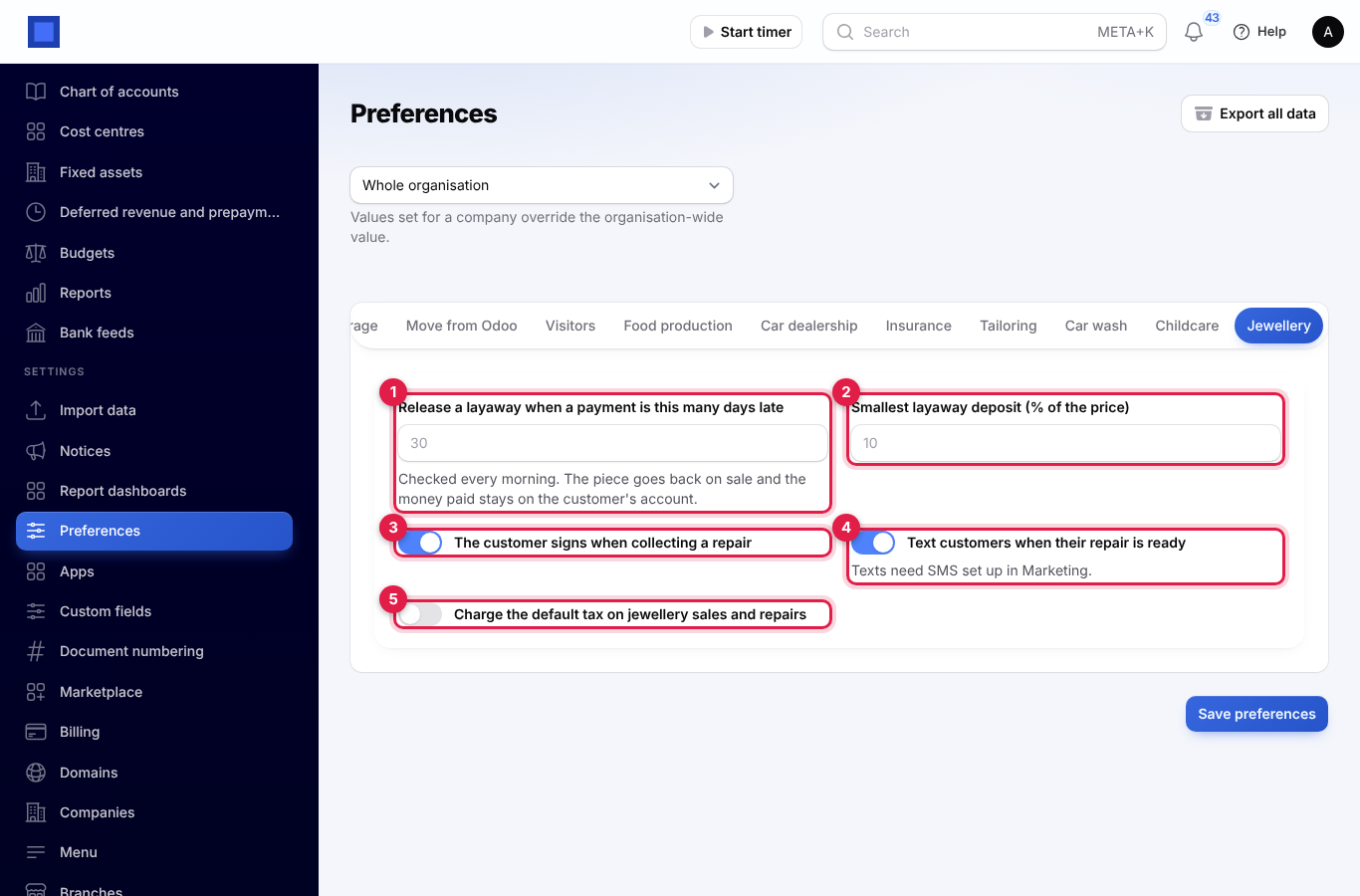
| Setting | Default | What it does |
|---|---|---|
| Release a layaway when a payment is this many days late (marker 1) | 30 | Checked every morning. The piece goes back on sale and the money paid stays on the customer's account. |
| Smallest layaway deposit (% of the price) (marker 2) | 10 | A smaller deposit is refused. |
| The customer signs when collecting a repair (marker 3) | On | Off lets you hand repairs back without a signature. |
| Text customers when their repair is ready (marker 4) | On | Texts need SMS set up in Marketing and a phone number on the job. |
| Charge the default tax on jewellery sales and repairs (marker 5) | Off | Adds your default tax (for example VAT 16%) to new pieces' products and to sale and repair invoices. Old gold lines carry no tax. |
Good to know
Why can't I add a piece? Set a rate for its metal and purity first, under Metal rates.
The rate went up. Do I have to change every price? No. Setting the rate re-prices every piece in stock of that metal and purity. Reserved and sold pieces keep their price.
A piece came back after a sale. Raise a credit note for its invoice, or refund it at the till; it goes back in stock at today's price.
Where is the old gold I bought? Old gold is recorded with its weight, purity and value, but it is not added to stock as a piece. Melt it down or send it to your refiner as usual.
Is the repair deposit lost if the job is cancelled? No. It stays on the customer's account in Invoicing; use it on their next invoice or refund it.
Can a customer have two layaways? Yes, one for each piece.