Bank and M-Pesa reconciliation
Reconciliation proves that what your bank or M-Pesa statement says matches what your books say. You import the statement your bank or Safaricom gives you, NaliSuite matches each line to the ledger entry it belongs to, and you deal with the rest: match a suggestion, record a missing charge or receipt in one click, or set aside a line that does not belong. When every line is dealt with and the balances agree, that account is reconciled. You find it under Accounting → Reconciliation. It is usually done by the bookkeeper or accountant once a week or once a month.
Who can do what. Importing and reconciling needs accounting.manage (owner, admin and accountant roles). People with accounting.view can look at statements and their progress.
Before you start
- Each bank account, till, petty cash box and M-Pesa paybill or till number should be its own account in the chart of accounts, with Used automatically for set to Bank, Cash or Mobile money. Only those accounts can receive a statement. See Keep the chart of accounts. A new money account can also be created with + in the import window.
- Record what you already know first (invoices paid, bills paid, expenses, transfers). The more is already in the ledger, the more lines match automatically.
Import a statement
NaliSuite reads three formats, and recognises which one you upload by itself:
| Format | Where it comes from | What is read |
|---|---|---|
| CSV | Online banking "Download as CSV/Excel" (save Excel files as CSV), or the M-Pesa statement from the M-Pesa portal or the M-PESA app | A date column and either one amount column or separate money-in and money-out columns; description, reference and running balance when present. |
| OFX (also .qfx) | "Download for Quicken/Money/accounting software" in online banking | Every transaction and the closing ledger balance. |
| MT940 (.sta, .mt940, .txt) | Corporate banking and SWIFT statement exports | Every :61: transaction with its :86: narrative and the :62F: closing balance. |
For CSV files the column names are matched loosely, so the usual Kenyan bank and M-Pesa exports work without any mapping:
| What | Column names recognised |
|---|---|
| Date | Date, Completion Time, Transaction Date, Value Date, Posting Date, Txn Date, Initiation Time |
| Description | Description, Details, Narrative, Narration, Particulars, Transaction Details, Memo, Remarks |
| Reference | Reference, Receipt No., Receipt Number, Transaction ID, Transaction Ref, Ref, Cheque No, Reference Number |
| Money in | Paid In, Credit, Money In, Deposit, Credit Amount, Inflow, CR |
| Money out | Withdrawn, Debit, Money Out, Withdrawal, Debit Amount, Outflow, DR |
| One amount column | Amount, Transaction Amount, Value (negative for money out) |
| Running balance | Balance, Running Balance, Closing Balance, Available Balance |
M-Pesa statements are recognised by their Receipt No. and Paid In columns and are labelled M-Pesa in the list. Rows whose Transaction Status is not Completed (failed or reversed M-Pesa transactions) are skipped, as are rows with a zero amount.
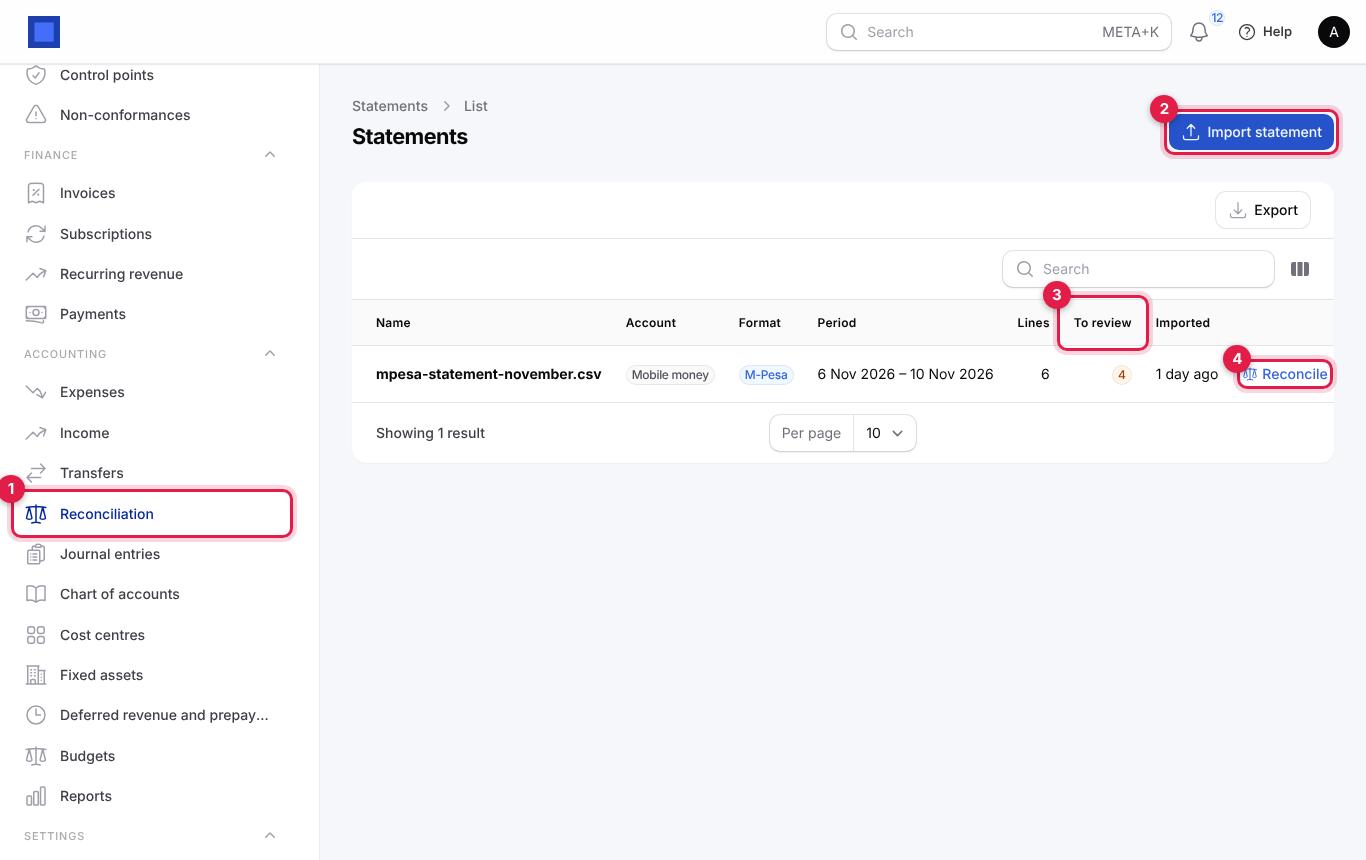
- Open Accounting → Reconciliation (marker 1).
- Click Import statement (marker 2).
- In the window, pick the Account the statement belongs to (marker 1). Only bank, cash and mobile money accounts are listed.
- Drop the file into Statement file or click Browse (marker 2).
- Click Submit (marker 3).
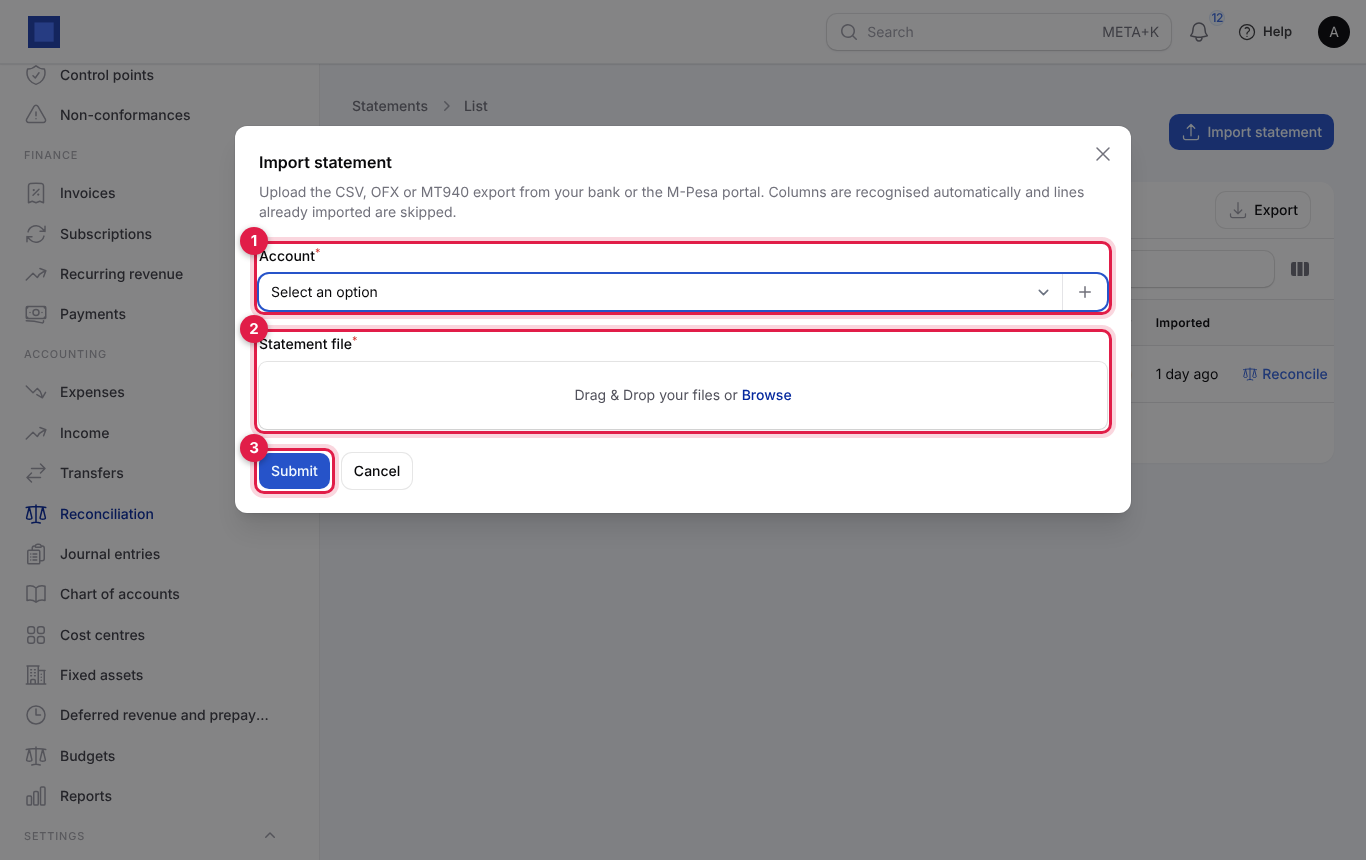
NaliSuite reads the file, skips any line it has already imported for this account (so overlapping downloads are safe), saves the rest, and immediately runs Auto-match. A green message says how many lines were imported and how many matched automatically, and the reconciliation workspace for the new statement opens.
If the file cannot be read you get a red message that stays until you close it, for example "Could not recognise the columns. Found: …" (rename the columns in the CSV to one of the names above) or "No transactions found in the file."
The statements list
| Column | Meaning |
|---|---|
| Name | The file name you uploaded. |
| Account | The money account it belongs to. |
| Format | Bank or M-Pesa. |
| Period | First to last transaction date in the file. |
| Lines | New lines imported (duplicates are not counted). |
| To review (marker 3 above) | Lines still unmatched. Amber while work remains, green at 0. |
| Imported | How long ago it was uploaded. |
Reconcile (marker 4 above) opens the workspace. Delete removes the statement and un-reconciles any ledger lines it had matched (the ledger entries themselves stay).
Work through the reconciliation workspace
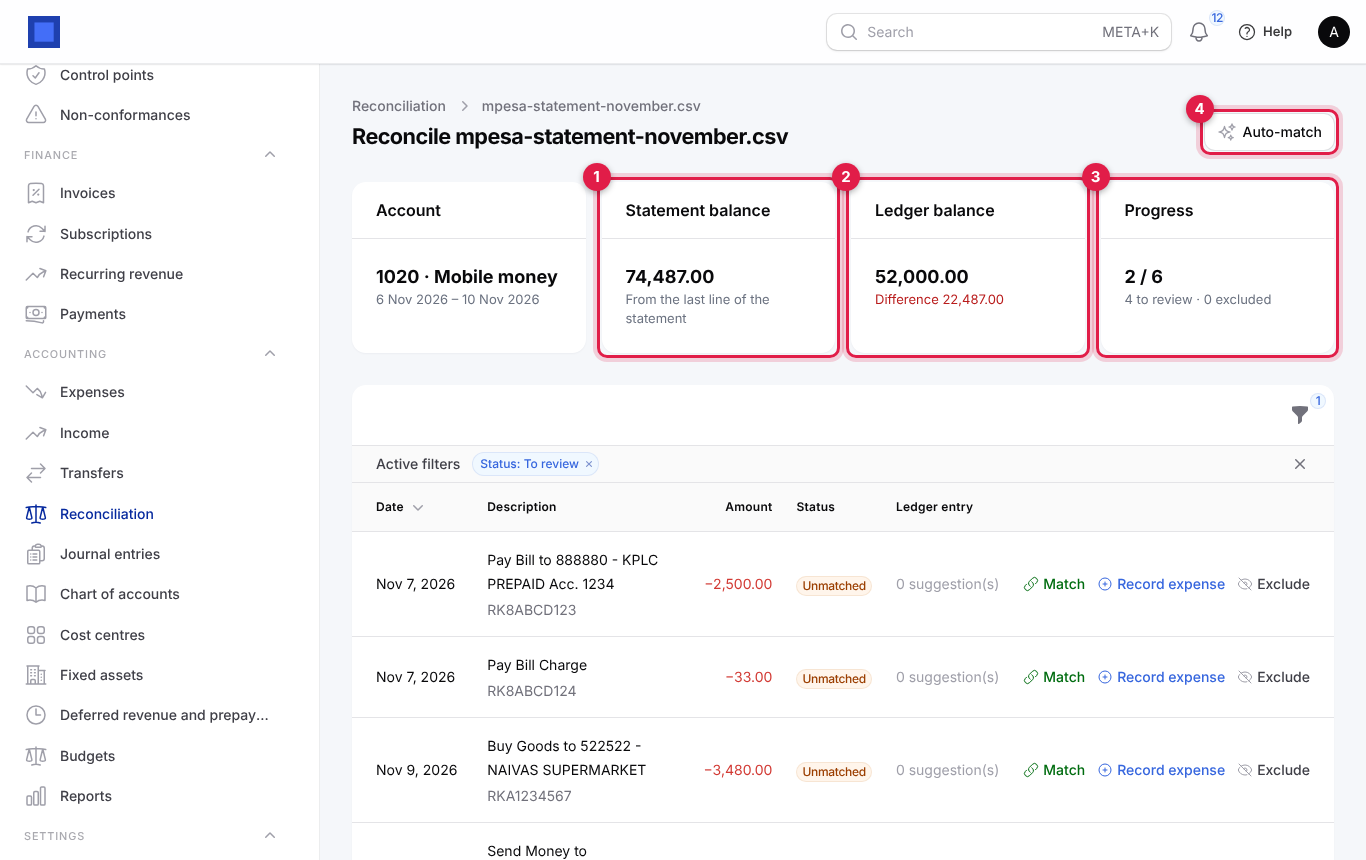
The top of the workspace shows where you stand:
| Card | What it tells you |
|---|---|
| Account | The money account and the statement period. |
| Statement balance (marker 1) | The running balance on the last line of the file, or "—" if the file has no balance column. |
| Ledger balance (marker 2) | The balance of the account in your books at the statement's end date. Under it: "Agrees with the statement" in green, or "Difference …" in red, or "No closing balance in the file". |
| Progress (marker 3) | Matched lines out of all lines, and how many are still to review or excluded. |
Auto-match (marker 4) tries again to match every unmatched line that has exactly one possible ledger entry. Use it after you have recorded payments or expenses elsewhere in NaliSuite.
Below, the table lists the statement lines. Money in shows in green with +, money out in red with −. By default the table shows only the lines To review.
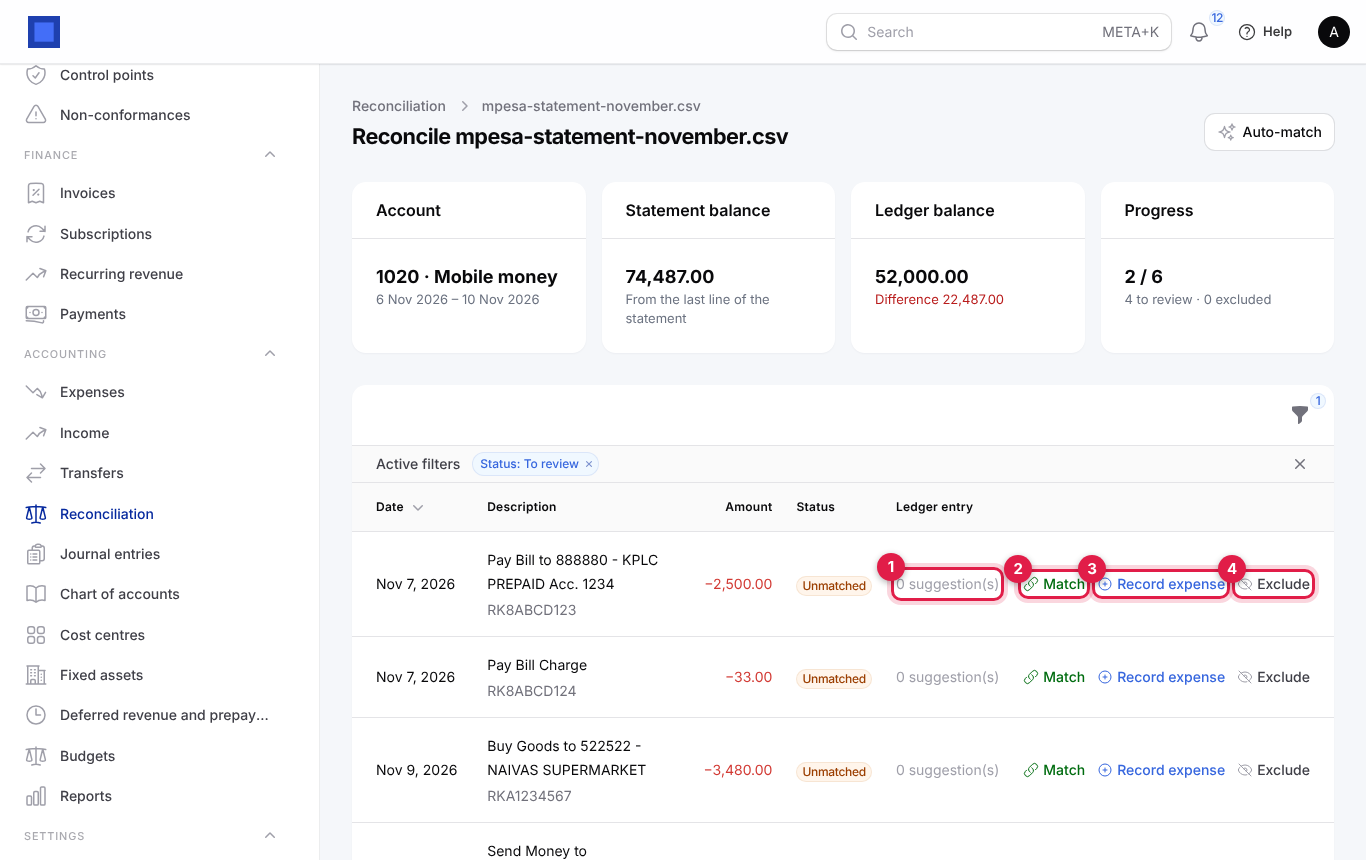
For each unmatched line, the Ledger entry column says how many suggestions there are (marker 1). Then choose one of three actions:
Match a line to an existing entry
Use Match (marker 2 above) when the transaction is already in your books: a customer payment you recorded, a bill payment, an expense, a transfer, payroll.
- Click Match on the line.
- In Ledger line (marker 1), pick the entry. NaliSuite lists posted, not-yet-reconciled lines on this account with exactly the same amount in the same direction, dated within 5 days either side of the statement date, nearest date first. Each choice shows the date, entry number, description and amount.
- Click Submit (marker 2). The line turns Matched and the ledger line is marked as reconciled, so it will not be offered again.
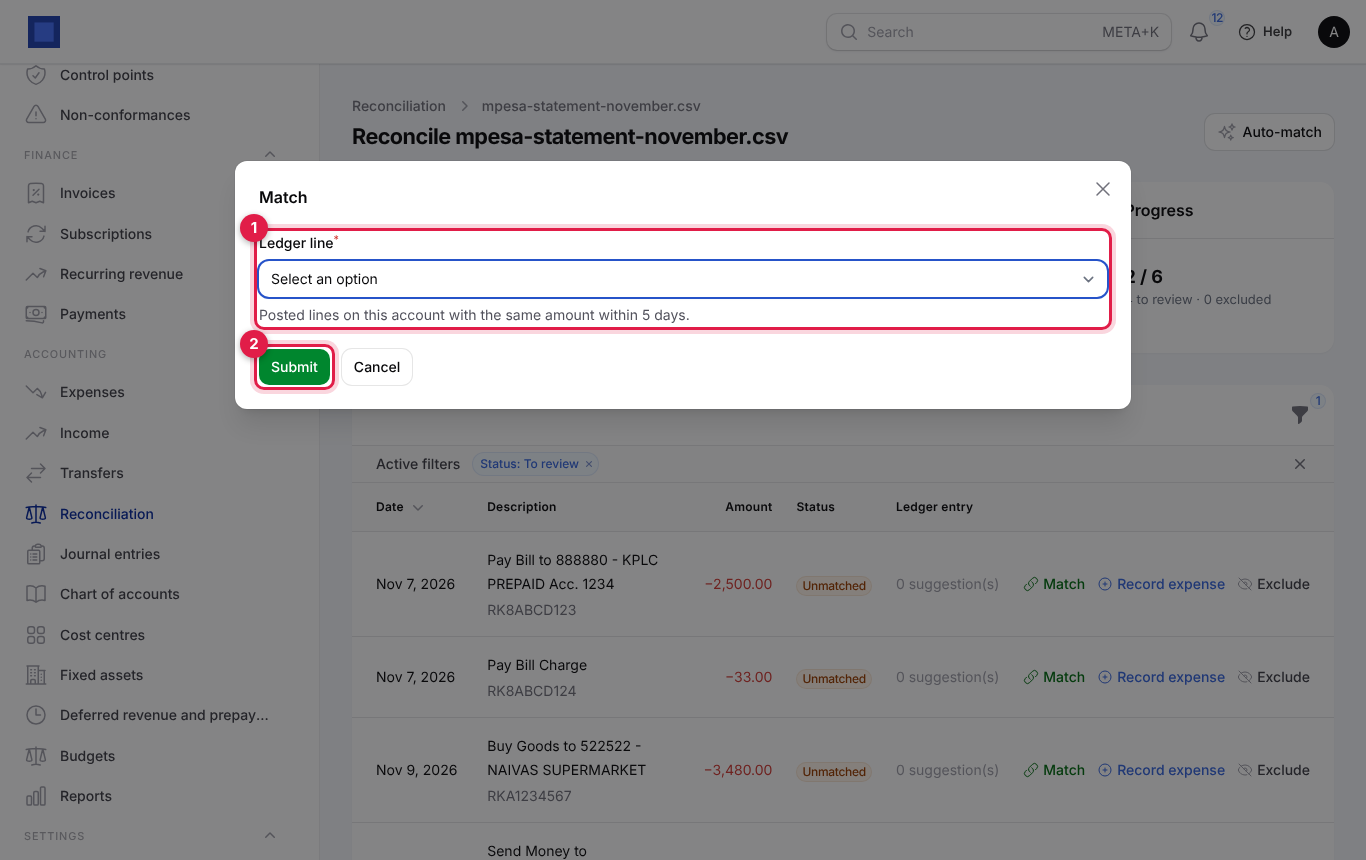
If the list is empty, the transaction is not in the books yet (or it has a different amount or date). Record it from its proper screen and click Auto-match, or use Record expense / Record income.
Record a missing transaction from the line
Use Record expense (on money out) or Record income (on money in) (marker 3 above) for things only the bank knows about: bank charges, M-Pesa transaction costs, interest, a KPLC token paid by Paybill, a small deposit.
- Click Record expense or Record income on the line.
- Check the Description (marker 1). It starts with the statement text; shorten it if you like.
- Pick the Expense category or Income category (marker 2), for example Bank and transaction charges for an M-Pesa charge.
- Optionally pick the Vendor or Customer (marker 3) and the Tax included (marker 4).
- Click Submit. NaliSuite creates a paid expense (or received income) dated on the statement date, from this money account, with the statement reference, posts it, and matches the line in one go: "Recorded and matched".
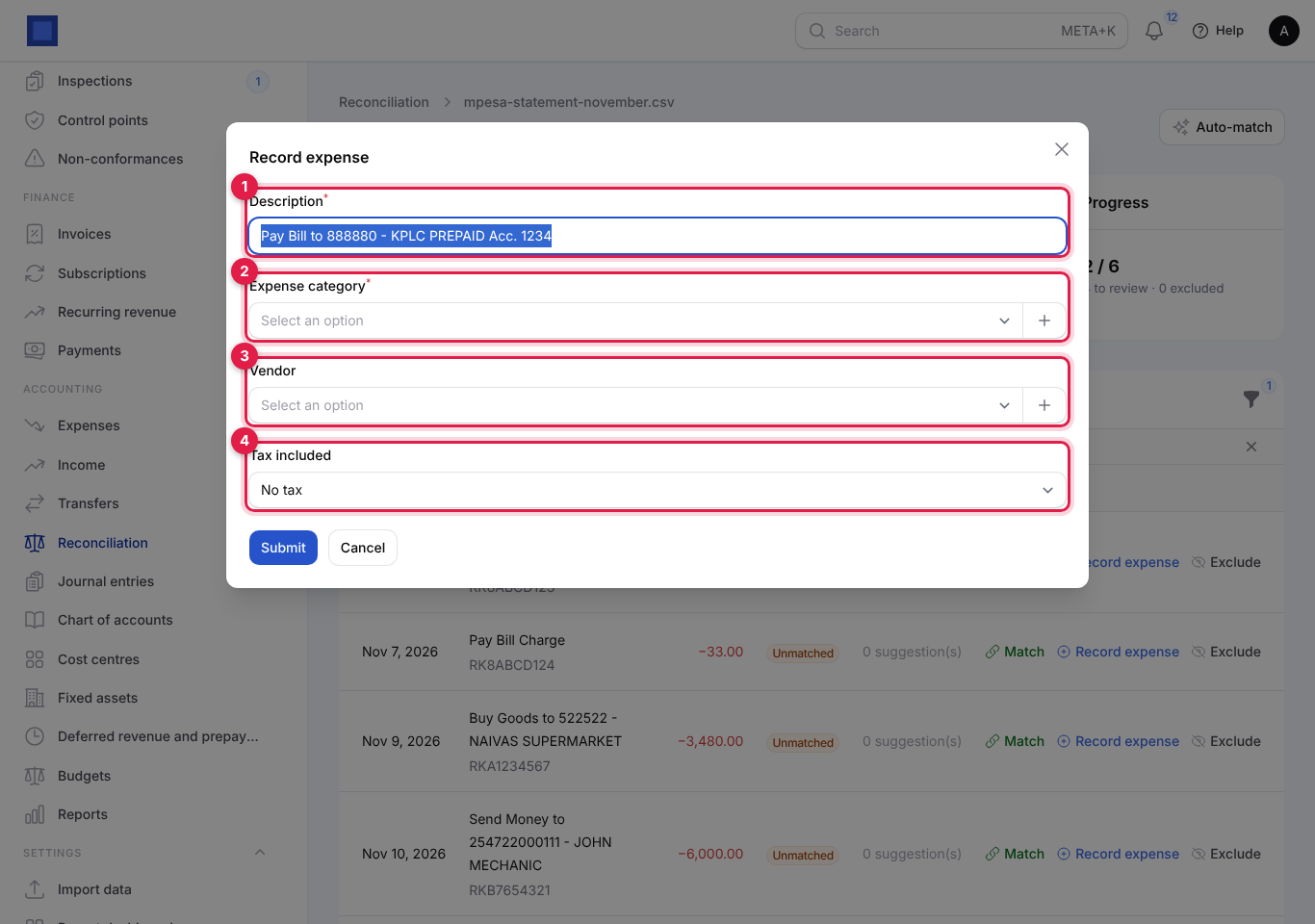
The new expense or income appears in Accounting → Expenses or Income like any other.
Exclude a line
Use Exclude (marker 4 in the line screenshot) for lines that should not be in this account's books, for example a duplicate the bank later reversed, or a personal transaction on a shared M-Pesa line. The line becomes Excluded and no longer counts as "to review". Nothing is posted.
See matched and excluded lines, and undo
- Click the Filters icon above the table.
- In Status (marker 1), choose To review, Matched or Excluded, or clear it to see every line.
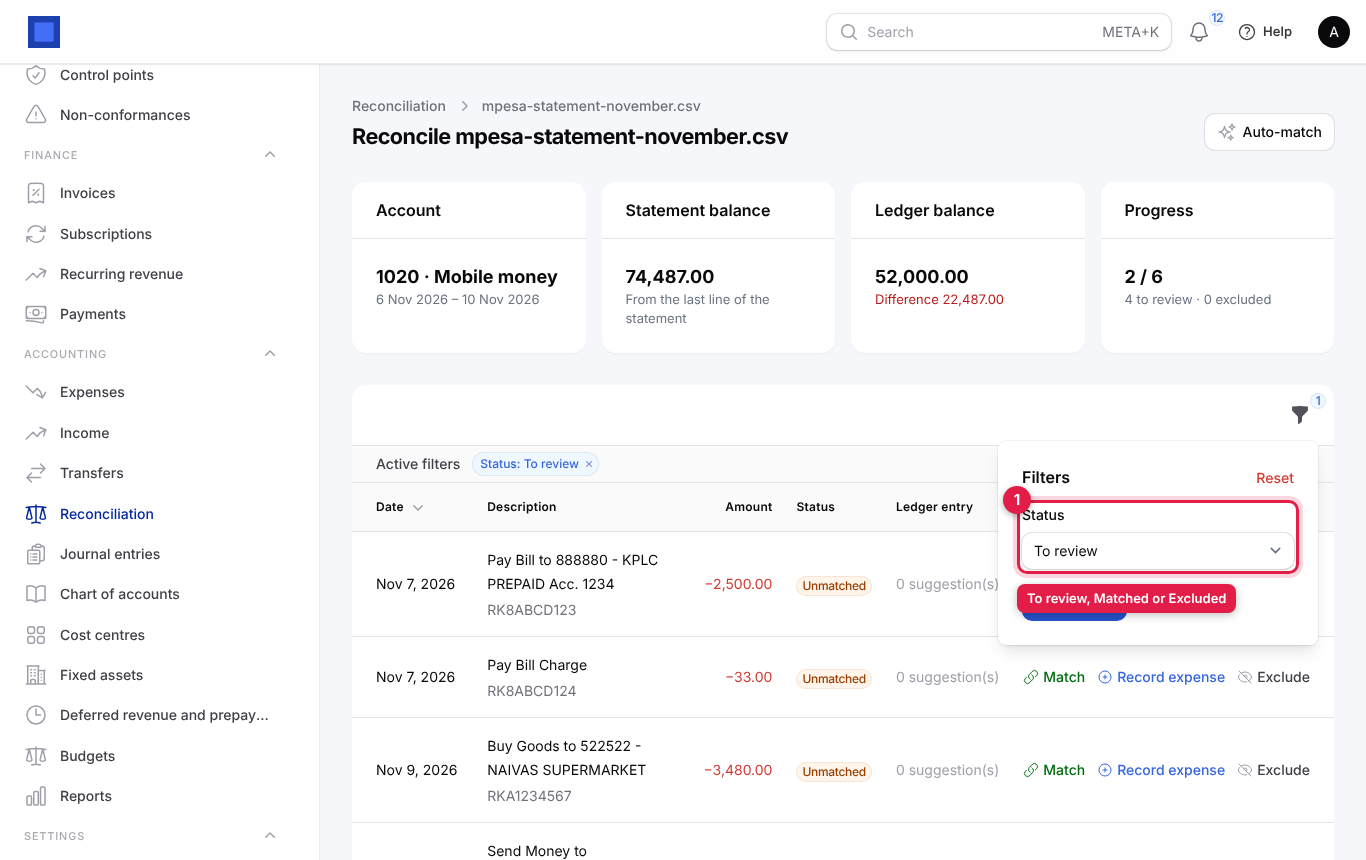
Matched and excluded lines show Undo. Undo puts the line back to Unmatched and releases the ledger line so it can be matched again. An expense or income you created with Record stays in the books; delete it from the Expenses or Income list if it was wrong.
When is an account reconciled?
When Progress shows nothing left to review and the Ledger balance card says "Agrees with the statement". If there is still a difference with every line dealt with:
- A transaction in the books is missing from the statement (a cheque not yet cleared, a payment recorded twice). Look at the general ledger for the account (Accounting → Reports → General ledger) for unreconciled lines.
- The opening balance of the account in NaliSuite is wrong. Post an opening balance journal entry.
- The statement covers a different period from the one you think. Check the Period column.
After the month is reconciled, consider setting the lock date so the reconciled period cannot change.
Common questions
I imported the same statement twice. Will I get double lines? No. Each line is fingerprinted from its date, amount, reference and description, and lines already imported for the account are skipped. The second import simply shows fewer (or zero) new lines.
Can I import a statement that overlaps the previous one? Yes, for the same reason. Download whatever period is convenient.
Why does a line have 0 suggestions when I know the payment is recorded? The amount must be identical and the dates within 5 days. Bank charges taken from the same payment, a different date, or a payment recorded against another account (for example the bank instead of M-Pesa) stop it matching. Correct the payment, or match the difference with Record expense.
My bank gives me Excel files. What do I do? Open the file and save it as CSV, then import the CSV. Make sure the header row (Date, Description, Debit, Credit, Balance…) is the first row of the file.
Can I reconcile cash or petty cash? Yes. Any account marked Cash can take a statement; type your cash book into a CSV with Date, Description and Amount columns.
Does deleting a statement delete my expenses? No. It only removes the imported lines and their matches. Anything you recorded from the statement stays in the books.