Fleet
The Fleet app keeps your vehicles and drivers in one place: every vehicle's papers (insurance, road licence, inspection) with reminders before they expire, trips with odometer readings, fuel with cost per kilometre and litres per 100 km, and the service and repair history with the next service due by date or by kilometres. With Accounting on, fuel and completed repairs are posted to the books as expenses. It suits delivery businesses, contractors, schools, NGOs and anyone running a few pickups, lorries, motorbikes or tuk-tuks. Everything is under Fleet in the left menu: Overview, Vehicles, Drivers, Fuel and Service and repairs.
Switch the Fleet app on
Fleet is an add-on sold separately from your plan.
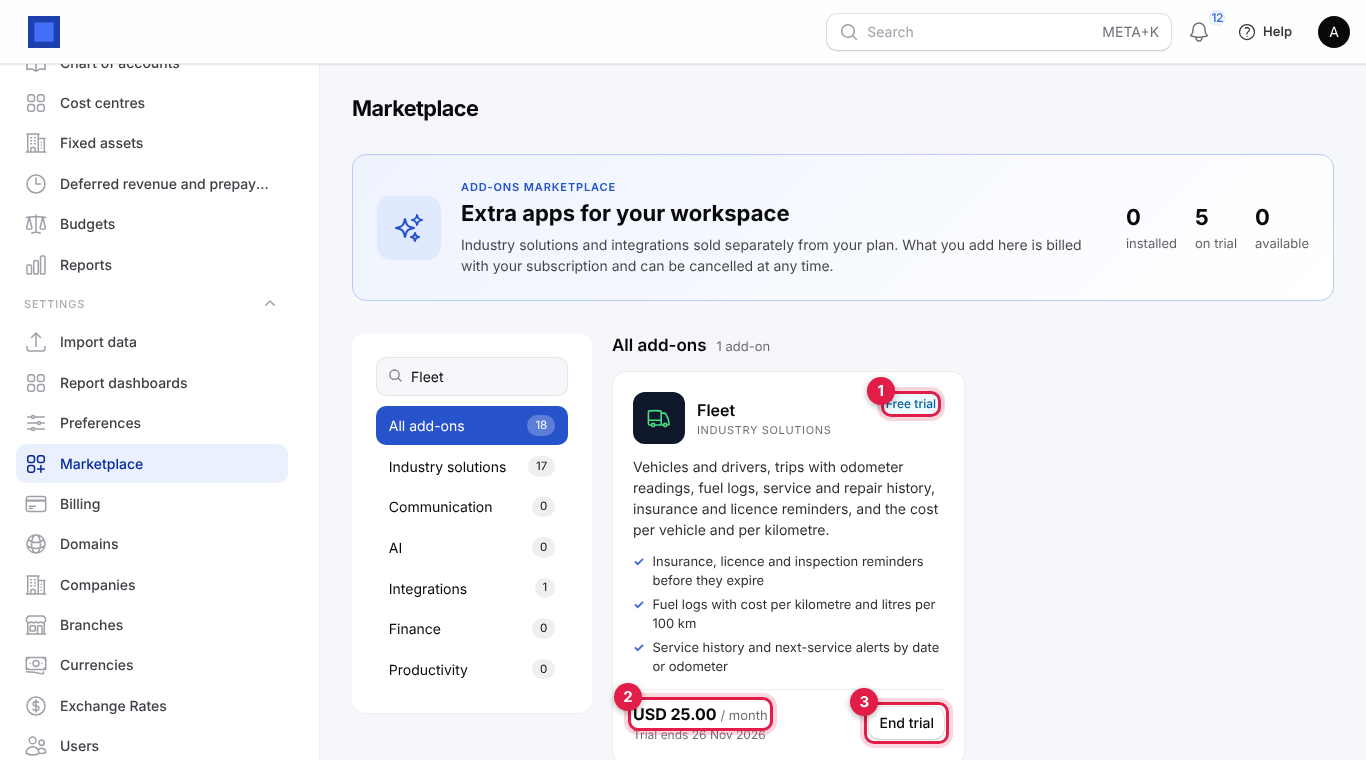
- Open Settings → Marketplace. The Industry solutions aisle lists Fleet with its monthly price (marker 2).
- Click Start free trial (or Add to subscription when there is no trial) and confirm. With a trial you see the Free trial badge and the trial end date (marker 1); the module becomes part of your subscription after the trial unless you cancel. Without a trial, the rest of the current period is invoiced at once and you are taken to the payment page. The Fleet menu appears straight away (reload the page if you do not see it).
- To stop, click End trial (marker 3) during a trial, or Cancel afterwards: a paid module stays on until the end of the period you paid for, and your data is kept. Keep it undoes a cancellation.
You need the billing.manage permission (owners have it) to add or cancel add-ons. Inside the app, permissions are fleet.view (see vehicles and logs), fleet.manage (add and change everything, receive the reminders) and fleet.reports (the overview and cost report), set under Settings → Roles.
Set reminders and accounting
- Open Settings → Preferences and click the Fleet tab.
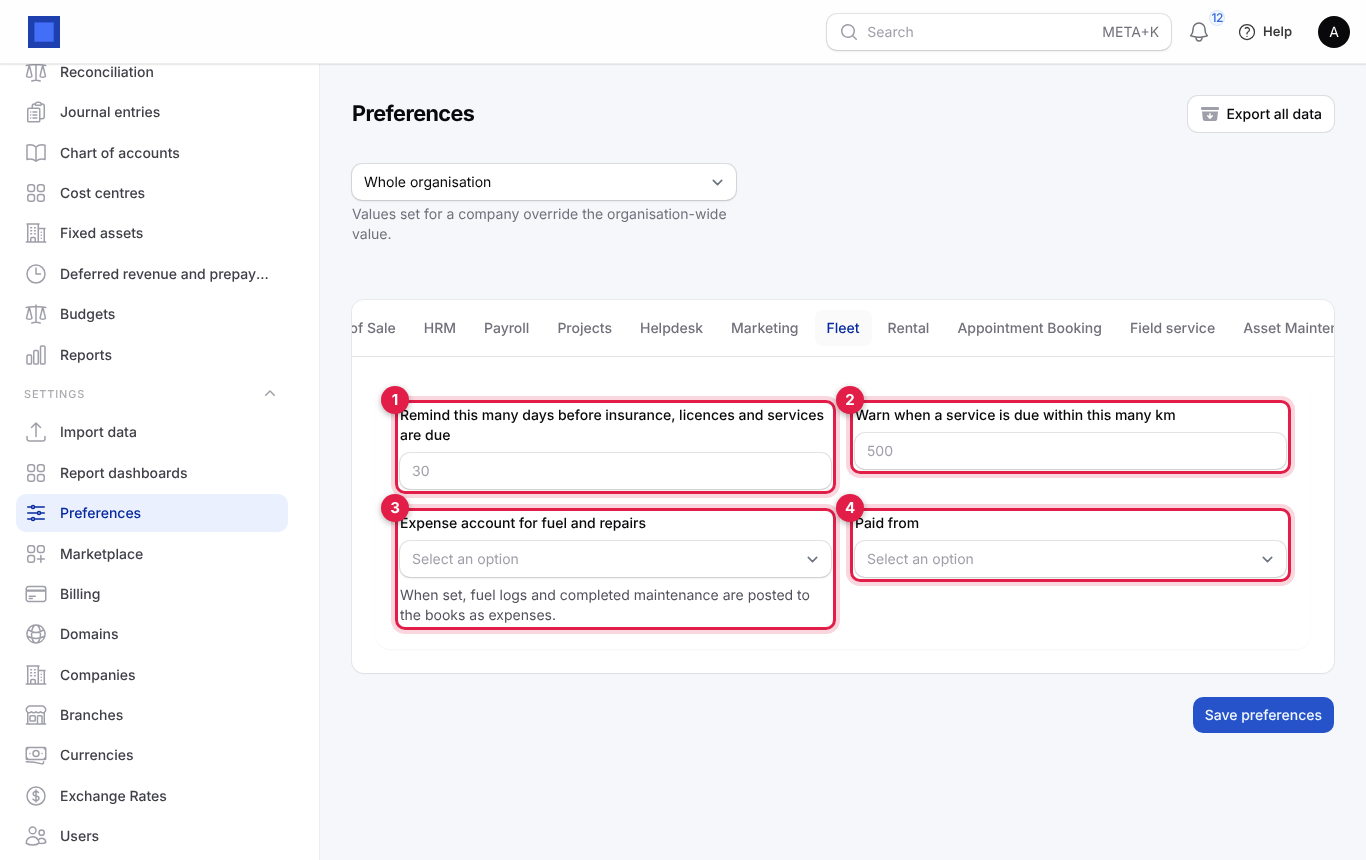
| Setting | What it does |
|---|---|
| Remind this many days before insurance, licences and services are due (marker 1) | Default 30. Items falling due inside this window appear in Needs attention on the overview and in a notification sent each morning to everyone with fleet.manage. |
| Warn when a service is due within this many km (marker 2) | Default 500. A vehicle within this distance of its next service odometer is flagged. |
| Expense account for fuel and repairs (marker 3) | Shown when Accounting is on. With this and Paid from set, every fuel log and every completed service or repair is posted as an expense. |
| Paid from (marker 4) | The cash, bank or M-Pesa account fuel and repairs are paid from. |
- Click Save preferences. Leave the two accounts empty if your accountant books fuel and repairs from receipts instead.
Add a vehicle
- Open Fleet → Vehicles. The list shows each vehicle's registration with make, model and year, nickname, type, driver, odometer, the insurance and licence expiry dates (marker 2; red when past, amber when inside the reminder window), the Next service odometer (marker 3) and the status.
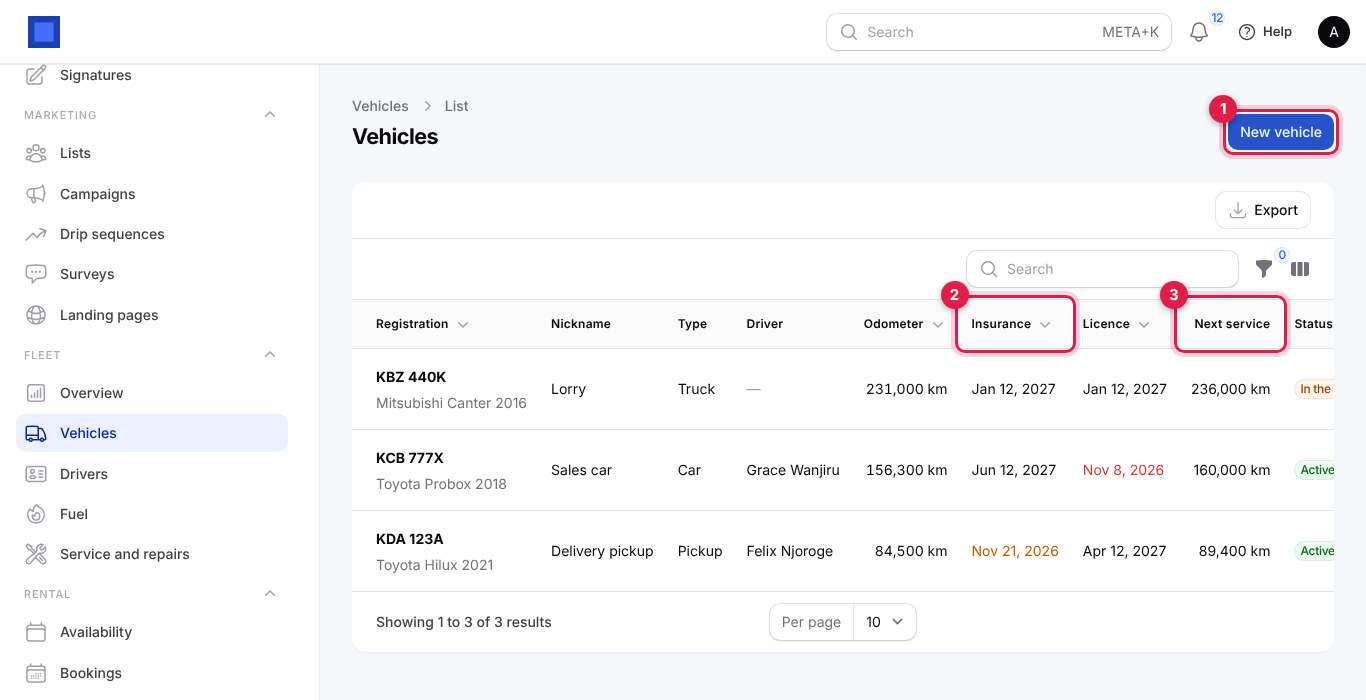
- Click New vehicle (marker 1).
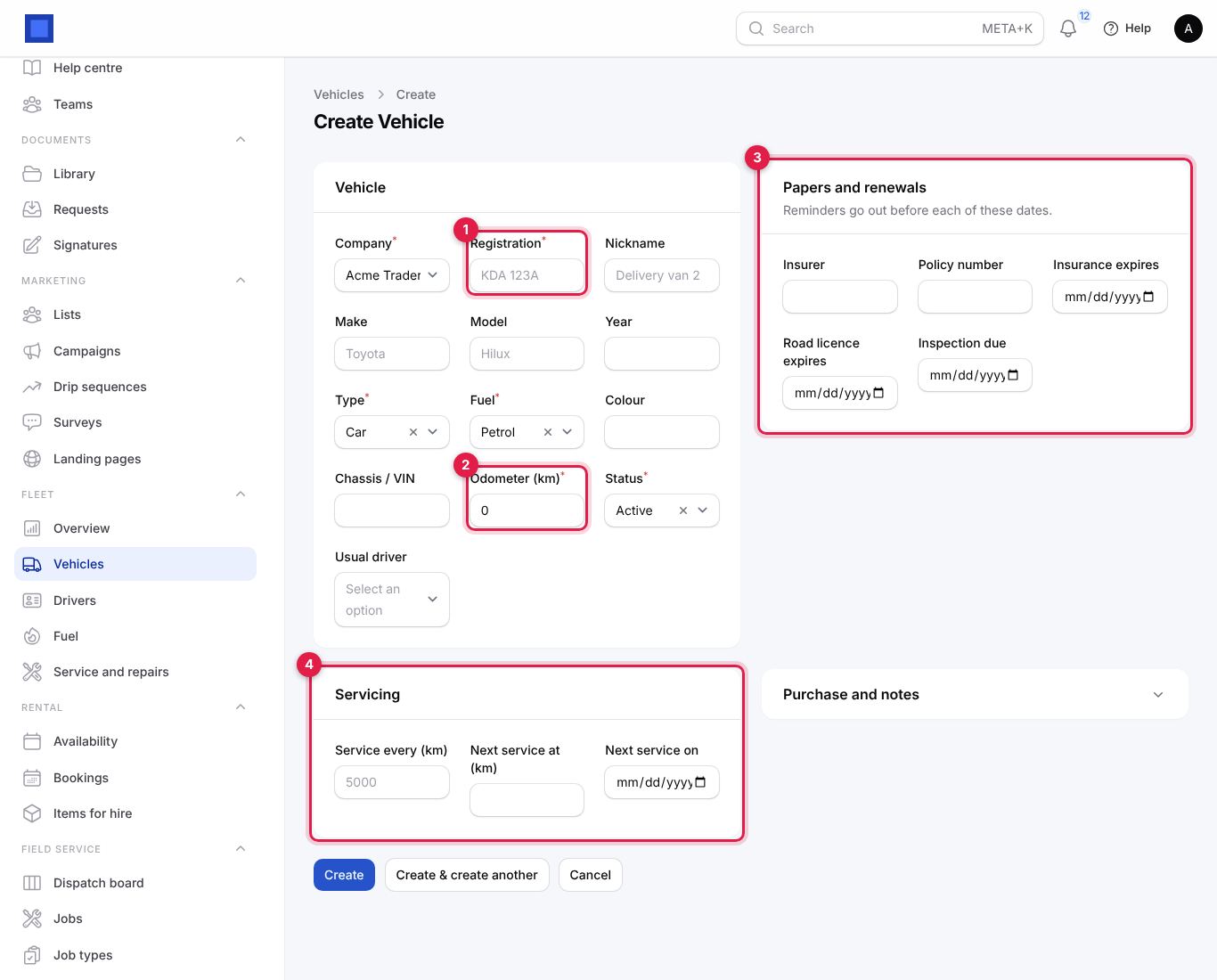
| Field | What to enter |
|---|---|
| Company (required) | The company that owns or runs the vehicle. |
| Registration (required, marker 1) | The number plate, for example KDA 123A. It must be unique. |
| Nickname | A friendly name such as Delivery van 2. |
| Make, Model, Year | Toyota, Hilux, 2021. |
| Type (required) | Car, Van, Pickup, Truck, Bus or matatu, Motorcycle, Tuk-tuk or Other. |
| Fuel (required) | Petrol, Diesel, Electric, Hybrid or LPG. |
| Colour, Chassis / VIN | For identification and insurance. |
| Odometer (km) (required, marker 2) | The current reading. It moves forward automatically with trips, fuel logs and services (a lower reading is ignored). |
| Status (required) | Active, In the workshop, Parked or Sold. Parked and sold vehicles are hidden from the pickers. |
| Usual driver | Pre-filled on trips and fuel logs. |
| Branch | Only shown when you use branches. |
| Papers and renewals (marker 3) | Insurer, Policy number, Insurance expires, Road licence expires and Inspection due. Reminders go out before each of these dates. |
| Servicing (marker 4) | Service every (km) (for example 5000), Next service at (km) and Next service on. After each service the next one is planned one interval on. |
| Purchase and notes | Bought on, Purchase cost and Notes (click to expand). |
- Click Create. Click Open on a row of the list to come back to a vehicle later.
Work with a vehicle
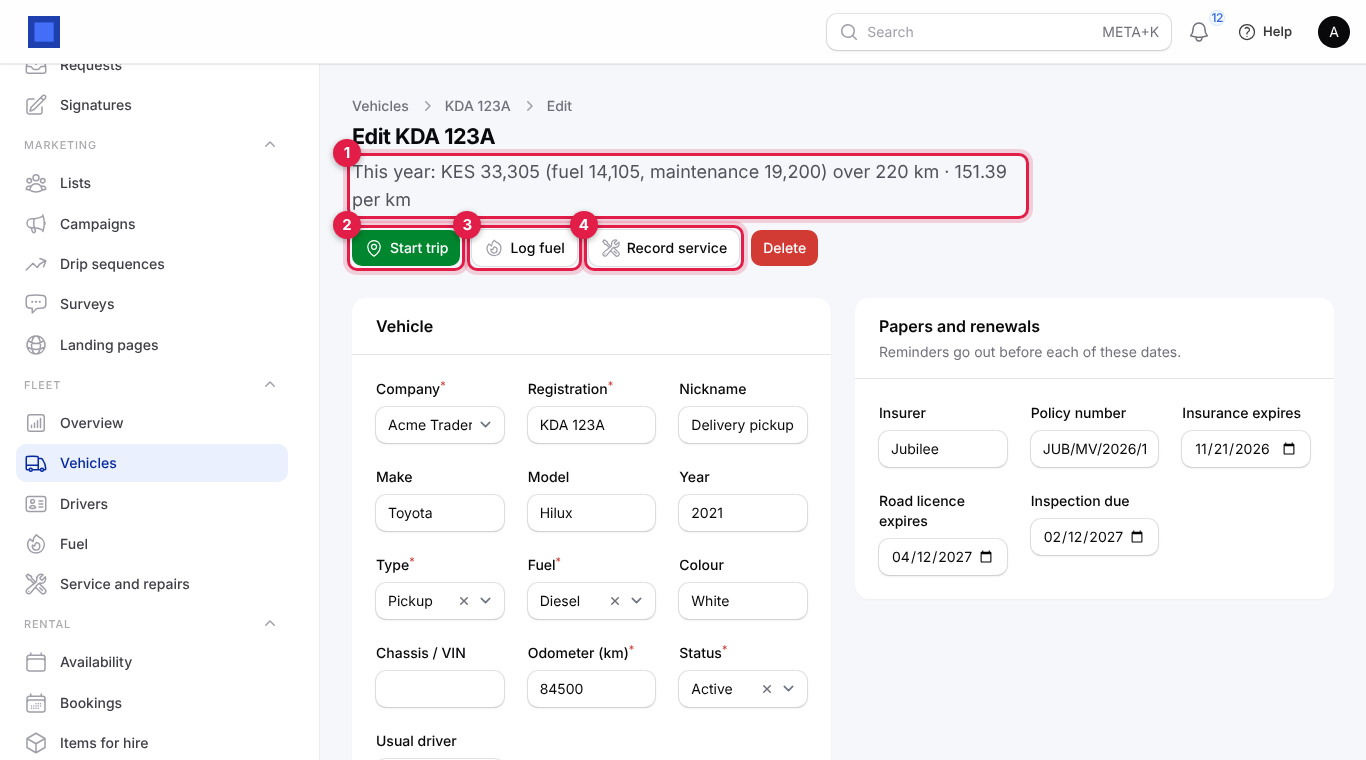
The vehicle page shows this year's running cost under the title (marker 1: total, fuel, maintenance, distance and cost per km) and three quick buttons.
Start and end a trip
- Click Start trip (marker 2).
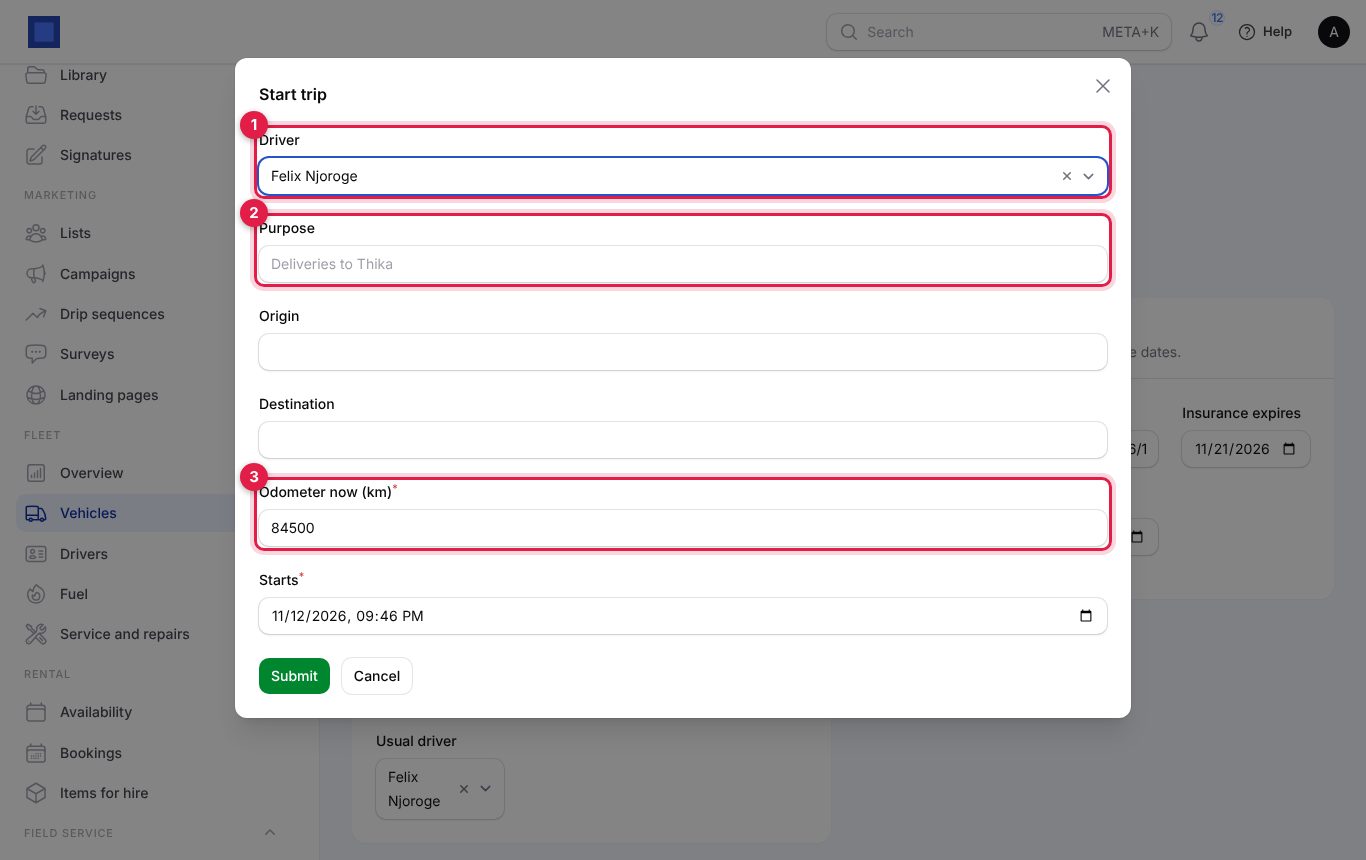
| Field | What to enter |
|---|---|
| Driver (marker 1) | Defaults to the usual driver. |
| Purpose (marker 2) | For example Deliveries to Thika. |
| Origin, Destination | Where from and to. |
| Odometer now (km) (required, marker 3) | The reading at departure. |
| Starts (required) | Date and time of departure. |
- Click Submit. The trip is Ongoing and counts in Trips on the road on the overview.
- When the vehicle is back, scroll down to the Trips tab (marker 1) and click End trip (marker 2) on the trip. Enter Odometer now (km) and Ended, then click Submit. The distance is worked out and the vehicle's odometer moves forward.
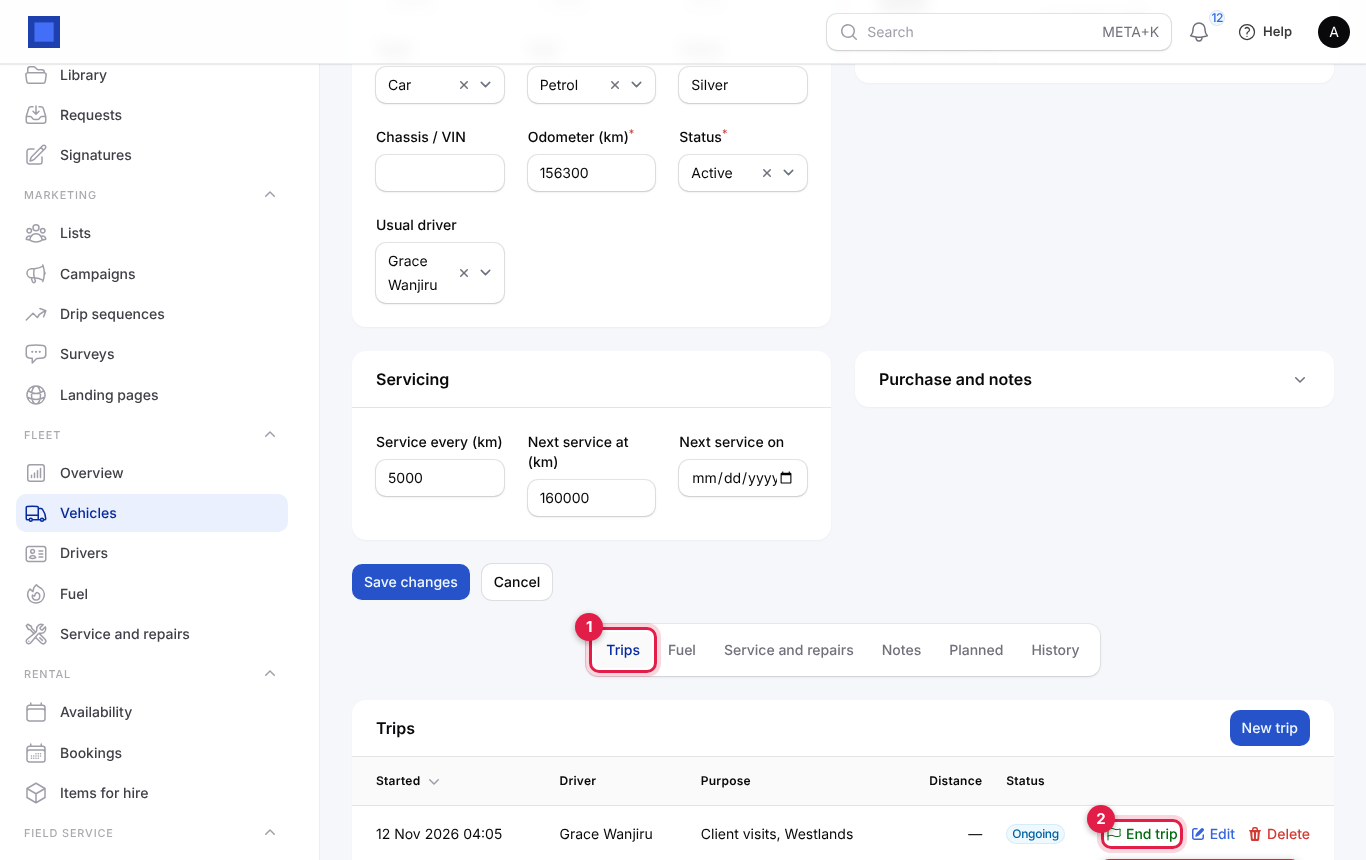
Use New trip in the Trips tab to record a past or planned trip by hand (status Planned, Ongoing, Completed or Cancelled), and Edit or Delete to correct one.
Log fuel
- Click Log fuel (marker 3 on the vehicle page).
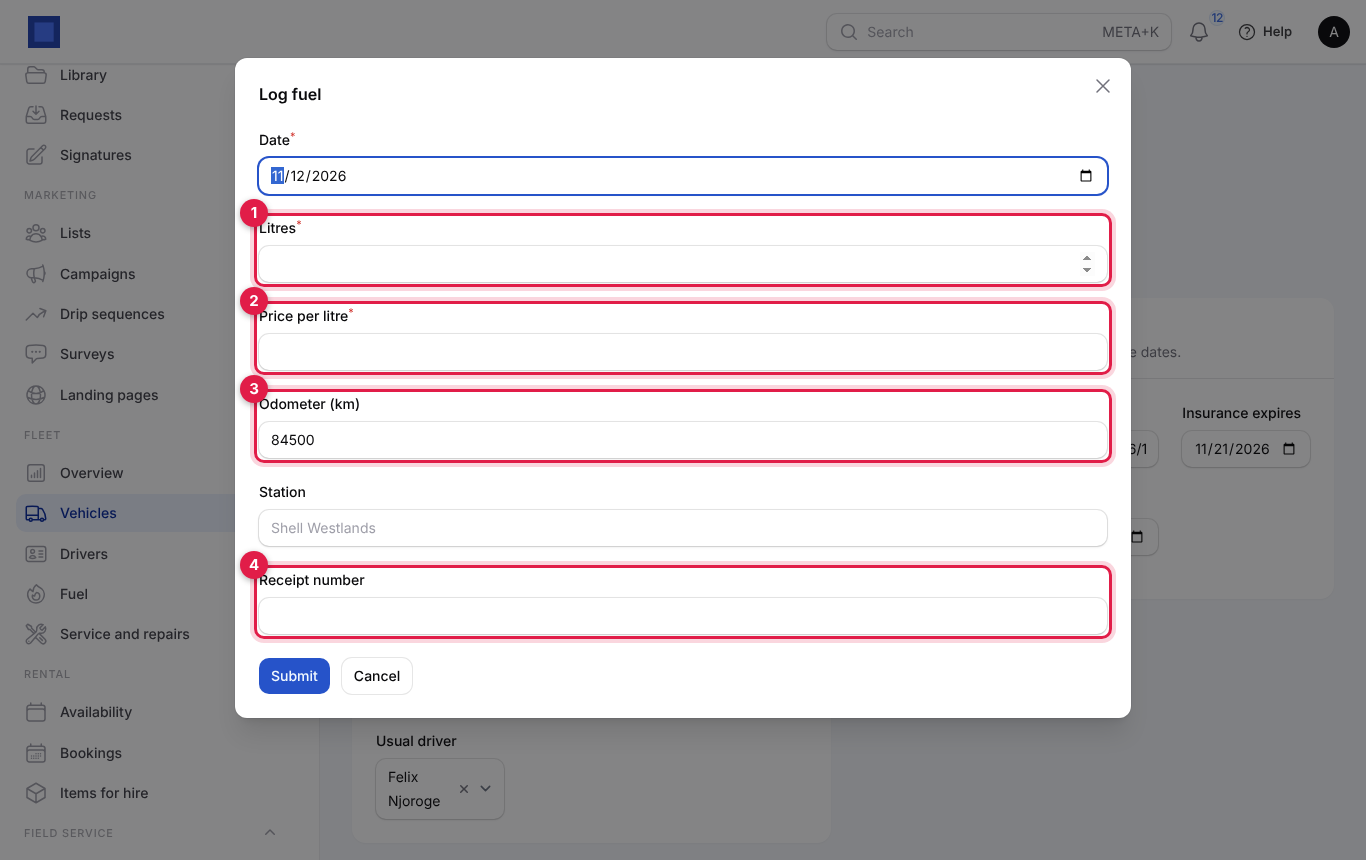
| Field | What to enter |
|---|---|
| Date (required) | When you filled up. |
| Litres (required, marker 1) | How much fuel. |
| Price per litre (required, marker 2) | From the pump or receipt. The total is litres × price. |
| Odometer (km) (marker 3) | The reading at the pump. Needed for accurate litres per 100 km. |
| Station | For example Shell Westlands. |
| Receipt number (marker 4) | The fuel receipt or ETR number, kept with the expense in the books. |
- Click Submit. You see Fuel logged: KES 6,440.00. With the fleet accounts set, an expense is posted and the In the books column on the vehicle's Fuel tab shows a tick.
Record a service or repair that is already done
- Click Record service (marker 4 on the vehicle page).
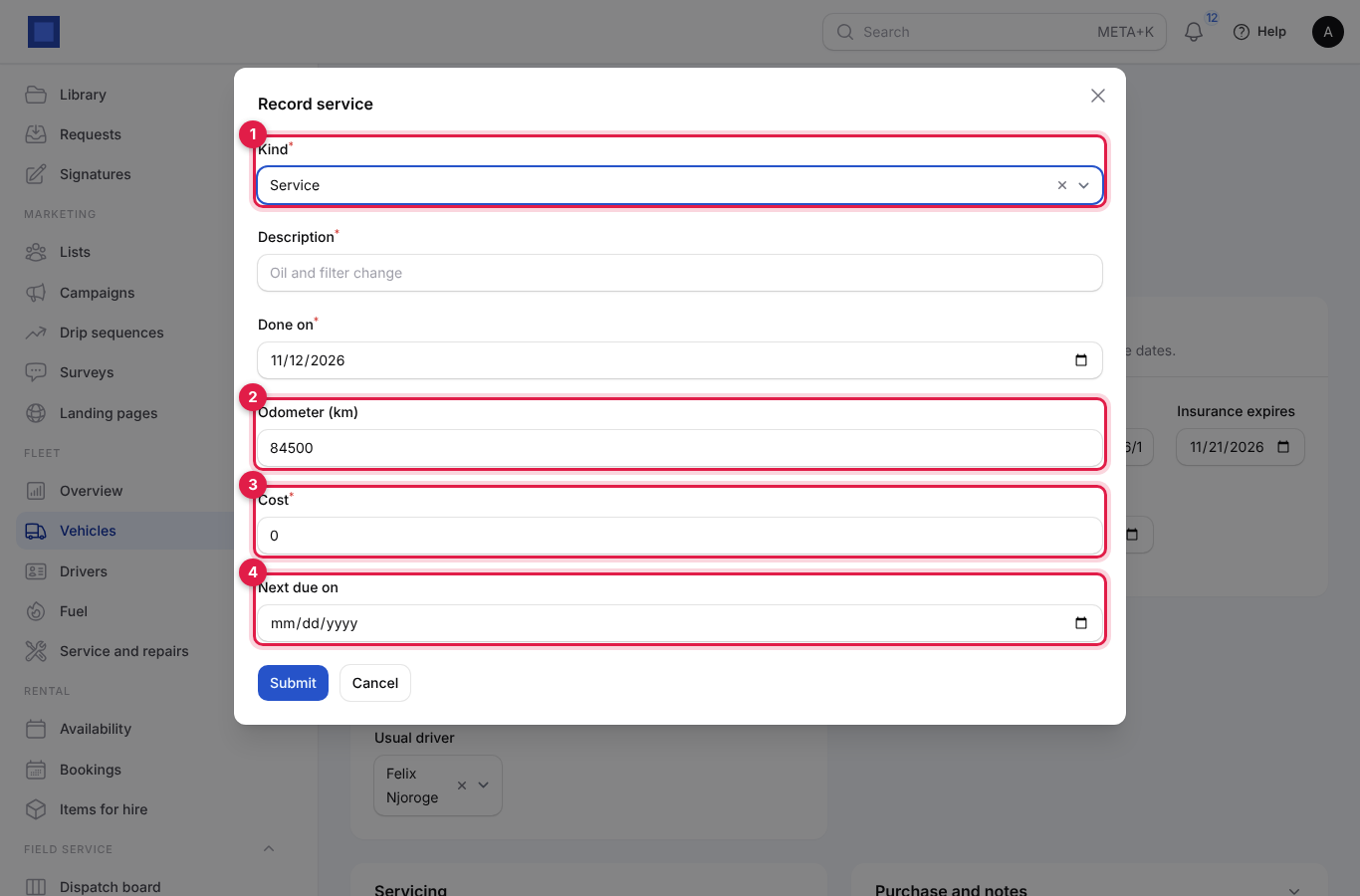
| Field | What to enter |
|---|---|
| Kind (required, marker 1) | Service, Repair, Tyres, Inspection or Other. |
| Description (required) | For example Oil and filter change. |
| Done on (required) | The date of the work. |
| Odometer (km) (marker 2) | The reading at the garage. |
| Cost (required, marker 3) | What you paid. Posted as an expense when the fleet accounts are set. |
| Next due on (marker 4) | For a service: the date of the next one. For an inspection: the next inspection date, which updates Inspection due on the vehicle. |
- Click Submit. For a Service, the vehicle's next service is moved one Service every (km) interval past this odometer. The work appears on the Service and repairs tab.
The tabs at the bottom of the vehicle page are Trips, Fuel, Service and repairs (with Garage / supplier picked from your vendors when you add or edit a record), Notes, Planned (follow-up activities) and History (who changed what).
Plan services and repairs
Use Fleet → Service and repairs (the page is titled Maintenance Records) to plan work ahead and mark it done when it happens.
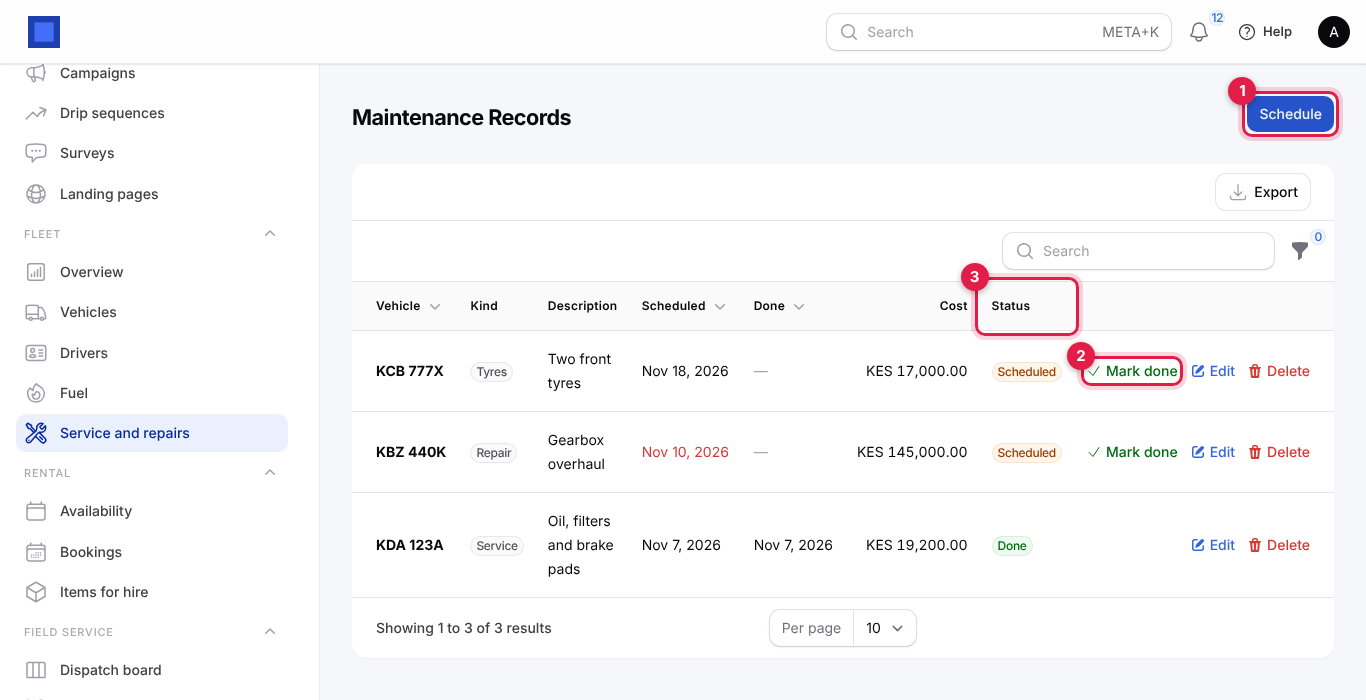
- Click Schedule (marker 1). Choose the Vehicle, Kind, Scheduled for date, Description, Estimated cost, Odometer (km), and optionally Next due on, Next due at (km) and Notes. Click Create. Scheduled work appears in Needs attention on the overview as its date approaches, in red once overdue.
- When the work is done, click Mark done (marker 2).
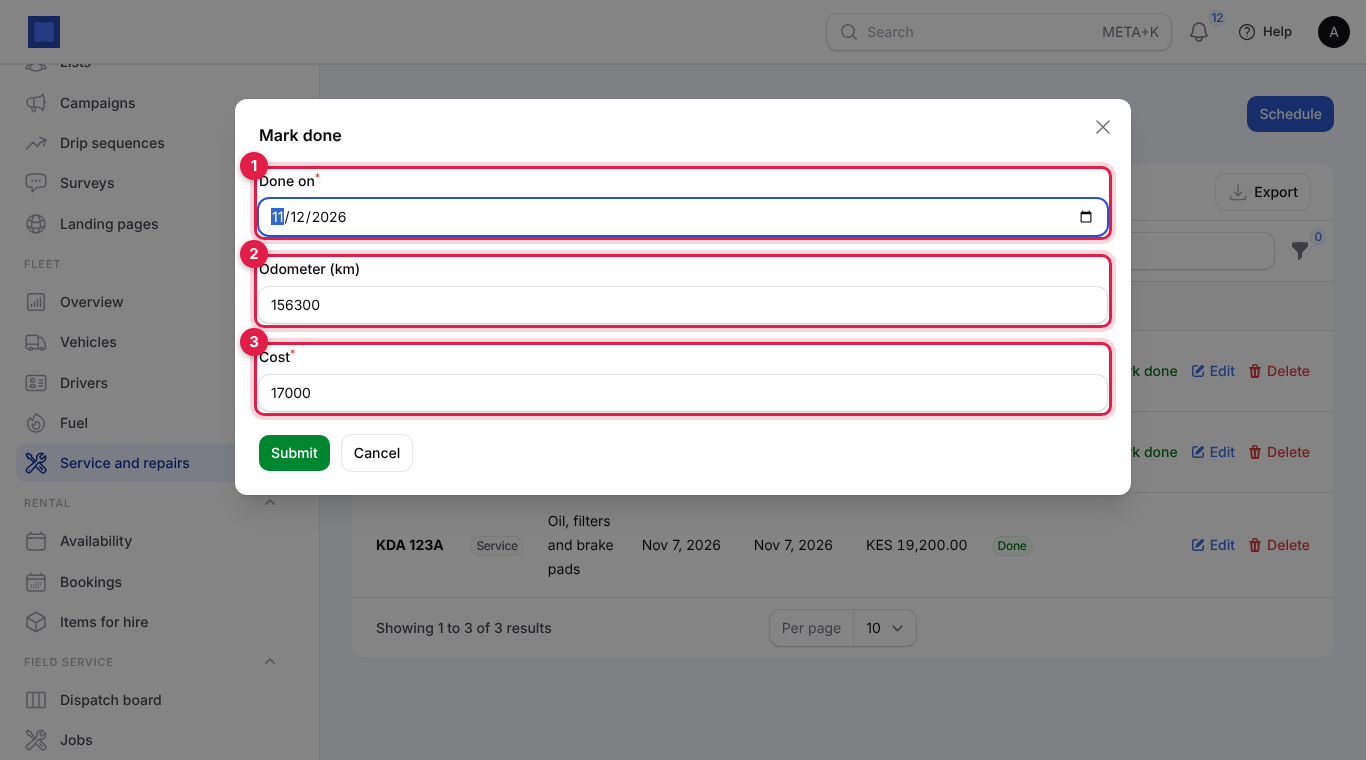
- Enter Done on (marker 1), the Odometer (km) (marker 2) and the actual Cost (marker 3), then click Submit. The status changes from Scheduled to Done (marker 3 on the list), the vehicle's odometer and next service are updated, and the cost is posted to the books when the fleet accounts are set.
Filter the list by Status, Kind or Vehicle.
Tip: set a vehicle's status to In the workshop while it is at the garage. The overview counts it under Vehicles as in the workshop.
Manage drivers
- Open Fleet → Drivers. Each driver shows phone, licence number and class (marker 2), the licence expiry date (amber or red when close or past), and how many vehicles they usually drive.
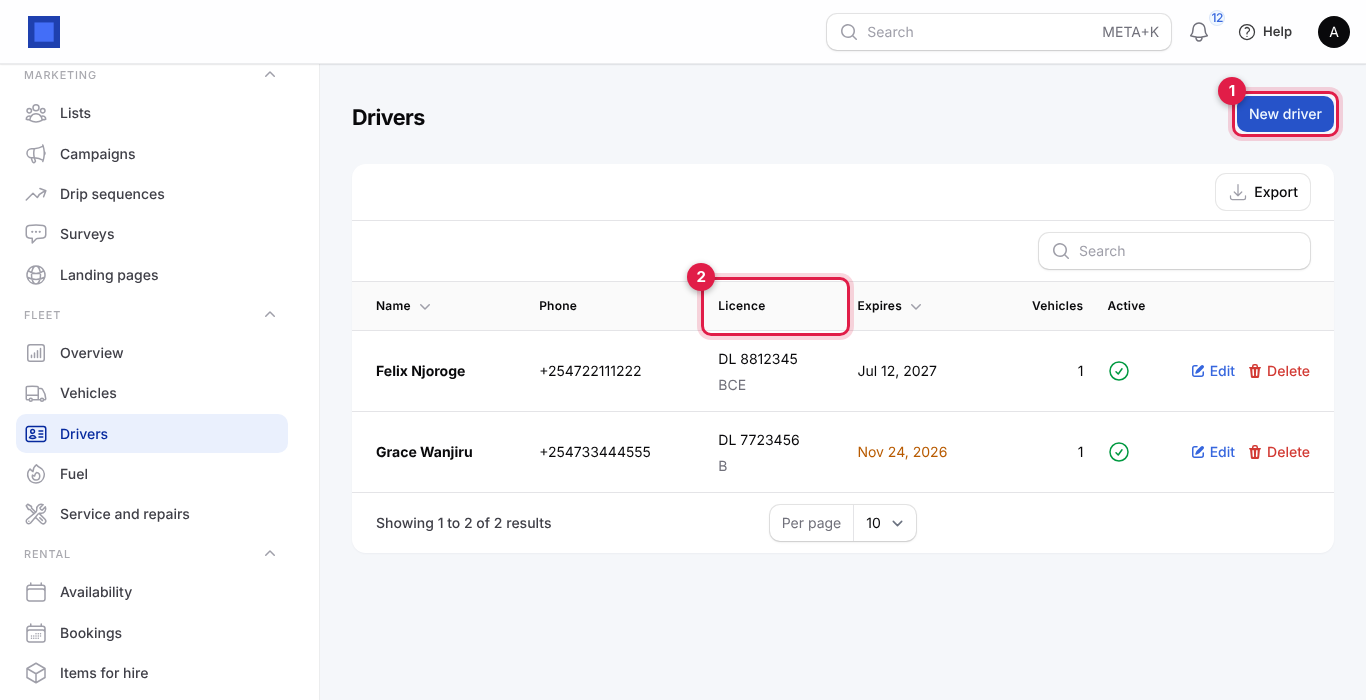
- Click New driver (marker 1).
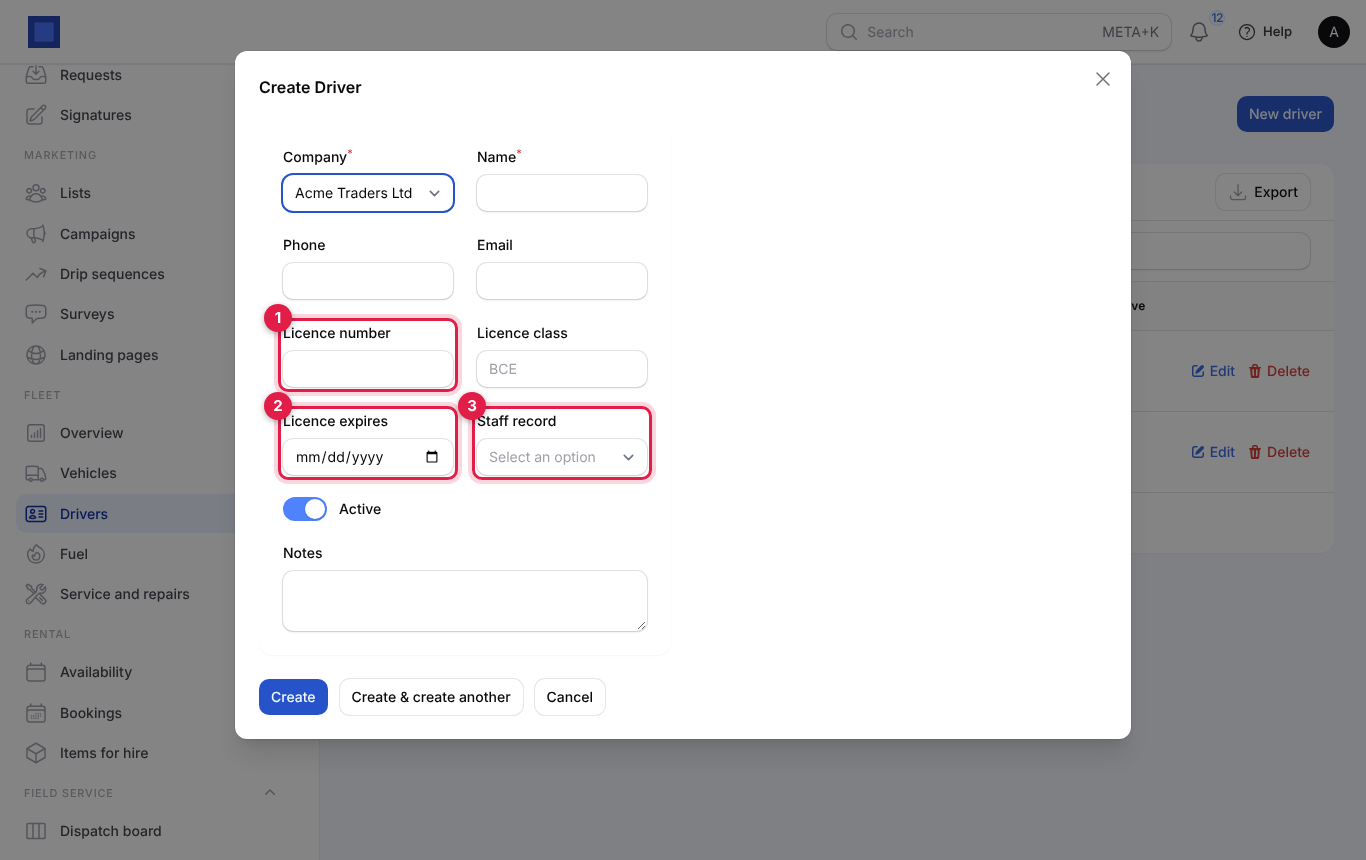
| Field | What to enter |
|---|---|
| Company (required), Name (required) | The driver. |
| Phone, Email | Contact details. |
| Licence number (marker 1), Licence class | For example DL 8812345, class BCE. |
| Licence expires (marker 2) | A reminder goes out before this date. |
| Staff record (marker 3) | Link to the employee record when HR is on, so the driver is the same person in HR and payroll. |
| Active | Switch off for drivers who have left; they disappear from the pickers. |
| Notes | Anything else. |
- Click Create.
Review fuel
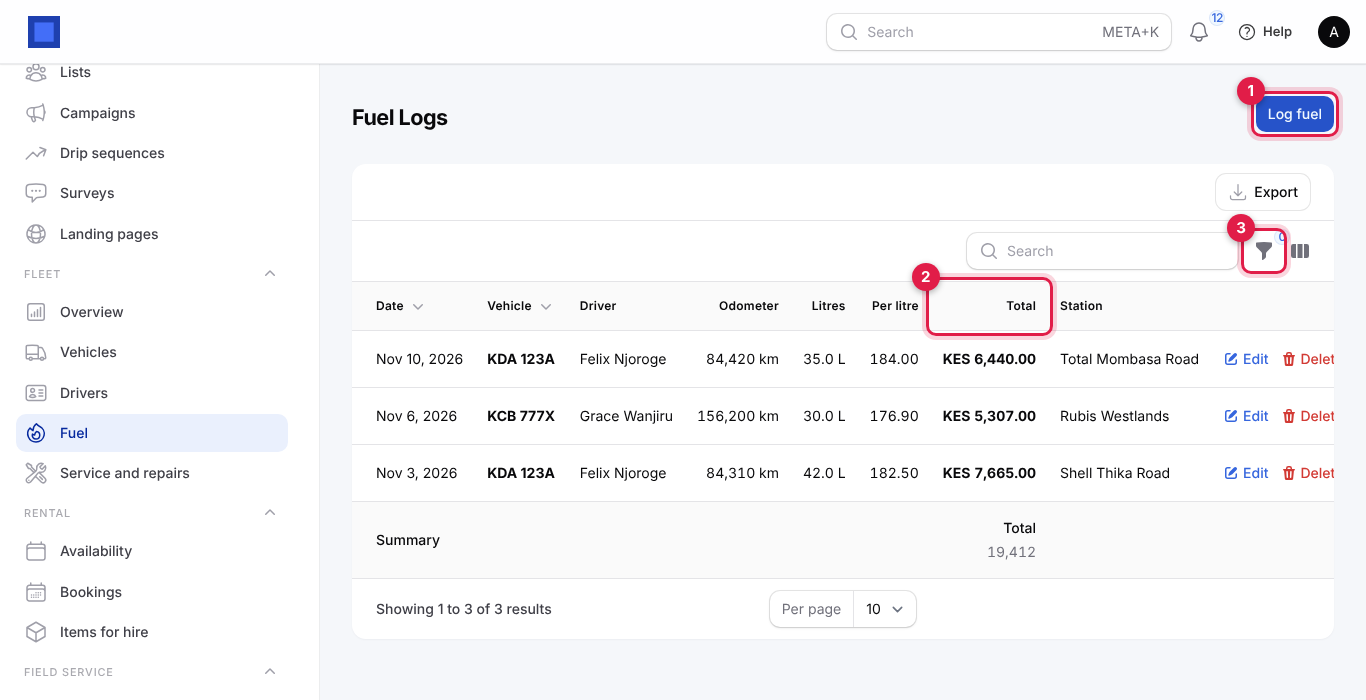
Fleet → Fuel (titled Fuel Logs) lists every fill-up across the fleet with date, vehicle, driver, odometer, litres, price per litre, Total (marker 2, with the sum at the bottom) and station. Click Log fuel (marker 1) to add one without opening the vehicle: picking the vehicle fills in its driver and current odometer. Use the filter (marker 3) to see one vehicle or one driver, and Edit or Delete to correct a log.
Read the fleet overview
Fleet → Overview is the fleet manager's dashboard for a period.
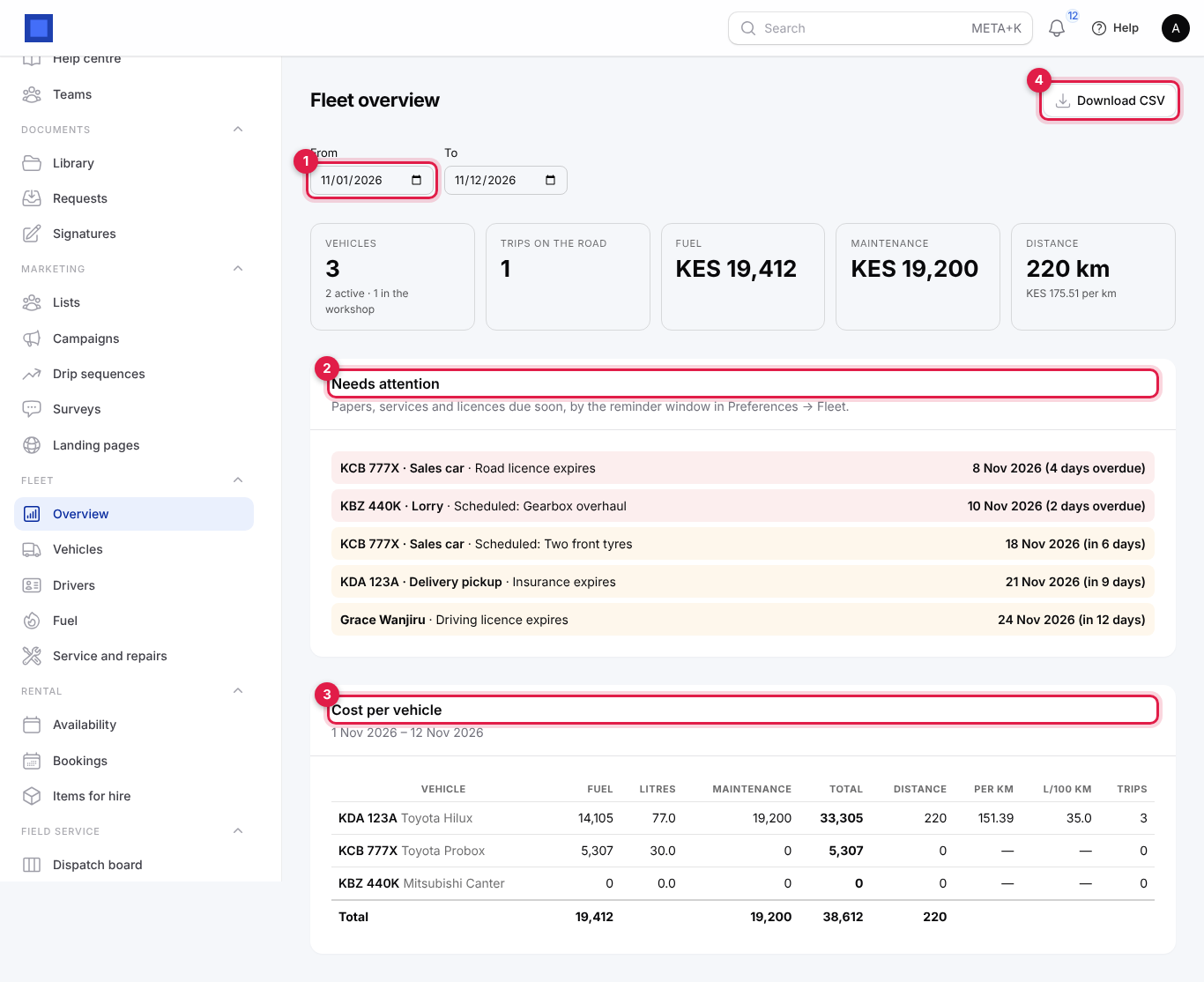
- Set From and To (marker 1). It opens on this month.
- The tiles show the number of vehicles (active and in the workshop), trips on the road now, fuel spend, maintenance spend and distance with cost per km.
- Needs attention (marker 2) lists papers, services and licences due soon or overdue: insurance, road licence, inspection, service by date or odometer, scheduled work and drivers' licences, with the days left or overdue. Overdue items are red.
- Cost per vehicle (marker 3) shows, for each vehicle: fuel, litres, maintenance, total, distance, cost per km, litres per 100 km and number of trips. Use it to spot a vehicle that drinks fuel or eats money in repairs.
- Download CSV (marker 4) downloads the cost per vehicle table.
Common questions
Why is litres per 100 km empty? It needs distance: record trips with odometer readings or type the odometer on each fuel log.
The odometer went backwards. It cannot: readings lower than the current one are ignored. Correct the vehicle's Odometer (km) on its form if a wrong high reading was entered.
Who receives the reminders? Everyone whose role has fleet.manage, every morning, for items inside the reminder window in Settings → Preferences → Fleet.
Fuel is not showing in the accounts. Set both Expense account for fuel and repairs and Paid from in Settings → Preferences → Fleet (Accounting must be on). Fuel logged before that is not posted.
Can a driver log fuel from their phone? Yes, if their role has fleet.manage: the workspace works in a phone browser or as the installed app.