Church and NGO
Church and NGO is for churches, charities and NGOs. Every gift goes into a fund, so you always know how much you hold for each purpose: tithes and general offerings, a building appeal, a feeding programme, a donor's grant. You record gifts with numbered receipts, take gifts online, track pledges and funder grants, record what each fund spends, and give each donor a yearly giving statement. It is in the Church and NGO group of the sidebar: Gifts, Funds, Donors and members, Pledges, Funder grants and Fund spending.
Church and NGO is a marketplace module. The owner switches it on under Settings → Marketplace (search for Church). With Accounting on, gifts and spending post to your books kept apart by fund.
Note: nonprofit.view shows the Church and NGO pages. nonprofit.record lets someone record gifts (for example the church secretary counting the offering). nonprofit.manage adds funds, donors, pledges, grants and spending. Set permissions under Settings → Roles.
How funds work
There are three kinds of fund:
| Type | Use it for | Rule |
|---|---|---|
| Unrestricted (general) | Tithes, general offerings, anything the giver did not tie to a purpose. | Can be spent on anything. |
| Designated by the board | Money the board has set aside, for example a building appeal or benevolence fund. | The board can change its mind; spending is not blocked. |
| Restricted by the donor | Gifts the giver tied to a purpose, for example a feeding programme or a funder's grant. | Can only be spent on that purpose, and never below nothing. |
With Accounting on, each fund gets its own cost centre (FUND1, FUND2…), so every gift and every spending posted to the books carries the fund. Run your normal reports by cost centre to get each fund's income and spending straight from the accounts.
Set up your funds
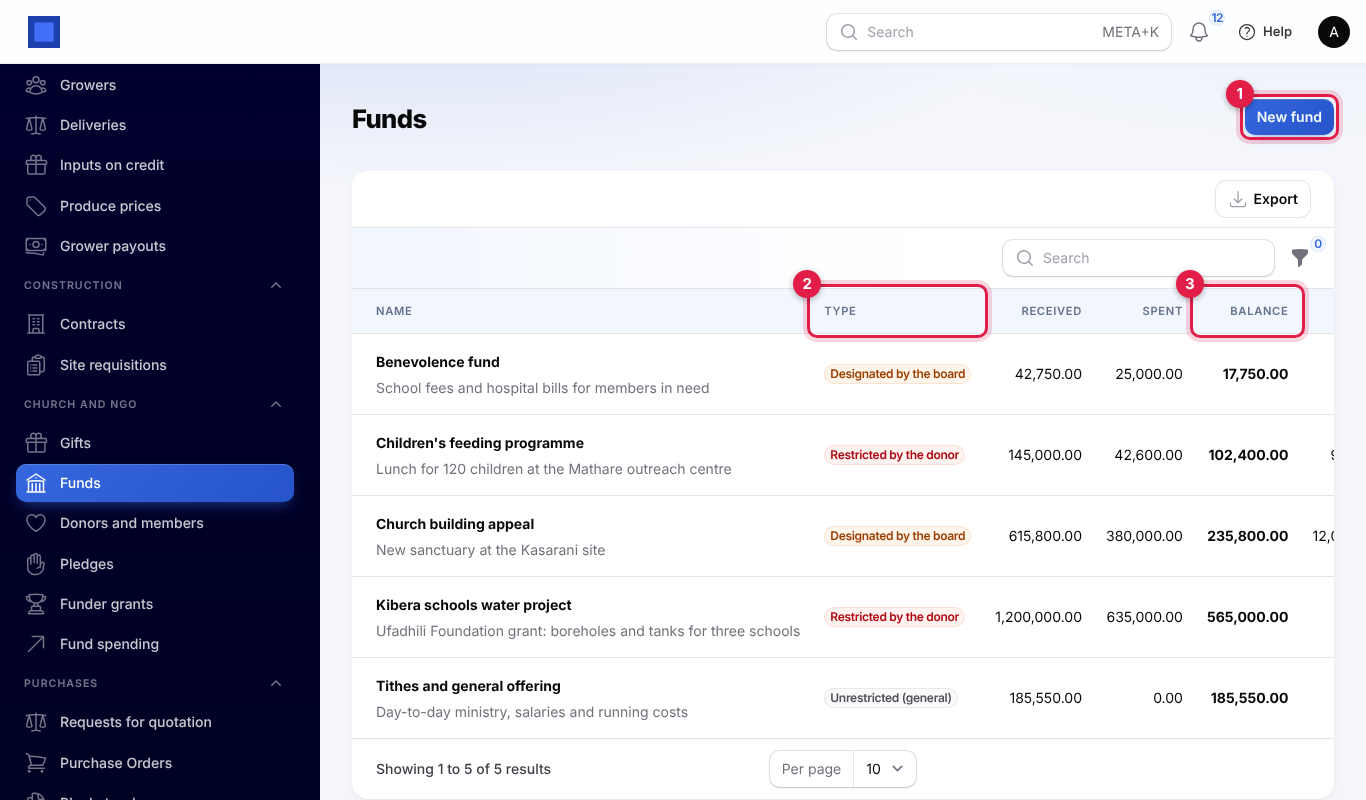
- In the menu, open Church and NGO → Funds.
- Click New fund (marker 1). The list shows each fund's Type (marker 2), what was Received and Spent, its Balance (marker 3), its Target, whether it is shown Online and whether it is Open.
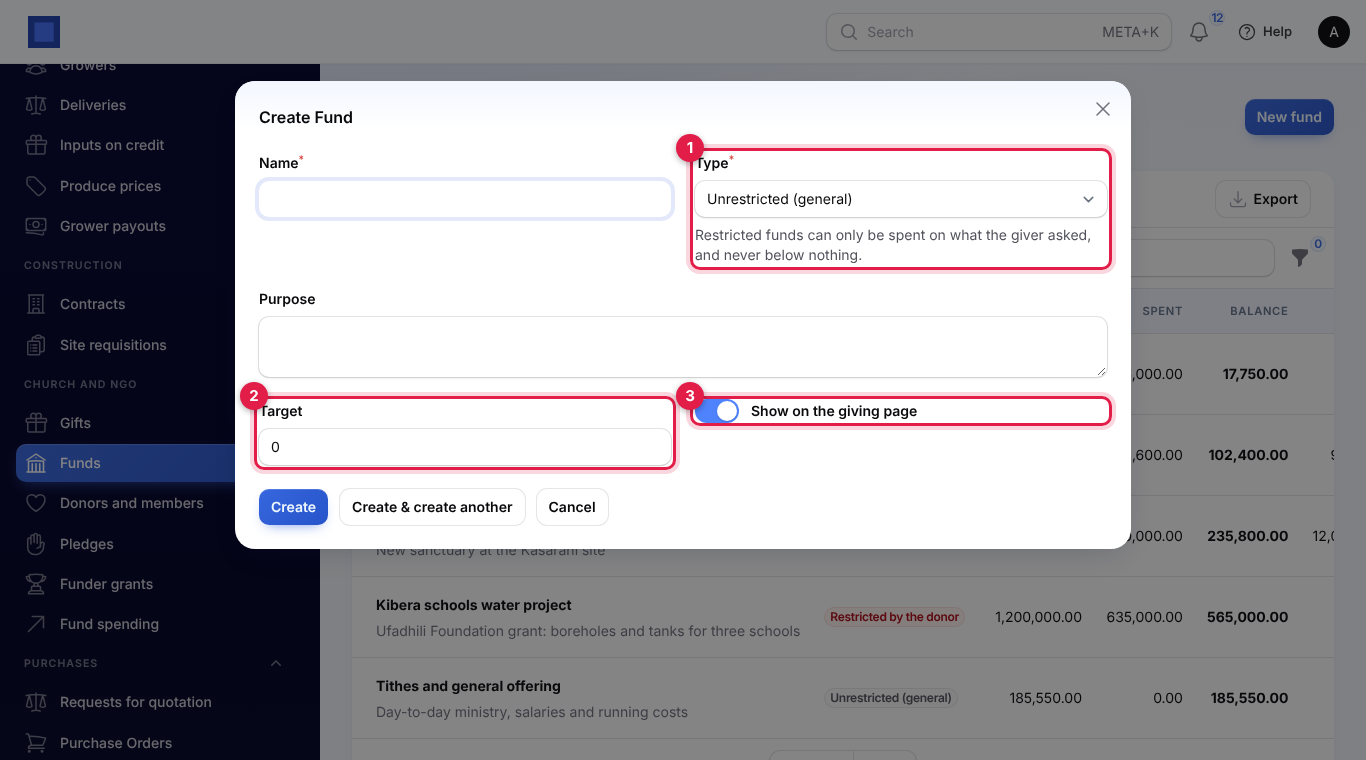
- Type the Name, pick the Type (marker 1), describe its Purpose, set a Target (marker 2) if you are raising a set amount, and leave Show on the giving page (marker 3) on if people may give to it online. Click Create.
To close a fund, click Edit and switch off Open. A closed fund takes no more gifts and disappears from the giving page and the gift and pledge forms.
Add donors and members
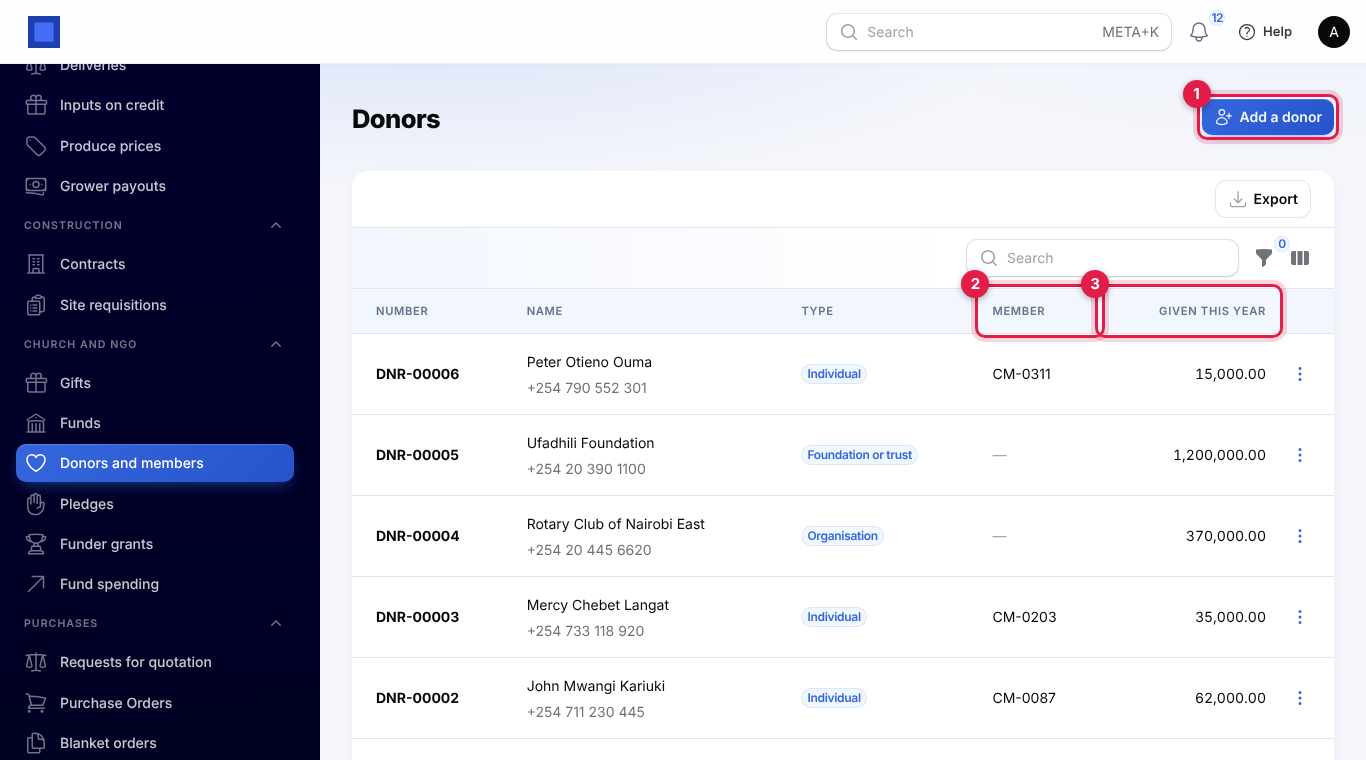
- In the menu, open Church and NGO → Donors and members.
- Click Add a donor (marker 1). The list shows each donor's number (for example
DNR-00001), name and phone, type, Member number (marker 2) and what they have Given this year (marker 3).
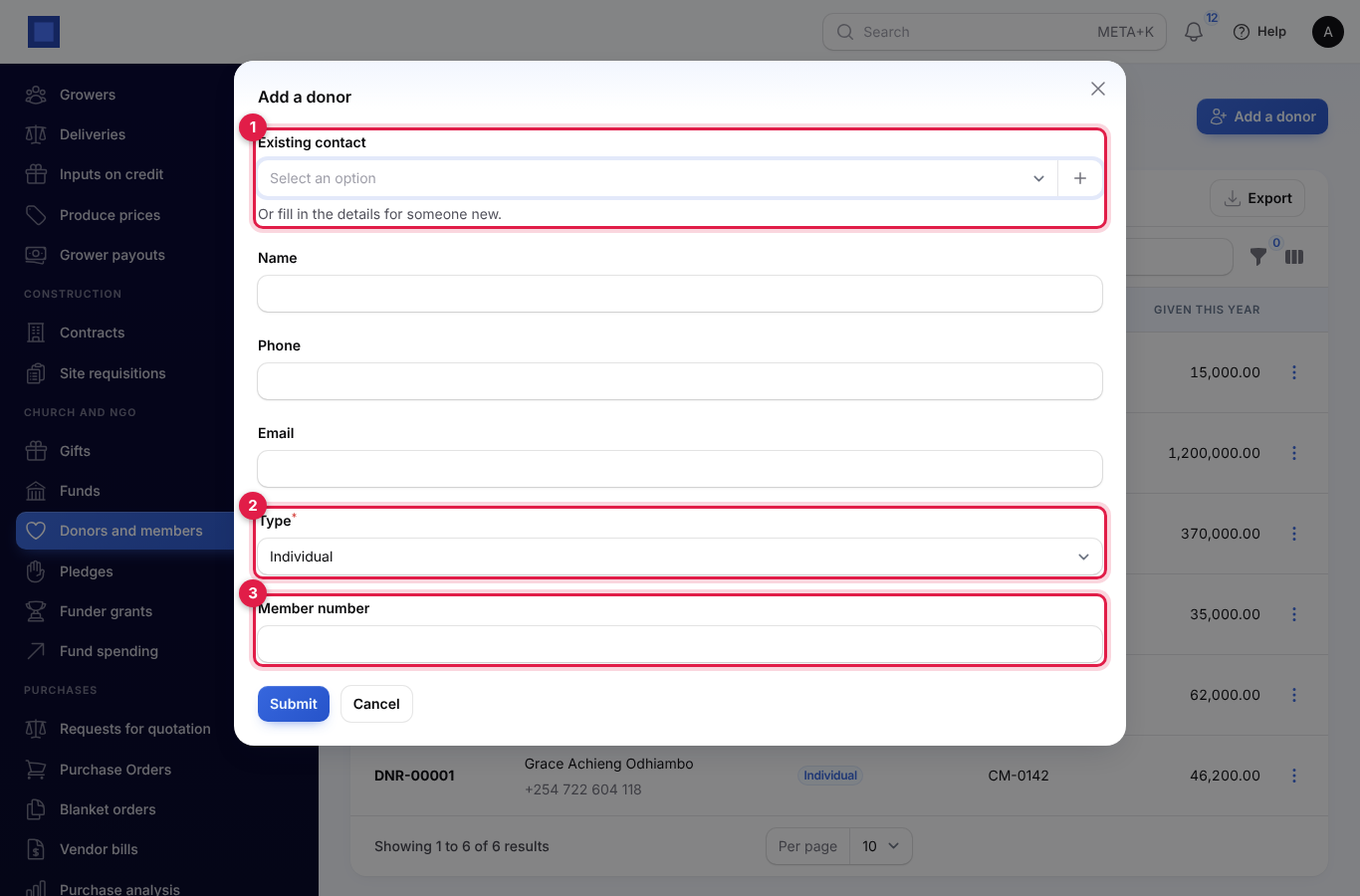
- Pick an Existing contact (marker 1), or leave it empty and type the Name, Phone and Email of someone new.
- Pick the Type (marker 2): Individual, Organisation, Foundation or trust or Government or agency. Type their church Member number (marker 3) if they have one.
- Click Submit. You see "… added as DNR-00007".
Click ⋮ on a donor's row for more:
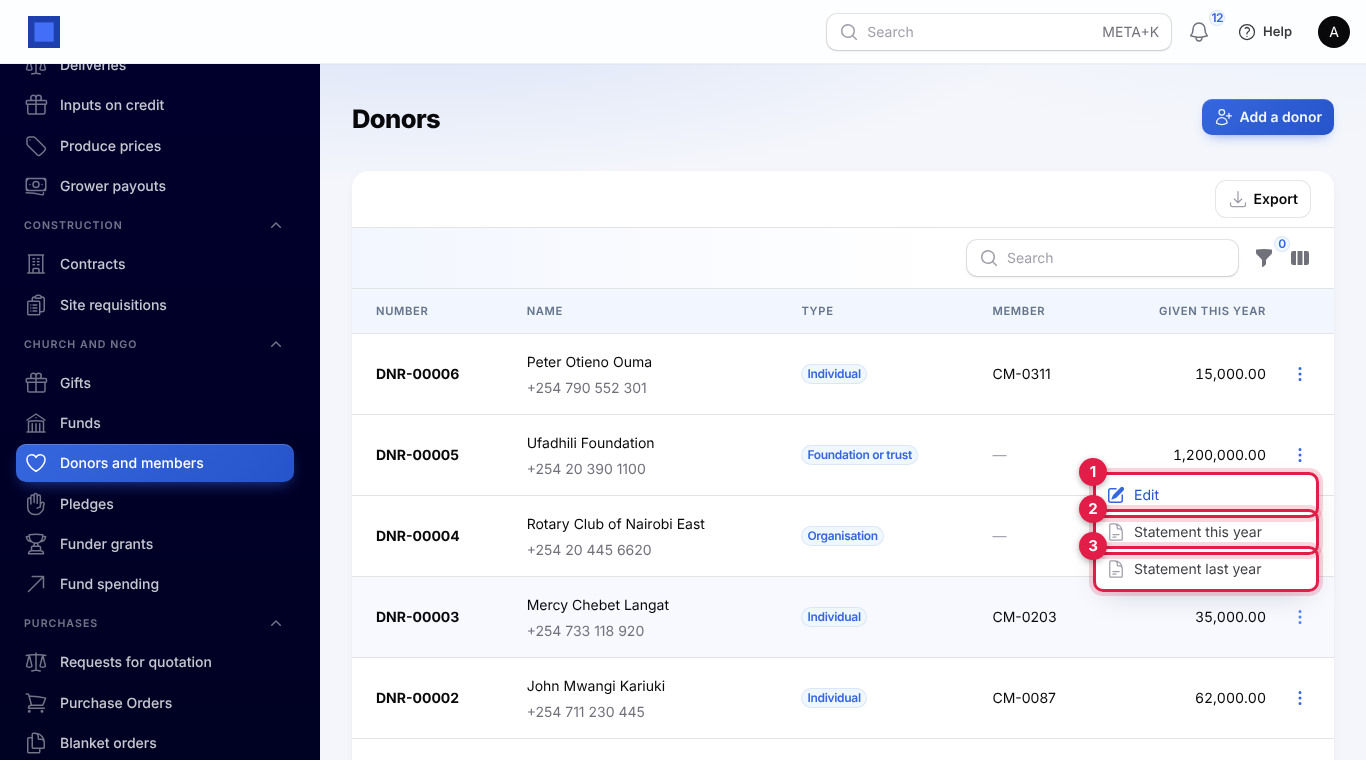
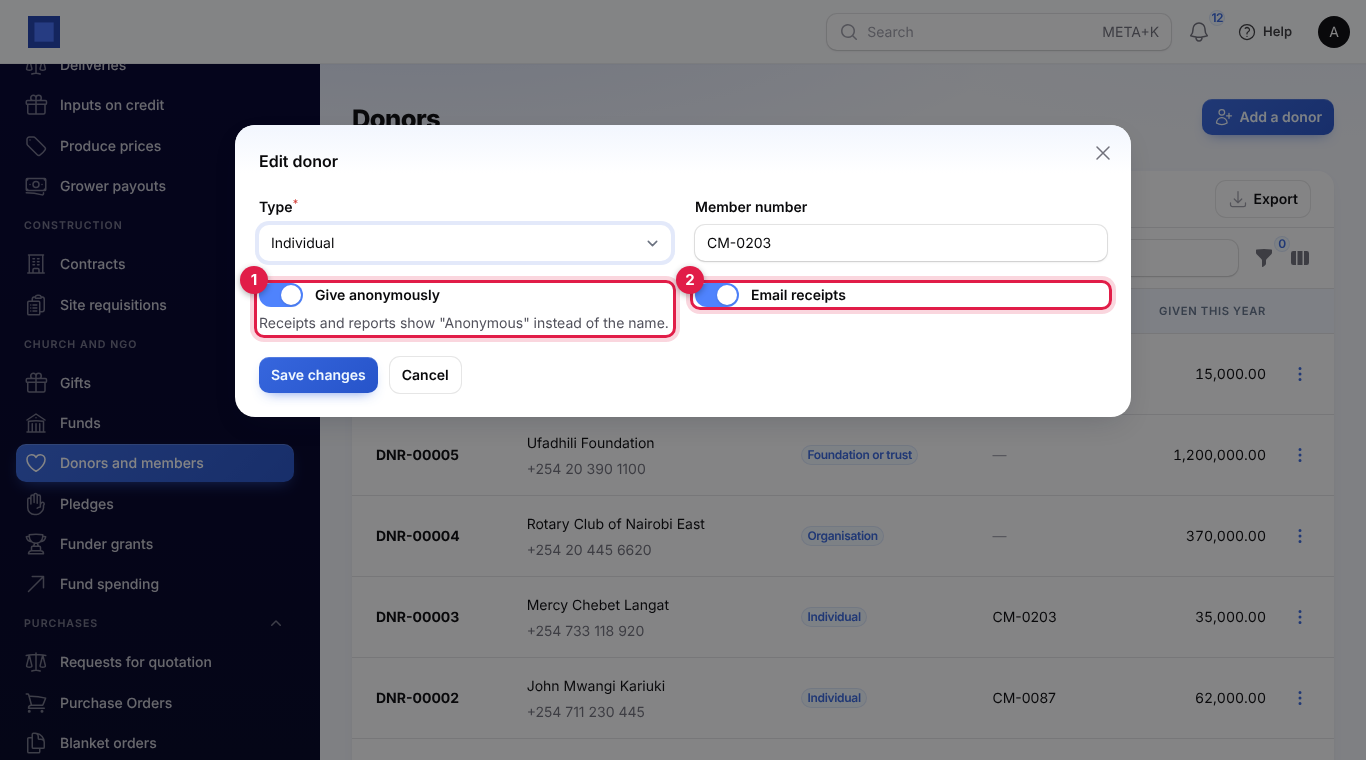
- Edit (marker 1) changes the type and member number and two switches:
- Give anonymously (marker 1 below): receipts and lists show "Anonymous" instead of the name. Staff see "Anonymous (name)" in the gifts list.
- Email receipts (marker 2 below): on by default. Switch it off for donors who do not want an email for each gift.
- Statement this year (marker 2) and Statement last year (marker 3) open the donor's giving statement (see Giving statements).
Record a gift
Use this for the Sunday offering, tithes paid by M-Pesa, cheques, bank transfers and gifts in kind.
- In the menu, open Church and NGO → Gifts.
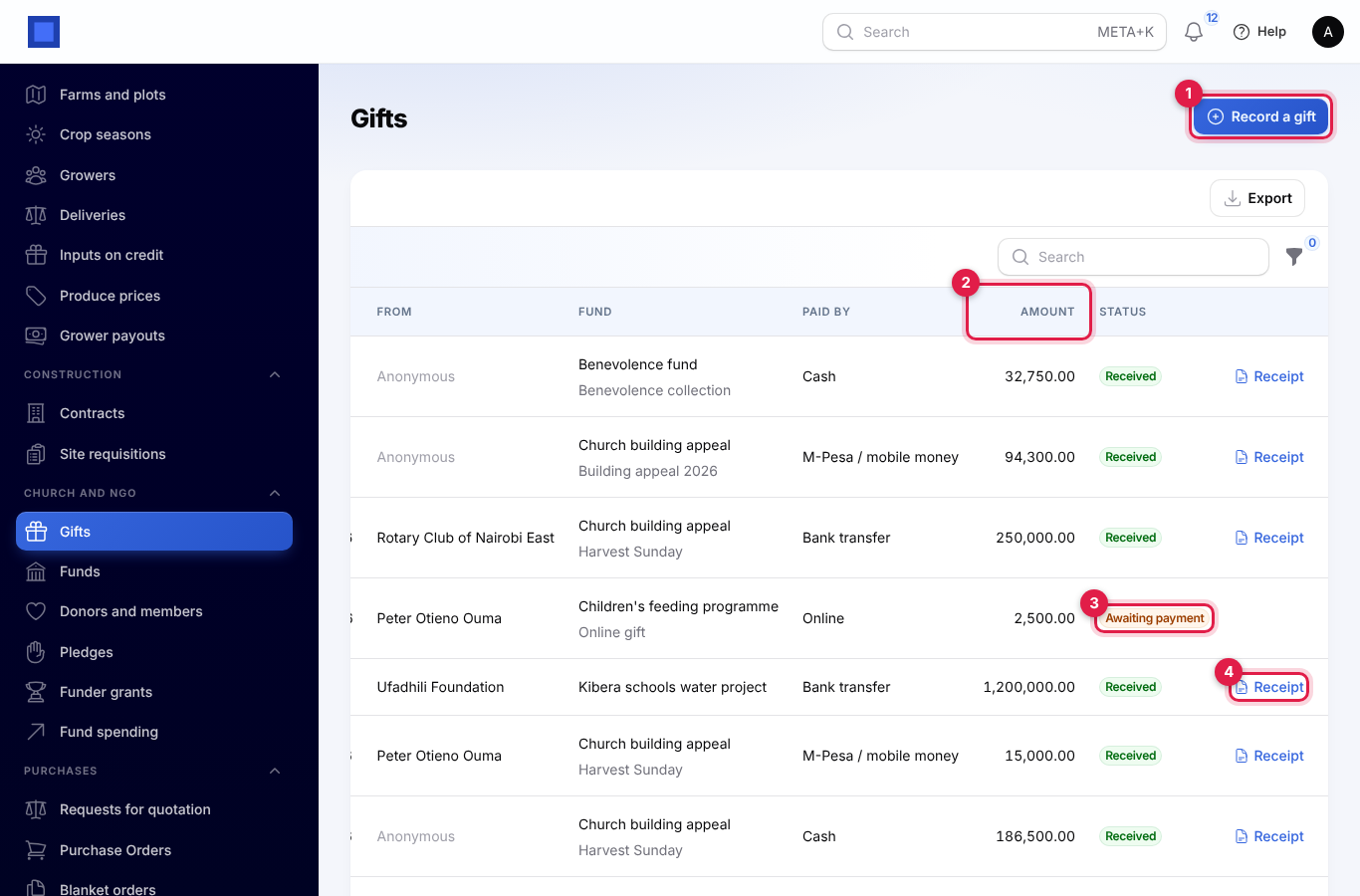
- Click Record a gift (marker 1). The list shows each receipt with the date, who it was From, the fund and campaign, how it was Paid by, the Amount (marker 2, totalled at the bottom) and the status (marker 3). Receipt (marker 4) opens the receipt PDF.
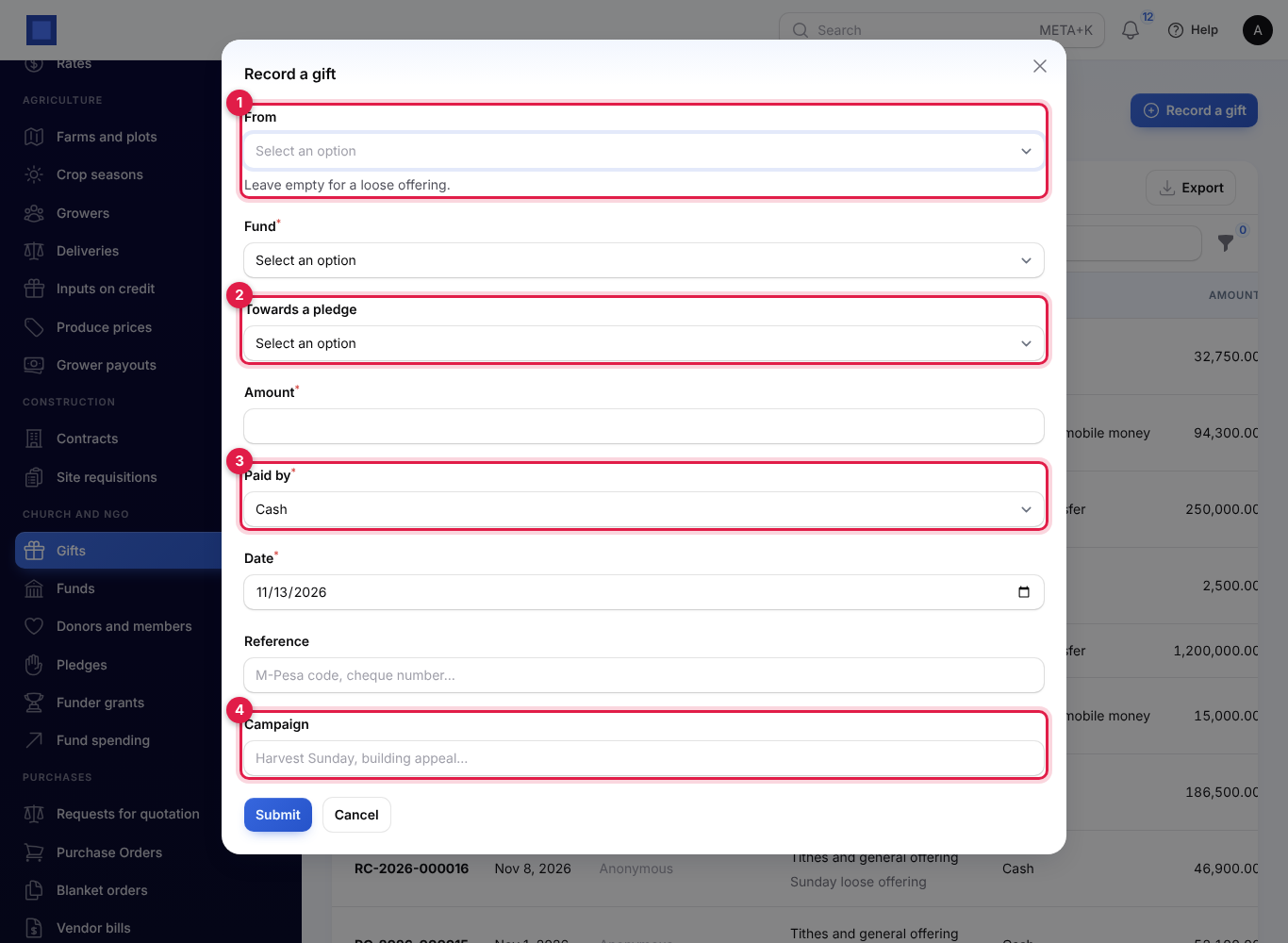
- Fill in the gift and click Submit. You see "Gift recorded with receipt RC-2026-000024".
| Field | What to enter |
|---|---|
| From | Optional (marker 1). Search by name or member number. Leave empty for a loose offering; it is listed as "Anonymous". |
| Fund | Required. Only open funds are listed. |
| Towards a pledge | Optional (marker 2). Once you pick the donor, their active pledges are listed. Pick one so the gift counts towards it. |
| Amount | Required. |
| Paid by | Required (marker 3). Cash, M-Pesa / mobile money, Bank transfer, Cheque, Online or In kind. |
| Date | Starts on today. |
| Reference | The M-Pesa code, cheque number or bank reference. |
| Campaign | Optional (marker 4), for example "Harvest Sunday" or "Building appeal 2026". |
What happens:
- The gift gets a receipt number such as
RC-2026-000024. - If the donor has an email address and Email receipts is on, they get "Thank you for your gift (RC-…)" with a Download your receipt button.
- With Accounting on, a money gift is posted as income into the matching money account (cash, mobile money, or bank for transfers, cheques and online gifts) under the fund's cost centre. In kind gifts are receipted but not posted, because no money came in.
- A one-off pledge closes itself (fulfilled) once the gifts towards it reach the amount promised.
The receipt PDF shows the receipt number and date, Received with thanks from (or "Anonymous"), the member number, the amount, Towards (the fund), how it was Paid by, the reference and "Thank you for your generosity."
Filter the list by Fund, Paid by, status or a date range, for example to total one Sunday's offering.
Take gifts online
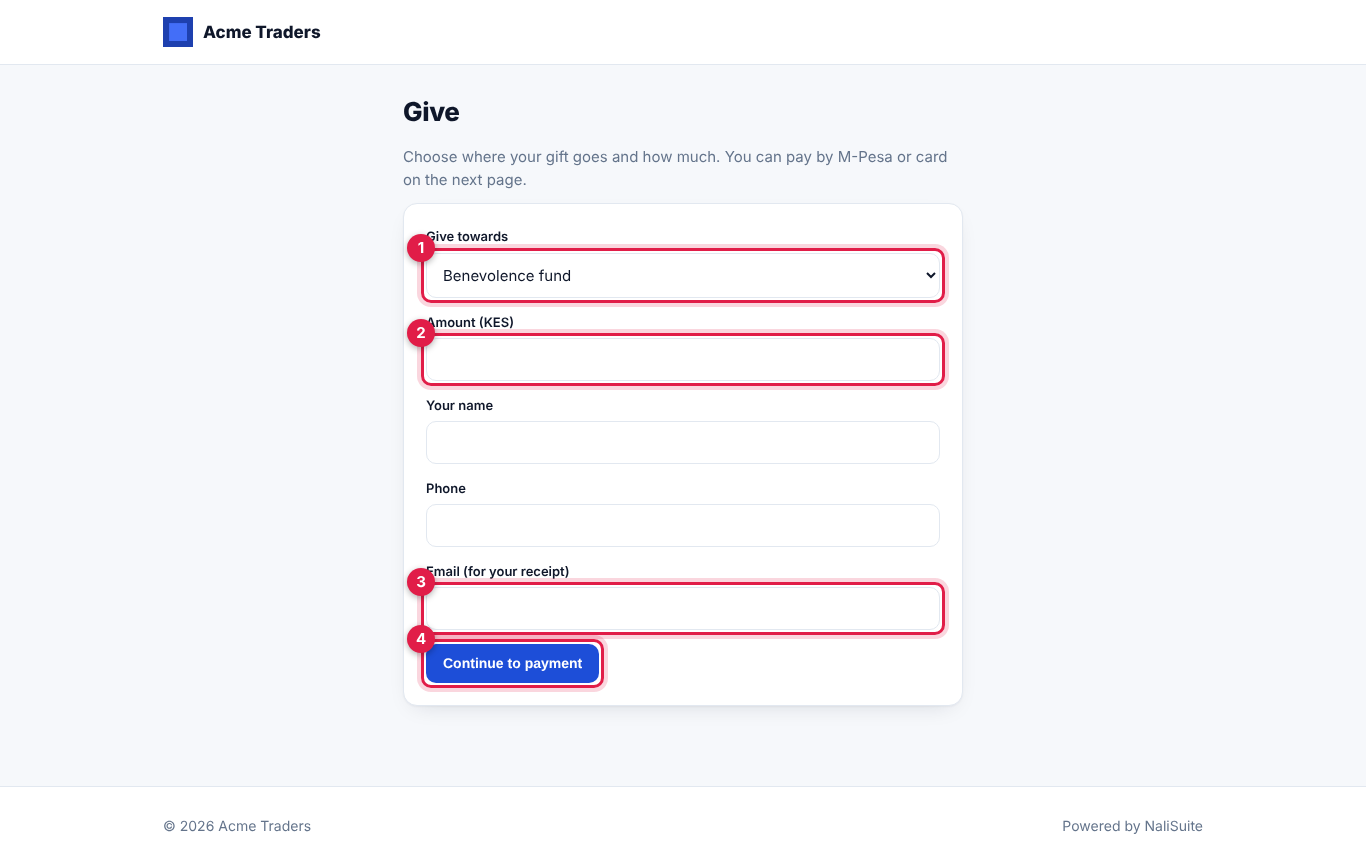
Your giving page is at /give on your workspace address, for example https://yourchurch.nalisuite.com/give. Share it on your website, WhatsApp groups and the church bulletin.
- The giver picks the fund under Give towards (marker 1). Only open funds marked Show on the giving page are listed.
- They type the Amount (marker 2), their name, phone and Email (for your receipt) (marker 3), and click Continue to payment (marker 4). The smallest gift is 10, and either an email or a phone number is needed.
- They land on the usual invoice pay page with the gift as the line (marker 1) and pay with your payment gateways, for example M-Pesa or bank transfer.
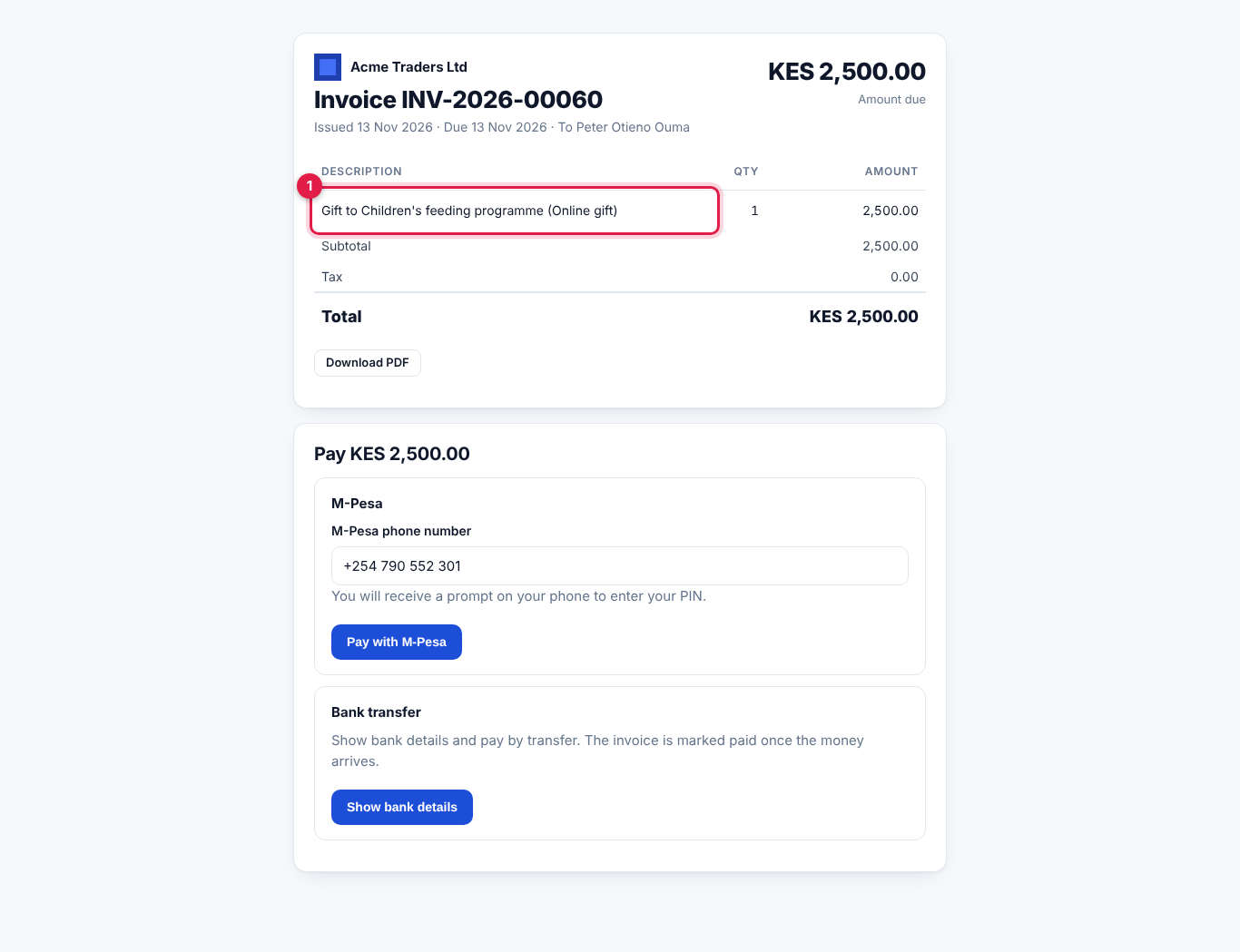
The gift shows in Gifts as Awaiting payment with Paid by "Online". When the invoice is fully paid, the gift becomes Received, is dated that day and the receipt is emailed. The giver is matched to a contact by email or phone and added as a donor if they are new. The invoice payment is what posts to the books, so the gift is not posted twice.
Tip: Set up M-Pesa or card payments under your payment gateways first, so givers can pay straight away. See the invoicing chapter of this guide.
Pledges
A pledge is a promise to give: once, or every week, month, quarter or year.
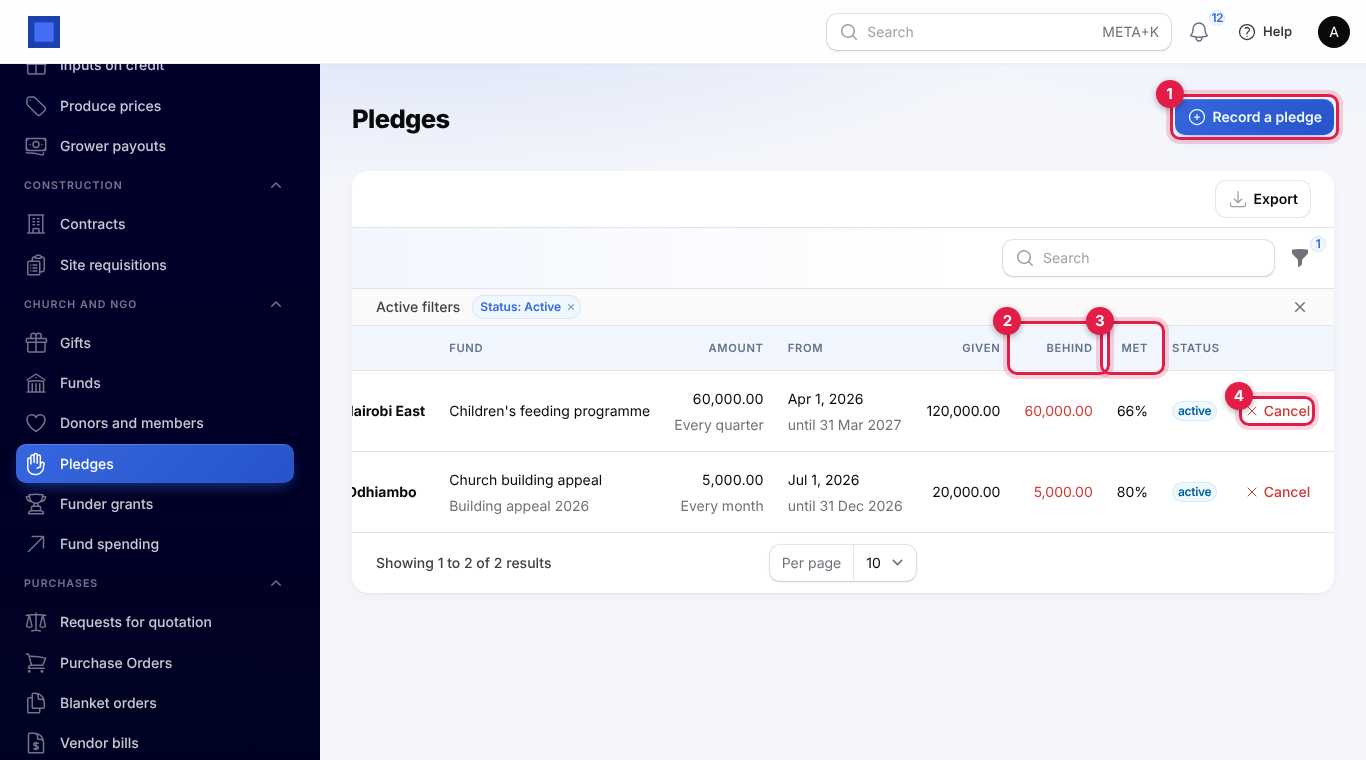
- In the menu, open Church and NGO → Pledges.
- Click Record a pledge (marker 1). Each pledge shows the donor, fund and campaign, the amount and how often, the dates, what has been Given, how far Behind they are (marker 2, red when behind), the share Met (marker 3) and the status. Cancel (marker 4) cancels an active pledge after you confirm.
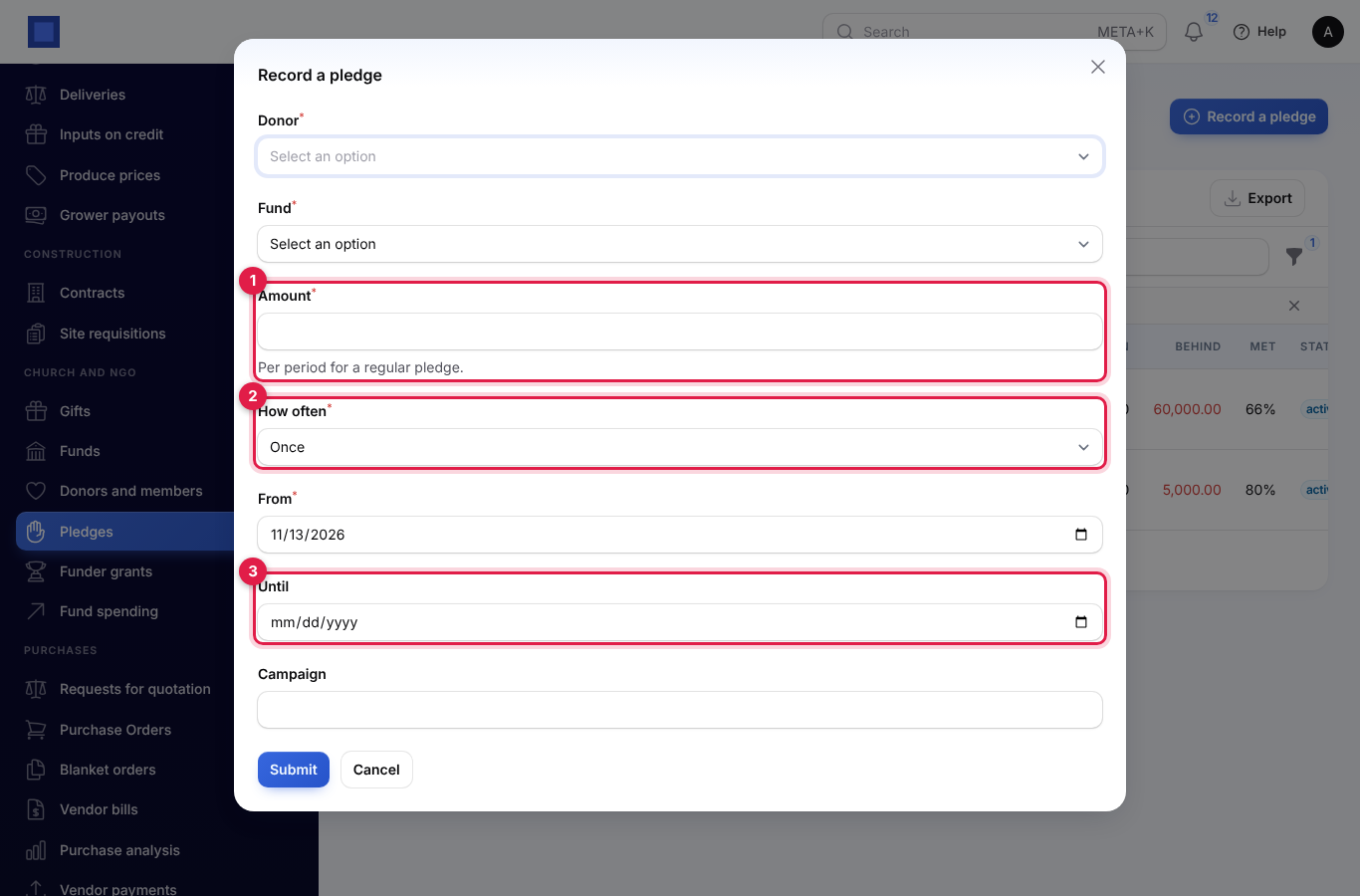
- Pick the Donor and Fund, type the Amount (marker 1, per period for a regular pledge), pick How often (marker 2), set From and, for a regular pledge, Until (marker 3). Add a Campaign if you like and click Submit.
How progress is worked out: a monthly pledge of KES 5,000 from 1 July has promised KES 25,000 by mid-November (July to November). If KES 20,000 has been given towards it, it is KES 5,000 behind and 80% met. Only gifts recorded Towards a pledge count.
The list opens on active pledges. Change the status filter to see fulfilled and cancelled ones.
Funder grants
Use grants for money from foundations, agencies and partners that comes in tranches and must be spent and reported on.
- Open a restricted fund for the grant first (see Set up your funds), and add the funder as a donor.
- In the menu, open Church and NGO → Funder grants.
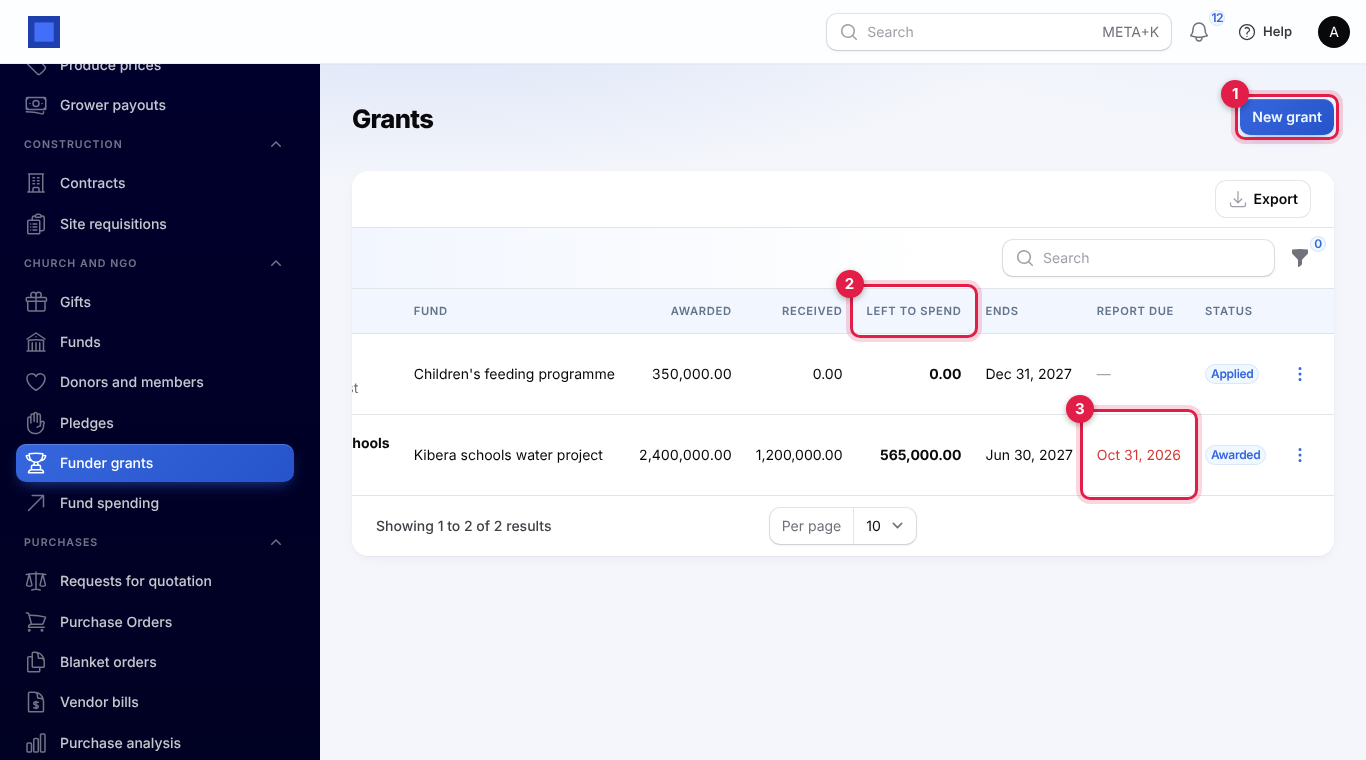
- Click New grant (marker 1). The list shows each grant with the funder, fund, amount Awarded, Received, Left to spend (marker 2), when it Ends, when the Report due is (marker 3, red once the date has passed and the grant is not closed) and the status.
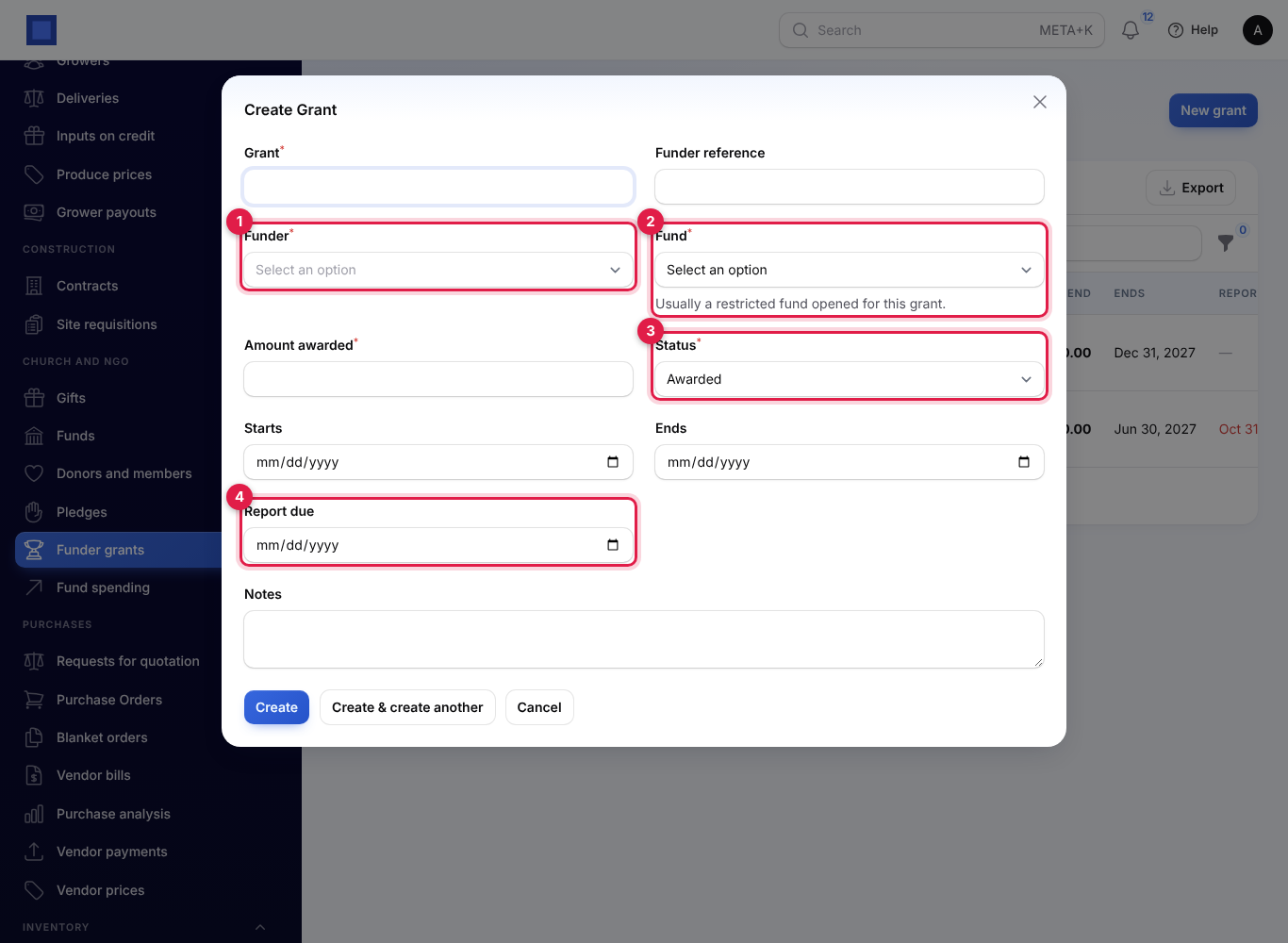
- Fill in the grant and click Create:
| Field | What to enter |
|---|---|
| Grant | Required. A name, for example "Clean water for Kibera schools". |
| Funder reference | The funder's grant number. |
| Funder | Required (marker 1). A donor. |
| Fund | Required (marker 2). Usually a restricted fund opened for this grant. |
| Amount awarded | Required. |
| Status | Required (marker 3). Applied, Awarded, Closed or Declined. |
| Starts, Ends | The grant period. |
| Report due | Optional (marker 4). The next report to the funder. Update it after each report. |
| Notes | Conditions, reporting schedule, contacts. |
Receive a tranche
- Click ⋮ on the grant, then Receive a tranche (marker 1).
- Type the Amount, the Date, how it was Paid by (bank transfer by default) and the Reference. Click Submit.
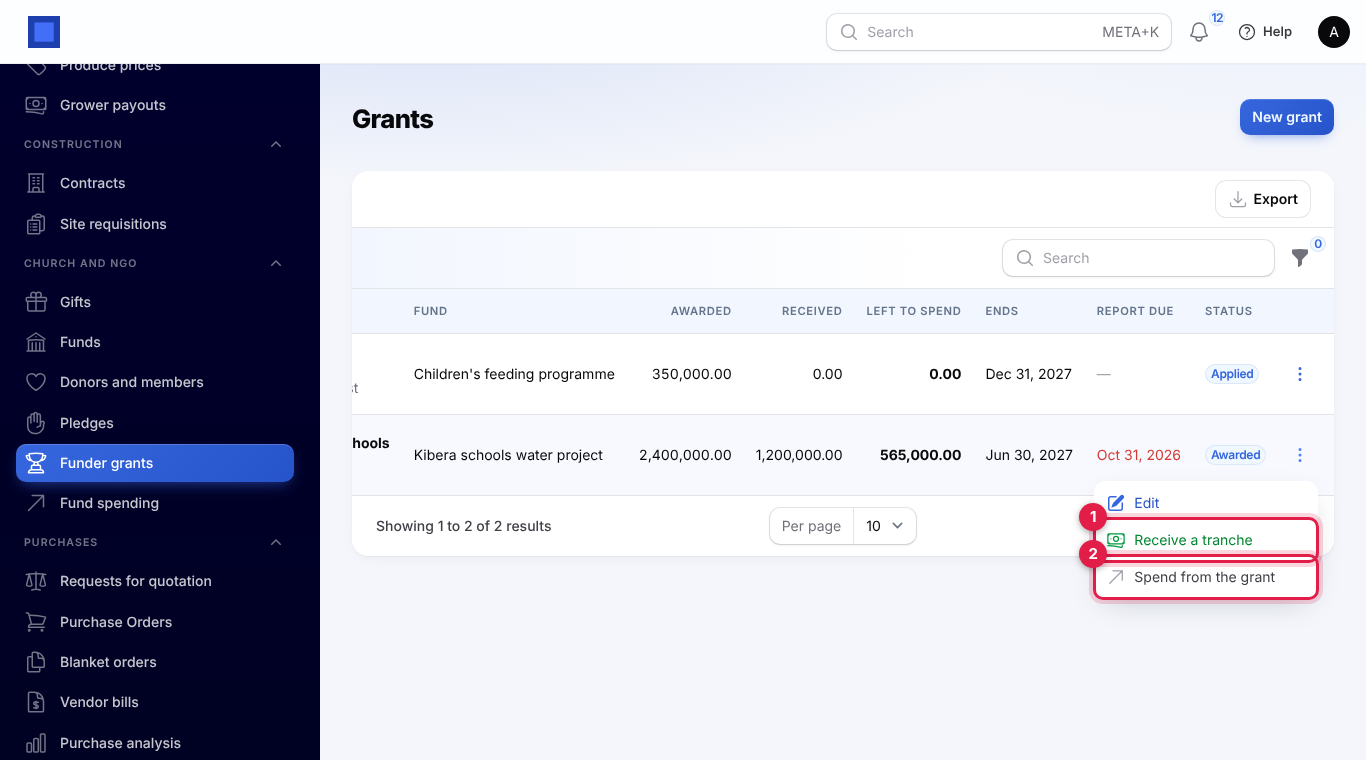
The tranche is recorded as a gift from the funder into the grant's fund, with its own receipt (and posted to the books with Accounting on). It shows under Received.
Spend from the grant
- Click ⋮ → Spend from the grant (marker 2 above).
- Type the Description, the Payee (marker 1), the Amount (marker 2) and the Date.
- With Accounting on, pick the Expense account (marker 3) and the account it was Paid from (marker 4) to post the spending to the books. Leave them empty if you post the payment another way.
- Click Submit.
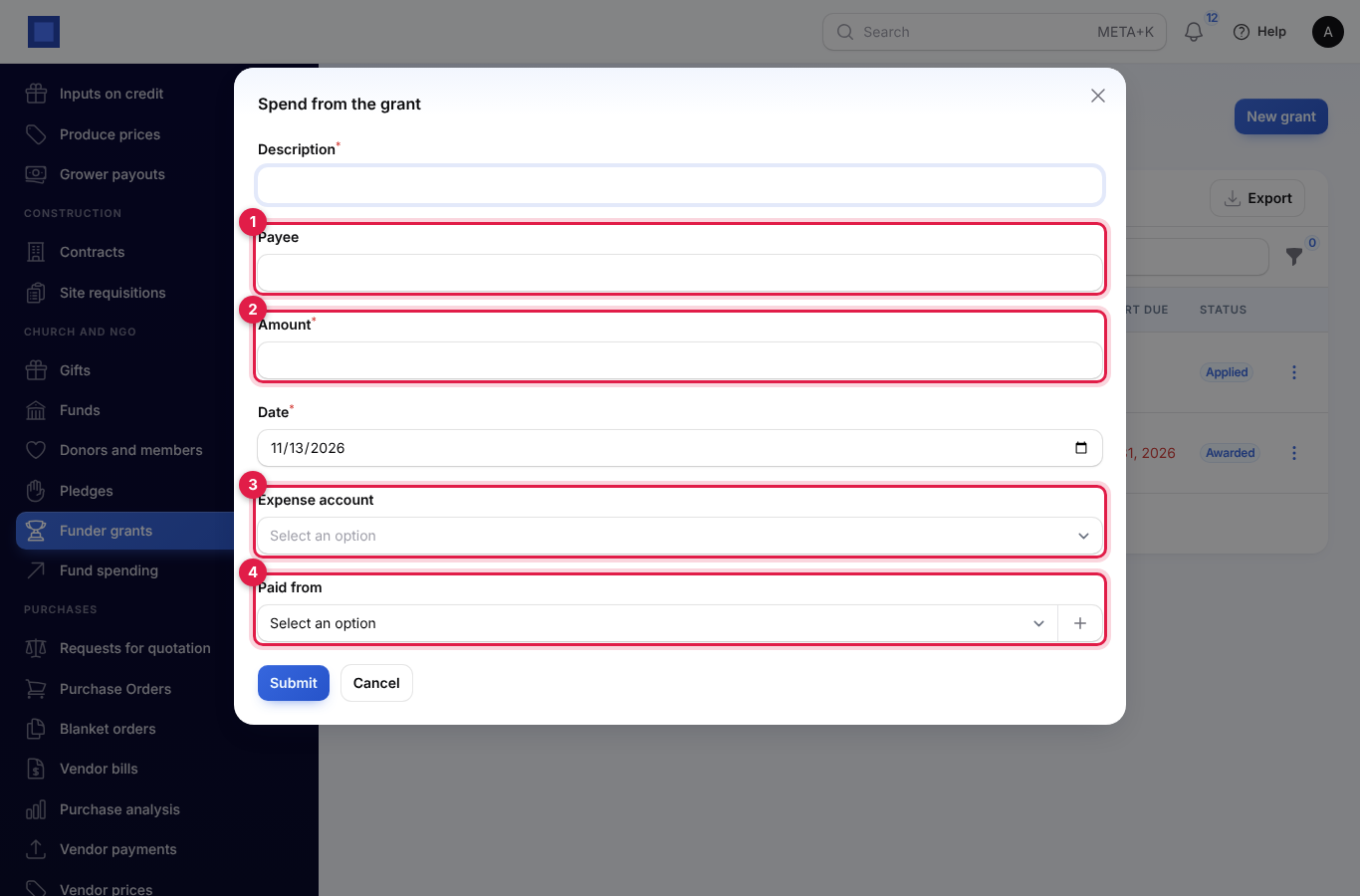
You can never spend more than the grant has received less what has been spent: you see "Only … of the … grant is left to spend." Grant spending also shows under Fund spending.
Record fund spending
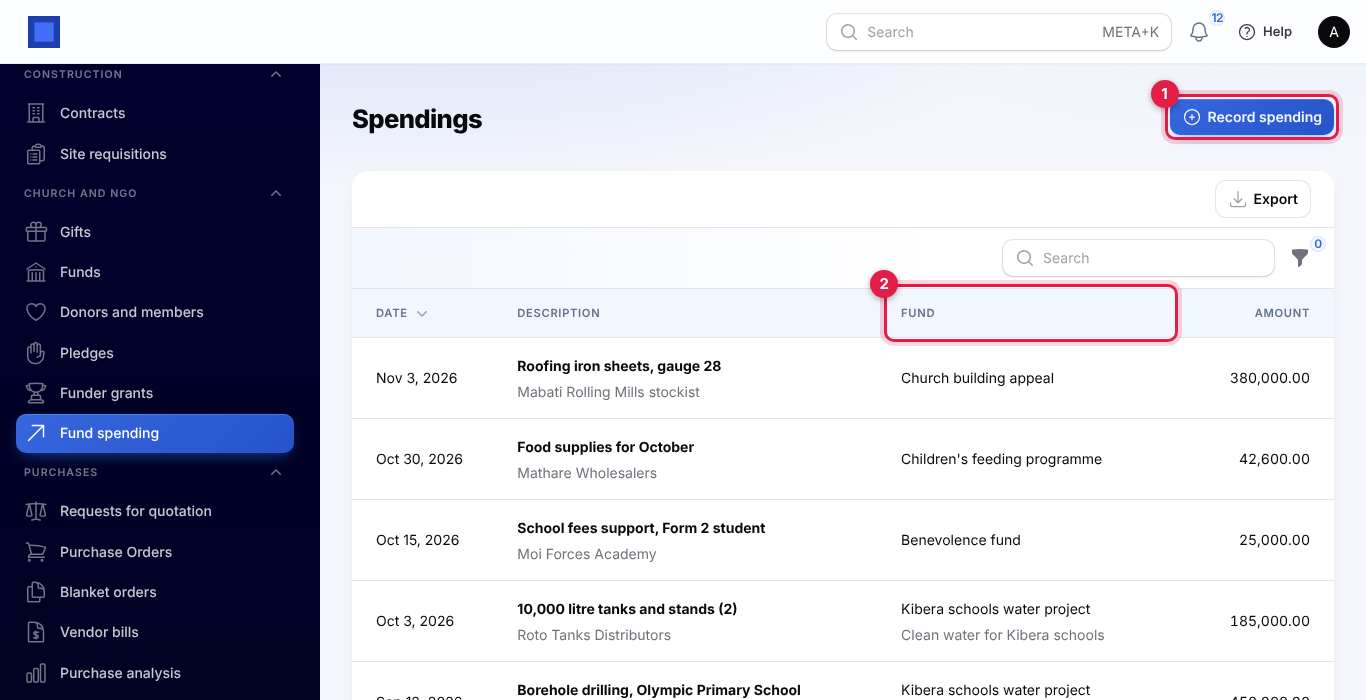
- In the menu, open Church and NGO → Fund spending. The list shows each spending with the payee, the Fund (marker 2) and grant, and the amount, totalled at the bottom. Filter by Fund to see one fund's spending.
- Click Record spending (marker 1).
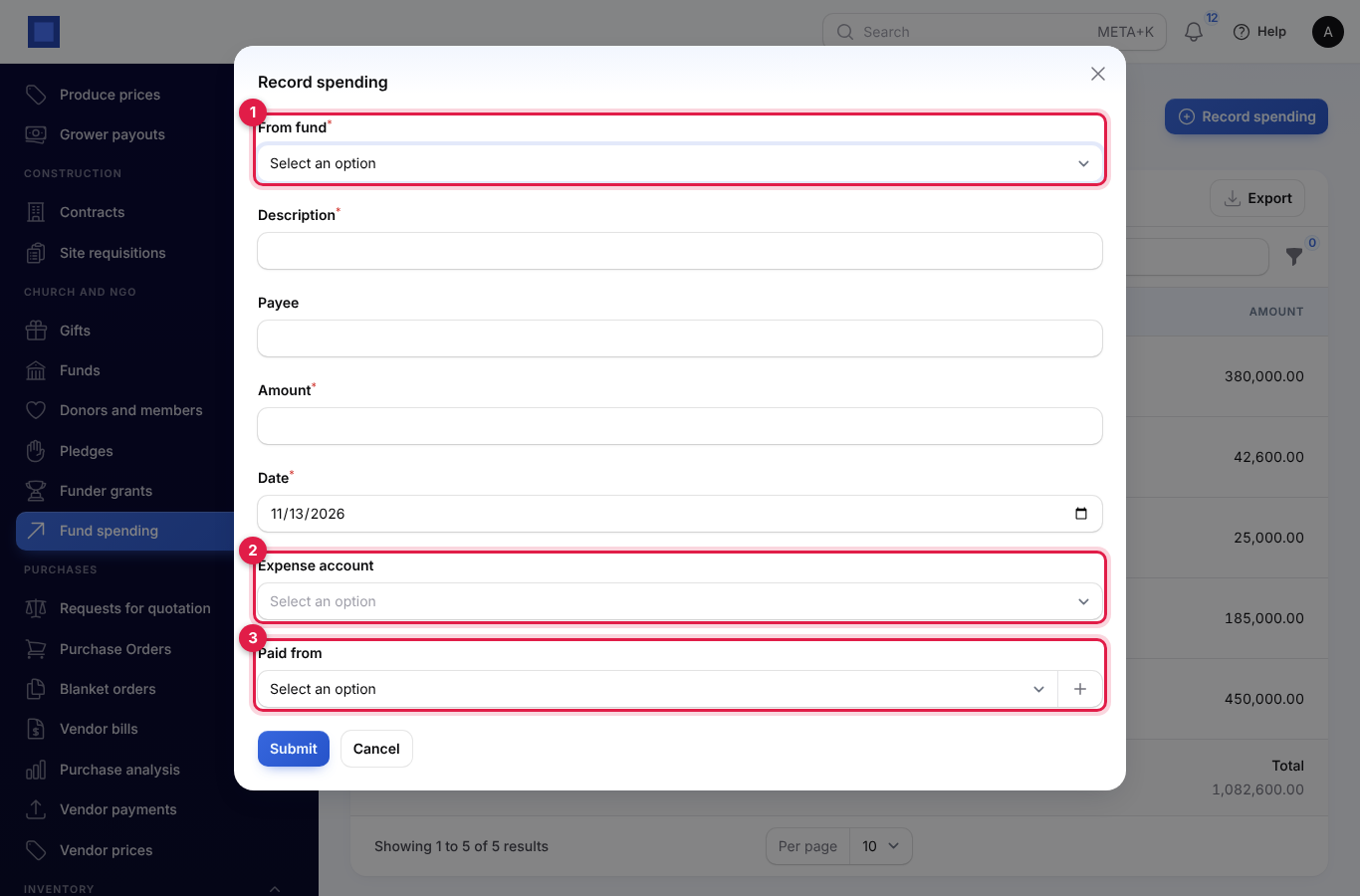
- Pick the fund under From fund (marker 1), type the Description, Payee, Amount and Date.
- With Accounting on, pick the Expense account (marker 2) and Paid from (marker 3) to post it as an expense from that money account under the fund's cost centre. Leave both empty to record it against the fund only (for example when the bill is already in Purchases).
- Click Submit.
A restricted fund cannot be overspent: you see "The … fund only has …. A restricted fund cannot be overspent."
Giving statements
Each donor's giving statement lists every gift they made in a year, by fund, for their records or a tax claim.
- Staff: on Donors and members, click ⋮ → Statement this year or Statement last year on the donor's row. The PDF opens in a new tab.
- Donors: from My giving in the customer portal (below).
The Giving statement shows the donor (or "Anonymous"), member number and year, each gift with date, receipt, fund and amount, the total per fund, the Total for the year and "Thank you for your faithful giving."
What donors see in the customer portal
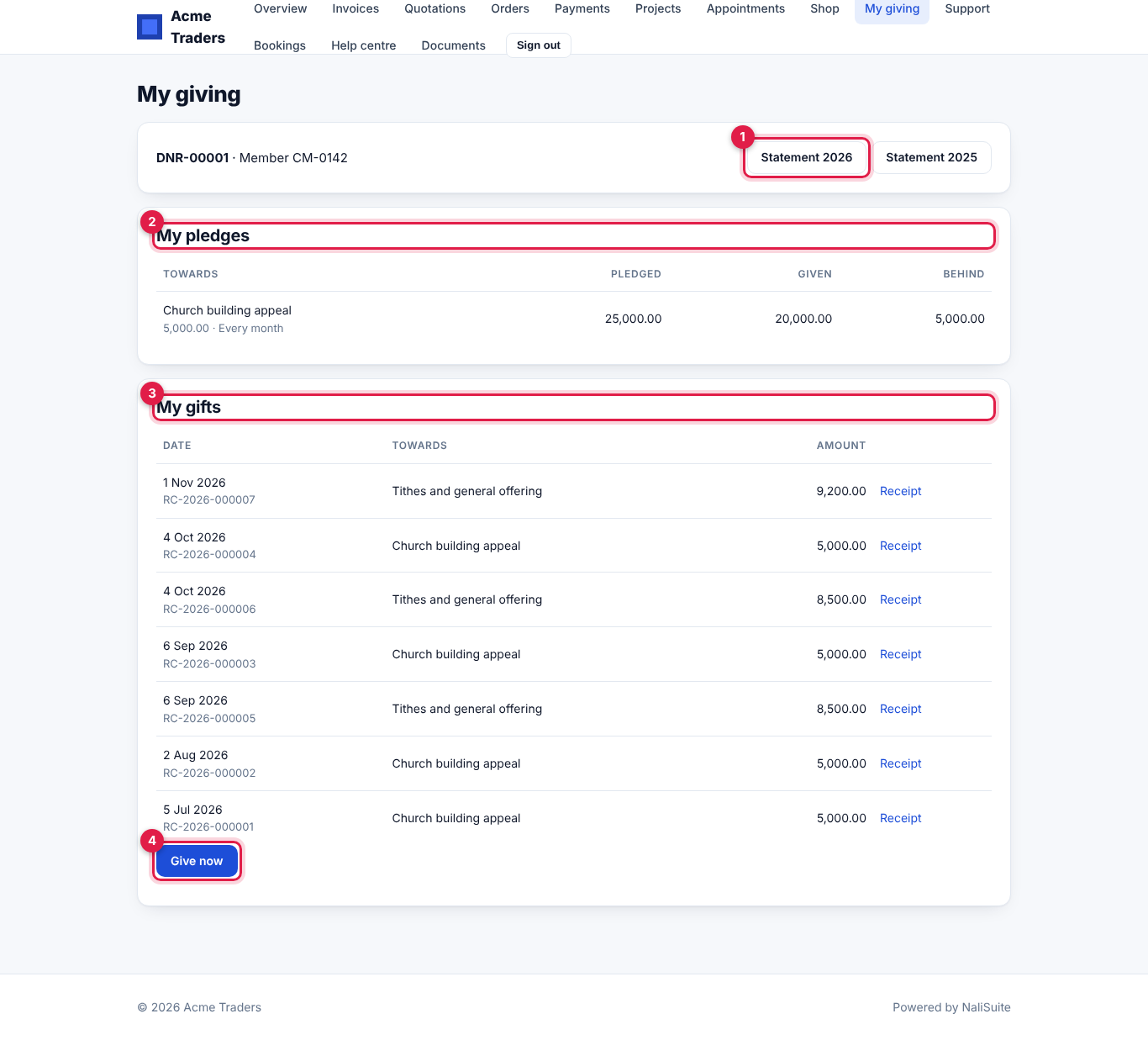
Donors who sign in to your customer portal see My giving (when the Customer portal app is on). It shows their donor number and member number, buttons for this year's and last year's statement (marker 1), My pledges (marker 2) with what was pledged to date, given and behind, My gifts (marker 3) with a Receipt link for each, and Give now (marker 4), which opens the giving page.
Church and NGO settings
- In the menu, open Settings → Preferences.
- Click the Church and NGO tab.
- Change the settings and click Save preferences.
| Setting | Default | What it does |
|---|---|---|
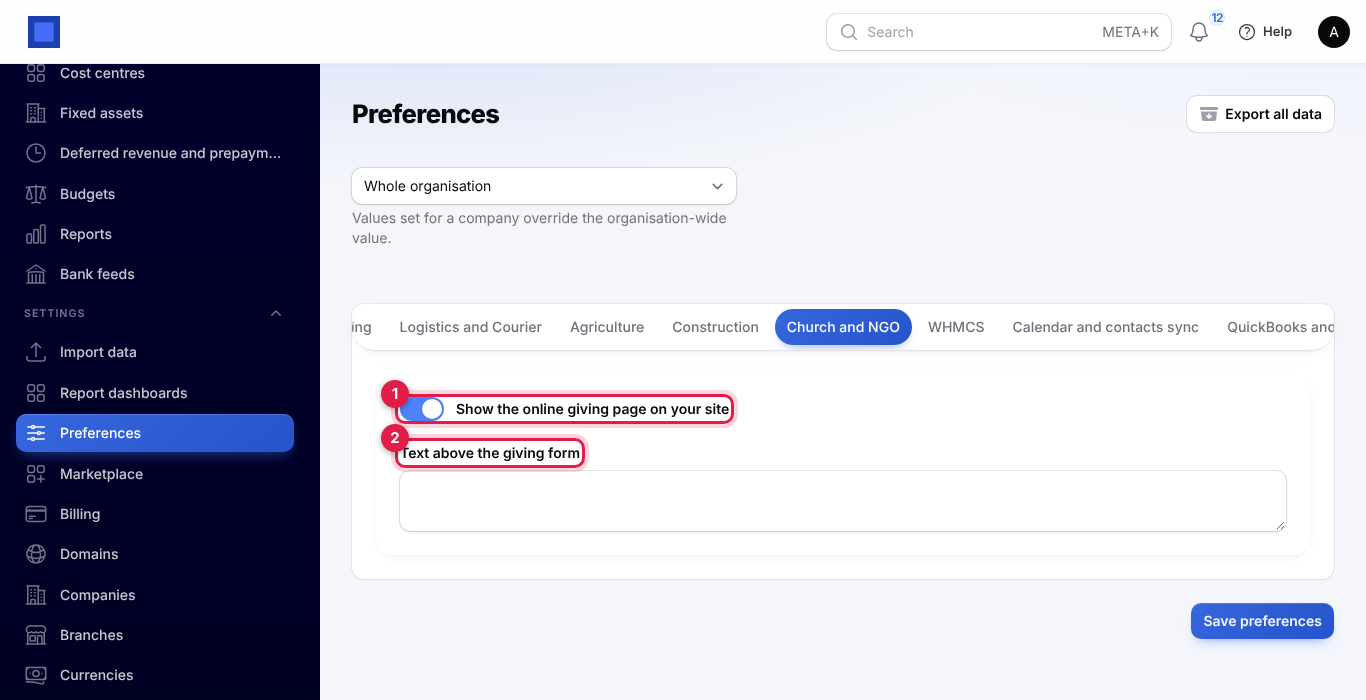
| Show the online giving page on your site (marker 1) | On | Switch off to close /give. |
| Text above the giving form (marker 2) | — | Replaces "Choose where your gift goes and how much. You can pay by M-Pesa or card on the next page." For example a verse or your paybill details. |
Common questions
How do I record the Sunday offering? Count it, then Record a gift with From empty, the fund (for example "Tithes and general offering"), Paid by Cash and a Campaign such as "Sunday loose offering". Record envelopes with names as separate gifts so the givers get receipts.
Why can I not spend from a fund? It is restricted and the amount is more than its balance, or the fund is closed. Designated and general funds can be spent below nothing; restricted funds cannot.
Can a donor give without their name showing? Yes. Edit the donor and switch on Give anonymously. Their receipts and lists show "Anonymous".
An online gift is stuck on Awaiting payment. The giver has not completed payment on the pay page. When the invoice is paid (online, or when you record the payment on it), the gift is received and receipted.
Do gifts in kind show in the fund balance? Yes. They count in the fund's Received and balance and on the donor's statement, but are not posted to the books.
Where do I see fund balances in the accounts?
Run your reports by cost centre: each fund has its own (FUND followed by the fund's number).