Residents' associations
Residents' Associations is for gated estates, apartment blocks, management committees and homeowners' associations. You keep every house or flat with its owner and occupants, their cars and their domestic staff, bill the monthly service charge and special levies through Invoicing, follow up arrears with reminders and late fees, and run the gate with passes residents make on their phones. Notices, polls and AGM votes, maintenance and noise requests, facility bookings and the committee's budget are all in one place, and residents see their own side in the customer portal.
Everything is in the Estate group of the left menu: Gate, Units and residents, Estate levies, Special levies, Arrears, Gate passes, Gate log, Blacklist, Notices, Polls and AGM votes, Minutes and bylaws, Requests and complaints, Facilities, Bookings, Budget, Committee finances, Blocks and Unit categories.
Note: estates.view lets someone see units, levies, arrears, notices, polls, requests, bookings and the committee finances. estates.gate is for guards: the Gate page, Gate passes, the Gate log and the Blacklist. estates.manage is needed to add and change anything, bill levies, send reminders and notices, run polls, handle requests and bookings, and make passes from the office (it also opens the gate page). Owners and admins have all three; the member role has estates.view only, so give guards a role with estates.gate. Set permissions under Settings → Roles (see Roles and permissions).
Switch it on
Residents' Associations is a marketplace app. It needs the Contacts and Invoicing apps. Turn on the Customer portal for residents' pages, Marketing with an SMS provider for texts (see SMS providers), and Accounting with Purchases to see spending against the budget.
- Open Settings → Marketplace and type Residents in the Search add-ons… box (marker 1).
- On the Residents' Associations card (marker 2), click Start free trial (or Add to subscription) and confirm. The Estate group appears in the menu.
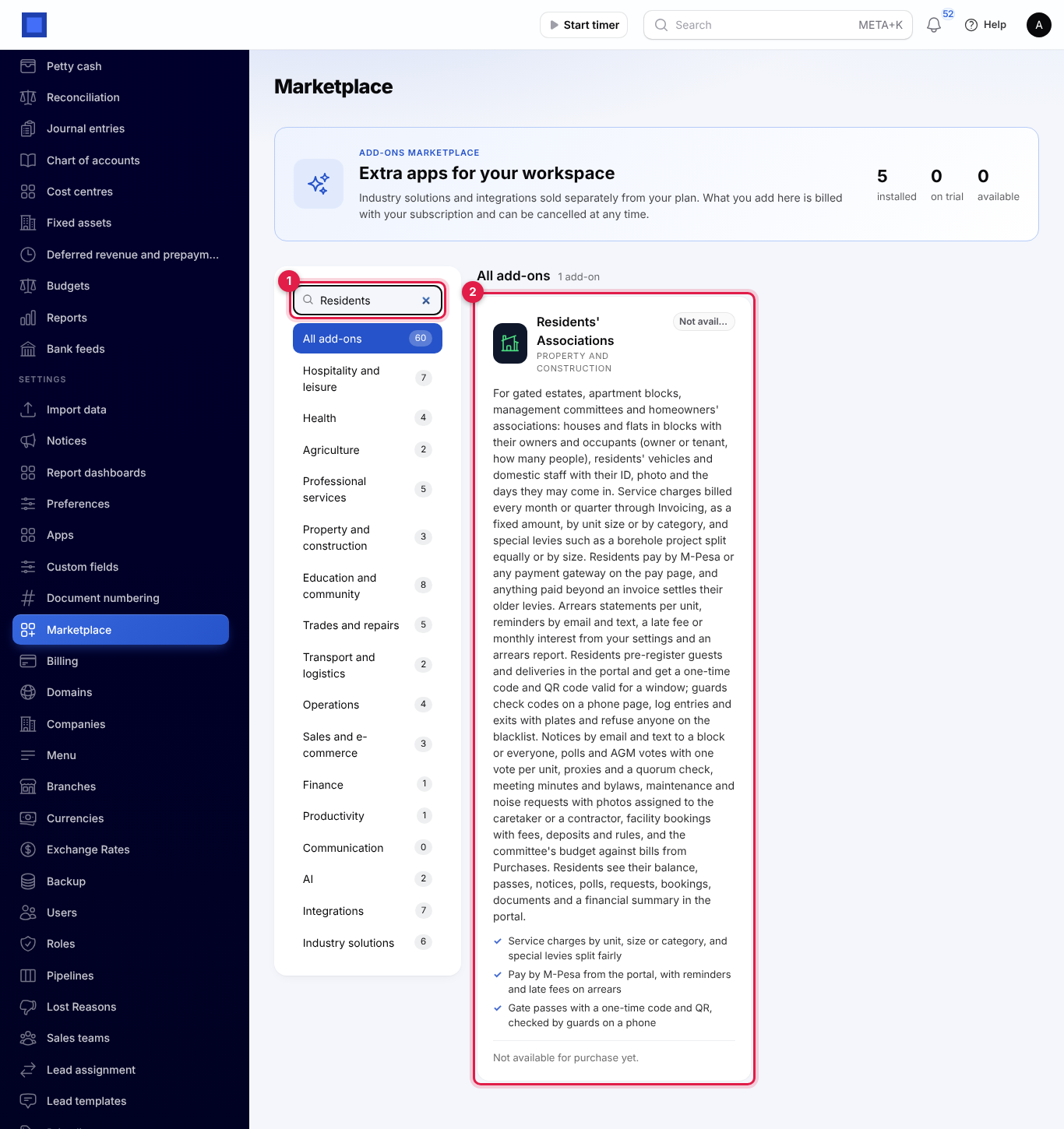
If the card says Not available for purchase yet, ask NaliSuite support to switch it on. See Billing and marketplace.
Settings
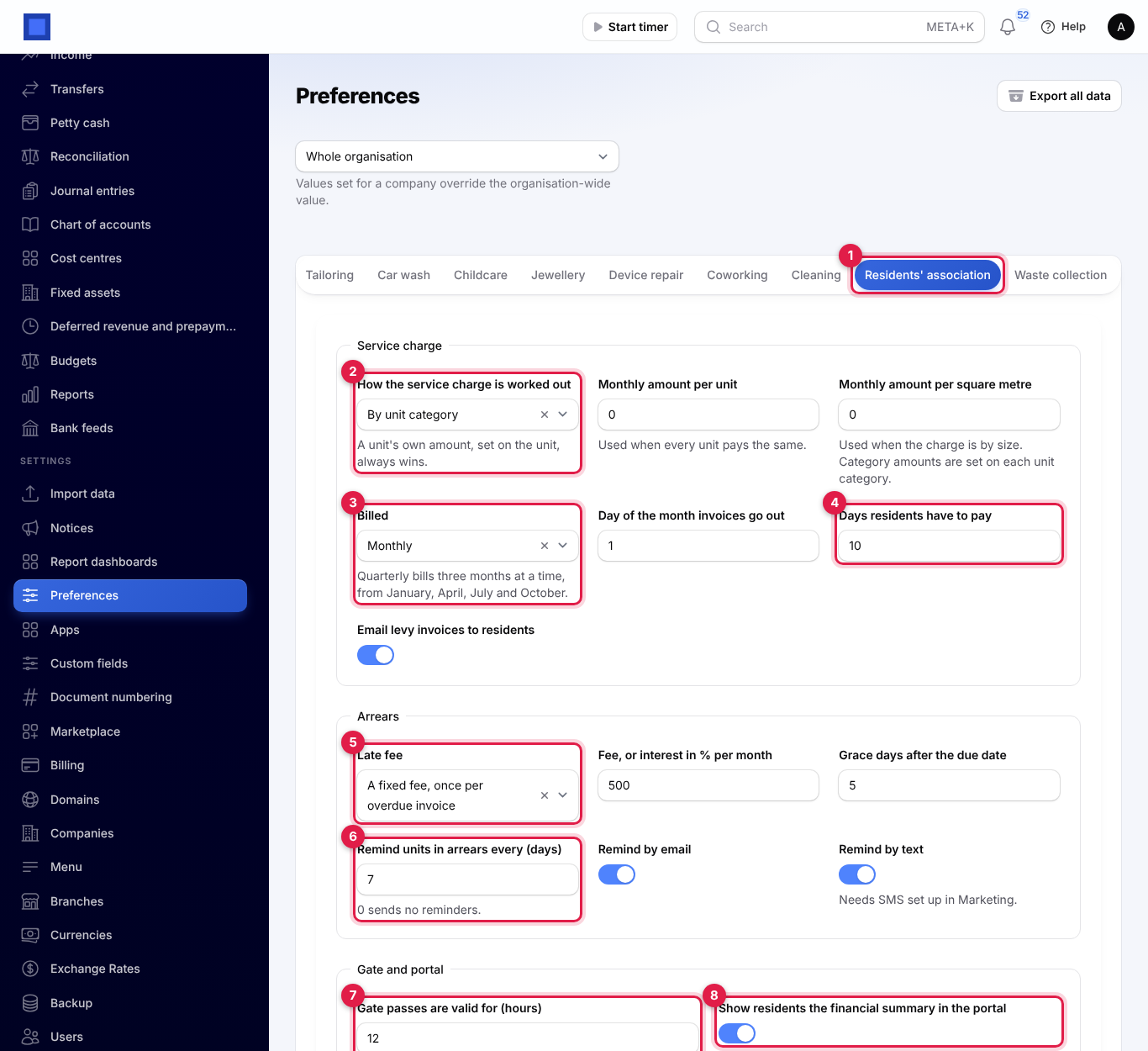
Open Settings → Preferences and click the Residents' association tab (marker 1). Click Save preferences when you are done.
Service charge
| Setting | What it does |
|---|---|
| How the service charge is worked out (marker 2) | The same amount for every unit, By unit size (per square metre) or By unit category. A unit's own amount, set on the unit, always wins. |
| Monthly amount per unit | Used when every unit pays the same. |
| Monthly amount per square metre | Used when the charge is by size. Category amounts are set on each unit category. |
| Billed (marker 3) | Monthly, or Quarterly (three months at a time, from January, April, July and October). |
| Day of the month invoices go out | 1 to 28. Default 1. |
| Days residents have to pay (marker 4) | Sets the due date on levy invoices. Default 10. |
| Email levy invoices to residents | On by default. |
Arrears
| Setting | What it does |
|---|---|
| Late fee (marker 5) | No late fee, A fixed fee, once per overdue invoice, or Interest each month on what is overdue. |
| Fee, or interest in % per month | The fee in money, or the interest rate. |
| Grace days after the due date | How long after the due date before a late fee is charged. Default 5. |
| Remind units in arrears every (days) (marker 6) | Default 7; 0 sends no reminders. |
| Remind by email / Remind by text | Both on by default. Texts need SMS set up in Marketing. |
Gate and portal
| Setting | What it does |
|---|---|
| Gate passes are valid for (hours) (marker 7) | How long a pass lasts when the resident does not choose the times. Default 12. |
| Show residents the financial summary in the portal (marker 8) | On by default. |
Blocks, categories and units
First add your Blocks (a block, court, street or phase, with an Order) and, if you charge by category, your Unit categories with their Monthly service charge, such as 4-bedroom townhouse at KES 9,000.
Then open Estate → Units and residents.
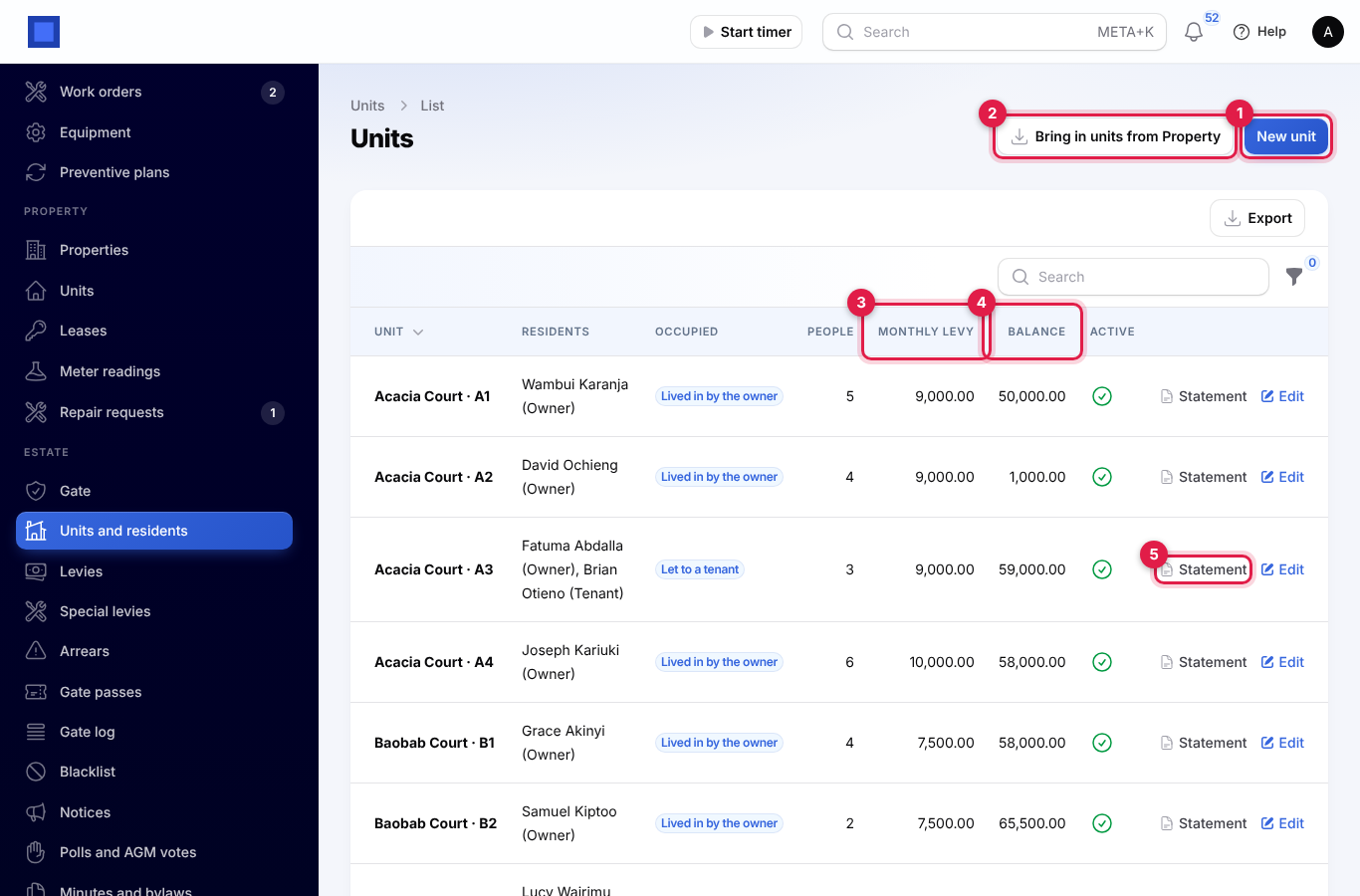
The list shows each unit with its residents and their roles, how it is Occupied, the number of people, the Monthly levy (marker 3) worked out from your settings and the Balance owed on all its levies (marker 4). Filter by Block, Occupied or Active. Statement (marker 5) opens the unit's statement of levies, payments and balance as a page you can print.
To add a unit:
- Click New unit (marker 1).
- Enter the House or flat number, such as A12, and choose the Block, court or street and the Kind (house, flat, plot, shop or other).
- Enter the Size (square metres) if you charge by size, and choose the Category if you charge by category.
- Enter an Own monthly service charge only for a unit that pays a different amount.
- Choose how it is Occupied (lived in by the owner, let to a tenant, or empty) and the People living there, and click Create. The unit opens so you can add its residents.
If you also let units with Property Management, Bring in units from Property (marker 2) copies a property's units: choose the Property and the block to Put them in. Each unit is linked to its Property unit, the landlord becomes the owner who pays levies and the tenant on the active lease becomes the occupant. Units whose number is already here are skipped.
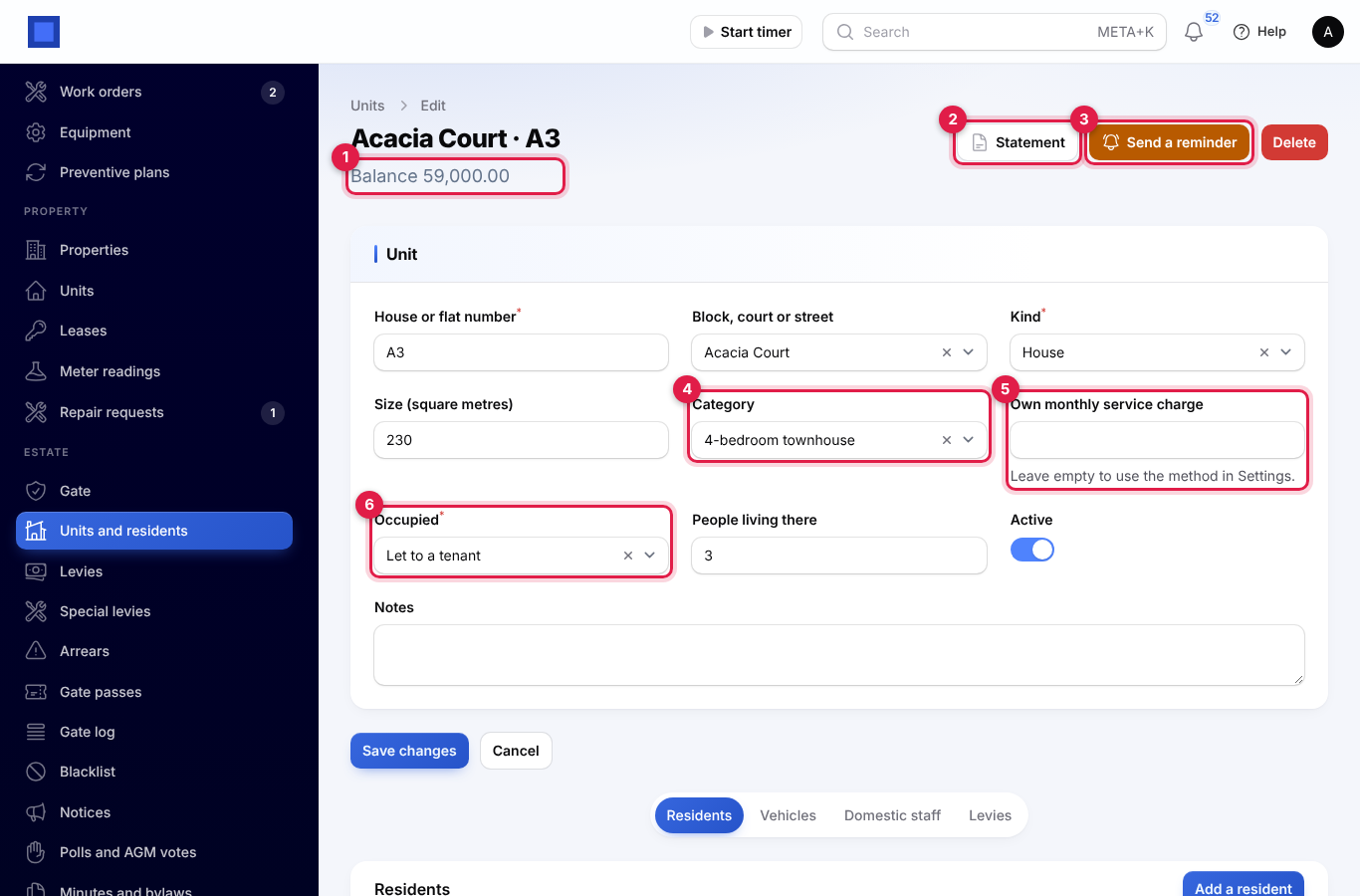
On a unit, the line under the title shows its Balance (marker 1). Statement (marker 2) opens the statement and Send a reminder (marker 3) emails and texts the payer what is overdue. You can change the Category (marker 4), Own monthly service charge (marker 5) and Occupied (marker 6) at any time; the next bill uses them.
Residents
Under the unit form are four tabs (marker 1): Residents, Vehicles, Domestic staff and Estate levies.
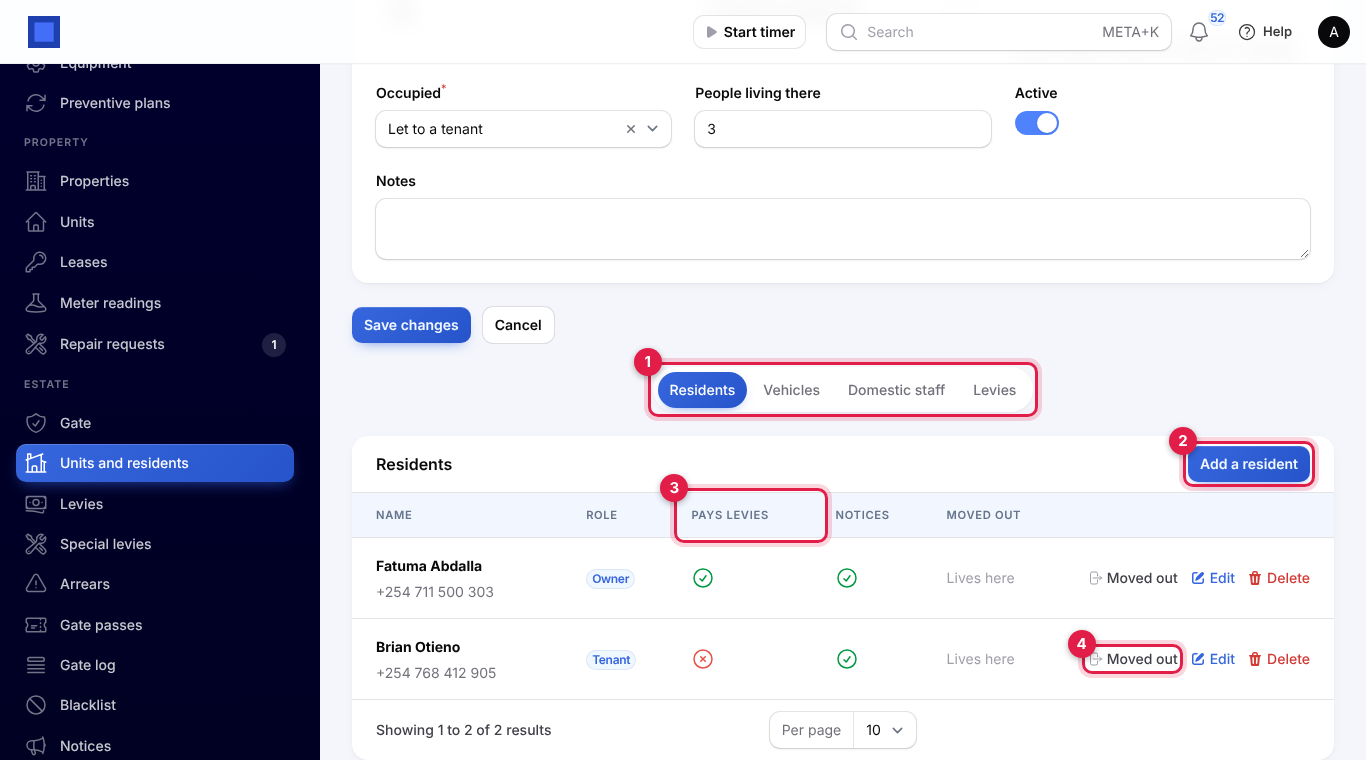
- Click Add a resident (marker 2).
- Choose the Person from Contacts, or click + to add them with a name, email and mobile. Their email and mobile are used for notices and reminders.
- Choose the Role: Owner, Tenant or Household member.
- Turn on Pays the levies (marker 3) for the person who gets the bills. Without one, levies go to the first owner.
- Leave Gets notices on, enter Moved in on and click Create.
When someone leaves, click Moved out (marker 4) on their row and enter the date. They stop paying levies and getting notices, but stay on record.
Vehicles and domestic staff
On Vehicles, click Add a vehicle and enter the Number plate and the Make, model and colour. The guard lets these cars in with Resident's car.
On Domestic staff (marker 1), click Register staff (marker 2) and enter the Name, their Work (housekeeper, gardener, driver), Phone, ID or passport number (stored encrypted and shown masked, marker 3), a Photo, and the Days they may come in (marker 4); leave all days unticked for every day. Turn off Still working here when they leave.
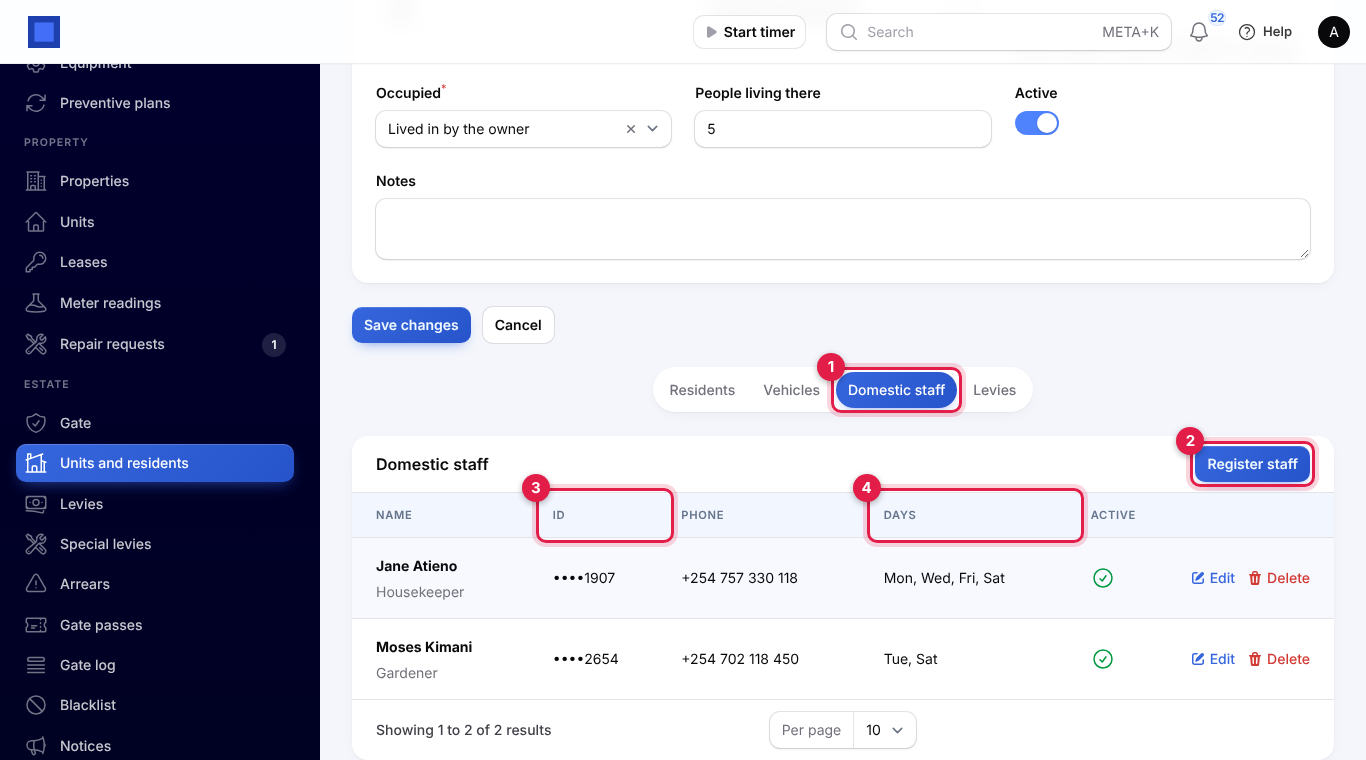
The Estate levies tab lists everything billed to the unit with the invoice, due date, amount and what is still owed.
Bill the service charge
The service charge bills itself: every morning NaliSuite checks whether the billing day of a new period has come, and bills every active unit not yet billed for it. Each unit gets an issued invoice for its period, such as Service charge November 2026 · Baobab Court · B3, sent to the resident who pays levies (by email when that setting is on).
To bill by hand, open Estate → Estate levies and click Bill the service charge. Read the description (marker 1), choose the Period (marker 2; this period, the next or the two before) and click Submit (marker 3). Units already billed for that period are skipped, so you cannot bill a unit twice.
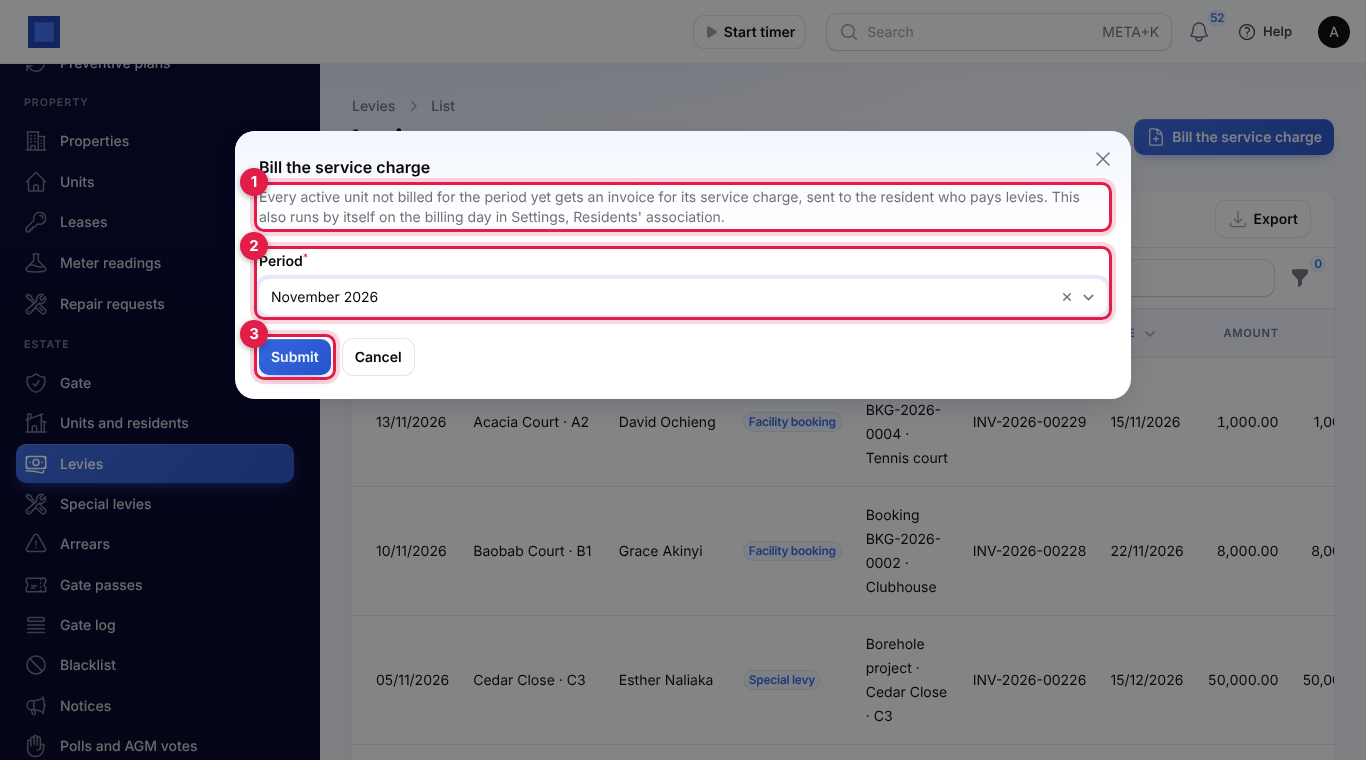
A unit is left out when it has no service charge (no amount, size or category) or no resident who pays levies. The Estate levies list shows every charge: service charges, special levies, late fees and facility bookings, with the unit, who it is billed to, the invoice, the due date (red when overdue), the amount and what is Owed. Filter by Kind, Not paid yet or Overdue; Invoice opens the invoice.
How residents pay
Residents pay each invoice on its pay page, by M-Pesa or any payment gateway you have set up (see Get paid online with the pay link), or you record the payment in Invoicing as usual. When a payment is more than the invoice, the rest goes to the unit's other open levies, oldest first. Another unit's levies are never touched.
Special levies
For a one-off project such as a borehole, open Estate → Special levies and click New special levy (marker 1):
- Enter What it is for and the Total to raise.
- Choose the Split: Equally between units or By unit size.
- Choose Only units in a block, or leave it for The whole estate.
- Enter the Due on date and the Details for residents, and click Create.
The levy is Not billed yet until you click Bill the units. The window lists each unit's share (marker 3), worked out to the cent with any rounding on the last unit. Click Send the invoices (marker 4). The levy shows Billed (marker 2) and can no longer be changed or deleted.
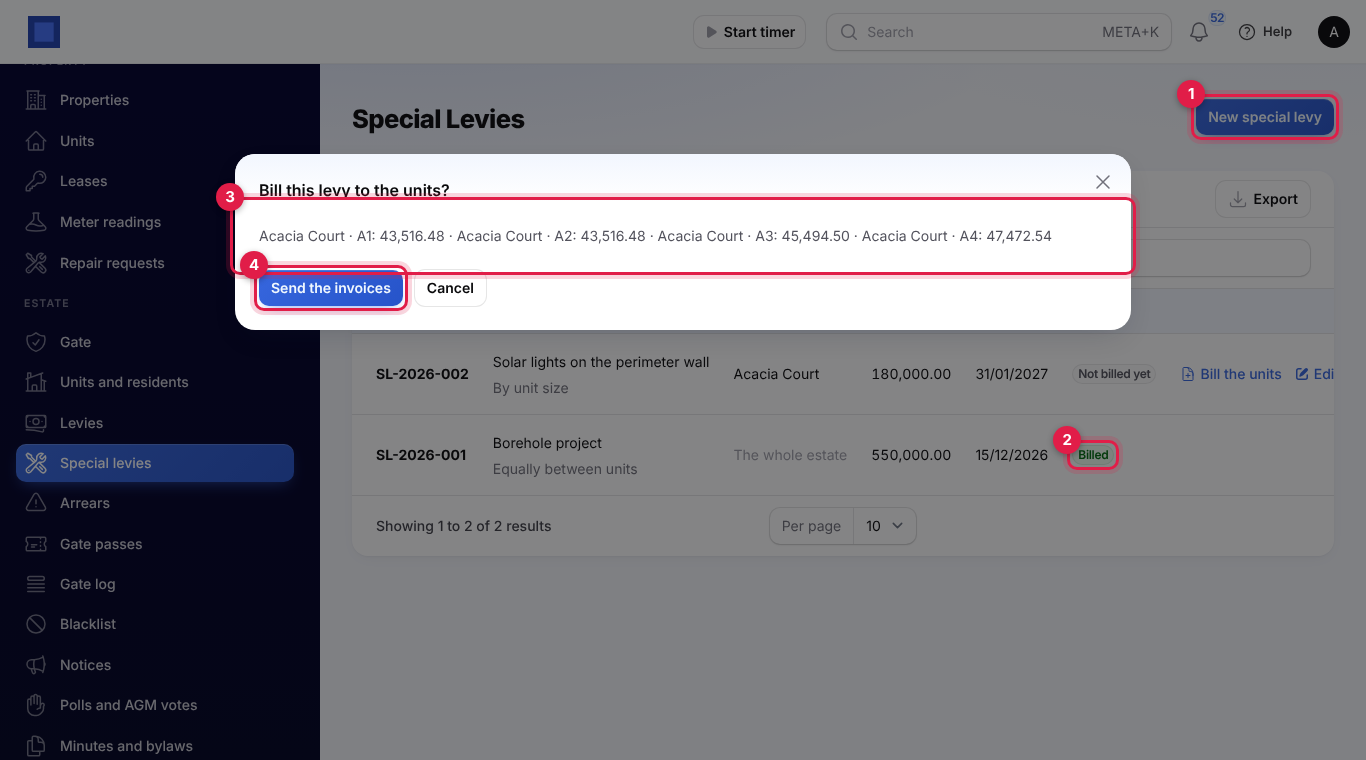
Every unit in the split must have a resident who pays levies, and to split by size every unit needs a size.
Arrears, reminders and late fees
Open Estate → Arrears for every unit with something overdue, the longest overdue first. The boxes show the Units in arrears and what is Overdue in total (marker 3). Each row shows who pays, what is overdue, the oldest due date with how many days late, and the Last reminder.
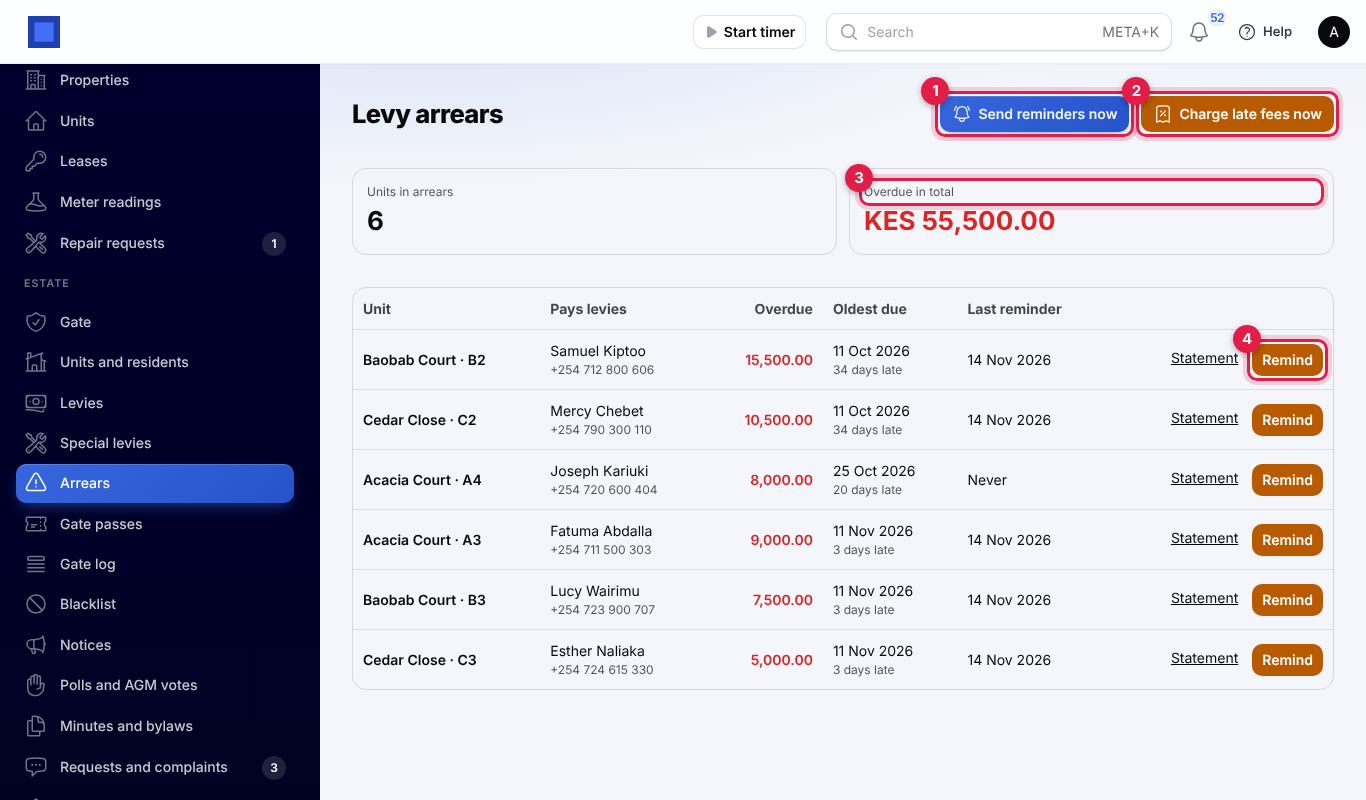
- Remind (marker 4) emails and texts the unit's payer a list of what is overdue with a link to pay.
- Send reminders now (marker 1) reminds every unit not reminded within your reminder days. This also runs by itself every morning.
- Charge late fees now (marker 2) charges the late fee in your settings on service charges and special levies unpaid past their due date and grace days: a fixed fee once per invoice, or interest on what is still owed once a month for as long as it stays unpaid. Each fee is its own invoice, such as Late fee on Service charge October 2026 · Baobab Court · B2. This also runs every morning.
Statement opens the unit's statement.
The gate
Guards use Estate → Gate on a phone or tablet at the gate.
Visitors with a pass
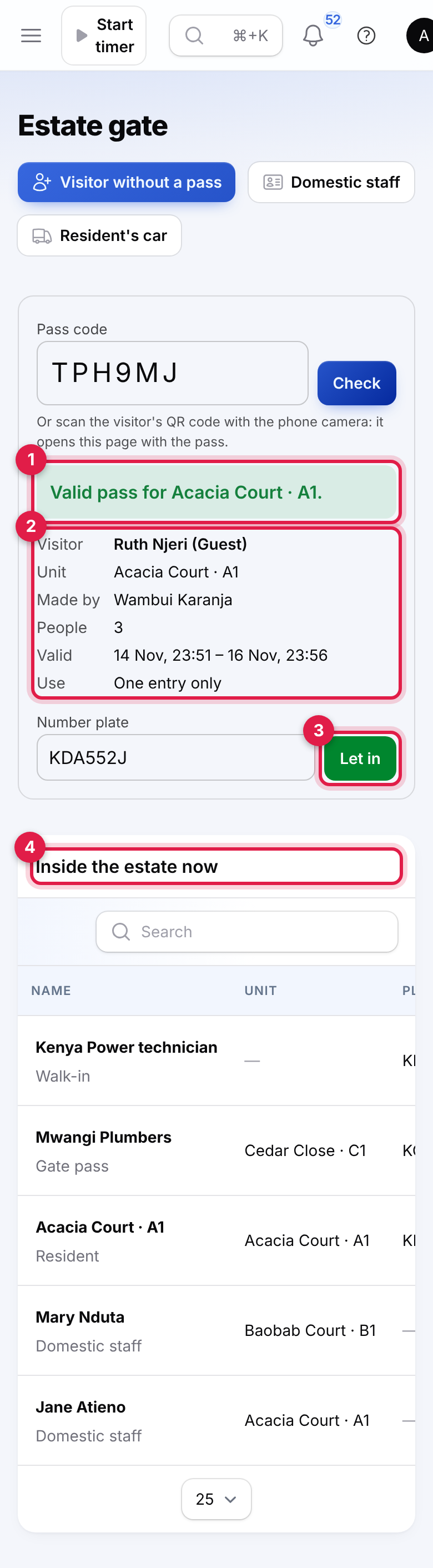
- Type the visitor's six-character Pass code and tap Check. Or scan the QR code on the visitor's phone with the phone camera: it opens this page with the pass loaded.
- A green message (marker 1) says Valid pass for …, or a red one gives the reason it cannot be used: cancelled by the resident, already used (with the time), not valid yet or expired.
- Check the visitor, unit, who made it, number of people, when it is valid and whether it is for One entry only (marker 2).
- Check the Number plate and tap Let in (marker 3).
The person is logged as inside (marker 4) and a one-entry pass is used up. If the person or plate is on the blacklist they are refused, the refusal is logged and the reason is shown.
Visitors without a pass, staff and residents
- Visitor without a pass: call the unit first, then enter the Name, Phone, Number plate, who they are Visiting and Notes. Everyone is checked against the blacklist.
- Domestic staff: choose Who. Staff come in only on their allowed days; otherwise the guard sees, for example, Jane Atieno may only come in on Mon, Wed, Fri, Sat.
- Resident's car: enter the Number plate. A plate not registered to any unit is refused; treat the driver as a visitor.
When someone leaves, tap Left on their row in Inside the estate now.
Gate passes, gate log and blacklist
Estate → Gate passes lists every pass with its Code (marker 2), visitor, unit, plate, validity, Status (Active, Used, Expired or Cancelled, marker 3) and whether it was Made in the portal or the office (marker 4). Cancel stops an active pass.
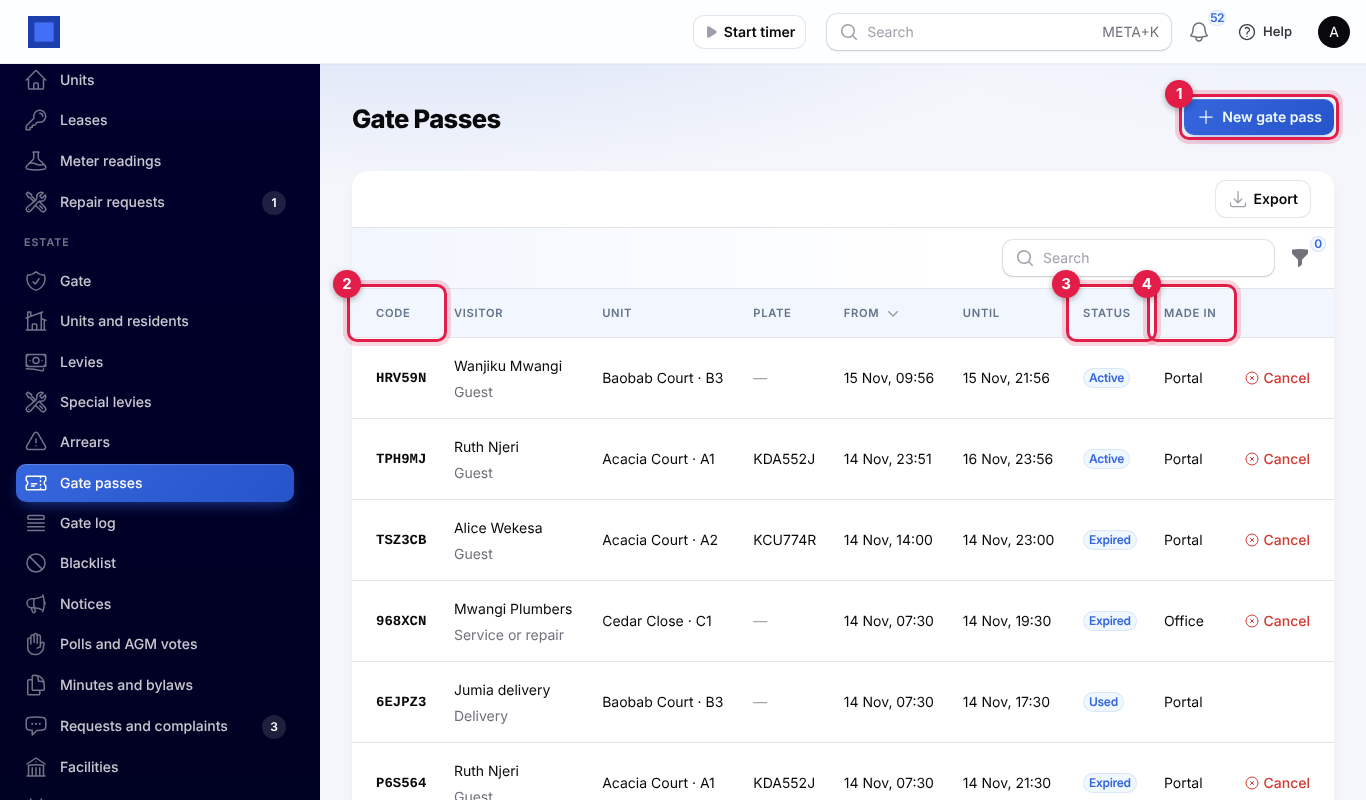
For a resident who phones the office, click New gate pass (marker 1), choose the Estate unit, enter the Visitor, Kind (guest, delivery, taxi or ride, service or repair, other), Phone, Number plate, People, Valid from and Valid until, and One entry only, then Submit. The code is shown once it is made: pass it on to the resident. A pass lasts your default hours when you leave Valid until empty, and at most 7 days.
Estate → Gate log lists every entry with when, who and what kind (gate pass, domestic staff, resident or walk-in), the unit, plate, status (Inside, Left or Refused with the reason), when they left and the guard. Filter by Status or Kind.
Estate → Blacklist holds the people and vehicles the gate must refuse: enter a Name, Phone or Number plate (at least one), the Reason the guard sees, and keep In force on. Names, phone numbers (by their last nine digits) and plates are matched when a pass is made and at the gate.
Notices
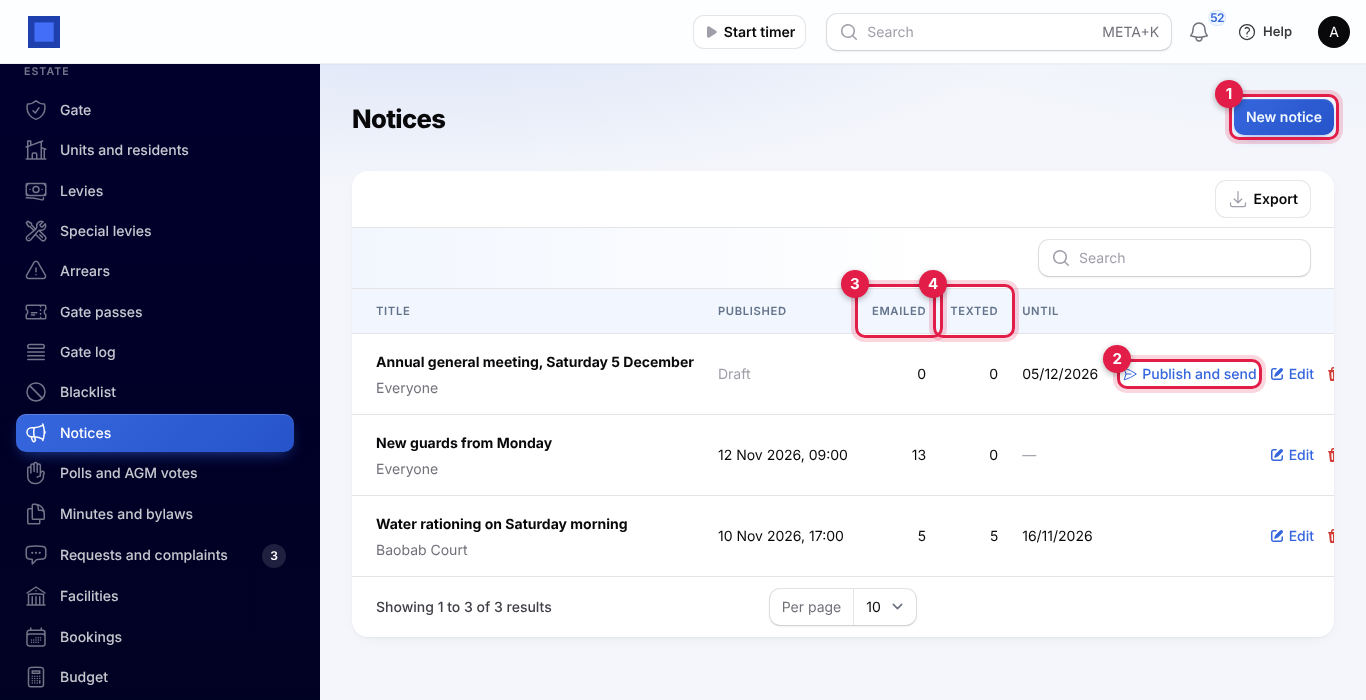
Open Estate → Notices and click New notice (marker 1).
- Enter the Title and the Notice.
- Choose the blocks to Send to, or leave it empty for everyone.
- Choose Show in the portal until, and whether to Email residents and Text residents.
- Click Create. The notice is a draft until you send it.
Click Publish and send (marker 2) and confirm: the window says how many residents it goes to. It shows in the portal straight away and goes to every current resident of those blocks who gets notices. The list shows how many were Emailed (marker 3) and Texted (marker 4).
Polls and AGM votes
Open Estate → Polls and AGM votes and click New poll (marker 1):
- Enter the Question, the Background for residents and the Kind: Poll or AGM resolution.
- Enter the Quorum (% of units) that must vote for the result to stand, and when Voting opens and Voting closes.
- Leave Only owners vote on, or turn it off so any resident may cast the unit's vote. Leave Owners may appoint a proxy on if proxies are allowed.
- Add at least two Answers and click Create.
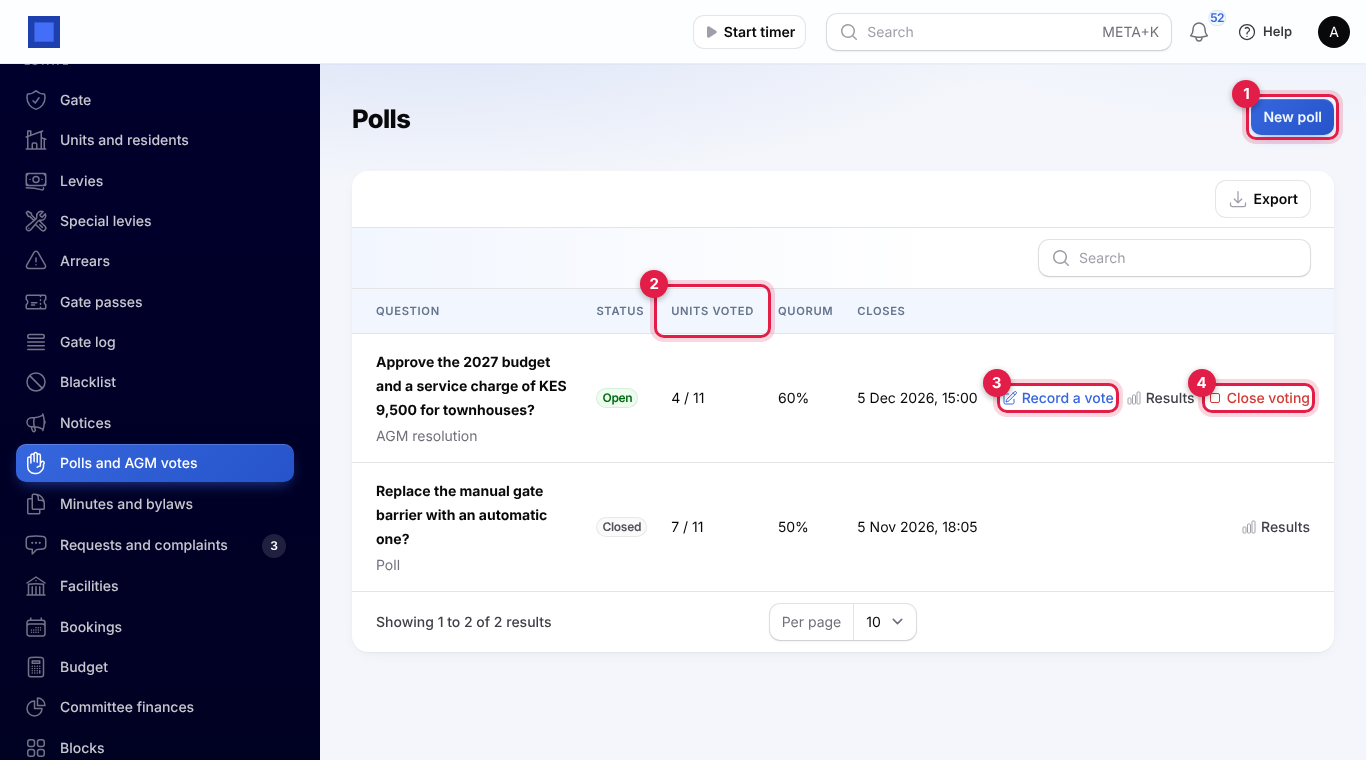
Click Open voting on the draft. Residents vote in the portal; each unit votes once. For votes at the meeting, click Record a vote (marker 3), choose the Estate unit and the Answer, and enter the Proxy voting for the owner if a proxy votes. Units voted (marker 2) shows the turnout. Results shows the votes and percentage for each answer, the turnout, how many voted by proxy, and whether the quorum is reached. Close voting (marker 4) ends it.
Requests and complaints
Residents report problems from the portal, with up to 4 photos; you are alerted when one comes in. Open Estate → Requests and complaints; the menu shows how many are not resolved yet.
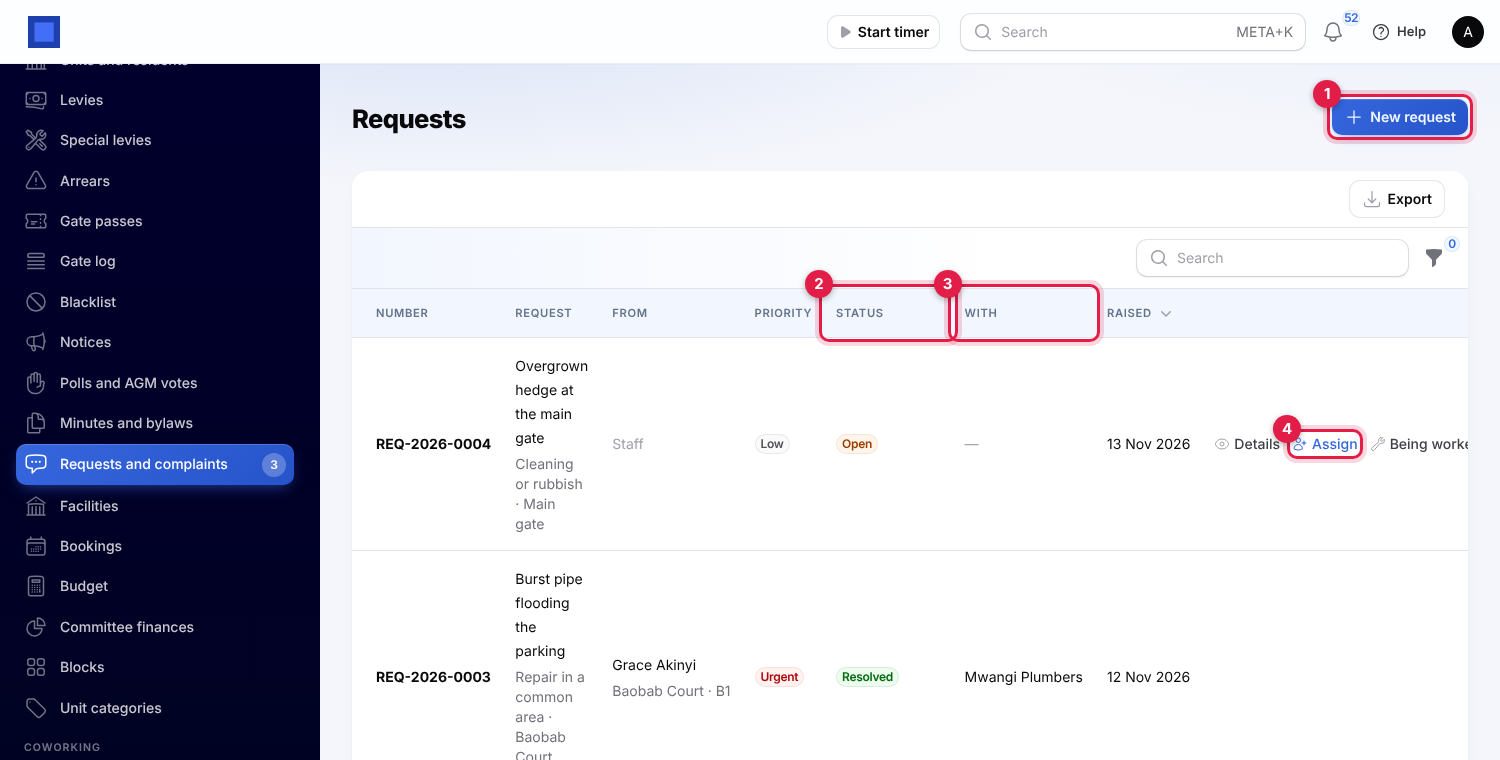
- New request (marker 1): for a problem phoned in or seen by staff. Choose the Kind (repair in a common area, noise complaint, security concern, cleaning or rubbish, something else), enter it In a few words, Where, the Estate unit, the Priority (low, normal or urgent) and Details.
- Details: shows the description and the photos.
- Assign (marker 4): to a Caretaker or staff member, or Or a contractor from Contacts. The request shows who it is With (marker 3).
- Being worked on: marks it in progress.
- Resolve: write What was done. The resident who raised it gets an email and a text.
The Status (marker 2) goes Open, Assigned, Being worked on, Resolved.
Facilities and bookings
Under Estate → Facilities, add each facility: the Name, Opens and Closes, Slot length (minutes), Most slots in one booking, whether The committee approves bookings, the Fee Per booking or Per hour, a Refundable deposit, a Description, the Rules residents accept when booking, and Open for booking.
Residents book from the portal and must accept the rules. A facility is never booked twice for the same time, and bookings start on the slot times within the opening hours.
In Estate → Bookings:
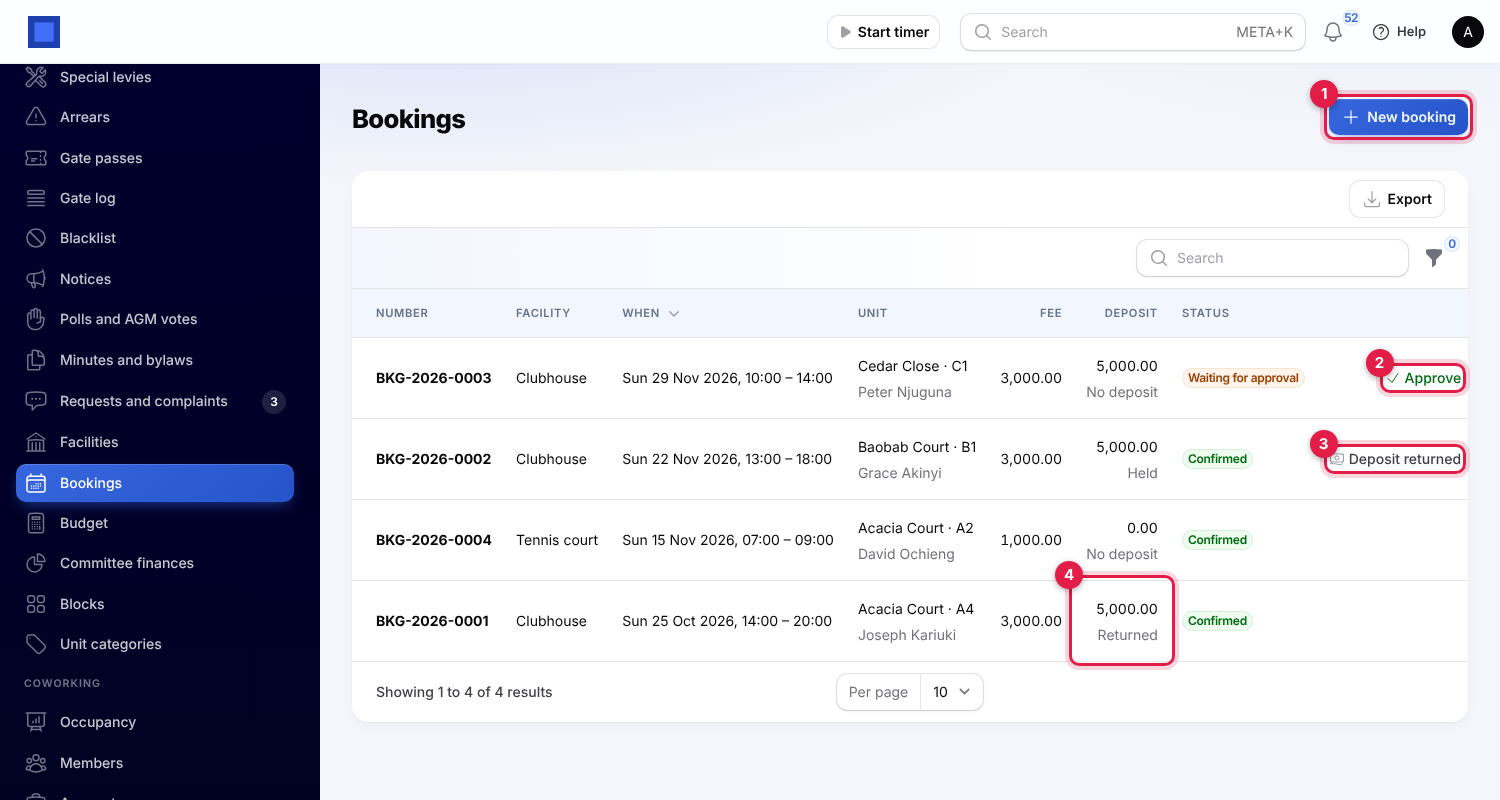
- New booking (marker 1): book for a unit that phoned. Choose the Facility, Estate unit, Day, Start time and Number of slots.
- A booking for a facility that needs approval is Waiting for approval; click Approve (marker 2). Approving, or booking a facility without approval, invoices the fee and the deposit to the unit's payer, due on the day of the booking.
- Deposit returned (marker 3): after the event, enter the Amount kept for damage or cleaning. The deposit then shows Returned (marker 4).
- Cancel: an invoice nobody has paid yet is cancelled too.
Budget and committee finances
Under Estate → Budget, add a line for each heading for the year: the Year, Budget line (such as Security guards), Budget for the year, and, with Accounting and Purchases on, the Expense account your bills for it are posted to.
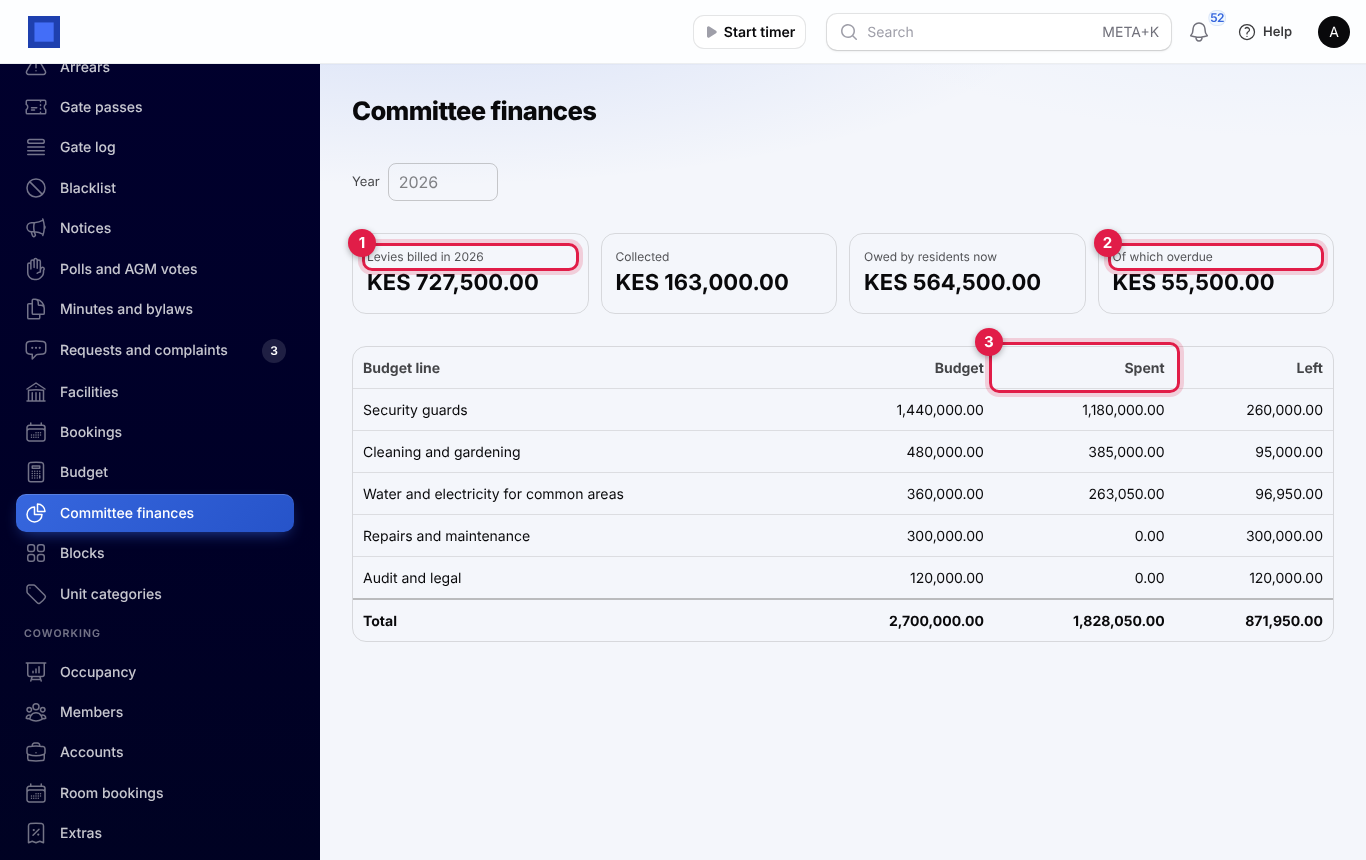
Estate → Committee finances shows, for the Year chosen, the Levies billed, what was Collected, what is Owed by residents now and Of which overdue (marker 1, marker 2), and each budget line with its Budget, what was Spent from posted bills in Purchases on its account before tax (marker 3), and what is Left.
Minutes and bylaws
Under Estate → Minutes and bylaws, upload the Title, Kind (bylaws and rules, meeting minutes, financial statement, other), the Meeting or document date and the File (PDF, Word or a photo, up to 20 MB). Residents can download it in the portal while Residents can download it is on.
The residents' portal
Residents sign in to the customer portal (see Customer and vendor portal) and open My estate. It shows once their contact lives in a unit.
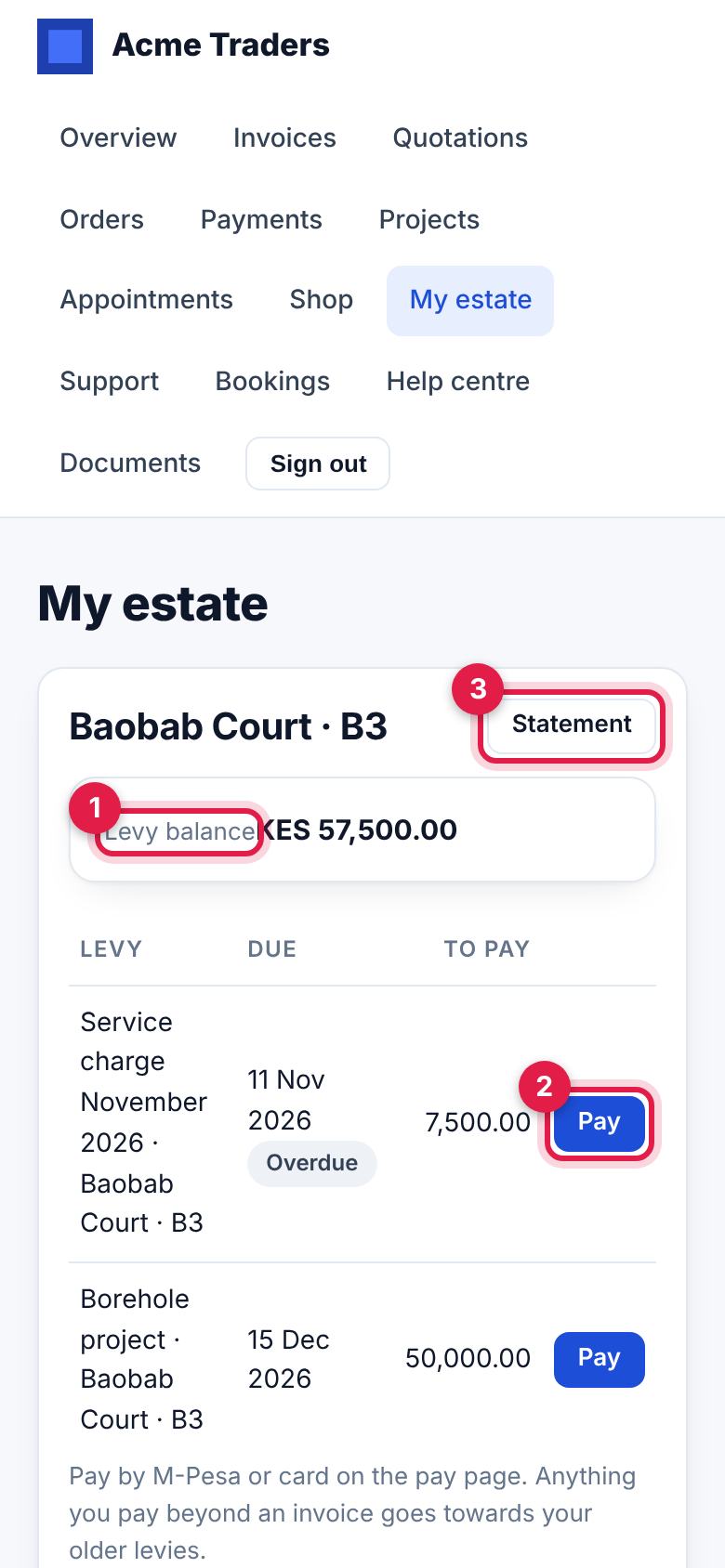
- Your unit: the Levy balance (marker 1), each open levy with its due date and Pay (marker 2) to pay by M-Pesa or card, and the Statement (marker 3).
- Notices for their block and the whole estate.
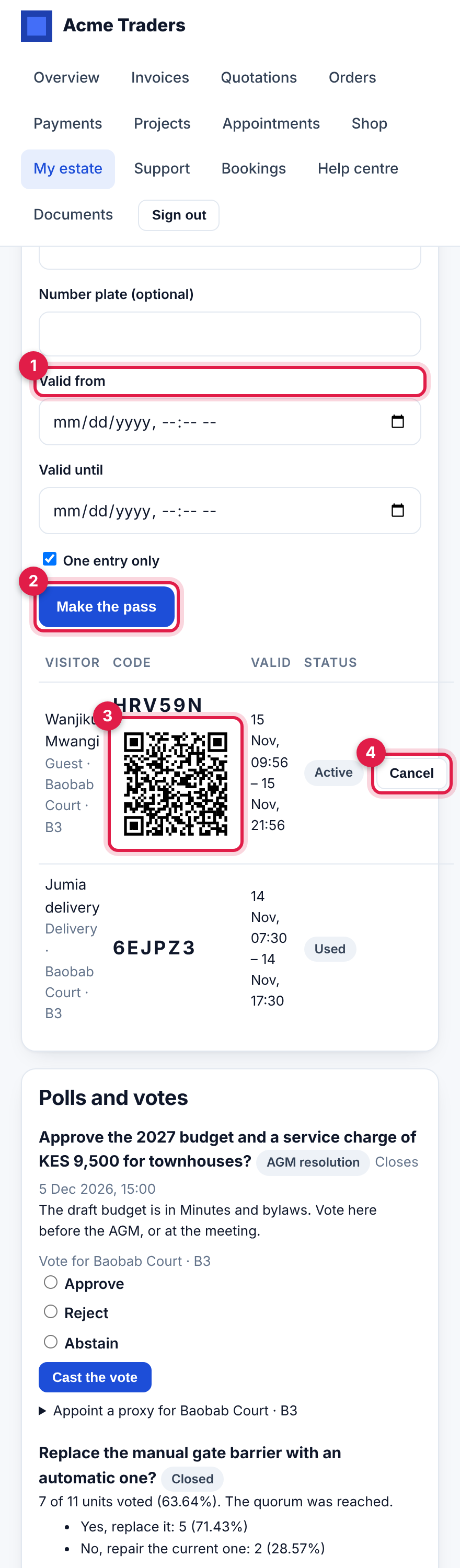
- Gate passes: to make a pass, they enter Who is coming?, the Kind of visit, the visitor's phone and plate, Valid from and Valid until (marker 1; leave empty for the next few hours), and One entry only, then tap Make the pass (marker 2). They give the visitor the code or the QR code (marker 3), and can Cancel (marker 4) a pass they no longer need.
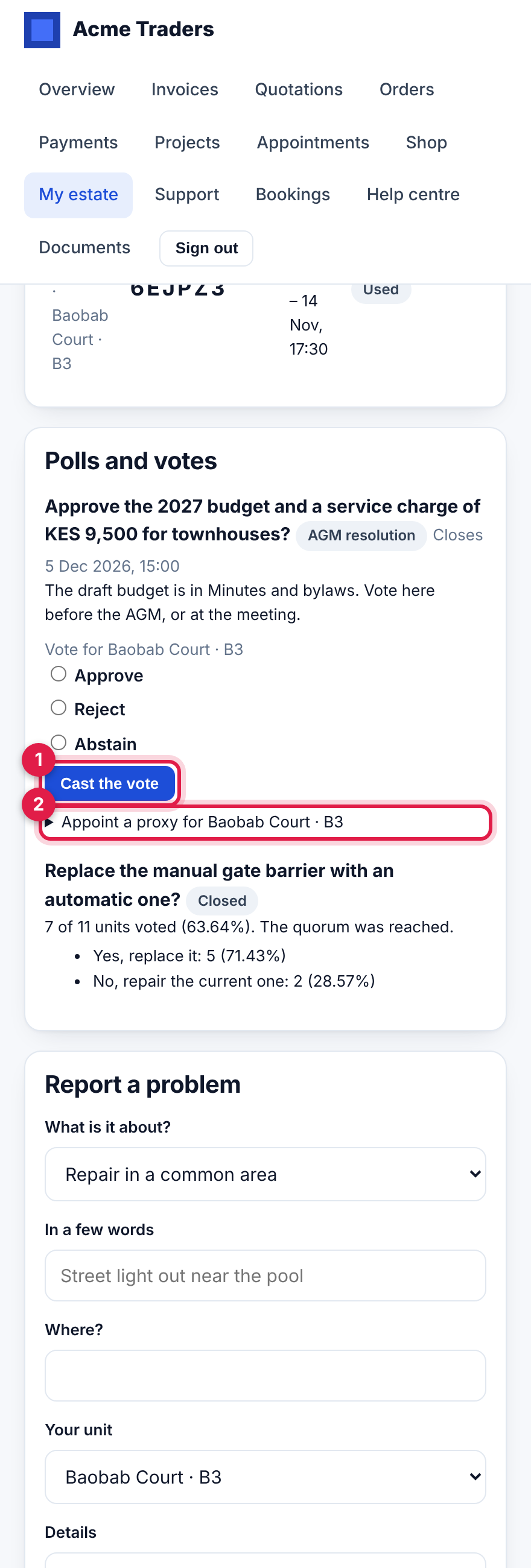
- Polls and votes: they choose an answer and tap Cast the vote (marker 1), or open Appoint a proxy (marker 2) to name someone: a resident named by phone can then vote for them in the portal; anyone else votes for them at the meeting. Closed polls show the result.
- Report a problem: what it is about, a few words, where, the unit, details and up to 4 photos.
- Book a facility: the facility with its hours, fee, deposit and rules, the day, start time and slots, and I have read and accept the rules. Their bookings are listed with Cancel.
- Documents you published, and The estate's finances for the year if you show them.
Good to know
Are deposits refunded through NaliSuite? No. Deposit returned only records that the deposit was handed back and how much was kept. Pay the refund the usual way, by M-Pesa or bank, and record it in your books.
A unit was not billed. It needs a service charge (its own amount, a size or a category, depending on your settings) and a resident who pays levies, and it must be active.
Can I change a special levy after billing? No. Credit the invoices you need to change in Invoicing, and add a new levy for the difference.
Do tenants pay the levies? Only if you turn on Pays the levies for them. Otherwise the owner is billed.
The guard's phone shows "No pass has this code". Check the code with the resident; codes use letters and numbers without 0, O, 1 or I. Call the resident before letting anyone in.
Can a pass last a week? Up to 7 days. For people who come regularly, register them as domestic staff with their days instead.
Who gets the reminders and notices? Reminders go to the resident who pays levies. Notices go to every current resident with Gets notices on, once each, even if they live in two units.