Insurance agency and brokerage
Insurance agency and brokerage is for insurance agents and brokers who place motor, medical, life, property, travel, WIBA, marine and other covers with underwriters. You keep your insurers with your agency code and the commission each pays per class of business; compare quotes from several insurers for a client and turn the chosen one into a policy; see the training levy, policyholders' compensation fund levy, stamp duty, commission and withholding tax worked out on every policy; invoice the client; pass the premium on to the insurer less your commission; invoice the insurer for commission on business the client paid direct; record endorsements and cancellations charged or refunded for the days left; renew on time with renewal quotes and reminders; and follow claims from report to settlement. Clients see their policies and claims in the customer portal.
Everything is in the Insurance group of the left menu: Policies, Quotes, Claims, Expiring policies, Remittances, Commission statements and Insurers.
Note: Three permissions control the module (under Settings → Roles): insurance.view to open every insurance screen and report, insurance.manage to add insurers, issue and change policies and quotes, invoice, remit, endorse, cancel and renew, and insurance.claims to report claims, move them on and keep their documents. Owners and admins have all three; the member role has insurance.view only. See Permissions.
Switch it on
Insurance agency and brokerage is a marketplace add-on. It needs the Contacts app. Invoicing is needed to invoice clients and insurers, Purchases to raise the remittance bills to insurers, Marketing (with SMS set up) to text renewal reminders, and the Customer portal for My policies.
- Open Settings → Marketplace and type Insurance agency in the Search add-ons… box (marker 1).
- On the Insurance agency and brokerage card (marker 2), click Start free trial (or Add to subscription) and confirm. The Insurance group appears in the left menu.
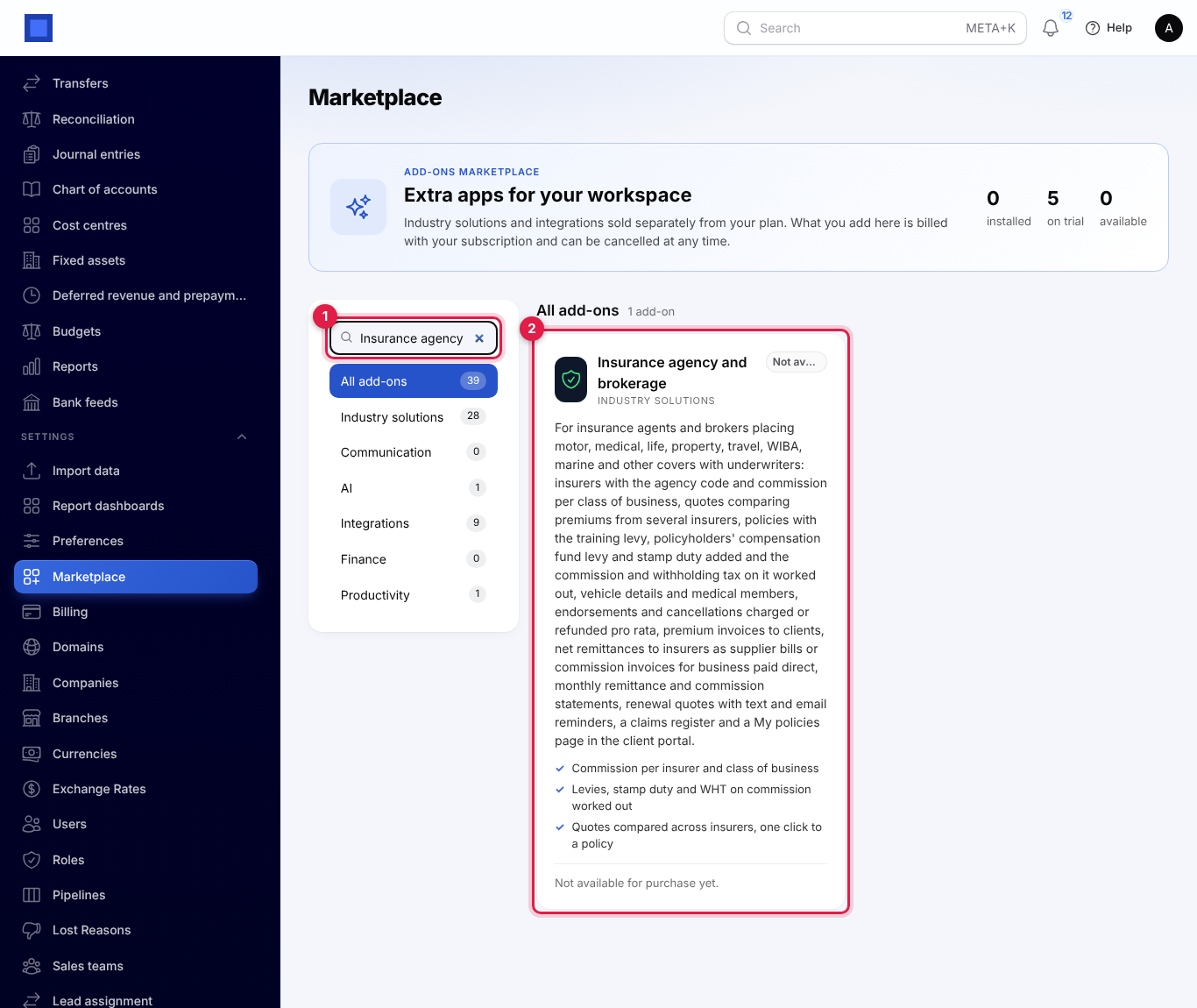
If the card says Not available for purchase yet (as in the screenshot), the add-on has not been priced for your plan: ask NaliSuite support to switch it on. See Billing and marketplace.
Settings: classes of business, levies and reminders
Open Settings → Preferences and click the Insurance tab (marker 1). The first setting is your list of Classes of business (marker 2). It starts with Motor private, Motor commercial, Medical, Life, Fire and property, Travel, WIBA / workmen's compensation, Marine and Other.
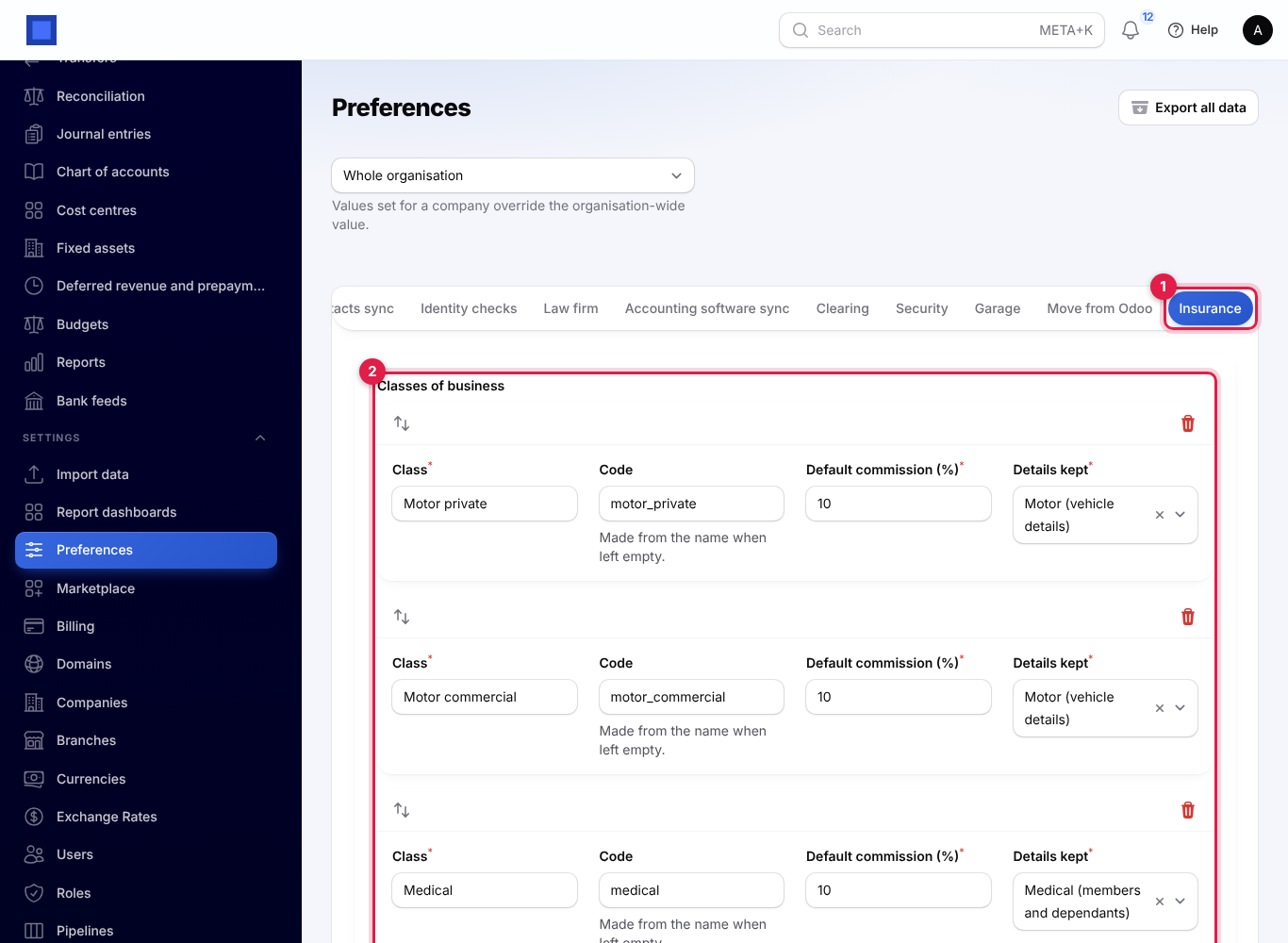
Each class has four fields:
| Field | What to enter |
|---|---|
| Class | The name shown on policies, quotes, invoices and in the portal, for example Motor private. |
| Code | A short code such as motor_private. Made from the name when left empty. Do not change it once policies use it. |
| Default commission (%) | The commission insurers pay you on this class, unless an insurer has its own rate (see Insurers and their commission). The defaults are 10% for motor, medical and life, 15% for marine and other, and 20% for fire, travel and WIBA. |
| Details kept | Motor (vehicle details) adds the registration, make and model, year and value to policies and quotes; Medical (members and dependants) adds the members list; Other keeps neither. |
Click Add a class under the list to add one, or the bin to remove one.
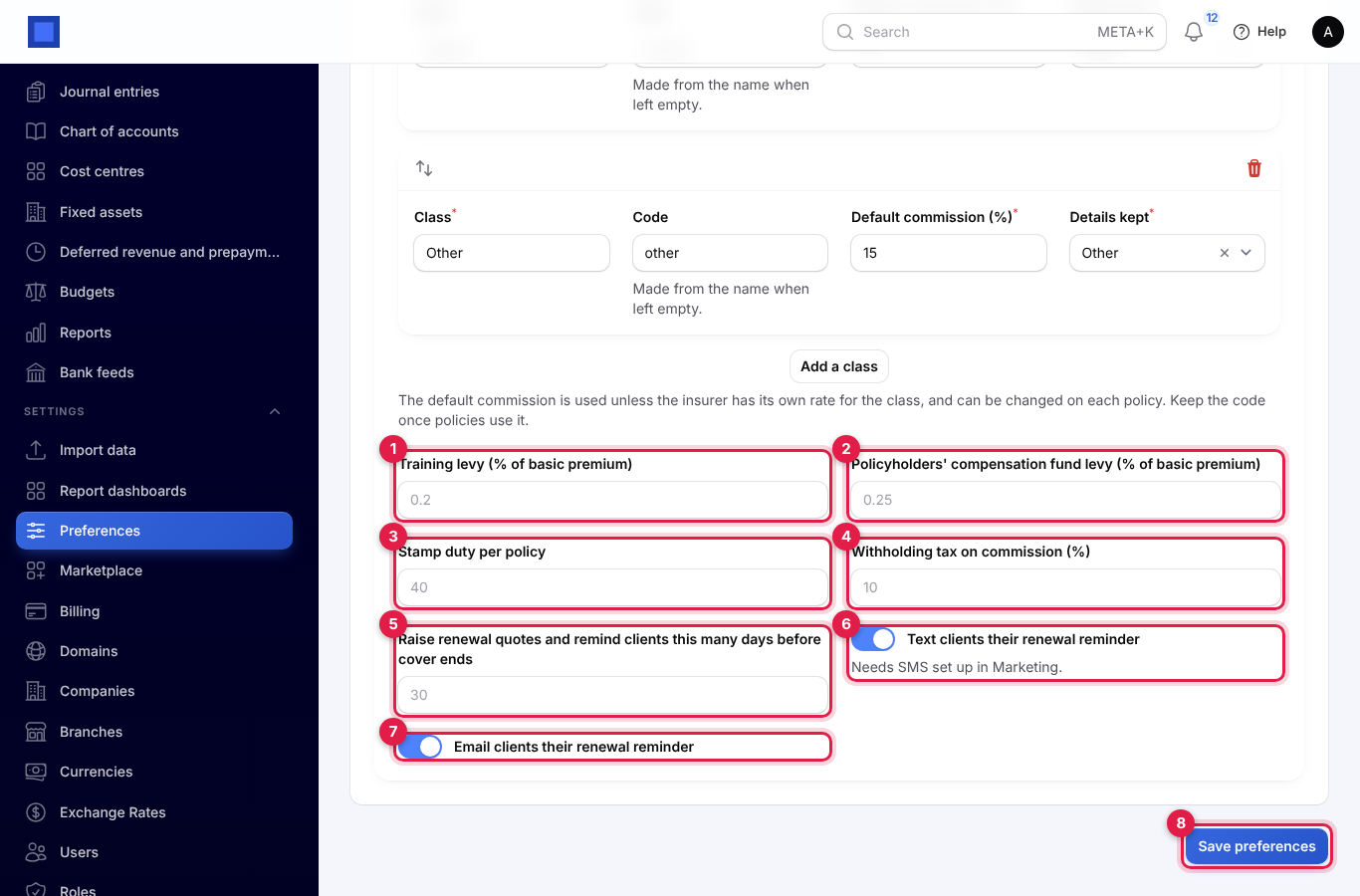
Scroll down for the levies and reminders, then click Save preferences (marker 8).
| Setting | Default | What it does |
|---|---|---|
| Training levy (% of basic premium) (marker 1) | 0.2 | Added to the client's premium. |
| Policyholders' compensation fund levy (% of basic premium) (marker 2) | 0.25 | Added to the client's premium. |
| Stamp duty per policy (marker 3) | 40 | A fixed amount added once to each policy. It is never pro-rated or refunded. |
| Withholding tax on commission (%) (marker 4) | 10 | The tax insurers withhold from your commission. |
| Raise renewal quotes and remind clients this many days before cover ends (marker 5) | 30 | How early renewals start (0 to 120 days). The same number decides what counts as "expiring". |
| Text clients their renewal reminder (marker 6) | On | Needs SMS set up in Marketing (see Marketing). |
| Email clients their renewal reminder (marker 7) | On | Sent to the client's email address. |
The levy, stamp duty and withholding rates are copied onto each policy when it is issued, so changing them later does not change policies you already have. The dropdown at the top of Preferences lets one company use different settings from the rest of the organisation.
Insurers and their commission
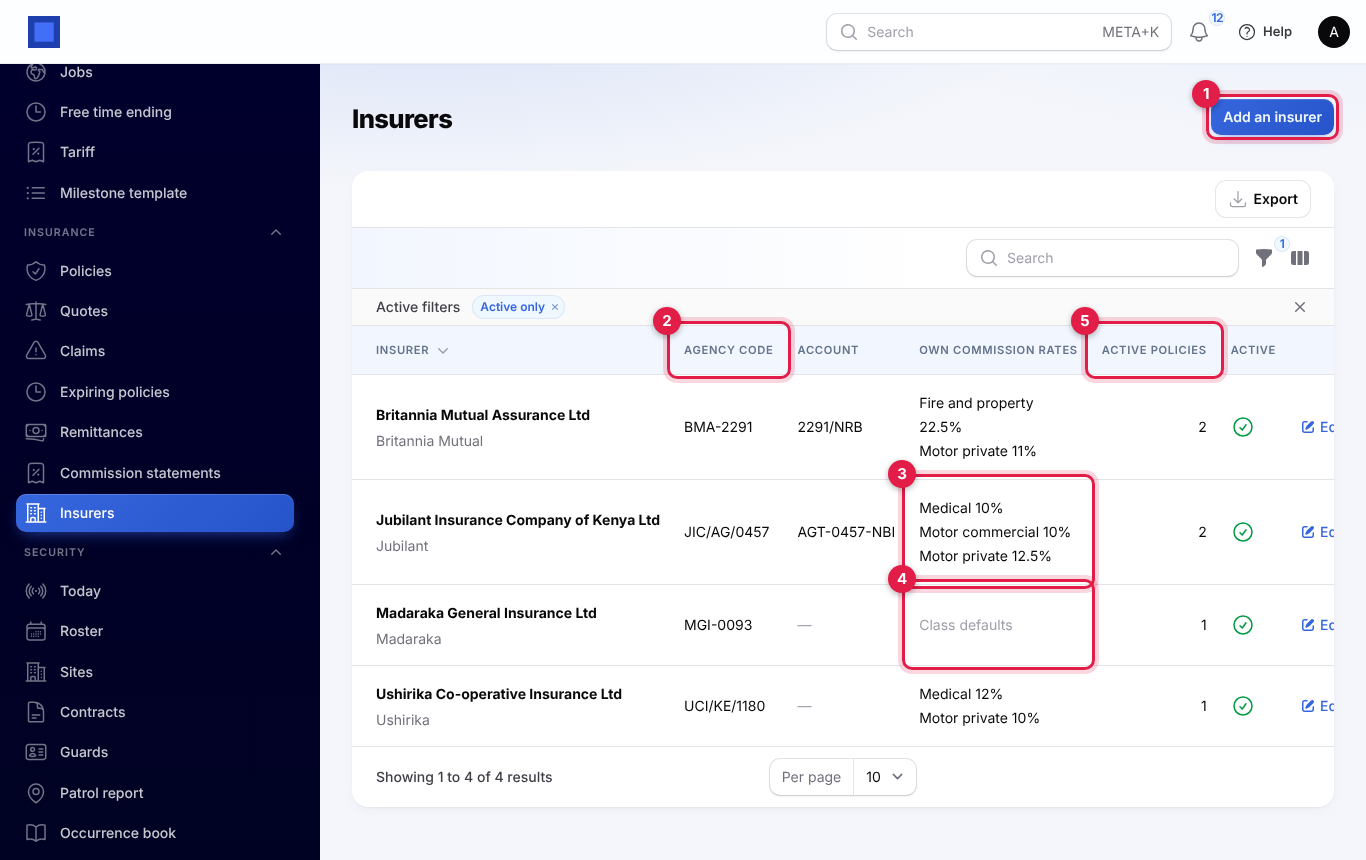
Every insurer you place business with is a contact marked as an insurer. Open Insurance → Insurers. The list shows each insurer with its short name, Agency code (marker 2), account, the commission rates it pays that differ from your class defaults (marker 3; Class defaults when there are none, marker 4) and how many Active policies you have with it (marker 5). The Active only filter is on by default.
To add one:
- Click Add an insurer (marker 1 above).
- Choose the Contact (marker 1 below). Click + to add the insurer as a new contact with its company name, email, phone and tax PIN. The contact is marked as a vendor so you can remit premiums to it as bills.
- Fill in the Short name (marker 2), for example Jubilant, used on lists and invoices, Our agency code with them (marker 3) and Our account number with them.
- Leave Placing business with them on (marker 4). Turn it off later to hide the insurer from new policies and quotes; its existing policies stay.
- Under Commission per class of business (marker 5), type the insurer's rate for any class where it differs from your default. Leave a class empty to use the default, which shows in grey.
- Click Create.
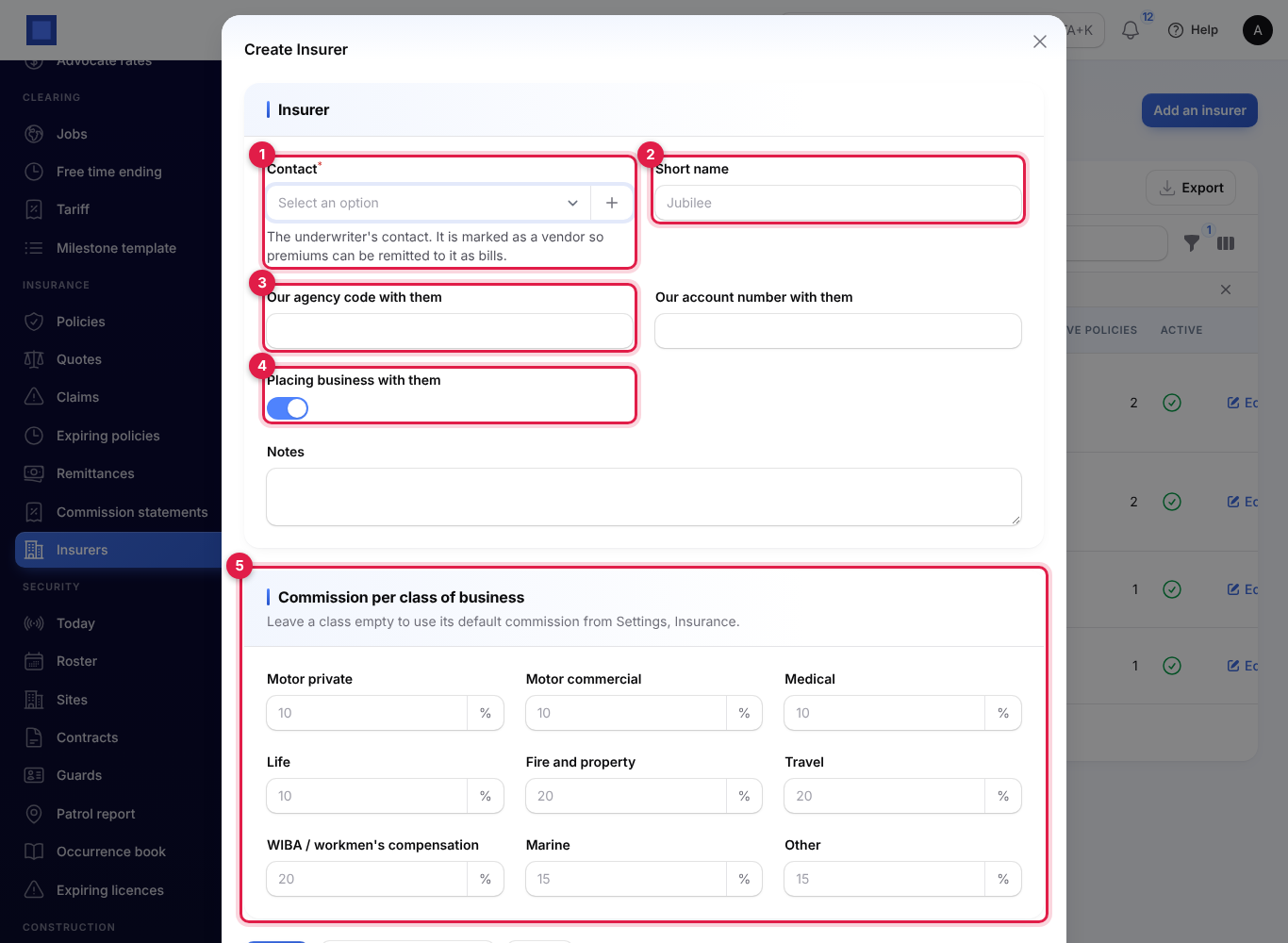
Click Edit on a row to change the details or rates later. A contact can be set up as an insurer only once.
Policies
Open Insurance → Policies. The tabs (marker 2) show Active, Expired, Renewed and Cancelled policies, and All. Each row shows the policy number with the insurer's own number under it, the client, the insurer, the class with the vehicle registration, the Cover end date (marker 3, in amber when it ends within the renewal days), the total Premium (marker 4), the Net commission (marker 5) and the status.
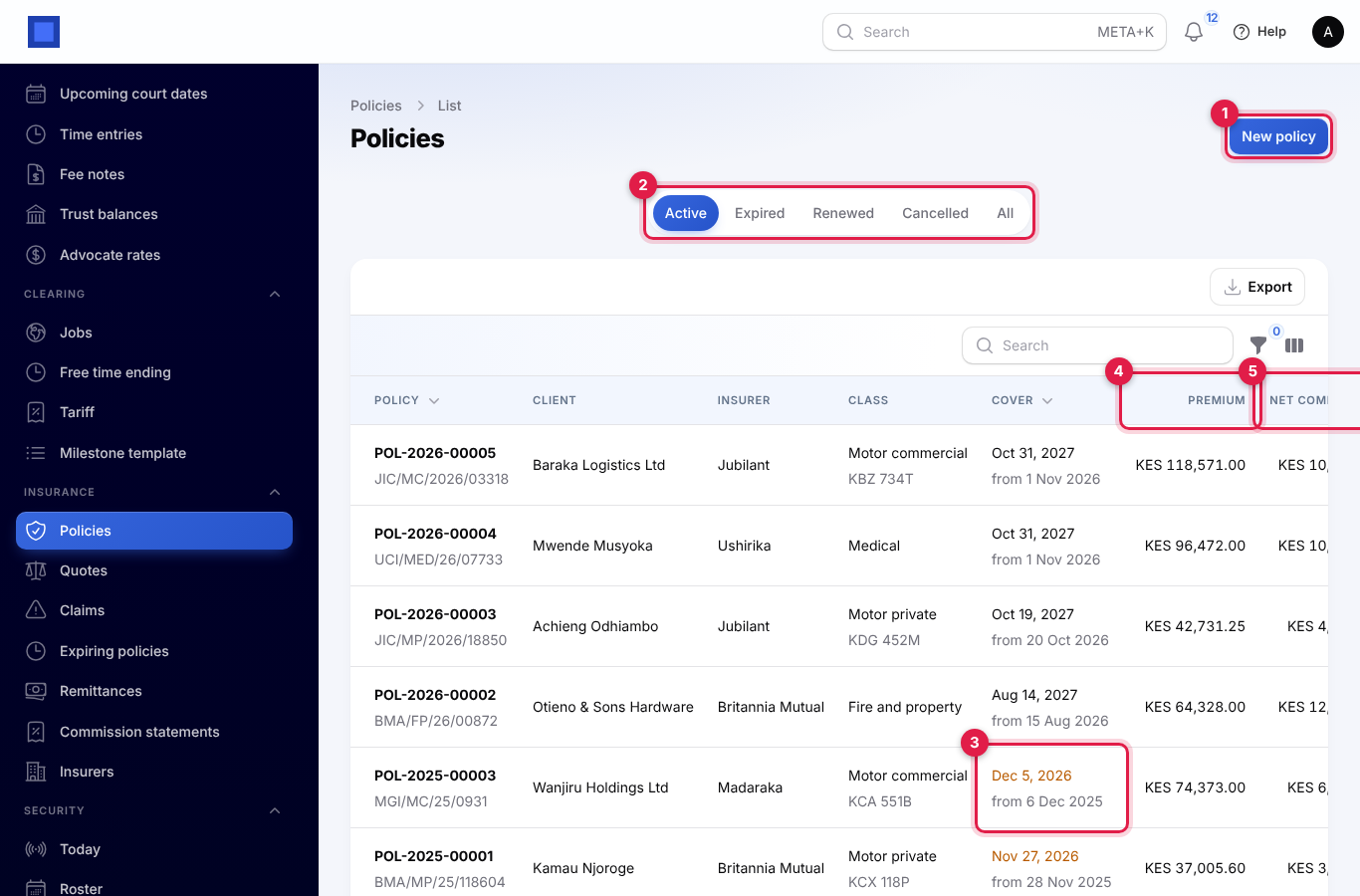
Search finds a policy by our number, the insurer's number or the registration. The filters are Status, Insurer, Class, Ending within the reminder days and Premium not paid (invoiced but not paid in full). Policies also show up in the global search at the top of the screen.
Issue a policy
Most policies come from a quote (see Quotes compared across insurers). To enter one directly:
- Click New policy (marker 1 on the list).
- Choose the Client (marker 1). Search by name or phone number, or click + to add a new client with a name, mobile and email.
- Choose the Insurer (marker 2) and the Class of business (marker 3). Only insurers you are placing business with are listed.
- Type the Insurer's policy number if you have it.
- Set Cover starts (marker 4). Cover ends moves to one year less a day after it; change it for a shorter or longer cover.
- Enter the Sum insured.
- Turn on Client pays the insurer directly (marker 5) when the client pays the premium to the insurer, not to you. You then invoice the insurer for your commission instead (see Policies paid direct to the insurer).
- Enter the Basic premium (marker 6) the insurer quoted.
- Leave Commission (%) (marker 7) empty to use the insurer's rate for the class (shown in grey), or type the rate agreed for this policy.
- Check the line under the premium (marker 8). It shows the training levy, the compensation fund levy, the stamp duty, the total premium the client pays, your commission, the withholding tax on it, and the net commission you keep.
- For a motor class, fill in the Vehicle section (marker 9): Registration (saved in capitals), Make and model, Year of manufacture and Vehicle value.
- Add any Notes and click Create.
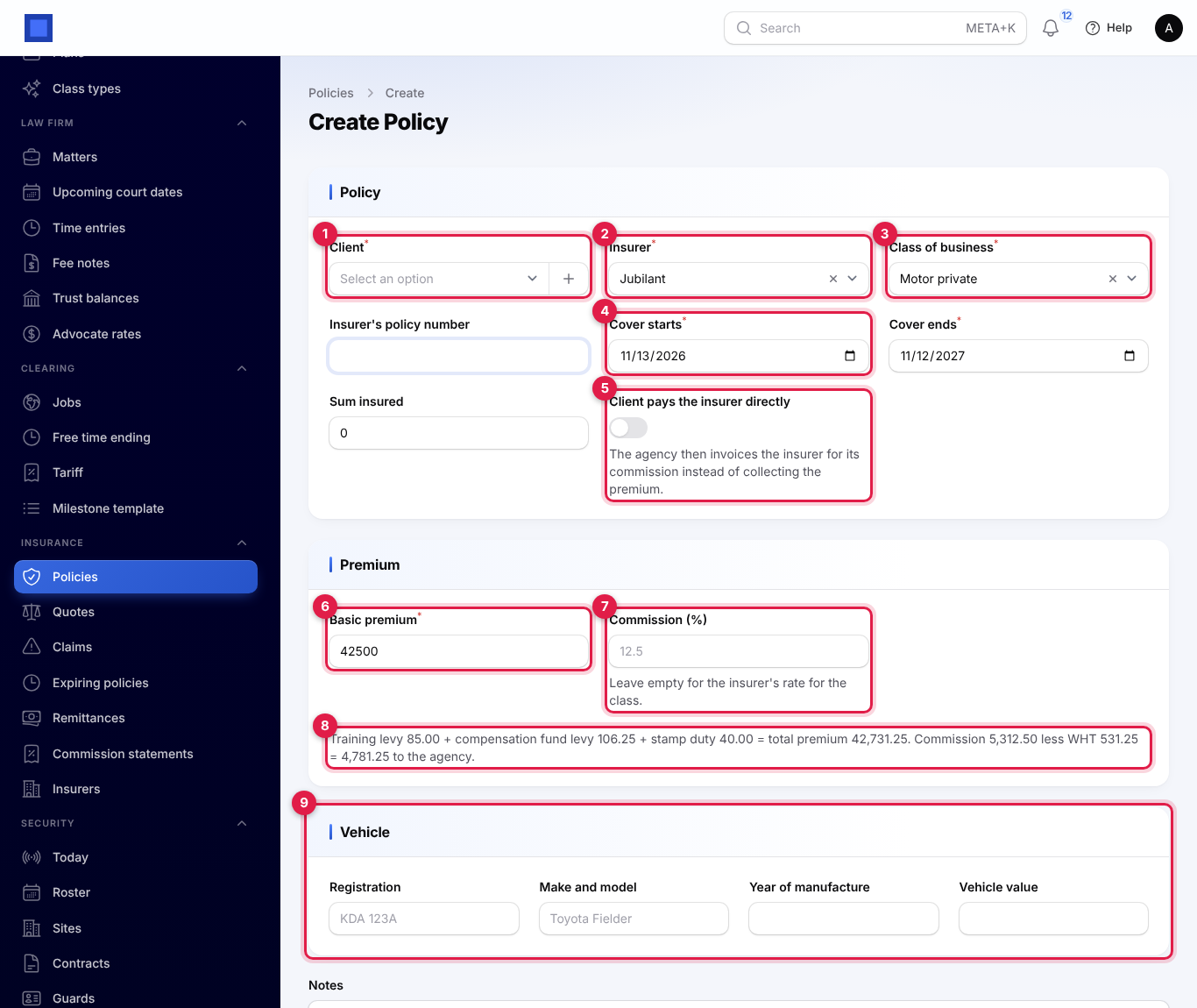
The policy gets a number such as POL-2026-00003 and is Active.
How the figures are worked out:
| Figure | How |
|---|---|
| Training levy | Basic premium × training levy %. |
| Compensation fund levy | Basic premium × compensation fund levy %. |
| Stamp duty | The fixed amount from Settings. |
| Total premium | Basic premium + both levies + stamp duty. This is what the client pays. |
| Commission | Basic premium × commission %. Levies and stamp duty earn no commission. |
| WHT | Commission × withholding tax %. |
| Net commission | Commission − WHT. This is what you keep. |
For example, a basic premium of KES 42,500 at 12.5% commission gives levies of KES 191.25, stamp duty of KES 40, a total premium of KES 42,731.25, commission of KES 5,312.50, WHT of KES 531.25 and a net commission of KES 4,781.25.
The policy page
Click Open on a policy. Under the number (marker 1) are its status, class, insurer, client, the total premium with its parts, the commission with WHT and net, and what is Still to remit to the insurer (or, for a policy paid direct, the commission still to invoice). These figures include every endorsement.
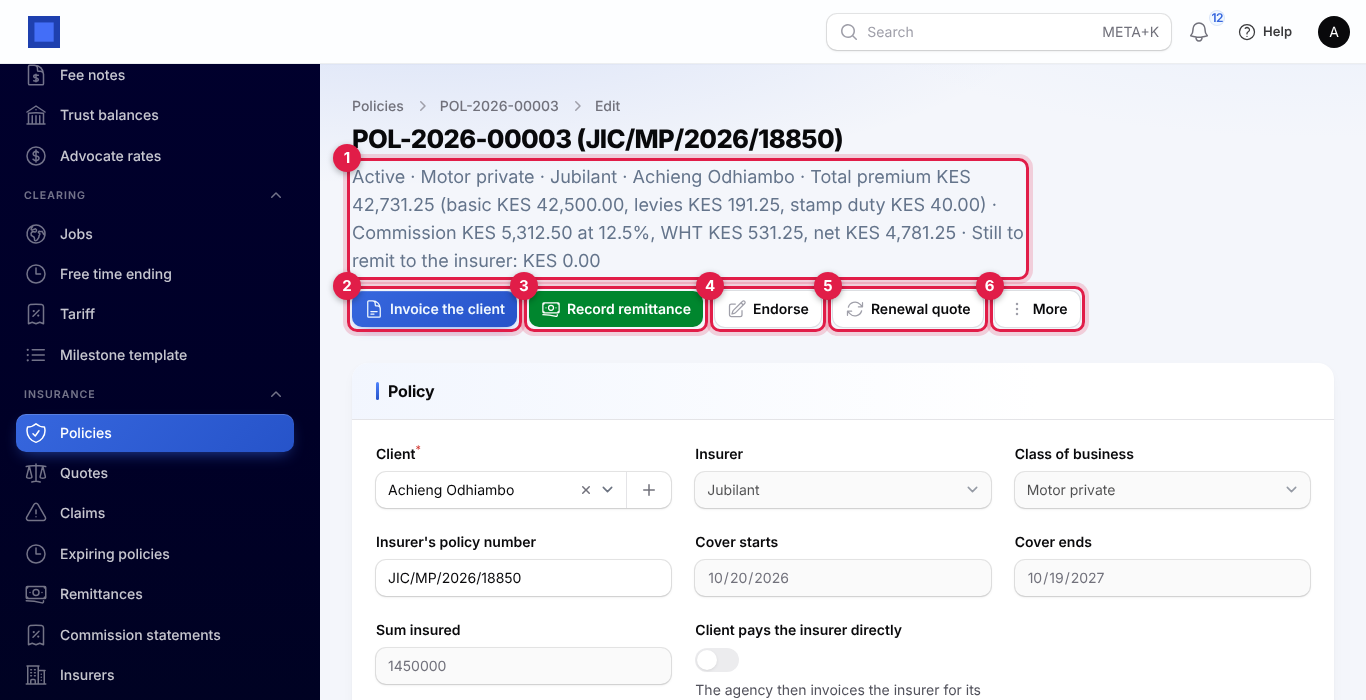
The buttons at the top:
| Button | When it shows | What it does |
|---|---|---|
| Invoice the client (marker 2) | Active, not invoiced yet, not paid direct, Invoicing on | See Invoice the client. |
| Record remittance (marker 3) | Not paid direct | See Remit the premium to the insurer. |
| Invoice the insurer for commission | Paid direct | See Policies paid direct to the insurer. |
| Endorse (marker 4) | Active | See Endorsements. |
| Renewal quote (marker 5) | Active or expired | Opens the policy's open renewal quote, or raises one. See Renewals. |
| More (marker 6) | Always | Open premium invoice, Previous policy (for a renewal) and Cancel policy. |
You can change the premium, insurer, class, dates, sum insured and Client pays the insurer directly only until the policy is invoiced, remitted or endorsed. After that those fields are greyed out and changes go through an endorsement. The client, the insurer's policy number, the vehicle details and the notes can always be changed; click Save changes.
Below the form are tabs: Endorsements, Members and dependants (medical policies), Remittances and commission, Claims and Documents.
Members and dependants (medical policies)
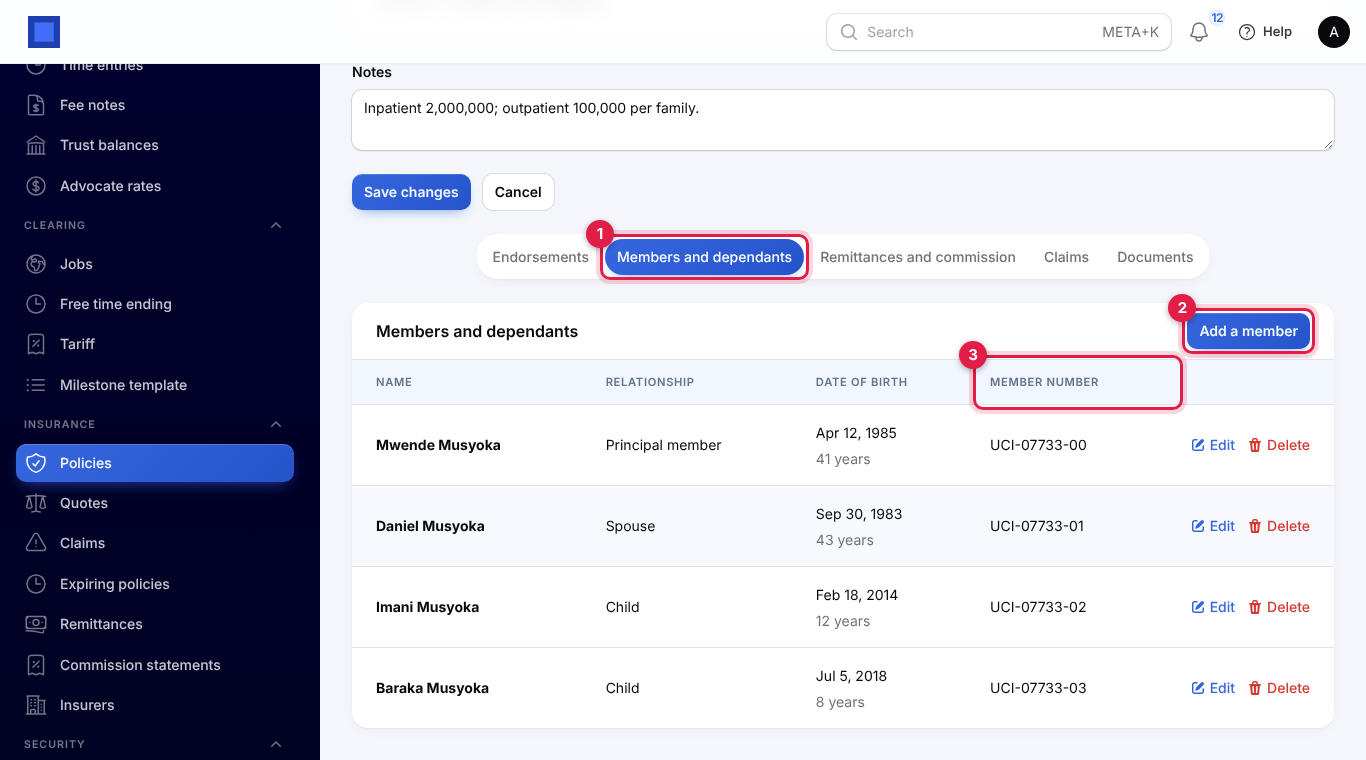
For a class kept as Medical, open the Members and dependants tab (marker 1) and click Add a member (marker 2). Enter the Name, the Relationship (Principal member, Spouse, Child, Parent or Other dependant), the Date of birth (the age shows in the list) and the insurer's Member number (marker 3). Members are copied to the new policy when it is renewed.
Quotes compared across insurers
Use a quote when a client asks for cover and you want to show premiums from several insurers side by side.
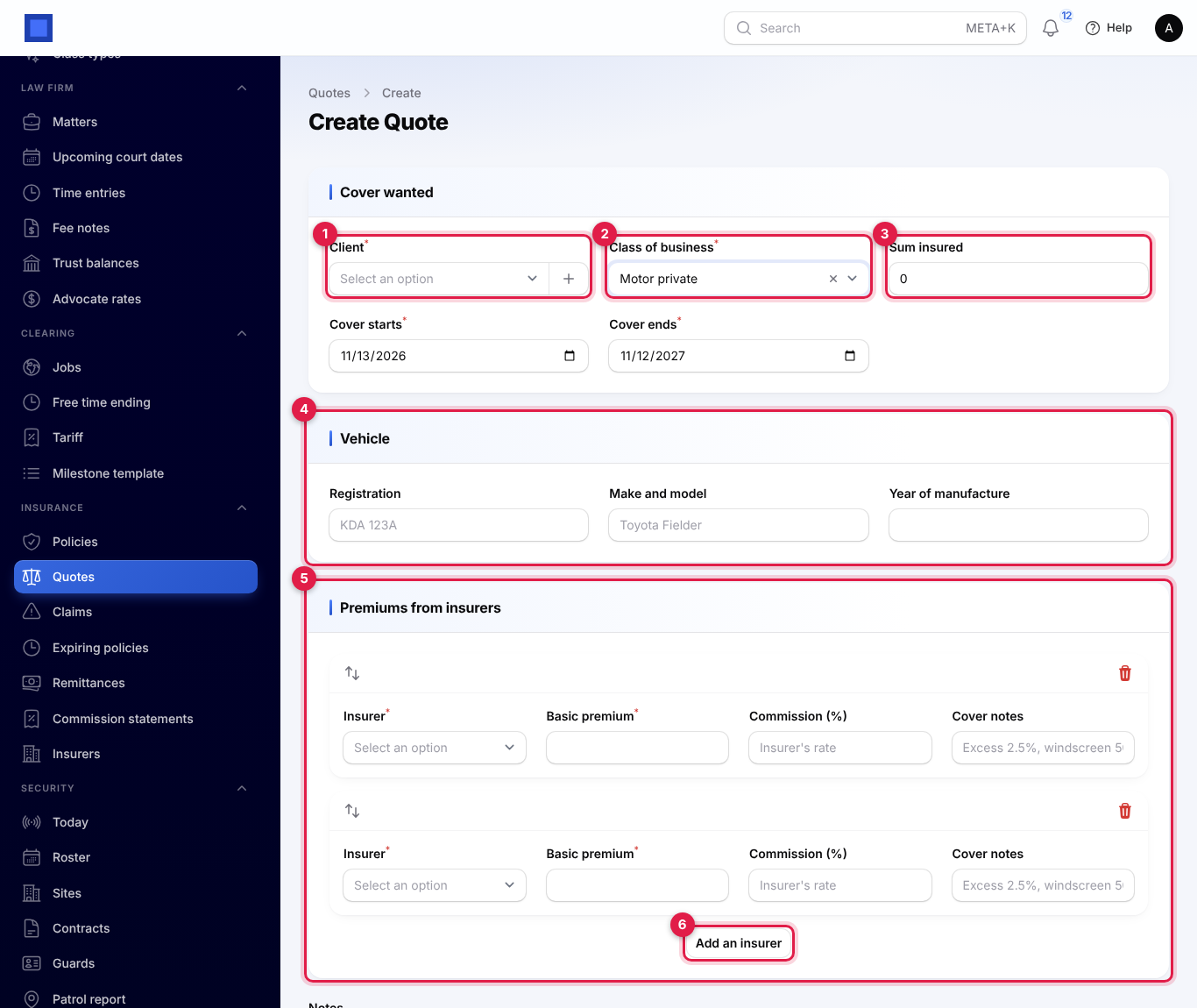
- Open Insurance → Quotes and click New quote.
- Choose the Client (marker 1) and the Class of business (marker 2), and enter the Sum insured (marker 3) and the cover dates.
- For a motor class, fill in the Vehicle section (marker 4).
- Under Premiums from insurers (marker 5), enter one row per insurer: Insurer, Basic premium, Commission (%) (empty for the insurer's rate) and Cover notes such as the excess or limits. Click Add an insurer (marker 6) for more rows; two rows are ready to start with.
- Click Create. The quote gets a number such as INQ-2026-00001.
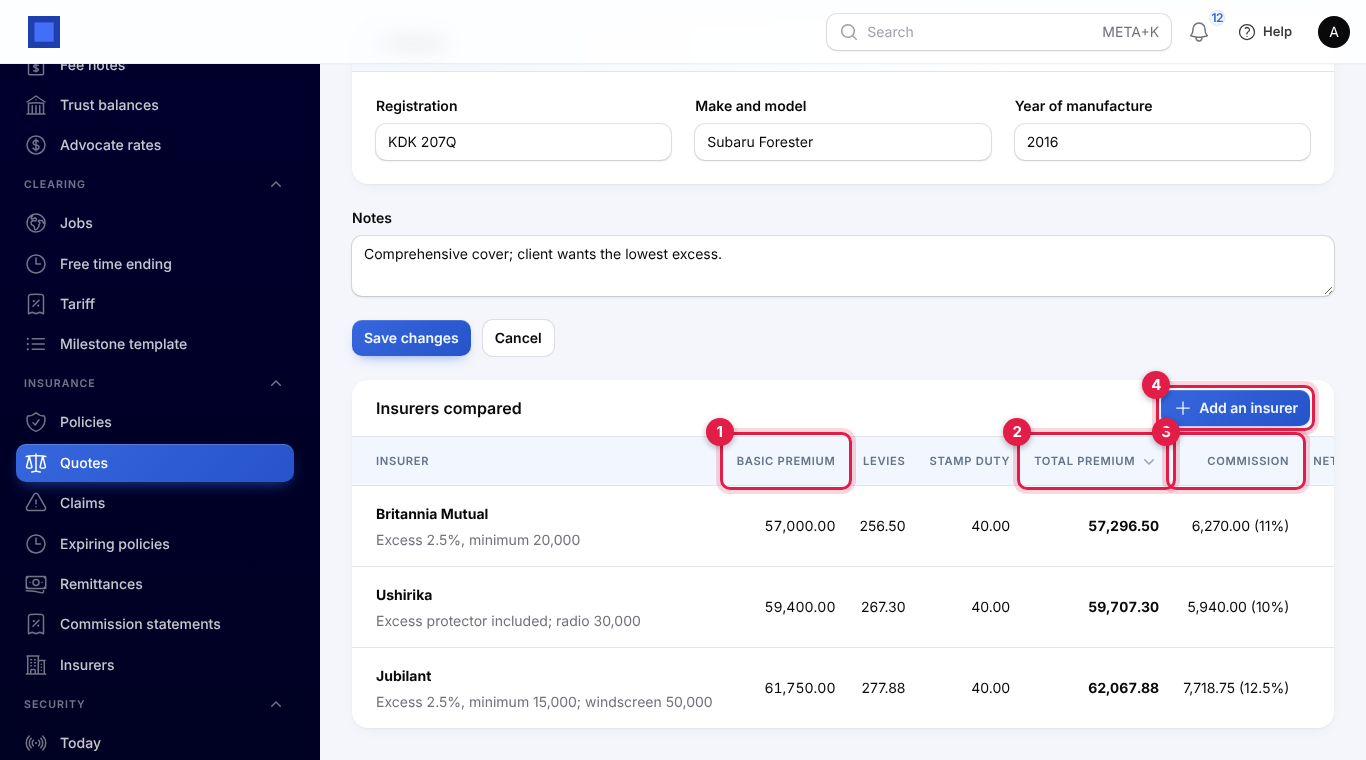
On the quote page, Insurers compared lists every insurer cheapest first, with the Basic premium (marker 1), the levies, the stamp duty, the Total premium the client would pay (marker 2) and the Commission you would earn with its rate (marker 3), followed by the net commission. Click Add an insurer (marker 4) to add another premium, or Edit and Delete on a row. If you change the levy rates in Settings, saving the quote works the totals out again.
Take one up
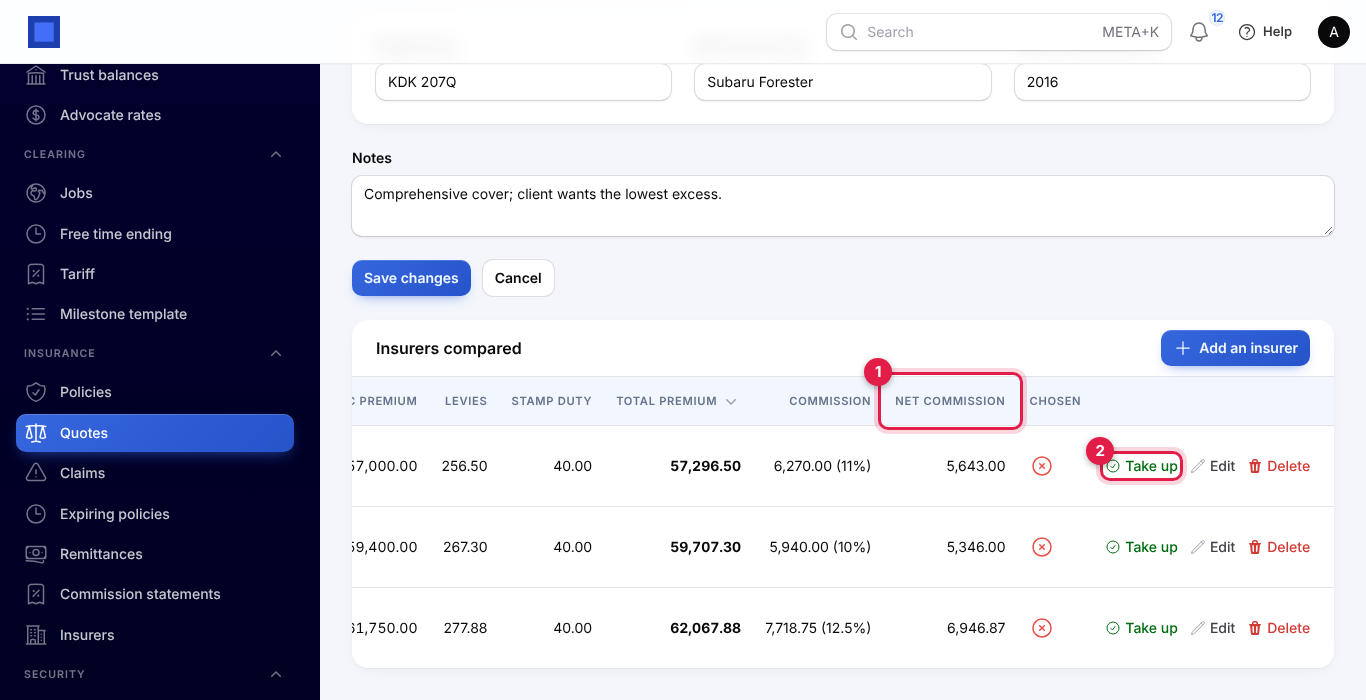
When the client chooses, scroll the comparison to the right and click Take up on that insurer's row (marker 2; marker 1 is the net commission).
The window says which insurer and total premium the policy will have (marker 1). Type the Insurer's policy number (marker 2) if you have it, turn on Client pays the insurer directly (marker 3) if that applies, and click Submit.
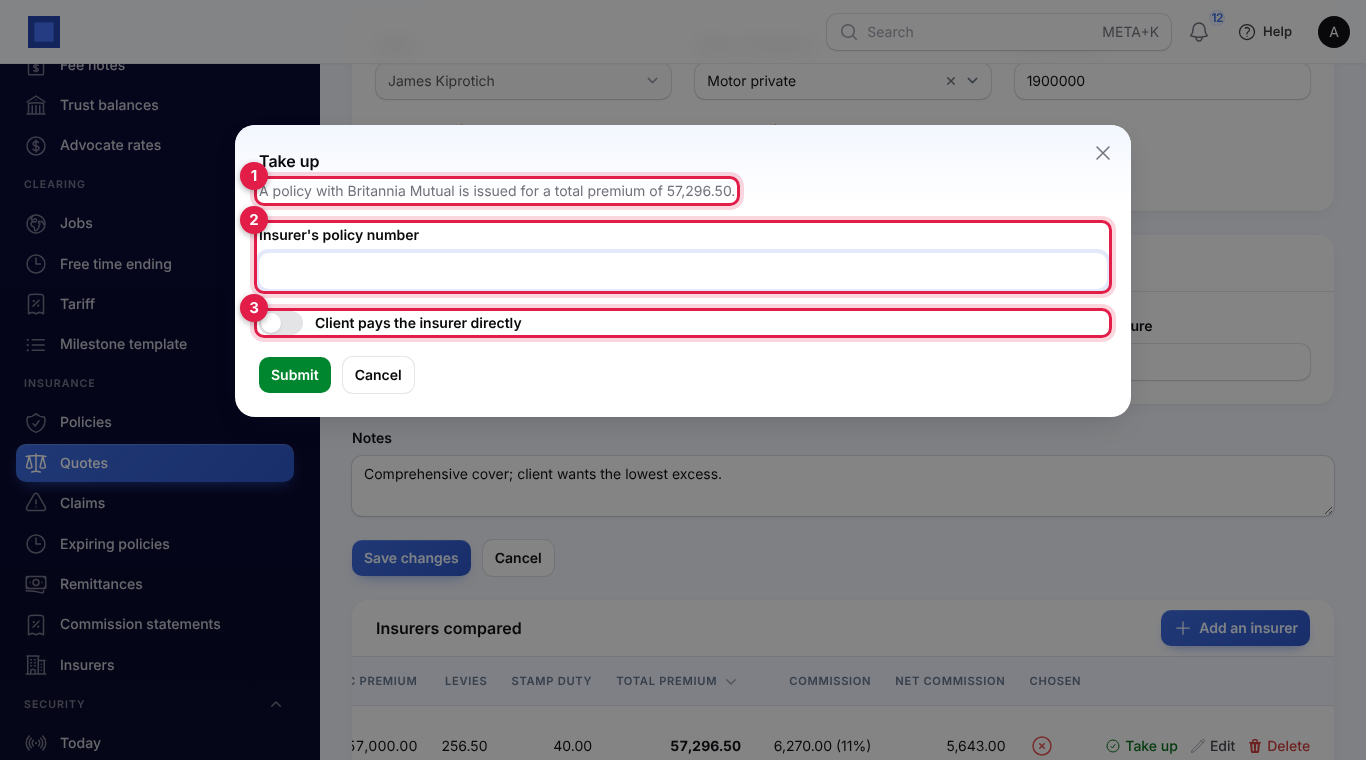
The policy is issued with that insurer, premium and commission, the quote's cover dates, sum insured, vehicle and notes, and you are taken to it. The quote shows Taken up and an Open policy button. A quote the client did not want is closed with Not taken up.
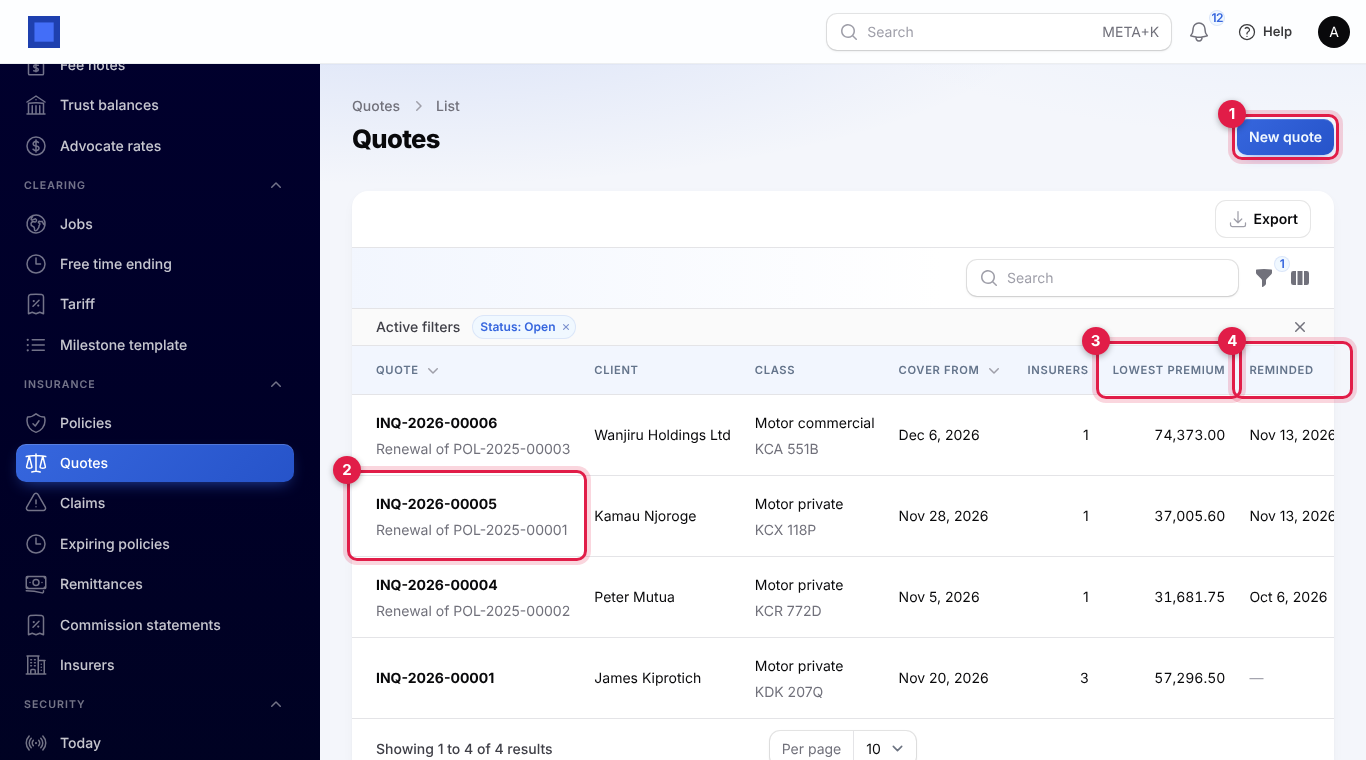
The quotes list shows each quote's Insurers count, Lowest premium (marker 3) and when a renewal reminder was sent (Reminded, marker 4); renewal quotes say which policy they renew under the number (marker 2). The Status filter starts on Open; the Renewals filter shows renewal quotes only.
Invoice the client
- On the policy, click Invoice the client.
- The window gives the total premium (marker 1). Click Confirm.
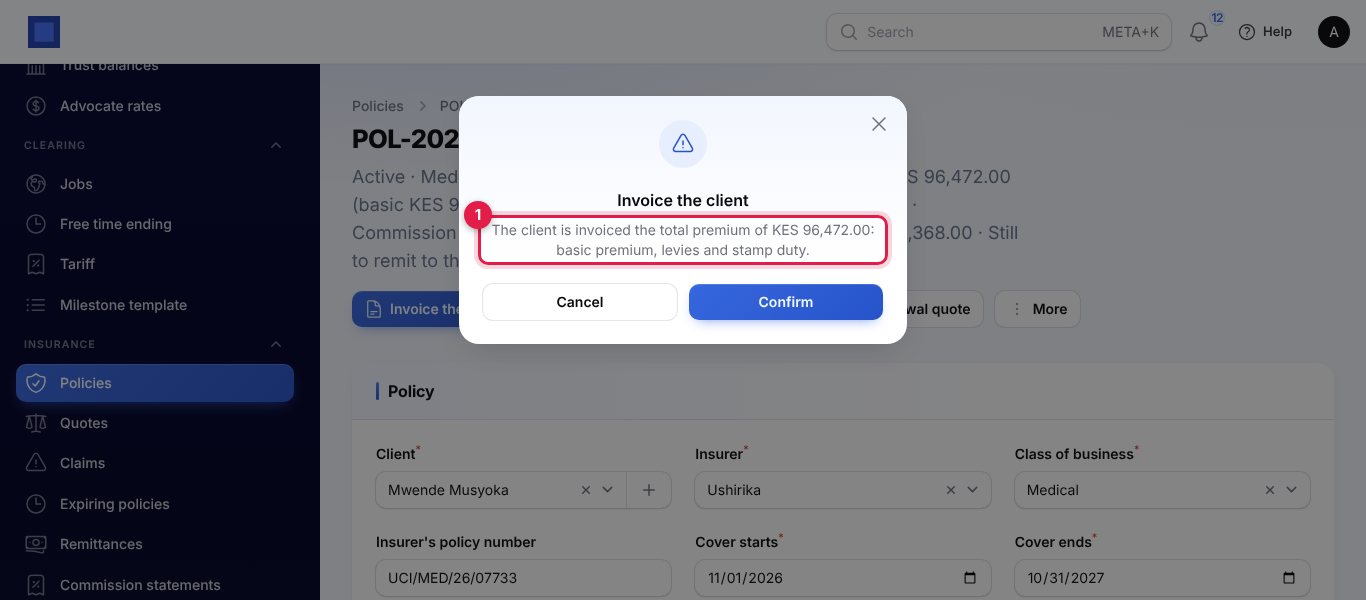
An invoice is issued to the client with the policy number as its reference and one line each for the cover (class, insurer, policy number, cover dates and registration), the training levy, the compensation fund levy and the stamp duty. No sales tax is added. Send it and take payment as for any invoice (see Invoices and payments). When it is paid in full, the policy is marked as paid and drops out of the Premium not paid filter. Open it later from More → Open premium invoice.
Remit the premium to the insurer
When you have collected the premium, pass it on to the insurer less the commission you keep.
- On the policy, click Record remittance.
- Read the line at the top (marker 1): the premium, your commission and the withholding tax on it, and the amount due to the insurer.
- Check the Date (marker 2) and type a Reference (marker 3), for example your bank transfer number.
- Click Submit. You see "Remittance recorded".
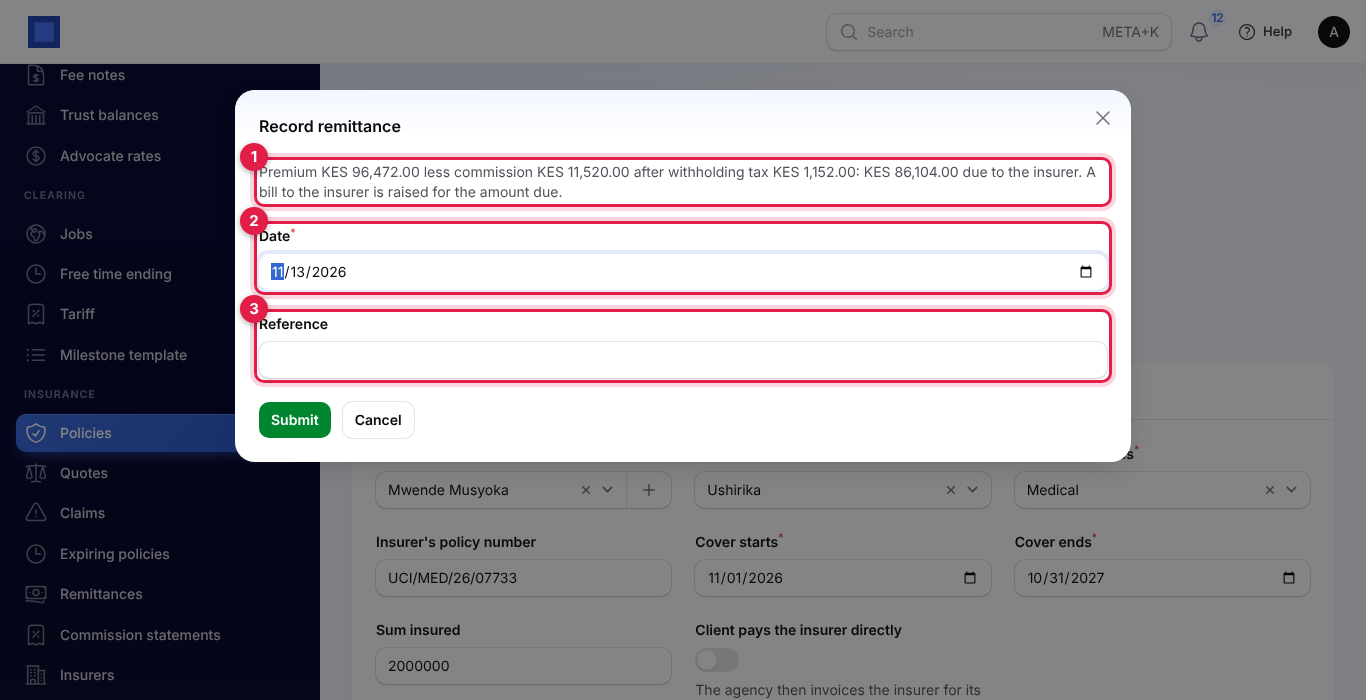
Amount due to the insurer = premium − (commission − withholding tax). You keep the commission after tax, and the insurer pays the withholding tax over to the tax authority. With the Purchases app on, a posted bill to the insurer is raised for that amount, so you pay it like any vendor bill (see Purchases and bills).
Remittances need the client's premium invoices, including endorsement invoices, to be paid in full; otherwise you see "The client has not paid the premium in full yet" with the invoice numbers. Each remittance covers whatever has not been remitted yet, so after an endorsement you record another one for the extra premium.
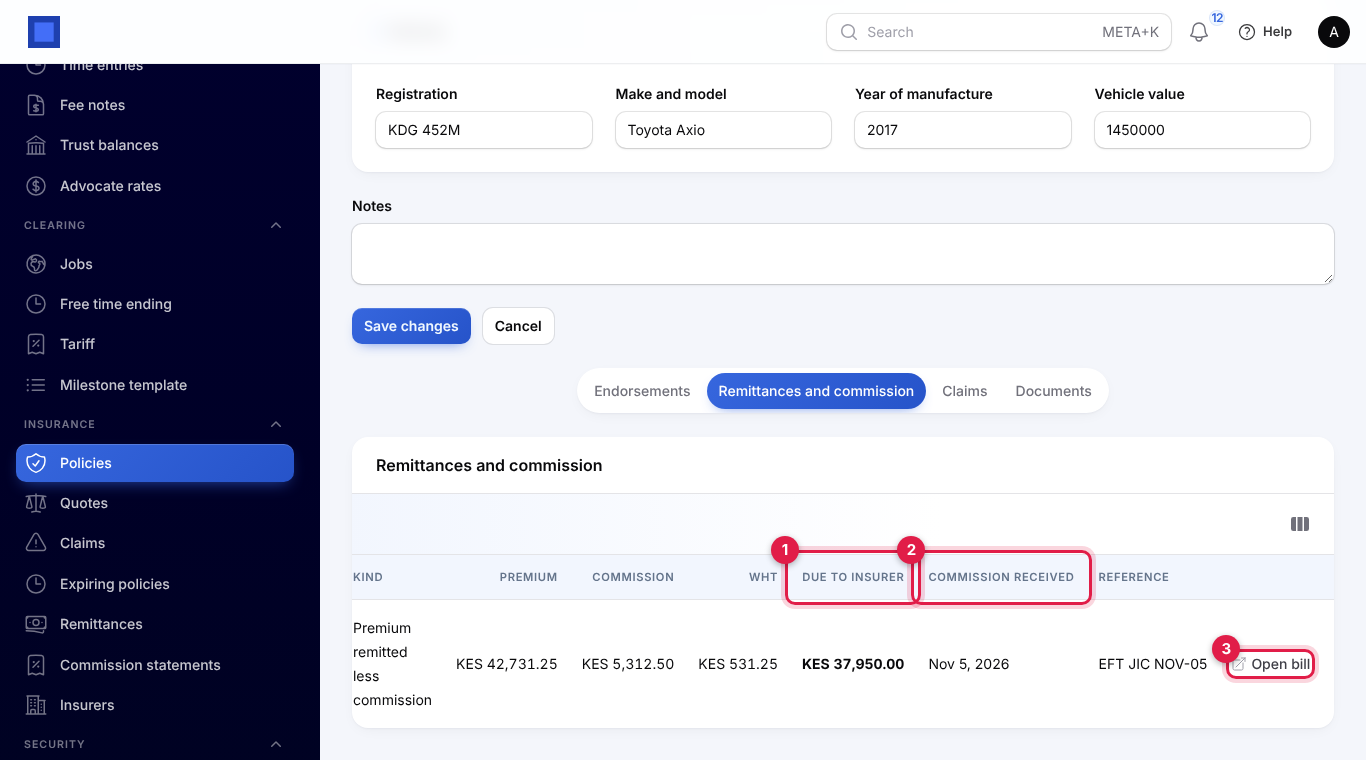
The policy's Remittances and commission tab lists what has been settled with the insurer: the date, the kind, the premium, commission and WHT, the amount Due to insurer (marker 1), when the Commission received (marker 2) and the reference. Open bill (marker 3) opens the bill to the insurer.
Policies paid direct to the insurer
When Client pays the insurer directly is on, you do not invoice the client or remit anything. Instead:
- On the policy, click Invoice the insurer for commission.
- The line at the top (marker 1) shows the commission, the withholding tax and what the insurer pays you.
- Check the Date (marker 2), add a Reference and click Submit.
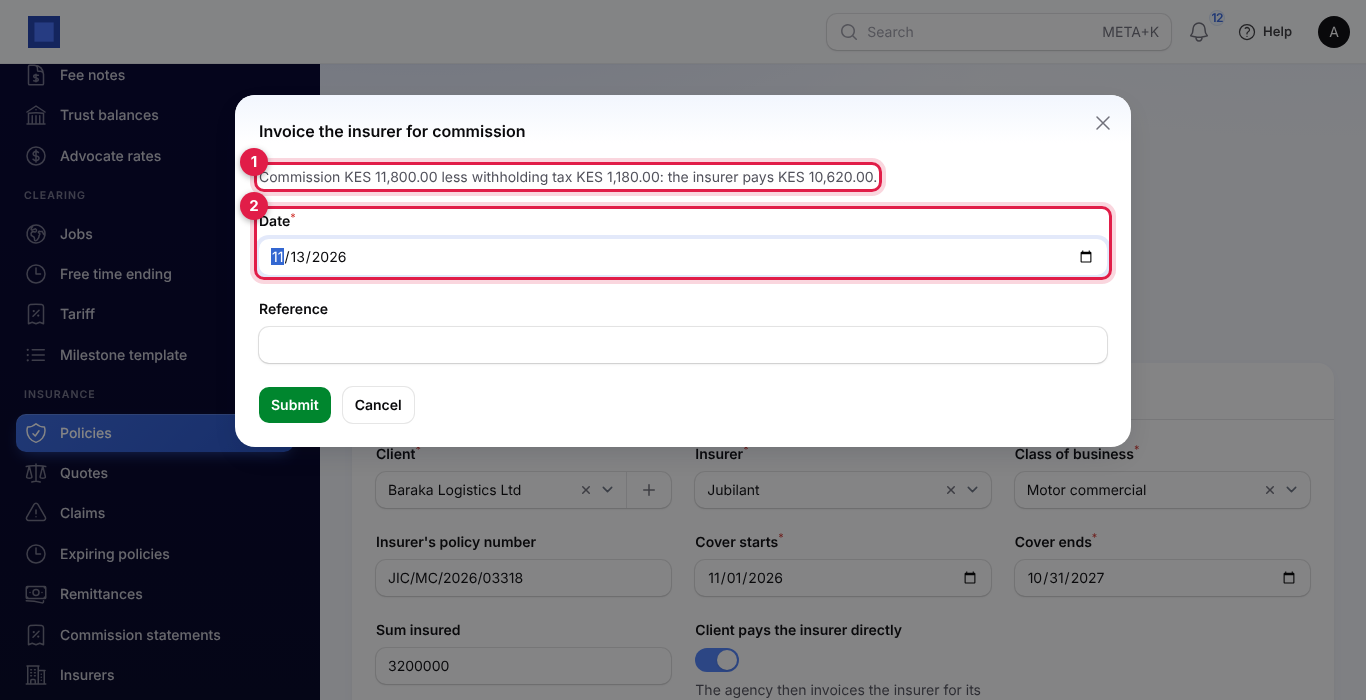
With Invoicing on, an invoice for the commission is issued to the insurer, with your withholding tax at the policy's rate applied, so the amount due is the commission less the tax. The withholding tax is added under your taxes the first time ("Withholding tax on insurance commission 10%"). When the insurer pays the invoice in full, the commission is marked as received. If the insurer pays outside NaliSuite, or Invoicing is off, click Commission received on the row in the Remittances and commission tab.
Endorsements
An endorsement records a change during cover, such as a higher sum insured or a change of vehicle, charged or refunded for the days of cover left.
- On an active policy, click Endorse.
- Describe the Change (marker 1).
- Set Effective from (marker 2). It must fall within the cover.
- Enter the Change to the annual basic premium (marker 3), negative for a reduction.
- Enter any Change to the sum insured (marker 4).
- Check the line at the bottom (marker 5): the days left out of the cover days, the basic premium for those days, the total with levies, and the commission on it.
- Click Submit.
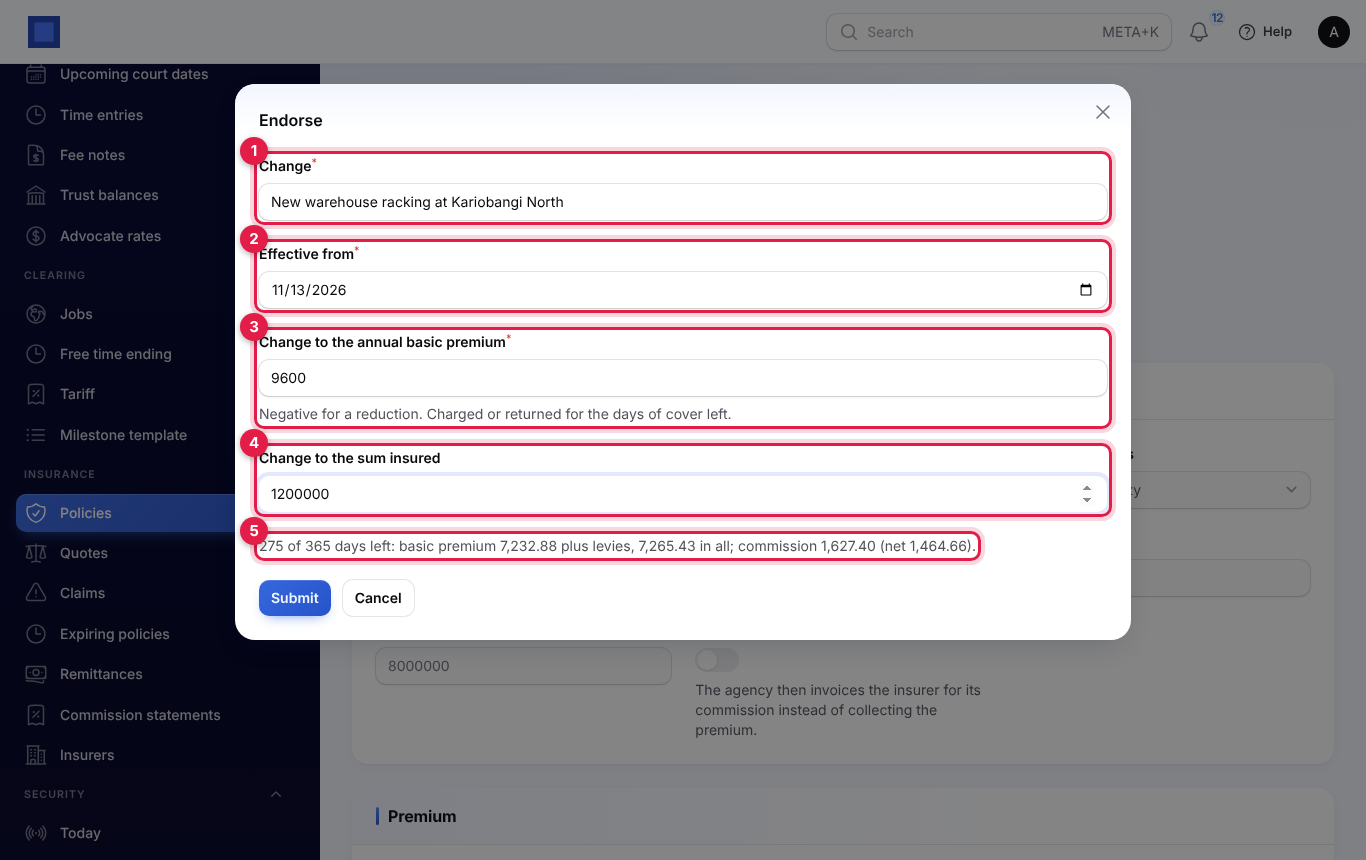
Pro rata: basic premium for the endorsement = annual change × days left ÷ days of cover, counting both the effective date and the last day. The levies and commission are worked out on that amount at the policy's rates. Stamp duty is not charged again. A reduction cannot be larger than the annual premium.
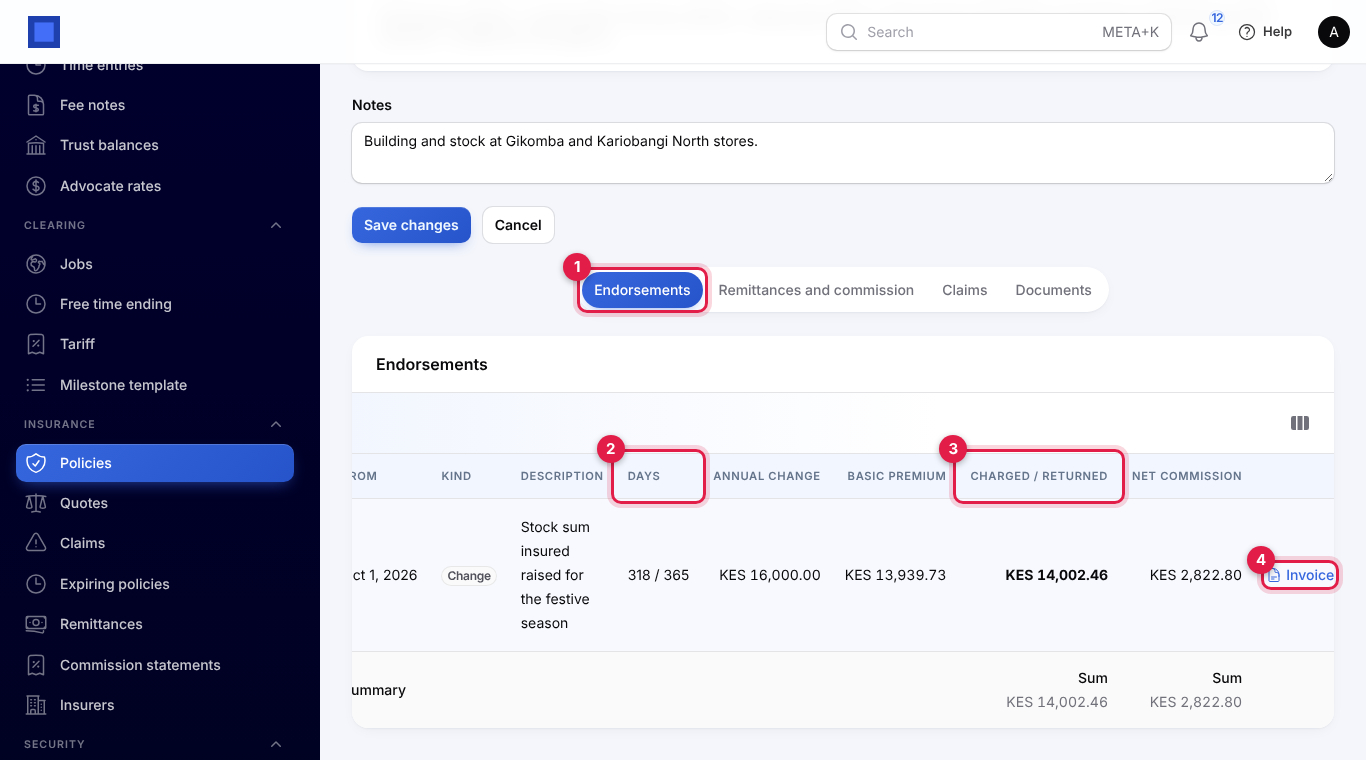
The Endorsements tab (marker 1) lists each one with the Days left of the cover (marker 2), the annual change, the basic premium and the amount Charged / returned (marker 3), with totals. For extra premium, click Invoice (marker 4) to invoice the client the endorsement (with its levies); then remit it to the insurer with another Record remittance. Returned premium is not invoiced: refund the client yourself.
Cancel a policy
- On the policy, click More → Cancel policy.
- Set Cancelled with effect from (marker 1) and type the Reason (marker 2), for example Vehicle sold.
- Check the refund line (marker 3) and click Submit.
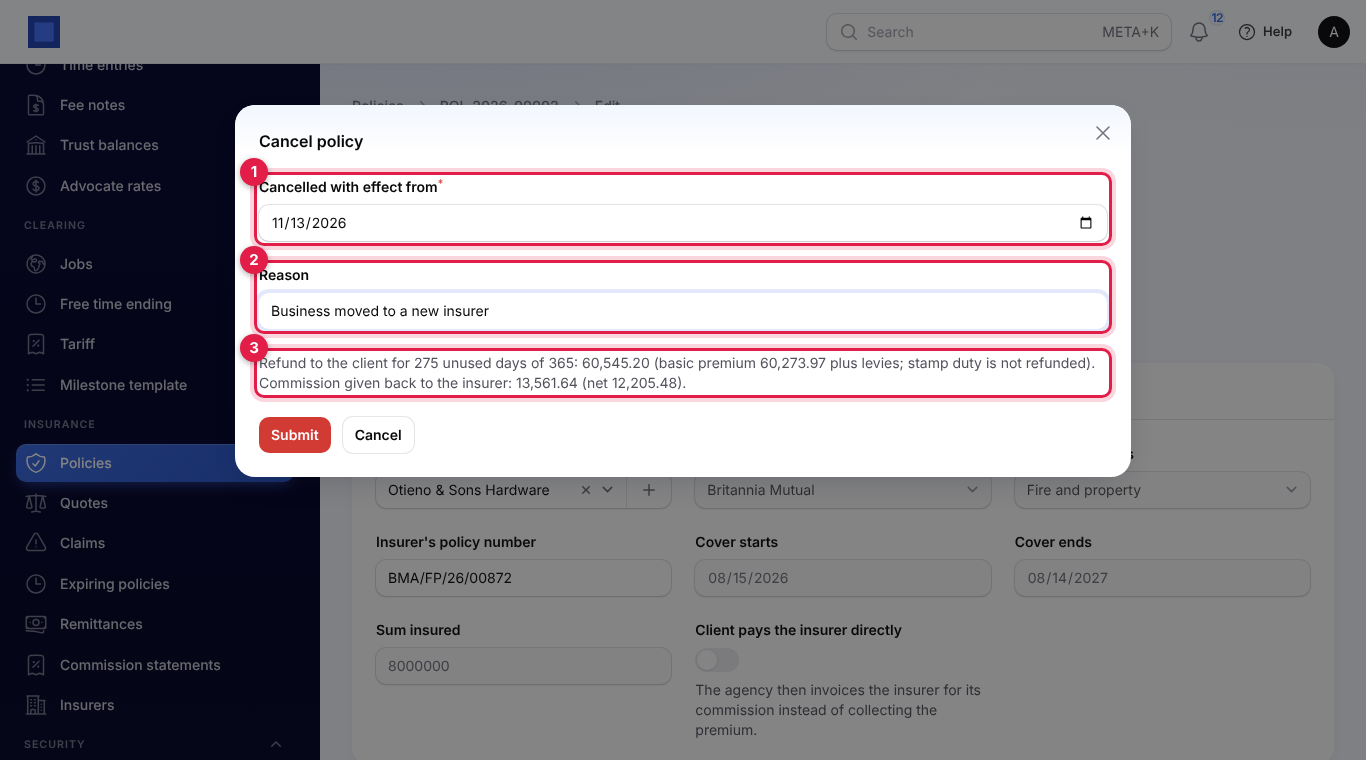
The unused share of the annual premium, from the cancellation date to the end of cover, is returned with its levies; stamp duty is kept. The commission on the refund goes back to the insurer. The policy becomes Cancelled and the cancellation shows in the Endorsements tab as a Cancellation row (marker 1) with the days refunded (marker 2) and the negative amount (marker 3).
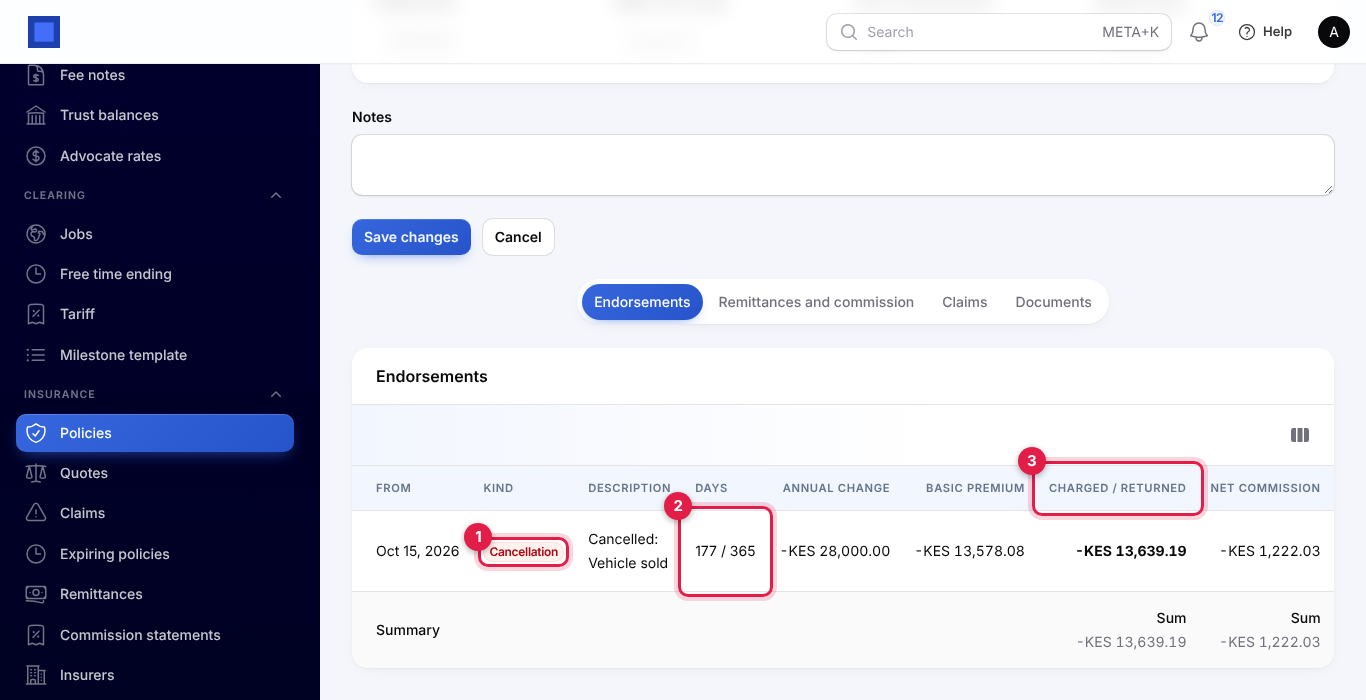
Refund the client yourself. Then click Record remittance: it records the premium the insurer owes back (a negative amount, without a bill). Claims for losses on or after the cancellation date are refused.
Renewals
What happens every morning
A daily run (the insurance:renewals command, scheduled once a day in the morning) goes through every company:
- Active policies past their end date become Expired.
- Each active policy ending within the renewal days in Settings gets a renewal quote: the same insurer, class, commission and vehicle, the annual premium the policy is on now (with endorsements), and cover from the day after the old one ends, for a year.
- The client is reminded once, by text (when the setting is on, SMS is set up in Marketing and the client has a mobile or phone number) and by email (when the setting is on and the client has an email address). The message gives the class, the registration, the insurer, the end date and the renewal premium including levies and stamp duty, and asks the client to contact you. For example: "Hello Kamau Njoroge, your motor private insurance (KCX 118P) with Britannia Mutual ends on 27 Nov 2026. Renewal premium: KES 37,005.60. Contact Acme Traders Ltd to renew."
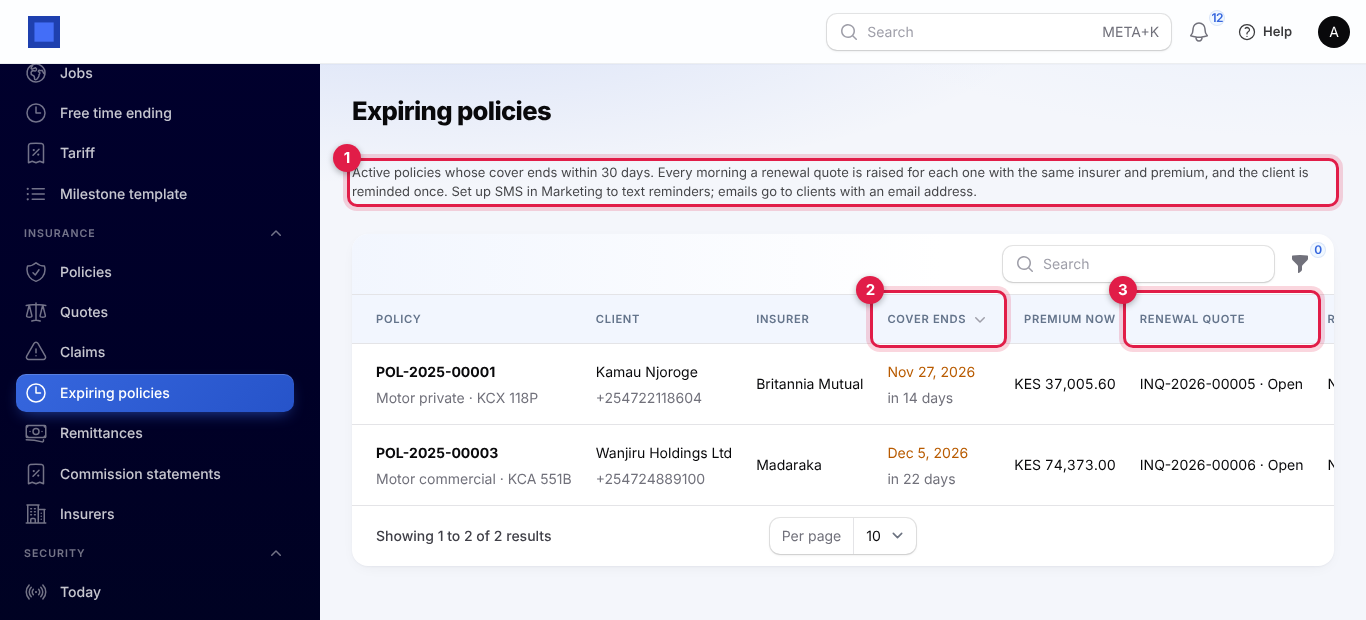
Expiring policies
Open Insurance → Expiring policies for active policies ending within the renewal days. The line at the top (marker 1) explains the run, and says when SMS is not set up. Each row shows when the Cover ends (marker 2, red within 7 days), the premium now, the Renewal quote with its status (marker 3).
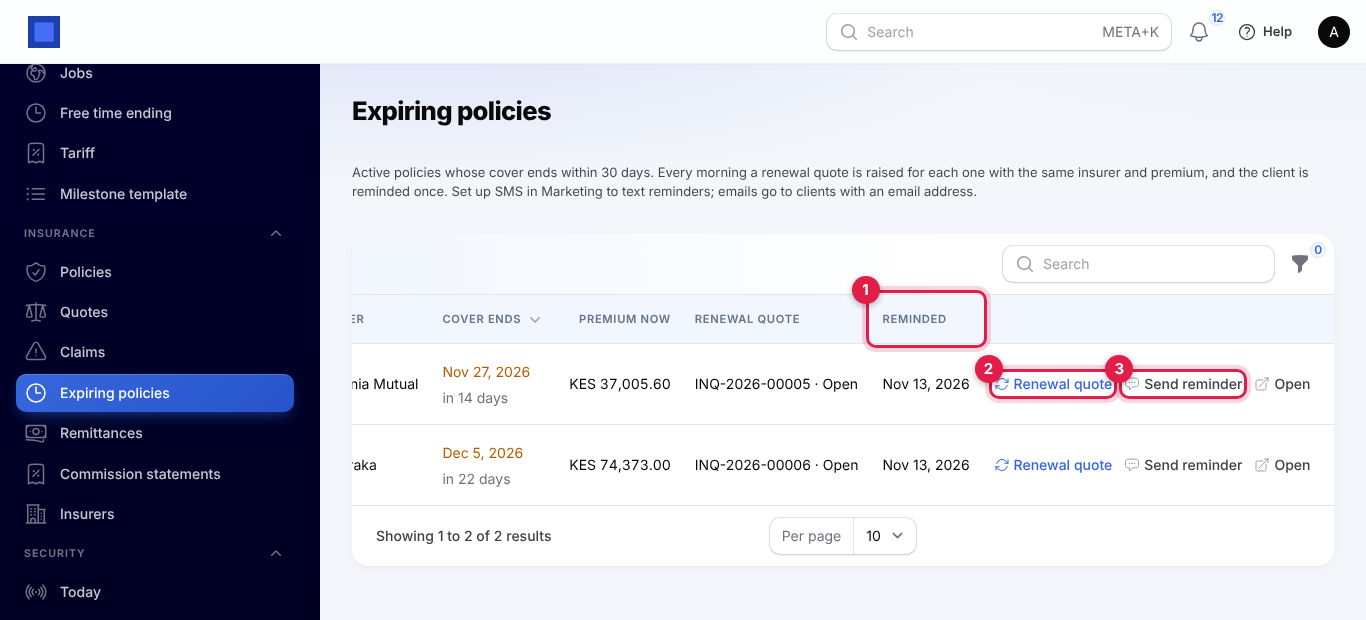
Scroll right for Reminded (marker 1) and the buttons: Renewal quote (marker 2) opens or raises the renewal quote now, without waiting for the morning run, Send reminder (marker 3) reminds the client again, and Open opens the policy. The No renewal quote yet filter shows what the run has not reached yet.
The renewal quote
A renewal quote works like any quote: change the premium with Edit on the insurer's row if the insurer quoted a new figure, or Add an insurer to compare others. Under the title (marker 1) you see the policy it renews and when the reminder was sent and how. The buttons are Renewal paid (marker 2), Send reminder (marker 3), Not taken up and Policy being renewed (marker 4).
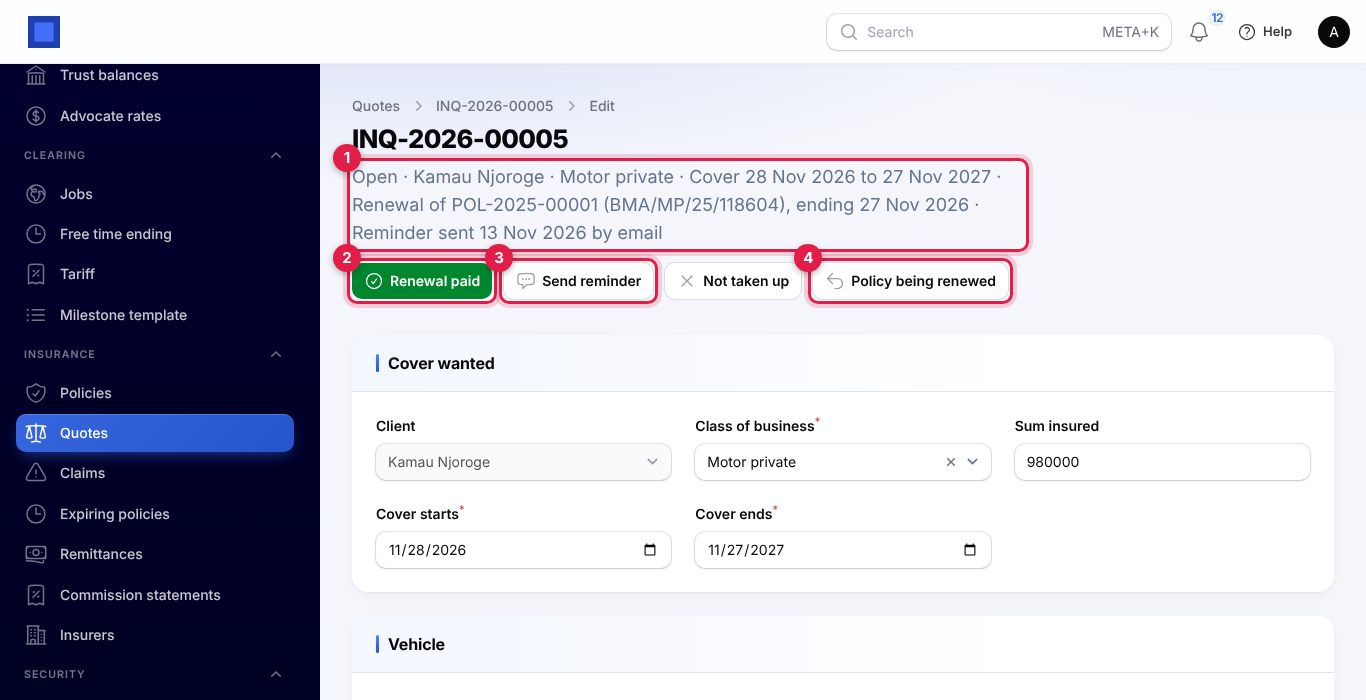
When the client pays:
- Click Renewal paid.
- Choose the Insurer (marker 1); the cheapest is chosen for you.
- Type the Insurer's policy number (marker 2).
- Choose how it was Paid by (marker 3) and type the Payment reference (marker 4), for example the M-Pesa code.
- Click Submit.
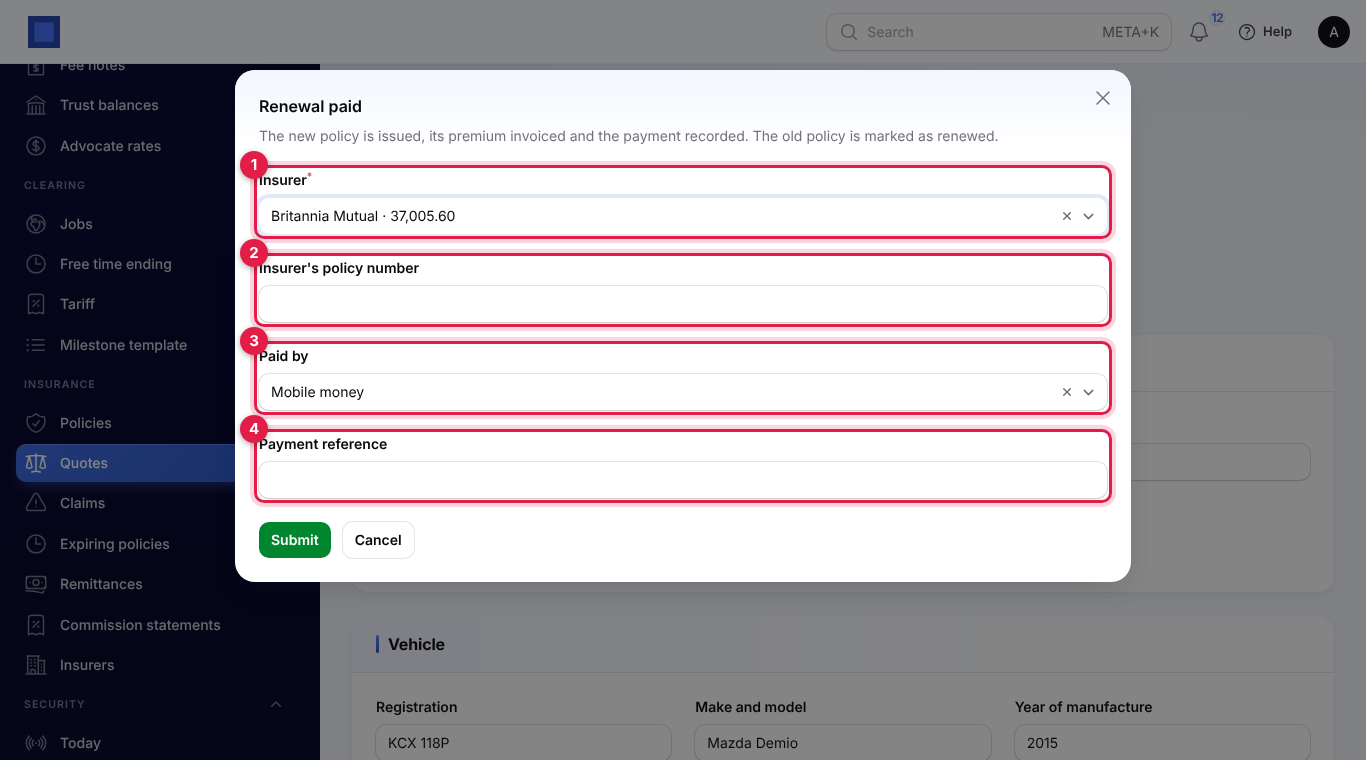
The new policy is issued, linked to the old one (open it with More → Previous policy), with the members copied and the same paid-direct setting. The old policy becomes Renewed. With Invoicing on and a policy not paid direct, the premium is invoiced and the payment recorded straight away, so you can remit it to the insurer. If the client does not renew, click Not taken up; the old policy expires at its end date.
Claims
Report a claim
- Open Insurance → Claims and click Report a claim, or open the policy's Claims tab and click Report a claim there.
- Choose the Policy: search by our number, the insurer's number, the registration or the client.
- Enter the Date of loss, Reported on (today by default), the Amount claimed, the Insurer's claim number if you have it, and What happened.
- Click Create. The claim gets a number such as CLM-2026-00004 and is Reported.
The date of loss must fall within the policy's cover, before any cancellation date, and not in the future.
Move a claim on
Open the claim. The buttons at the top move it to its next step. For a newly reported claim they are Documents pending (marker 1), Assessed (marker 2) and Declined (marker 3). You can still correct the Amount claimed (marker 4) while the claim is open, add the Insurer's claim number (marker 5) and change What happened; click Save changes.
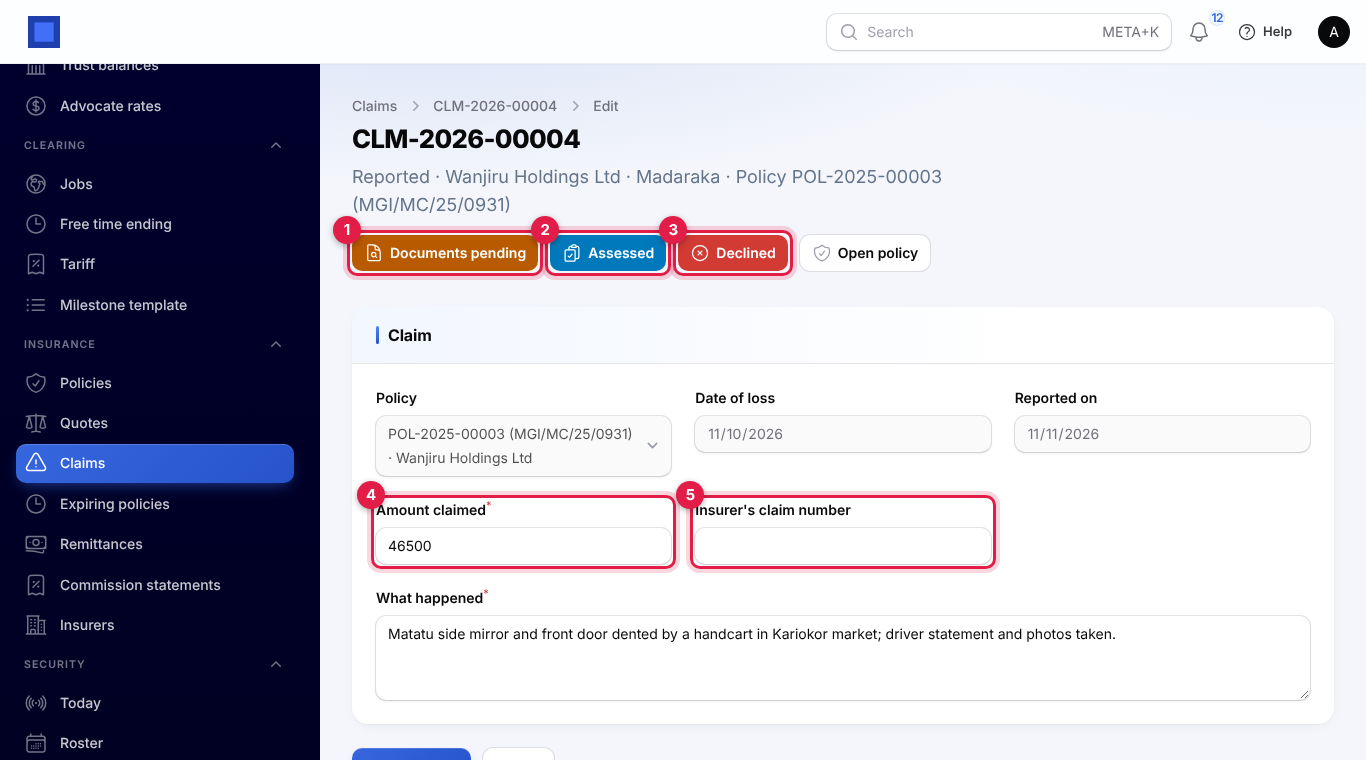
| From | Can move to |
|---|---|
| Reported | Documents pending, Assessed, Declined |
| Documents pending | Assessed, Declined |
| Assessed | Approved, Declined, Documents pending |
| Approved | Settled |
| Declined or Settled | Nothing: the claim is closed. |
Each button asks for a note, for example the documents asked for or the assessor's finding. Declined needs the insurer's reason. Settled needs the Amount paid by the insurer (marker 1; more than nothing and not more than the amount claimed), the Settlement date (marker 2) and an optional Note (marker 3), such as "Discharge voucher signed".
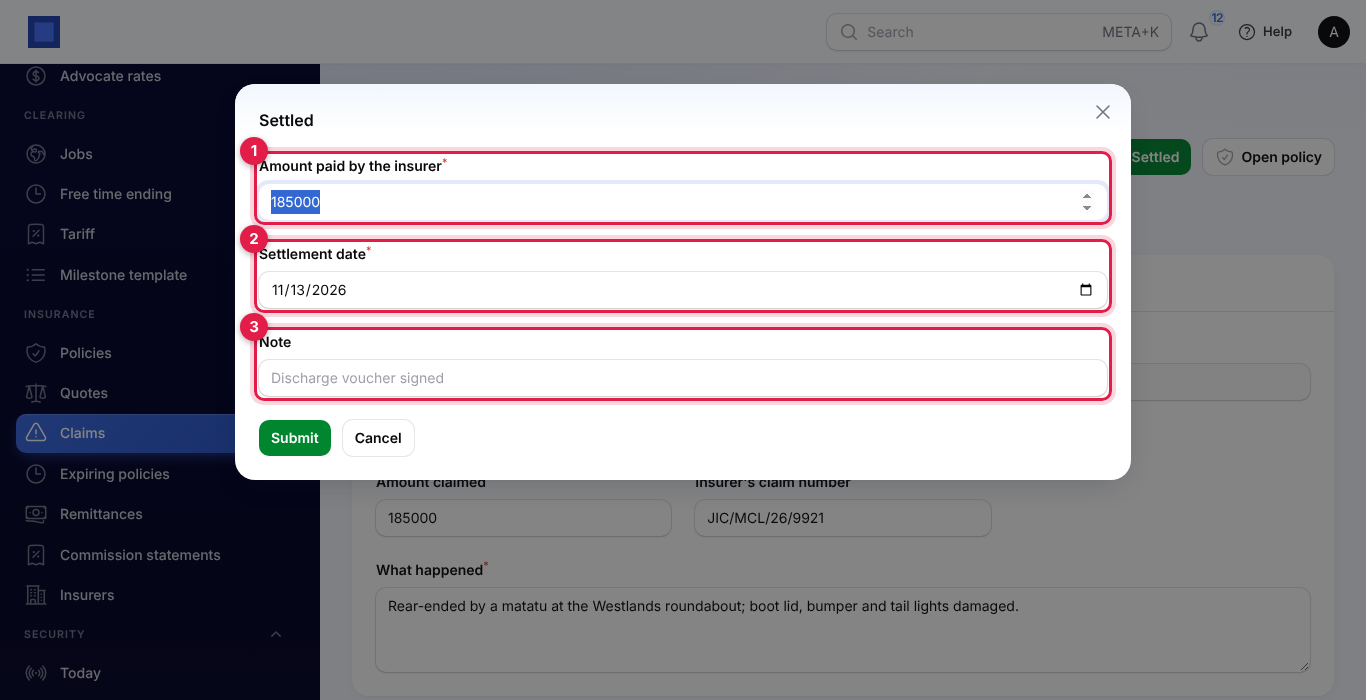
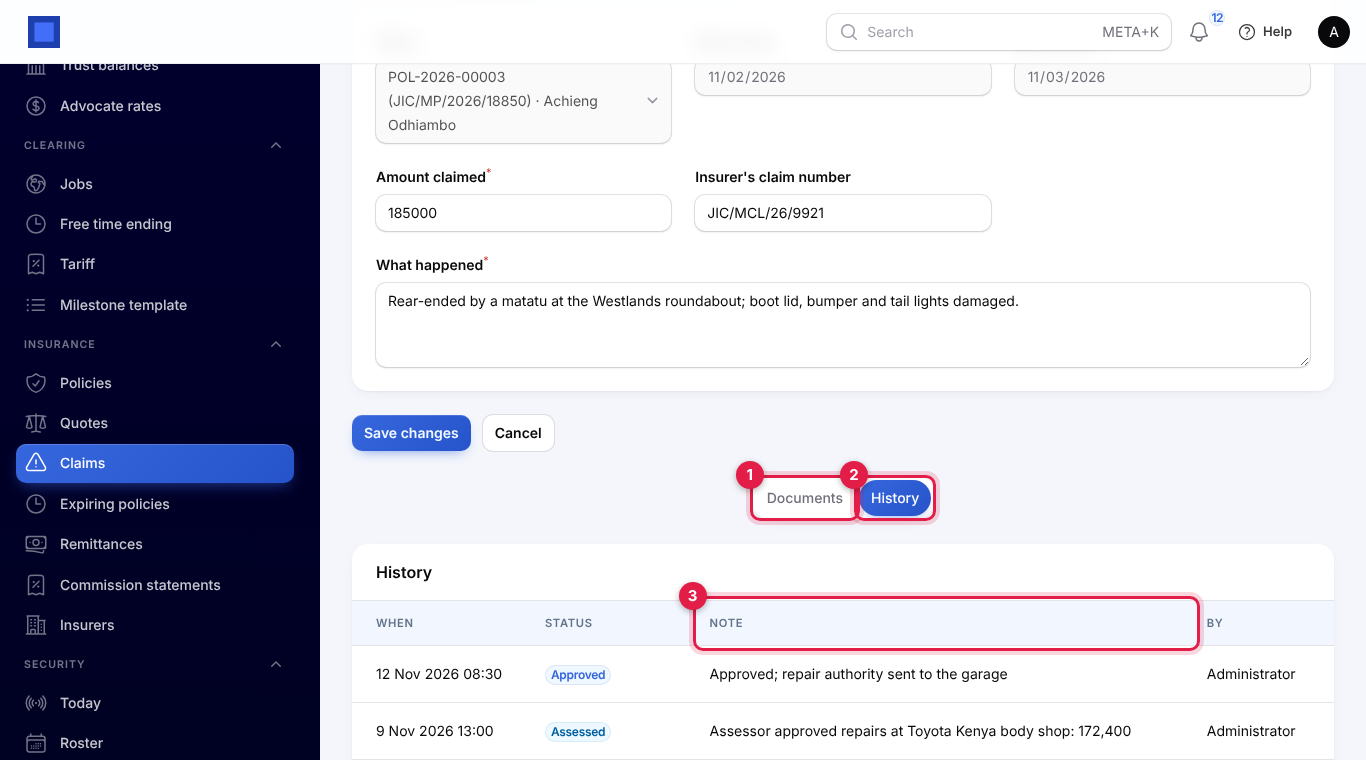
The History tab (marker 2) lists every step with when it happened, the note (marker 3) and who recorded it. The Documents tab (marker 1) keeps the police abstract, repair estimates, photos and the discharge voucher (see Documents). Open policy goes back to the policy.
The claims register
Insurance → Claims lists every claim with its policy and registration, client, insurer, date of loss, amount Settled (marker 3) and status (marker 4). Use Group by to group the list by insurer or status, and the filters for Insurer, Status and Open claims.
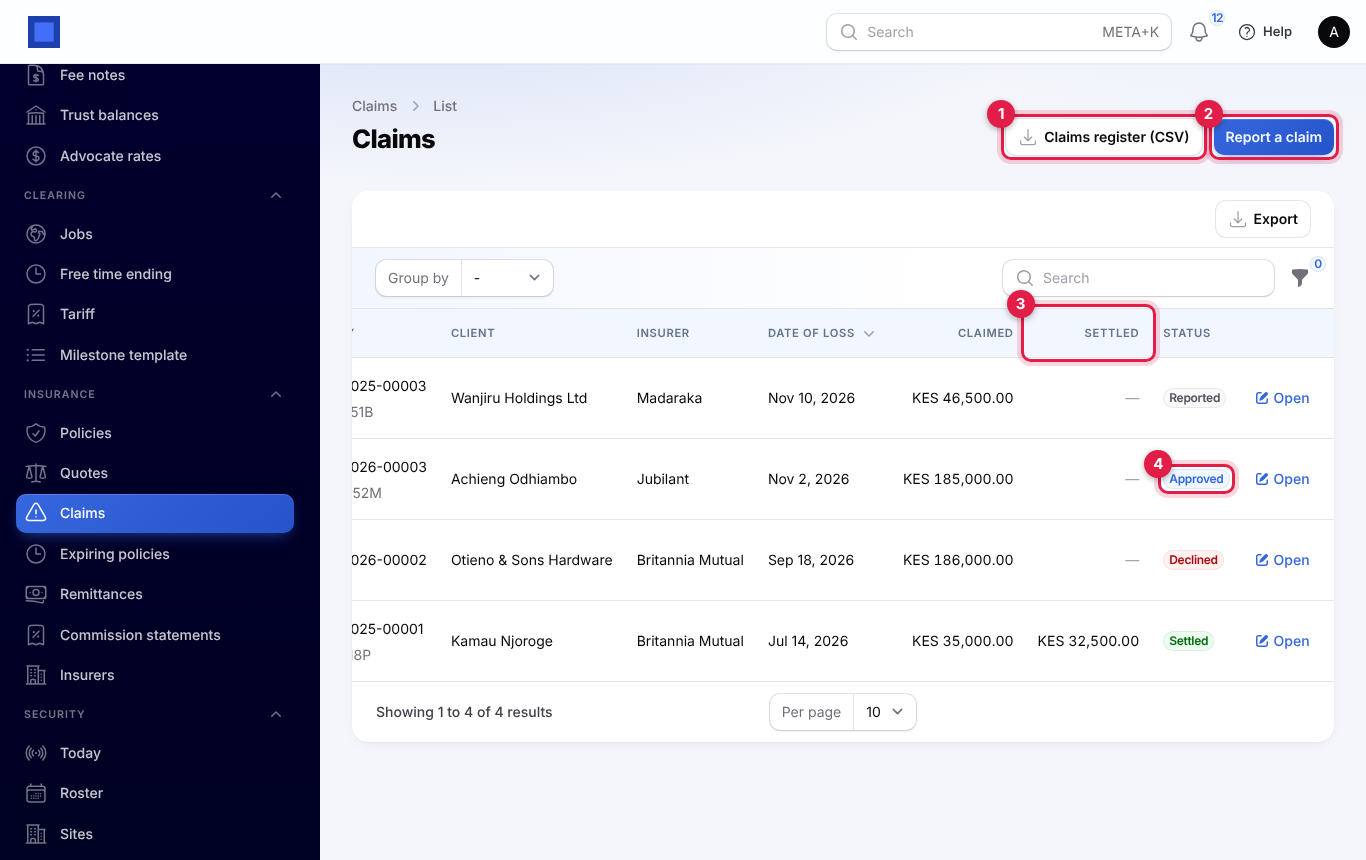
Click Claims register (CSV) (marker 1), choose one insurer or leave All insurers, and click Submit to download the register for the insurer's claims meeting: insurer, claim, insurer claim number, policy, class, client, date of loss, date reported, status, amount claimed, amount settled and settlement date.
Documents
Keep the policy schedule, the logbook copy or the proposal form on the policy, and claim papers on the claim.
- Open the Documents tab (marker 1) of the policy or the claim.
- Click Upload (marker 2), type a Name and choose the File: a PDF, a photo or a Word document of up to 10 MB.
- Click Create.
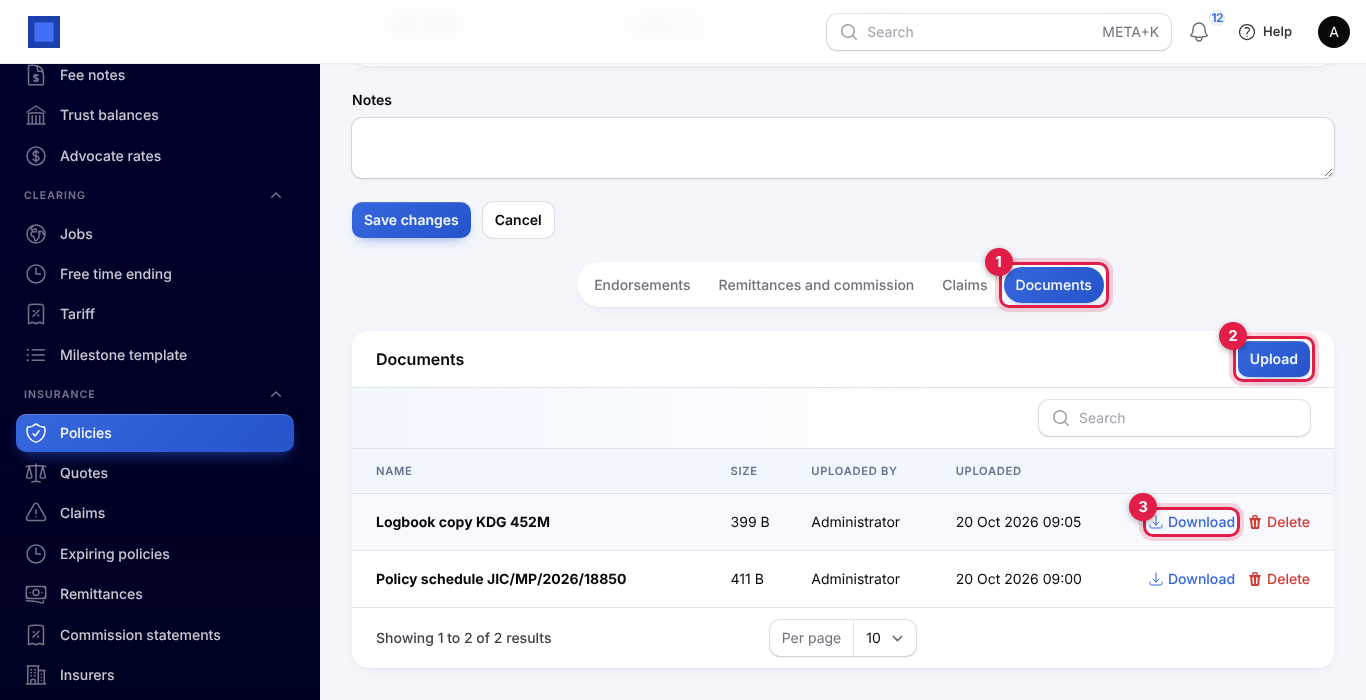
Files are stored privately. Download (marker 3) opens them for anyone with insurance.view; claim documents need insurance.claims or insurance.manage. Uploading and deleting needs insurance.manage on a policy and insurance.claims on a claim.
Remittances and commission statements
Remittances to insurers
Open Insurance → Remittances. Choose the Month (marker 1) and, if you like, one Insurer (marker 2). For each insurer you see the number of policies, the Premiums collected, the Commission earned, the WHT on commission, the Net commission, the Amount due to insurer (marker 4) and the Commission to collect on policies paid direct that the insurer has not paid yet (marker 5), with a total row. Click Download CSV (marker 3) for the same figures as a spreadsheet.
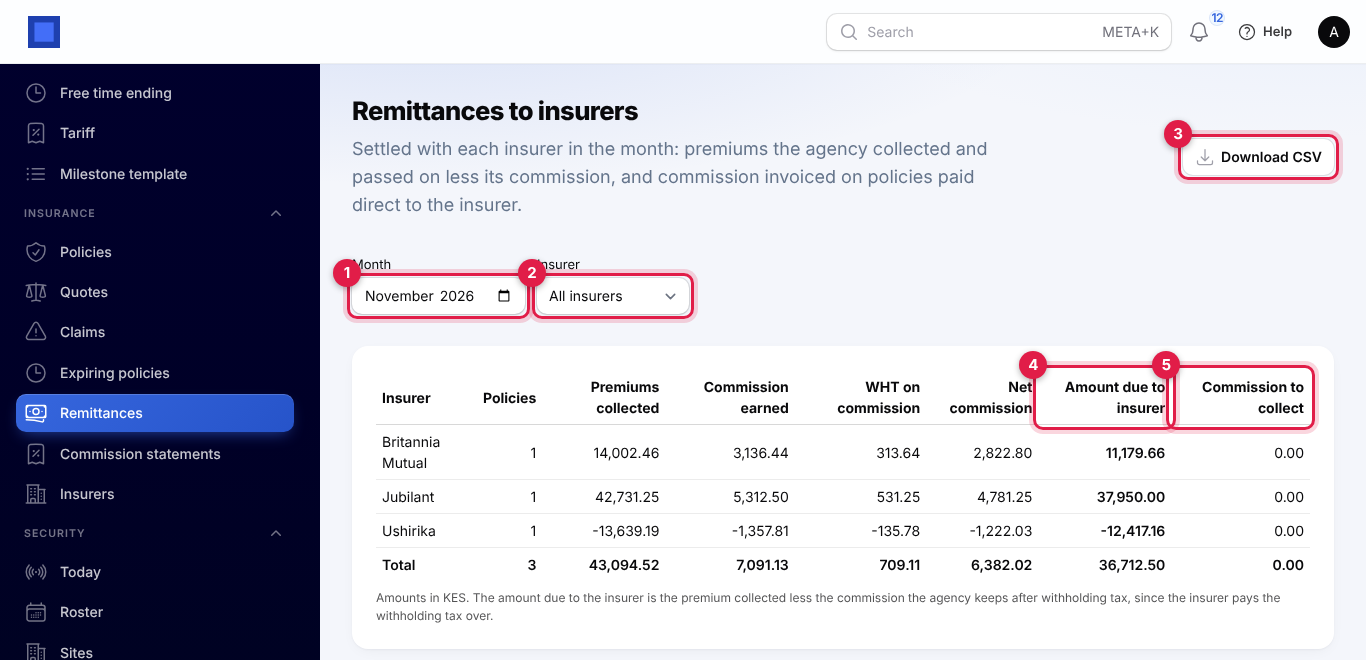
The month is the date of each remittance or commission invoice. A cancellation refund shows as a negative amount.
Commission statements
Open Insurance → Commission statements. Set From and To (marker 1; this month by default) and choose an Insurer (marker 2) or all. For policies whose cover started in that period, with their endorsements, you see per insurer the number of policies, the commission, the WHT, the net commission, what has been Received (marker 3) and what is Outstanding (marker 4, in amber).
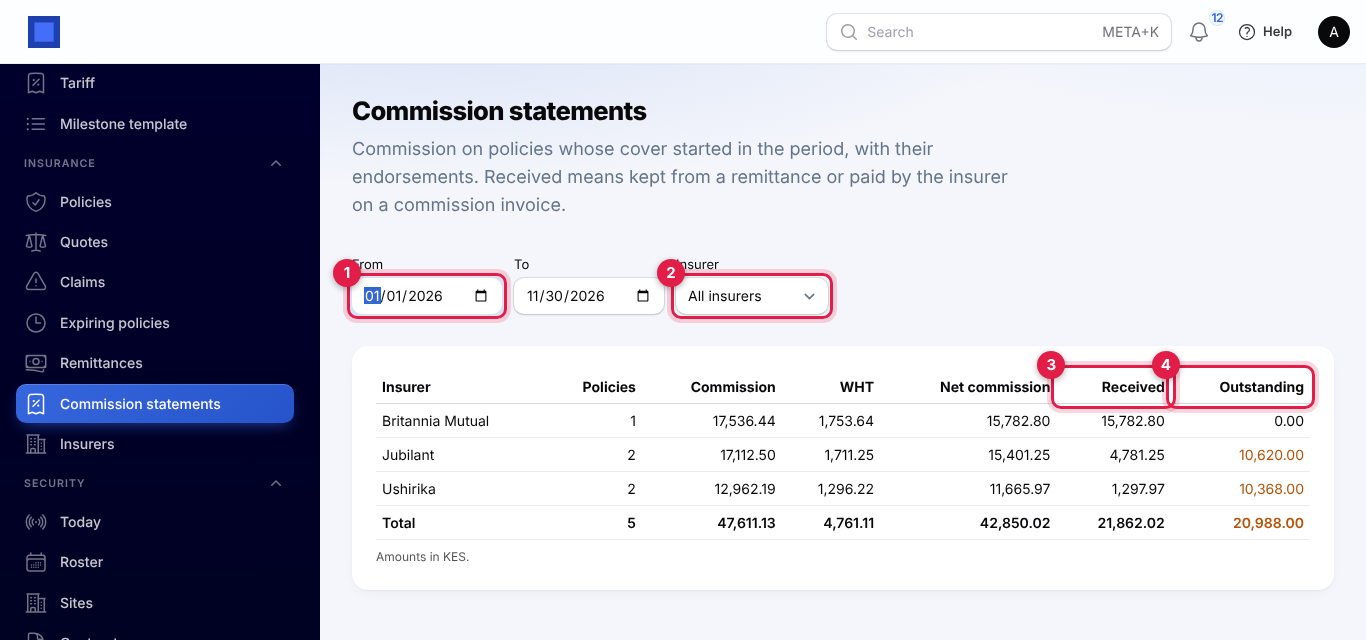
Commission counts as received when you kept it from a remittance, or when the insurer paid the commission invoice (or you clicked Commission received).
What clients see in the portal
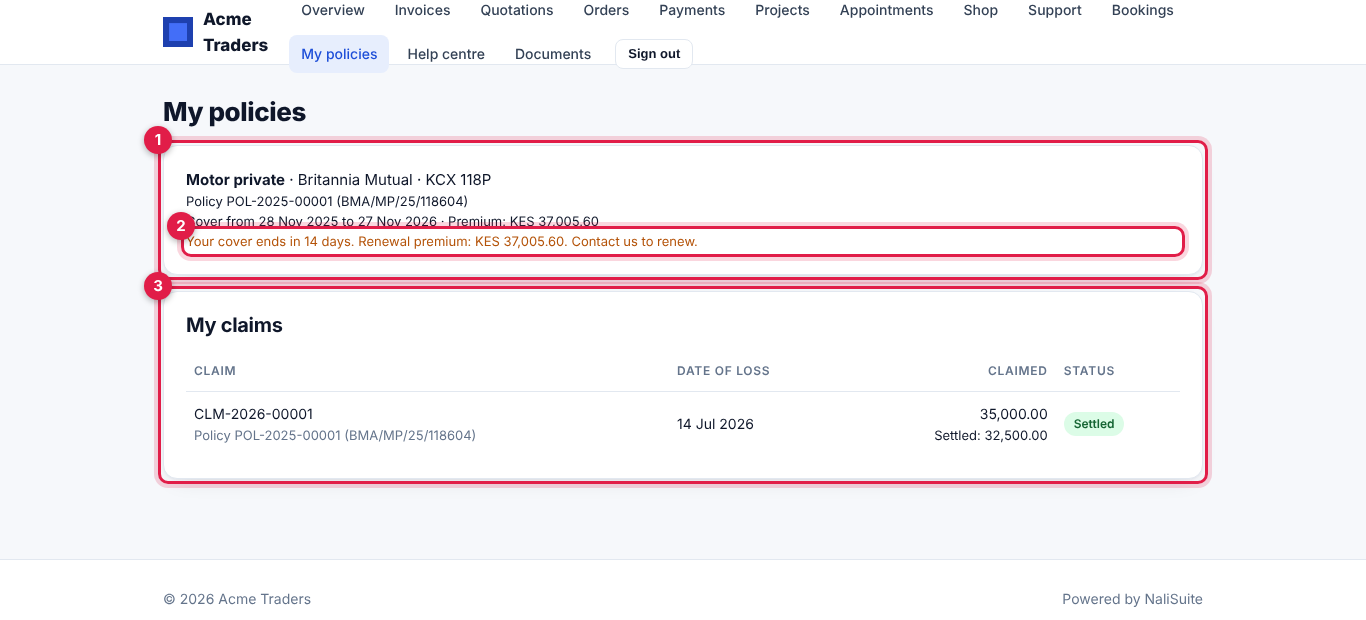
Clients with portal access (see Customer and vendor portal) get a My policies page once they have a policy. It lists each active policy (marker 1) with the class, insurer, registration, policy number, cover dates and premium. When cover ends within the renewal days, a line in amber (marker 2) says how many days are left and gives the renewal premium from the renewal quote. My claims (marker 3) lists their claims with the date of loss, the amount claimed and settled, and the status.
Permissions
| Permission | What it allows |
|---|---|
| insurance.view | See every insurance screen, policy, quote and claim, the expiring policies, remittance and commission reports, and download policy documents. Policy, quote and claim pages open without their Save changes buttons. |
| insurance.manage | Add and edit insurers and their rates; issue, change, endorse, cancel and renew policies; create quotes and take them up; invoice clients and insurers; record remittances and commission received; send reminders; add members; upload policy documents. |
| insurance.claims | Report claims, move them through their steps, change them, and upload claim documents. |
Owners and admins have all three; the member role has insurance.view. For a claims clerk, make a role with insurance.view and insurance.claims under Settings → Roles (see Workspace settings).
Good to know
Where does the agency's money show? Client invoices go through Invoicing, remittances to insurers become posted bills in Purchases, and commission invoices on business paid direct are invoices to the insurer. Your income is the commission you keep: the remittance bill is the premium less that commission.
Can I change a premium after invoicing? Not on the policy itself. Record an endorsement, so the change is charged or refunded for the days left and stays on record.
Do changes to the levy rates affect old policies? No. Each policy keeps the rates it was issued with. Quotes use the rates in Settings when they are saved.
What if the insurer changes the renewal premium? Edit the insurer's row on the renewal quote before you send the reminder or record the payment. The reminder and the portal always show the cheapest option on the quote.
A reminder said "could not be sent". The client has no mobile or email, or SMS is not set up in Marketing and emails are off. Check the contact and the two reminder switches in Settings.
Who gets texts? Only clients with a mobile or phone number, and only when SMS is set up in Marketing; otherwise reminders go by email only.