Property Management
Property Management runs your rentals from the first lease to the last meter reading: buildings and their units, leases with deposits, rent and service charge invoiced every period without you lifting a finger, water and electricity billed with the rent, late fees, arrears, repair requests from tenants, and statements for the landlords you manage for. Landlords, letting agents, property managers and caretakers use it. It is in the Property group of the sidebar: Properties, Units, Leases, Meter readings and Repair requests.
Property Management is a marketplace module. The owner buys it under Settings → Marketplace; the Property group appears once it is switched on. It needs the Contacts and Invoicing apps.
Note: You need the property.view permission to see these pages and print landlord statements, and property.manage to add properties, units, leases and readings, start and end leases and handle repair requests. Everyone with property.manage is told about new repair requests on a property that has no property manager. Owners and admins have both. Set permissions under Settings → Roles.
How it fits together
- A property is a building or estate, for example "Kilimani Heights". It can be your own or managed for a landlord, who gets a statement.
- A unit is what you let: a flat, house, bedsitter, shop, office or warehouse. It is Vacant, Occupied or Unavailable.
- A lease puts a tenant (a contact) in a unit with the rent, service charge, deposit, billing period, due days, late fee and yearly increase. Leases are numbered
LSE-2026-00002. - Starting a lease marks the unit occupied, issues the deposit invoice and invoices rent from the start date. From then on, rent is invoiced automatically every period.
- Rent invoices are ordinary invoices under Finance → Invoices, with the lease number as the customer reference. Tenants pay them like any other invoice, online or by recorded payment.
- Tax: rent and service charge on Commercial and Mixed use properties carry your default tax (for example VAT 16%); Residential rent carries none. Deposits, utilities and late fees never carry tax.
Add a property
- In the menu, open Property → Properties.
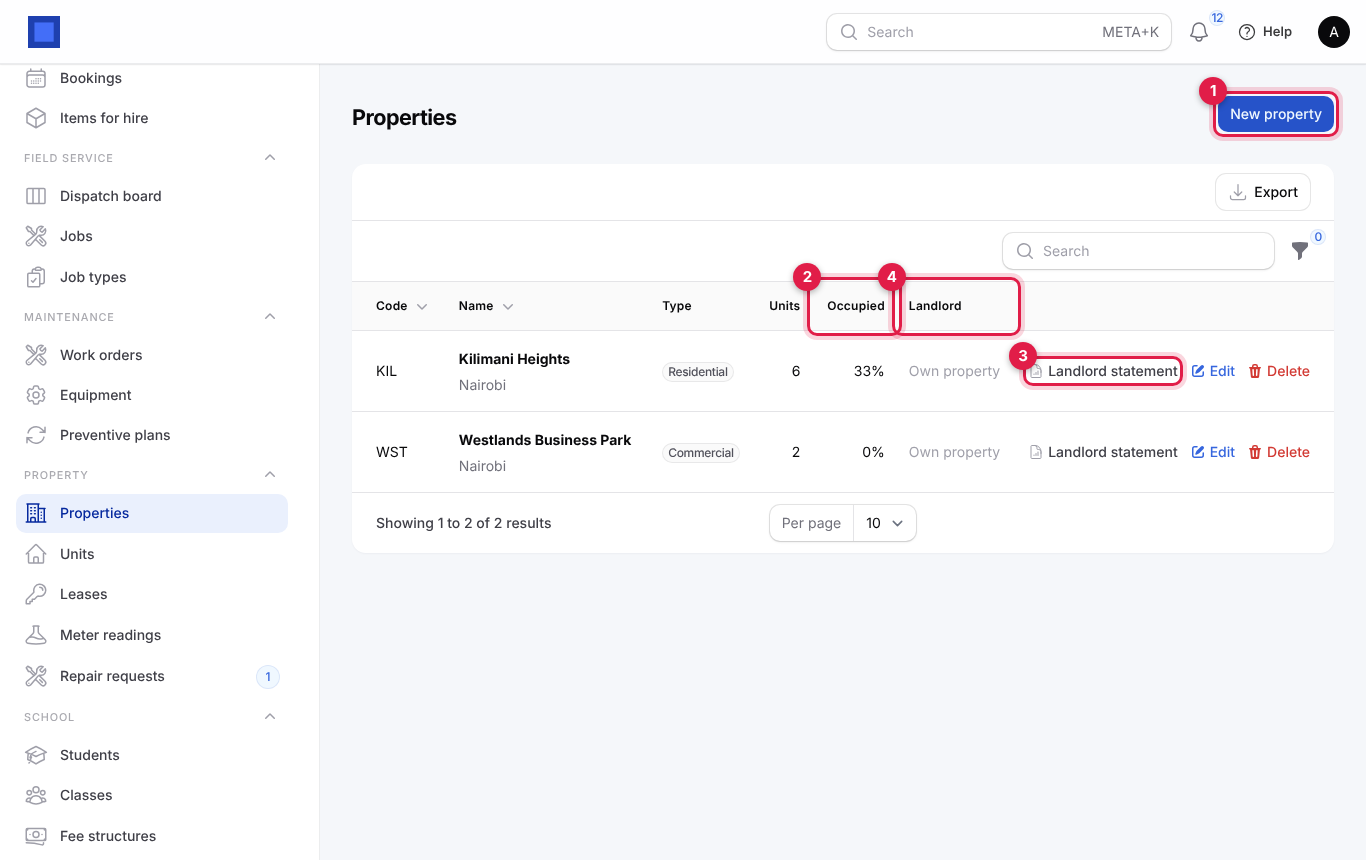
- Click New property (marker 1). The list shows the number of Units, how many are Occupied (marker 2) and the Landlord (marker 4; "Own property" when there is none). Landlord statement (marker 3) prints a statement (see Landlord statements).
- Fill in the form and click Create.
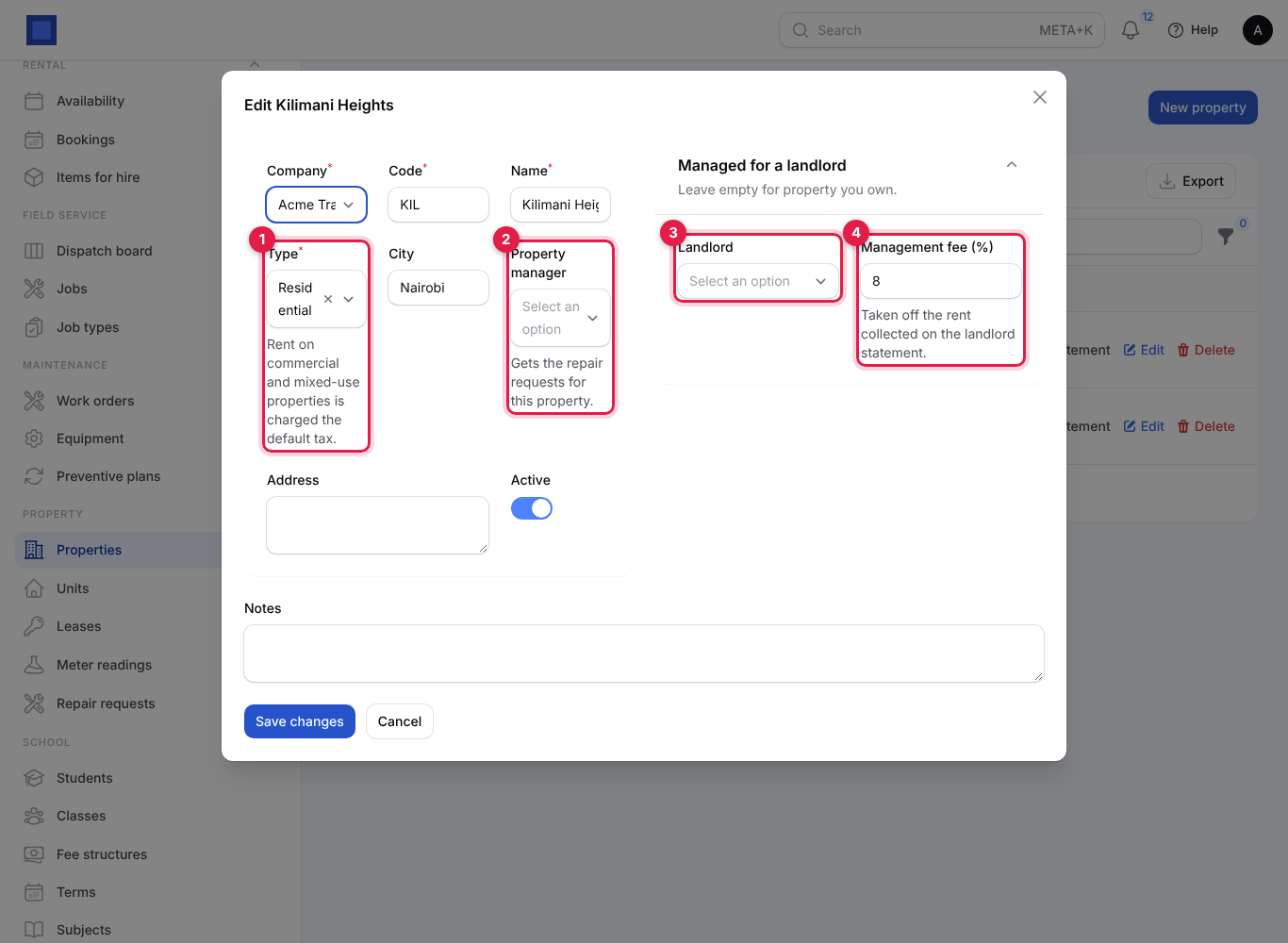
| Field | What to enter |
|---|---|
| Company | Required. The company that invoices the rent. |
| Code | Required, up to 20 characters, for example KIL. |
| Name | Required, for example "Kilimani Heights". |
| Type | Required (marker 1). Residential, Commercial or Mixed use. Rent on commercial and mixed-use properties is charged the default tax. |
| City, Address | Optional. |
| Property manager | Optional (marker 2). The user who receives the repair requests for this property. If empty, everyone with property.manage receives them. |
| Active | On by default. |
| Landlord | In Managed for a landlord (marker 3). The landlord's contact. Leave empty for property you own. |
| Management fee (%) | Marker 4. Your fee, taken off the rent collected on the landlord statement, for example 8. |
| Notes | Anything else. |
Add units
- In the menu, open Property → Units.
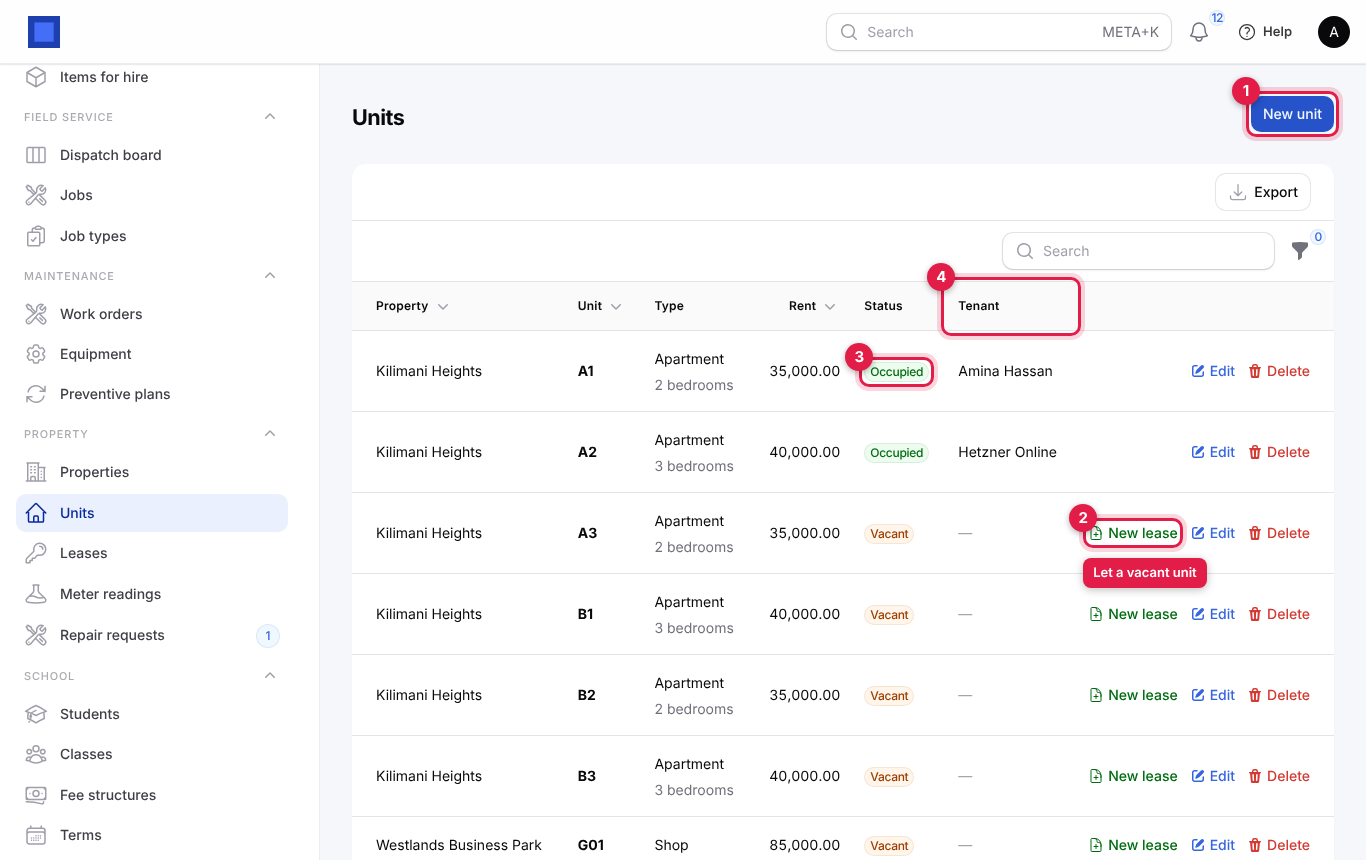
- Click New unit (marker 1). The list shows each unit's Status (marker 3) and current Tenant (marker 4). Vacant units have a New lease button (marker 2).
- Fill in the form and click Create.
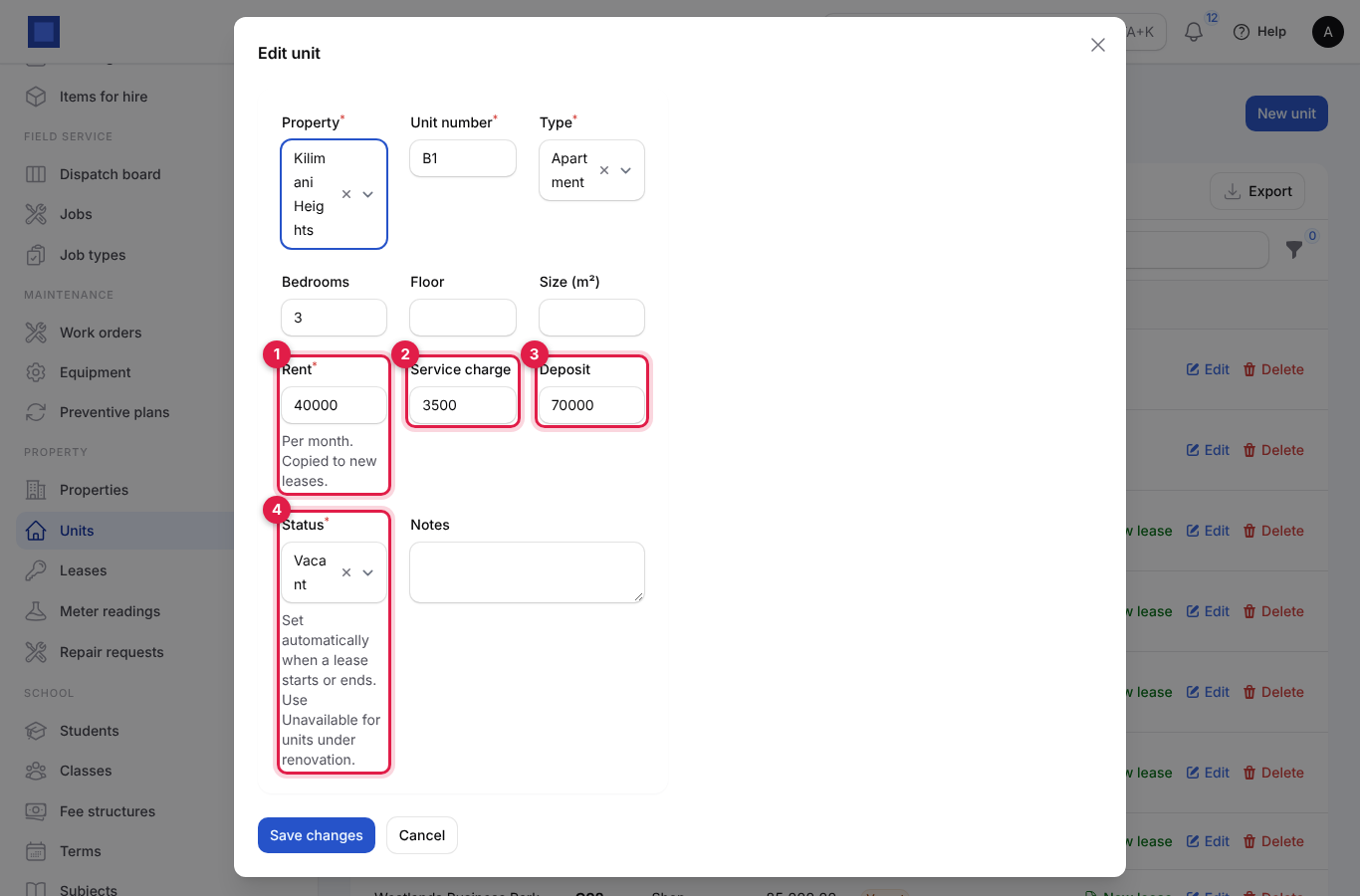
| Field | What to enter |
|---|---|
| Property | Required. |
| Unit number | Required, for example A3 or G01. |
| Type | Apartment, House, Bedsitter, Shop, Office, Warehouse or Other. |
| Bedrooms, Floor, Size (m²) | Optional. |
| Rent | Required (marker 1). The asking rent per month. Copied to new leases, where you can change it. |
| Service charge | Optional (marker 2). Per month, copied to new leases. |
| Deposit | Optional (marker 3). Copied to new leases. |
| Status | Marker 4. Vacant, Occupied or Unavailable. Set automatically when a lease starts or ends; use Unavailable for units under renovation. |
| Notes | Anything else. |
Filter the list by Property or Status with the filter icon.
Let a unit: create and start a lease
Create the lease
- On Property → Units, click New lease on a vacant unit. (Or open Property → Leases and click New lease.) The unit, rent, service charge and deposit are filled in from the unit.
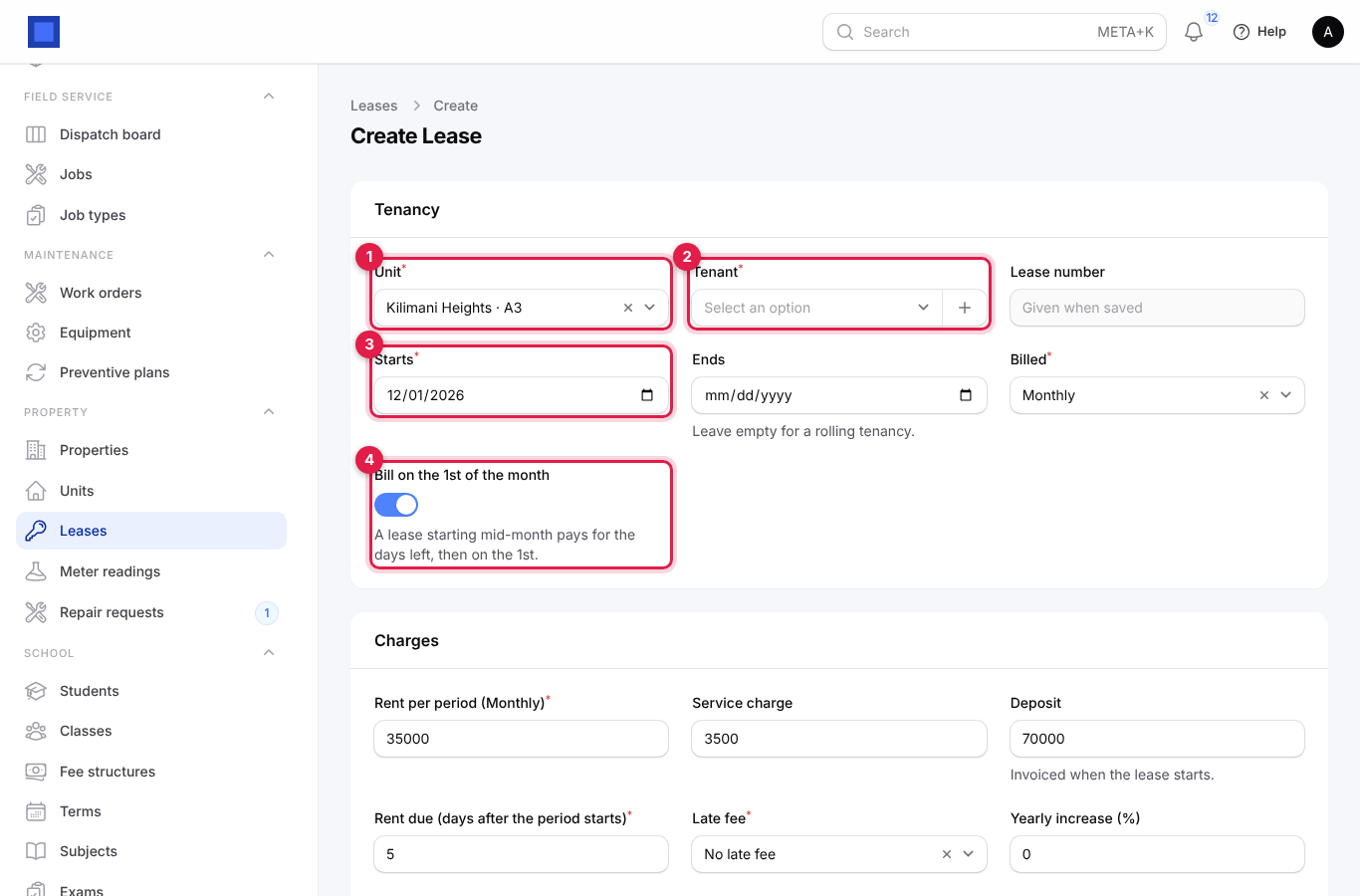
- In Tenancy, check the Unit (marker 1), pick the Tenant (marker 2; click + to add a new contact), set Starts (marker 3) and leave Bill on the 1st of the month on (marker 4) for normal monthly rent.
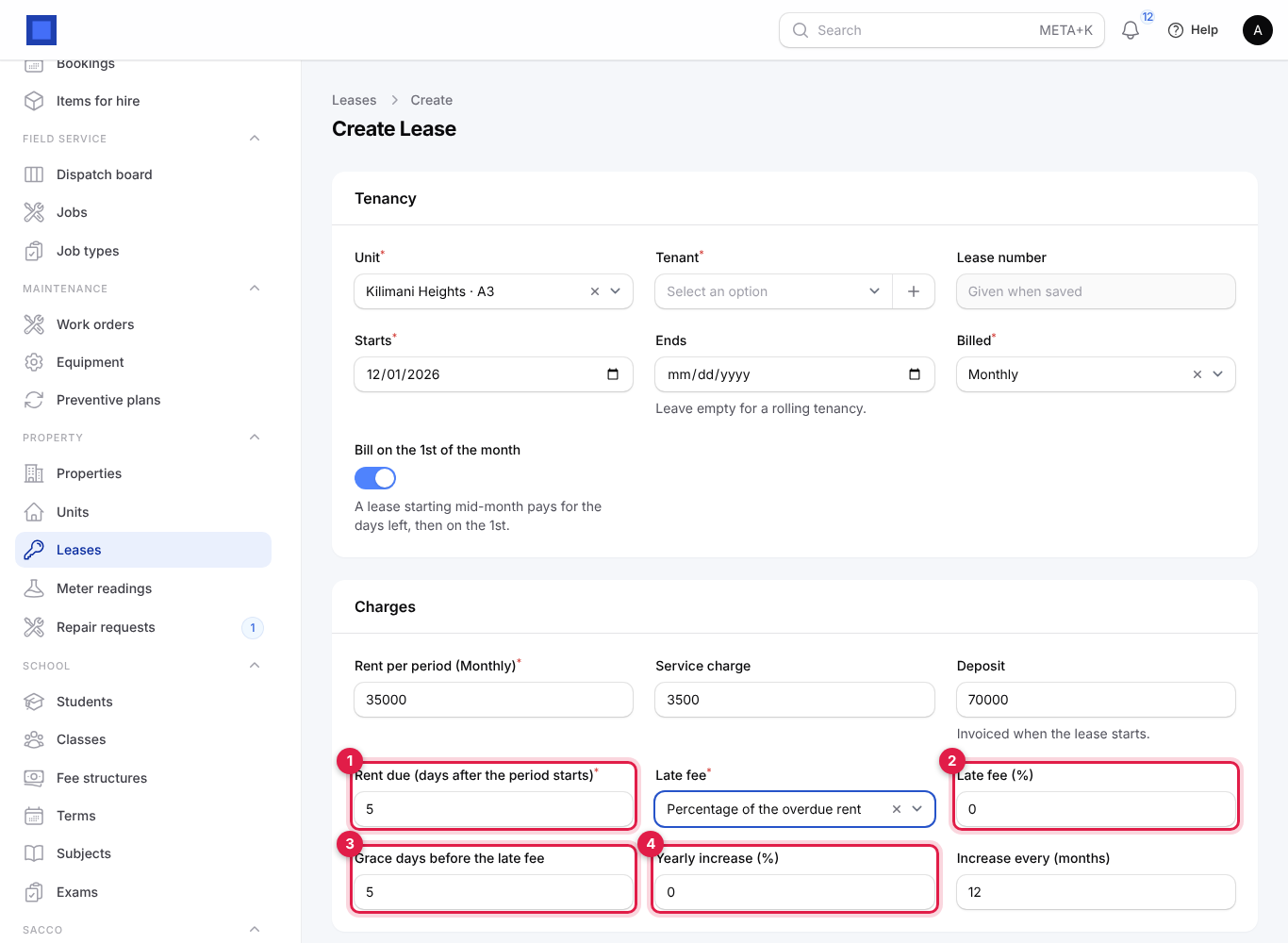
- In Charges, check the amounts, set when rent is due (marker 1), the late fee (marker 2) and its grace days (marker 3), and any yearly increase (marker 4).
- Click Create. The lease is saved as a Draft with its number. Nothing is invoiced yet.
| Field | What to enter |
|---|---|
| Unit | Required. Only vacant units are listed. Locked once the lease starts. |
| Tenant | Required. The contact who pays. Locked once the lease starts. |
| Lease number | Given when saved. |
| Starts | Required. Starts on the 1st of next month. Locked once the lease starts. |
| Ends | Optional. Leave empty for a rolling tenancy. Billing stops after this date; a last part period is charged up to the end date. |
| Billed | Monthly, Quarterly or Yearly. |
| Bill on the 1st of the month | Monthly leases only. A lease starting mid-month pays for the days left in that month first, then on the 1st of each month. Turn off to bill on the start-date anniversary instead. |
| Rent per period | Required. Per billing period: for quarterly or yearly leases, enter the rent for the whole quarter or year. |
| Service charge | Optional, per period. |
| Deposit | Invoiced when the lease starts. Locked once the lease starts. |
| Rent due (days after the period starts) | Default 5. The invoice due date. |
| Late fee | No late fee, Fixed amount or Percentage of the overdue rent. |
| Late fee amount / Late fee (%) | The fee. A percentage is worked out on what is still owed on the rent invoice. |
| Grace days before the late fee | Default 5. Days after the due date before the fee is charged. |
| Yearly increase (%) | Optional, for example 5. Raises rent and service charge. |
| Increase every (months) | Default 12. How often the increase is applied, counted from the start. |
| Notes | Anything else. |
Start the lease
- Open the lease (from Property → Leases, click Edit).
- Click Start lease at the top and confirm.
What happens:
- The unit becomes Occupied and the lease Active.
- A deposit invoice ("Security deposit: … (lease LSE-…)") is issued and, when the setting is on and the tenant has an email, emailed.
- Rent is invoiced from the start date up to today (or up to the "days before" window), one invoice per period. A lease that started in the past catches up, up to 12 periods at once.
- Each rent invoice has a Rent line, a Service charge line when there is one, and a line for each unbilled meter reading of the unit.
Only a Draft lease can be deleted (with the Delete button on its page).
Follow leases and arrears
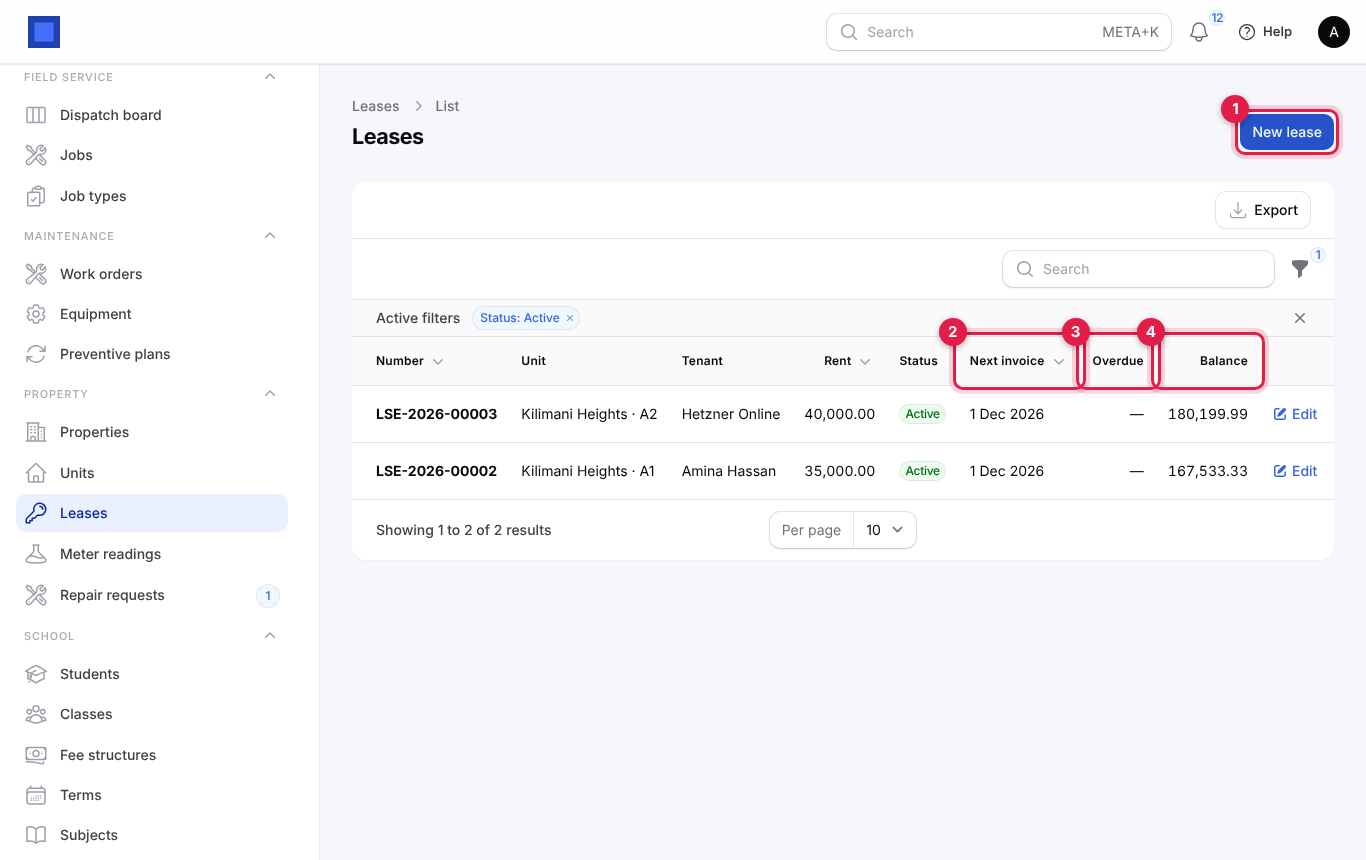
- In the menu, open Property → Leases. The list opens filtered to Active leases.
- Each row shows the unit, tenant, rent, status, Next invoice date (marker 2), what is Overdue in red (marker 3) and the full Balance still owed (marker 4).
- Use the filter icon for Status, Property and In arrears (leases with an unpaid invoice past its due date).
| Status | What it means |
|---|---|
| Draft | Saved, not started. Nothing invoiced. |
| Active | Billing every period. The unit is occupied. |
| Ended | The tenant moved out. Billing has stopped and the unit is vacant. |
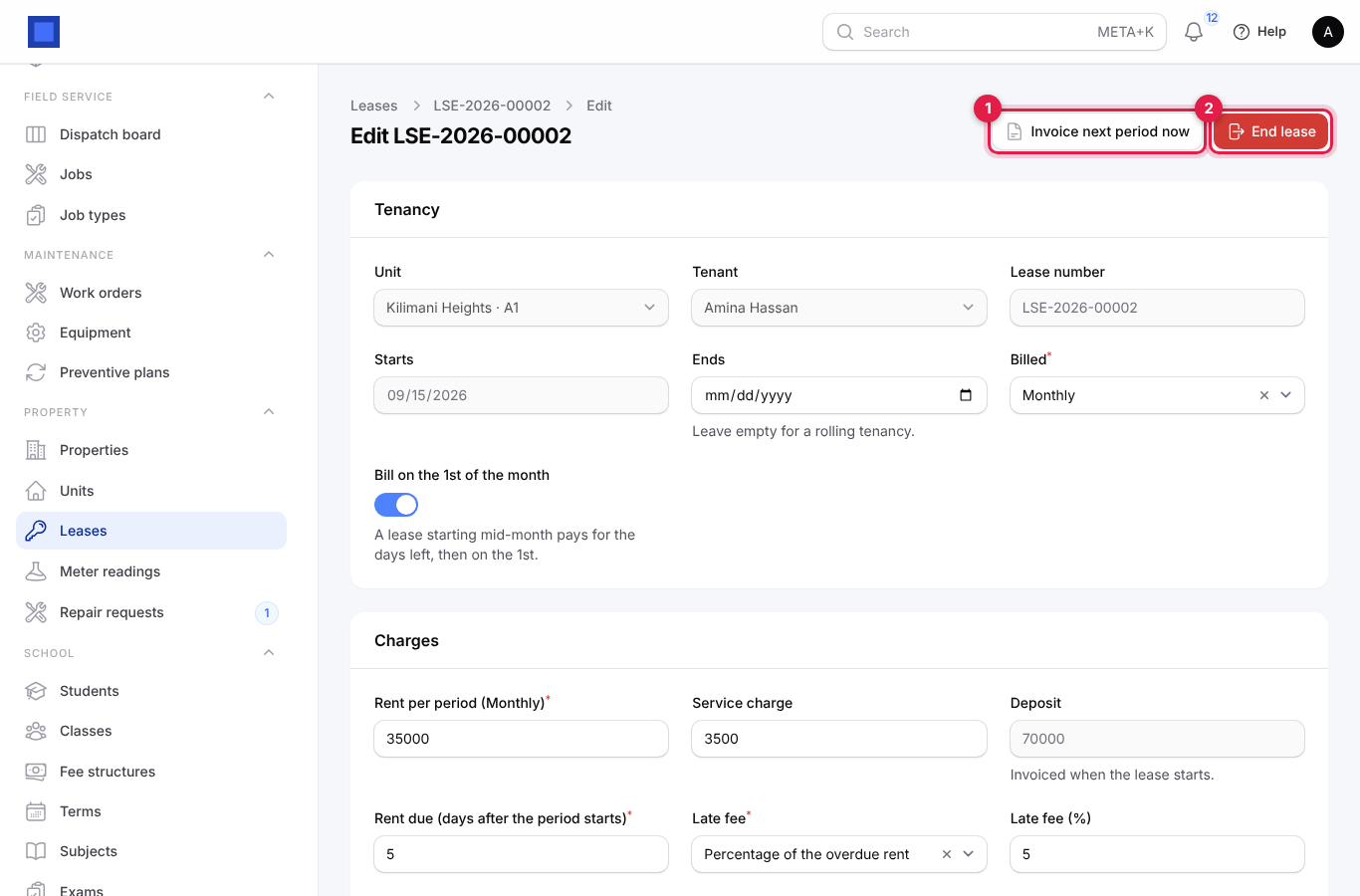
Open a lease to see its buttons and every invoice raised on it.
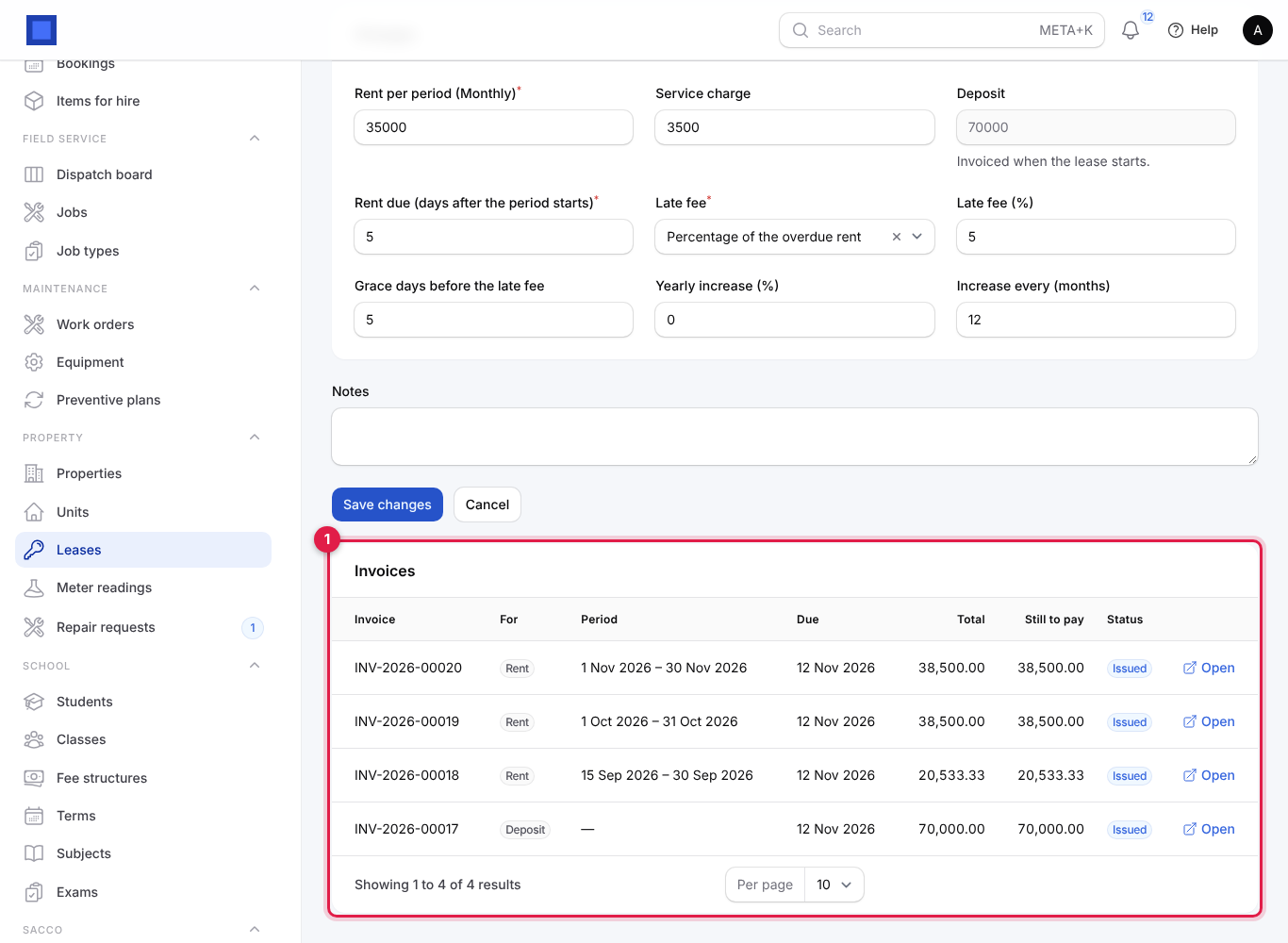
The Invoices table at the bottom (marker 1) lists the deposit, every rent period and any late fee, with the period, due date, total, Still to pay and status. Click Open to go to the invoice.
How rent is billed every period
You do not need to do anything: NaliSuite runs property:bill every morning at 06:10.
- Rent: every active lease whose next period has come round (or will start within the "days before" setting) gets its invoice for that period. The invoice is dated today and due the set number of days after the period starts.
- Utilities: meter readings for the unit that are not yet billed are added to the rent invoice as lines (usage × rate).
- Yearly increase: when an increase falls due, rent and service charge go up by the percentage before the invoice is made, and the lease keeps the new amounts.
- Emails: each invoice is emailed to the tenant when Email rent invoices to tenants is on and the tenant has an email.
- Late fees: each rent invoice still unpaid after its due date plus the grace days gets one late fee invoice ("Late payment fee on invoice INV-…"), emailed to the tenant. Each rent invoice is charged a late fee only once.
To bill a period early, for example when a tenant wants to pay ahead, open the lease and click Invoice next period now (marker 1 above). It invoices the period starting on the Next invoice date straight away.
Record water and electricity readings
- In the menu, open Property → Meter readings.
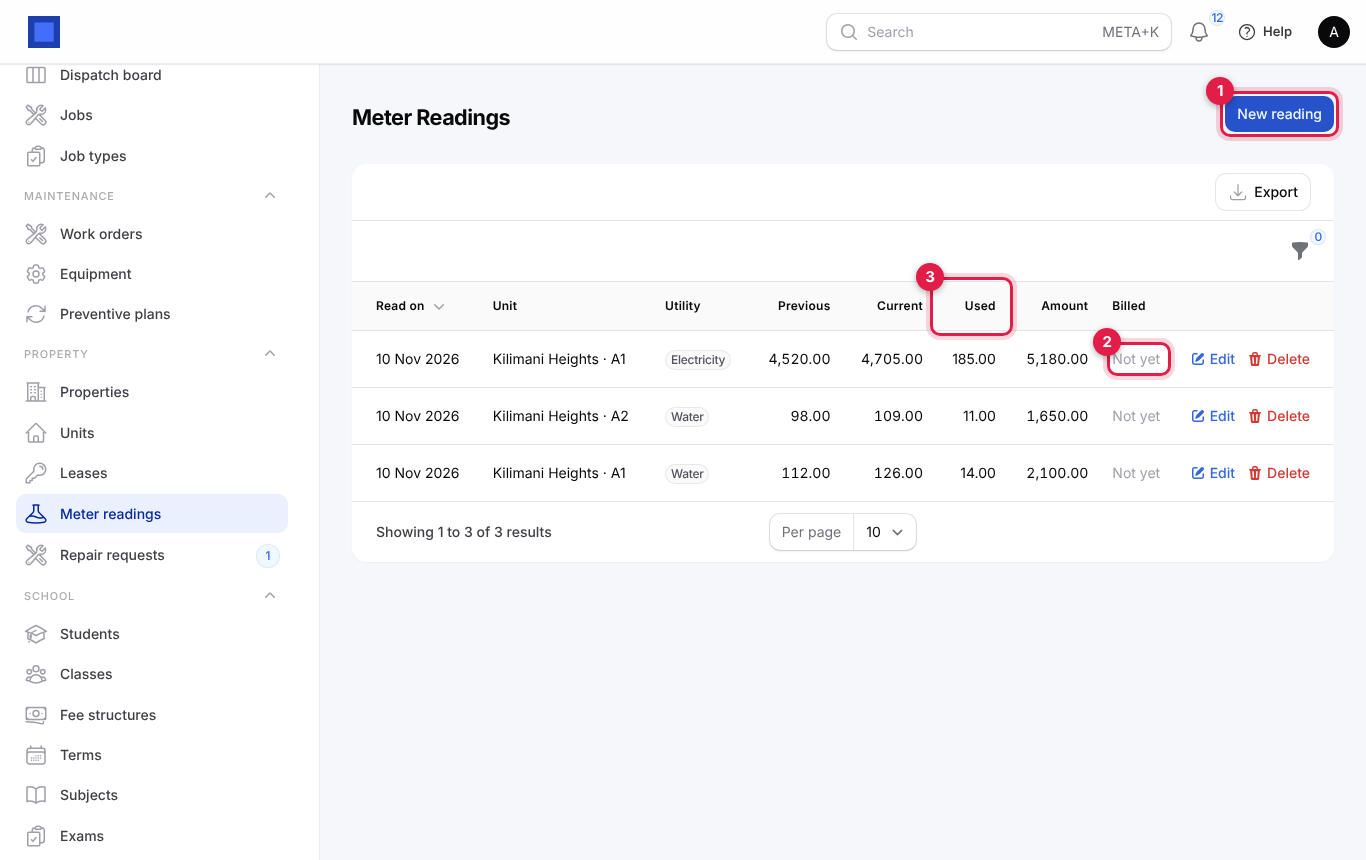
- The list shows each reading, how much was Used (marker 3) and whether it is Billed yet (marker 2: Not yet or Yes). Click New reading (marker 1).
- Pick the Unit (marker 1) and Utility (marker 2). The Previous reading (marker 3) fills in from the unit's last reading and the Rate per unit (marker 4) from the last reading or the default rate in settings.
- Enter the Read on date and the Current reading, then click Create (or Create & create another to go round the whole block).
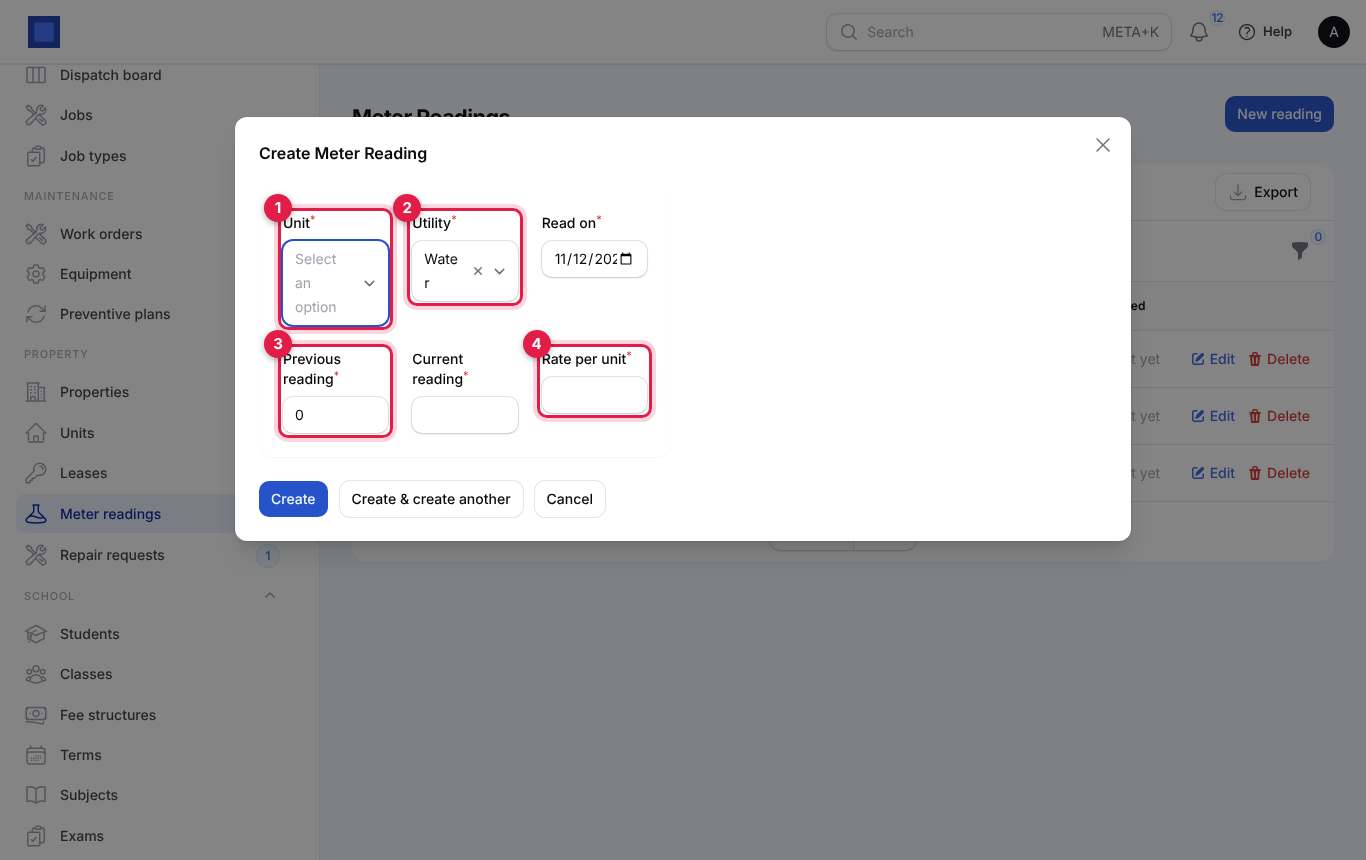
| Field | What to enter |
|---|---|
| Unit | Required. |
| Utility | Water, Electricity or Gas. |
| Read on | Required. Defaults to today. Only readings on or after the lease start date are billed to that lease. |
| Previous reading | Required. Filled in for you; change it for a new meter. |
| Current reading | Required. Cannot be lower than the previous reading. |
| Rate per unit | Required, for example KES 150 per m³ of water. |
The reading is billed on the unit's next rent invoice, for example "Water: 112 to 126 (14 units at 150.00), read 10 Nov 2026". Once billed, a reading can no longer be edited or deleted. Filter by Utility or Billed.
Handle repair requests
Tenants report repairs from the portal; staff can log them too.
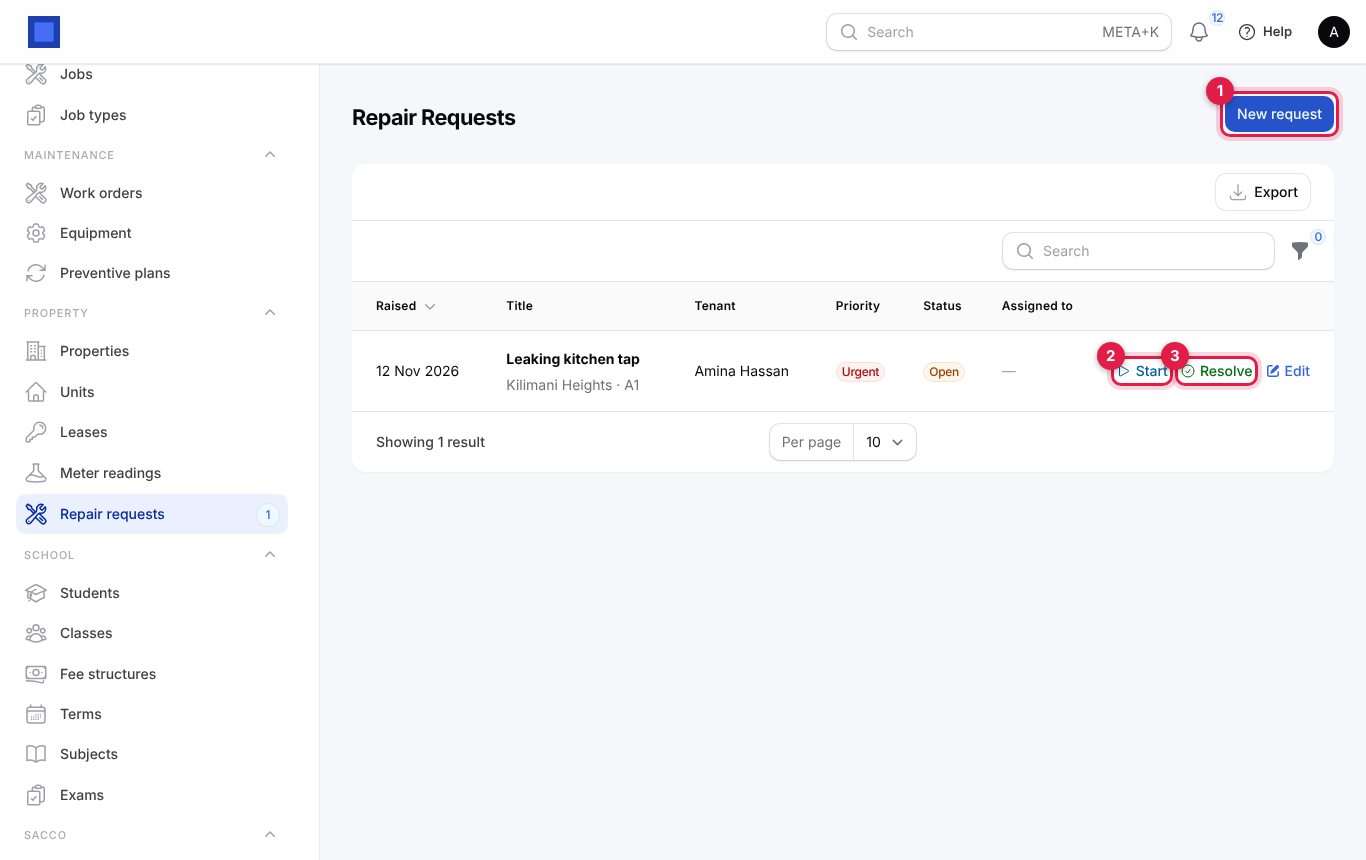
- In the menu, open Property → Repair requests. The menu badge counts open requests.
- Click Start (marker 2) when someone is on it: the request moves to In progress and is assigned to you if nobody was.
- Click Resolve (marker 3) when it is fixed. To log a request yourself, click New request (marker 1).
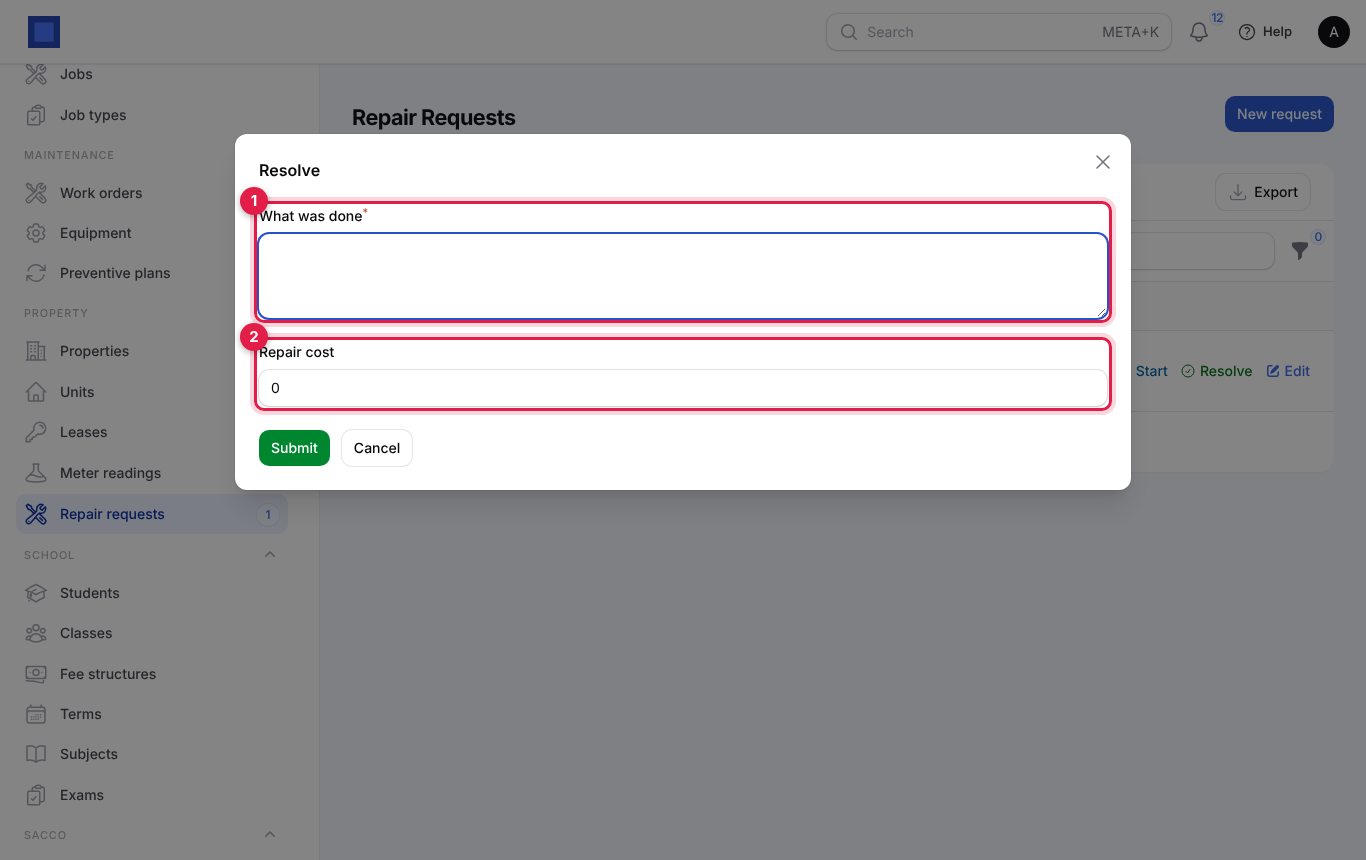
- In Resolve, type What was done (marker 1, required) and the Repair cost (marker 2), then click Submit. The request becomes Resolved.
| Status | Meaning |
|---|---|
| Open | Just reported. |
| In progress | Someone is working on it. |
| Resolved | Fixed, with what was done and the cost. |
Priorities are Low, Normal and Urgent. Edit lets you change any field, including Assigned to. Requests from the portal notify the property manager (or everyone with property.manage); requests you log yourself do not send a notification.
Note: The repair cost is recorded on the request only. Record the bill or expense under Finance to put it in your books.
End a lease
- Open the lease and click End lease.
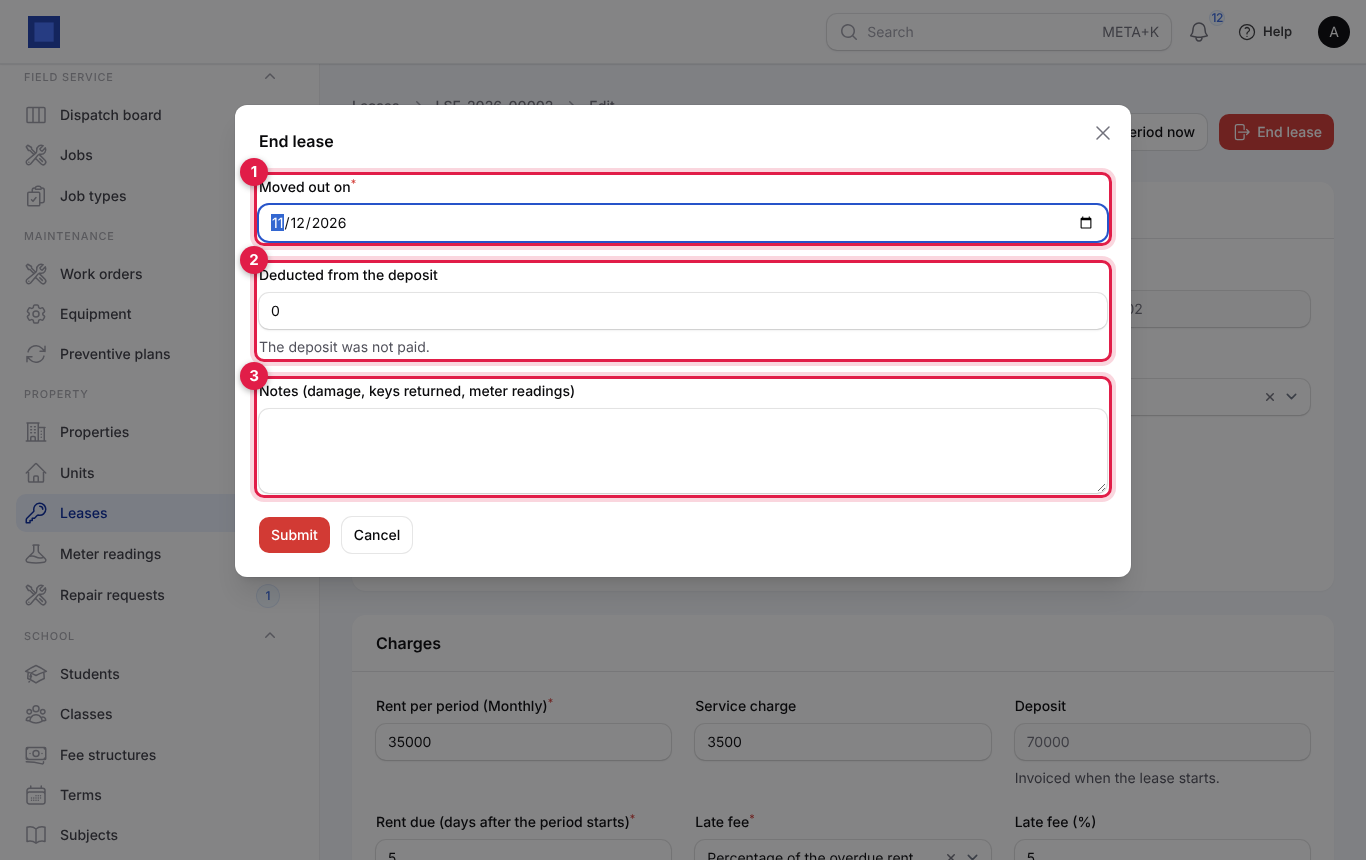
- Enter the Moved out on date (marker 1), what is Deducted from the deposit (marker 2; the hint shows the deposit held, or "The deposit was not paid") and Notes such as damage, keys returned and final meter readings (marker 3). Click Submit.
What happens:
- The lease becomes Ended, billing stops and the unit becomes Vacant.
- The deposit refund (deposit held less deductions) is worked out. When there is something to refund you see "Refund amount of the deposit to the tenant." Pay it back and record it in Finance.
- Unpaid invoices stay open on the tenant's account until paid.
The deposit counts as held only once its invoice is fully paid.
Print a landlord statement
- On Property → Properties, click Landlord statement on the property.
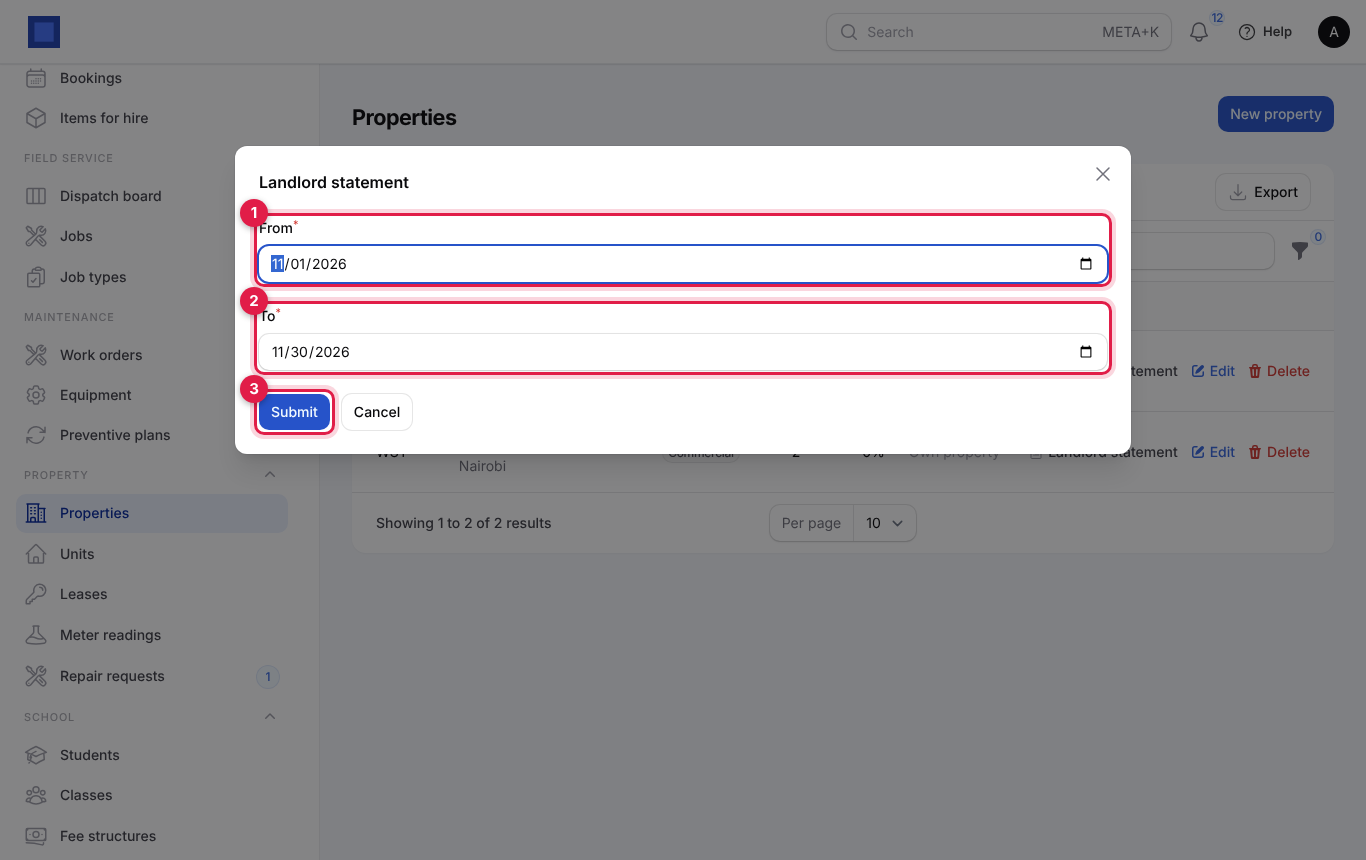
- Pick From (marker 1) and To (marker 2) and click Submit (marker 3).
- The statement opens. Change the dates and click Show (marker 1) to redo it, or Print (marker 2) to print or save as PDF.
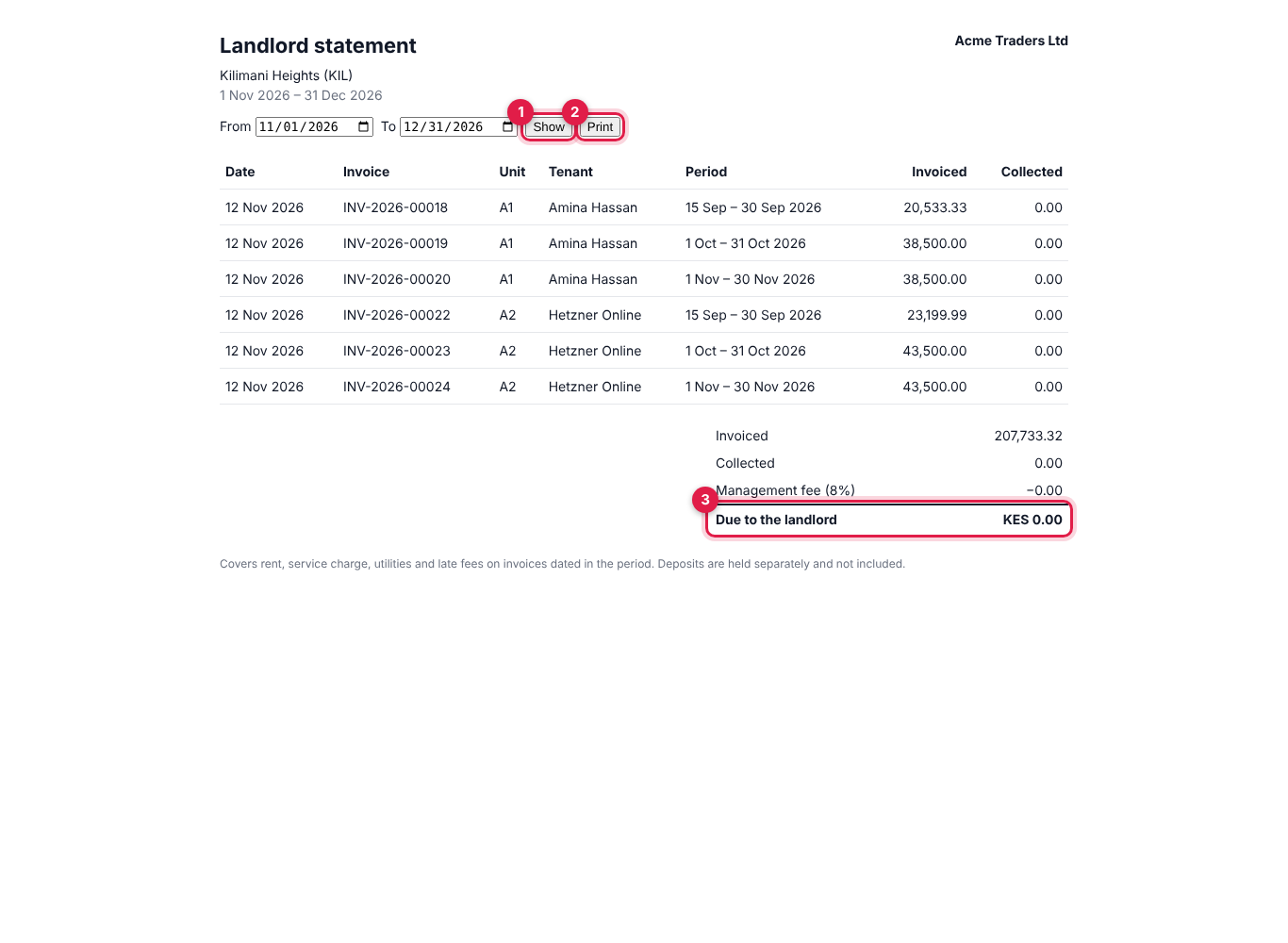
The statement lists every rent, service charge, utility and late fee invoice dated in the period on the property's leases (cancelled invoices and deposits are left out), with the unit, tenant, period, amount Invoiced and amount Collected. Below are the totals, the Management fee (your percentage of what was collected) and Due to the landlord (marker 3): collected less the fee.
What tenants see in the portal
Tenants who sign in to your customer portal see My lease: the unit, Rent, Service charge, Balance (marker 1, with the overdue amount) and Deposit held, the lease number, start, status and next invoice date. View and pay invoices (marker 2) opens their invoices to pay online.
Under Report a repair they type What needs fixing?, Details and How urgent is it?, and click Send request (marker 3). Your requests (marker 4) lists their requests and status.
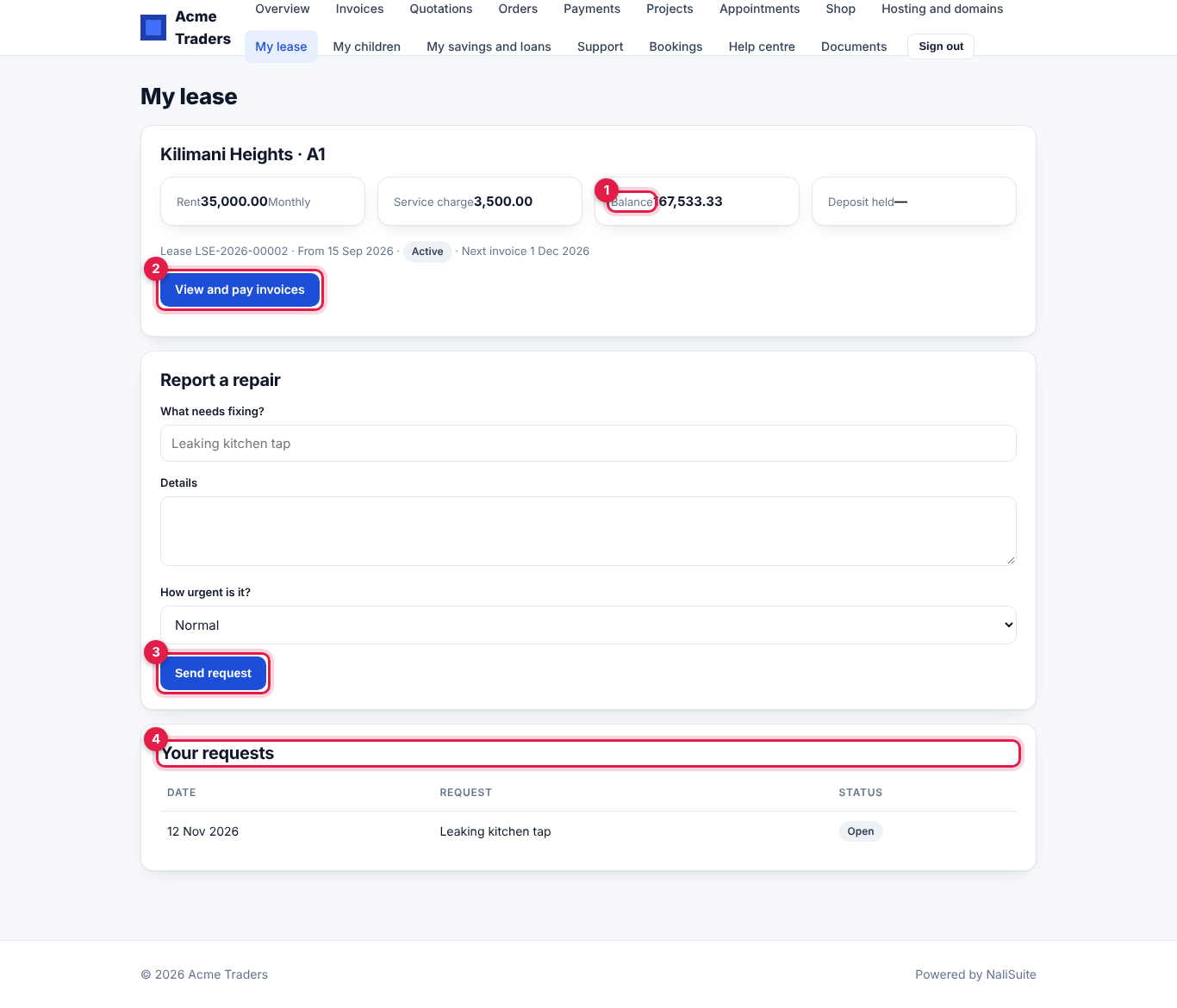
To give a tenant access, invite them under Sales → Portal access (see Customer and vendor portal).
Property settings
- In the menu, open Settings → Preferences.
- Click the Property Management tab, change the settings and click Save preferences.
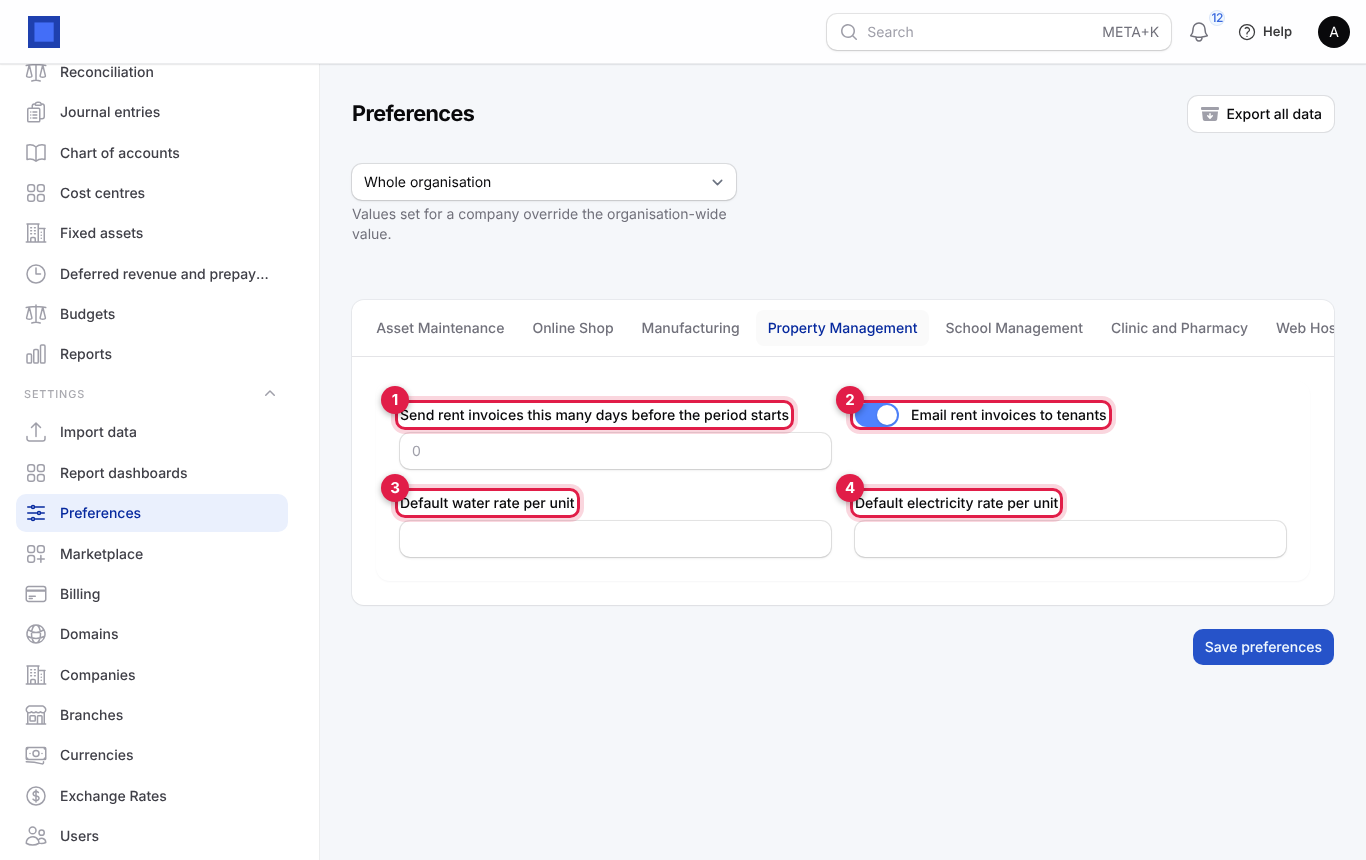
| Setting | What it does |
|---|---|
| Send rent invoices this many days before the period starts (marker 1) | Default 0. For example 7 sends December's rent invoice on 24 November. |
| Email rent invoices to tenants (marker 2) | On by default. Deposit, rent and late fee invoices are emailed to tenants who have an email. |
| Default water rate per unit (marker 3) | The rate filled in on a unit's first water reading. |
| Default electricity rate per unit (marker 4) | The rate filled in on a unit's first electricity reading. |
Common questions
A tenant moved in on the 15th. What do they pay first? With Bill on the 1st of the month on, the first invoice covers the 15th to the end of the month (rent × days left ÷ days in the month), then a full month from the 1st.
Can I change the rent on a running lease? Yes. Edit Rent per period and Save changes. The next invoice uses the new amount. Invoices already issued do not change.
A tenant has paid. Why does the lease still show a balance? The payment must be recorded against the rent invoice (on the invoice, Record payment) or paid online. Payments recorded only on the contact are not matched.
Does the landlord statement include the deposit? No. Deposits are held separately and are not included.
How do I stop late fees for one tenant? Edit the lease and set Late fee to No late fee. Fees already charged stay; cancel a fee invoice from Finance → Invoices if you waive it.
Can tenants see other tenants' information? No. The portal shows only the leases, invoices and requests of the signed-in tenant's contact.