Parking
Parking is for anyone who runs a car park: a mall, an office block, a hospital or a city basement. You set up each car park with its zones and bays and a tariff with free minutes, hourly bands, a daily maximum, a night rate and a lost-ticket fee. Cars get a ticket with a QR code at the entry kiosk, or the attendant types the plate. At the exit the fee is worked out and paid at the booth, by an M-Pesa prompt to the driver's phone, or by the driver on the ticket's own page, and the car has a few minutes to leave. Season pass holders park free while their subscription is active, shops validate tickets for their customers and get a monthly invoice, and a board shows the free bays on a screen.
Everything is in the Parking group of the left menu: Gate and tickets, Season passes, Validating merchants, Car parks and tariffs, Zones and bays and Reports.
Note: parking.view lets someone see tickets, car parks, zones, merchants, season passes and the reports, and open the screens. parking.manage is needed to issue tickets, validate, add the lost-ticket fee, take payments, send M-Pesa prompts, let cars out, change car parks, zones, merchants and passes, invoice merchants and give the screens new addresses. Owners and admins have both; the member role has parking.view. Set permissions under Settings → Roles (see Roles and permissions).
Switch it on
Parking is a marketplace app. It needs the Contacts and Invoicing apps. Point of Sale lets attendants take payments on their till, Subscriptions is needed for season passes (see Subscriptions), and M-Pesa or a card gateway lets drivers pay from their phones (see Get paid online with the pay link).
- Open Settings → Marketplace and type Parking in the Search add-ons… box (marker 1).
- On the Parking card (marker 2), click Start free trial (or Add to subscription) and confirm. The Parking group appears in the menu.
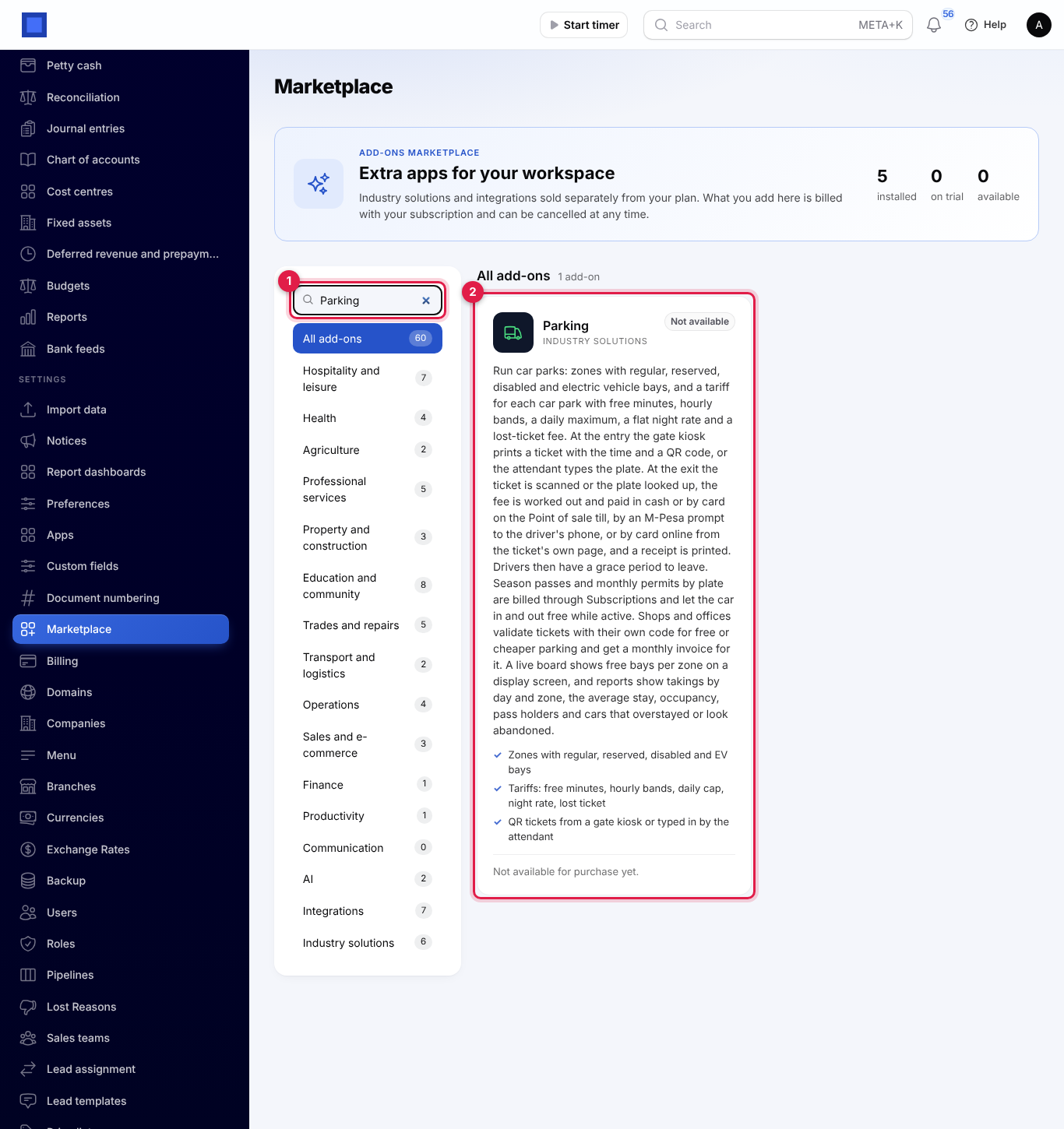
If the card says Not available for purchase yet, ask NaliSuite support to switch it on. See Billing and marketplace.
Settings
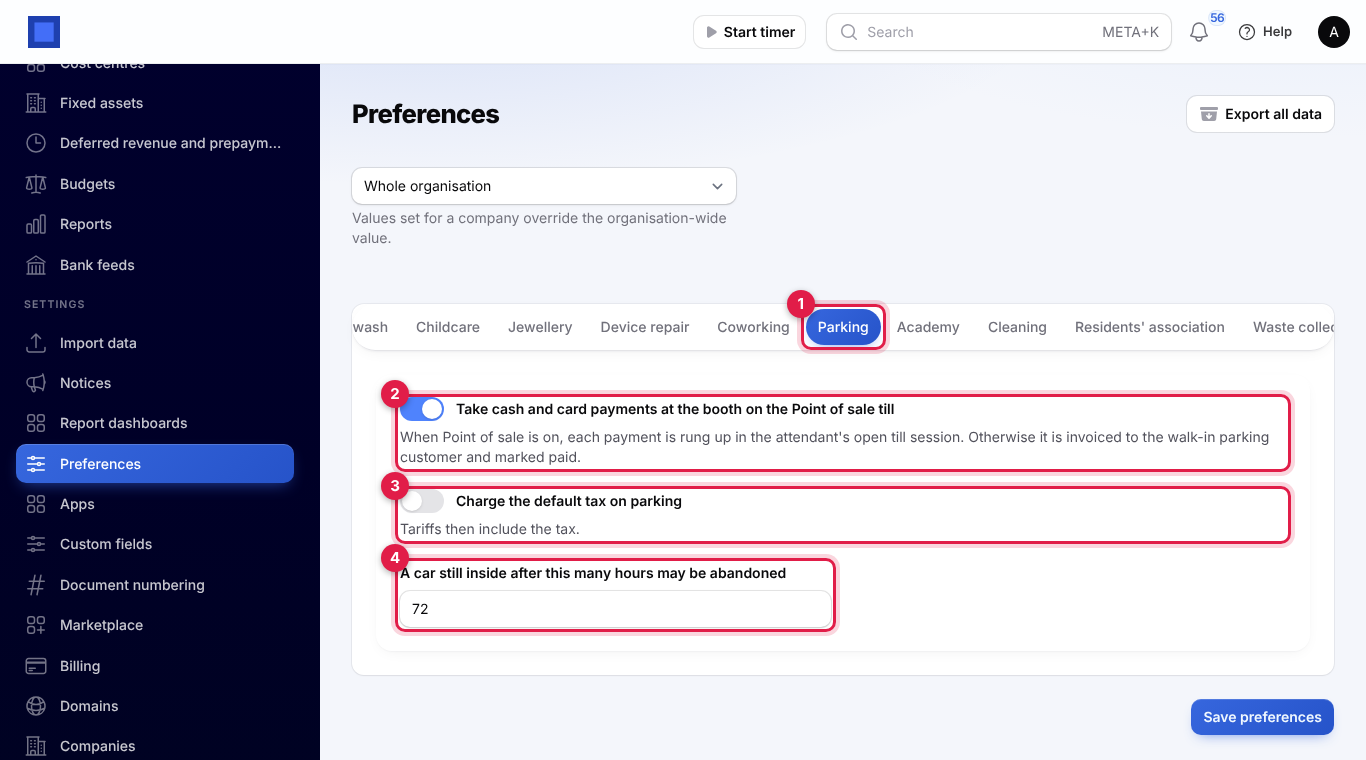
Open Settings → Preferences and click the Parking tab (marker 1). Click Save preferences when you are done.
| Setting | What it does |
|---|---|
| Take cash and card payments at the booth on the Point of sale till (marker 2) | On by default. With Point of Sale on, each booth payment is rung up in the attendant's open till session. Otherwise it is invoiced to the walk-in contact Parking customers and marked paid. |
| Charge the default tax on parking (marker 3) | Off by default. When on, your tariffs include the default tax. |
| A car still inside after this many hours may be abandoned (marker 4) | Default 72. Such cars are listed in the reports. |
Car parks and tariffs
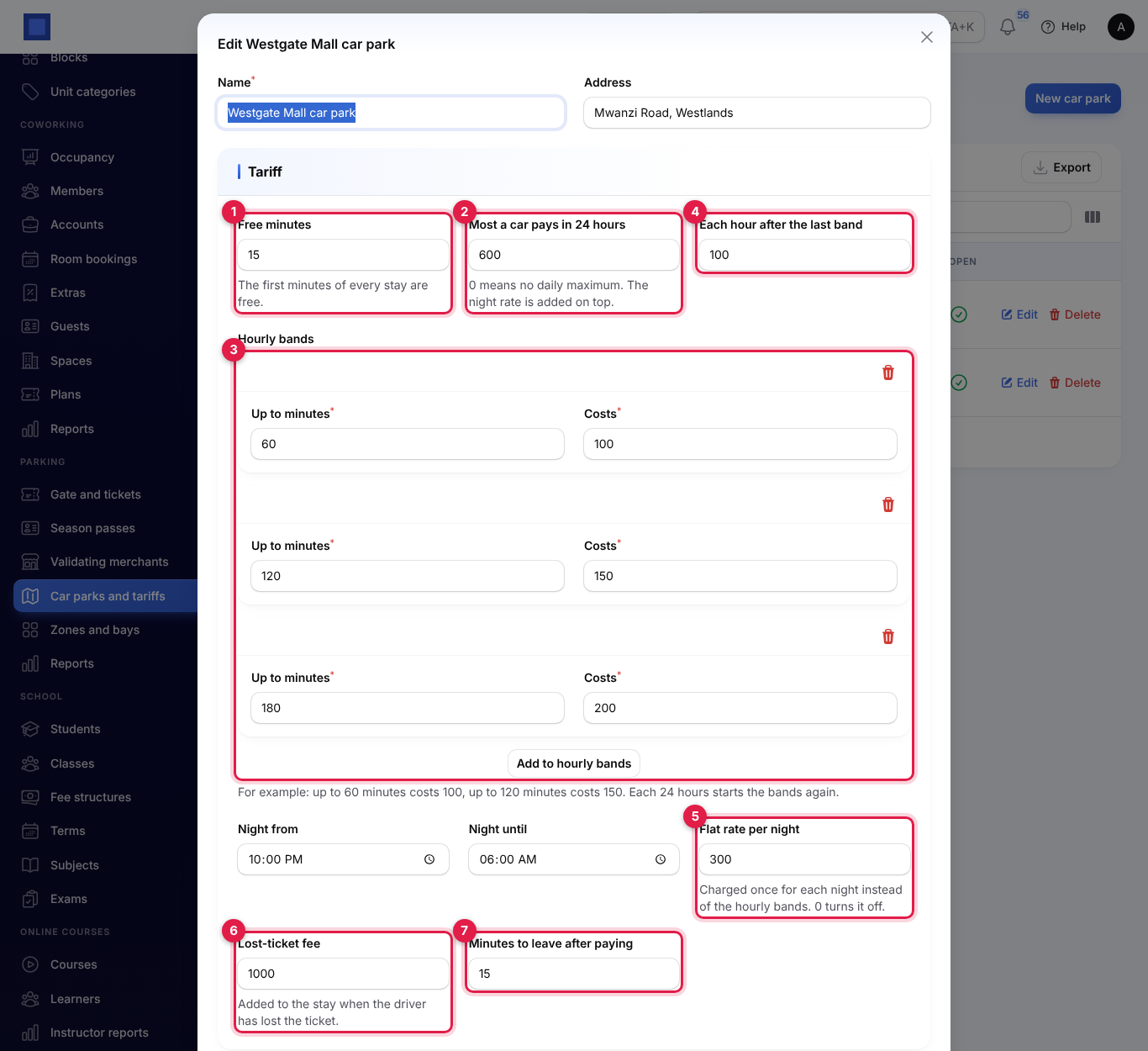
Open Parking → Car parks and tariffs and click New car park. Enter the Name and Address, then the Tariff:
| Field | What it does |
|---|---|
| Free minutes (marker 1) | The first minutes of every stay are free, and a stay no longer than them costs nothing. Default 15. |
| Most a car pays in 24 hours (marker 2) | The daily maximum. 0 means none. The night rate is added on top. |
| Hourly bands (marker 3) | Click Add to hourly bands and enter Up to minutes and what it Costs, for example up to 60 minutes costs KES 100, up to 120 minutes KES 150, up to 180 minutes KES 200. The order you enter them in does not matter. |
| Each hour after the last band (marker 4) | Added for every started hour after the last band. |
| Night from, Night until and Flat rate per night (marker 5) | Minutes in the night window are not charged by the hour; each night the car is in costs the flat rate instead. 0 turns it off. |
| Lost-ticket fee (marker 6) | Added to the stay when the driver has lost the ticket. |
| Minutes to leave after paying (marker 7) | The grace period after paying. Default 15. |
A stay is cut into blocks of 24 hours from the time of entry, and each block starts the bands again. Turn off Open to close a car park; no tickets are issued for it then.
Zones and bays
Open Parking → Zones and bays and click New zone (marker 1). Choose the Car park, enter the Name (such as Level 1), and the number of Regular bays, Reserved bays (marker 2), Disabled bays and Electric vehicle bays (marker 3), with the Order in the list. Parking bays (marker 4) shows the total.
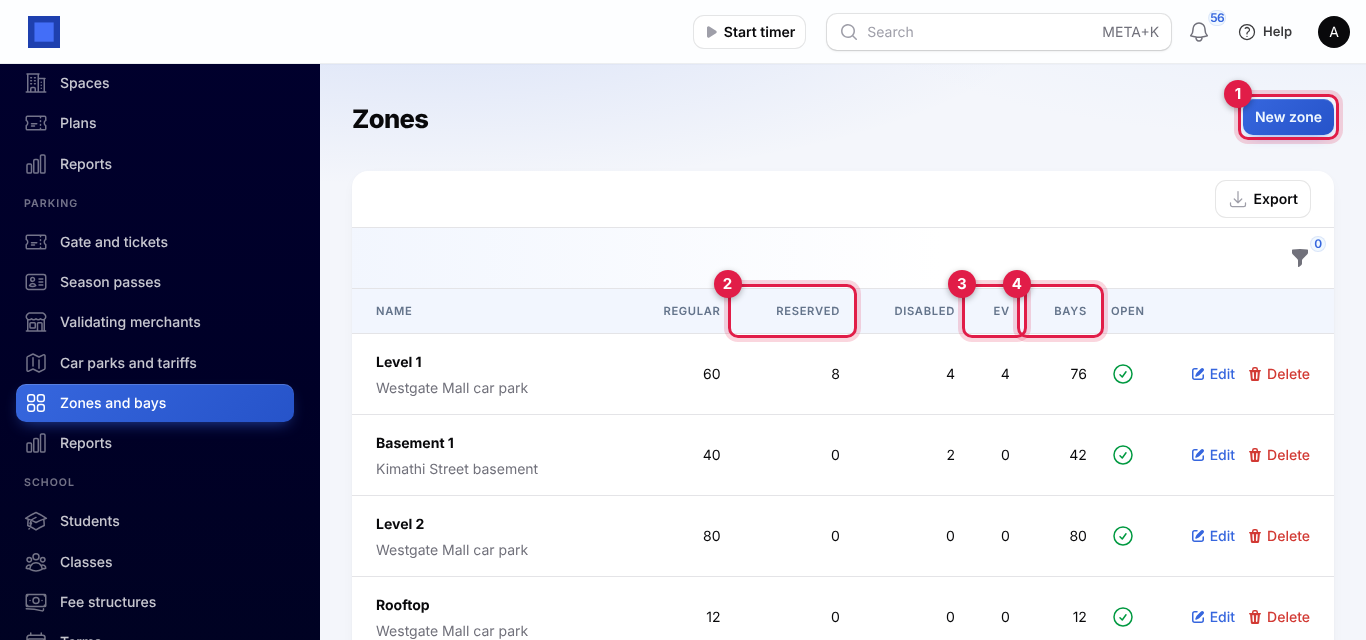
A car is refused when its zone has no free bay of the type asked for, for example There are no free disabled bays in Level 1.
The gate and tickets
Open Parking → Gate and tickets. The list shows the cars Still inside (remove the filter to see all tickets), with the plate and ticket number, the zone and car park, when it came in and how long it has stayed, what it has To pay now (marker 6) with Season pass, Validated by … or Lost ticket under it, and the status (marker 7): Parked, Paid, leaving with the time to leave by, or Left. The list refreshes every 30 seconds.
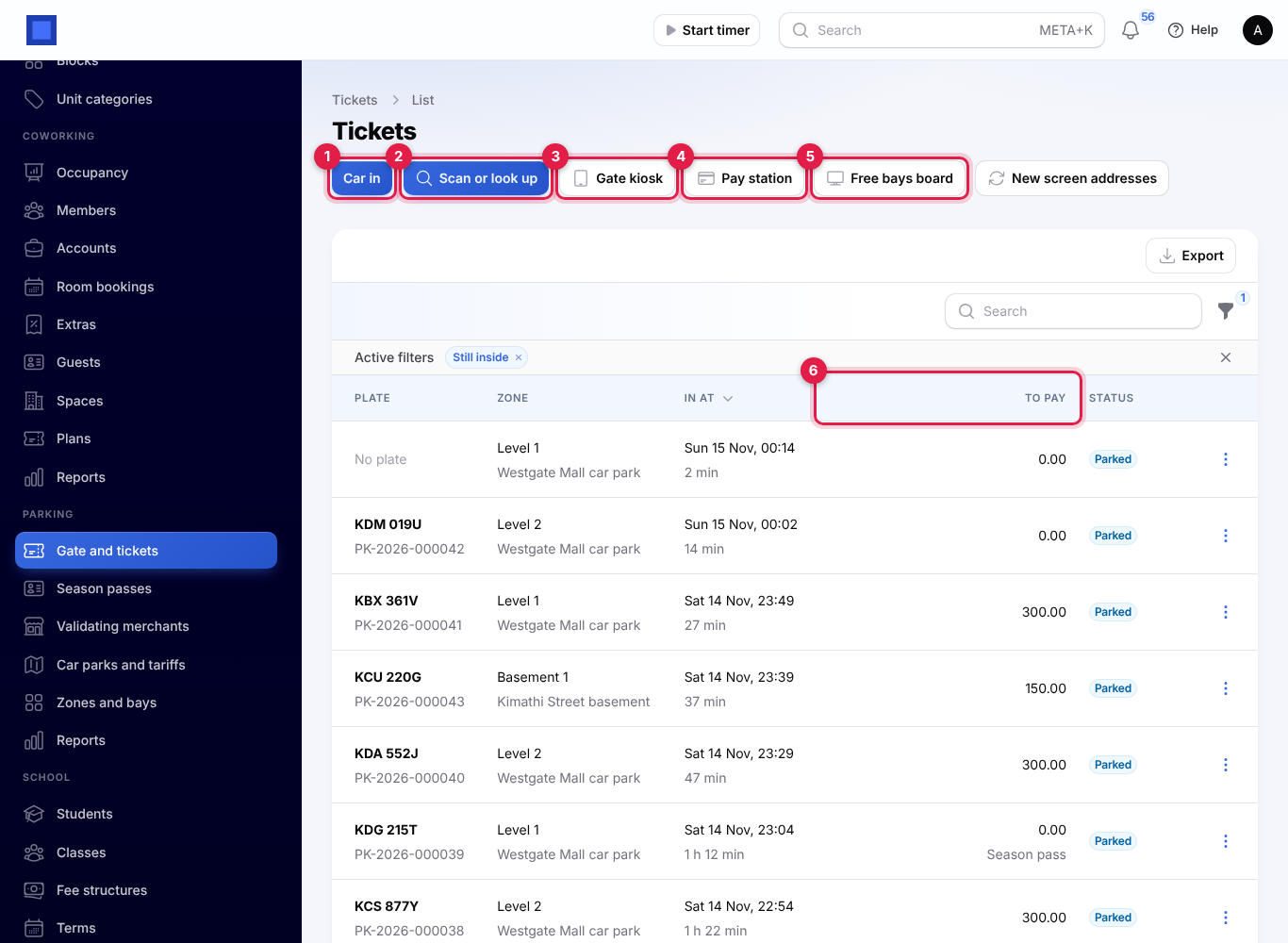
A car comes in
At a staffed entry, click Car in (marker 1):
- Choose the Car park (marker 1 below; filled in when you have one).
- Type the Number plate (marker 2).
- Choose the Zone (marker 3), or leave it for the first zone with a free bay, and the Bay: regular, reserved, disabled or electric vehicle (marker 4).
- Click Create.
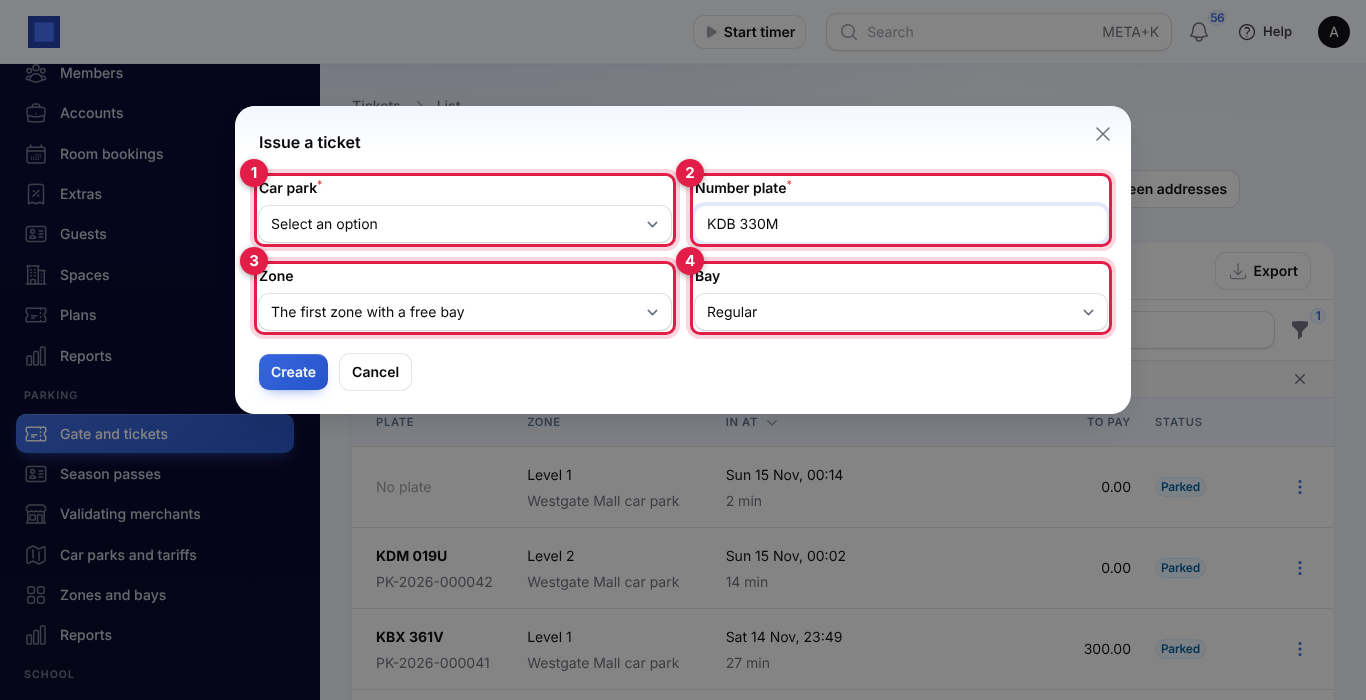
A plate already inside is refused. A plate with an active season pass is let in with KCZ 900Z has a season pass: no charge.
At an unstaffed entry, the driver uses the gate kiosk; see The gate kiosk, pay station and board.
A car leaves
- Click Scan or look up (marker 2) and scan the ticket's QR code, or type the ticket number or the plate. NaliSuite finds the ticket and shows what is due, such as PK-2026-000038: 300.00 to pay.
- Click ⋮ on the ticket and choose:
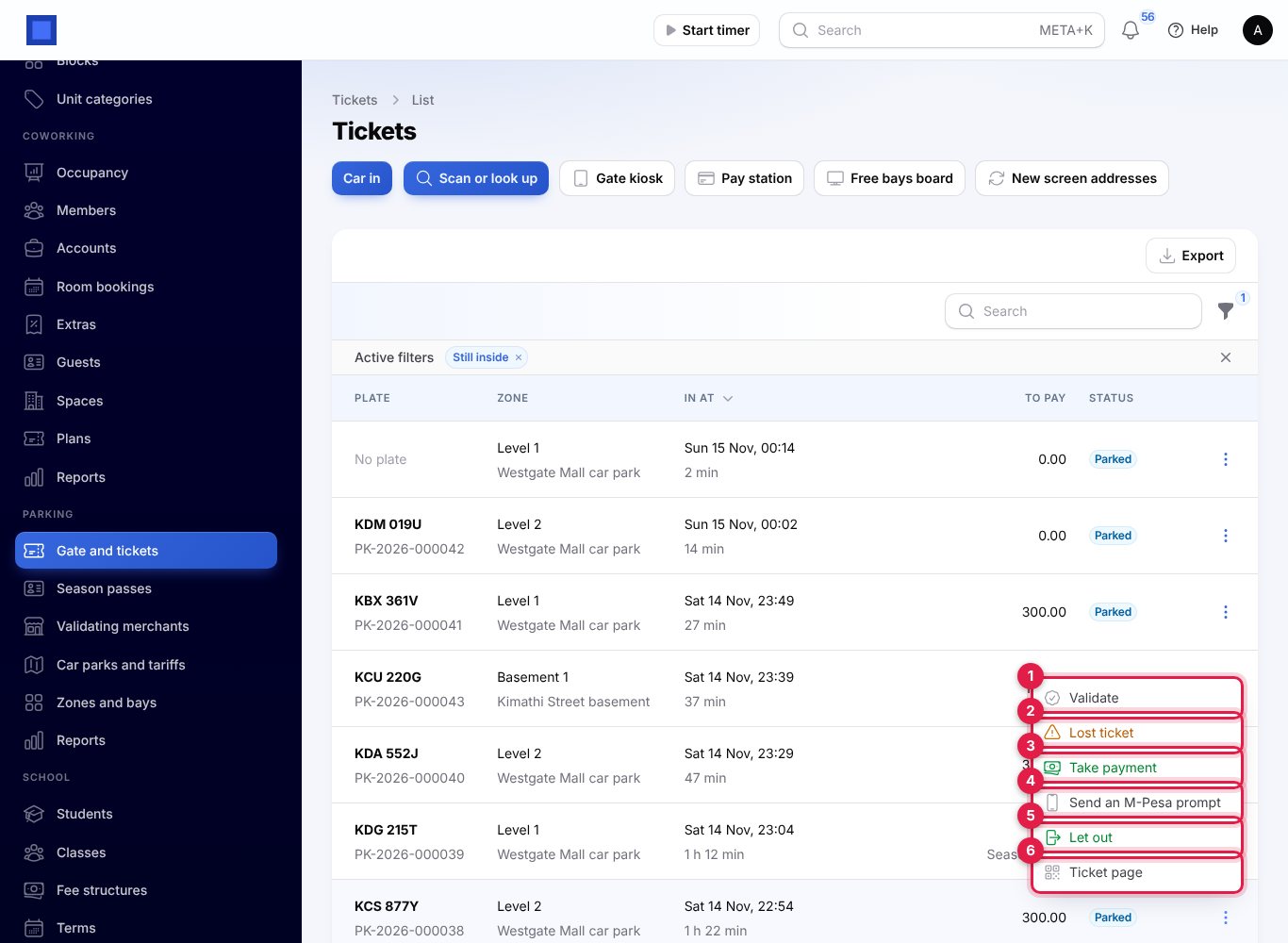
- Validate (marker 1): type a shop's Validation code; see Validating merchants.
- Lost ticket (marker 2): adds the lost-ticket fee to the stay, after you confirm.
- Take payment (marker 3): the window says what is due and whether it goes on your open till or on an invoice (marker 1 below). Choose Paid by (cash, card, or M-Pesa or mobile money, marker 2), add a Reference such as the M-Pesa code (marker 3), and click Submit. On the till, you need an open till session in Point of Sale first.
- Send an M-Pesa prompt (marker 4): type the Driver's phone. The driver gets a prompt on their phone, and the ticket is paid when they enter their PIN. M-Pesa must be set up under Settings → Preferences → Online payments.
- Let out (marker 5): lets the car out when nothing is due: paid and still within the minutes to leave, free, validated or on a season pass. Otherwise you see what is still to pay.
- Print receipt: once paid or out, opens the receipt to print.
- Ticket page (marker 6): opens the ticket's own page, the one the QR code opens.
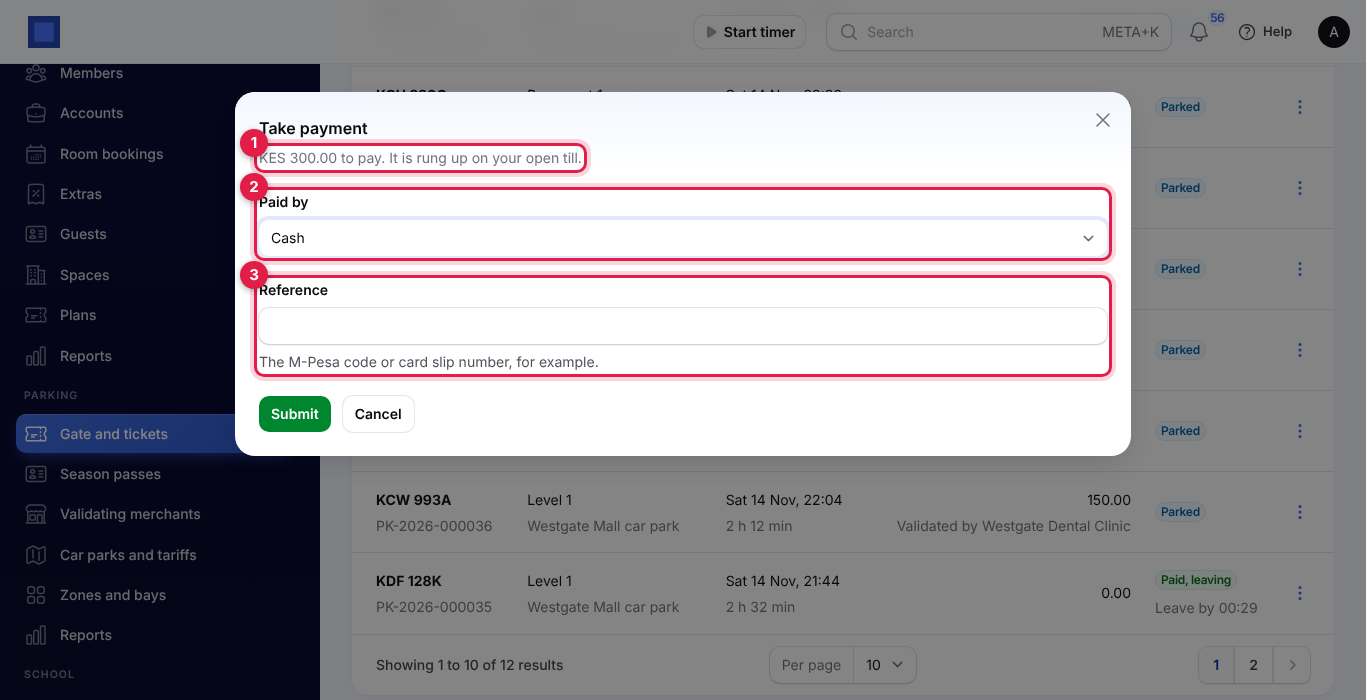
When a car stays longer than the minutes to leave after paying, the time it overstayed is charged and it shows what more to pay.
Validating merchants
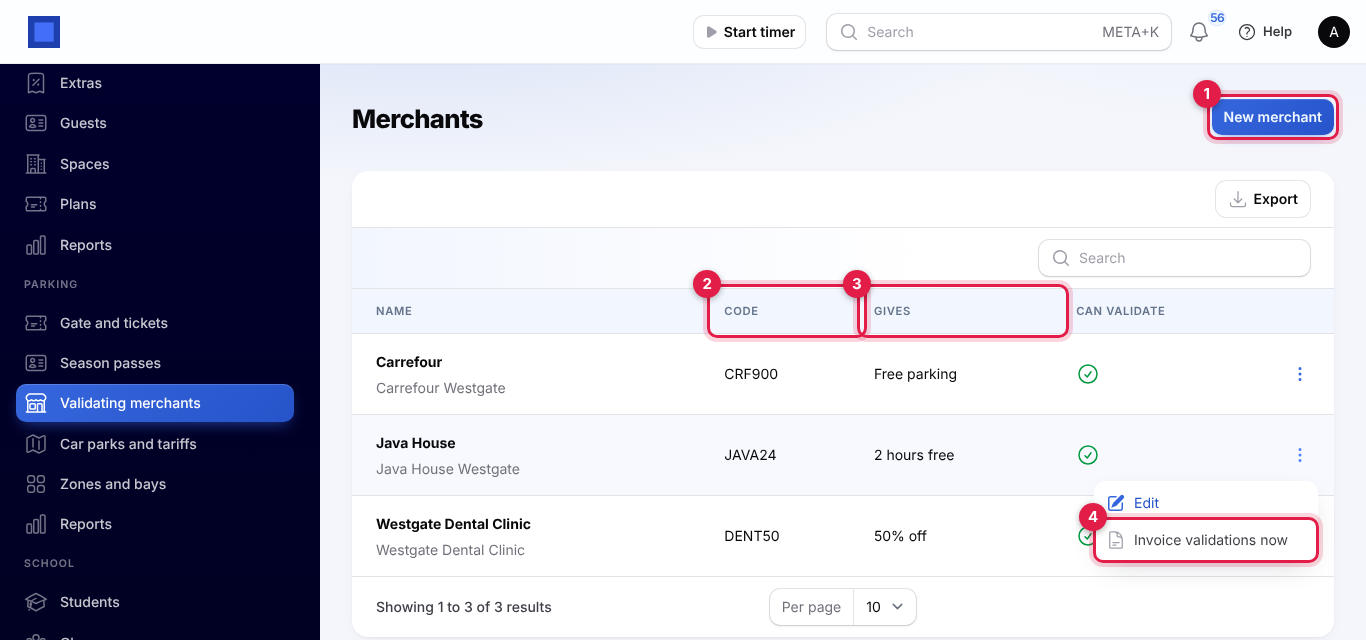
Shops and offices can give their customers free or cheaper parking. Open Parking → Validating merchants and click New merchant (marker 1):
- Enter the Name and choose who it is Invoiced to from Contacts.
- Keep or change the Validation code (marker 2), which their staff type at the gate or the driver at the pay station.
- Choose What the validation gives (marker 3): Free parking, A percentage off, An amount off or Hours free, and enter the value.
- Leave Can validate on and click Create.
A ticket can be validated once, before it is paid. The discount is worked out at the exit: hours free takes off what those first hours would have cost.
Early each month, every merchant gets one invoice for the discounts on the tickets they validated in the month before. To invoice before then, click ⋮ → Invoice validations now (marker 4) on the merchant: every validated ticket not invoiced yet, up to today, goes on one invoice.
Season passes
With the Subscriptions app on, monthly permits are kept under Parking → Season passes. First set the pass up as a monthly subscription for the holder in Subscriptions; it bills them every month. Then click New season pass (marker 1):
- Enter the Number plate. A plate can have one pass.
- Choose the Car park (marker 2), or leave it for Every car park.
- Choose the Holder and their Subscription (marker 3).
- Add Notes and click Create.
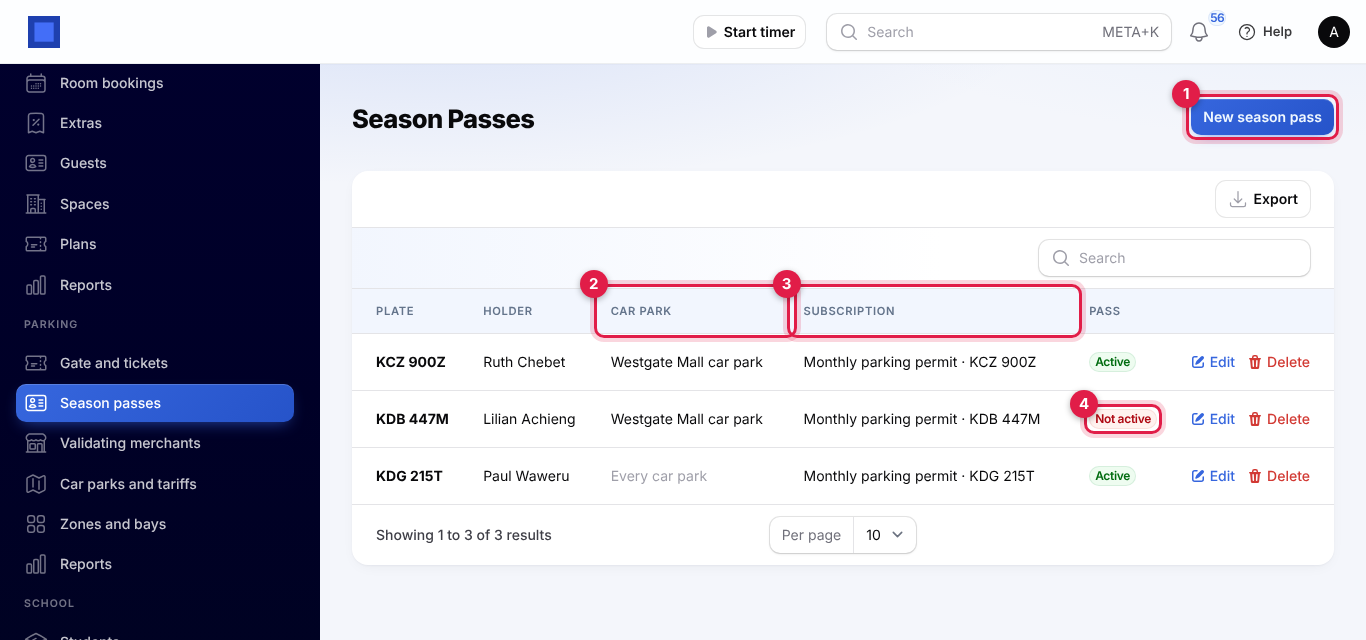
The car comes and goes free while the subscription is active or on trial. When it is cancelled or unpaid, the pass shows Not active (marker 4) and the car pays like anyone else.
The gate kiosk, pay station and board
The three screens open from the buttons on Gate and tickets (markers 3, 4 and 5 in the list screenshot) and work without signing in, behind a secret address. If an address gets out, click New screen addresses; the old addresses stop working, so open the new ones on your screens.
The gate kiosk
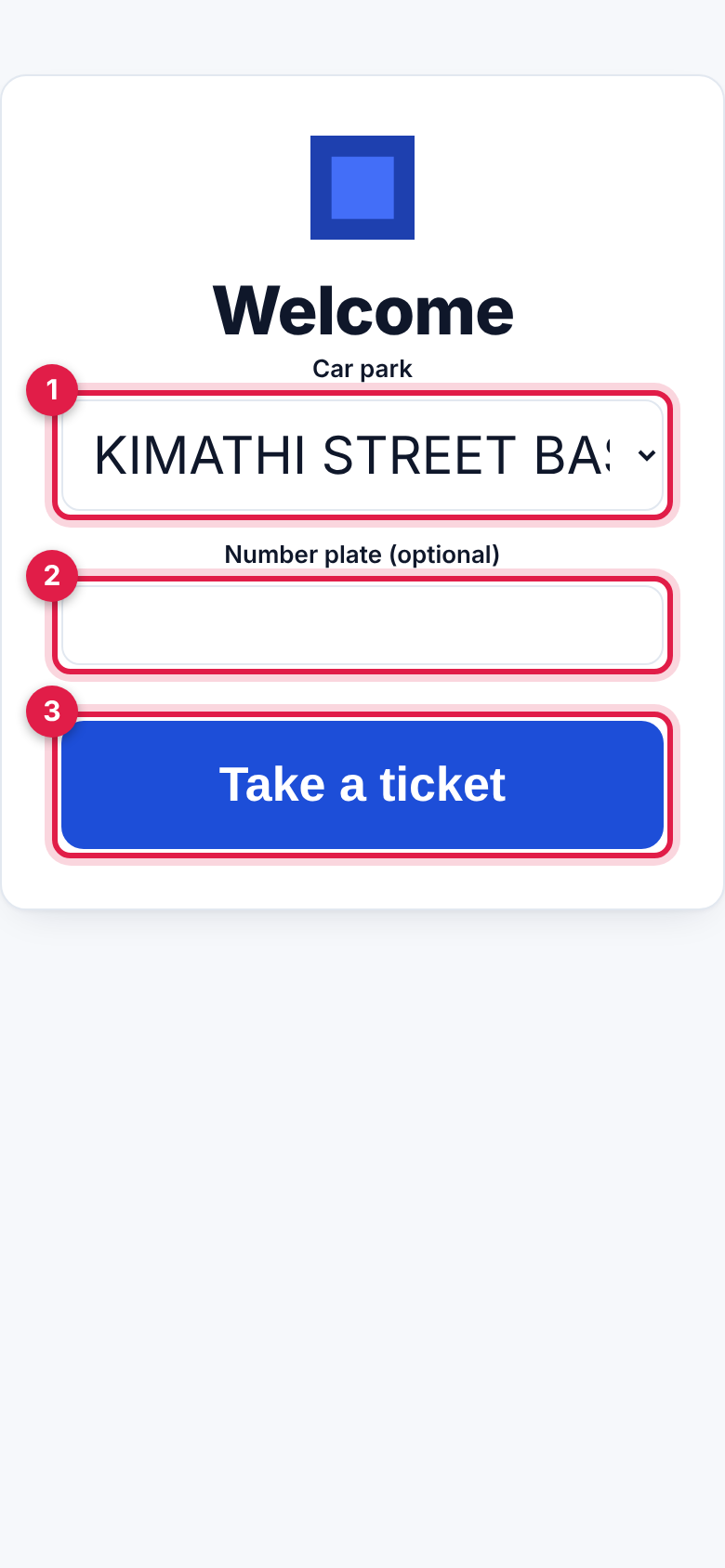
On a tablet at the entry, the driver chooses the Car park (marker 1) if you have more than one, types the Number plate (optional) (marker 2) and taps Take a ticket (marker 3).
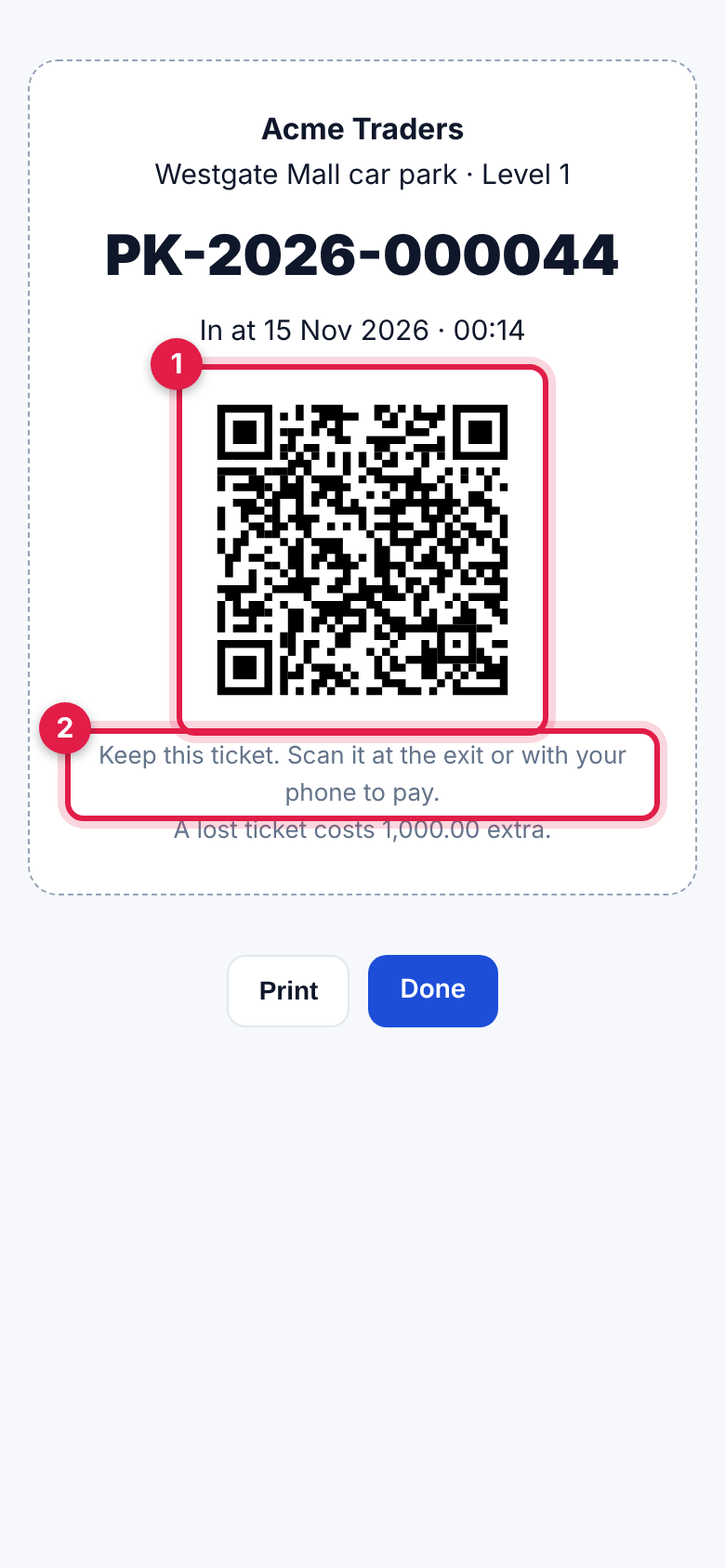
The ticket shows the car park and zone, the ticket number, the time in, the QR code (marker 1) and Keep this ticket. Scan it at the exit or with your phone to pay. (marker 2), with the lost-ticket fee. Tap Print for a printer at the kiosk, or Done for the next car. The driver can also photograph the QR code.
The pay station
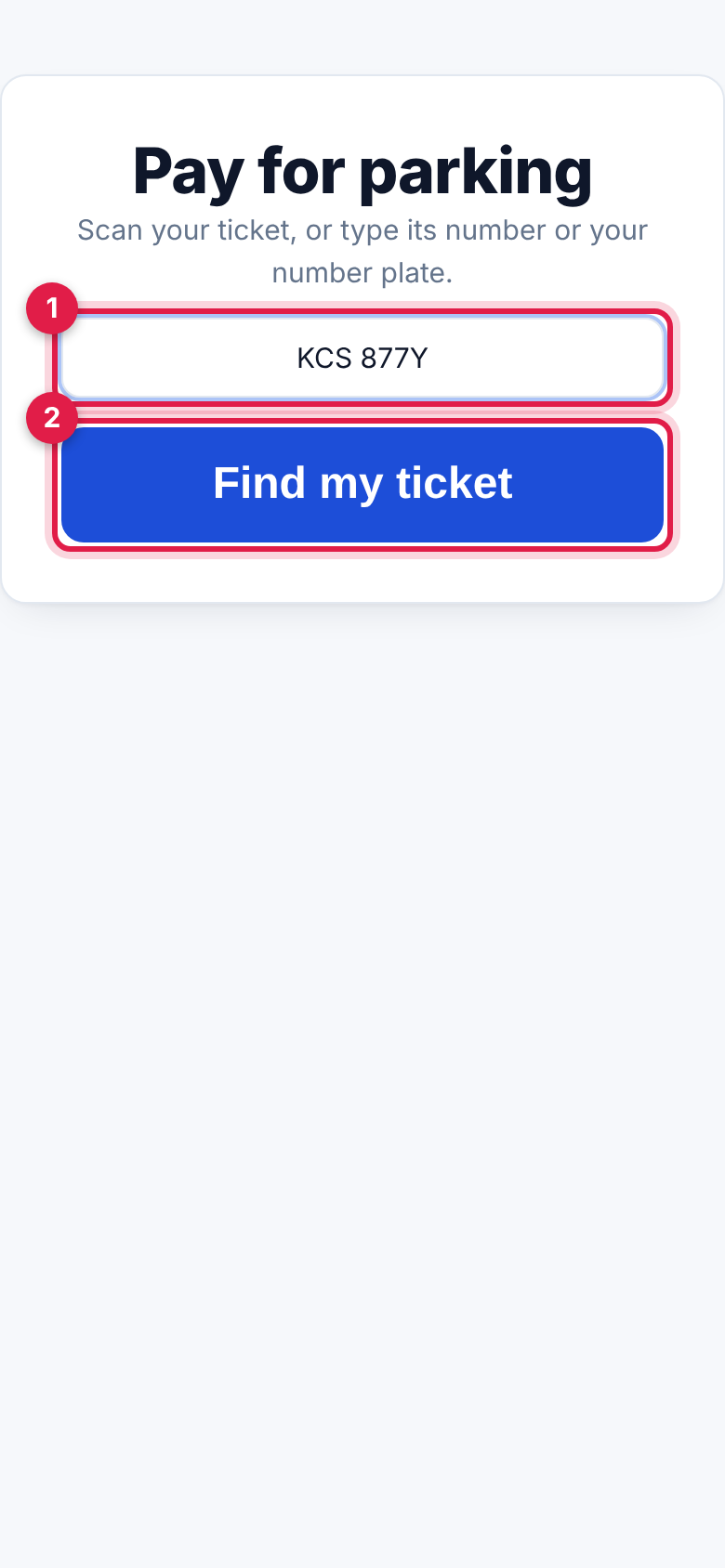
On a screen near the exit or the lifts, the driver scans the ticket, or types the Ticket or plate (marker 1), and taps Find my ticket (marker 2). The ticket's page opens.
The ticket page
Scanning the QR code with a phone opens the ticket's page. It shows what to do (marker 1), the time in and the time parked, any lost-ticket fee or validation, and the amount due (marker 2). The driver types their M-Pesa phone number (marker 3) and taps Pay with M-Pesa, or taps Pay by card (marker 4) to pay on the invoice pay page. The page updates by itself once paid, says Paid. Please leave by … and offers the Receipt.
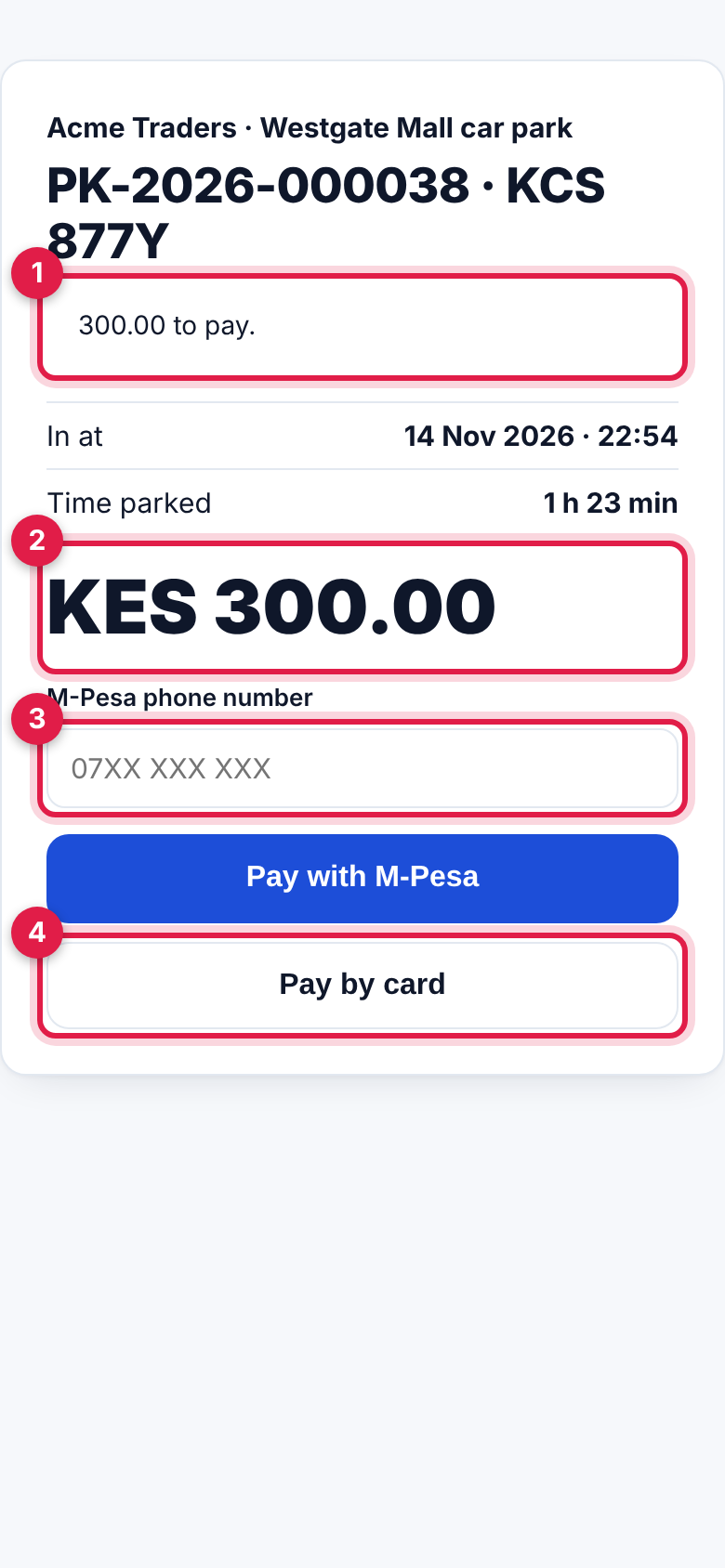
With neither M-Pesa nor a card gateway set up, the page says Please pay the attendant at the exit.
The free bays board
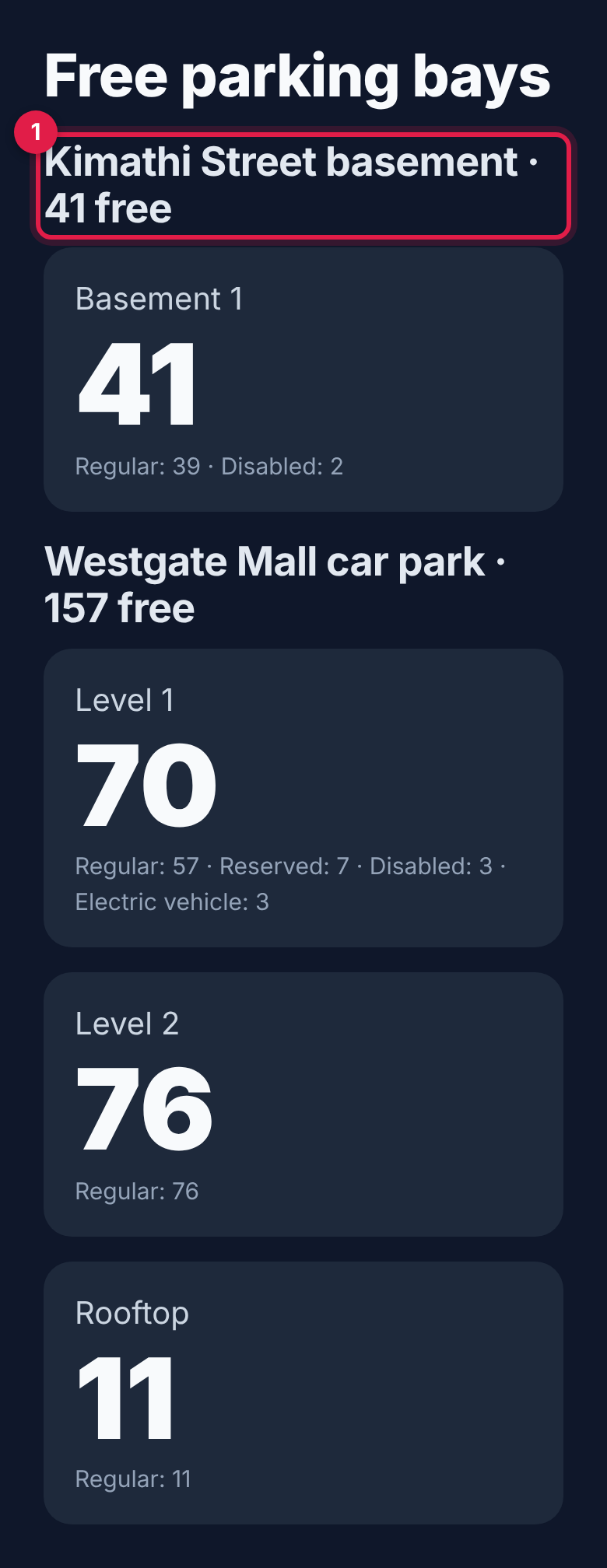
Open Free bays board on a display screen at the entrance. It shows each car park with its free bays (marker 1), and each zone's free bays by type, and refreshes by itself. A zone with no free bays shows No spaces.
Reports
Open Parking → Reports and choose the From and To days (marker 1).
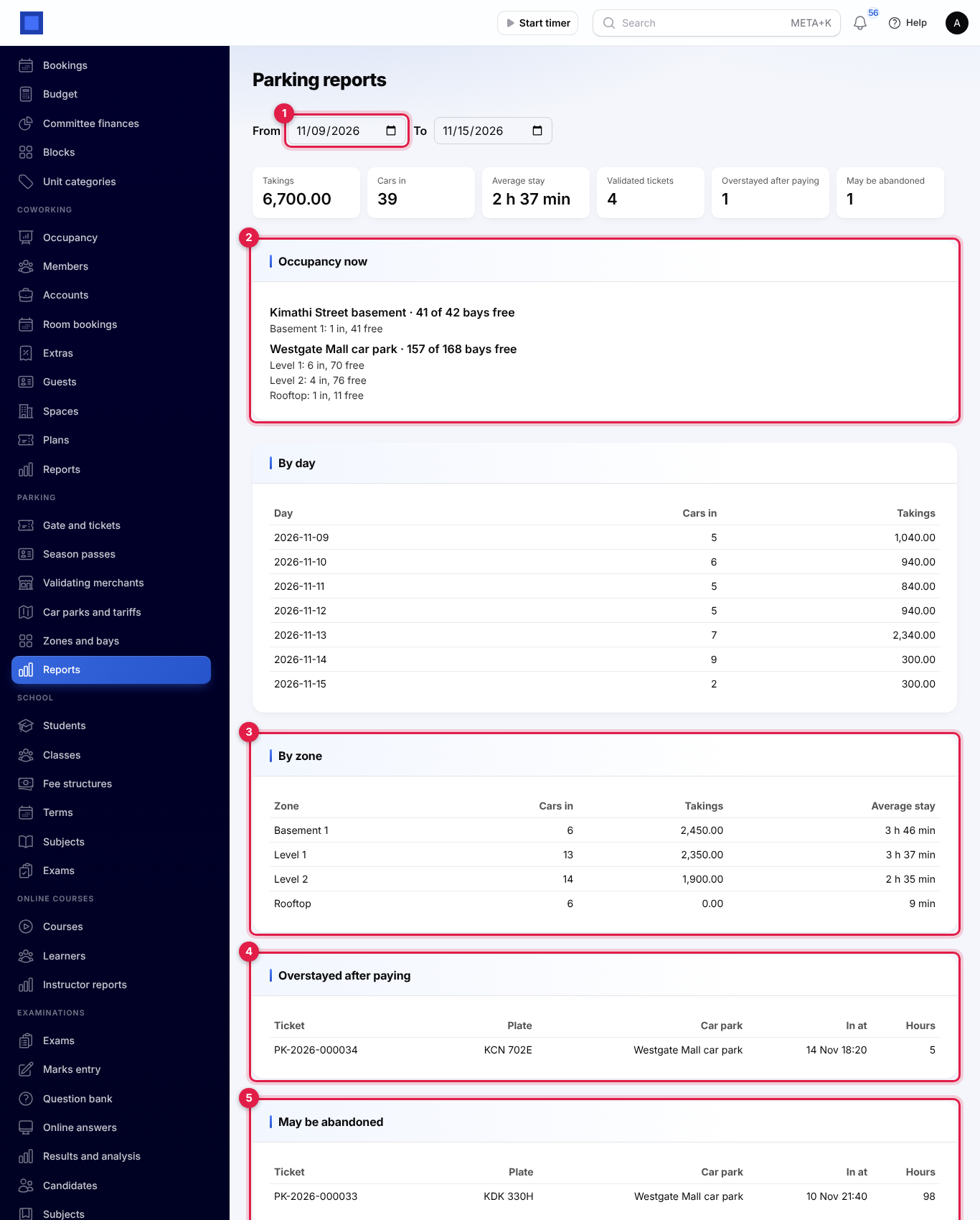
- The boxes: Takings, Cars in, Average stay, Validated tickets, Overstayed after paying and May be abandoned.
- Occupancy now (marker 2): each car park's free bays and each zone's cars in and free bays.
- By day: cars in and takings each day.
- By zone (marker 3): cars in, takings and the average stay.
- Overstayed after paying (marker 4): cars still inside after their minutes to leave ran out.
- May be abandoned (marker 5): cars inside longer than the hours in your settings.
- Season pass holders: every pass with its holder, car park and whether it is active.
Good to know
A driver has lost the ticket. Find the car with Scan or look up by its plate, then use Lost ticket to add the lost-ticket fee before taking payment. A car that came in with no plate can only be found by its ticket number.
The driver paid but is still inside after the minutes to leave. The extra time is charged; take the rest with Take payment or another M-Pesa prompt.
Can a car have two tickets? No. A plate already inside the same car park is refused until its ticket has left.
Where does the money go? Booth payments go on the attendant's till, or on an invoice to Parking customers marked paid. M-Pesa and card payments are recorded on the ticket's invoice like any online payment.
Can I give a refund? Refund the payment in Point of Sale or Invoicing as usual; the ticket keeps its record.
Why isn't Season passes in the menu? It needs the Subscriptions app.