QuickBooks, Xero, Sage and Zoho Books
Accounting software sync is for businesses whose accountant keeps the books in QuickBooks Online, Xero, Sage Accounting or Zoho Books. You run sales, purchases and payments in NaliSuite; every 30 minutes your customers and suppliers, issued invoices, posted bills and payments are sent to the books, and payments your accountant records there come back so invoices show as paid. This page covers creating your app with each provider, connecting your books, choosing accounts and tax codes, what goes across and how the four providers differ, and fixing problems.
Accounting software sync is a marketplace module. It needs the Contacts and Invoicing apps. Its page is Settings → Accounting software sync, titled QuickBooks, Xero, Sage and Zoho Books.
Note: You need the ledger_sync.manage permission to open Settings → Accounting software sync. Owners and admins have it. Entering the app details under Settings → Preferences needs core.settings.manage. Set permissions under Settings → Roles.
Note: Your workspace uses its own app with Intuit, Xero, Sage or Zoho. NaliSuite does not share one app between businesses, so an administrator must first create an app with the provider and enter its details in NaliSuite. This is done once.
Switch it on
- Open Settings → Marketplace and type QuickBooks, Xero, Sage or Zoho in the Search add-ons… box (marker 1).
- On the QuickBooks, Xero, Sage and Zoho Books sync card (marker 2), click Start free trial (or Add to subscription) and confirm. Accounting software sync appears under Settings in the left menu.
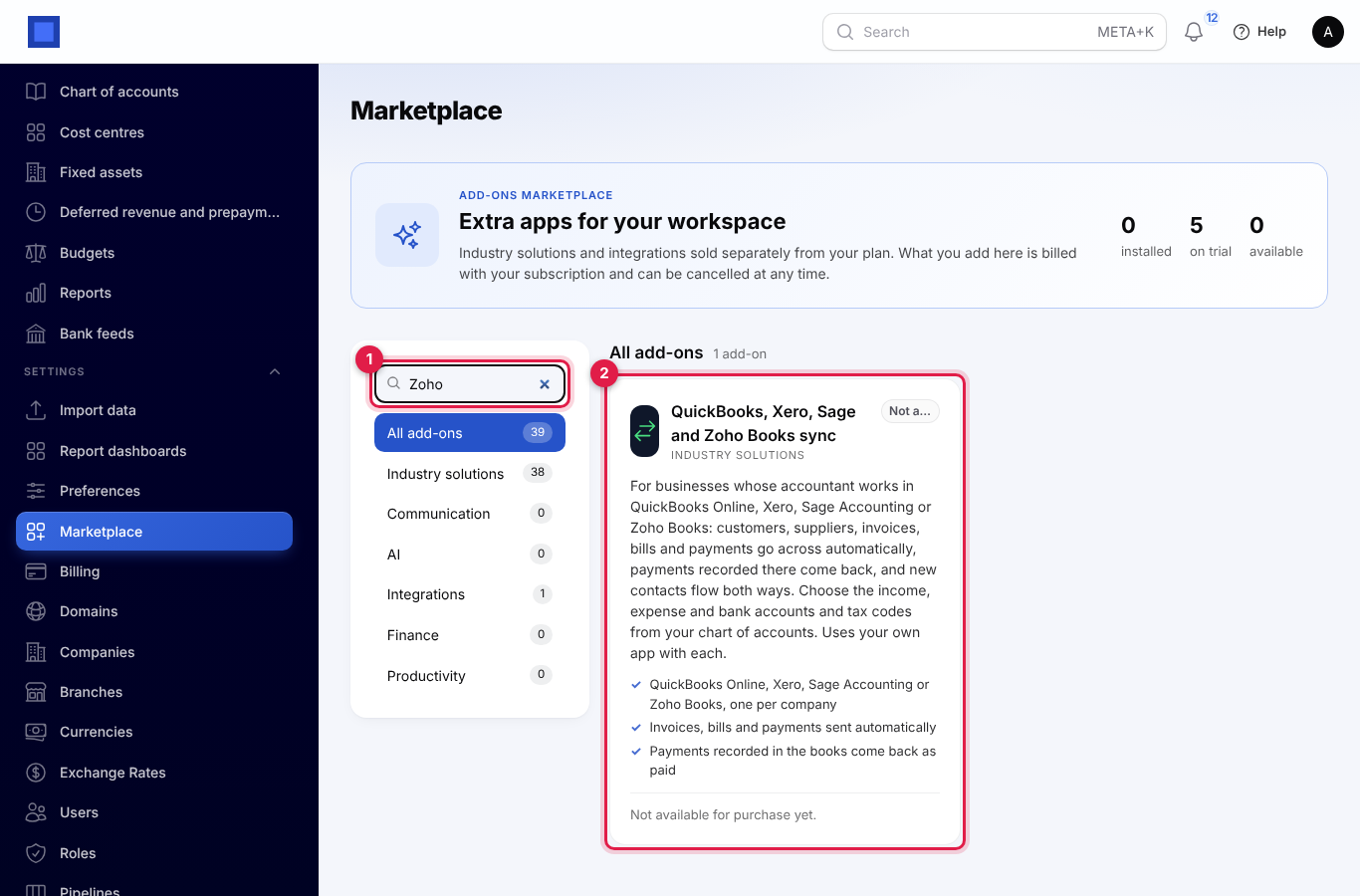
If the card says Not available for purchase yet (as in the screenshot), ask NaliSuite support to switch it on. See Billing and marketplace.
Step 1: Create your app with the provider (administrator, once)
These steps happen on the providers' own developer websites, not in NaliSuite. Their screens change from time to time, so follow their current help pages; what you need from each is listed here. You only need the one your accountant uses.
First open Settings → Preferences and click the Accounting software sync tab. The text at the top (marker 2 in the first settings screenshot under Step 2) and the text above the Sage and Zoho fields (marker 1 in the second) show your redirect addresses. Each is your workspace address followed by:
| Provider | Redirect address ends in |
|---|---|
| QuickBooks | /app/ledger-sync/quickbooks/callback |
| Xero | /app/ledger-sync/xero/callback |
| Sage | /app/ledger-sync/sage/callback |
| Zoho Books | /app/ledger-sync/zoho/callback |
Copy the address exactly as shown, including https://. The provider refuses to send you back to NaliSuite if it differs by a single character.
QuickBooks Online
On the Intuit developer portal (developer.intuit.com), signed in with an Intuit account:
- Create an app for QuickBooks Online and Payments with the Accounting scope.
- Add the QuickBooks redirect address to the app's redirect URIs (in both the development and production settings if you use both).
- Copy the Client ID and Client Secret. Use the development keys with the sandbox switch in NaliSuite while you test, and the production keys for your real books.
Xero
On the Xero developer portal (developer.xero.com), signed in with your Xero login:
- Create a new app of type Web app.
- Add the Xero redirect address as the redirect URI.
- Generate a client secret and copy the Client id and Client secret.
Sage Accounting
This is for Sage Accounting, Sage's online accounting (also called Sage Business Cloud Accounting), not desktop products such as Sage 50 or Sage 200.
On the Sage developer portal (developer.sage.com), signed in with a Sage account:
- Create an app (in Sage's developer self-service area).
- Add the Sage redirect address as the app's Callback URL.
- Copy the Client ID and Client Secret.
Zoho Books
Zoho keeps your data in one data centre (United States, Europe, India, Australia, Japan, Canada or Saudi Arabia), and the app must be made in the same one. You can tell yours from the address you open Zoho Books at: books.zoho.com is the United States and global, books.zoho.eu Europe, books.zoho.in India, books.zoho.com.au Australia, books.zoho.jp Japan, books.zohocloud.ca Canada and books.zoho.sa Saudi Arabia.
- Open the Zoho API console for your data centre (api-console.zoho.com, or for example api-console.zoho.eu in Europe), signed in with your Zoho login.
- Add a client of type Server-based Applications. Give it a name and your NaliSuite address as the homepage.
- Paste the Zoho redirect address into Authorized Redirect URIs and click Create.
- Copy the Client ID and Client Secret.
Step 2: Enter the app details in NaliSuite (administrator, once)
- In the menu, open Settings → Preferences.
- Click the Accounting software sync tab (marker 1). The text at the top (marker 2) shows the QuickBooks and Xero redirect addresses.
- Fill in the details of the provider you use and click Save preferences.
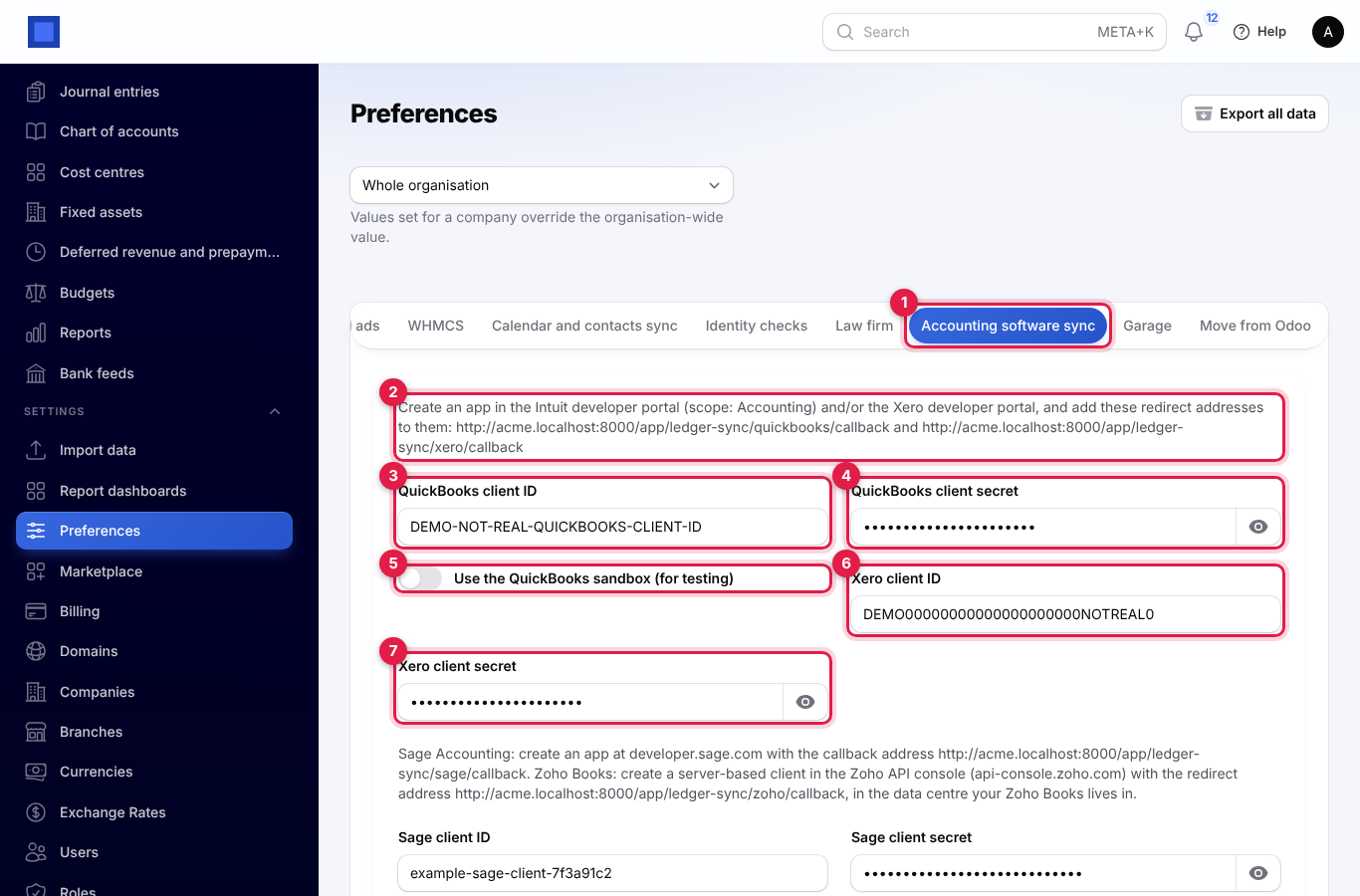
| Setting | What to enter |
|---|---|
| QuickBooks client ID (marker 3) | The client ID from the Intuit developer portal. |
| QuickBooks client secret (marker 4) | The client secret. Stored encrypted; click the eye to check it. |
| Use the QuickBooks sandbox (for testing) (marker 5) | Switch on to connect to an Intuit sandbox company with development keys. Switch off for your real books. |
| Xero client ID (marker 6) | The client id from the Xero developer portal. |
| Xero client secret (marker 7) | The client secret. Stored encrypted. |
Scroll down for Sage and Zoho Books. The text above them (marker 1) shows their redirect addresses.
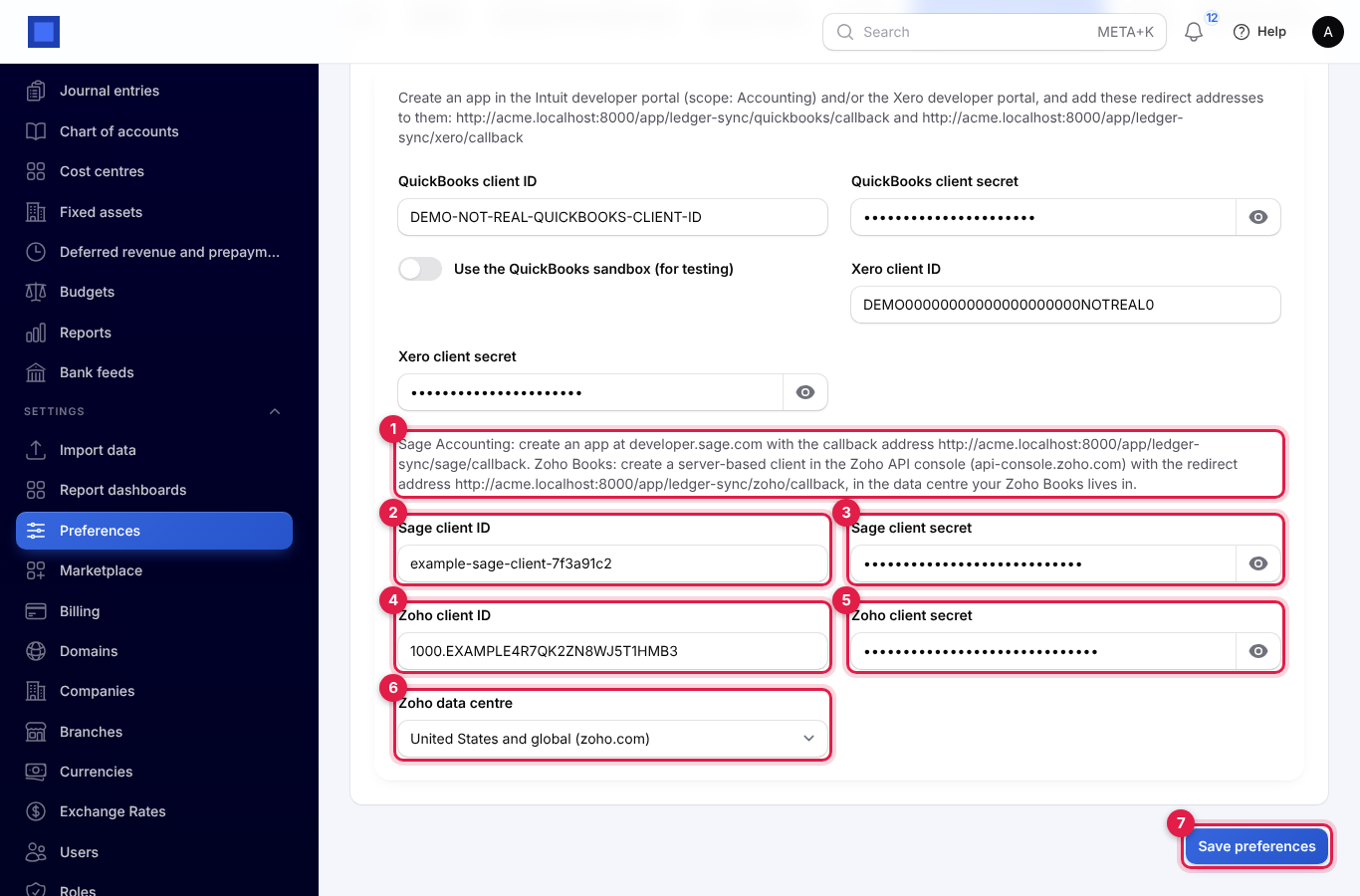
| Setting | What to enter |
|---|---|
| Sage client ID (marker 2) | The client ID from the Sage developer portal. |
| Sage client secret (marker 3) | The client secret. Stored encrypted. |
| Zoho client ID (marker 4) | The client ID from the Zoho API console. |
| Zoho client secret (marker 5) | The client secret. Stored encrypted. |
| Zoho data centre (marker 6) | Where your Zoho Books lives: United States and global (zoho.com) (the default), Europe (zoho.eu), India (zoho.in), Australia (zoho.com.au), Japan (zoho.jp), Canada (zohocloud.ca) or Saudi Arabia (zoho.sa). It must be the one you made the client in. |
Click Save preferences (marker 7). A Connect button appears on the sync page for each provider whose client ID and secret are both filled in.
Step 3: Connect your books
- In the menu, open Settings → Accounting software sync.
- Click Connect QuickBooks Online, Connect Xero, Connect Sage Accounting or Connect Zoho Books. (If you see "First add your Intuit, Xero, Sage or Zoho app credentials under Settings → Preferences → Accounting software sync.", Step 2 is not done.)
- You are taken to the provider's sign-in page. Sign in as someone with access to the books and allow access. (These screens belong to the provider.)
- QuickBooks: choose the QuickBooks company for your default company.
- Xero: choose the organisation. If several are allowed, the first is connected.
- Sage: choose your country if asked. If your Sage login has several businesses, the first one Sage lists is connected.
- Zoho Books: if your Zoho login has several Zoho Books organisations, the one marked as default in Zoho is connected.
- You come back to NaliSuite with, for example, "Zoho Books · … connected. Choose the accounts and tax codes, then sync." NaliSuite has read the chart of accounts, bank accounts, tax codes and (for QuickBooks) products and services.
One NaliSuite company connects to one set of books, with one provider. To move to different books, disconnect first; otherwise you see "… is already connected to …. Disconnect it first."
| Message | What to do |
|---|---|
| Access was not allowed: … | You or the provider cancelled the sign-in. Try again, and allow access. |
| This sign-in link has expired or belongs to someone else. Start again. | Click Connect again and finish signing in without a long pause. |
| This Sage account has no business to connect. | Set up your business in Sage Accounting first. |
| This Zoho account has no Zoho Books organisation. | Sign up for Zoho Books with that Zoho login, or check the Zoho data centre. |
Important: Before the first sync, set Accounts and options (below), especially Only documents dated from. It starts on the day you connect, so nothing older is sent unless you change it.
The sync page
Once connected, the page shows:
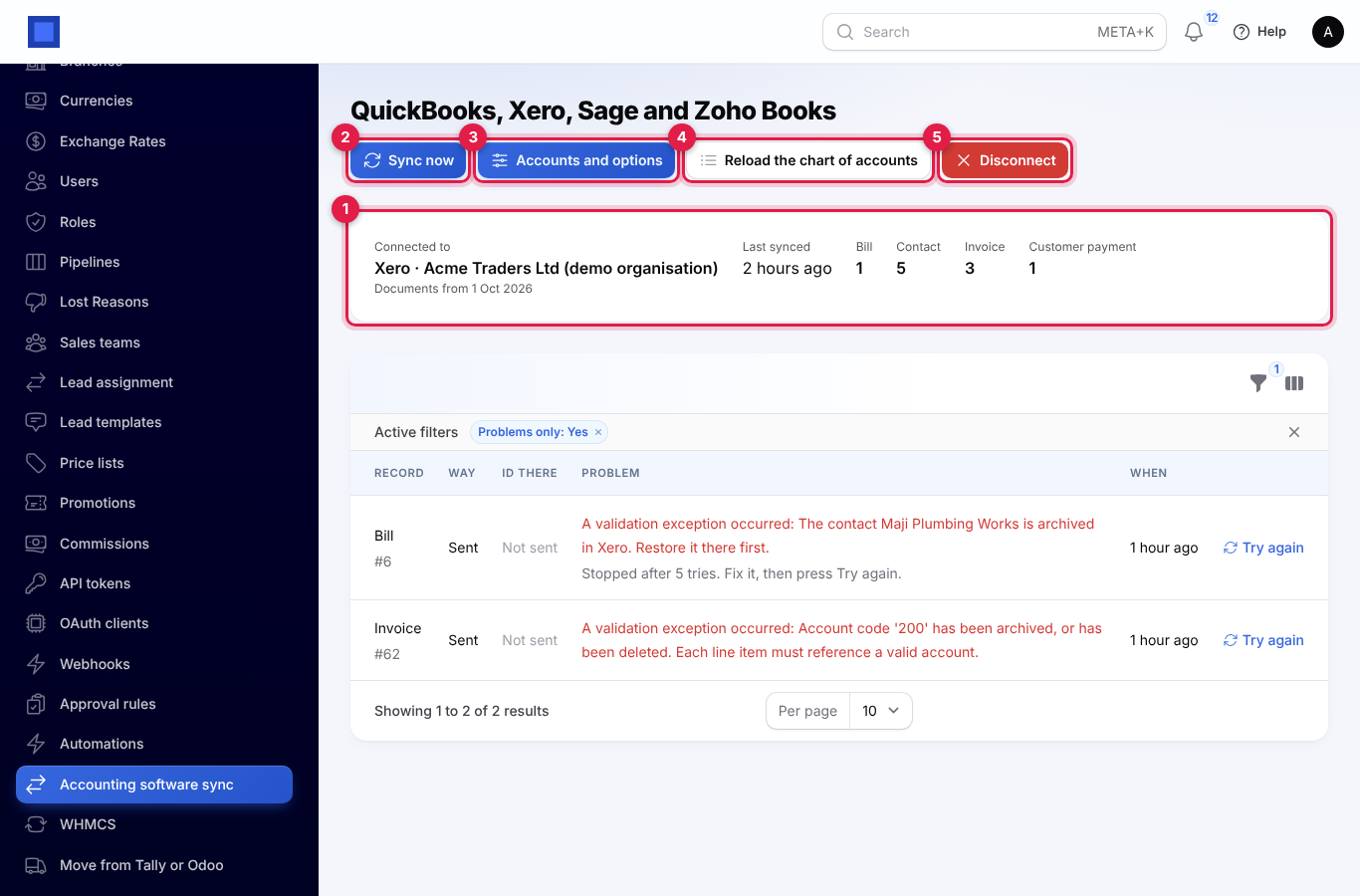
- Connected to (marker 1): the provider and organisation name, Documents from (the date set in Only documents dated from), when it Last synced, and how many records of each kind are linked (Contact, Invoice, Bill, Customer payment, Supplier payment). A connection problem shows in red here.
- Sync now (marker 2): runs the sync straight away instead of waiting up to 30 minutes. You see a summary such as "12 invoices, 3 bills and 9 payments sent; 2 payments and 1 contacts came back; 0 failed."
- Accounts and options (marker 3): where things go and what is synced.
- Reload the chart of accounts (marker 4): reads the accounts, tax codes and items again after your accountant adds new ones in the books.
- Disconnect (marker 5).
- The list of records (see Fix problems).
Choose accounts and options
- Click Accounts and options.
- Under Where things go in … (your provider), pick each account from your books' own lists.
- Under What to sync, switch on what you want sent and brought back, and set Only documents dated from.
- Click Submit.
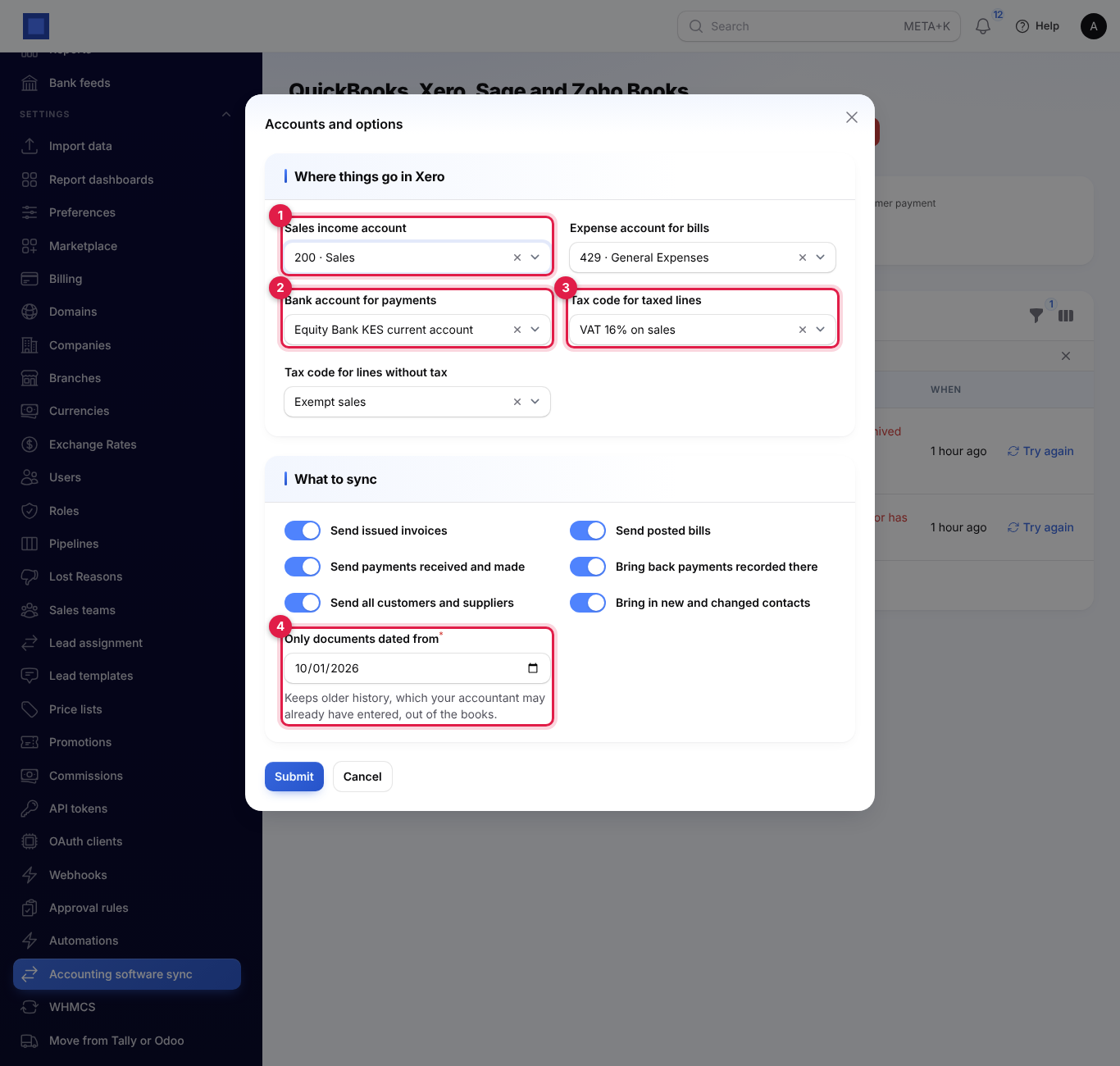
| Setting | What it does |
|---|---|
| Sales income account (Xero, Sage and Zoho Books, marker 1) | The income account invoice lines are posted to, for example "200 · Sales". |
| Product or service used on invoice lines (QuickBooks only) | QuickBooks needs an item on every invoice line; its income account decides where the sales go. Until you choose one, the page warns "Choose the product or service for invoice lines under Accounts and options before invoices can go to QuickBooks." |
| Expense account for bills | Where bill lines are posted, for example "429 · General Expenses". |
| Bank account for payments (marker 2) | The bank (or, in Zoho Books, bank or cash) account that payments received and made are recorded against in the books. |
| Tax code for taxed lines (marker 3) | For example "VAT 16% on sales". Lines are sent without tax, and the books work out the tax from this code. |
| Tax code for lines without tax | For example "Exempt sales" or "No VAT". |
| Send issued invoices | On by default. |
| Send posted bills | On by default. |
| Send payments received and made | On by default. Customer payments and supplier payments against documents already sent. |
| Bring back payments recorded there | On by default. |
| Send all customers and suppliers | On by default. Off sends only the contacts that invoices, bills and payments need. |
| Bring in new and changed contacts | On by default. |
| Only documents dated from (marker 4) | Required. Invoices, bills and payments dated before this are never sent. Keeps older history, which your accountant may already have entered, out of the books. |
What goes across
From NaliSuite to the books
| Record | Details |
|---|---|
| Customers and suppliers | Name, email, phone and, except for Zoho Books, the tax number. If a name is already taken in the books, NaliSuite links to it or adjusts the name. See How the providers differ for customers who are also suppliers. |
| Invoices | Issued invoices (not drafts). A cancelled invoice is voided in the books. |
| Bills | Posted vendor bills. A cancelled bill is voided in Xero, Sage and Zoho Books, and deleted in QuickBooks, which has no void for bills. |
| Payments | Payments received against sent invoices and payments made against sent bills, against your Bank account for payments. |
Nothing is sent twice: each record is linked to its copy in the books.
From the books to NaliSuite
| Record | Details |
|---|---|
| Customers and suppliers | Added or changed there. Matched by email, then name. A match only fills in what NaliSuite is missing; anyone new is added. When a contact changed on both sides, NaliSuite's version is kept. Zoho Books sends only active contacts. |
| Customer payments | Payments your accountant records in the books against invoices NaliSuite sent are recorded in NaliSuite as bank payments, so the invoice shows paid. NaliSuite's own payments coming back are recognised and skipped. |
The sync runs by itself every 30 minutes.
How the providers differ
| QuickBooks Online | Xero | Sage Accounting | Zoho Books | |
|---|---|---|---|---|
| A contact who is both customer and supplier | Two records: a customer and a vendor. | One contact. | One contact, marked customer and supplier. | Two records: a customer and a vendor. |
| Invoice number in the books | NaliSuite's number. | NaliSuite's number. | Sage's own number; NaliSuite's number is in the invoice's Reference. | NaliSuite's number. Invoices arrive as sent, not draft. |
| Bill numbers | The supplier's invoice number. | The supplier's invoice number. | NaliSuite's bill number in Reference, the supplier's invoice number in Vendor reference. | The supplier's invoice number as the bill number, NaliSuite's bill number as the reference. |
| Where invoice lines go | The Product or service used on invoice lines. | Sales income account. | Sales income account. | Sales income account. |
| Cancelled bill | Deleted. | Voided. | Voided. | Voided. |
| Test environment | Sandbox switch in Preferences. | A Xero demo company. | A Sage trial business. | A Zoho Books trial organisation. |
Because QuickBooks and Zoho Books keep customers and suppliers apart, a NaliSuite contact who both buys from you and sells to you appears there twice, once on each side. In Sage, Sage's numbers for sales invoices differ from NaliSuite's, so search by Reference to find a NaliSuite invoice there. Sage's reference holds 25 characters, so very long numbers are cut short.
Fix problems
When the books refuse a record, for example because an account was archived or a contact is archived there, the record is listed with the reason. Other records carry on.
The list opens with Problems only on. Each row shows the Record (type and NaliSuite number), the Way (Sent or Came in), the Id there (or "Not sent"), the Problem (marker 1) and When.
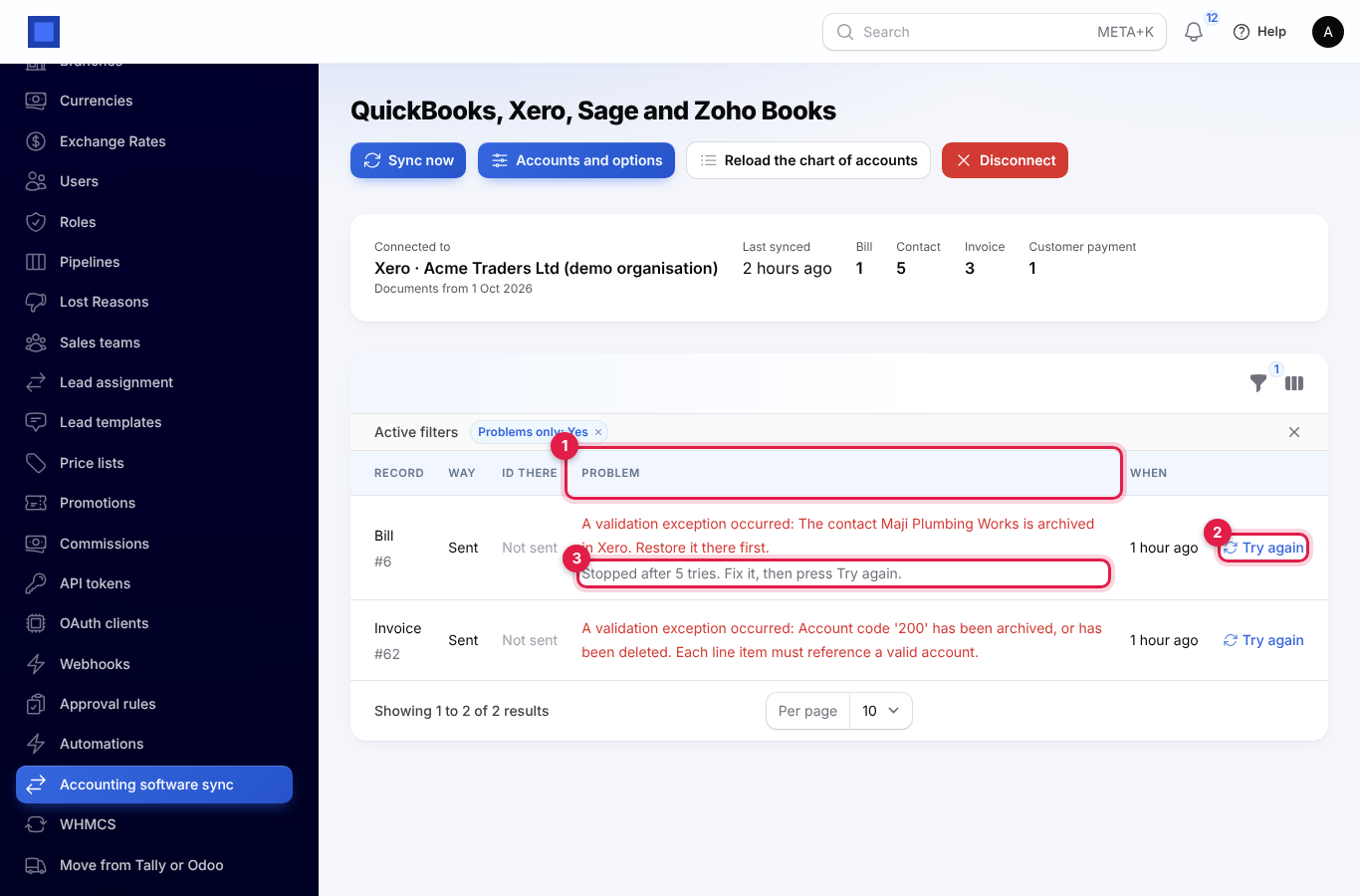
- Read the Problem and fix the cause, usually in the books (restore the account or contact) or in NaliSuite (correct the contact or document), or pick a different account under Accounts and options.
- NaliSuite tries a failed record again on each sync, up to five times. After that it shows "Stopped after 5 tries. Fix it, then press Try again." (marker 3).
- Click Try again (marker 2). You see "It will be sent with the next sync". Click Sync now to send it straight away.
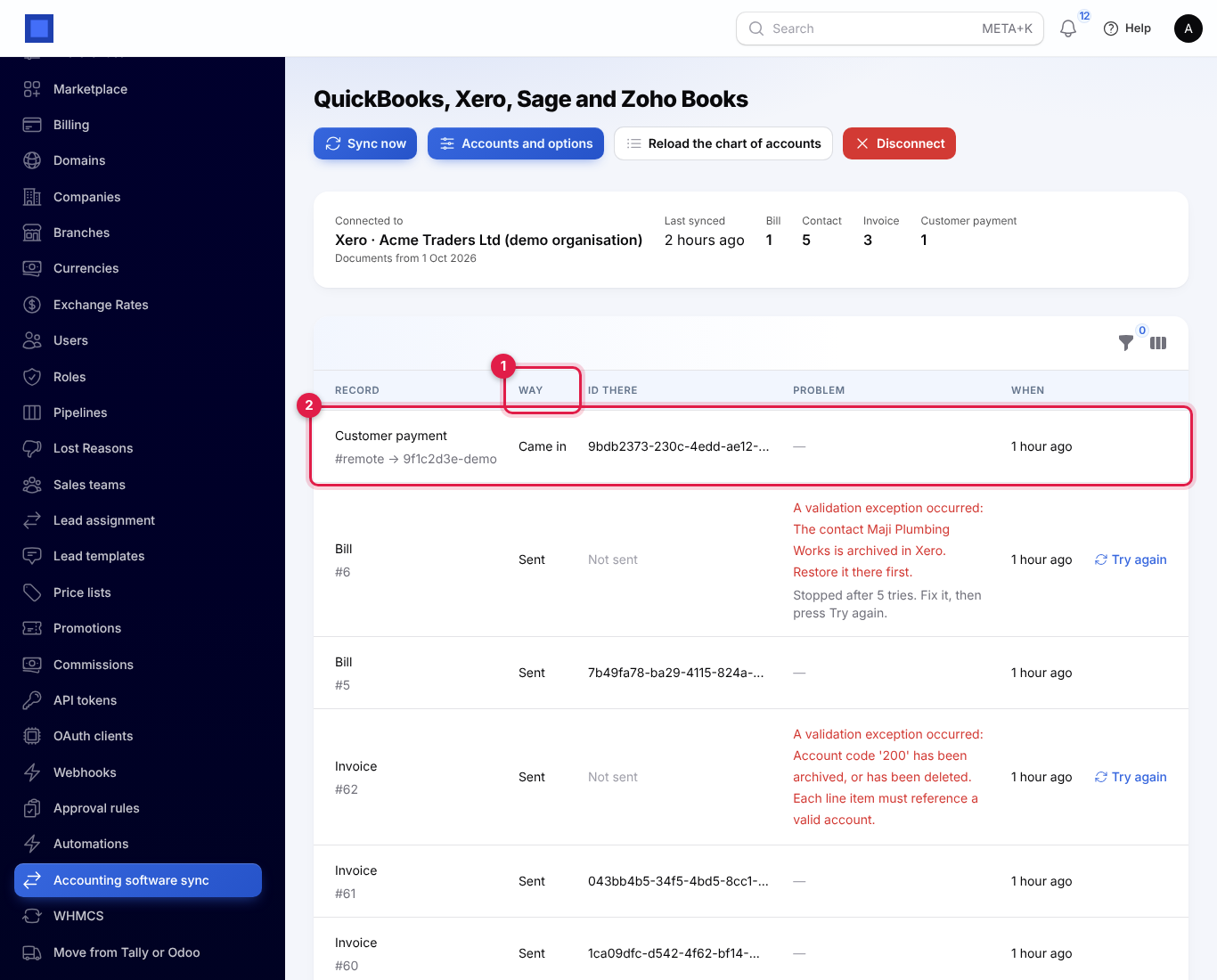
To see everything that has been linked, remove the Problems only filter (click the × on it). The Way column (marker 1) shows whether a record was sent or came in (marker 2 is a customer payment that came back from the books). Use the filter icon to show one Record type.
When the books ask to connect again
If access is withdrawn in the books, or the connection expires, the page shows "Connect again: …" in red and a Connect again button replaces Sync now. The scheduled sync skips the company until you click Connect again and sign in to the books again.
Disconnect
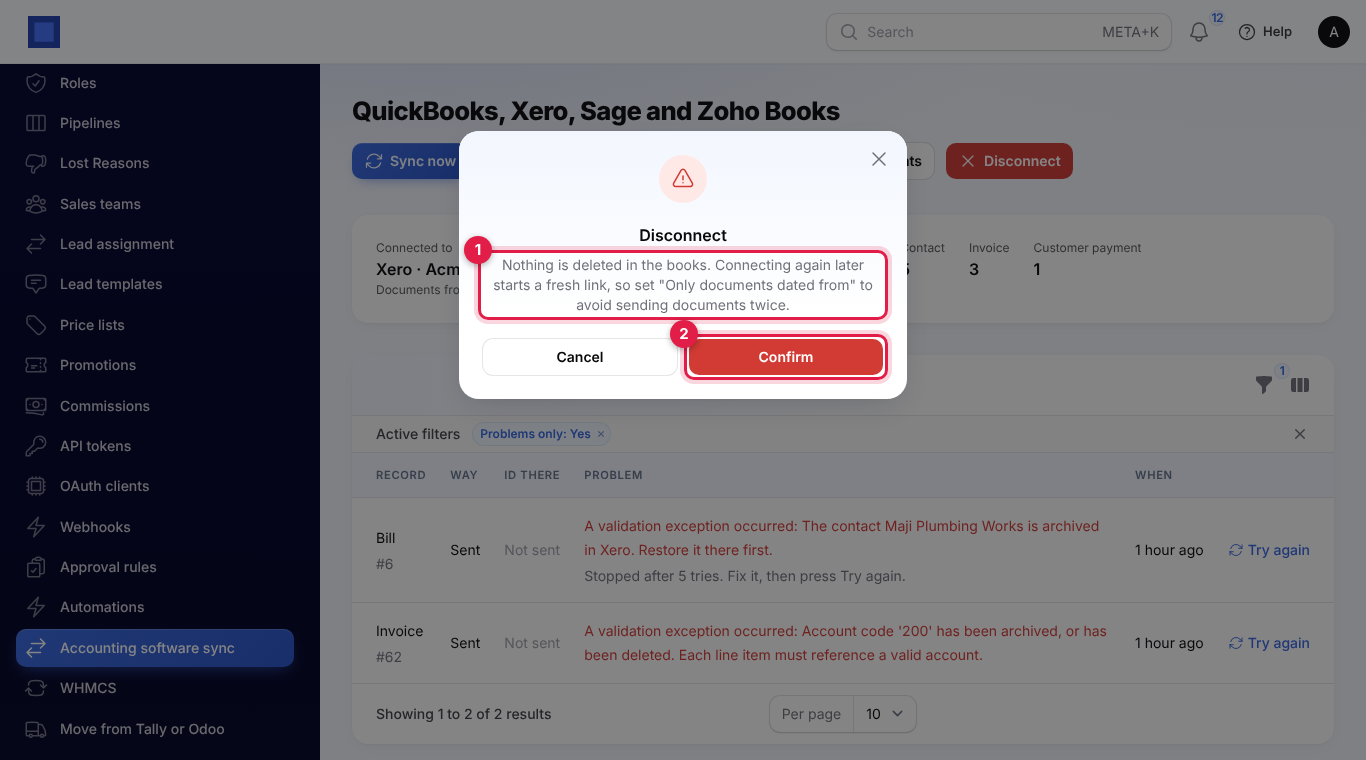
- Click Disconnect.
- Read the warning (marker 1): "Nothing is deleted in the books. Connecting again later starts a fresh link, so set "Only documents dated from" to avoid sending documents twice."
- Click Confirm (marker 2).
To remove NaliSuite's access on the provider's side as well, remove the app from the connected apps in your QuickBooks, Xero, Sage or Zoho settings.
Good to know
Should I keep entering invoices in the books too? No. Raise them in NaliSuite only; they are sent to the books. Your accountant works in the books on journals, reconciliation and reports.
Will my old invoices be sent? Only those dated on or after Only documents dated from. It starts on the day you connect.
Why are invoices not going to QuickBooks? Choose the Product or service used on invoice lines under Accounts and options. QuickBooks refuses invoice lines without an item.
Is VAT sent? Lines are sent without tax, with the tax code you mapped; the books work the tax out. Check that the code's rate matches your NaliSuite tax.
A payment recorded in the books does not show in NaliSuite. Only payments against invoices that NaliSuite sent come back, and only with Bring back payments recorded there on. Click Sync now to fetch them straight away.
Can I connect two providers? Not for the same company. Each company connects to one set of books.
Connecting Zoho Books fails straight after signing in. Check the Zoho data centre: it must be where your Zoho Books lives and where you made the client.
Can I move from QuickBooks or Xero to Sage or Zoho Books? Yes. Disconnect, enter the new provider's app details and connect it. Set Only documents dated from to the day you switch, so documents already in the old books are not sent to the new ones.