Library
Library is for school, college, church and community libraries, and for companies that lend books and materials to their staff. You keep a catalogue of books, magazines, audio and video, each copy with its own barcode label; members are your students from School Management and your staff from HR when those apps are on, plus outside members who pay a fee. Staff issue and return by scanning at the desk (on a computer or a phone), renew loans, reserve titles, and charge fines for late returns and the replacement cost of lost or damaged items, invoiced to the member or, for students, added to their School fees. Reports show what is overdue and most borrowed, stock-takes find missing copies, and readers can search the catalogue online.
It is in the Library group of the left menu: Issue and return, Catalogue, Members, Loans, Reservations, Fines and charges, Reports, Stock-take and Borrowing rules.
Note: You need the library.view permission to use the desk and see the catalogue, members, loans, reservations, charges and reports. With it, desk staff can issue, return, renew, reserve and mark loans lost or damaged. library.manage is needed to add and change titles, copies and members, set the borrowing rules, run stock-takes, and invoice or waive charges. Owners and admins have both. Set permissions under Settings → Roles.
Switch on Library
Library is an add-on sold separately from your plan. It needs the Contacts and Invoicing apps.
- Open Settings → Marketplace and type Library in the search box (marker 1).
- On the Library card (marker 2), click Start free trial (or Add to subscription) and confirm. The Library group appears in the menu.
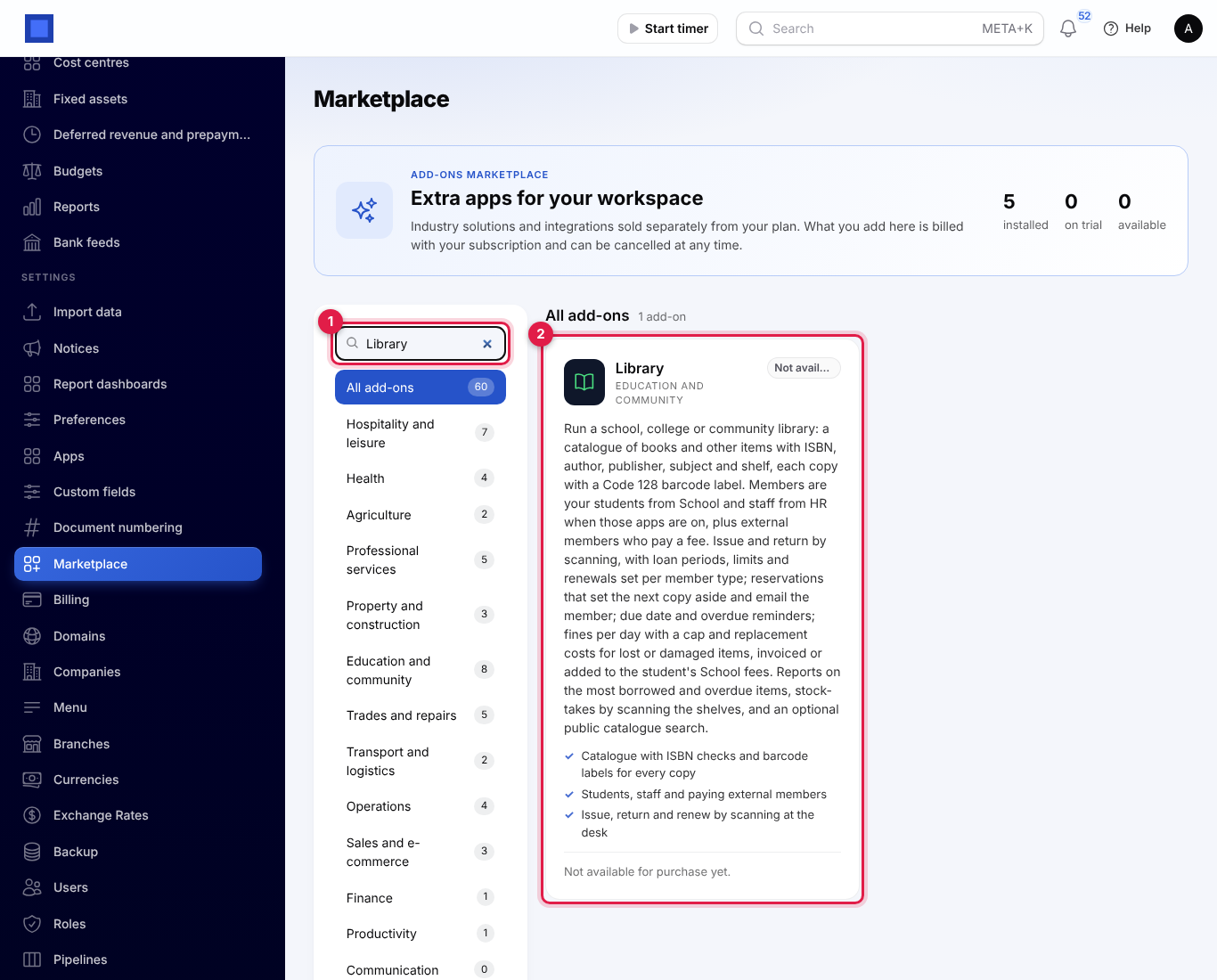
If the card says Not available for purchase yet, ask NaliSuite support to switch it on. See Billing and marketplace.
Library settings
- Open Settings → Preferences and click the Library tab (marker 1).
- Change the settings and click Save preferences (marker 7).
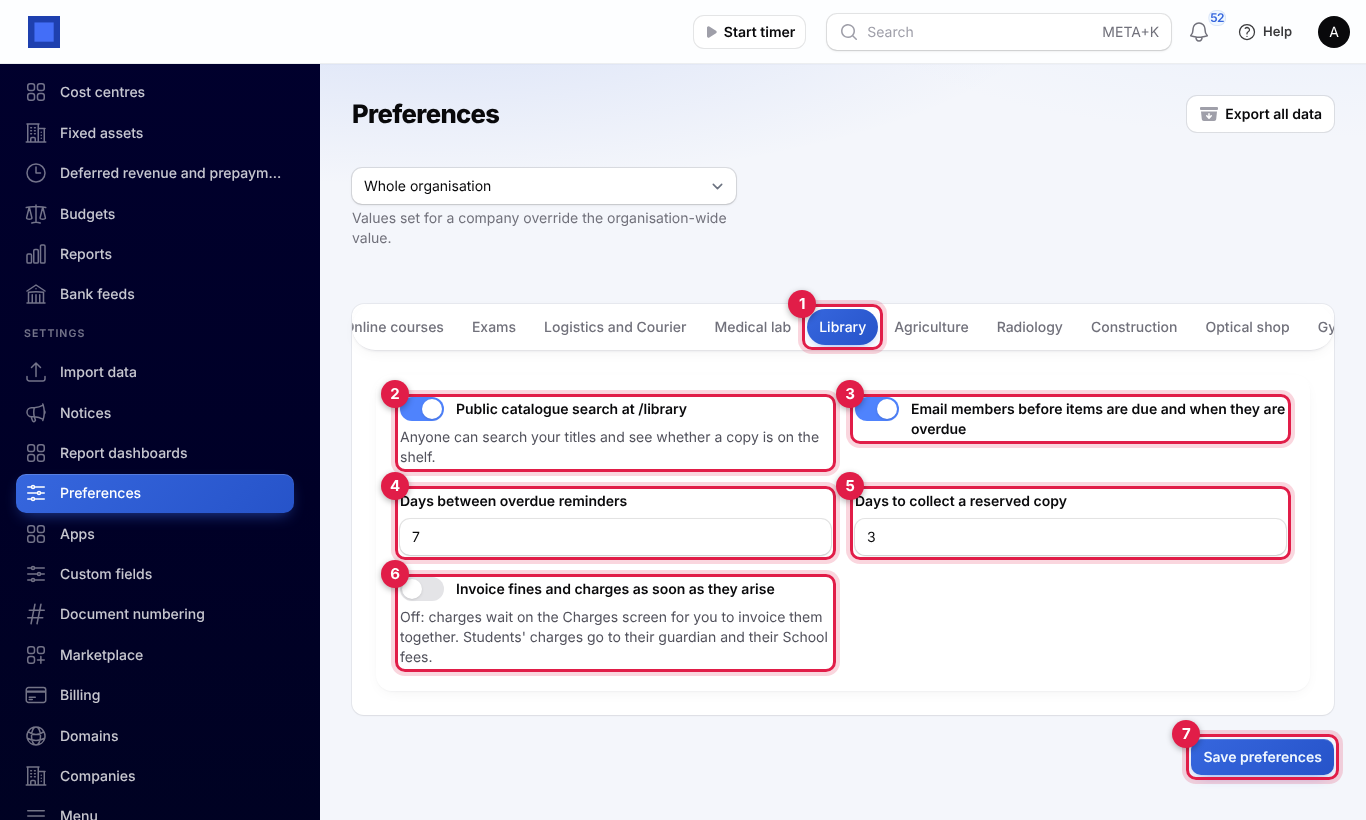
| Setting | Default | What it does |
|---|---|---|
| Public catalogue search at /library (marker 2) | Off | Lets anyone search your titles online and see whether a copy is on the shelf. See The public catalogue. |
| Email members before items are due and when they are overdue (marker 3) | On | Sends the due-tomorrow and overdue reminders (see Reminders and notices). |
| Days between overdue reminders (marker 4) | 7 | After the first overdue reminder, how many days pass before the next one. |
| Days to collect a reserved copy (marker 5) | 3 | How long a copy set aside for a reservation waits before it goes to the next person. |
| Invoice fines and charges as soon as they arise (marker 6) | On | On: every fine, replacement charge and membership fee is invoiced at once. Off: charges wait on Fines and charges for you to invoice them together, for example at the end of the month or term. |
Borrowing rules
Every member has a member type with its own rules. Three are made for you the first time they are needed: Student (14 days, 2 items, 1 renewal, a fine of 10 a day up to 200), Staff (28 days, 5 items, 2 renewals, no fines) and External member (14 days, 3 items, 1 renewal, 20 a day up to 500).
Open Library → Borrowing rules and click Add a member type, or Edit on one.
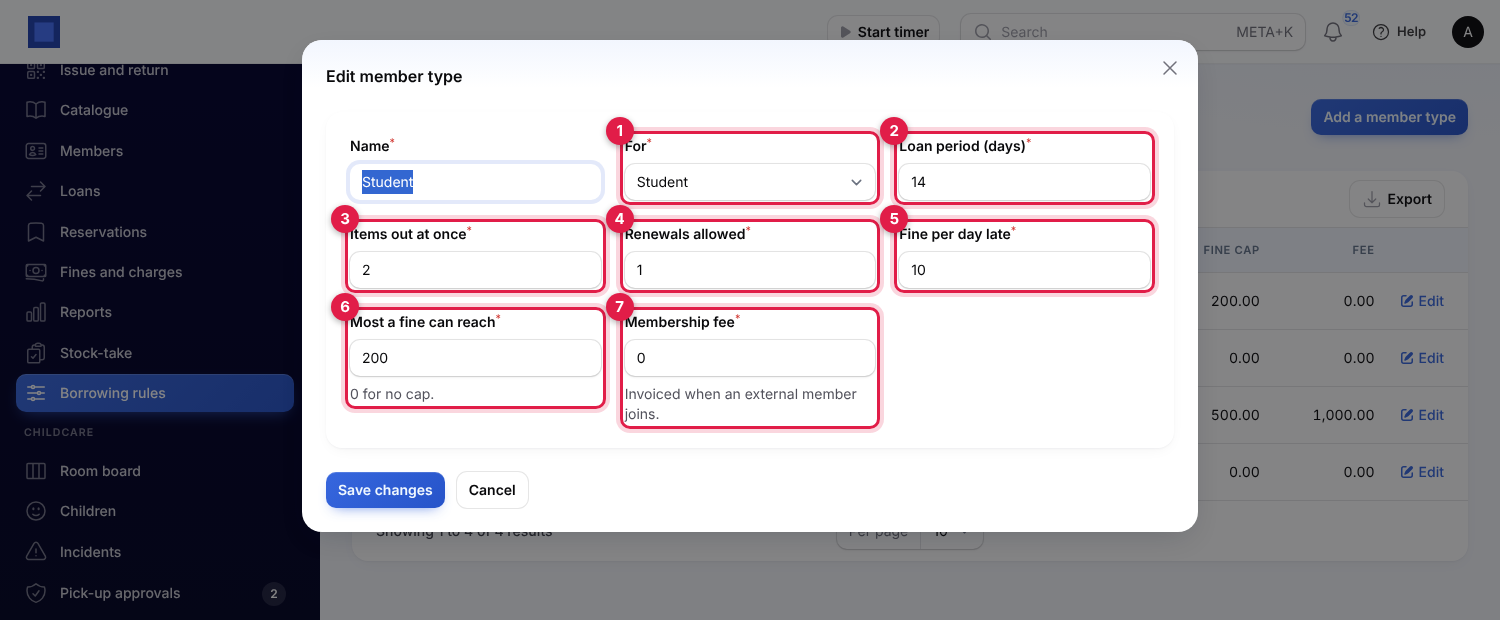
| Field | What to enter |
|---|---|
| Name (required) | Form 4 student, Senior reader (60+). |
| For (required, marker 1) | Student, Staff or External member. |
| Loan period (days) (required, marker 2) | How long a loan lasts, and how much a renewal adds from the day it is renewed. |
| Items out at once (required, marker 3) | The most a member may have on loan. |
| Renewals allowed (required, marker 4) | How many times a loan may be renewed. |
| Fine per day late (required, marker 5) | Charged for each day an item comes back late. 0 for no fines. |
| Most a fine can reach (required, marker 6) | The cap on one loan's fine. 0 for no cap. |
| Membership fee (required, marker 7) | Invoiced when an external member joins with this type. |
The catalogue
Open Library → Catalogue. Each title shows its author, ISBN, subject, shelf, how many Copies you have (marker 3, leaving out lost and withdrawn ones) and how many are On the shelf (marker 4). Use the filter (marker 2) to show one kind or subject, or search by title, author, ISBN or subject.
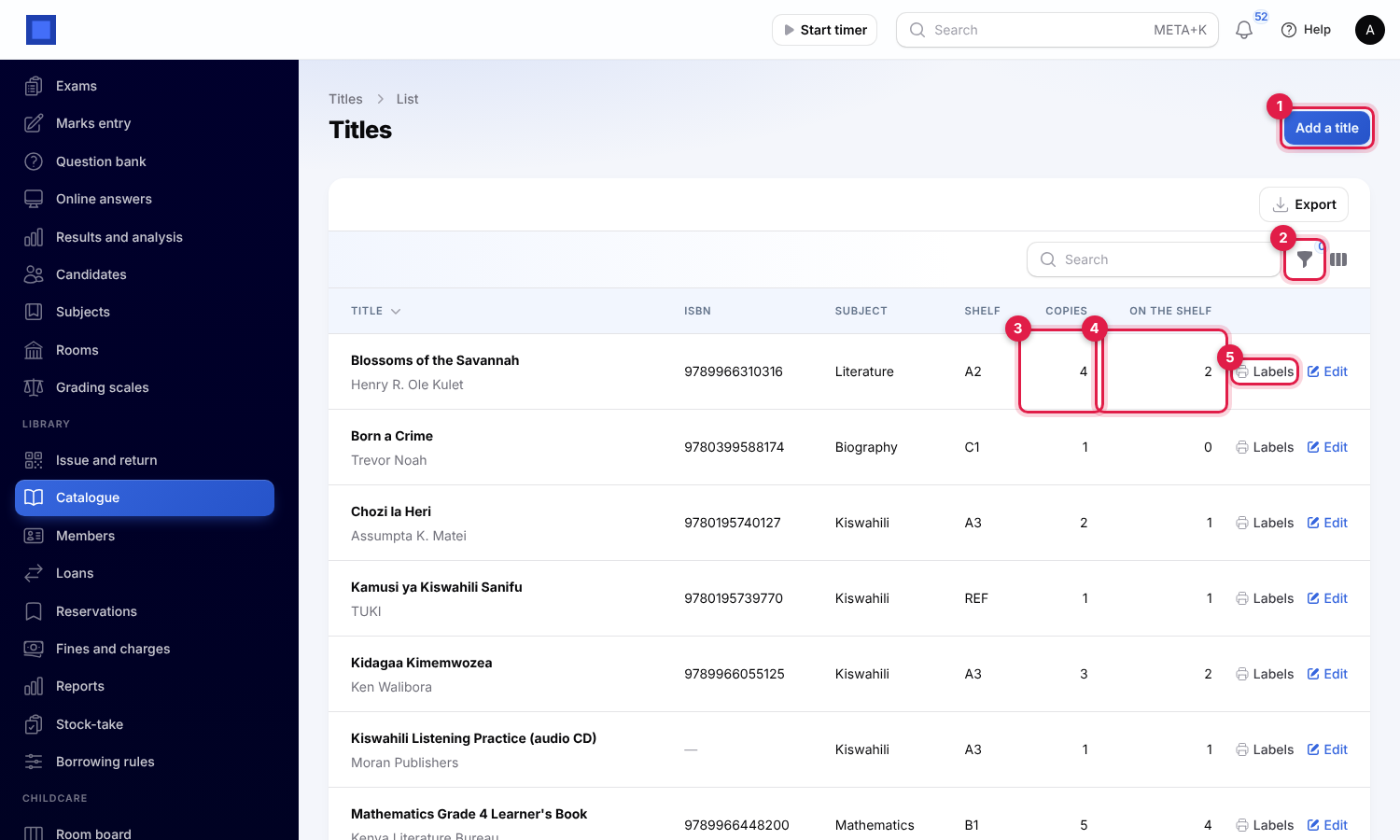
Labels (marker 5) prints a PDF of barcode labels for every copy of the title, each with the title, author, shelf and the copy's Code 128 barcode. Stick one inside each book.
Add a title
Click Add a title (marker 1) and fill in the form.
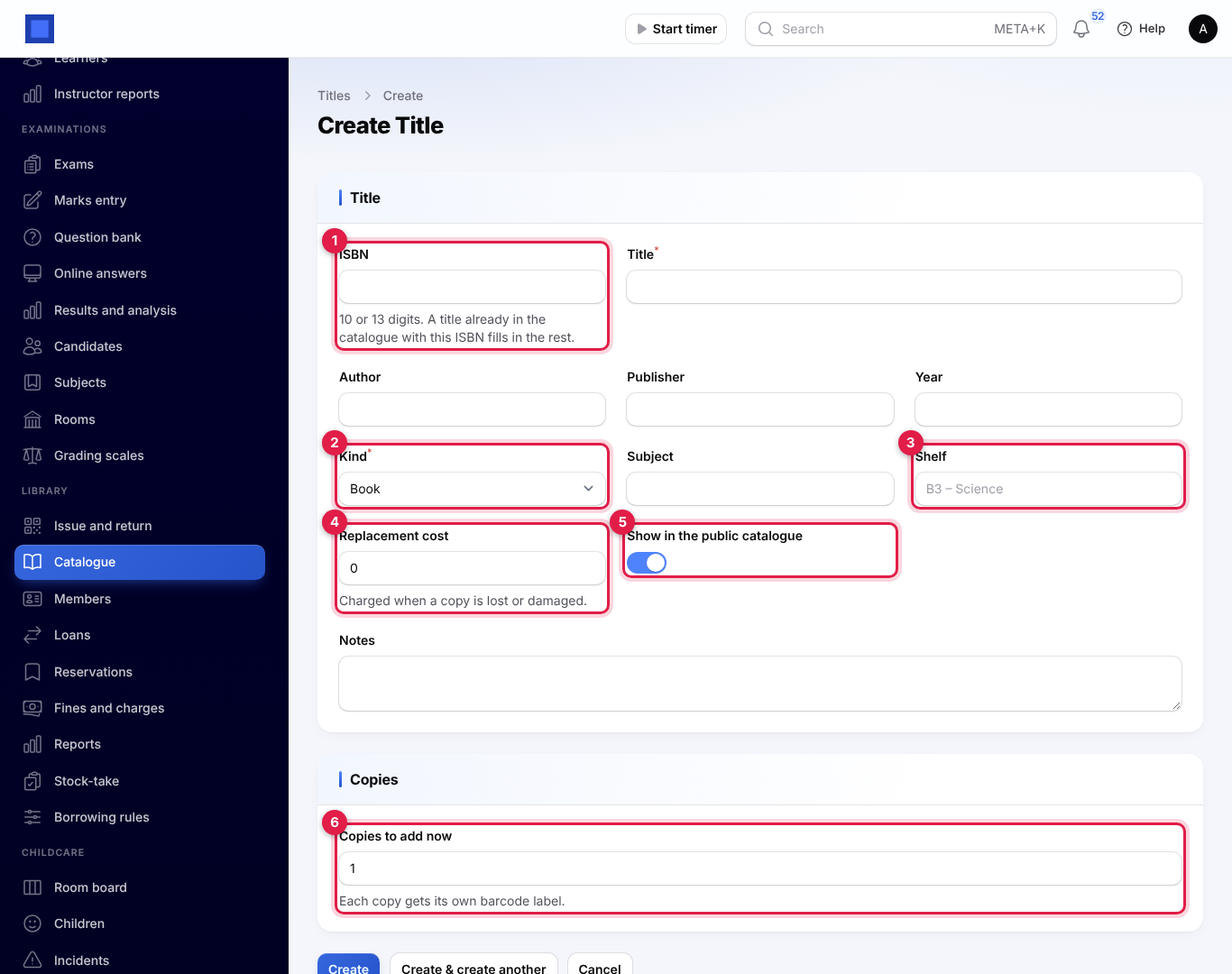
| Field | What to enter |
|---|---|
| ISBN (marker 1) | The 10- or 13-digit ISBN, with or without dashes. A wrong check digit is refused (This ISBN is not valid. Check the digits.), and a 10-digit ISBN is saved in its 13-digit form. If a title with the same ISBN is already in your catalogue, its details fill the empty fields, which saves typing for another edition or a second branch. The details are not looked up on the internet. |
| Title (required), Author, Publisher, Year | As printed in the book. |
| Kind (required, marker 2) | Book, Magazine or journal, Audio, Video or Other. |
| Subject | Type one or pick one already used, such as Literature. |
| Shelf (marker 3) | Where it is kept, such as A2 or B3 – Science. Used by the public catalogue and stock-takes. |
| Replacement cost (marker 4) | What a member is charged when they lose or damage a copy. Required before a loan can be marked lost or damaged. |
| Show in the public catalogue (marker 5) | Off to keep the title out of the online search. |
| Copies to add now (marker 6) | How many copies you have, up to 200. Each gets its own barcode (LIB000001, LIB000002…). |
Click Create.
Copies
Open a title (click Edit). Under the form, Copies lists each copy's Barcode, Where it is (marker 2 On loan, marker 3 Held for a member, On the shelf, Reported lost, Damaged or Withdrawn), when it was added and when it was Last scanned at the desk or in a stock-take.
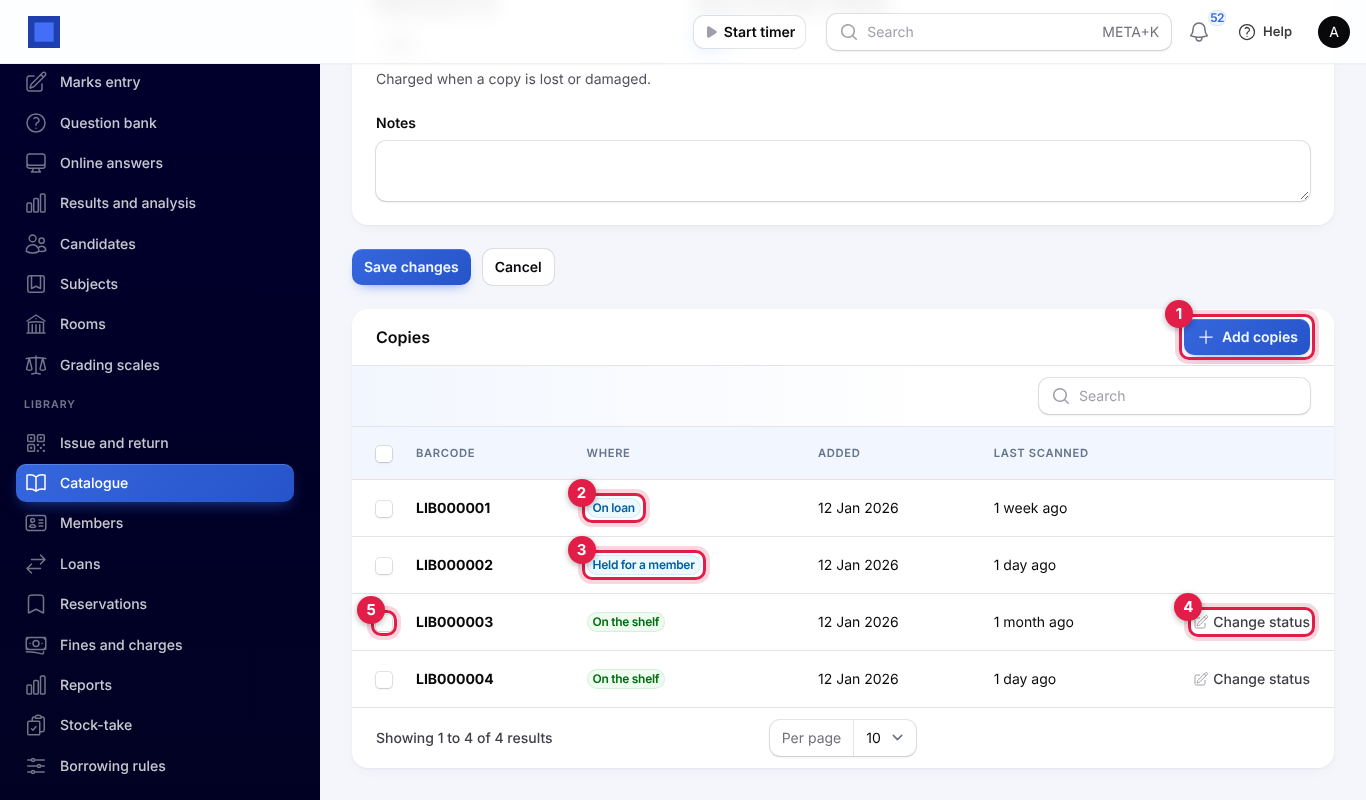
- Add copies (marker 1): type How many and click Submit. Each new copy gets the next barcode.
- Change status (marker 4): mark a copy on the shelf Reported lost, Damaged or Withdrawn (for example after a stock-take), or put it back On the shelf. Copies on loan or held for a member cannot be changed here; use the loan's actions instead.
- Tick copies (marker 5) and choose Print labels to print labels for just those copies, for example the ones you just added. Print labels at the top of the page prints all of them.
Members
Open Library → Members. Each member shows their Card number (marker 4), name and email, Kind and borrowing Rules, Items out, what they owe that is Not invoiced (marker 5) and when their membership Ends (marker 6).
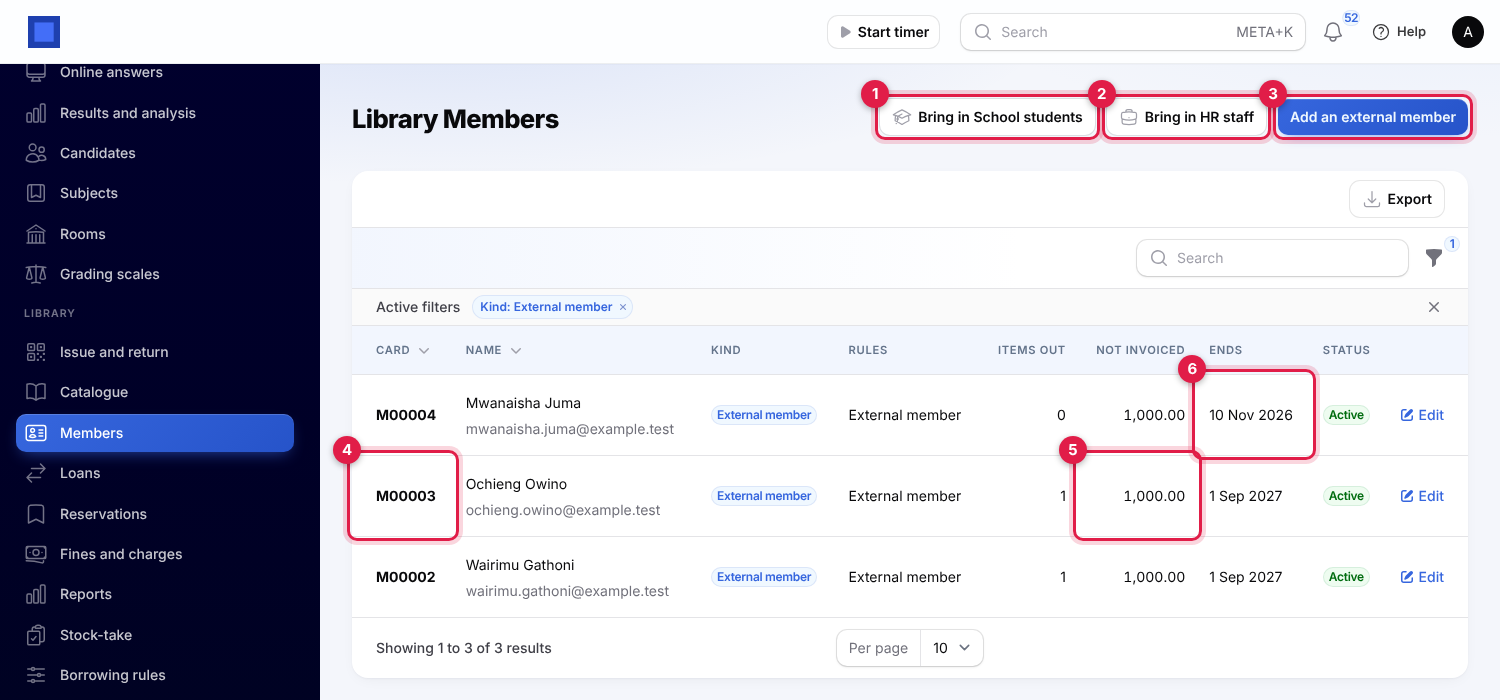
- Bring in School students (marker 1, only with School Management on): every active student who is not a member yet joins as a Student, with their admission number as the card number (or the next library number if it is taken). Their guardian becomes the contact, and the guardian's email and phone are used for notices. Run it again each term for new students.
- Bring in HR staff (marker 2, only with HR on): every current employee who is not a member yet joins as Staff, with their staff number on the card and their work email.
- Add an external member (marker 3): type the Name, Email (reminders and reservation notices go here) and Phone, choose the Member type and, if you like, the date the Membership ends (a year from today if empty). Click Create. They are added to your contacts, get the next card number (M00001, M00002…), and their type's membership fee is charged.
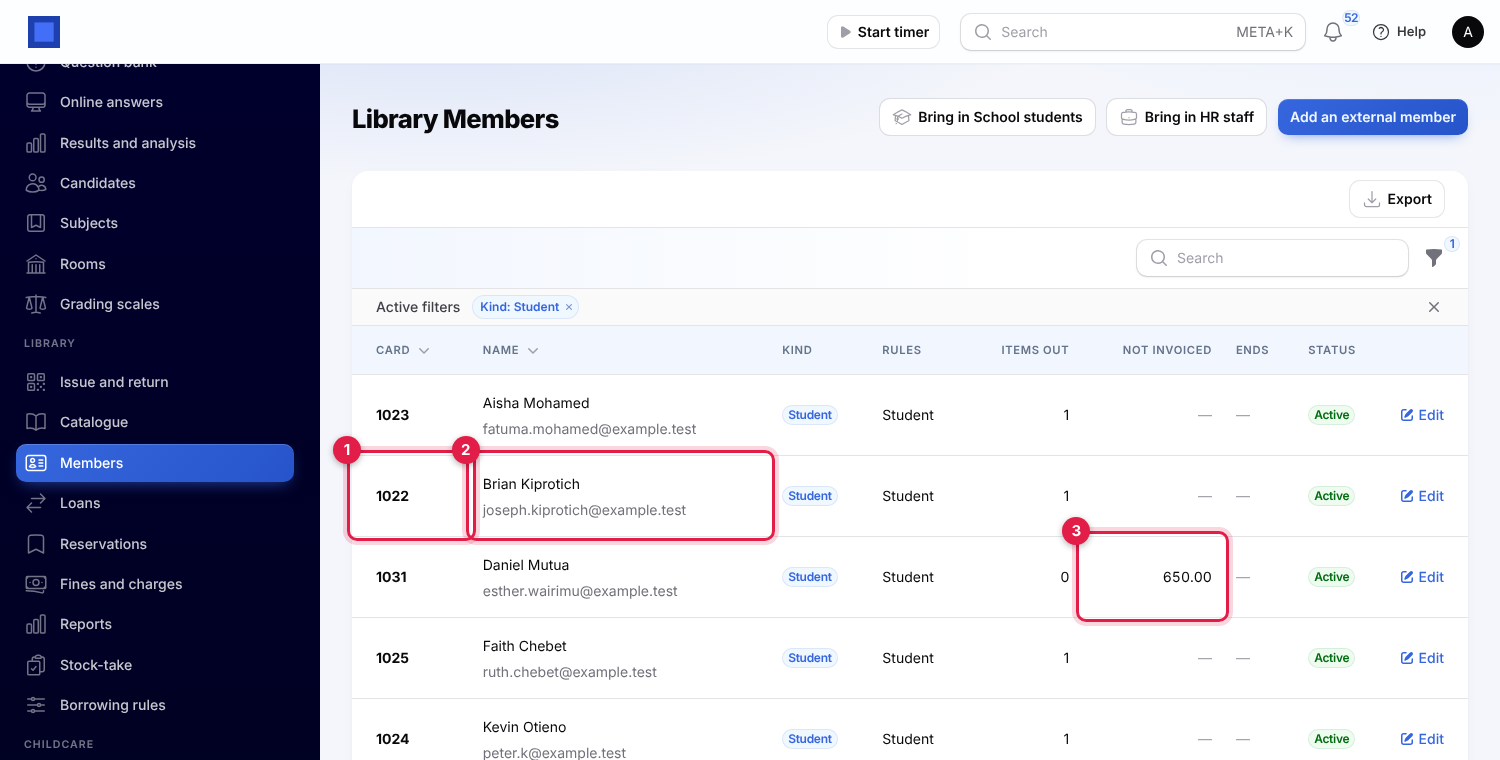
Students' card numbers are their admission numbers (marker 1) and the email shown is their guardian's (marker 2). Not invoiced (marker 3) shows charges still waiting to be invoiced.
Click Edit on a member to change their details or rules, change when the membership ends, or set the Status to Suspended. A member whose membership has ended, or who is suspended, cannot borrow until you change it.
Issue and return at the desk
Open Library → Issue and return on the desk computer, or on a phone or tablet when you are away from the desk, in a classroom or at a book box. It works with any barcode scanner that types the code and presses Enter, including Bluetooth scanners paired with a phone, and you can also type the numbers yourself.
Lend
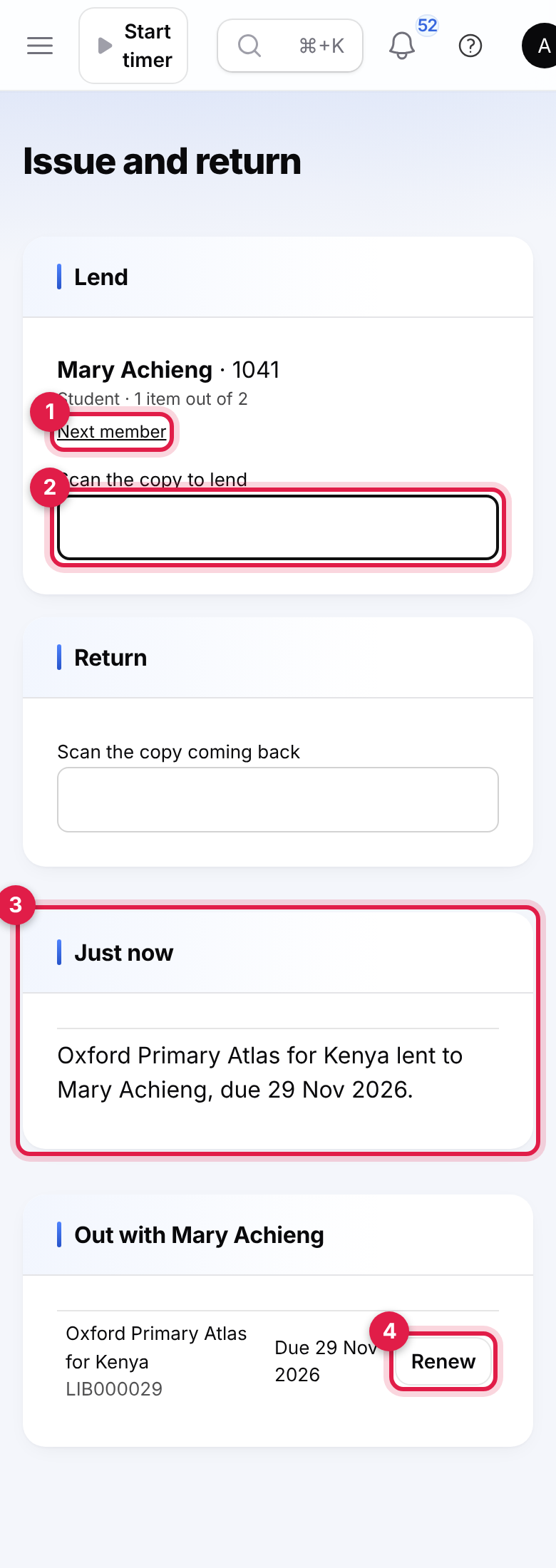
- In Scan the member card, scan or type the member's card number and press Enter. Their name, card number, member type and how many items they have out (for example 1 item out of 2) appear.
- In Scan the copy to lend (marker 2), scan each copy's barcode. Just now (marker 3) confirms each one: Oxford Primary Atlas for Kenya lent to Mary Achieng, due 29 Nov 2026. The due date is today plus the member type's loan period.
- Out with the member lists everything they have out, with the due dates (overdue ones in red) and a Renew loan button (marker 4).
- Click Next member (marker 1) to serve the next person.
A copy is not lent, and the reason shows in red under Just now, when:
- the member is suspended or their membership has ended;
- they already have as many items out as their type allows;
- the copy is set aside for someone else's reservation (This copy is set aside for Aisha Mohamed.), or it is lost, damaged or withdrawn.
When a member collects a copy set aside for them, scanning it lends it to them and closes their reservation.
Return
Scan the copy in Scan the copy coming back (marker 2) at any time; you do not need to scan the member card (marker 1) first. Just now (marker 3) confirms it.
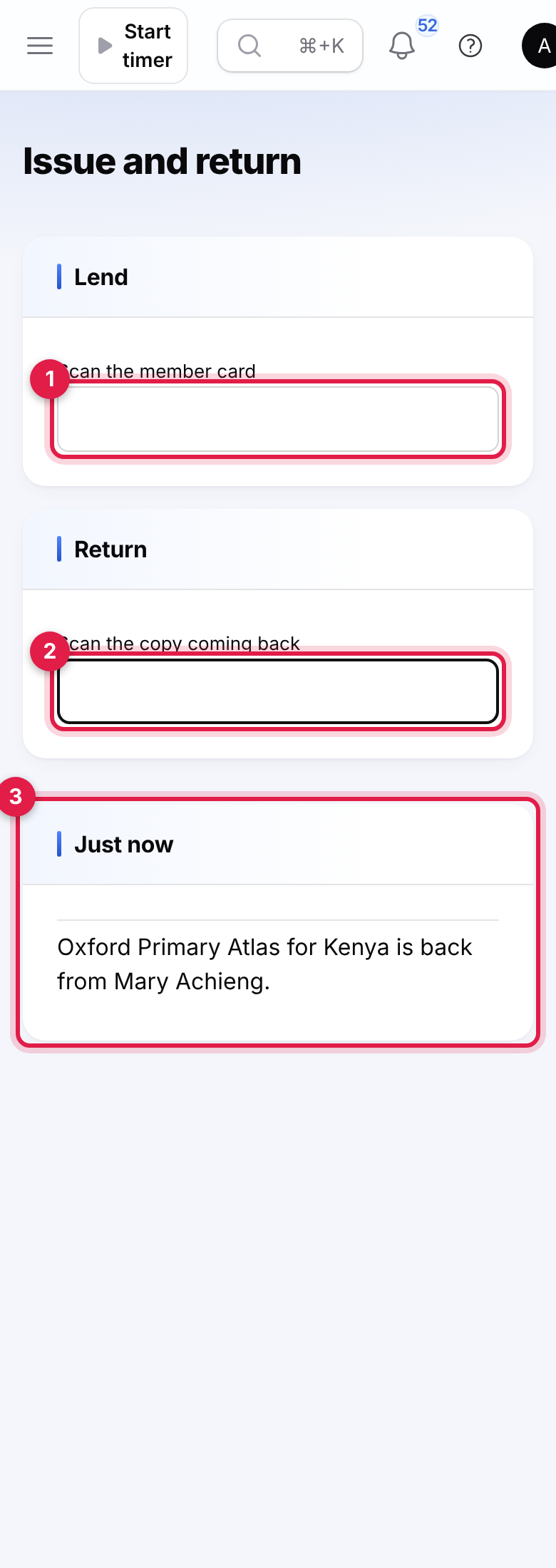
- Late: the fine is worked out (days late × the type's fine per day, never above the cap) and charged: … is back from Brian Kiprotich. Fine charged: 120.00.
- Reserved: if someone is waiting for the title, the copy is set aside for the longest-waiting member and they are emailed: Put it aside for Mary Achieng, who reserved it. Put it on the reservations shelf.
Renew
Click Renew loan on the desk or on Loans. The loan is extended by the loan period from today. A loan cannot be renewed when it is already overdue (Bring it back first), when it has been renewed as often as the rules allow, or when another member is waiting for the title.
Loans
Open Library → Loans. It shows what is Out now by default, soonest due first; use the filter (marker 2) for Overdue loans or closed ones. Open the desk (marker 1) opens Issue and return.
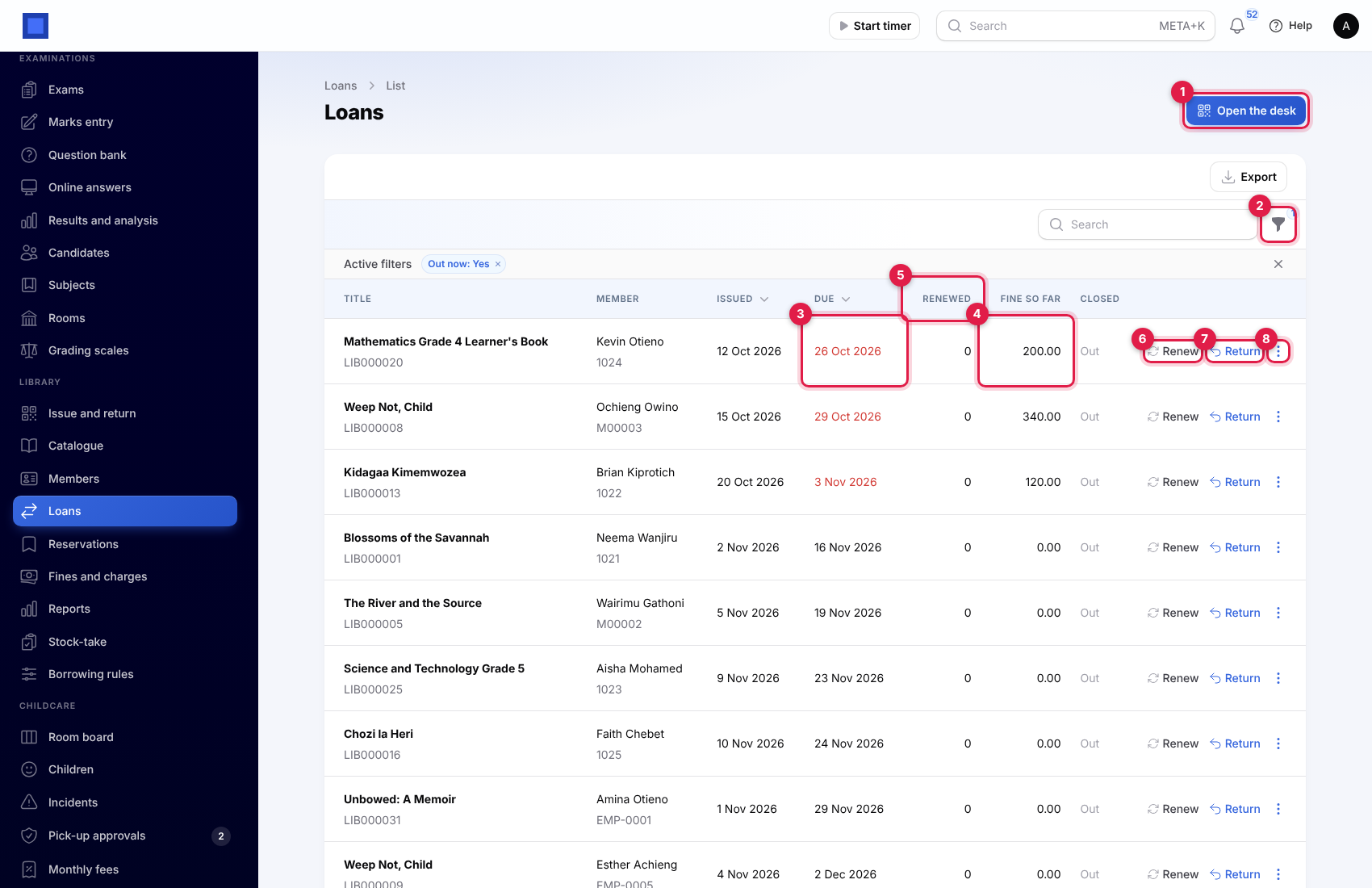
Each loan shows the title and copy barcode, the member and card number, when it was issued, when it is Due (marker 3, red when overdue), how many times it was Renewed (marker 5), the Fine so far if it came back today (marker 4), and how it was Closed (Returned, Reported lost or Damaged).
- Renew loan (marker 6) and Return (marker 7) work as at the desk.
- ⋮ (marker 8) → Report lost or Damaged, after a confirmation:
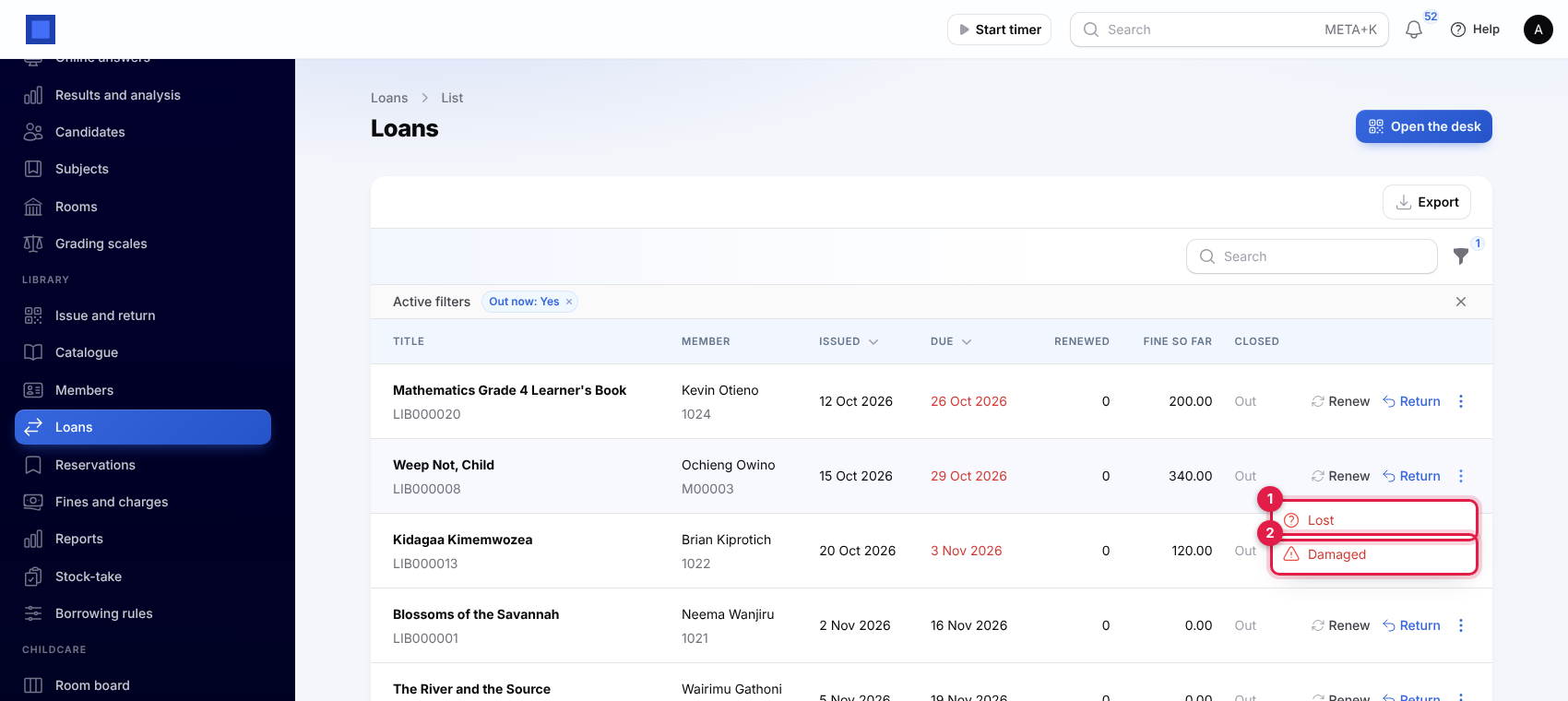
Report lost (marker 1) or Damaged (marker 2) closes the loan, takes the copy out of use, and charges the member the title's Replacement cost plus any fine run up so far, as two charges. If the title has no replacement cost you are asked to Set a replacement cost on The Pearl first.
Reservations
Open Library → Reservations. It shows Waiting reservations by default; use the filter for the others (Ready to collect, Collected, Cancelled, Not collected).
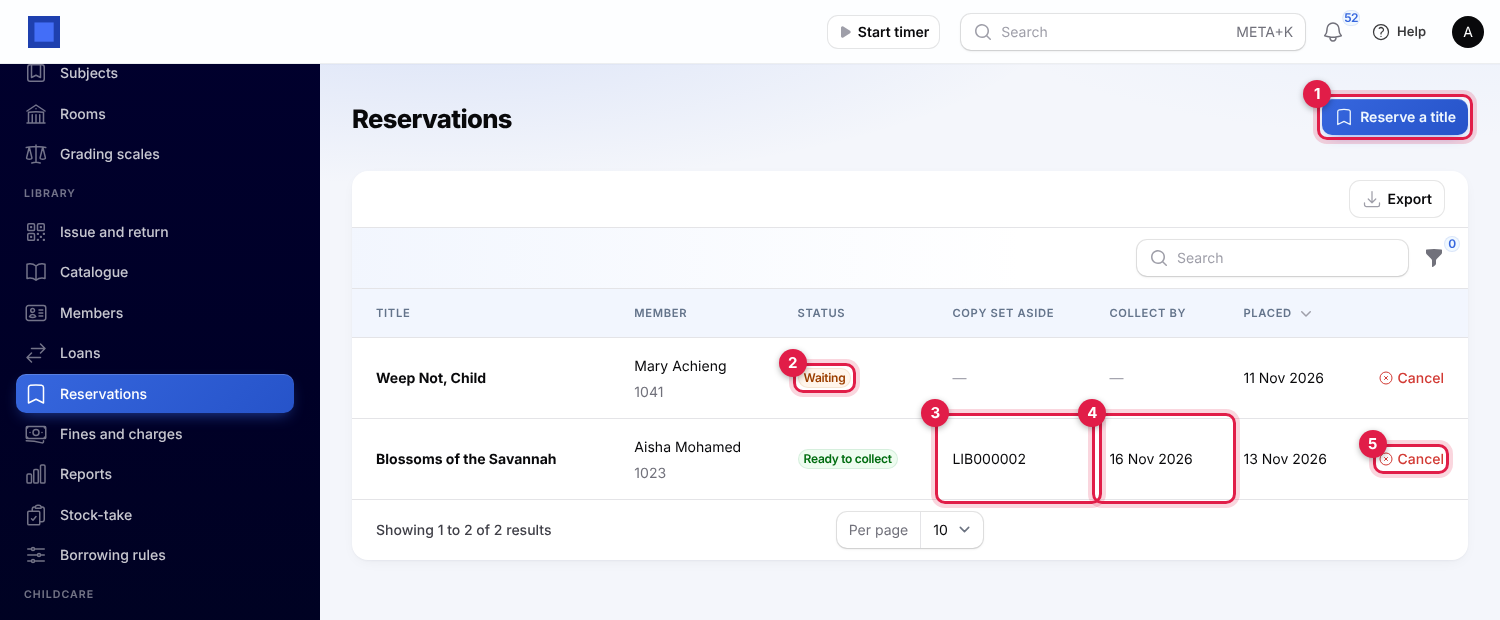
- Click Reserve a title (marker 1), search for the Title (by title or ISBN) and the Member (by name or card number), and click Submit.
- If a copy is on the shelf and nobody is ahead in the queue, it is set aside at once: the reservation is Ready to collect, shows the Copy set aside (marker 3) and the date to Collect by (marker 4), and the member is emailed Blossoms of the Savannah is ready for you. Otherwise it is Waiting (marker 2) until a copy comes back, then the same happens.
- Members collect at the desk (see Lend).
A member cannot reserve a title twice or a title they already have out. Cancel (marker 5) ends a reservation; a copy that was set aside goes to the next member waiting, or back on the shelf. Reservations not collected by their date are marked Not collected each morning and the copy passes to the next member. Reservations are placed by staff; readers cannot reserve online.
Fines and charges
Open Library → Fines and charges. Every overdue fine, lost or damaged item and membership fee is listed with the member, For, Details (marker 1, for example Replacement of lost item: The Pearl (LIB000012)), the amount, its Status (marker 2: Not invoiced yet, Invoiced or Waived) and the Invoice (marker 3, click to open it).
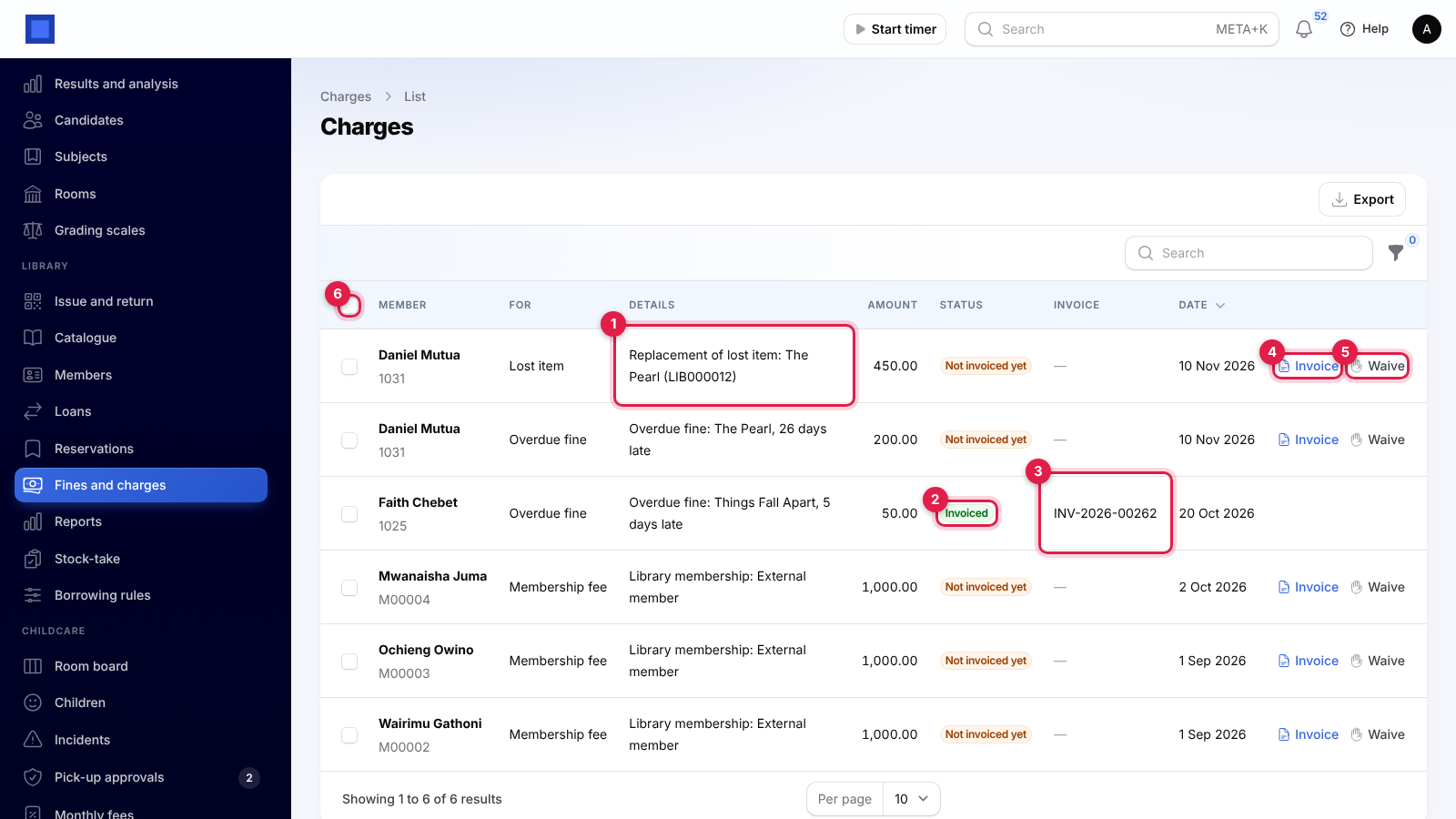
- Invoice (marker 4): invoices that charge now.
- Waive (marker 5): cancels a charge not yet invoiced, for example a fine you forgive. An invoiced charge cannot be waived; credit the invoice instead.
- Tick charges (marker 6 selects all) and choose Invoice the selected charges: one invoice per member, with a line for each charge.
Invoices are issued at once, due in 14 days, with the reference Library M00003 (the card number), and can be paid like any invoice (see Invoices and payments). Who they go to:
- External members and staff: the member's own contact.
- Students, with School Management on: the student's guardian, and the invoice is added to the student's School fees for the current term, so it shows in the guardian's fee balance and in the portal.
Reminders and notices
Every morning at 07:20 the library:
- emails members whose loans are due tomorrow (Due tomorrow: Blossoms of the Savannah, asking them to bring it in or ask for a renewal);
- emails members with overdue loans on the first day late (Overdue: …, with the fine per day), then again every Days between overdue reminders;
- lapses reservations not collected in time and passes the copies on.
Notices go to the member's email, or their contact's email (for students, the guardian's). Members without an email get no notices. Library notices are sent by email only, not by SMS or WhatsApp, so for families without email, check Loans → Overdue and call them. Turn the reminders off with Email members before items are due and when they are overdue; reservation emails are always sent.
Reports
Open Library → Reports.
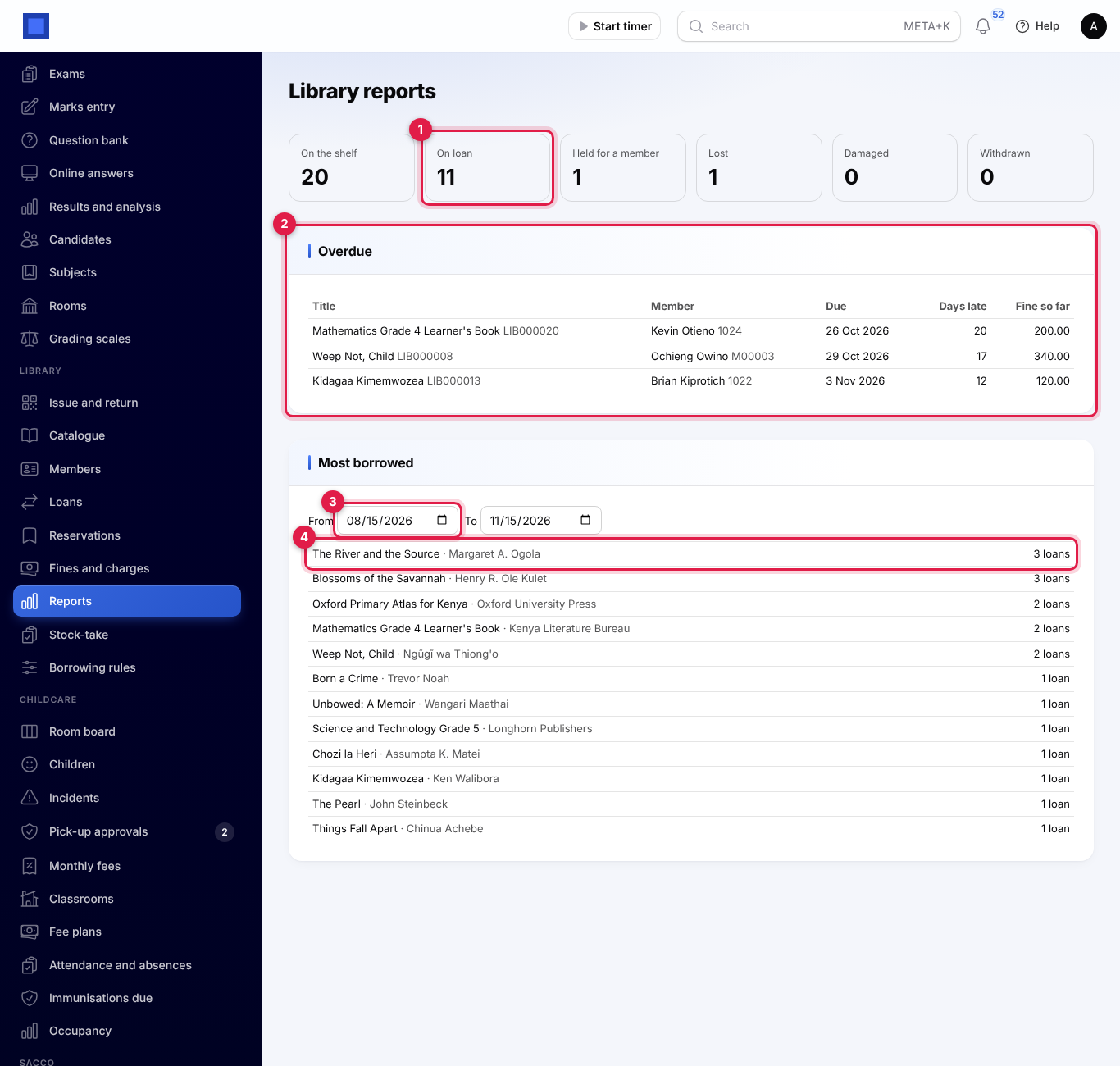
- The tiles count your copies by where they are: On the shelf, On loan (marker 1), Held for a member, Reported lost, Damaged and Withdrawn.
- Overdue (marker 2): every overdue loan with the member, due date, Days late and Fine so far.
- Most borrowed (marker 4): titles by number of loans between the From (marker 3) and To dates, the last three months to start with.
Stock-take
Use a stock-take once a term or a year to find copies missing from the shelves.
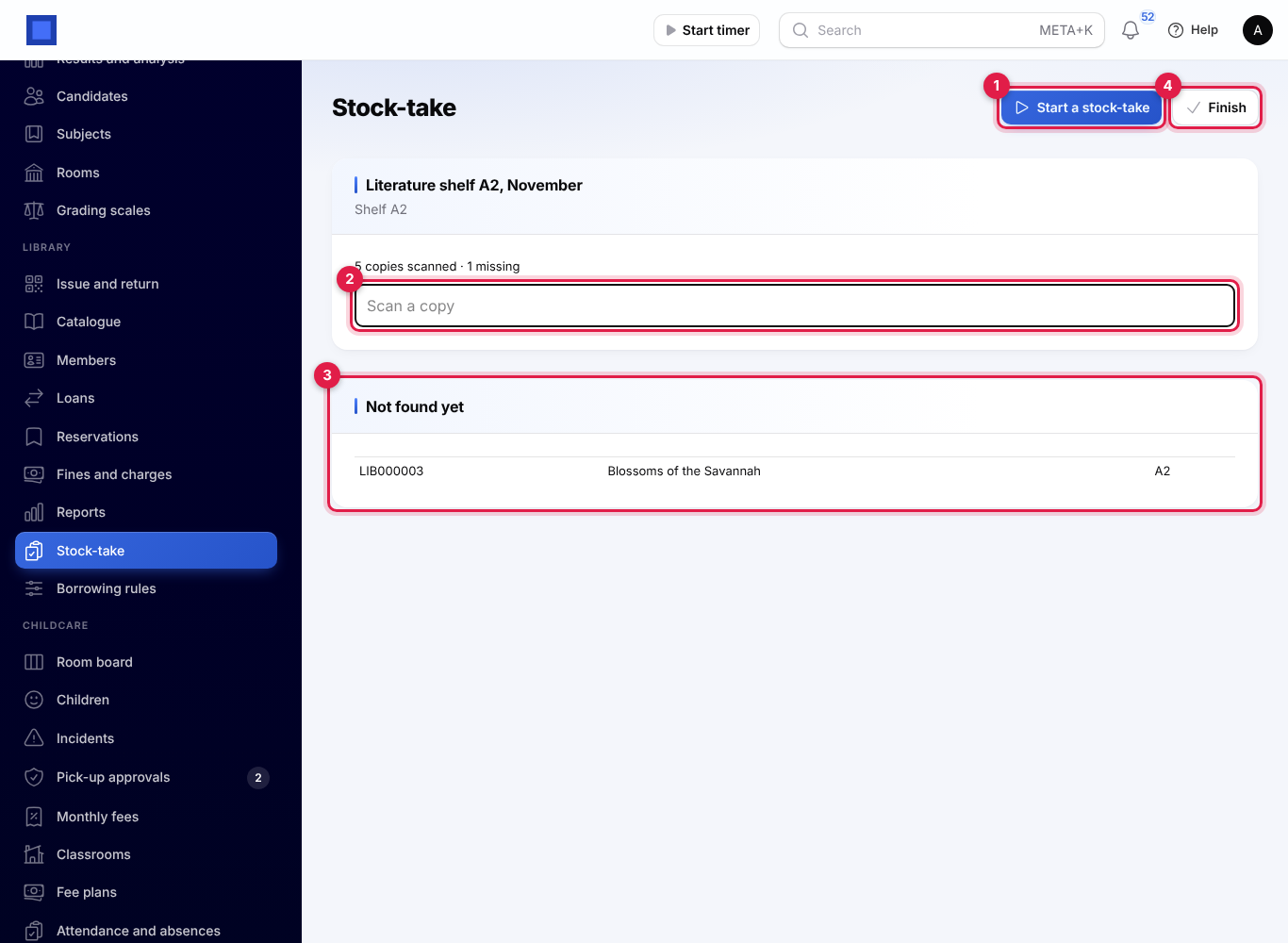
- Open Library → Stock-take and click Start a stock-take (marker 1). Keep or change the Name and, to count one shelf, type it in Only this shelf; leave it empty for the whole library. Click Submit.
- Walk the shelves and scan every copy into Scan a copy (marker 2), on a laptop or a phone. Each scan says LIB000010 found: Things Fall Apart. A copy the system thinks is on loan or lost is shown in red: Recorded as on loan. Check it at the desk.
- Not found yet (marker 3) lists every copy that should be on that shelf (on the shelf or held for a member) but has not been scanned.
- Click Finish (marker 4) when done. Copies not found stay listed. When you are sure they are gone, open the title and use Change status → Reported lost on each copy.
Earlier stock-takes are listed underneath; click one to see what it found missing.
The public catalogue
With Public catalogue search at /library on, anyone can search your catalogue at /library on your workspace address, for example https://yourschool.nalisuite.com/library. Link to it from your website. It works well on a phone.
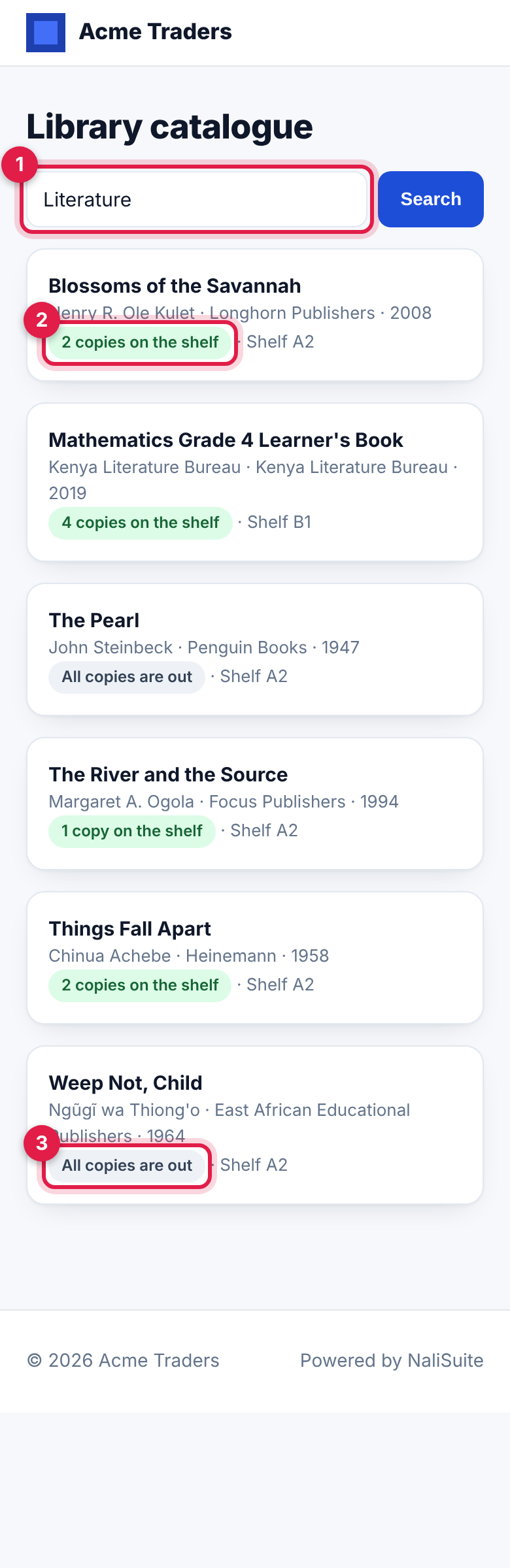
Readers type a title, author, subject or ISBN (marker 1) and tap Search. Each title shows how many copies are on the shelf (marker 2) or All copies are out (marker 3), and its shelf. Tapping a title shows its author, publisher, year, subject, ISBN and shelf (marker 1) and how many of its copies are on the shelf (marker 2); when none are, it says All copies are out. Ask at the desk to reserve one.
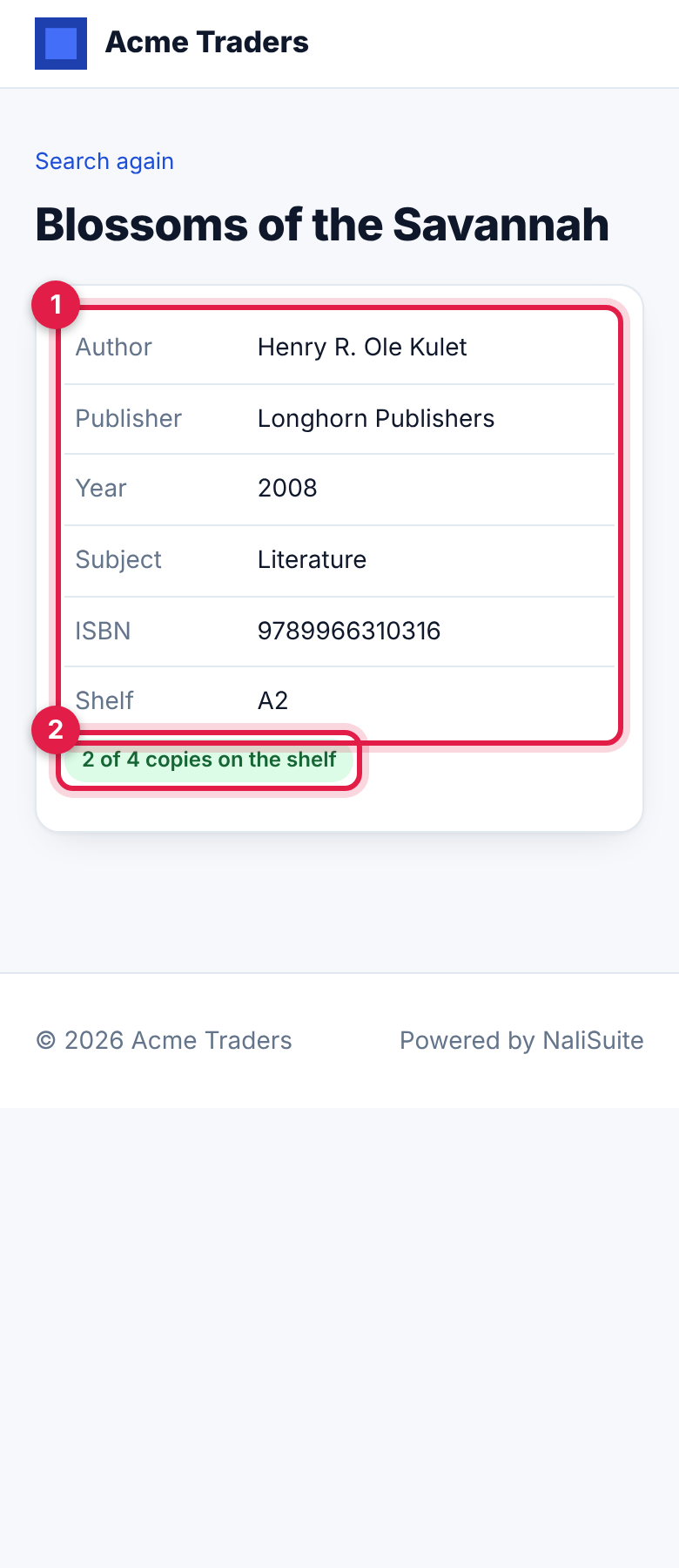
Only titles with Show in the public catalogue on are listed. Readers do not sign in, and cannot see who has a copy or reserve online.
Working with School Management and HR
- School: Bring in School students makes students members with their admission number on the card. Their notices go to the guardian's email, and their fines and replacement charges are invoiced to the guardian and added to the student's School fees for the current term, so they show in the guardian's fee balance and can be paid with the fees.
- HR: Bring in HR staff makes employees members with their staff number on the card and their work email for notices. Staff charges are invoiced to the member's own contact.
- Both buttons only add people who are not members yet; they do not remove leavers. Suspend members who leave, or let their membership end.
Good to know
- Hold and overdue notices go by email only. There are no SMS or WhatsApp library notices. Members without an email address get none, so keep guardians' and staff emails up to date.
- Barcodes: the desk and stock-take need a scanner that types and presses Enter, or typing by hand. The phone's camera is not used as a scanner.
- Fines are charged when the item comes back (or is marked lost or damaged). Fine so far on Loans and Reports shows what it would be today.
- One copy, one barcode. Print labels after adding copies; a copy without its label can still be found by typing its barcode from the Copies list.
- Membership fees are charged when an external member joins. Renewing a membership is done by changing its end date on the member; no fee is charged automatically for a renewal.
- Loans renewed run from the day of renewal, not from the old due date.