Law firm practice
Law Firm Practice is for advocates and law firms. You open a file (a matter) for each client instruction after a conflict check, log time in tenths of an hour at each advocate's rate, record court and filing fees as disbursements, and bill them on fee notes, either from the unbilled work or for an agreed fixed fee. Money you hold for clients sits in a client trust account per matter that can never go below zero, with a statement for the client and postings to the books. Hearings, mentions and filing deadlines go in the diary of the advocate attending, with reminders, and clients can follow their matters in the customer portal.
It is in the Law firm group of the left menu: Matters, Upcoming court dates, Time entries, Fee notes, Trust balances and Advocate rates.
Note: There are four permissions. legal.view lets staff see matters, fee notes, trust balances, court dates, documents and trust statements. legal.time lets advocates log their own time (and see only their own on Time entries), add disbursements, add and change court dates and upload documents. legal.manage lets staff open and edit matters, run conflict checks, raise fee notes, close and reopen matters, log time for anyone, see everyone's time, delete disbursements and documents, and set advocate rates. legal.trust lets staff receive money into trust, pay it out and transfer it to office. Owners and admins have all four; the member role has only legal.view, so give your advocates a role with legal.time, and only your accounts staff and partners legal.trust. Set permissions under Settings → Roles (see Workspace settings).
Switch it on
Law Firm Practice is an add-on sold separately from your plan. It needs the Contacts app. With Invoicing on, each fee note is raised as an invoice; with Accounting on, trust money is posted to the books; with the Portal on, clients see My matters.
- Open Settings → Marketplace and type Law firm in the Search add-ons… box (marker 1).
- On the Law Firm Practice card (marker 2), click Start free trial (or Add to subscription) and confirm. The Law firm group appears in the left menu.
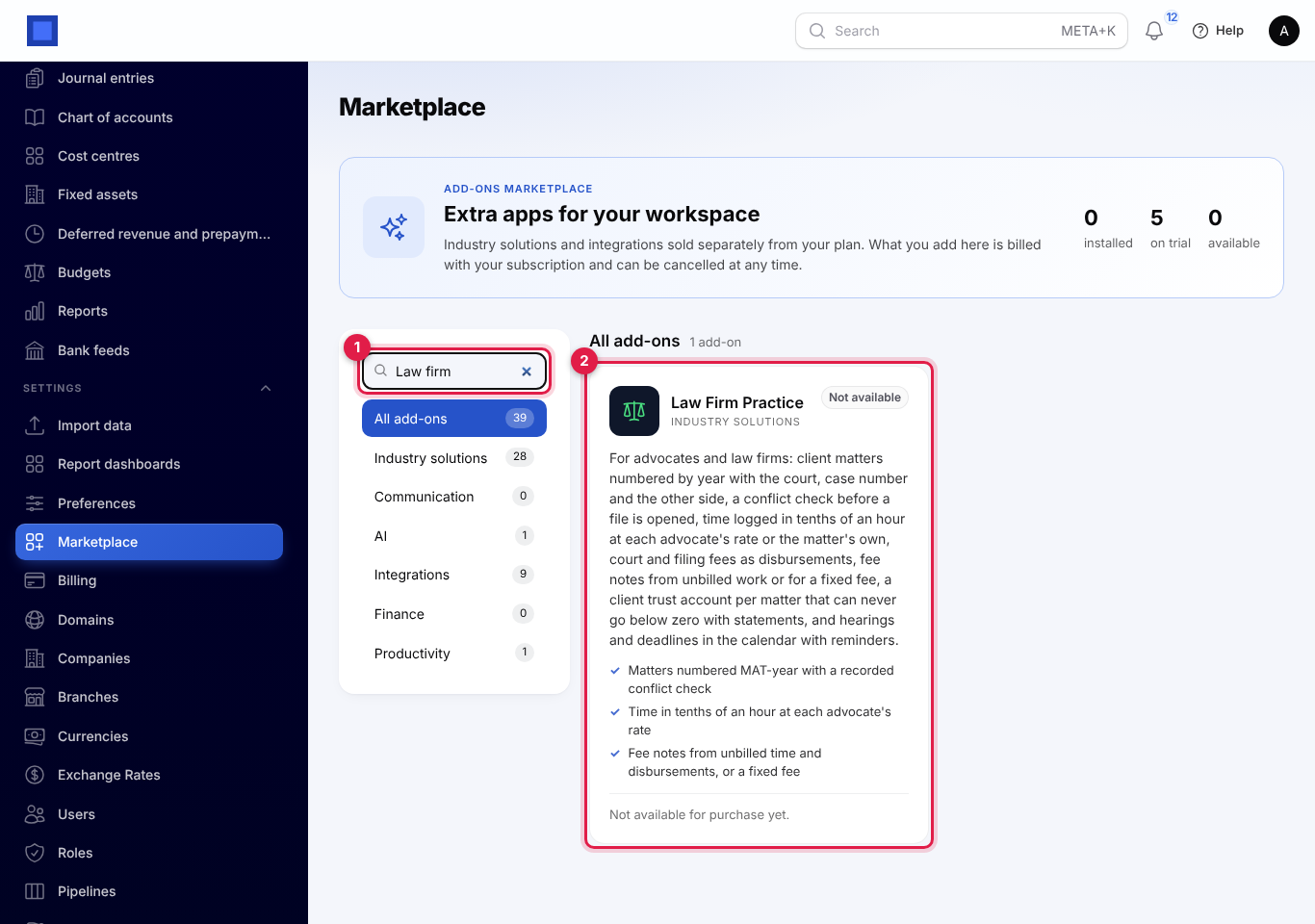
If the card says Not available for purchase yet (as in the screenshot), the add-on has not been priced for your plan: ask NaliSuite support to switch it on. See Billing and marketplace.
Law firm settings
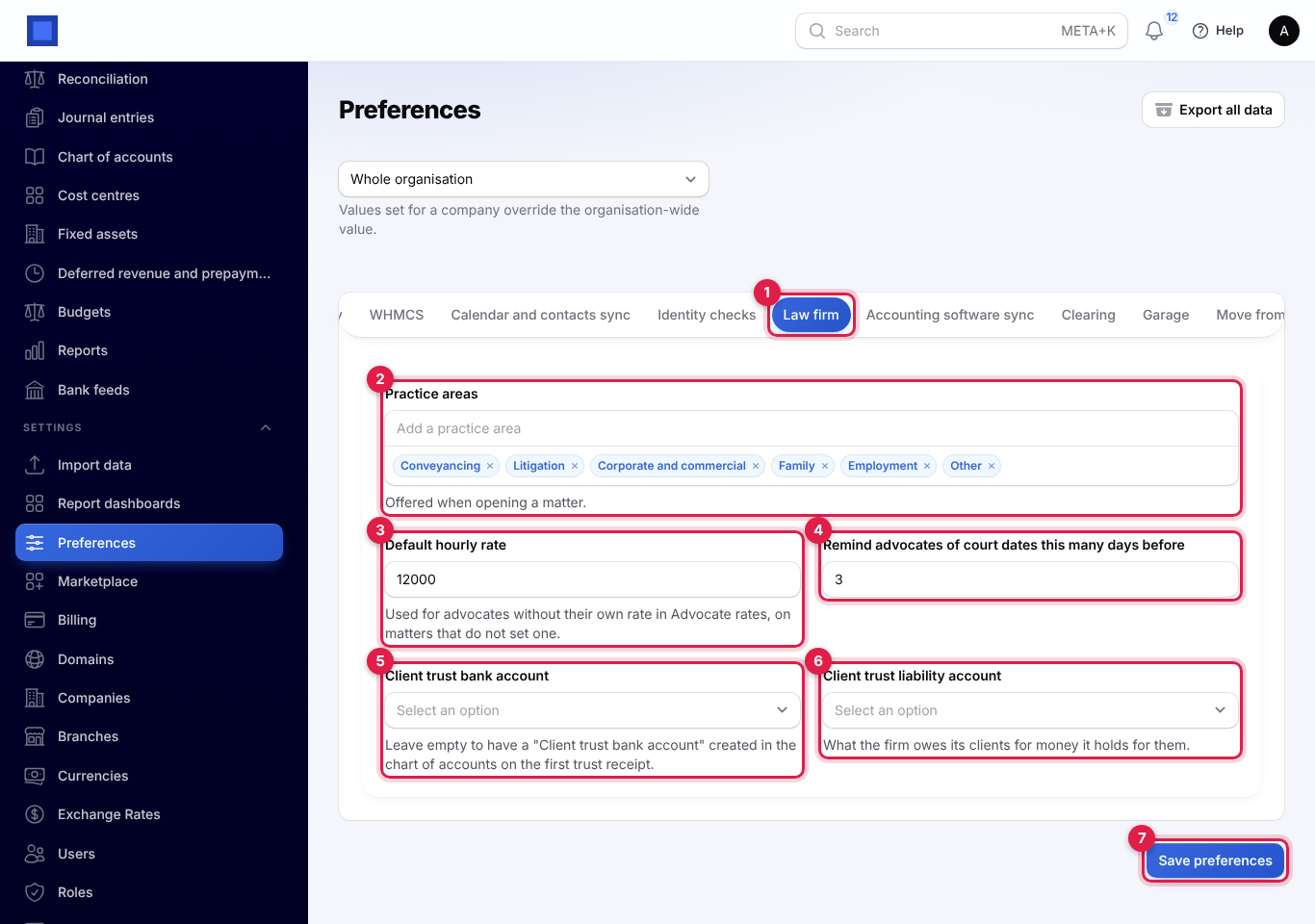
- Open Settings → Preferences and click the Law firm tab (marker 1).
- Fill in the fields and click Save preferences (marker 7).
| Setting | Default | What it does |
|---|---|---|
| Practice areas (marker 2) | Conveyancing, Litigation, Corporate and commercial, Family, Employment, Other | The areas offered when opening a matter. Type one and press Enter to add it; click × to remove one. |
| Default hourly rate (marker 3) | 0 | The rate for advocates without their own rate in Advocate rates, on matters without their own rate. |
| Remind advocates of court dates this many days before (marker 4) | 3 | 0 to 60 days. |
| Client trust bank account (marker 5) | Empty | The bank account in your chart of accounts that holds client money. Leave it empty to have a Client trust bank account created on the first trust receipt. Shown only with the Accounting app. |
| Client trust liability account (marker 6) | Empty | What the firm owes its clients for money it holds for them. Leave it empty to have Client trust liability (money held for clients) created. Shown only with the Accounting app. |
The dropdown at the top of Preferences lets one company use different settings from the rest of the organisation.
Advocate rates
Open Law firm → Advocate rates, click Set a rate, choose the Advocate and type the Hourly rate, then Create. Each advocate has one rate; use Edit or Delete on a row to change it.
Time is billed at the first of these that is set:
- the matter's own Hourly rate for this matter;
- the advocate's rate here;
- the Default hourly rate in Law firm settings.
The rate is fixed on each time entry when it is logged, so changing a rate later does not change time already logged.
Matters
Open Law firm → Matters. Each matter shows its number and title, the Client, Practice area, responsible Advocate, what is Unbilled (marker 2, the work in progress), what the client Owed on fee notes (marker 3) and what is held In trust (marker 4), and its status.
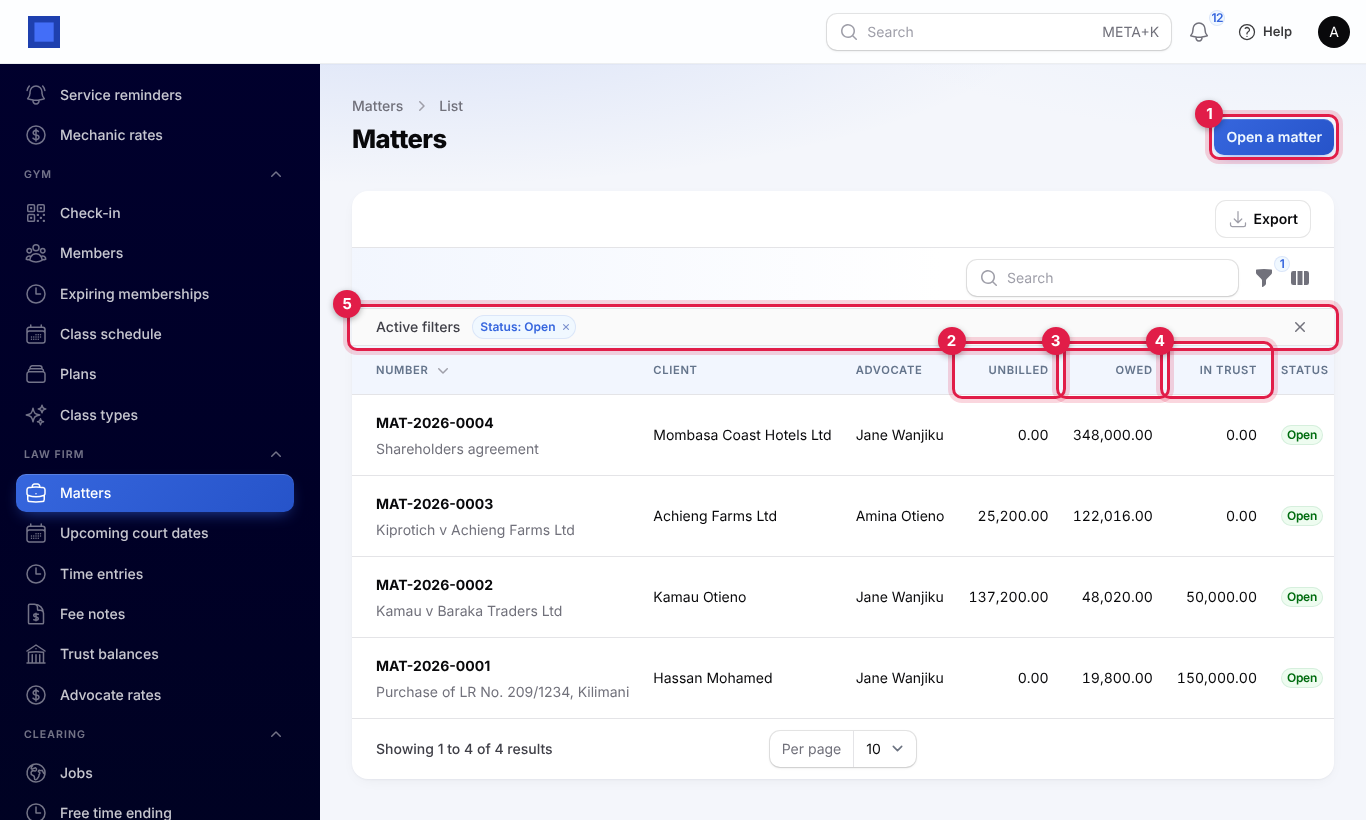
The list shows Open matters by default (marker 5). The filter icon also has Practice area and Advocate, and the search finds a matter by number, title or case number. The Court column can be shown from the columns icon.
Open a matter and run the conflict check
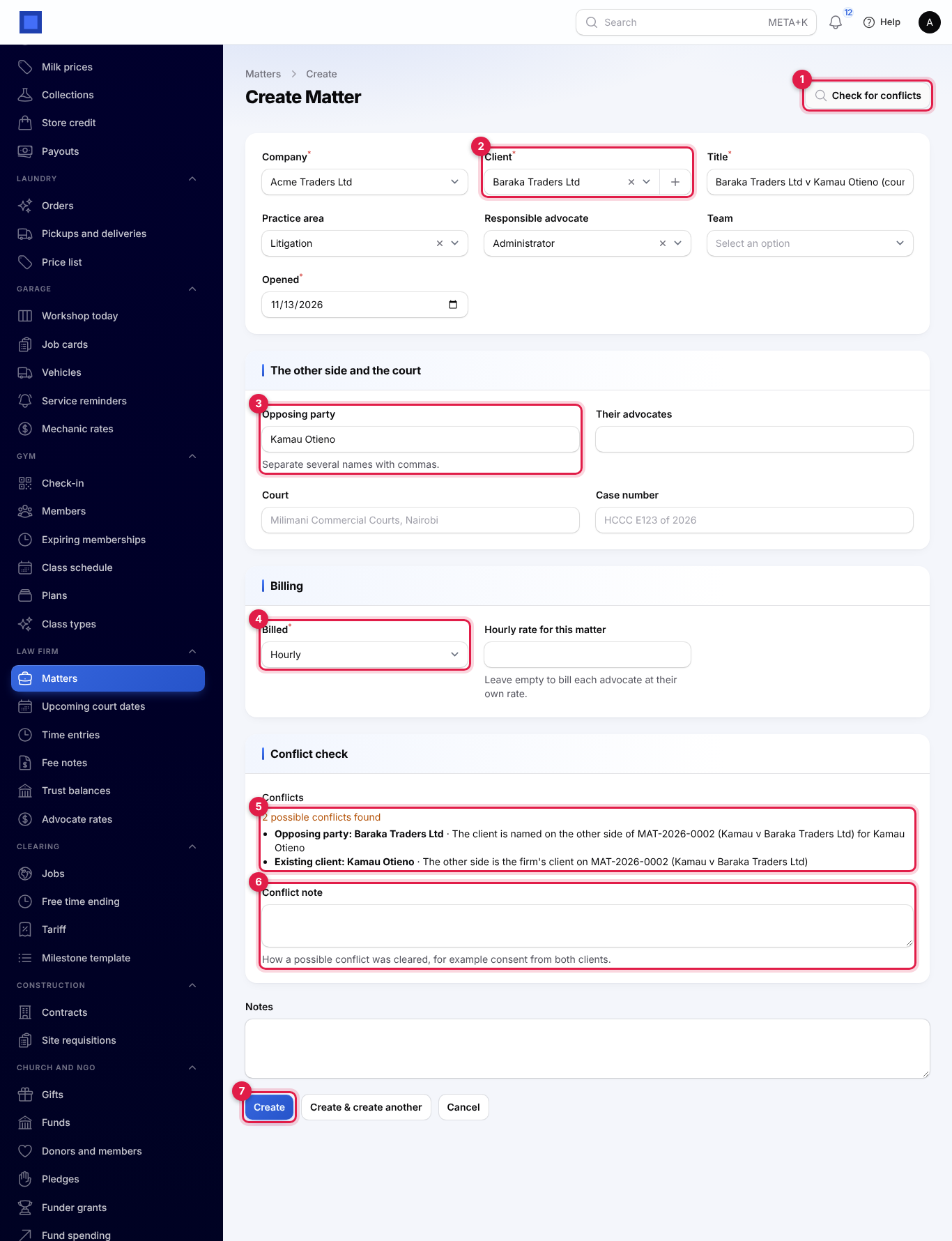
- Click Open a matter (marker 1 above).
- Fill in the form:
| Field | What to enter |
|---|---|
| Company | Which of your companies the matter belongs to. |
| Client (required, marker 2) | From your contacts. It cannot be changed after the matter is opened. |
| Title (required) | Sale of LR No. 209/1234, Kilimani, Kamau v Baraka Traders Ltd. |
| Practice area, Responsible advocate (you, by default), Team, Opened (today) | |
| Opposing party (marker 3) | Everyone on the other side; separate several names with commas. |
| Their advocates, Court, Case number | Oduya & Co. Advocates, Milimani Commercial Courts, Nairobi, HCCOMM E123 of 2026. |
| Billed (required, marker 4) | Hourly (time is billed from the work in progress), Fixed fee (enter the Agreed fixed fee; fee notes are raised for agreed amounts up to it), or Contingency or no fee (time is recorded but not billed). |
| Hourly rate for this matter | Leave empty to bill each advocate at their own rate. |
| Conflict note (marker 6) | How a possible conflict was cleared, for example Consent from both clients in writing, 12 Nov 2026. |
| Notes | Anything about the instruction. |
-
Click Check for conflicts (marker 1). The result shows under Conflict check (marker 5), for example 2 possible conflicts found, each with what was found:
- Opposing party: the client is named on the other side of another matter, or the other side is also on the other side elsewhere.
- Existing client: the other side is (or was) the firm's client on another matter.
- Contact: the other side is in your contacts.
Names of three letters or more are matched, and each name on the other side is checked separately (Baraka Traders Ltd, John Baraka and Mary Baraka is three names).
-
Click Create (marker 7). The check runs again as you save. If it finds something you have not seen yet, saving stops with "Read them under Conflict check, add a note on how they were cleared, then save again." Read the list, add your Conflict note and click Create again.
The matter gets the next number for the year it was opened, for example MAT-2026-0007. The check is kept on the matter with who ran it, when, what it found and your note.
The matter page
Click a matter to open it.
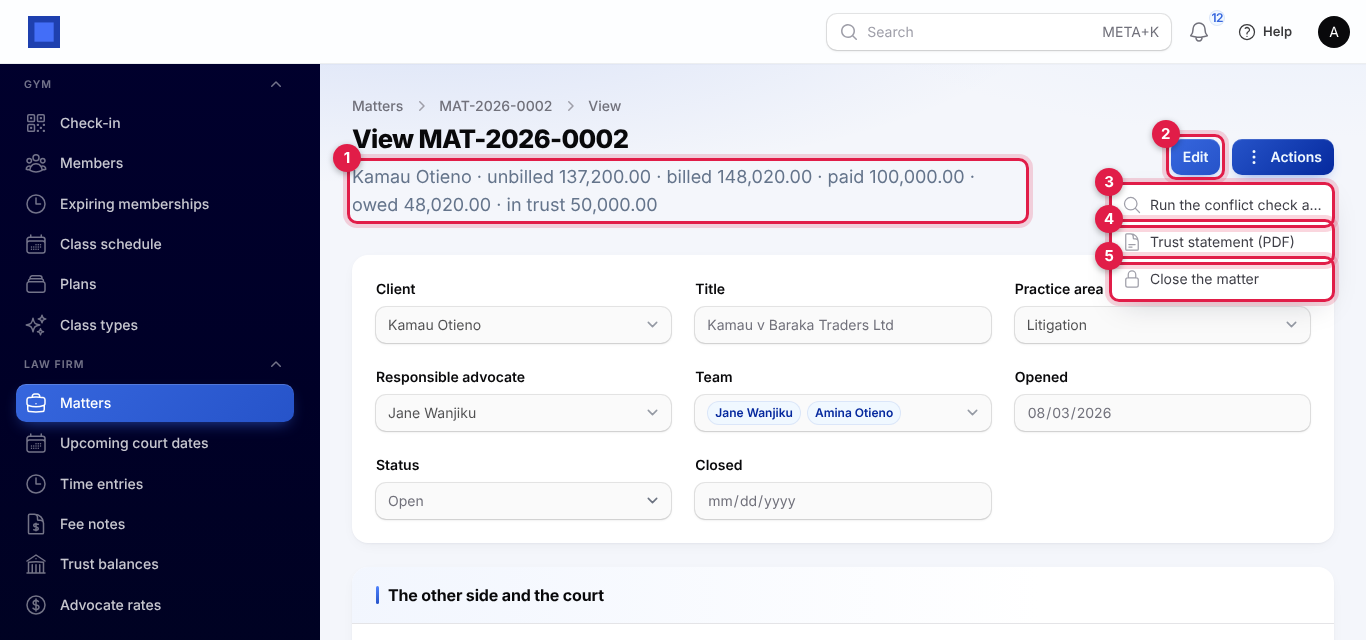
- Under the title (marker 1): the client, and what is unbilled, billed, paid, owed and held in trust on the matter.
- Edit (marker 2) changes the details, status (Open, On hold or Closed) and billing.
- Actions:
- Run the conflict check again (marker 3), with a Conflict note, for example when a new party joins the case. You see what was found, and the result replaces the one on the matter.
- Trust statement (PDF) (marker 4), see Trust statement and balances.
- Close the matter (marker 5). No more time can be logged on a closed matter. It is refused while money is held in trust: "Money is still held in trust on this matter. Pay it out or return it to the client first." Reopen opens it again.
Below the details are the tabs Time, Disbursements, Fee notes, Client trust, Court dates and Documents.
Time and disbursements
Log time
On the matter, open the Time tab and click Log time. Or open Law firm → Time entries, click Log time and choose the Matter (open matters only).
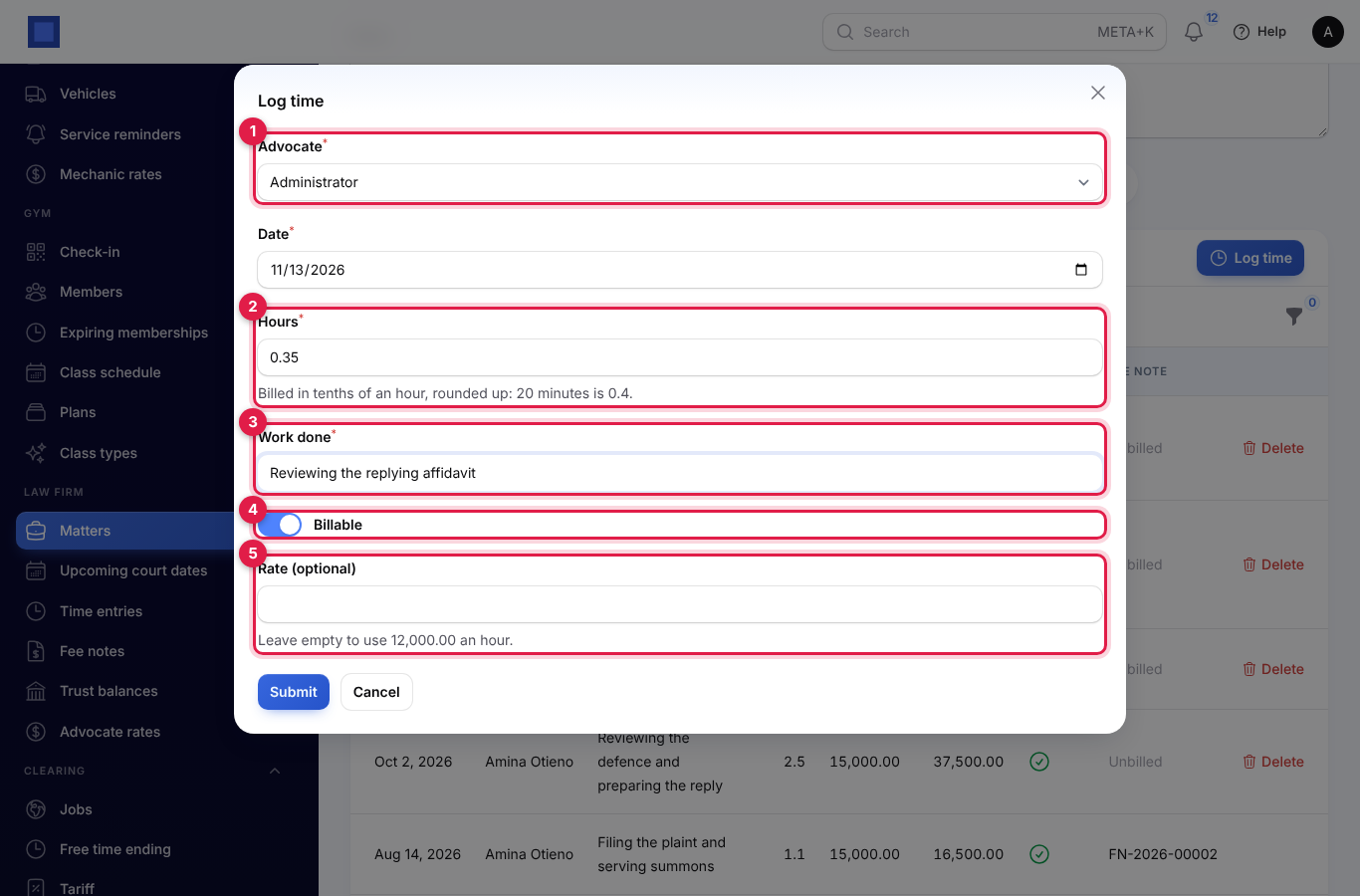
| Field | What to enter |
|---|---|
| Advocate (marker 1) | Shown to staff with legal.manage, to log time for someone else. Everyone else logs their own. |
| Date | The day the work was done. |
| Hours (marker 2) | Time is billed in tenths of an hour (six minutes), always rounded up: 0.35 becomes 0.4, and 20 minutes (0.33) is 0.4. Between 0.1 and 24 hours. |
| Work done (marker 3) | What the time was spent on; it goes onto the fee note. |
| Billable (marker 4) | On by default on hourly matters, off on fixed-fee and contingency matters. Turn off for time you will not charge. |
| Rate (optional) (marker 5) | Leave empty to use the rate that applies (shown under the box). |
Click Submit. You see "0.4 hours logged on MAT-2026-0002". Time cannot be logged on a closed matter.
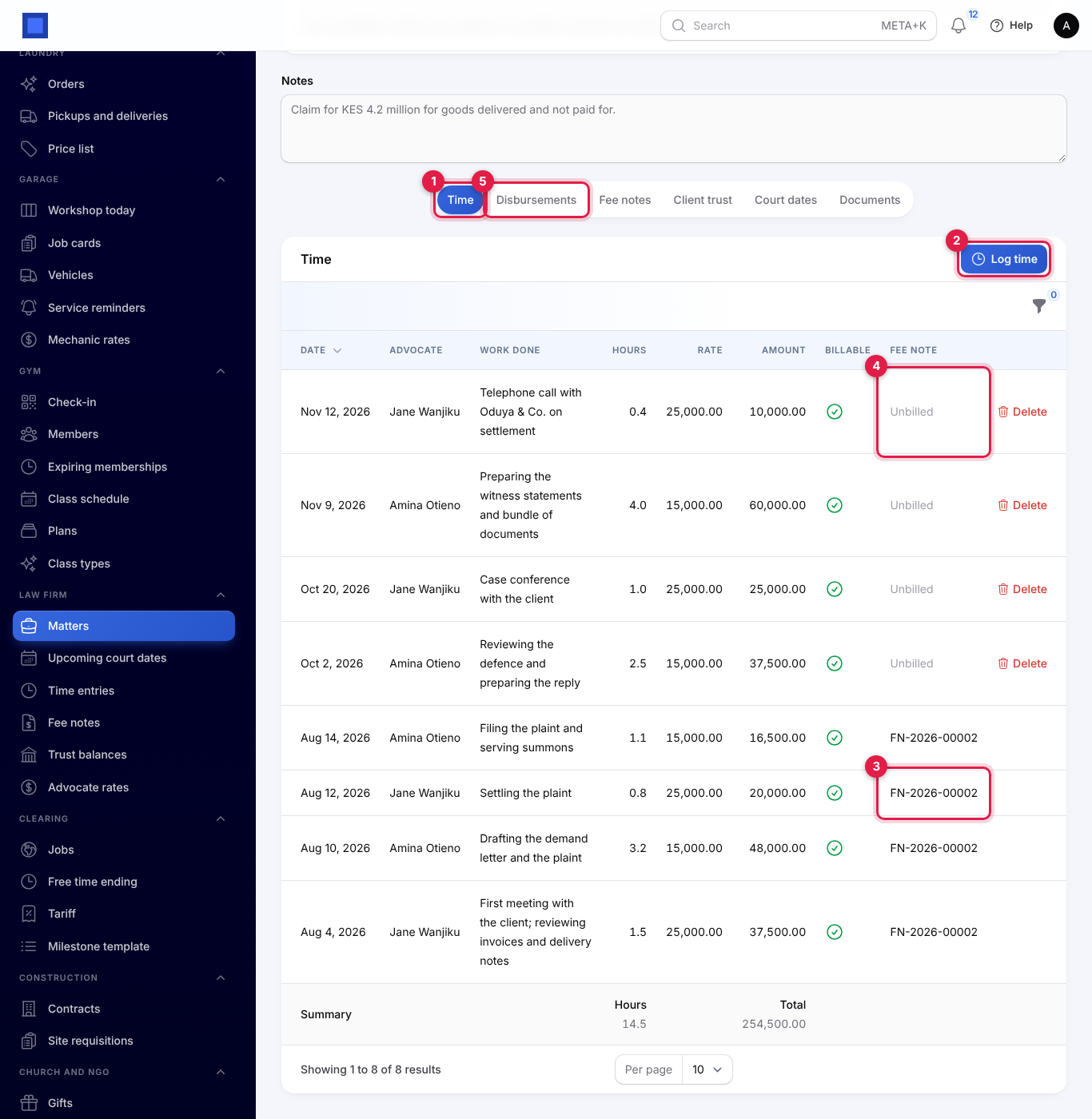
The Time tab (marker 1) lists each entry with the advocate, work done, hours, rate, amount, whether it is billable, and the fee note it was billed on (marker 3) or Unbilled (marker 4), with the total hours and amount at the bottom. Filter by Billed. Delete removes an unbilled entry (your own, or anyone's with legal.manage); billed time cannot be deleted.
Law firm → Time entries lists time across all matters: advocates with only legal.time see their own, managers see everyone's. Filter by Matter, Advocate, Billed and dates (From, Until).
Disbursements
Open the Disbursements tab (marker 5) and click Add a disbursement: the Date, what it was For (Court fees, Filing fees, Travel or Other), Details (Filing fees for the plaint, receipt 004512), the Amount, and Recover from the client (on by default). Click Submit. The list totals the disbursements and shows the fee note each went on, or Unbilled.
Work in progress
What is unbilled on a matter (its work in progress, the Unbilled column) is its billable time not yet on a fee note (hourly matters only) plus its disbursements to recover that are not yet on a fee note.
Fee notes
A fee note is the client's bill for a matter. Raise it from the matter's Fee notes tab (with legal.manage).
From the unbilled work
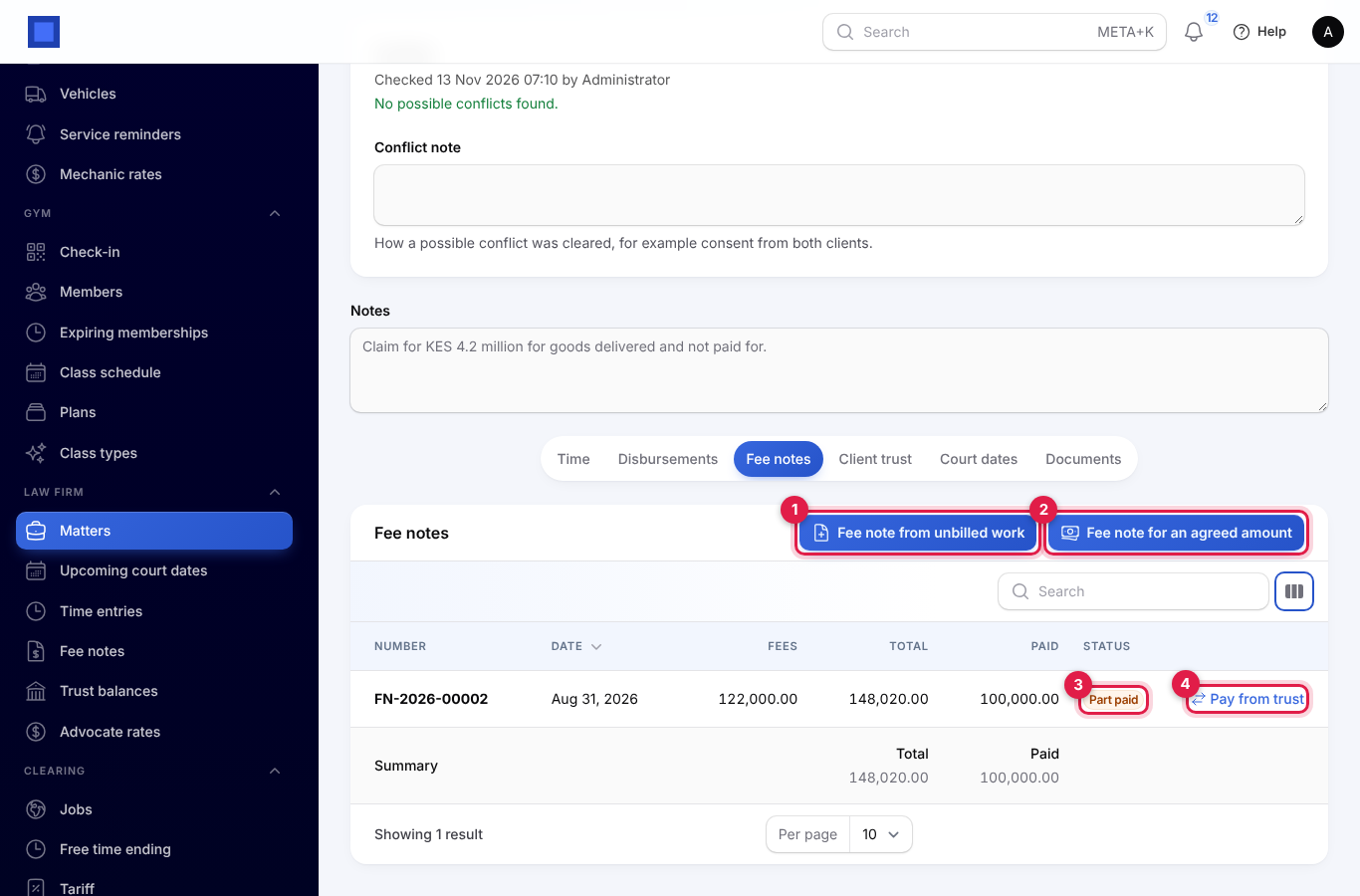
- Click Fee note from unbilled work (marker 1). The window says what will be billed, for example "Bills 7.9 hours of time (132,500.00) and 4,700.00 of disbursements: 137,200.00 in all, before tax."
- Click Confirm.
The fee note gets the next number, for example FN-2026-00005, and has one line for each time entry (4 Aug 2026 · Jane Wanjiku · First meeting with the client…, the hours at the rate) and one for each disbursement (Disbursement: Court fees – Court fees for the plaint, receipt 004512 (14 Aug 2026)). Fees carry your default tax; disbursements carry none. The time and disbursements are marked as billed on it. With nothing unbilled you see "There is no unbilled time or disbursement on MAT-2026-0002." On fixed-fee and contingency matters only the disbursements are billed this way.
For an agreed amount (fixed fees)
For a fixed fee, a stage of it, or a success fee:
- Click Fee note for an agreed amount (marker 2).
- Fill in the window and click Submit.
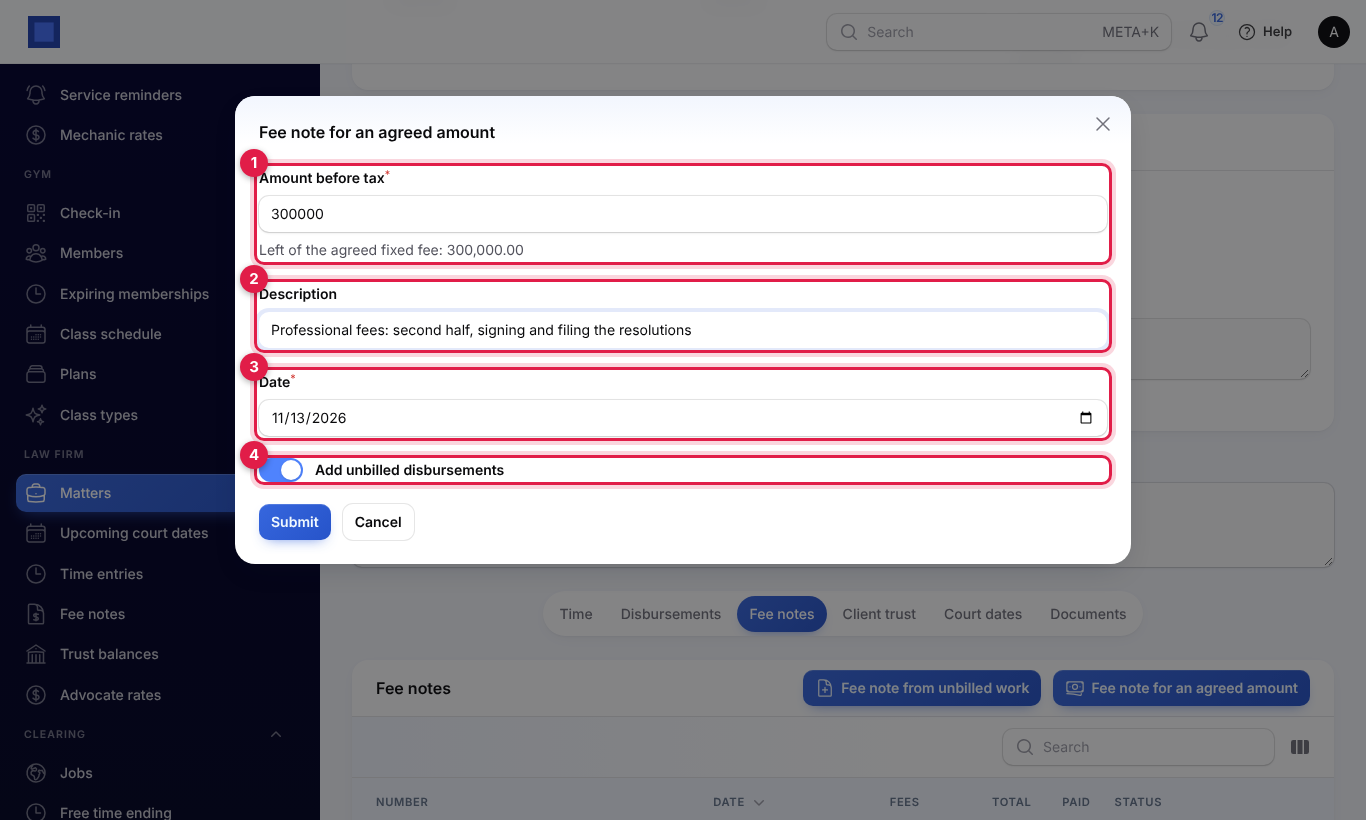
| Field | What to enter |
|---|---|
| Amount before tax (marker 1) | On a fixed-fee matter it is filled with what is left of the agreed fee, shown under the box. You cannot bill more: "Only 300,000.00 of the agreed fixed fee is left to bill." |
| Description (marker 2) | Professional fees: first stage, up to filing of the defence. Empty: Professional fees: and the matter's title. |
| Date (marker 3) | The fee note's date. |
| Add unbilled disbursements (marker 4) | On to put the matter's unbilled disbursements on the same fee note. |
The fee note's invoice
With the Invoicing app on, each fee note is raised and issued as an invoice to the client, with the matter number and title as its reference. Send it and take payment as for any invoice (see Invoices and payments). Whenever the invoice is paid (online, by a payment you record, or from trust), the fee note follows: Unpaid, Part paid or Paid (marker 3 in the tab screenshot).
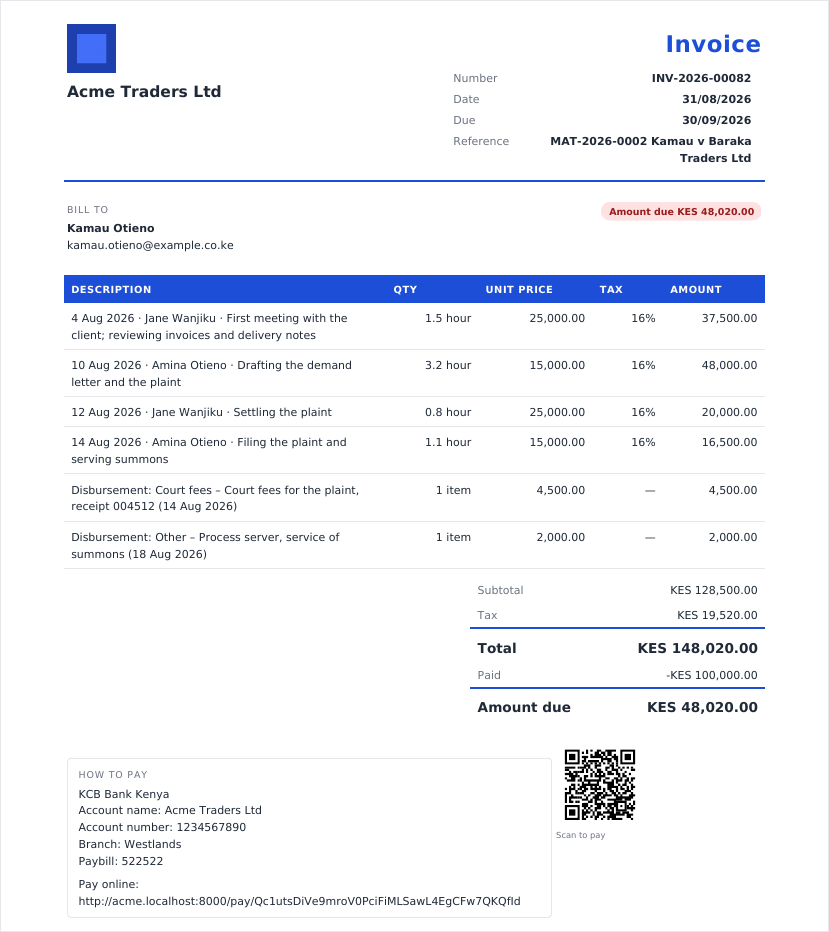
Without Invoicing, the fee note is recorded with its fees and disbursements (no tax), and it is paid only by transfers from trust.
Pay a fee note from trust
On a fee note that is not paid, click Pay from trust (marker 4, needs legal.trust). The Amount to transfer to office is filled with what the fee note owes, up to what is held in trust. Check the Date and click Submit. See Transfer to office.
All fee notes
Law firm → Fee notes lists the fee notes of every matter with the matter and client, date, fees, disbursements, tax, total and paid (totalled at the bottom), the invoice and the status. Filter by Status. Open matter opens the matter to raise or pay fee notes.
Client trust
Money you hold for a client (a deposit on account of fees, a purchase price, stamp duty) is kept per matter on the Client trust tab. Handling it needs legal.trust.
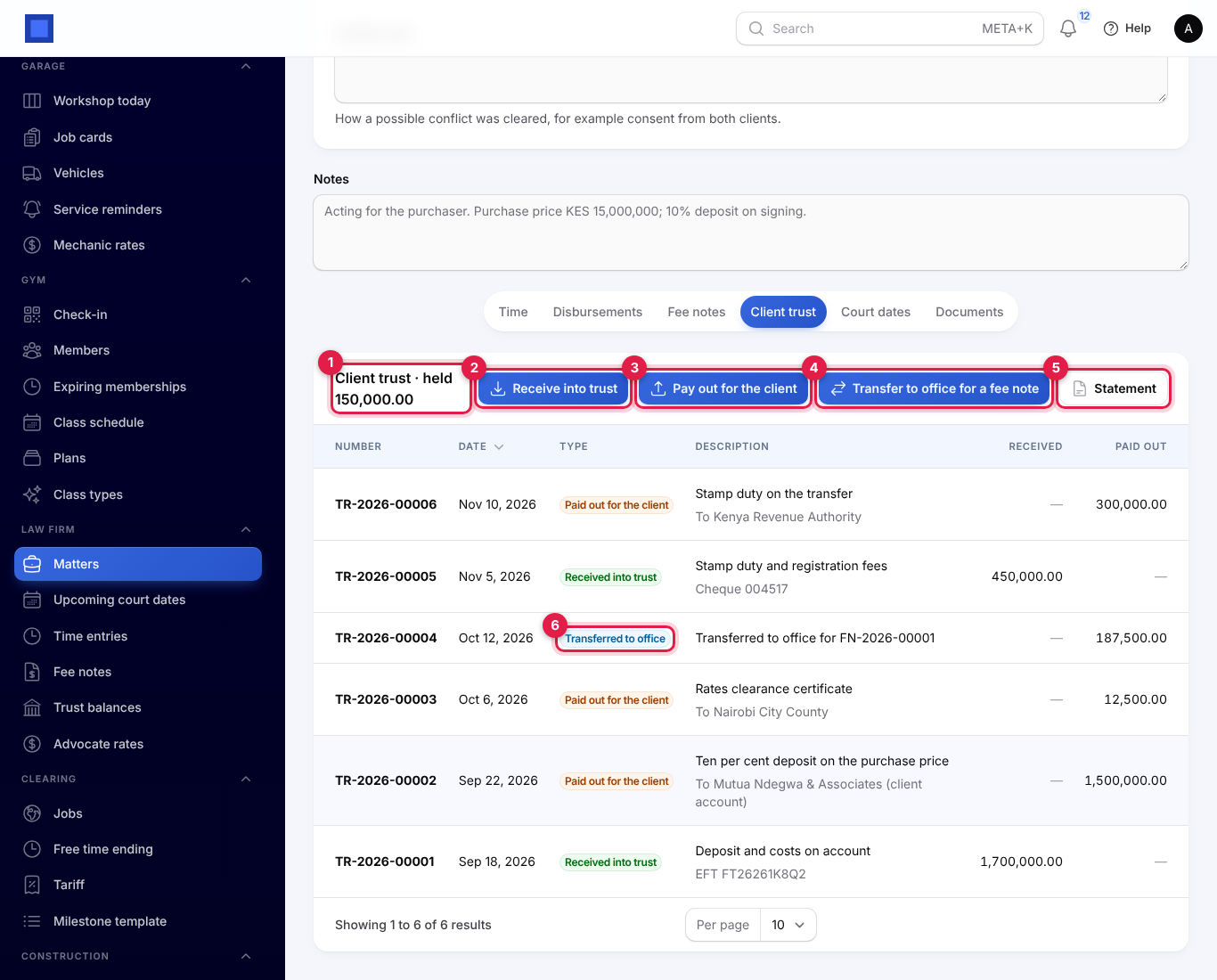
The heading shows what is held (marker 1). Each movement has a number (TR-2026-00004), date, type (Received into trust, Paid out for the client or Transferred to office, marker 6), description with the payee or reference, and the amount Received or Paid out.
Receive money into trust
Click Receive into trust (marker 2): the Amount, Date, how it was Received by (Bank transfer, M-Pesa / mobile money, Cheque or Cash), the Reference (M-Pesa code, cheque or bank reference) and a Description (Deposit towards the purchase price; empty: Received from the client). Click Submit. You see "Received into trust 450,000.00 (TR-2026-00005)".
Pay out for the client
Click Pay out for the client (marker 3). The window shows what is held. Enter the Amount, who it was Paid to (required, for example Kenya Revenue Authority), what it was For (Stamp duty on the transfer), the Date, how it was Paid by, and the Reference, then Submit.
Transfer to office
Click Transfer to office for a fee note (marker 4), choose the Fee note (unpaid fee notes, with what each still owes), leave Amount empty to transfer what it owes up to what is held (or type less), and the Date. Click Submit.
The money moves from trust to the firm, and the fee note is paid by that amount. With Invoicing on, a payment is recorded on its invoice (by bank transfer, with the TR number as the reference and the note Transferred from the client trust account). You cannot transfer more than the fee note owes ("Only 48,020.00 is owed on FN-2026-00002."), or for a fee note already paid.
Never below zero
A matter's trust balance can never go below zero. A payment out or transfer bigger than what is held on that matter is refused: "Only 150,000.00 is held in trust on MAT-2026-0001. A matter's trust balance can never go below zero." Money held for one client is never used for another client's matter.
The ledger accounts
With the Accounting app on, every trust movement is posted to your books in the bank journal, with the client on each line:
| Movement | Debit | Credit |
|---|---|---|
| Received into trust | Client trust bank account | Client trust liability |
| Paid out for the client, transferred to office | Client trust liability | Client trust bank account |
The accounts are the ones in Law firm settings. If none are set, the first trust receipt creates Client trust bank account (an asset, code 1015 or the next free code) and Client trust liability (money held for clients) (a liability, code 2150 or the next free code), and saves them in settings. The client trust liability always equals the total held for all clients. A transfer to office also records the fee note's invoice payment, posted like any other payment. See Accounting basics.
Trust statement and balances
Click Statement on the Client trust tab (marker 5), or Actions → Trust statement (PDF) on the matter, to open the matter's client trust statement:
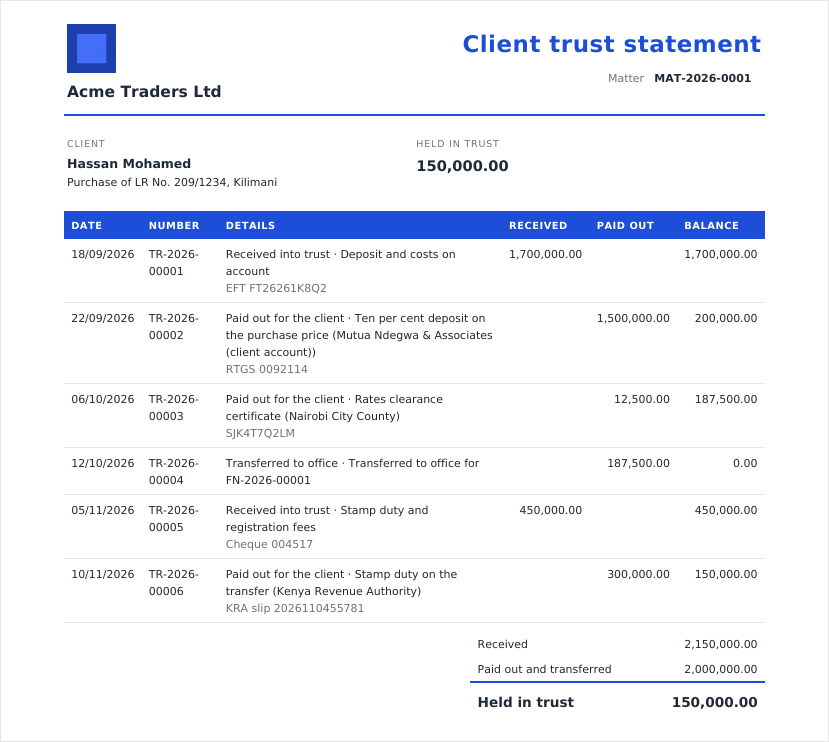
It shows the client, the matter and what is held in trust, then every movement in date order with its number, details (type, description, payee and reference), the amount received or paid out, and the running balance, and totals of what was received, paid out and transferred, and held. Send it to the client when they ask what has happened to their money.
Trust balances
Open Law firm → Trust balances to see all client money at once.
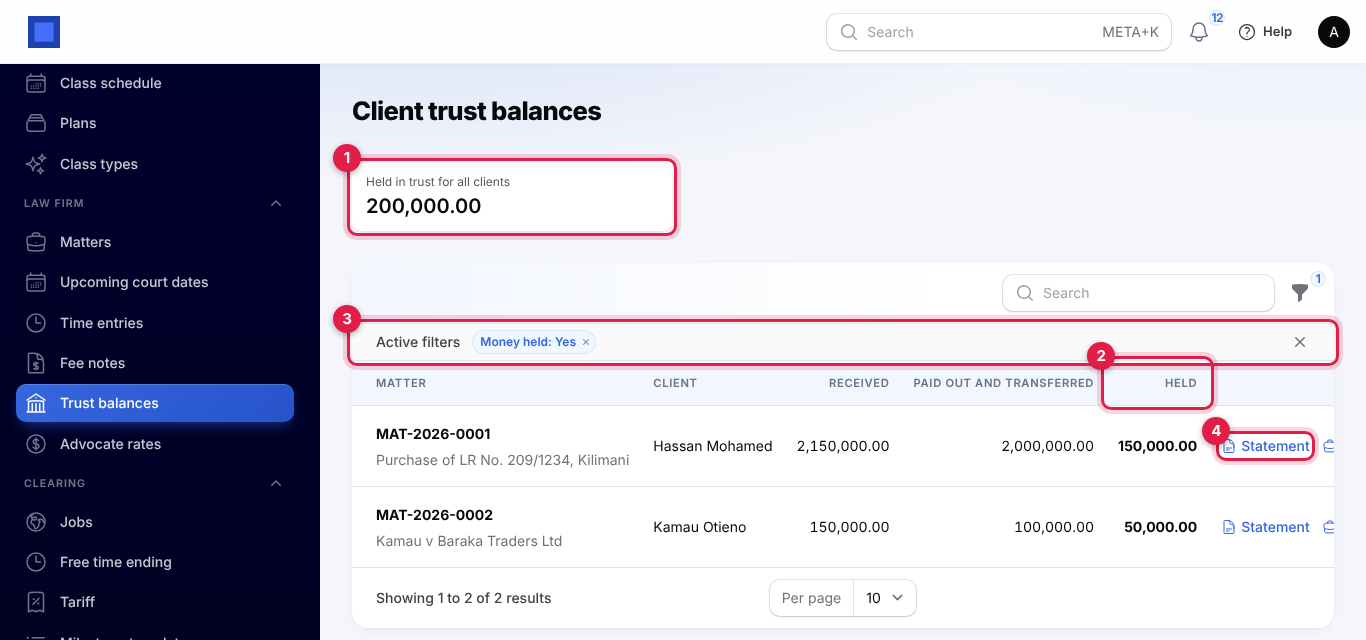
The box at the top (marker 1) is the total Held in trust for all clients; it should match your client trust bank account. Below, each matter with trust money shows the client, what was Received, Paid out and transferred, and what is Held (marker 2). The Money held filter (marker 3) is on by default; clear it to see matters whose trust money is all used. Statement (marker 4) opens the matter's statement; Open opens the matter.
Court dates
Add a court date
On the matter, open the Court dates tab and click Add a court date (needs legal.manage or legal.time):
| Field | What to enter |
|---|---|
| Date (required) and Time | Leave the time empty for a deadline. |
| Kind | Hearing, Mention, Filing deadline, Judgment or ruling, Filing or Other. |
| Court | Filled with the matter's court. |
| Notes | Hearing of the application for injunction, court 4. |
| Attending | The advocate going; filled with the matter's responsible advocate. |
Click Submit. Edit and Delete are on each row. Past dates are greyed; deadlines show in red.
Upcoming court dates
Open Law firm → Upcoming court dates for the firm's diary from today.
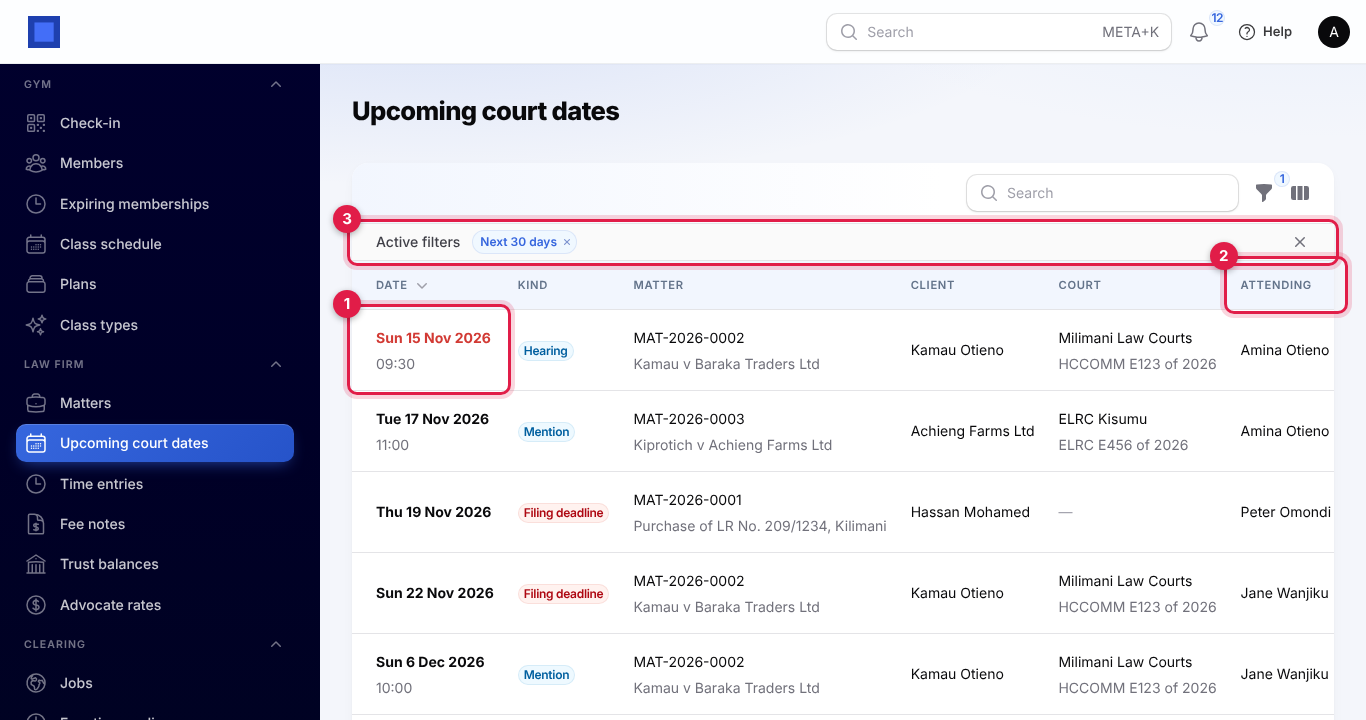
Each row shows the date and time (red within the next two days, marker 1), the kind, the matter and its title, the client, the court with the case number, the notes, and who is Attending (marker 2; the responsible advocate when nobody is set). The Next 30 days filter (marker 3) is on by default; the filter icon also has Kind, Attending and Only mine. Open matter, at the end of each row, opens the file.
Reminders
Every morning at 06:40 UTC (09:40 in Nairobi), NaliSuite reminds the advocate attending each court date that falls within the reminder days (3 by default), once per court date:
- in NaliSuite, under the bell, for example Hearing on 15 Nov 2026, 09:30: MAT-2026-0002 · Kamau v Baraka Traders Ltd, with the client, court, case number and notes;
- and by email, unless the advocate has chosen their own channels for court date reminders in their notification preferences.
Court dates on closed matters are not reminded. If you move a court date to another day, it is reminded again.
The calendar
Court dates also go into the diary of the advocate attending (or the responsible advocate when nobody is set). An advocate who connects Google Calendar or Microsoft 365 under Me → Connected calendars gets them in their own calendar, with the court as the place and the client, case number and notes in the details: Hearing: MAT-2026-0002 · Kamau v Baraka Traders Ltd, one hour long (half an hour for a date without a time). Court dates are one of the sources under What to sync. See Google and Microsoft 365 sync.
Documents
Keep pleadings, agreements and letters on the matter, on the Documents tab (marker 1).
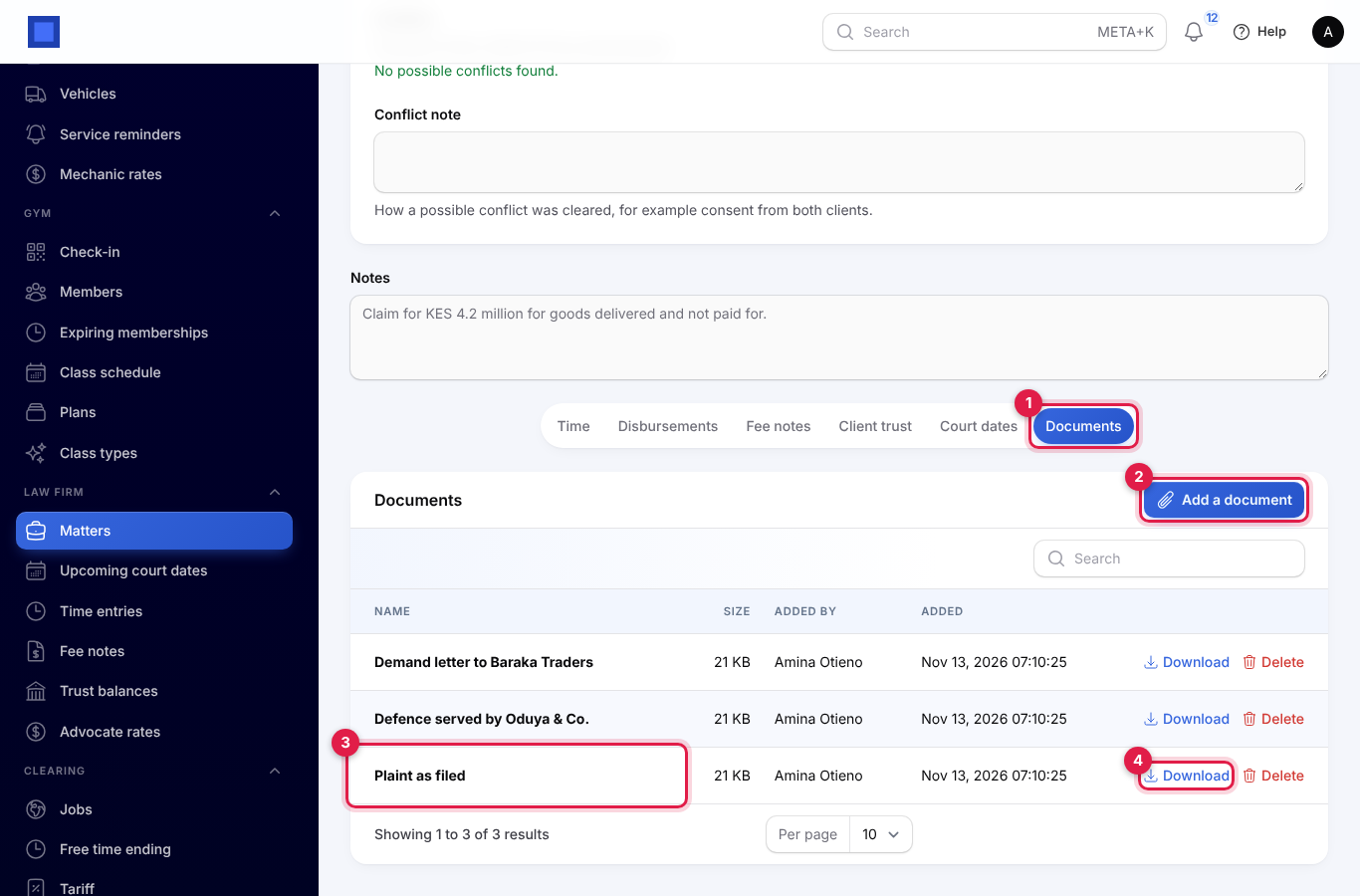
- Click Add a document (marker 2; needs legal.manage or legal.time).
- Type the Name (Plaint as filed) and choose the File: a PDF, a picture, a Word or Excel file or a text file, up to 20 MB.
- Click Submit.
Each document (marker 3) shows its size, who added it and when. Download (marker 4) downloads it for anyone who can see the matter. Files are stored privately, never on a public link. Delete (with legal.manage) removes the document and its file.
What clients see: My matters
Clients with portal access (see Customer and vendor portal) get a My matters page (marker 1) as soon as they have a matter.
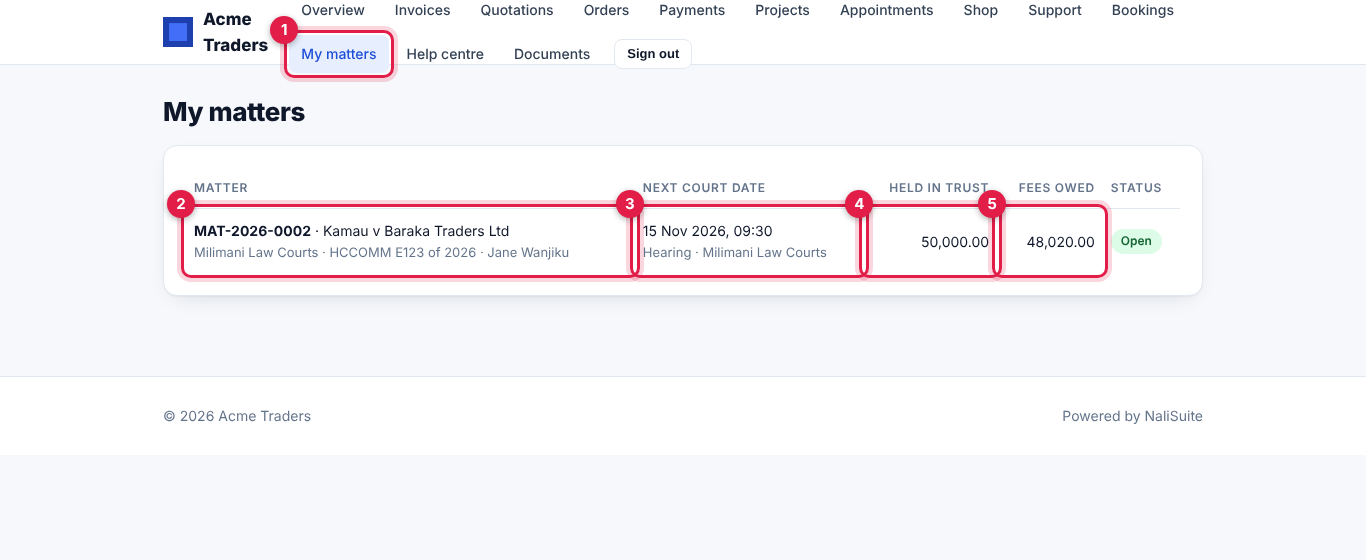
Each matter (marker 2) shows its number, title, court, case number and responsible advocate; the Next court date (marker 3) with the time, kind and court; what is Held in trust (marker 4); the Fees owed (marker 5); and its status. Closed matters are listed last. Clients see only their own matters (or those of companies they can see in the portal), and they pay fee notes from Invoices in the portal.
Good to know
How is time rounded? Up, to the next tenth of an hour (six minutes): 1.23 hours is billed as 1.3, and a five-minute call as 0.1.
Can I change a fee note? No. A fee note marks its time and disbursements as billed and issues an invoice. To correct one, use a credit note on its invoice in Invoicing; the time stays marked as billed.
Can trust money pay any client's fee note? No. A transfer to office only pays a fee note on the same matter, and only from the money held on that matter.
The trust balance in the books does not match Trust balances. Every movement made here is posted for you. Look for journal entries made by hand to the client trust accounts, or bank transactions matched to them.
A client paid the fee note directly. Record the payment on its invoice as usual. The fee note becomes Part paid or Paid by itself.
Time on a fixed-fee matter. Log it anyway to see what the matter costs you; it is not billed. Fee notes on a fixed-fee matter never add up to more than the agreed fee.