Products and pricing
Products are everything you sell or buy: goods you keep in stock and services you charge for. Every quotation, order, invoice, subscription, till sale and purchase line picks from this one list, so a product set up well saves typing everywhere. Price lists give some customers special prices and quantity breaks, and promotions give time-limited discount codes. You find products under Sales → Products; Price lists and Promotions are in the Settings group.
What you need before you start
| You want to | Permission needed |
|---|---|
| See products | sales.products.view |
| Add and edit products, generate variants, print labels, import products | sales.products.manage |
| See price lists and promotions | sales.view |
| Change price lists and promotions | sales.manage |
The taxes of your country (for example VAT 16% and the withholding taxes in Kenya) are created for you with each company, from its country, so they are ready in the Sales tax dropdown. All tax rates are listed under Settings → Taxes, where you can add, edit or switch off a rate, and Load country rates fills in the standard rates for a company that has none. If the rate you need is missing while you fill in a product, click + next to Sales tax to add it there and then.
Find your way around the product list
- In the menu, open Sales → Products.
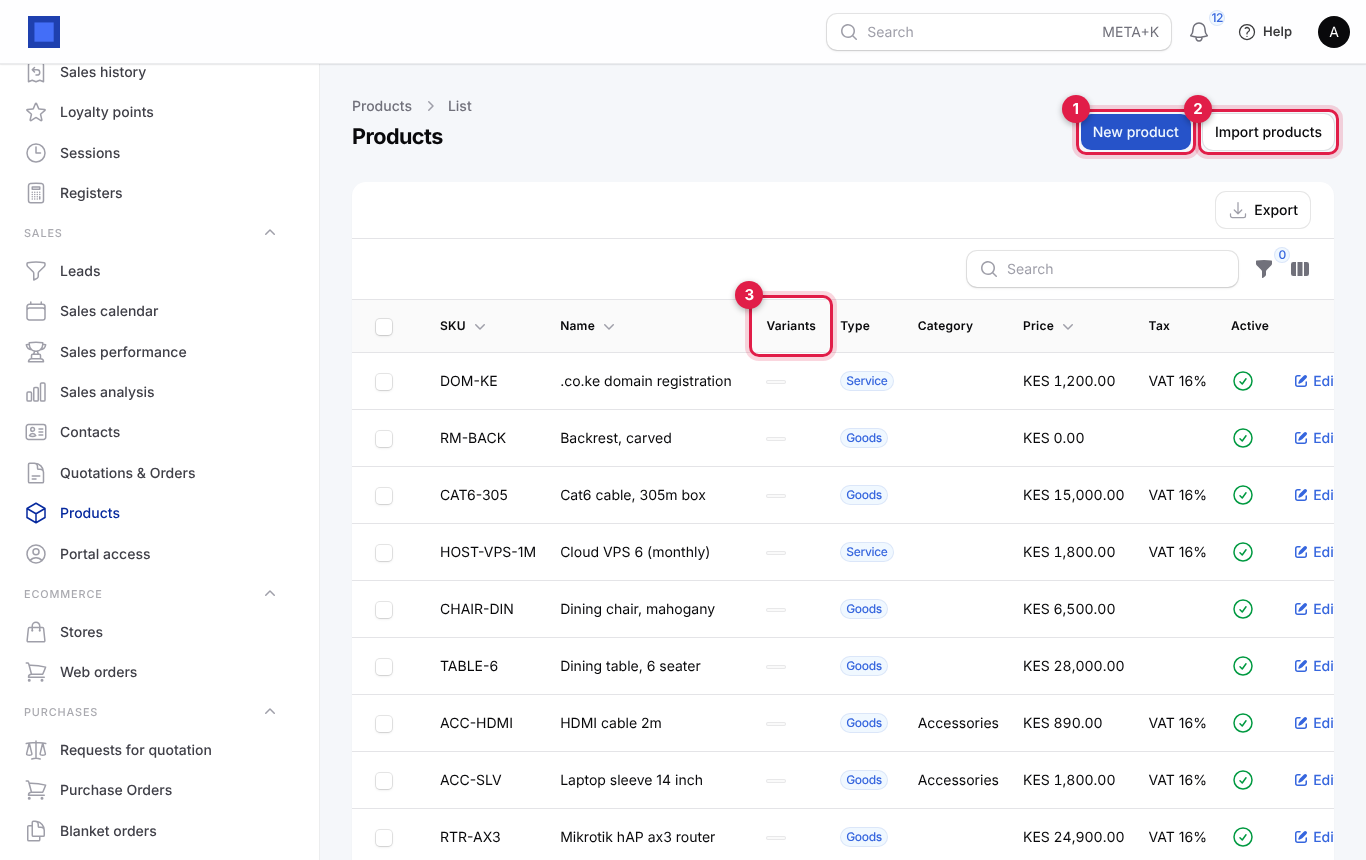
| Item | What it does |
|---|---|
| New product (marker 1) | Opens an empty product form. |
| Import products (marker 2) | Upload a spreadsheet. Recognised columns: name, sku, barcode, type, category, unit, sale_price, cost_price, tax, description, can_be_sold, can_be_purchased, track_inventory, reorder_level and is_active. See Import, export and your data. |
| Variants column (marker 3) | How many variants a template product has (empty for ordinary products). |
| Filter | Type (Service or Goods), Category, Is active, and Variants: Templates and variants (all), Variants only or Hide variants. |
| Search | Finds SKU, barcode and name. |
The columns are the picture, SKU, Name (variants say "Variant of …" underneath), Type, Category, Price, Tax and Active. Barcode is a hidden column you can switch on with the column manager.
Add a product
- Open Sales → Products and click New product.
- Type the Name.
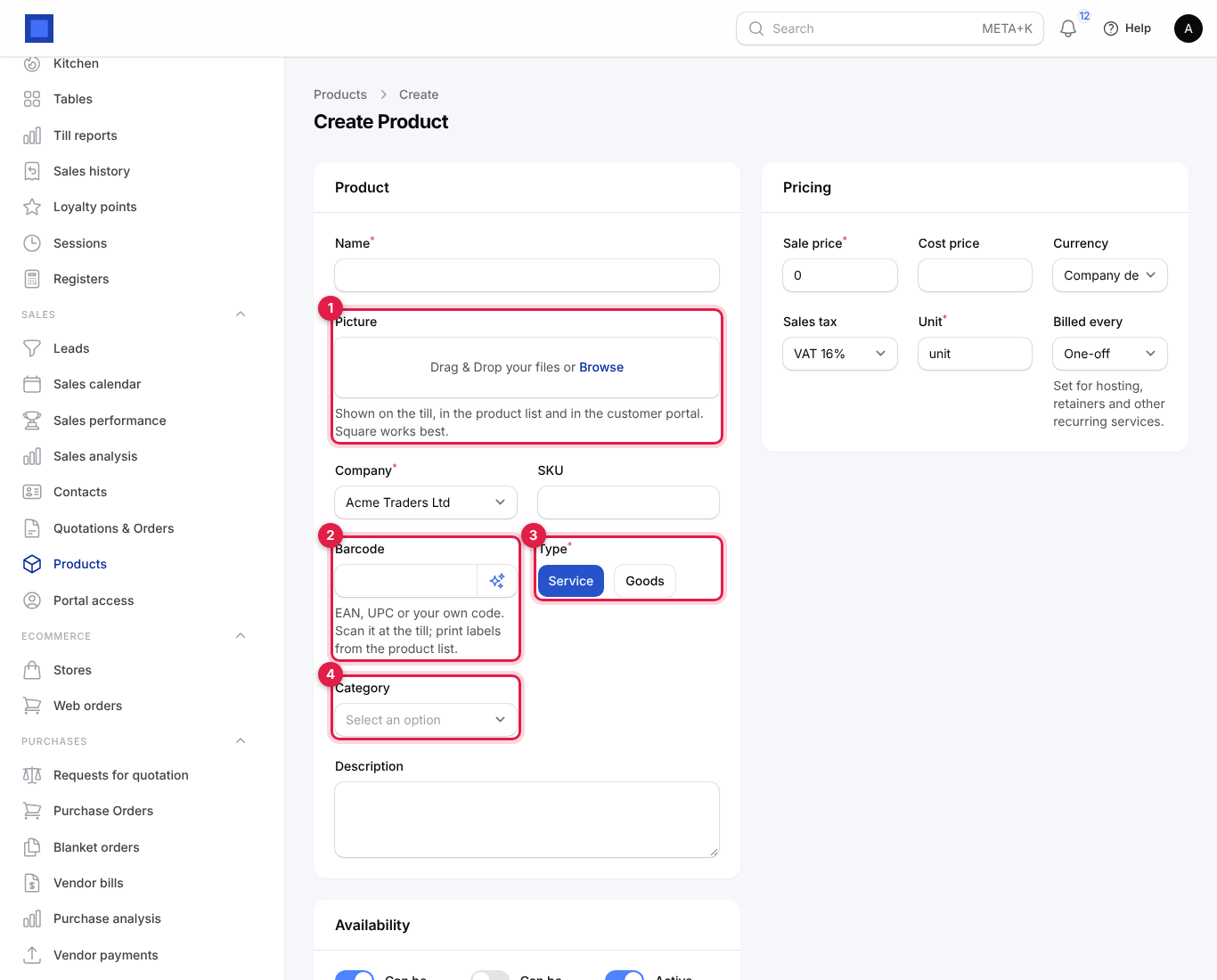
- Add a Picture (marker 1): drag a photo onto the box or click Browse. It is cropped square.
- Type or generate the Barcode (marker 2). Click the sparkle button inside the field to make an in-store EAN-13 code.
- Choose the Type (marker 3): Service or Goods.
- Pick a Category (marker 4), or click + next to it to create one.
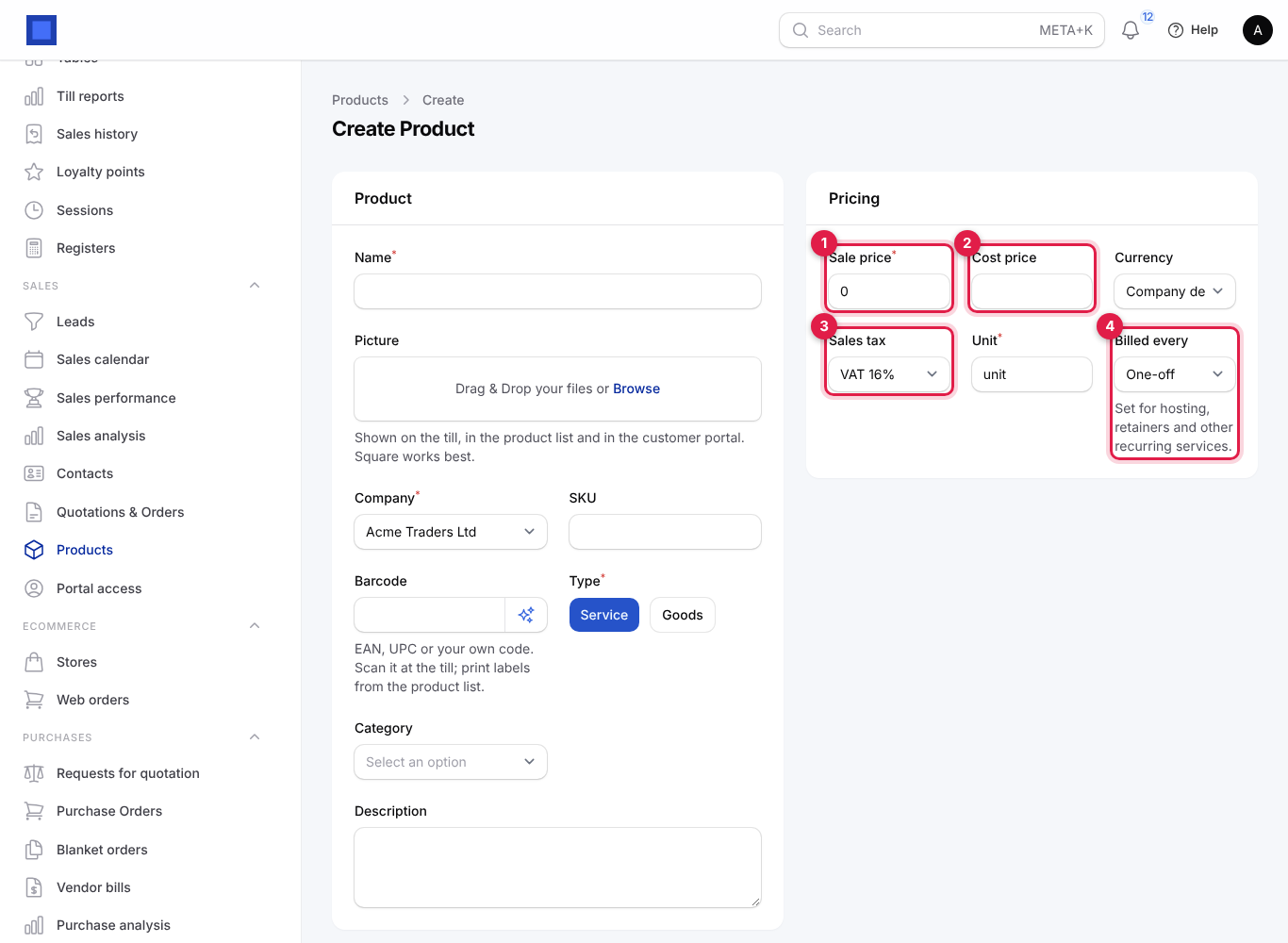
- In Pricing, type the Sale price (marker 1) and Cost price (marker 2), and check the Sales tax (marker 3). For a recurring service, choose Billed every (marker 4).
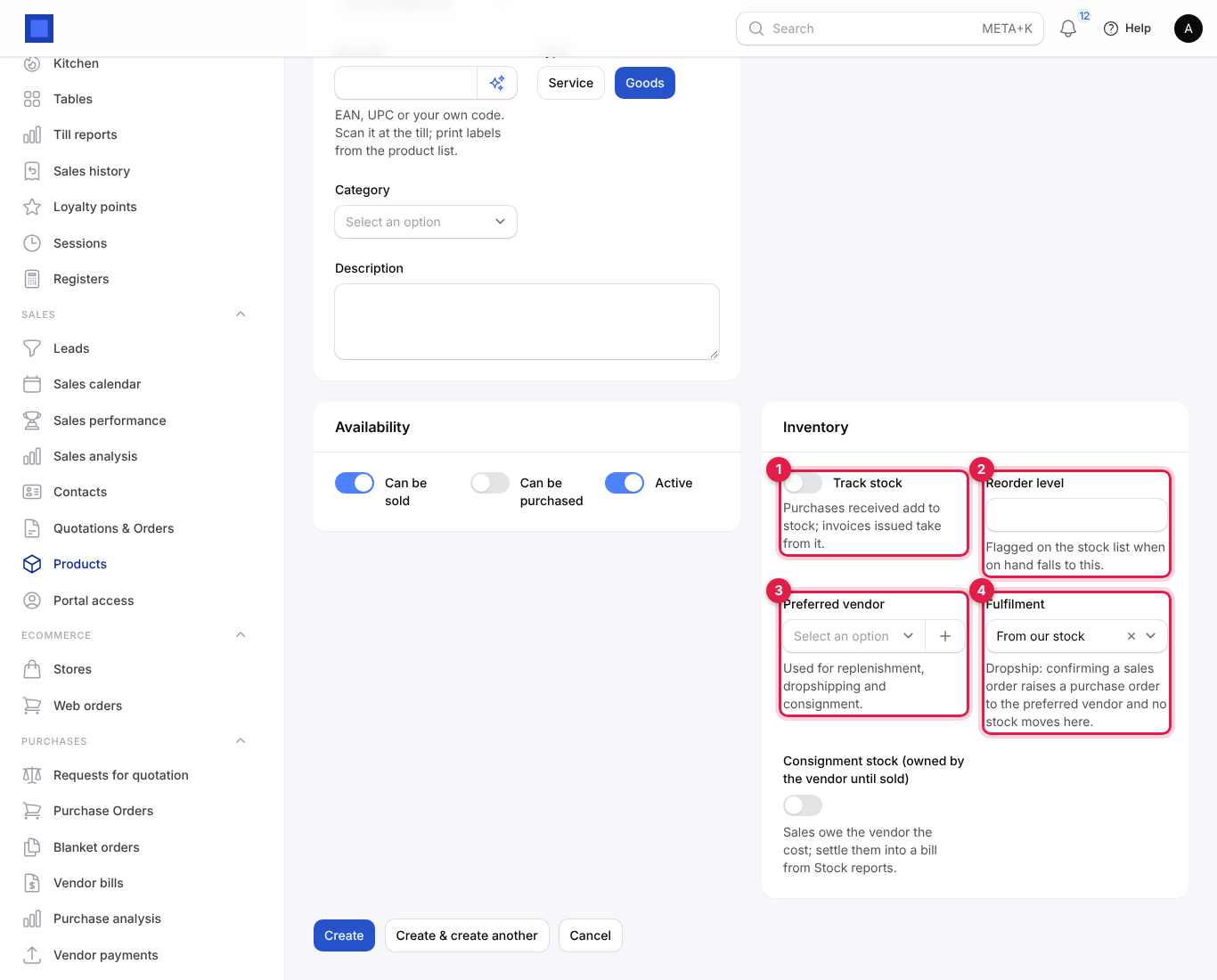
- For goods, the Inventory section appears when the Inventory app is on. Switch on Track stock (marker 1) if you count this item, and fill in the Reorder level (marker 2), Preferred vendor (marker 3) and Fulfilment (marker 4).
- Click Create.
Every field on the product form
Product section
| Field | What to enter |
|---|---|
| Name (required) | As it should print on documents and show on the till, for example "Cat6 cable, 305m box". For a variant, the name is built from the template and the variant values. |
| Picture | JPG or PNG up to 4 MB. Shown on the till, in the product list and in the customer portal. Square photos look best. |
| Company (required) | Which of your companies sells it. Lines on documents only offer products of the document's company. |
| SKU | Your own stock code, for example "CAT6-305". Searchable everywhere. |
| Barcode | EAN, UPC or your own code, scanned at the till. The sparkle button generates an in-store EAN-13 number that does not clash with others in the company. Print labels from the product list. |
| Type (required) | Service (default) for work, hosting, fees; Goods for physical items. Only goods can track stock. |
| Category | Groups products in reports such as Sales analysis and on the till. + creates a new category by name. |
| Description | Longer text for your team. |
Pricing section
| Field | What to enter |
|---|---|
| Sale price (required) | Your normal selling price per unit. Whether it includes tax depends on Preferences → Invoicing → Prices include tax. Price lists and promotions start from this. |
| Cost price | What one unit costs you. Used for margins and stock valuation. |
| Currency | Leave Company default unless you price this item in another currency, for example USD for imported hardware. |
| Sales tax | The tax added on sale, for example VAT 16%. Lists only the chosen company's rates and defaults to that company's default rate; leave it empty for no tax. + adds a missing rate without leaving the form. Copied to every line that uses the product, where it can still be changed. |
| Unit (required) | How you count it: unit, kg, litre, hour, month. Defaults to "unit". |
| Billed every | One-off (default), Week, Month, Quarter or Year. Set it for hosting, retainers and other recurring services: these products are the plans used by Subscriptions. |
Availability section
| Field | What it does |
|---|---|
| Can be sold | On: offered on quotations, invoices, the till and subscriptions. On by default. |
| Can be purchased | On: offered on purchase orders and bills. |
| Active | Off hides it from new documents without deleting its history. |
Inventory section (goods only, with the Inventory app on)
| Field | What it does |
|---|---|
| Track stock | Purchases received add to stock; invoices issued take from it. Leave off for items you do not count. |
| Reorder level | When the quantity on hand falls to this number, the item is flagged on the stock list and in replenishment. |
| Preferred vendor | The supplier you usually buy it from (a vendor contact). Used for replenishment, dropshipping and consignment. + adds a missing vendor. |
| Fulfilment | From our stock (default), or Dropship: the vendor ships to the customer. With dropship, confirming a sales order raises a purchase order to the preferred vendor and no stock moves through your warehouse. |
| Consignment stock (owned by the vendor until sold) | The vendor owns the goods until you sell them. Sales then owe the vendor the cost, which you settle into a bill from Stock reports. |
| Lots and serial numbers | Shown once Track stock is on: Not tracked, By lot with an expiry date (medicines, food) or By serial number (phones, laptops). Lots are asked for when stock comes in; sales take the lot that expires first. |
For stock levels, warehouses and stock moves, see Inventory.
Common mistake: setting Type to Service for something you keep on a shelf. Services never track stock, so your stock counts will be wrong. Change the type to Goods before you receive any.
Edit, deactivate or delete a product
Open the product from the list, change what you need and click Save changes. Changes apply to new lines only; documents already issued keep their prices and names.
Below the form are the tabs Variants (for template products), Notes, Planned and History.
To stop selling an item, switch off Active rather than deleting it. To delete products, tick them in the list and choose Bulk actions → Delete selected.
Sell a product in sizes and colours (variants)
Variants turn one product, for example "Polo shirt", into one product per combination ("Polo shirt (M / Navy)"), each with its own SKU, barcode, price and stock.
- Create the product as usual, with the price most variants share, and save it.
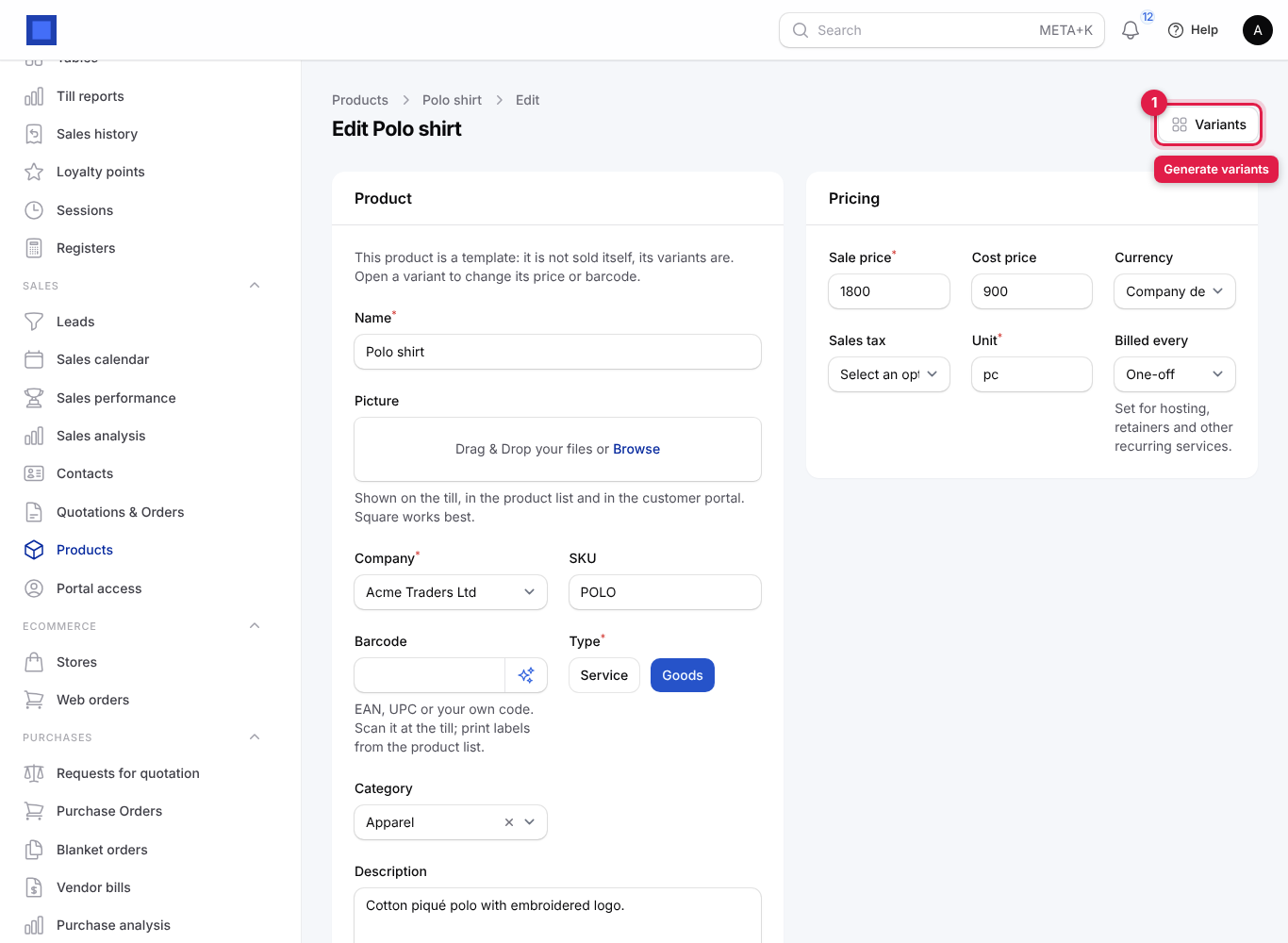
- Open it and click Variants at the top (marker 1).
- Type the first Attribute (marker 1), for example "Size", and its Values (marker 2): type a value and press Enter for each (S, M, L, XL).
- Click Add an attribute (marker 3) for another, for example "Colour" with Navy and White. Up to four attributes.
- Click Submit.
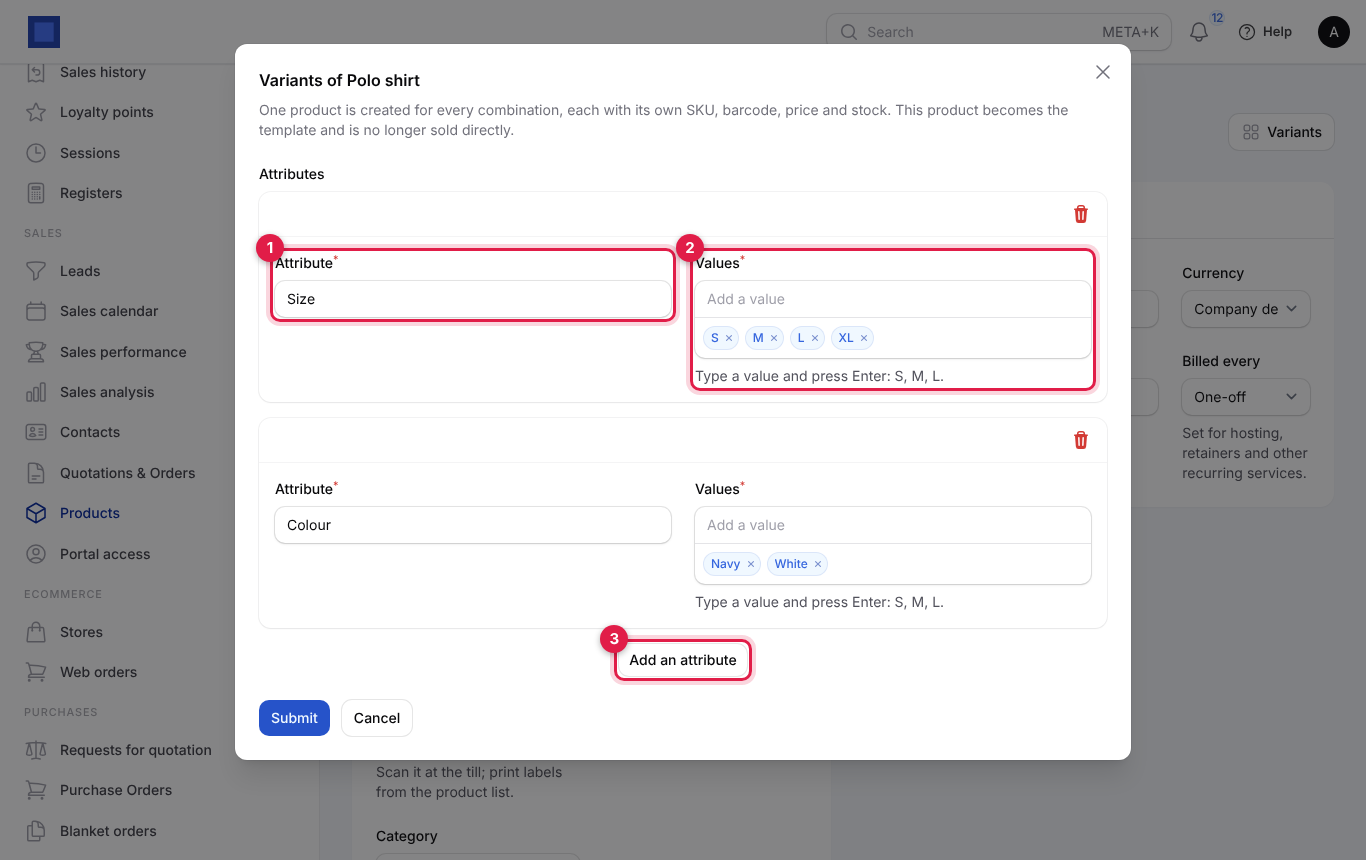
One product is created for every combination (4 sizes × 2 colours = 8 variants). The original becomes the template: it is no longer sold itself and a grey note says so on its form. Running Variants again with new values adds only the missing combinations ("Every combination already exists" means there was nothing new).
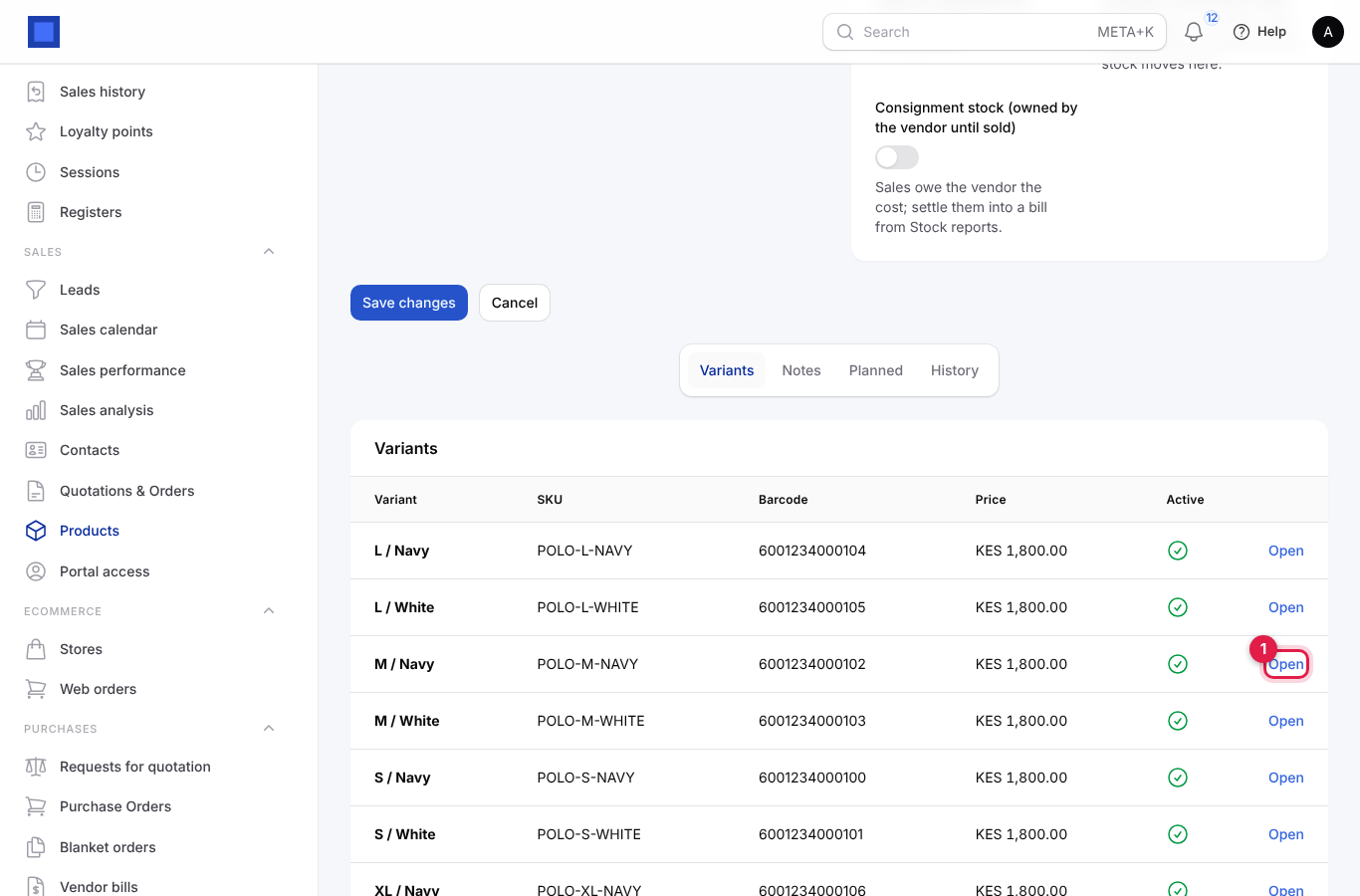
The template's Variants tab lists every variant with its SKU, barcode, price and whether it is active. Click Open (marker 1) to edit one.
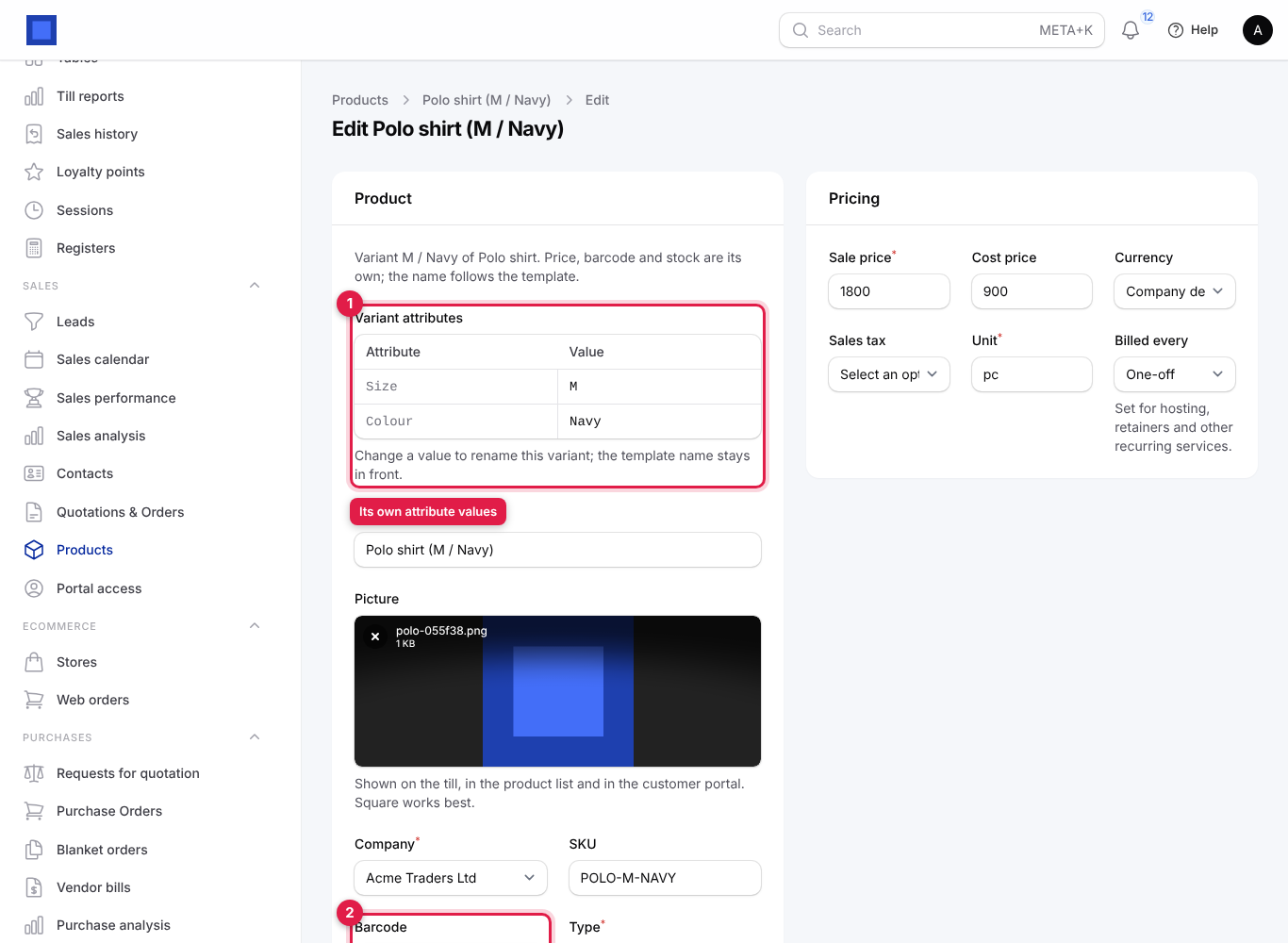
On a variant, the Variant attributes box (marker 1) shows its values. Change a value to rename the variant; the template name stays in front. Set the variant's own price, SKU and Barcode (marker 2), and its stock settings.
Print barcode labels
- In Sales → Products, tick the products you want labels for.
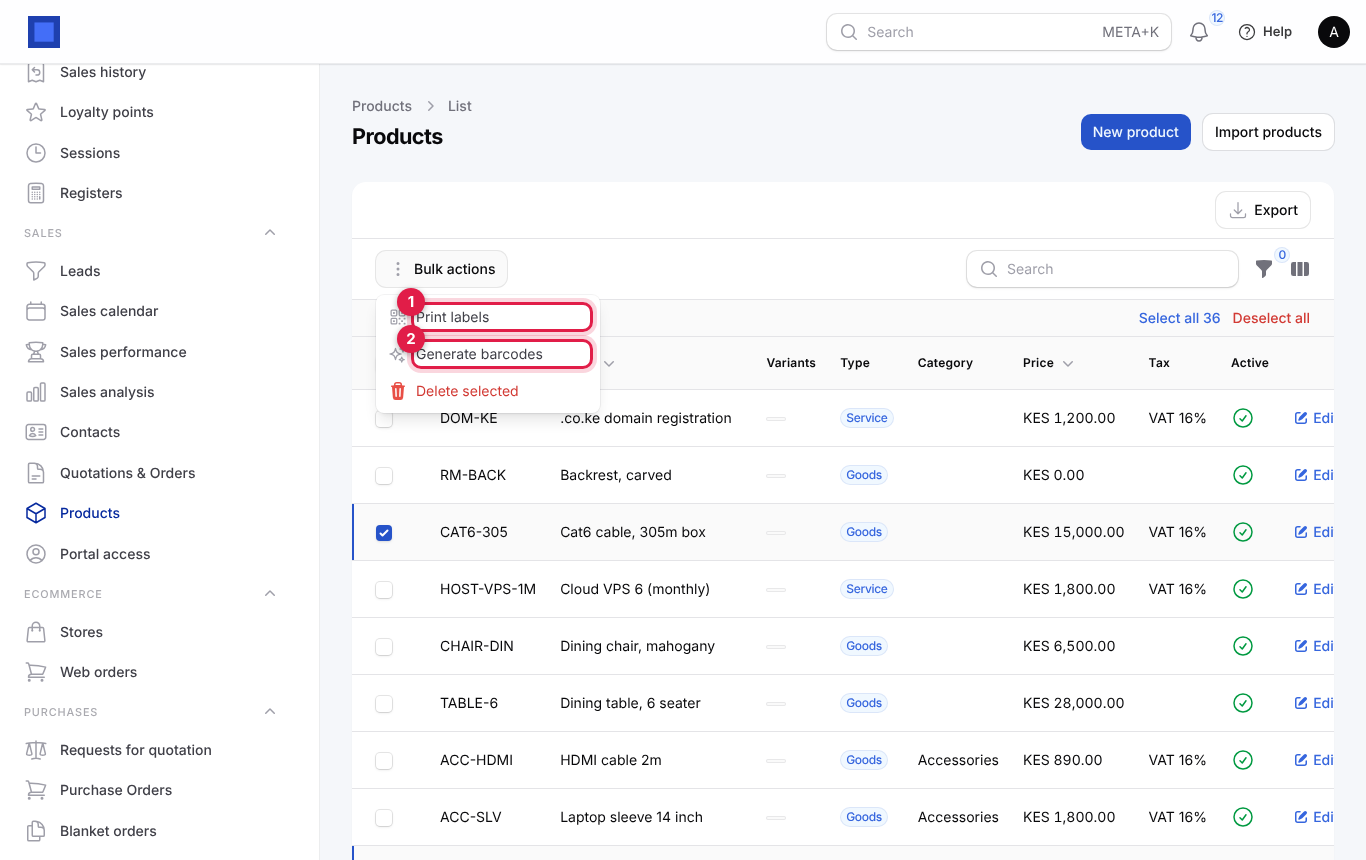
- Click Bulk actions and choose Print labels (marker 1). Generate barcodes (marker 2) gives an in-store EAN-13 code to every ticked product that has none; products that already have one are left alone.
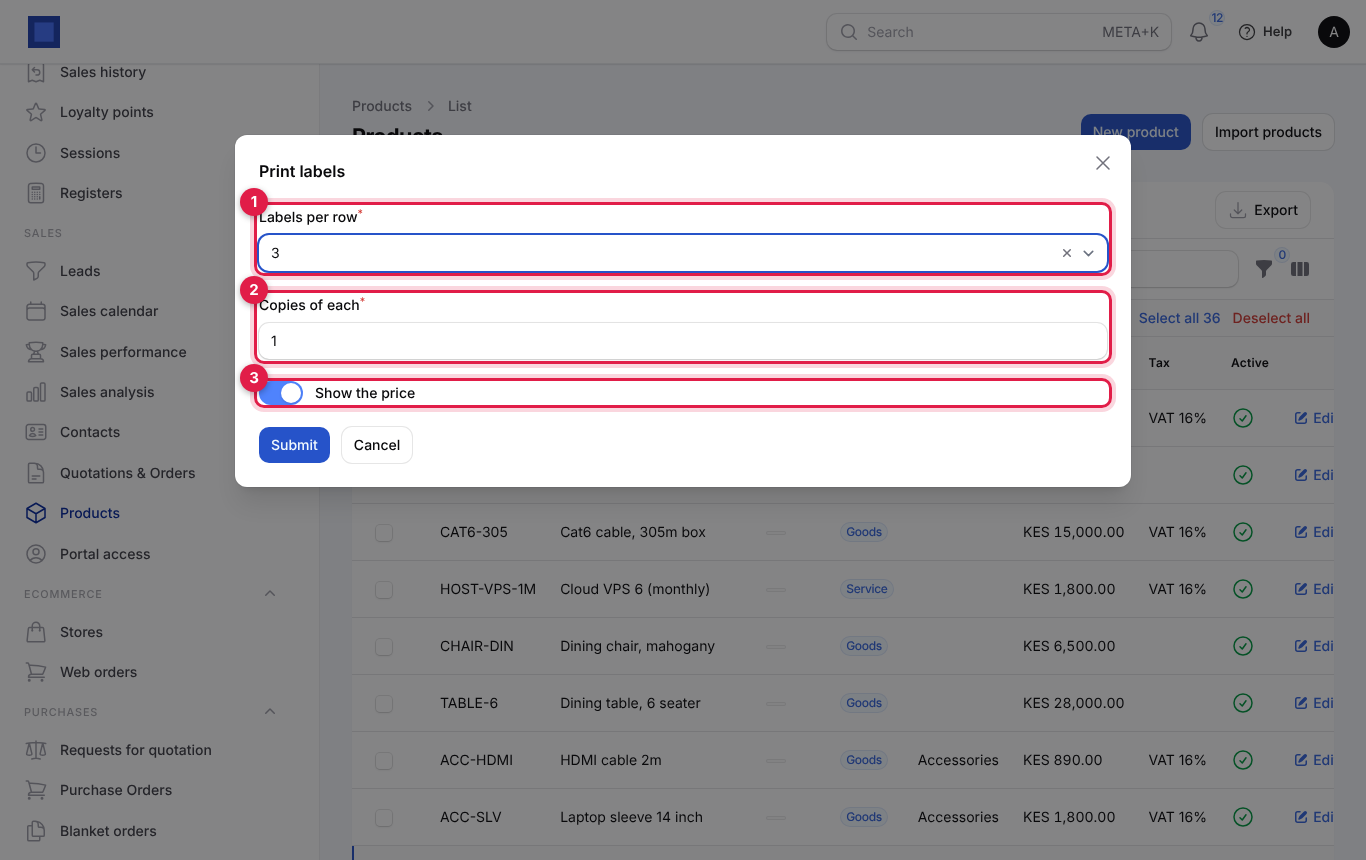
- In the window, choose Labels per row (marker 1): 2, 3 or 4; Copies of each (marker 2): 1 to 50; and whether to Show the price (marker 3).
- Click Submit. A PDF called labels.pdf downloads, ready for A4 label sheets.
Each label shows the name, the price (if chosen) and a scannable barcode. A product with no barcode prints its SKU as the barcode instead; one with neither is skipped.
Give customers special prices with price lists
A price list sets prices for some customers, and can give lower prices for larger quantities.
How a price is chosen on a quotation or order line:
- The price list on the quotation, which is filled from the customer's Price list on their contact.
- If the customer has none, the company's default price list (the one marked Default for customers without a price list).
- If there is no list, or the list has no rule for the product, the product's Sale price.
Within a list, the rule with the highest From quantity that the line's quantity reaches wins.
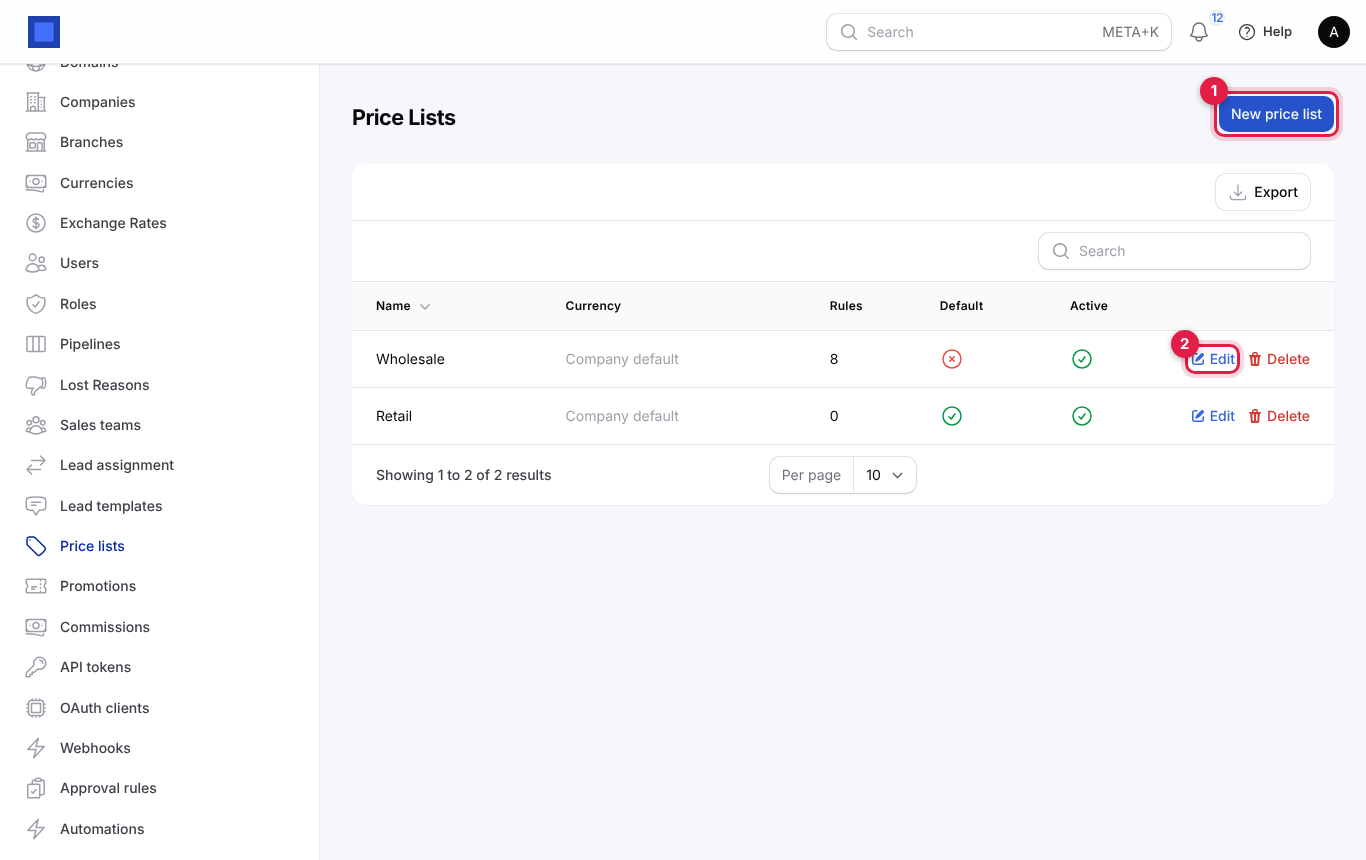
- Open Settings → Price lists and click New price list (marker 1), or Edit on a list (marker 2).
- Fill in the top of the form:
| Field | What to enter |
|---|---|
| Company (required) | The company whose products the list prices. |
| Name (required) | For example "Wholesale", "Retail", "NGO rates". |
| Currency | Company default, or a currency if the list is for foreign customers. |
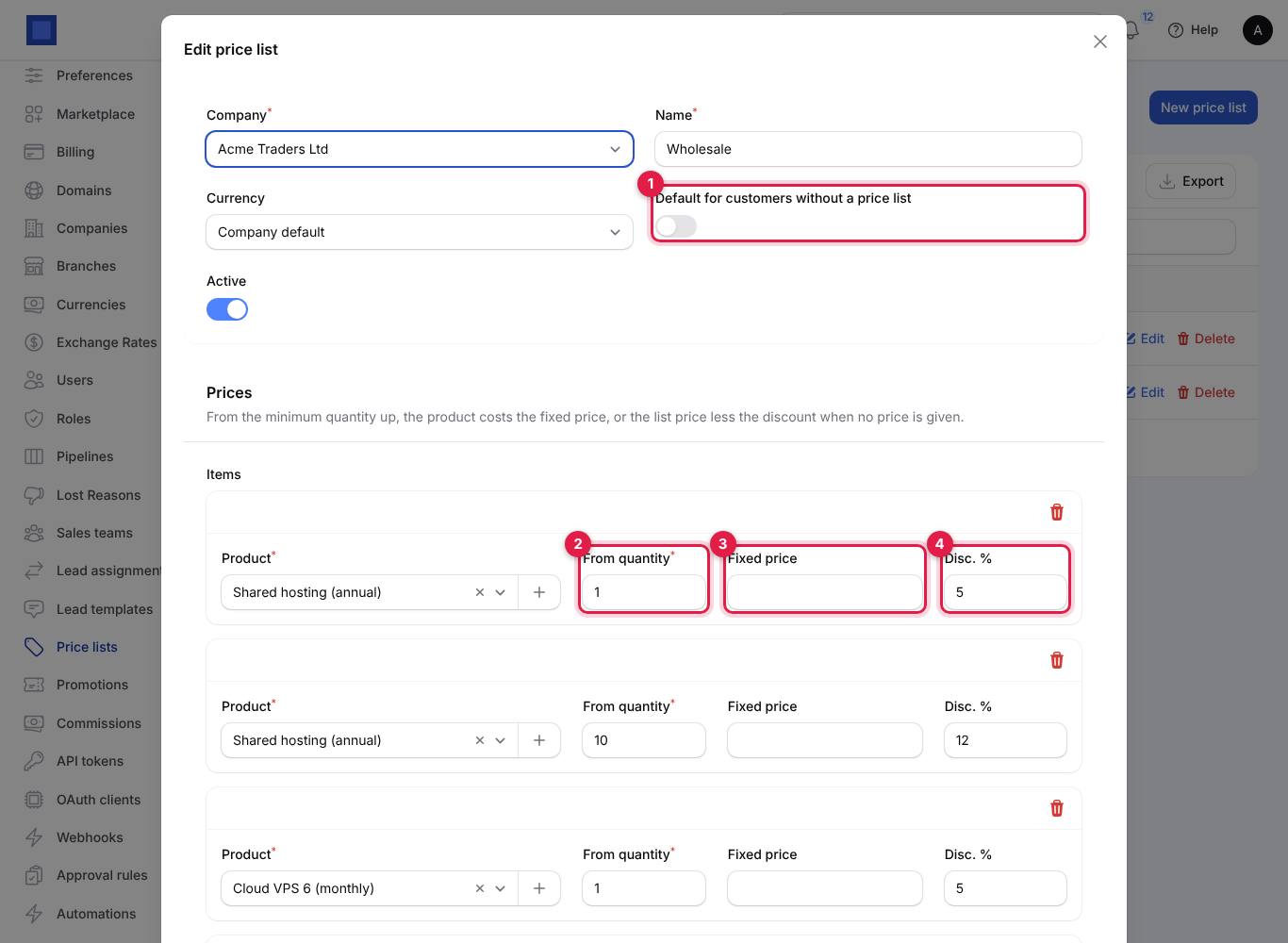
| Default for customers without a price list (marker 1) | On for at most one list: it applies to every customer who has no list of their own. |
| Active | Off hides the list from contacts and quotations. |
- Under Prices, add one row per product and quantity band:
| Field | What to enter |
|---|---|
| Product (required) | A product that can be sold. |
| From quantity (marker 2) | The quantity from which this row applies, for example 1, then 10, then 50. |
| Fixed price (marker 3) | A price per unit. When filled, it replaces the sale price. |
| Disc. % (marker 4) | A percentage off the product's sale price, used when Fixed price is empty. It shows on the line's Disc. % column. |
- Click Save changes. The list shows how many Rules each list has.
- Give customers the list: open each customer under Sales → Contacts and choose it in Price list.
Note: Price lists apply on quotations and orders when you pick the product or change the quantity. Invoices typed directly use the product's sale price; create them from the order to keep the list prices.
Run a promotion code
Promotion codes give a percentage or a fixed amount off a quotation or order, for example "LAUNCH10" for 10% off during a launch month.
- Open Settings → Promotions and click New promotion, or Edit on a code.
- Fill in the form and save.
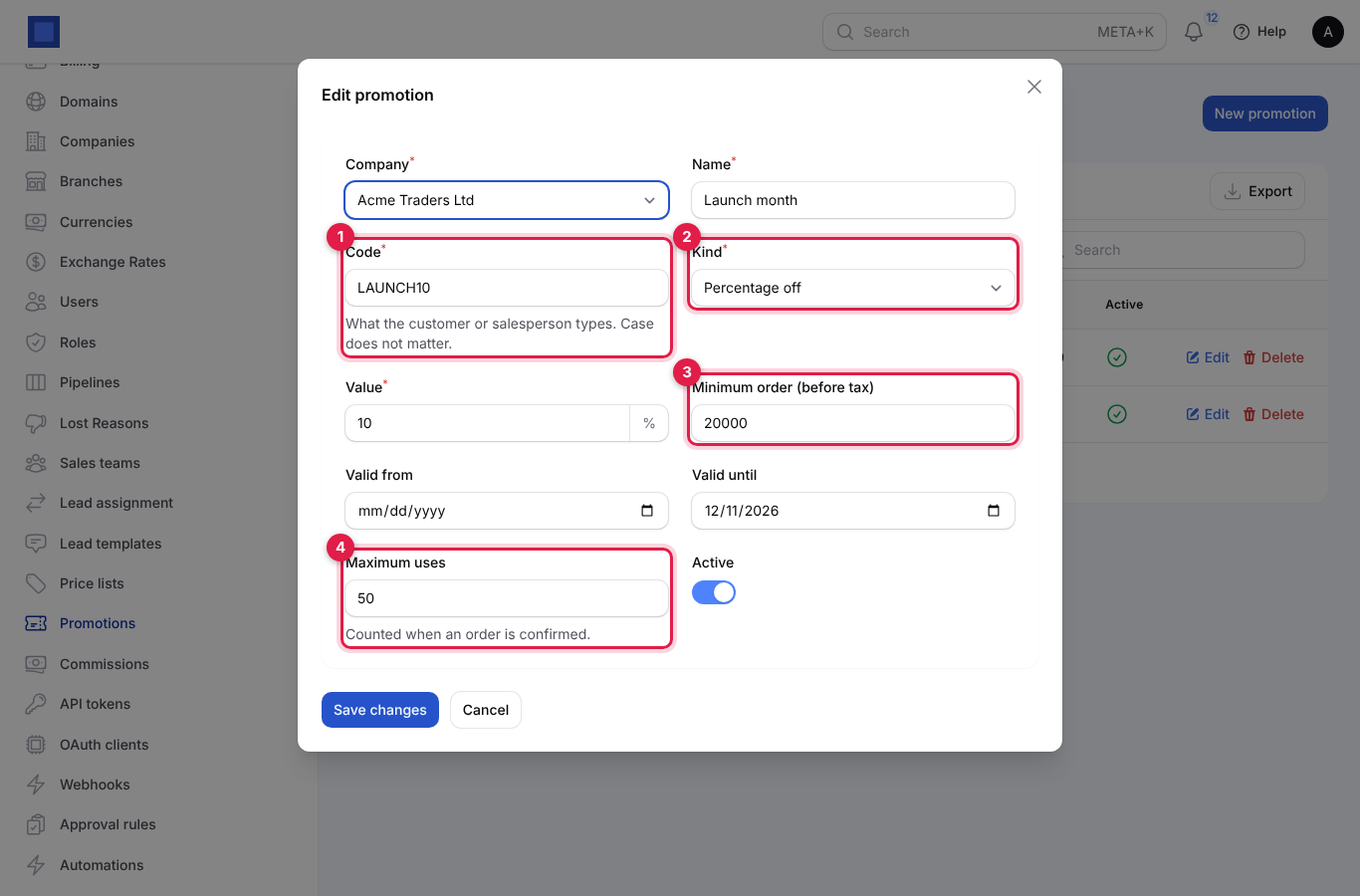
| Field | What to enter |
|---|---|
| Company, Name (required) | For example "Launch month". |
| Code (required, marker 1) | What the customer or salesperson types. Capital or small letters do not matter. |
| Kind (required, marker 2) | Percentage off or Fixed amount off. |
| Value (required) | The percentage or the amount. |
| Minimum order (before tax) (marker 3) | The code only works on orders at least this big. |
| Valid from, Valid until | The dates the code works. Empty means no limit. |
| Maximum uses (marker 4) | How many orders may use it. Counted when an order is confirmed. |
| Active | Switch off to stop the code at once. |
The list shows each code, its value, minimum order, end date and Used count (for example "3 / 50").
To apply a code, open a draft or sent quotation and click Promotion code; see Quotations and orders. If the code cannot be used, the message says why, for example "This code needs an order of at least 5,000.00" or "Unknown promotion code."
Add a record from inside a dropdown
When the customer, vendor or product you need is not in a dropdown, you do not have to leave the page. A + next to the field adds it and selects it.
- On any form, look for the + at the right of the field, for example Customer (marker 1) or a line's Product (marker 2).
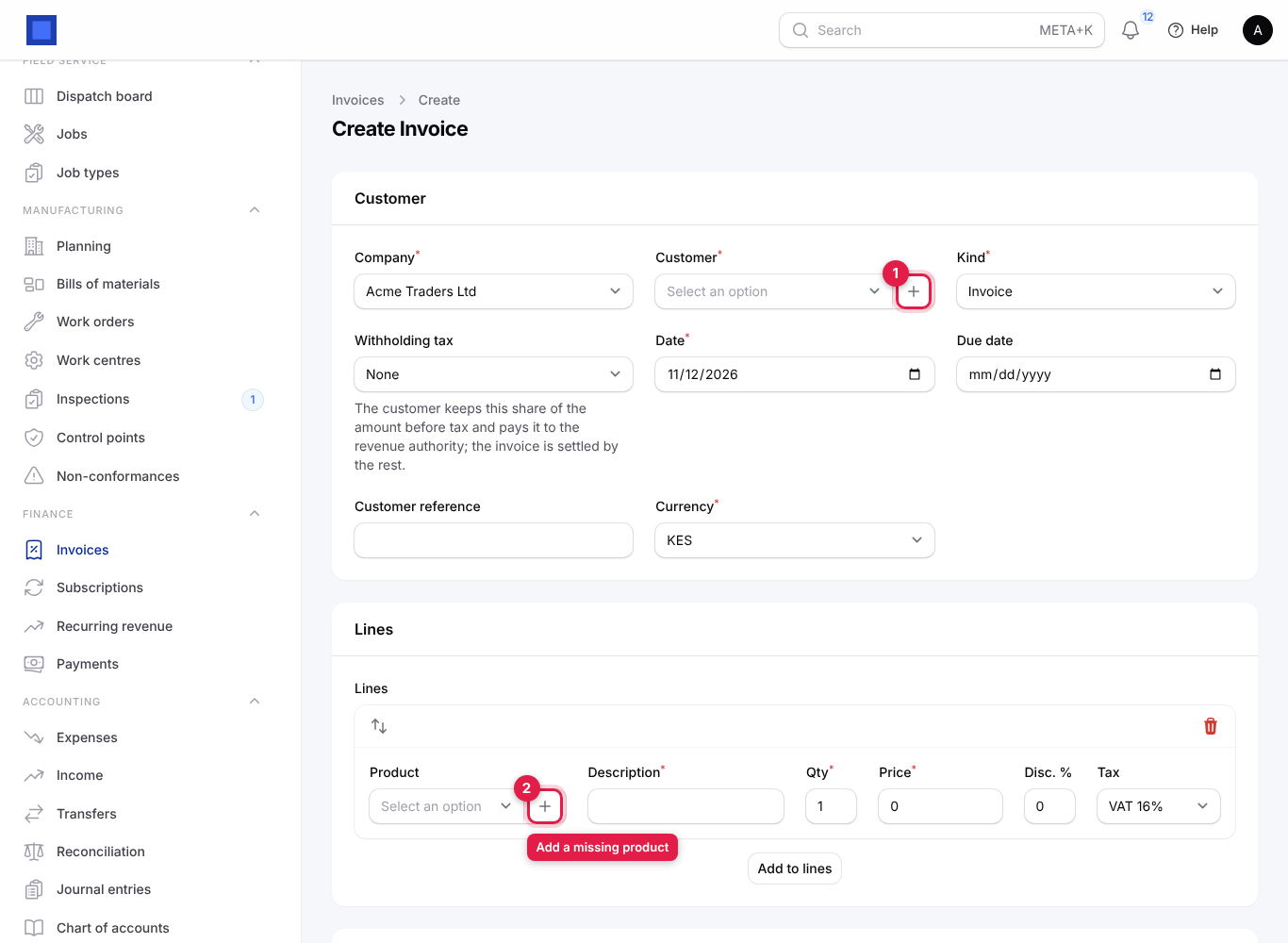
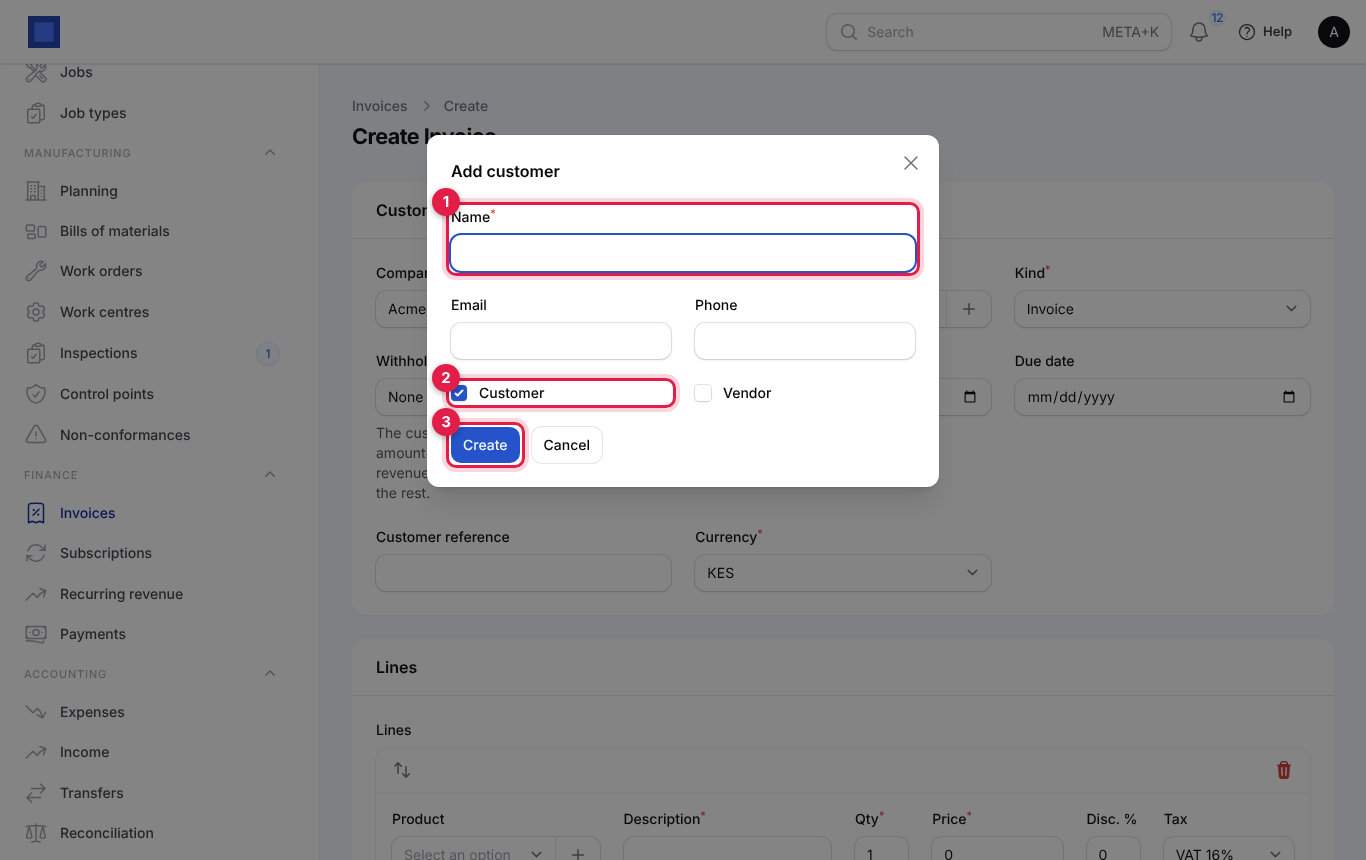
- Click it. A short form opens. For a contact, type the Name (marker 1), optionally the email and phone, and check Customer or Vendor (marker 2; the right one is ticked for you).
- Click Create (marker 3). The new record is saved for the same company as the document and selected in the field. A green "Added and selected." message confirms it.
For a product, the short form asks for the Name, the Type (marker 1, Goods or Service), the SKU, the Sale price (marker 2) and the Cost price.
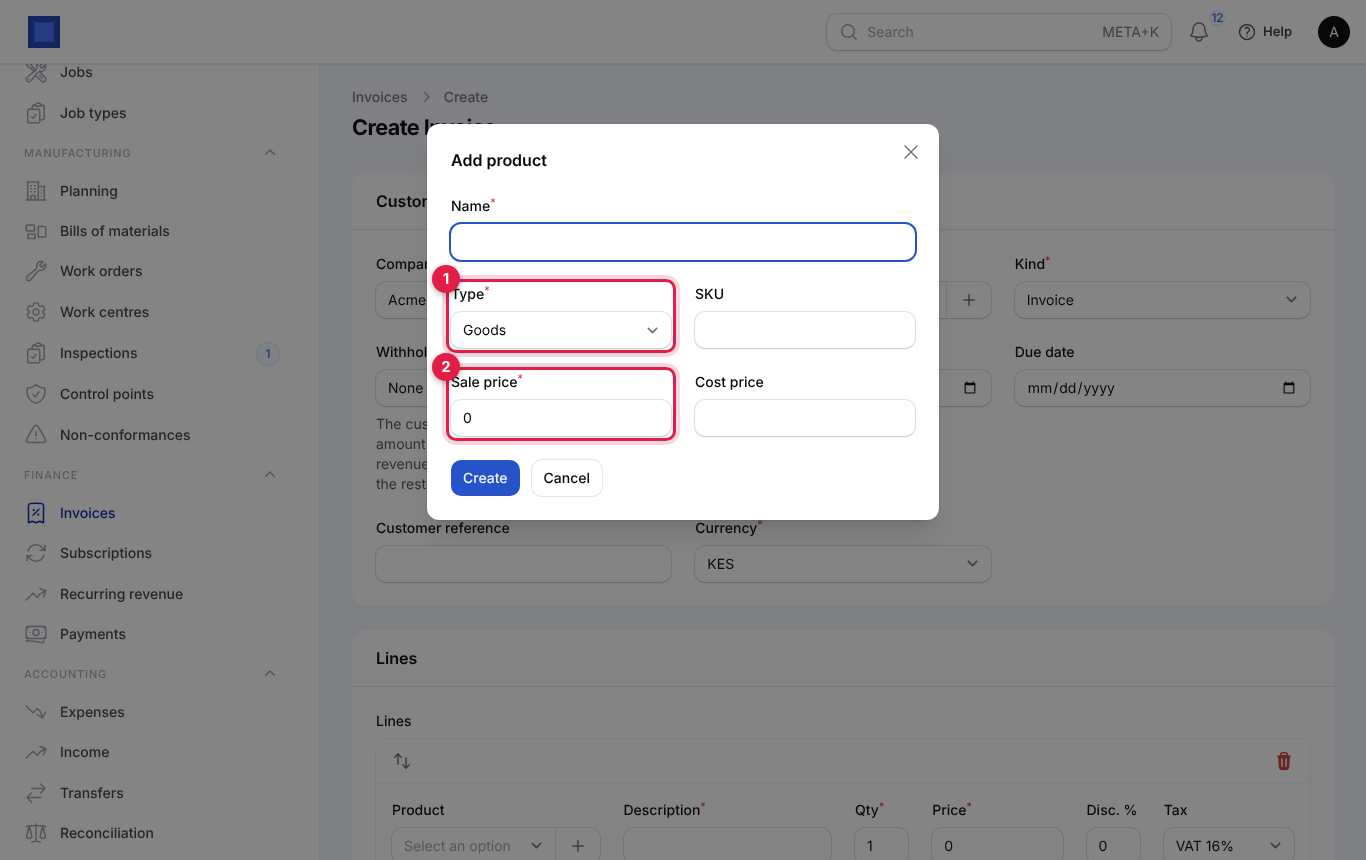
The + works on these fields across the app: customers, vendors and contacts; products; preferred vendors; warehouses; departments; cost centres; and accounts. It only shows when the matching app is on and you are allowed to manage that kind of record (for example contacts.manage for contacts, sales.products.manage for products). Fill in the rest of the record later from its own page.
Common questions
Why is my product missing from the quotation or invoice line? It is inactive, Can be sold is off, or it belongs to another company than the document. A template product with variants is not sold itself; pick a variant.
Can a product have a different price for one customer? Yes: put it on a price list and give the customer that list. For a one-off, just type a different Price on the line.
Do price changes affect old invoices? No. Lines keep the price they were created with.
How do I sell a subscription plan? Create a service product with Billed every set, for example "Shared hosting (annual)" billed every Year. See Subscriptions.
Can I undo generated variants? Each variant is a product. Switch off Active on the ones you do not sell, or delete them from the list.
"None of the chosen products has a barcode or SKU to print." Give the products a barcode (use Generate barcodes) or an SKU first.