Car Dealership
Car Dealership is for car yards, importers and dealers. You keep every vehicle in stock with its chassis and engine numbers, what it cost to buy and to get ready for sale, an asking and a minimum price, where it is in the yard and which duty and import papers you hold. You log test drives with the driver's licence and the mileage out and back. Deals take the price, add-ons such as insurance and a tracker, a trade-in, a deposit and finance by a bank or by your own monthly instalments; the deposit, the sale, the bank's share and each instalment are invoiced through Invoicing. Every deal shows its gross profit, the paperwork prints as PDFs, and a stock ageing report shows how long each vehicle has waited and the money tied up in the yard.
It is in the Car dealership group of the left menu: Stock, Test drives, Deals and Stock ageing.
Note: car_dealer.view lets someone see stock, test drives, deals, the stock ageing report and print the deal PDFs. car_dealer.manage adds adding and changing vehicles, test drives and deals, and every step of a deal: confirming, taking the deposit, completing, delivering and cancelling. Opening a deal's invoices also needs invoicing.view. Owners and admins have everything; the member role has car_dealer.view. Set permissions under Settings → Roles.
Switch it on
Car Dealership is a marketplace add-on. It needs the Contacts and Invoicing apps. With CRM on, test drives and deals can be tied to a lead, and the lead is marked won when the deal completes. With Garage on, a delivered car is added to the workshop's vehicles under the buyer.
- Open Settings → Marketplace and type Car dealership in the Search add-ons… box (marker 1).
- On the Car dealership card (marker 2), click Start free trial (or Add to subscription) and confirm. The Car dealership group appears in the menu.
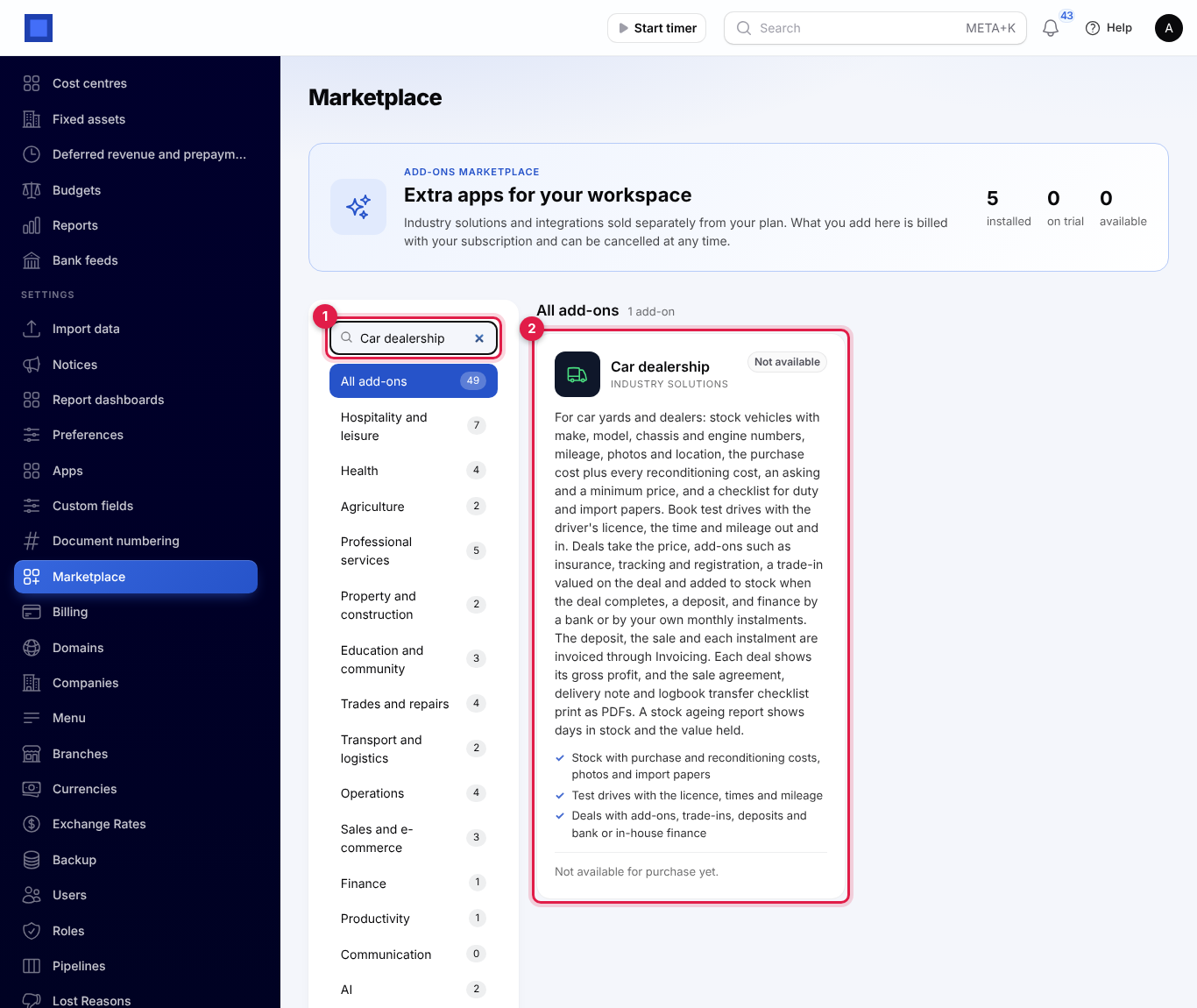
If the card says Not available for purchase yet, the add-on has not been priced for your plan: ask NaliSuite support to switch it on. See Billing and marketplace.
Car dealership settings
- Open Settings → Preferences and click the Car dealership tab (marker 1).
- Fill in the fields and click Save preferences (marker 8).
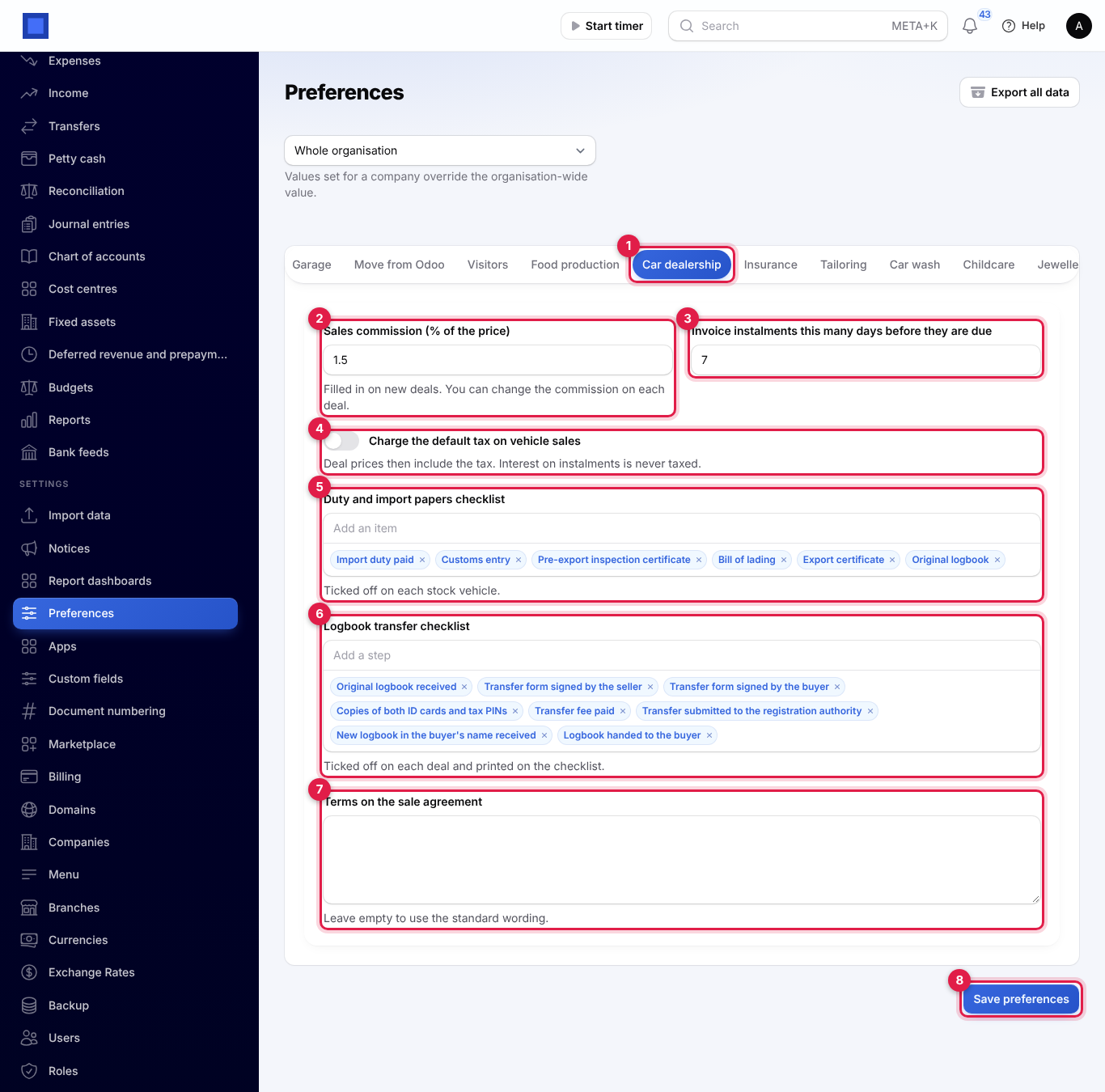
| Setting | Default | What it does |
|---|---|---|
| Sales commission (% of the price) (marker 2) | 0 | Filled in as the Commission on new deals, as a percentage of the selling price. You can change it on each deal. It comes off the gross profit. |
| Invoice instalments this many days before they are due (marker 3) | 7 | 0 to 60. How early each in-house instalment is invoiced. |
| Charge the default tax on vehicle sales (marker 4) | Off | Deal invoices carry your default tax (for example VAT 16%), and deal prices then include it. Interest on instalments is never taxed. |
| Duty and import papers checklist (marker 5) | Import duty paid, Customs entry, Pre-export inspection certificate, Bill of lading, Export certificate, Original logbook | The papers ticked off on each stock vehicle. Type an item and press Enter to add it; click the × to remove one. |
| Logbook transfer checklist (marker 6) | Original logbook received; Transfer form signed by the seller; Transfer form signed by the buyer; Copies of both ID cards and tax PINs; Transfer fee paid; Transfer submitted to the registration authority; New logbook in the buyer's name received; Logbook handed to the buyer | The steps ticked off on each deal and printed on the logbook transfer checklist. |
| Terms on the sale agreement (marker 7) | Empty | Your own terms for the sale agreement. Left empty, it says: "The vehicle is sold as seen and inspected by the buyer. Ownership passes to the buyer once the full price has been paid. Until then the logbook stays with the seller." |
The dropdown at the top of Preferences lets one company use different settings from the rest of the organisation.
The stock list
Open Car dealership → Stock.
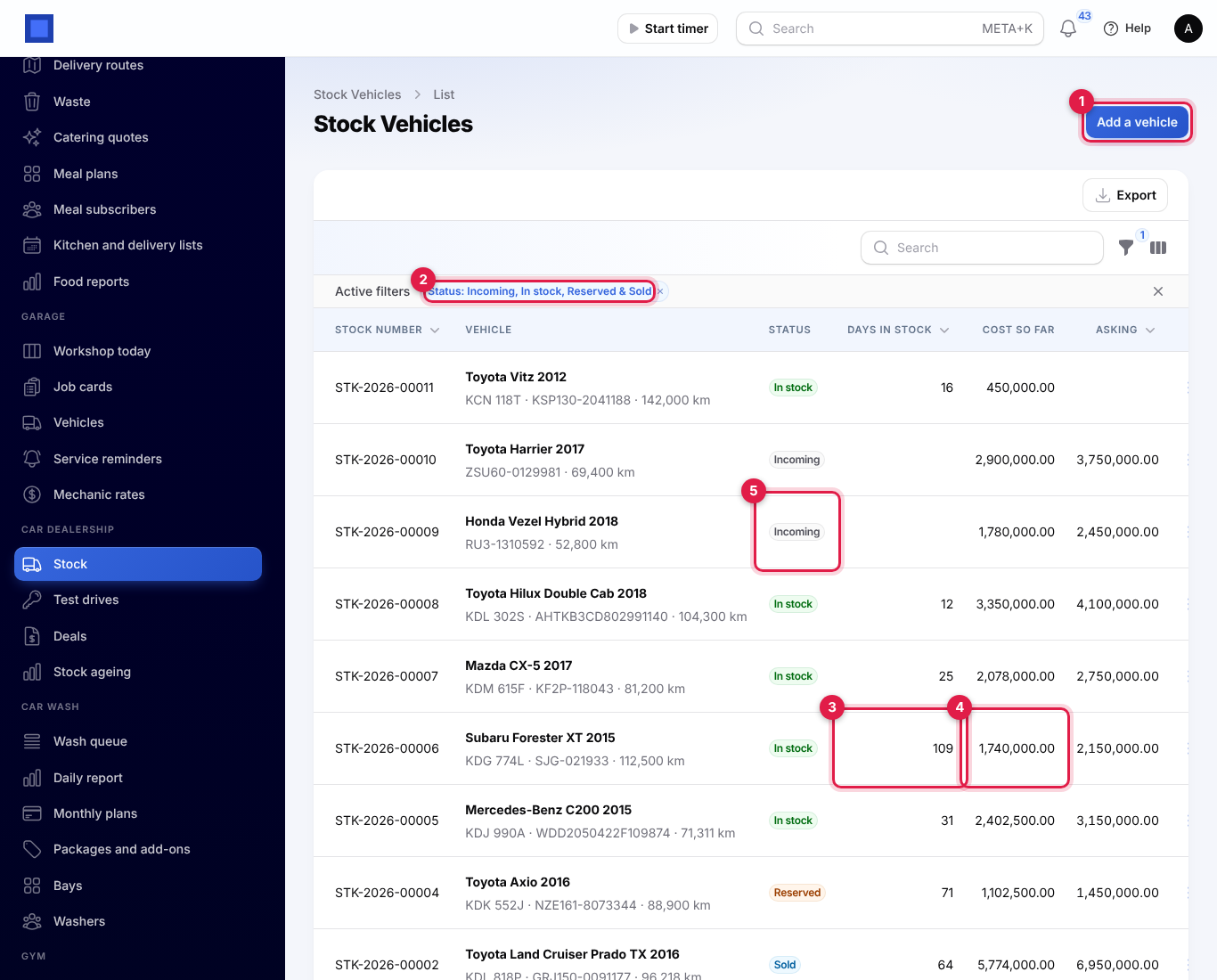
- Each vehicle has a stock number such as STK-2026-00006, starting again at 1 each year.
- Vehicle shows the make, model and year, with the registration plate, chassis number and mileage under it.
- Status is Incoming (bought, not yet in the yard, marker 5), In stock, Reserved (a deal is confirmed), Sold (the deal is completed) or Delivered.
- Days in stock (marker 3) counts from the day the vehicle went into stock and stops when it is sold. Incoming vehicles show nothing yet.
- Cost so far (marker 4) is the purchase cost plus every reconditioning cost. Asking is the asking price; the Location column can be shown with the columns icon.
- The list hides delivered vehicles: the Status filter (marker 2) starts on Incoming, In stock, Reserved and Sold. Remove it to see them all. There is also a Fuel filter.
- Search by make, model, chassis number or registration. Vehicles can also be found from the search box at the top of every page.
The ⋮ menu at the end of each row has Edit and the vehicle's actions:
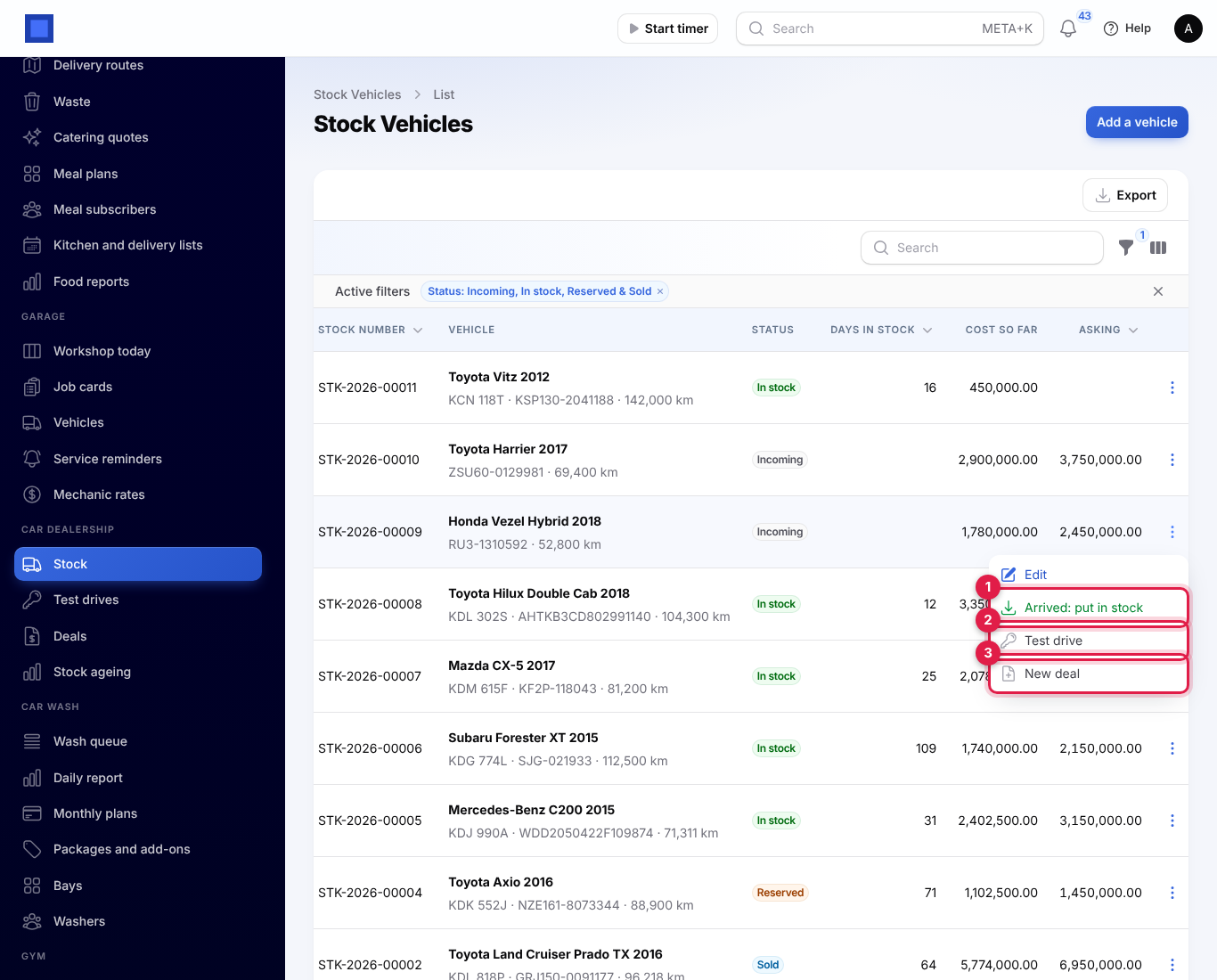
- Arrived: put in stock (marker 1, incoming vehicles): choose the Arrived on date. The vehicle becomes In stock and its days in stock start from that date.
- Test drive (marker 2): see Test drives.
- New deal (marker 3, incoming and in-stock vehicles): opens a new deal for this vehicle at its asking price.
Add a vehicle to stock
- On Stock, click Add a vehicle (marker 1 in the list screenshot).
- Fill in the sections below and click Create. The vehicle gets the next stock number.
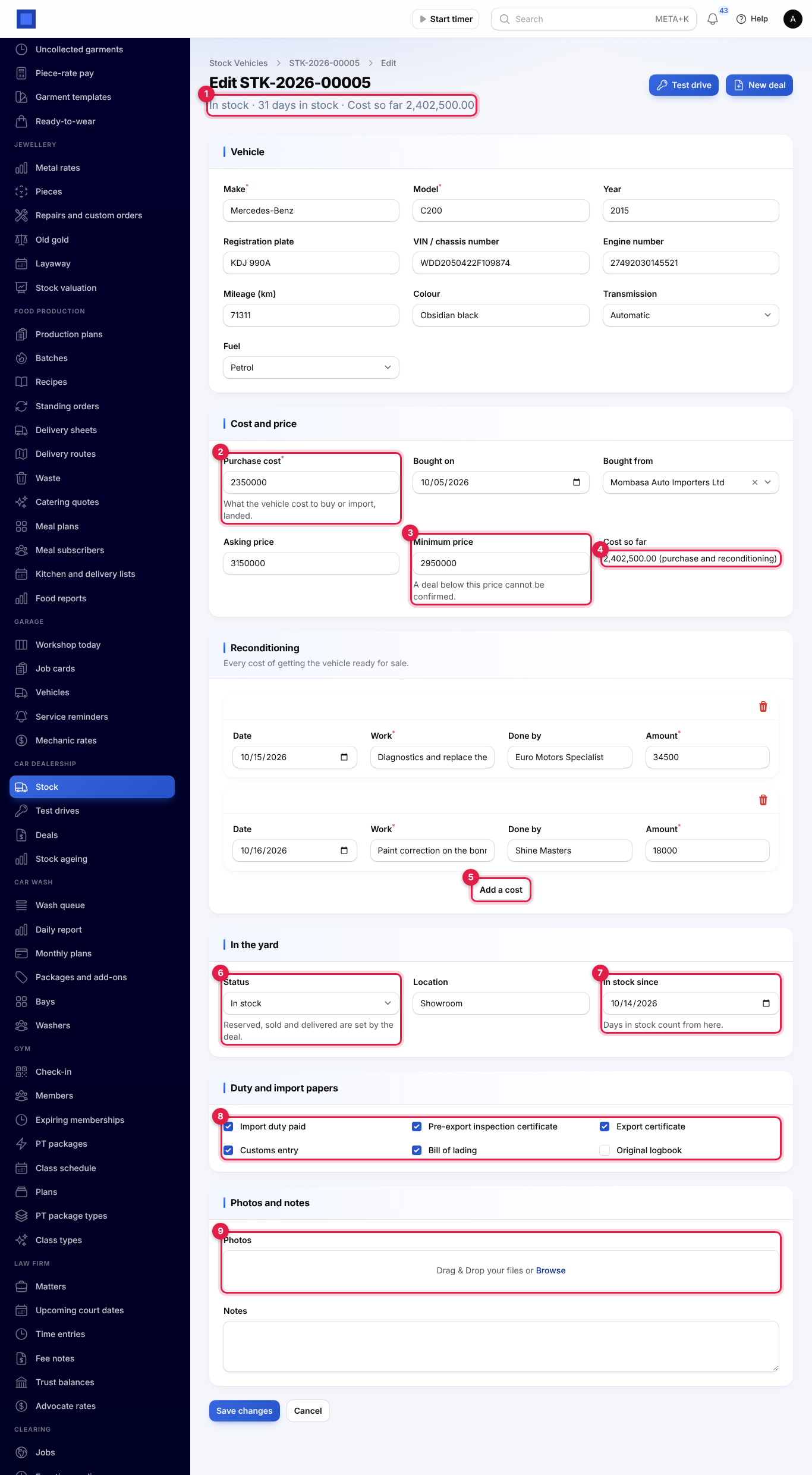
The same form opens with Edit. At the top of an existing vehicle you see its status, days in stock and cost so far (marker 1), and the Test drive and New deal buttons.
Vehicle
| Field | What to enter |
|---|---|
| Make and Model (required) | For example Toyota and Axio. |
| Year | The year of manufacture. |
| Registration plate | For example KDA 123A; saved in capitals. Leave empty for a car not yet registered. |
| VIN / chassis number | Saved in capitals. Two vehicles still held by you cannot share a chassis number: you see "A vehicle with chassis number … is already in stock." |
| Engine number, Mileage (km), Colour, Transmission (Manual, Automatic, CVT), Fuel (Petrol, Diesel, Hybrid, Electric, Gas (LPG)) | As on the vehicle. The mileage moves on by itself after test drives. |
Cost and price
| Field | What to enter |
|---|---|
| Purchase cost (required, marker 2) | What the vehicle cost to buy or import, landed: price, shipping, duty and clearing. |
| Bought on and Bought from | The date, and the supplier from your contacts. |
| Asking price | Your price. A new deal starts at this price. |
| Minimum price (marker 3) | The lowest you accept. A deal below it cannot be confirmed. It cannot be more than the asking price. |
| Cost so far (marker 4) | Worked out for you: the purchase cost plus reconditioning. |
Reconditioning. Click Add a cost (marker 5) for every cost of getting the vehicle ready: the Date, the Work (for example Full service and new tyres), who it was Done by and the Amount. The bin removes a cost. The total is added to the cost so far, and comes off the gross profit when the vehicle is sold.
In the yard
| Field | What to enter |
|---|---|
| Status (marker 6) | Incoming or In stock for a new vehicle. Reserved, sold and delivered are set by the deal and cannot be changed here. |
| Location | For example Main yard, bay 4 or Mombasa port, clearing. |
| In stock since (marker 7) | Days in stock count from here. Filled in with today when the vehicle goes into stock. |
Duty and import papers. Tick each paper you hold (marker 8). The list comes from the checklist in settings.
Photos and notes. Upload up to 12 Photos (marker 9), up to 8 MB each; drag them to change the order. Add any Notes.
Test drives
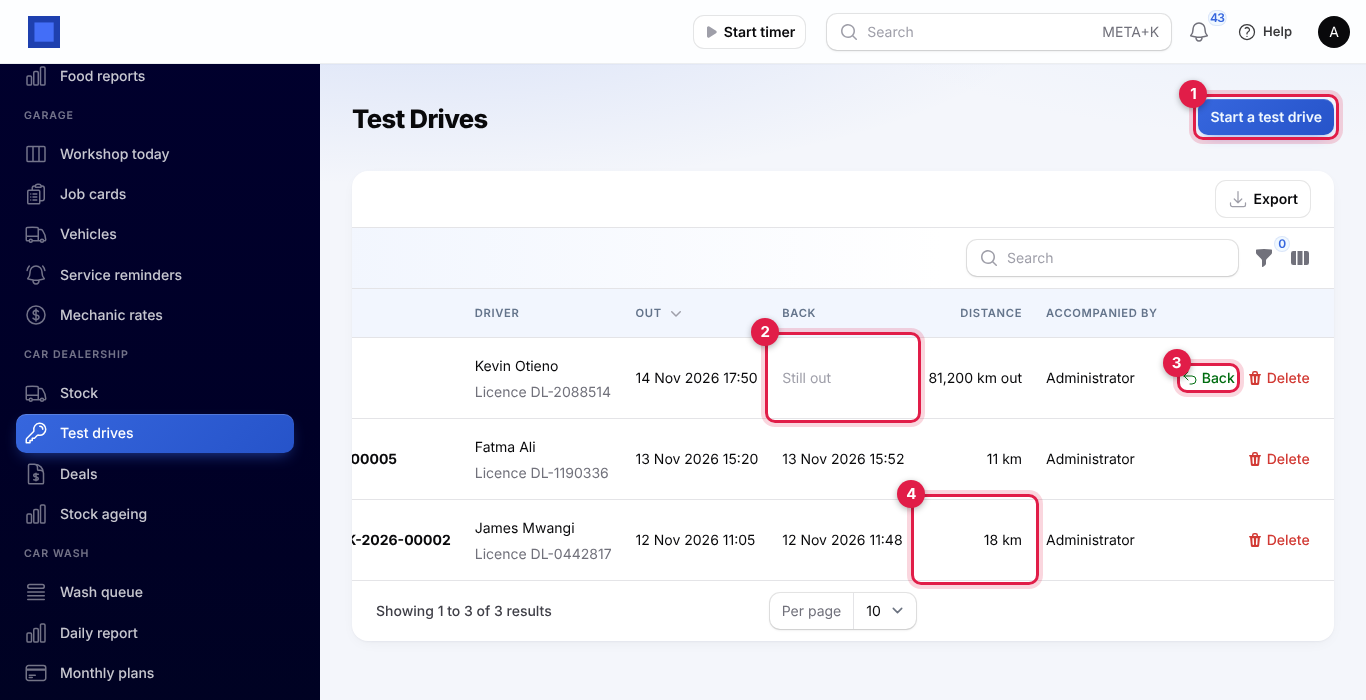
Open Car dealership → Test drives to see every test drive, newest first: the Vehicle, the Driver with their licence number, the time Out, the time Back ("Still out" while the car is out, marker 2), the Distance driven (marker 4; while out, the mileage it left with) and who Accompanied by. Use the Still out filter to see the cars out now.
Send a vehicle out
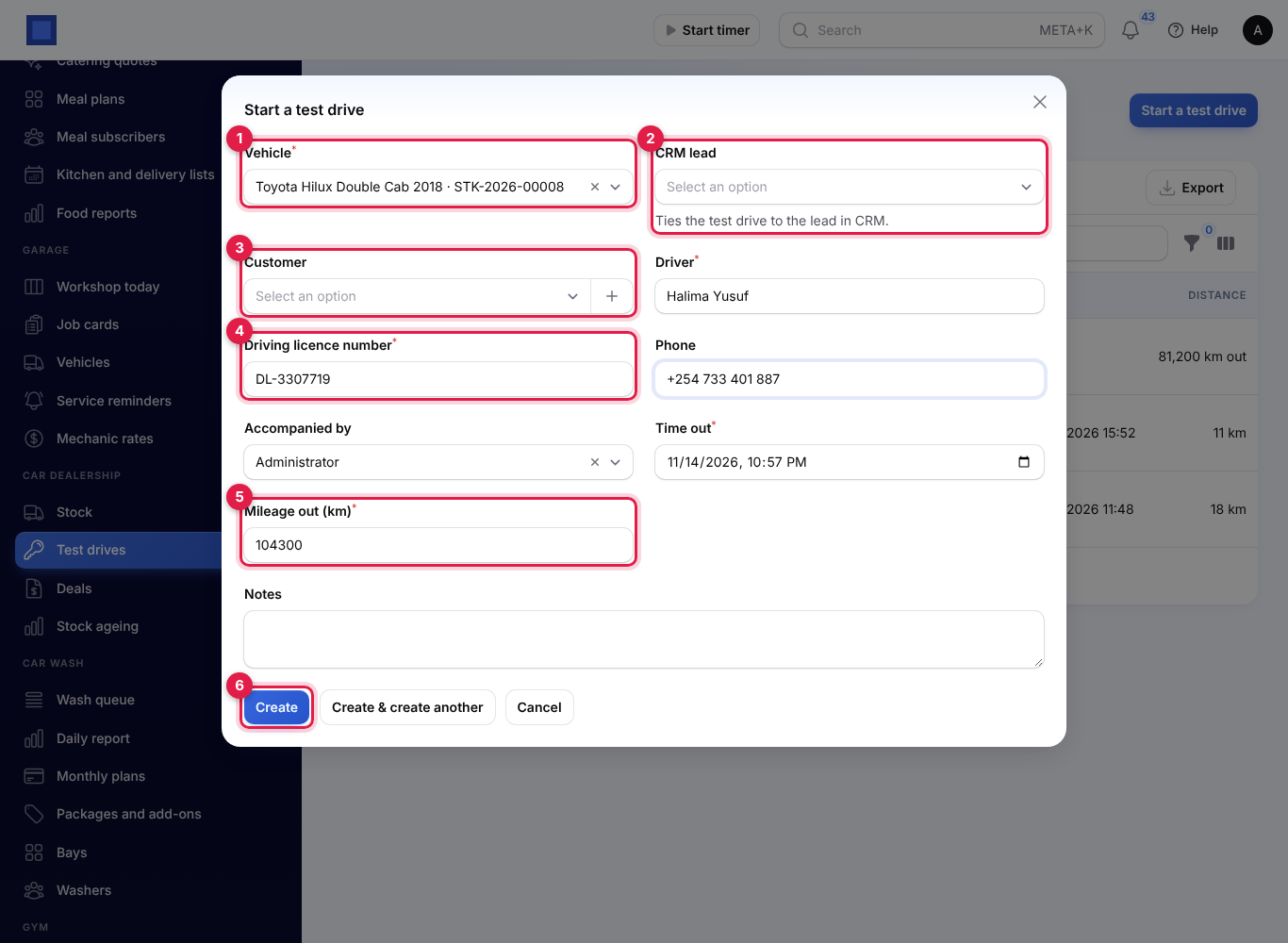
- Click Start a test drive (marker 1), or Test drive on a vehicle in the stock list or on the vehicle itself.
- Fill in the form and click Create (marker 6).
| Field | What to enter |
|---|---|
| Vehicle (required, marker 1) | Incoming, in-stock and reserved vehicles. Choosing one fills in its mileage. |
| CRM lead (marker 2) | Shown when CRM is on. Ties the test drive to an open lead. |
| Customer (marker 3) | A contact. Choosing one fills in the driver's name and phone when they are empty. |
| Driver (required) | Who is driving. |
| Driving licence number (required, marker 4) | Saved in capitals. |
| Phone | The driver's phone. |
| Accompanied by | The member of staff who went along. Defaults to you. |
| Time out (required) | Defaults to now. |
| Mileage out (km) (required, marker 5) | The odometer reading as the car leaves. |
| Notes | For example the route. |
A vehicle cannot go out twice at the same time, and a sold vehicle cannot go out.
When the vehicle is back
- Click Back (marker 3 in the list screenshot) on the test drive.
- Enter the Mileage in (km) (not less than the mileage out), the Time in (not before the time out) and any Feedback from the driver.
- Click Submit. The feedback is added to the notes, and the vehicle's mileage moves on to the mileage in.
Delete removes a test drive logged by mistake.
Make a deal
- Click New deal on a vehicle, or open Car dealership → Deals and click New deal.
- Fill in the deal and click Create. It gets a number such as CD-2026-00005 and starts as a Draft.
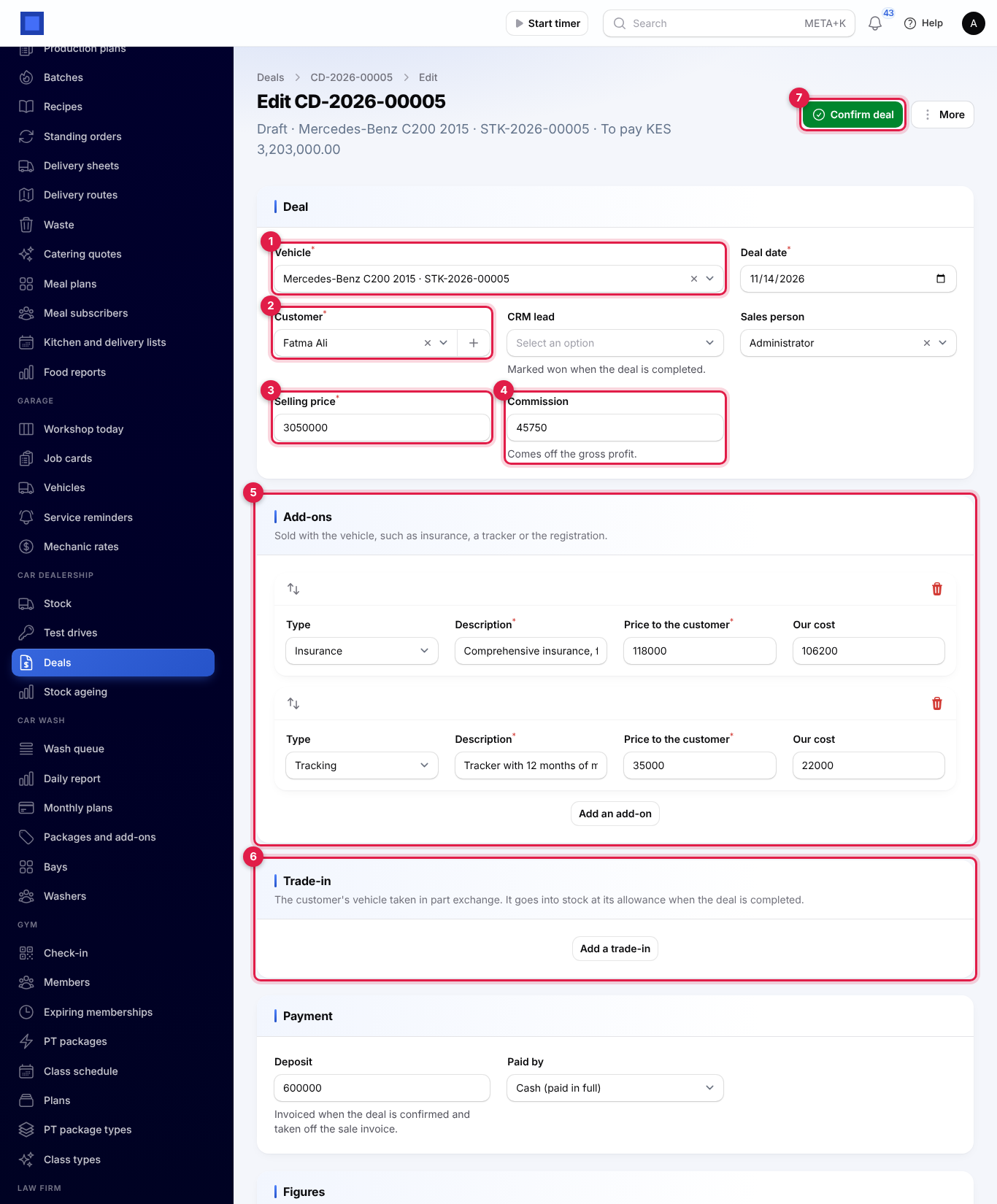
A draft can be changed and saved as often as you like. Here is a draft with its add-ons:
Deal
| Field | What to enter |
|---|---|
| Vehicle (required, marker 1) | Incoming and in-stock vehicles. Choosing one fills in its asking price. |
| Deal date (required) | Defaults to today. |
| Customer (required, marker 2) | A contact. Click + to add a new customer with their name, mobile and email. |
| CRM lead | Shown when CRM is on. The lead is marked won when the deal is completed. |
| Sales person | Defaults to you. |
| Selling price (required, marker 3) | The price of the vehicle alone. |
| Commission (marker 4) | The sales person's commission. Left empty, it is worked out from the percentage in settings. It comes off the gross profit. |
Add-ons (marker 5). Click Add an add-on for each thing sold with the vehicle: the Type (Insurance, Tracking, Registration and plates or Other), a Description, the Price to the customer and Our cost. Add-ons are added to what the customer pays; their margin is shown on its own and not in the vehicle's gross profit.
Trade-in (marker 6). Click Add a trade-in for the customer's own vehicle taken in part exchange (up to three): the same vehicle details as stock, the Allowance you give for it and its Condition. The allowance comes off what the customer pays. When the deal is completed, the trade-in goes into your stock as a new vehicle, bought from the customer at its allowance.
Deposit and finance
The Payment section and, once the deal is saved, its Figures, Logbook transfer checklist and, for in-house finance, the Instalment schedule:
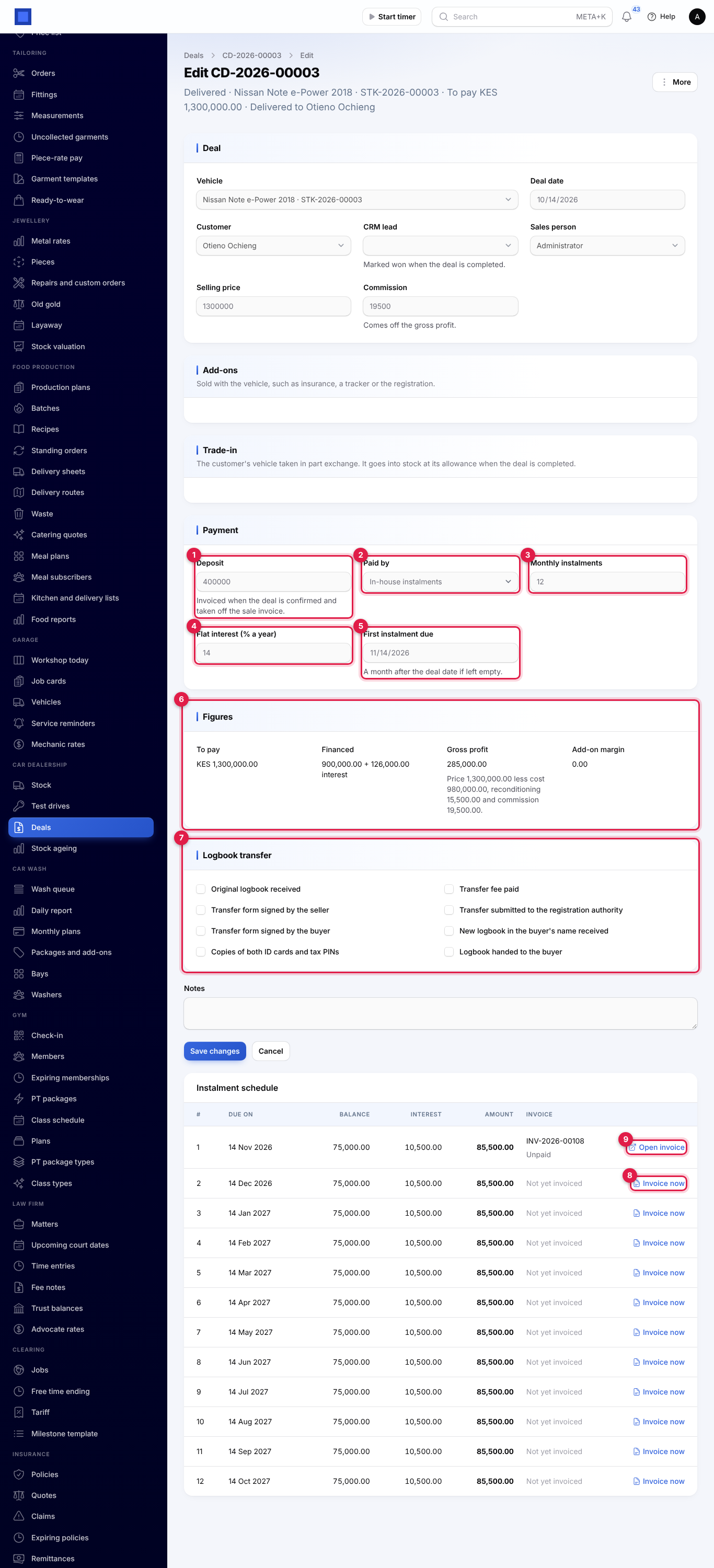
| Field | What to enter |
|---|---|
| Deposit (marker 1) | Invoiced when the deal is confirmed and taken off the sale invoice. Can be 0 for a cash deal. |
| Paid by (marker 2) | Cash (paid in full), Bank or finance company or In-house instalments. |
| Bank or finance company | For bank finance: the bank, from your contacts. The bank is invoiced for the amount it finances. |
| Monthly instalments (marker 3) | For in-house finance: 1 to 120. |
| Flat interest (% a year) (marker 4) | For in-house finance: interest on the amount financed, for example 14. |
| First instalment due (marker 5) | For in-house finance. A month after the deal date if left empty. |
The Figures (marker 6) are worked out for you:
- To pay: the selling price plus add-ons, less the trade-in allowance.
- Financed: for bank or in-house finance, what is left after the deposit, with the interest for in-house finance. Flat interest is the amount financed × the yearly rate × the number of months ÷ 12. On 900,000 over 12 months at 14%, that is 126,000.
- Gross profit: the selling price less the purchase cost, reconditioning and commission, with the working under it. When the deal is completed, the cost is fixed at what the vehicle had cost by then.
- Add-on margin: the add-on prices less their cost.
Confirm, complete and deliver
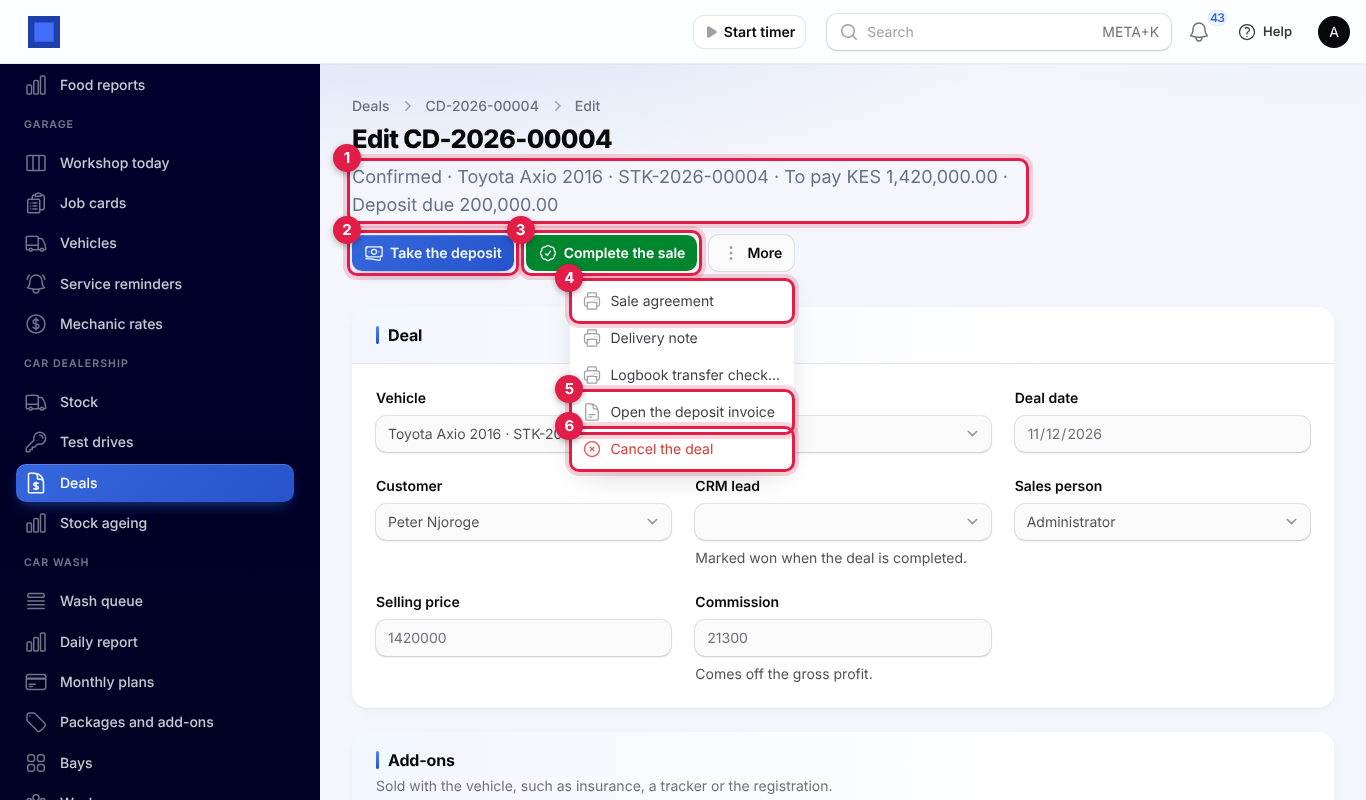
A deal moves through Draft, Confirmed, Completed and Delivered, or is Cancelled. The buttons at the top of the deal show the next step, and the line under the deal number shows its status, the vehicle, what is left to pay and any deposit still due (marker 1).
1. Confirm the deal
Click Confirm deal and confirm. NaliSuite checks that the vehicle is still for sale, that the price is not below its minimum price, that the trade-in allowance is not more than the price and add-ons, and that the deposit is between zero and what is to pay. A financed deal needs a deposit that is more than zero and less than what is to pay, a bank for bank finance, and 1 to 120 instalments for in-house finance.
Then:
- the vehicle becomes Reserved;
- the deposit is invoiced to the customer as a retainer invoice (money held for them until the sale; see Retainers) and issued;
- for in-house finance, the instalment schedule is drawn up: equal monthly instalments of the amount financed and the interest, the last one taking any rounding.
From now on the deal cannot be changed. The Logbook transfer checklist can still be ticked: tick the steps and click Save changes.
2. Take the deposit
- Click Take the deposit (marker 2).
- Enter the Amount (it starts at what is still owed), how it was Paid by (Mobile money, Bank transfer, Cash, Cheque, Card or Other), the Reference (for example the M-Pesa code) and the Date.
- Click Submit (marker 4).
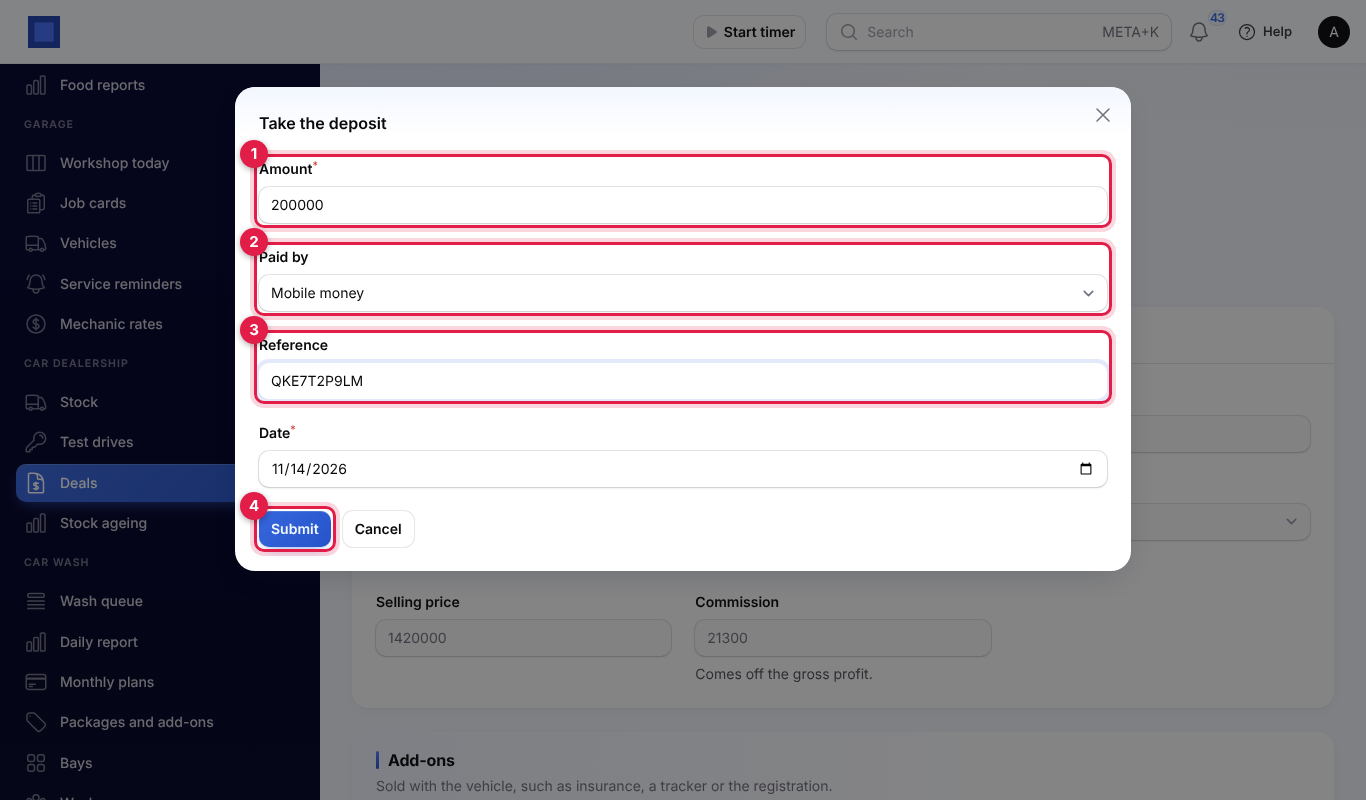
The payment is recorded against the deposit invoice. You can take the deposit in parts; the button stays until it is fully paid.
3. Complete the sale
When the deposit is paid in full, click Complete the sale (marker 3) and confirm. If part of the deposit is still owed, you see "Take the deposit first" with the amount.
Completing the sale:
- issues the sale invoice to the customer: a line for the vehicle with its year, colour, chassis and engine numbers and registration, a line for each add-on, the trade-in allowance taken off, and for a financed deal the financed amount taken off ("Paid by NCBA Bank under finance" or "Balance paid in 12 monthly instalments"); the deposit already paid is used on it;
- for bank finance, issues the bank's invoice for the amount it finances;
- puts each trade-in into stock;
- marks the vehicle Sold and fixes the deal's gross profit;
- marks the CRM lead won;
- for in-house finance, invoices any instalment already due.
4. Deliver the vehicle
- Click Deliver.
- Enter who it was Received by (it starts with the customer's name, marker 1) and the Mileage at delivery (km) (marker 2).
- Click Submit (marker 3).
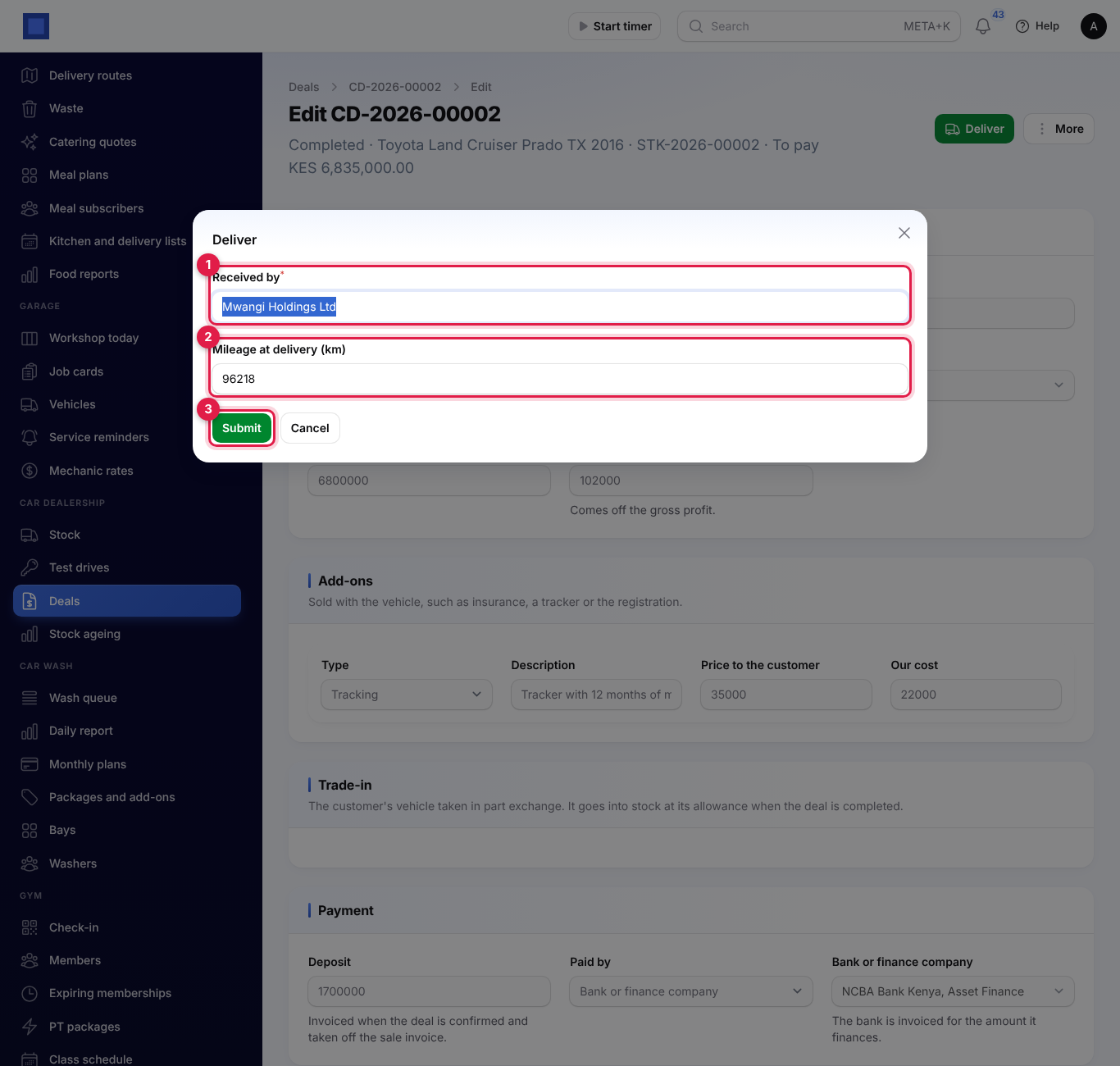
The deal and the vehicle become Delivered. With the Garage app on and a registration plate on the vehicle, the car is added to the workshop's vehicles under the buyer, so its service history starts with you (see Garage and auto workshop).
In-house instalments
Each instalment of an in-house deal is invoiced to the customer automatically, every morning, once it falls due within the number of days in settings, and only after the deal is completed. Each invoice has a line for the instalment of the balance and a line for the interest. The Instalment schedule on the deal (markers 8 and 9 in the payment screenshot) shows each instalment's due date, balance, interest, amount and invoice with Paid, Part paid or Unpaid.
- Invoice now (marker 8) invoices an instalment straight away, for example when the customer wants to pay early.
- Open invoice (marker 9) opens its invoice. Record the customer's payments on the invoice as usual (see Invoices and payments).
Cancel a deal
Open More and click Cancel the deal (marker 6 in the confirmed deal screenshot), then confirm. Only a draft or confirmed deal can be cancelled. The vehicle goes back into stock, the instalment schedule is dropped, and an unpaid deposit invoice is cancelled. A deposit already paid stays on the customer's account as credit, to use on another deal or refund in Invoicing. A completed deal cannot be cancelled: credit its invoice in Invoicing instead.
The deals list
Car dealership → Deals lists every deal with its number, Date, Vehicle, Customer, how it is Paid by, the Price, the Gross profit and the Status. Filter by Status or Paid by, and search by deal number or customer.
The deal's PDFs and invoices
The More menu on a deal has:
- Sale agreement, Delivery note and Logbook transfer checklist (marker 4 and the two below it), which open as PDFs in a new tab in your workspace's document style;
- Open the deposit invoice (marker 5), Open the sale invoice and Open the bank's invoice, once they exist;
- Cancel the deal.
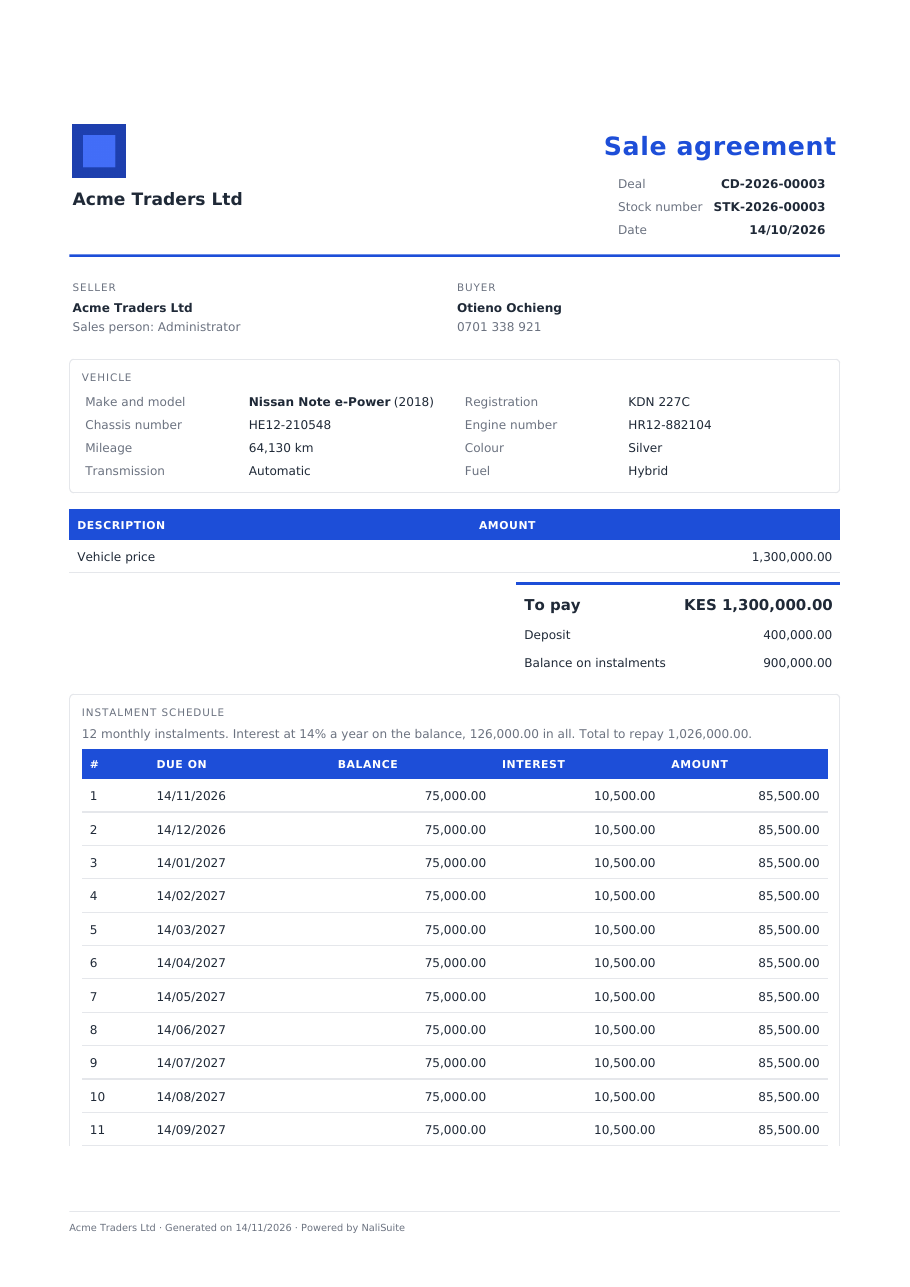
The sale agreement names the seller and sales person, the buyer with their phone and tax PIN, and the vehicle (make and model, registration, chassis and engine numbers, mileage, colour, transmission and fuel). It lists the vehicle price, the add-ons and any trade-in allowance, To pay, the Deposit, and the amount financed by the bank, the balance on instalments or the balance on delivery. For in-house finance it adds the instalment schedule with the rate, the interest and the total to repay. It ends with your terms, the deal's notes and lines for both signatures.
The delivery note lists who received the vehicle and its details, with boxes to tick for the vehicle at its delivery mileage, the keys and spare key, the spare wheel, jack and tools, the owner's manual and service book, each add-on and how far the logbook transfer is, then a line for the buyer to confirm receipt and sign.
The logbook transfer checklist lists the vehicle and every step of the logbook checklist, ticked as they are on the deal.
Stock ageing
Car dealership → Stock ageing shows how long vehicles have waited for a buyer and the money held in the yard.
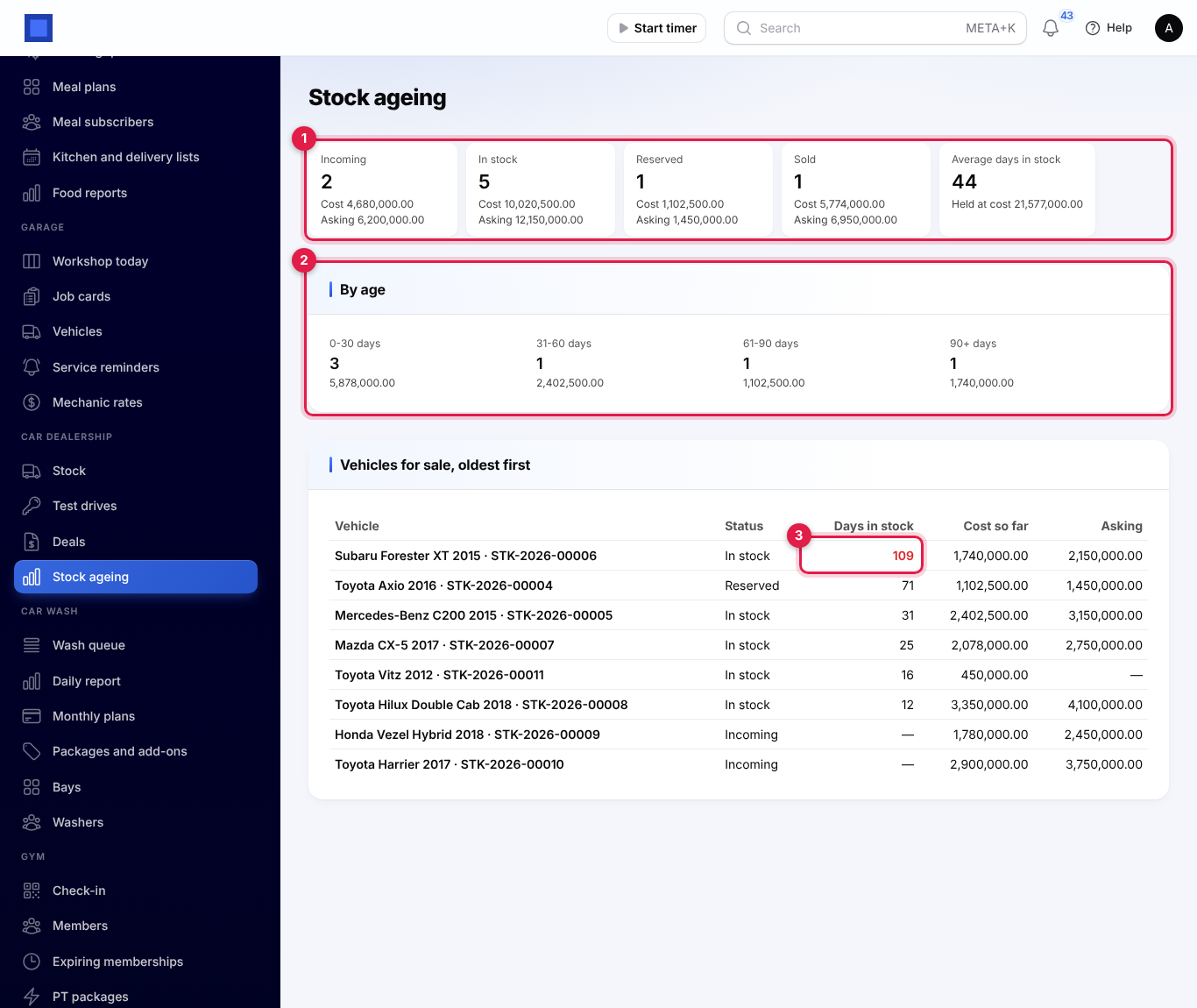
- By status (marker 1): the number of Incoming, In stock, Reserved and Sold (not yet delivered) vehicles, with their cost and their asking prices. Average days in stock covers the vehicles in stock and reserved, and Held at cost is the cost of everything still in your hands.
- By age (marker 2): how many vehicles in stock and reserved have been held 0-30, 31-60, 61-90 and 90+ days, and their cost.
- Vehicles for sale, oldest first: each vehicle not yet sold with its status, Days in stock (in red after 90 days, marker 3), cost so far and asking price. Click a vehicle to open it.
Tip: Check the 90+ band every month. A car that has waited three months is costing you money: reprice it, move it to a better spot in the yard, or sell it to a trader.
Good to know
Where do the invoices go? All of them are ordinary invoices in Invoicing, to the customer (and to the bank for its share), so payments, reminders, statements and the accounts work as for any invoice. The deposit is a retainer invoice and is used on the sale invoice automatically.
Can I change a deal after confirming it? No. Cancel it (the vehicle goes back into stock) and make a new deal. Only the logbook checklist can be ticked after confirming.
What if the customer pays less than the asking price? Type the agreed price as the Selling price. If it is below the vehicle's Minimum price, the deal cannot be confirmed: lower the minimum price on the vehicle first if you agree to it.
How is gross profit worked out for a trade-in I sell later? The trade-in's purchase cost is the allowance you gave. Add its reconditioning costs as for any vehicle.
Does a test drive need a deal? No. Test drives are logged on their own, with or without a customer or lead.