Website forms
Build forms for your website without code: quote requests, bookings of interest, volunteer sign-ups, feedback. Each form has its own page, can sit inside a website page, can be embedded on another site, and can create a CRM lead, add people to a mailing list or open a support ticket.
You will find them under Website → Forms.
Note: People who can see the settings can see forms and their answers. Building and changing forms needs the Manage settings permission.
Build a form
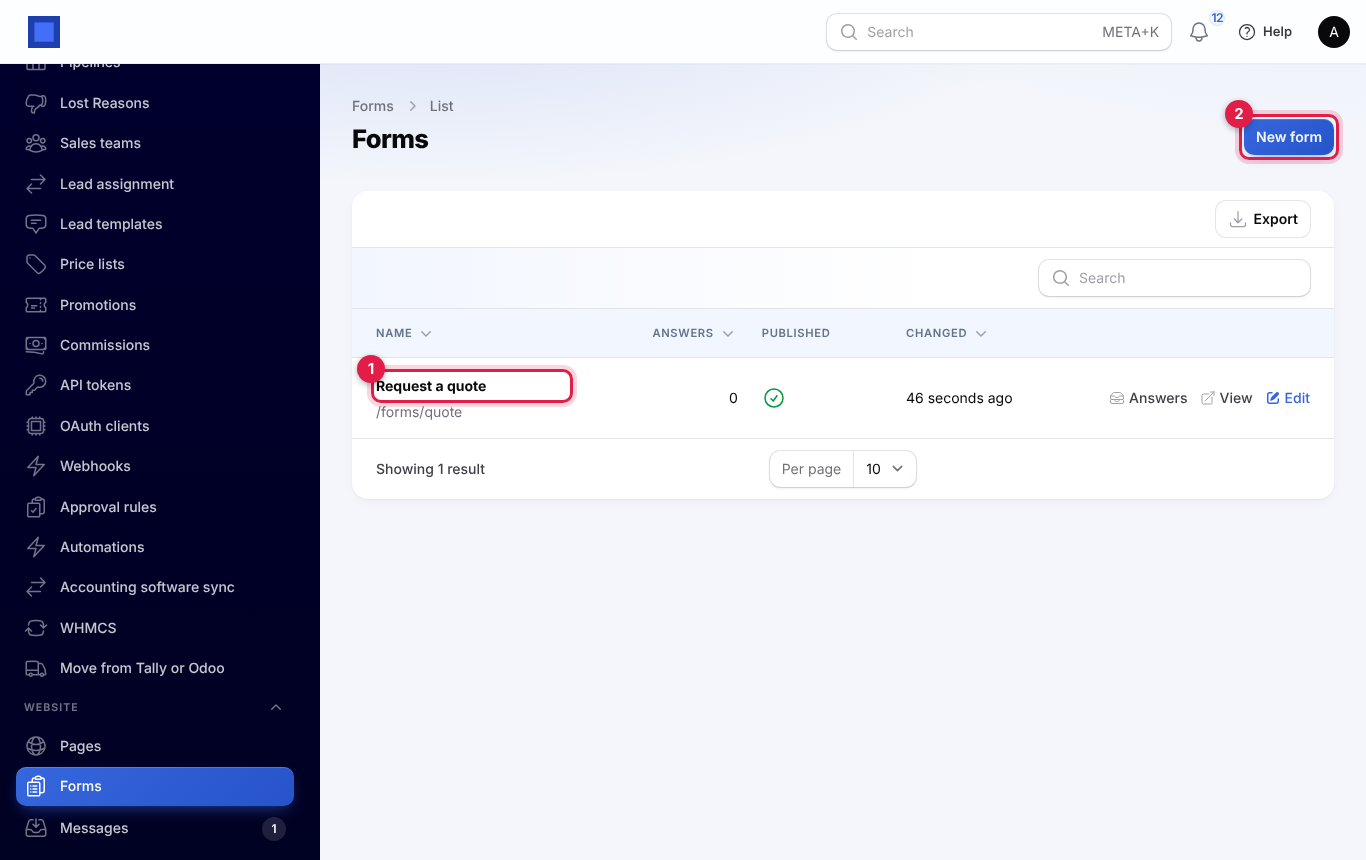
- Open Website → Forms. Each form shows its address, how many answers it has and whether it is published (marker 1). Press New form (marker 2).
-
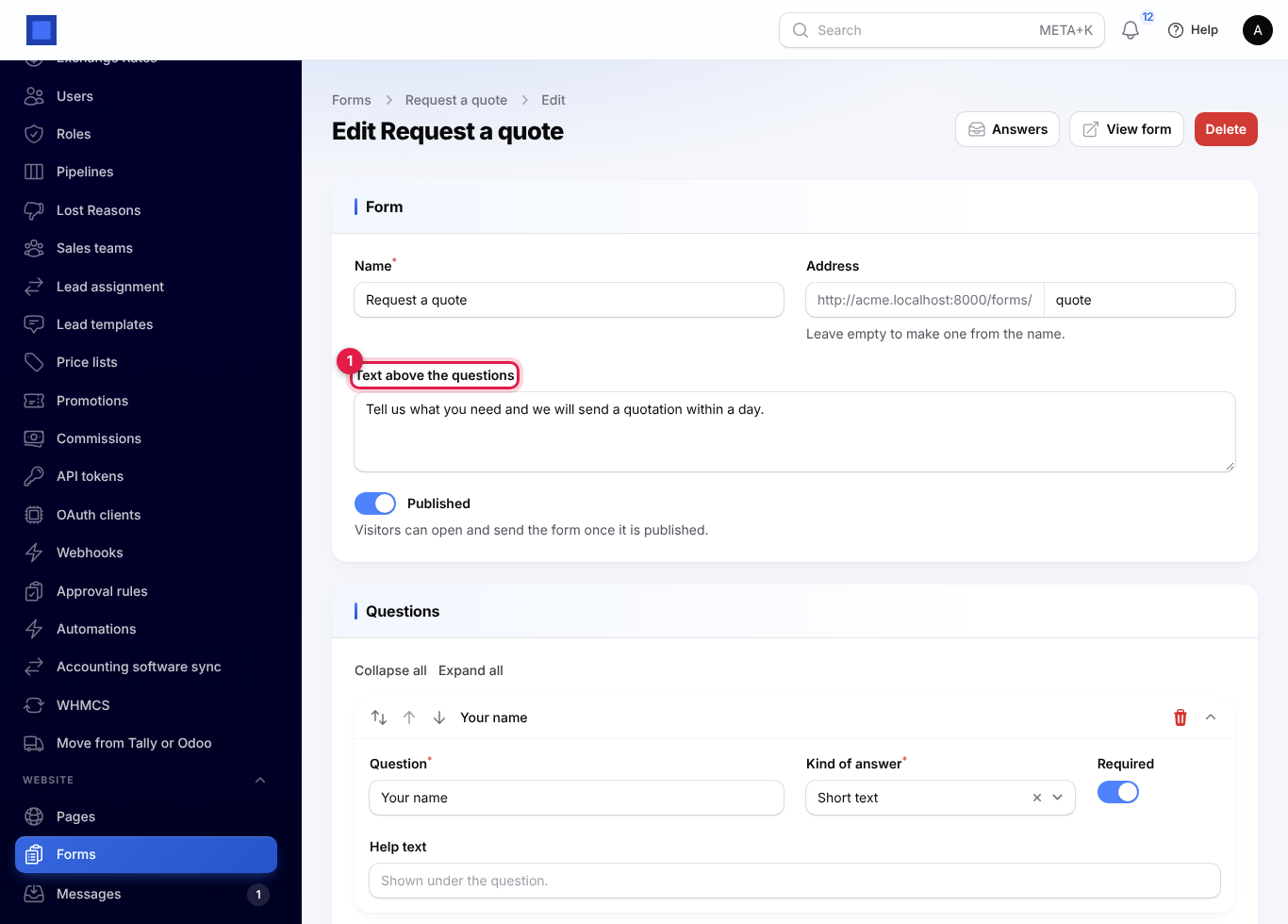
Give the form a name, an address (made from the name if you leave it empty) and an introduction, and switch on Published when it is ready.
-
Under Questions (marker 1), add each question: its label, the kind of answer (short text, long text, email, phone, number, date, dropdown, choice buttons, checkboxes, yes/no or file upload), whether it is required, its choices and help text. File questions also set the accepted file types and the largest size.
-
Under After sending, set the button text, a thank-you message or an address to send people to, who to tell about each answer, and any other addresses to email.
-
Under Also do this, choose what each answer should also do. Each option is only offered while its app is on:
- add a CRM lead;
- add the person to a mailing list;
- open a support ticket.
"Which answers are which" tells the form which question holds the name, email, phone, company and message.
-
Share (marker 2) shows the link to the form and the code to embed it on another website.
The form visitors see
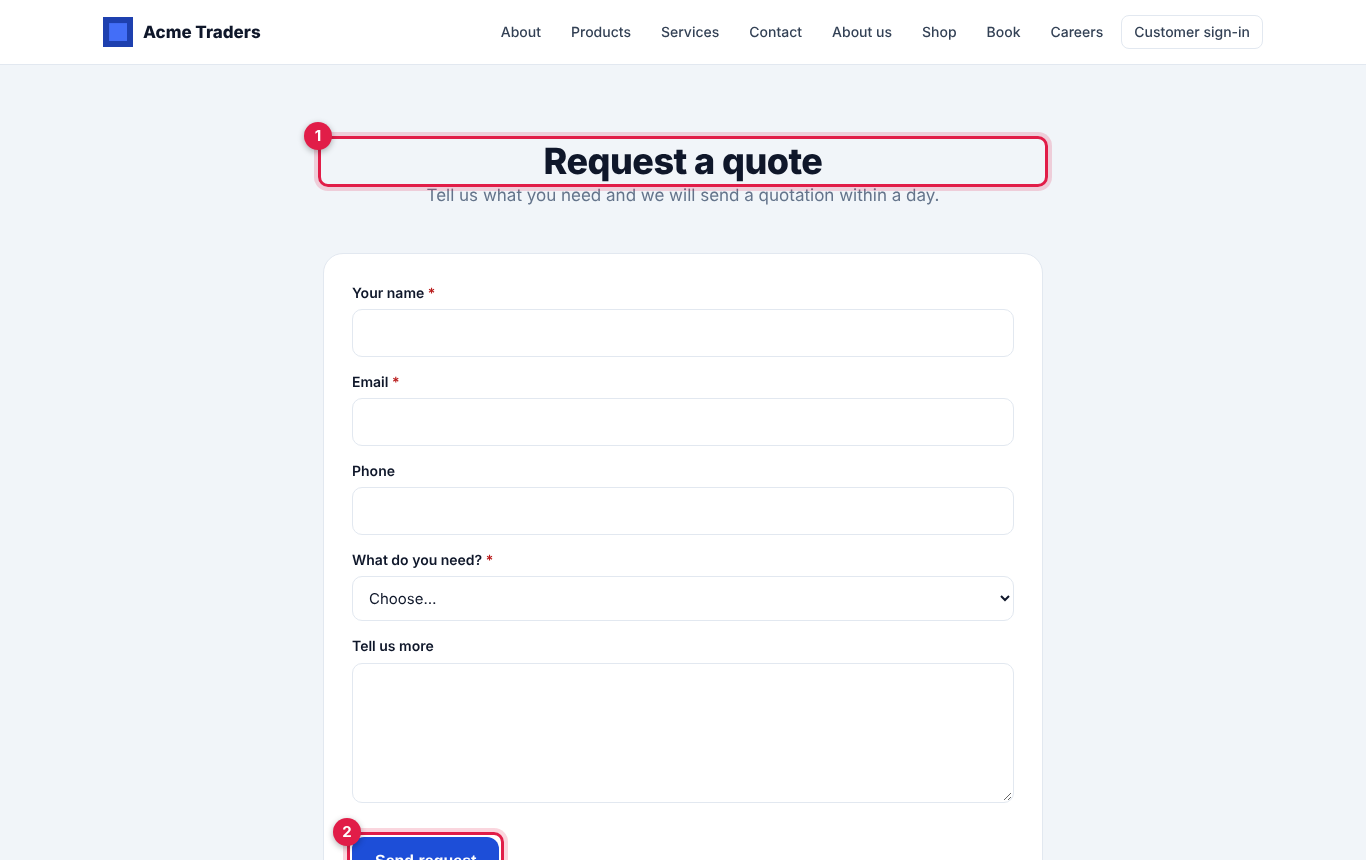
The form opens at /forms/ followed by its address on your workspace address, in your website's colours and menu (marker 1 is the form, marker 2 its button). To put a form inside a website page, add a Form section to the page and choose the form.
Answers
Press Answers on a form to see every answer, newest first, with one column per question. Open an answer to see everything that was sent, download attached files, and see the lead, ticket or mailing list it created. Download CSV exports the answers to a spreadsheet.
The people you chose are alerted to each answer. Choose how in your initial at the top right → Notification settings → Form answers.
Spam protection
Every public form, including this one and your website's contact form, quietly drops answers from robots:
- a hidden field that people never see;
- answers sent too quickly after the page opened;
- too many answers from the same place in a minute.
If the platform has switched on a "not a robot" check, a box to tick appears above the button.