Invoices and payments
Invoices are the bills you send customers; payments are the money they send back. This page covers the whole cycle: drafting an invoice, issuing it, sending it, getting paid by hand or online, part payments, refunds, credit and debit notes, proforma invoices, withholding tax, reminders, statements and reporting invoices to the tax authority (KRA eTIMS, FIRS, ETA). Accountants, clerks and owners use it daily. The screens are Finance → Invoices and Finance → Payments; the settings are under Settings → Preferences.
What you need before you start
| You want to | Permission needed |
|---|---|
| See invoices | invoicing.view |
| Create and edit drafts, send by email, create credit and debit notes, convert proformas | invoicing.manage |
| Issue invoices and send them to the tax authority | invoicing.issue |
| See payments | invoicing.payments.view |
| Record payments and refunds | invoicing.payments.manage |
| Export | invoicing.export |
The built-in Accountant role has every .view permission and the payment permissions; the Member role can only view.
How an invoice moves through its life
| Status | Meaning | What moves it on |
|---|---|---|
| Draft | Being prepared. No number yet (the title says "Draft"); everything can be changed or deleted. Nothing is posted. | Issue. |
| Issued | Final. It has a number from the sequence (for example INV-2026-00042), is locked, counted as owed, posted to the ledger and taken out of stock. | A payment (part or full), Cancel, or a credit note. |
| Partially paid | Some money received; the rest is still due. | More payments. |
| Paid | Nothing is due. | A refund of its payment reopens it. |
| Cancelled | Withdrawn. Amount due becomes 0. Issued invoices are reversed in the ledger. | Final. |
An issued invoice whose due date has passed while money is still owed is overdue: its due date shows in red and the status badge turns red. Overdue is not a separate status; it is worked out every day.
Find your way around the invoice list
- In the menu, open Finance → Invoices.
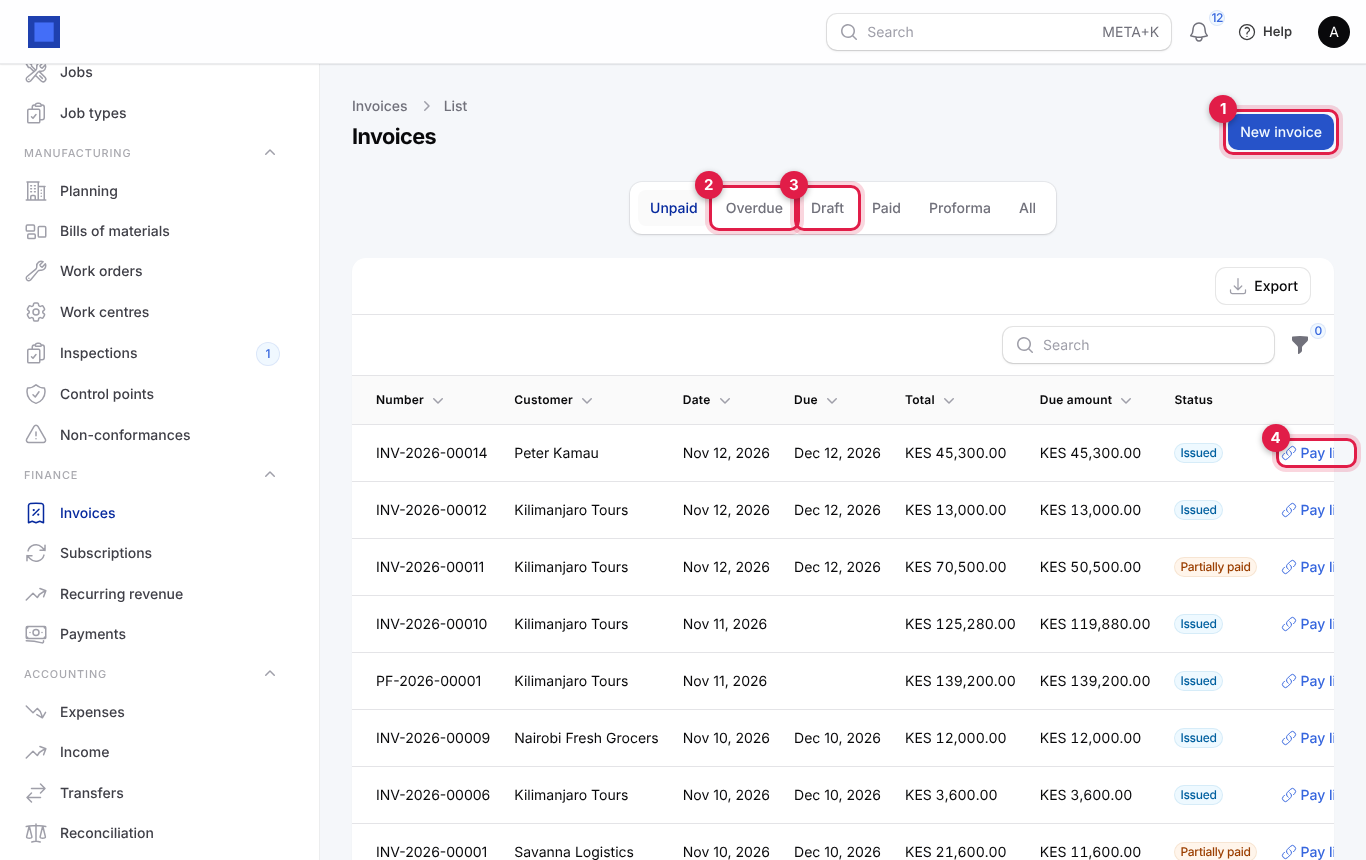
| Item | What it does |
|---|---|
| New invoice (marker 1) | Opens a new draft invoice. |
| Tabs: Unpaid (default), Overdue (marker 2), Draft (marker 3), Paid, Proforma, All | Unpaid shows issued and partially paid; Overdue only those past their due date. |
| Pay link (marker 4) | Opens the customer's online payment page for that invoice in a new tab. Copy its address to send by WhatsApp or SMS. |
| Export | Downloads the list. |
| Filter | Status, Kind (invoices, proforma invoices, debit notes, credit notes), Customer, and Branch when you have branches. |
Columns: Number (credit notes say so underneath), Customer, Date, Due (red when overdue), Total, Due amount and Status.
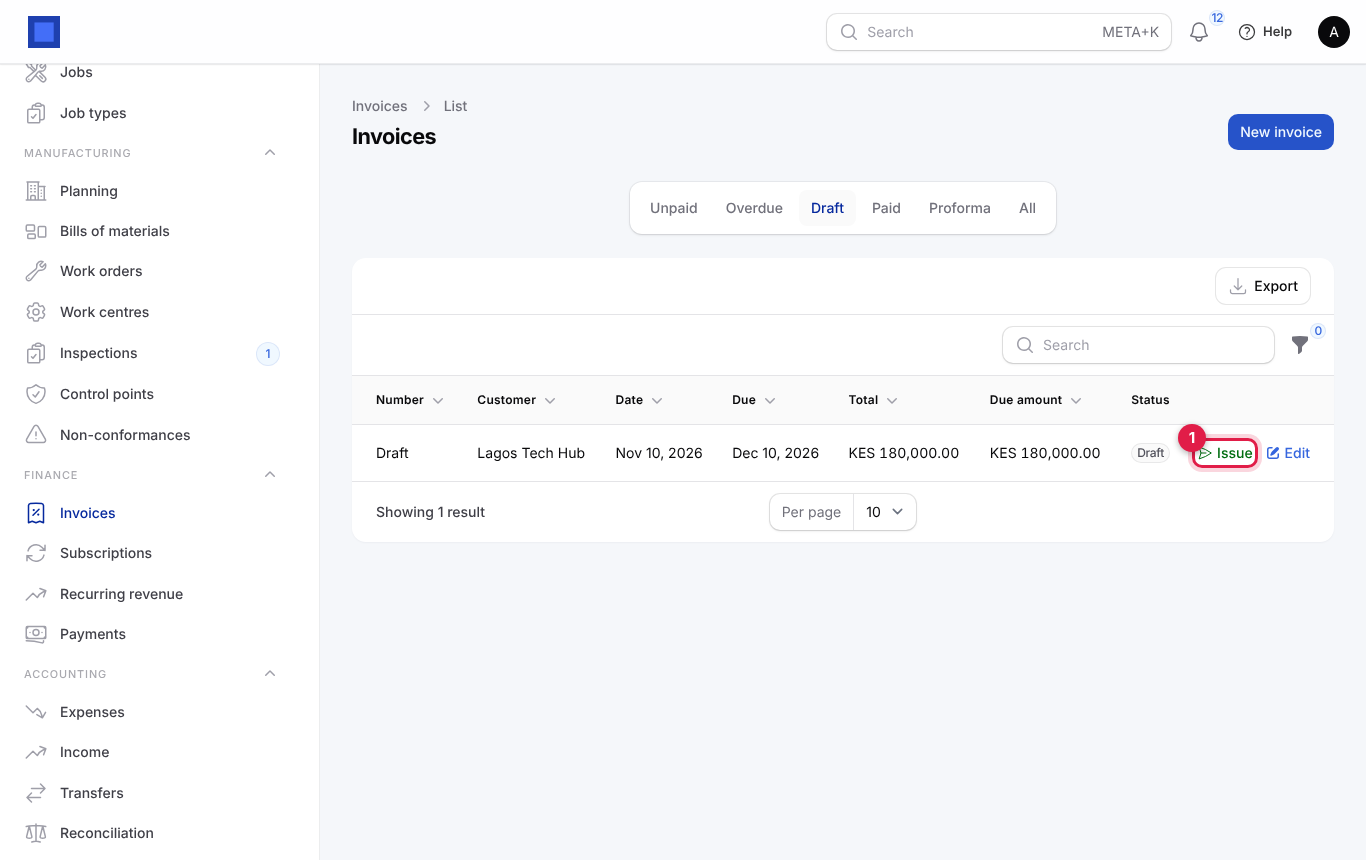
In the Draft tab each row has an Issue button (marker 1) so you can issue several drafts without opening them.
Create an invoice
Most invoices come from somewhere else: a confirmed sales order (Quotations and orders), a subscription renewal (Subscriptions), a till sale or a rental. Use New invoice for anything else.
- Open Finance → Invoices and click New invoice.
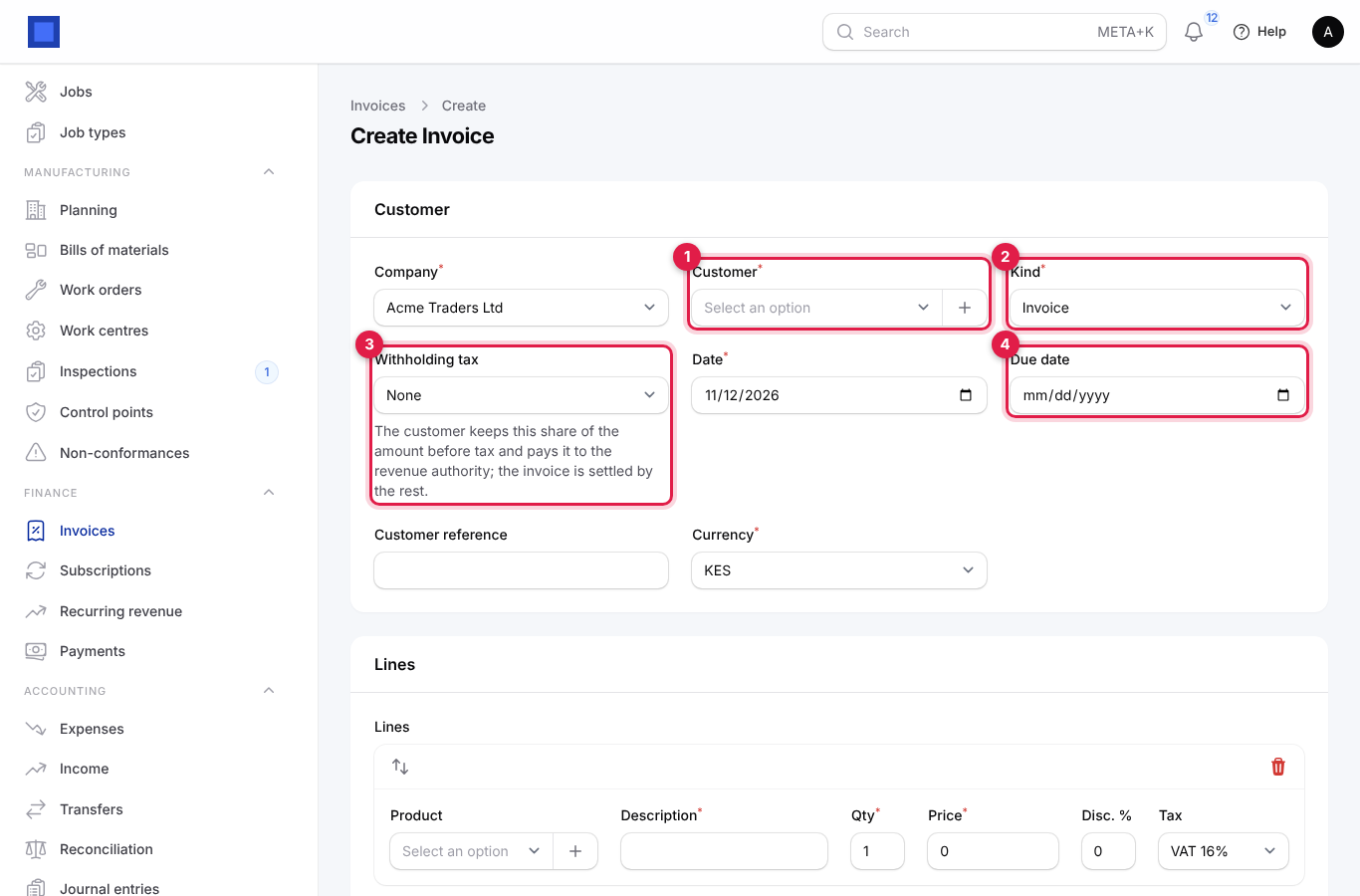
- Pick the Customer (marker 1). Click + next to it to add a new customer without leaving the page.
- Leave Kind (marker 2) as Invoice, or choose Proforma invoice, Debit note or Credit note.
- If the customer withholds tax, choose the Withholding tax (marker 3).
- Set the Due date (marker 4), or leave it empty to have it worked out from the payment terms.
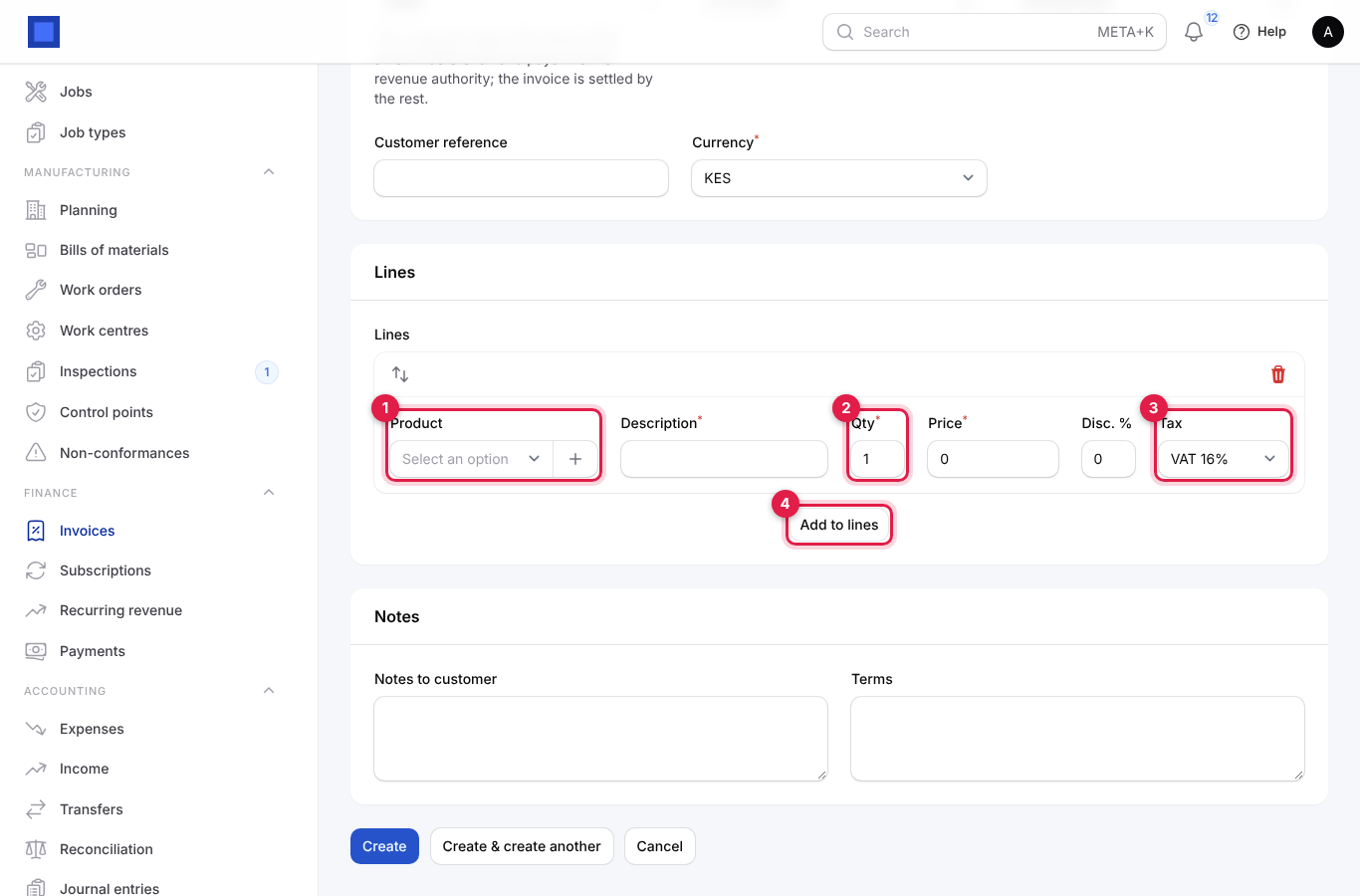
- Scroll to Lines. Pick a Product (marker 1): its description, price, unit and tax fill in. Set the Qty (marker 2) and check the Tax (marker 3). Click Add to lines (marker 4) for more lines.
- Add Notes to customer and Terms if needed, then click Create. The draft is saved and opens, with its totals.
Every field on the invoice
| Field | What to enter |
|---|---|
| Company (required) | The company issuing the invoice. Sets the currency, taxes and number sequence. |
| Branch | Shown when you have branches. Used for branch reports and filters. |
| Customer (required) | Only customers of the chosen company are listed. |
| Kind (required) | Invoice; Proforma invoice (a quote-like bill asking for payment before you deliver; not posted, no stock, its own PF- numbers); Debit note (an extra charge on top of an earlier invoice, DN- numbers); Credit note (money you give back or take off what is owed). |
| Withholding tax | For customers who must withhold tax (government, large companies), for example Withholding VAT 2%. The customer keeps that share of the amount before tax and pays it to the revenue authority; the invoice is settled by the rest. Only for invoices and debit notes. |
| Date (required) | Invoice date, today by default. It decides the year in the number. |
| Due date | Empty: worked out from the customer's Payment terms (days), or Preferences → Invoicing → Default payment terms (days). |
| Customer reference | Their LPO or order number. Stays editable after issuing. |
| Currency (required) | From the company. Choose another for foreign customers; the exchange rate of the date is used for the ledger. |
| Line Product | Optional; a line can be free text. + adds a missing product. |
| Line Lot | Shown for products tracked by lot when Inventory is on. Leave Expiring first or pick a lot. |
| Line Description (required), Qty (required), Price (required), Disc. %, Tax | As printed. Prices include tax when Preferences → Invoicing → Prices include tax is on. |
| Notes to customer, Terms | Printed on the invoice. Notes default from Preferences → Invoices → Default notes on invoices. |
The Totals section (on saved invoices) shows Subtotal, Tax, Total, Withheld by customer (when withholding applies) and Amount due.
Issue an invoice
A draft is not yet owed. Issuing makes it final.
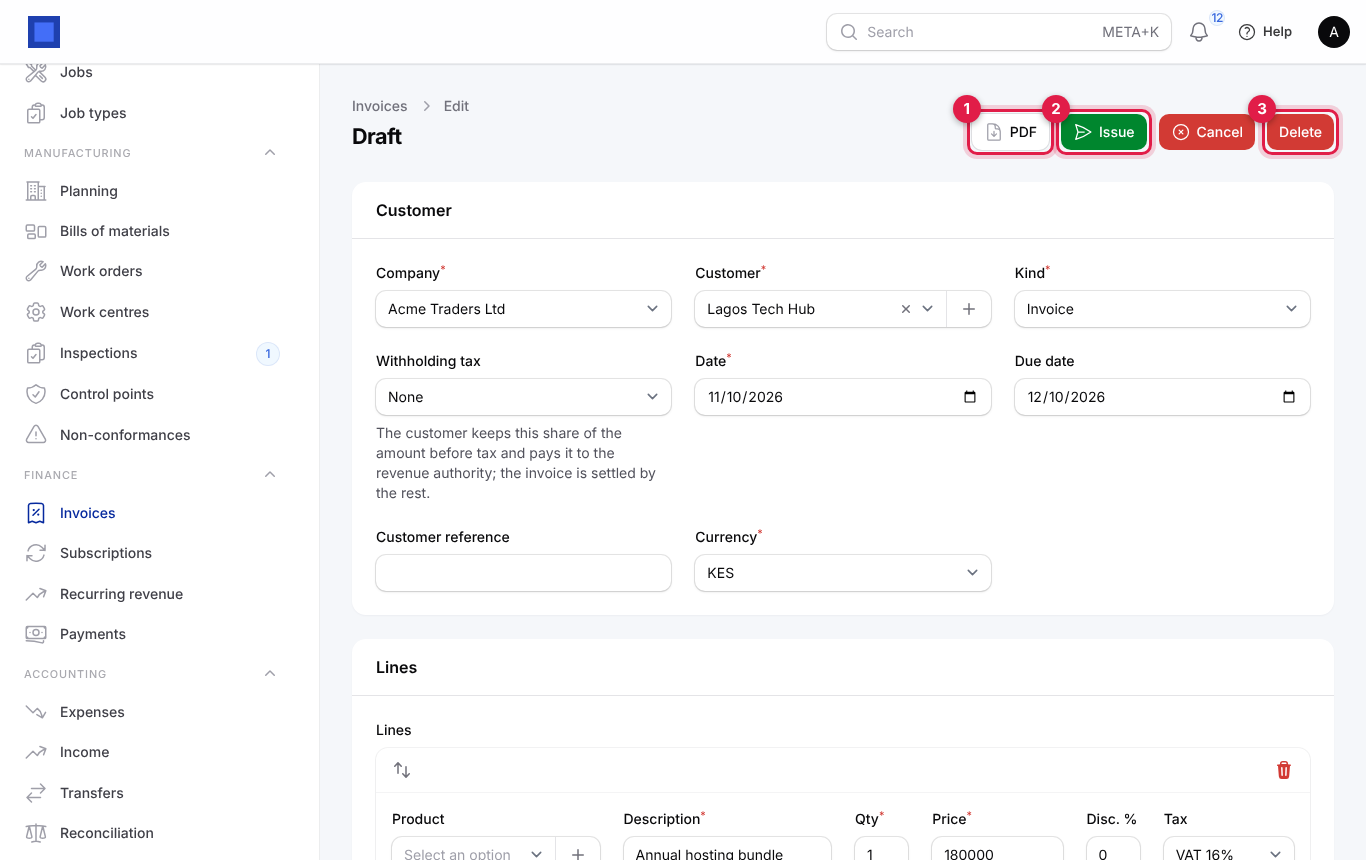
- Open the draft. Its header shows PDF (marker 1) to preview, Issue (marker 2), Cancel and Delete (marker 3) to throw the draft away.
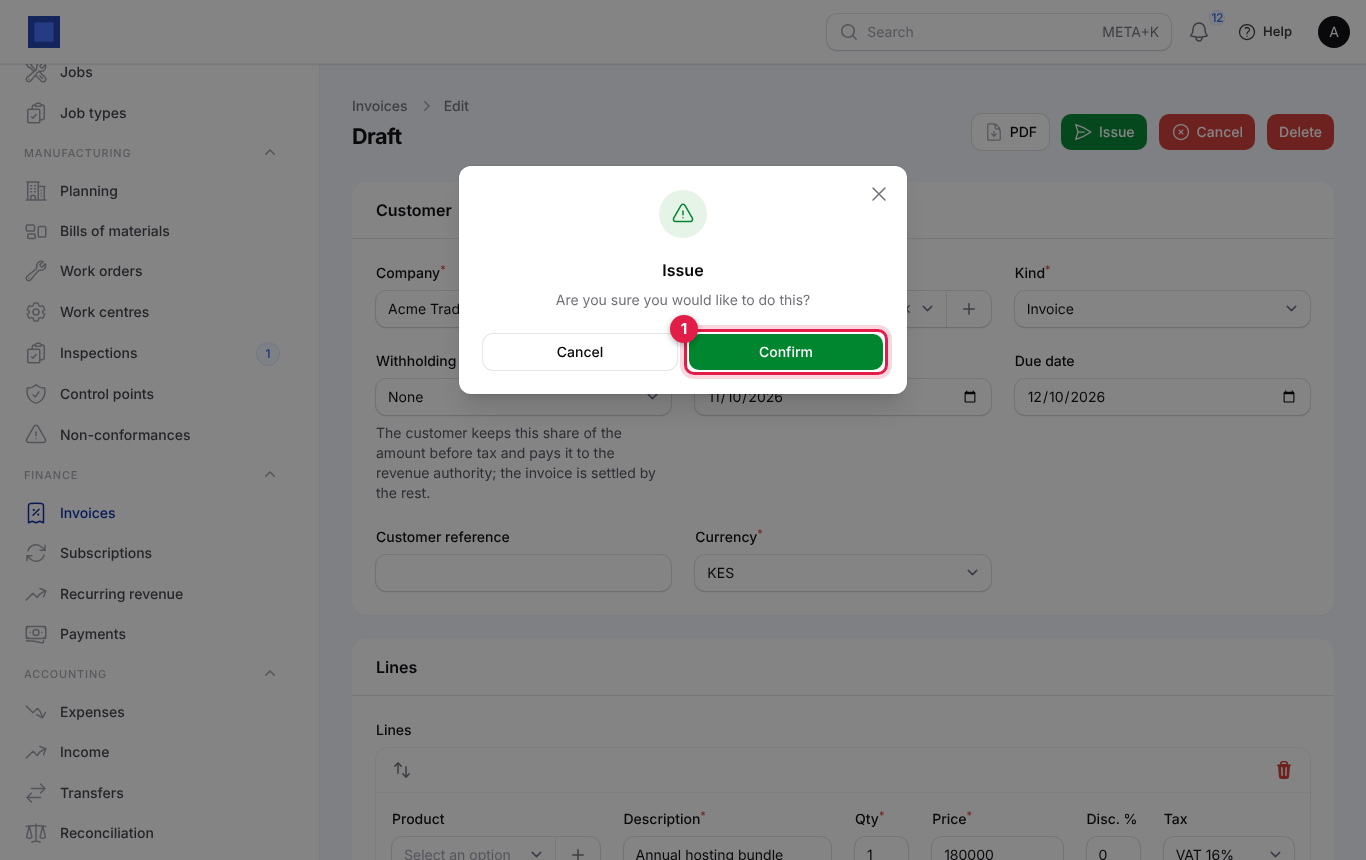
- Click Issue, then Confirm (marker 1).
What happens when you issue:
- The invoice gets its number (INV-, PF-, DN- or CN- and the year), its status becomes Issued and the customer, dates, lines and amounts are locked.
- The credit limit check runs. With "Warn" you see "Over the credit limit"; with "Block" issuing is refused. See Contacts and CRM.
- With Accounting on: the ledger is debited (Accounts receivable) and credited (Sales and Tax payable); withholding moves to Tax receivable. Proformas are never posted. See Accounting basics.
- With Inventory on: tracked goods leave the warehouse and a Delivery note button appears. A credit note brings them back. See Inventory.
- With e-invoicing on and set to send automatically, the invoice goes to KRA eTIMS, FIRS or ETA.
- A credit note against an invoice reduces what is owed on that invoice.
- Webhooks for "invoice.issued" are called.
"An invoice needs at least one line before it can be issued" means the draft is empty.
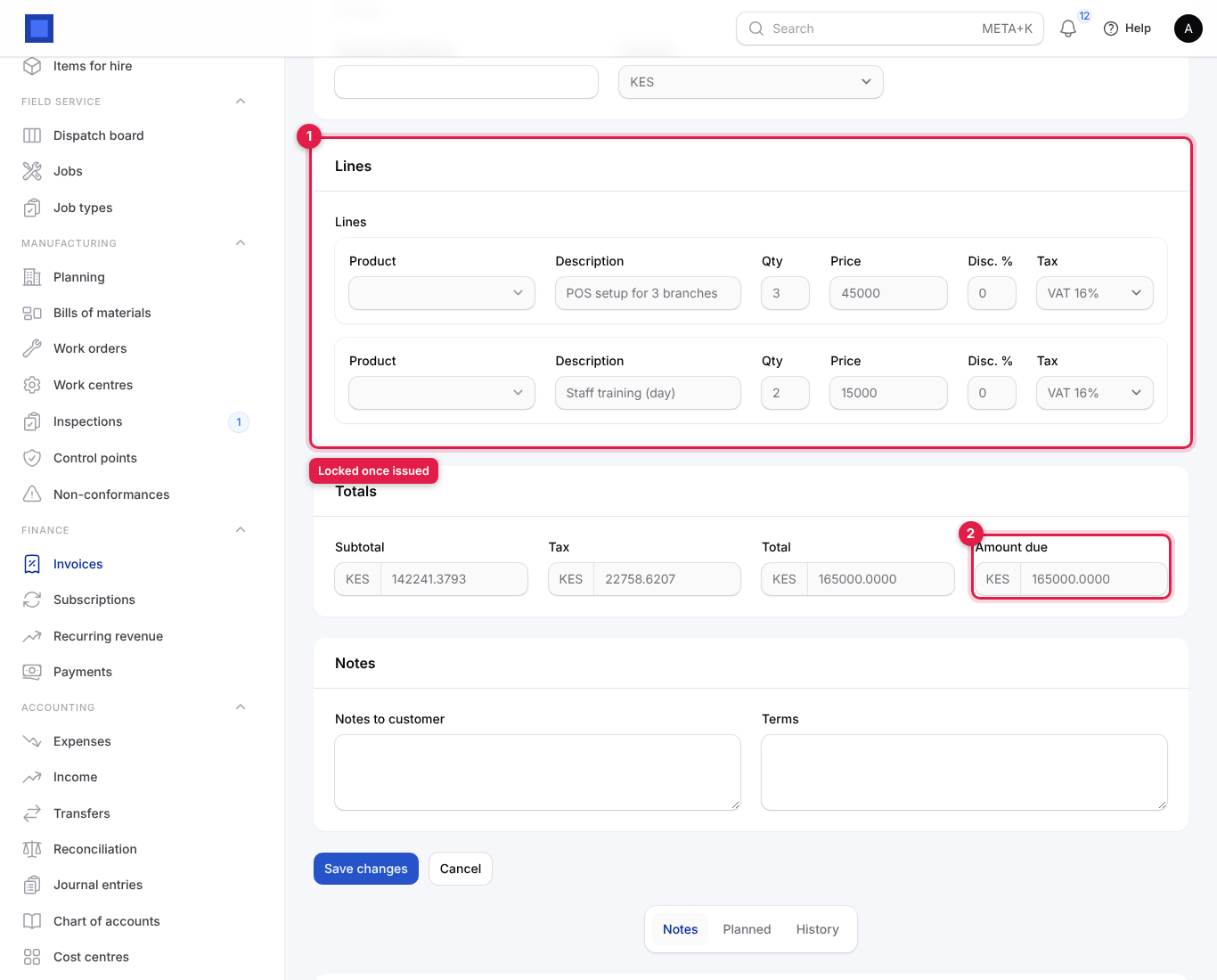
On an issued invoice the Lines (marker 1) and other details are greyed out; only the Customer reference and the notes can still be changed. Amount due (marker 2) is what is still owed. To correct a mistake on an issued invoice, issue a credit note and a new invoice.
Work on an issued invoice
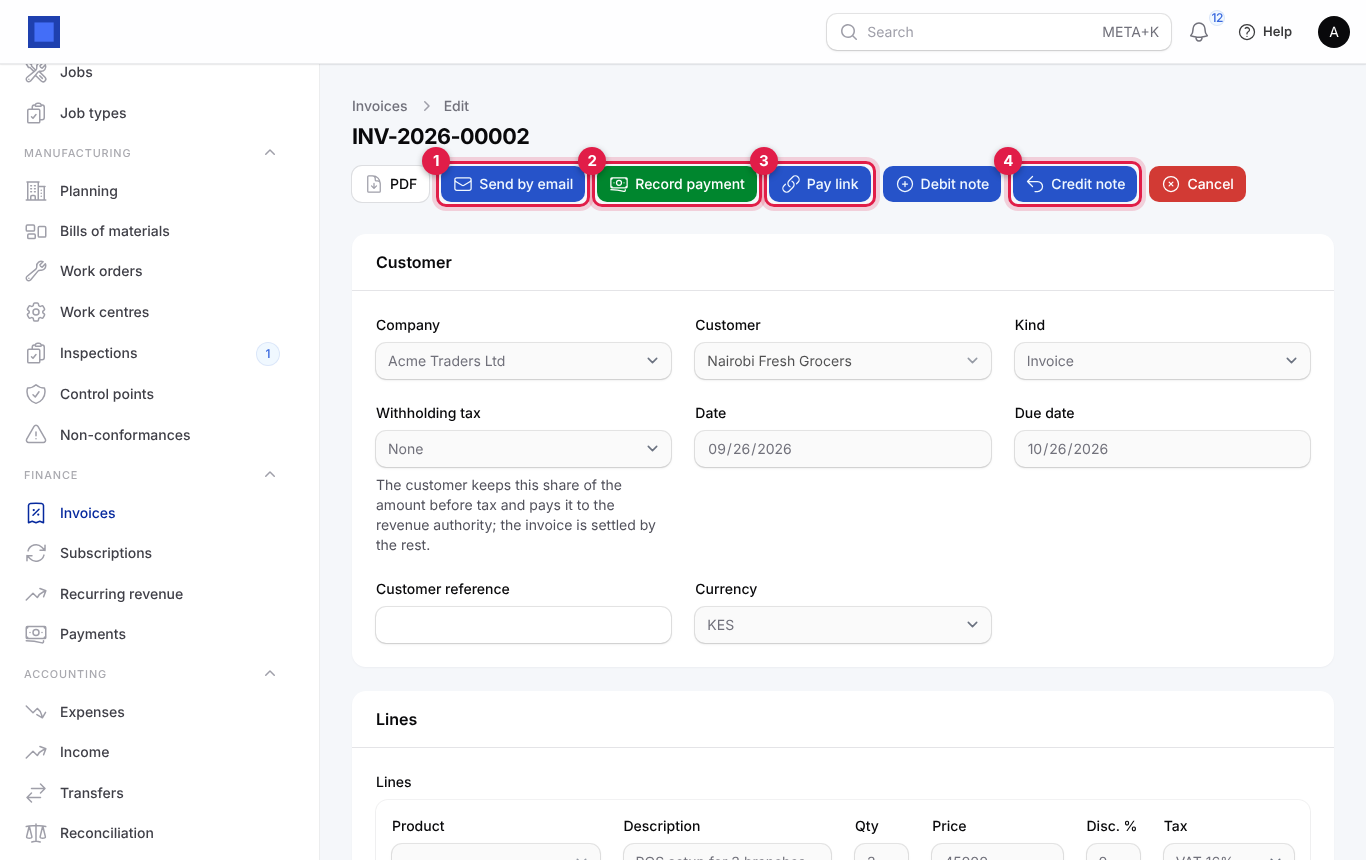
| Action | When it shows | What it does |
|---|---|---|
| Always | Downloads the invoice PDF: your logo, the customer's and your tax numbers (the label comes from Preferences → Invoicing → Tax ID label on documents), bank details, a QR code that opens the pay page, and the tax authority's reference and QR code once registered. | |
| Delivery note | Goods left stock for this invoice | Opens the delivery note to print. |
| Send by email (marker 1) | Not a draft | Emails the invoice with the PDF attached and a Pay button. |
| Send to tax authority / Tax authority: registered | E-invoicing set up | Registers the invoice; turns green once accepted. |
| Record payment (marker 2) | Money still owed | Records money received. |
| Pay link (marker 3) | Money still owed | Opens the online pay page in a new tab. |
| Convert to invoice | Issued proforma not yet paid | Creates a draft invoice with the same lines and closes the proforma. |
| Debit note | Issued invoice or debit note | Creates a draft debit note to charge more on this invoice. |
| Credit note (marker 4) | Issued invoice or debit note | Creates a draft credit note reversing every line. |
| Cancel | Draft or issued with no payments | Cancels it. |
| Delete | Draft | Deletes the draft. |
Below the form are Notes, Planned and History tabs for internal notes, follow-up activities and the change log.
Send an invoice by email, WhatsApp or SMS
- Open the issued invoice and click Send by email.
- Check To (marker 1), add Cc addresses if needed, and edit the Subject (marker 2) and Message (marker 3). The default message gives the amount and the due date and says the customer can pay online with the button below.
- Click Submit. "Email queued to …" confirms it, and the invoice records when it was sent.
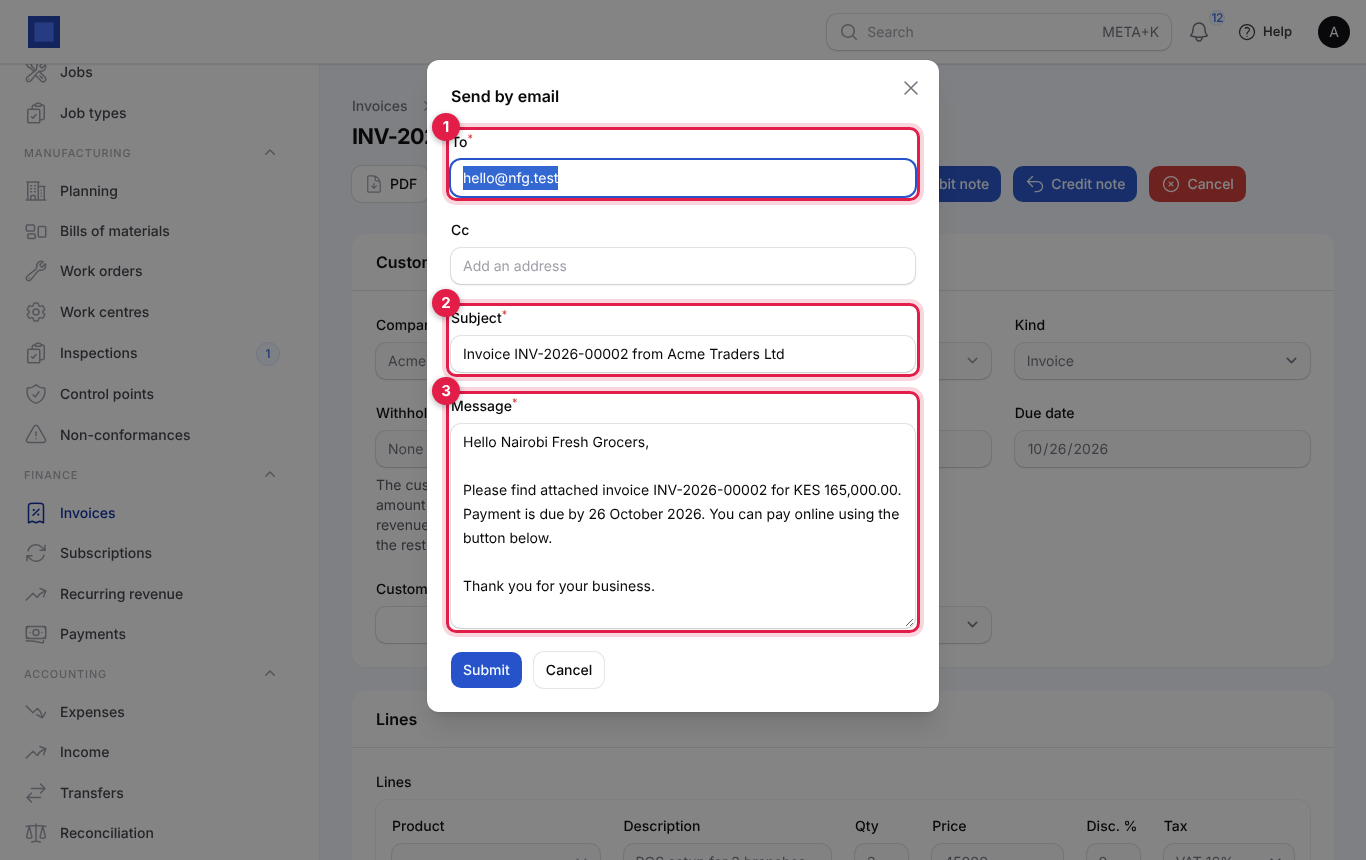
The email has the PDF attached and a Pay button to the pay page. It is sent from your workspace or your own mail server (Preferences → Email), and replies go to the reply-to address set there.
There is no separate WhatsApp button for invoices: click Pay link, copy the address from the new tab, and paste it into WhatsApp or an SMS. The customer can view, download and pay the invoice from that page.
Get paid online with the pay link
Every issued invoice has a private pay page. Nobody can guess the address; it shows only that one invoice.
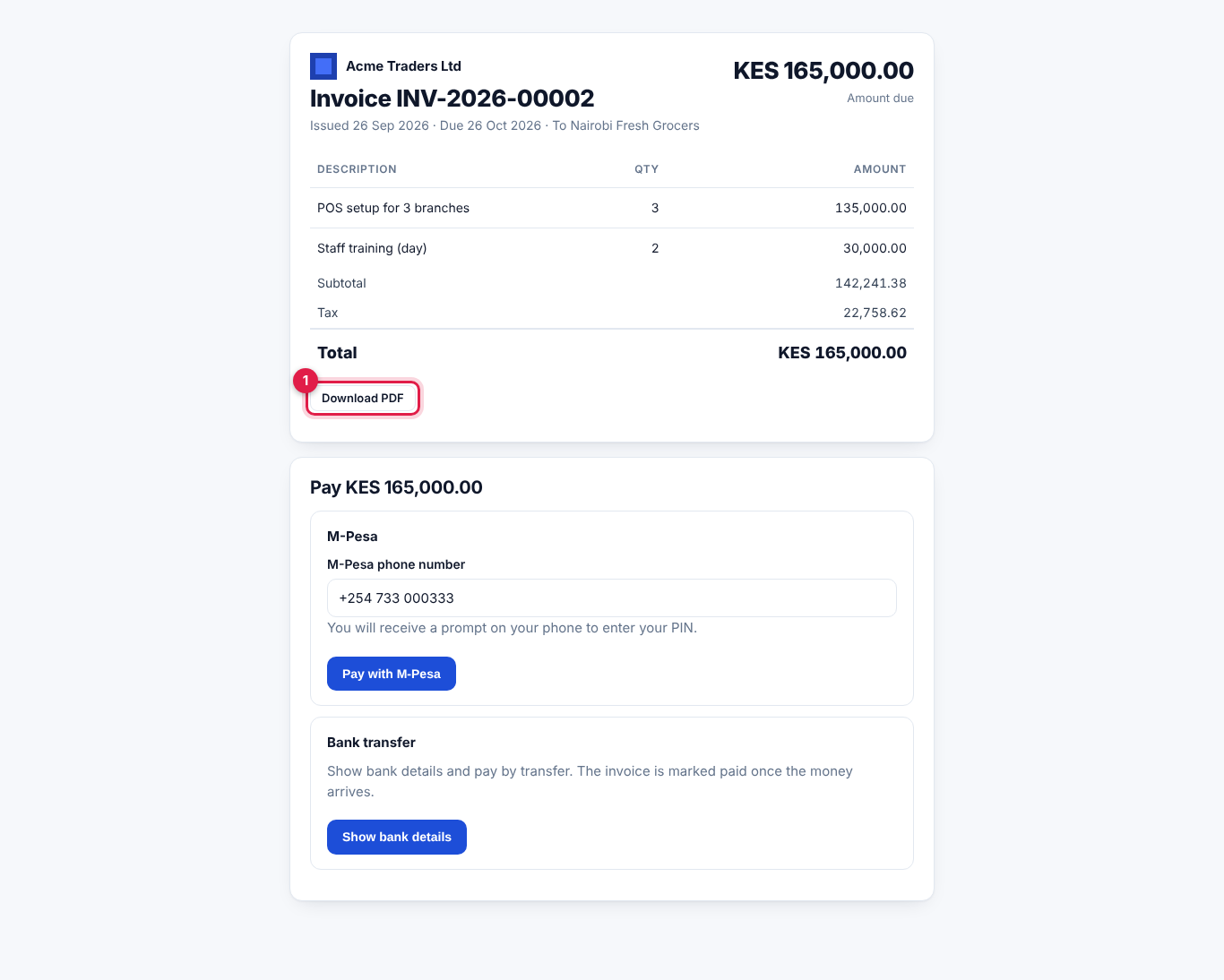
The customer sees the invoice summary, Download PDF (marker 1), and one box per payment method you have switched on:
- M-Pesa: they type their M-Pesa phone number and click Pay with M-Pesa, then approve the prompt on their phone with their PIN.
- Card and bank gateways (Paystack, Flutterwave, Stripe, Pesapal, DPO and others): they are sent to the gateway's secure page and come back afterwards.
- Bank transfer: Show bank details shows the bank details from Preferences → Invoices. You record the payment by hand when the money arrives.
When an online payment succeeds, the gateway tells NaliSuite, a payment is recorded and allocated to the invoice automatically, and the invoice becomes Paid or Partially paid. The pay page always asks for the full amount due.
Switch on online payment methods
- Open Settings → Preferences and click Online payments.
- Switch on each method you want and paste the keys from the provider. For M-Pesa: Accept M-Pesa (Kenya) (marker 1), M-Pesa environment (Sandbox while testing, then Production), Paybill or Till number (marker 2), Daraja consumer key, Daraja consumer secret, Lipa na M-Pesa passkey and an optional Account reference prefix. For Paystack, Accept cards and bank via Paystack (marker 3) with the public and secret keys; similar fields for Flutterwave and Stripe.
- Further down are sections for more gateways (Airtel Money, MTN Mobile Money, Orange Money, Wave, Pesapal, DPO Pay, PayPal, PayFast, Ozow, Peach Payments, Fawry, CinetPay). Each shows a Notification URL to paste into the provider's dashboard. Every provider, where it works and its fields are listed in Online payment providers.
- Click Save preferences.
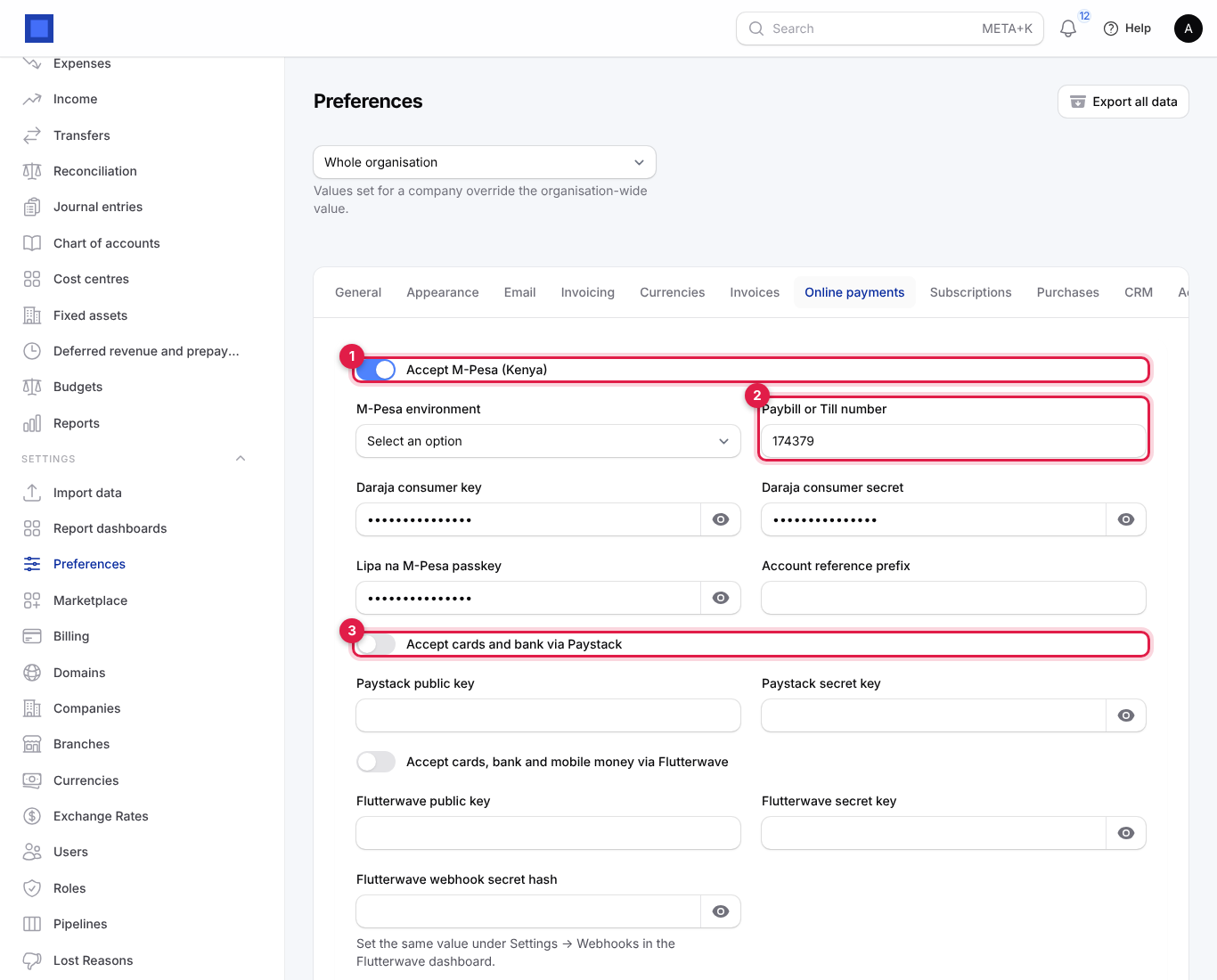
Note: Test with the sandbox first. A wrong passkey or shortcode means customers never get the M-Pesa prompt.
Record a payment by hand
Use this for cash, cheques, bank transfers, M-Pesa sent to your till outside the pay page, or card payments on your own machine.
- Open the invoice and click Record payment.
- Check the Amount (marker 1). It starts at the full amount due; type less for a part payment. It cannot be more than the amount due.
- Set the Date the money arrived.
- Choose the Method (marker 2): Cash, Bank transfer, Mobile money, Card, Cheque or Other.
- Type the Reference (marker 3): the M-Pesa code, cheque number or bank reference. It helps bank reconciliation.
- Click Submit. "Payment RCP-2026-000123 recorded" confirms it.
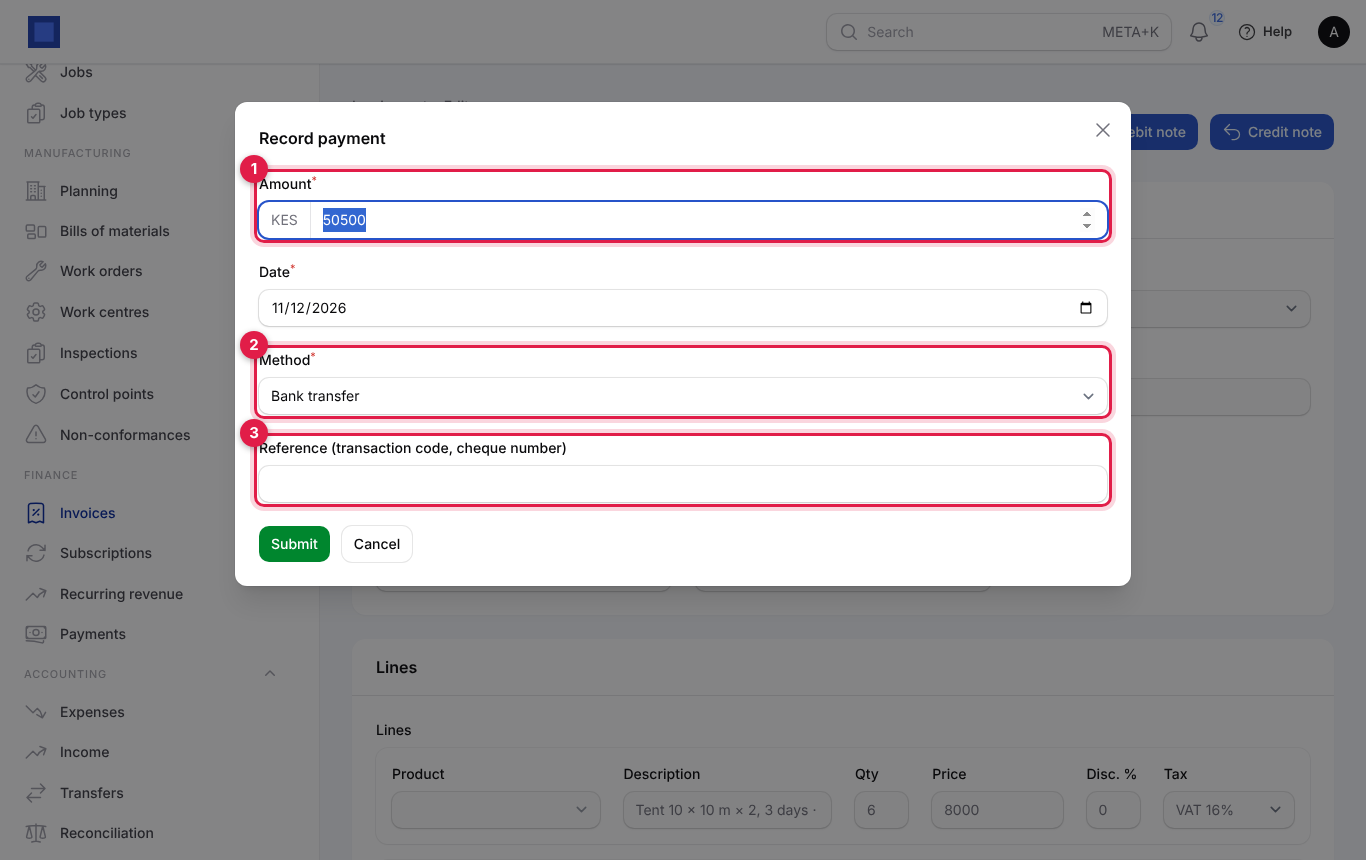
What happens: the payment gets a receipt number, is allocated to the invoice, and the invoice's Amount due drops; the status becomes Partially paid or Paid. With Accounting on, the money is debited to the cash, mobile money or bank account (by method) and credited to Accounts receivable. Webhooks for "payment.recorded" are called. The payment appears in the customer portal under Payments.
Part payments
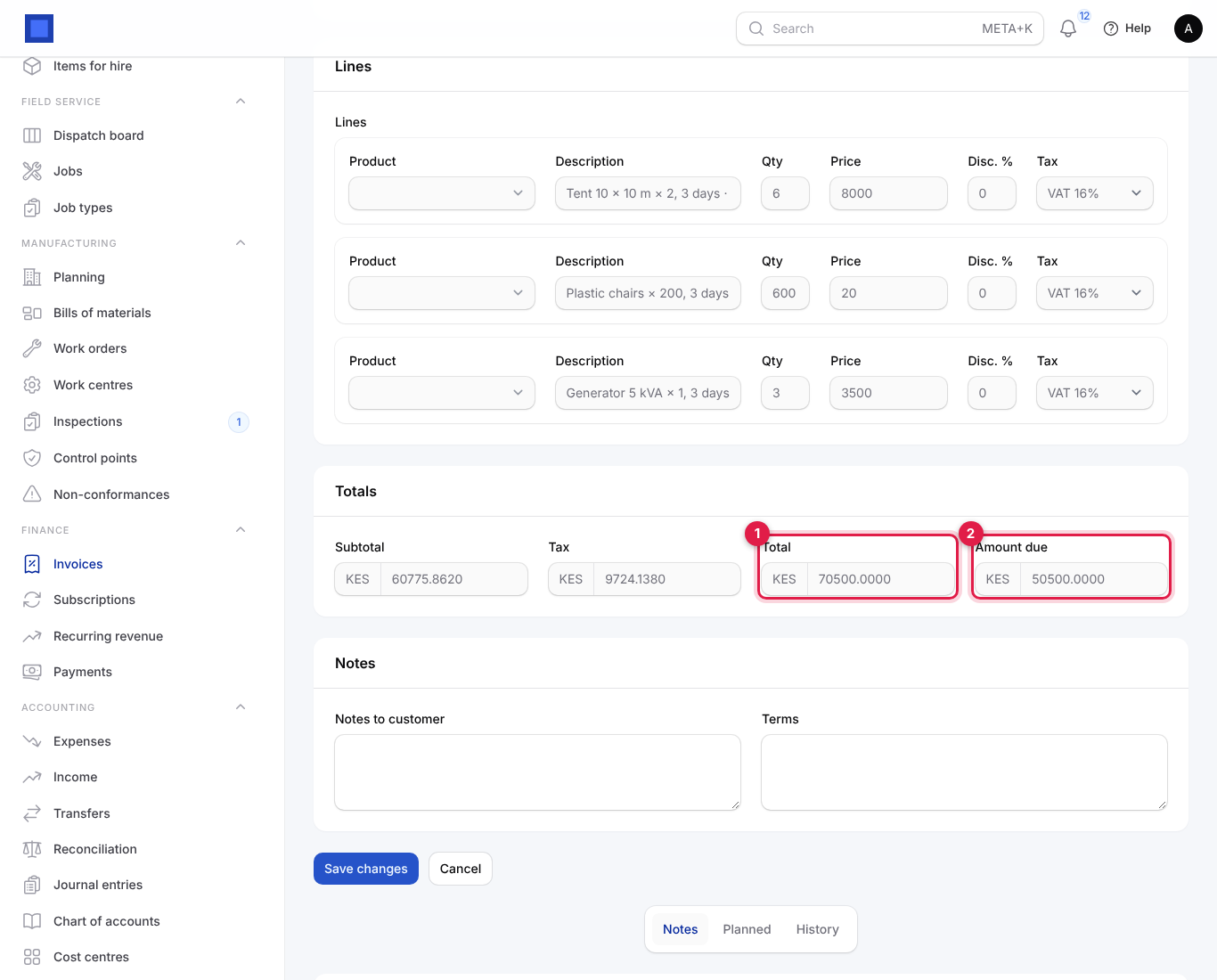
Record each instalment the same way. The invoice stays Partially paid with the remaining Amount due (marker 2) until the Total (marker 1) is covered, and the pay link asks only for what is left.
Credit notes, debit notes and cancelling
| You want to | Use |
|---|---|
| Withdraw an invoice that has no payments | Cancel. Issued invoices are reversed in the ledger. |
| Correct or reverse an invoice that was paid or part-paid, give a discount after the fact, or take back returned goods | Credit note. |
| Charge more on an existing invoice (late fee, item missed) | Debit note. |
To create a credit note:
- Open the issued invoice and click Credit note, then Confirm (marker 1).
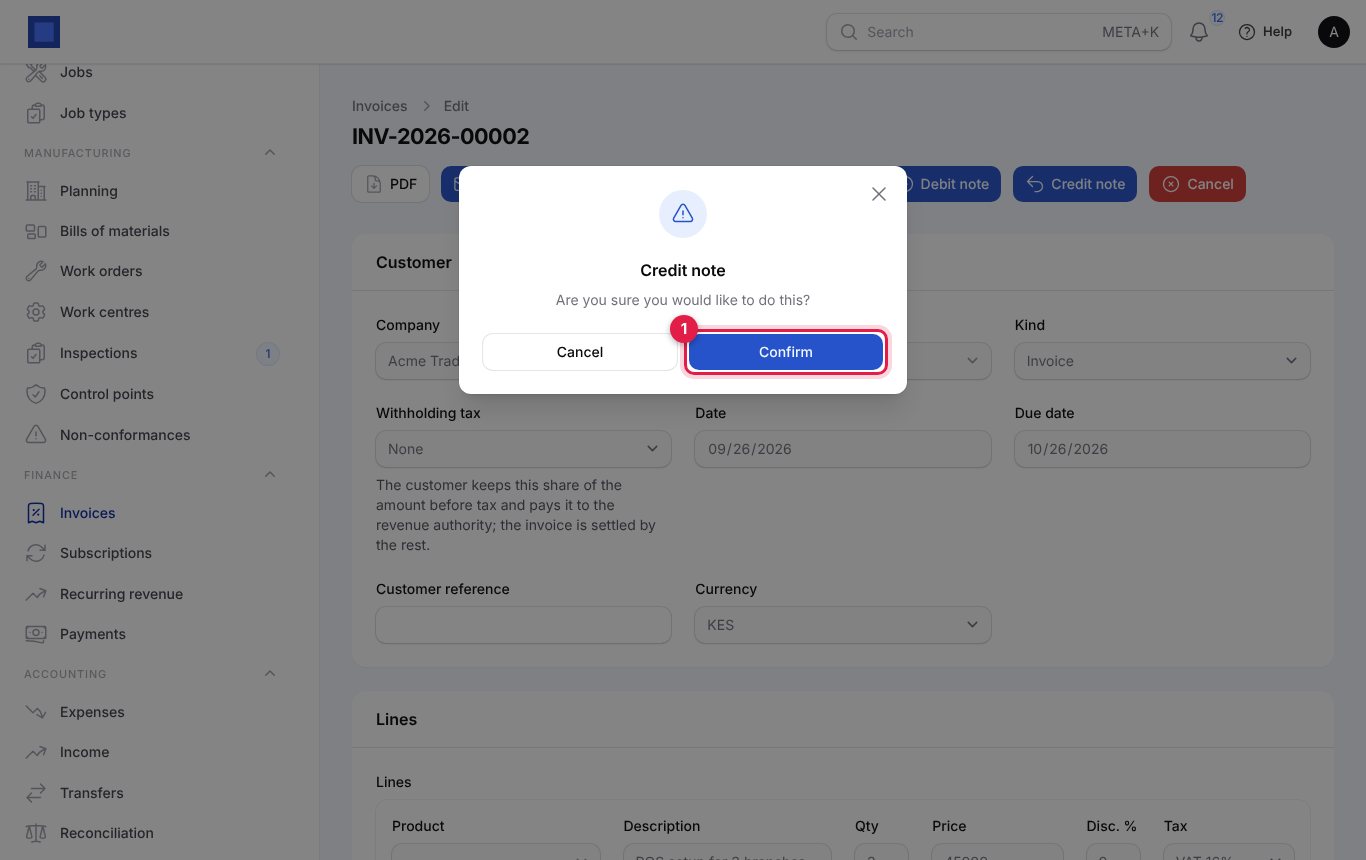
- A draft credit note opens with every line of the invoice and the note "Credit note for invoice …". Remove or reduce lines to credit only part.
- Click Issue. It gets a CN- number, reduces what is owed on the original invoice, reverses the sale in the ledger and returns tracked goods to stock.
If the invoice was already paid in full, the credit becomes money you owe the customer; refund it from the payment (see below).
A debit note works the same way: Debit note creates a draft you edit (change the lines to the extra charge) and issue. It is owed like an invoice, can be paid online and appears on statements.
"An invoice with payments cannot be cancelled. Issue a credit note instead." means exactly that.
Use proforma invoices
A proforma invoice asks for payment before you deliver, for example a deposit or a document the customer needs to raise payment. It is not a tax invoice: it is not posted to the ledger, takes nothing from stock and is not sent to the tax authority.
- Create an invoice with Kind set to Proforma invoice and issue it. It gets a PF- number and appears in the Proforma tab.
- Send it and take payment as usual: Send by email, Pay link or Record payment.
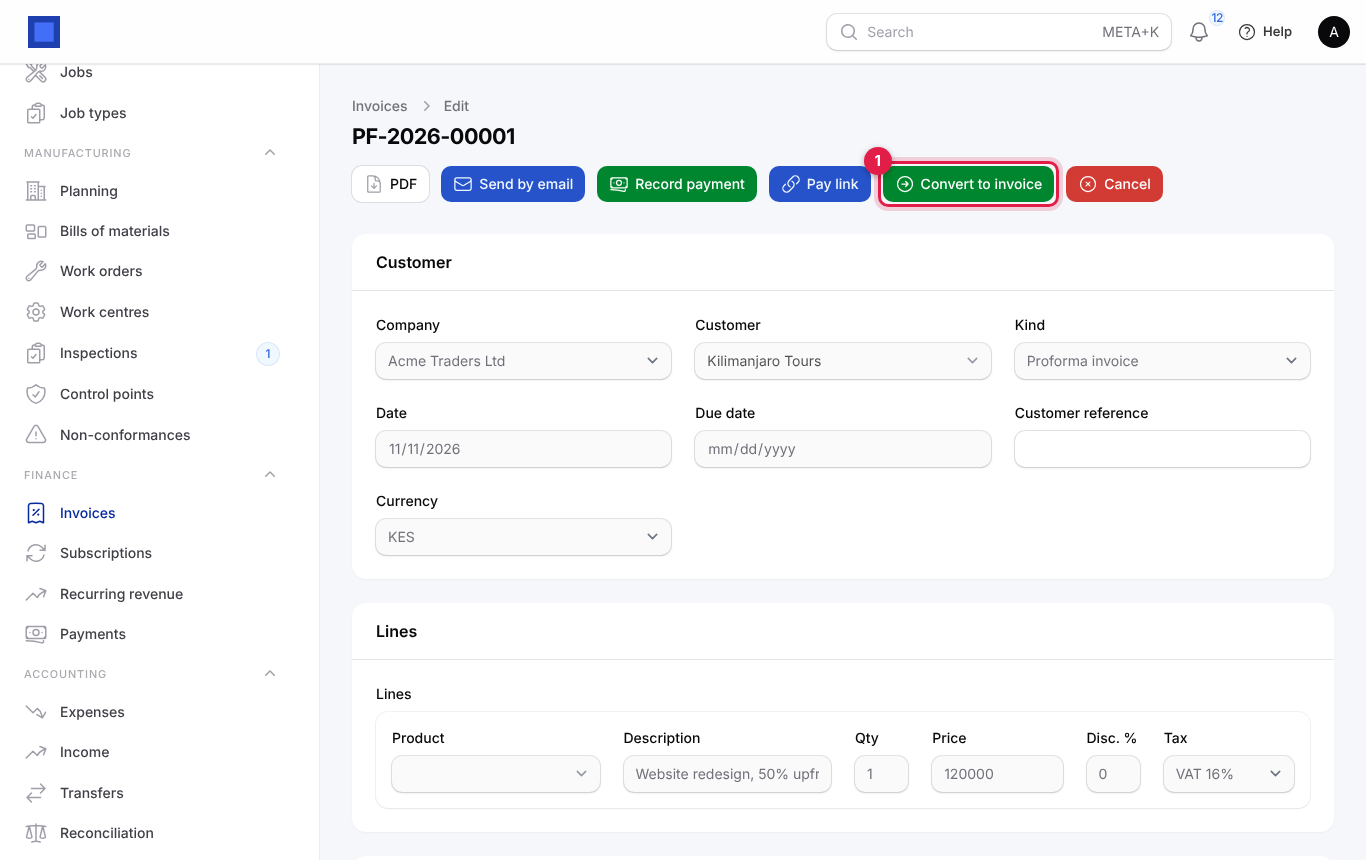
- When you are ready to bill for real, click Convert to invoice (marker 1) and confirm. A draft invoice with the same lines opens and the proforma is closed. Issue the draft.
Withholding tax
When a customer such as a government body withholds part of the tax:
- On the invoice, choose the Withholding tax before issuing.
- The Withheld by customer amount appears under Totals, and Amount due is reduced by it. The customer pays only the rest.
- With Accounting on, the withheld amount is posted to Tax receivable, so you can claim it against your own tax with the withholding certificate the customer gives you.
See and refund payments
Finance → Payments lists every payment, whether recorded by hand or received online.
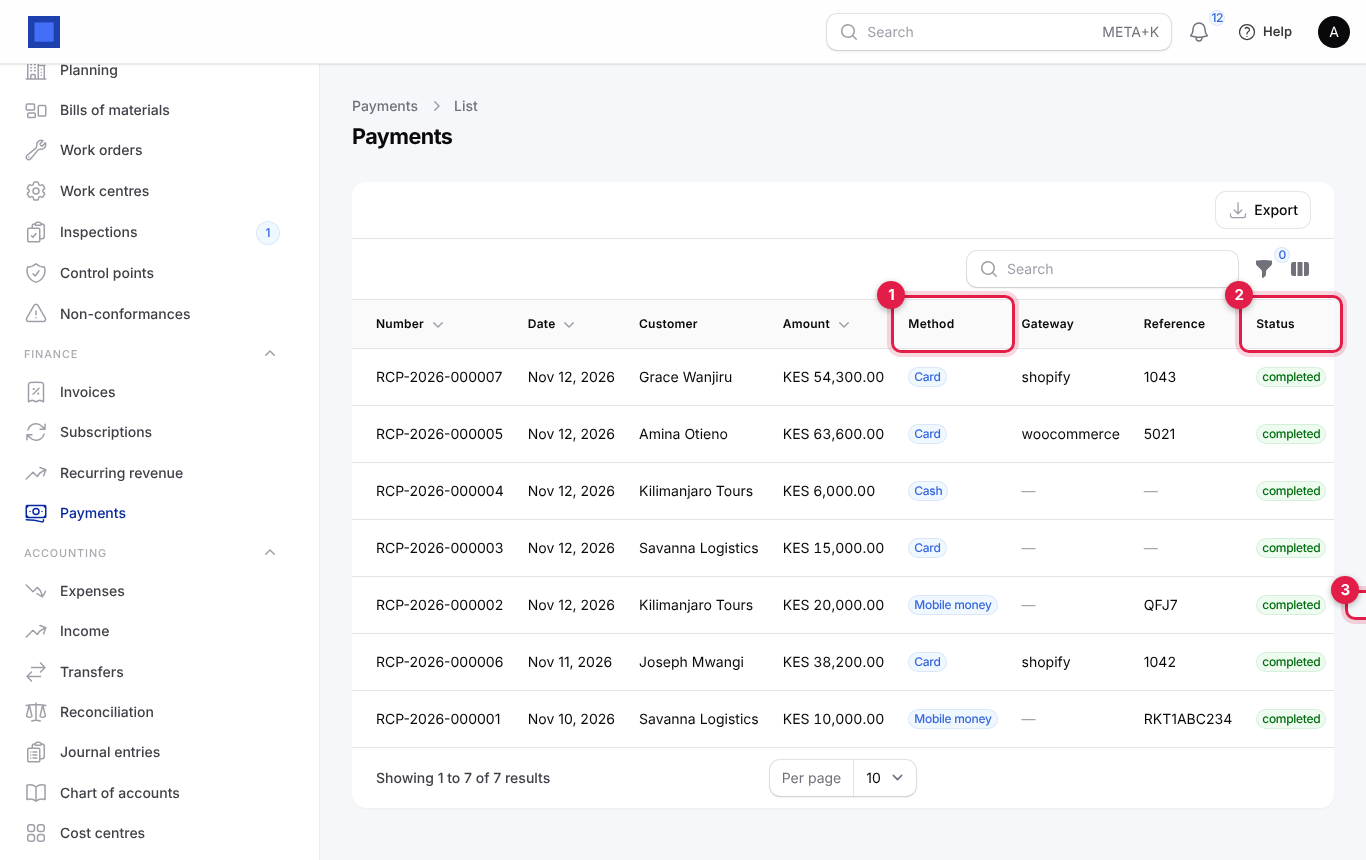
Columns: Number (the receipt number), Date, Customer, Amount, Method (marker 1), Gateway, Reference and Status (marker 2): completed, pending (an online payment waiting for confirmation), failed or refunded. Filter by Status and Method. Click View (marker 3) to open one.
The payment page shows the details (gateway, gateway reference, payer phone, who recorded it, or "Online") and Allocated to (marker 2): which invoices it paid and how much each.
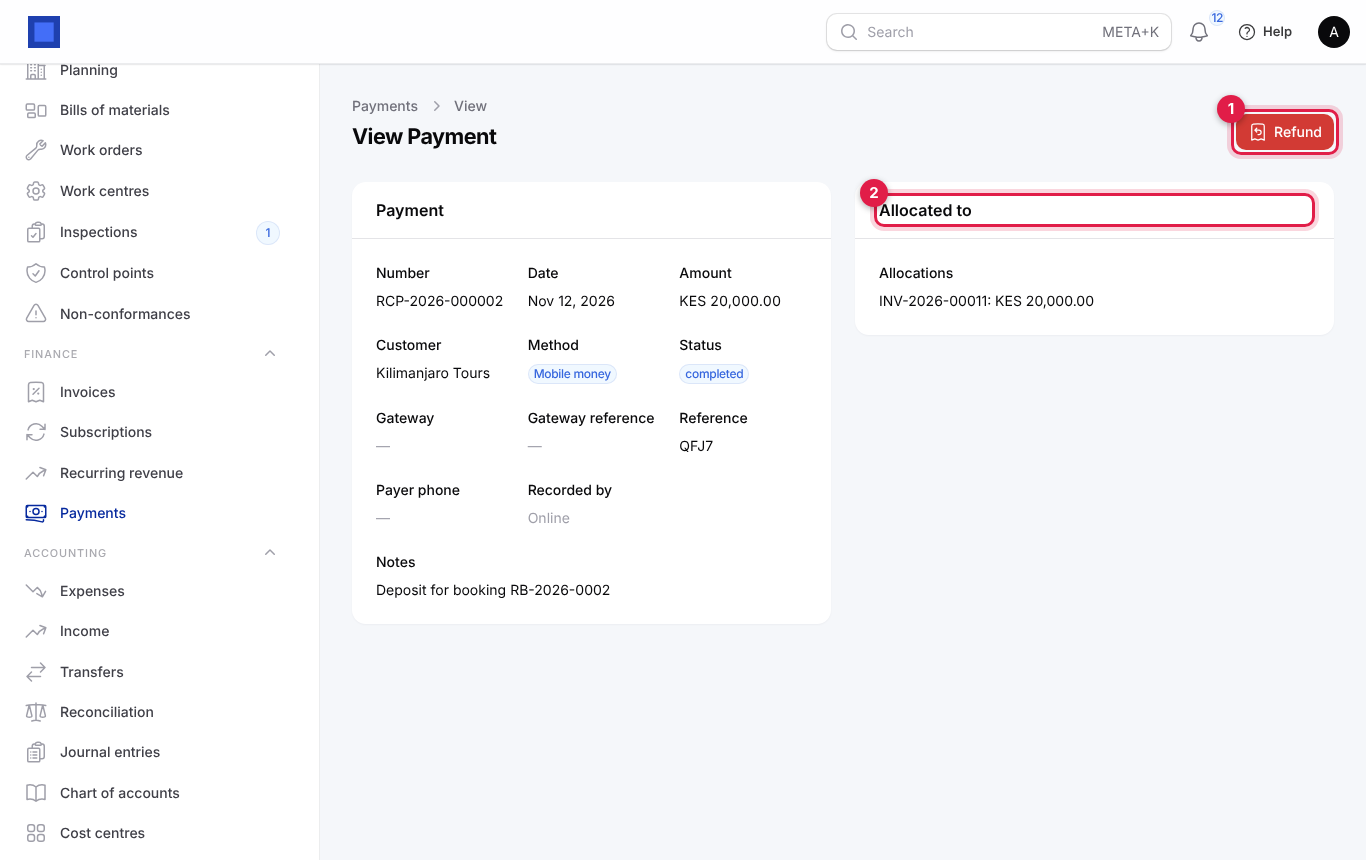
To refund:
- Open the payment and click Refund (marker 1).
- Type the Amount (marker 1). It starts at what can still be refunded.
- For a gateway payment, Send the money back through … is on: the gateway returns the money to the customer. Switch it off when you gave the money back another way, such as cash; the refund is then only recorded.
- Type the Reason (marker 2) and click Refund.
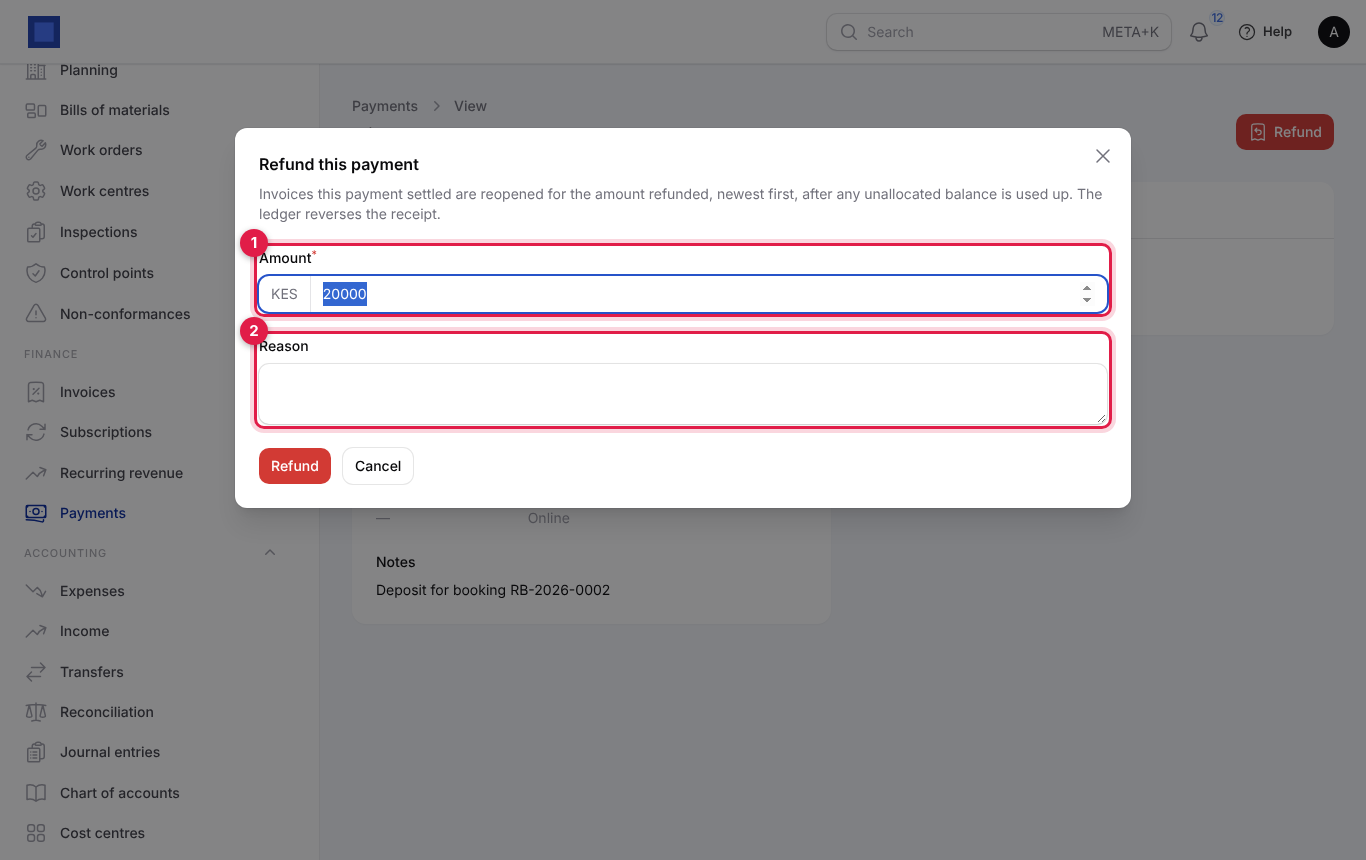
The invoices the payment settled are reopened for the refunded amount (newest first, after any unallocated balance is used), the ledger reverses the receipt, and a Refunds section lists each refund. A gateway refund may show "processing" until the gateway confirms it.
Remind customers who have not paid
Reminders are sent by email every morning at 08:00 to customers with outstanding invoices that have a due date and were issued.
There are two ways to set them up:
A simple schedule. In Settings → Preferences → Subscriptions, set Payment reminder schedule, for example -3, 1, 7, 14: three days before the due date, then one, seven and fourteen days after. Each step is sent once. (The setting lives with Subscriptions, which runs the daily reminders.)
Escalating dunning levels. In Settings → Preferences → Invoices, under Dunning levels after the due date, click Add a level (marker 4) for each step and fill in:
| Field | What to enter |
|---|---|
| Days overdue (required, marker 1) | When this level is sent, for example 3, 14, 30. |
| Also tell the finance team (marker 2) | Also sends your team an "Overdue invoices" notification. |
| Subject | For example "Reminder: {number} is overdue". |
| Message (marker 3) | The text. Tags: {number}, {amount}, {due_date}, {days}, {company}, {name}. |
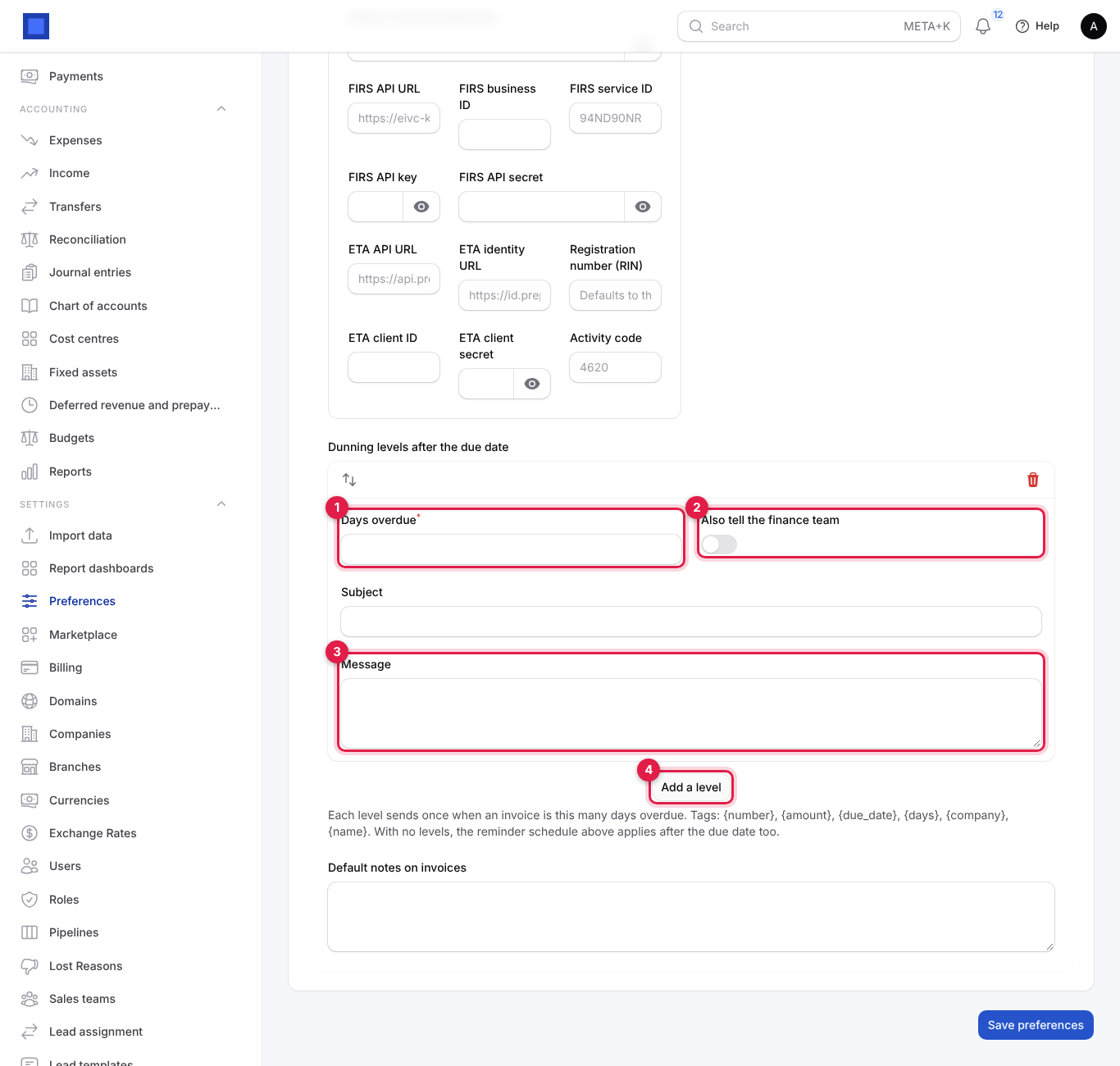
When dunning levels exist, they replace the schedule after the due date (the reminders before the due date still follow the schedule). Each invoice records the highest level reached and is never sent the same level twice. Customers without an email address get no reminders. An overdue renewal invoice also marks its subscription Past due.
Send a customer statement
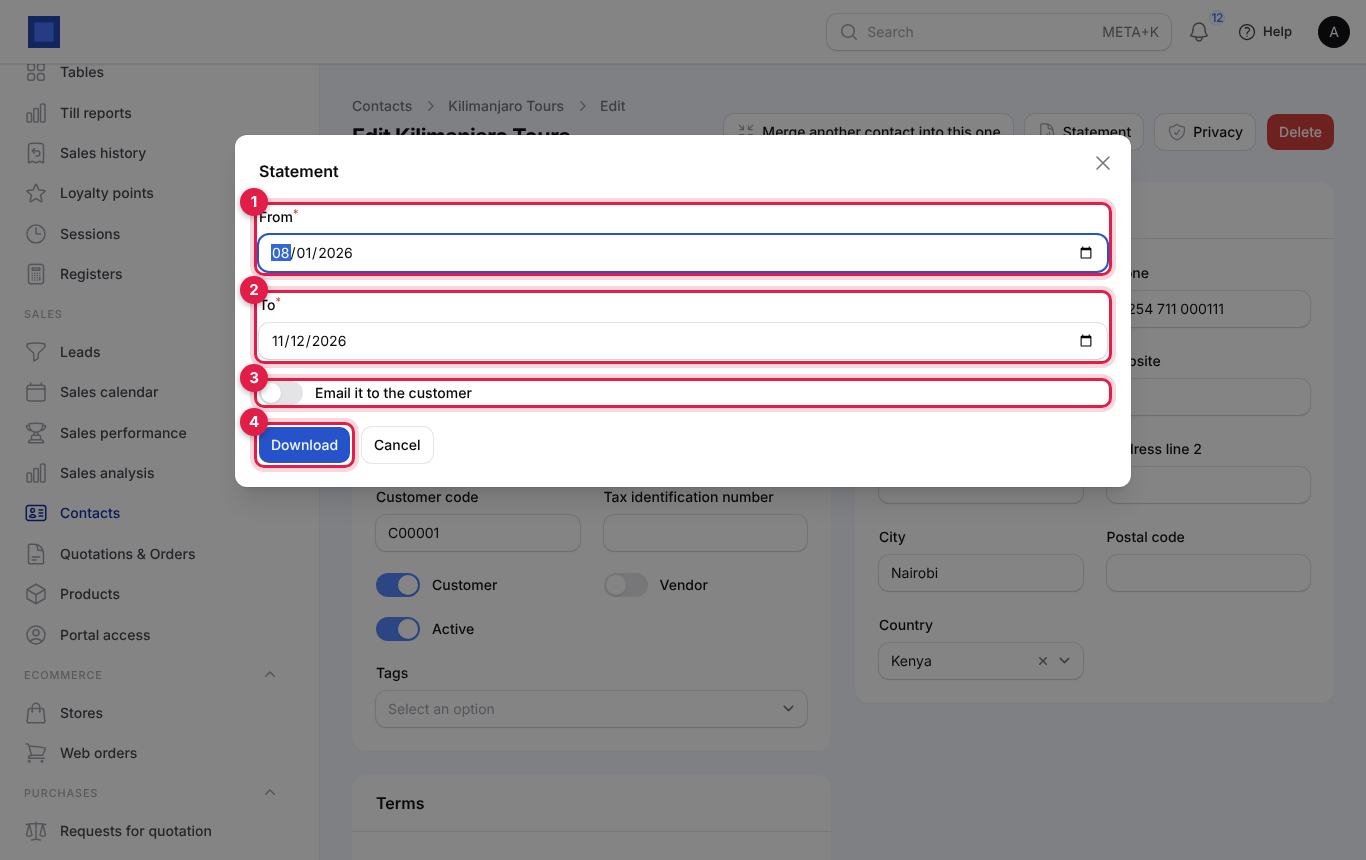
Open the customer under Sales → Contacts and click Statement. Choose the period, then download the PDF or switch on Email it to the customer. See Contacts and CRM.
Report invoices to the tax authority (eTIMS, FIRS, ETA)
Where the law requires electronic invoicing, NaliSuite sends each issued invoice to the tax authority and prints the authority's reference and QR code on the PDF.
- Open Settings → Preferences → Invoices and find E-invoicing (tax authority) (marker 4).
- Authority: leave Country default (Kenya uses KRA eTIMS, Nigeria FIRS, Egypt ETA) or choose one.
- Switch on Send every issued invoice automatically to send at the moment of issue.
- Fill in the credentials for your authority:
- KRA eTIMS: eTIMS OSCU URL (sandbox address shown until you change it), KRA PIN (defaults to the company tax ID), Branch ID (usually 00), Device communication key.
- FIRS: FIRS API URL, FIRS business ID, FIRS service ID, FIRS API key, FIRS API secret.
- ETA: ETA API URL, ETA identity URL, Registration number (RIN), ETA client ID, ETA client secret, Activity code.
- Click Save preferences.
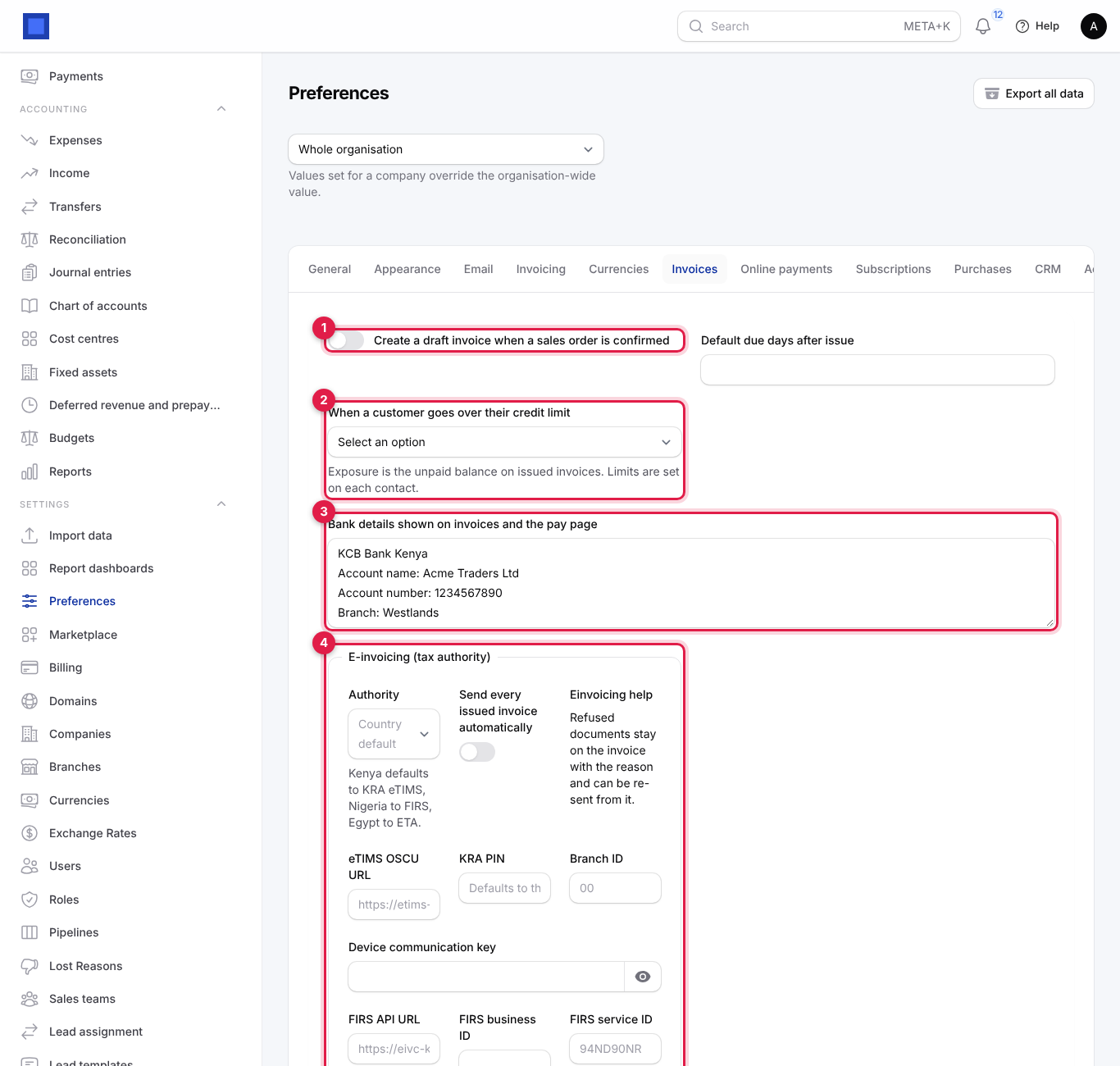
On an issued invoice, Send to tax authority sends it by hand (or again after a refusal). Once accepted, the button reads Tax authority: registered and turns green, and "Registered as …" shows the reference. If the authority refuses it, the reason stays on the invoice ("Last attempt: …") so you can correct and resend. Proforma invoices are never sent.
Invoice preferences
Settings → Preferences has three tabs that affect invoices. Values apply to the whole organisation; use the selector at the top (marker 1) to set a different value for one company.
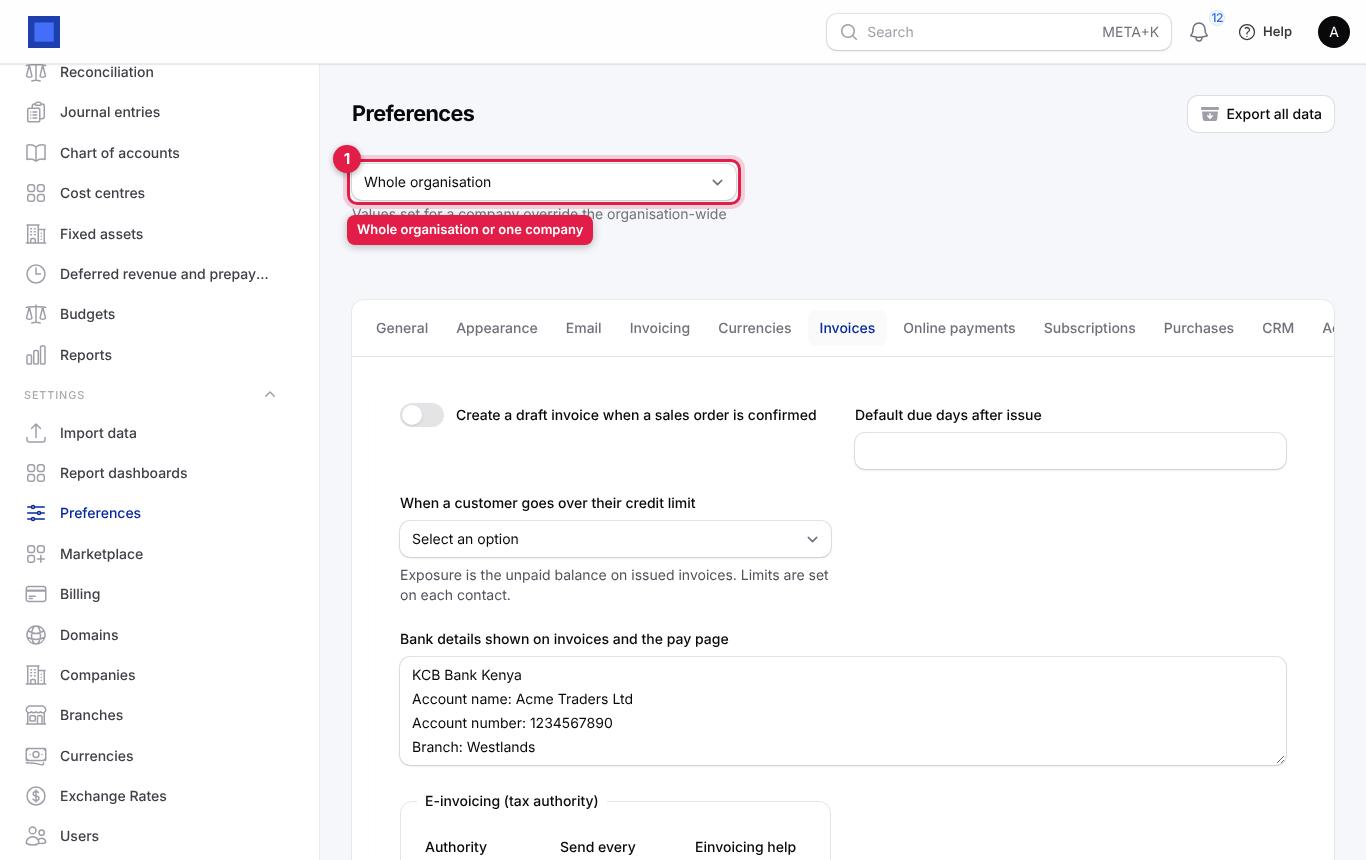
Invoices tab (see the screenshot above under e-invoicing):
| Setting | What it does |
|---|---|
| Create a draft invoice when a sales order is confirmed (marker 1) | Orders invoiced "When confirmed" get a draft invoice automatically. |
| Default due days after issue | Due date for invoices without payment terms. |
| When a customer goes over their credit limit (marker 2) | Do nothing, Warn, but allow the order or invoice (default), Block confirming orders and issuing invoices. |
| Bank details shown on invoices and the pay page (marker 3) | Bank name, account name and number, branch, paybill. |
| E-invoicing (tax authority) (marker 4) | See above. |
| Dunning levels after the due date | See Remind customers who have not paid. |
| Default notes on invoices | Printed on every new invoice. |
Invoicing tab:
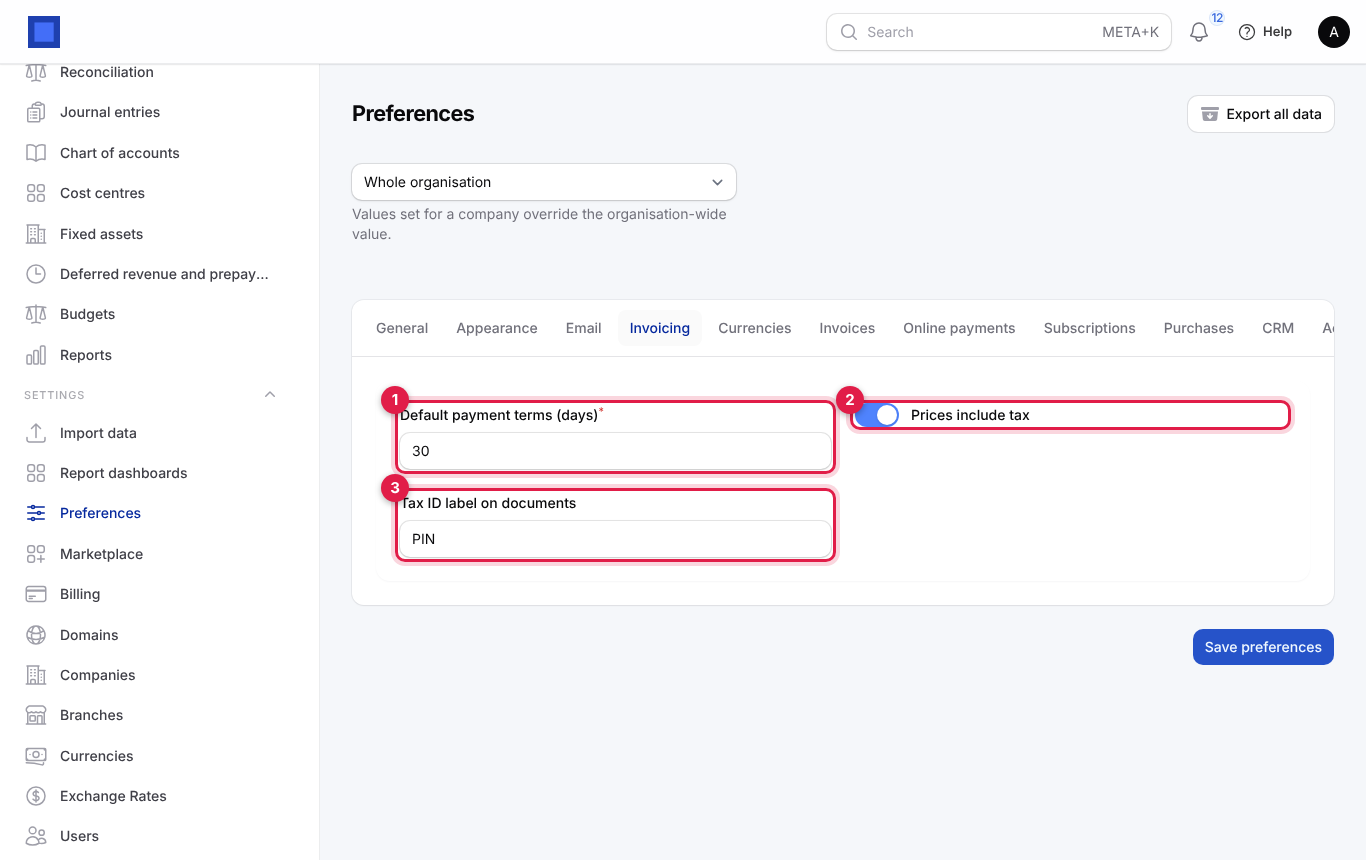
| Setting | What it does |
|---|---|
| Default payment terms (days) (marker 1, required) | Used when a customer has no payment terms. |
| Prices include tax (marker 2) | On: prices you type already include VAT, and tax is worked out from them. Off: tax is added on top. Applies to new quotations and invoices. |
| Tax ID label on documents (marker 3) | The label printed before tax numbers, for example "PIN" in Kenya or "TIN". |
Online payments tab: see Switch on online payment methods.
Common questions
I issued an invoice with a mistake. Can I edit it? No, issued invoices are locked so your books and the tax authority stay in step. Issue a Credit note for it and create a new invoice. If it has no payments and was not registered with the tax authority, you can Cancel it instead.
Why is the Record payment button missing?
The invoice is a draft, already paid or cancelled, or you lack invoicing.payments.manage.
"Allocation to INV-… exceeds the amount due." You typed more than is owed. Record only the amount due; record extra money as a separate payment when you have another invoice to apply it to.
A customer paid by M-Pesa but the invoice is still unpaid. If they paid through the pay page, check Finance → Payments for a pending or failed payment. If they sent money to your paybill directly, record the payment by hand with the M-Pesa code as the reference.
Can the customer pay part of an invoice online? The pay page always asks for the full amount due. Record part payments by hand.
Do drafts appear in the customer portal or on statements? No. Only issued invoices are shown to customers and counted as owed.
How do I stop reminders for one customer? Remove their email address, or record the payment or a credit note so nothing is outstanding.