Laundry and Dry Cleaning
Laundry and Dry Cleaning is for laundries, dry cleaners and wash-and-fold shops that take items in at a counter or collect them from customers. You keep a price list per piece or per kilogram, take in a ticket with a numbered tag for every piece and any stains noted, and move it from washing to ready to collected or delivered. Customers get a text when their order is ready or on its way, with a link to a status page. Drivers see the day's pickups and deliveries, invoices go through Invoicing, and tickets left uncollected are easy to chase.
It is in the Laundry group of the left menu: Orders, Pickups and deliveries and Price list.
Note: laundry.view lets someone see tickets, print tickets and tags and open the pickups and deliveries list. laundry.manage takes tickets in, moves them on, takes payments, assigns drivers, sends reminders and edits the price list. Owners and admins have both; the member role has laundry.view. Set permissions under Settings → Roles.
Switch it on
Laundry and Dry Cleaning is a marketplace add-on. It needs the Contacts app. With Invoicing on, every ticket is invoiced and payments are recorded against the invoice. With Marketing and an SMS provider set up, customers get texts.
- Open Settings → Marketplace and type Laundry in the Search add-ons… box (marker 1).
- On the Laundry and dry cleaning card (marker 2), click Start free trial (or Add to subscription) and confirm. The Laundry group appears in the menu.
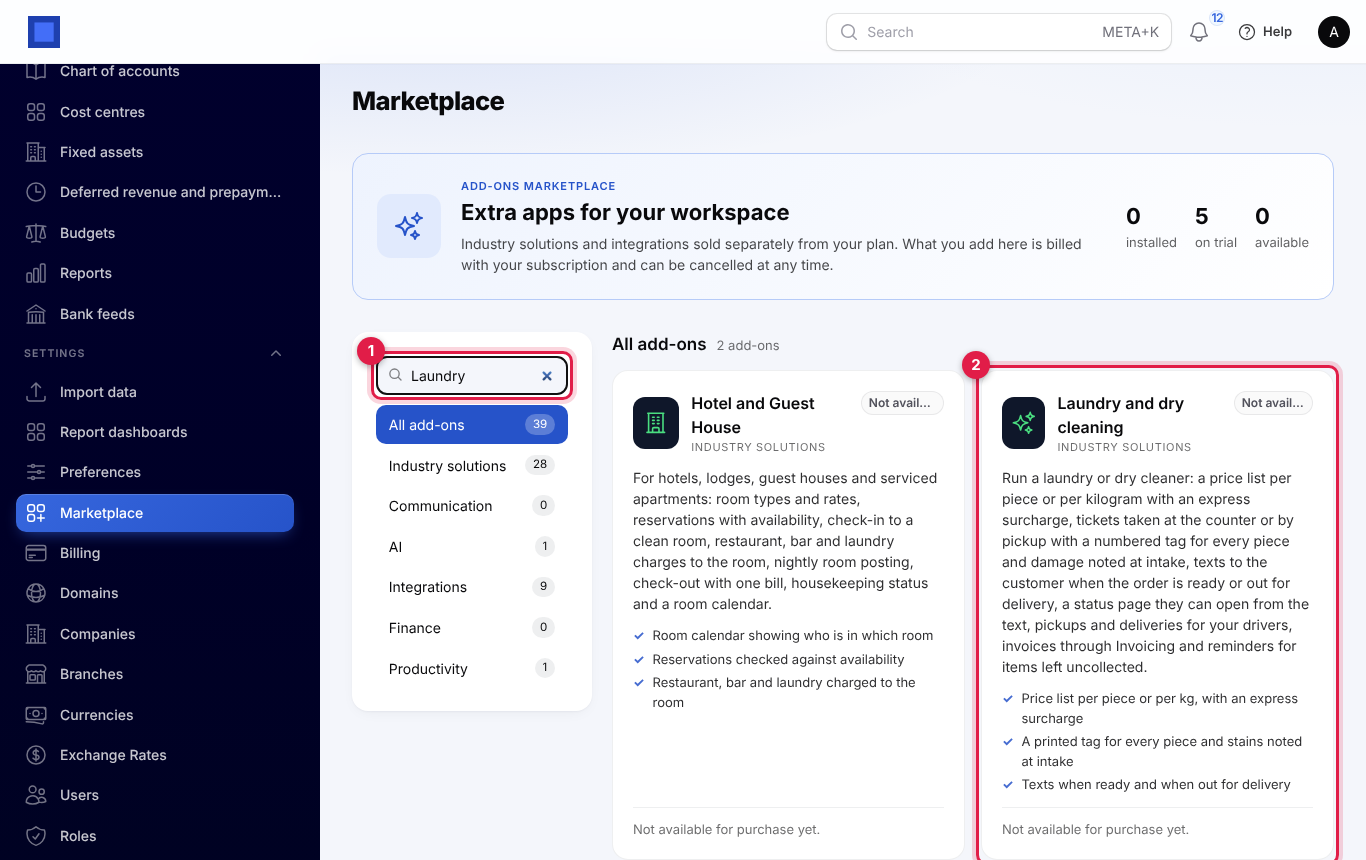
If the card says Not available for purchase yet, the add-on has not been priced for your plan: ask NaliSuite support to switch it on. See Billing and marketplace.
Laundry settings
- Open Settings → Preferences and click the Laundry tab (marker 1).
- Fill in the fields and click Save preferences (marker 11).
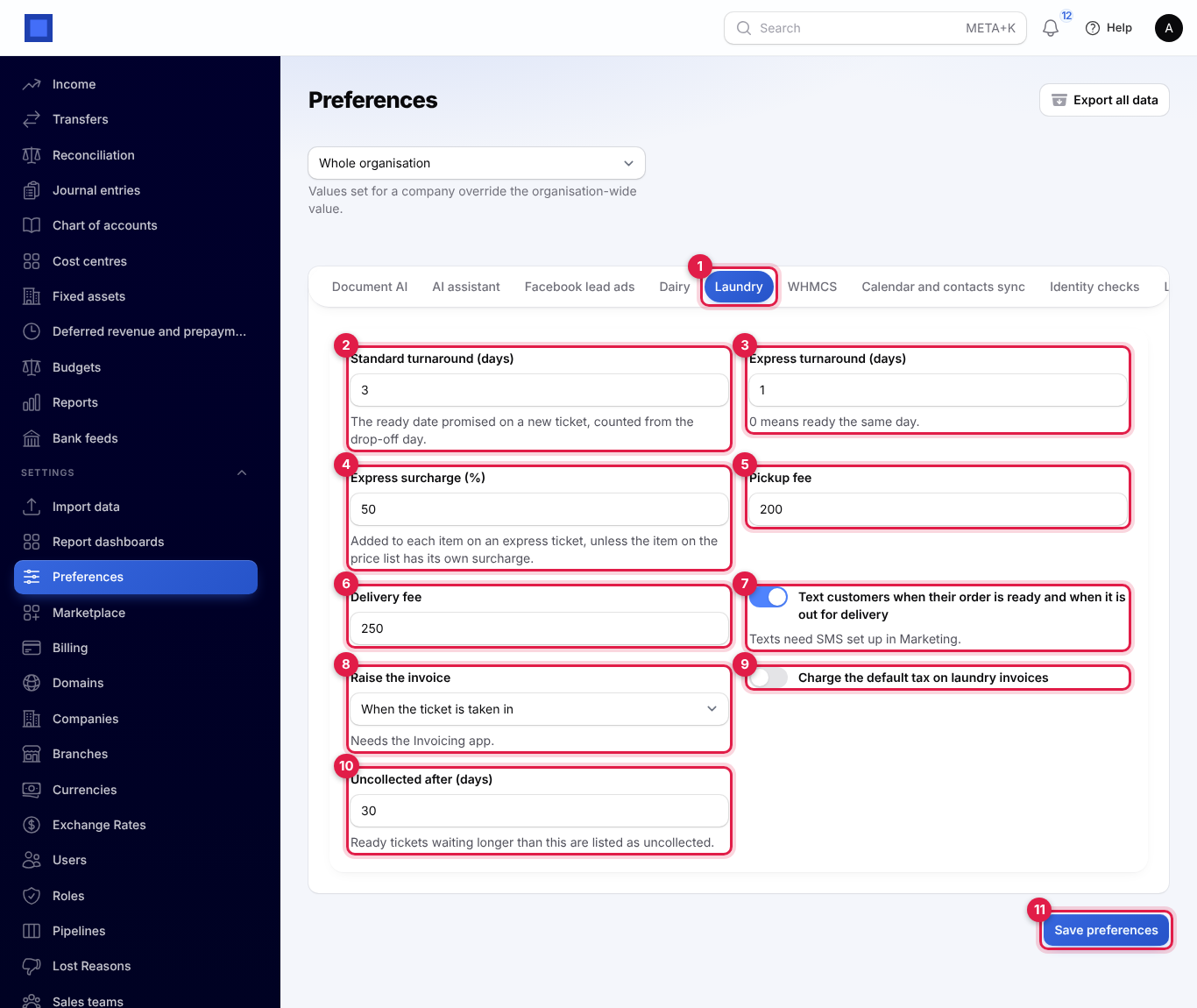
| Setting | Default | What it does |
|---|---|---|
| Standard turnaround (days) (marker 2) | 3 | The ready-by day promised on a new ticket, counted from the drop-off day. |
| Express turnaround (days) (marker 3) | 1 | The same for express tickets. 0 means ready the same day. |
| Express surcharge (%) (marker 4) | 50 | Added to each item on an express ticket, unless the item on the price list has its own surcharge. |
| Pickup fee (marker 5) | 0 | Charged when you collect the items from the customer. You can change it on each ticket. |
| Delivery fee (marker 6) | 0 | Charged when you deliver the items. You can change it on each ticket. |
| Text customers when their order is ready and when it is out for delivery (marker 7) | On | Sends the automatic texts described in Texts and the status page. Needs SMS set up in Marketing. |
| Raise the invoice (marker 8) | When the ticket is taken in | When the ticket is taken in, or When the items are collected or go out for delivery. Needs the Invoicing app. See Billing and payments. |
| Charge the default tax on laundry invoices (marker 9) | Off | Puts your default tax (for example VAT 16%) on every line of laundry invoices. |
| Uncollected after (days) (marker 10) | 30 | Ready tickets waiting longer than this are listed as uncollected. The number is also printed on the ticket. |
The price list
Your price list holds each item and what is done to it, for example "Shirt, wash and iron" or "Suit (2 piece), dry clean", priced per piece or per kilogram.
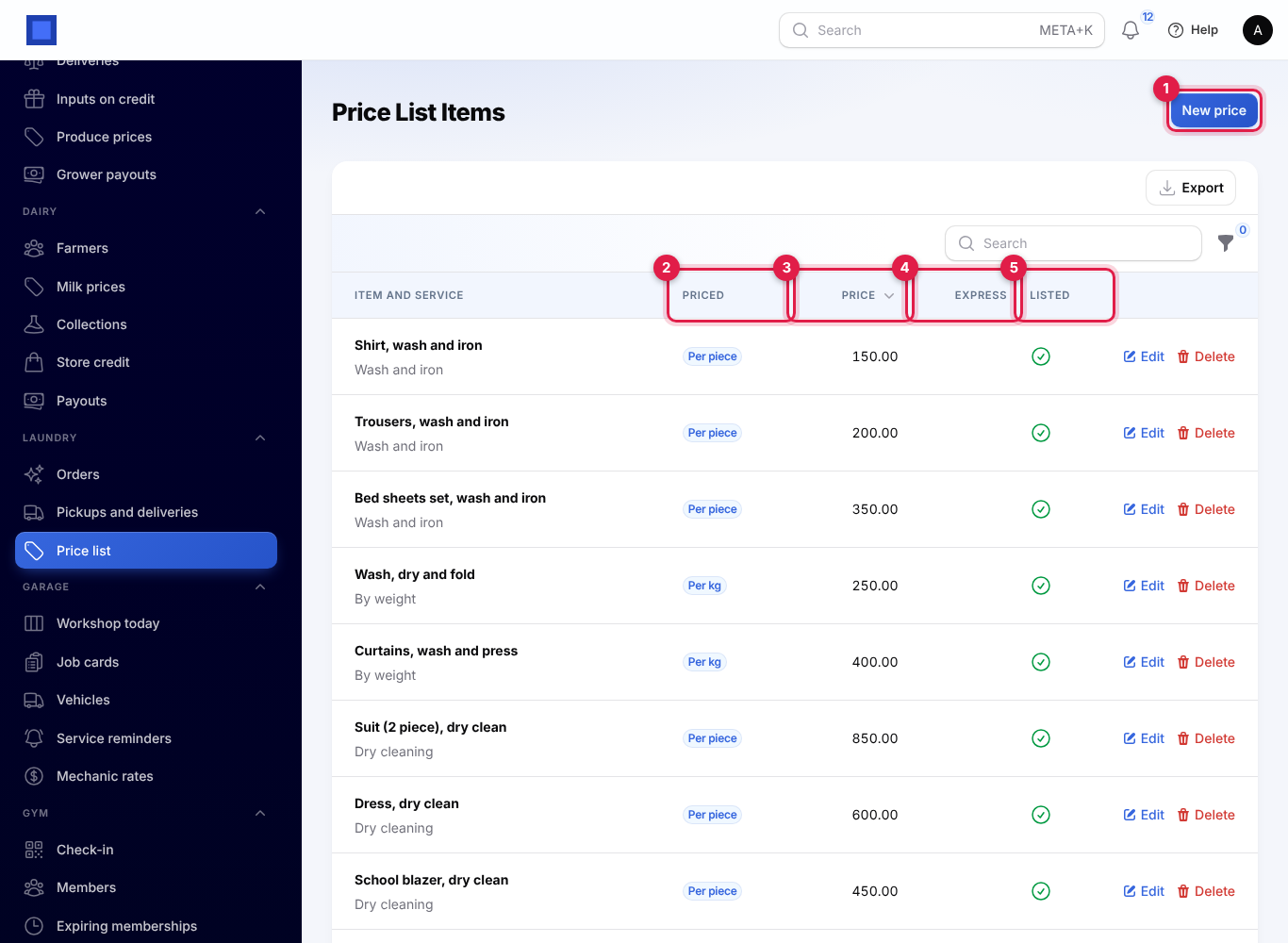
- Open Laundry → Price list and click New price (marker 1). The list shows how each item is Priced (marker 2), its Price (marker 3), its own Express surcharge or Default (marker 4), and whether it is Listed (marker 5).
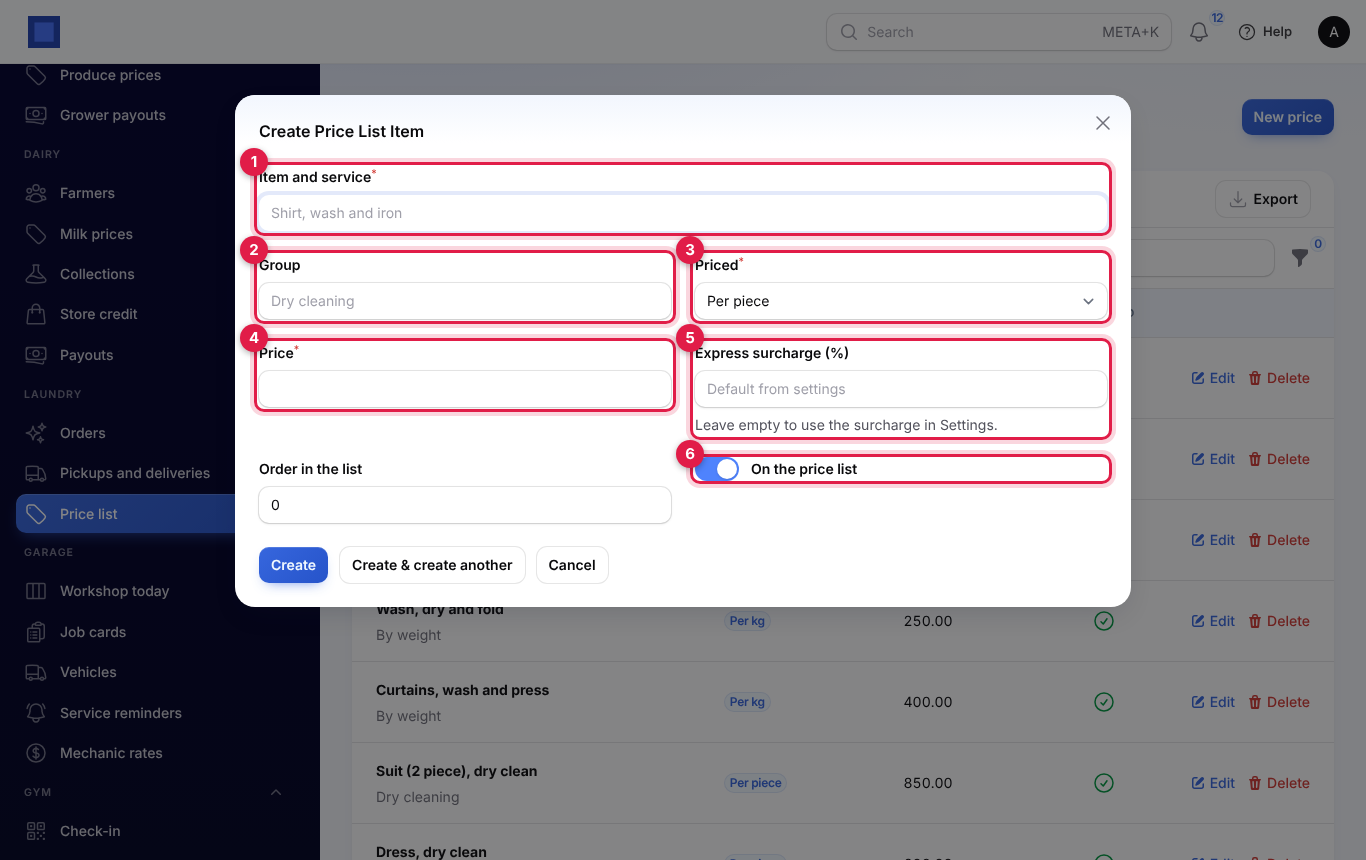
- Fill in the form and click Create:
| Field | What to enter |
|---|---|
| Item and service (required, marker 1) | The garment and the service, for example "Duvet (queen), wash". |
| Group (marker 2) | A heading such as Dry cleaning, Wash and iron or By weight. Groups you used before are suggested. |
| Priced (required, marker 3) | Per piece (each shirt, each suit) or Per kg (wash, dry and fold; curtains). |
| Price (required, marker 4) | Per piece or per kg. |
| Express surcharge (%) (marker 5) | For an item that costs more to rush, for example 100 for a wedding gown. Leave it empty to use the surcharge in Settings. |
| Order in the list | Lower numbers come first when choosing items on a ticket. |
| On the price list (marker 6) | Off to stop offering the item on new tickets without deleting it. |
Use the filter icon to show one Priced type, one Group, or only items on the price list. Edit and Delete are on each row. Changing a price does not change tickets already taken in.
Take in a ticket
- Open Laundry → Orders and click New ticket (marker 1 in the orders list screenshot).
- Fill in the form from the top:
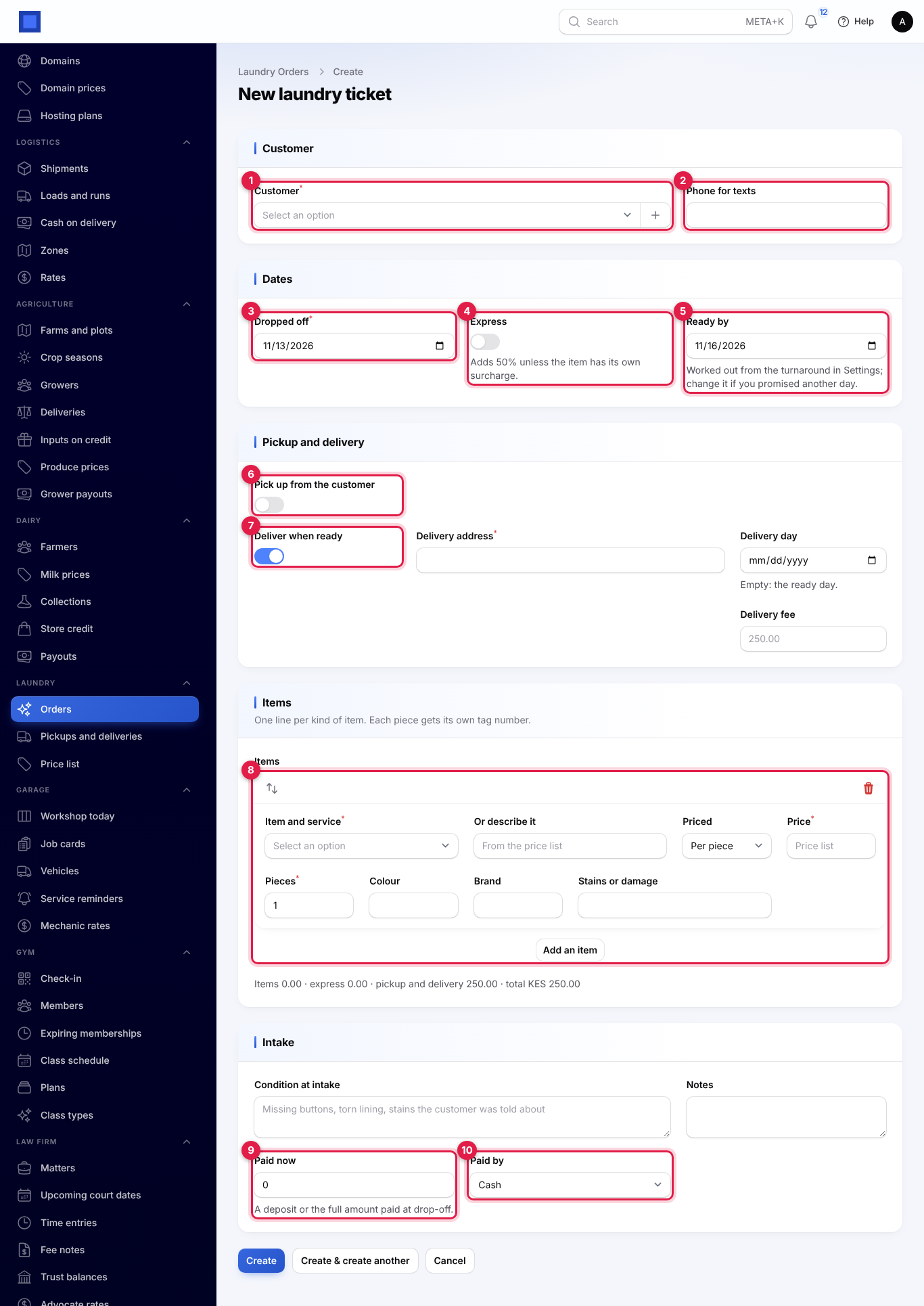
- Customer (marker 1): search by name or phone. To add someone new, click + and type their Name, Mobile and Email.
- Phone for texts (marker 2): filled from the customer's mobile; change it if they want texts on another number.
- Dropped off (marker 3): today unless you change it.
- Express (marker 4): switch on for a rush job. It adds the express surcharge to every item.
- Ready by (marker 5): filled from the drop-off day plus the standard or express turnaround. Change it if you promised another day.
- Pick up from the customer (marker 6): see Pickups and deliveries.
- Deliver when ready (marker 7): switch on and fill in the Delivery address (required), the Delivery day (empty means the ready day) and the Delivery fee (empty means the fee in Settings).
- Under Items (marker 8), add one line per kind of item (see below). Click Add an item for each further line.
- Under Intake, note the Condition at intake for the whole ticket, for example "Missing buttons, torn lining", and any Notes.
- If the customer pays now, type the amount in Paid now (marker 9), a deposit or the full amount, and choose how in Paid by (marker 10): Cash, Mobile money, Card, Bank transfer or Other. It cannot be more than the total.
- Click Create. The ticket is numbered, for example
LD-2026-00013, and opens.
Items, tags and stain notes
Each line on the ticket has these fields (the picture shows a ticket already taken in):
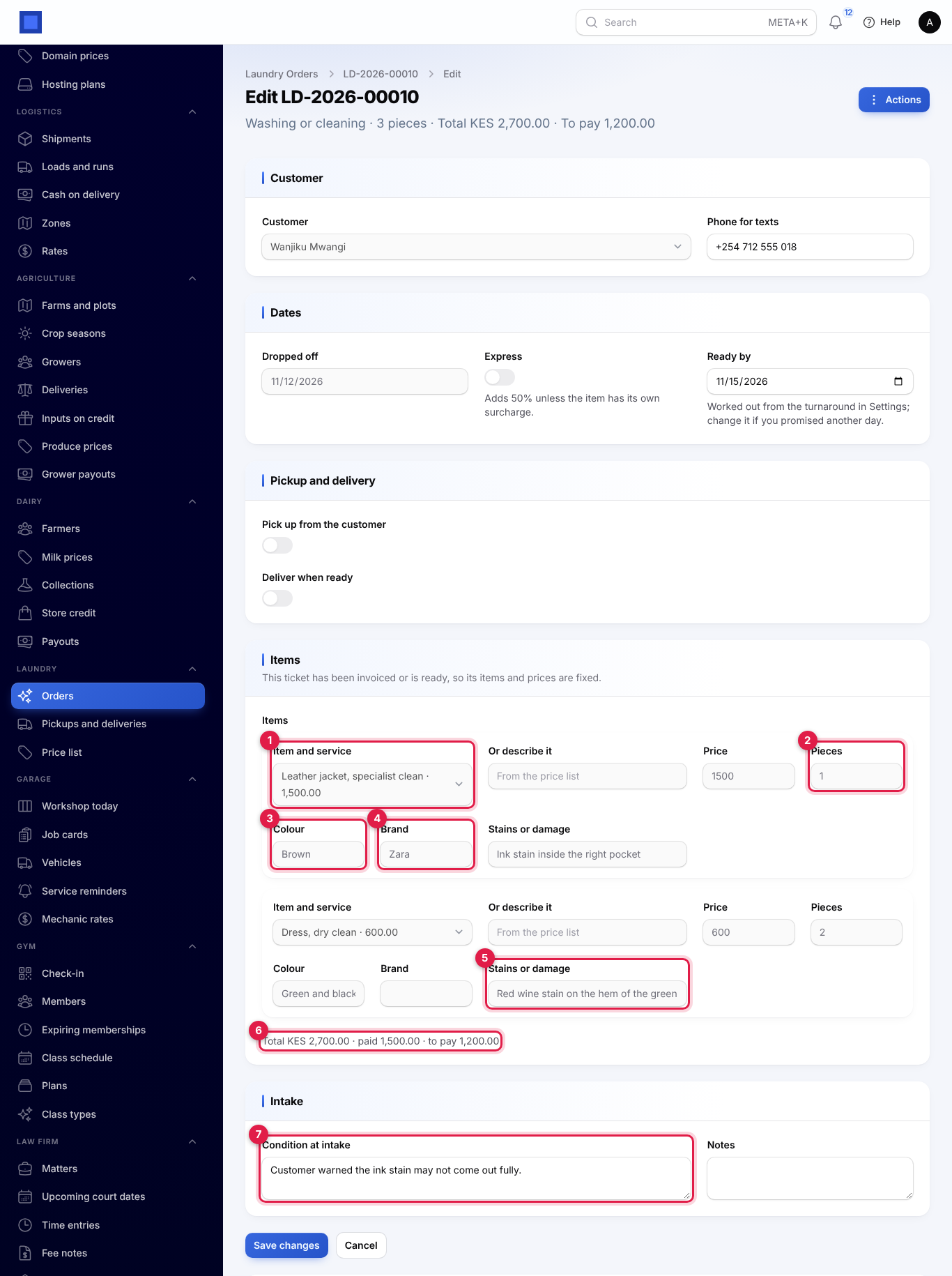
- Item and service (marker 1): choose from the price list. For something not on the list, leave it empty and fill in Or describe it, Priced (per piece or per kg) and Price. Typing a Price for a price-list item overrides its price on this ticket.
- Pieces (marker 2) for per-piece items, or Kg for per-kg items. Per-kg items also ask for Bags or pieces: one tag is printed for each.
- Colour (marker 3) and Brand (marker 4): they appear on the tags and the invoice, so the right shirt goes back to the right customer.
- Stains or damage (marker 5): anything you showed the customer at the counter, such as "Ink stain inside the right pocket". It is printed on the ticket as "Noted at intake".
The line under the items (marker 6) shows the price as you fill in: items, express surcharge, pickup and delivery fees and the total. Once the ticket is taken in it shows the total, what was paid and what is left to pay. Condition at intake (marker 7) is the note for the whole ticket.
How the price is worked out:
- Each item is its price times the pieces or kilograms. Pieces are always whole numbers (2.5 becomes 3).
- On an express ticket, each item gets its own express surcharge, or the default one. For example 4 shirts at 150.00 = 600.00, plus 50% = 900.00.
- The pickup and delivery fees are added once.
Every piece gets its own tag number: the ticket number and a running number. On a ticket with 5 shirts and 3 trousers, the shirts are LD-2026-00007-01 to -05 and the trousers -06 to -08.
What can be changed later
Open a ticket by clicking it in the list (or ⋮ → Edit). You can always change the phone for texts, the ready-by, pickup and delivery days, the addresses and the notes. The items, the express switch and the fees can only be changed while the ticket is still Received or Washing or cleaning and has not been invoiced. The customer and drop-off day never change. A collected, delivered or cancelled ticket cannot be changed at all.
Tip: When the invoice is raised as the ticket is taken in, items are fixed from that moment. Check the items and prices before you click Create.
Print the ticket and tag labels
Click Actions on an open ticket, or ⋮ on its row in the list:
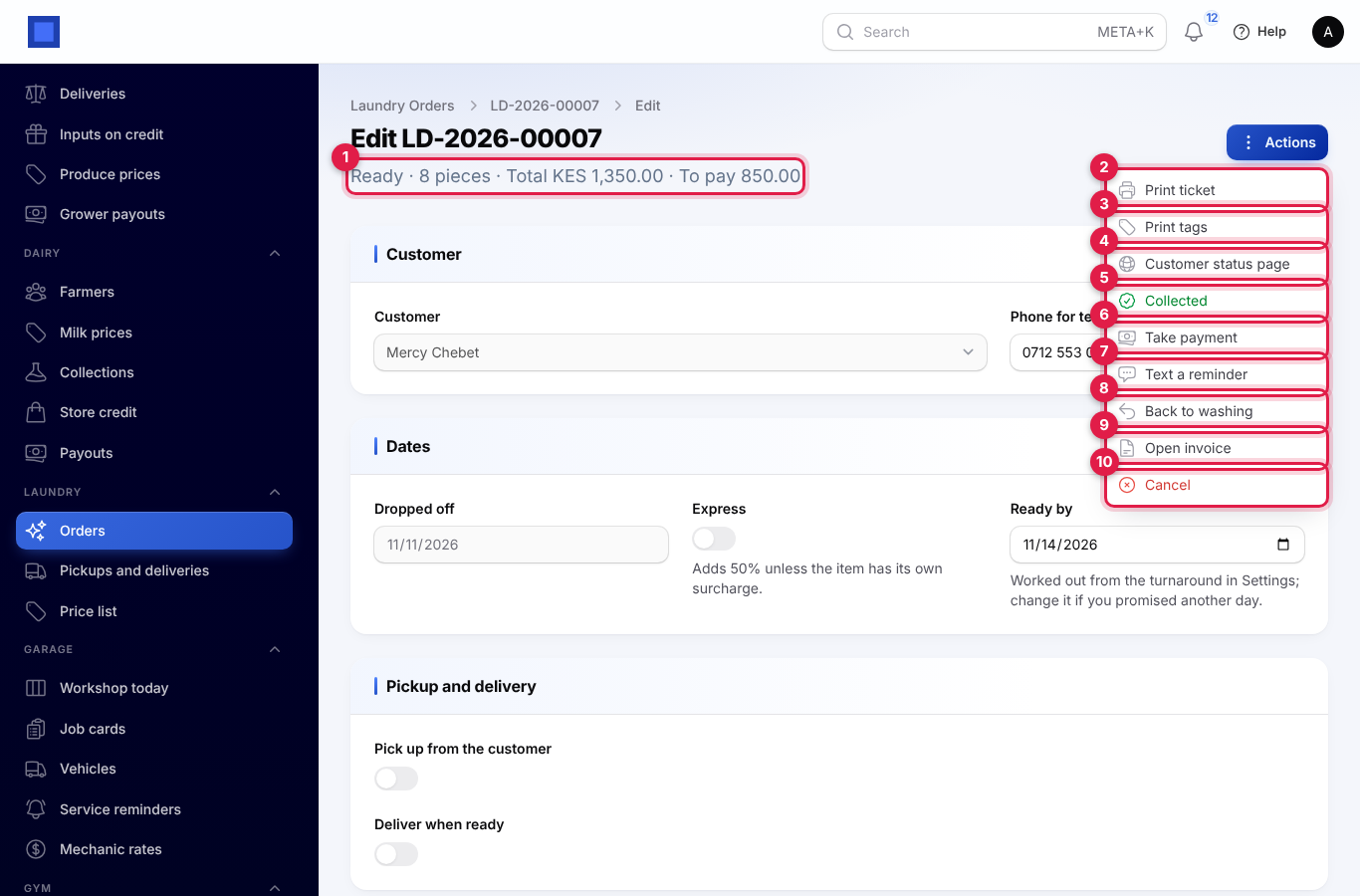
- Print ticket (marker 2): a PDF for the customer with the ticket number, drop-off and ready-by days, standard or express, their name and phone, any pickup and delivery address, every item with its tag numbers, colour, brand and stains noted, the totals, what was paid and what is To pay on collection, the condition at intake and a reminder that you are not responsible for items left more than the uncollected days after they are ready. A QR code takes the customer to their status page.
- Print tags (marker 3): a sheet of small labels, four across on A4, one per piece. Each shows the tag number, the customer's name, the item and colour (with "2/3" when there are several pieces), the ready day and EXPRESS on rush jobs. Cut them out and pin them to the garments.
The summary line at the top of a ticket (marker 1) shows its status, the number of pieces, the total and what is left to pay.
Move a ticket through its statuses
| Status | How it gets there |
|---|---|
| Received | When the ticket is taken in. A ticket for pickup shows Awaiting pickup until the driver collects it. |
| Washing or cleaning | Start washing or cleaning. |
| Ready | Ready (from Received or Washing), after you confirm. The customer is texted. |
| Out for delivery | Out for delivery, for delivery tickets only. Choose the driver. The customer is texted. |
| Collected | Collected at the counter. |
| Delivered | Delivered at the door. |
| Cancelled | Cancel, from Received, Washing or Ready. |
Two actions go back a step: Back to washing (marker 8 in the actions picture) returns a ready ticket to washing, with an optional reason (for example "stain still showing"), and Brought back undelivered returns a ticket from the road to Ready, with a required reason.
A ticket waiting for its pickup cannot go into the wash or be marked ready until Picked up is recorded.
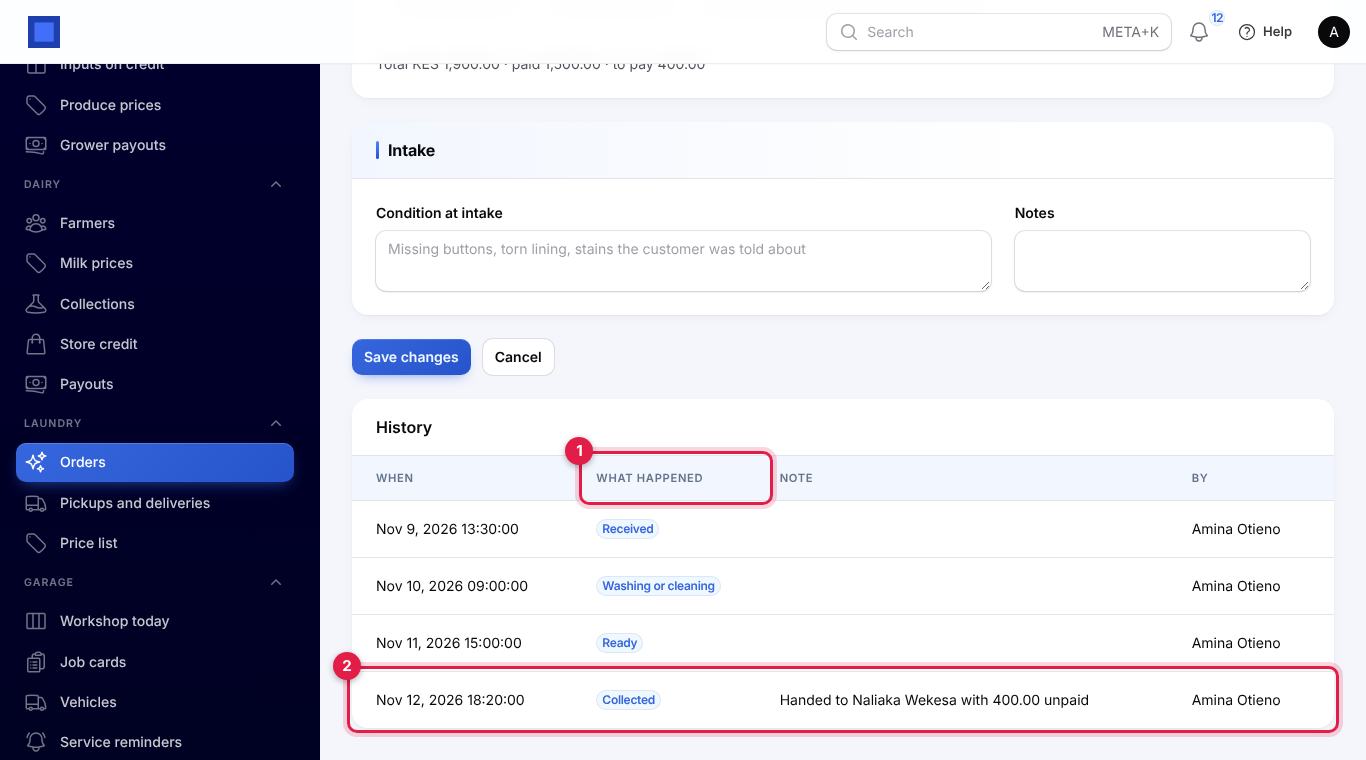
Every move is written to the ticket's History at the bottom of its page: when (marker 1 shows What happened), the note and who did it. Handing over unpaid is recorded there with the amount (marker 2).
Texts and the status page
When SMS is set up in Marketing (see Marketing) and Text customers… is on in Settings, customers get these texts on the ticket's Phone for texts:
- Ready, for collection: "Hello Mercy, your laundry LD-2026-00007 is ready for collection at Acme Laundry. Balance to pay: KES 850.00. Details: (link)". With nothing left to pay, the balance is left out.
- Ready, for delivery: "… is ready. We will deliver it on 13 Nov. Details: (link)".
- Out for delivery: "… is out for delivery today. Please have KES 2,600.00 ready. Details: (link)", or without the amount when it is paid.
The link opens the ticket's status page, which needs no sign-in. You can open it yourself with Customer status page (marker 4 in the actions picture), and the QR code on the printed ticket leads there too.
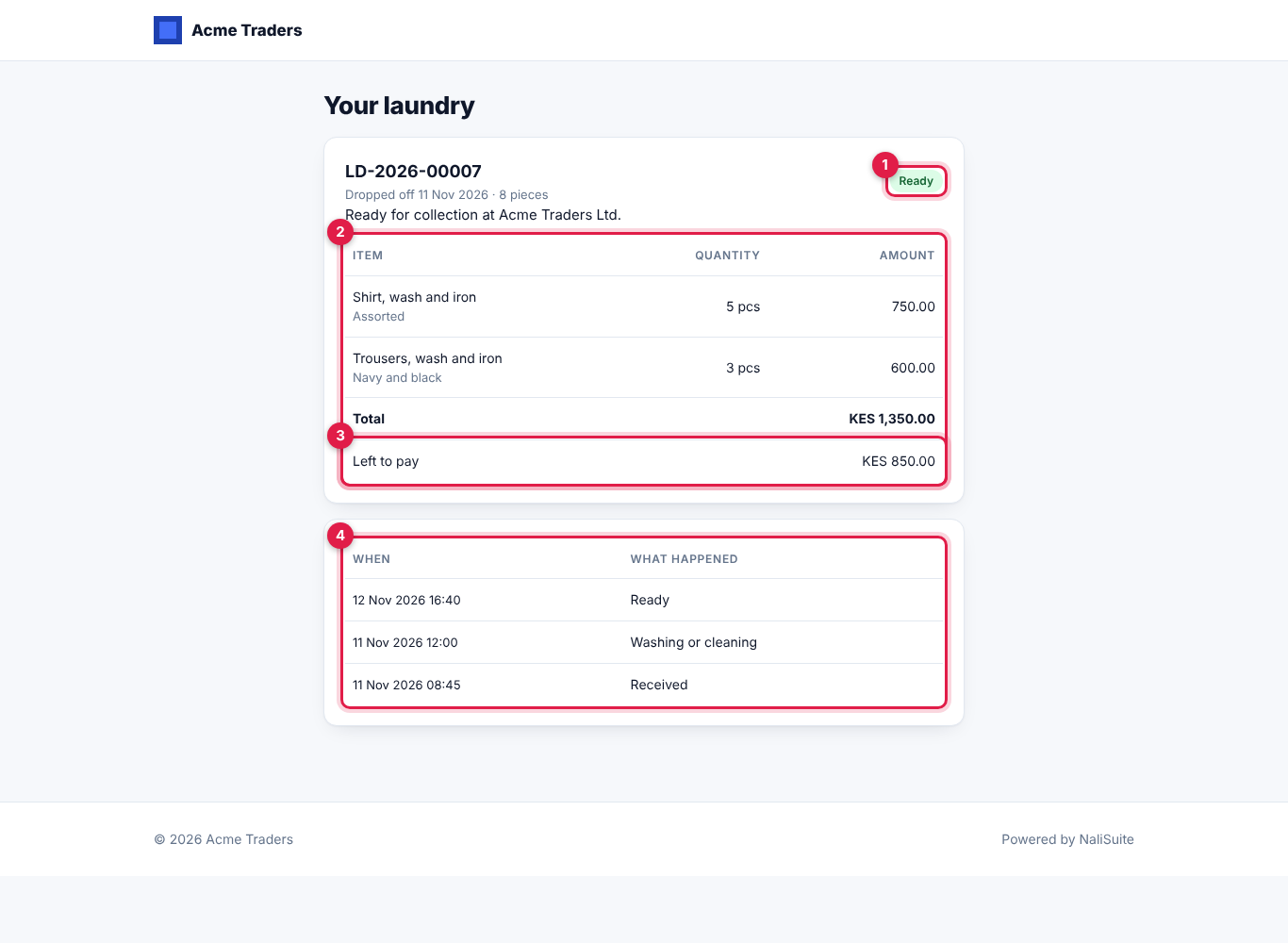
It shows the ticket number, drop-off day, number of pieces and Express, the status (marker 1) with a line such as "Ready for collection at …" or "Promised ready by …", the items with their quantity and amount (marker 2), the express surcharge and fees, the total and what is Left to pay (marker 3), and the history (marker 4). It does not show the customer's phone number. Each page has its own long code, so customers cannot see each other's orders.
The orders list
Open Laundry → Orders.
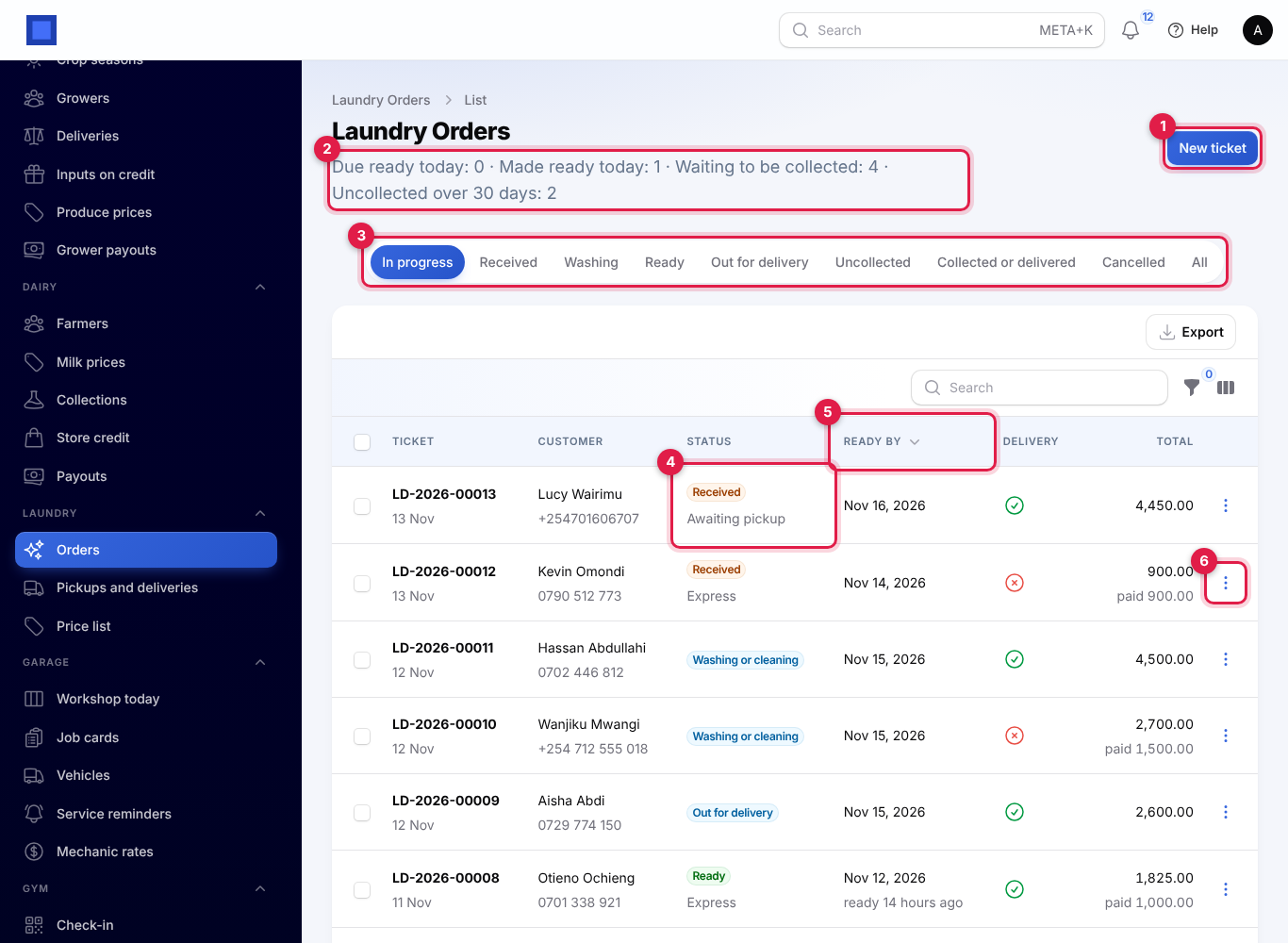
- The line under the title (marker 2) counts the tickets Due ready today, Made ready today, Waiting to be collected and Uncollected over 30 days.
- The tabs (marker 3): In progress (the default), Received, Washing, Ready, Out for delivery, Uncollected, Collected or delivered, Cancelled and All.
- Each ticket shows its number and drop-off day, the customer and phone, the status with Awaiting pickup or Express under it (marker 4), Ready by (marker 5, in red when a ticket still in the wash is past its day; for ready tickets, how long they have been ready), whether it is for Delivery, and the total with what was paid.
- ⋮ (marker 6) opens the same actions as on the ticket.
Search by ticket number, customer name or phone. Filters: Status, Uncollected for more than 30 days, Express and For delivery.
Pickups and deliveries
Laundry → Pickups and deliveries is the drivers' list. It shows pickups not yet done and ready deliveries not yet delivered, due by today, including earlier ones still not done.
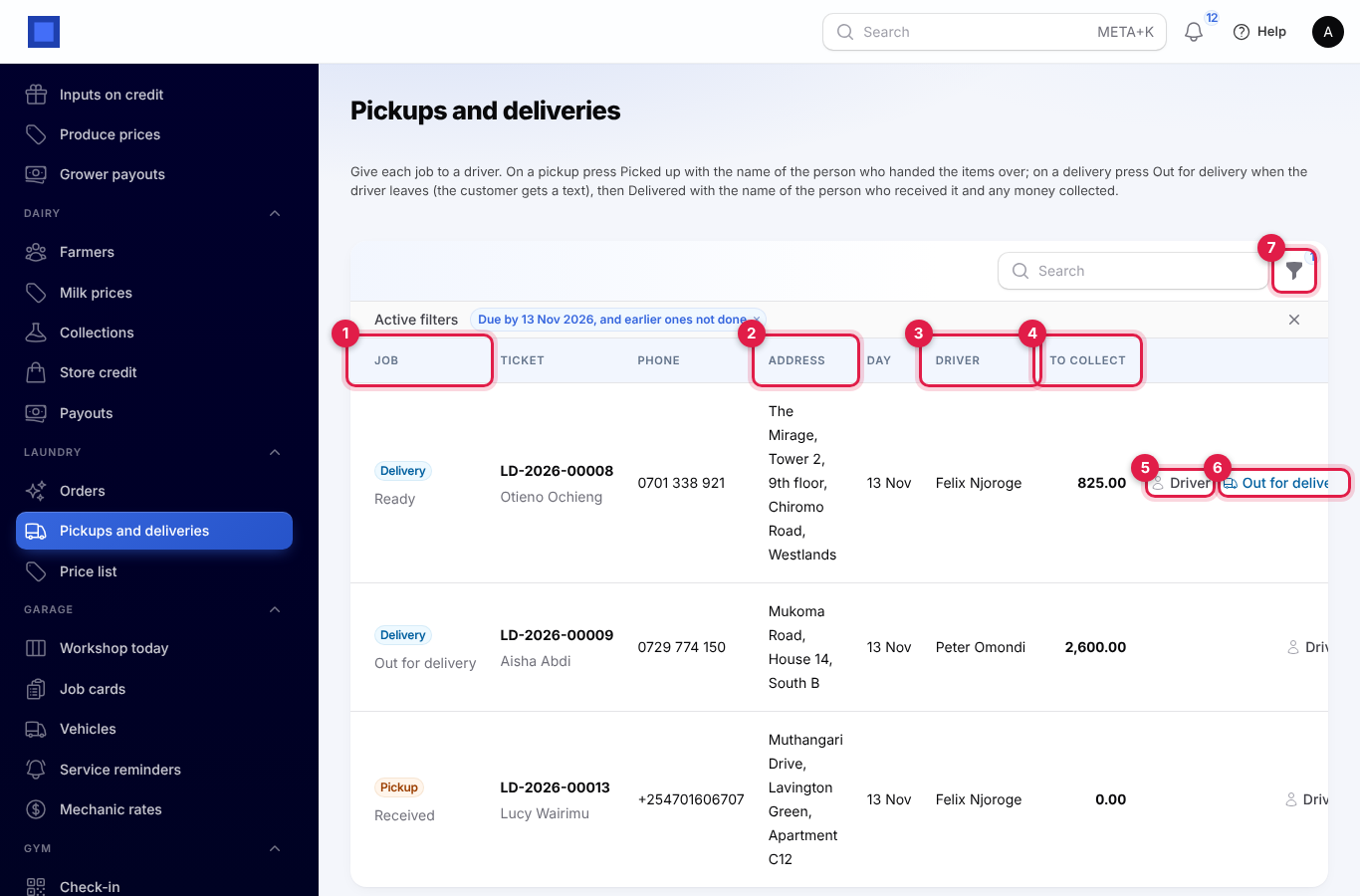
- Job (marker 1): Pickup or Delivery, with the ticket's status.
- The ticket and customer, the Phone (tap it on a phone to call), the Address (marker 2) and the Day (red when overdue).
- Driver (marker 3): who is doing it, or Not assigned.
- To collect (marker 4): what the driver should collect at the door; 0 for pickups.
To give a job to a driver, click Driver (marker 5) and choose any user. On a pickup it sets the pickup driver; on a delivery, the delivery driver.
A pickup:
- Take the ticket in with Pick up from the customer on, the Pickup address (required), the Pickup day (empty means the drop-off day) and the Pickup fee.
- At the door, the driver clicks Picked up, types who Handed over the items (the customer's name is filled in) and submits. The ticket can now go into the wash.
A delivery:
- When the ticket is ready, click Out for delivery (marker 6) and choose the Driver. The customer is texted.
- At the door, the driver clicks Delivered and records who received the items and any money taken, as described in Billing and payments.
Use the filter icon (marker 7) to choose another Due by day, or tick Mine only to see only the signed-in driver's jobs.
Billing and payments
On intake or on collection
With Invoicing on, each ticket gets one invoice, raised at the moment chosen in Raise the invoice:
- When the ticket is taken in: the invoice is raised and issued as you click Create.
- When the items are collected or go out for delivery: it is raised at Out for delivery, Collected or Delivered, or earlier if you Take payment.
The invoice is dated that day and due the same day. It has a line for each item (with its colour and brand, in pieces or kg), a line for the express surcharge, and lines for the pickup and delivery fees. The default tax is added only when Charge the default tax on laundry invoices is on. Click Open invoice (marker 9 in the actions picture) to see it; this needs the invoicing.view permission. See Invoices and payments.
The deposit
Paid now at drop-off is recorded as a customer payment. When billing on intake, it is applied to the invoice straight away. When billing on collection, it waits on the customer's account and is applied to the invoice when the invoice is raised.
Take payment
Take payment (marker 6 in the actions picture) records more money at any time before the ticket is closed: the Amount (the balance is filled in), Paid by and an optional Reference, such as the M-Pesa code. It cannot be more than the balance. With Invoicing on, the payment is recorded against the ticket's invoice, which is raised first if needed.
Hand the items over
Click Collected (marker 5 in the actions picture) at the counter, or Delivered for a ticket out for delivery.
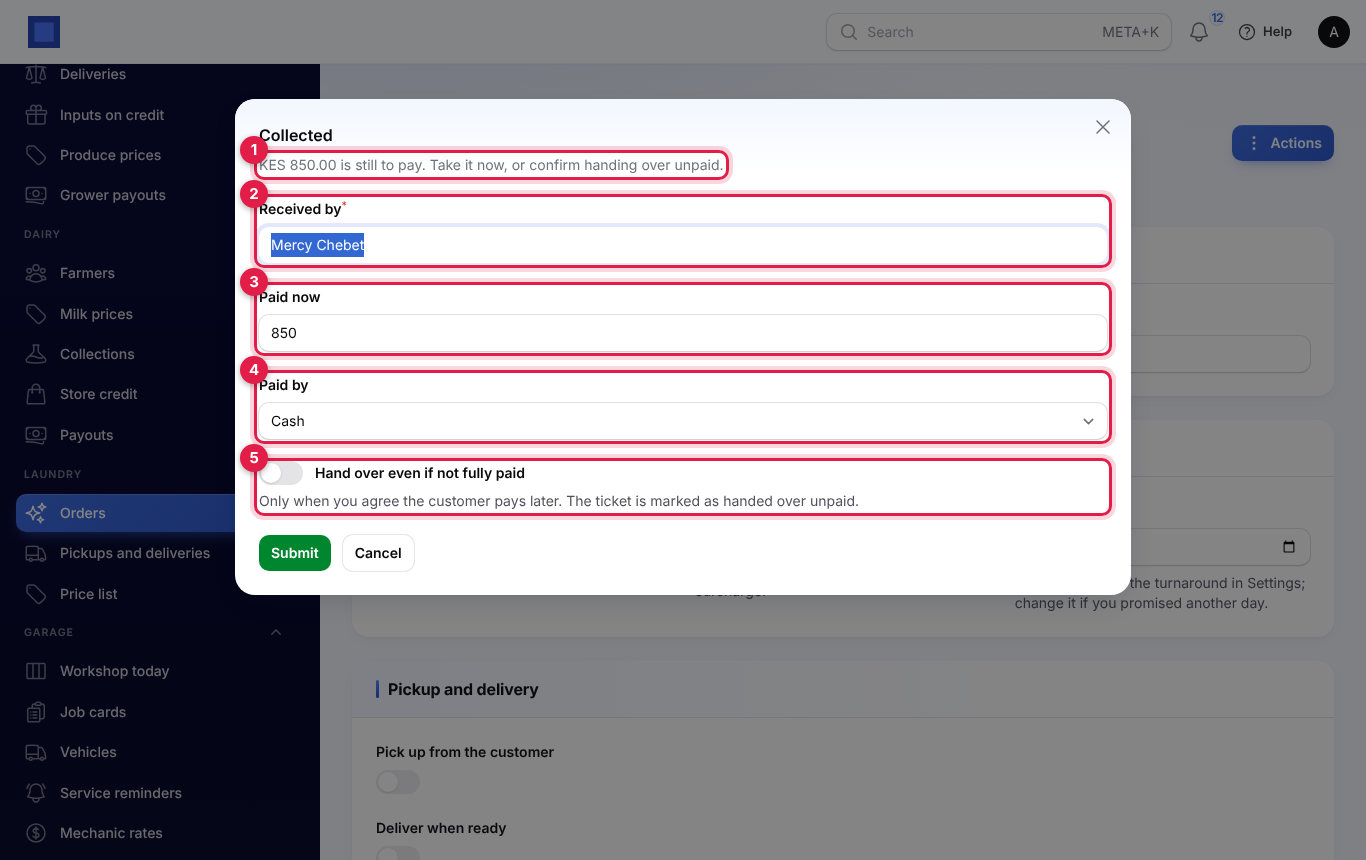
- The message at the top (marker 1) says what is still to pay, or "Fully paid."
- Received by (marker 2): the person who took the items. The customer's name is filled in.
- Paid now (marker 3) and Paid by (marker 4): the money taken at handover. The balance is filled in.
- Click Submit.
If anything is still owed, NaliSuite refuses with "KES … is still owed on LD-…. Take the payment, or confirm handing the items over unpaid." Only when you agree the customer will pay later, switch on Hand over even if not fully paid (marker 5). The ticket is then marked Handed over unpaid and its history shows the amount (see the history picture above). The invoice stays open for the balance.
Cancel a ticket
Click Cancel (marker 10 in the actions picture) on a ticket that is Received, Washing or cleaning or Ready, and confirm. The ticket moves to Cancelled. Its invoice is cancelled too, as long as nothing has been paid on it.
Important: If the customer paid a deposit, the invoice is not cancelled and the money stays on the customer's account. Refund it, or credit the invoice, under Invoicing. See Invoices and payments.
Uncollected items and reminders
A ticket that has been Ready for longer than Uncollected after (days) counts as uncollected. Open the Uncollected tab (marker 1); the Ready by column shows how long each one has been ready (marker 2).
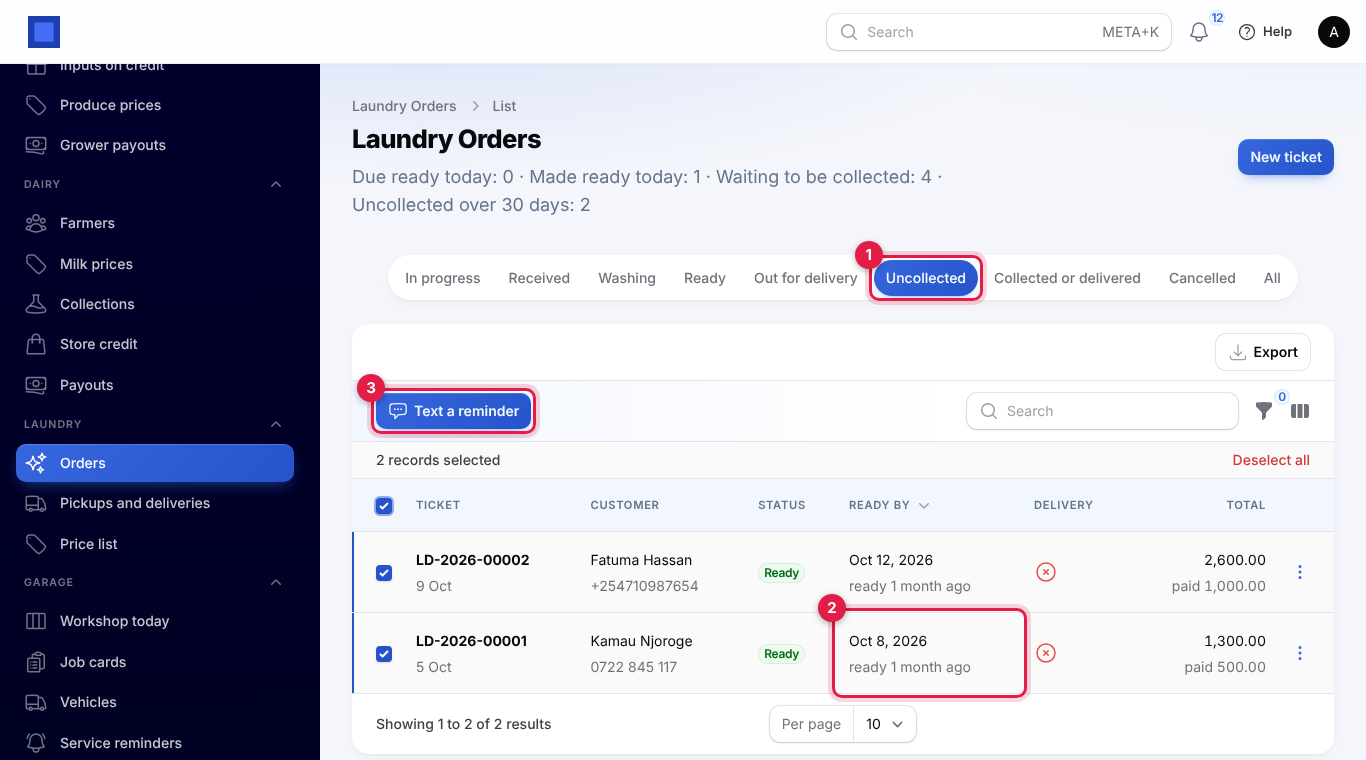
To remind customers:
- one ticket: ⋮ → Text a reminder (marker 7 in the actions picture), then confirm. The window shows when the last reminder was sent.
- several: tick the tickets and click Text a reminder (marker 3), then confirm. You see how many reminders were sent.
The text says: "Hello Kamau, a reminder that your laundry LD-2026-00001 has been ready since 7 Oct. Please collect it at … Details: (link)". Reminders go out whenever SMS is set up, even when automatic texts are off in Settings. The time of the last reminder and the number sent are kept on the ticket, and each one is written to its history. If nothing was sent, you see "No text was sent. Check the phone number and that SMS is set up in Marketing."
Good to know
Do I need Invoicing? No. Without it, the ticket keeps its own total and what was paid, and Collected still checks that the balance is paid. Open invoice is not shown.
Can I change a ticket's items after taking it in? Only while it is Received or Washing and not yet invoiced. When billing on intake, the invoice is raised at once, so items are fixed from the start.
Why can I not start washing a ticket? It is waiting for its pickup. Record Picked up first.
Why is Out for delivery missing? The ticket is not for delivery. Edit the ticket and switch on Deliver when ready (possible while its items can still be changed), or hand it over at the counter with Collected.
Do texts cost money? Yes. Texts go through your own SMS provider in Marketing and are billed by them. Without SMS set up, everything works and no texts are sent.
Can drivers see only their own jobs? Any user with laundry.view sees the whole list; Mine only narrows it. Drivers need laundry.manage to record Picked up, Out for delivery and Delivered.
What does the customer see on the status page? Their ticket only: the status, items, totals, what is left to pay and the history. Not their phone number, and nothing about other customers.