Move from Tally or Odoo
This page is for business owners and accountants switching to NaliSuite from Tally (TallyPrime or Tally.ERP 9) or Odoo (versions 16, 17 and 18, online or on your own server). Instead of typing everything in again, you upload Tally's XML export or connect to Odoo, check what will come across, then import it in one go: customers and suppliers, products with the stock on hand, your chart of accounts, every unpaid invoice and bill (so they can be paid in NaliSuite), and the opening balances on the day you switch. This page covers choosing the cut-over date, exporting from Tally, connecting Odoo, reading and checking the figures, importing, running it again, and how the opening balances work.
Move from Tally or Odoo is a marketplace module. It needs the Contacts app, and brings in the most with Accounting, Invoicing, Purchases, Sales and Inventory switched on. Its screen is Settings → Move from Tally or Odoo.
Note: You need the move_over.manage permission to see Move from Tally or Odoo. Owners and admins have it. Entering the Odoo connection under Settings → Preferences needs core.settings.manage. Set permissions under Settings → Roles.
Switch it on
- Open Settings → Marketplace and type Tally in the Search add-ons… box (marker 1).
- On the Move from Tally or Odoo card (marker 2), click Start free trial (or Add to subscription) and confirm. Move from Tally or Odoo appears under Settings in the left menu.
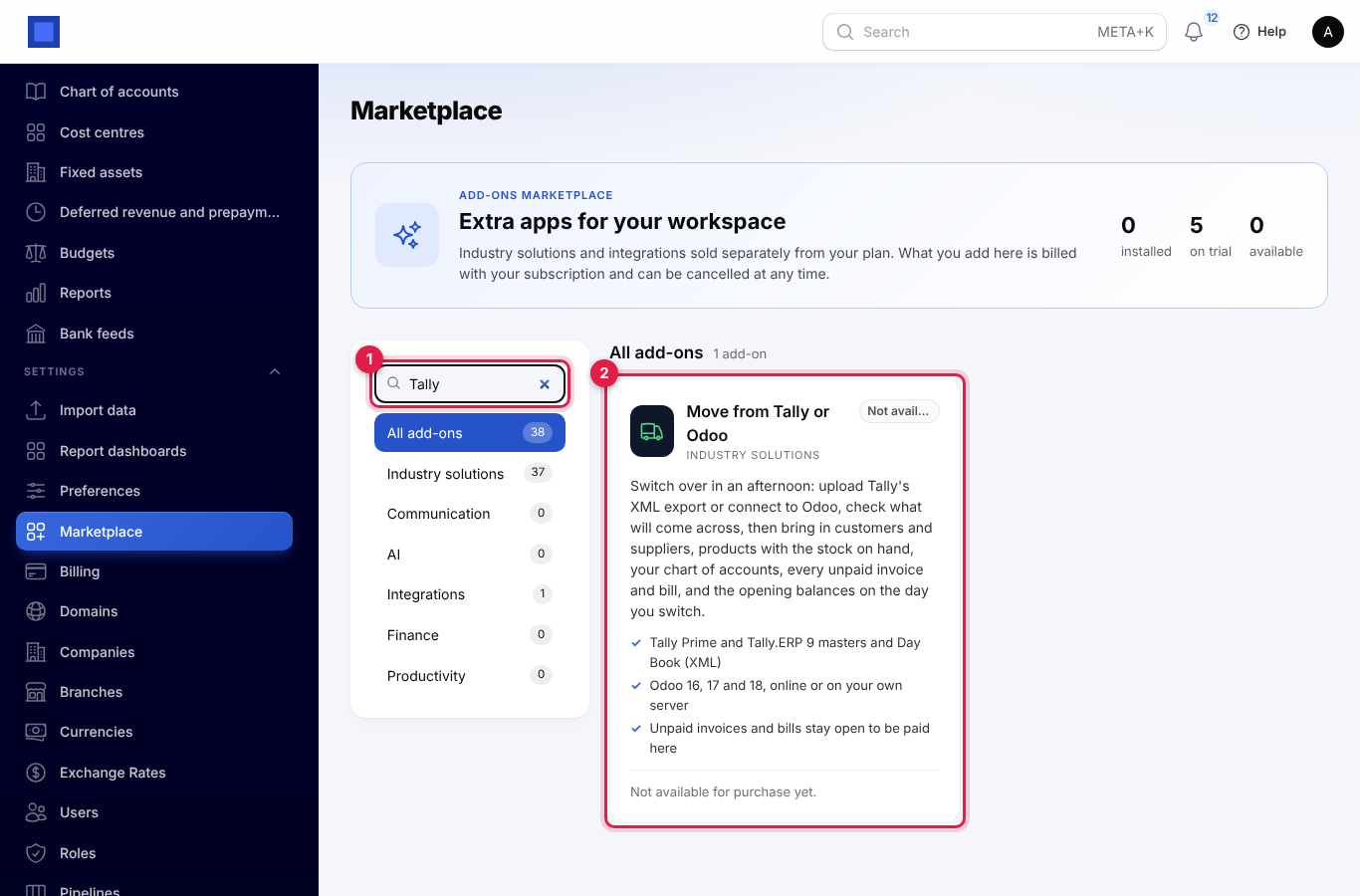
If the card says Not available for purchase yet (as in the screenshot), ask NaliSuite support to switch it on. See Billing and marketplace.
Before you start, switch on the apps you want to fill (see What comes across), and set up your company's currency and taxes under Settings. Everything comes across in your company's currency.
The Move from Tally or Odoo page
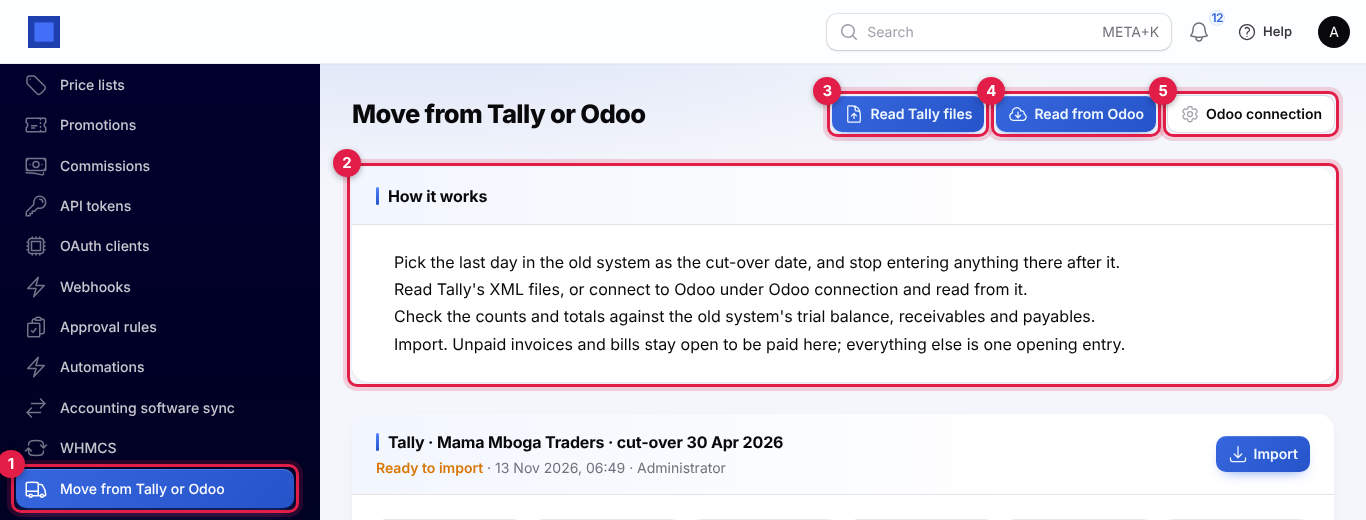
Open Settings → Move from Tally or Odoo (marker 1). How it works (marker 2) sums up the four steps. At the top are Read Tally files (marker 3), Read from Odoo (marker 4) and Odoo connection (marker 5), which opens Settings → Preferences for the Odoo details. Below, each reading is shown as a card, newest first (the last ten).
Choose a cut-over date
The cut-over date is the last day you keep your books in the old system. From the next day you work in NaliSuite only.
- Pick a natural break, such as the end of a month, so the old system's reports for that month are complete. The last day of your financial year is the cleanest choice.
- Finish entering everything up to that day in the old system first: sales, purchases, receipts, payments and stock movements.
- Do not enter anything for that period in the old system afterwards. If you must, read and import again (see Run it again).
Balances are brought in as they stood at the end of the cut-over date, and every opening entry, invoice and bill brought in is dated on or before it.
Tip: Print or export the old system's trial balance, list of customers' outstanding bills and suppliers' outstanding bills, and stock summary for the cut-over date. You will compare them with what NaliSuite reads.
Export from Tally
You need two XML files from Tally: the masters (your ledgers, groups and stock items, with their opening balances) and the Day Book (every voucher since your books begin). Do this in the Tally company you are leaving, on the computer where Tally runs.
The masters
In TallyPrime:
- From the Gateway of Tally, press Alt+E (Export) and choose Masters.
- Set File Format to XML (Data Interchange) and Type of Masters to All Masters. Note the Folder Path and File Name shown (usually
Master.xmlin Tally's folder). - Press Send (or E) to export.
In Tally.ERP 9:
- Go to Gateway of Tally → Display → List of Accounts.
- Press Alt+E (Export). Set Format to XML (Data Interchange) and Type of Masters to All Masters.
- Note the Output File Name and press Enter (or Yes) to export.
The Day Book
In TallyPrime:
- From the Gateway of Tally, open Display More Reports → Day Book.
- Press F2 (Period) and set From to the first day of your books in Tally (shown as Books beginning from on the company; usually the start of the financial year) and To to your cut-over date.
- Press Alt+E (Export) and choose Current. Set File Format to XML (Data Interchange) and press Send. The file is usually
DayBook.xml.
In Tally.ERP 9:
- Go to Gateway of Tally → Display → Day Book.
- Press Alt+F2 (Period) and set the same period: from the first day of your books to the cut-over date.
- Press Alt+E (Export), set Format to XML (Data Interchange) and export.
Both files can be large; each may be up to 50 MB. Tally's own Unicode export (UTF-16) is fine.
Important: Export the Day Book for the whole period from the first day of your books in Tally. The masters only hold the balances on that first day; NaliSuite adds every voucher in the Day Book on top to reach the balances on the cut-over date. A Day Book that starts later leaves the balances short.
Read the Tally files
- Click Read Tally files.
- The window repeats where the files come from in Tally (marker 1).
- Drag both files into Tally XML files (marker 2), or click Browse. Up to five files.
- Set the Cut-over date (marker 3): the last day in Tally.
- Click Submit (marker 4).
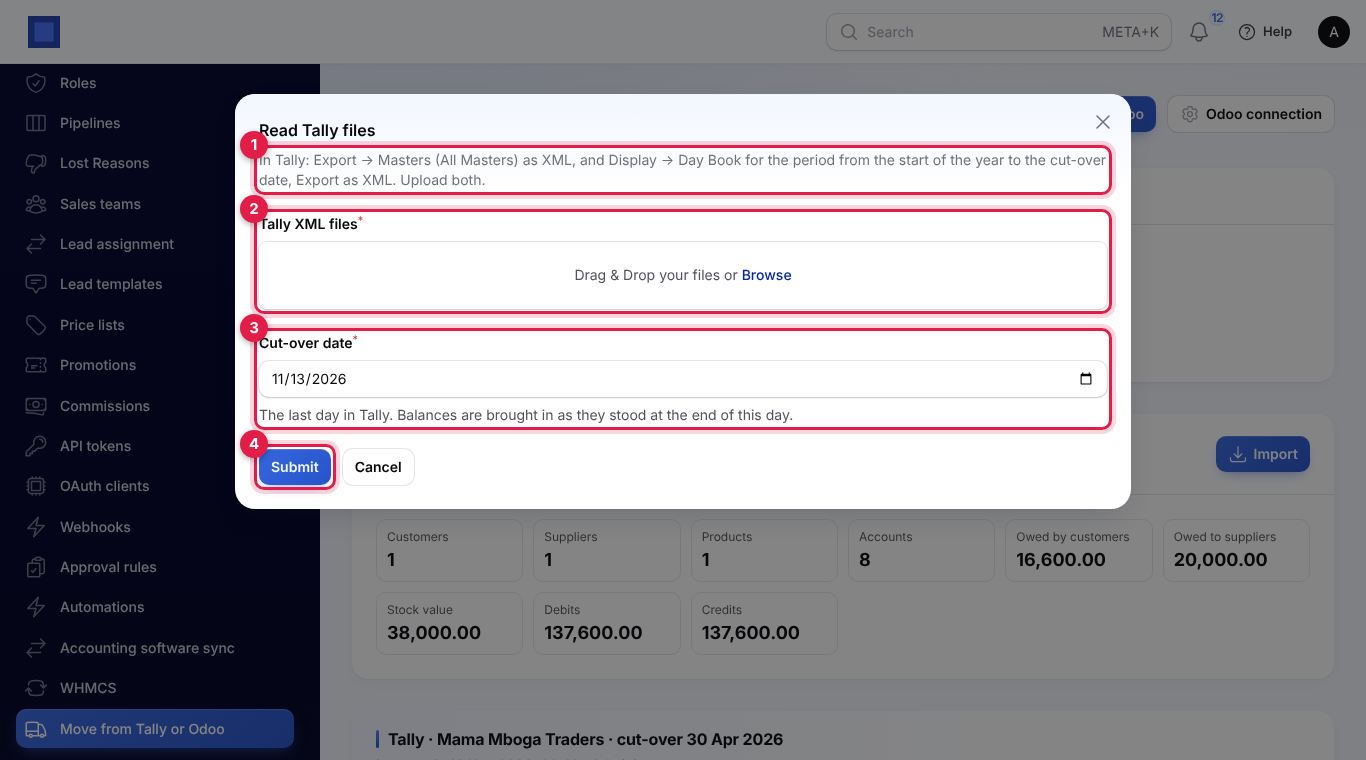
NaliSuite reads the files, works out the balances on the cut-over date and shows "Read from Tally. Check it below, then import.", with the number of customers, suppliers, products and accounts. Nothing is added to your books yet. The uploaded files are deleted once read.
How Tally is read:
- Every ledger starts from its opening balance in the masters, and every voucher in the Day Book up to the cut-over date is added on. Cancelled and optional vouchers, and vouchers after the cut-over date, are left out.
- Each ledger's kind comes from the Tally group it is under, following your own groups up to Tally's reserved ones: Sundry Debtors are customers, Sundry Creditors suppliers, Bank Accounts, Bank OD A/c and Cash-in-Hand become bank and cash accounts, Duties & Taxes a tax account, Capital Account and Reserves & Surplus equity, Sales Accounts and Direct and Indirect Incomes income, Purchase Accounts and Direct and Indirect Expenses expenses, and the other asset and liability groups assets and liabilities. Profit & Loss A/c goes to retained earnings.
- For customers and suppliers with bill-wise details, each bill still open on the cut-over date becomes an unpaid invoice or bill, with its date and, from its credit period, its due date. Any balance not in a bill comes across as one item called Opening balance (or On account).
- Stock items keep their quantity on the cut-over date, at the cost of the last purchase (or Tally's opening rate), with their first alias as the code and their standard selling price.
If you see "That file is not a Tally XML export." or "No ledgers or stock items found…", export again with XML (Data Interchange) as the format, and All Masters for the masters.
Connect Odoo and read from it
NaliSuite reads Odoo through its API with an Odoo user's API key. It only reads; nothing is changed in Odoo.
Get an API key in Odoo
These steps happen in Odoo.
- Sign in to Odoo as a user who can see accounting, contacts and products (an administrator is simplest).
- Click your name at the top right, then My Profile (or Preferences), and open the Account Security tab.
- Click New API Key, confirm your password, give it a name such as NaliSuite and copy the key. Odoo shows it only once.
- Find your database name: on Odoo's sign-in page under Manage databases, or for Odoo Online and Odoo.sh in your Odoo address (for example
mycompanyinmycompany.odoo.com).
Enter the connection in NaliSuite
- Click Odoo connection on the Move page, or open Settings → Preferences, and click the Move from Odoo tab (marker 1).
- Fill in the fields and click Save preferences (marker 6).
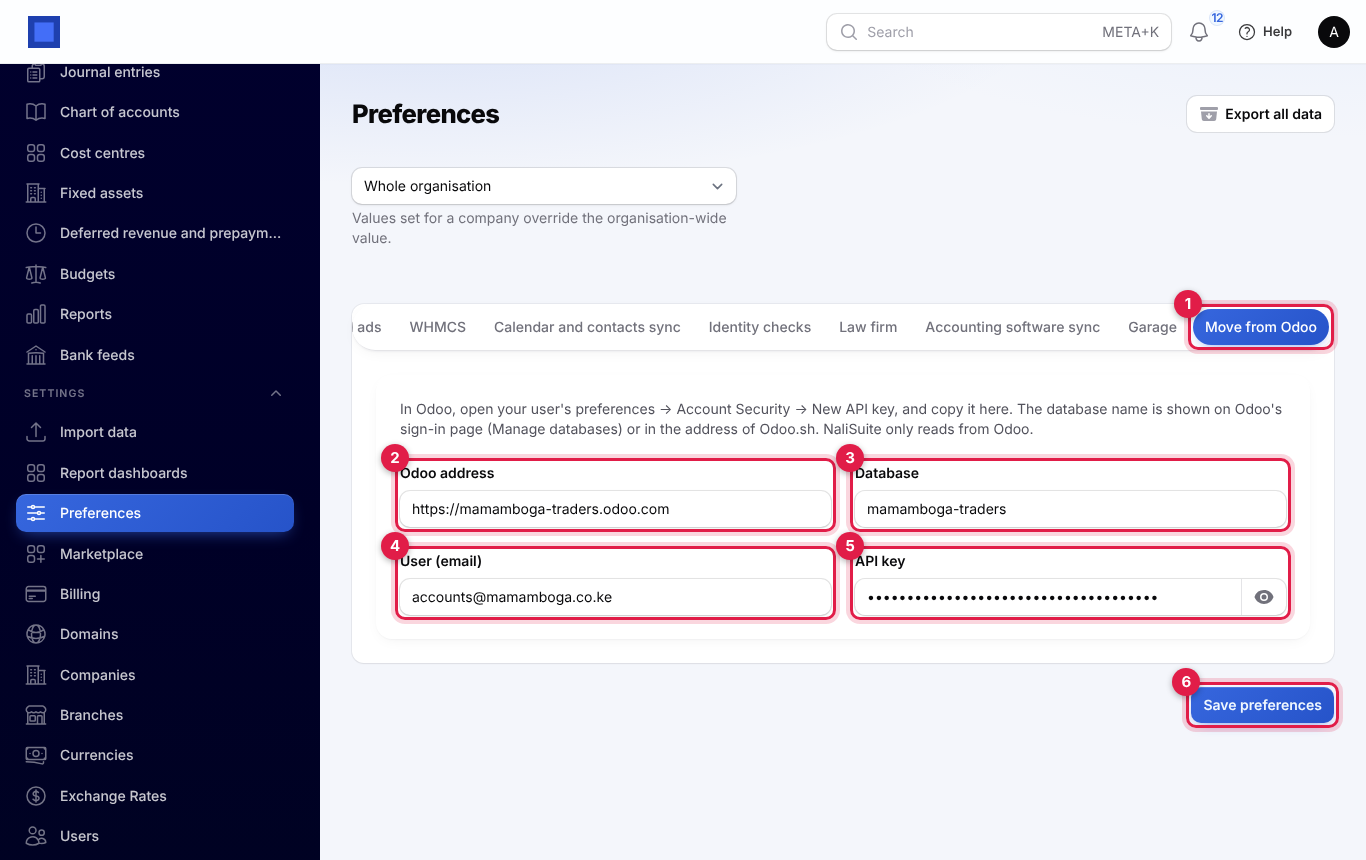
| Setting | What to enter |
|---|---|
| Odoo address (marker 2) | The address you open Odoo at, with https://, for example https://mycompany.odoo.com. |
| Database (marker 3) | The database name. |
| User (email) (marker 4) | The login of the user the API key belongs to, usually their email address. |
| API key (marker 5) | The key from Account Security. It is stored encrypted. |
Until all four are filled in, Read from Odoo is greyed out and the page says "To read from Odoo, add its address, database, user and API key under Odoo connection first."
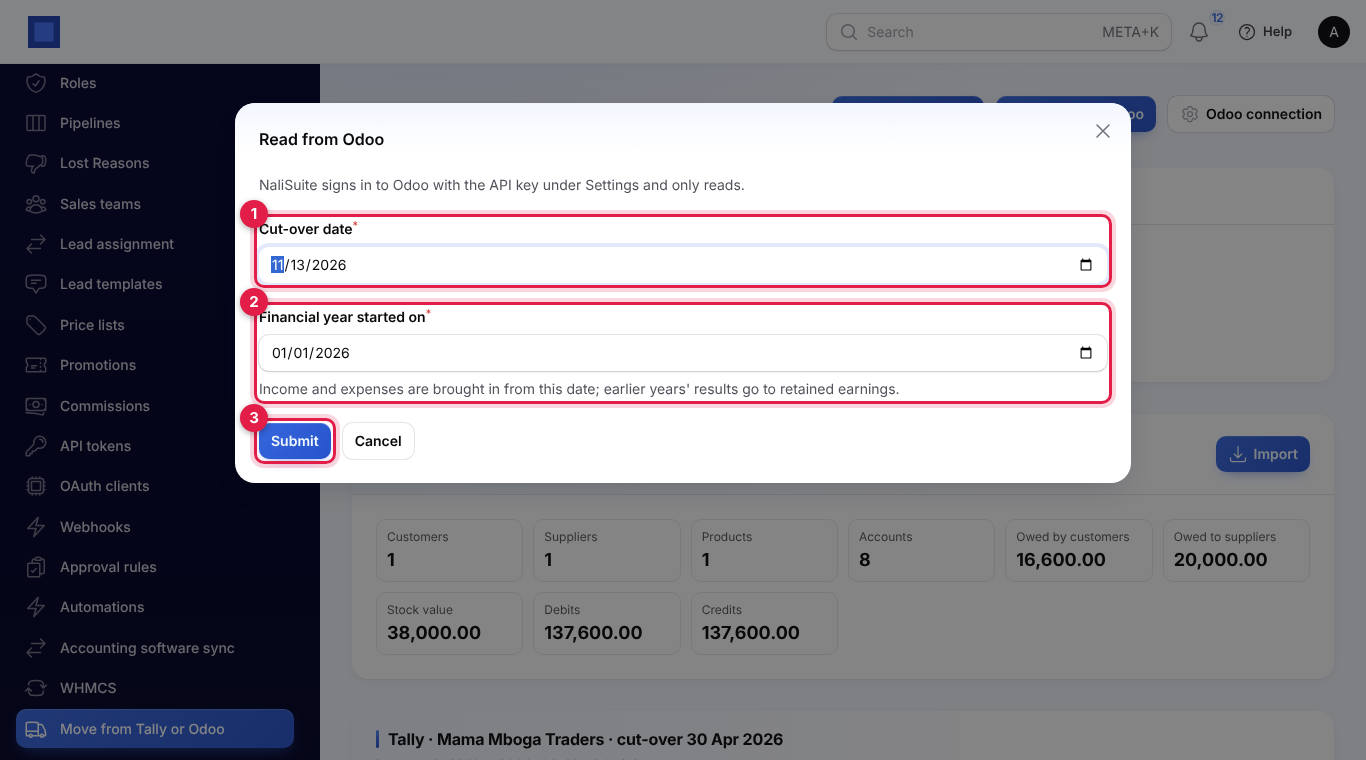
Read from Odoo
- Click Read from Odoo.
- Set the Cut-over date (marker 1).
- Set Financial year started on (marker 2): the first day of your current financial year. Income and expenses are brought in from this date; the results of earlier years go to retained earnings, because Odoo never closes a year itself.
- Click Submit (marker 3). Reading a large Odoo database can take a few minutes; keep the page open.
How Odoo is read:
- Account balances come from posted journal items up to the cut-over date.
- Customers and suppliers are the contacts Odoo marks as customers or vendors, plus anyone on an unpaid invoice.
- Unpaid and partly paid customer invoices, supplier bills and refunds come across with what is still owed, and their number and reference, invoice date and due date.
- Active products come across with their internal reference, barcode, sales price, cost and quantity on hand; services without stock.
Unpaid documents and stock quantities are read as they stand in Odoo when you click Submit, not on the cut-over date. Read from Odoo on the cut-over date or just after, before anyone records new payments or stock moves there.
| Message | What to do |
|---|---|
| Odoo did not accept the user name and API key. Check them under Settings → Preferences → Move from Odoo. | Check the User (email) matches the key's user, or make a new key. |
| Could not reach Odoo at … | Check the Odoo address, and that your Odoo server can be reached from the internet. |
| Odoo answered with HTTP …. Check the address. | The address is wrong, or is not the Odoo server itself. |
| Odoo said: … | Odoo's own reason, often a wrong Database name or a user without access to accounting. |
Check what will come across
Each reading is a card headed with the source, the company name in the old system and the cut-over date (marker 1). Under it is the status, when it was read and by whom (marker 2). A reading waiting to be imported says Ready to import.
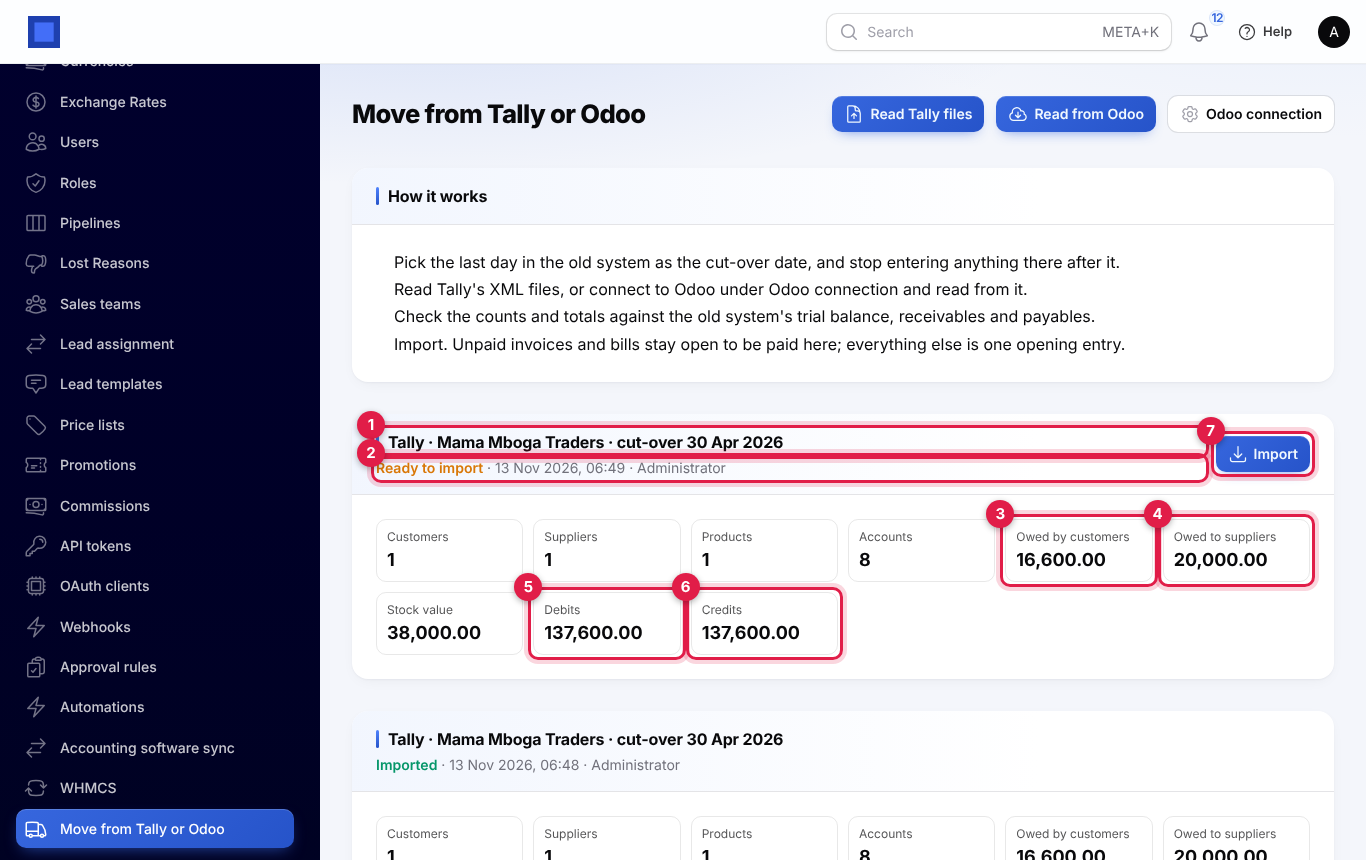
Compare the figures with the reports you printed from the old system for the cut-over date:
| Figure | Compare with |
|---|---|
| Customers, Suppliers, Products | The number of customers, suppliers and stock items you expect. |
| Accounts | The ledgers or accounts other than customers and suppliers. |
| Owed by customers (marker 3) | The total of customers' outstanding bills (Tally) or unpaid customer invoices (Odoo). |
| Owed to suppliers (marker 4) | The total of suppliers' outstanding bills or unpaid supplier bills. |
| Stock value | The closing stock value in the stock summary. |
| Debits (marker 5) and Credits (marker 6) | The totals of the trial balance on the cut-over date. They should be equal. |
Warnings
Warnings are listed in orange under the figures. Read each one before you import:
| Warning | What it means |
|---|---|
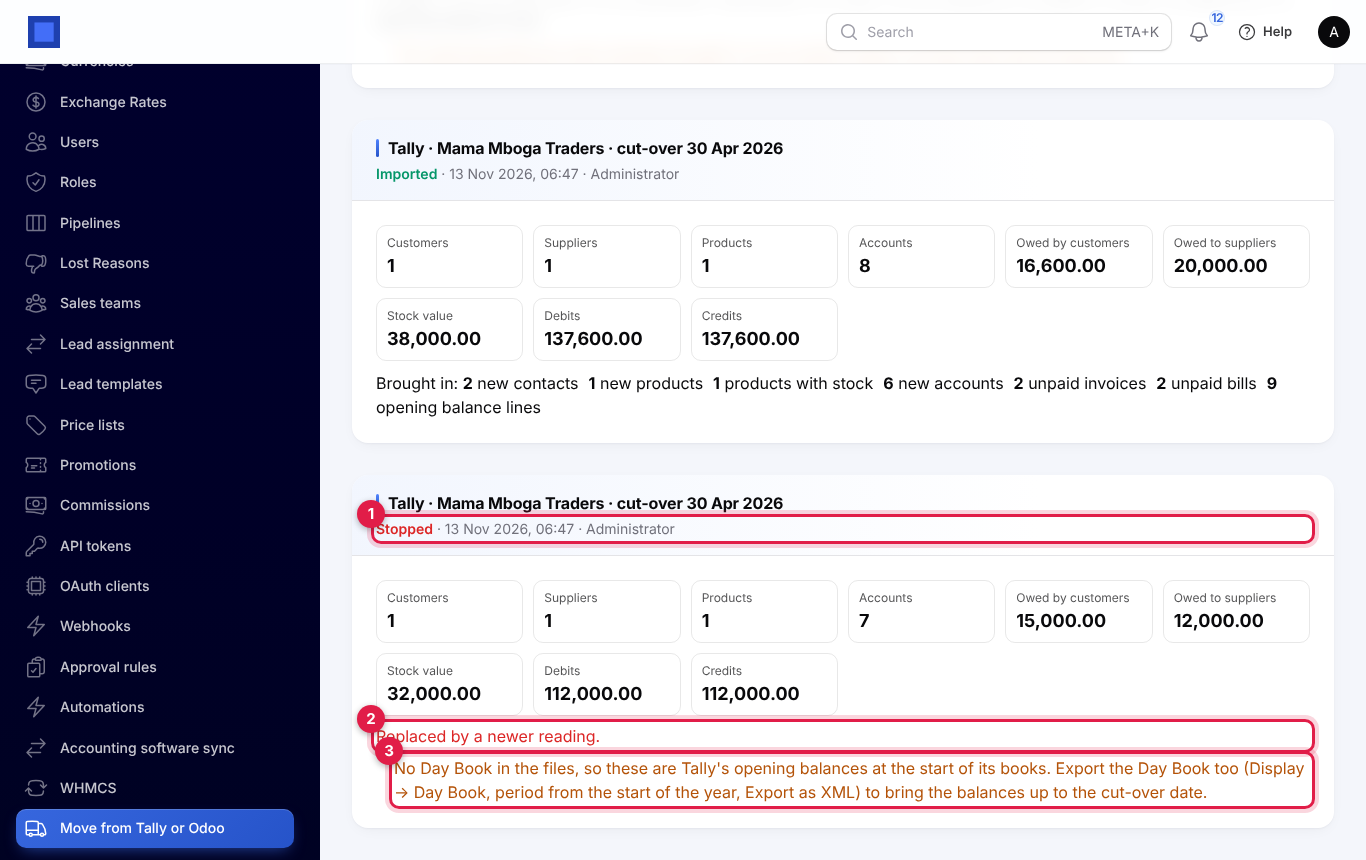
| No Day Book in the files, so these are Tally's opening balances at the start of its books. … | Only the masters were uploaded. Read again with the Day Book too. |
| The Day Book has no vouchers on or before the cut-over date. | The Day Book is for the wrong period, or the cut-over date is too early. |
| Tally's opening balances do not add up by … | Tally shows this as Difference in opening balances. The amount is put on Opening balance equity; ask your accountant where it belongs. |
| Could not tell what kind of account … is; it comes across as a liability to check. | The ledger is not under any of Tally's reserved groups. Correct its type in NaliSuite's chart of accounts after importing. |
| … is below zero in Tally (…); it comes across with none in stock. | Tally allowed negative stock. Count it and adjust the stock in NaliSuite. |
| Receivables (or Payables) in Odoo's books are … but the unpaid … add up to … | Payments not yet matched to invoices in Odoo, or opening entries there. The difference goes to Opening balance equity. |
If the figures are wrong, fix them in the old system and read again. A new reading replaces the one waiting: the old card shows Stopped and "Replaced by a newer reading." (see Run it again).
Import
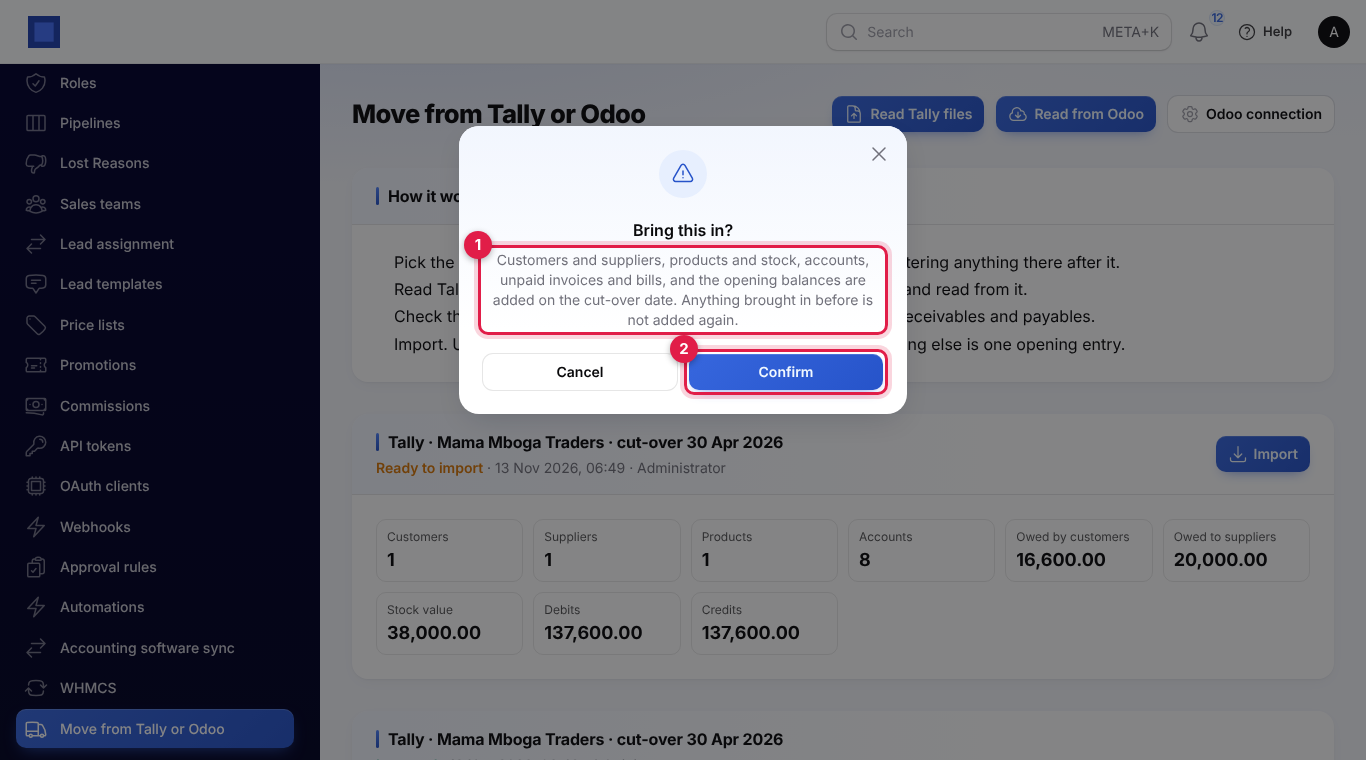
- On the card that is Ready to import, click Import (marker 7 in the screenshot above).
- Read the window (marker 1): "Customers and suppliers, products and stock, accounts, unpaid invoices and bills, and the opening balances are added on the cut-over date. Anything brought in before is not added again."
- Click Confirm (marker 2).
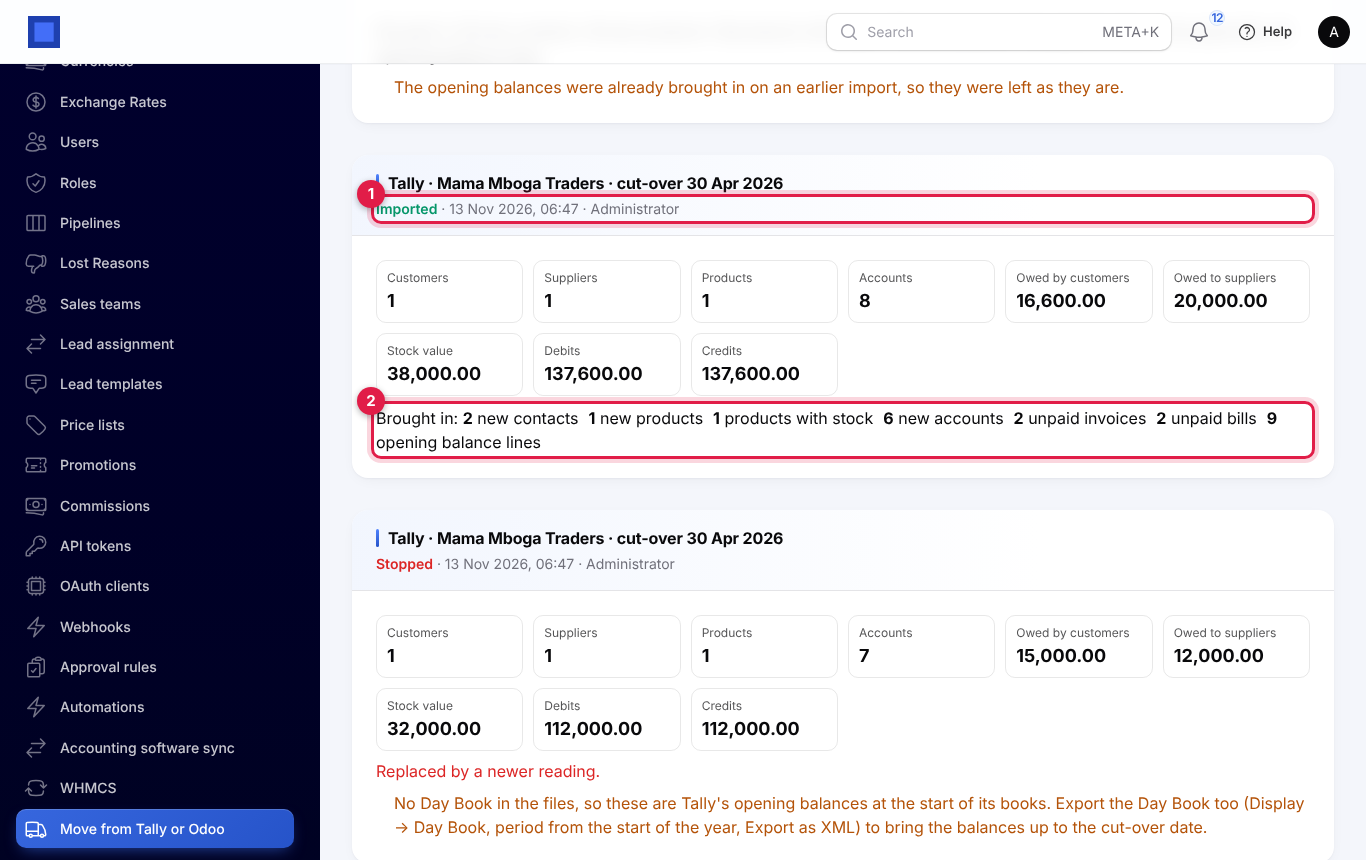
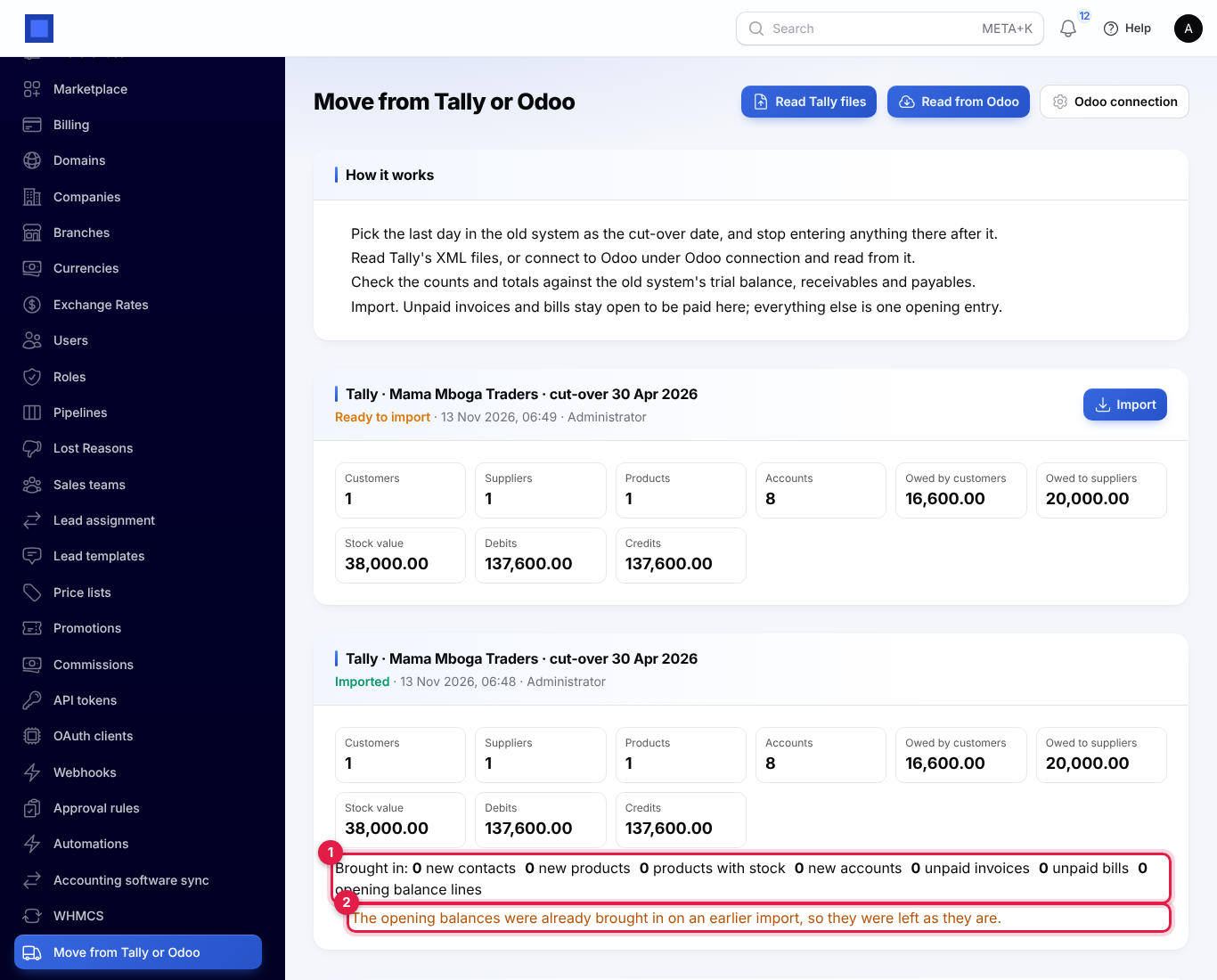
When it is done you see "Brought in from Tally." (or Odoo), and the card shows Imported (marker 1) and what was added under Brought in: (marker 2): new contacts, new products, products with stock, new accounts, unpaid invoices, unpaid bills and opening balance lines.
Everything is added in one go. If anything fails, nothing at all is added: the card shows Stopped and the red message "The import stopped and nothing was added: …" gives the reason. Fix the cause, read again and import.
What comes across
| From the old system | Becomes in NaliSuite | Needs |
|---|---|---|
| Customers and suppliers | Contacts, marked customer and/or supplier, with email, phone, tax number and address, and the note "Brought over from Tally" (or Odoo). A contact you already have with the same email, tax number or name is used instead, and marked customer or supplier as needed. | Contacts |
| Stock items and products | Products with their code, unit, selling price and cost. A product you already have with the same code, barcode or name is used instead. | Sales |
| Stock on hand | An Opening stock receipt into your default warehouse on the cut-over date, at cost. | Sales and Inventory |
| Ledgers and accounts | Accounts in your chart of accounts. An account you already have with the same type and name (or code) is used instead. New accounts keep their Odoo code when it is free; otherwise they get the next free number from 900 within their type, for example 1900 for an asset or 3900 for equity. | Accounting |
| Unpaid customer bills or invoices | Issued invoices, numbered in your own series and dated as in the old system, with one line "Balance owed on … from Tally", the old number as the Customer reference and the due date. They stay open to be paid in NaliSuite. | Invoicing |
| Unpaid supplier bills | Posted bills with the old number as the Vendor's invoice number, open to be paid in NaliSuite. | Purchases |
| Every other balance | One opening journal entry on the cut-over date (see How opening balances work). | Accounting |
Invoices brought in are not sent to the customer, not submitted to the tax authority and not checked against credit limits: they only record what is still owed. A customer's credit or a supplier's debit (money you owe a customer, or that a supplier owes you) goes on the opening entry against that customer or supplier instead of becoming a document.
If an app is off, its part is skipped and the card warns you, for example "Products were not brought in because the Sales app is off." or "… unpaid invoices or bills were not brought in: turn on Invoicing, Purchases or Accounting to bring them in."
Nothing else comes across: no paid invoices or bills, no history of sales, purchases or payments, and no employees, projects or attachments. Keep the old system (or a backup of it) to look up history.
How opening balances work
On the cut-over date, NaliSuite records:
- for each unpaid invoice or bill, a journal entry putting the amount on your receivables (or payables) account against Opening balance equity;
- one entry, Opening balances from Tally on …, with the balance of every other account: bank, cash, stock, fixed assets, loans, capital, taxes, and income and expenses for the year so far, against Opening balance equity for anything that does not balance. It is dated on the cut-over date (marker 1), with one line per account (marker 2), and you find it under Accounting → Journal entries.
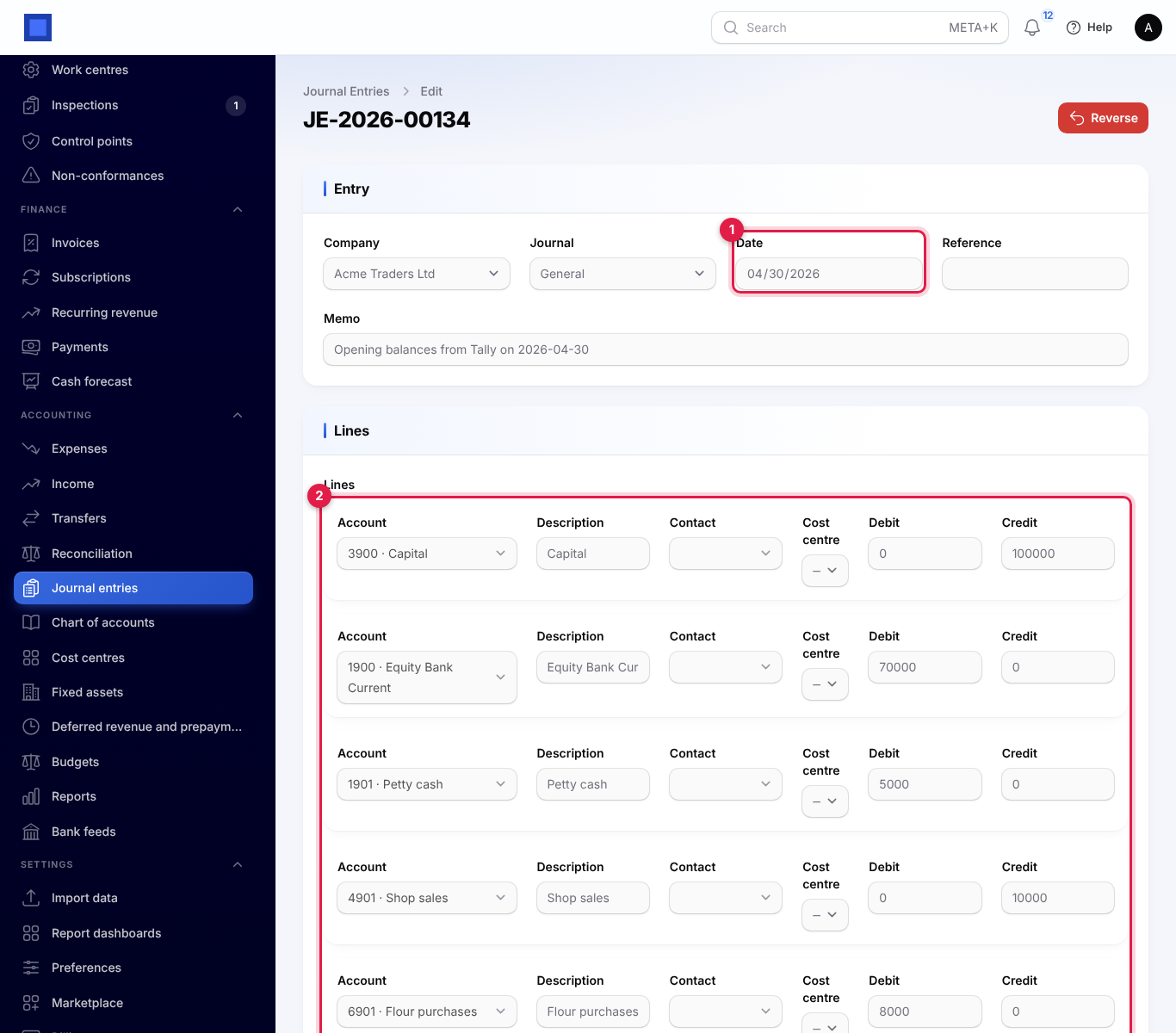
So, on the cut-over date, your receivables and payables in NaliSuite are exactly the unpaid documents, and every other account matches the old trial balance. If the old books balanced, Opening balance equity ends at zero. If something is left on it, the card warns "… was left on Opening balance equity. Check it with your accountant and move it where it belongs." Move it with a journal entry (see Accounting basics).
Income and expenses come across for the current year so far, so your profit and loss for the year is complete. With Tally, a change in stock value over the year is recorded as Change in stock since the start of the year, a cost of sales account.
Important: Do not record opening balances by hand as well, and do not import from two systems into the same company. Compare the trial balance on the cut-over date (see Financial reports) with the old one before you start working.
Run it again
You can read and import again as often as you need, for example after correcting something in the old system. NaliSuite remembers where every contact, product, account, invoice and bill came from, so nothing comes across twice:
- New customers, suppliers, products, accounts and unpaid documents that were not there before are added.
- Records brought in before are left as they are, even if they changed in the old system.
- The opening balances are brought in only once. On a later import, the card says "The opening balances were already brought in on an earlier import, so they were left as they are." (marker 2 below), and the Brought in: line shows what was new (marker 1).
Only the latest reading can be imported. Reading again marks the reading that was waiting as Stopped (marker 1) with "Replaced by a newer reading." (marker 2); its figures and warnings (marker 3) stay on the card for reference.
To change an opening balance after importing, post a journal entry in NaliSuite rather than importing again.
Good to know
How long does it take? Reading Tally files takes seconds to a minute. Reading Odoo and importing can take a few minutes for a large business. Keep the page open until the message appears.
Which company does it go into? Your default company.
What about multi-currency invoices? Amounts come across in your company's currency, as the old system holds them in its books.
Are VAT and other taxes split out? No. Unpaid invoices and bills come across as one line for the amount still owed, already including tax. The tax account's balance on the cut-over date comes across on the opening entry.
Can I undo an import? Not automatically. Reverse the opening entries and cancel the invoices and bills brought in. If you are unsure, try the move first in a test workspace.